How to Add Trial Balances
This guide explains when and how to enter trial balances as journal entries so your books reflect month‑end activity correctly. It highlights key prep (know your Chart of Accounts), required fields (property, date, entry number), and the importance of making entries balance. It also warns when to use the separate Trial Balance import (e.g., QuickBooks ending balances).
Before You Start
1. Before you start, you should be familiar with the Chart of Accounts.
Refer to the Chart of Accounts diagram below to familiarize yourself with the layout of the Chart of Accounts screen.
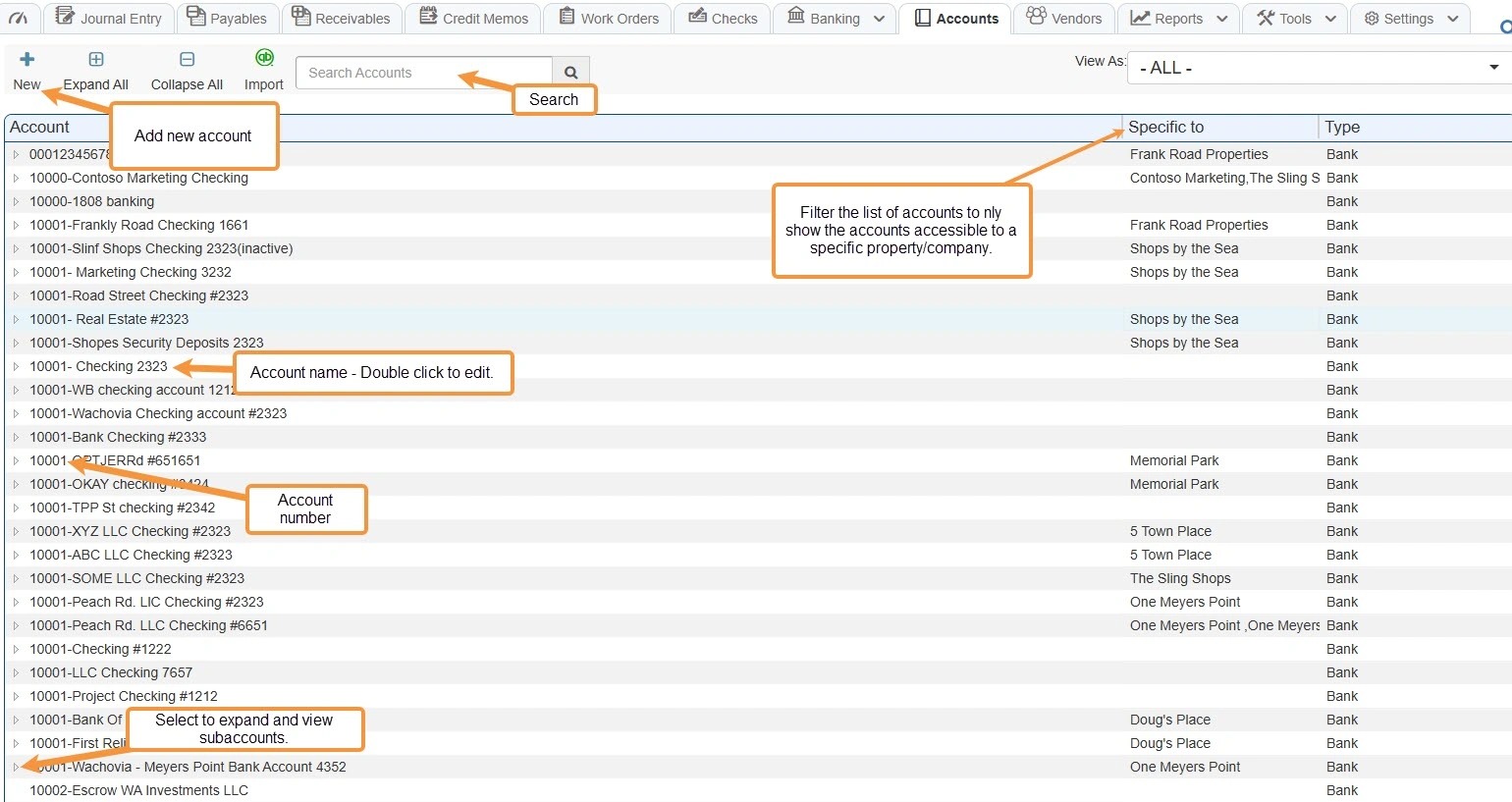
How to Add Trial Balances
2. From the navigation menu, select Accounting > Select Journal Entry.
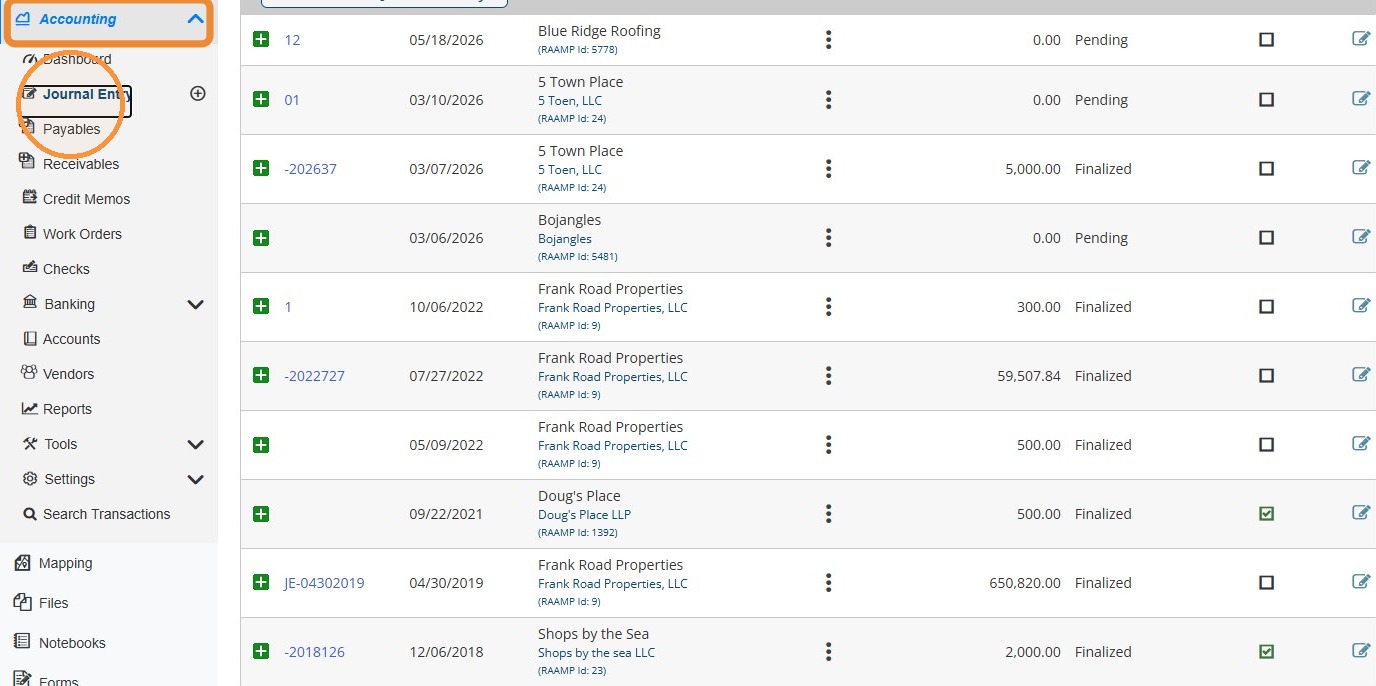
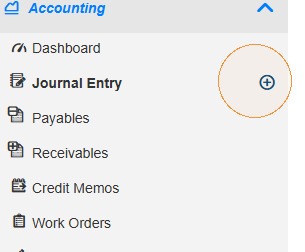
Tip: You can skip the next step by selecting the + icon to the right of Journal Entry.
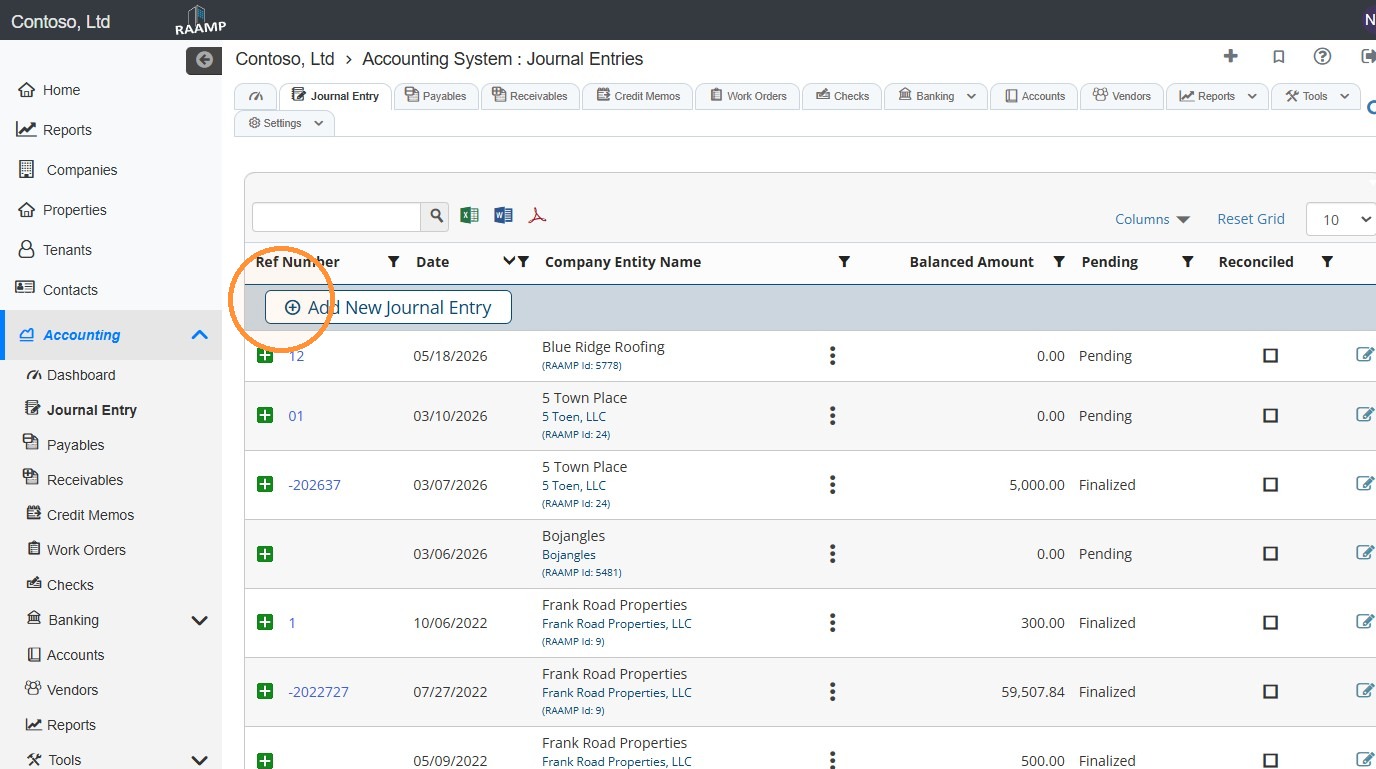
3. Select Add New Journal Entry.
4. Select the Property/Company from the dropdown menu.
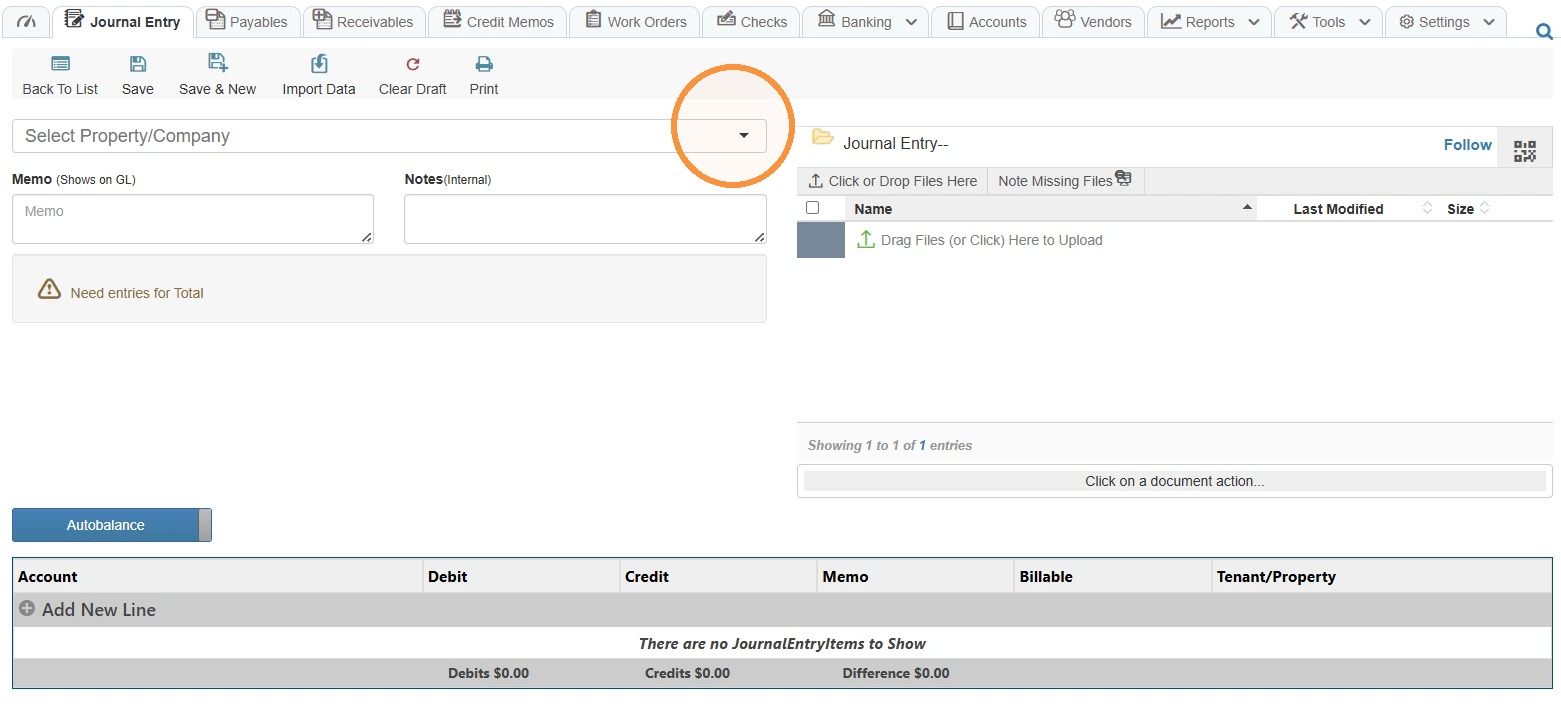
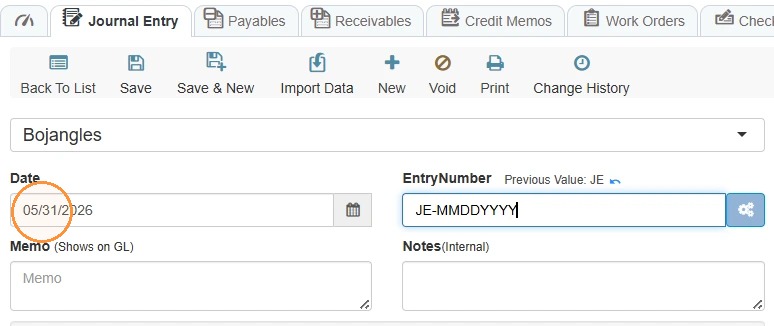
5. Select the Date field > Enter a date.
NOTE: Always date the Trial Balance for the end of the month.
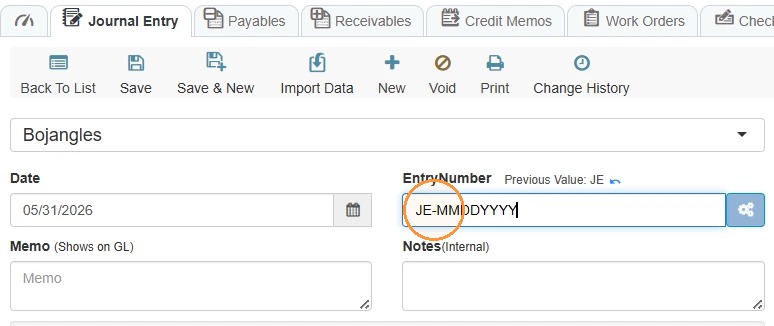
6. Select the Entry Number field > Enter an entry number.
NOTE: A common standard is to type JE-MMDDYYYY (Date), but you can number it based on your operational standards.
7. If the Trial Balance shows the Actual Debit or Credit that was for the activity period, you can enter the Trial Balance as a Journal Entry.
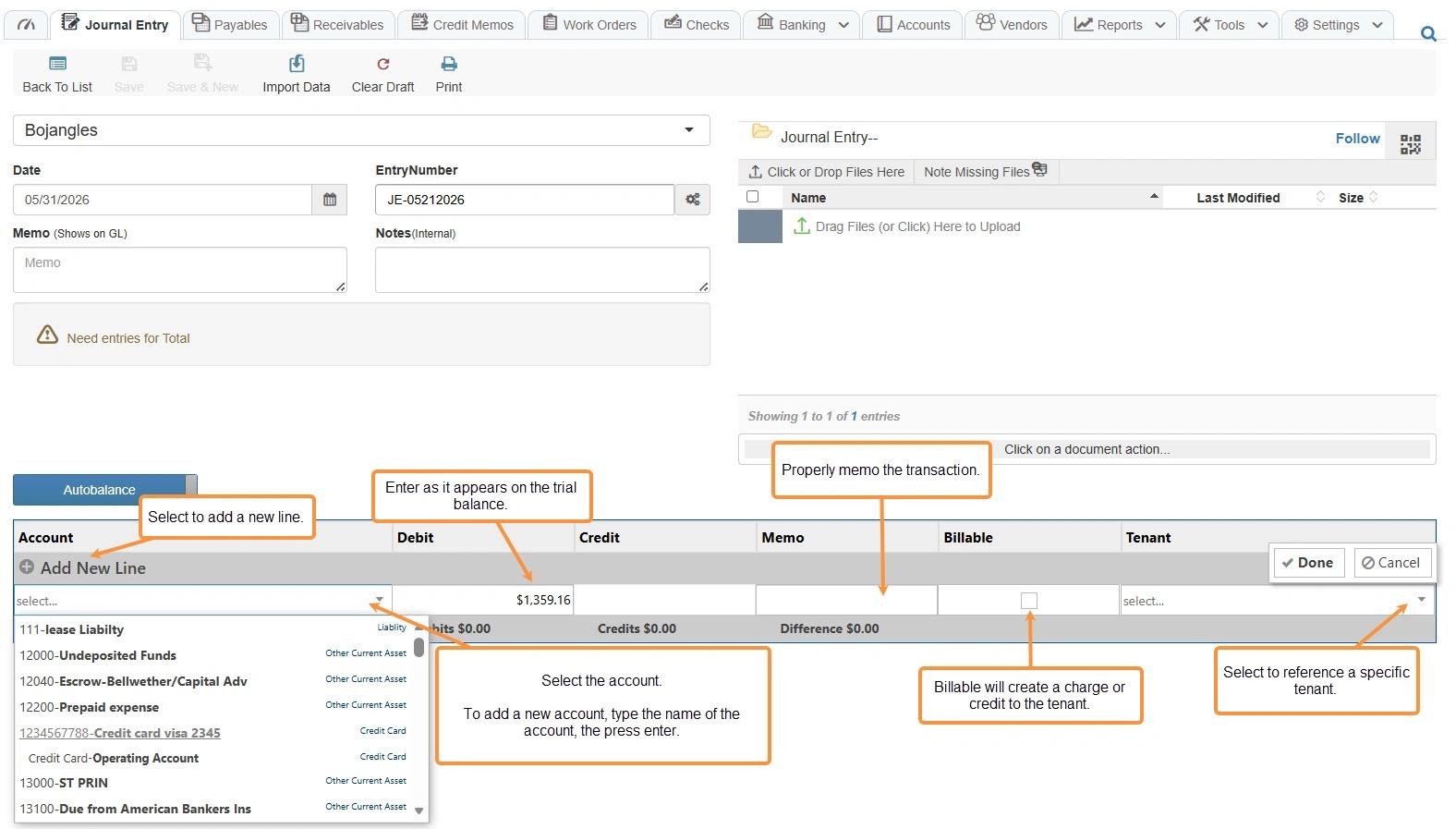
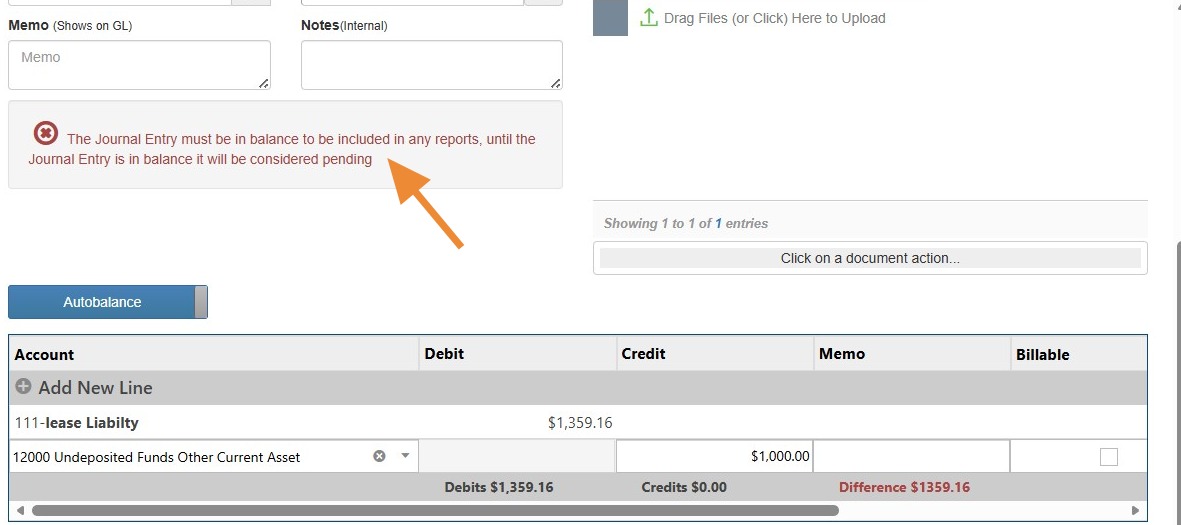
8. The Journal Entry must be in balance to be included in any reports.
Journal Entry will be considered pending until it is balanced.
Alert: ALERT: If the Trial Balance you are importing only has the ending balances, rather than the actual activity, you will need to use the Trial Balance import.
This is very common when importing Trial Balances from Quickbooks.
See How to Import Trial Balance using RAAMP Template or How to Import a Non-Template Trial Balance into RAAMP