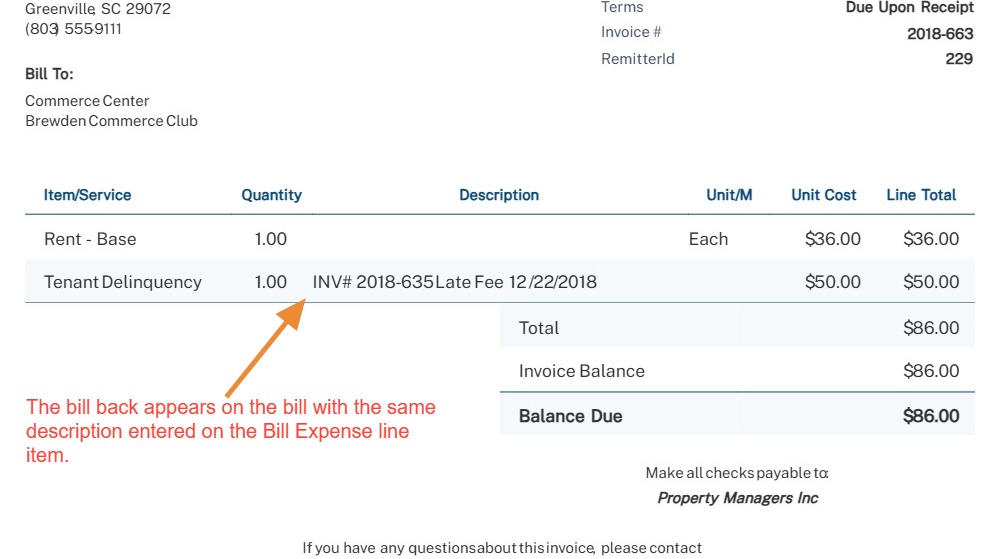
How to Add Billback Expenses
This guide shows how to record tenant bill-backs on bills, journal entries, or expenses so you can recover costs by adding them to invoices (manually or via memorized invoicing). It walks step-by-step through creating bill-back entries, marking line items as billable, and ensuring invoice dates follow bill dates, plus how to include bill-backs when generating memorized invoices.
Tip: A tenant billback generates a record associated with a tenant that you can easily include in an invoice to recover costs directly from them.
You can create a billback on journal entries, bills, and credits.
These billbacks will be displayed when you manually invoice a tenant or use the memorized invoicing tool.
How to Add a Billback on Billing Screen
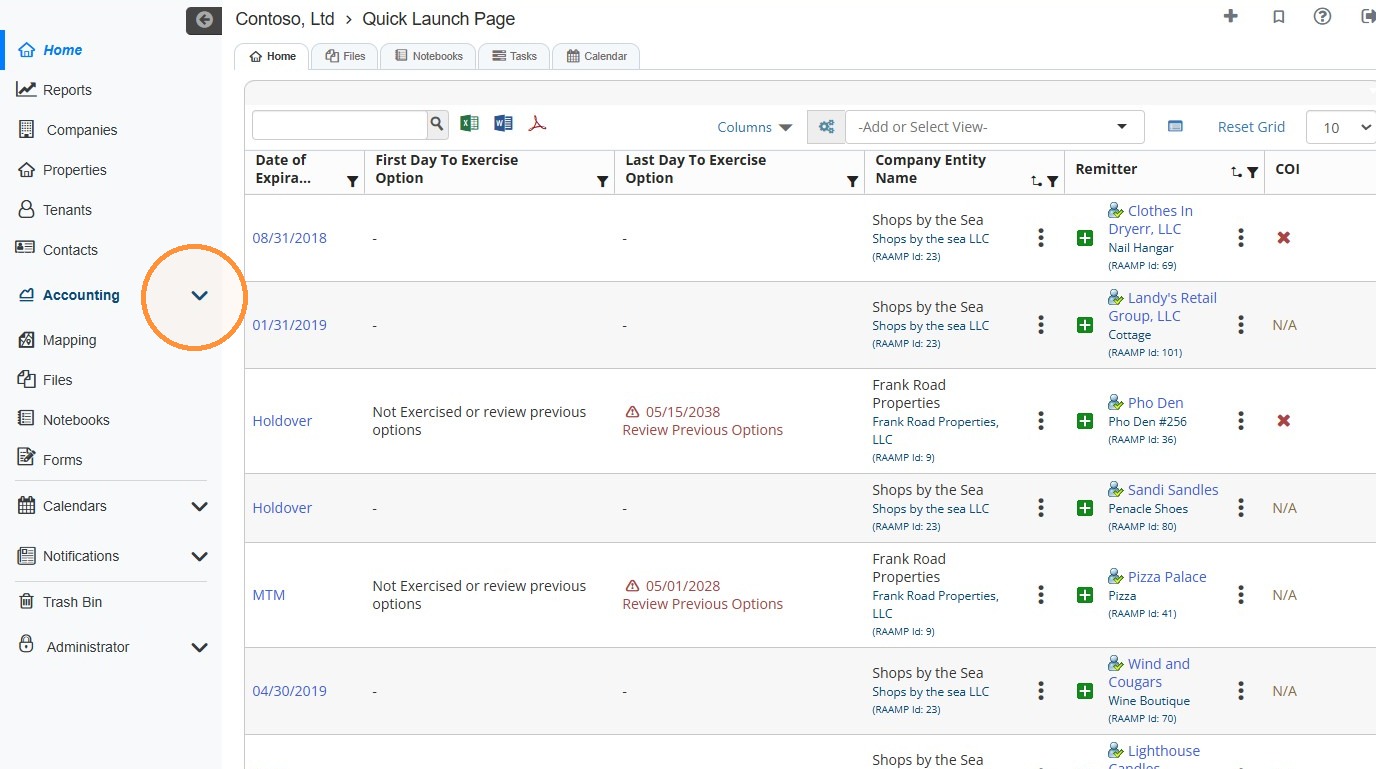
1. From the navigation menu, select Accounting.
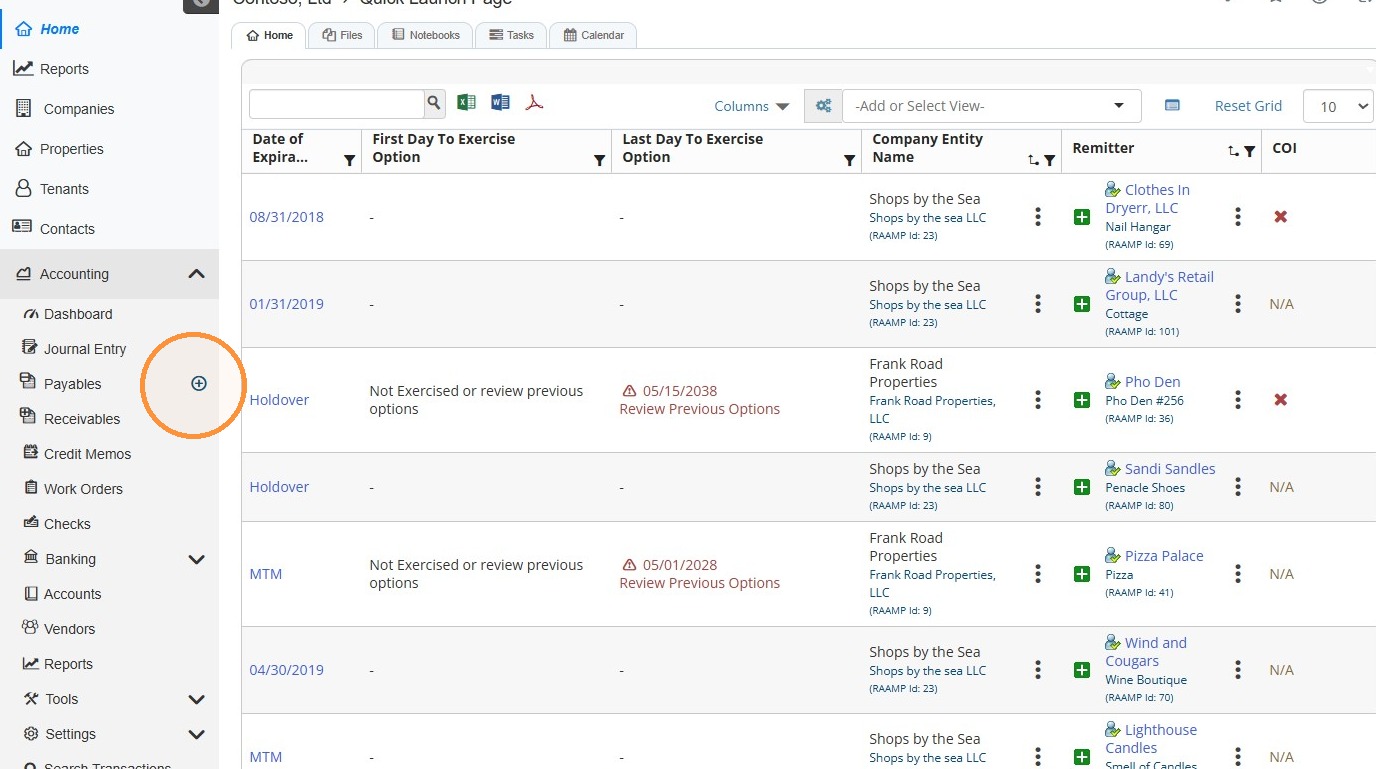
2. Select the + icon to the right of Payables.
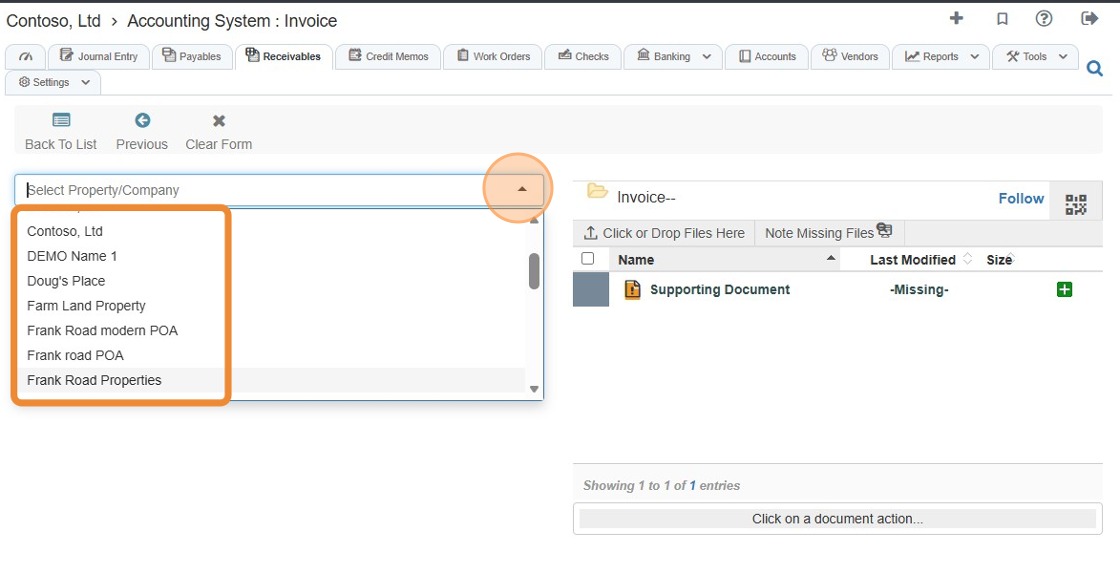
3. Select the Property/Company field > Select the appropriate property/company from the dropdown menu.
4. Select the Vendor field > Select the appropriate vendor from the dropdown menu.
NOTE: If you need to change the entity type, follow the steps below.
By default, RAAMP invoices active tenants and pays active vendors. However, RAAMP allows you to invoice or pay any Company Entity, regardless of its status, by using an integrated menu.
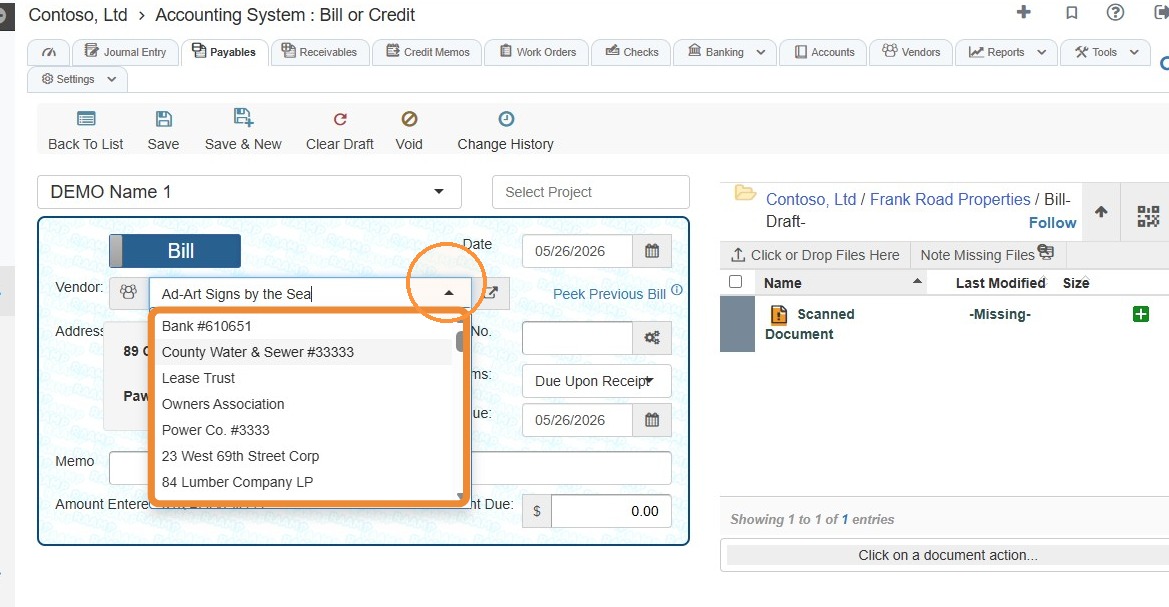
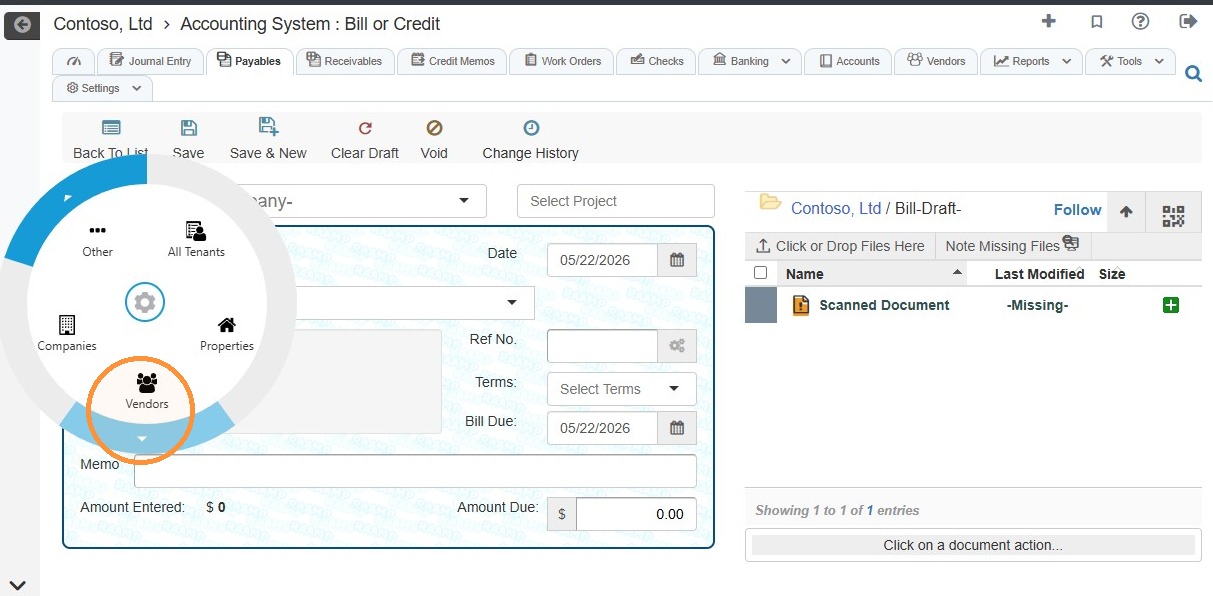
5. Select the Vendor icon.
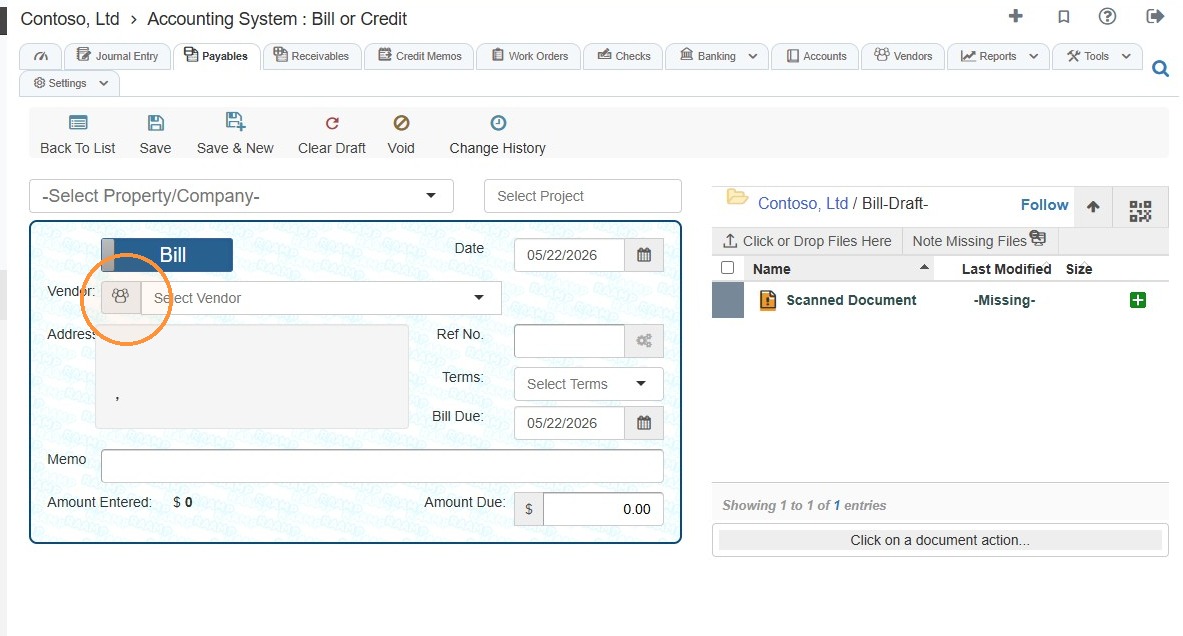
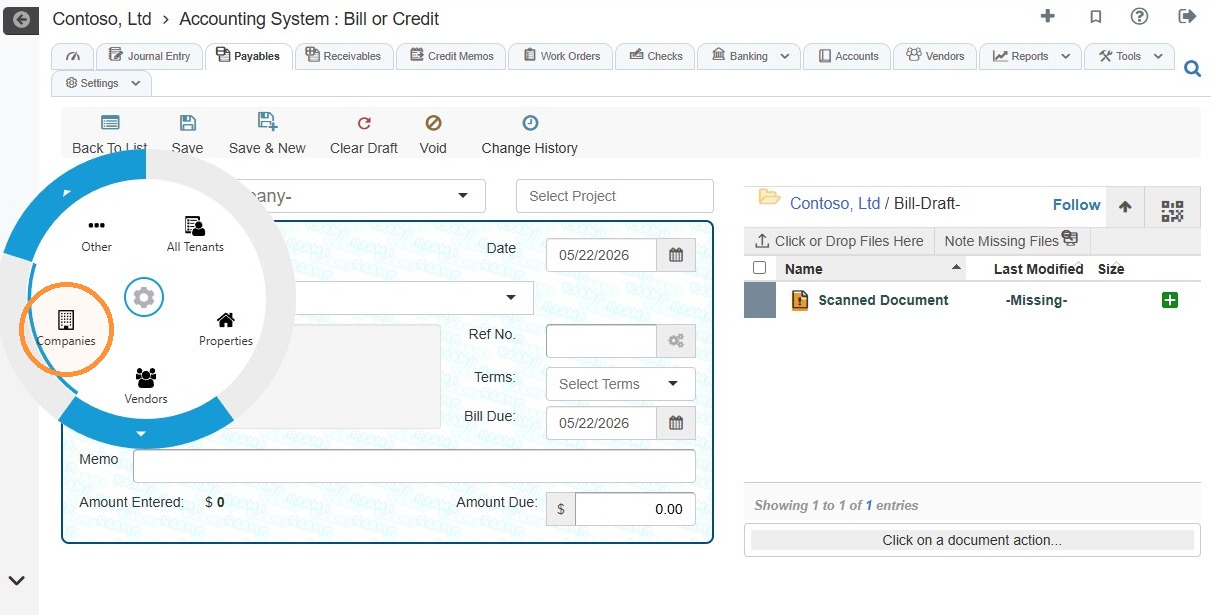
6. Choose the entity type from the radial menu.
For example, if you want to pay a company, select Company.
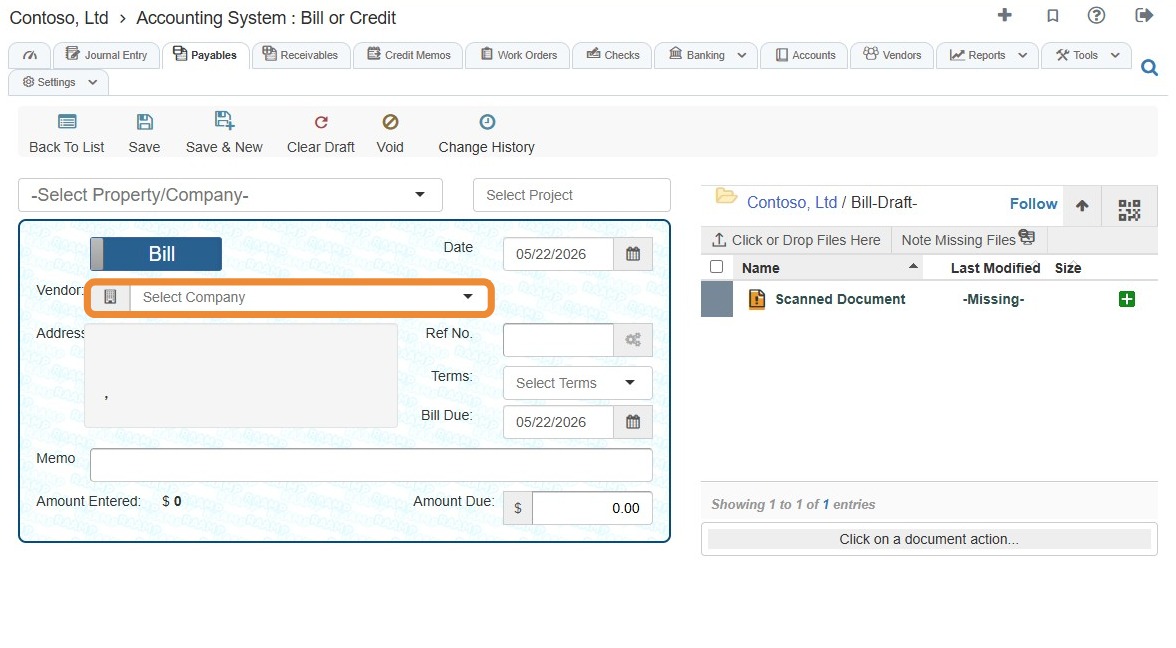
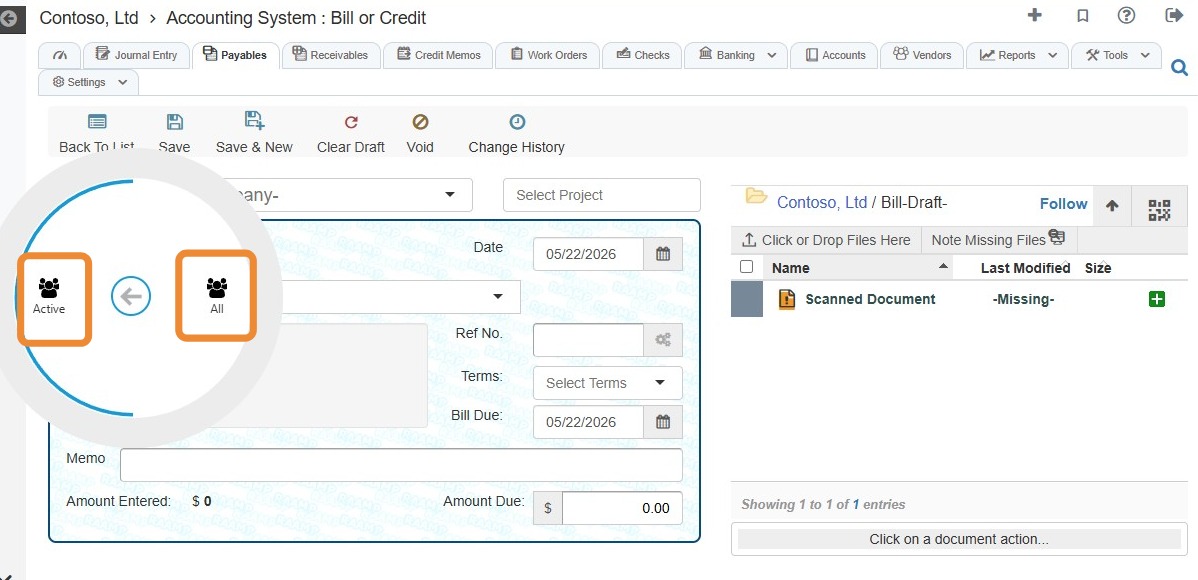
7. You can choose between Active or All vendors/tenants.
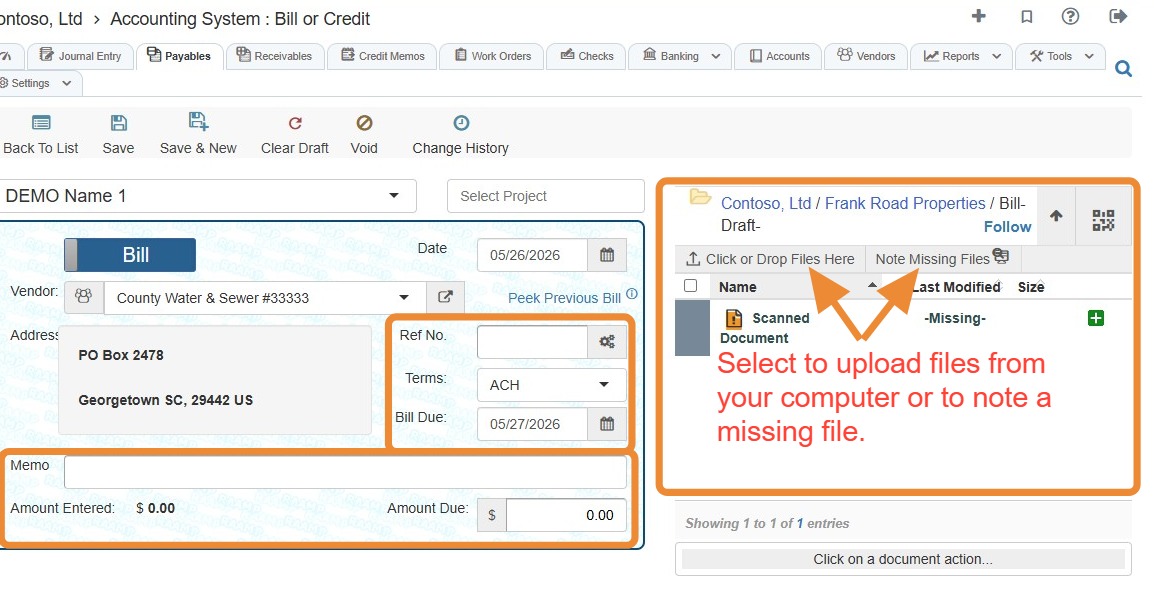
8. Complete all remaining fields, upload any related files/documents, or note a missing file.
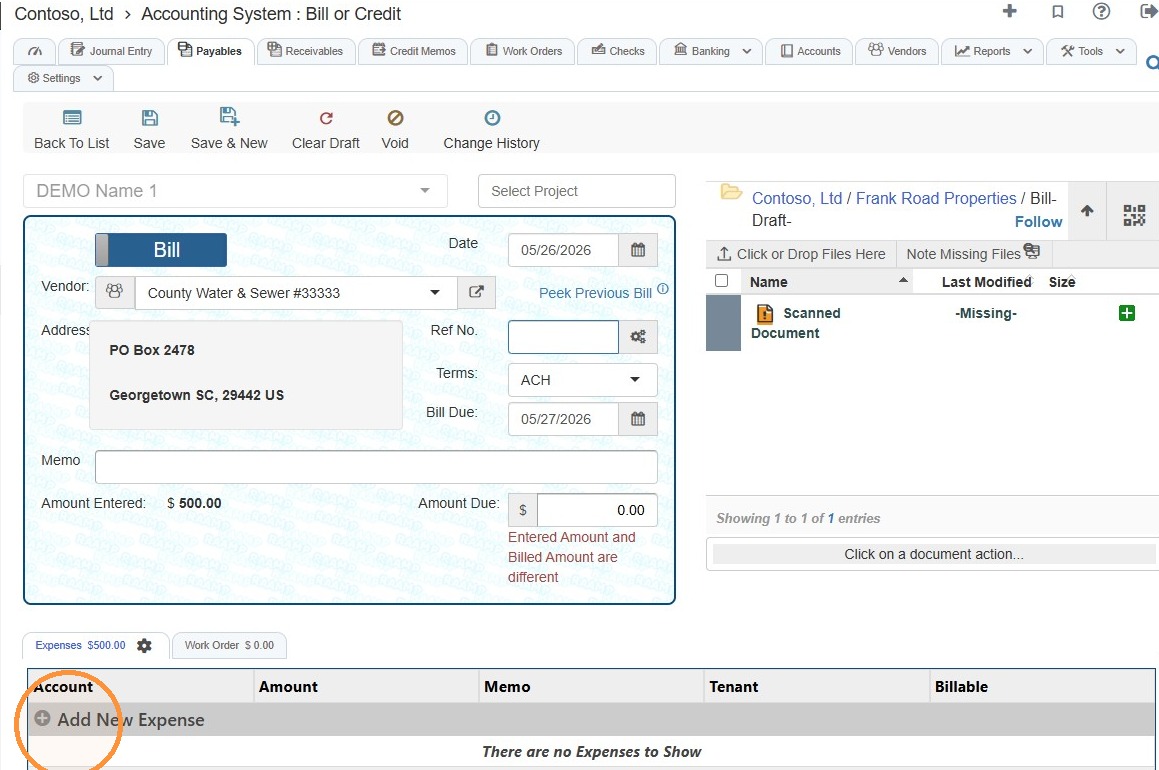
9. Select the Add New Expense field.
10. Complete the expense information > Select a tenant > Select the Billable checkbox > Select Save.
NOTE: Selecting a Tenant and the Billable checkbox will make the expense a Billback Expense for the selected tenant.
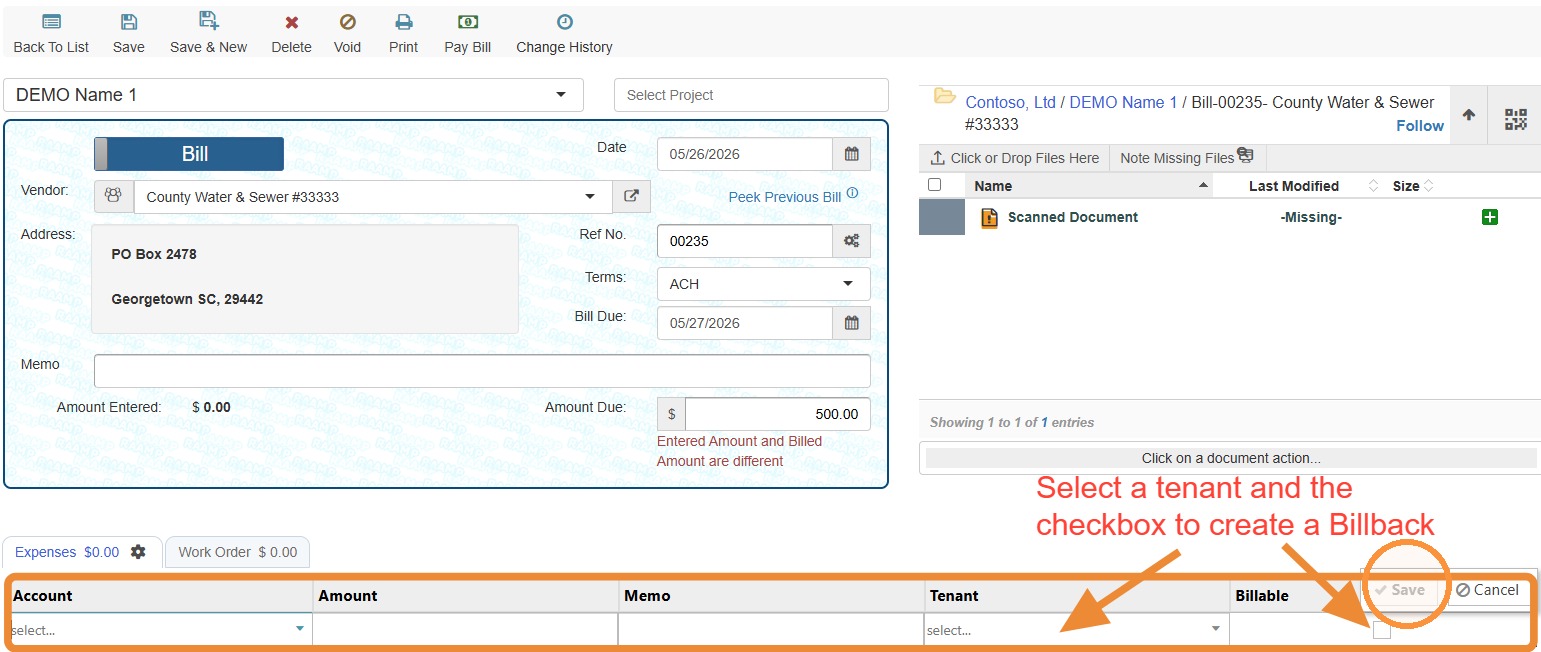
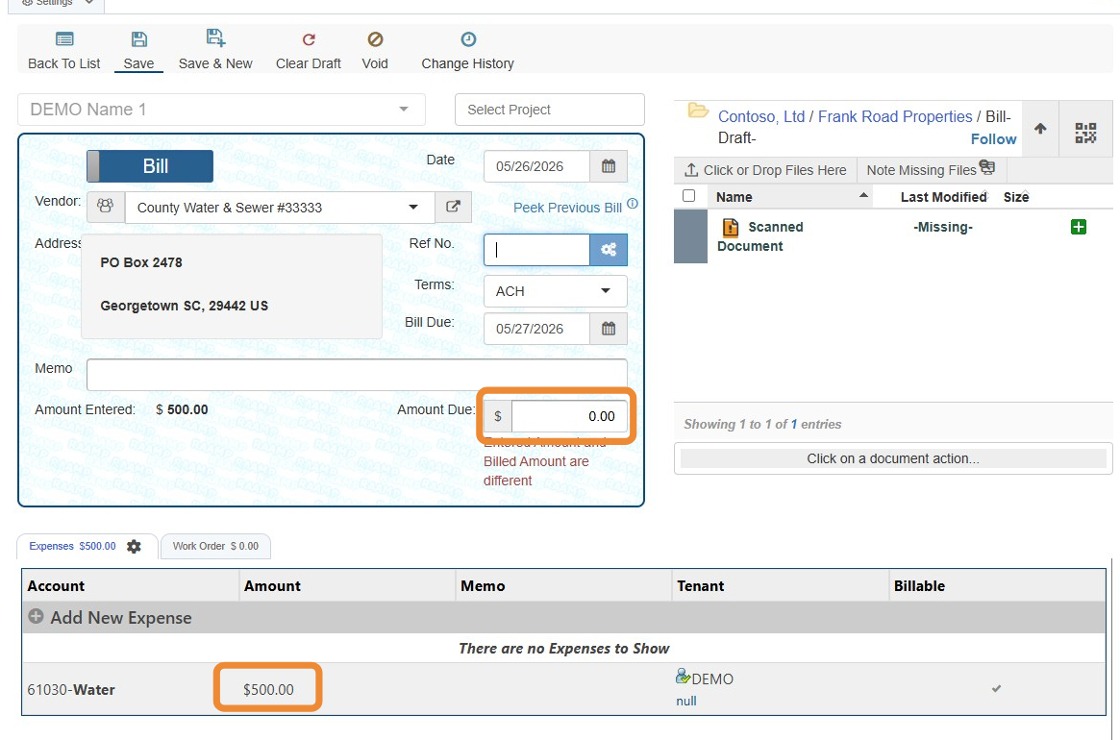
Tip: If the Amount Due is different than the billed amount in the expense list, you'll receive the following message: Entered Amount and Billed Amount are different.
The entered amount and billed amount should be equal.
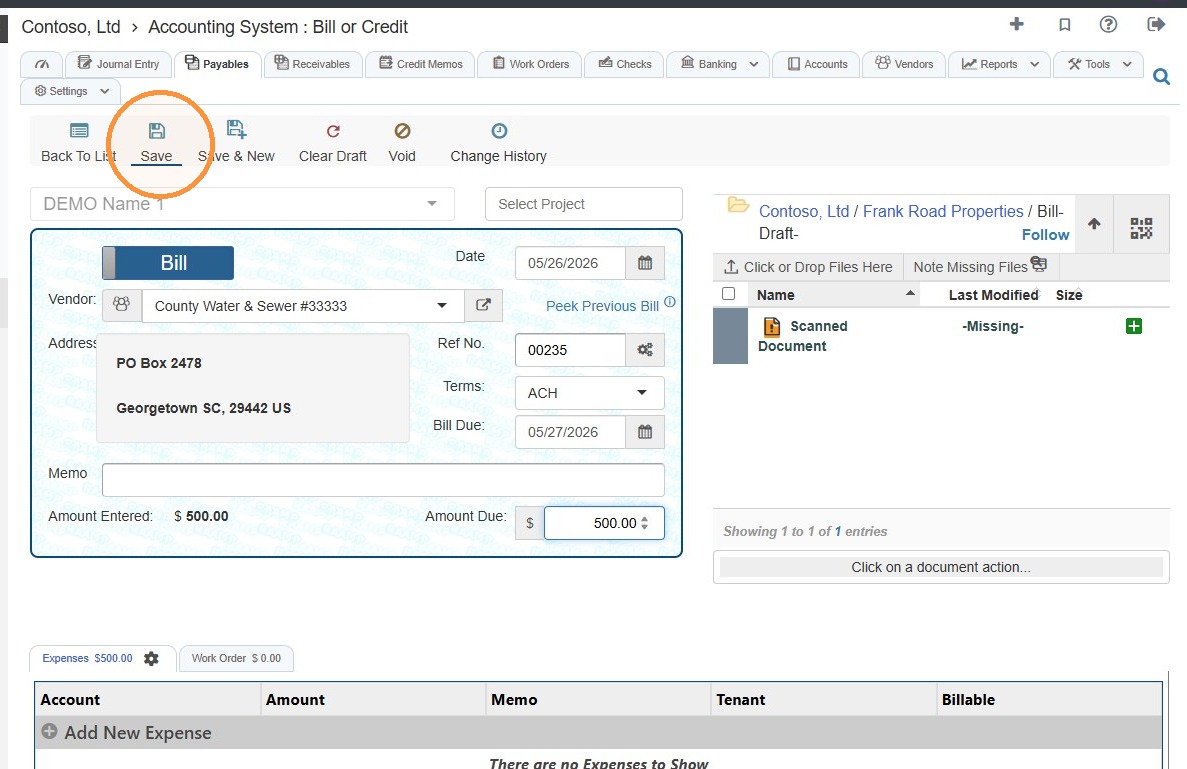
11. Select Save to finalize the bill entry.
How to Add a Billback on Journal Entry Screen
12. From the navigation menu, select Journal Entry.
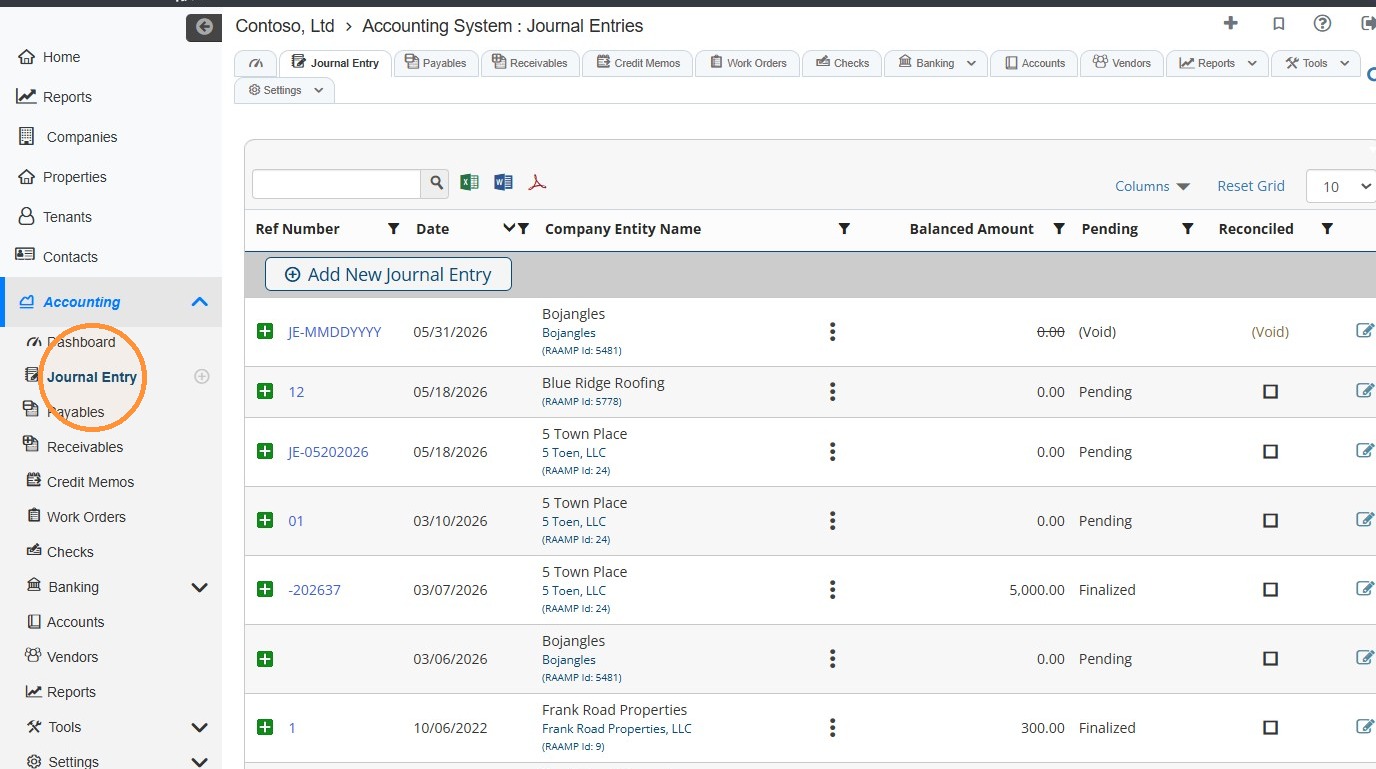
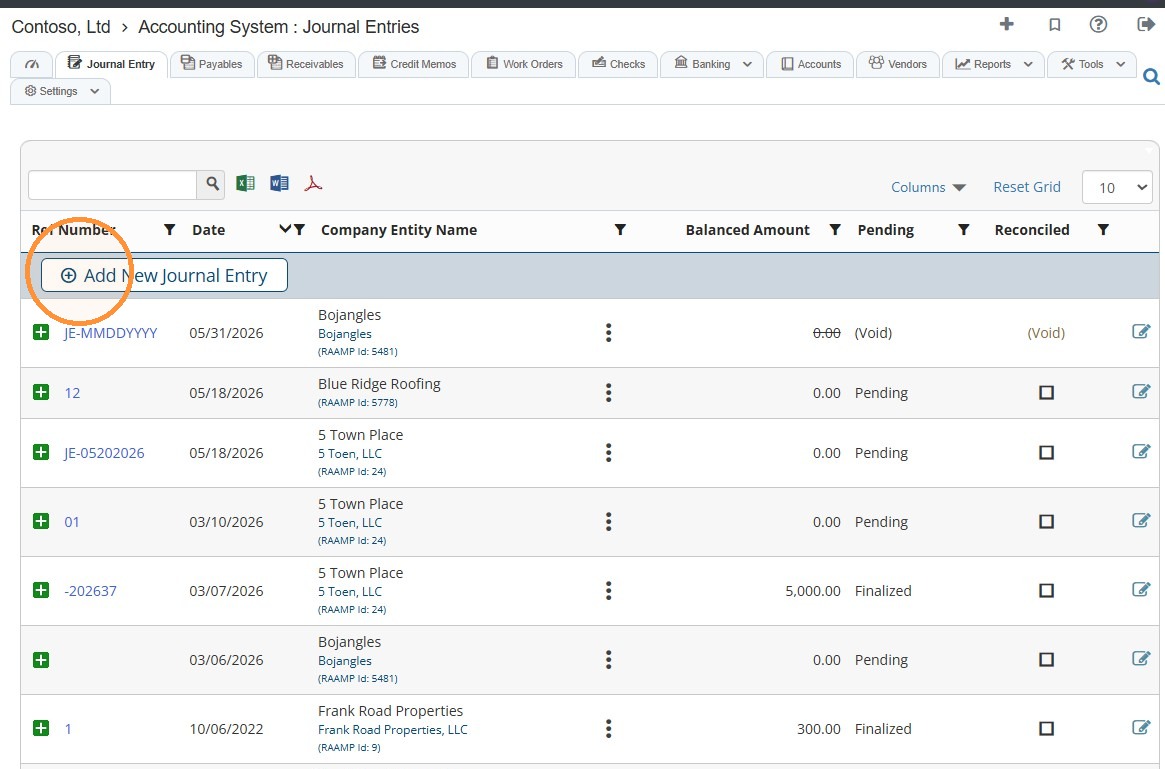
13. Select Add New Journal Entry.
14. Complete all remaining fields, upload any related files/documents, or note a missing file.
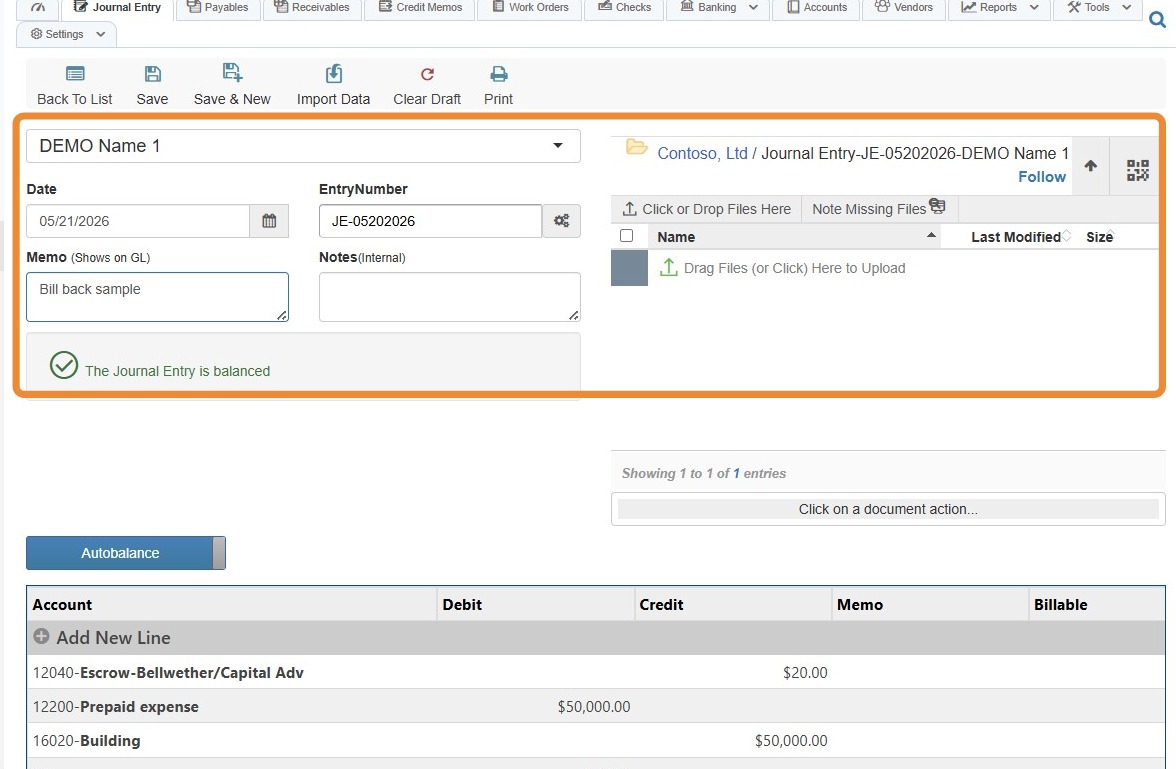
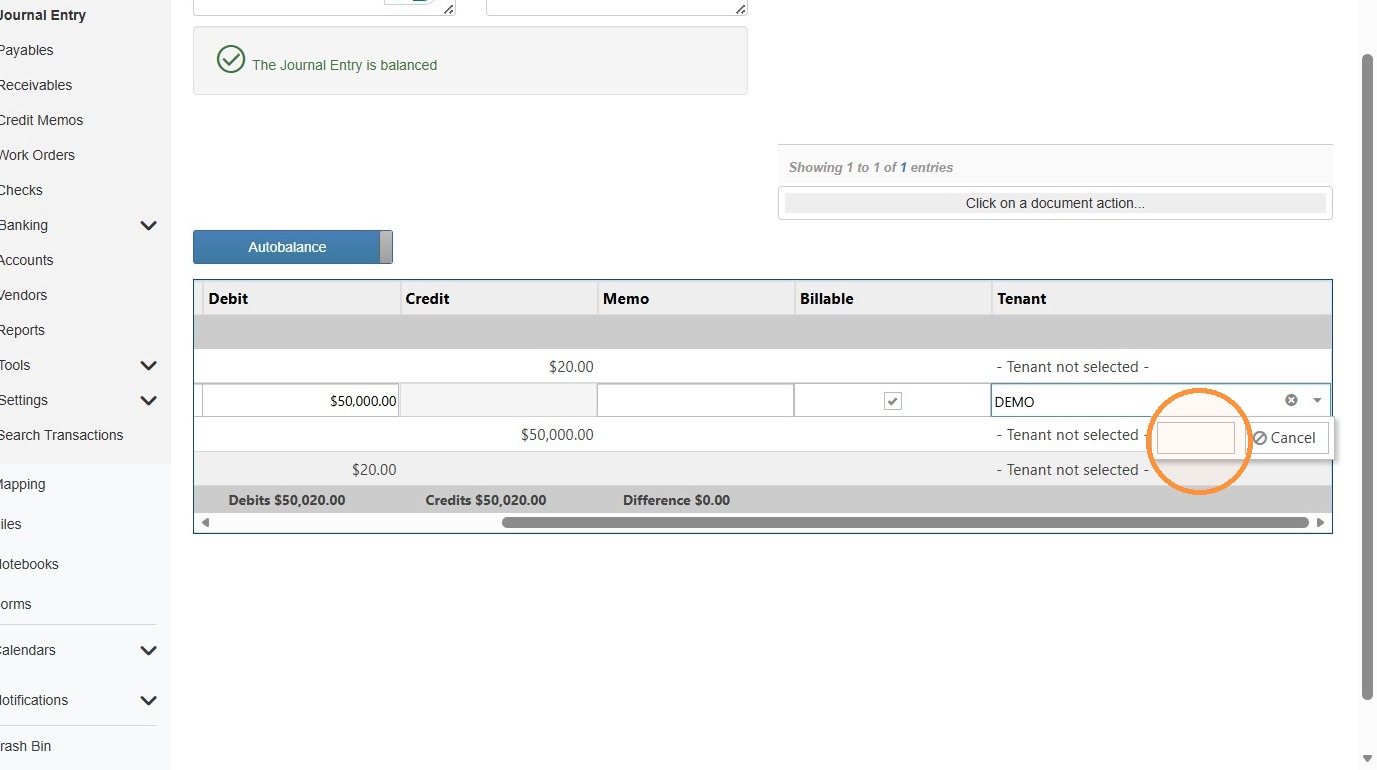
15. Select a line item to edit it or select Add New Line Item to create a new item > Complete the expense information > Select a tenant > Select the Billable checkbox > Select Save.
NOTE: Selecting a Tenant and the Billable checkbox will make the expense a Billback Expense for the selected tenant.
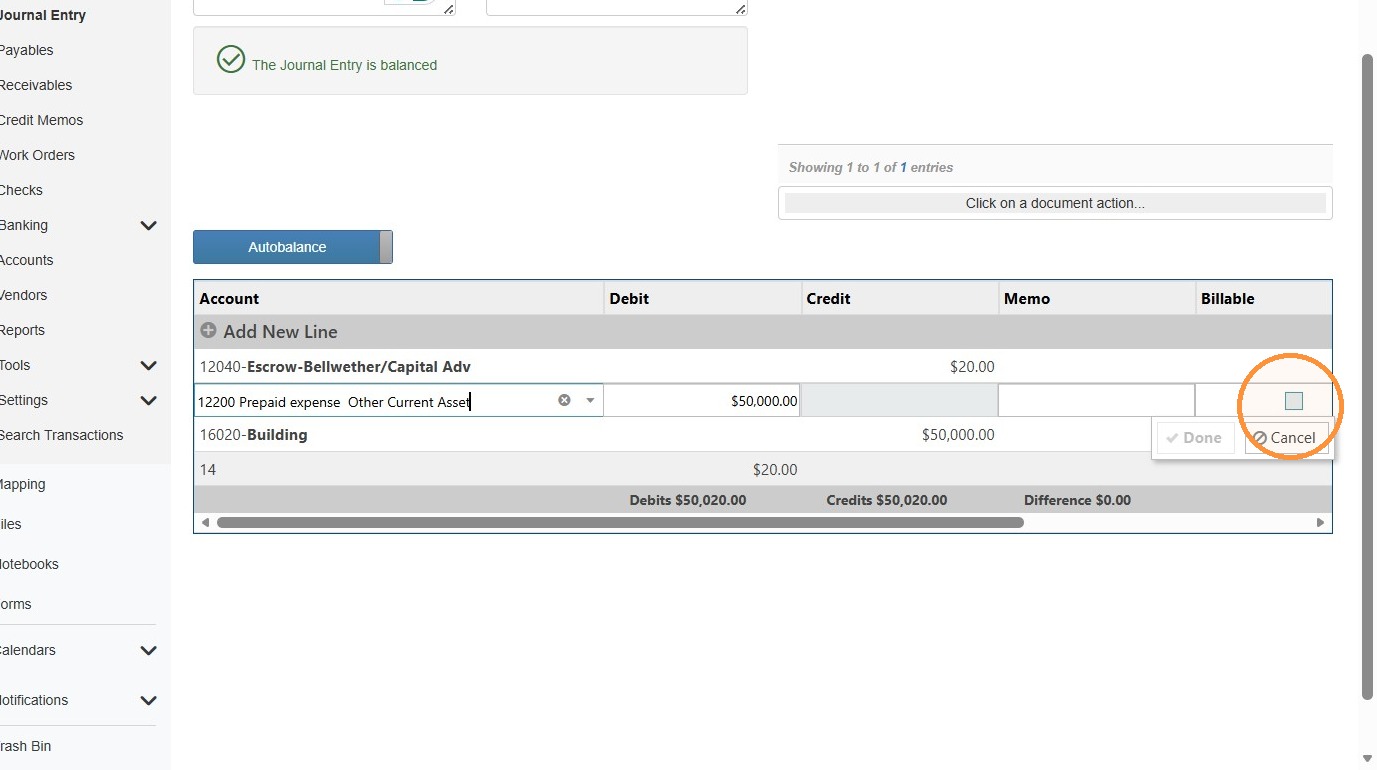
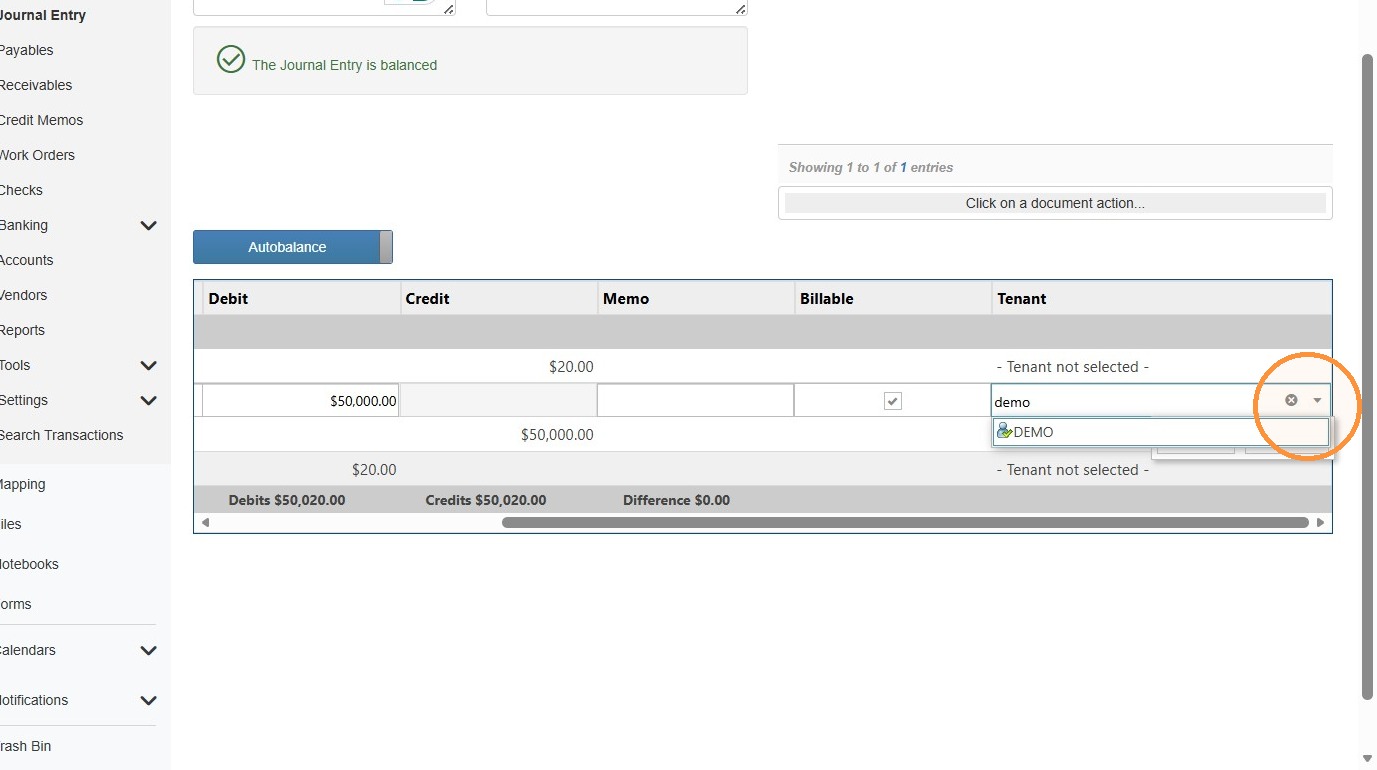
16. Select Done.
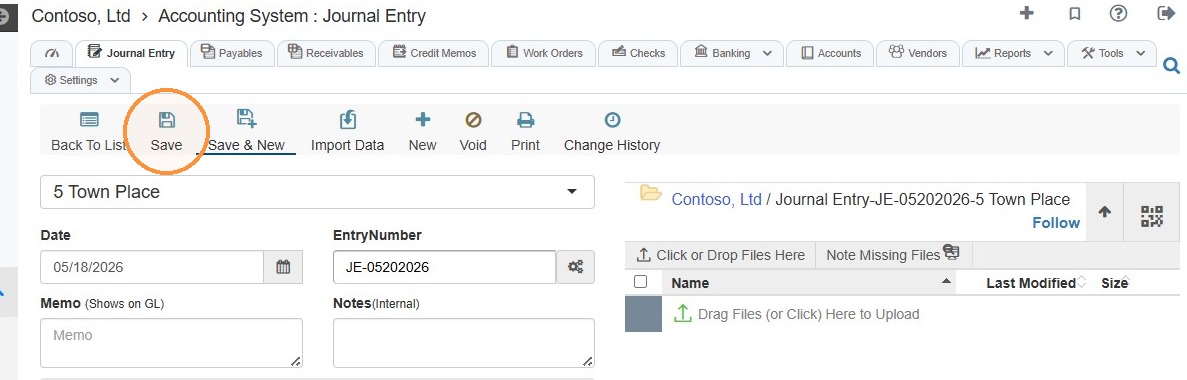
17. Select Save to finalize the entry.
How to Use Billback: Direct Invoicing
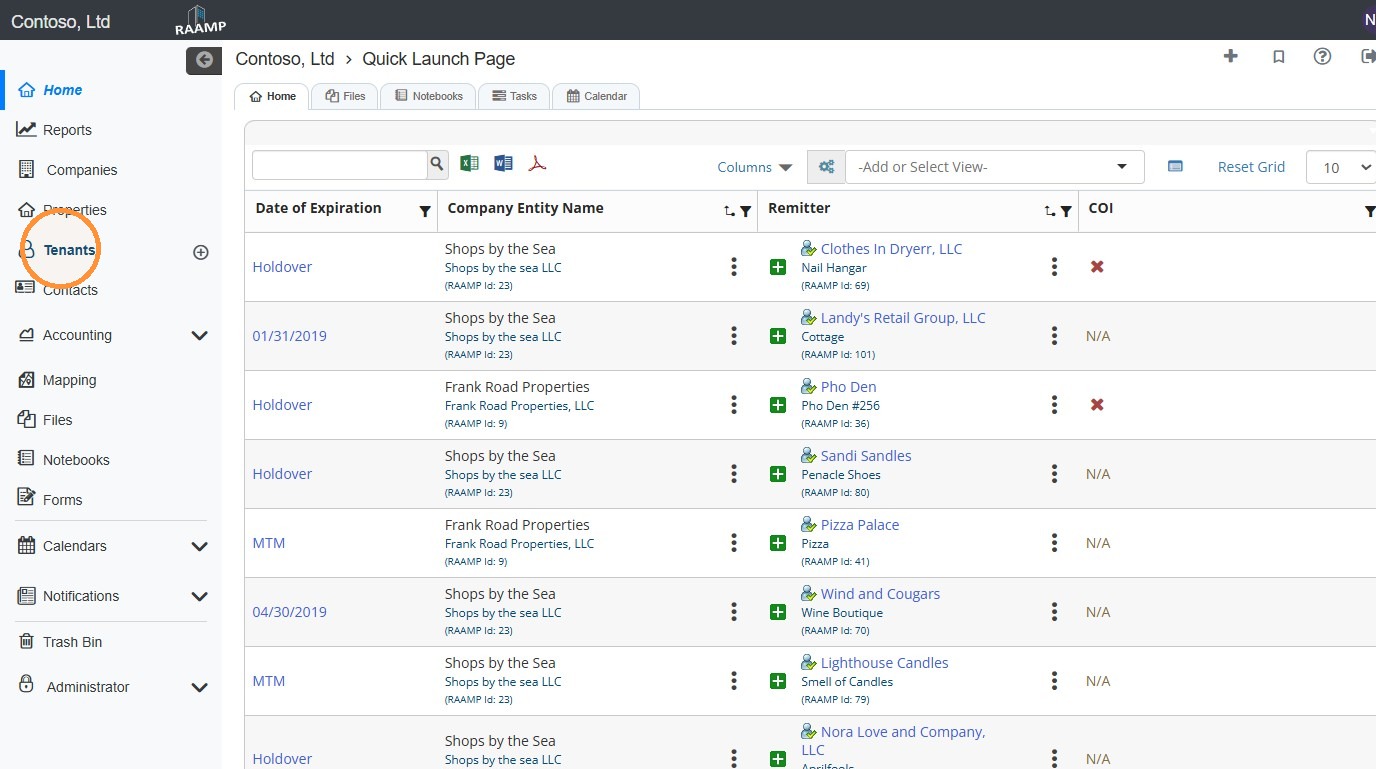
18. From the navigation menu, select Tenants.
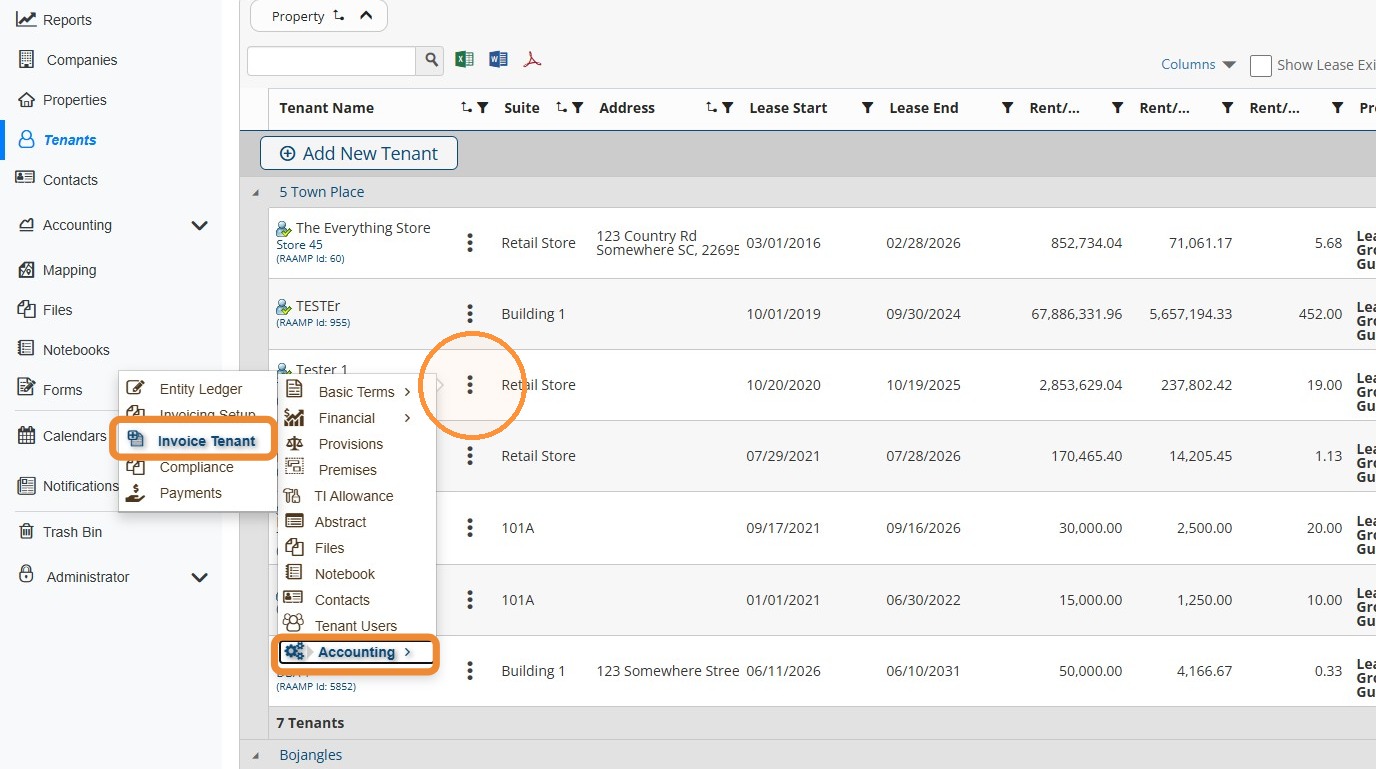
19. Locate the Tenant > Select the tenant's three-dot menu > Select Accounting > Select Invoice Tenant.
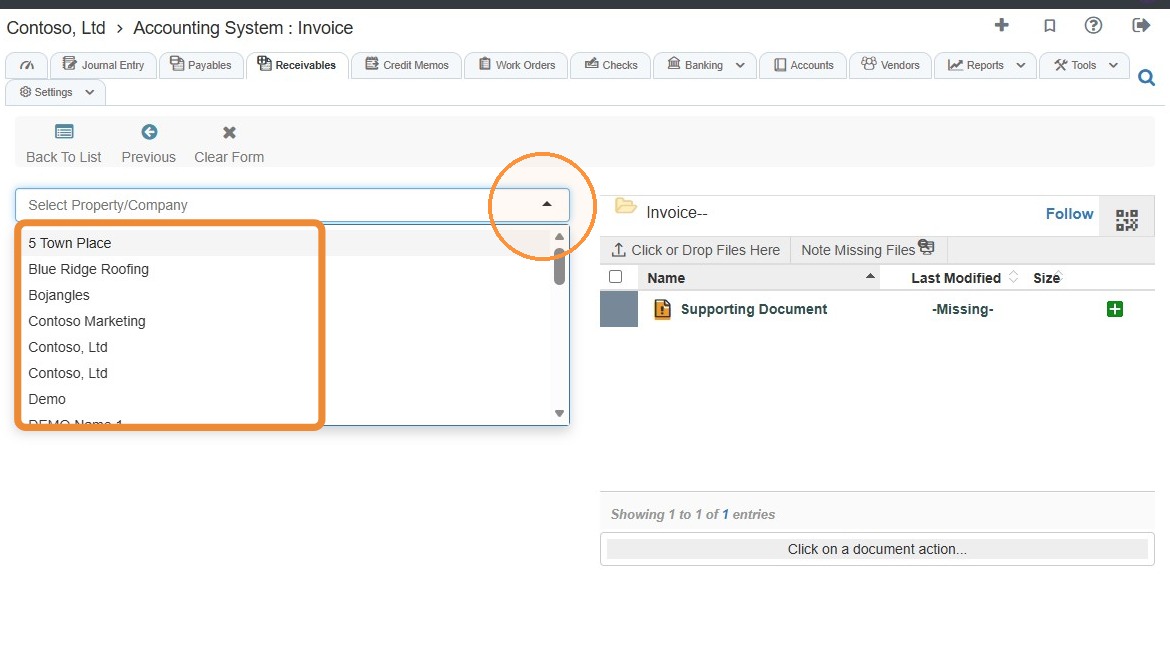
20. Select the Property/Company from the dropdown menu.
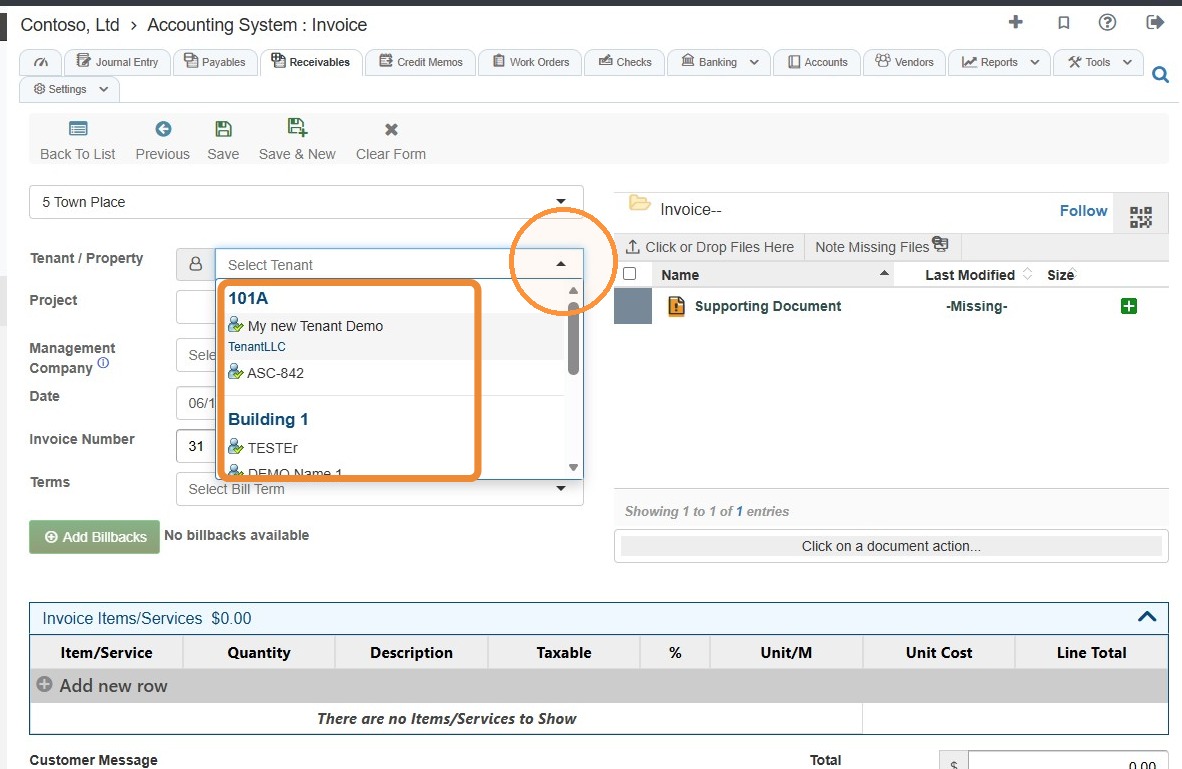
21. Select the tenant from the Tenant/Property dropdown menu.
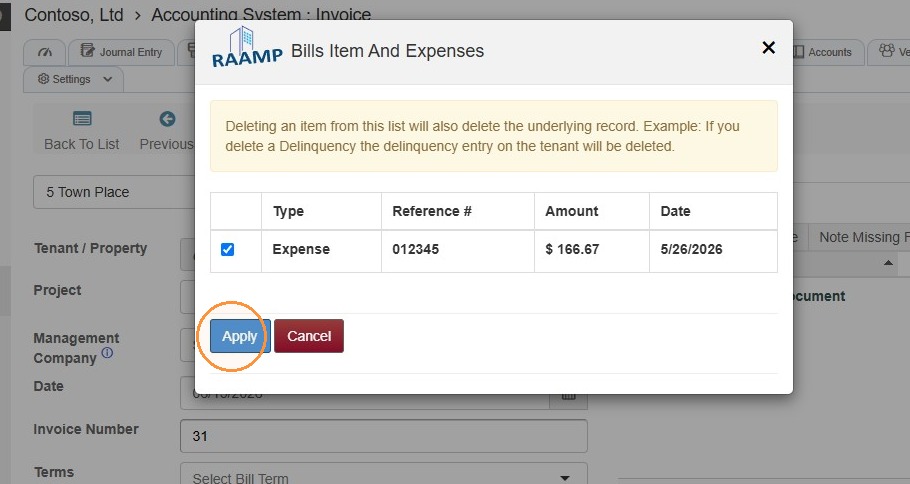
22. The Bills Item And Expenses box will automatically pop up > Select the checkbox for the appropriate expense > Select Apply.
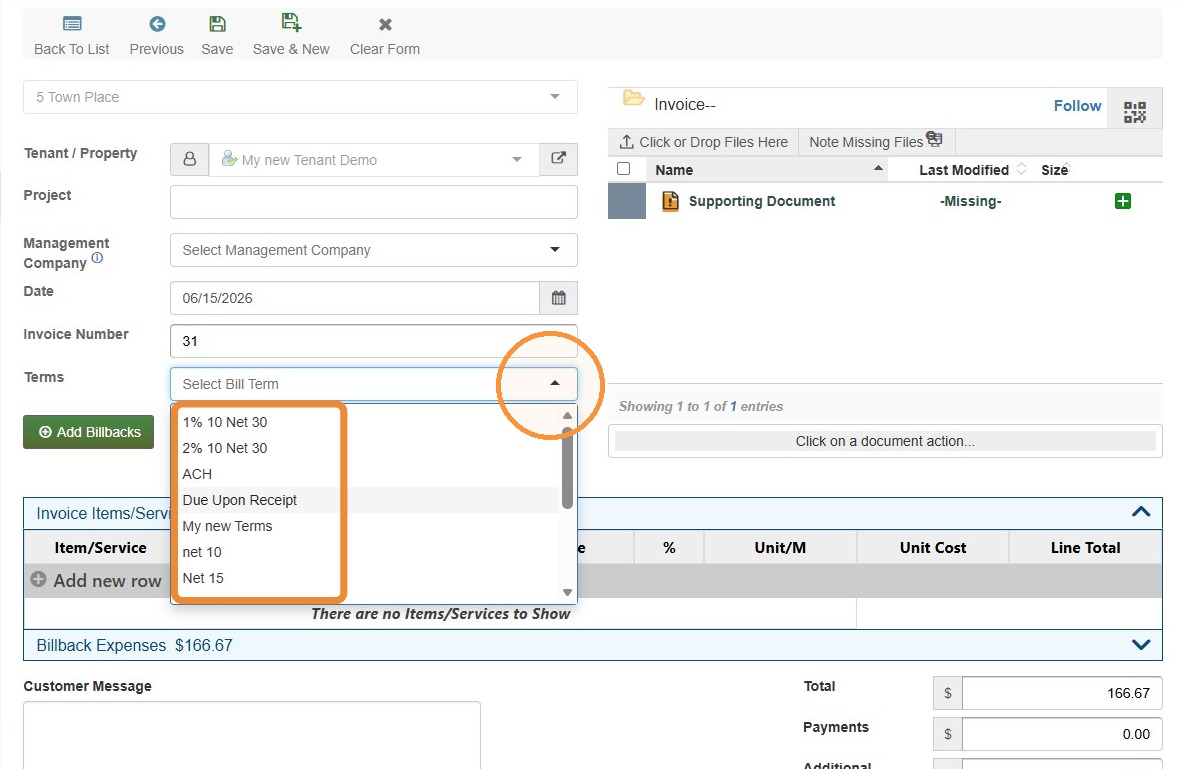
23. Select the Select Bill Term field > Select the appropriate bill term from the dropdown menu.
24. Select the Customer Message and/or Memo fields to add notes, if needed.
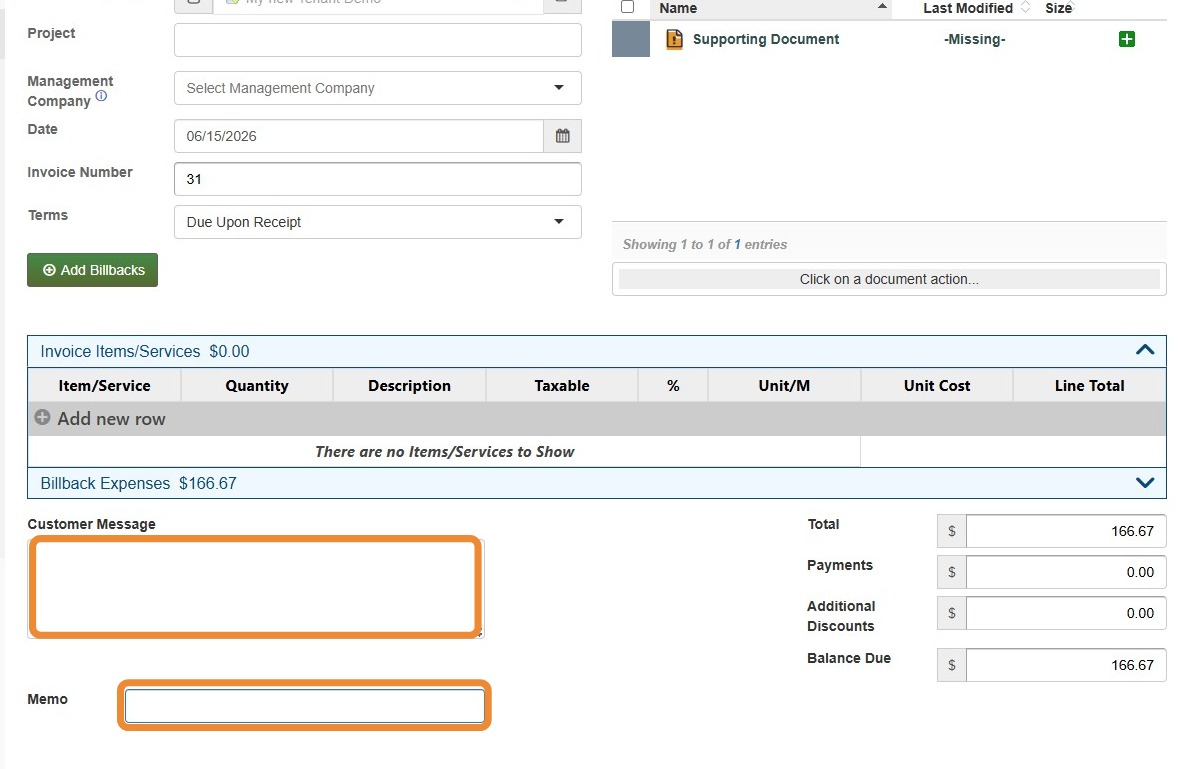
25. Select Save.
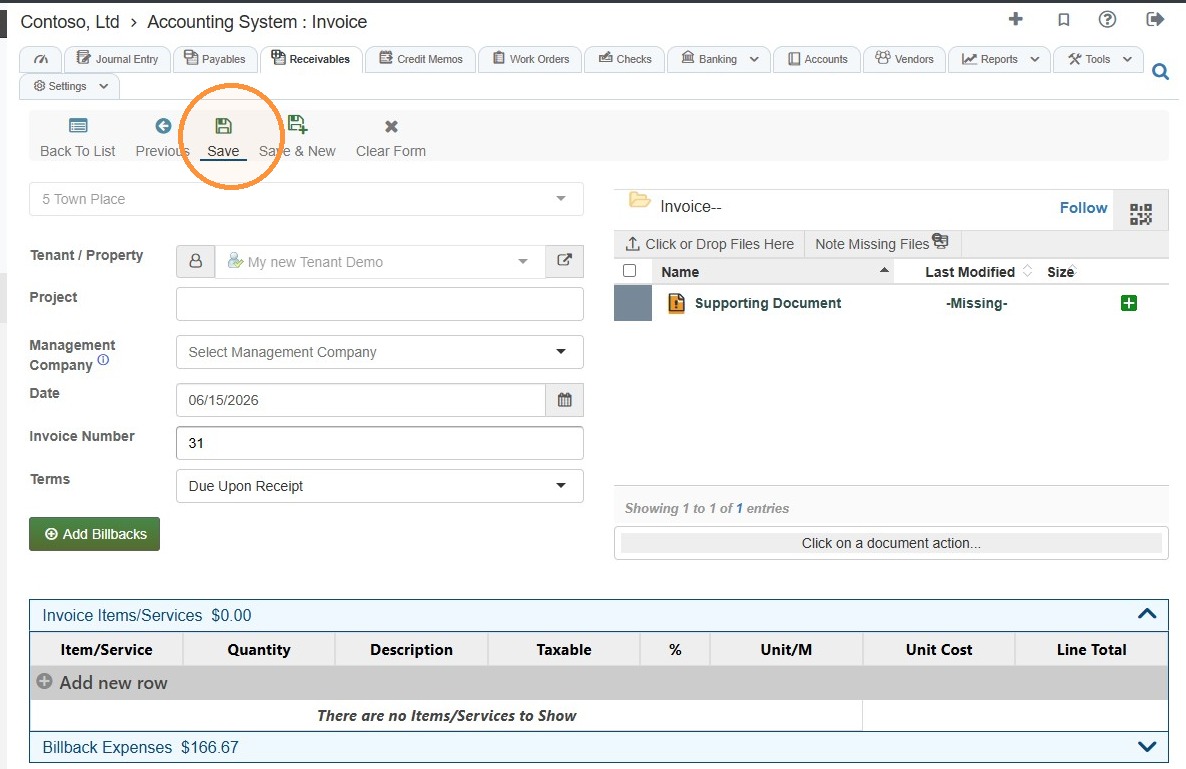
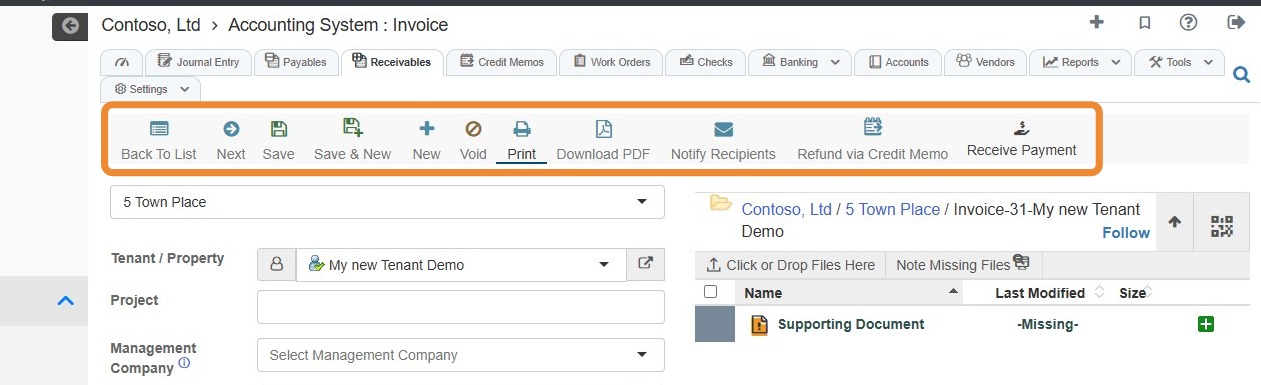
26. Once saved, additional options will appear in the toolbar.
You can print, download a PDF, notify the recipients, refund via credit memo, or receive payment directly from the saved invoice.
Alert: One important note: the bill you are billing back must be dated before the invoice you are creating. You cannot have a bill dated 8/01/2022 and add a bill back on an invoice for 7/01/2022.
How to Use Billback: Memorized Invoice Group
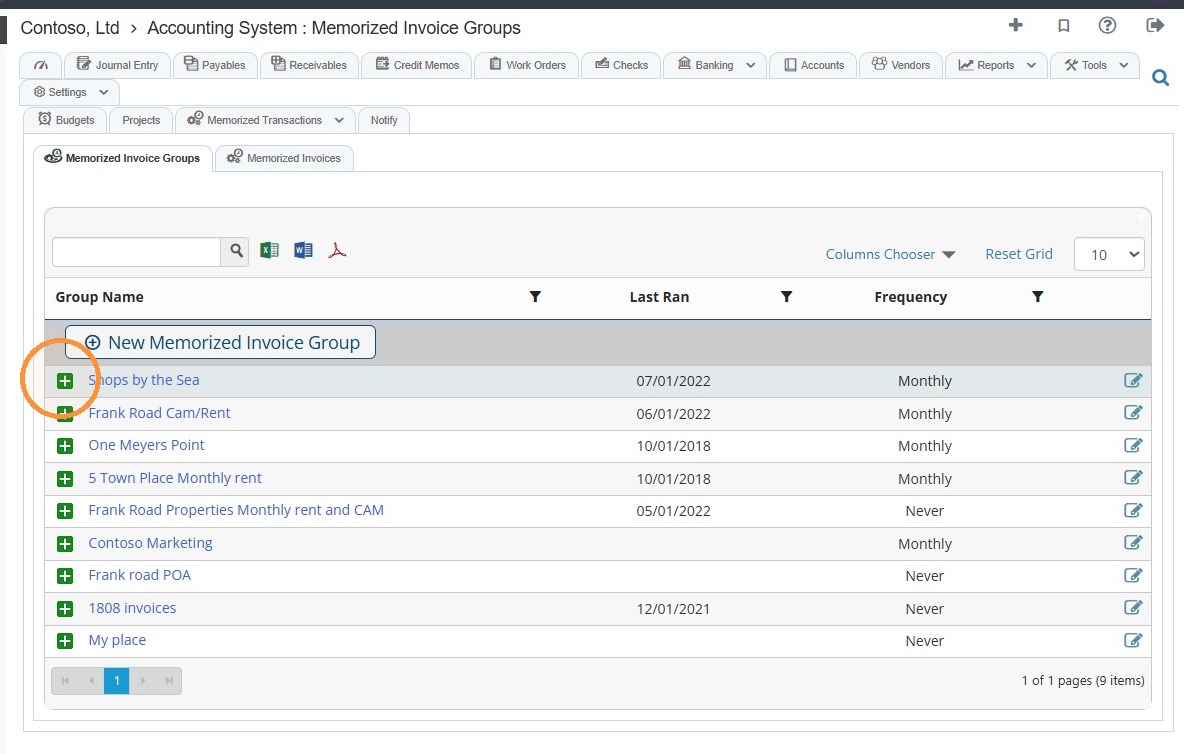
27. From the navigation menu, select Accounting > Select Tools > Memorizations > Memorized Invoice Groups.
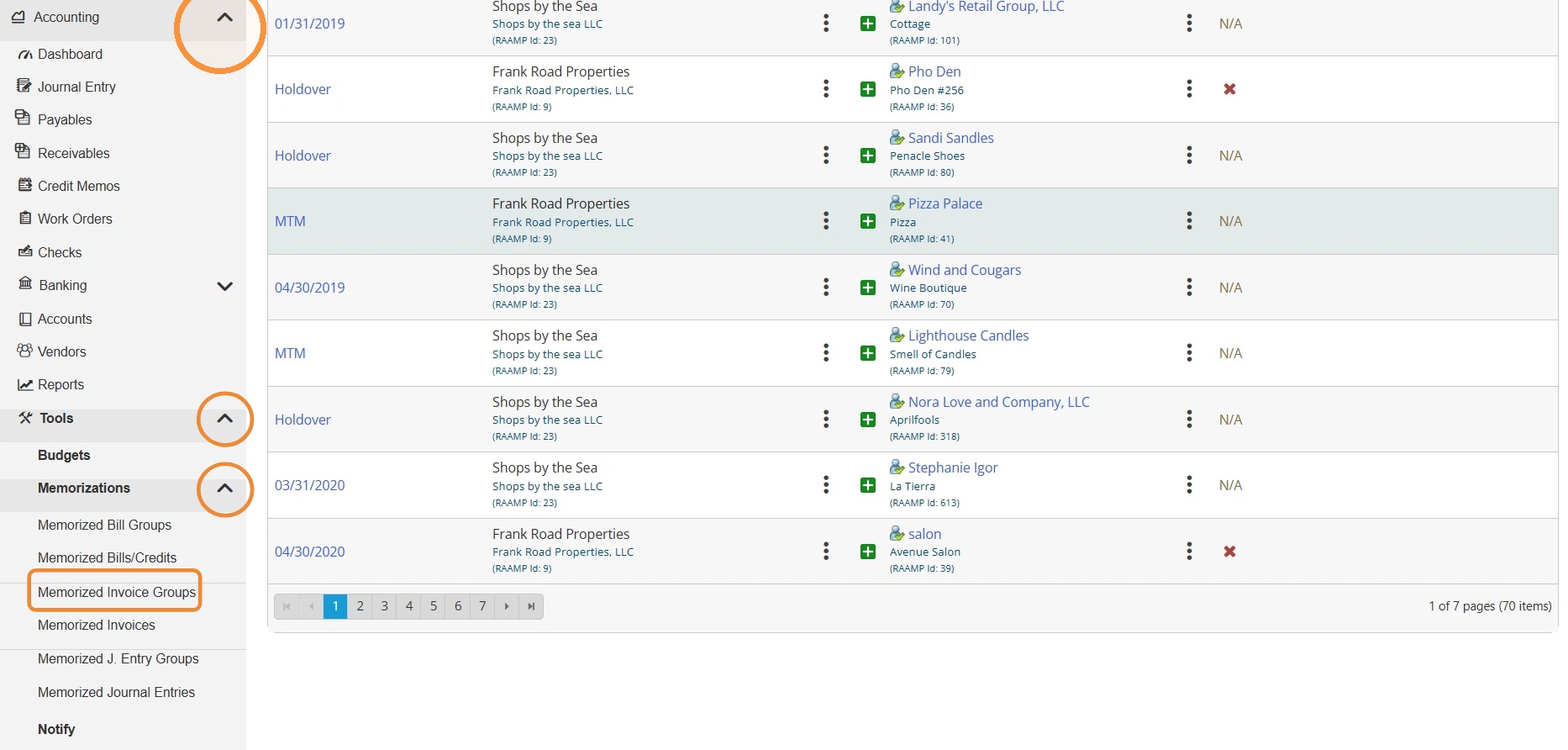
28. Select the green + icon for the preferred invoice group.
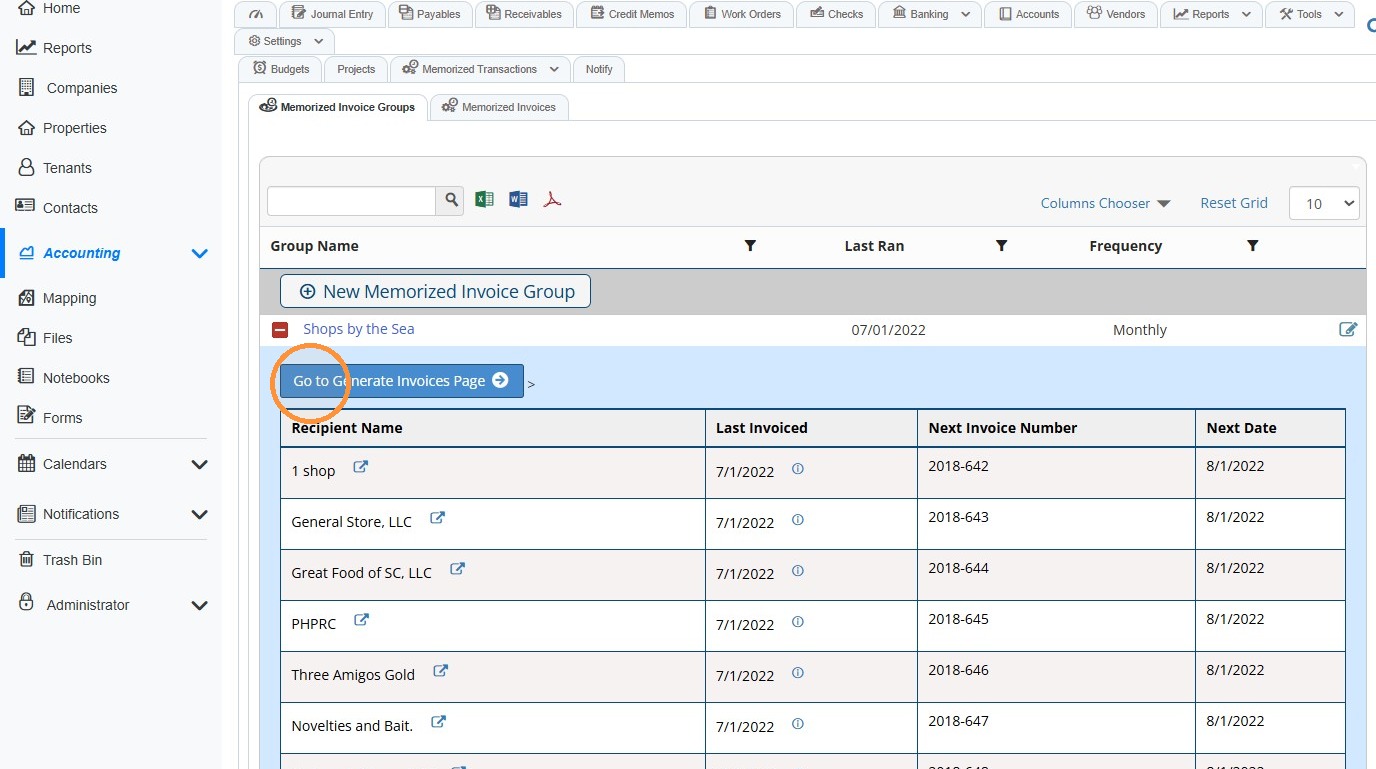
29. Once you expand the group, select Go to Generate Invoices Page.
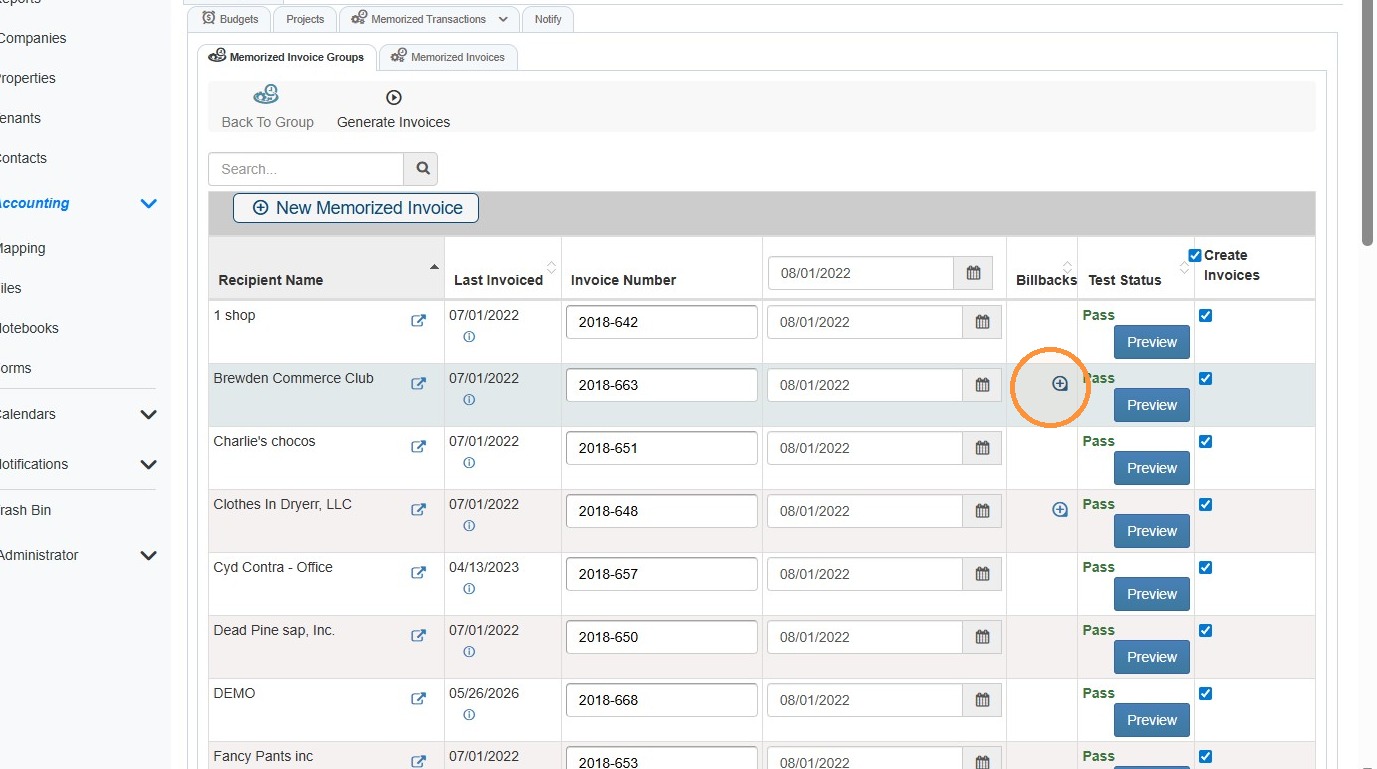
30. Locate the invoice you want to add the bill back to > Select the blue + icon in the Billbacks column.
NOTE: The blue + will only appear if the invoice date is after the bill date of the bill back.
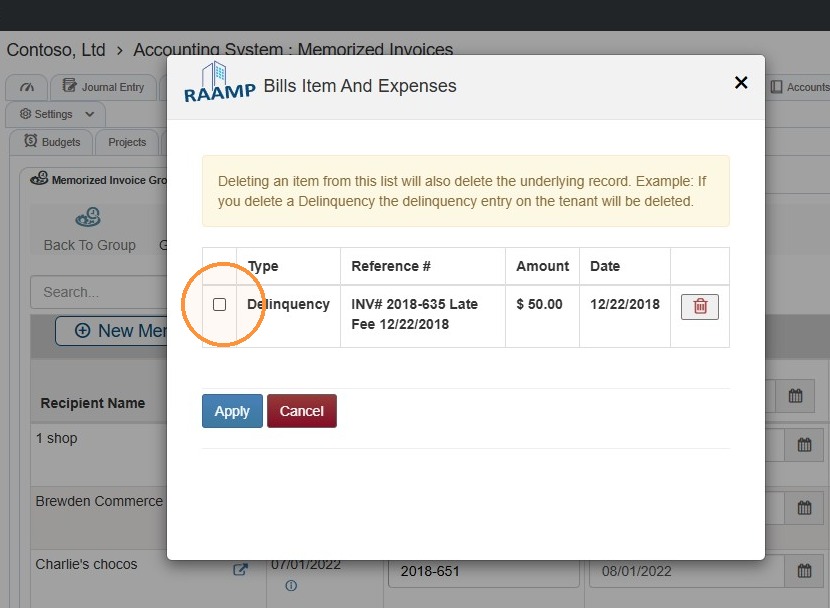
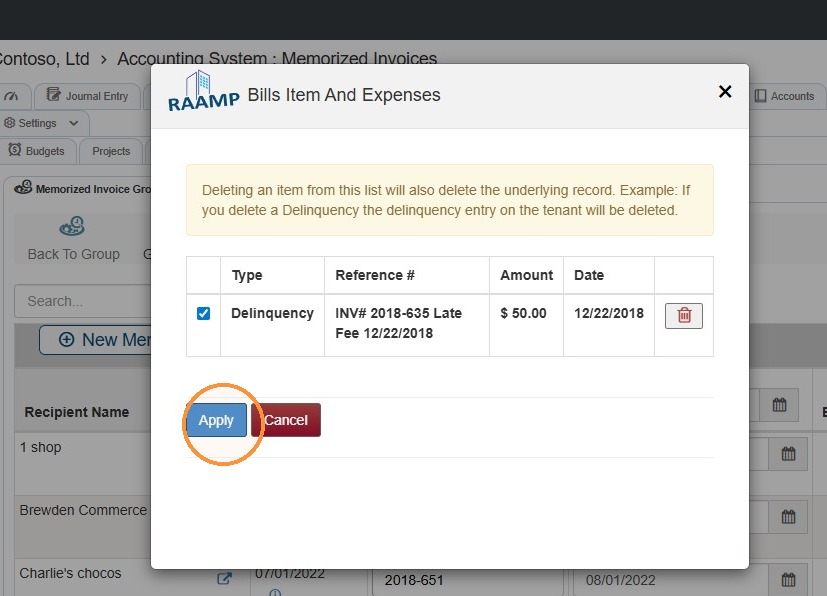
31. Select the checkbox for the bill item/expense > Select Apply.
32. You can preview the invoice by selecting Preview.
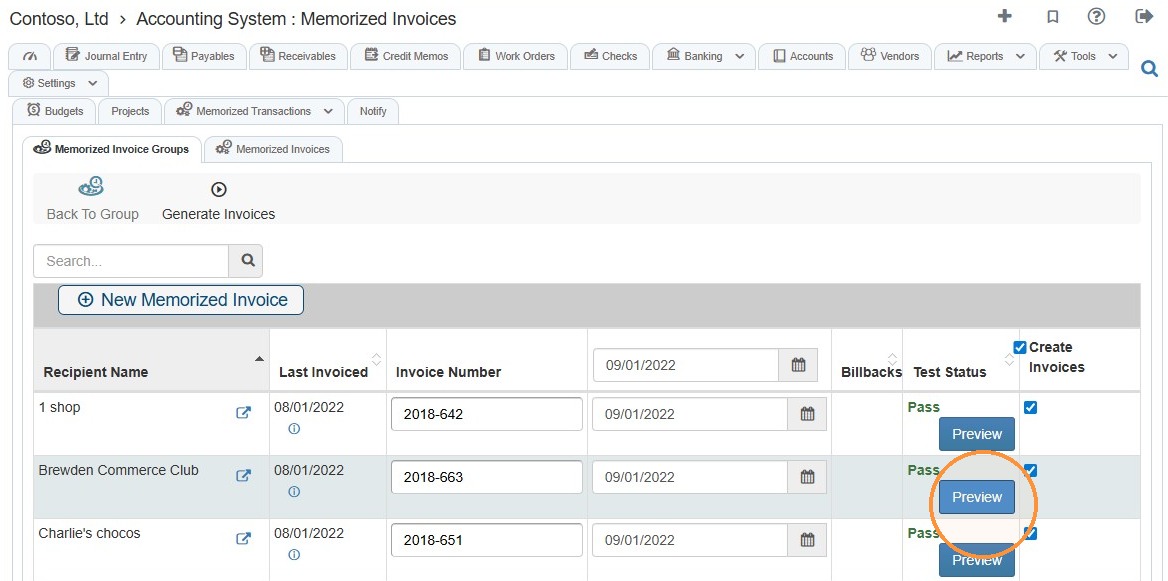
33. Invoice Preview will open in a new window.