How to Add New Invoice (with Files)
This guide shows step-by-step how to create a receivable invoice quickly and accurately, including selecting property/tenant, applying existing bill-backs, and adding extra line items. It highlights where to find Receivables in the Accounting module, how bill-backs are applied automatically, and how to save the final invoice. Follow it to avoid missed charges and ensure complete invoices.
Receivables Overview
1. Receivables Overview
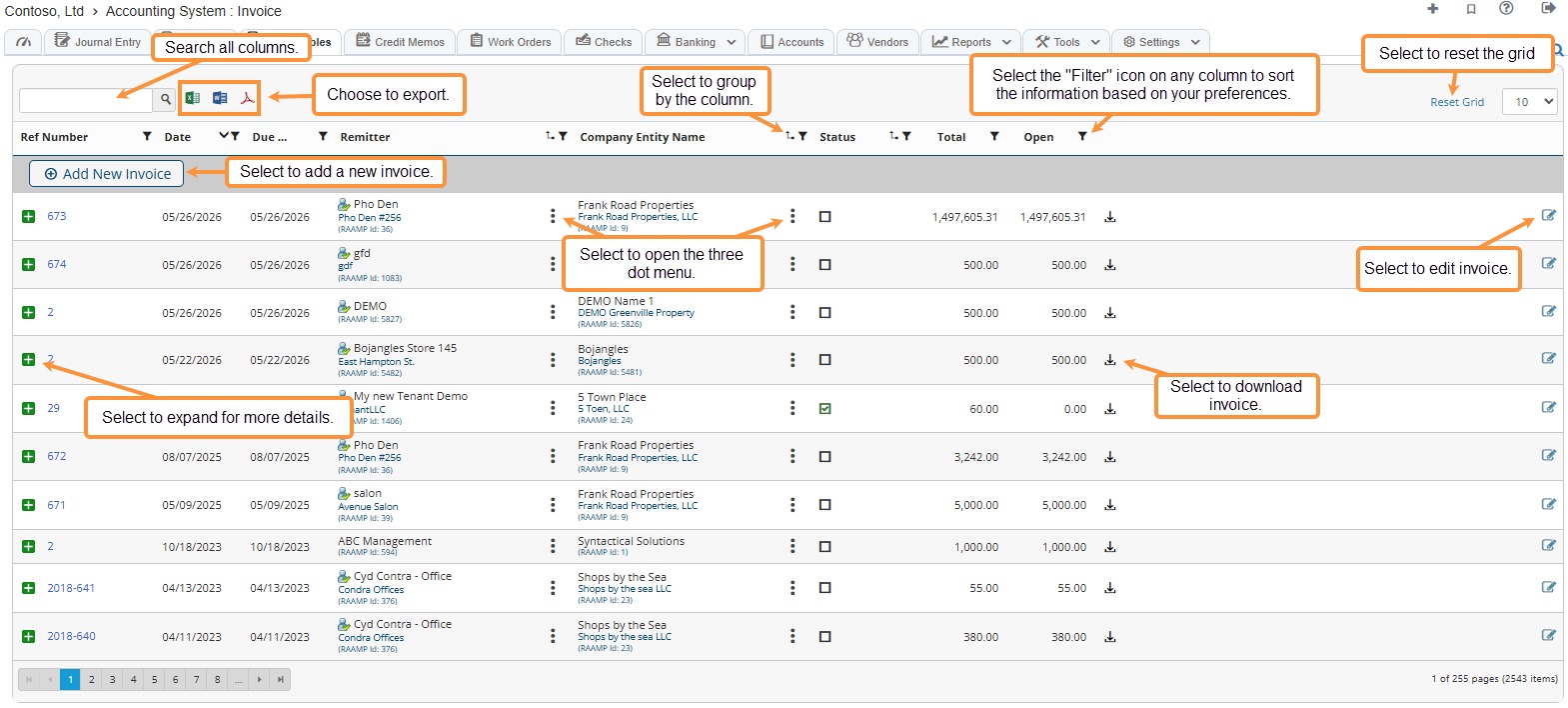
How to Add an Invoice (with files)
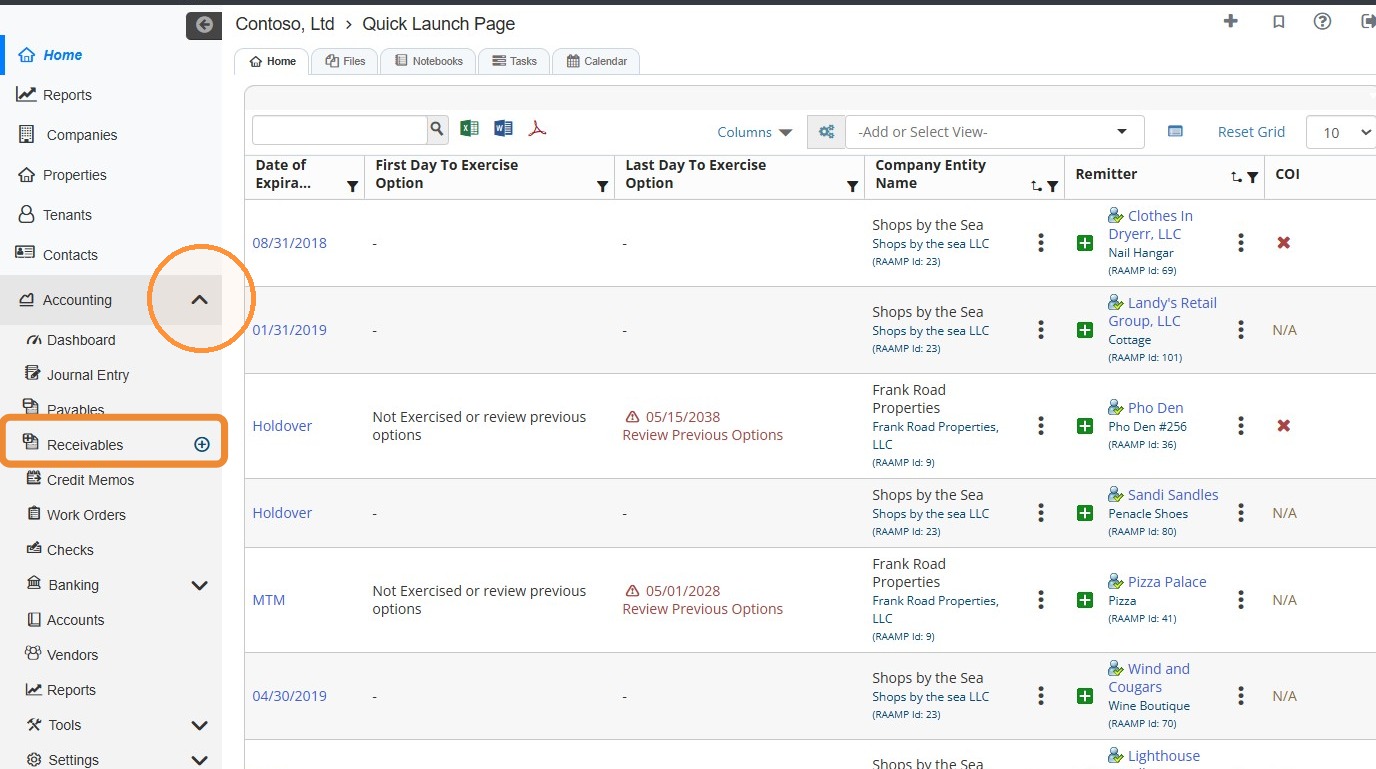
2. From the navigation menu, select Accounting > Select the + icon to the right of Receivables.
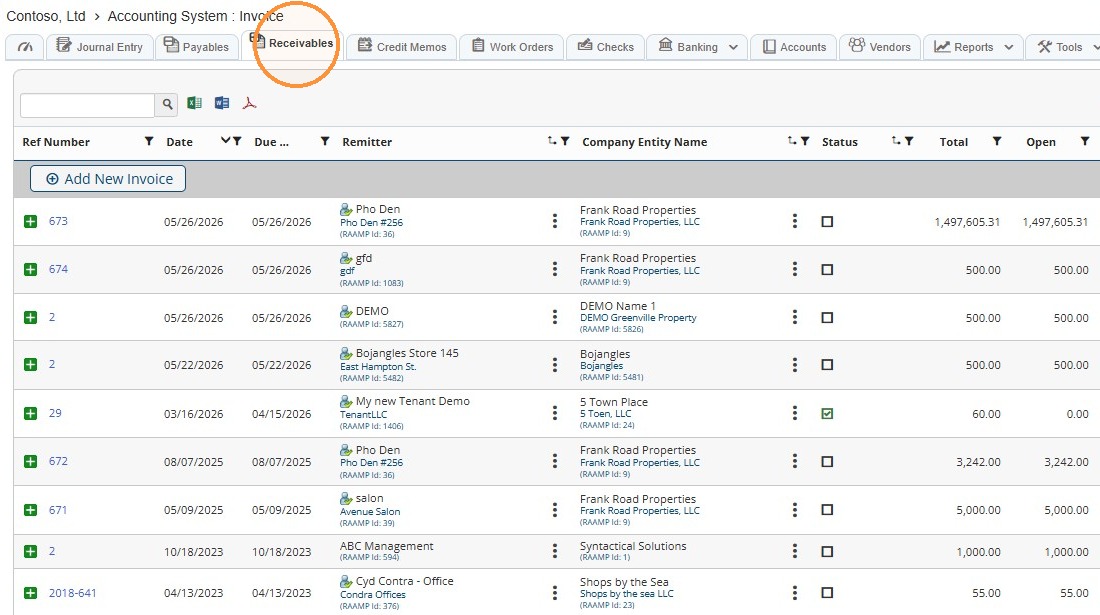
3. In the Accounting module, you can use the tabs across the top to access Receivables.
Select the Receivables tab.
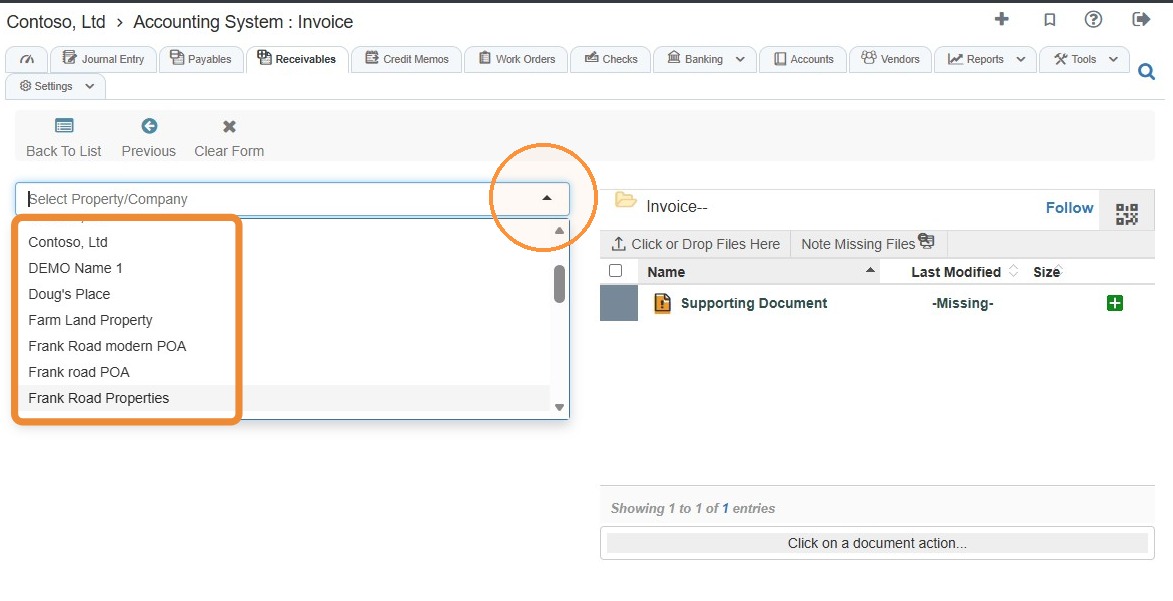
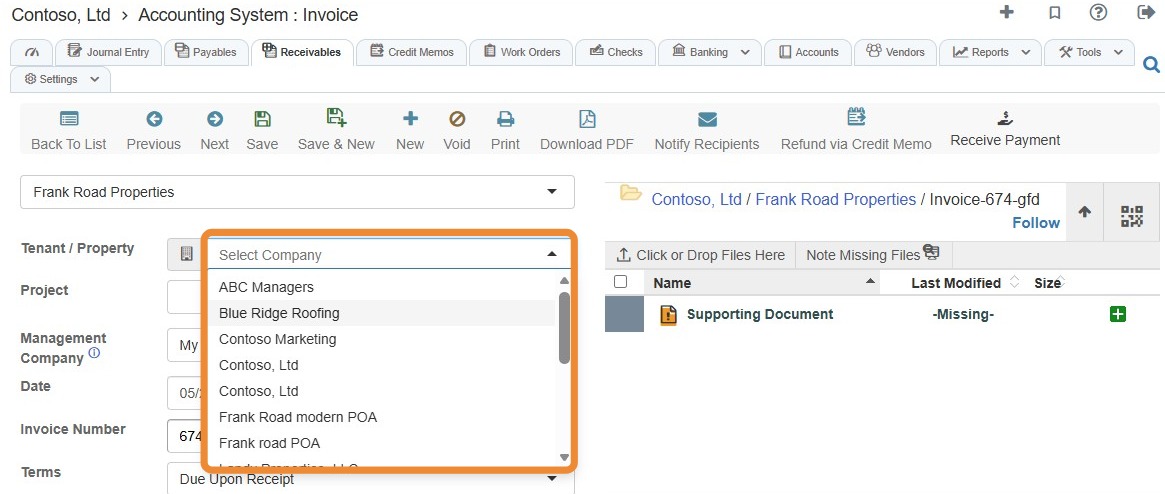
4. Select the Property/Company field > Select the property/company from the dropdown menu.
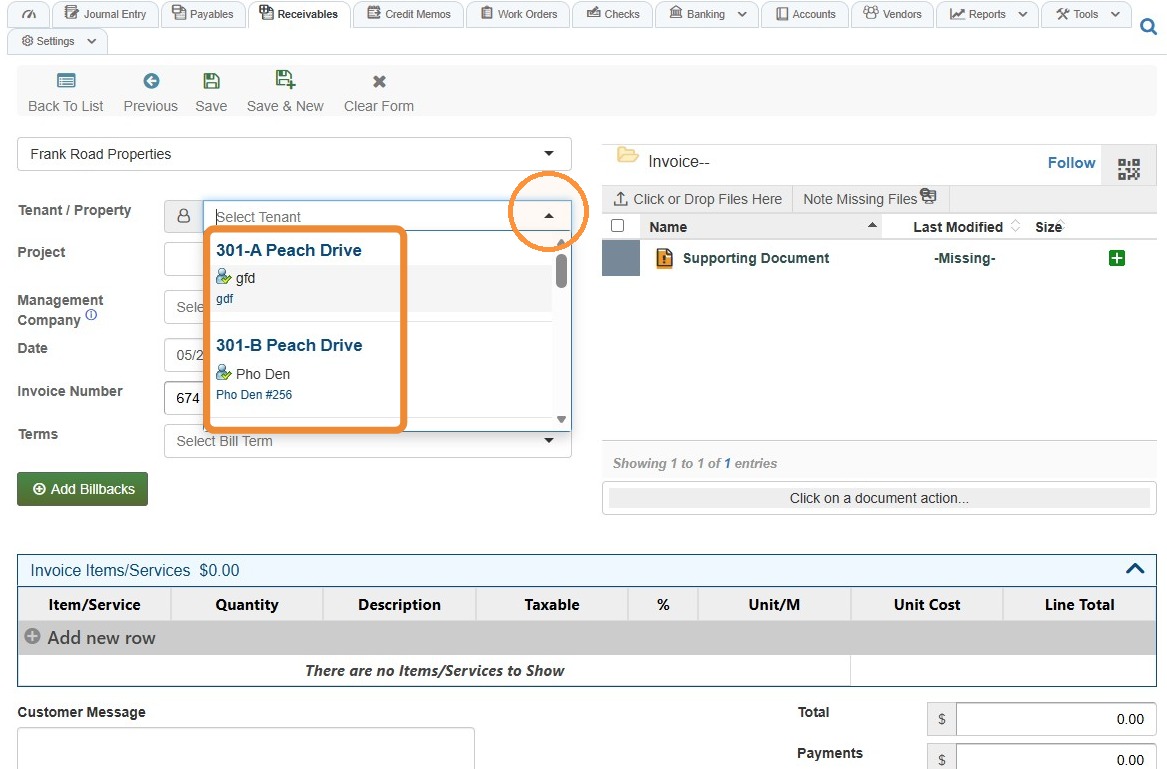
5. Select the tenant from the Tenant / Property dropdown.
If you do not need to add an invoice for a different entity type, skip to step 9.
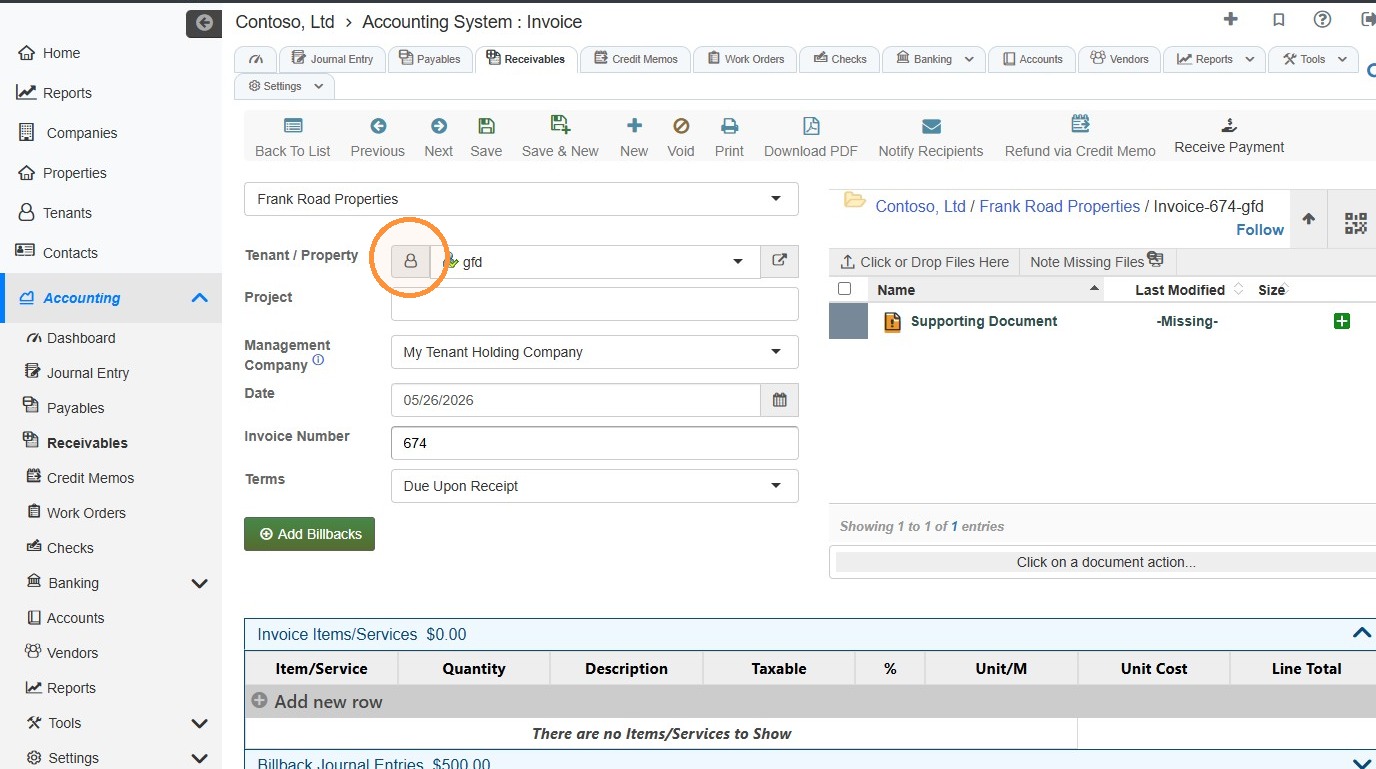
6. Select the Tenant/Property icon.
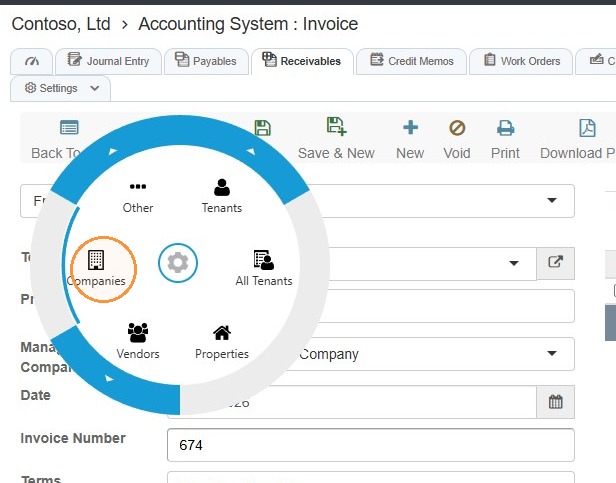
7. Select the entity type from the radial menu.
8. The Tenant/Property dropdown menu will update.
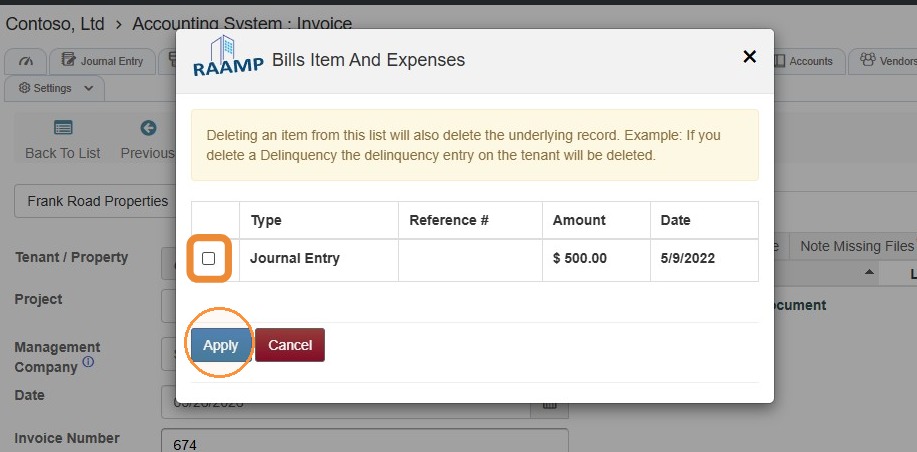
9. If the tenant has any bill backs, a modal will appear.
Select the checkbox(es) for any bill backs you want added to the invoice > Select Apply.
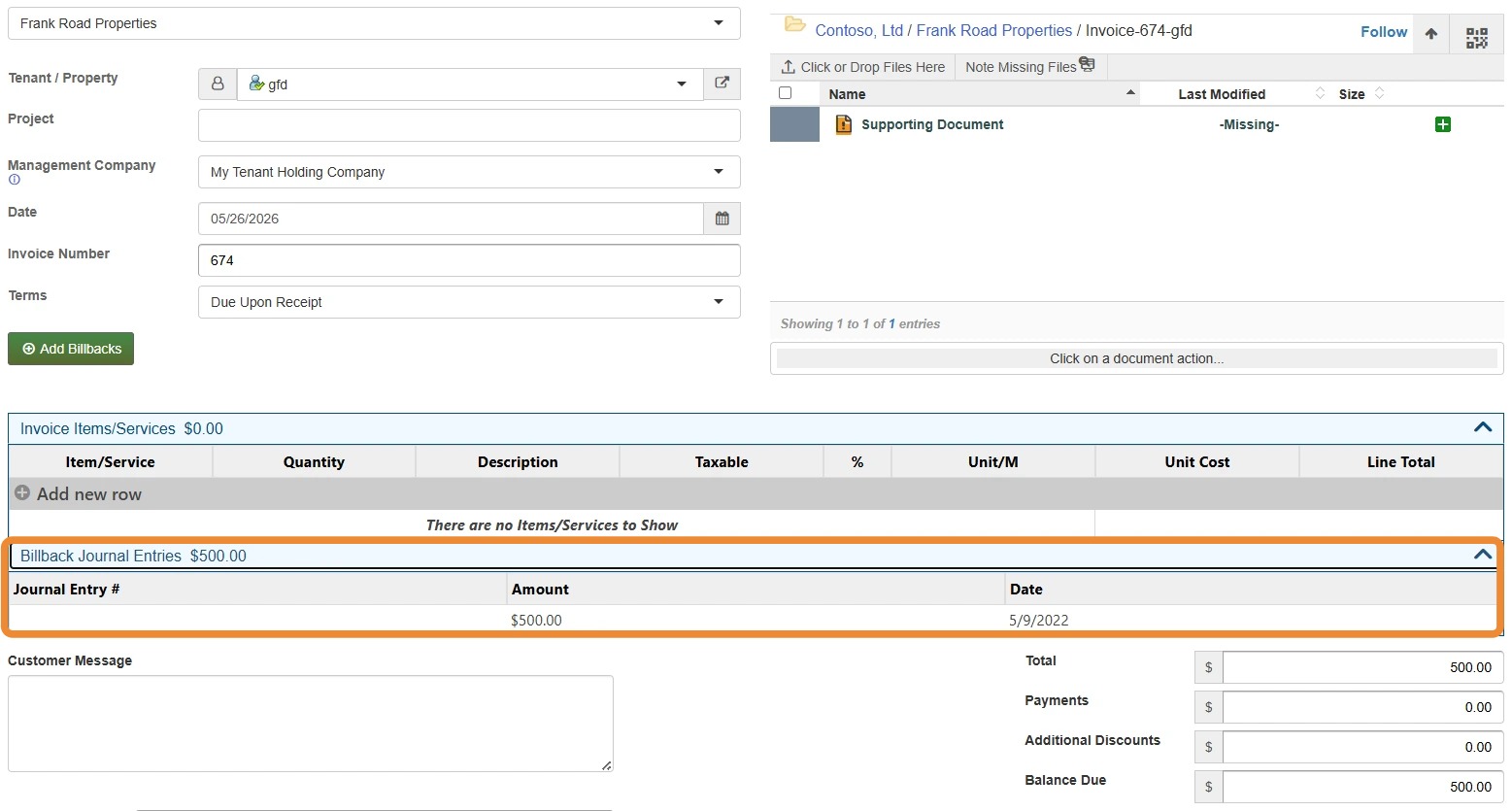
10. The bill back amount will automatically be added to the invoice.
Alert: Learn more about adding bill backs here: How to Add Bill Back Expenses
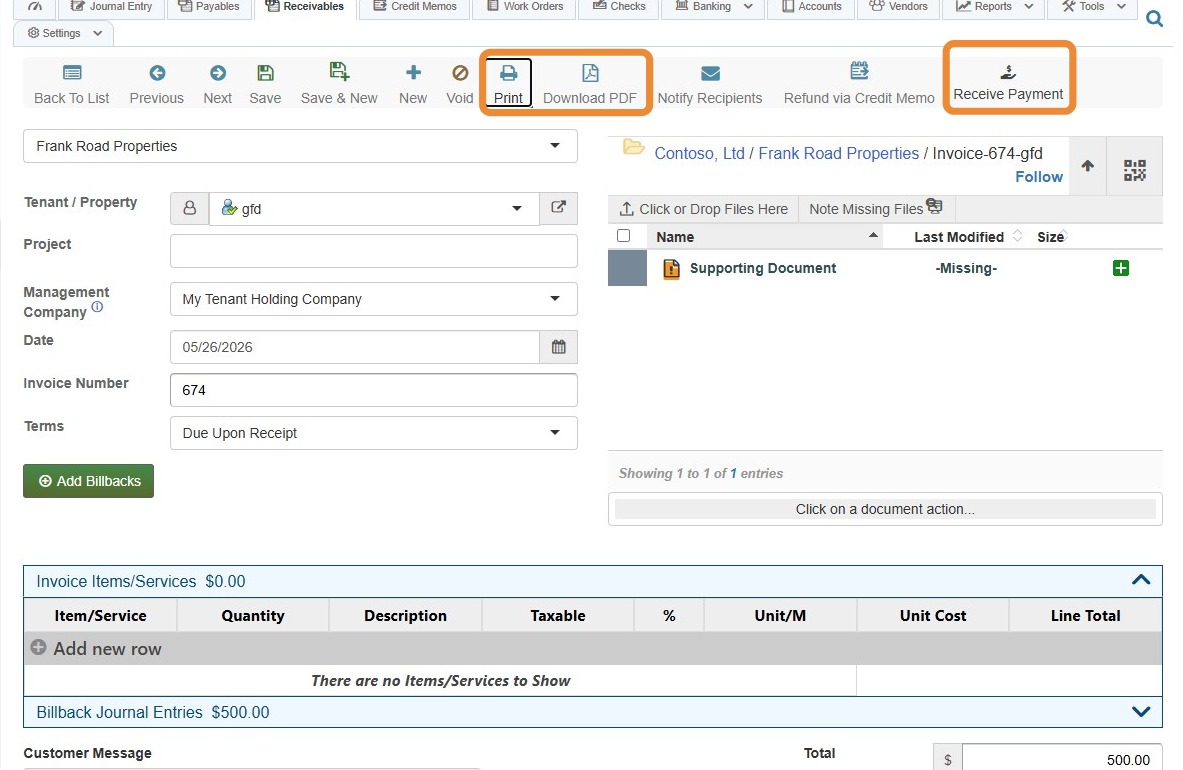
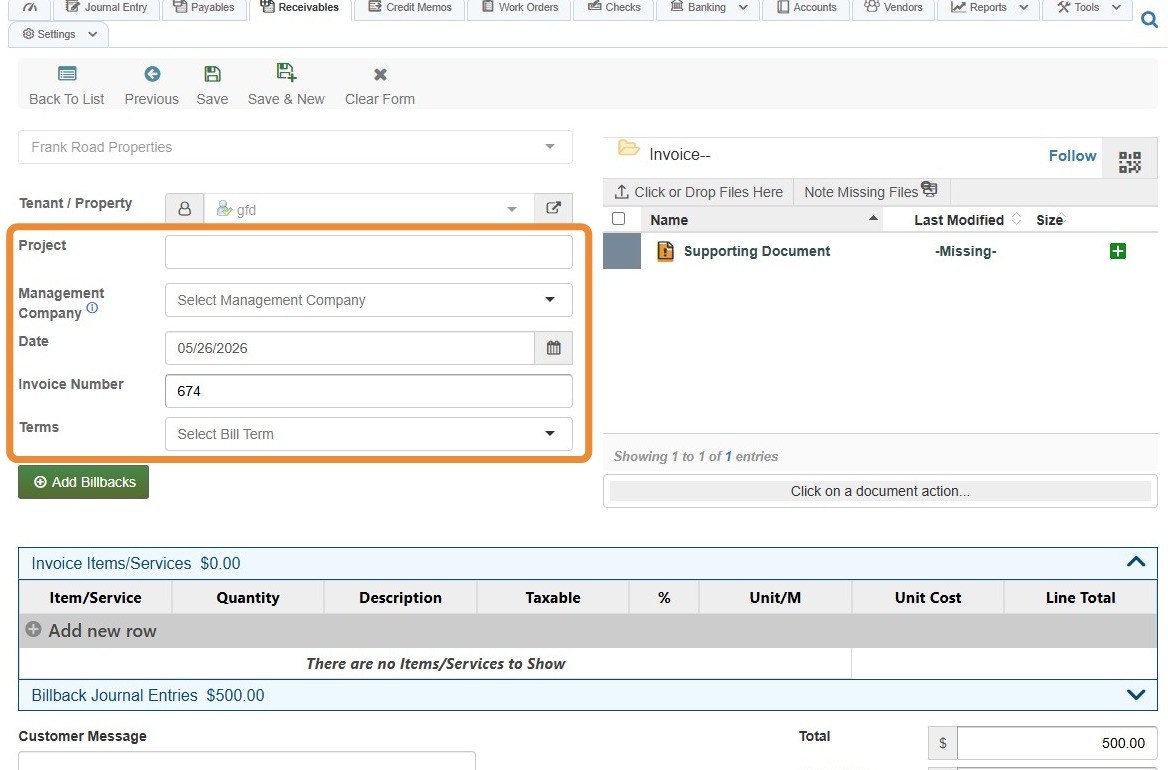
11. Complete the remaining fields as required.
NOTE: You can add a new bill term on the fly. See this tutorial to learn how.
12. To upload related files, select Click or Drop Files Here or Supporting documents > Select the file from your computer.
You can also Note a Missing File.
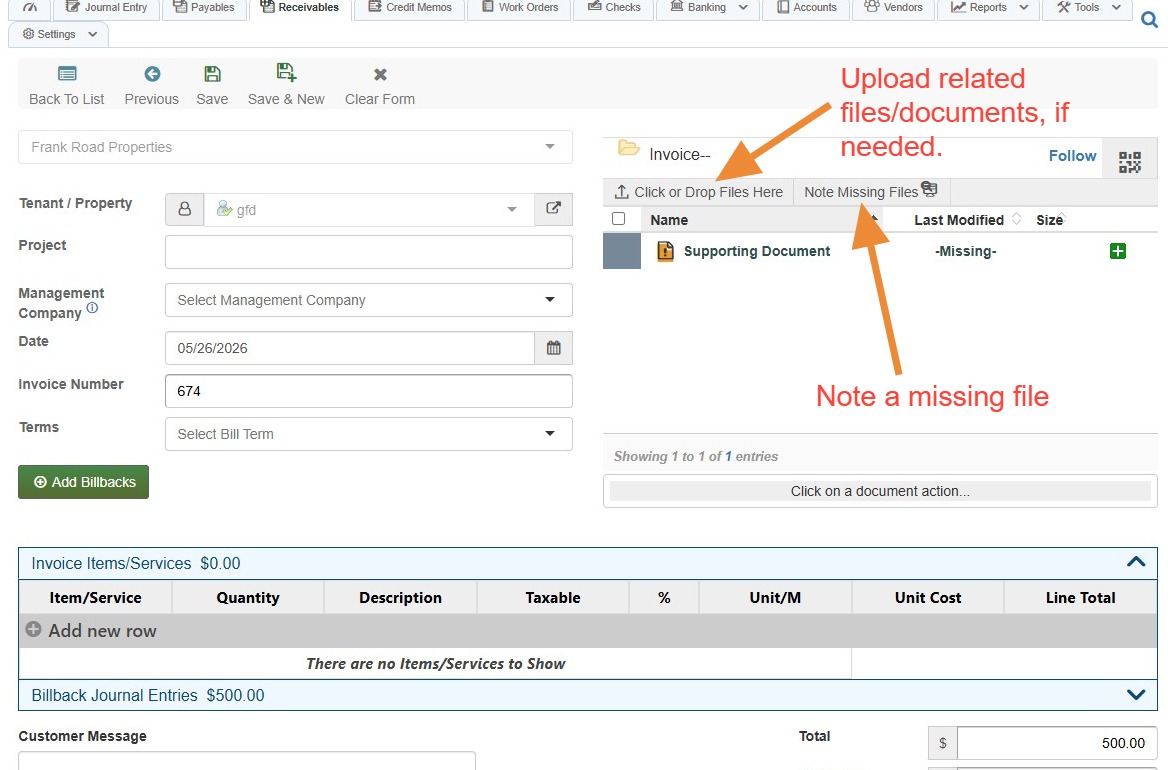
Tip: Learn How to Generate a Missing Files Report: Transactions (Payables/Receivables)
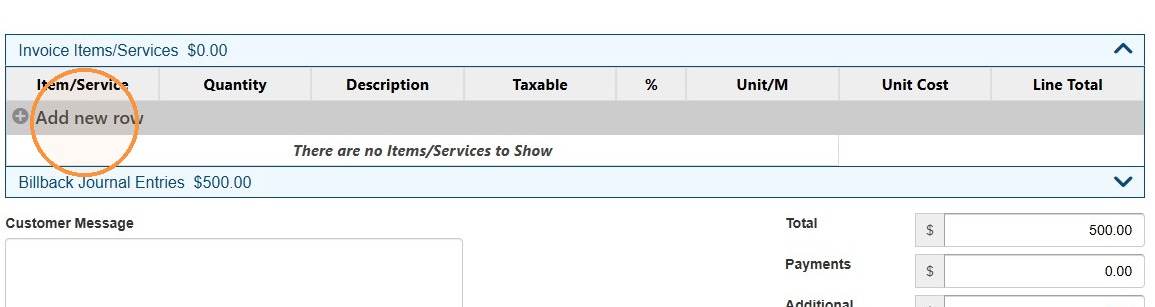
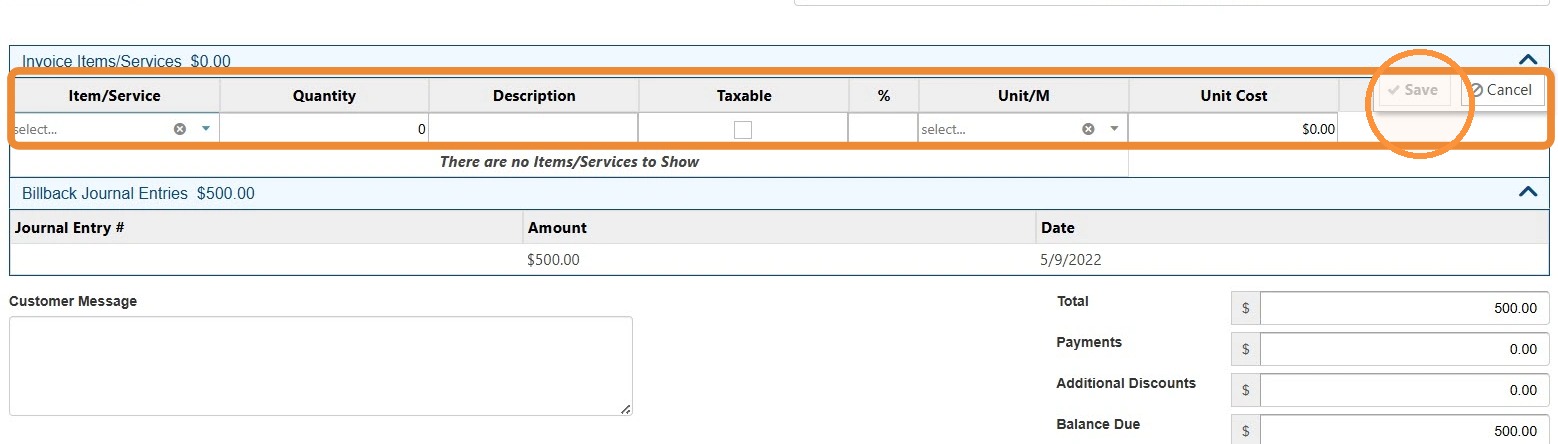
13. If you need to add additional items/services to the invoice, select Add new row > Complete the item/service information > Select Save.
14. Select Save to finalize the invoice.
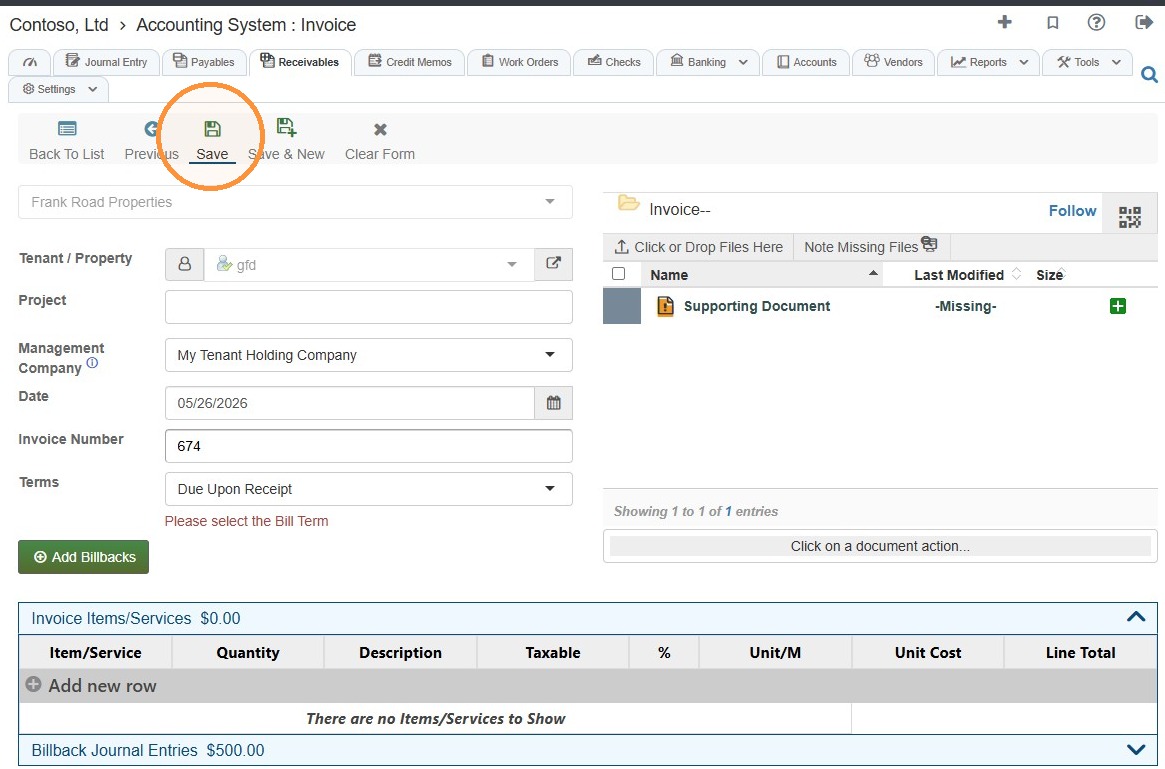
15. Once saved, you can print, download PDF, and receive payment.