How to Add and Edit a Property
This guide quickly shows how to add a new property and update existing property details in the system, including entering name, landlord, address, square footage, and saving. It also explains how to find and open a property for editing and notes faster search and menu options. Follow it to ensure accurate property setup and enable tenant portal payments by verifying ownership.
Alert: Before starting this process, make sure the original lease is already downloaded onto your computer.
How to Quick Add a Property
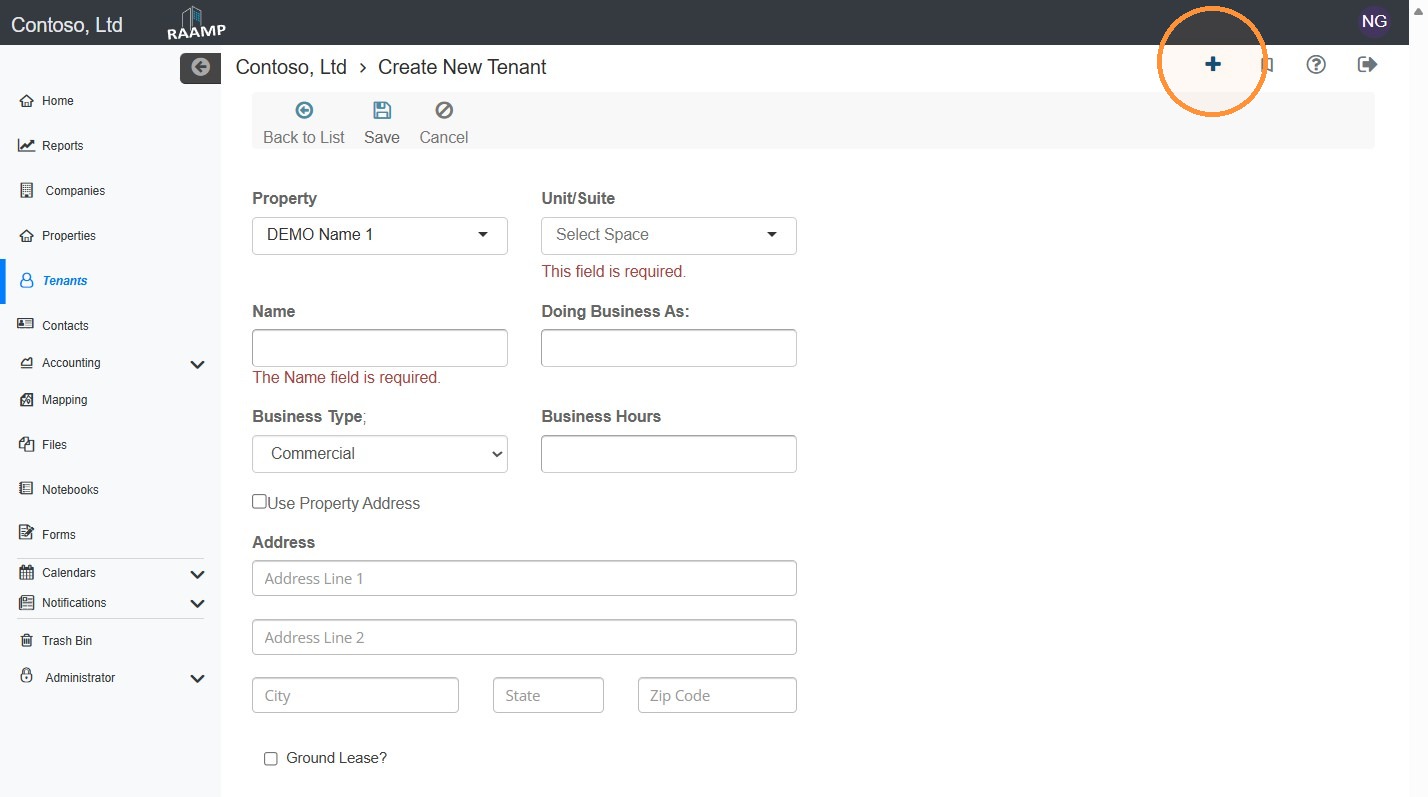
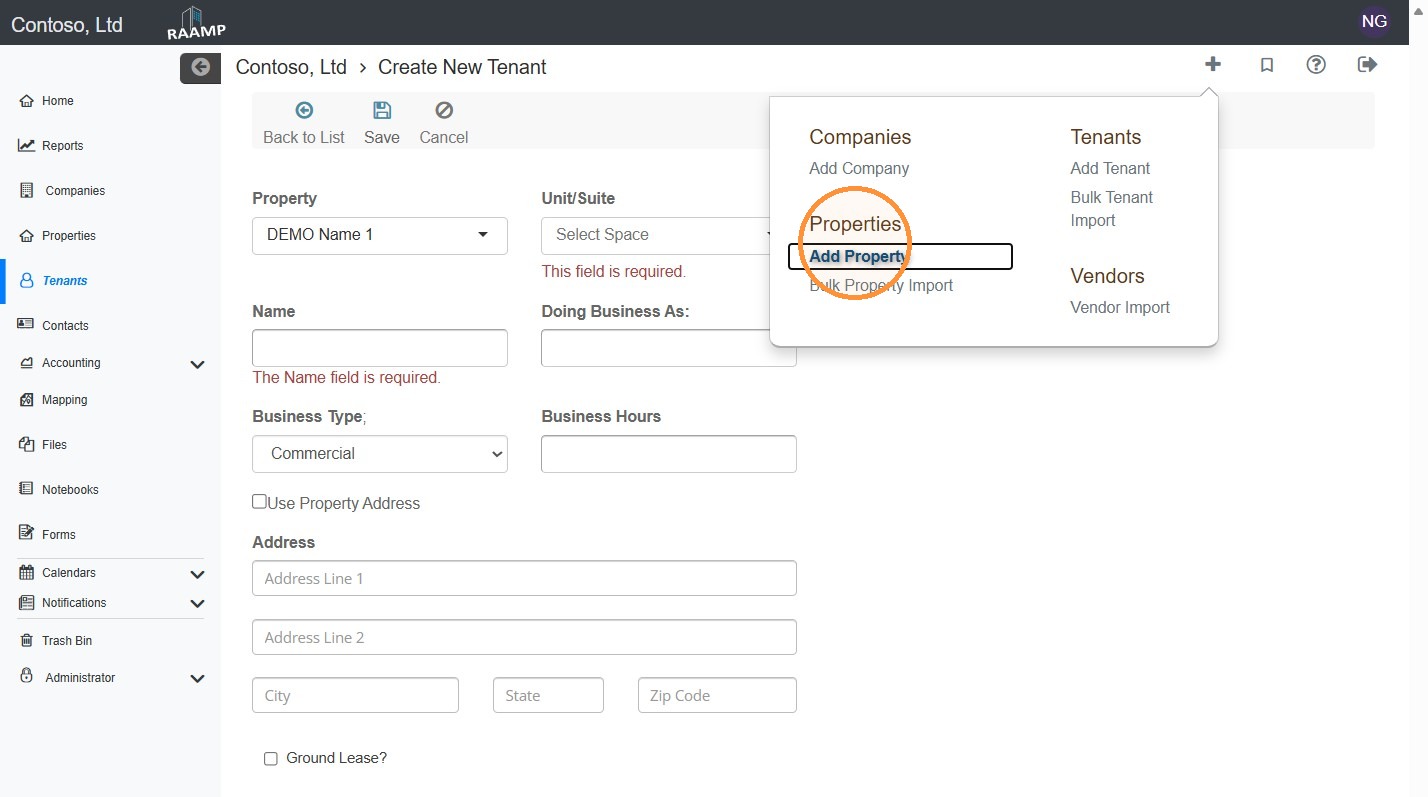
1. From Home, select the + icon in the top right corner > select Add Property.
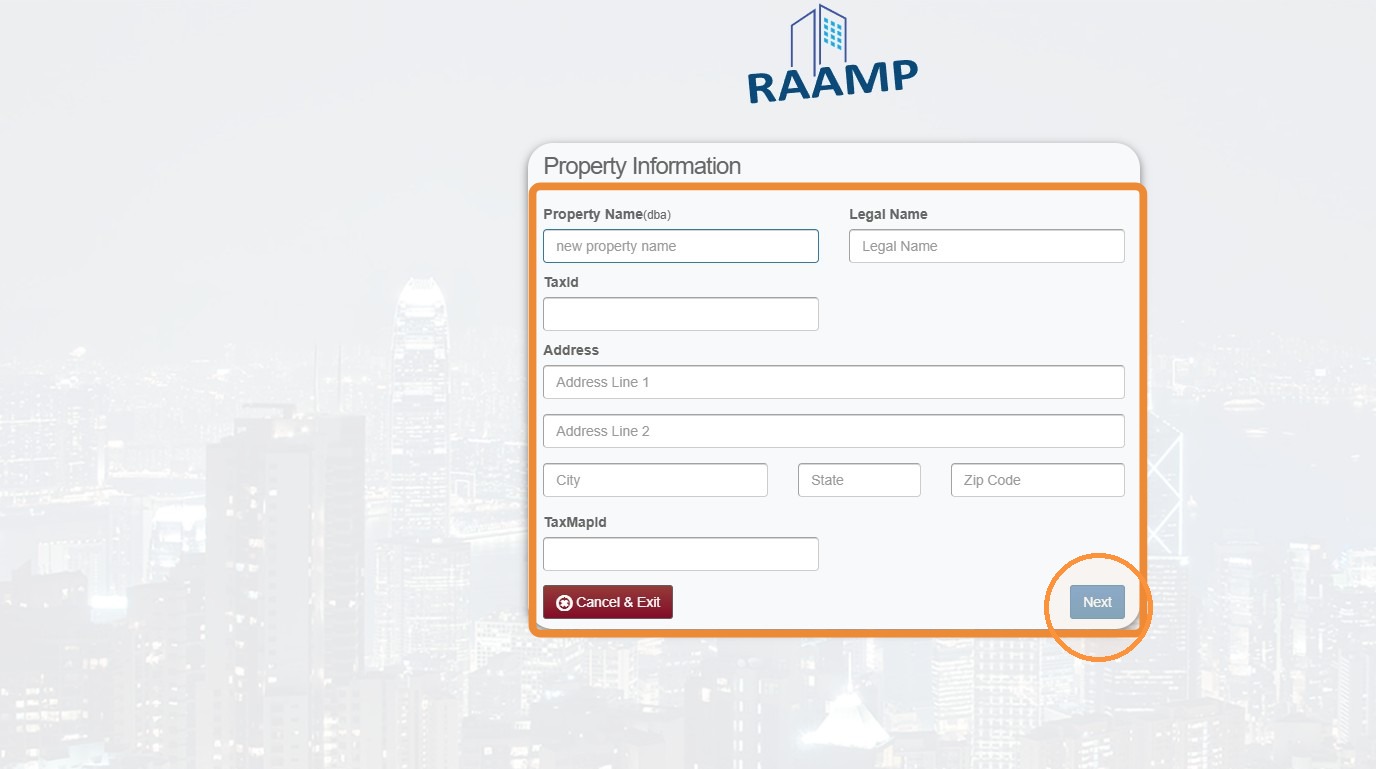
2. Use the lease to fill in the fields > Select Next.
3. Use the lease to fill in the fields > Select Create Property.
How to Add a Property
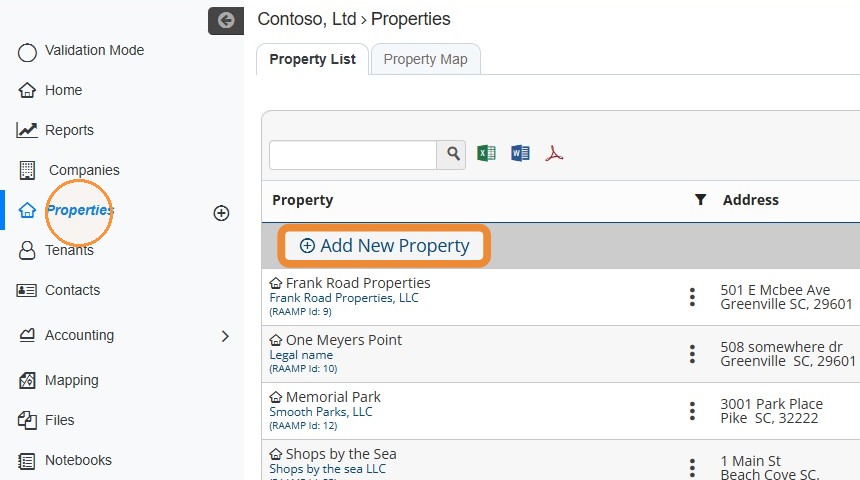
4. From the navigation menu, select Properties > Select Add New Property.
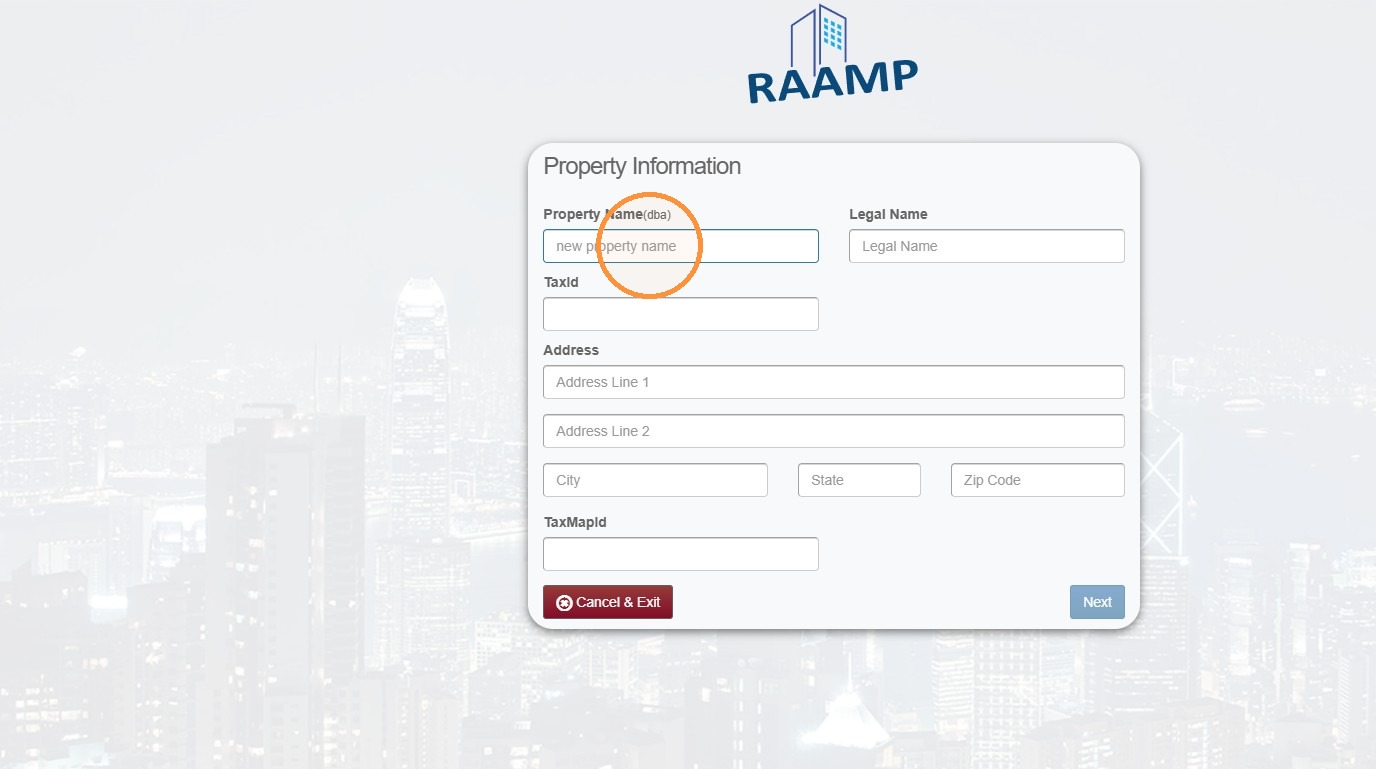
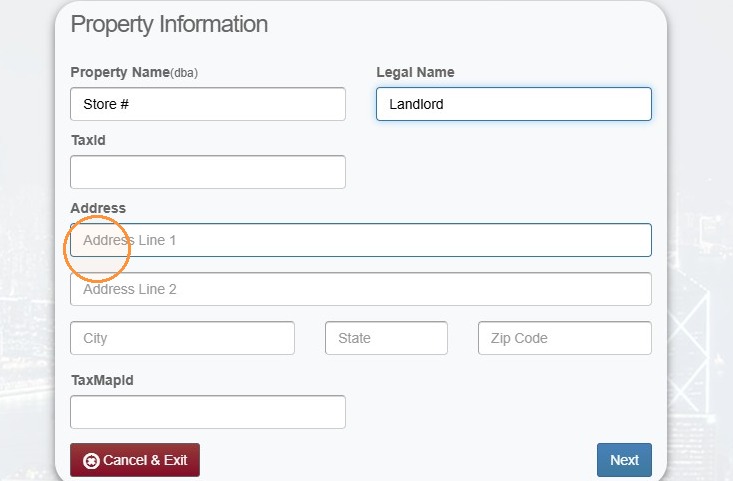
5. Select the Property Name field > Enter the property name from the lease. \ \ NOTE: If there is a store number, add it here.
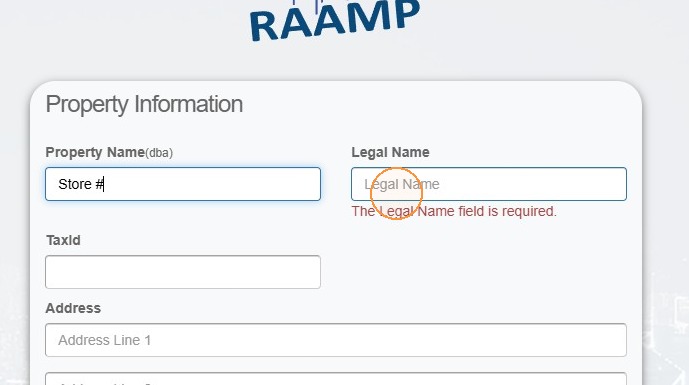
6. Select the Legal Name field > Enter the Landlord's name.
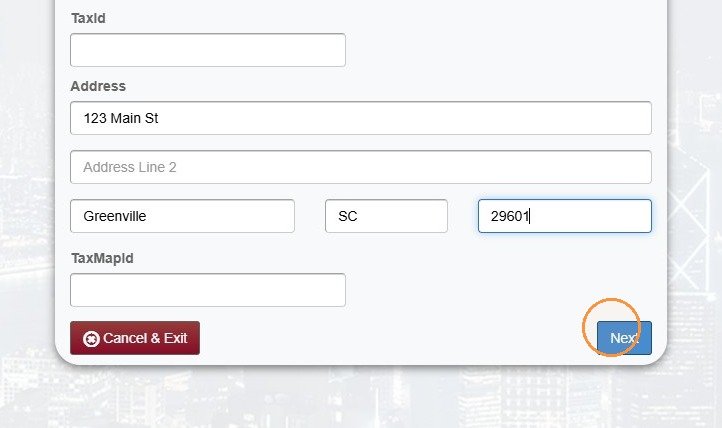
7. Select the Address field > Enter the address > Select Next.
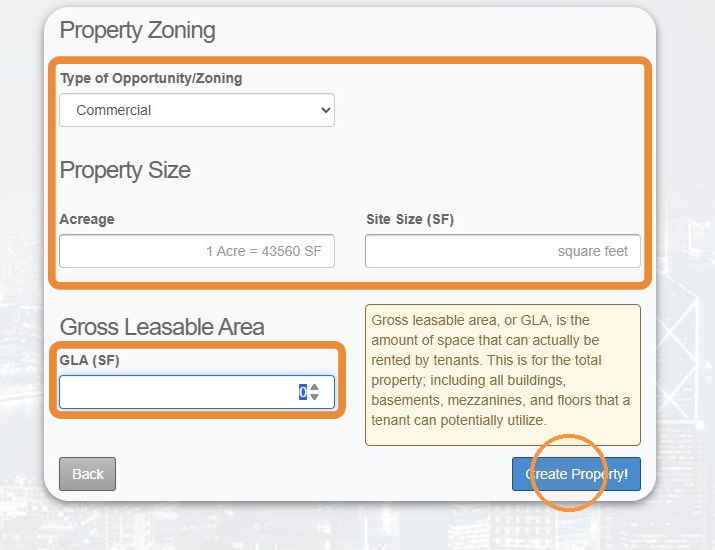
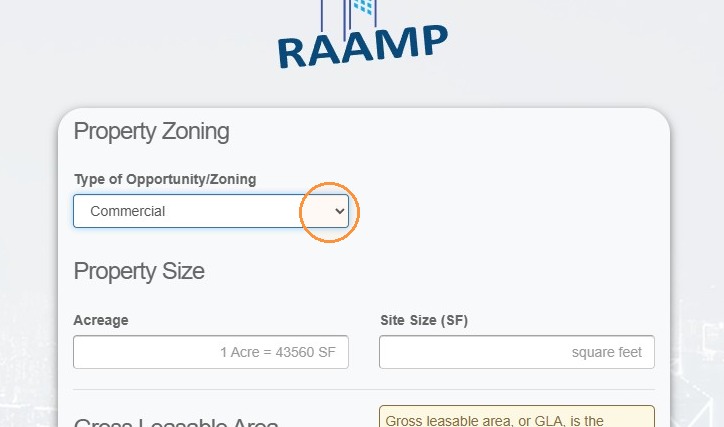
8. Select from the dropdown menu.
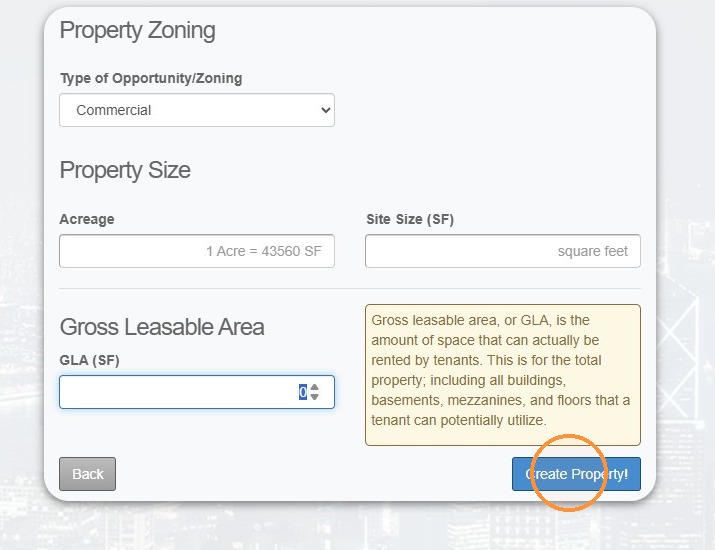
9. Add the location's square footage, if specified in the lease.
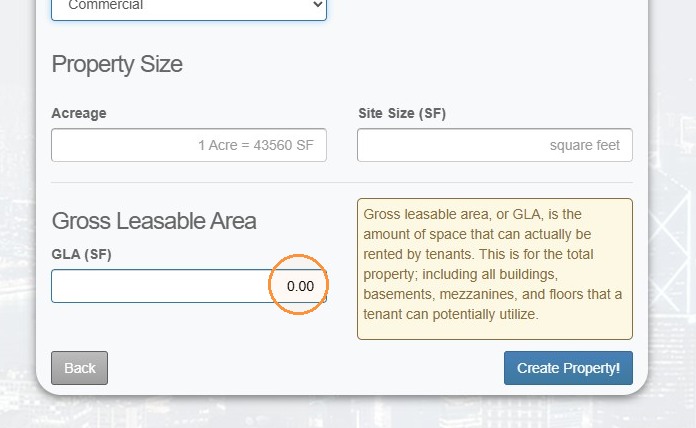
10. Select Create Property.
How to Edit a Property
11. From the navigation menu, select Properties.
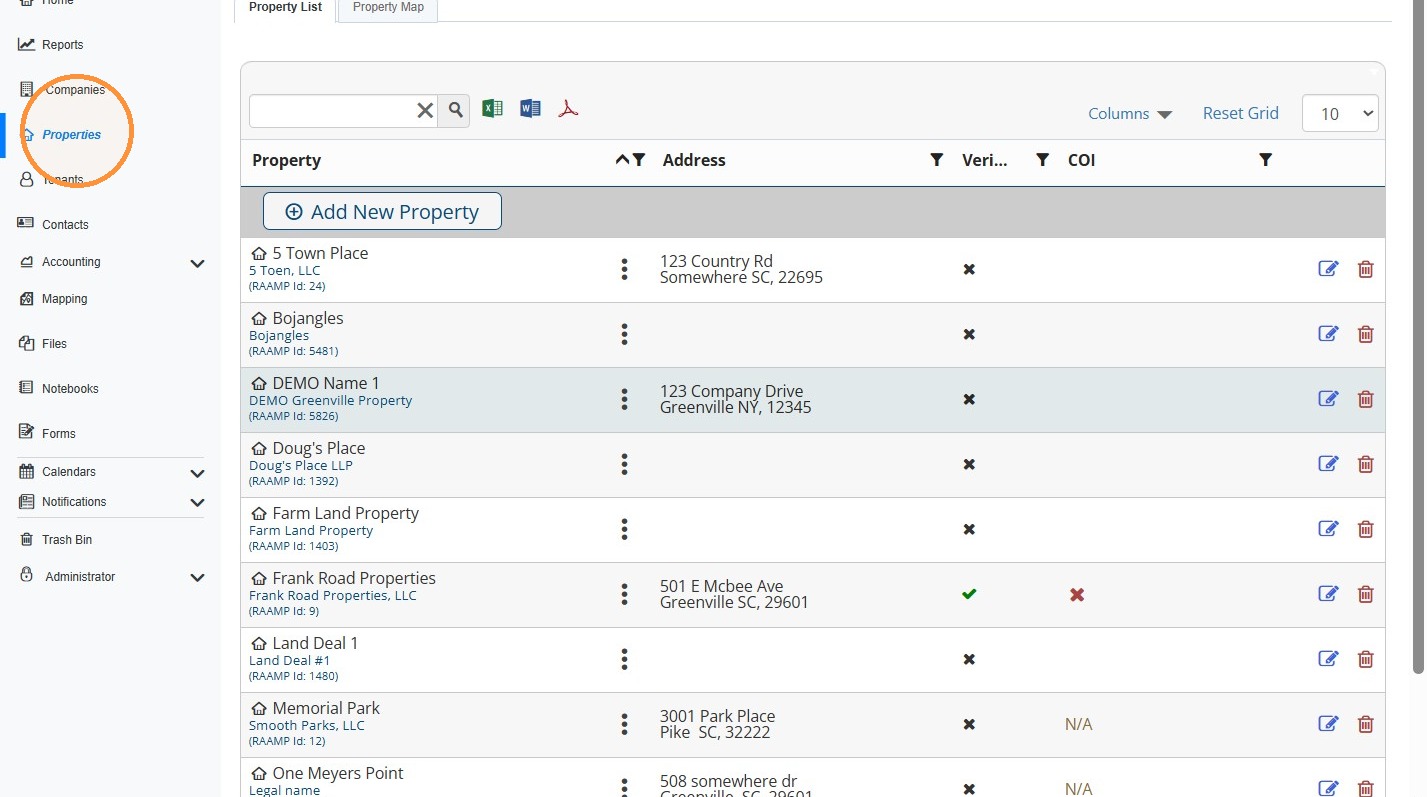
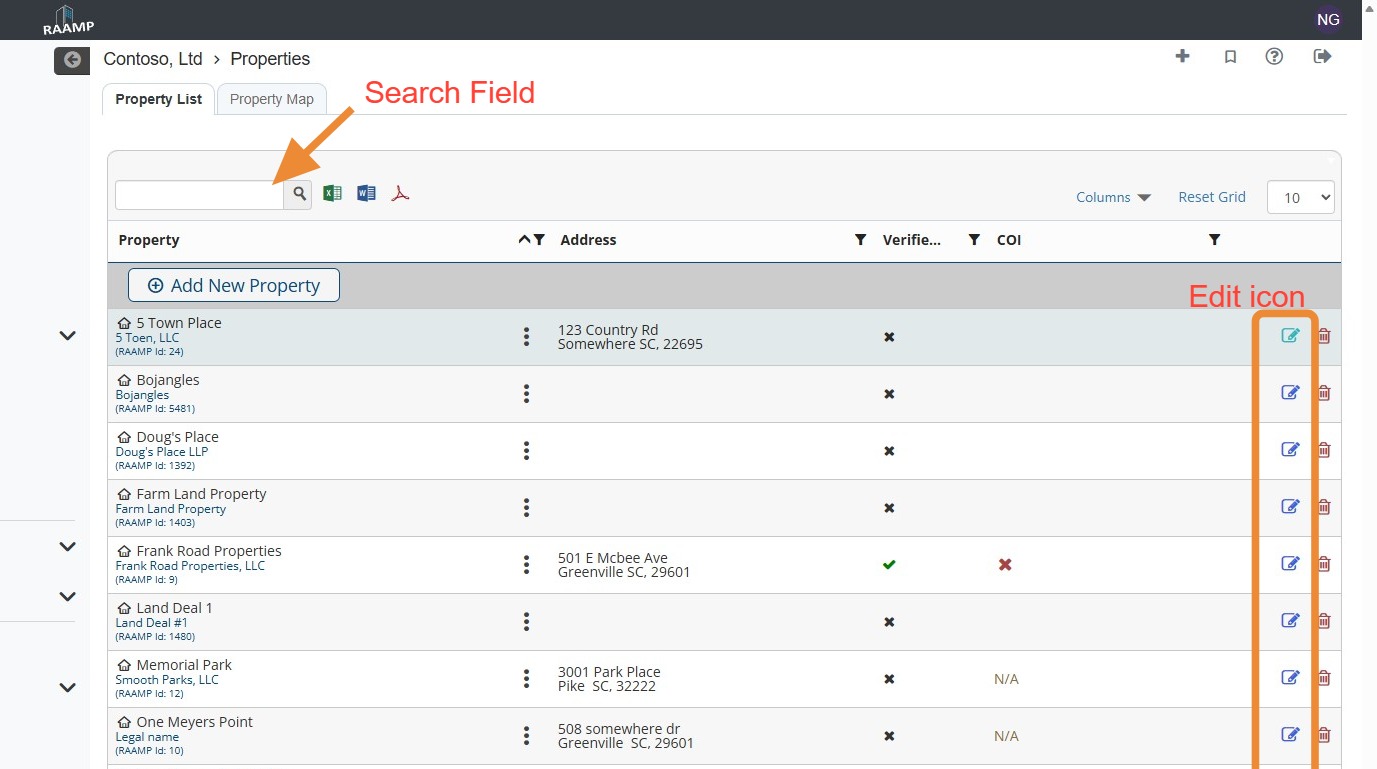
12. Locate the Property, select the Edit icon.
NOTE: You can locate the Property quickly by searching for it.
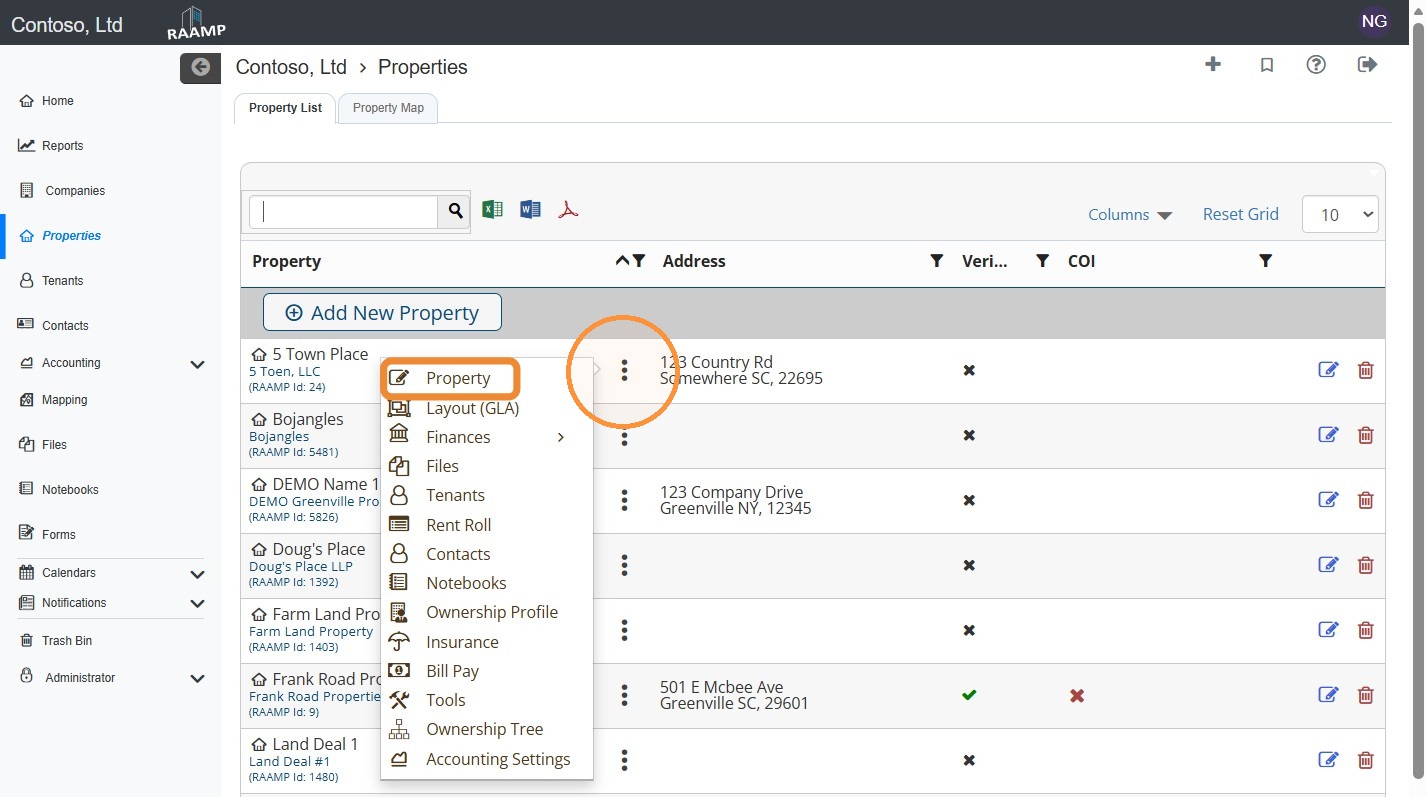
13. Alternatively, locate the Property > select the property's three-dot menu > select Property.
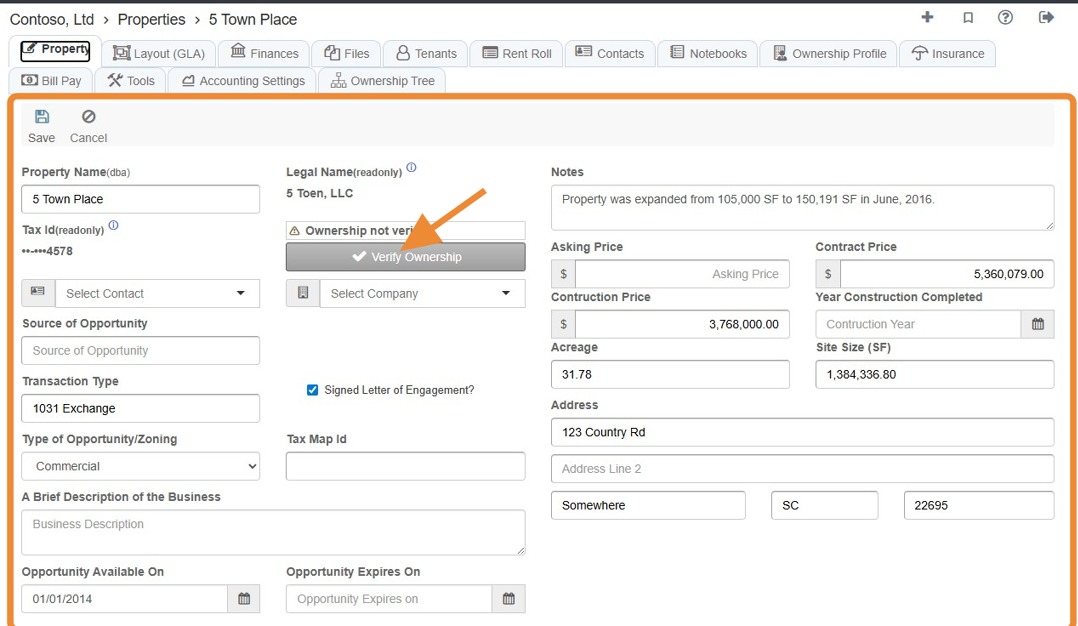
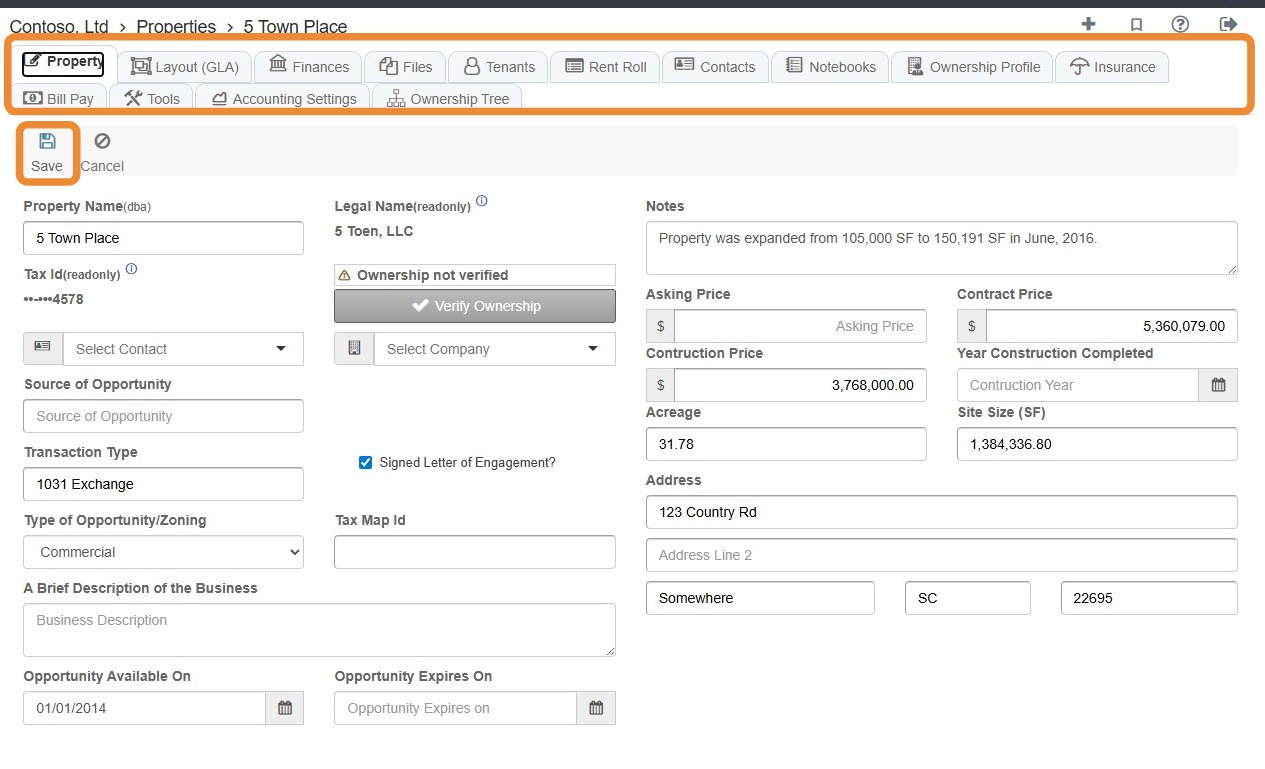
14. This is the main edit page for the property.
Edit the information > Select Save.
You can select other tabs to edit the tab-specific information. To upload property-specific files, select the Files tab.
Tip: For the management company physical address to autofill on the tenant invoice setup, you must select a company.
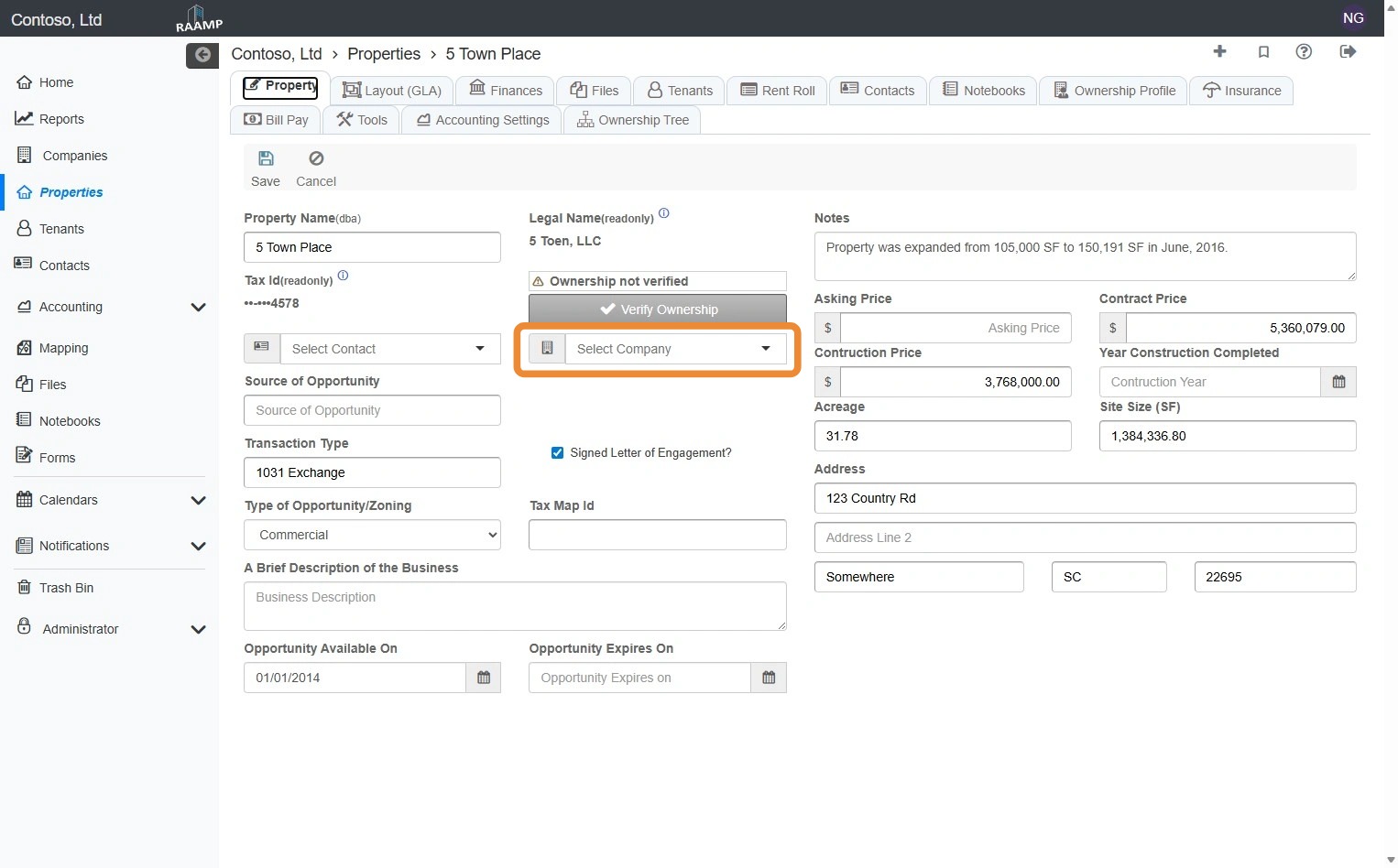
Alert: To enable tenants to pay via the Tenant Portal, you will need to verify property ownership. Learn how to verify ownership here: