How to Configure and Use Passkey Authentication
Learn how to secure your account by setting up a passkey within the RAAMP platform. This guide walks you through the entire process, from initial sign-in to successfully accessing your company dashboard using modern authentication methods.
Sign In
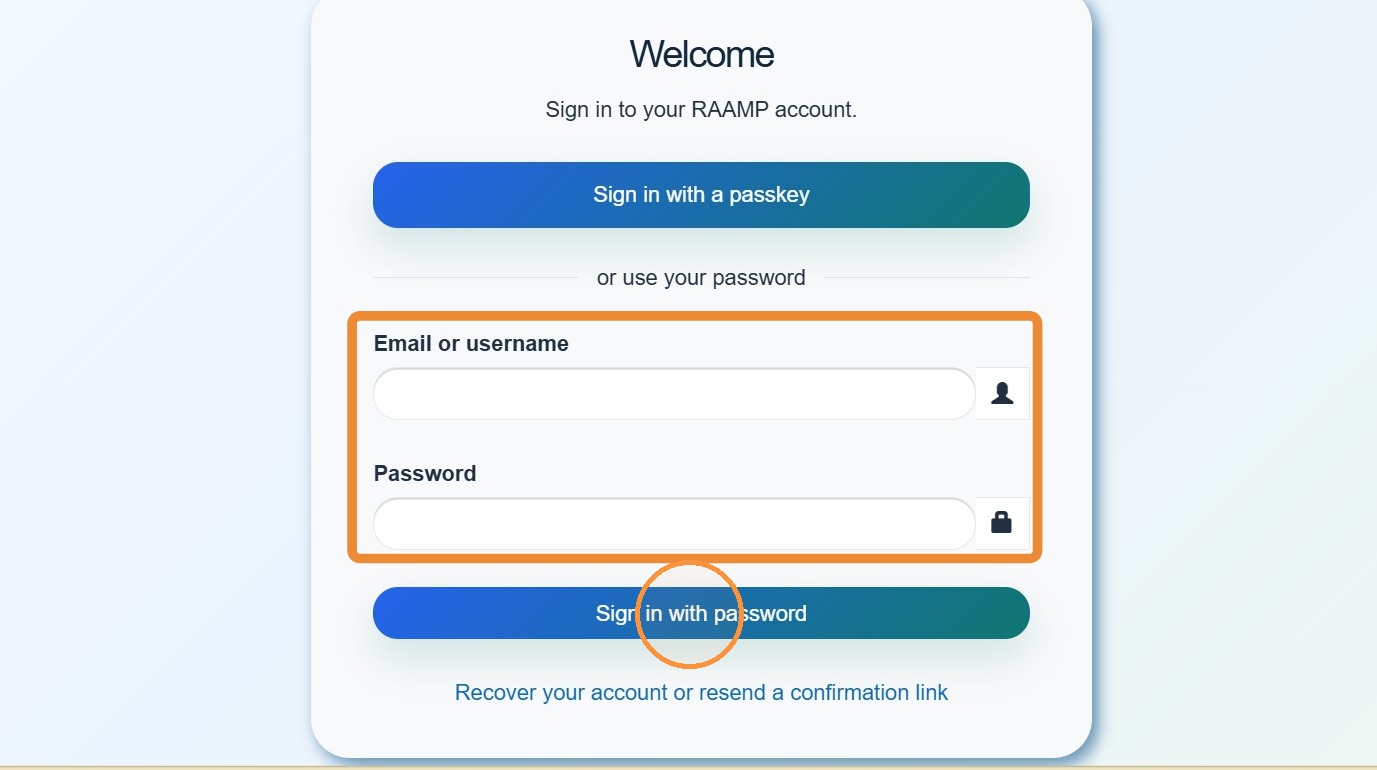
1. Sign in with your email/username and password > Select Sign in with password.
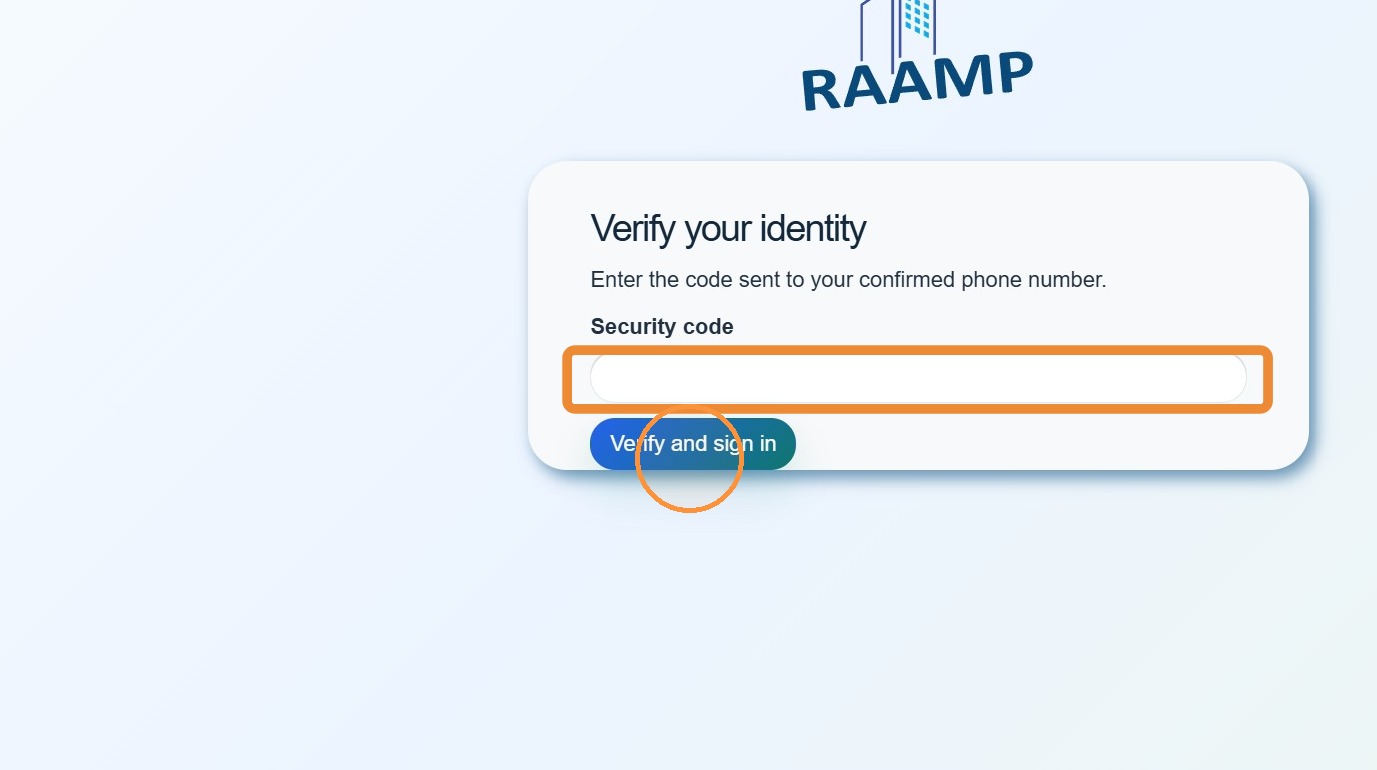
2. Enter the security code > Select Verify and sign in.
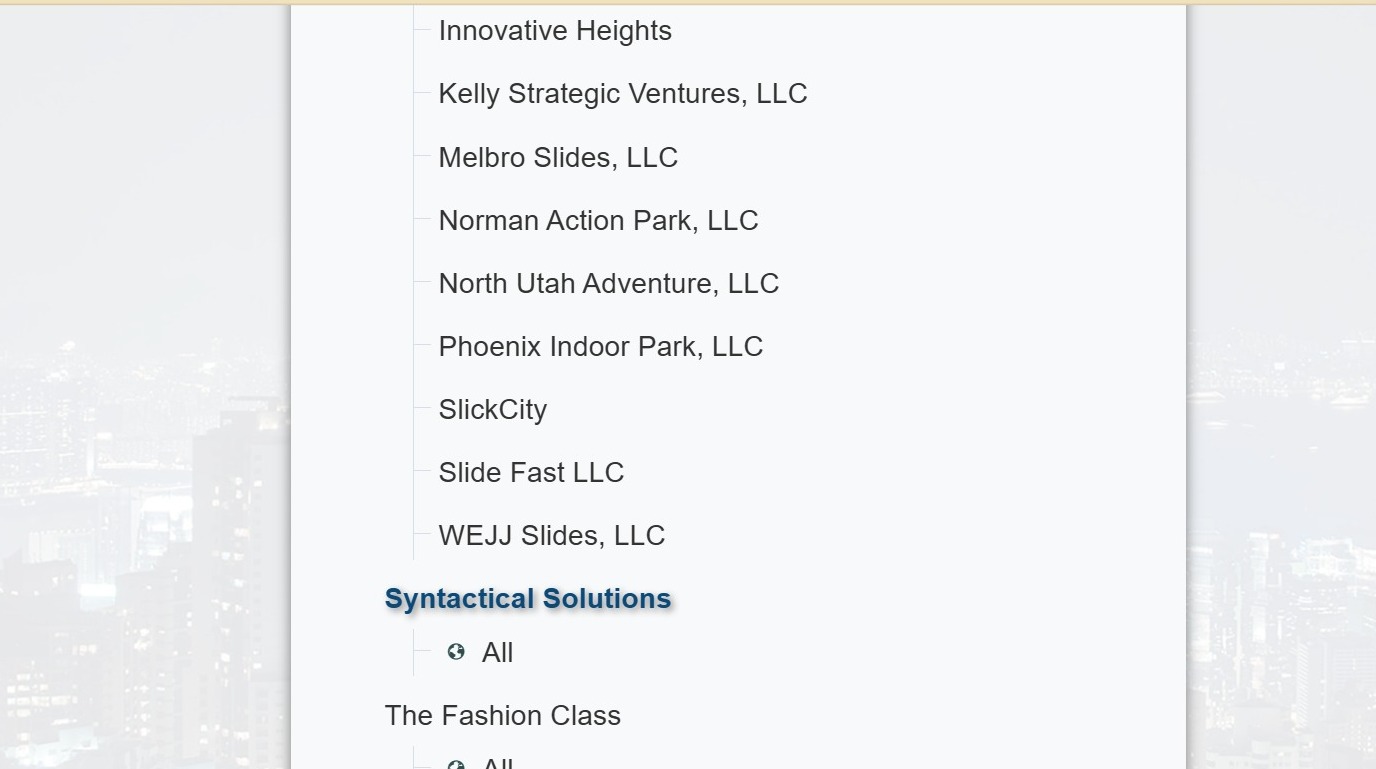
3. Select the appropriate company.
How to Set Up Passkey
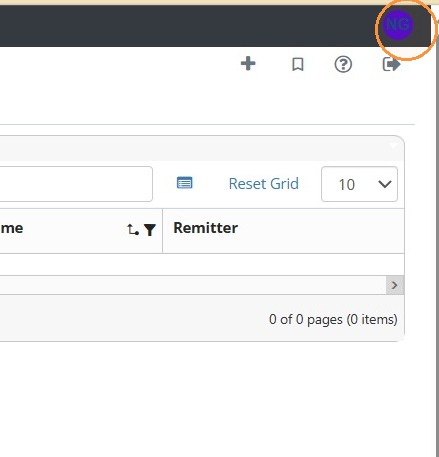
4. Select your avatar in the top right corner.
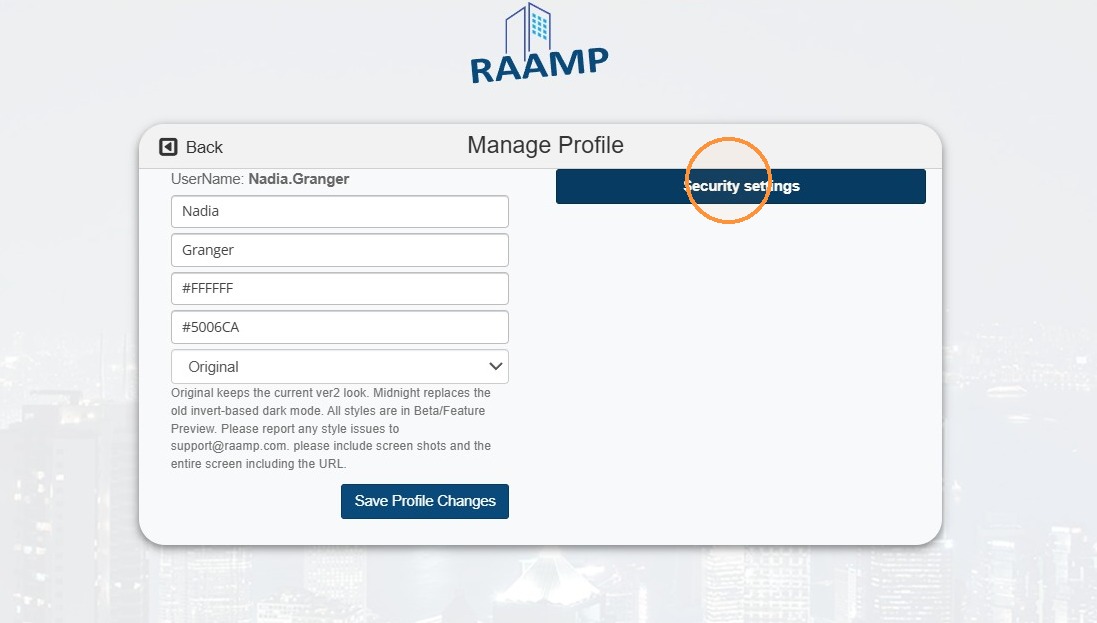
5. Select Security settings.
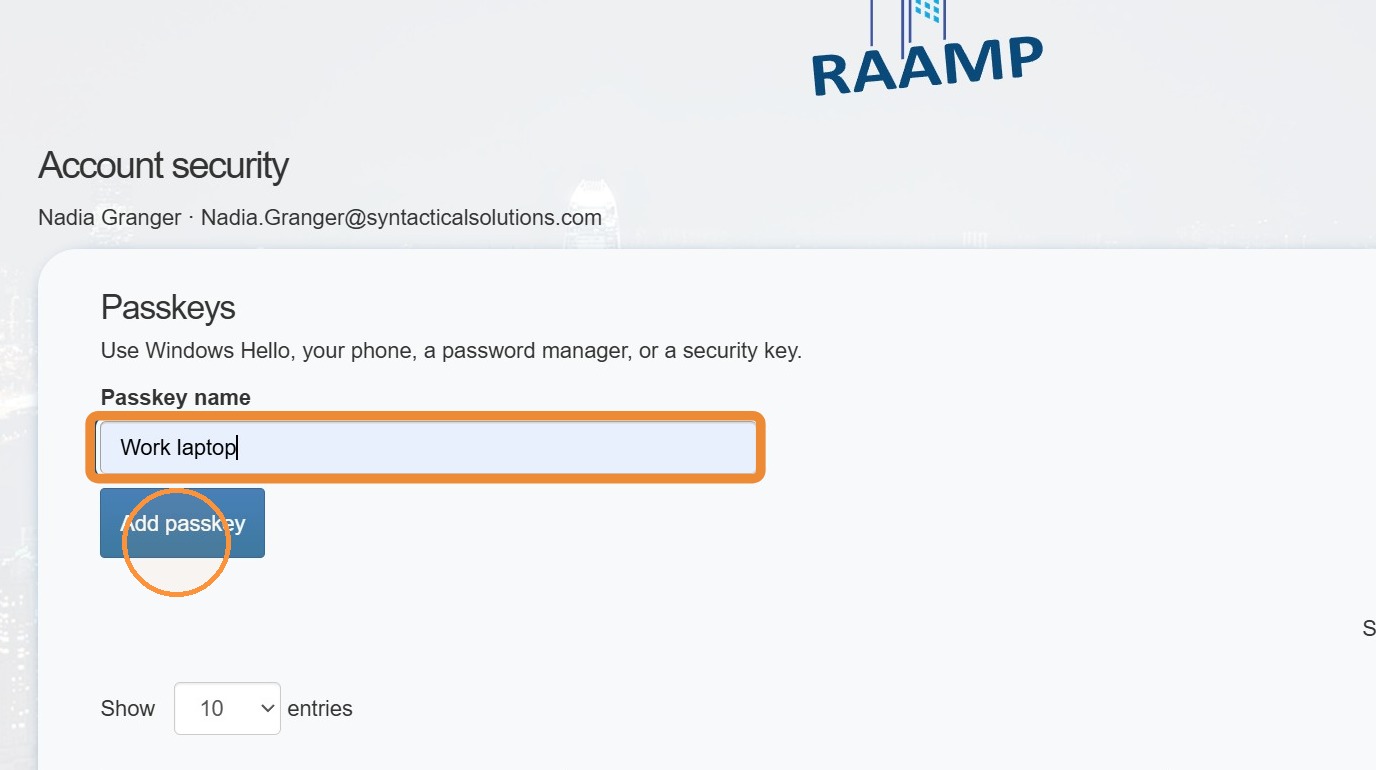
6. Select Passkey name > Enter a passkey name > Select Add passkey.
NOTE: Be sure to name the key so you know which device the passkey is associated with. You need to set up a passkey on every device you use RAAMP on.
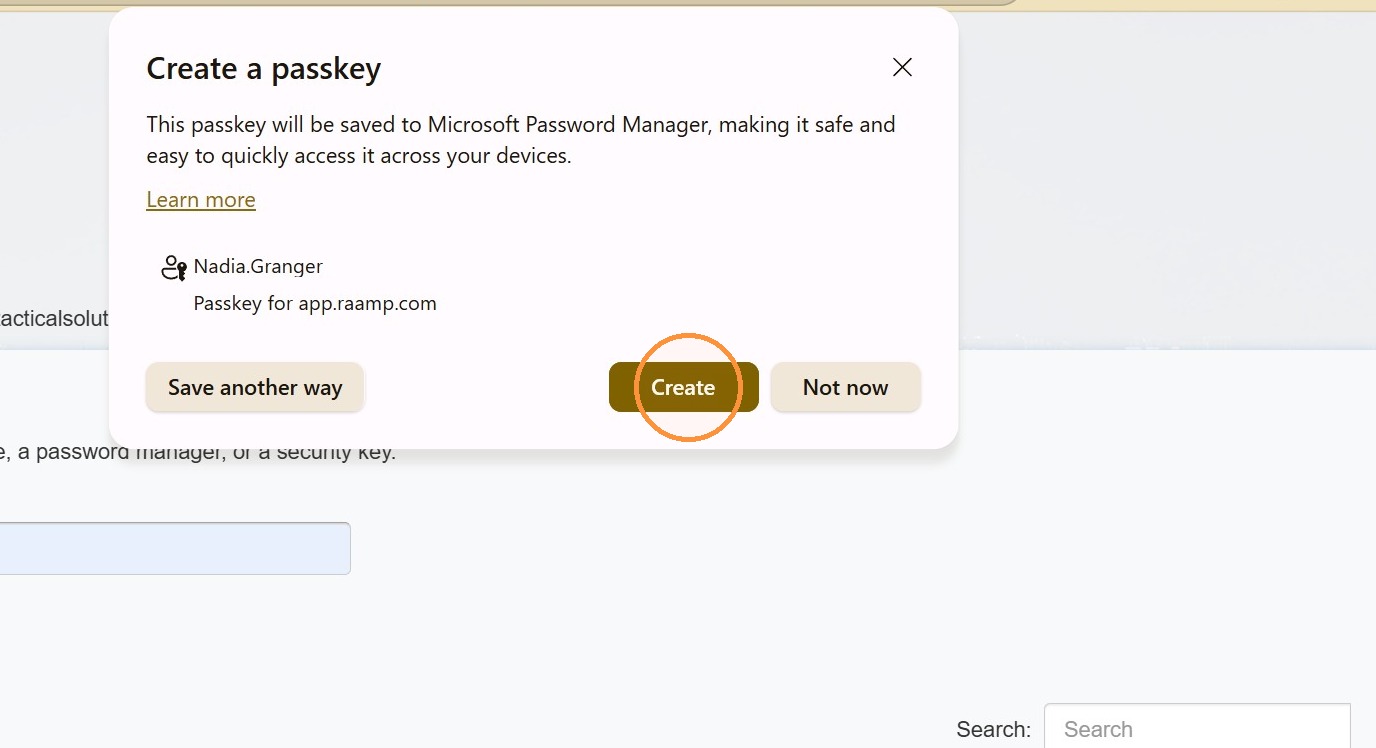
7. Select Create.
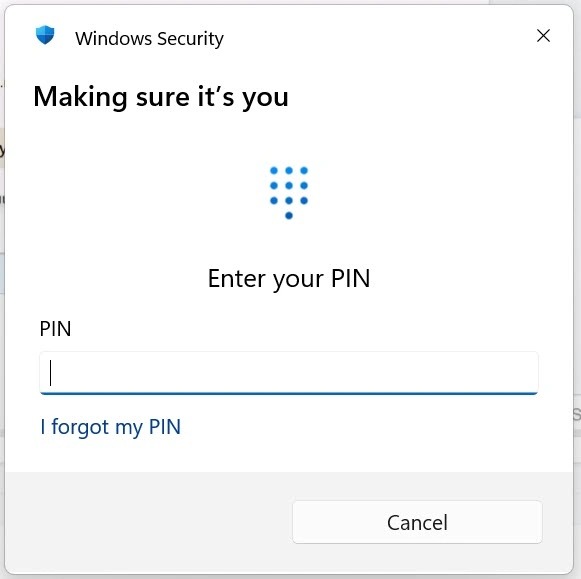
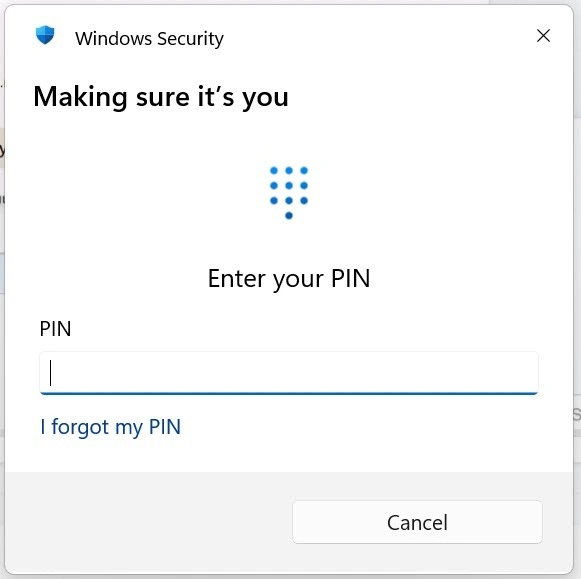
8. Enter your PIN.
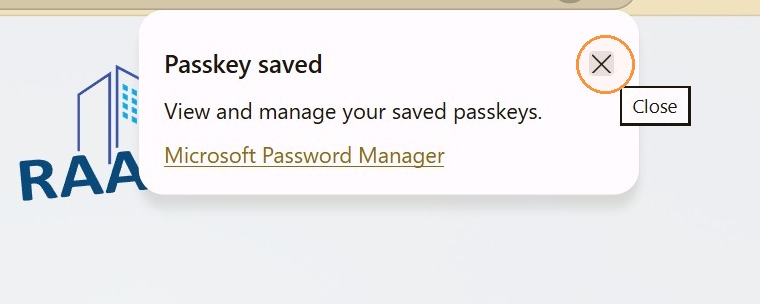
9. Select the x to close the Passkey saved window.
How to Confirm Passkey Set Up
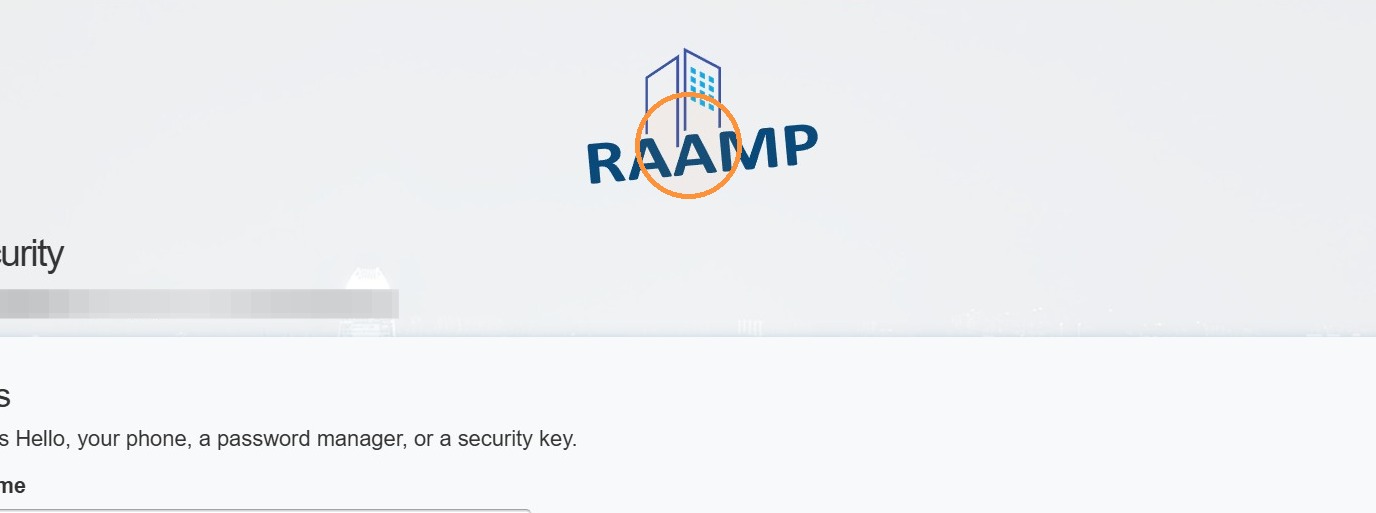
10. Select RAAMP.
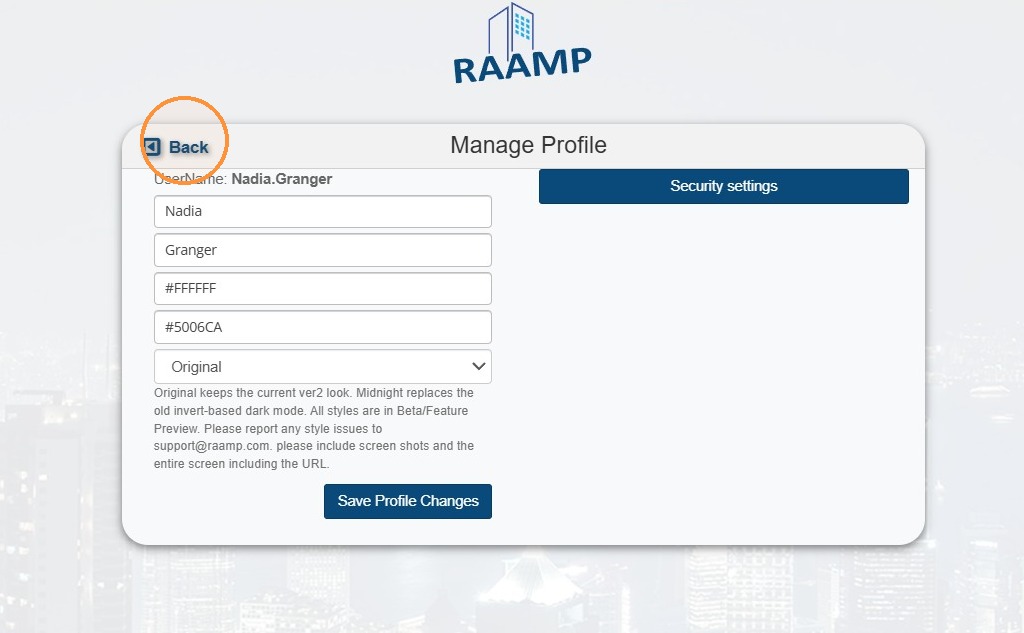
11. Select Back.
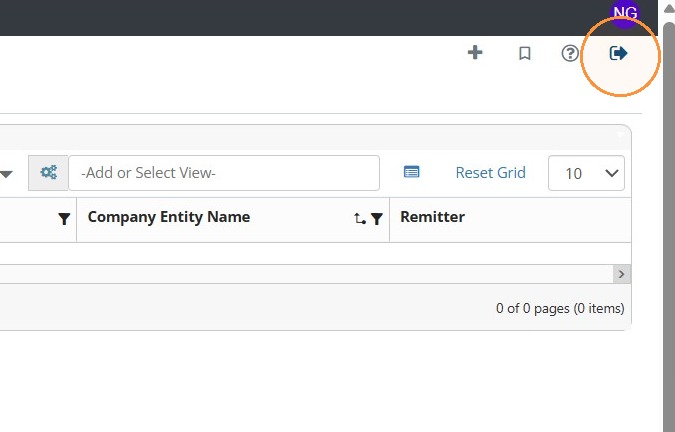
12. Select Logout.
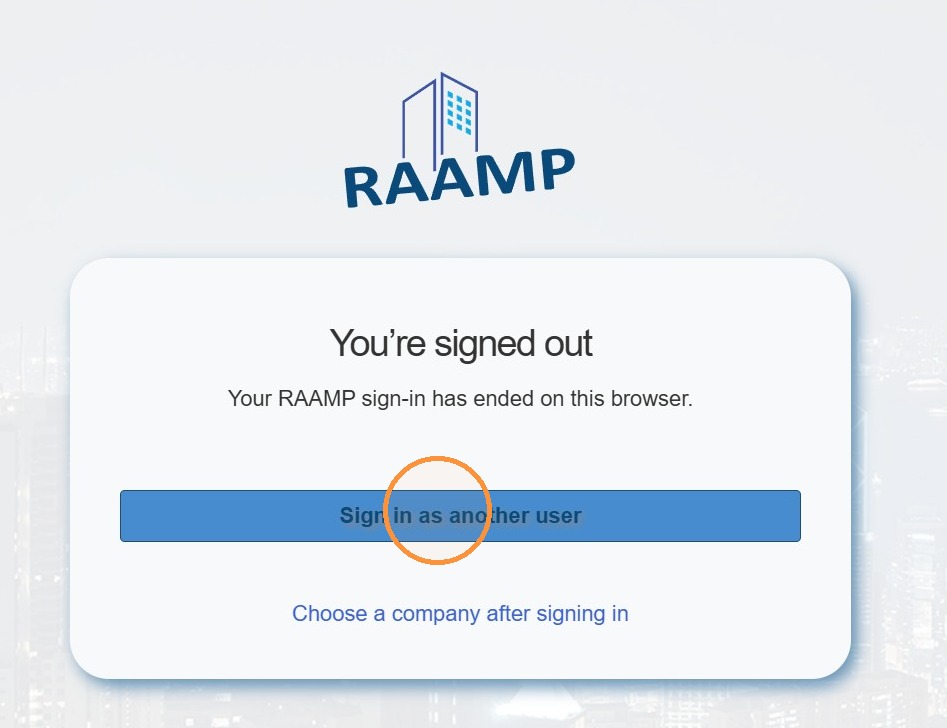
13. Select Sign in as another user.
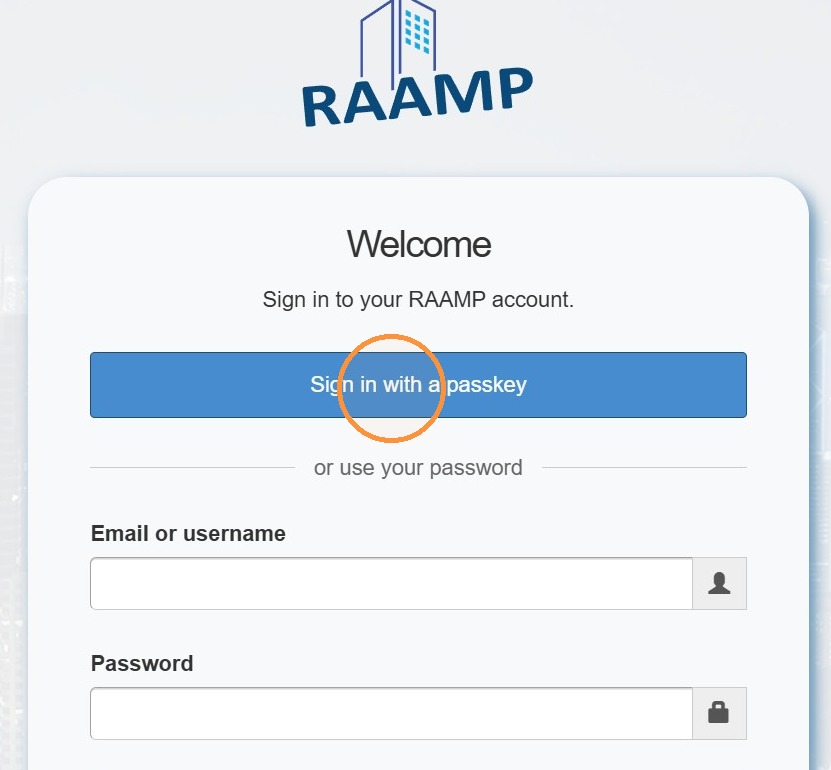
14. Select Sign in with a passkey.
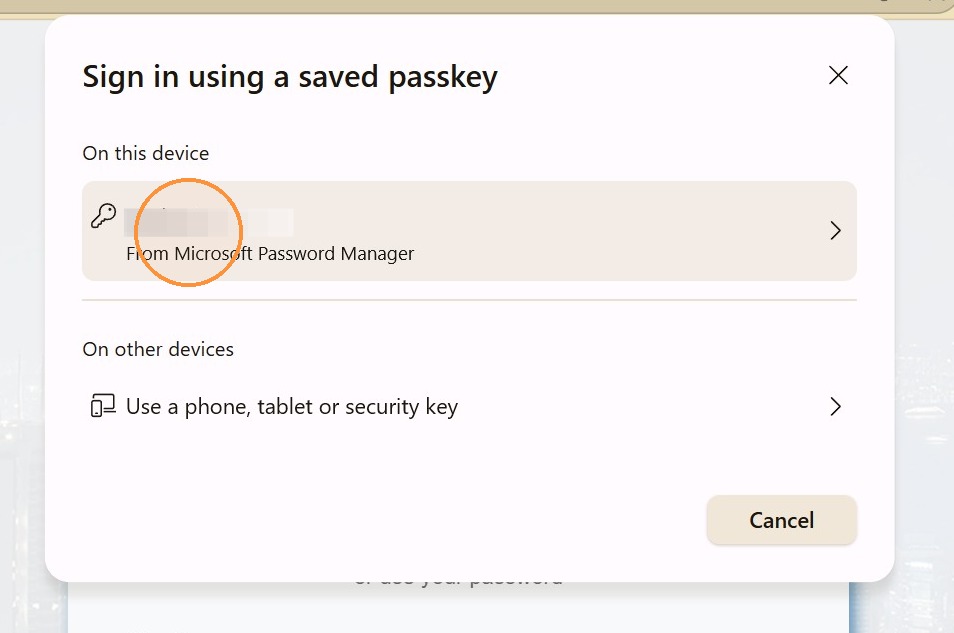
15. Select your saved passkey.
16. Enter your PIN > Confirm sign in.