How to Add, Edit, and Delete Property Addresses
This guide shows how to manage a property's contact locations—billing, mailing, or physical—so records and phone numbers stay accurate and tied to the right site. It walks you through where to find a property's Addresses tab, how to add a new address with its type, and how to edit or delete an existing address. Follow it to ensure invoicing, mail, and site contact details remain correct and up to date.
Tip: - Addresses = Where the property is located. Use this tab for billing, mailing, or physical addresses. A phone number entered here is associated with that specific location.
Navigating to Property Addresses
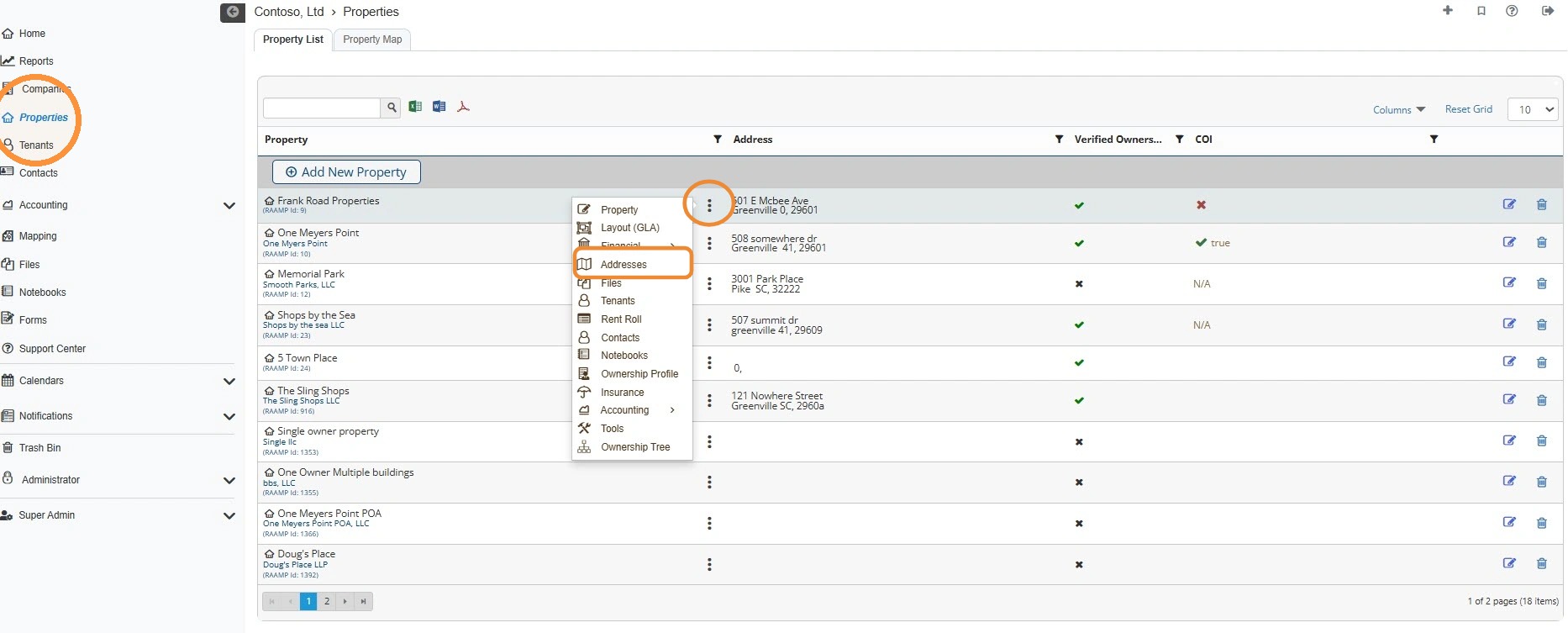
1. From the navigation menu, select Properties > Select the property's three-dot menu > Select Addresses.
How to Add a New Address
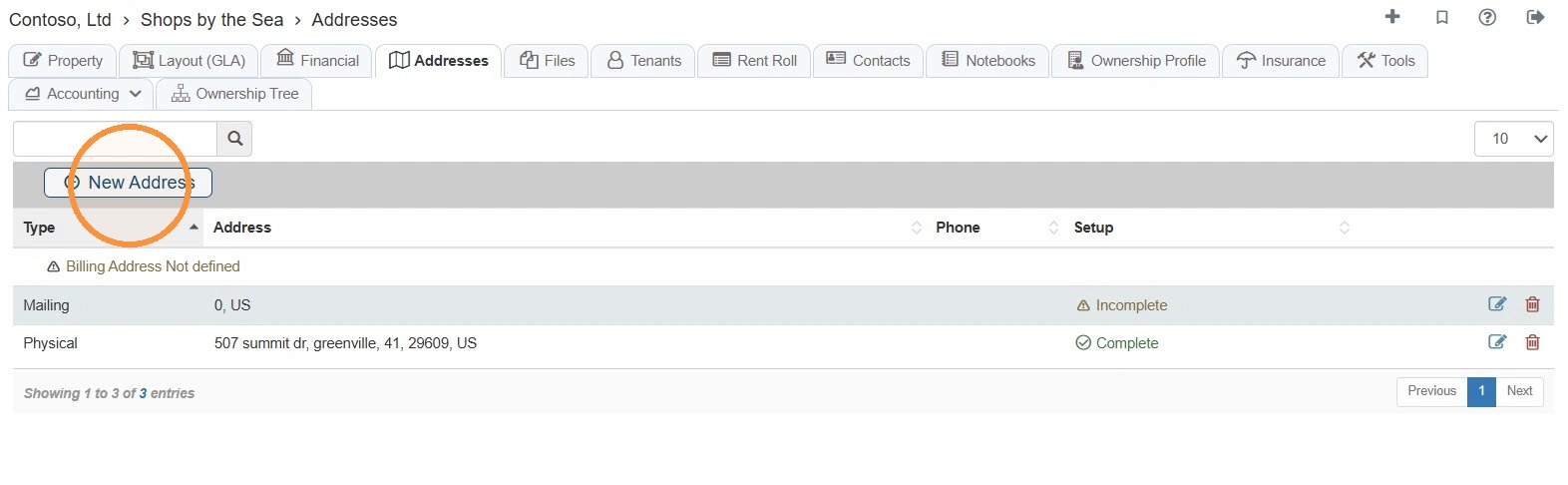
2. Select New Address.
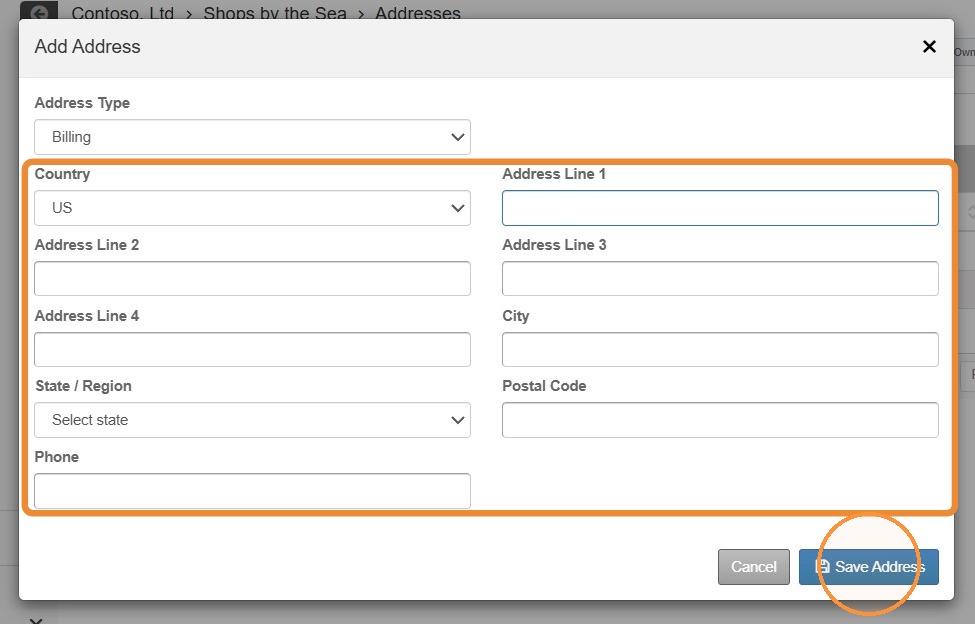
3. Select the Address Type.
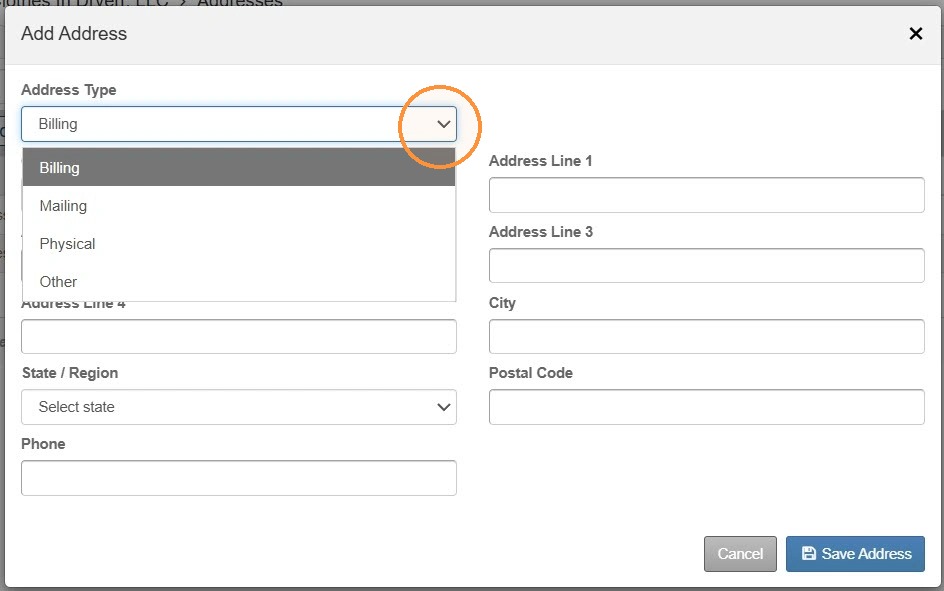
4. Enter the address information > Select Save Address.
How to Review and Delete/Edit Address Information
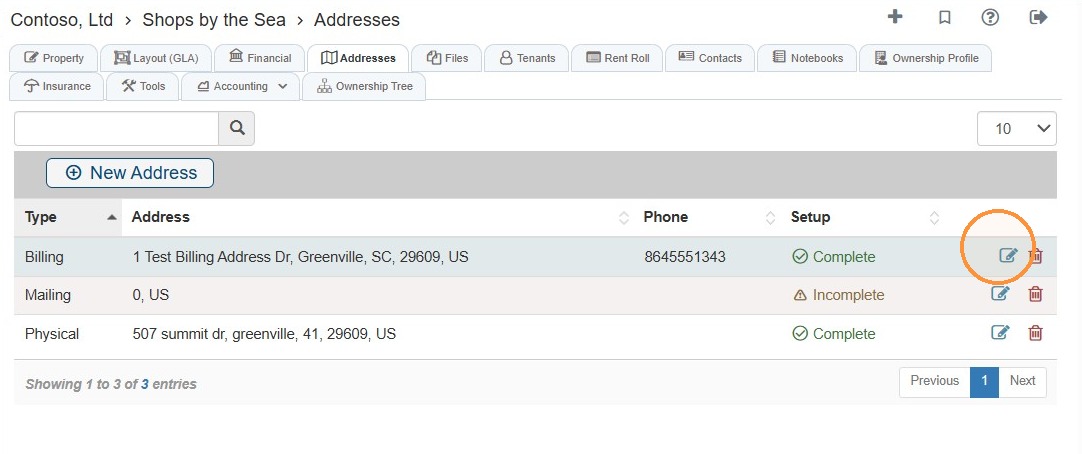
5. Select the edit icon for the address you need to edit.
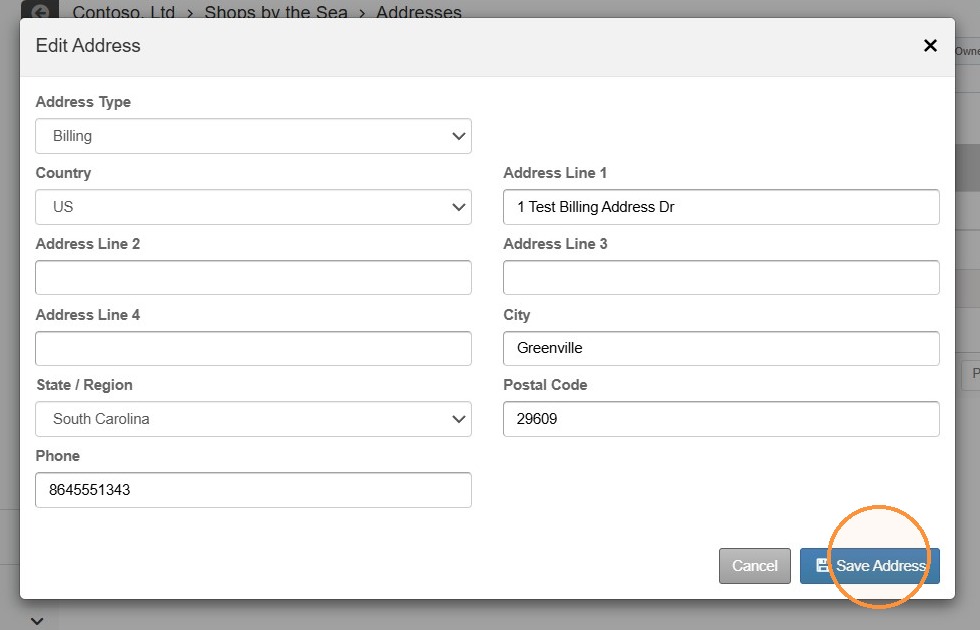
6. Update the address information > Select Save Address.
7. Select the trash can icon to delete the address.
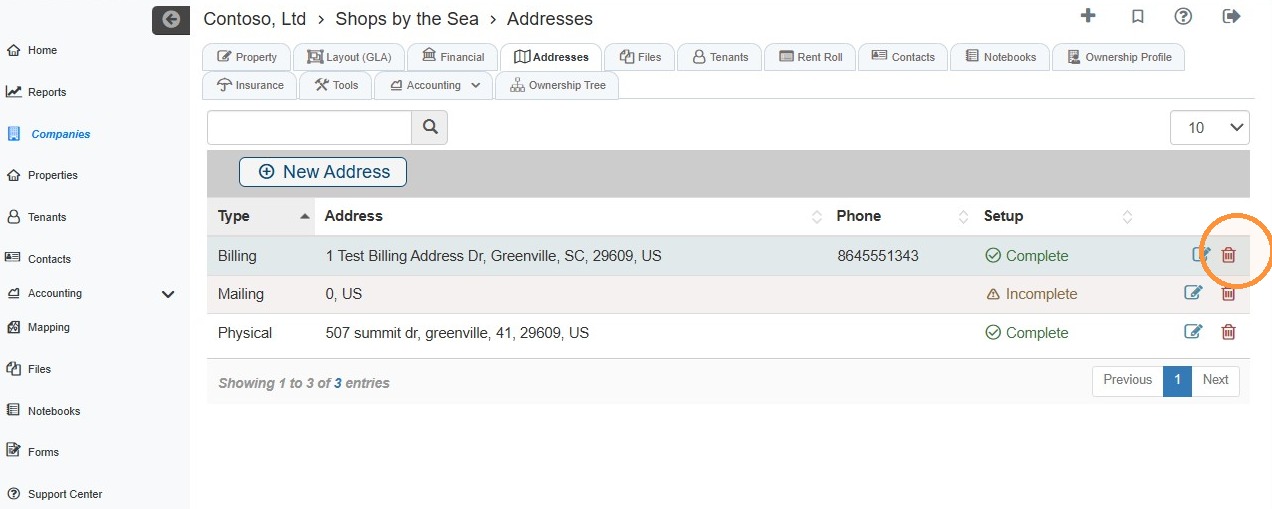
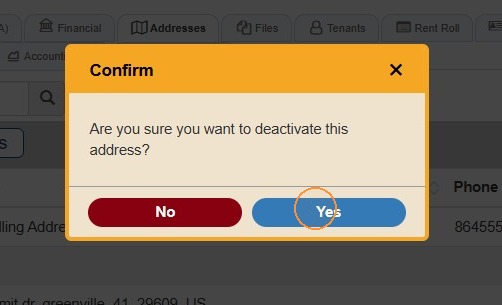
8. Select Yes to confirm deactivation.