How to Add, Edit, and Delete Company Addresses
This guide shows how to manage a company’s billing, mailing, and physical locations so invoices and contacts use the correct site-specific info. It explains finding the company, adding an address (including selecting type so physical addresses auto-fill on invoices), editing details, and deleting addresses with confirmation. Follow it to ensure each location’s phone and address are accurate and linked properly.
Tip: - Addresses = Where the company is located. Use this tab for billing, mailing, or physical addresses. A phone number entered here is associated with that specific location.
Navigating to Company Addresses
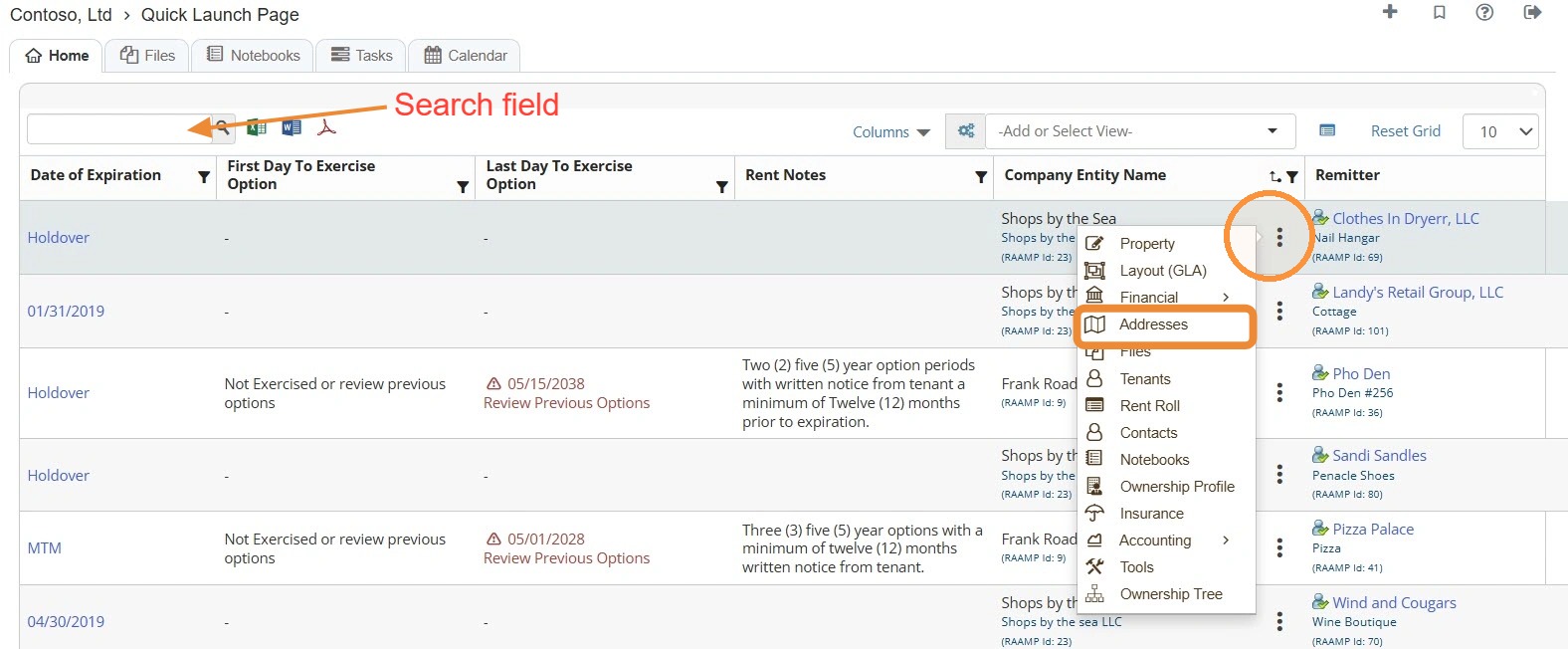
1. On the Home page, locate the company.
NOTE: You can use the search field to quickly locate the tenant.
How to Add a New Address
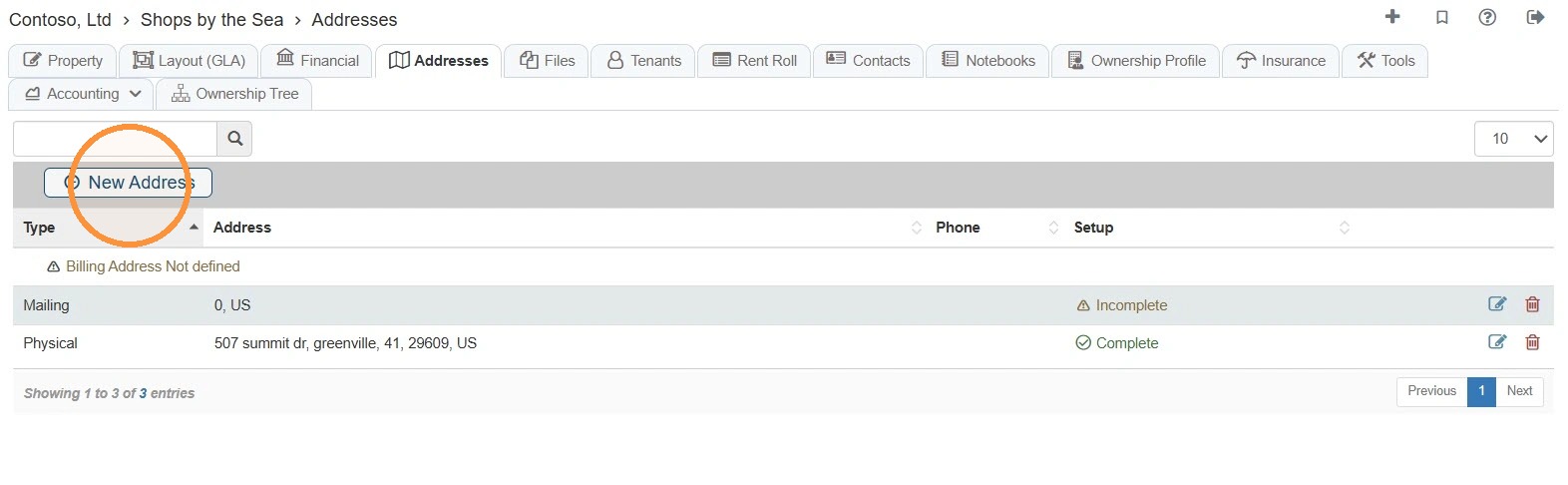
2. Select New Address.
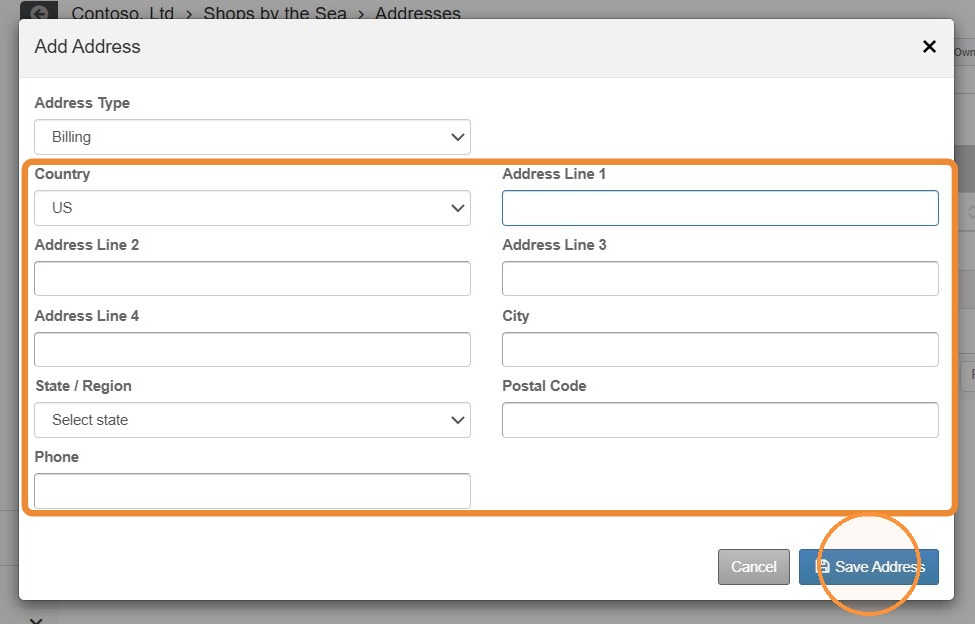
3. Select the Address Type.
NOTE: For the management company's physical address to auto-fill on the tenant's invoice setup screen, you must enter a physical address.
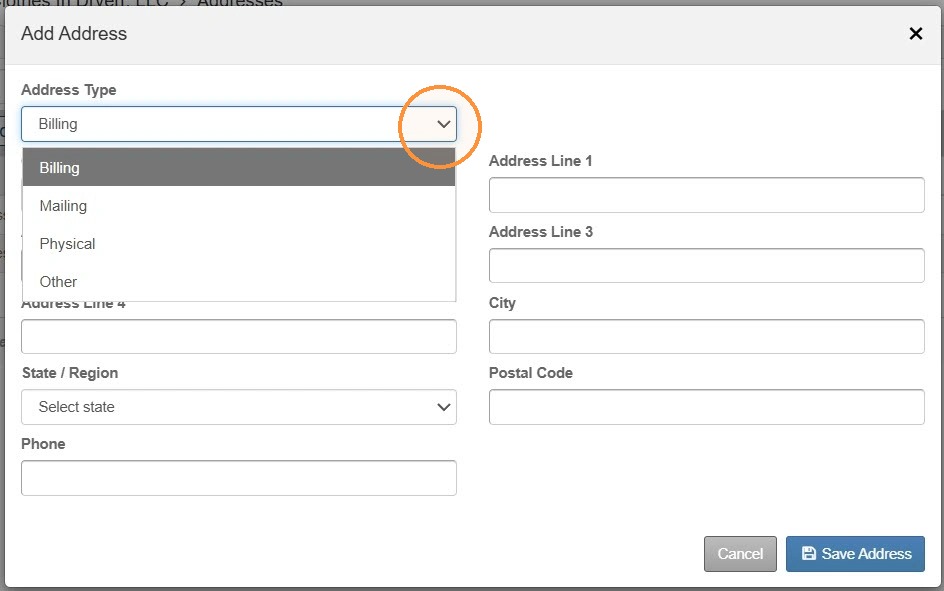
4. Enter the address information > Select Save Address.
How to Review and Delete/Edit Address Information
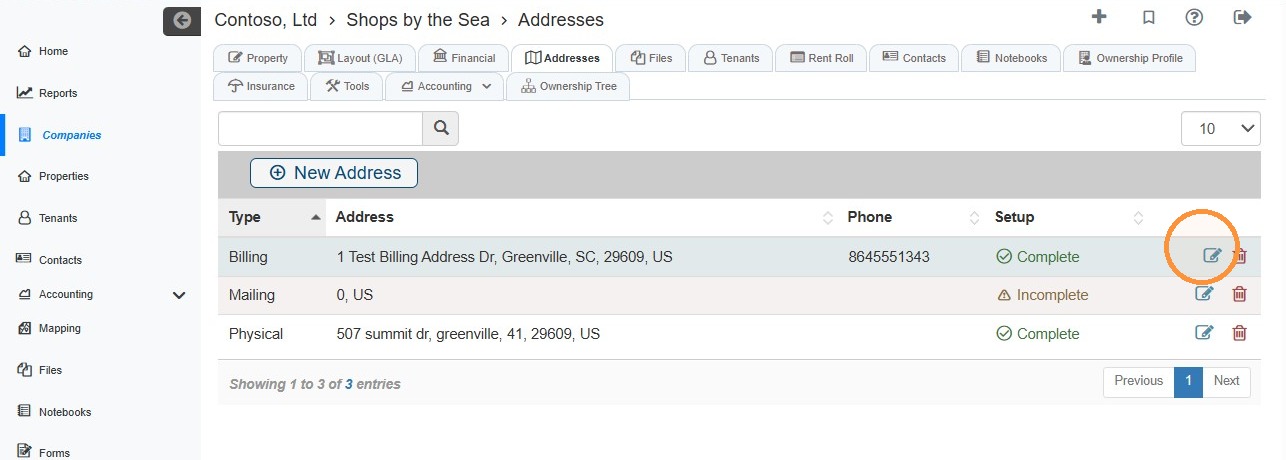
5. Select the edit icon for the address you need to edit.
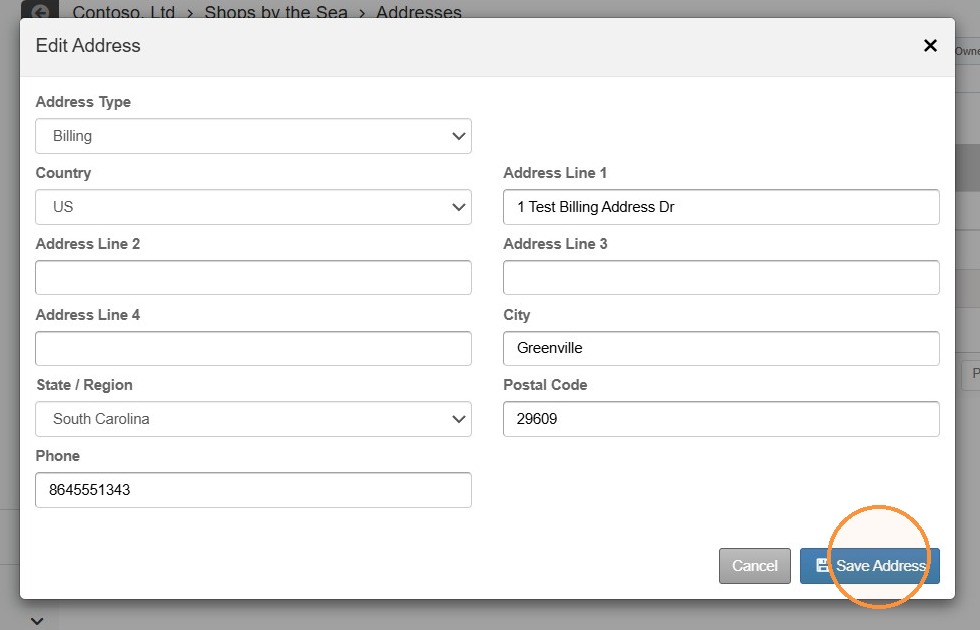
6. Update the address information > Select Save Address.
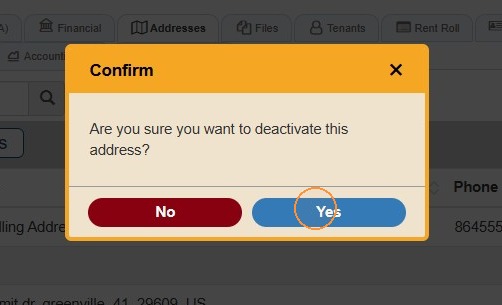
7. Select the trash can icon to delete the address.
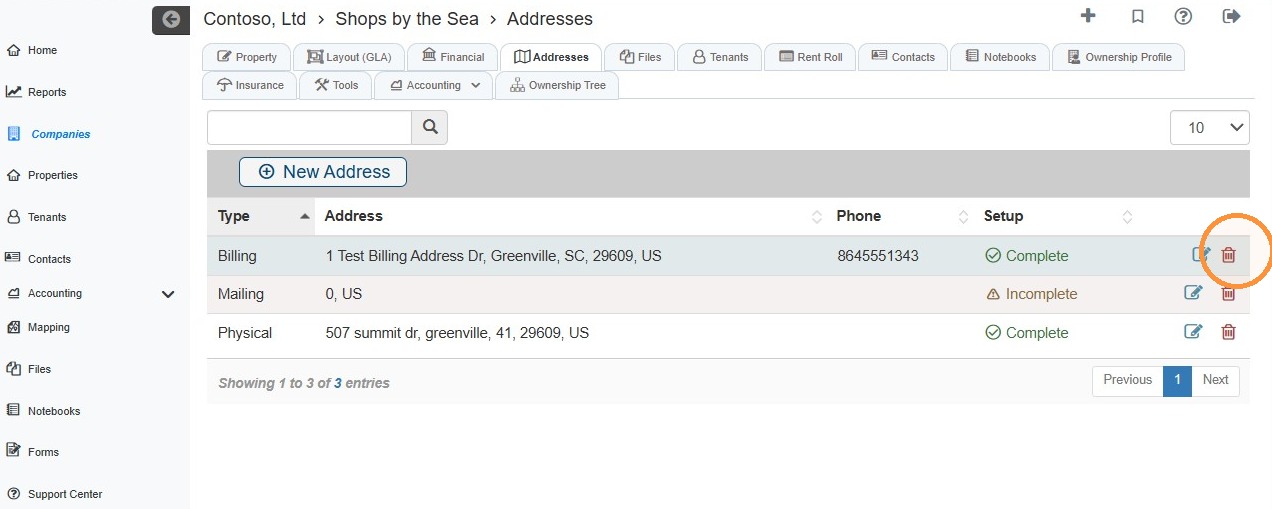
8. Select Yes to confirm deactivation.