How to Create a New Credit Memo
This guide shows step-by-step how to create and save a credit memo in the accounting system, including selecting the correct property/company, tenant or entity type, management company, date, and memo number. It also covers adding line items (or linking to how to create new items), entering messages or memos, and ensuring the management company is set so branding and details populate correctly. Follow it to avoid errors and ensure the memo records are complete and properly formatted.
Tip: A credit memo reduces a customer’s receivable balance. It does not record cash received or issue a refund.
Common reasons include:
- Overpayment
- Billing correction
- Returned goods or services
- Account adjustment
Navigating to Credit Memos
1. From the navigation menu, select Accounting > Select Credit Memos.
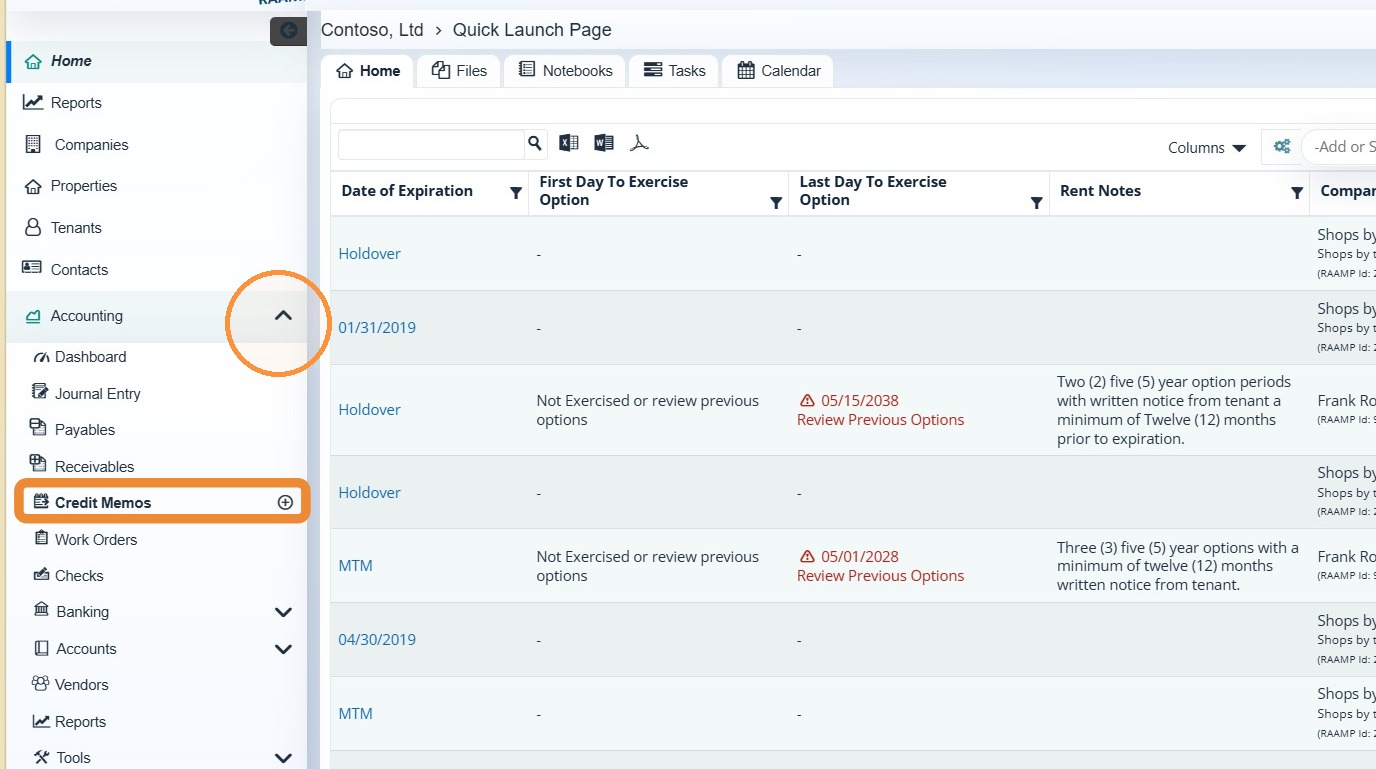
How to Add a Credit Memo
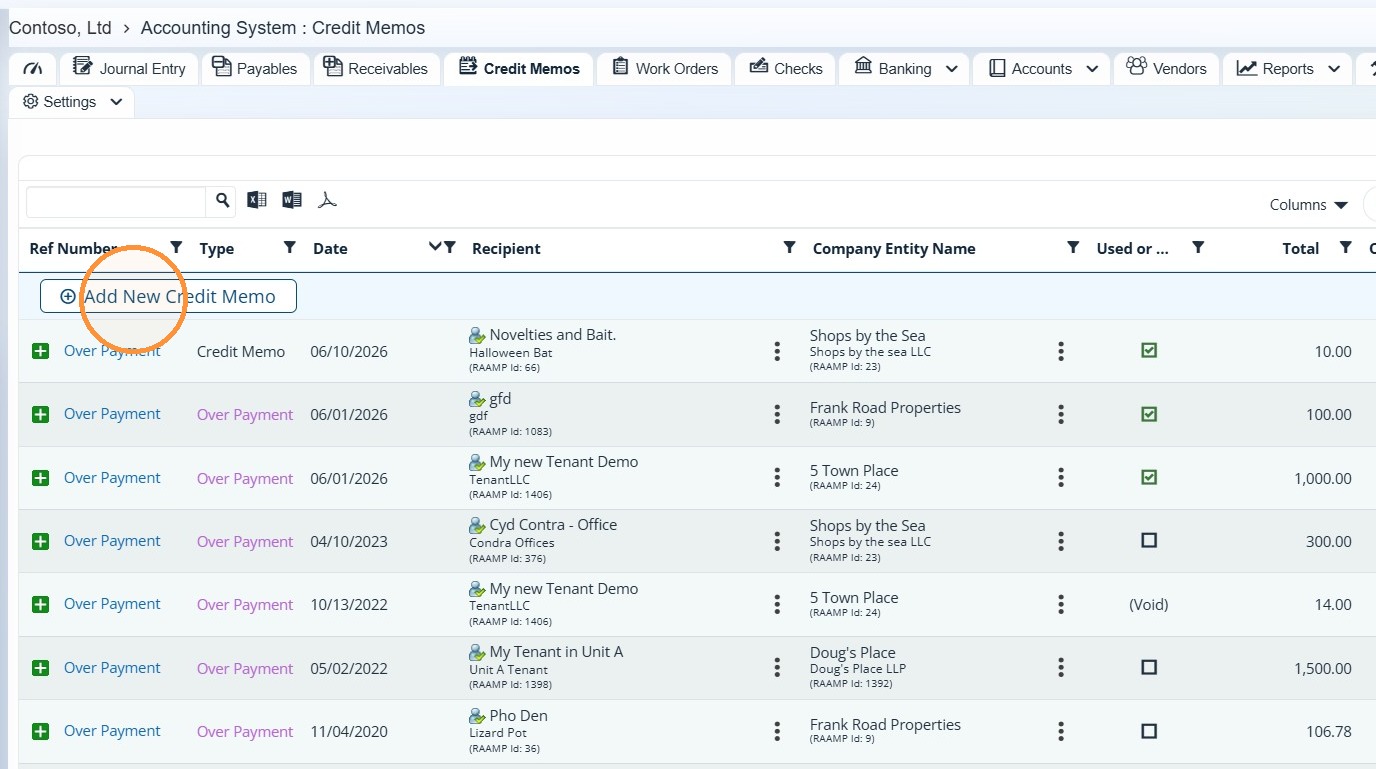
2. Select Add New Credit Memo.
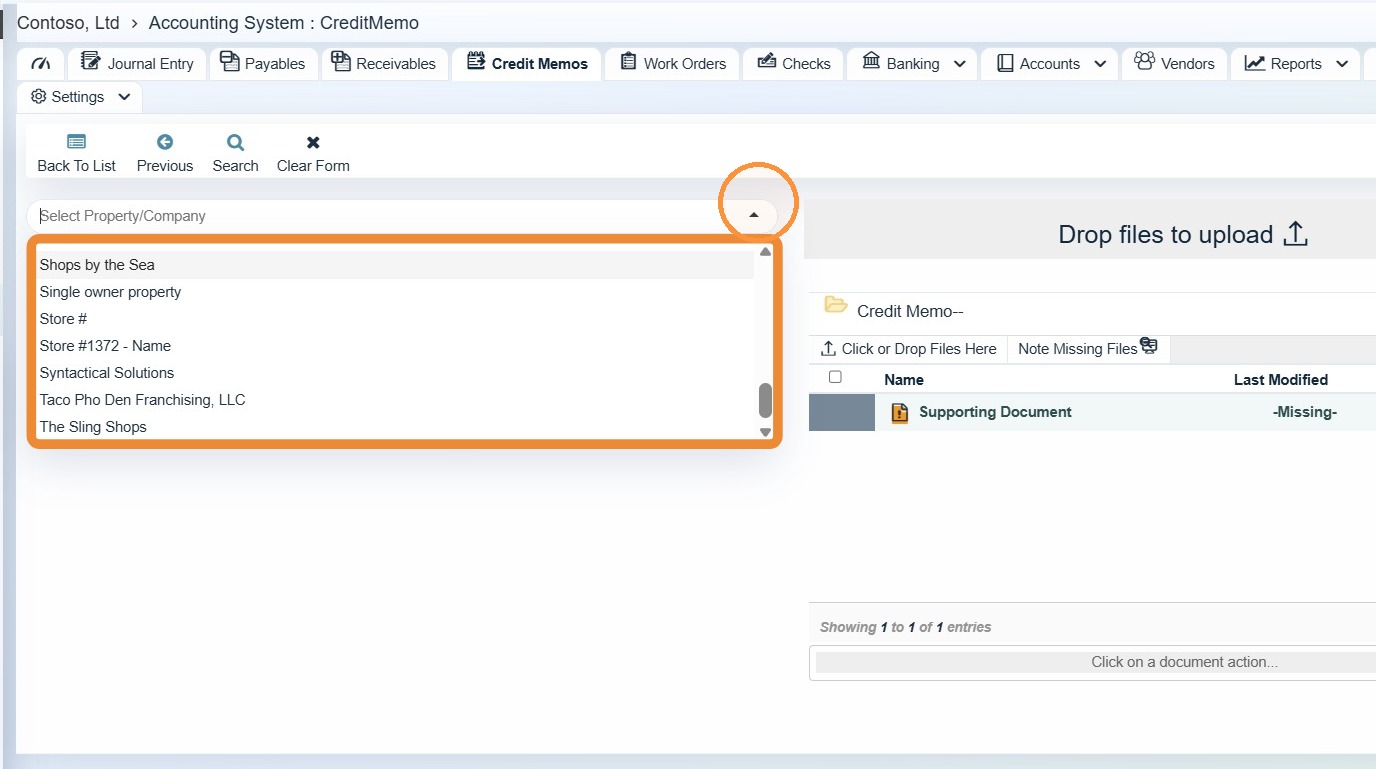
3. Select the Property/Company.
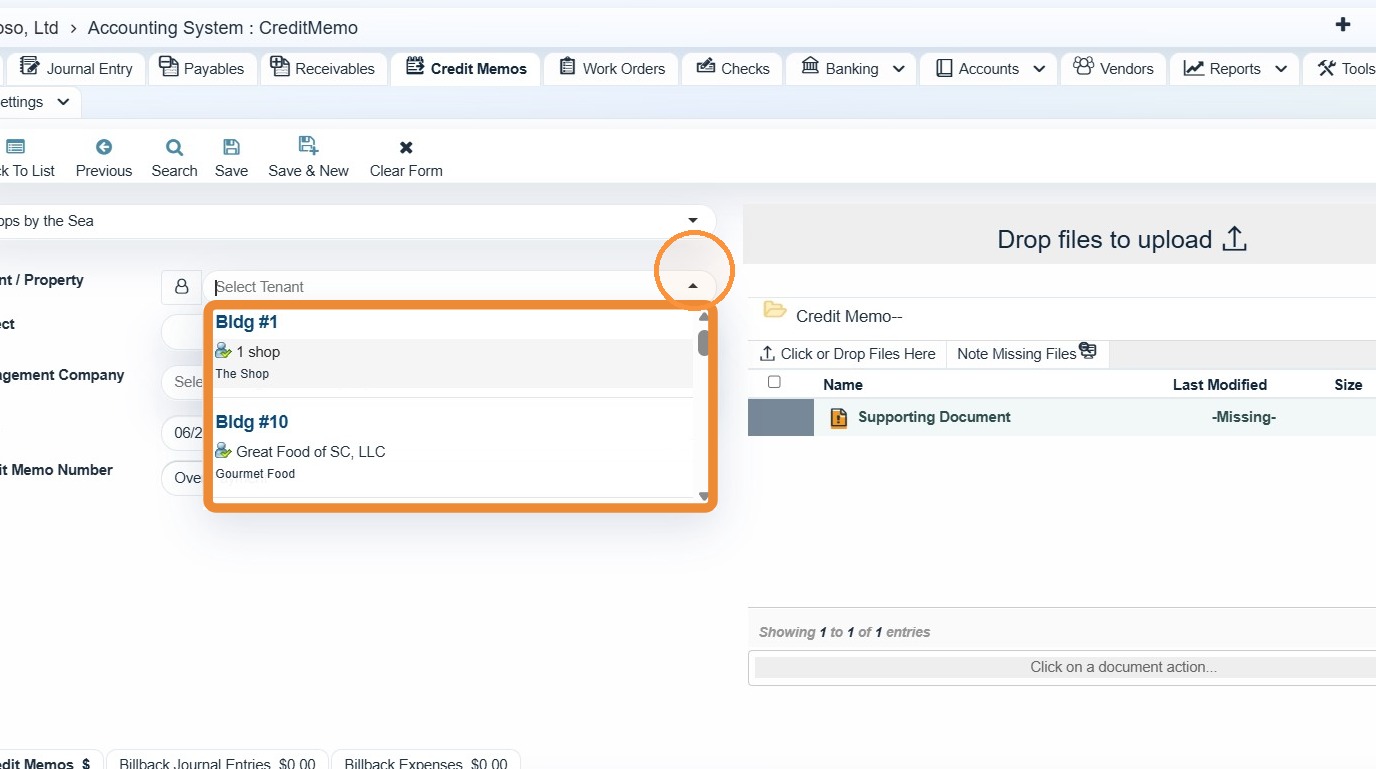
4. Select the preferred tenant from the Property/Tenant dropdown.
If you need to change the entity type, see steps 5-6.
If you do not need to change the entity type, skip to step 7.
5. Select the Property/Tenant icon.
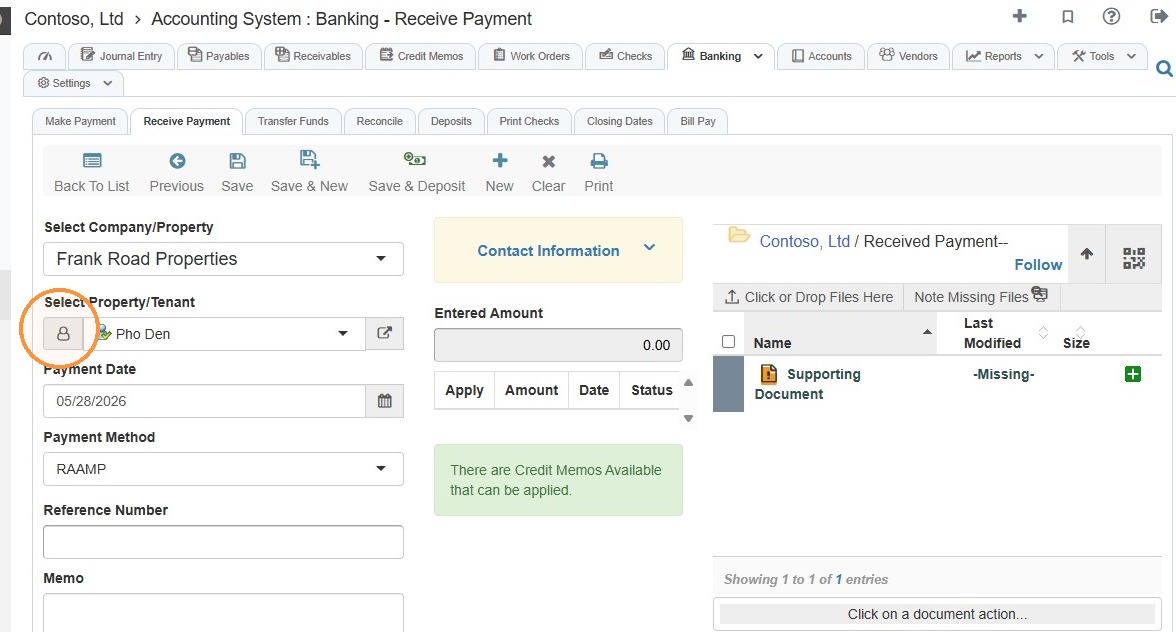
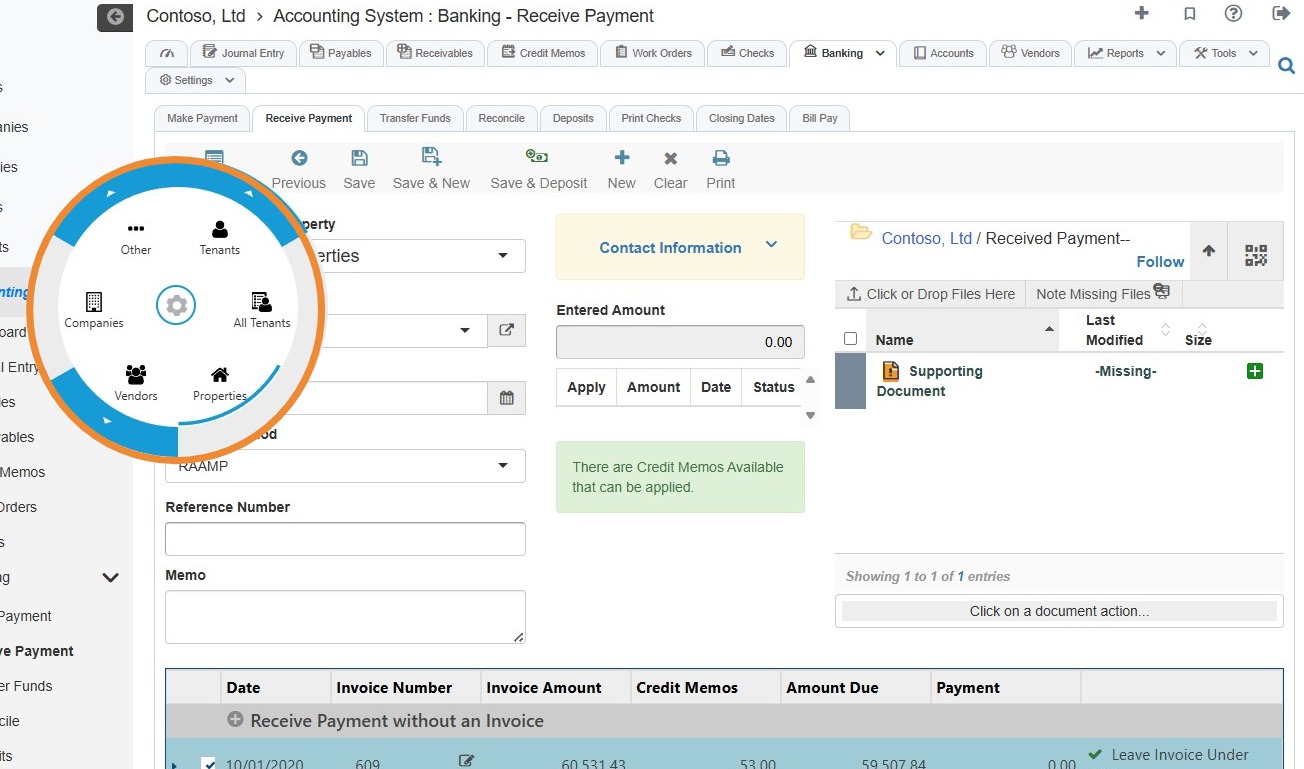
6. Choose the entity type from the radial menu.
For example, if you want to pay a property, select Properties.
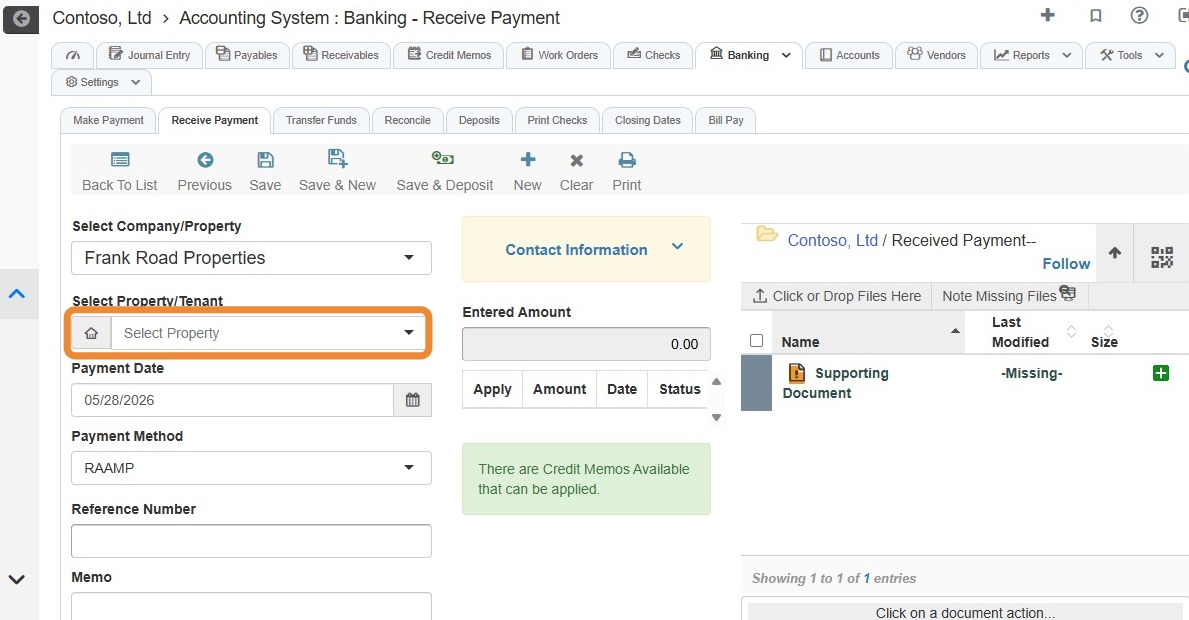
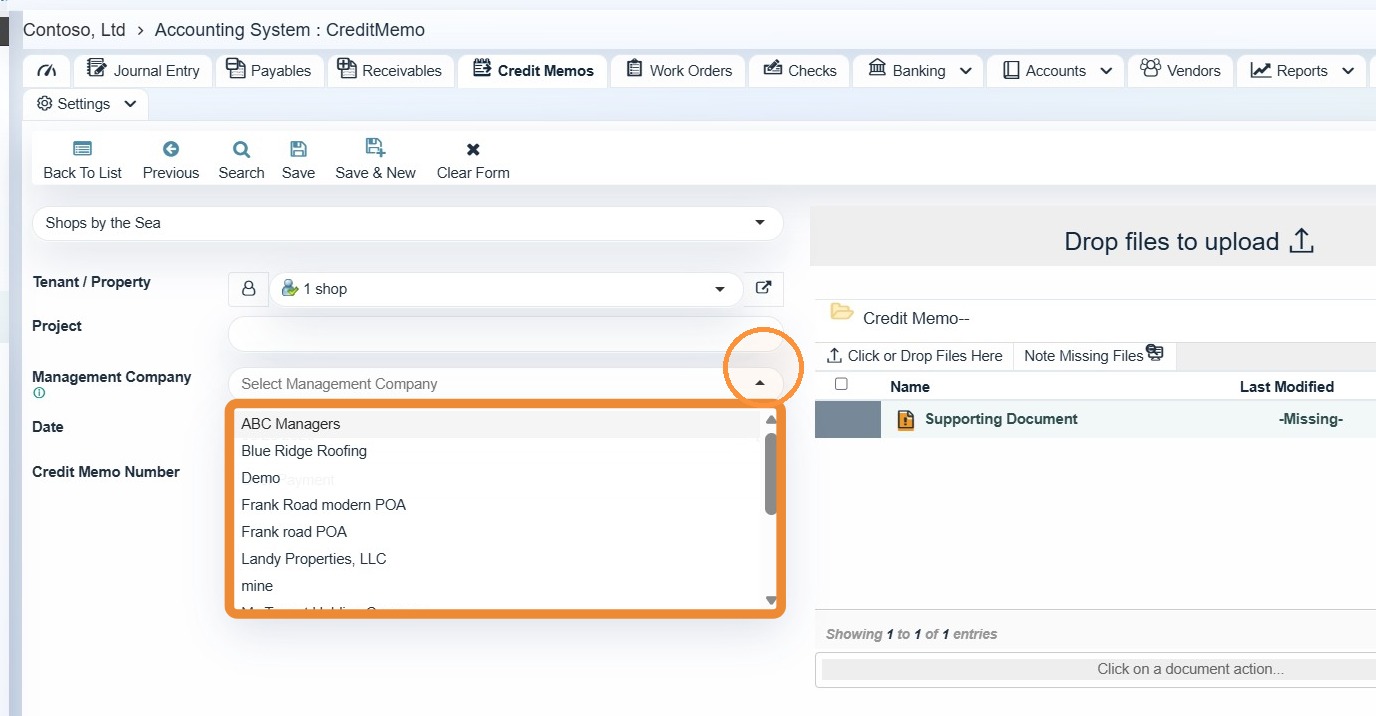
7. Select the Management Company, if applicable.
NOTE: Set this option; otherwise, the logo and other information will not be set.
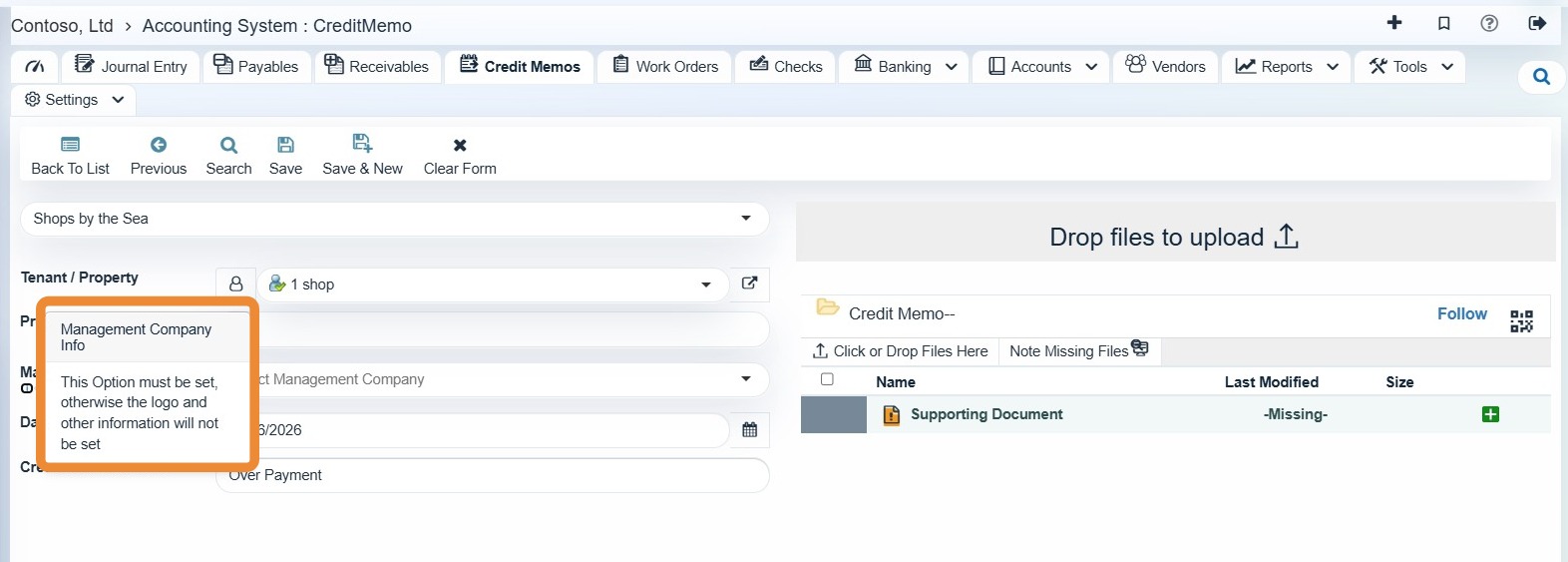
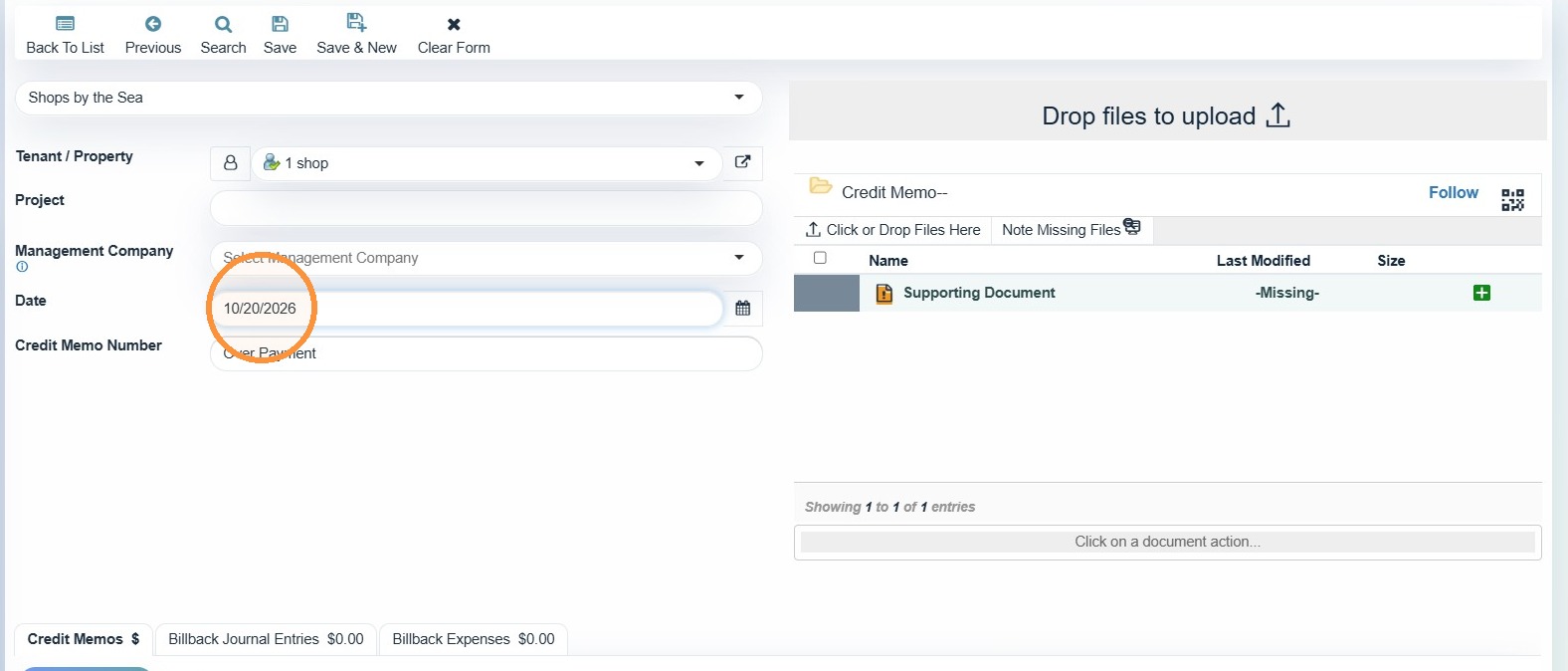
8. Enter the date.
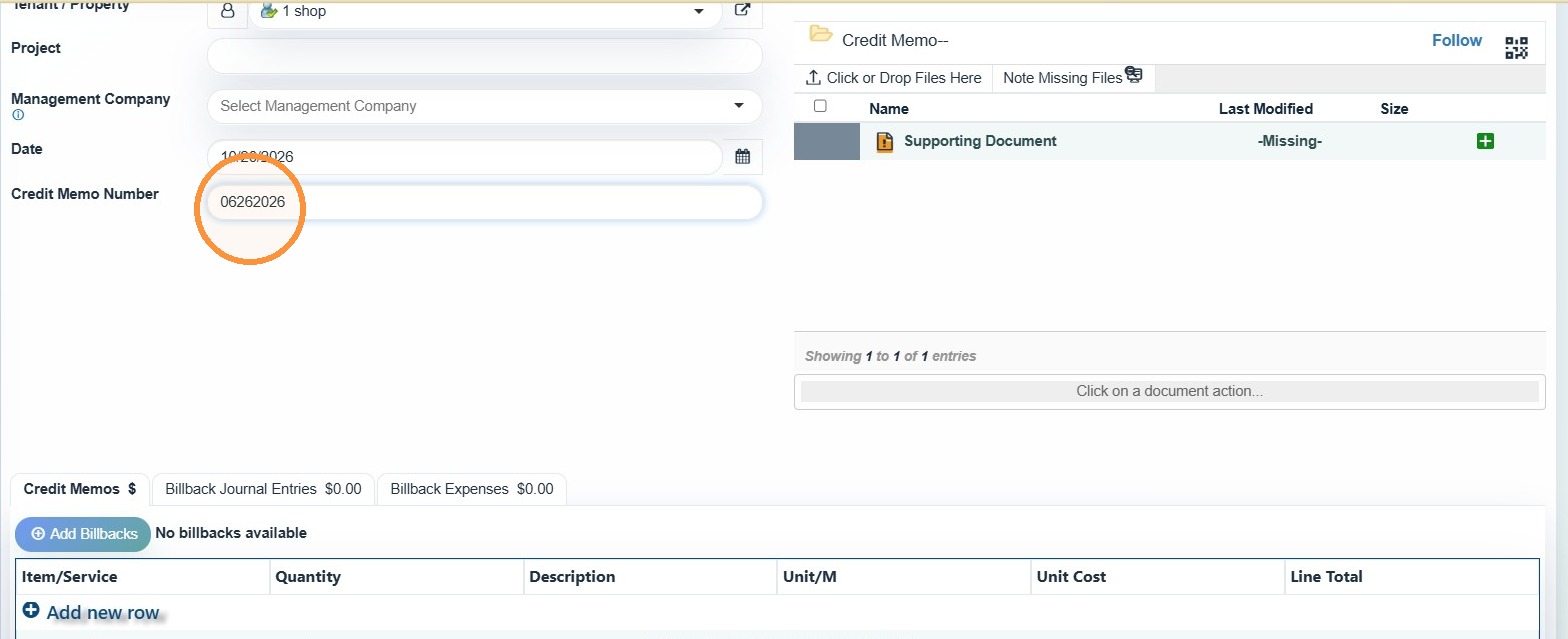
9. Enter the Credit Memo Number.
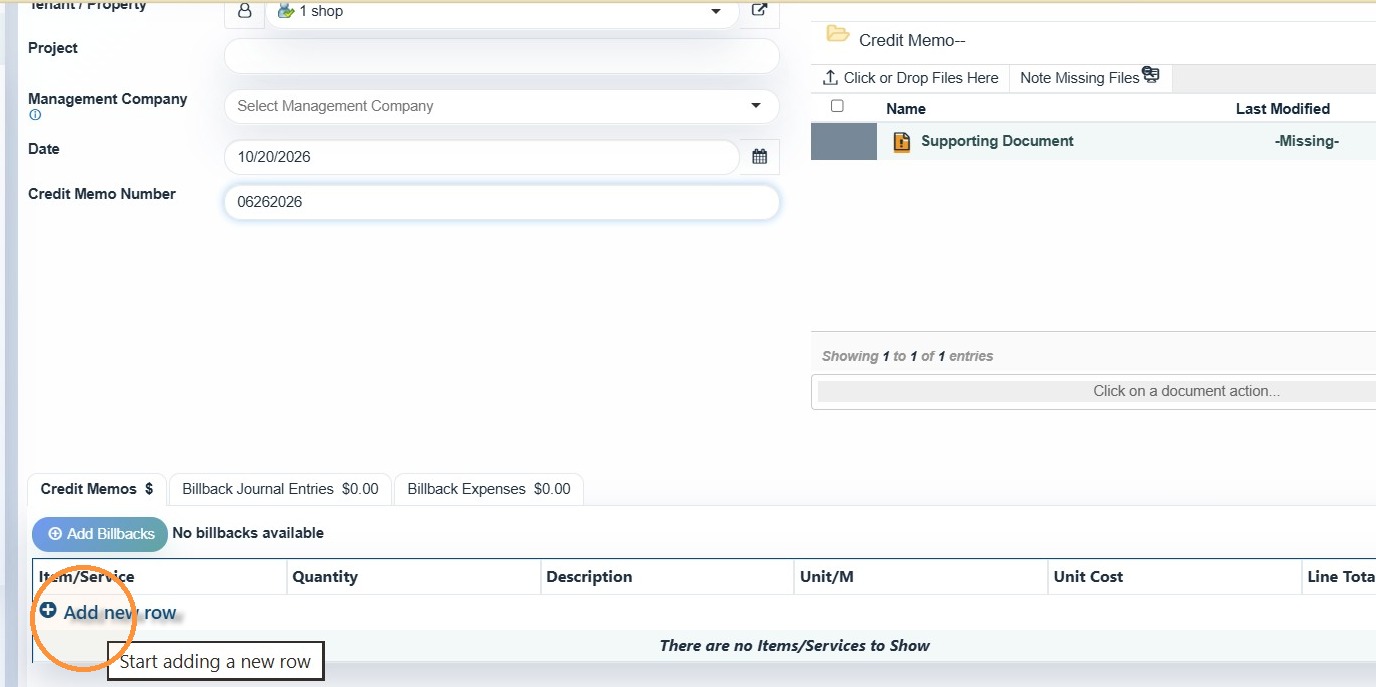
10. Select Add new row.
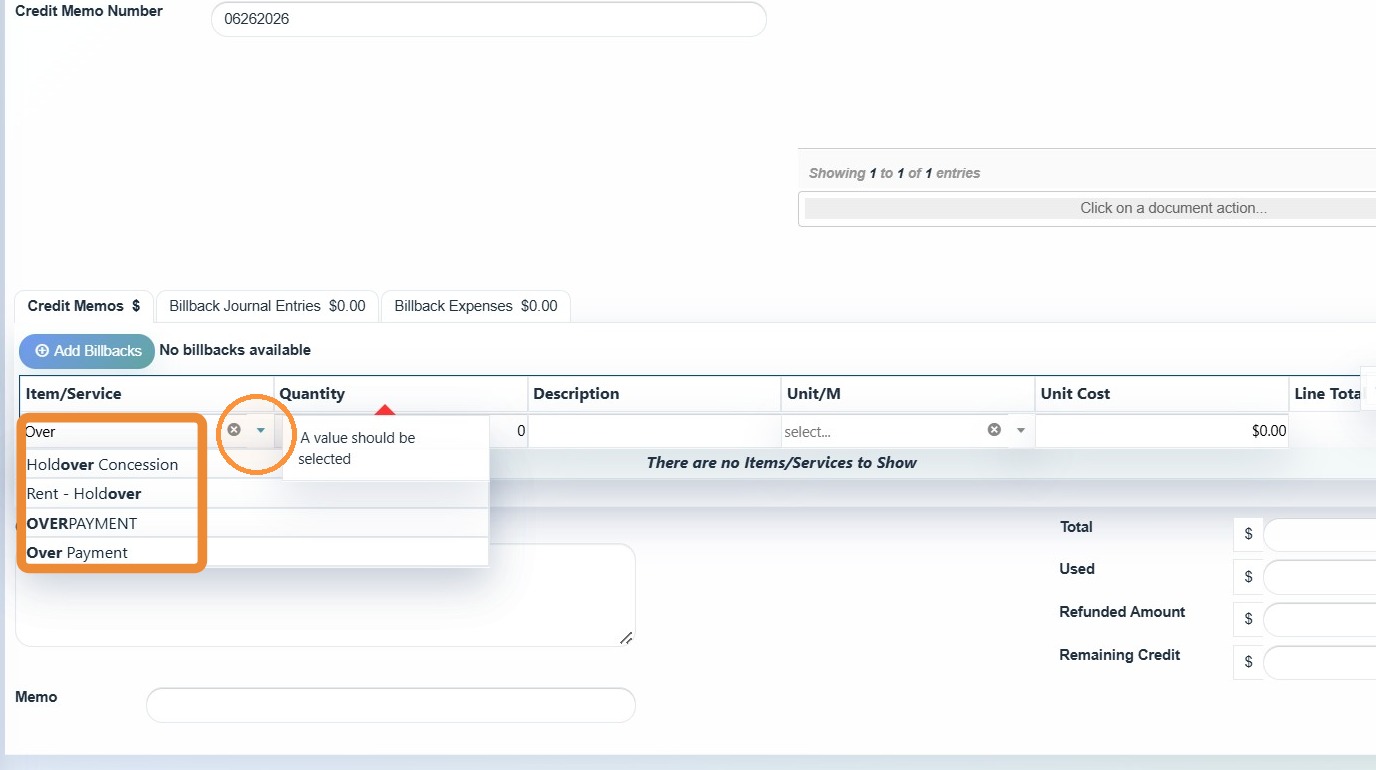
11. Select an option from the dropdown menu.
NOTE: If you need to add a new item/service, see
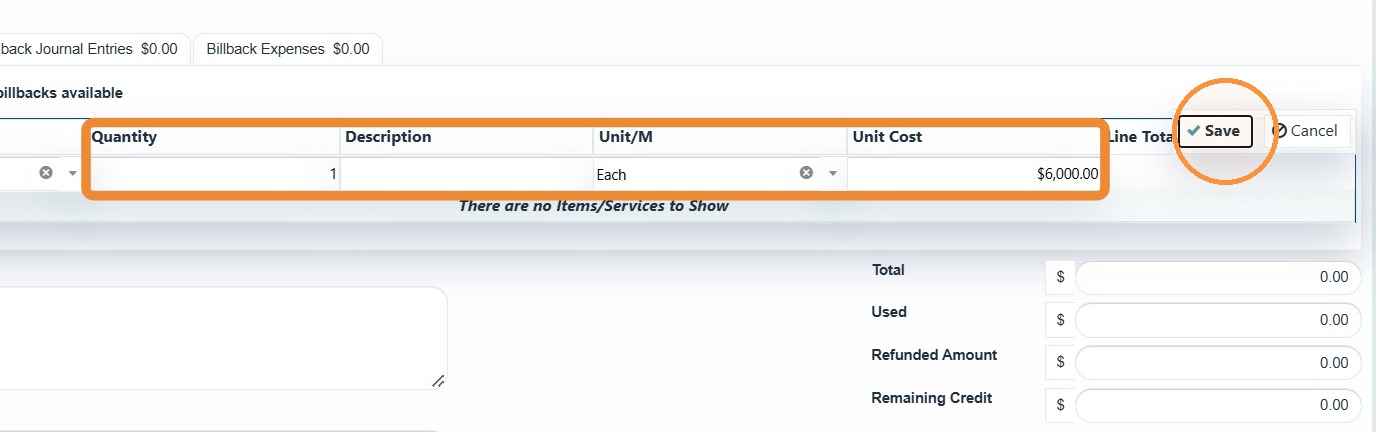
12. Complete the remaining line-item information > Select Save.
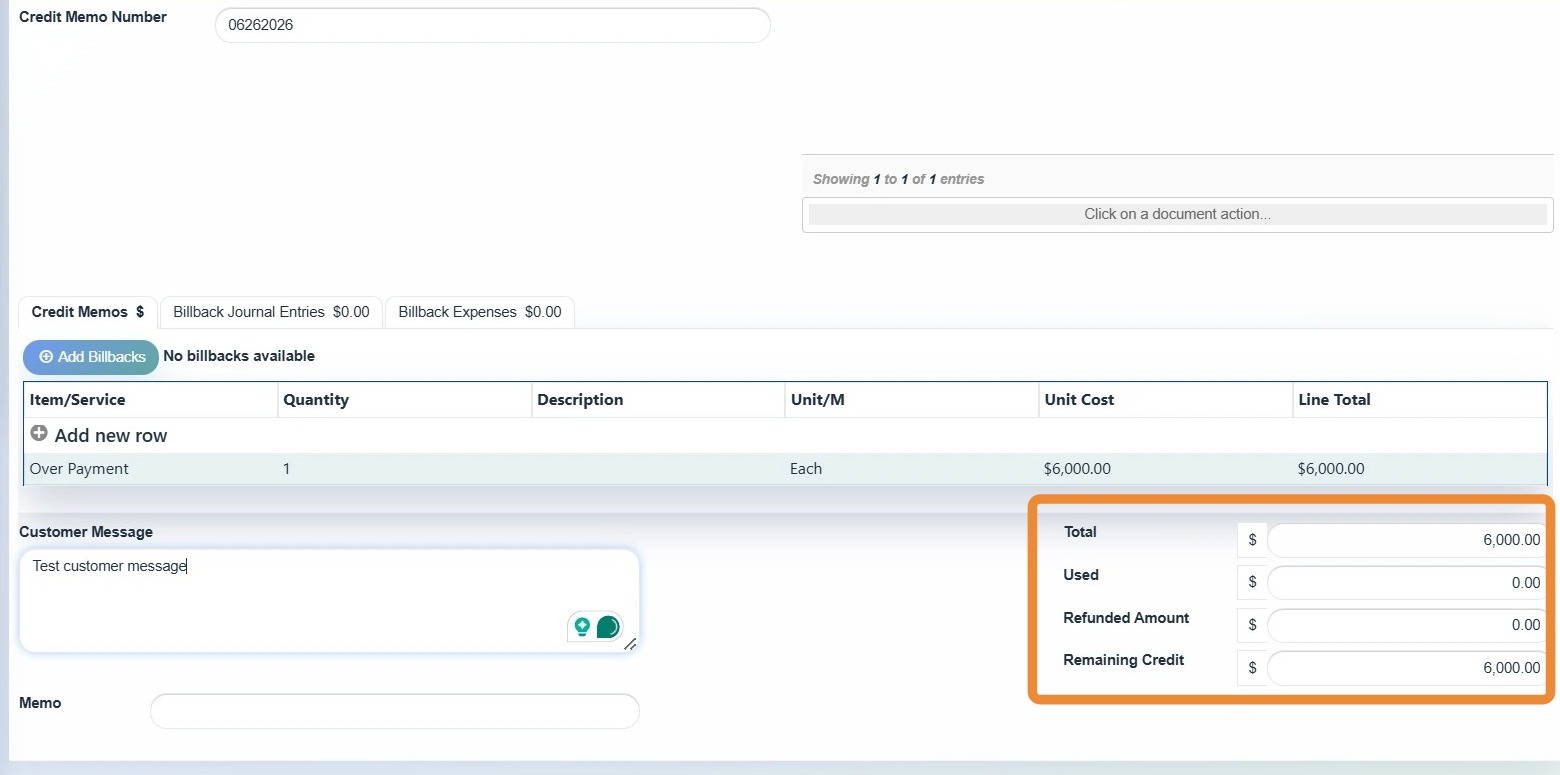
Tip:
- Total: Original credit amount
- Open Amount: Amount still available to apply
- Used: Whether the credit has been applied
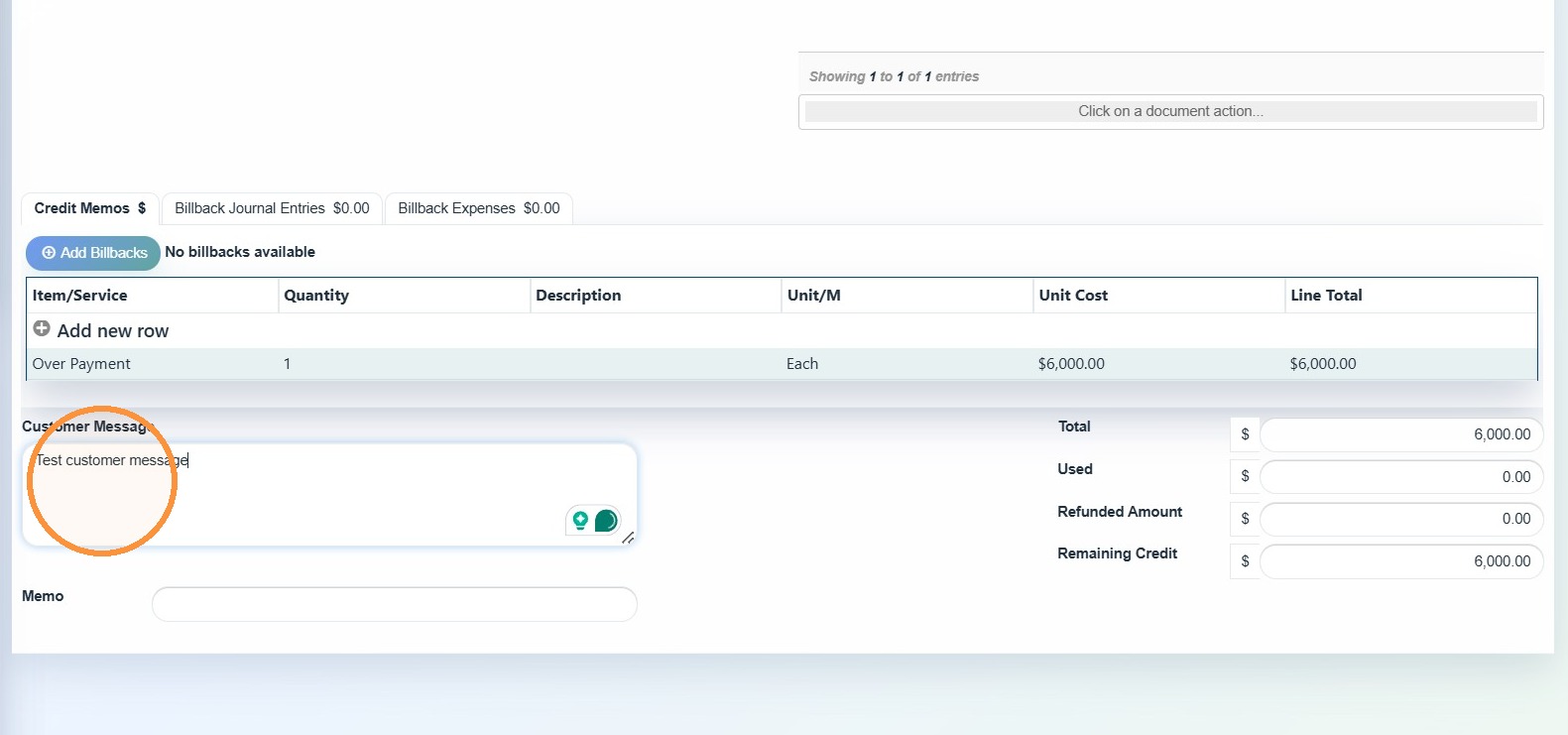
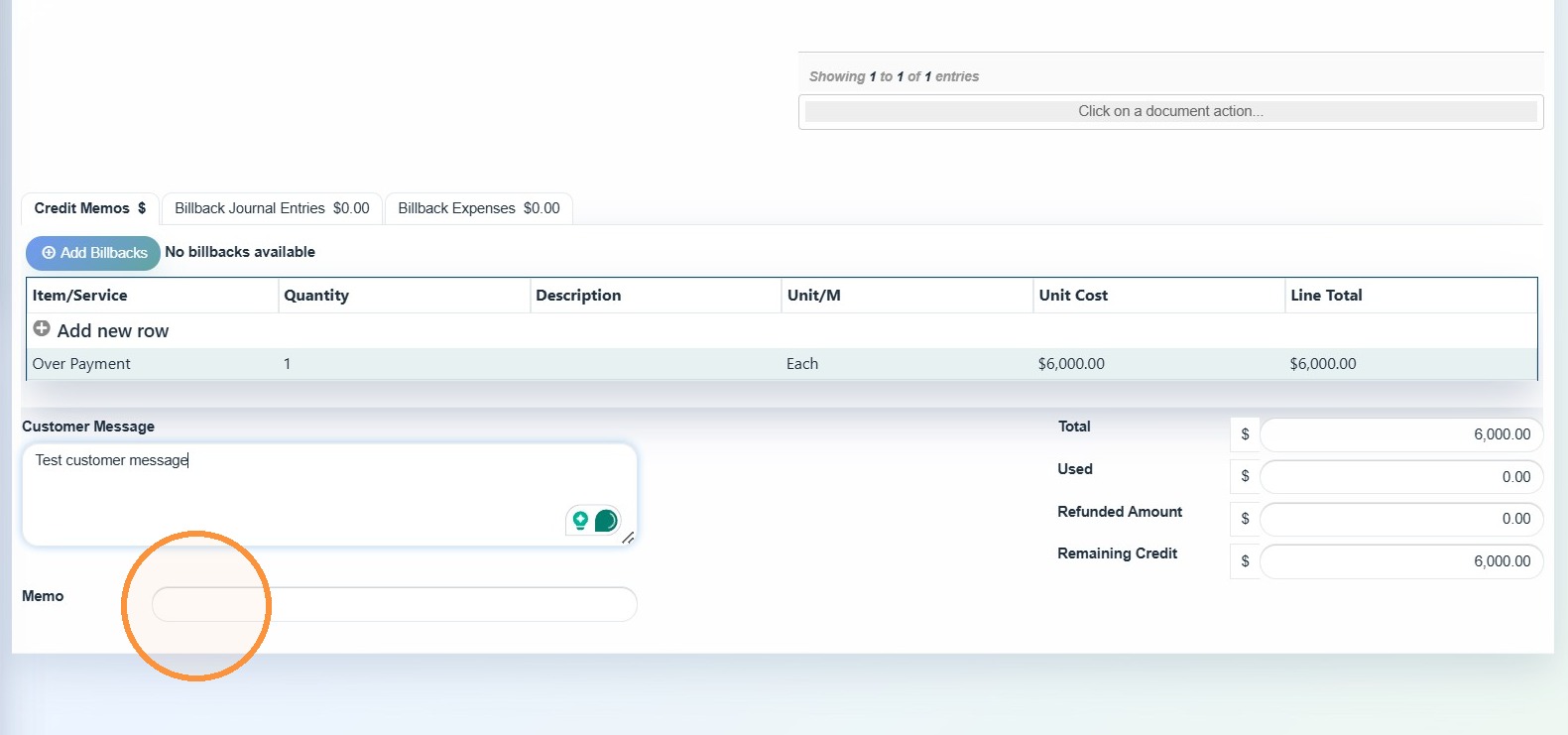
13. Enter a Customer Message, if applicable.
14. Enter a memo, if applicable.
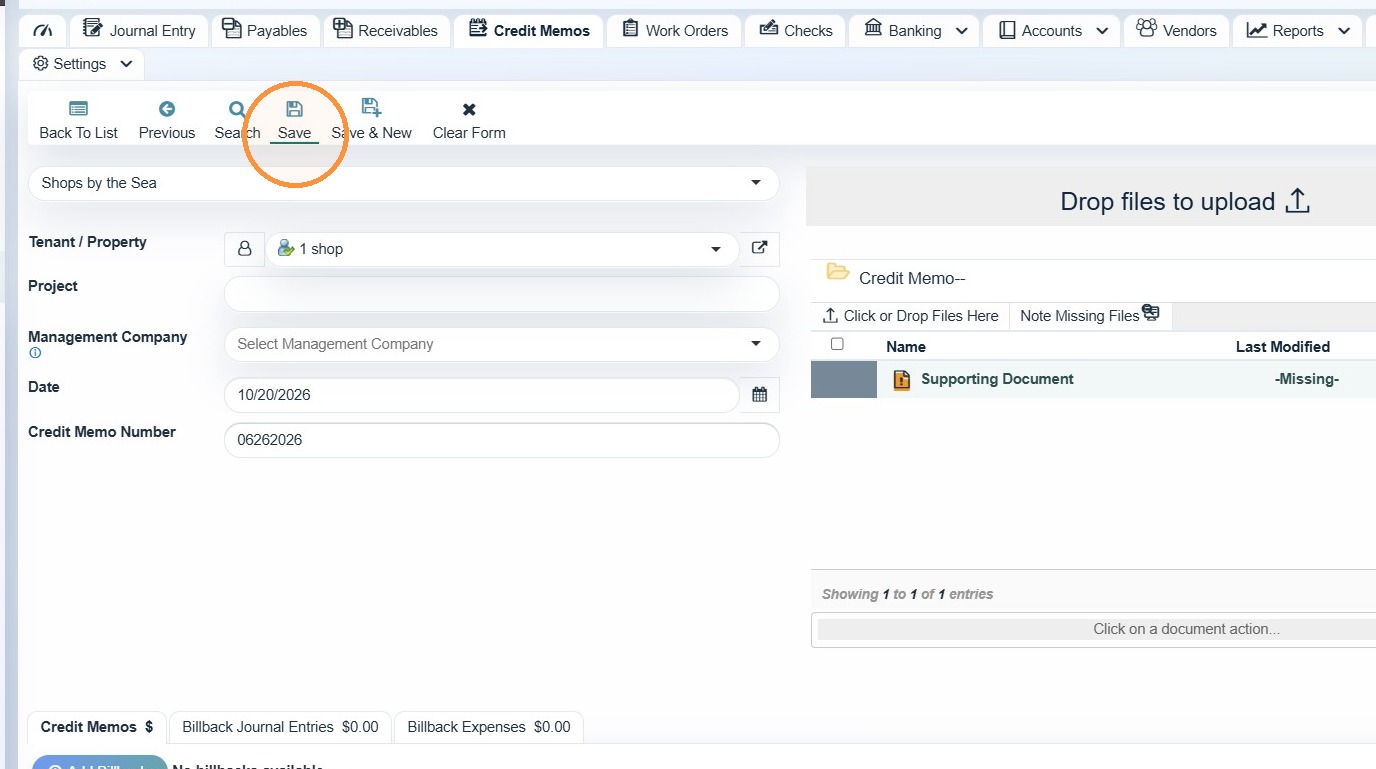
15. Select Save.
Related Tutorial(s):