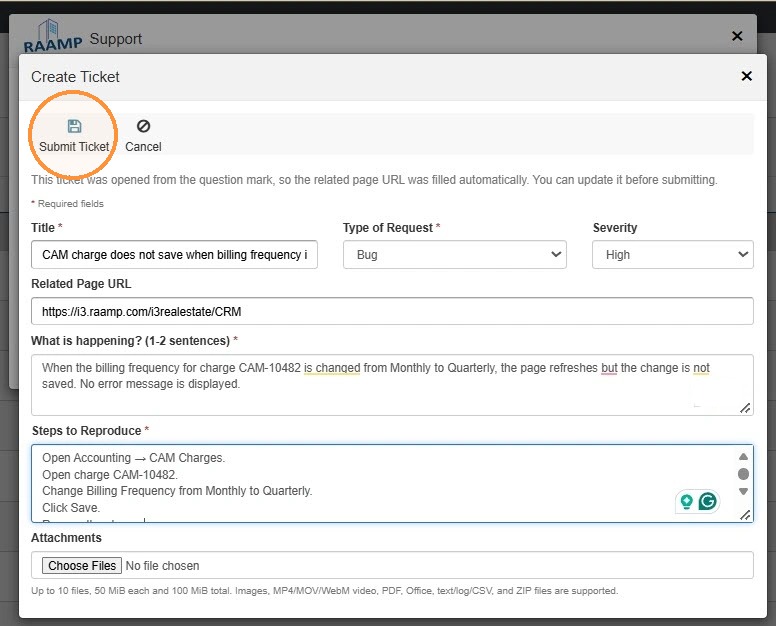
How to Create a Support Ticket
This guide shows how to submit a clear, actionable support ticket so your issue gets resolved faster. It helps you choose the correct request type and severity, capture the related page URL automatically, and provide concise reproduction steps, expected vs. actual behavior, and attachments. Following it reduces back-and-forth, speeds investigation, and improves documentation and training updates.
Before You Begin
Before you begin:
- Identify the problem.
- Check existing help resources.
- Decide the ticket type to submit.
- Bug: Existing behavior is not working as expected.
- Question: The user needs clarification.
- Feature Request: A new capability is needed.
- Enhancement: An existing capability should be improved.
- Training: The capability exists, but users need instruction.
- Data Correction: Existing information is inaccurate.
- Account Access: A user needs permissions or access changed.
Process Overview:
- User submits the ticket.
- Support reviews completeness and categorization.
- Support requests clarification if needed.
- Development investigates tickets and updates the status.
- The ticket submitter will check the Support Center for updates.
- The resolution is documented.
- The knowledge base or training materials are updated.
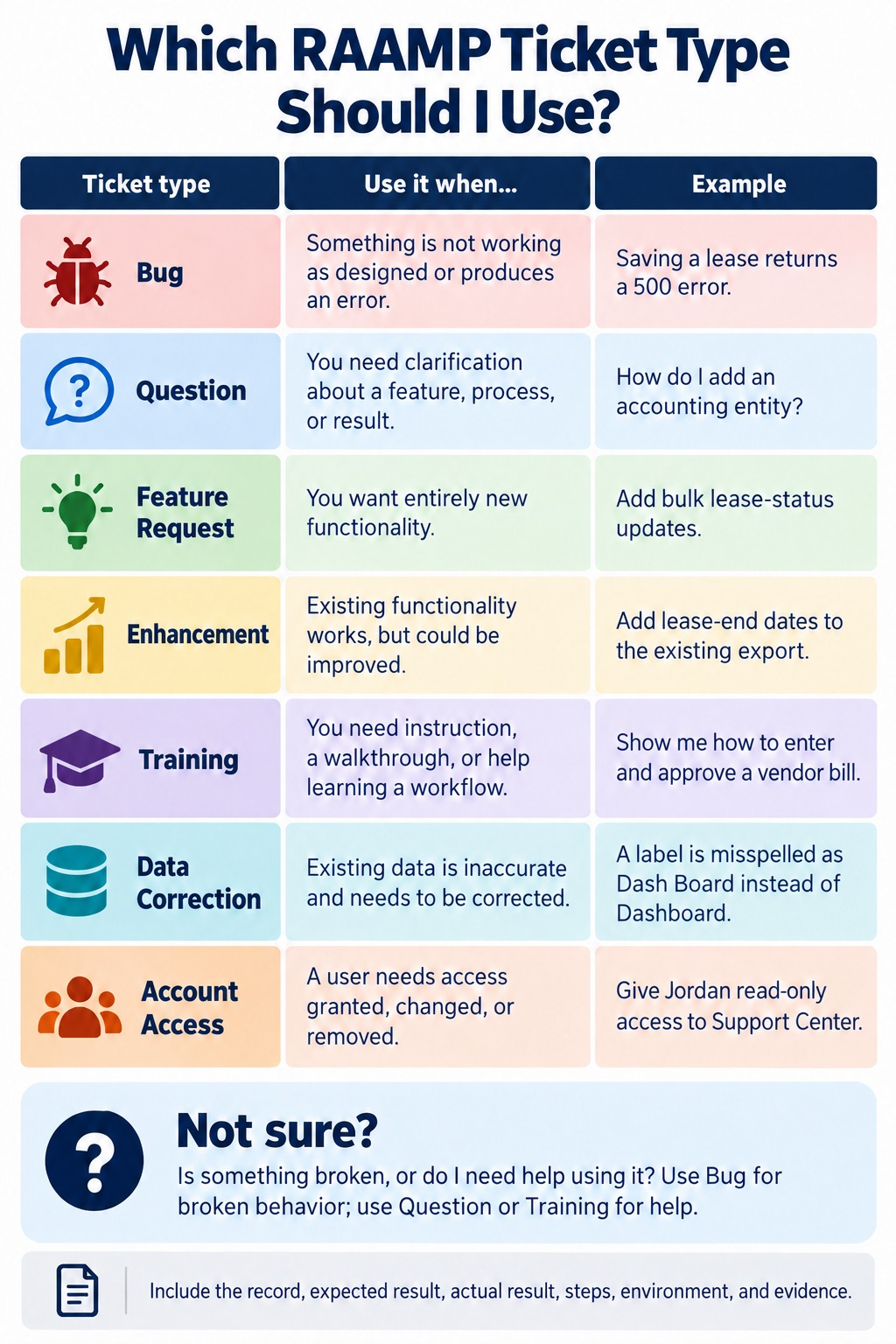
How to Submit a Ticket from Question Mark
Tip: When a ticket is opened from the question mark, the related page URL will fill automatically. You can update it before submitting.
1. Were you working and experienced a bug, have a question, or noticed a data correction on a specific RAAMP page?
Select the question icon to open the Support Center.
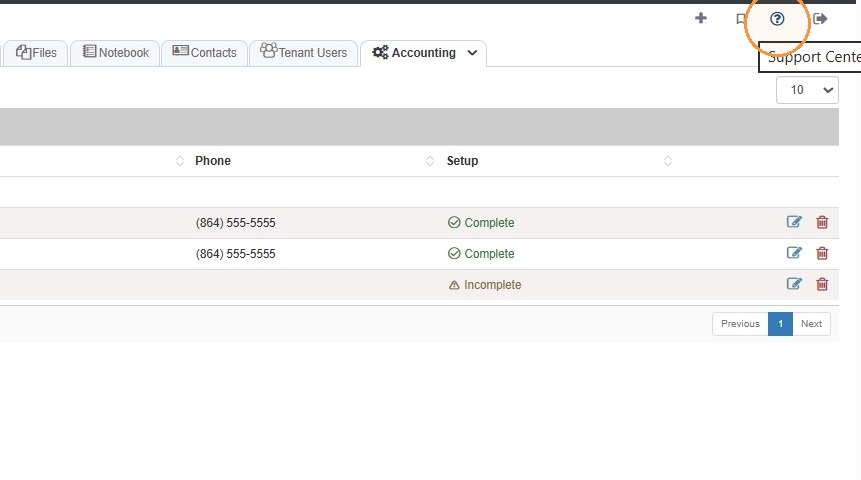
2. Select Create Ticket.
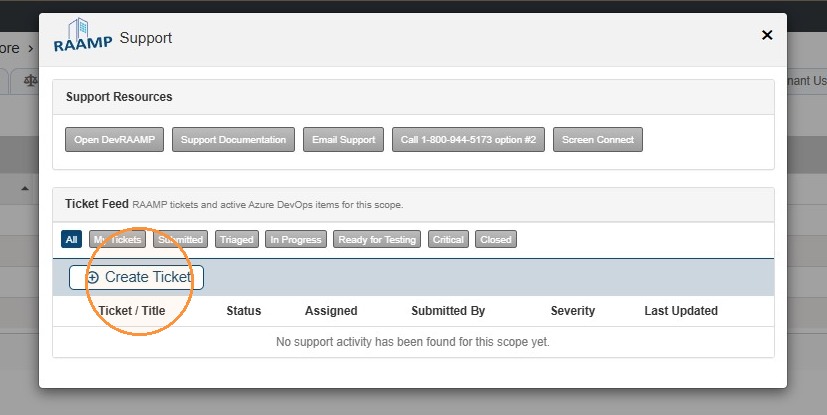
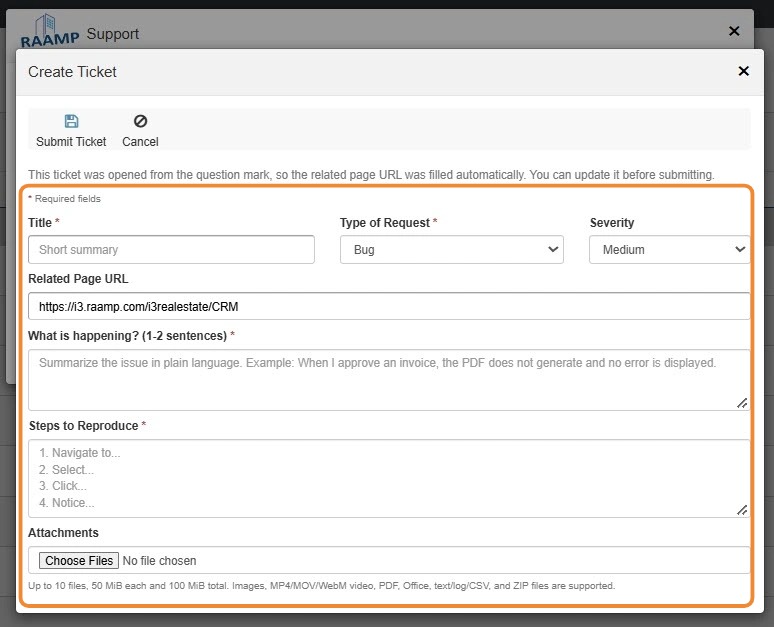
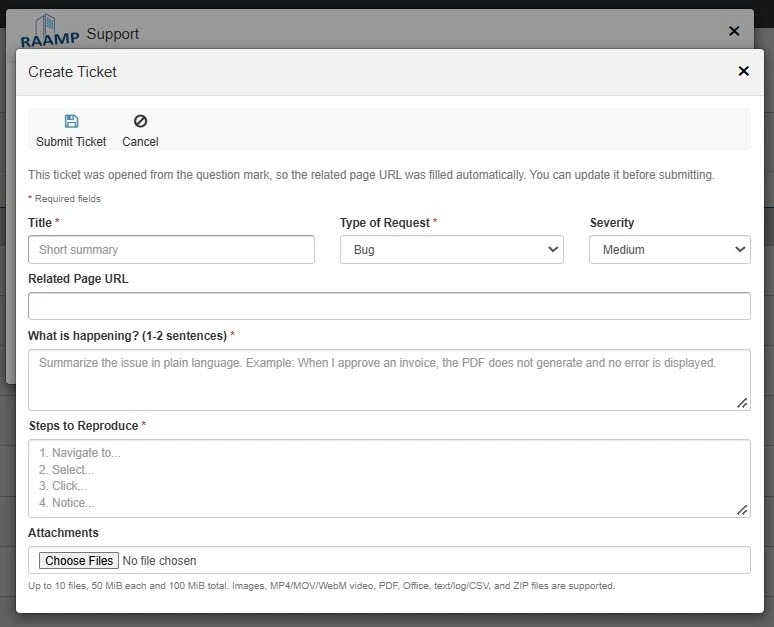
3. Complete the ticket information.
- Write a short, specific Title.
- Select the correct Type of Request.
- Choose the appropriate Severity.
- Low: Minor inconvenience
- Medium: Workaround exists or limited users affected
- High/Critical: Major business impact or no workaround
- Confirm the Related Page URL.
- Describe what happened, what you expected, and who or what is affected.
- List clear Steps to Reproduce, if applicable.
- Attach relevant screenshots, files, or error messages.
- Review all required fields marked with
*.
The Related Page URL will include the URL you were working on.
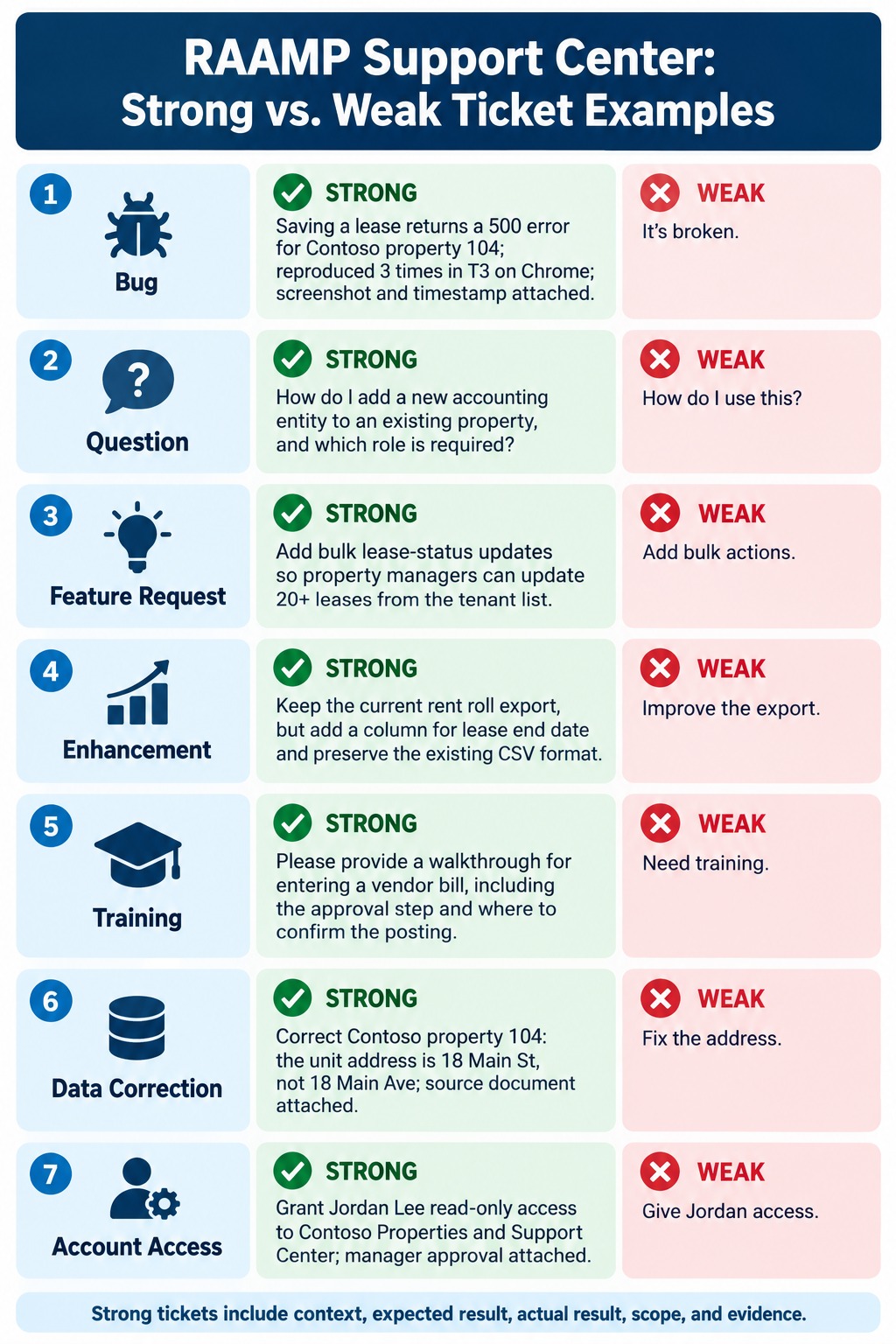
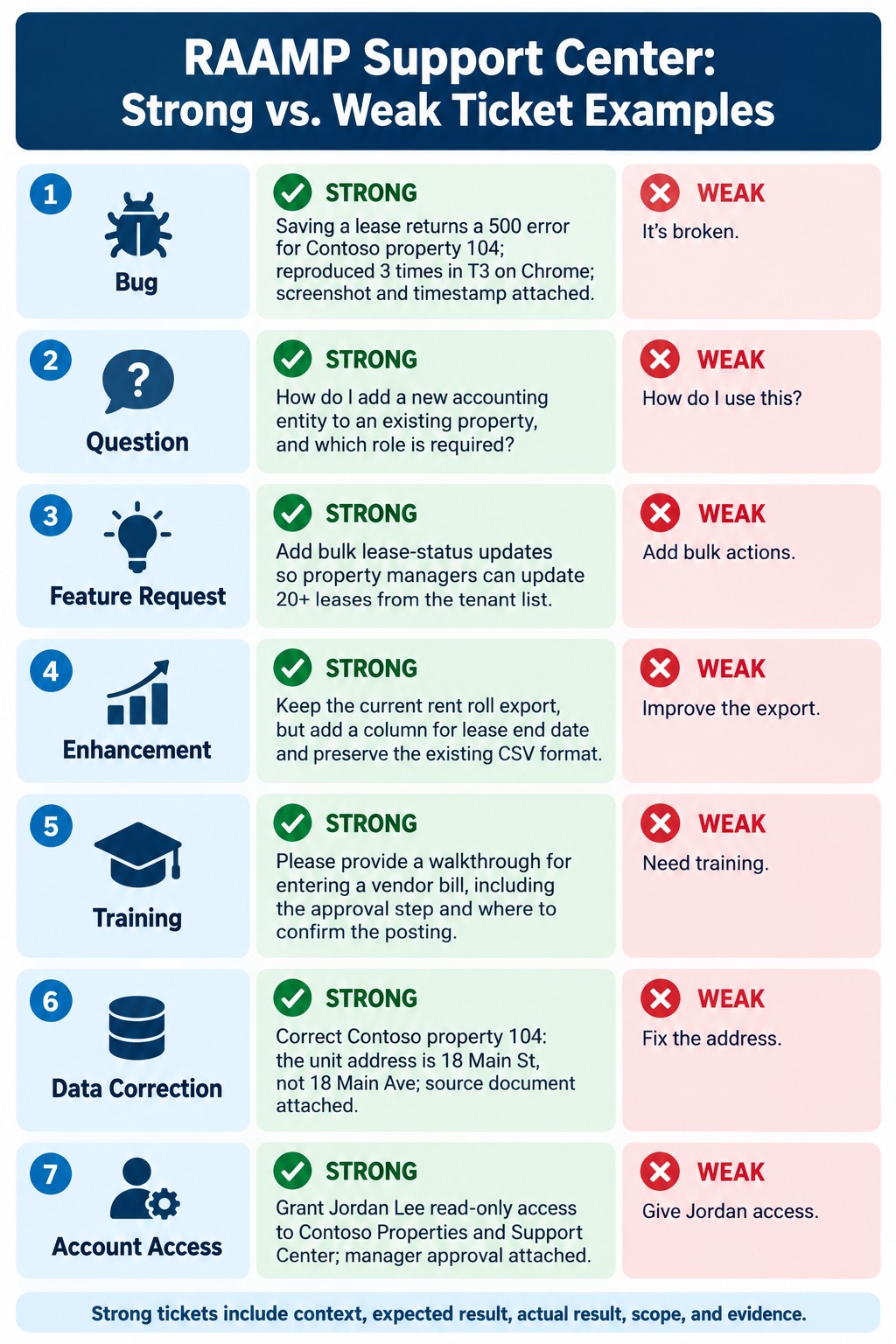
Tip: Before you submit, review your ticket.
Make sure you are submitting a Strong ticket.
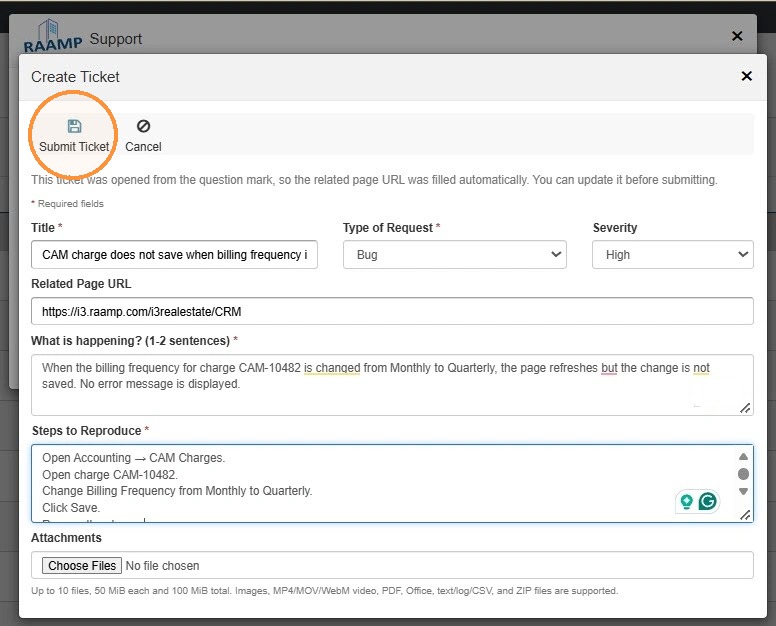
4. Select Submit Ticket.
How to Submit a Ticket from the Navigation Menu
Alert: When submitting a ticket here, you will need the related page URL and record details. It will not capture the related page URL automatically.
5. From the navigation menu, select Support Center.
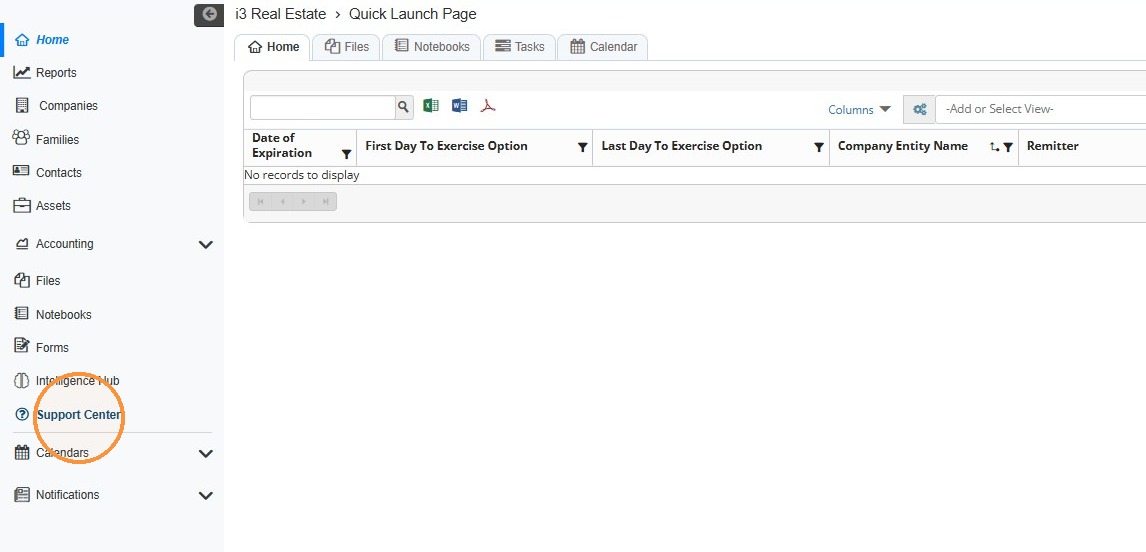
6. Select Create Ticket.
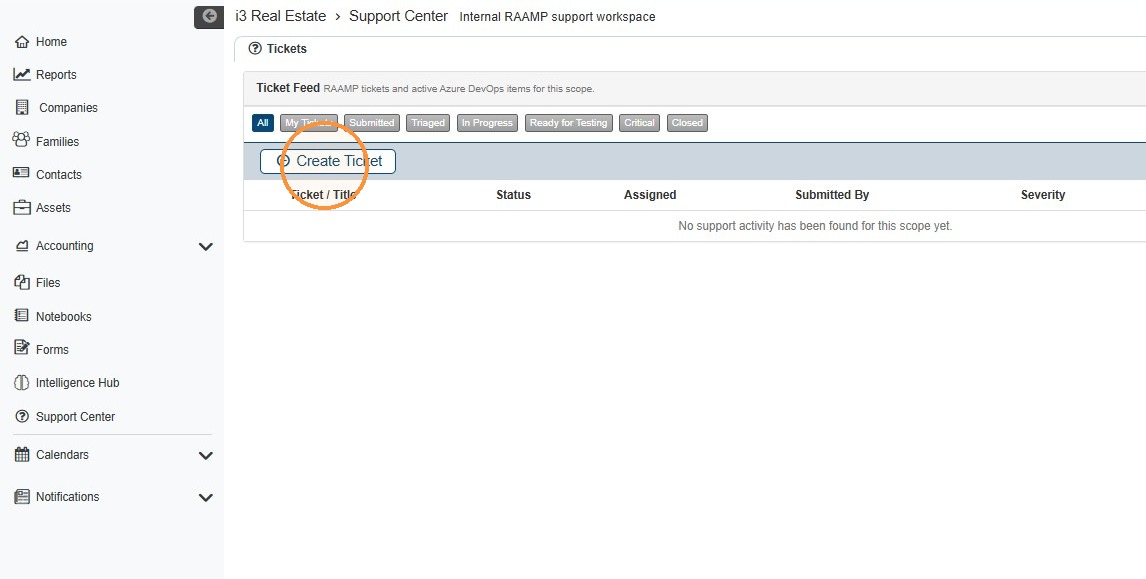
7. Complete the ticket information.
- Write a short, specific Title.
- Select the correct Type of Request.
- Choose the appropriate Severity.
- Low: Minor inconvenience
- Medium: Workaround exists or limited users affected
- High/Critical: Major business impact or no workaround
- Confirm the Related Page URL.
- Describe what happened, what you expected, and who or what is affected.
- List clear Steps to Reproduce, if applicable.
- Attach relevant screenshots, files, or error messages.
- Review all required fields marked with
*.
Tip: Before you submit, review your ticket.
Make sure you are submitting a Strong ticket.
8. Select Submit Ticket.