How to Add, Edit, and Delete Tenant Addresses
This guide shows how to manage tenant addresses so billing, mailing, and physical locations (and their phone numbers) stay accurate and up to date. It walks you through finding a tenant, adding a new address, editing existing details, and deleting an address with confirmation. Follow it to ensure communications and records point to the correct location.
Tip: - Addresses = Where the tenant is located. Use this tab for billing, mailing, or physical addresses. A phone number entered here is associated with that specific location.
Navigating to Tenant Addresses
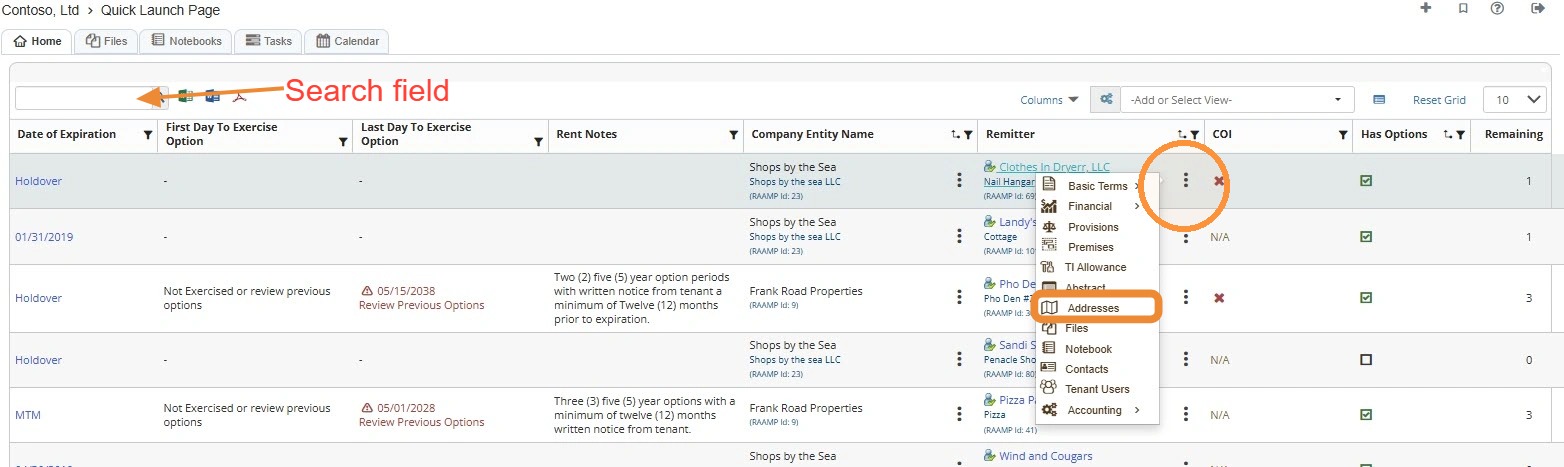
1. On the Home page, locate the tenant.
NOTE: You can use the search field to quickly locate the tenant.
How to Add a New Address
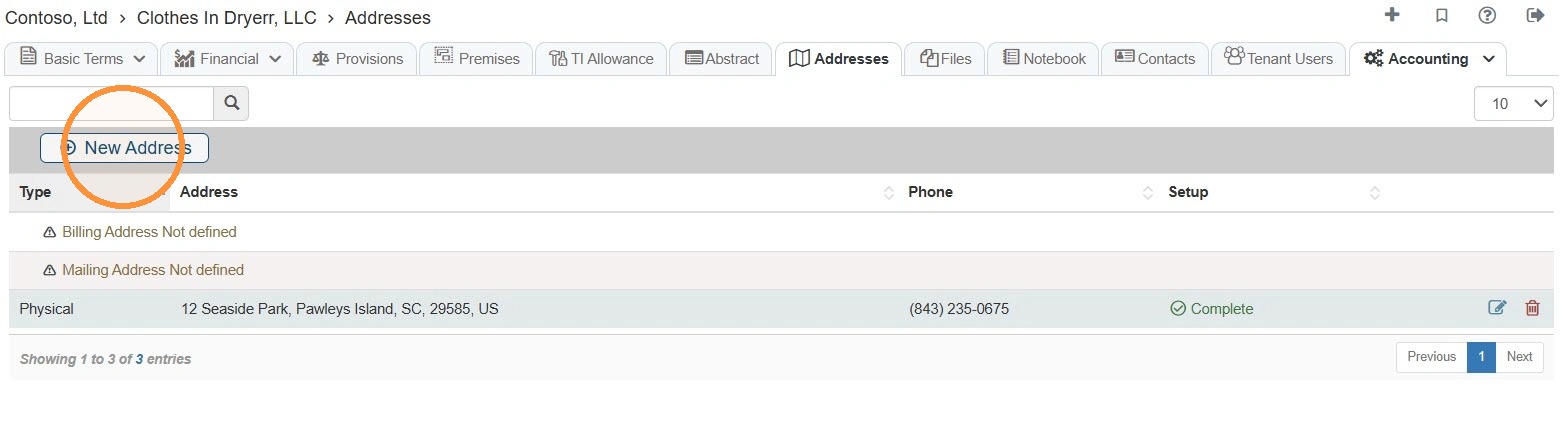
2. Select New Address.
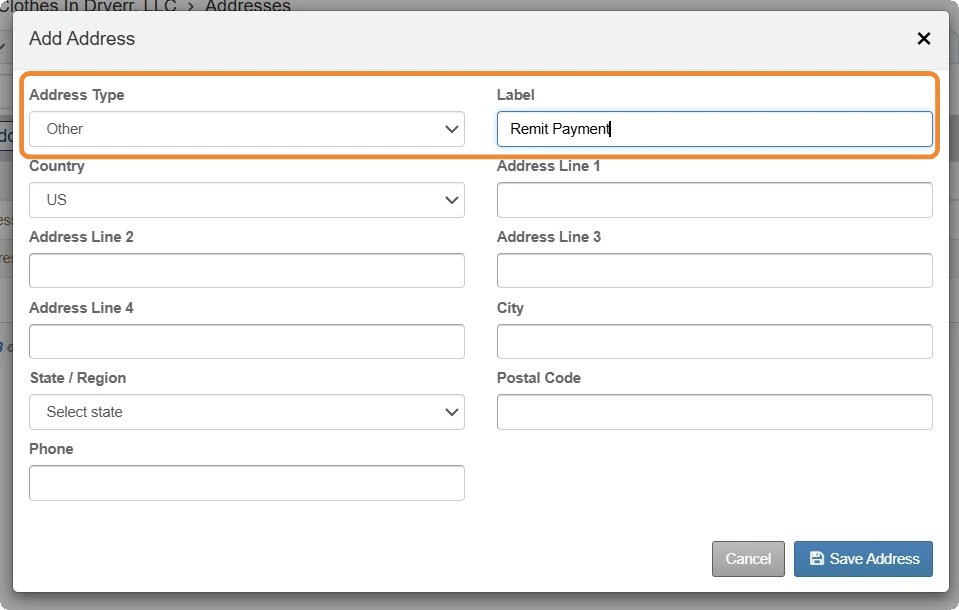
3. Select the Address Type.
NOTE: For the remit payment address to auto-fill on the tenant's invoice setup screen, you must select Other and enter Remit Payment as the label.
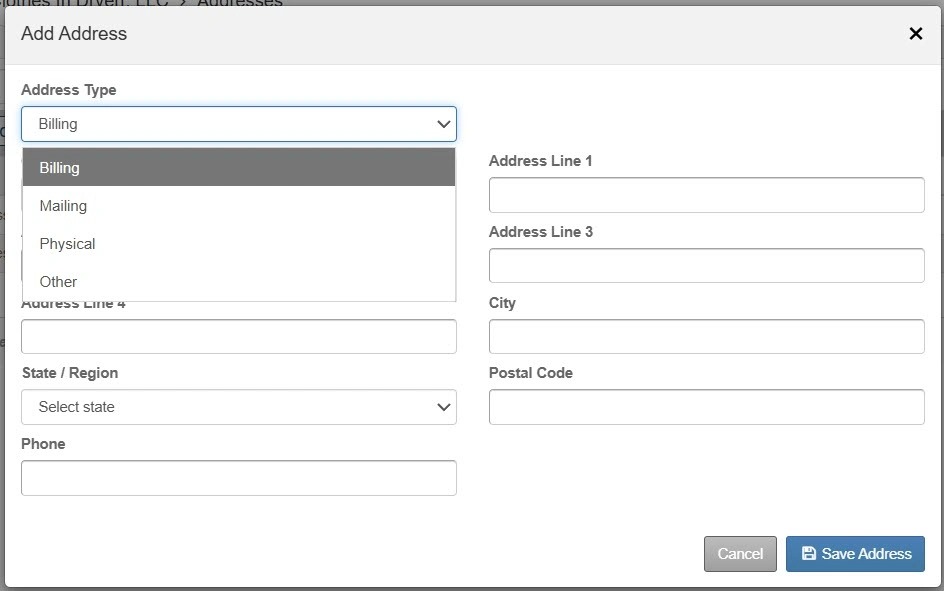
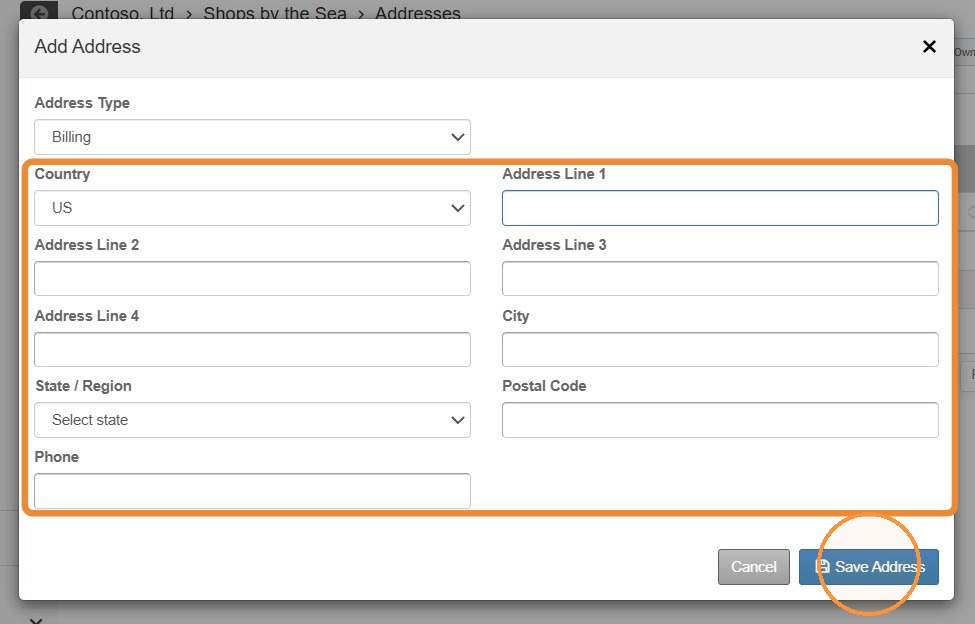
4. Enter the address information > Select Save Address.
How to Review and Delete/Edit Address Information
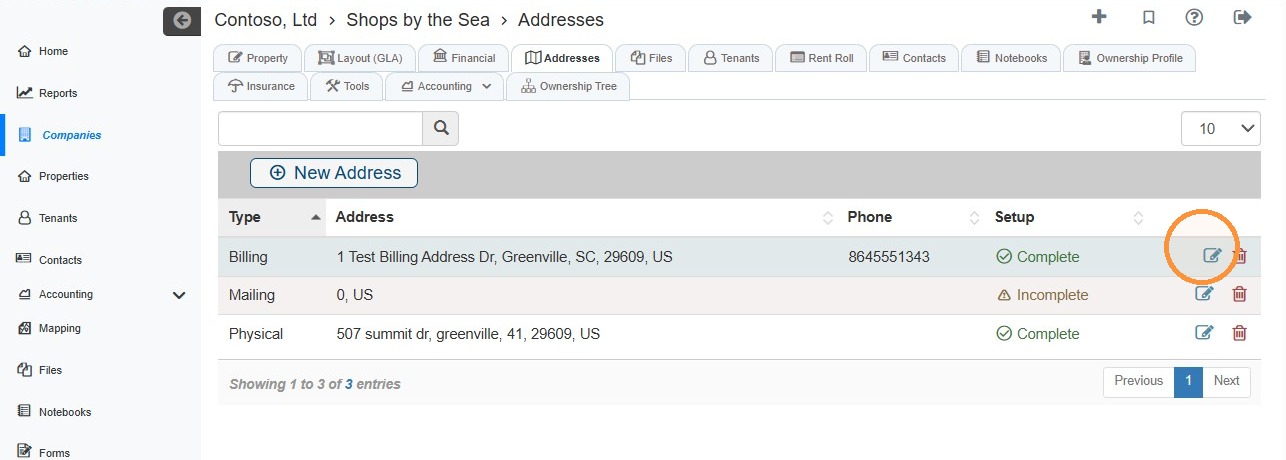
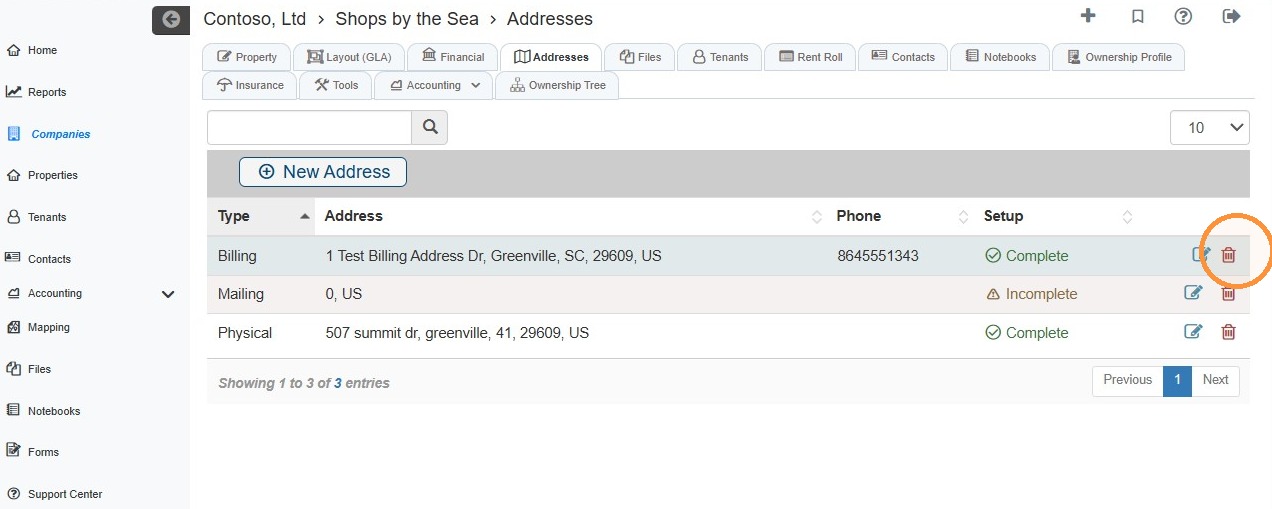
5. Select the edit icon for the address you need to edit.
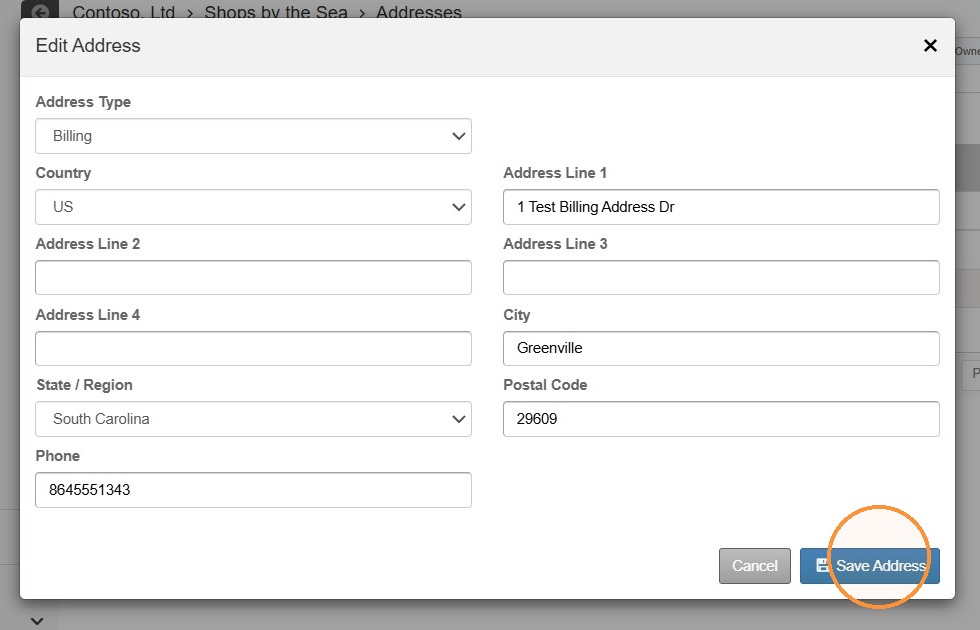
6. Update the address information > Select Save Address.
7. Select the trash can icon to delete the address.
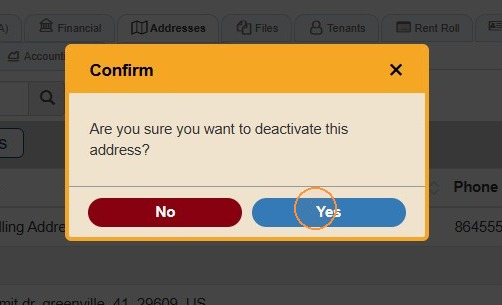
8. Select Yes to confirm deactivation.