How to Create and Manage Account Roll-Ups
This guide quickly shows how to find, create, and manage Account Roll-Ups so you can consolidate accounts for clearer financial reporting. It walks through navigation steps, naming and saving new roll-ups, adding accounts, and editing or deleting roll-ups. It also explains how to assign master accounts by dragging them into a roll-up for fast organization.
How to Navigate to Account Roll-Ups
1. Select Accounting > Select Accounts > Select Account Roll-Ups
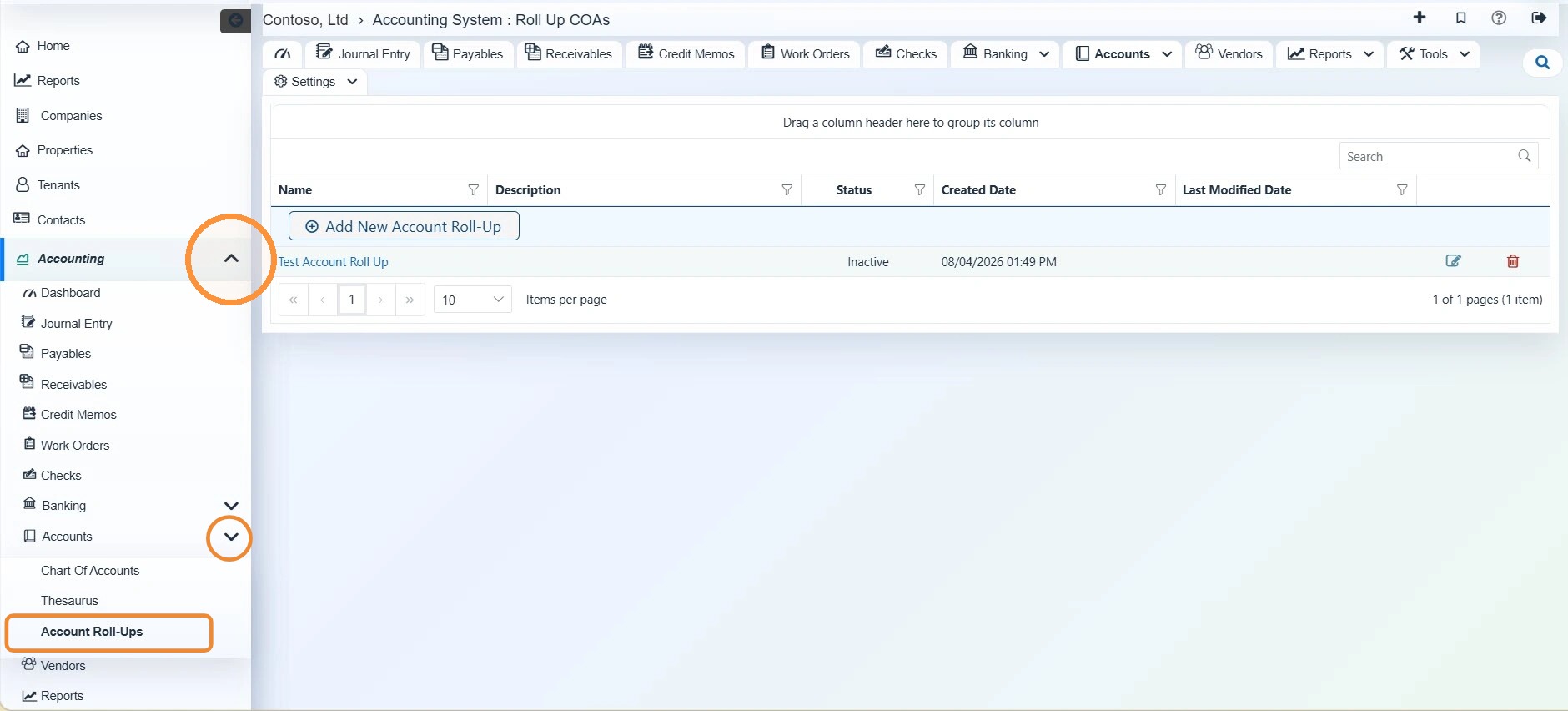
How to Add New Account Roll-Up
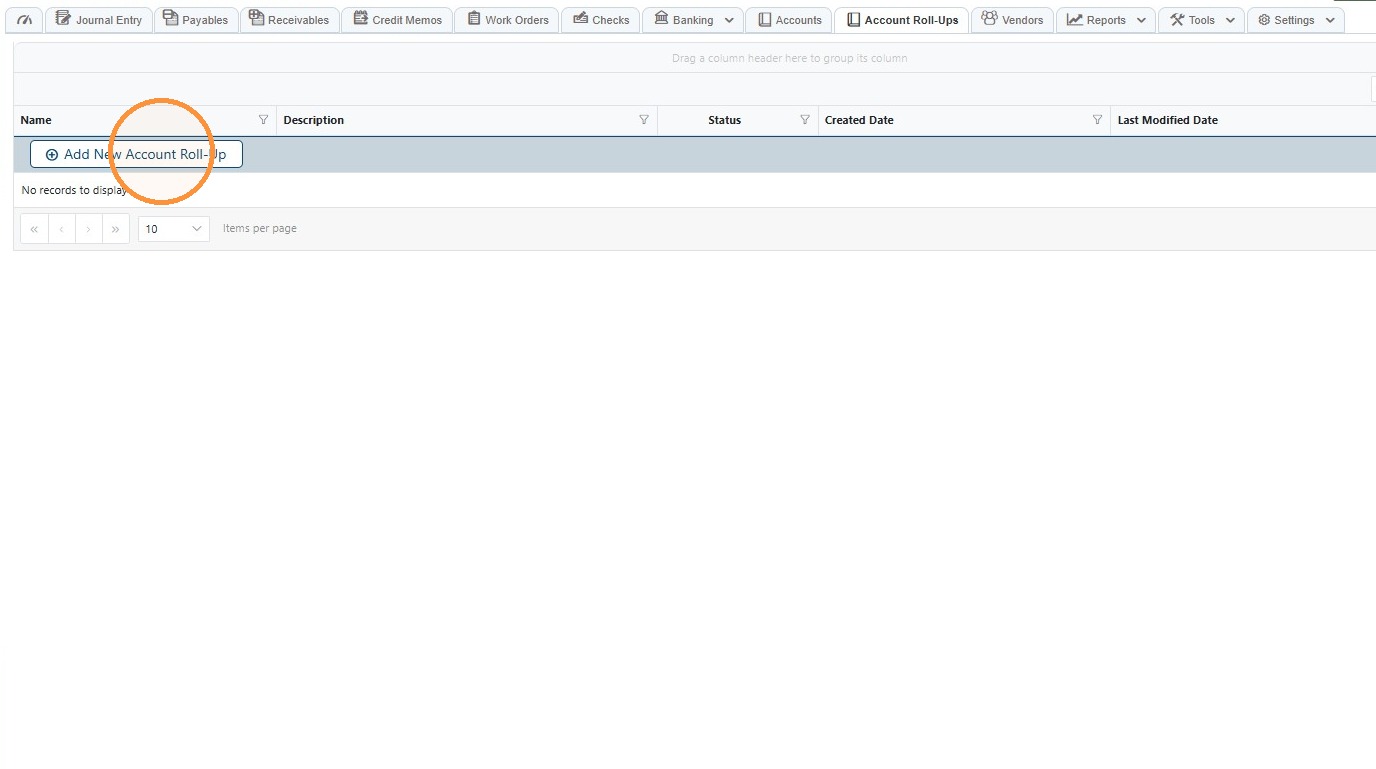
2. Select Add New Account Roll-Up.
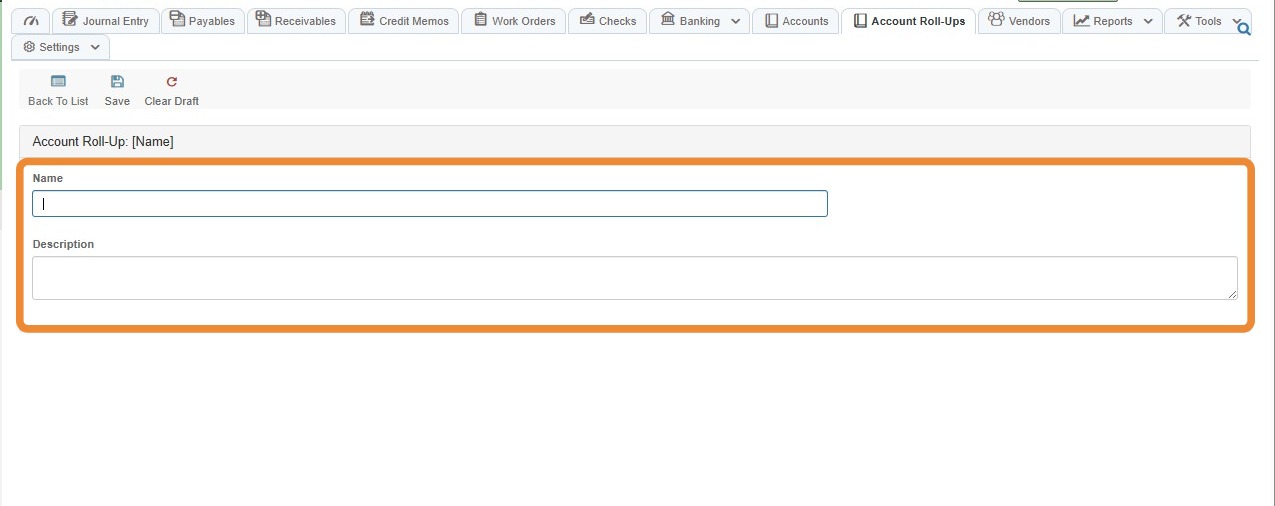
3. Enter a Name and Description for the Account Roll-Up.
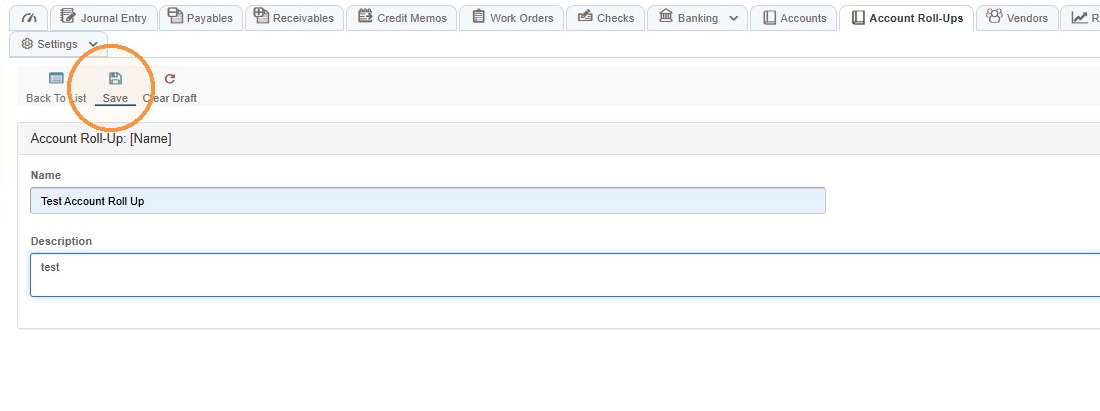
4. Select Save.
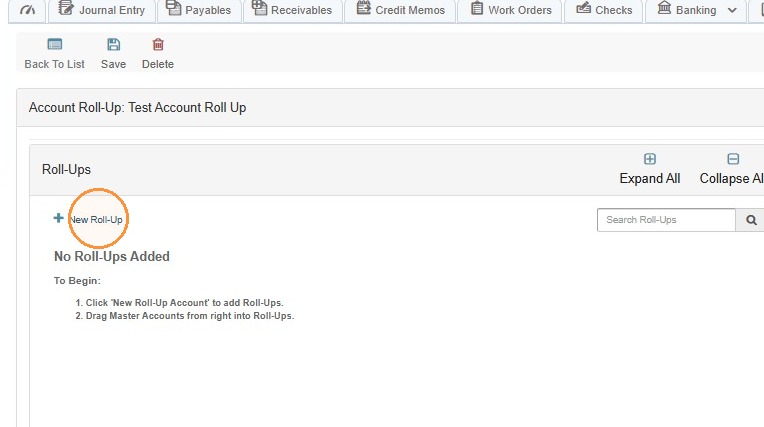
5. Select New Roll-Up.
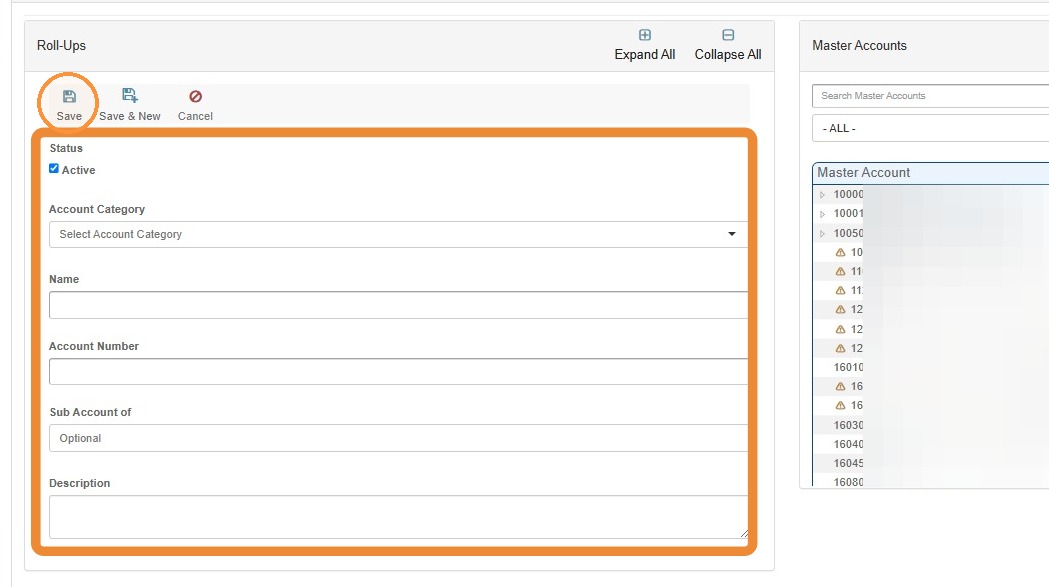
6. Complete the account information > Select Save.
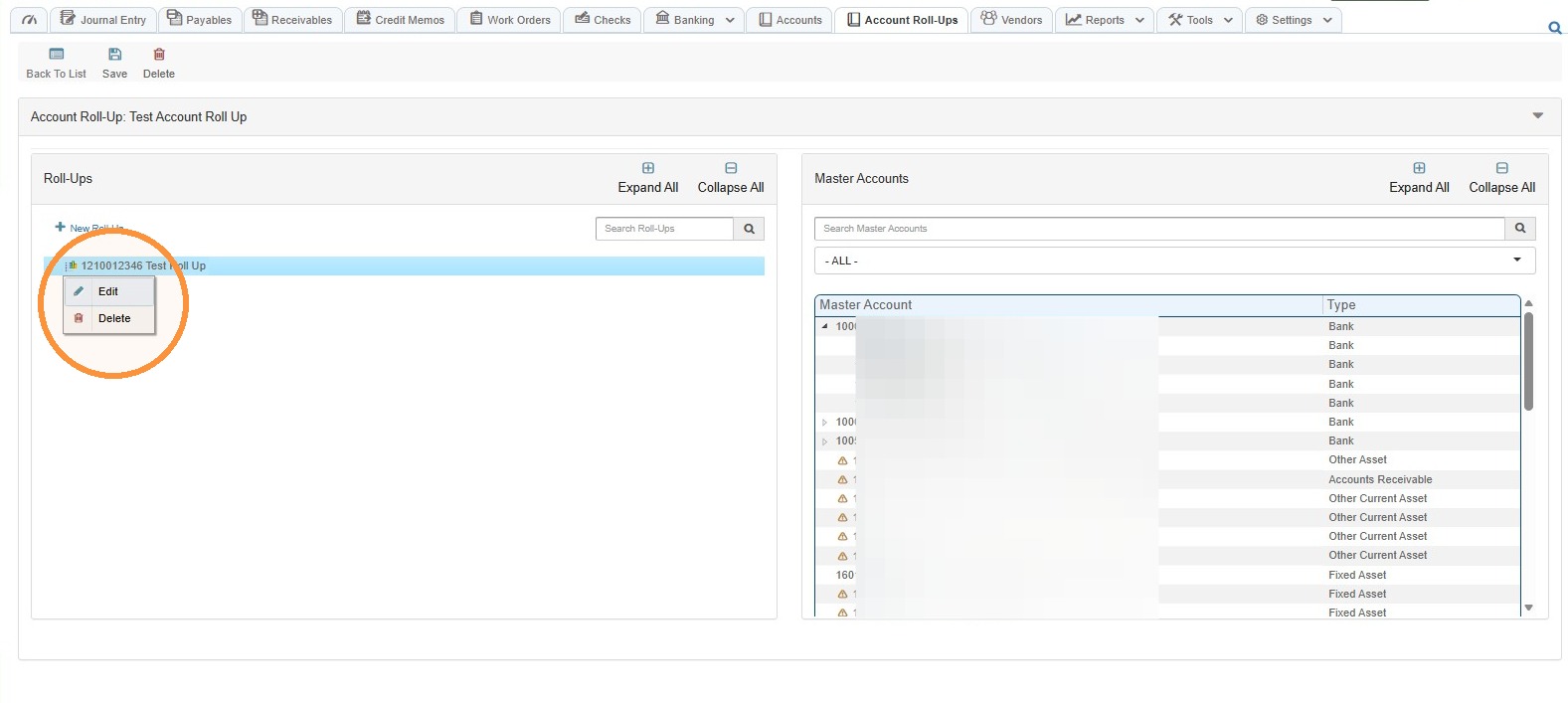
7. To edit or delete the roll-up, you can right click the roll-up account.
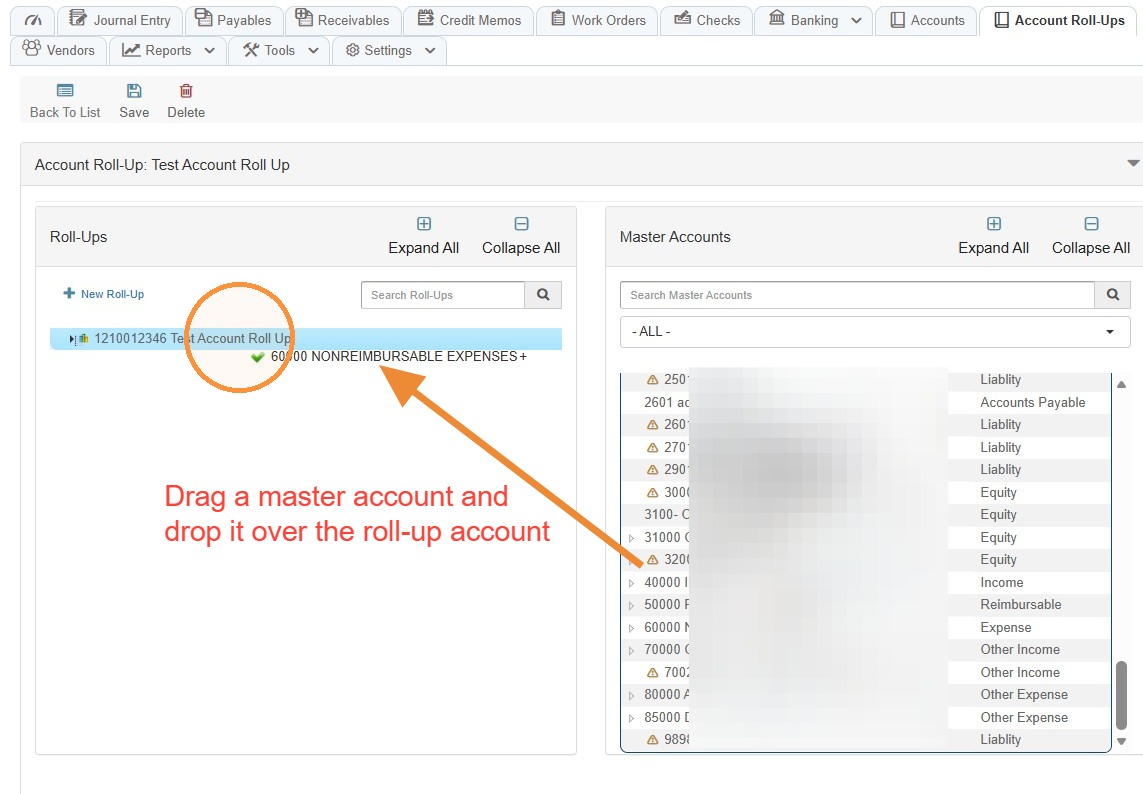
8. Drag master accounts from the right-hand tree onto the appropriate roll-up account on the left.
RAAMP validates that the master account type matches the roll-up account category
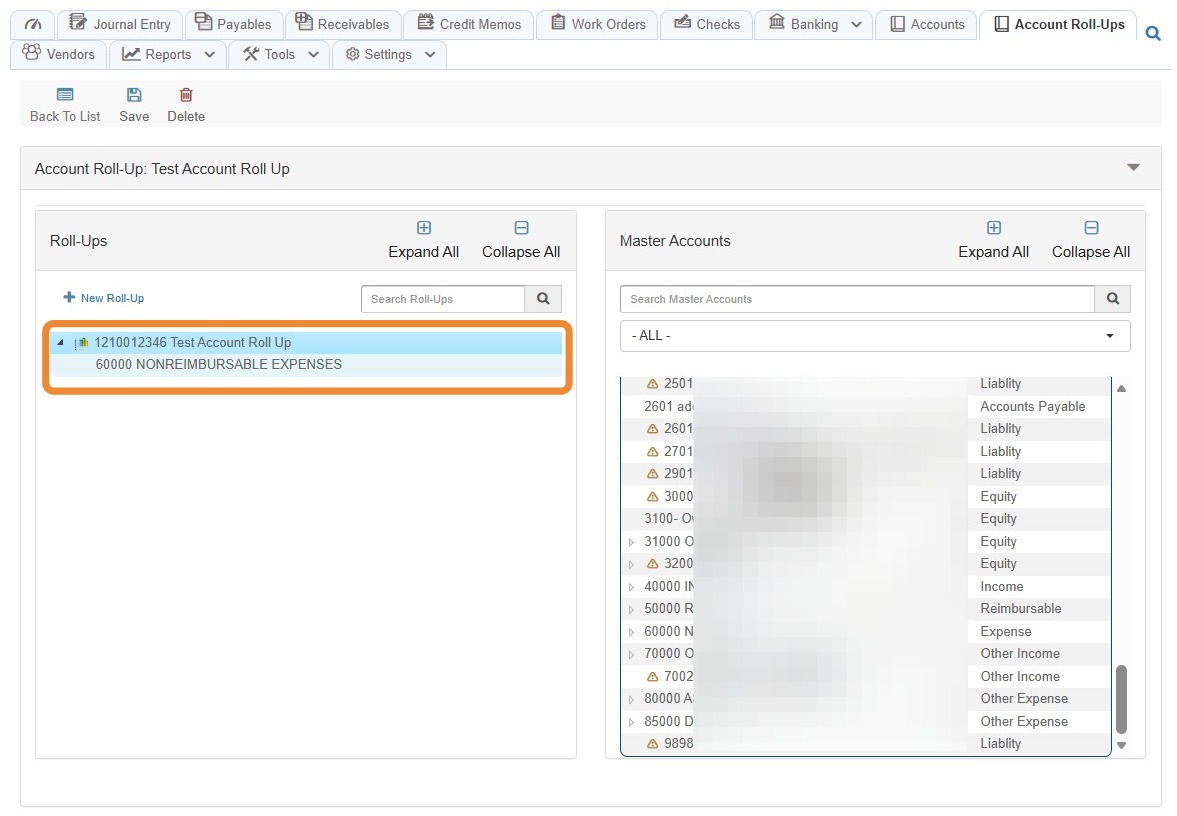
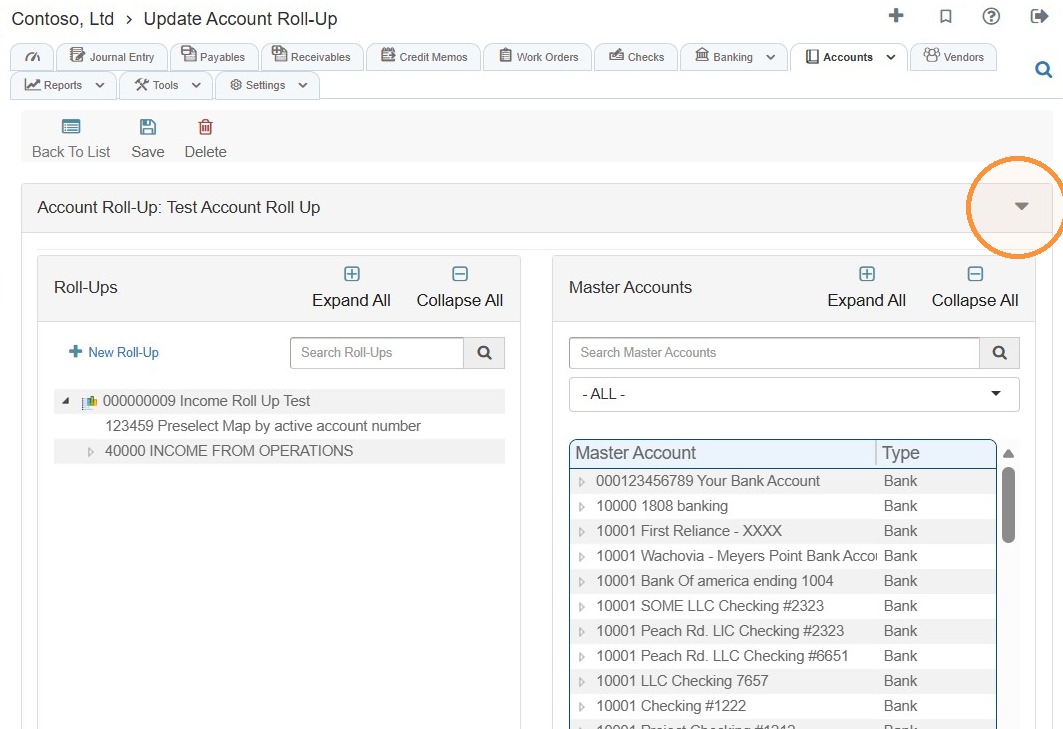
9. To activate the roll-up once its accounts and mappings are complete, select the caret beside Account Roll-Up: (name).
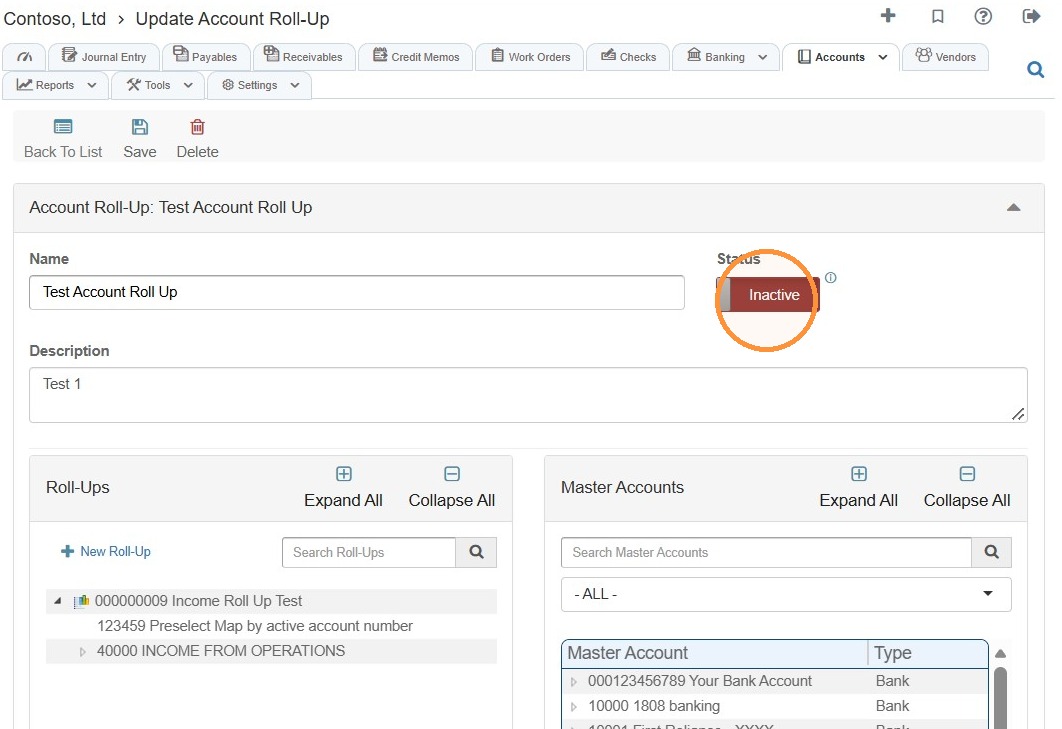
10. Toggle the status to Active.
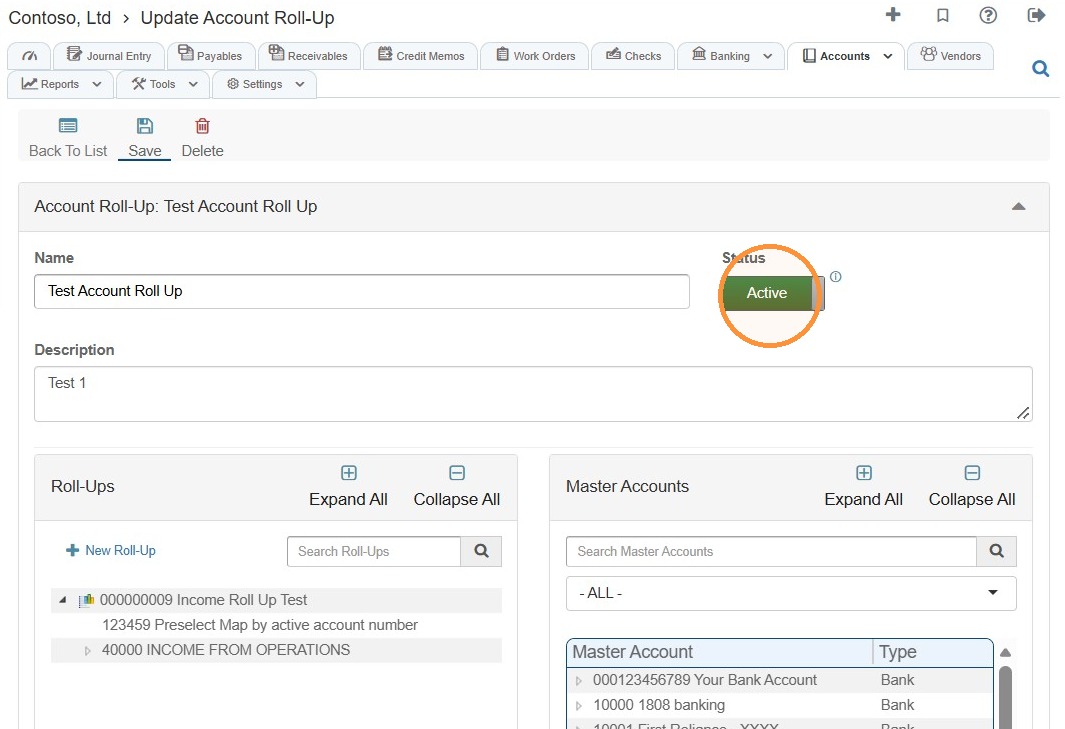
11. Select Save.
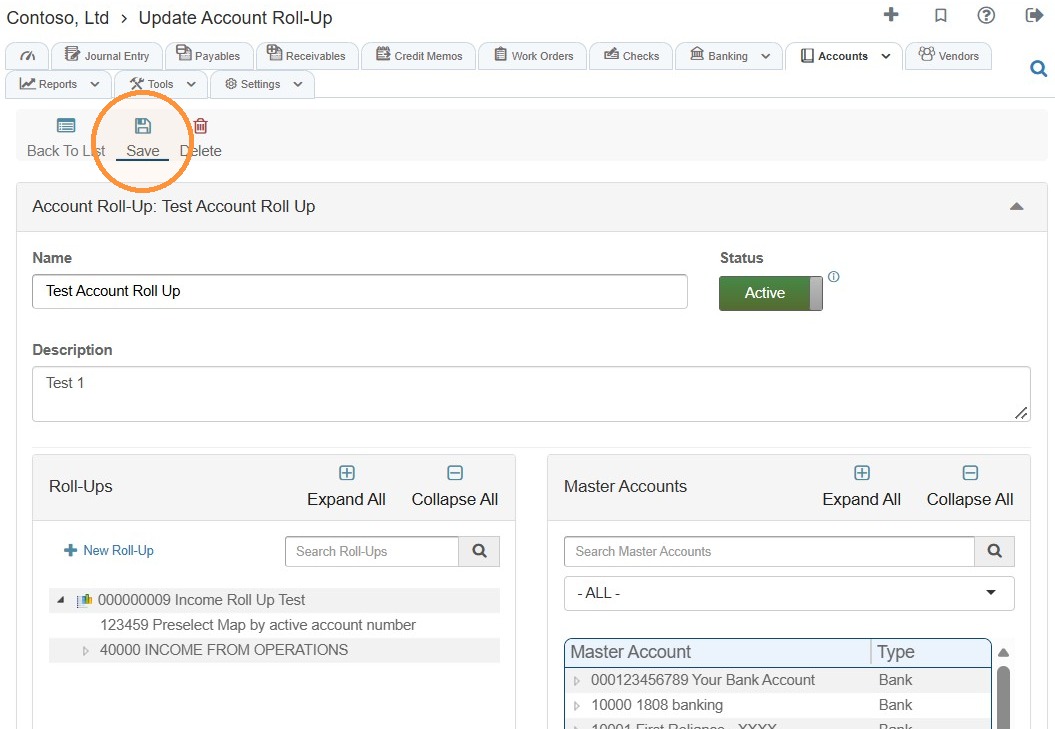
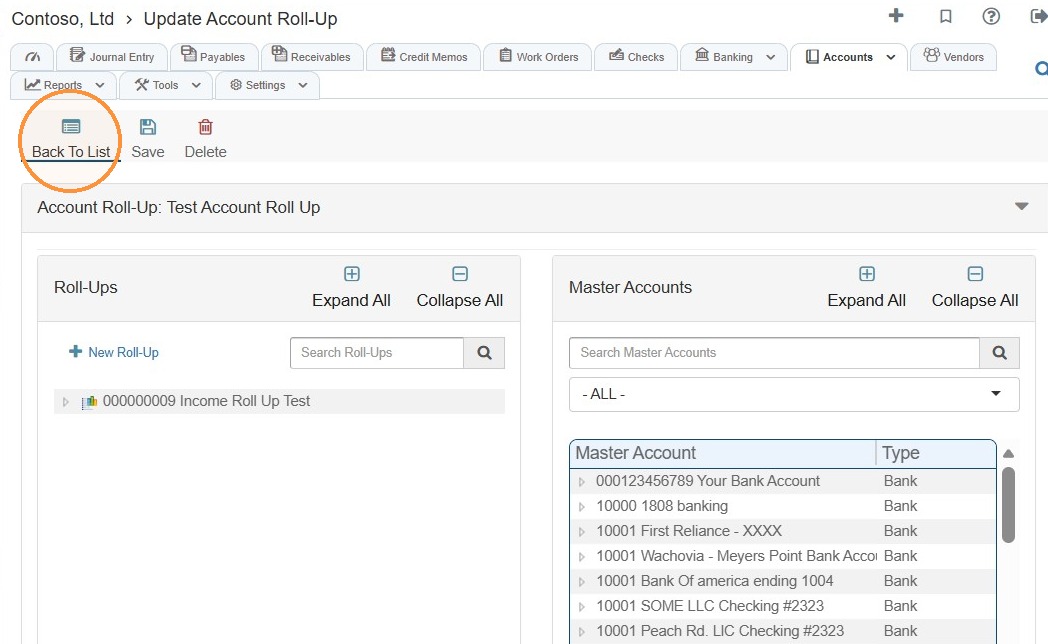
12. To confirm the status, select Back to List.
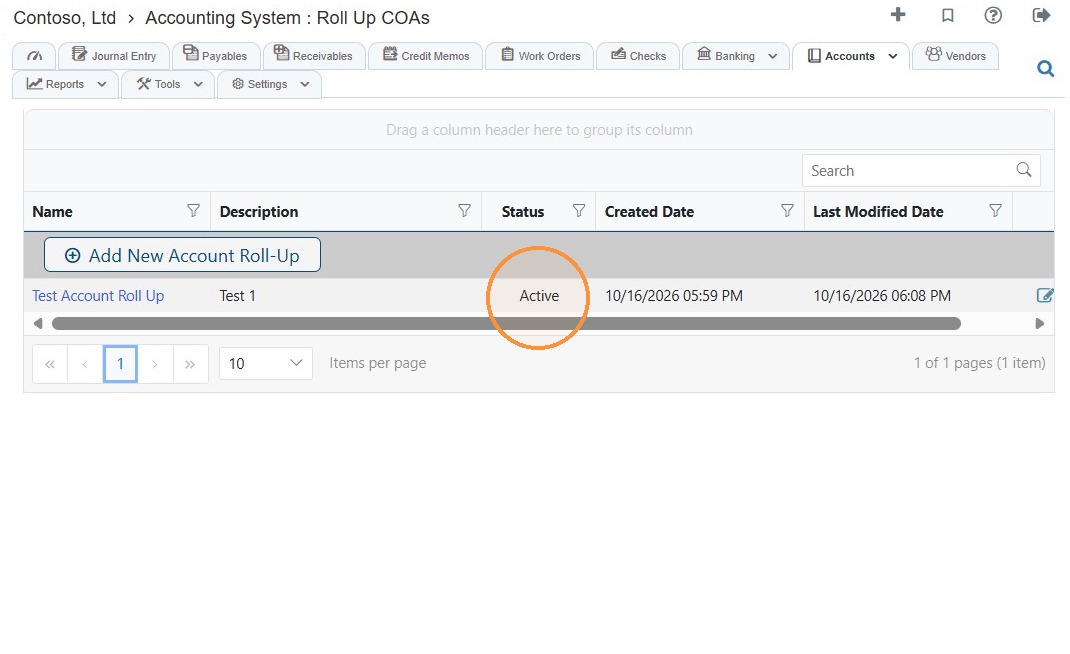
13. The status will be updated.
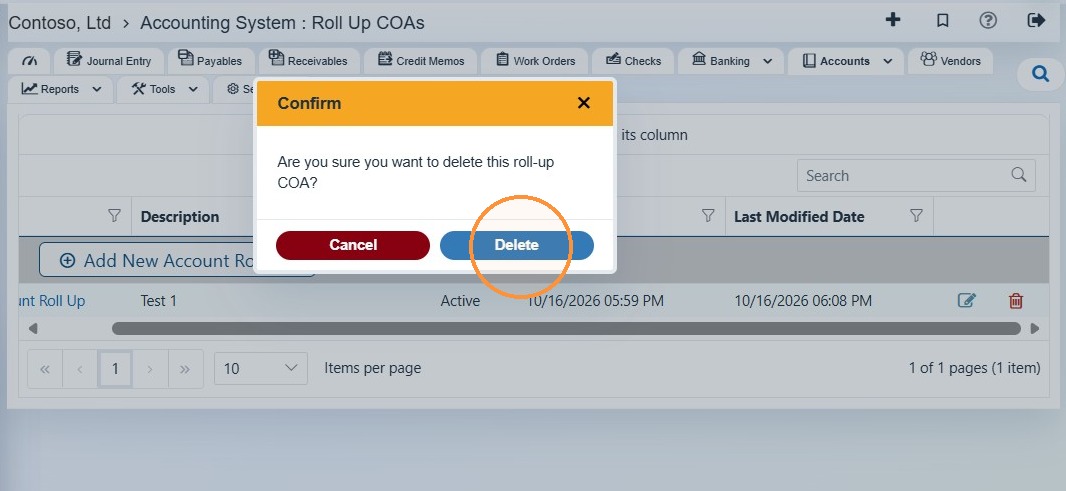
14. Select the trash icon to delete.
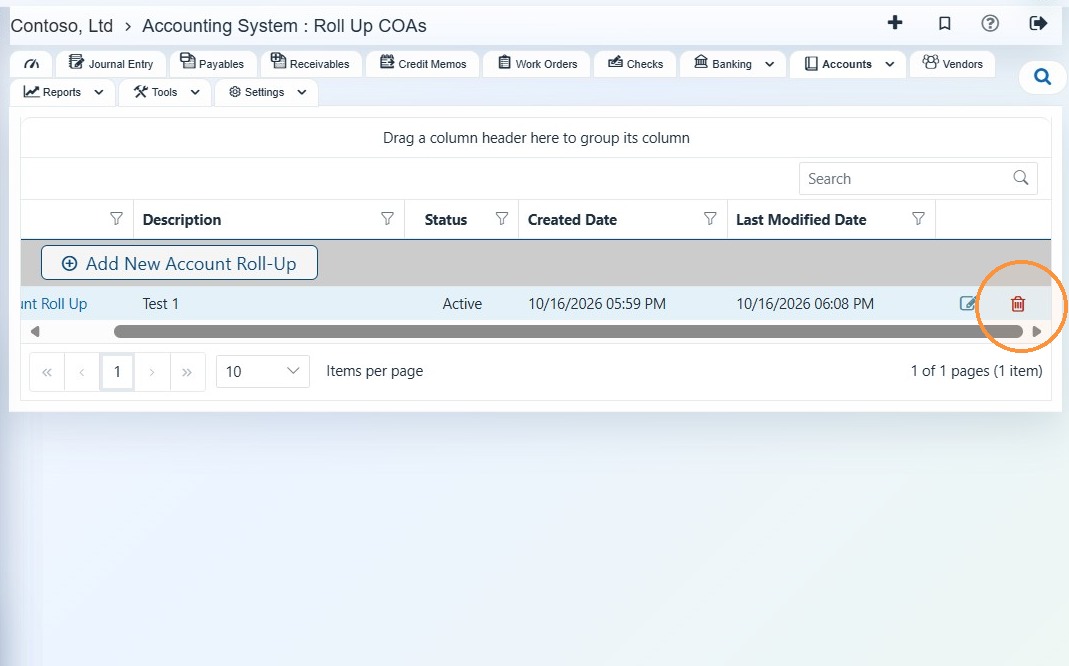
15. Select Delete to confirm.
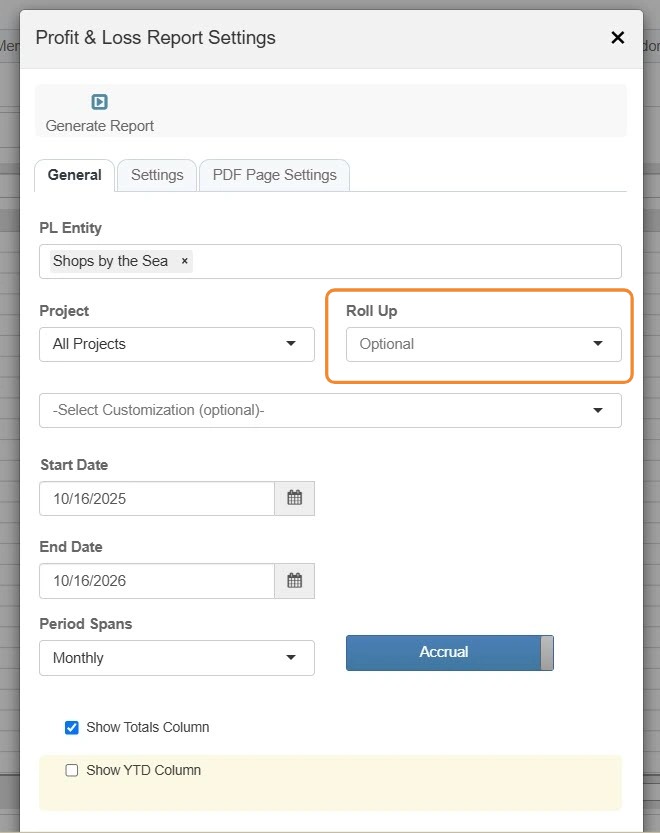
Tip: Open a Profit & Loss, Balance Sheet, or Budget P&L report and choose the roll-up from the *Roll Up dropdown.*
Related Tutorial(s):