How to Import a Trial Balance using RAAMP Template
This guide shows how to add or import month-end trial balances into your accounting system, whether entering activity as a journal entry or uploading ending balances via a template. It explains preparing the template, adding new accounts/subaccounts, choosing import options (like adjusting expense accounts), ensuring the entry balances, and verifying results on your balance sheet and P&L.
Before You Start
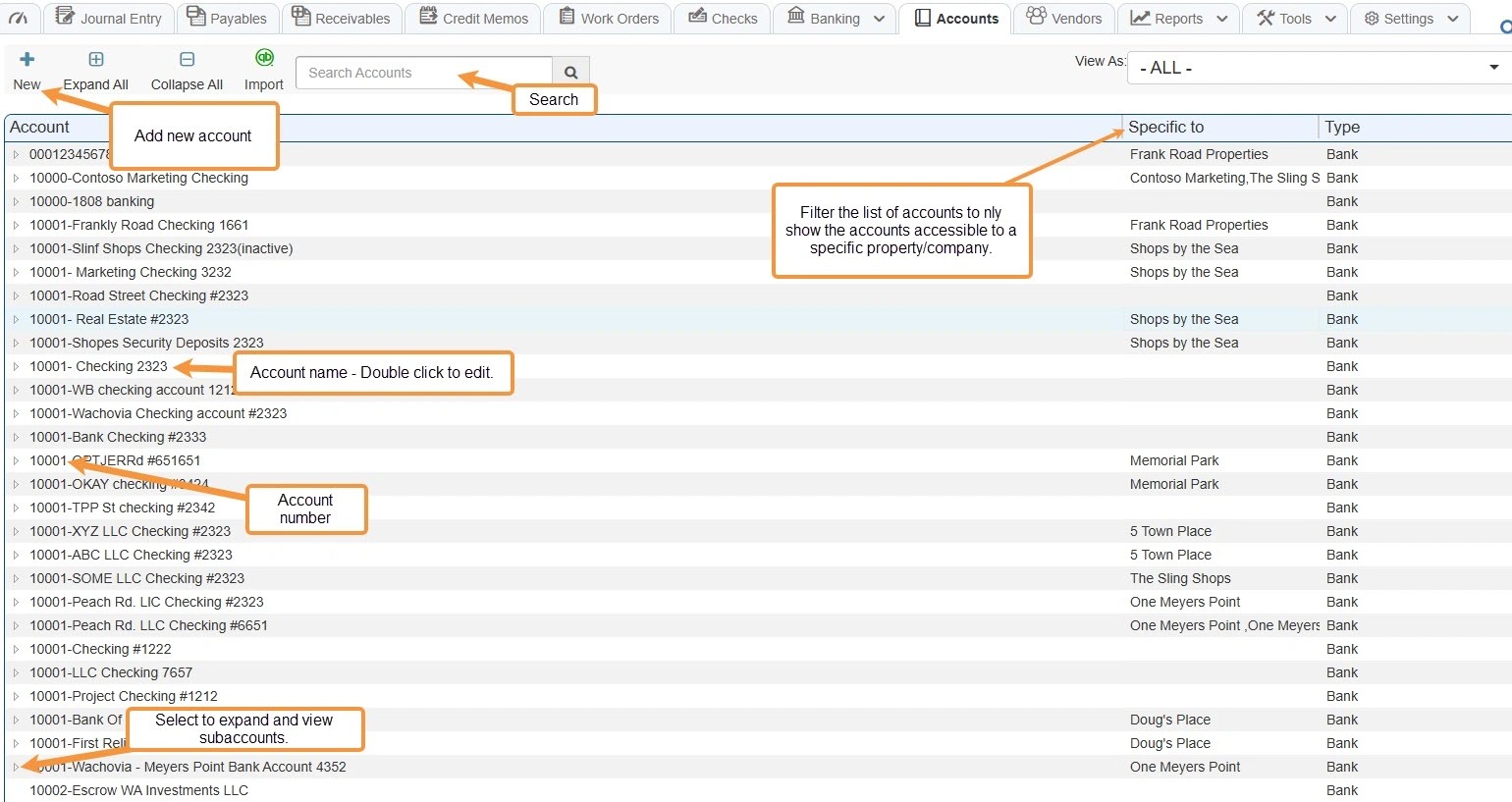
1. Before you start, you should be familiar with the Chart of Accounts.
Refer to the Chart of Accounts diagram below to familiarize yourself with the layout of the Chart of Accounts screen.
How to Download RAAMP Trial Balance Template
Alert: ALERT: If the Trial Balance you are importing only has the ending balances, rather than the actual activity, you will need to use the Trial Balance import.
This is very common when importing Trial Balances from Quickbooks.
If you are not using the RAAMP Trial Balance Template, see How to Import a Non-Template Balance into RAAMP.
2. Confirm the Property/Company is selected from the drop-down menu.
Select Import Data.
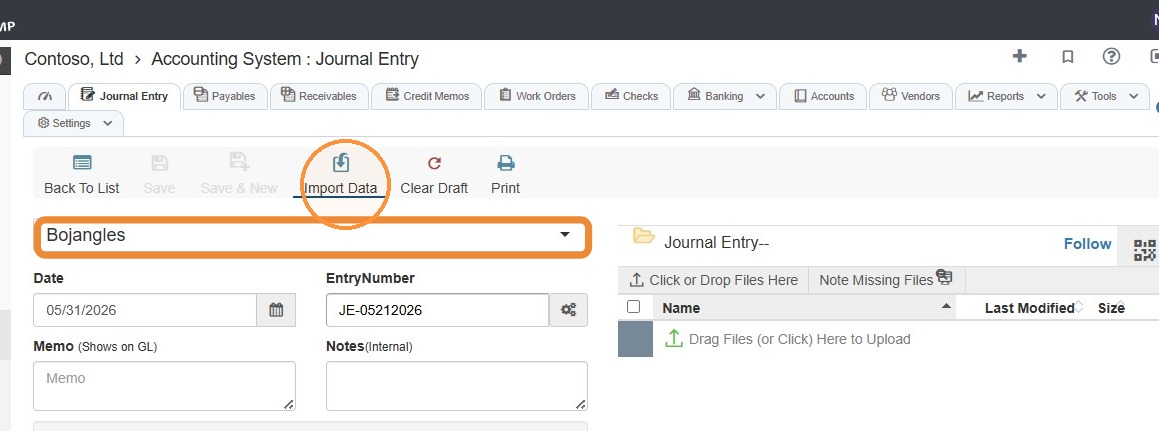
Alert: Templates are specific to the Property/Company, so you will not be able to use the same template for different properties or companies.
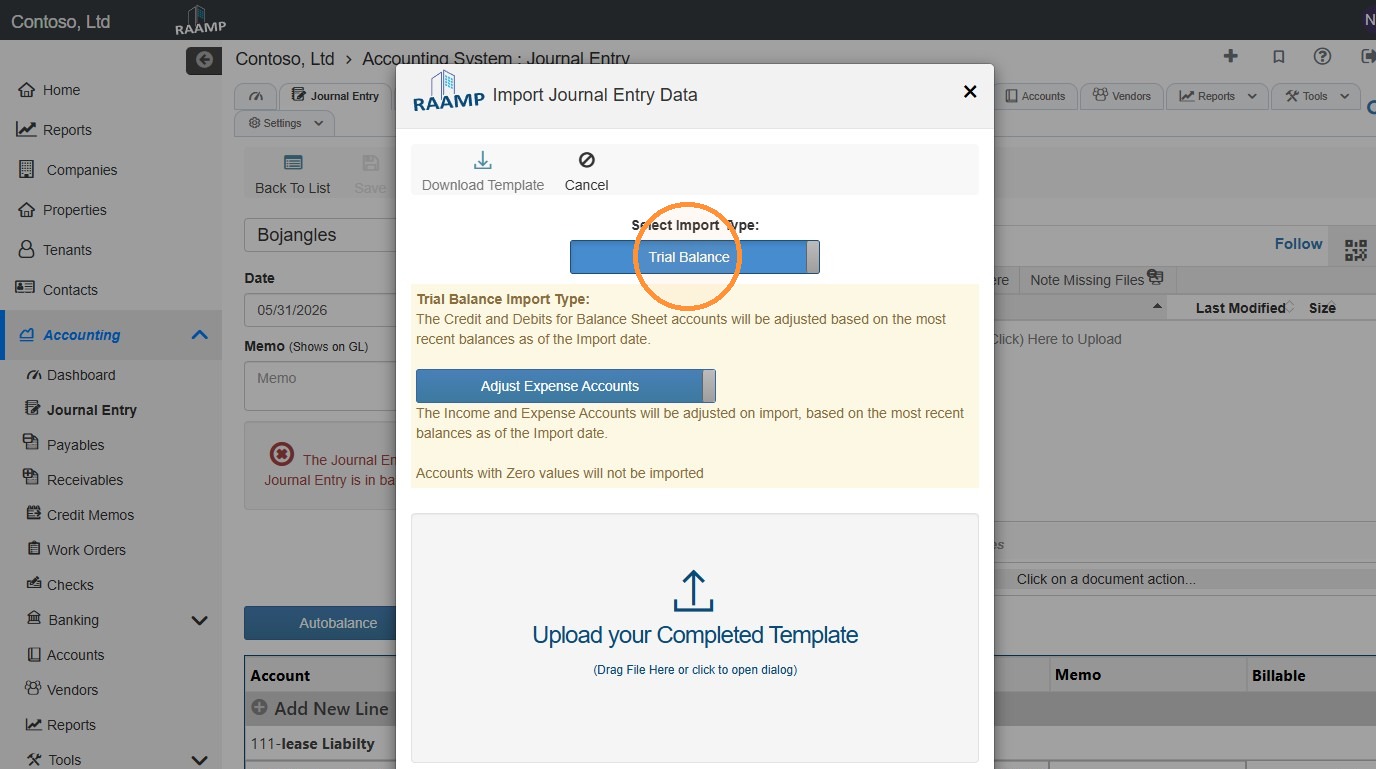
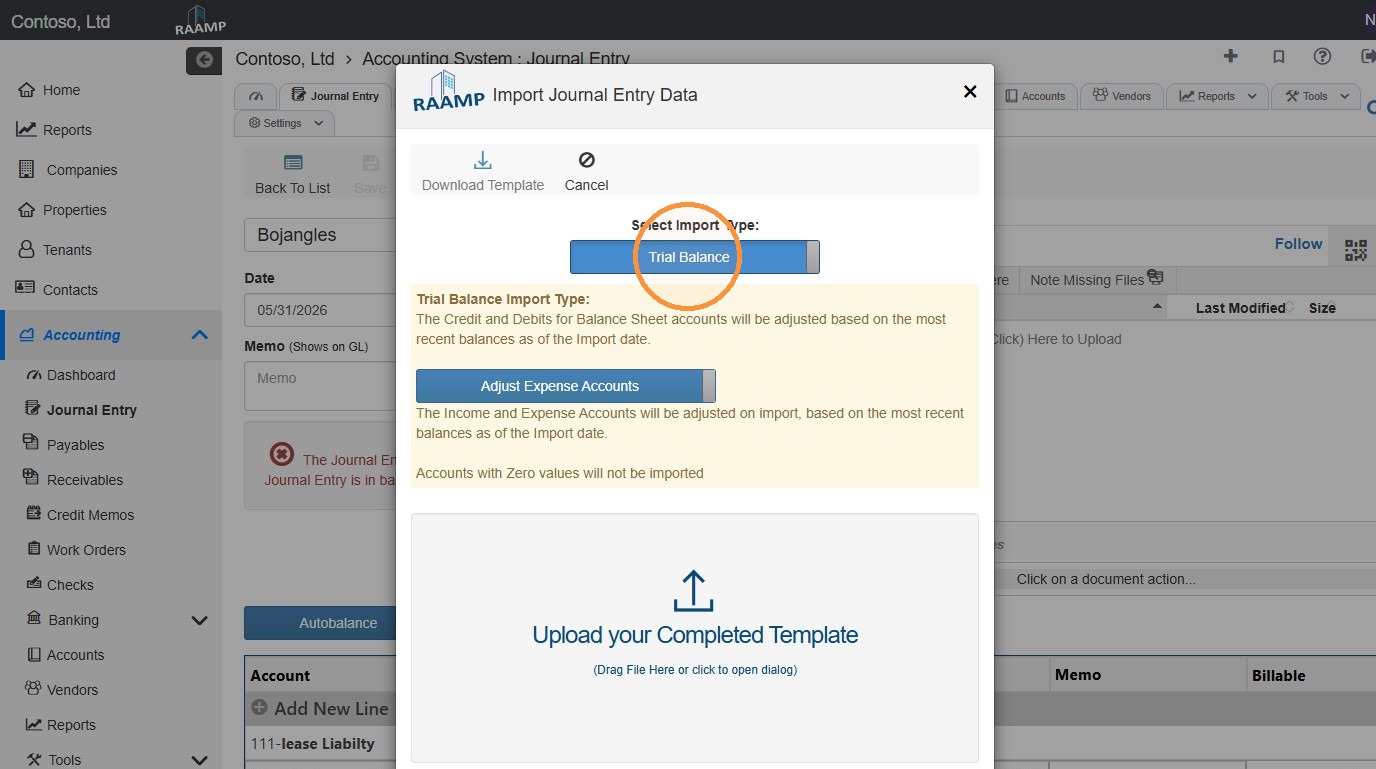
3. To download the Trial Balance Template, make sure the Select Import Type is toggled to Trial Balance.
To toggle, select Trial Balance.
4. Select Download Template.
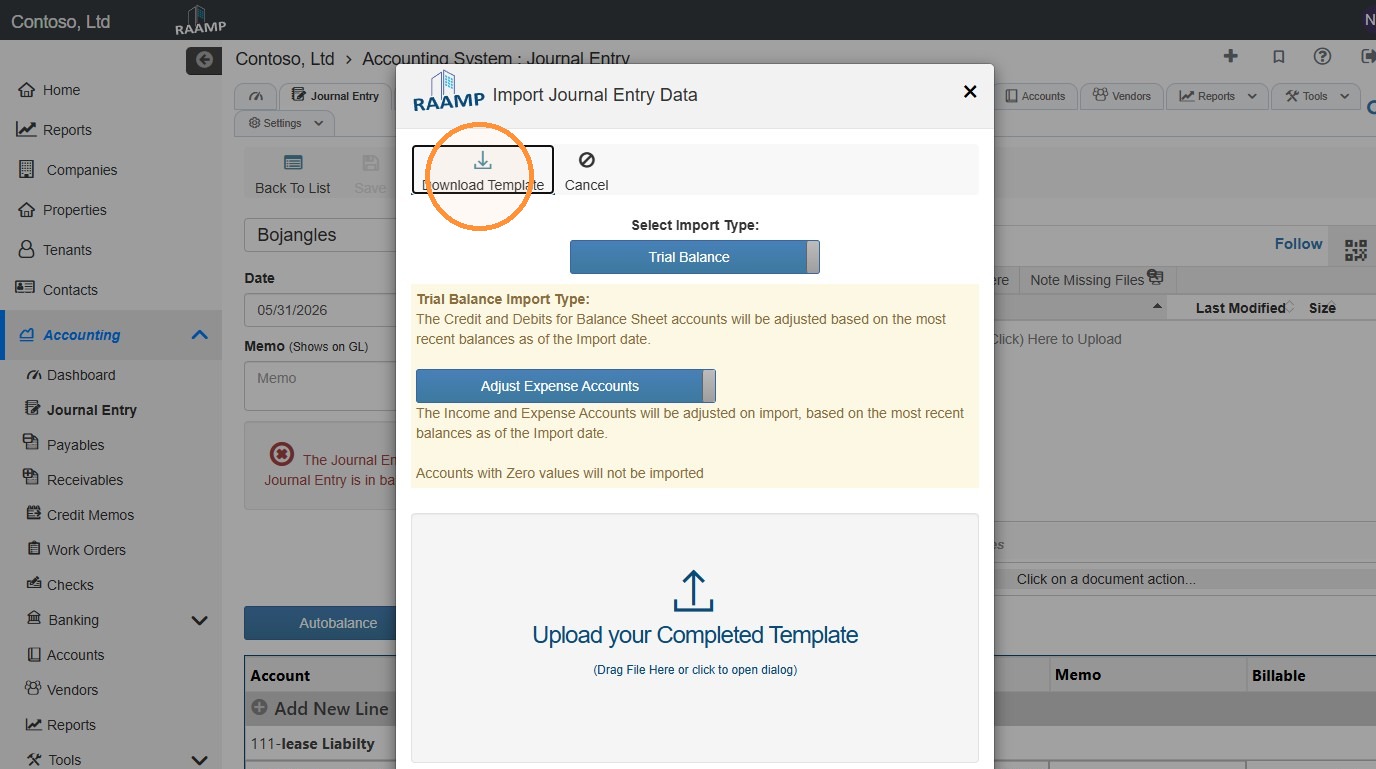
Tip: You should be able to open the file from your computer's Downloads folder.
5. Here's a preview of the Trial Balance Import Template.
The completed sheet will alert you if it's not in balance.

How to Add Accounts During Import
Tip: You can add accounts and subaccounts to the spreadsheet. The added accounts and subaccounts will be imported from the spreadsheet.
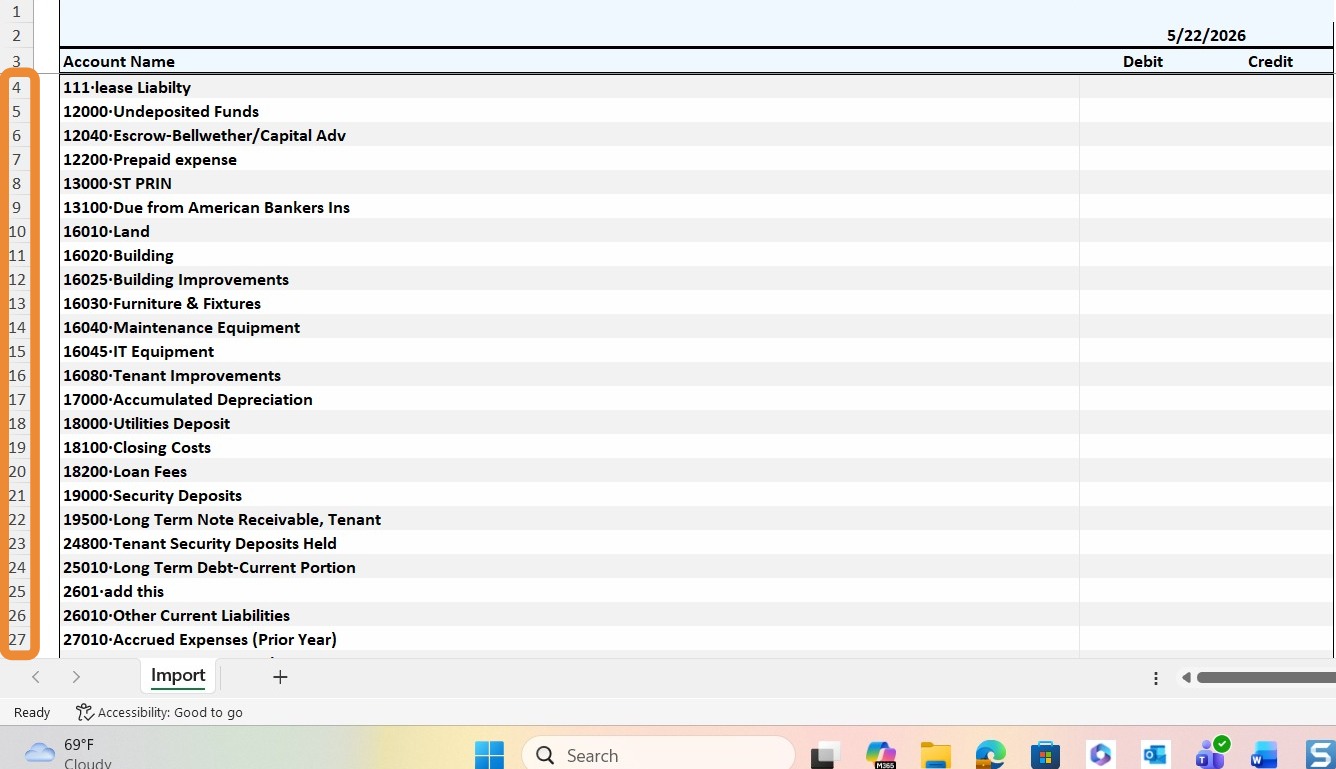
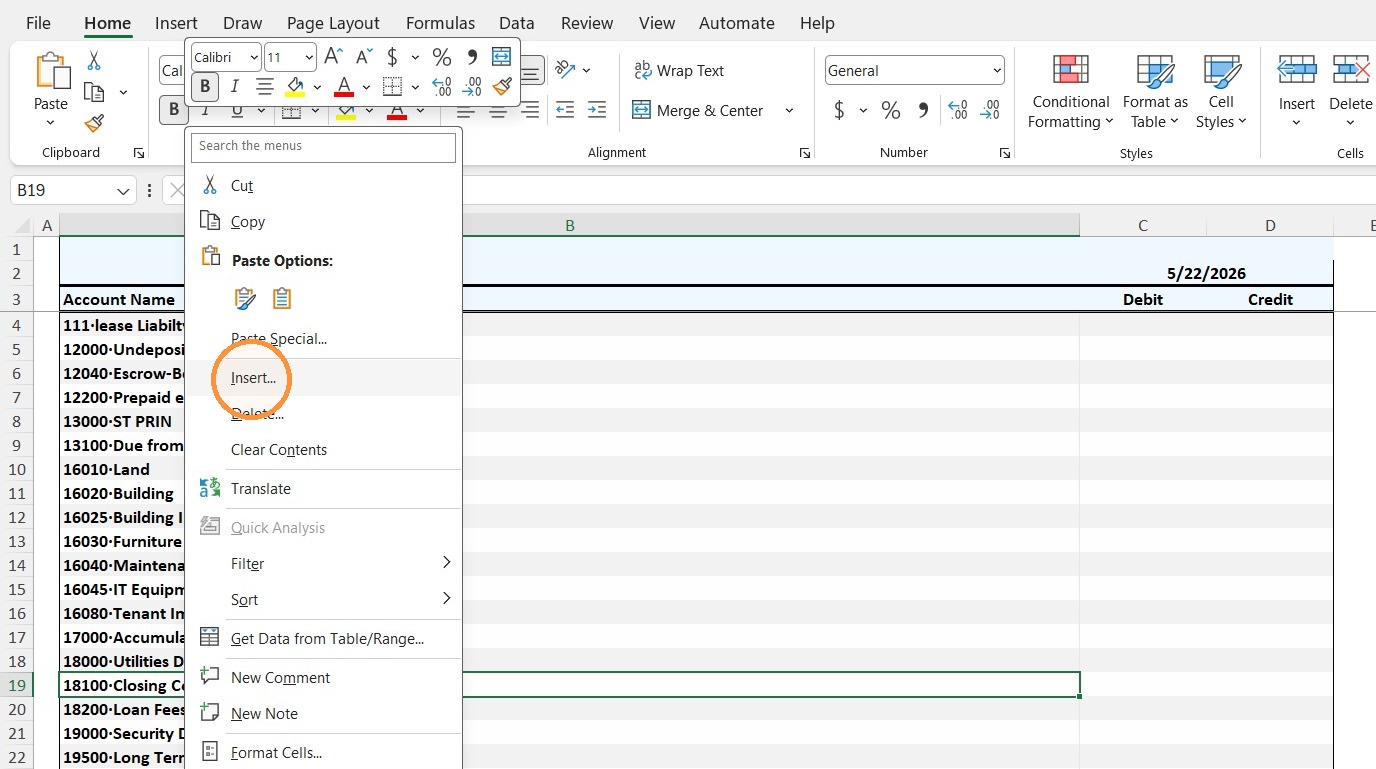
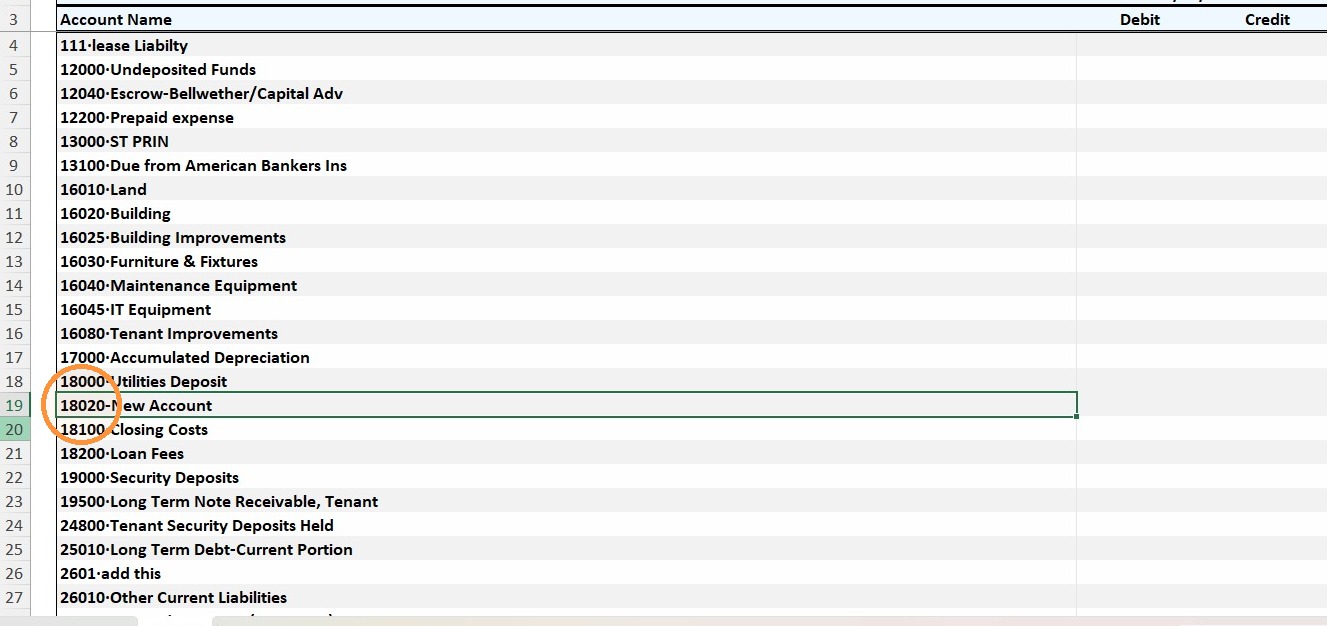
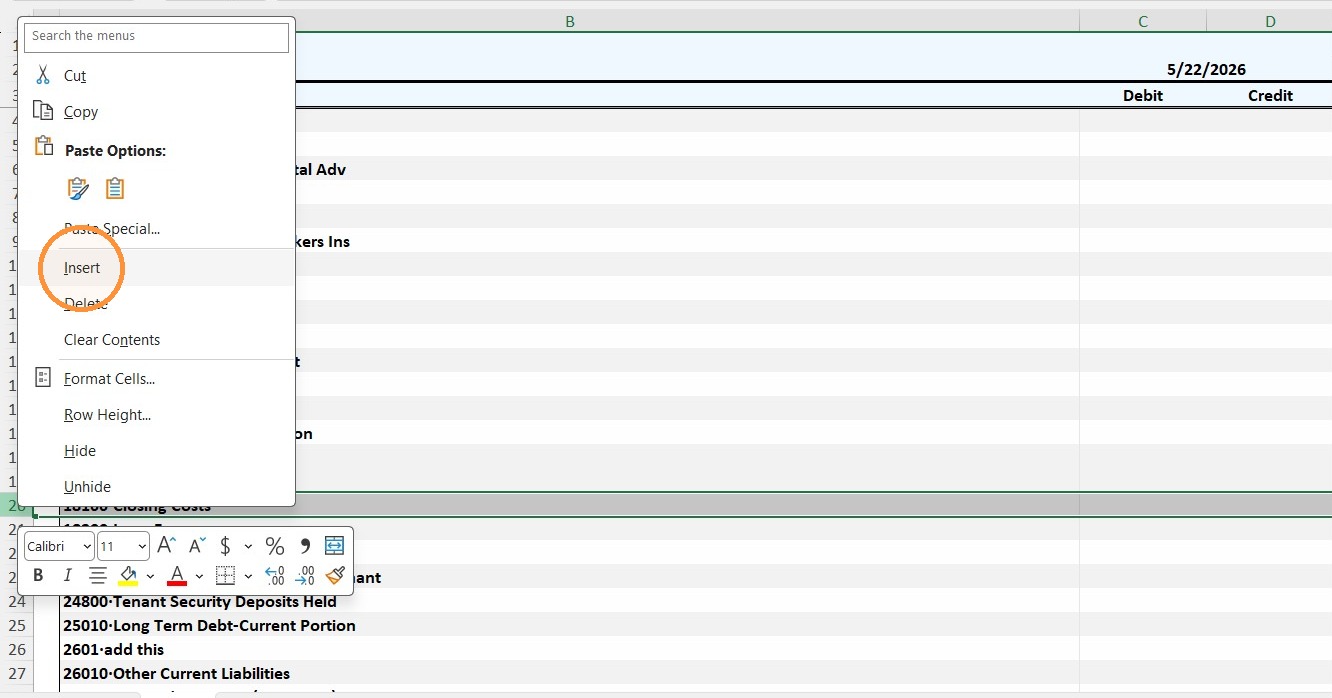
6. In the Excel spreadsheet, right-click the row number > select Insert.
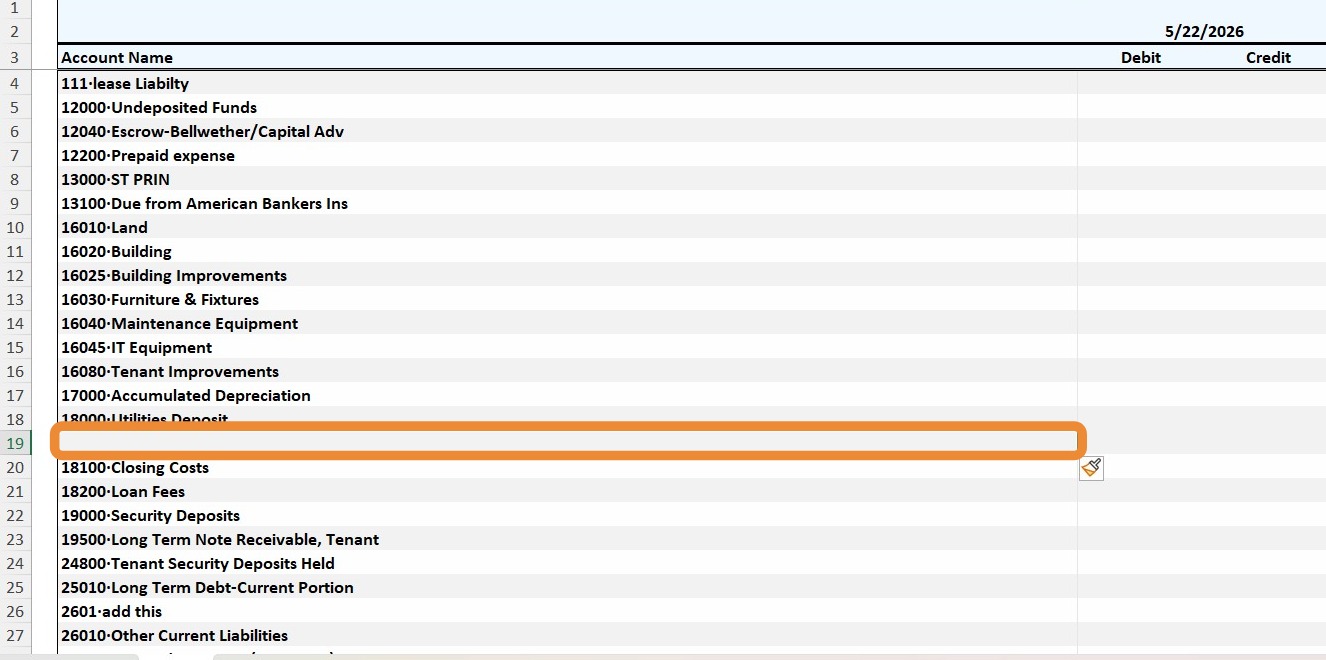
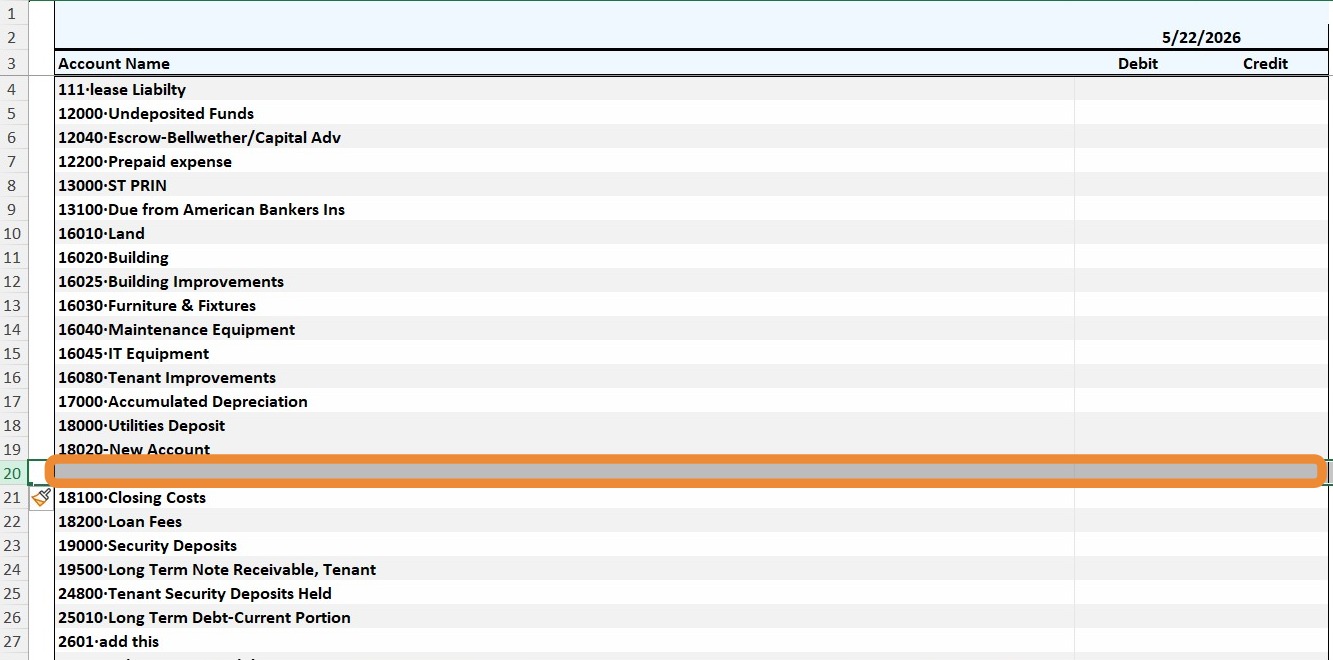
7. A blank row will appear.
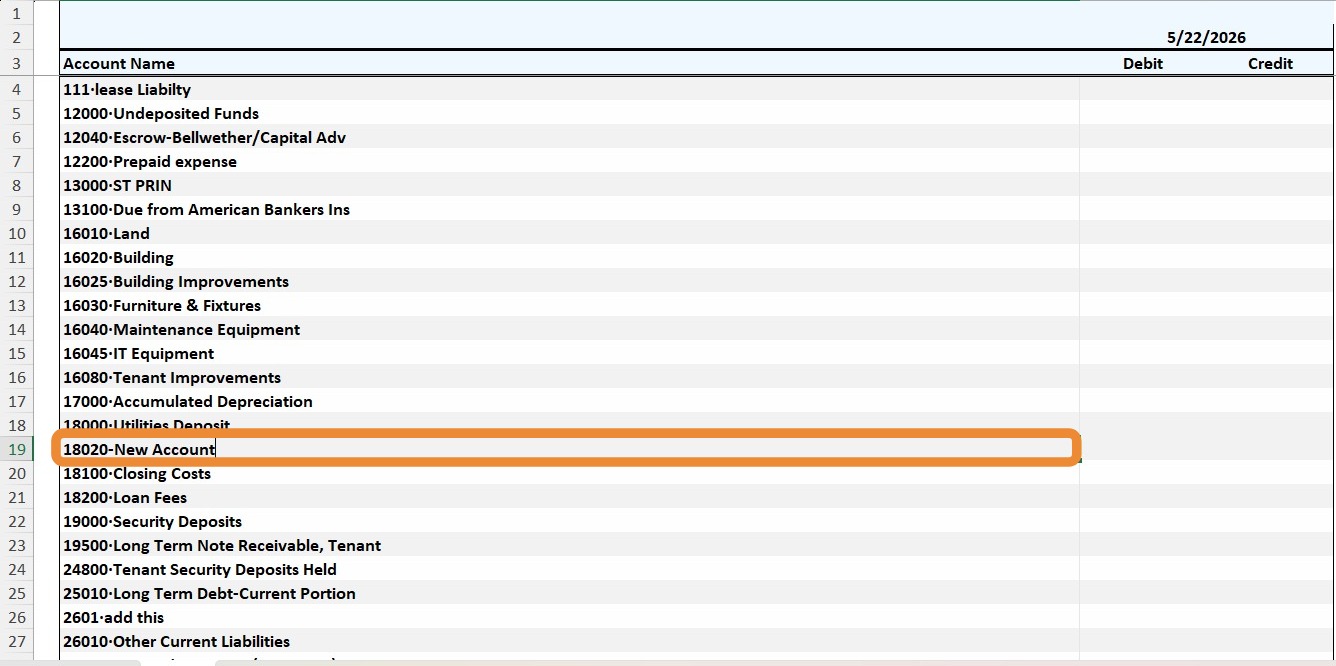
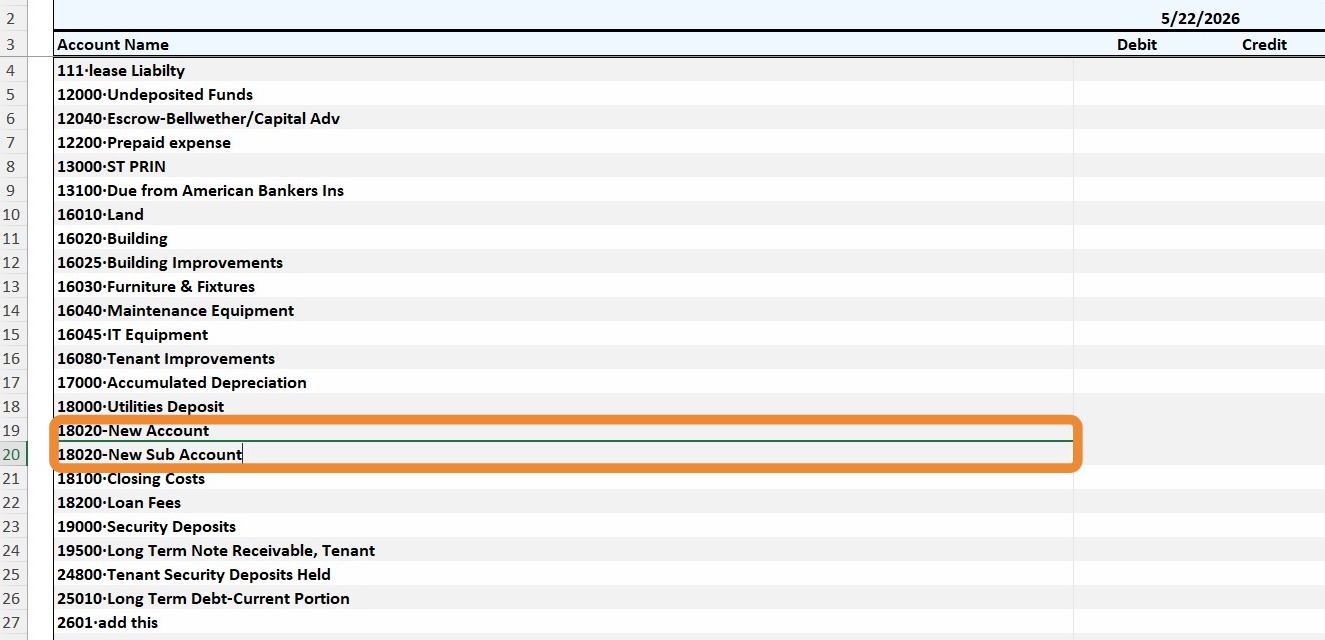
You can add an account by entering the account number and account name separated by a hyphen.
Example: 18020-New Account
8. If you need to add a subaccount, right-click the row number > select Insert.
9. A blank row will appear.
You can add a subaccount by entering the account number and subaccount name separated by a hyphen.
Example: 18020-New Subaccount
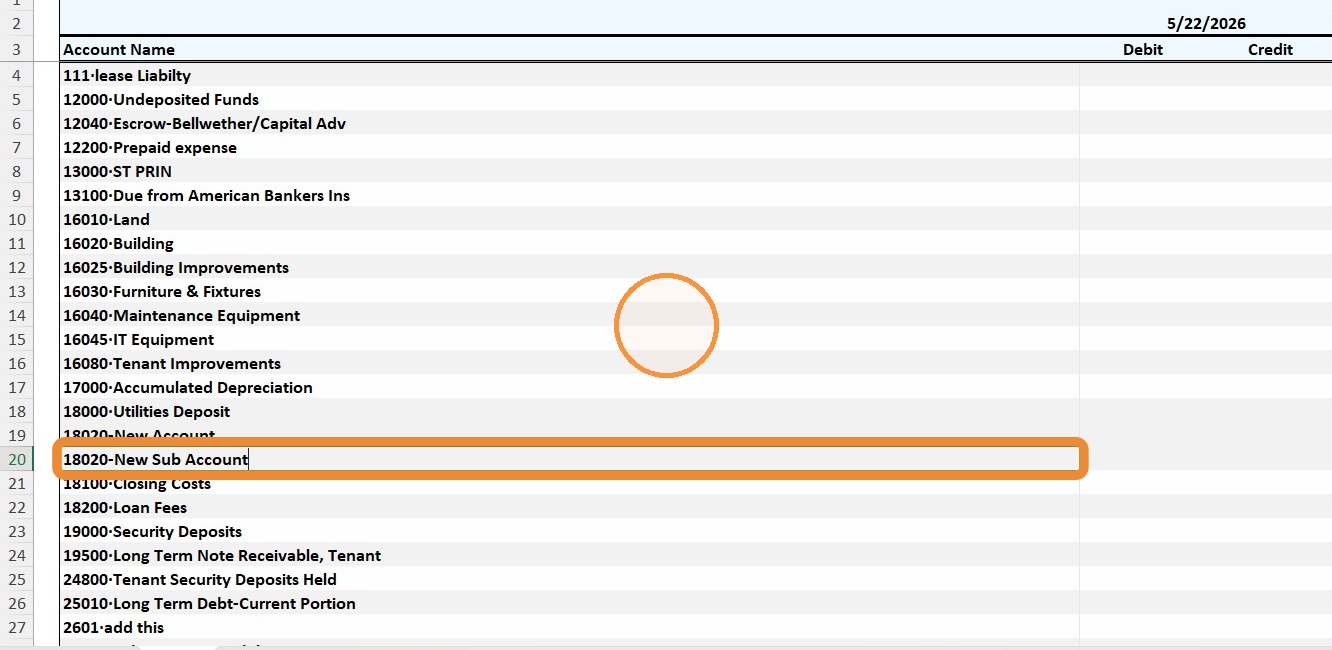
10. Example overview - Don't forget to save your changes in Excel.
How to Import Trial Balance Template
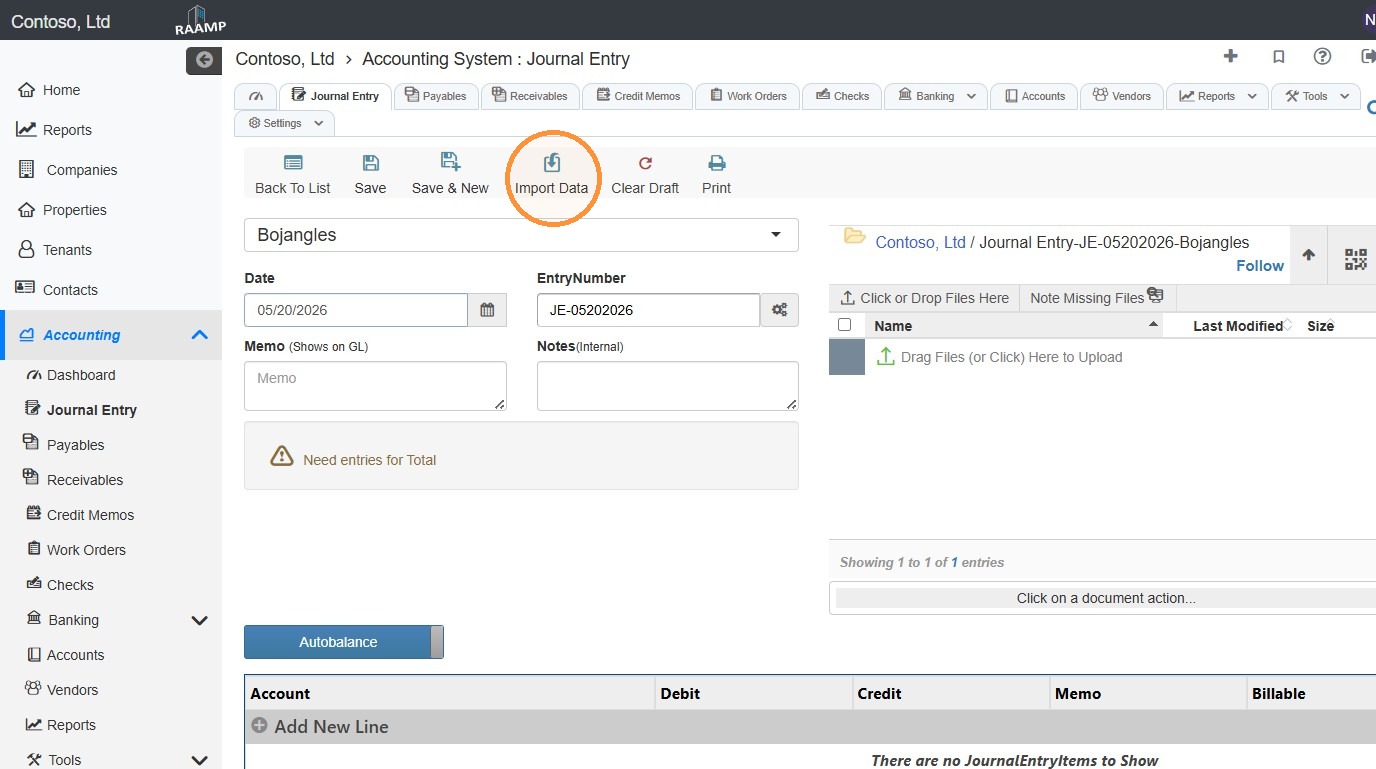
11. Select Import Data.
12. Make sure the Select Import Type is toggled to Trial Entry.
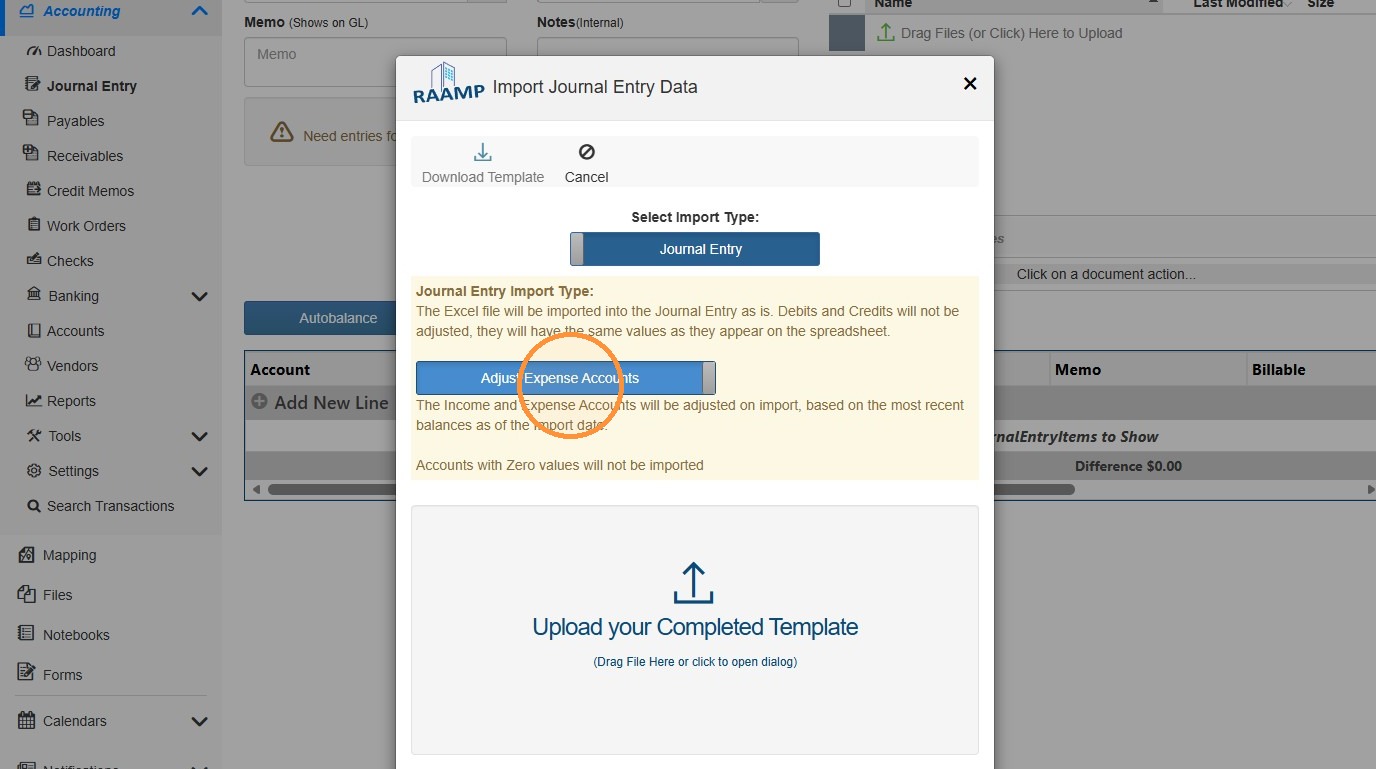
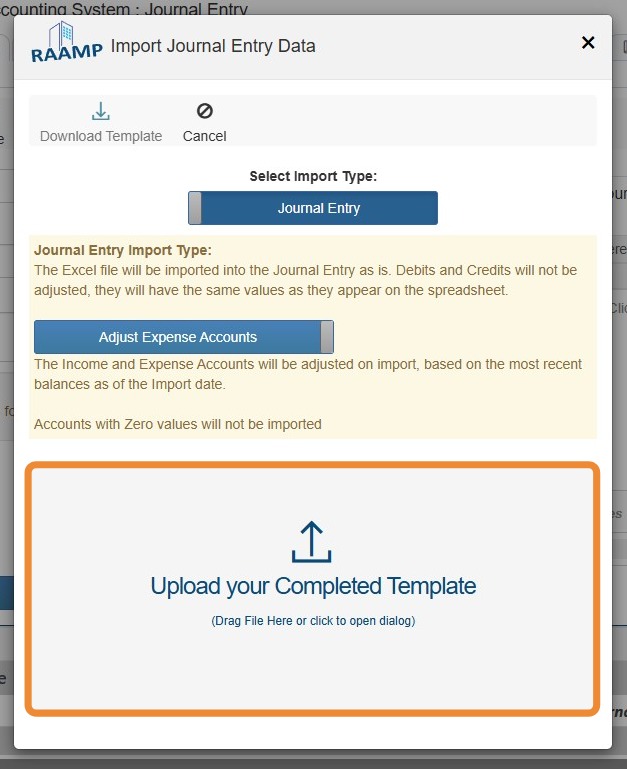
13. Select Adjust Expense Accounts or Do Not Adjust Expense Accounts to toggle on/off.
Adjust Expense Accounts - The Income and Expense Accounts will be adjusted on import, based on the most recent balances as of the Import Date.
Do Not Adjust Expense Accounts - The Income and Expense Accounts will be imported as is and not be adjusted.
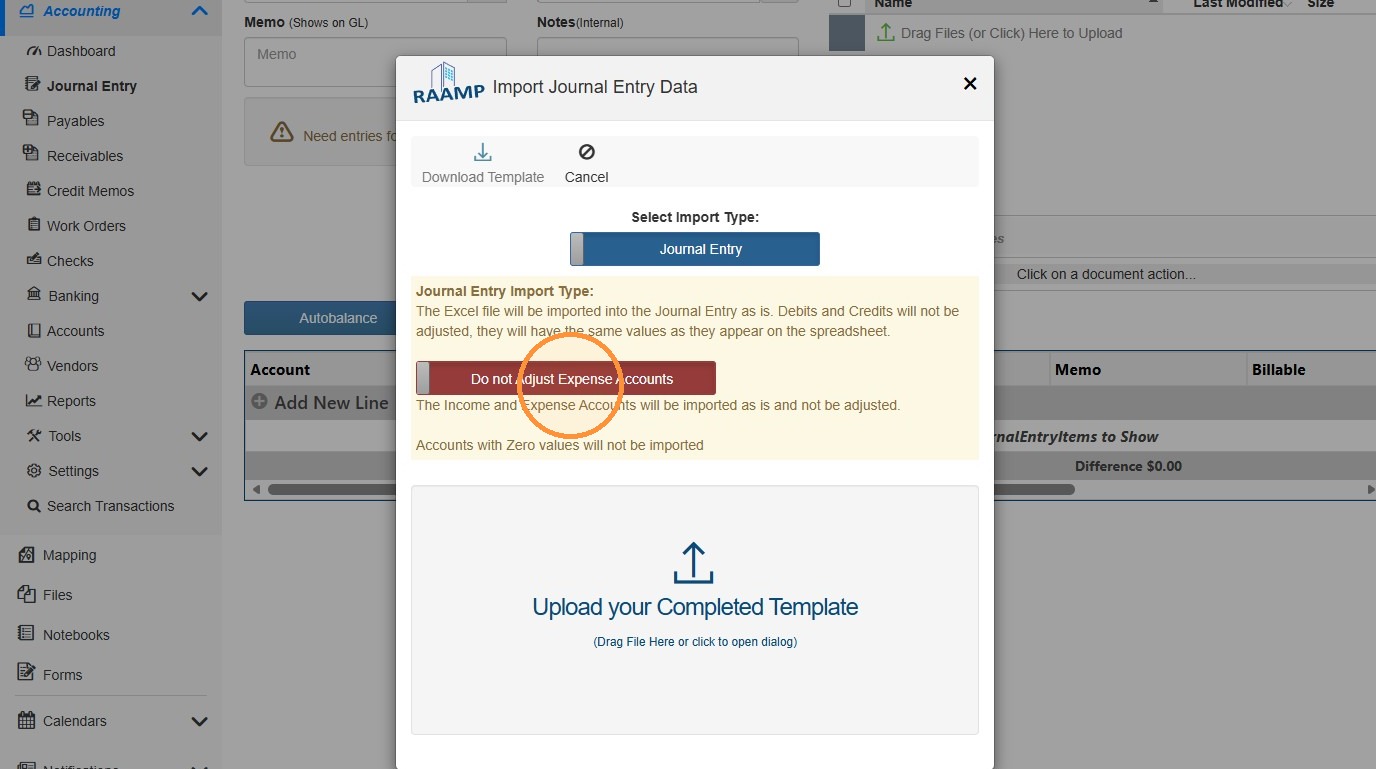
14. Select Upload your Completed Template > Select the completed file from your computer.
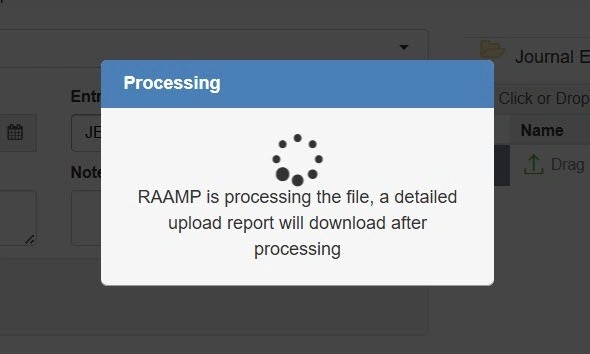
15. Once the file starts processing, a progress window will open.
16. Once completed, the entry will have been adjusted to Debit and Credits.
After success or failure, the result of the import will appear in your downloads folder.
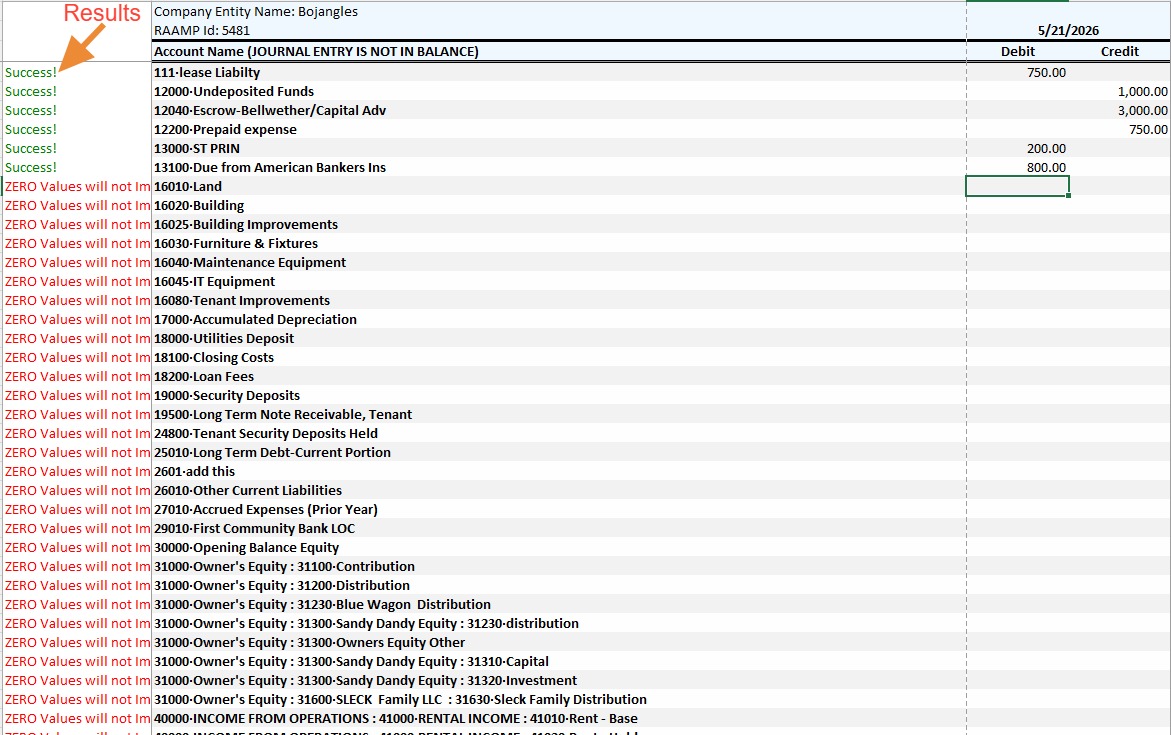
17. In RAAMP, the line entries will appear in the chart.
RAAMP will indicate if the Journal Entry is balanced.
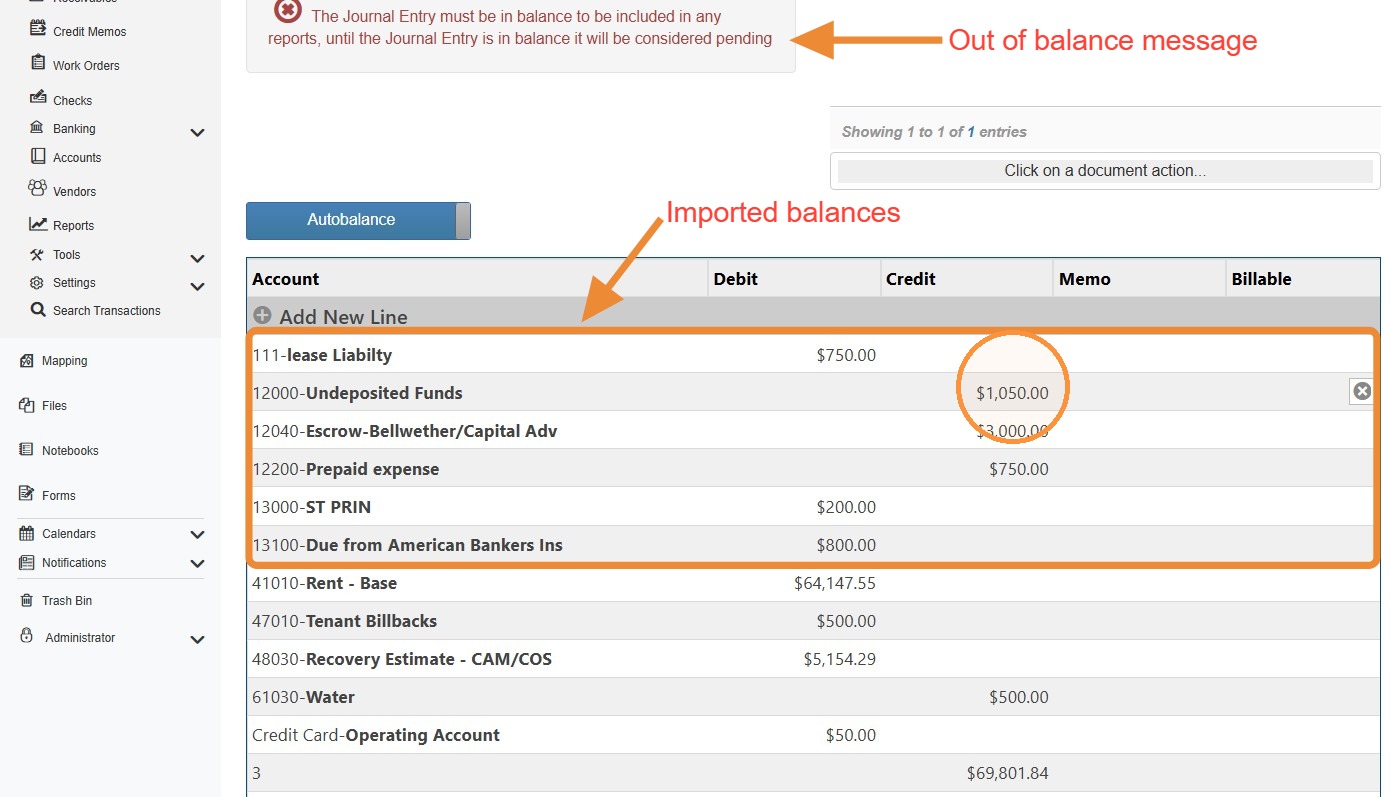
Alert: The Journal Entry must be in balance to be included in any reports. Until the Journal Entry is balance, it will be considered pending.
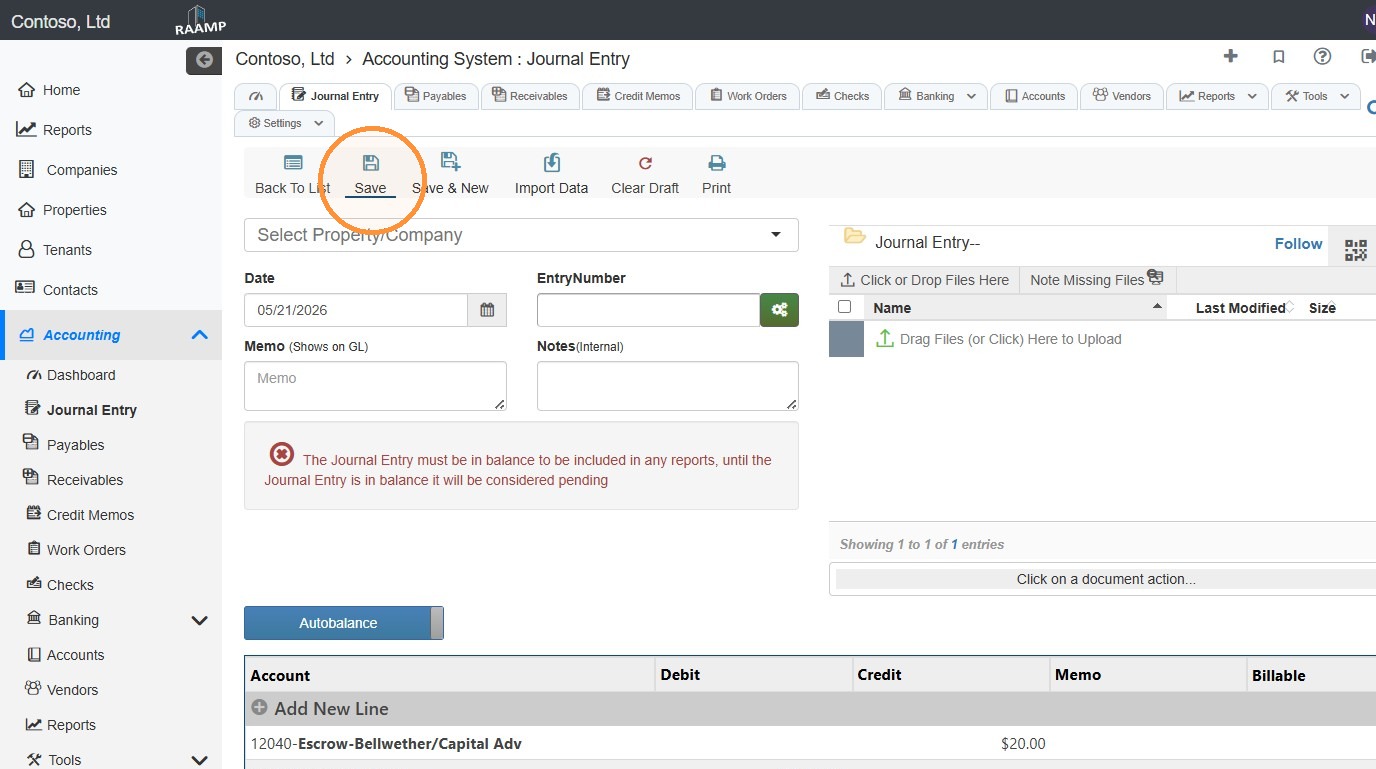
18. Select Save.
Alert: You should inspect your balance sheet and P&L to ensure they match the historicals.