How to Approve Payables
This guide quickly shows how to approve, request review of, and reset approvals for payables so you can move invoices from pending to ready-for-payment status. It explains where to find payables, how to add dated initials or notes when approving, how to mark items as “Needs Review” and later approve them, and how to reset your approval if needed. Follow it to ensure accurate approval tracking and payment readiness.
Tip: Approvers will receive daily emails listing bills that require their review and approval.
How to Approve Payables
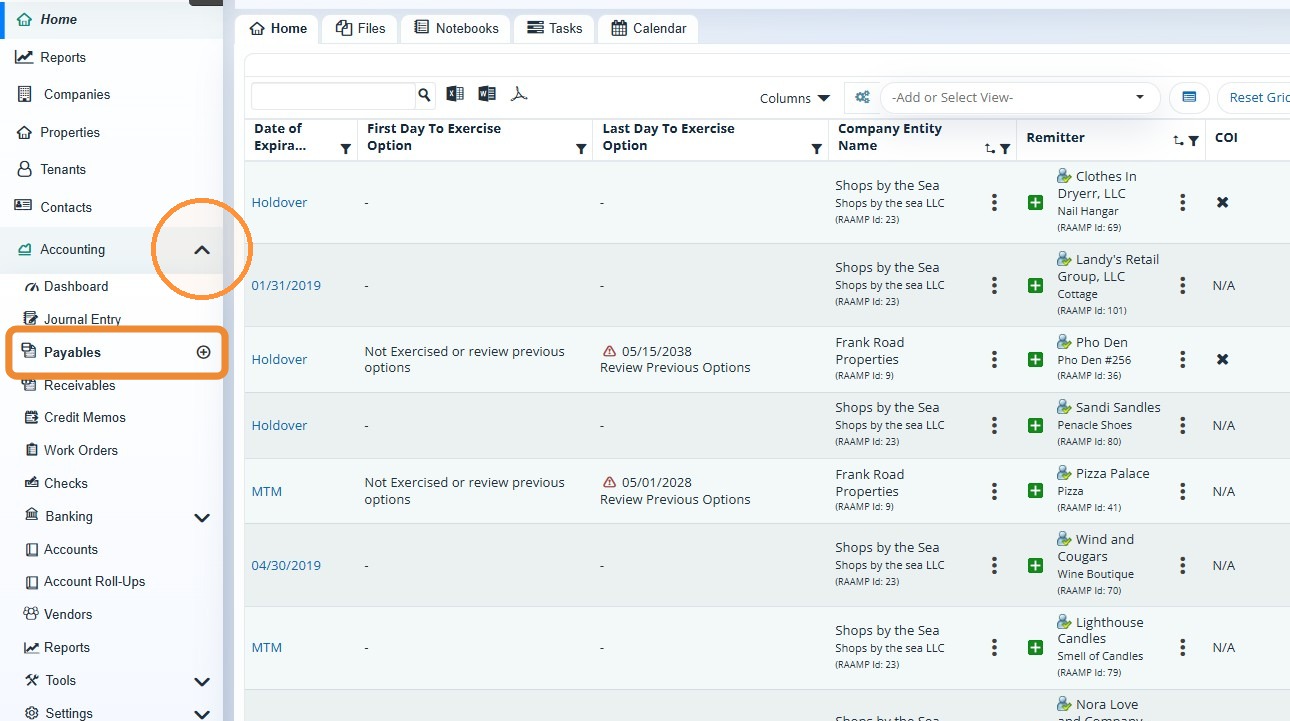
1. From the navigation menu, select Accounting > select Payables.
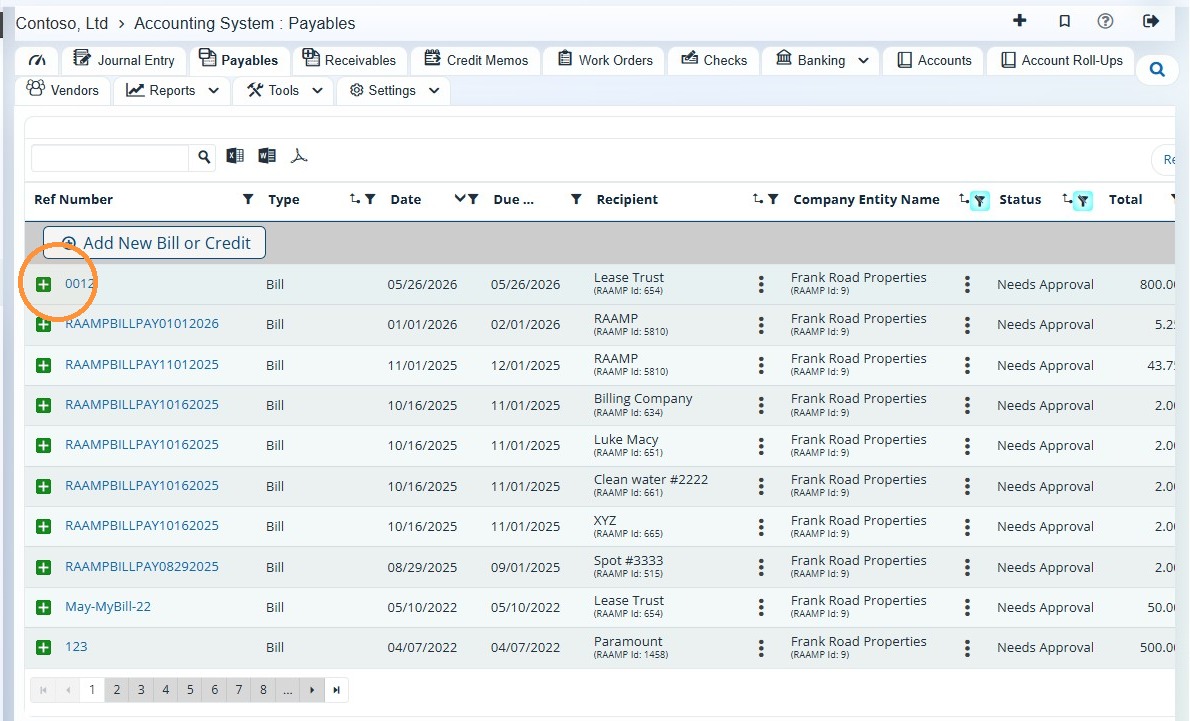
2. Locate the payable you need to approve > Select the green + icon.
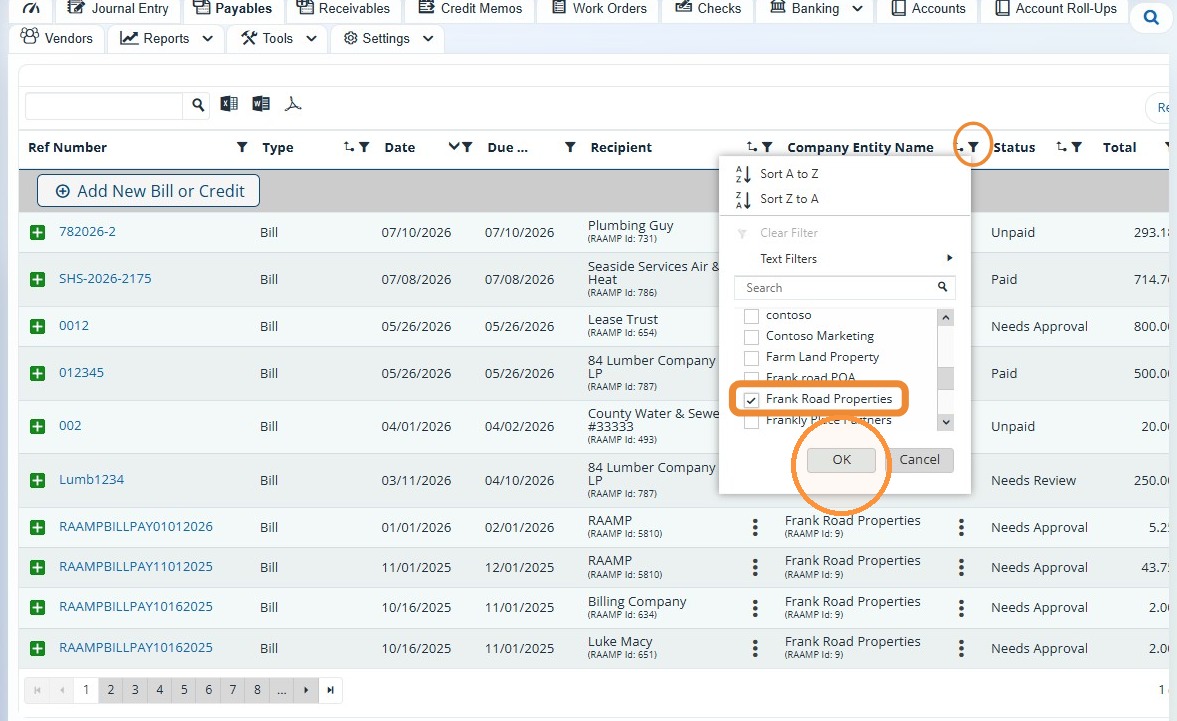
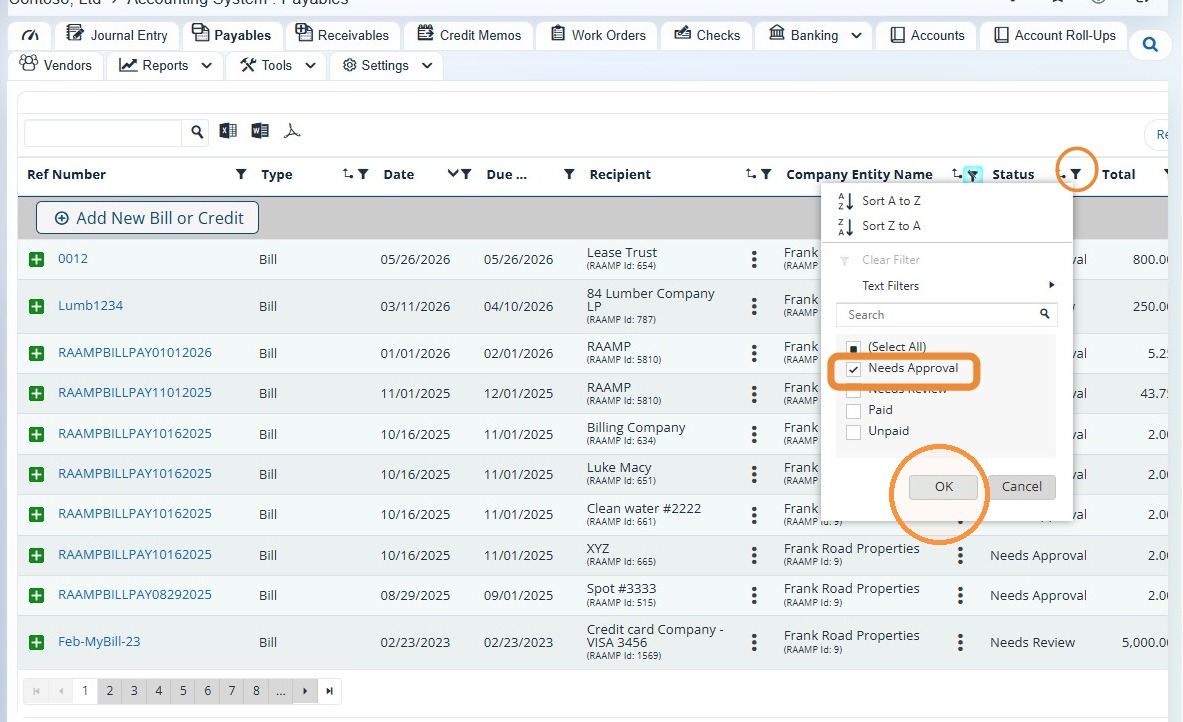
NOTE: You can filter for a specific property or status to narrow your search.
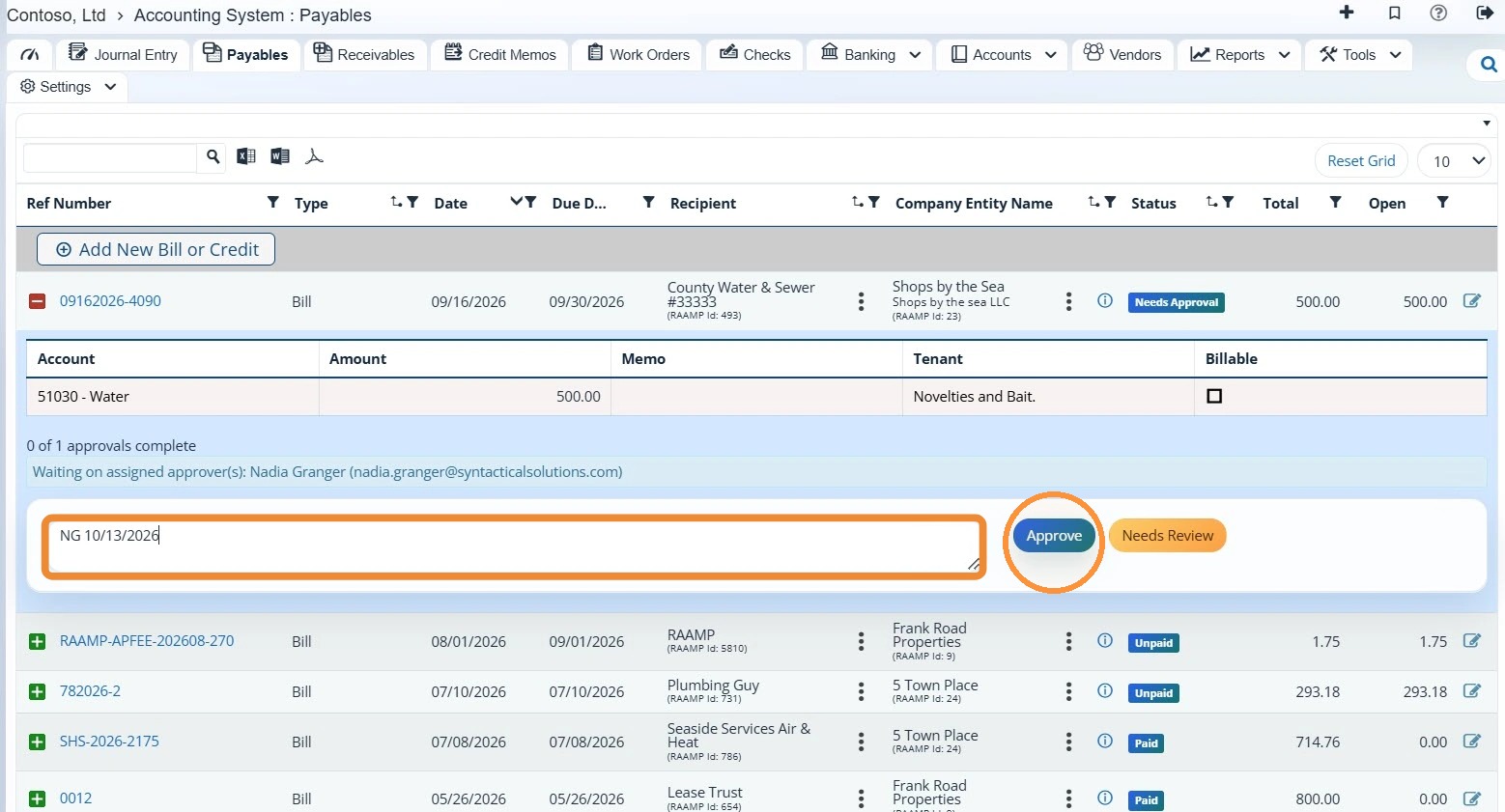
3. Enter a note to initial and date the approval > Select Approve.
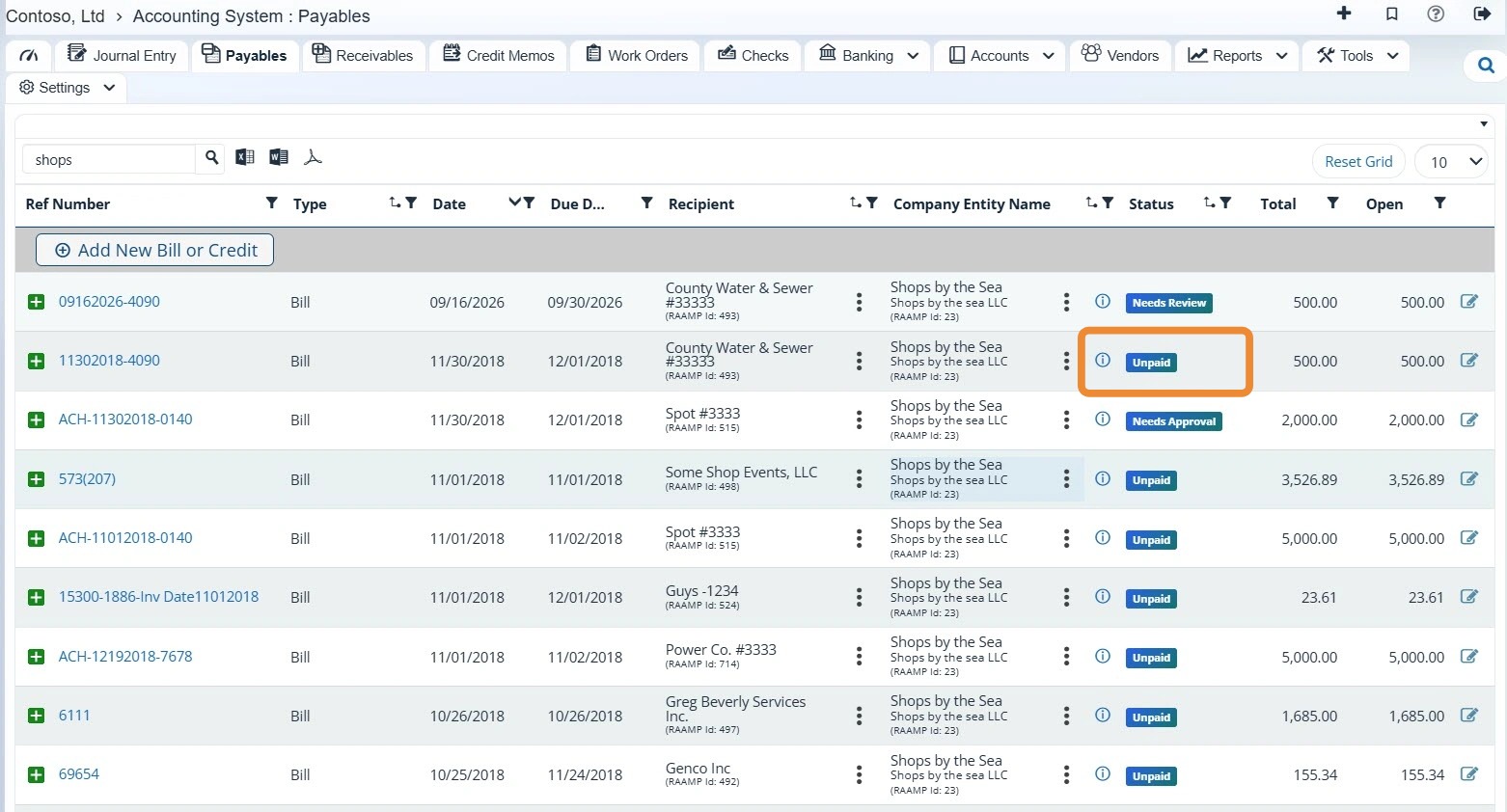
4. The payable is now approved. The status will be updated to unpaid and will be ready for payment.
How to Request Payable Review
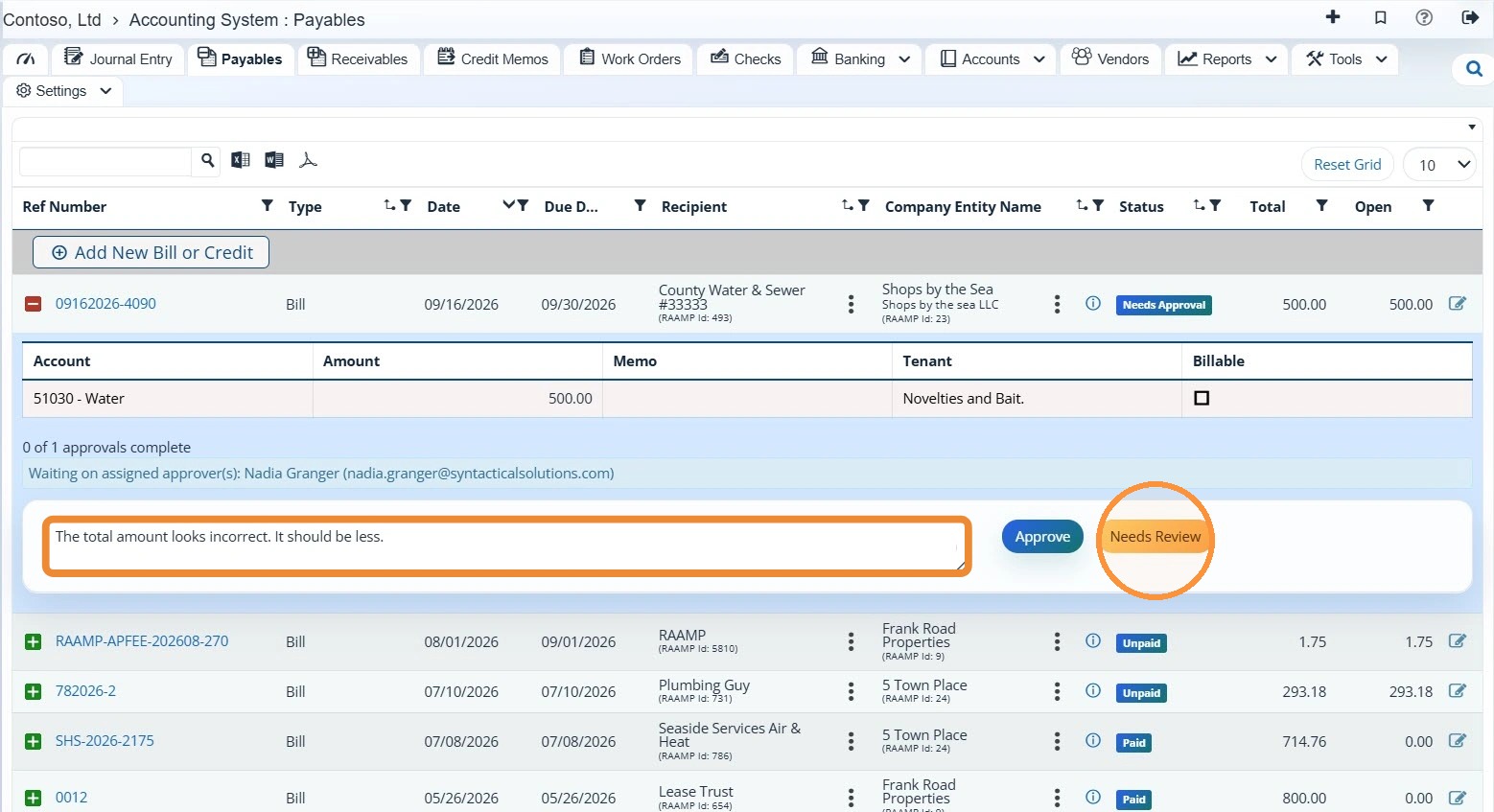
5. If you have questions about a payable and need to request a review, enter a note > Select Needs Review.
6. The status will be updated to Needs Review.
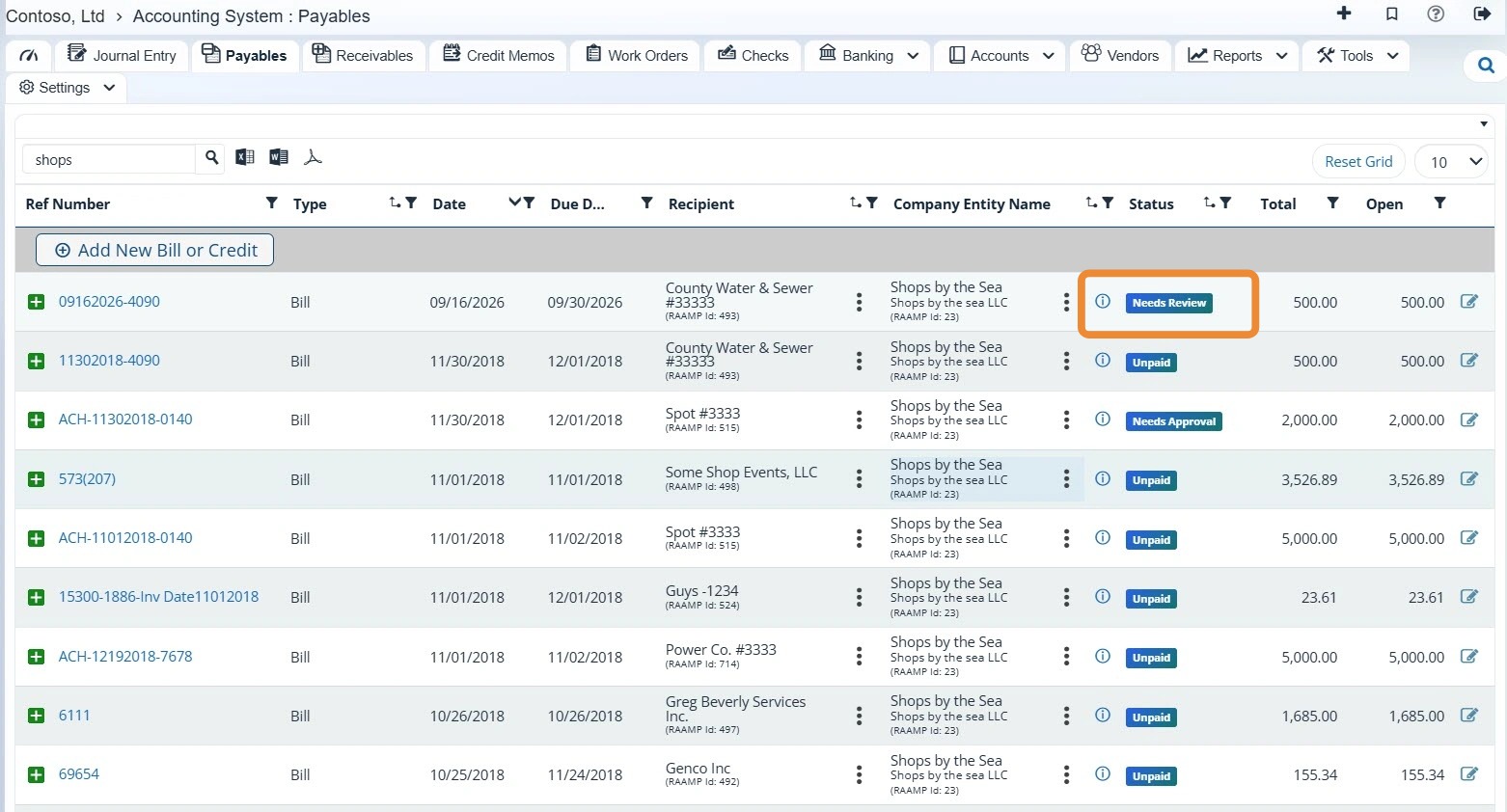
7. Once the review is complete, you can update the notes > Select Approved from the dropdown menu > Select Update.
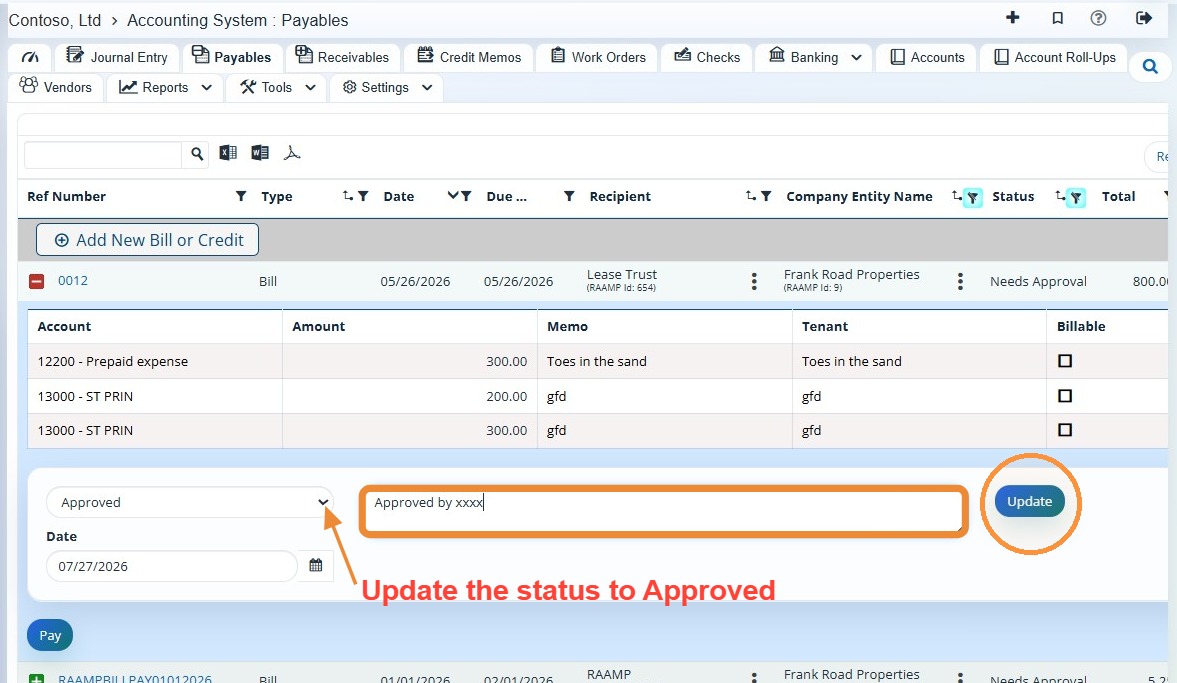
Tip: You may need to refresh the page to see the approved payable.
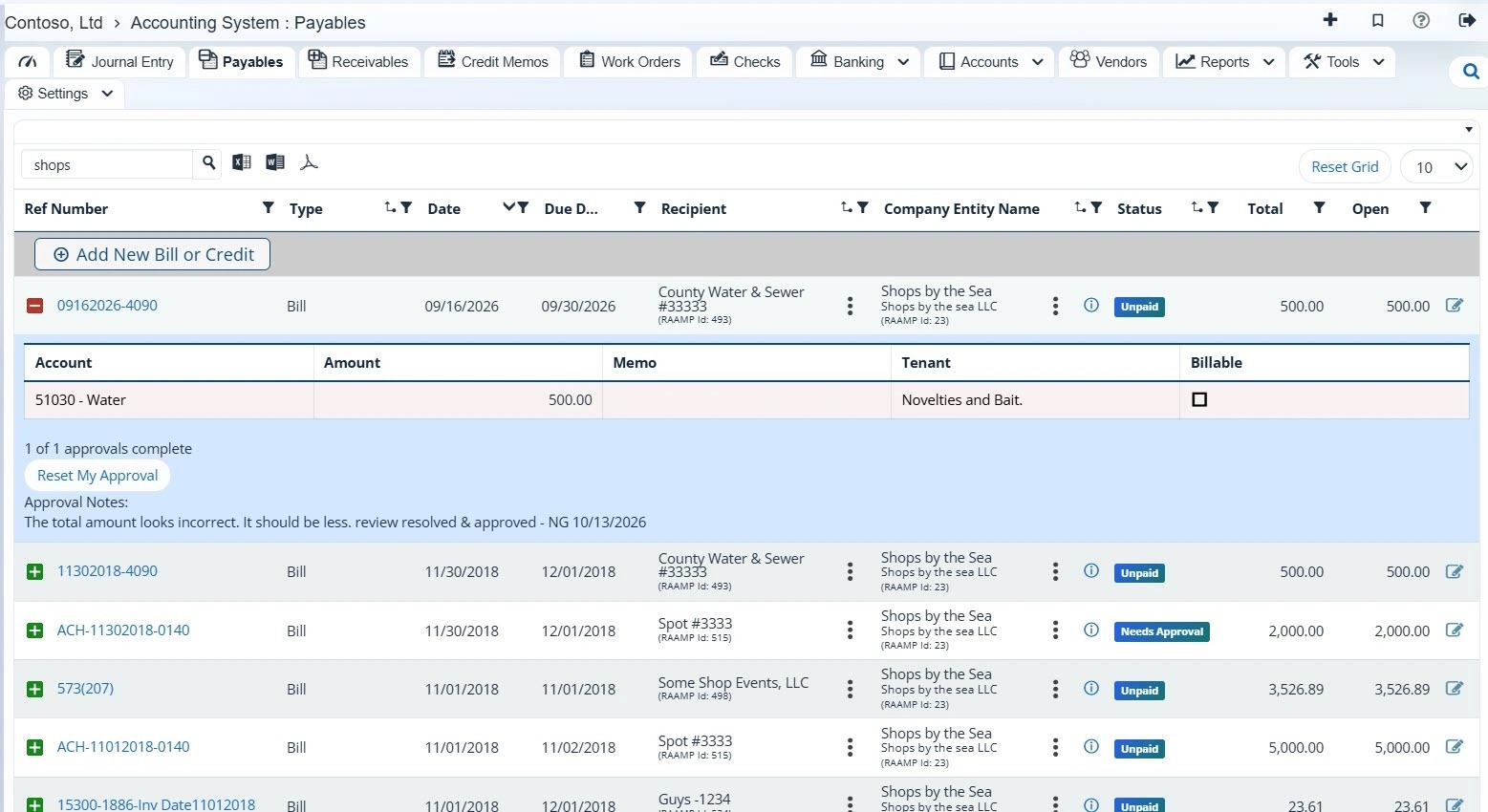
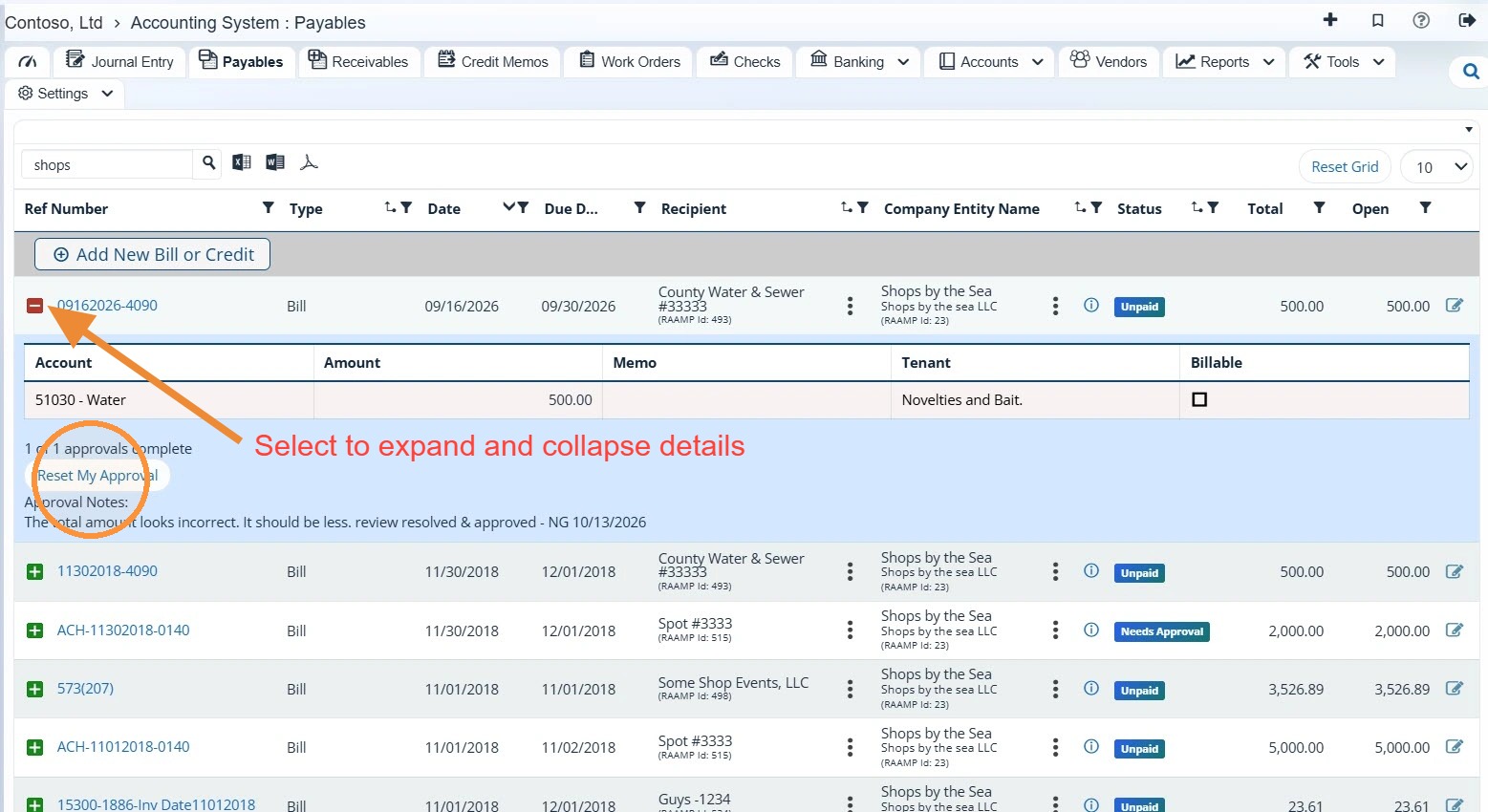
How to Reset an Approval
8. To reset an approval, expand the payable's details > Select Reset My Approval.