How to Add, Edit, and Delete a Subaccount
This guide saves time by walking you through creating, renaming, and removing bank subaccounts so your chart of accounts stays organized and accurate. It shows where to find the Chart of Accounts, how to add a new subaccount (including creating its account number/name), edit its details or header assignment, and confirm changes. It also covers the simple delete steps and how to verify results.
Navigating to Chart of Accounts
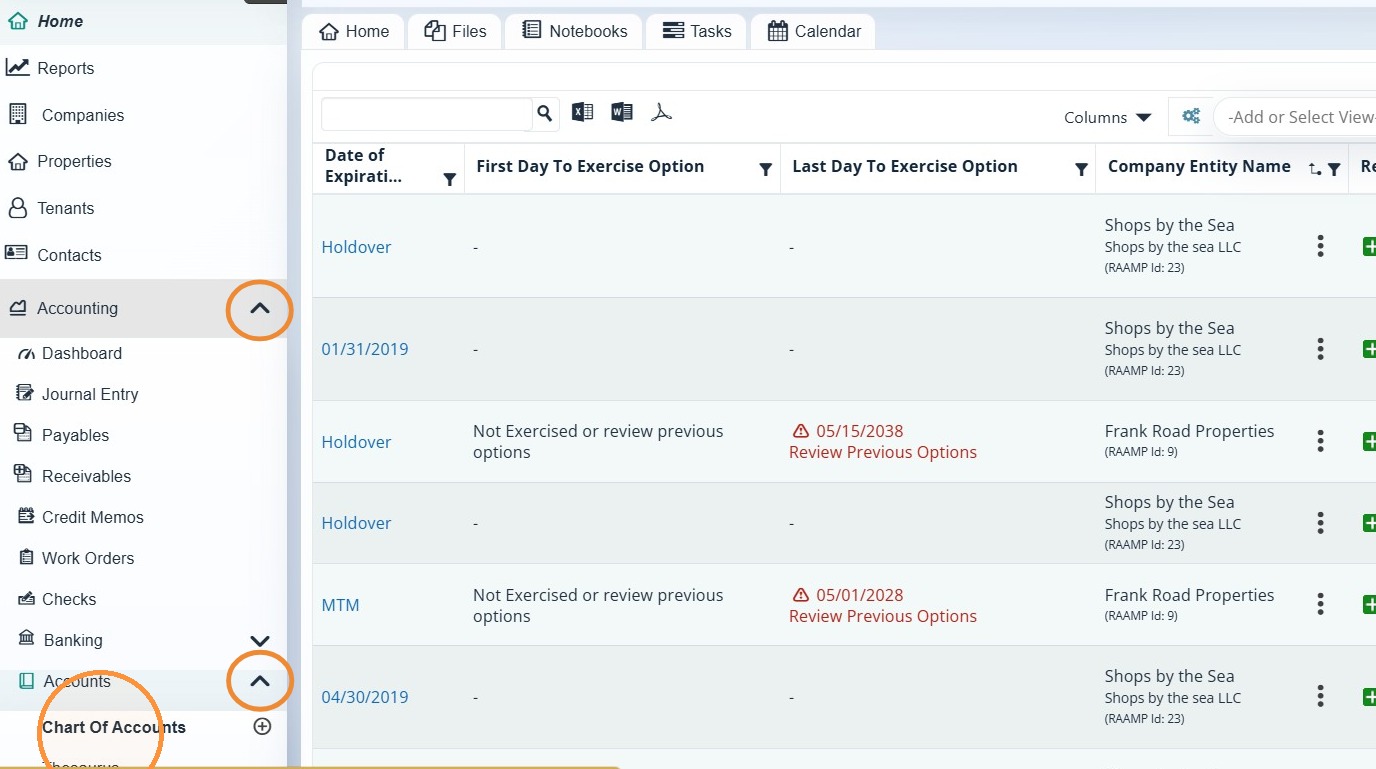
1. Select Accounting > Select Accounts > Select Chart of Accounts.
How to Add a Subaccount
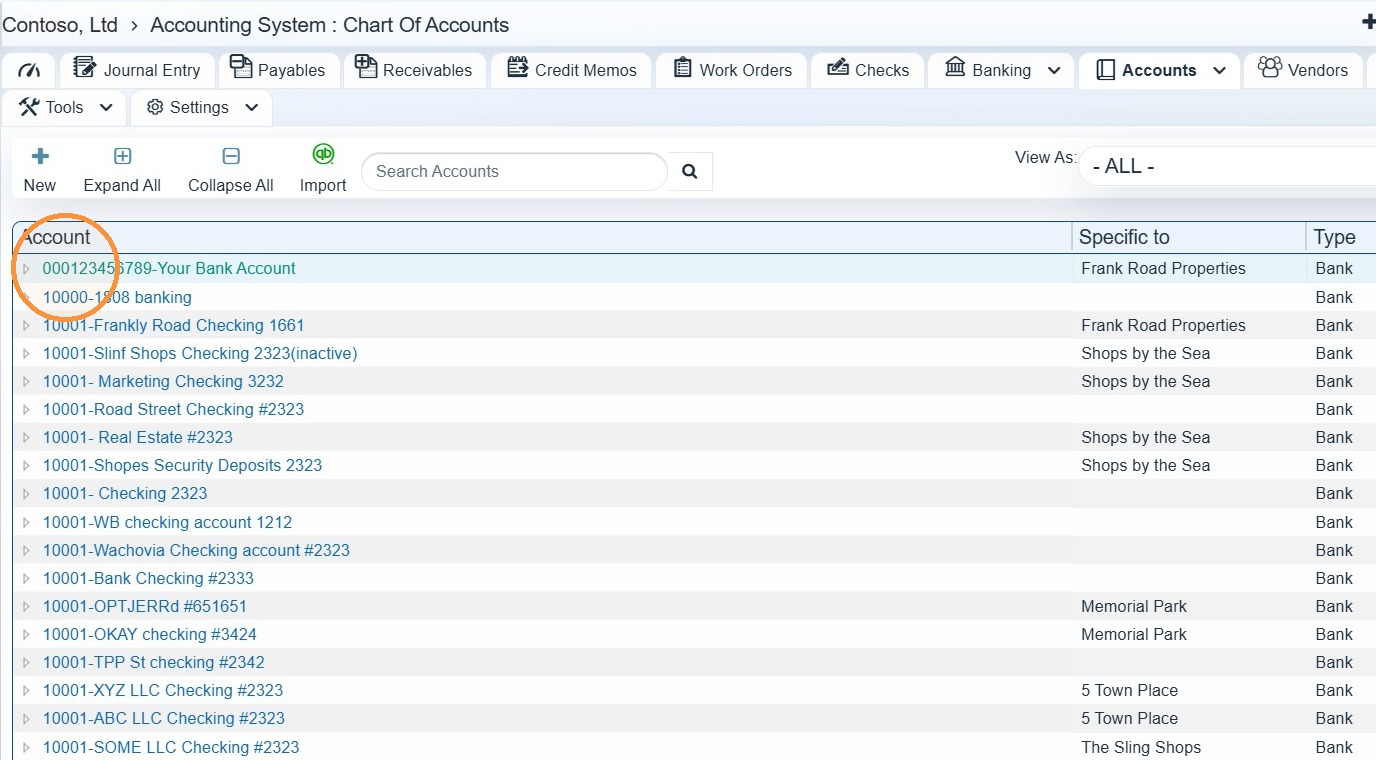
2. Select the header account you want to manage subaccounts for.
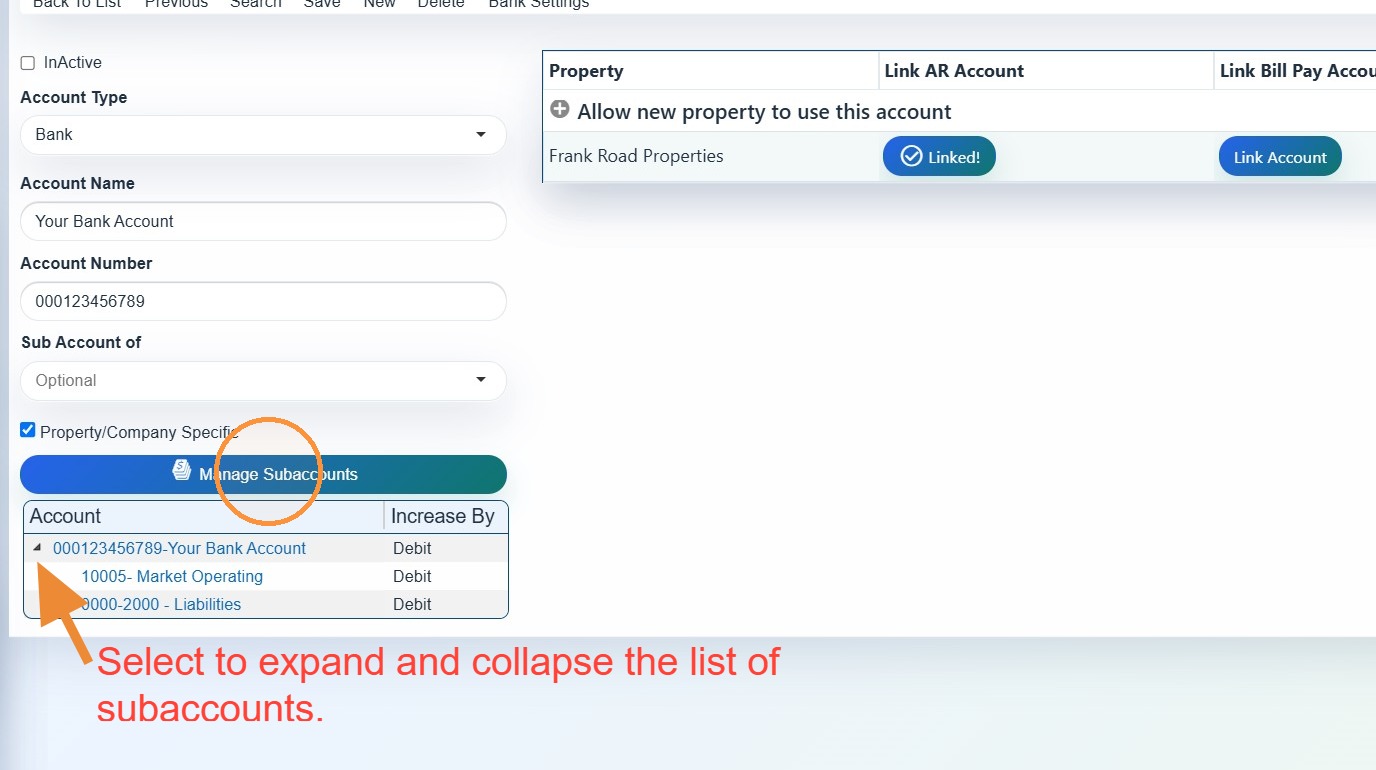
3. Select Manage Subaccounts.
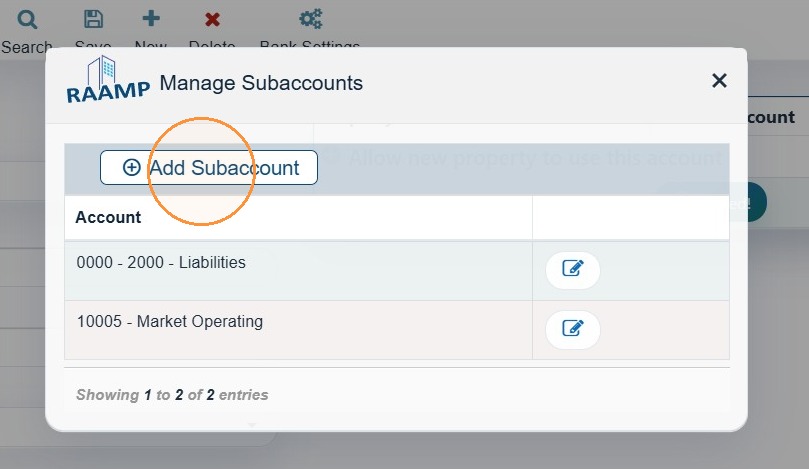
4. Select Add Subaccount.
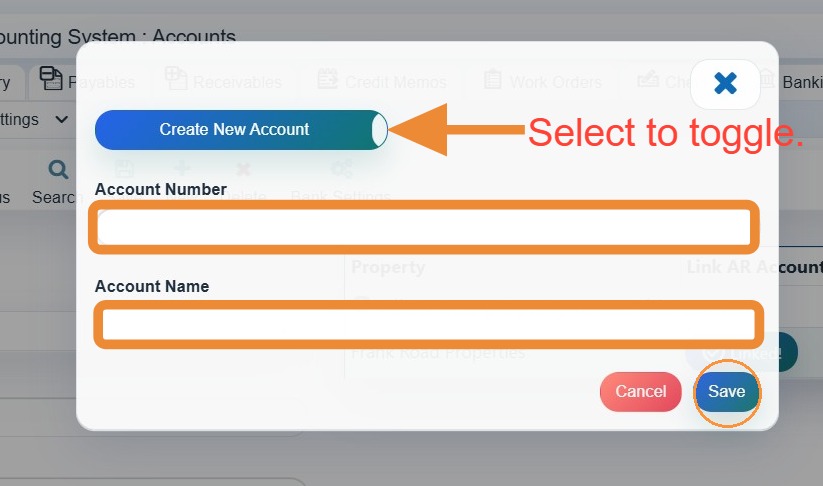
5. To create a new account, toggle to Create New Account > Enter the Account Number and Account Name > Select Save.
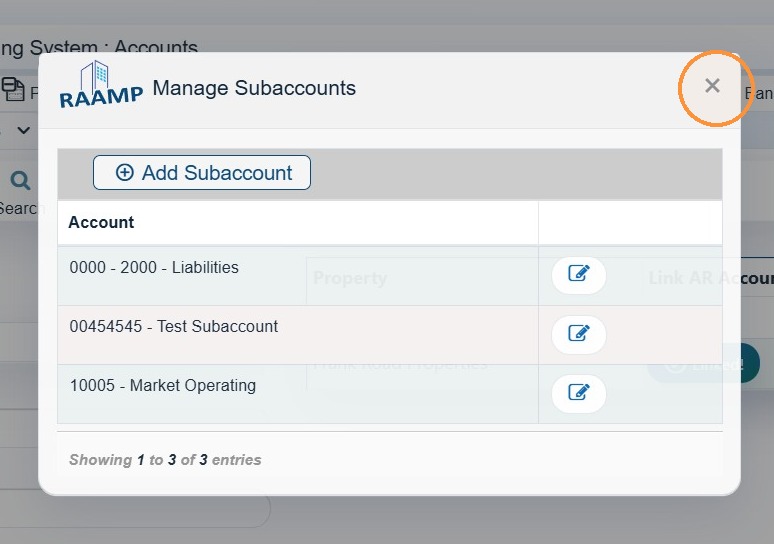
6. Select the X to close the Manage Subaccounts box.
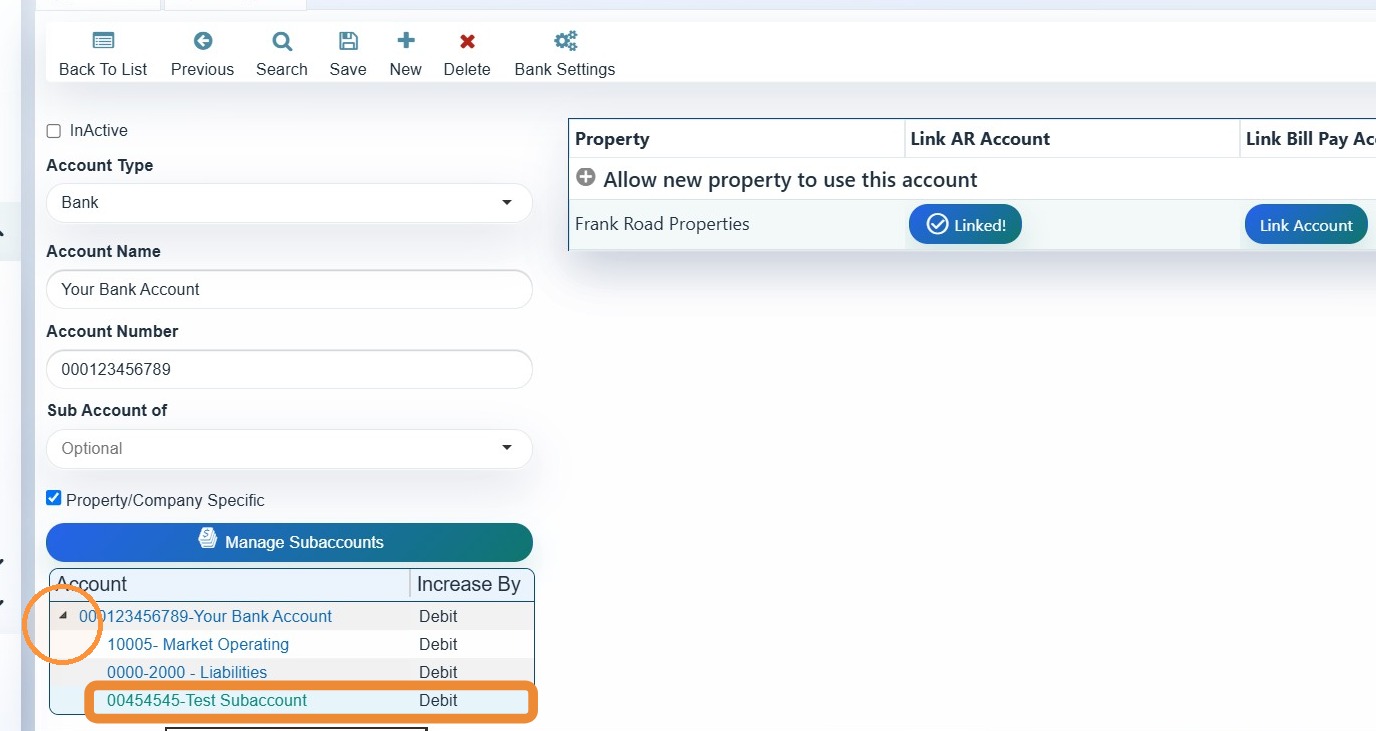
7. Select the arrow to expand the Account list and verify the subaccount is listed.
How to Edit Subaccounts
8. Select the subaccount's hyperlink.
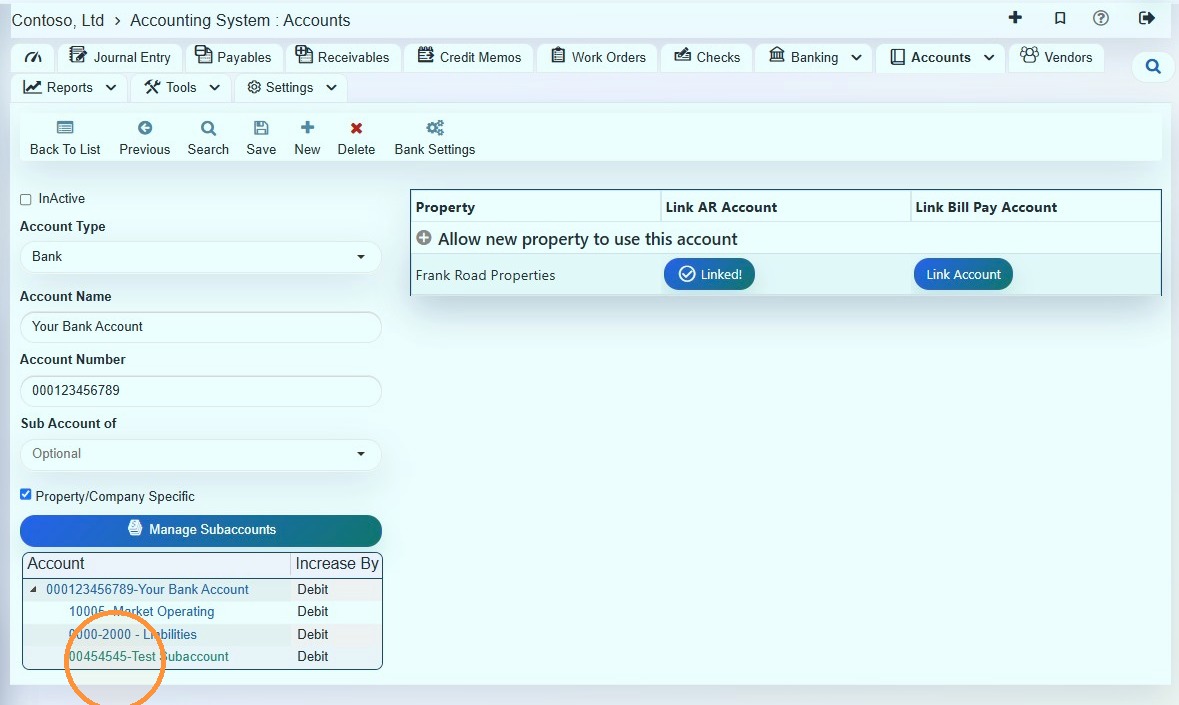
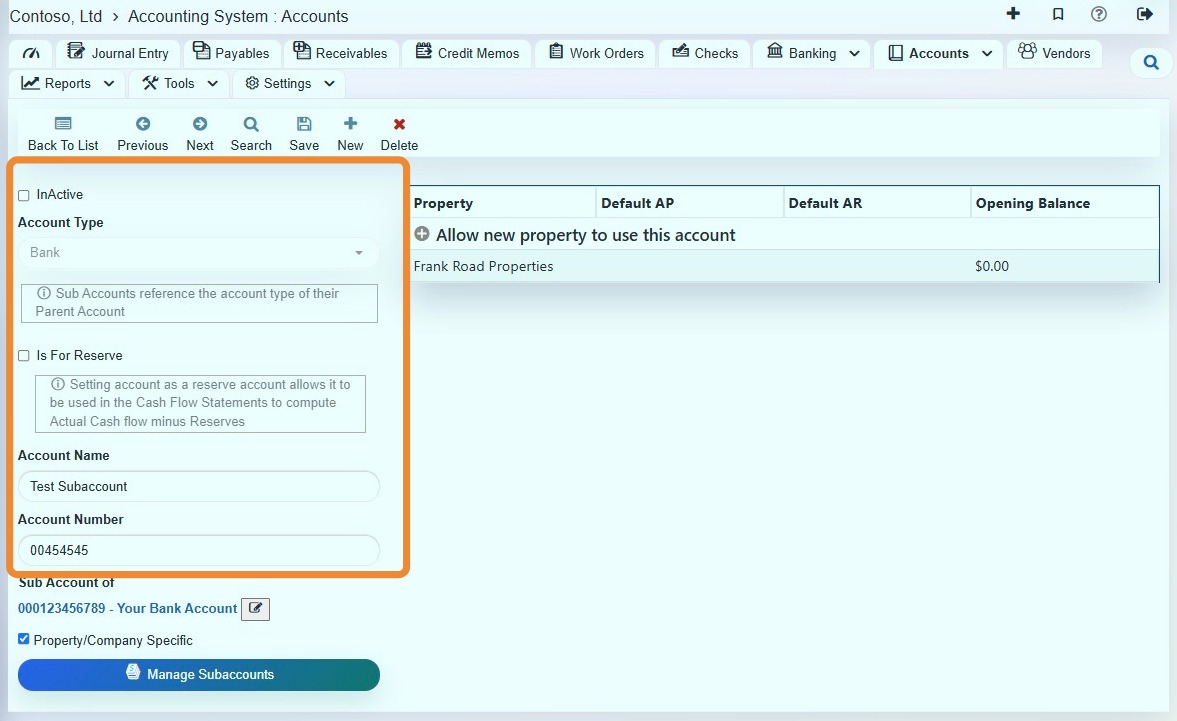
9. Edit the subaccount's information as needed.
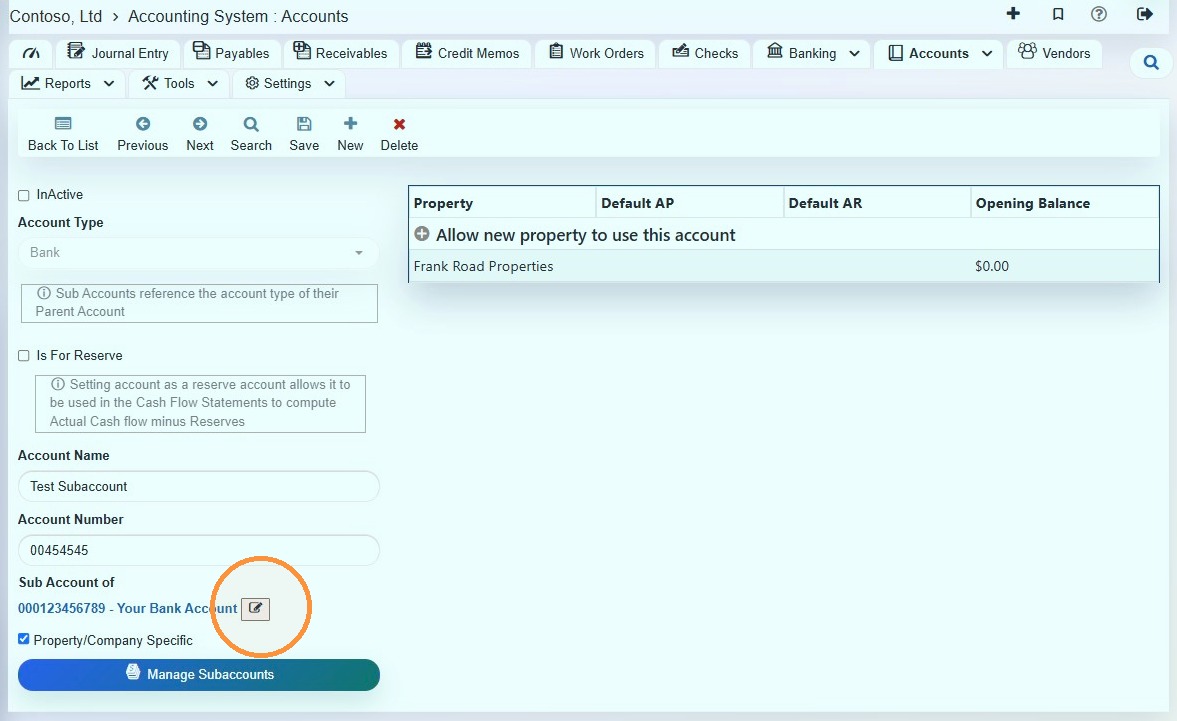
10. If you need to change the header account, select the edit icon.
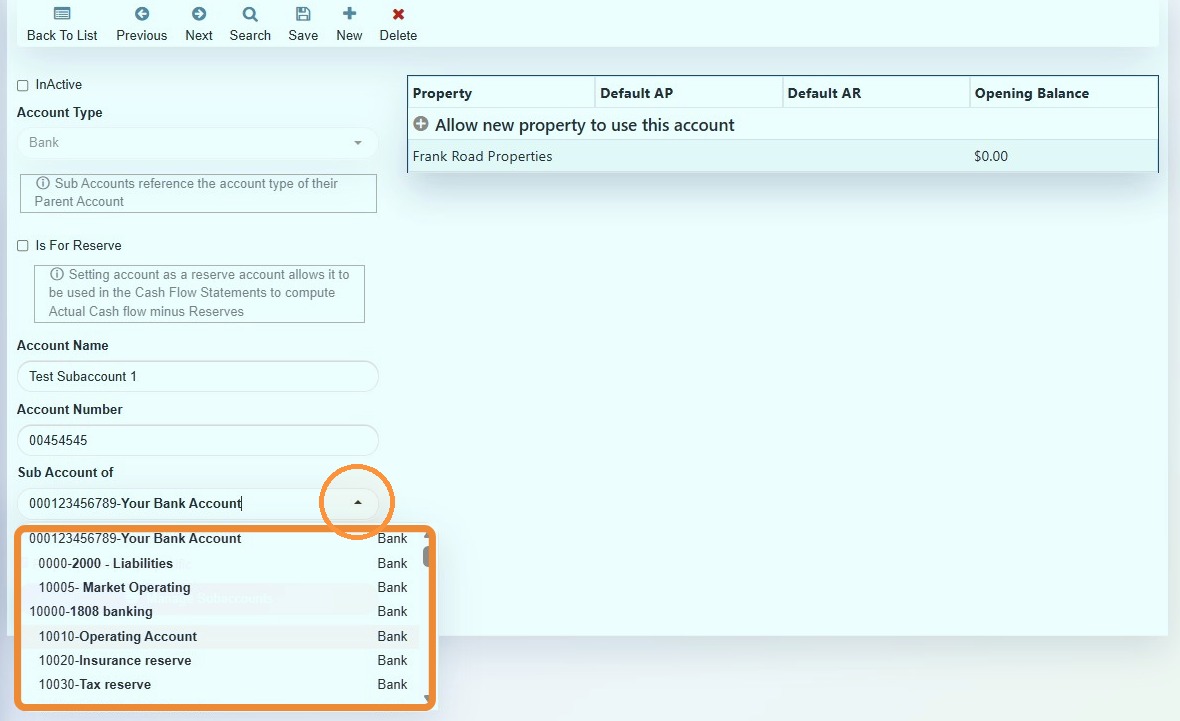
11. Select the header account from the dropdown menu.
12. Select Save.
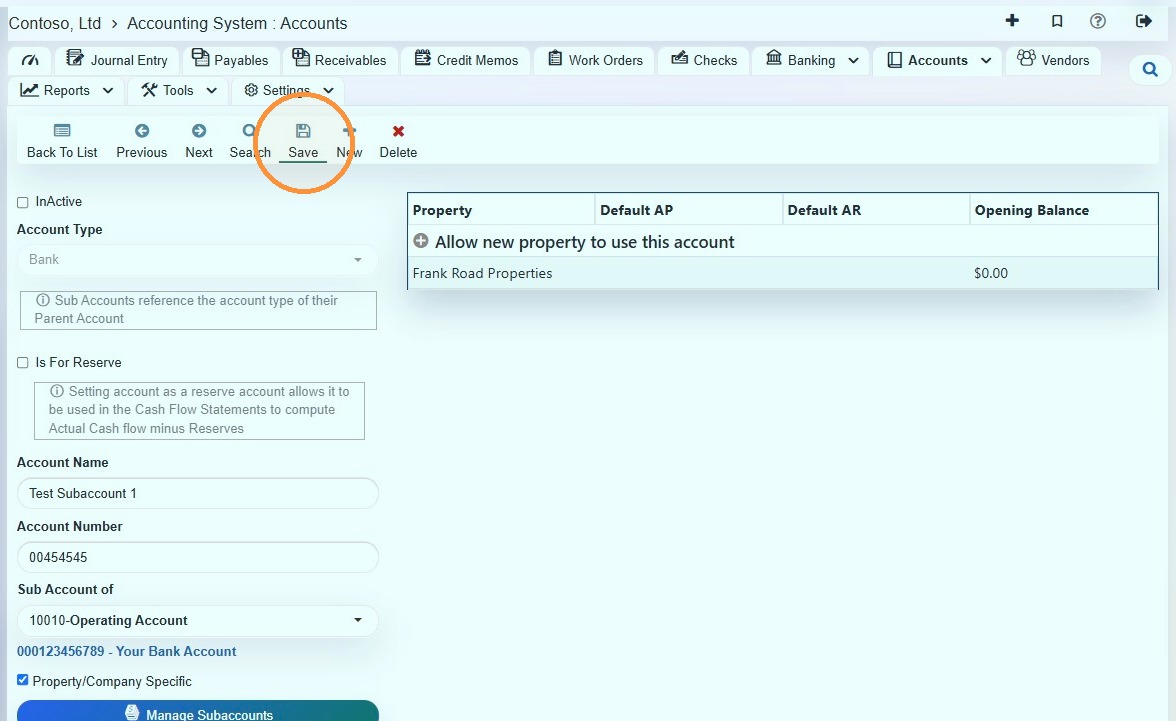
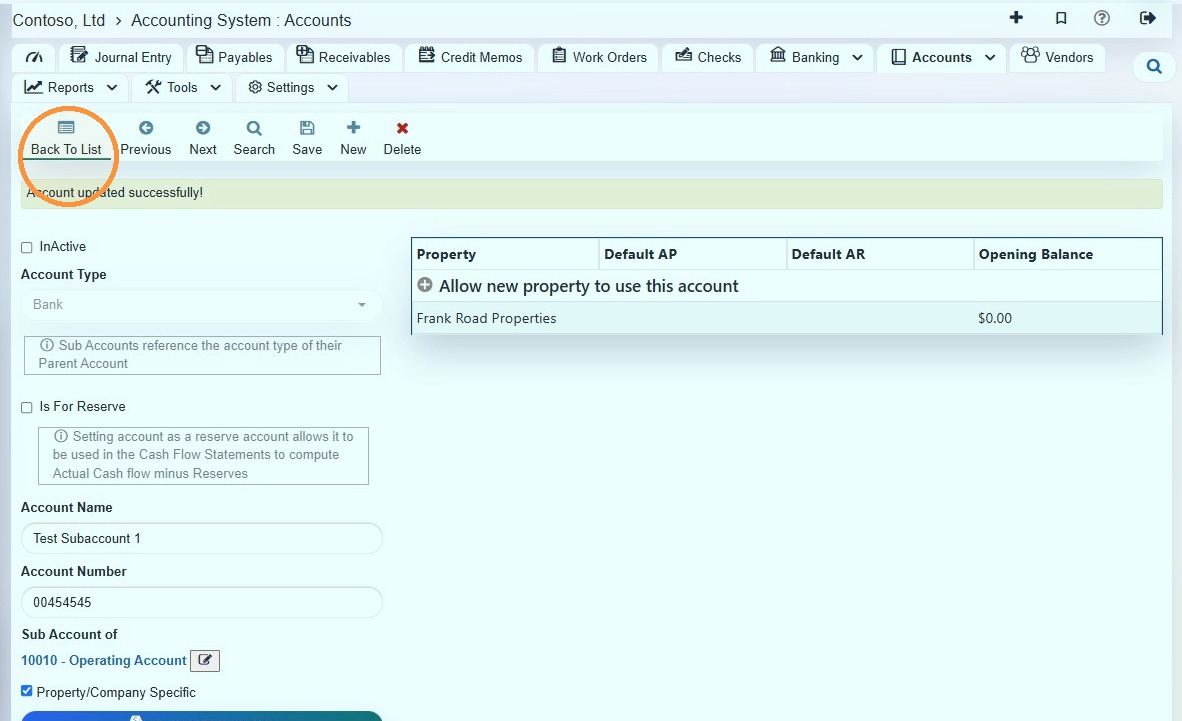
13. To verify the changes, select Back To List.
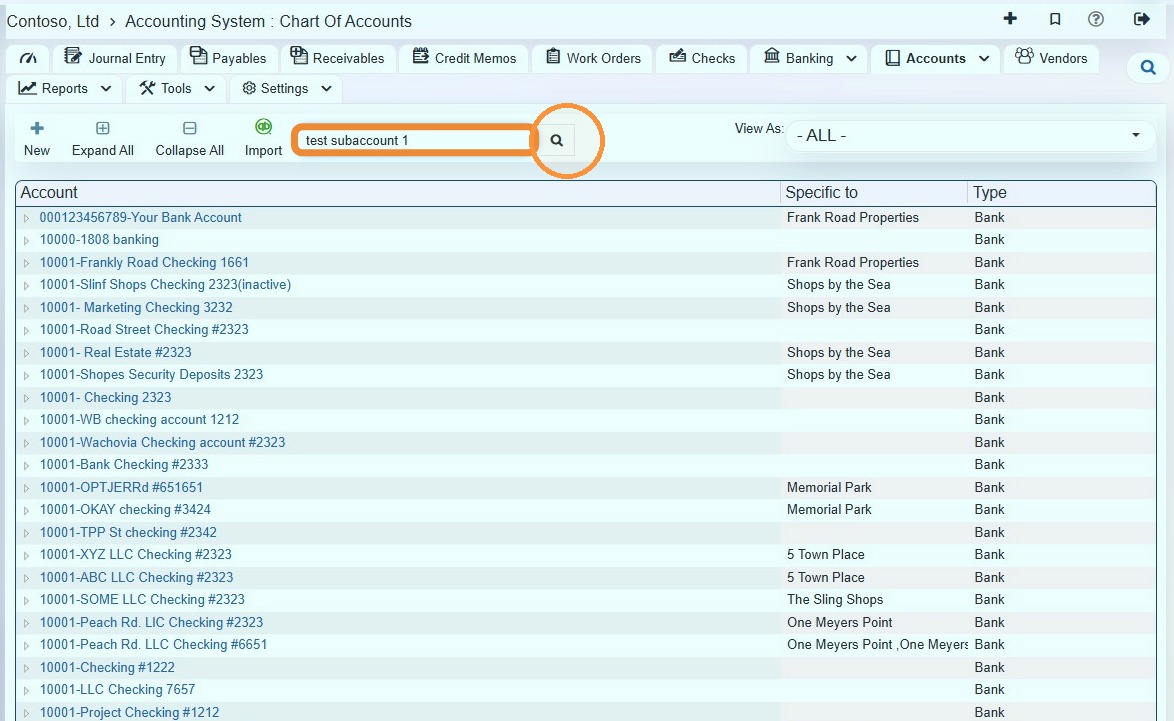
14. You can select the search field to search for the subaccount.
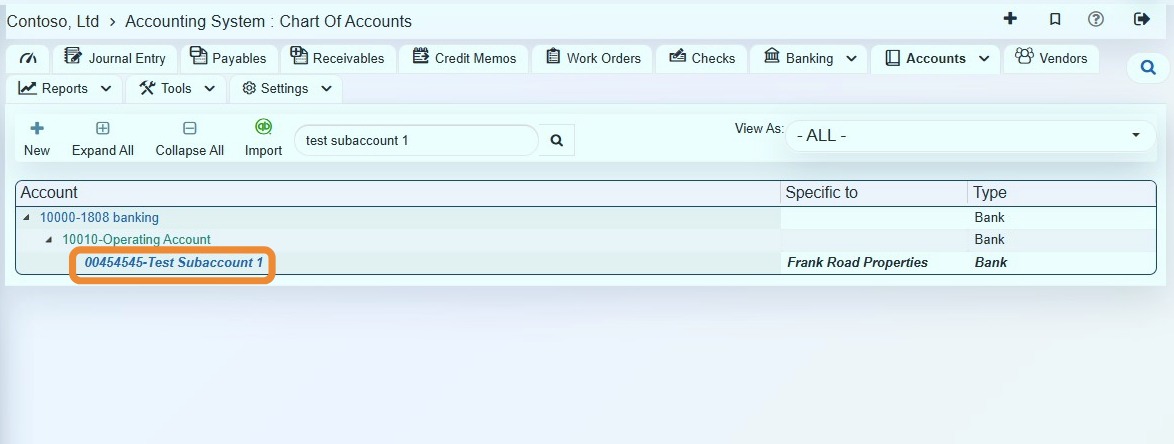
15. Verify the subaccount is assigned to the correct header account.
How to Delete the Subaccount
16. Select the subaccount you need to delete.
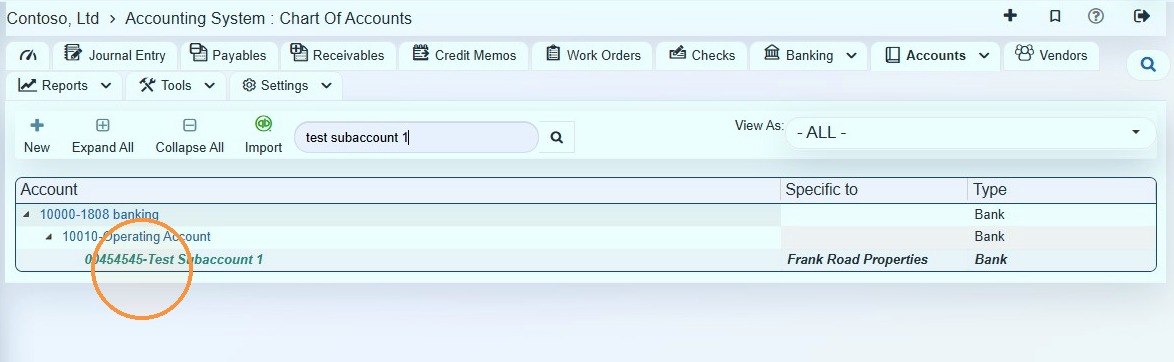
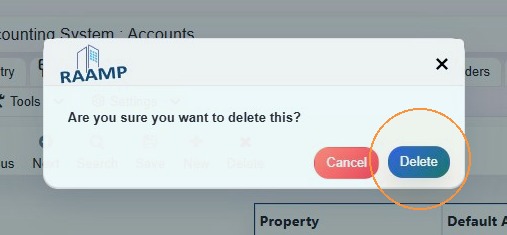
17. Select Delete.
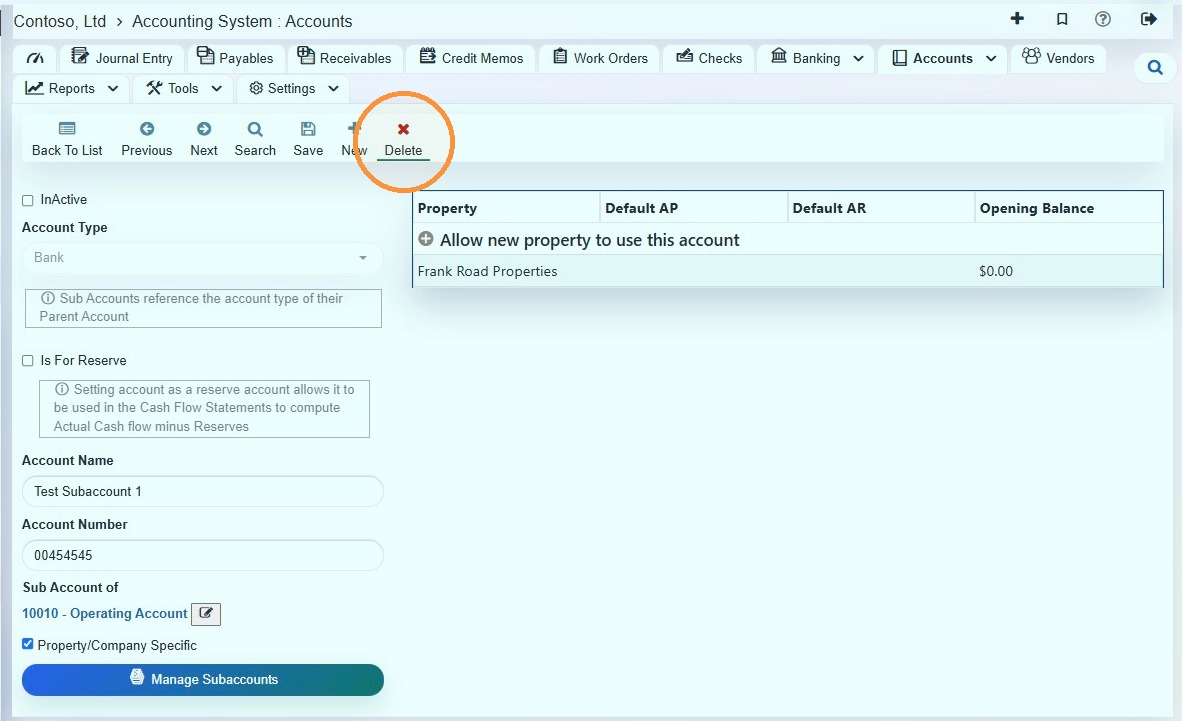
18. Select Delete.