Assets
This guide explains how the Assets page centralizes every detail and action for a selected asset—data, lease info, addresses, files, contacts, notebooks, ownership, insurance, loans, accounting, revenue, and ownership tree—so you can manage and find asset-specific information quickly. It shows how to access tabs from the three-dot menu, which prerequisites enable certain tabs (like Lease, Accounting, Revenue), and best practices for uploading files and linking records to keep asset data accurate and actionable.
Assets Overview
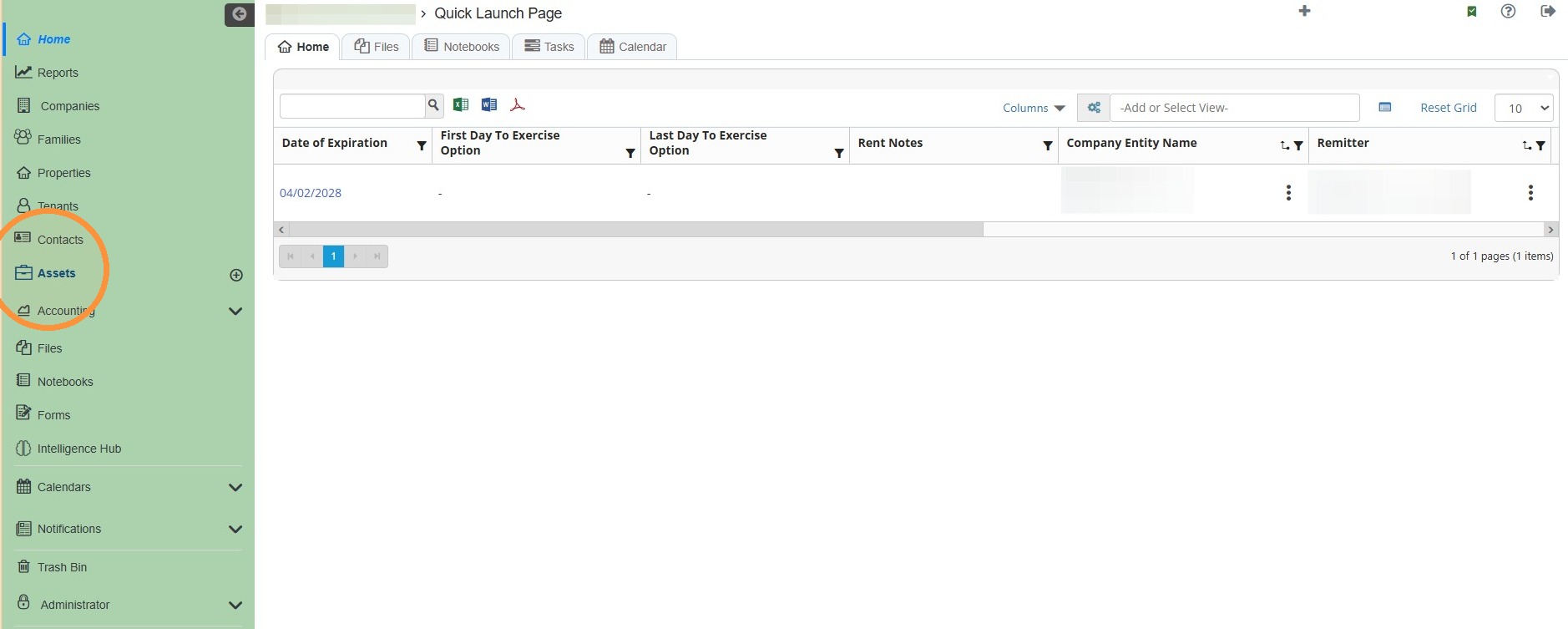
1. Select Assets from the navigation menu.
2. Assets Overview
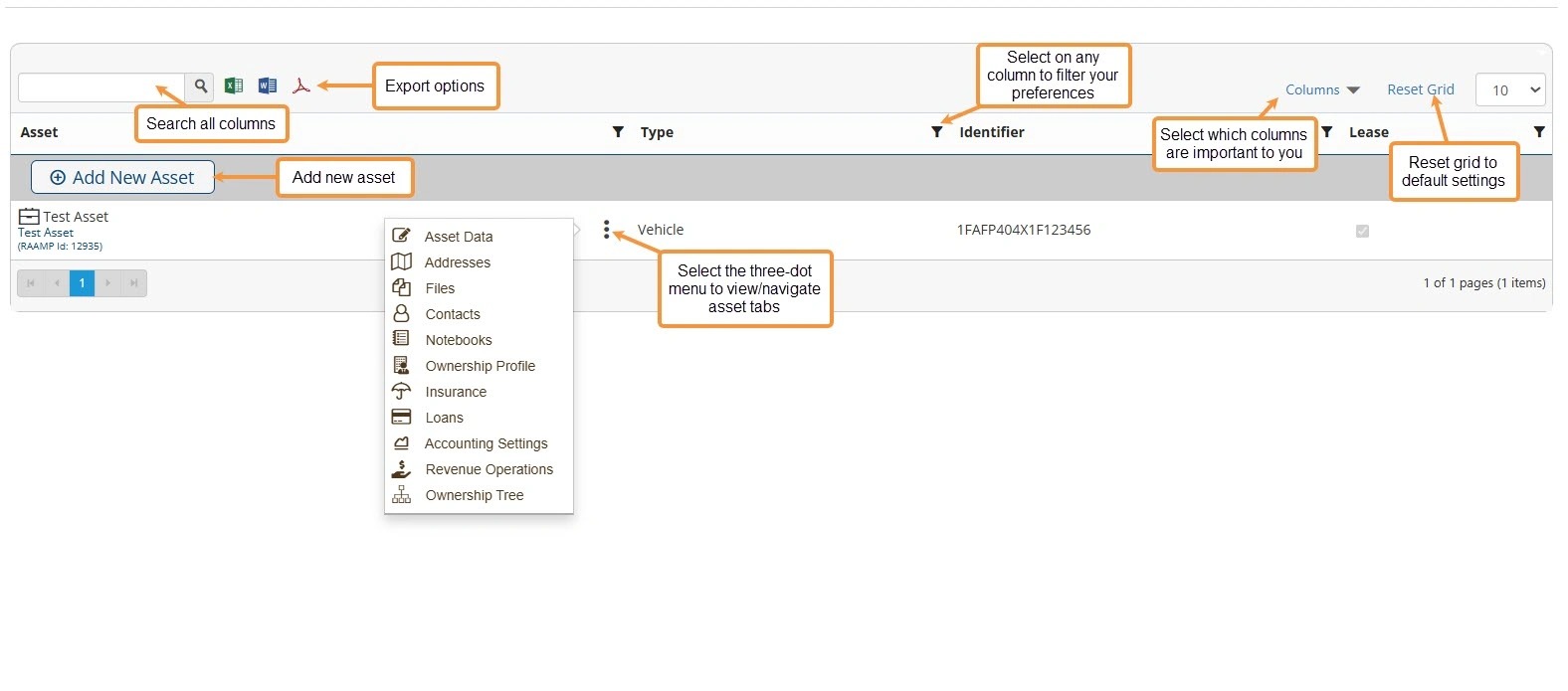
How to Navigate to Assets Tabs
3. Locate the preferred asset. NOTE: You can locate the asset quickly by searching for it.
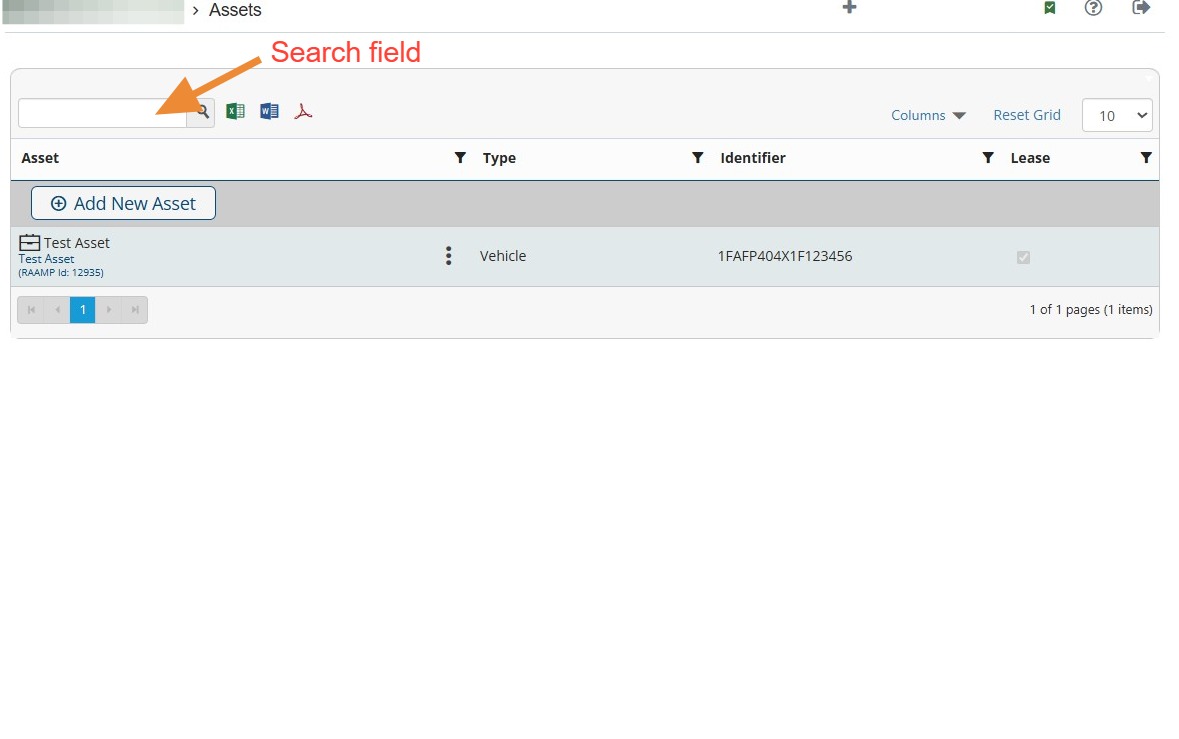
4. Select the three-dot menu to the right of the asset to access the asset tabs.
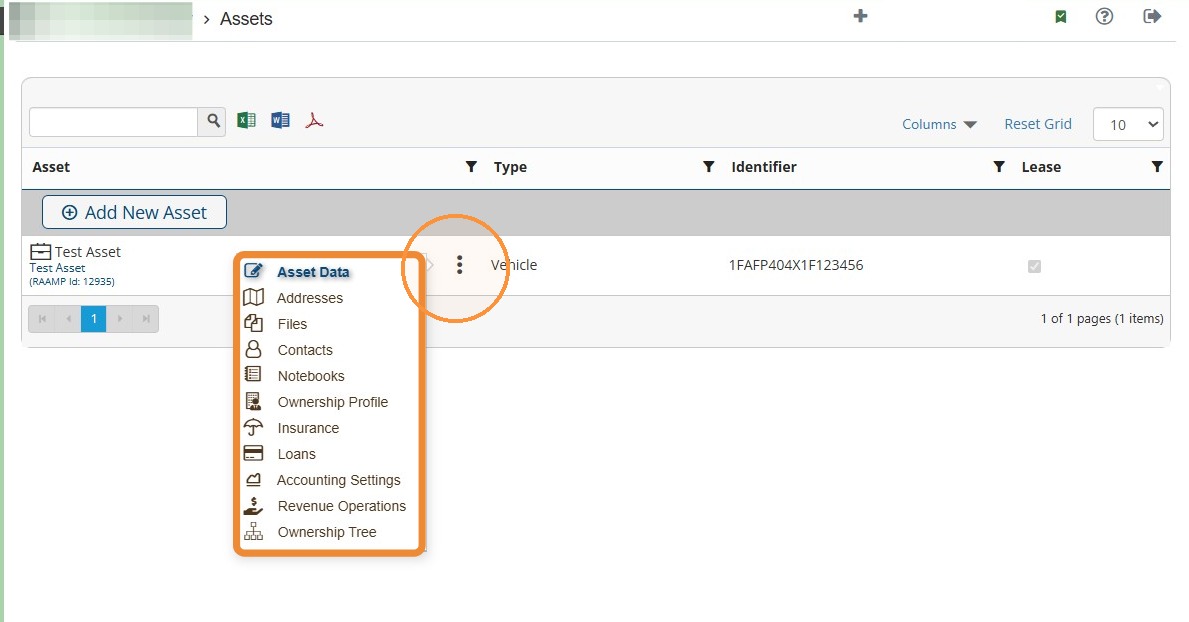
5. Once a tab is selected from the three-dot menu, all asset tabs will be available across the top.
Use the tabs to navigate to specific information for the selected asset.

Assets Data Tab
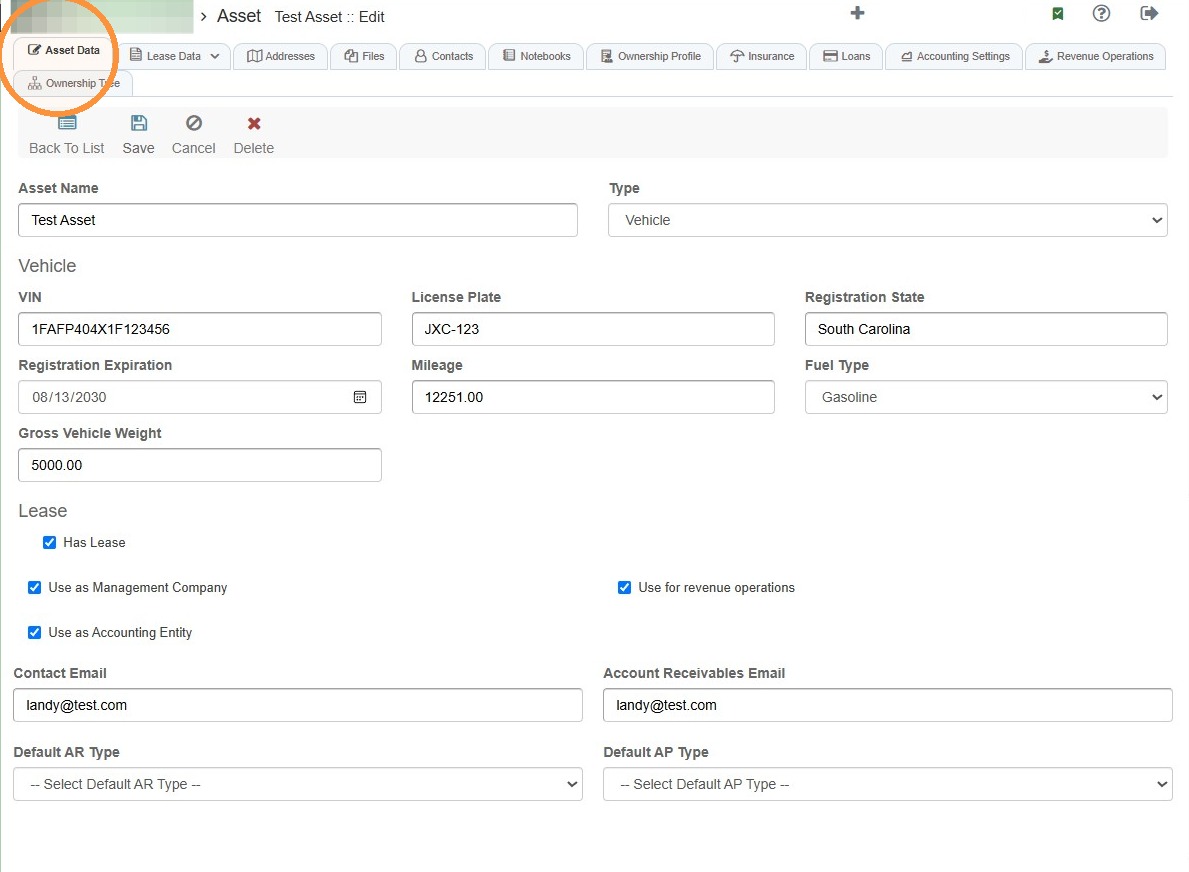
6. To edit the asset's data information, select the Asset Data tab.
Related Tutorial(s):
Lease Data Tab
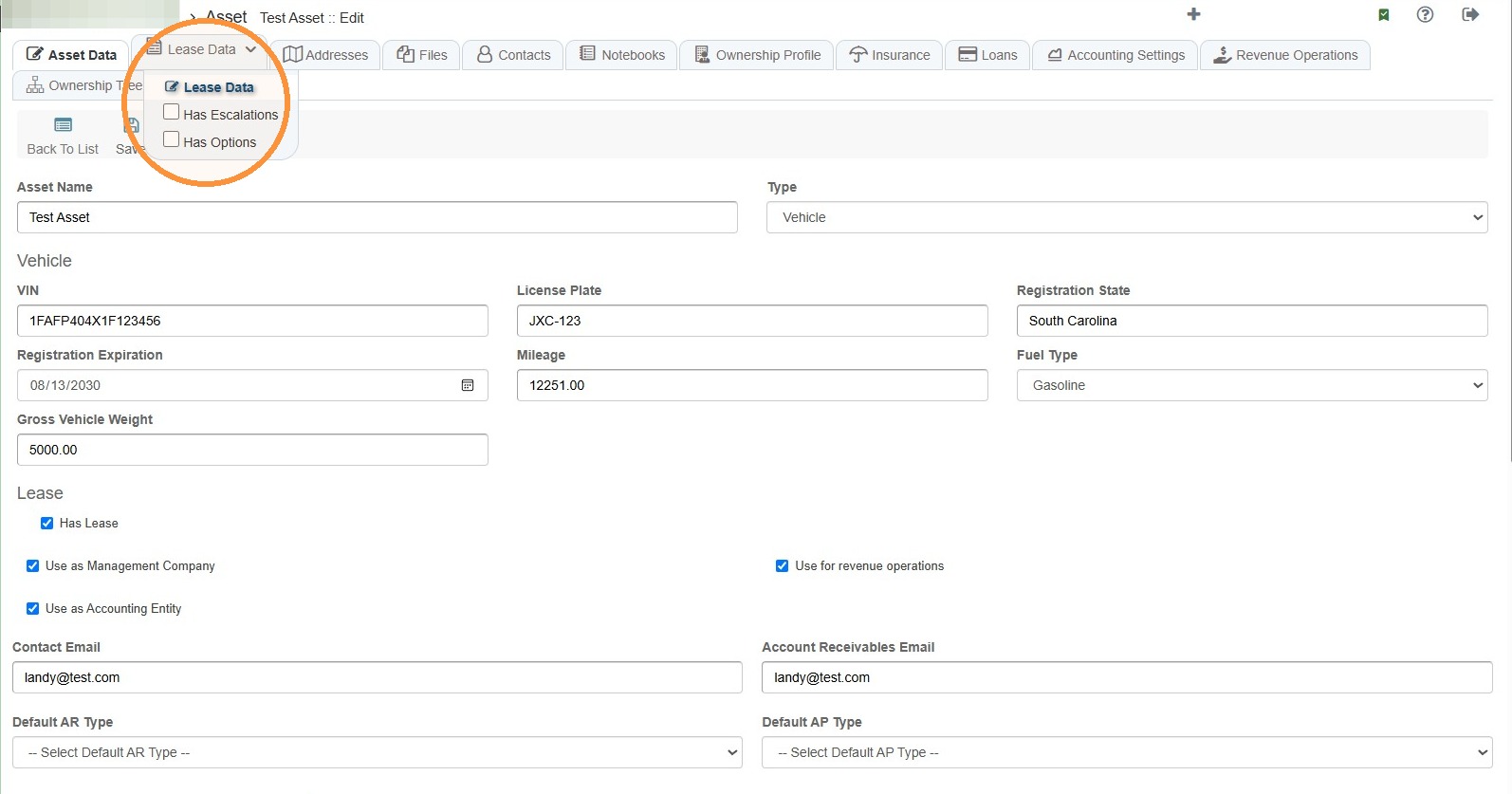
Tip: The Has Lease checkbox must be selected on the Asset Data tab for Lease Data to appear.
7. To edit the asset's lease data information, select the Lease Data tab.
Related Tutorial(s):
How to Add Lease Data with Escalations and Options
Addresses Tab
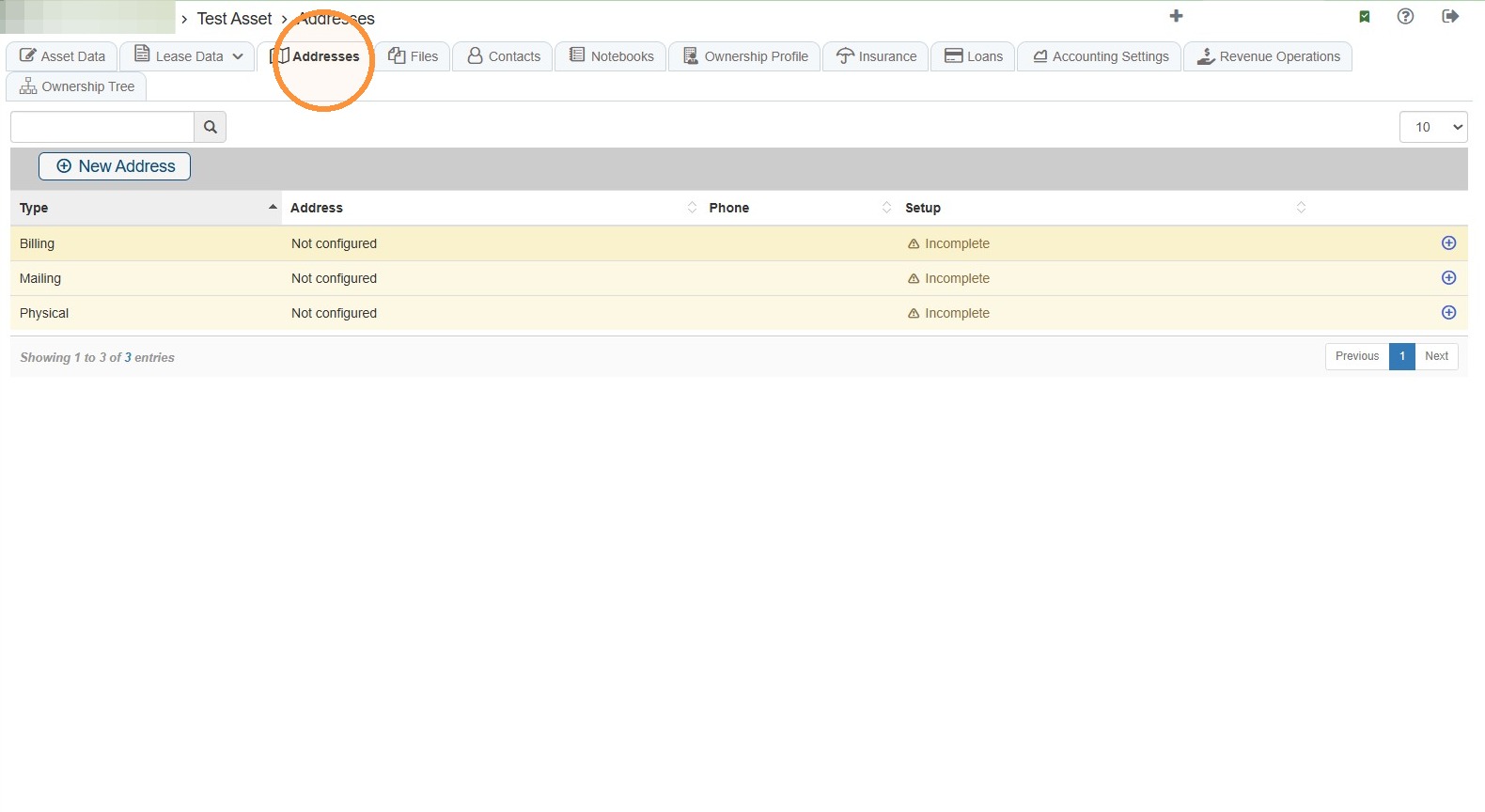
8. Select Addresses to view locations and location-specific phone numbers.
This tab stores physical or mailing locations associated with the company, such as:
- Billing address
- Mailing address
- Physical address
Each address can include its own phone number. For example, the billing phone number shown on the Addresses tab is the phone number associated with that billing location.
Files Tab
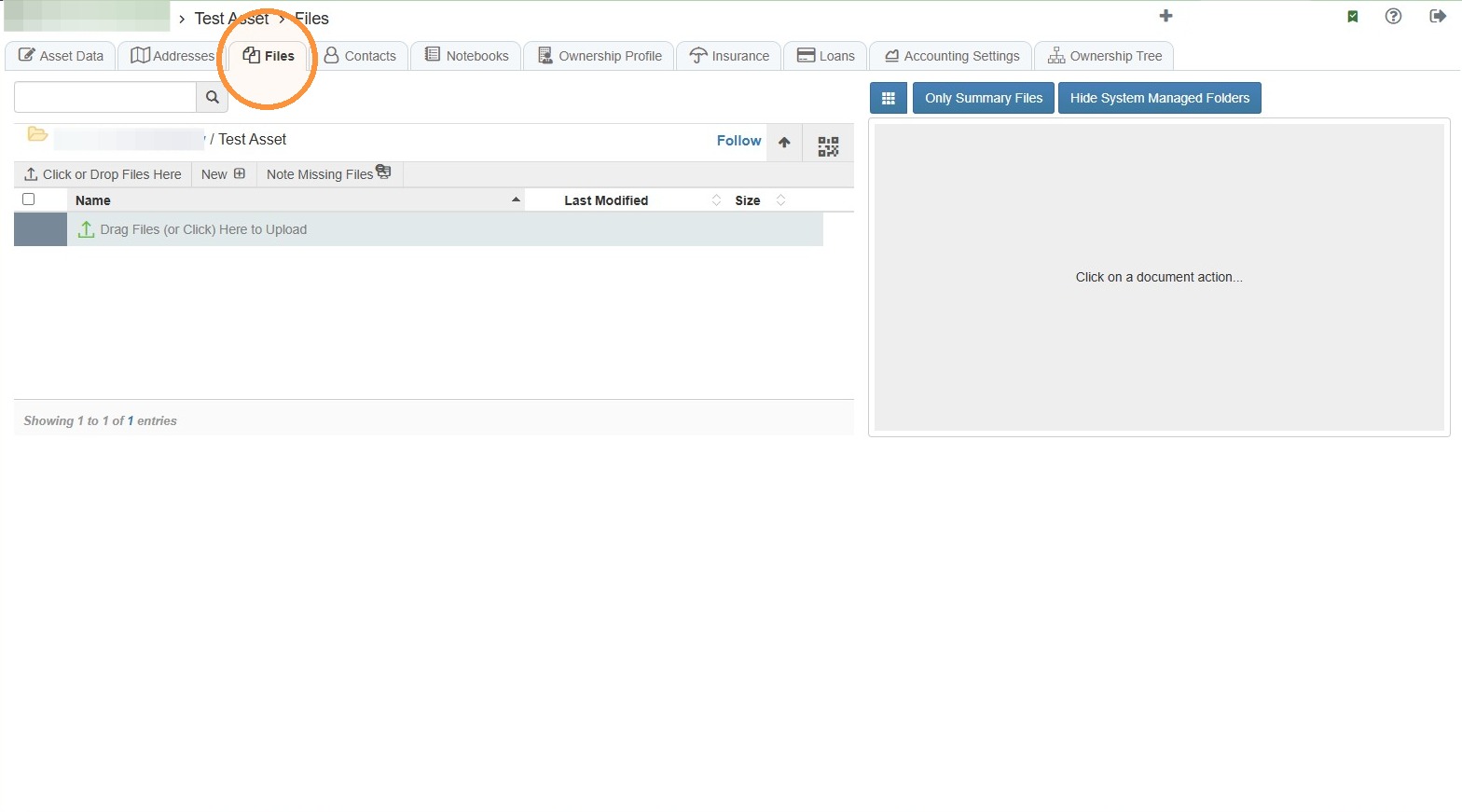
9. Select the Files tab to upload and view all files for the asset.
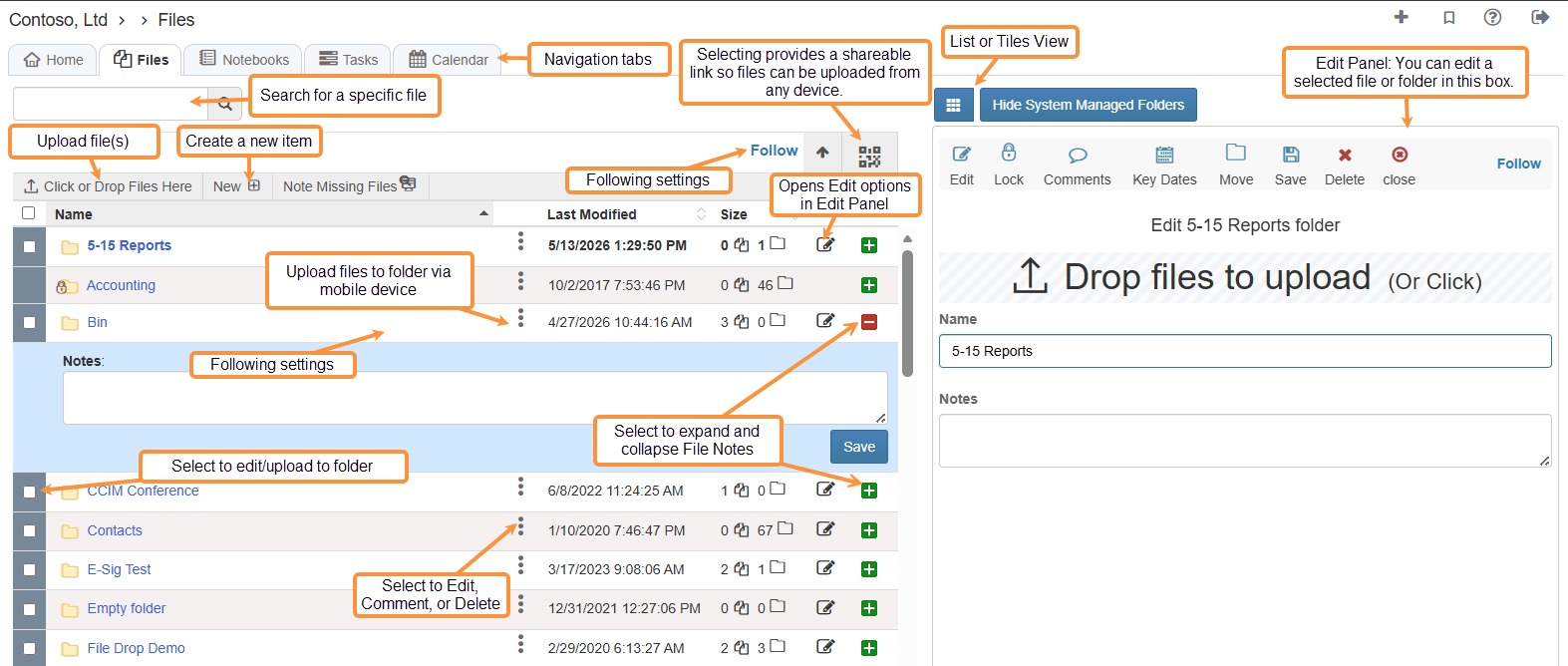
10. Files Overview
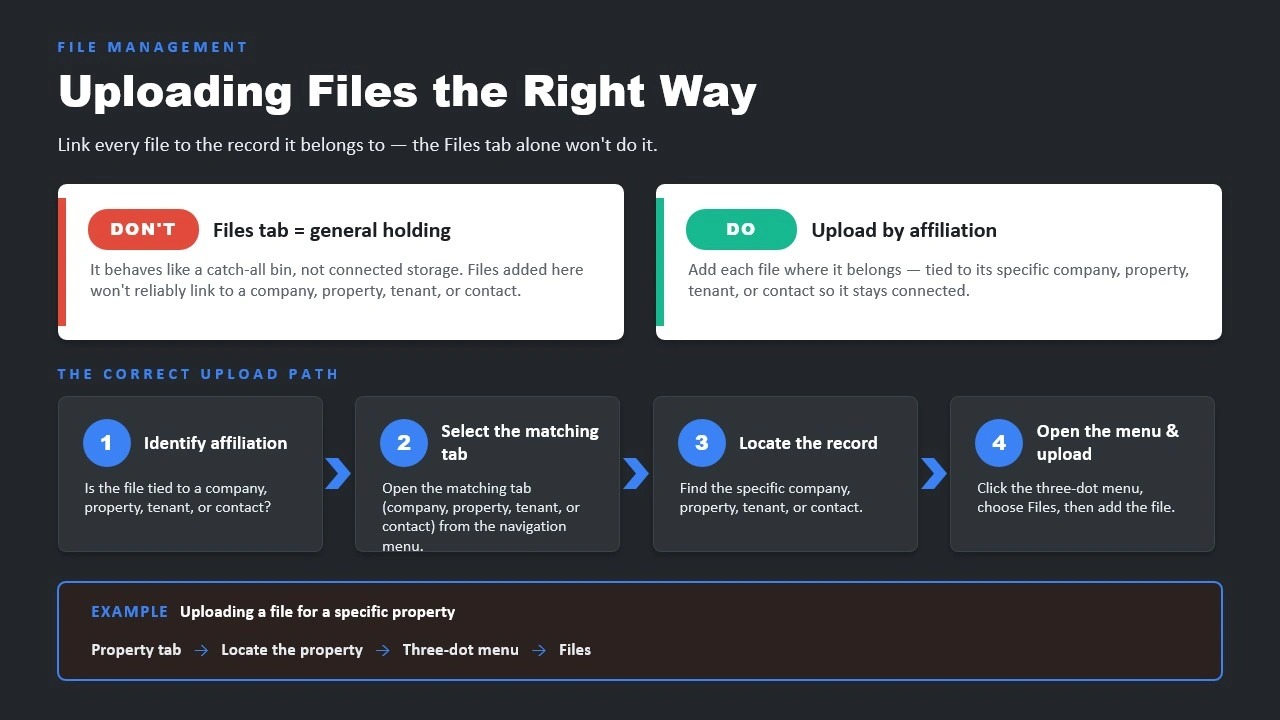
Tip: Remember to upload files by affiliation - tied to its specific company, property, family, tenant, or contact so it stays connected.
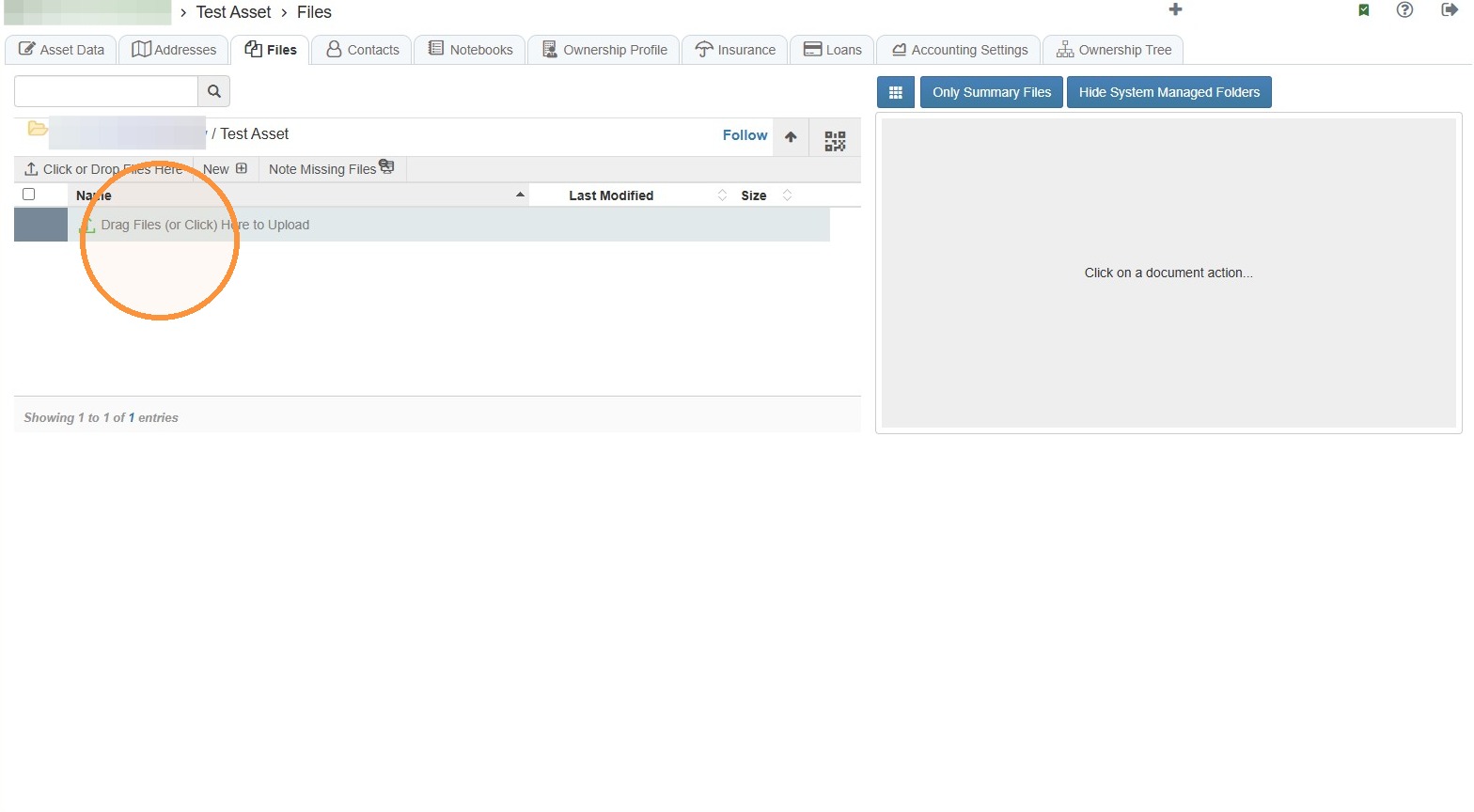
11. To upload a new file for the tenant, select Click or Drop Files Here.
NOTE: You can also drag and drop a file from your computer to the files interface.
12. To edit a file, select the file or the edit icon.
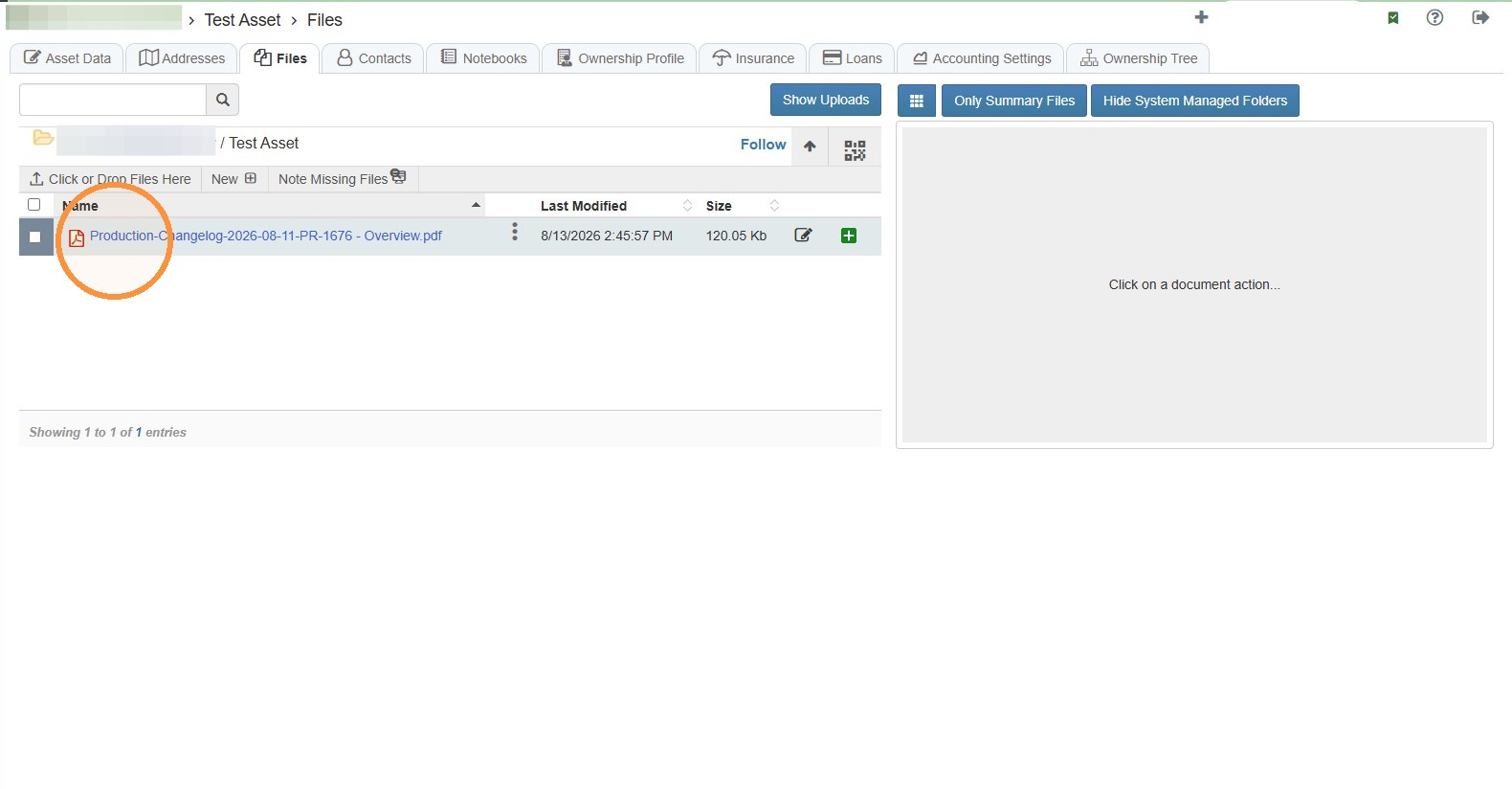
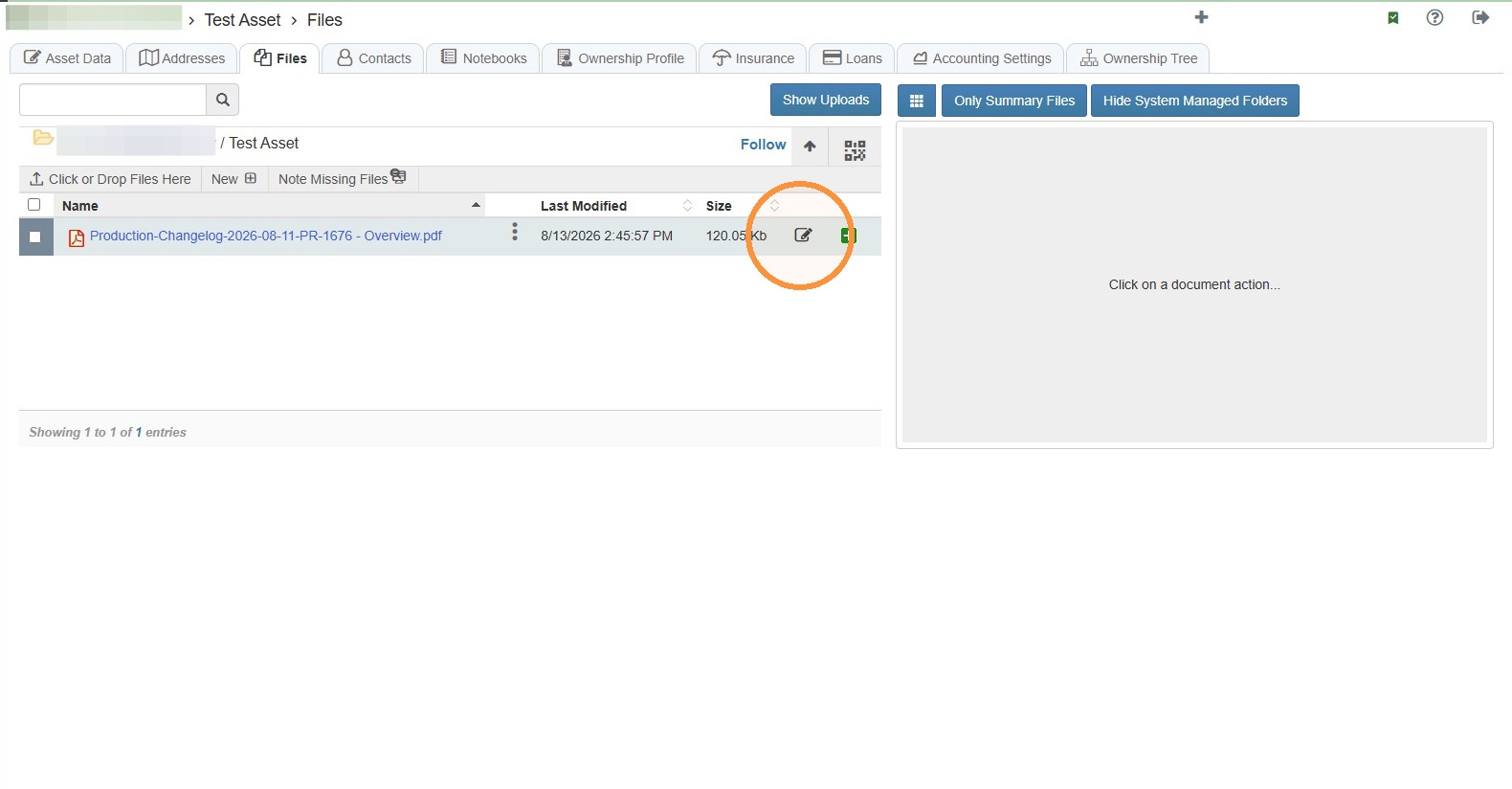
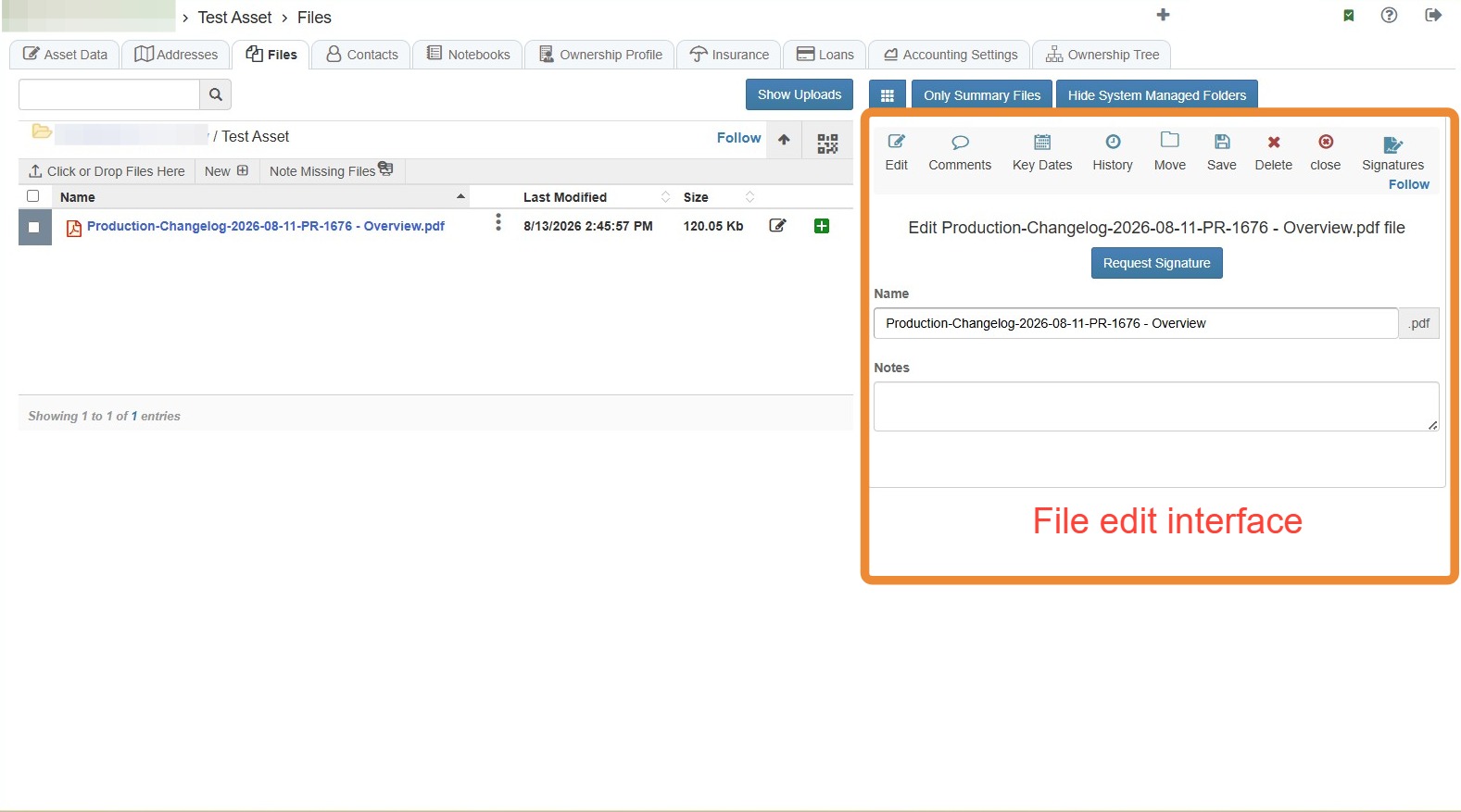
13. Once a file is selected, the file's edit interface will open.
From here, you can complete various tasks like requesting a signature, adding notes, reviewing the file history, etc.
Related Tutorial(s):
How to Add, Delete, & Manage Access Options for File Folders\ How to Follow a Folder & Receive Notifications\ How to Note Missing Files\ How to Upload Missing Files and Supporting Files\ How to Add a Key Date to a File\ How to Share Files\ How to Upload Files from a Phone Camera/Photos\ How to Upload File Revisions and Preserve Prior Versions\ How to Create and Send Signature Requests\ How to Set Signing Order
Contacts Tab
14. To view or add asset contacts, select the Contacts tab.
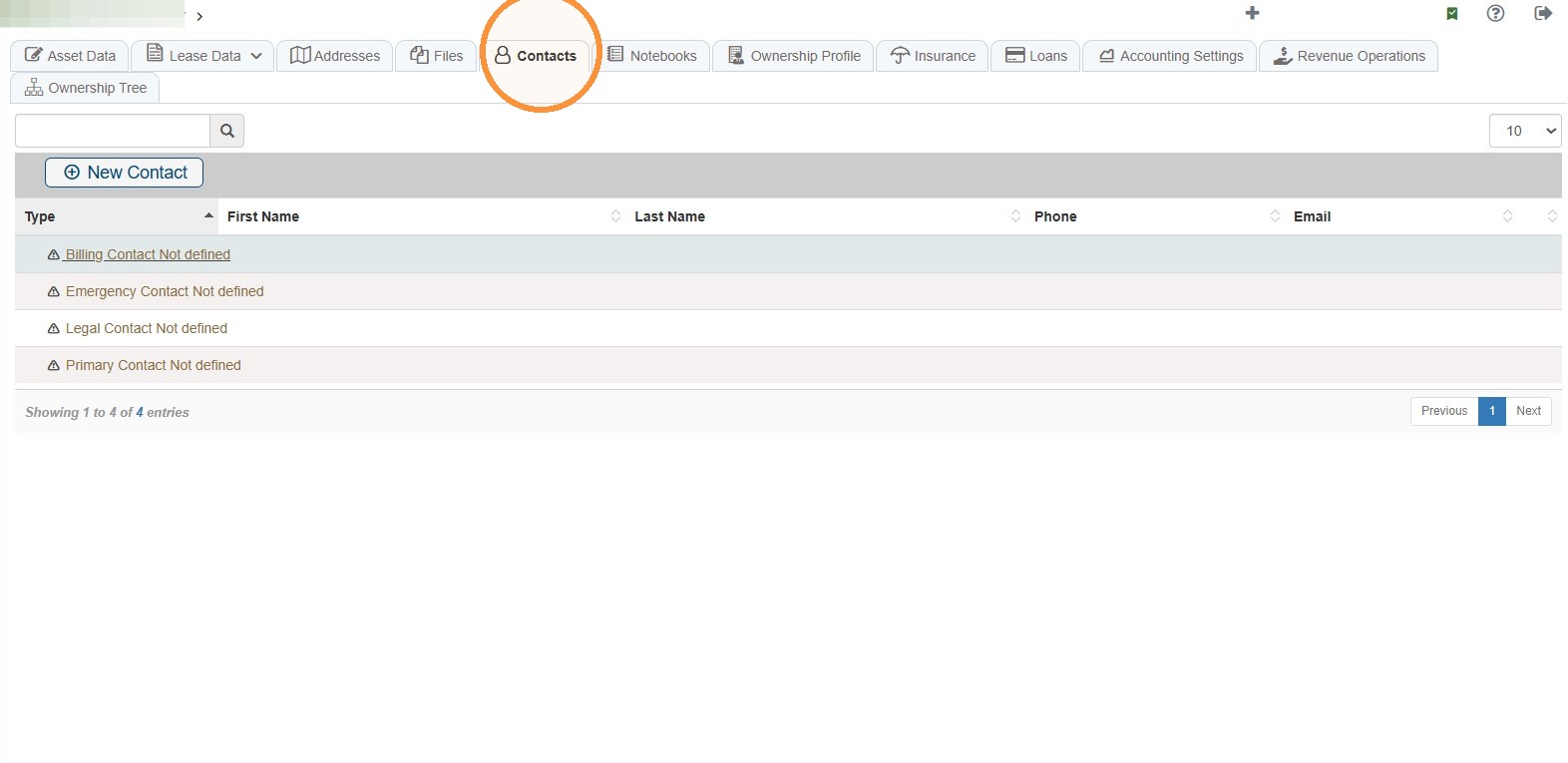
15. You can add a contact two ways:
Select New Contact or select the type of contact you want to add.
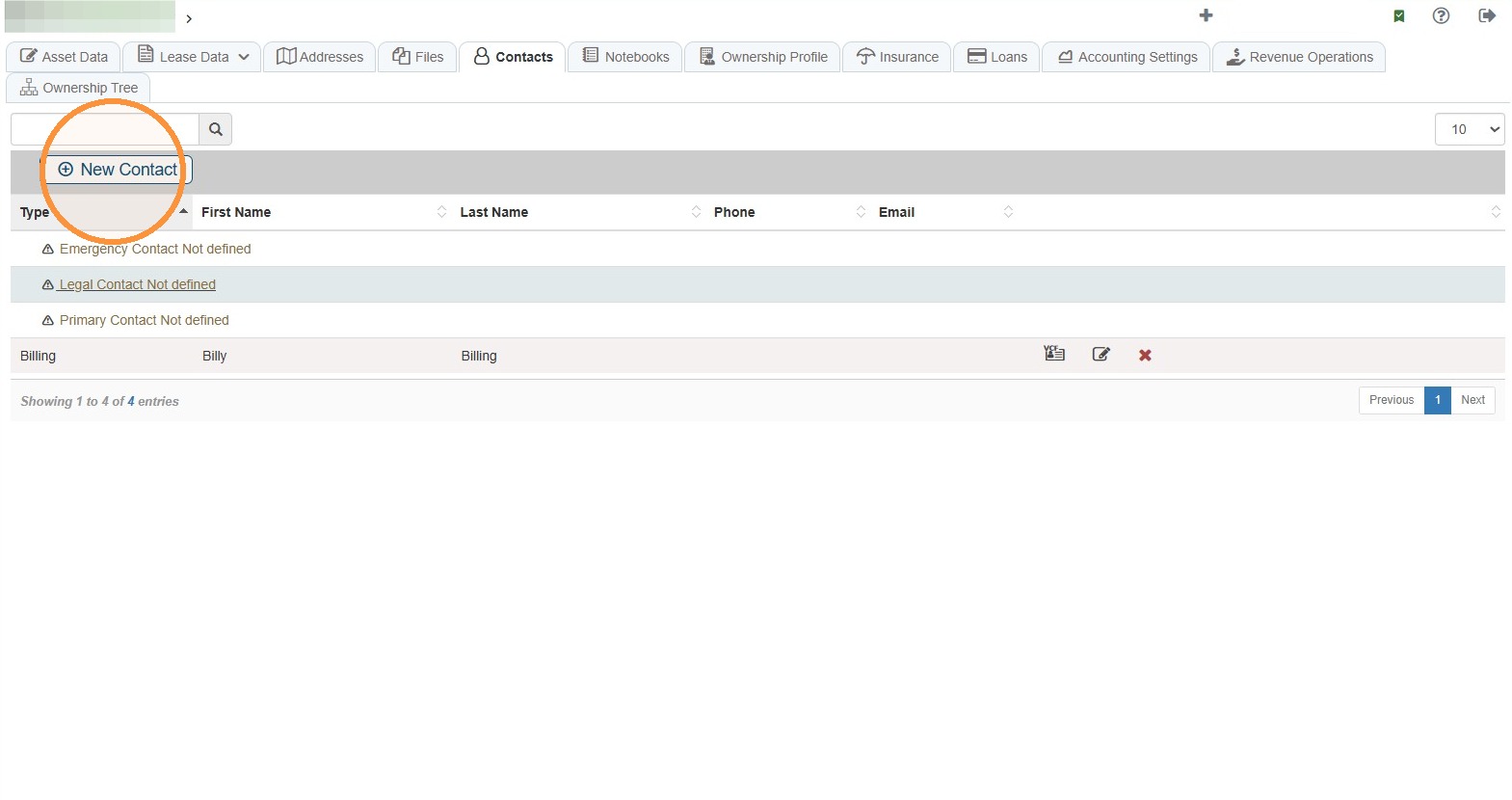
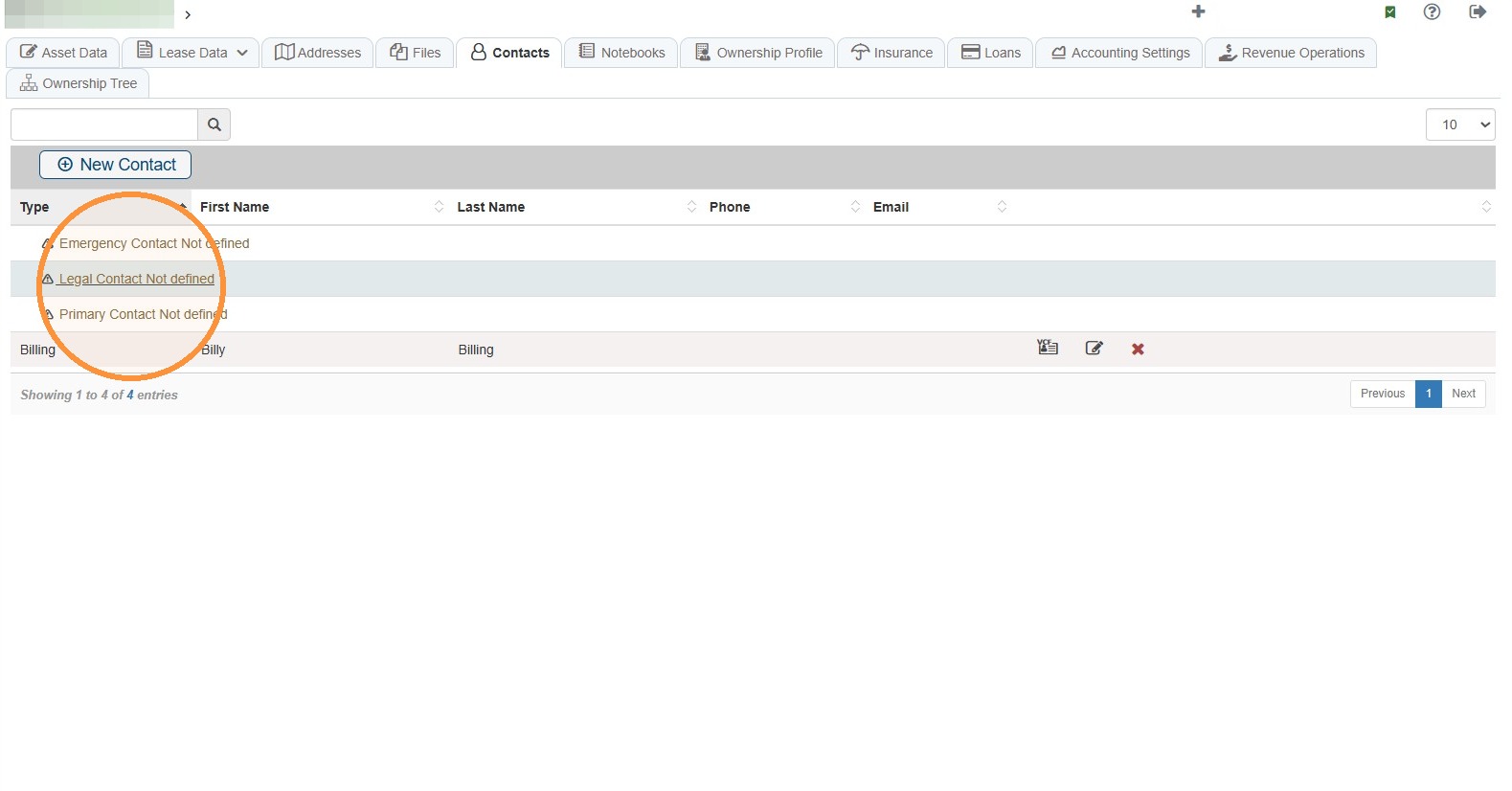
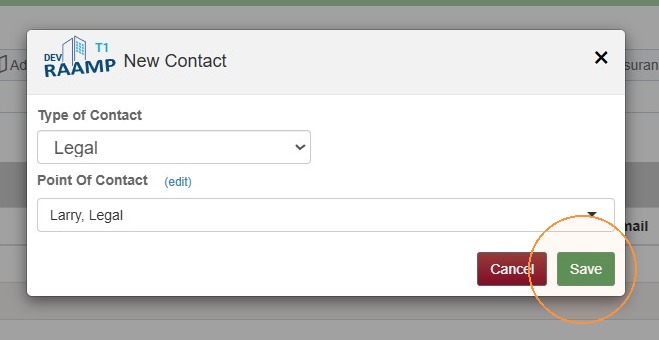
16. Select the type of contact from the dropdown menu > Select a point of contact from the dropdown menu or enter a new contact's name and select Add XXX.
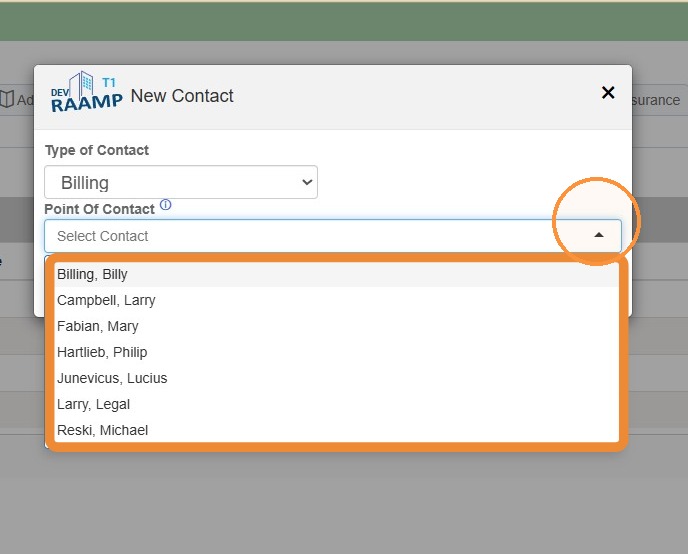
17. Select (edit) to enter the contact's information.
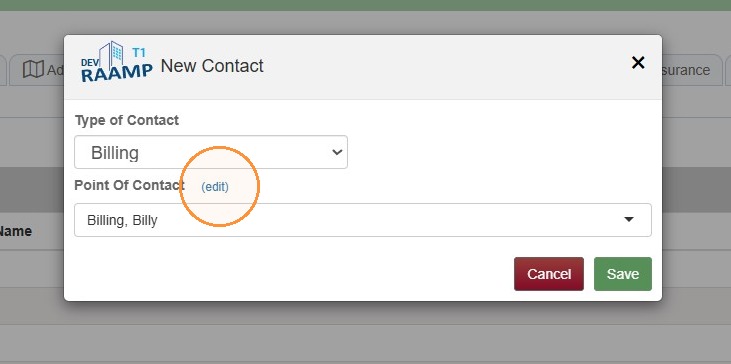
18. Enter the contact's information > Select Save.
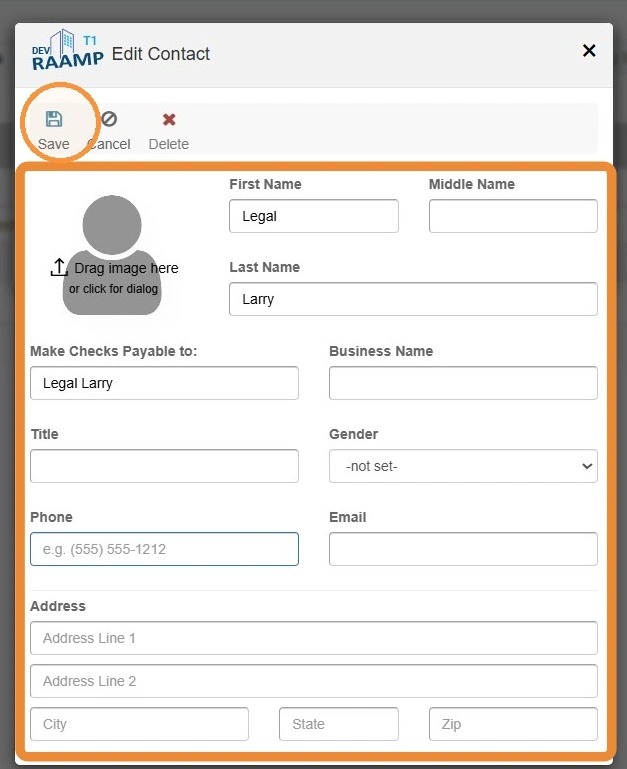
19. Select Save.
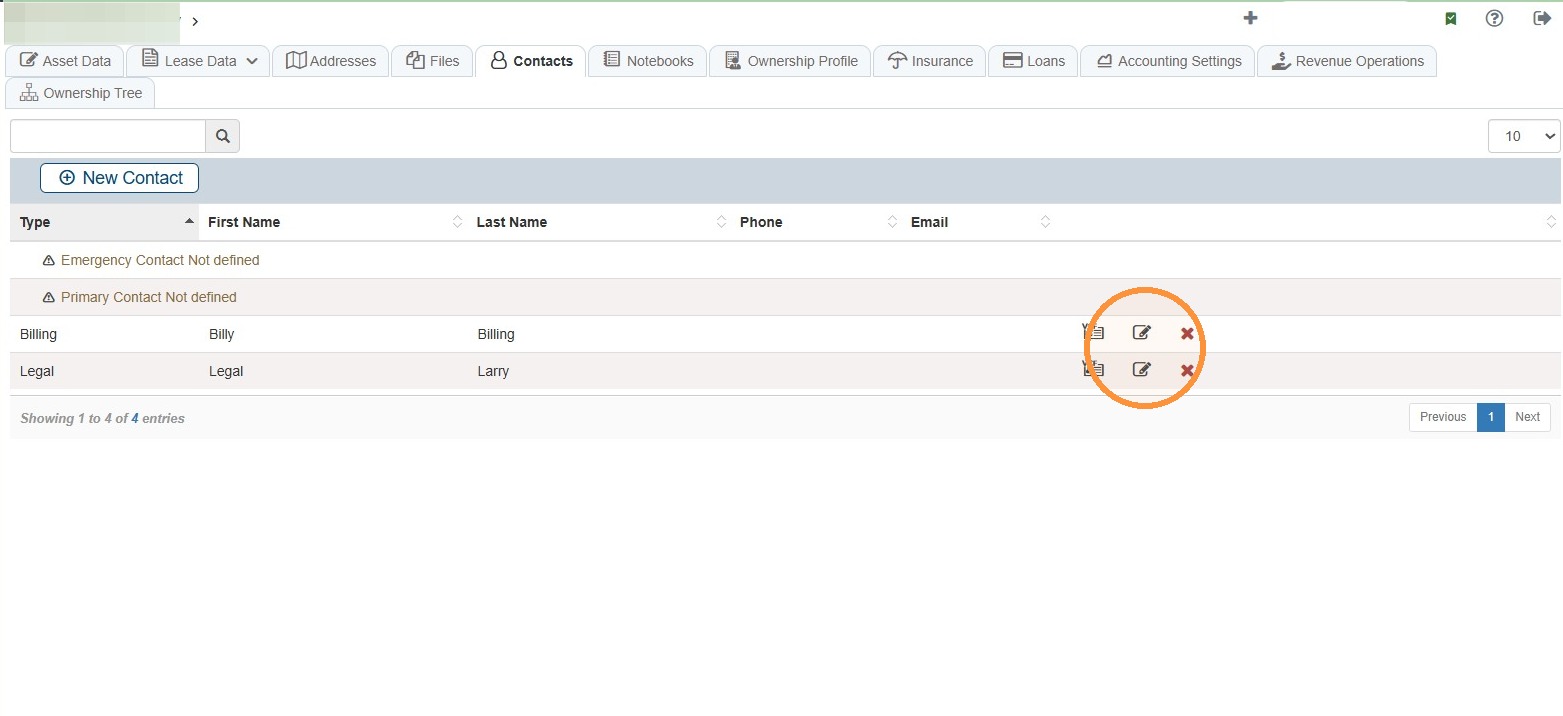
20. To edit a contact's information, select the contact's edit icon.
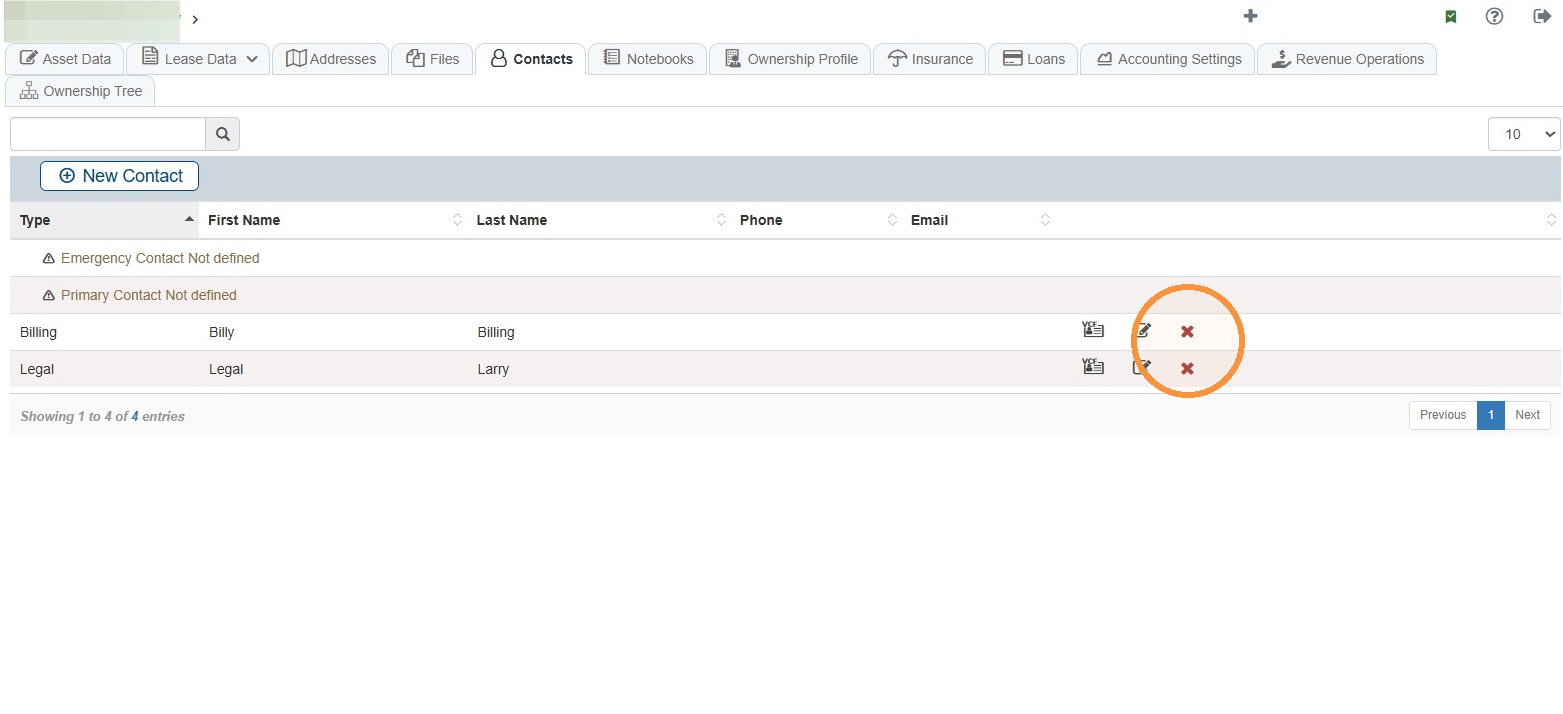
21. To delete a contact's information, select the contact's red x.
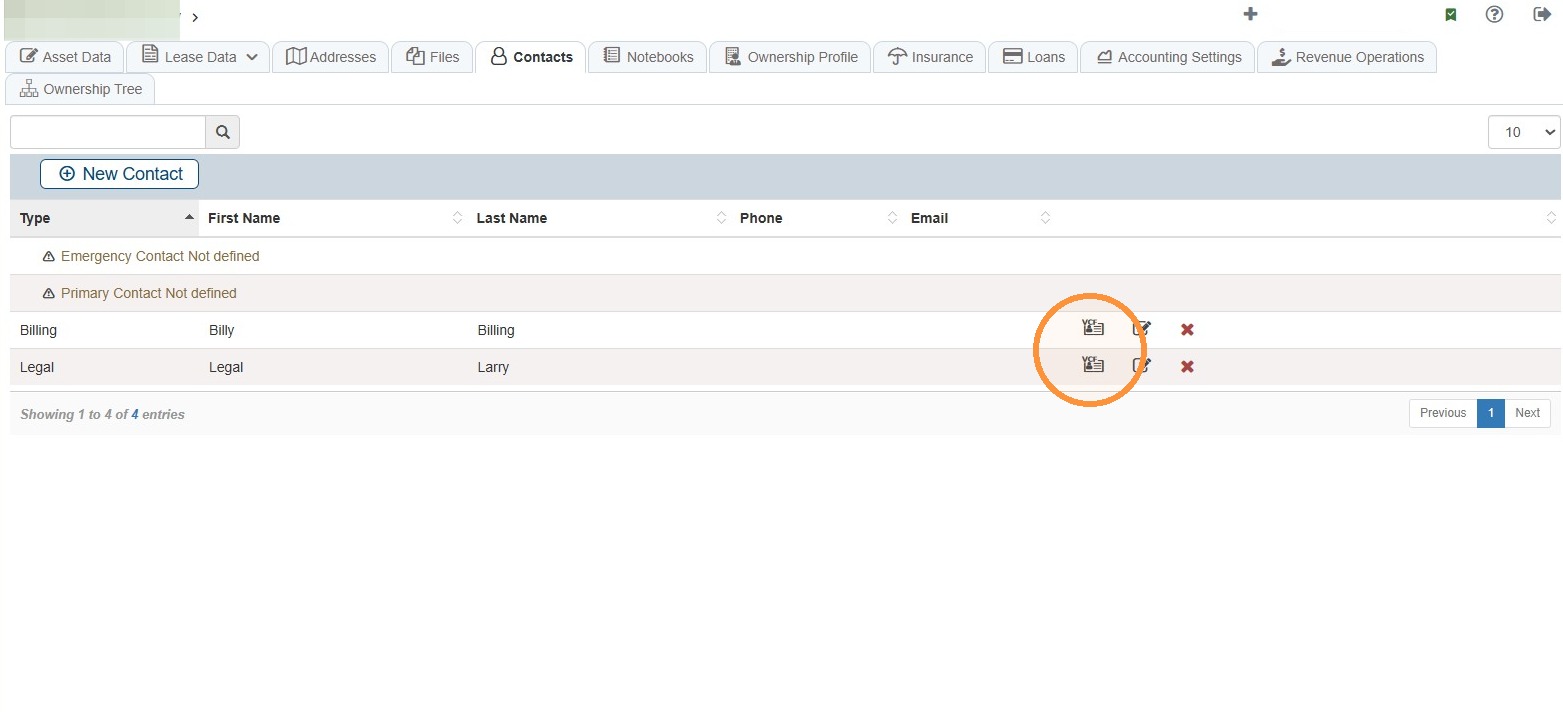
22. To download the contact's information, select the vCard icon.
Related Tutorial(s):
How to Download a Contacts vCard and Add to Outlook
Notebooks Tab
23. Select the Notebooks tab.
The Notebooks tab allows you to schedule important dates, tasks, and notifications specific to the family.
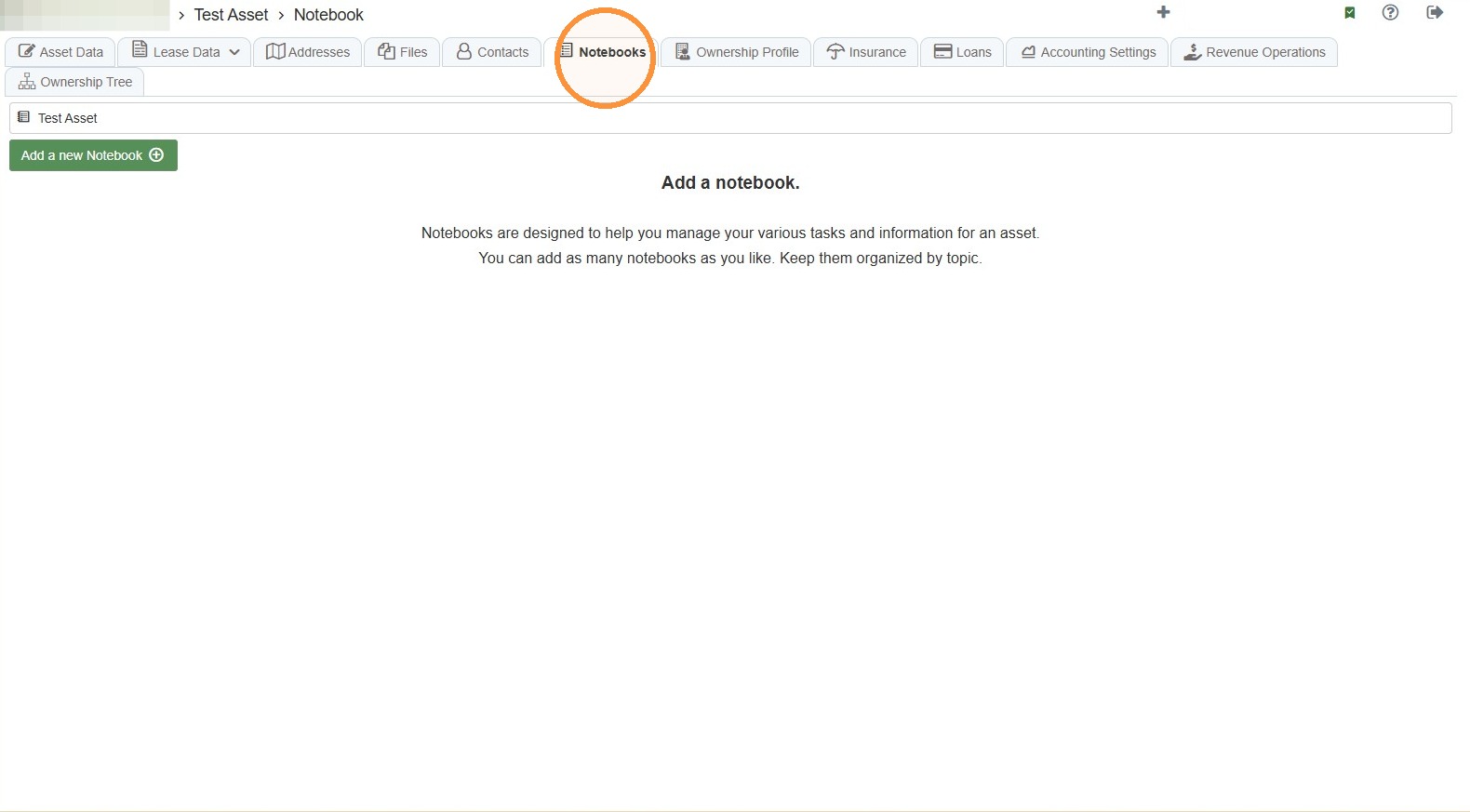
24. Notebook Overview
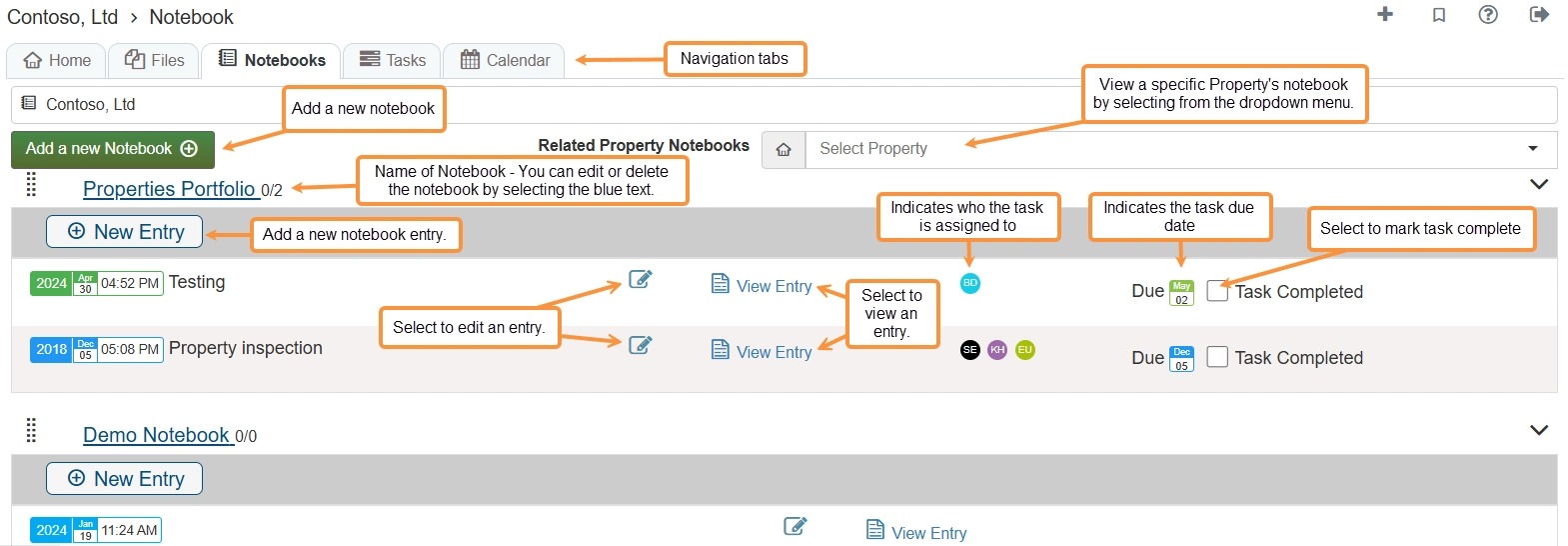
Tip: To learn more about creating Notebooks and Tasks, see How to Create a Notebook, Entry, and Task and How to Create Dependent/Linked Tasks.
Ownership Profile Tab
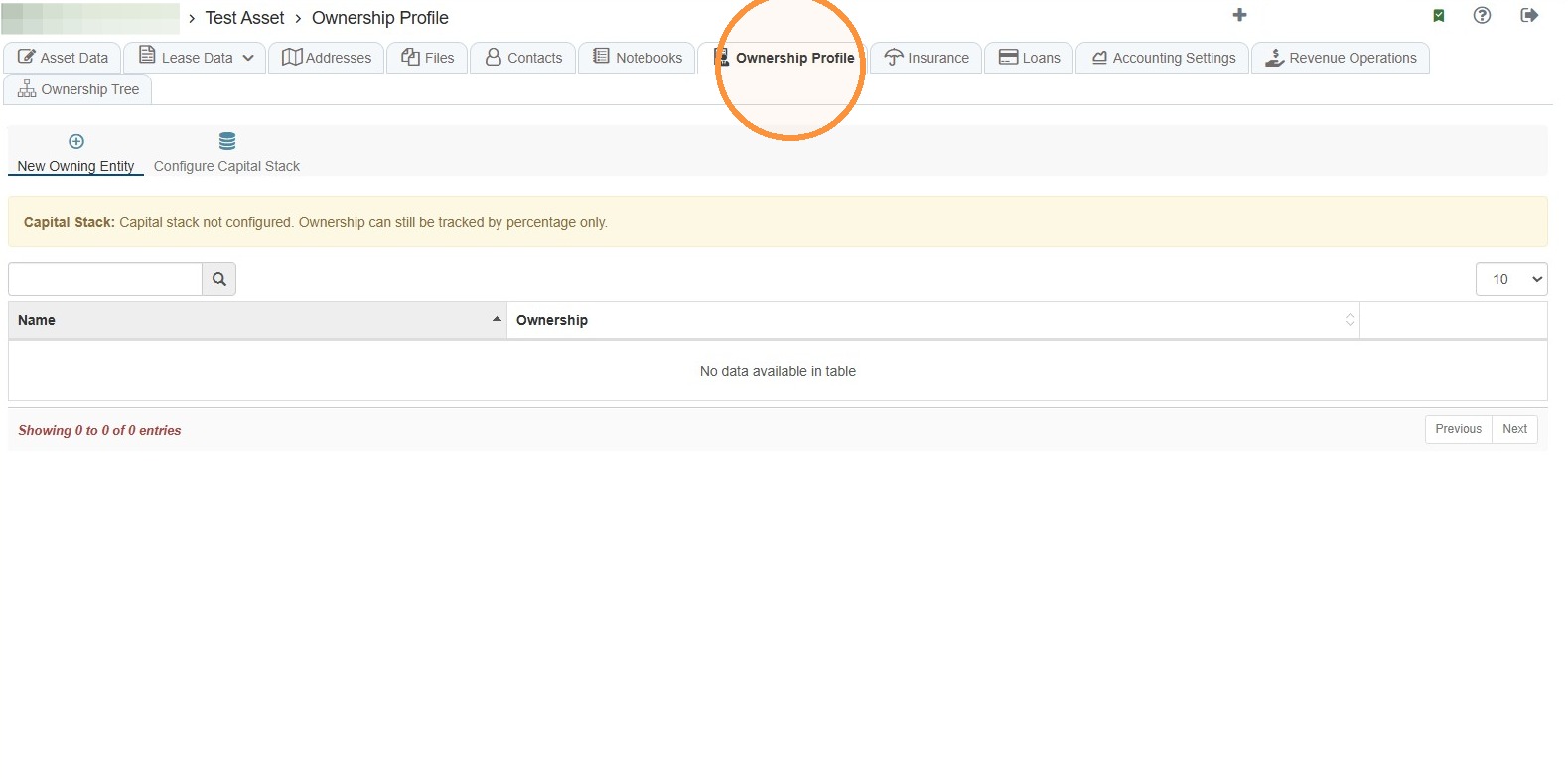
25. Select the Ownership Profile tab.
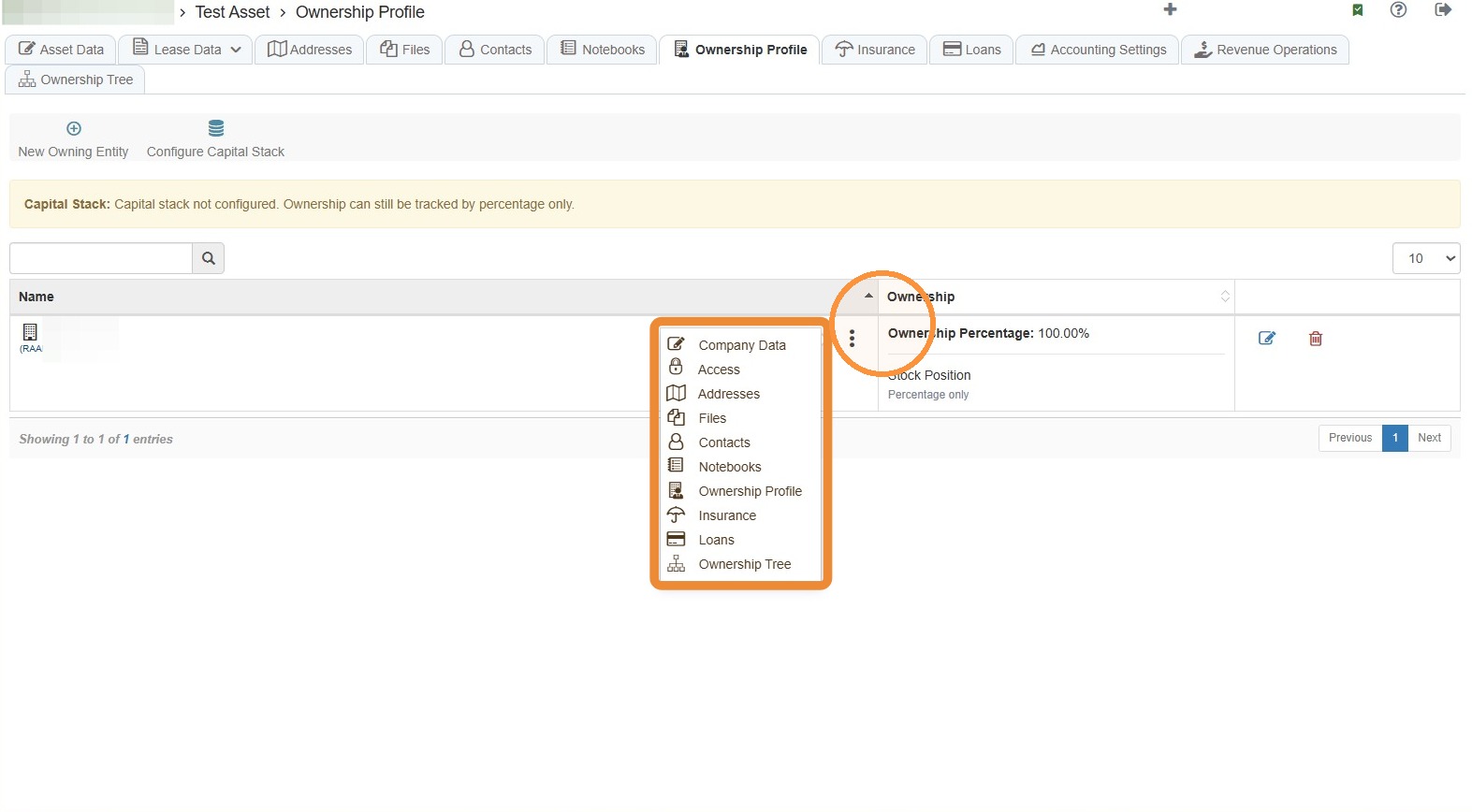
This tab provides a summary/snapshot of the ownership status, and you can configure the company's capital stack.
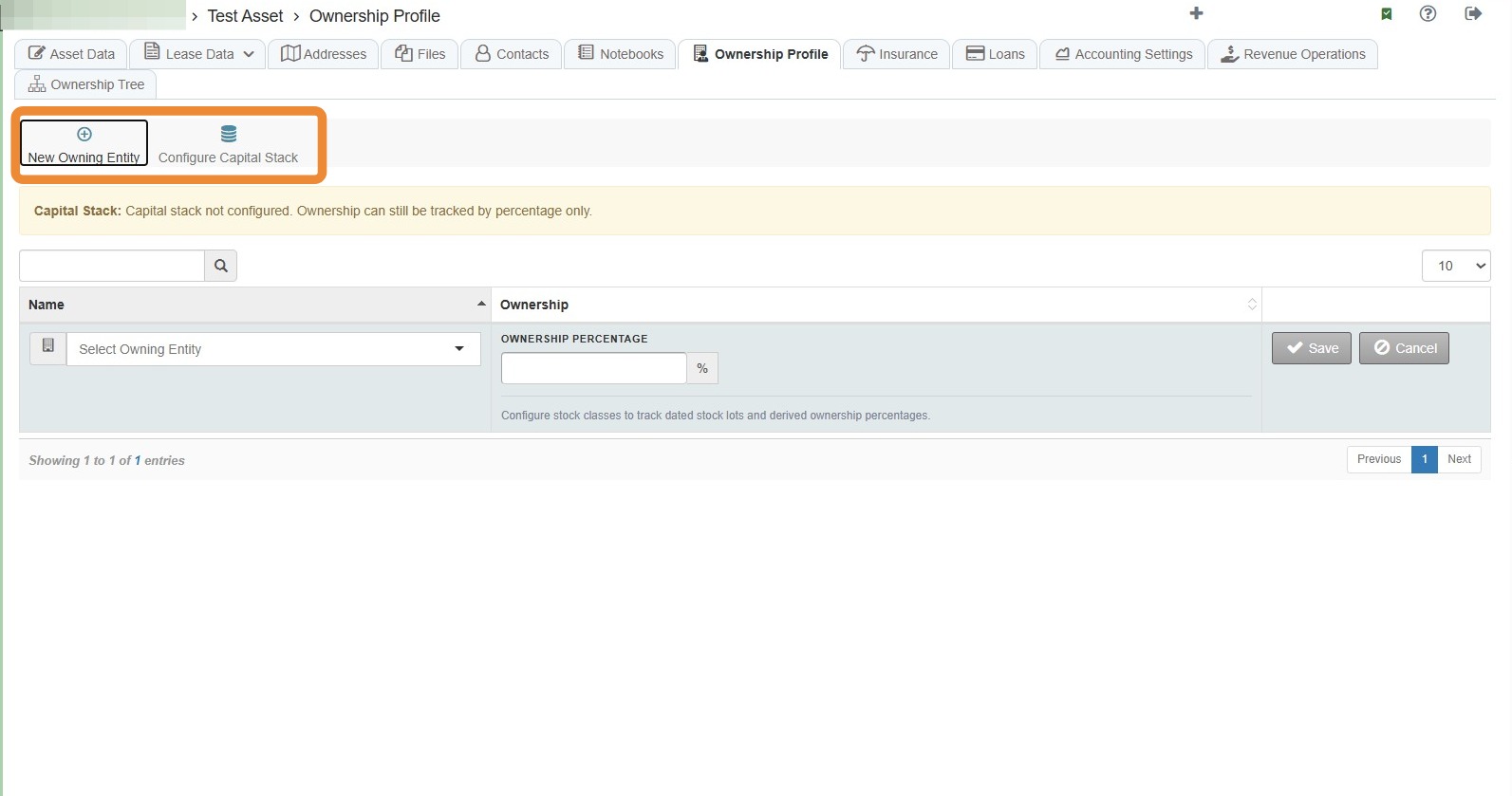
26. Select New Owning Entity to add an owning entity.
Select Configure Capital Stack to configure capital stack.
27. Select the three-dot menu to view options.
Related Tutorial(s):
How to Enter Ownership Profile Data to Create Ownership Tree
Insurance Tab
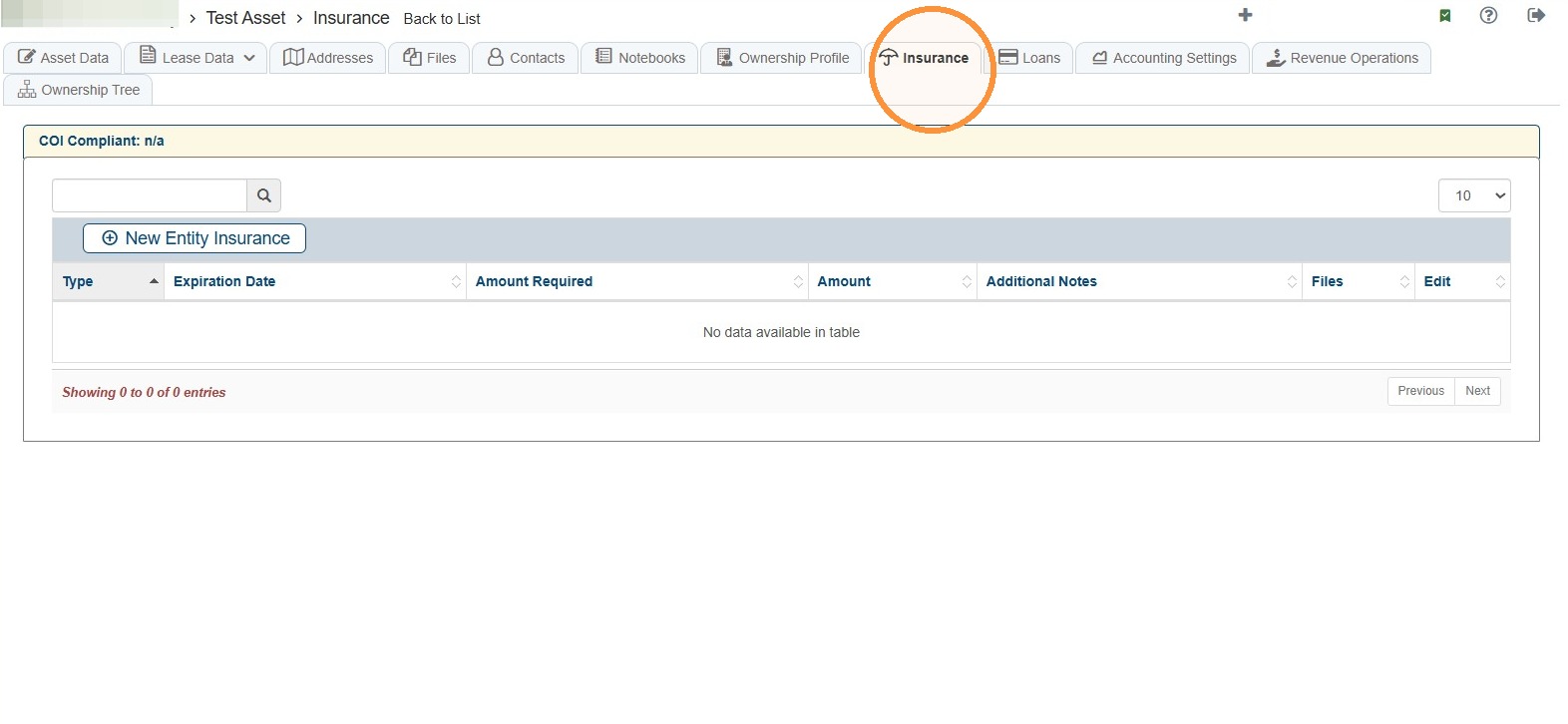
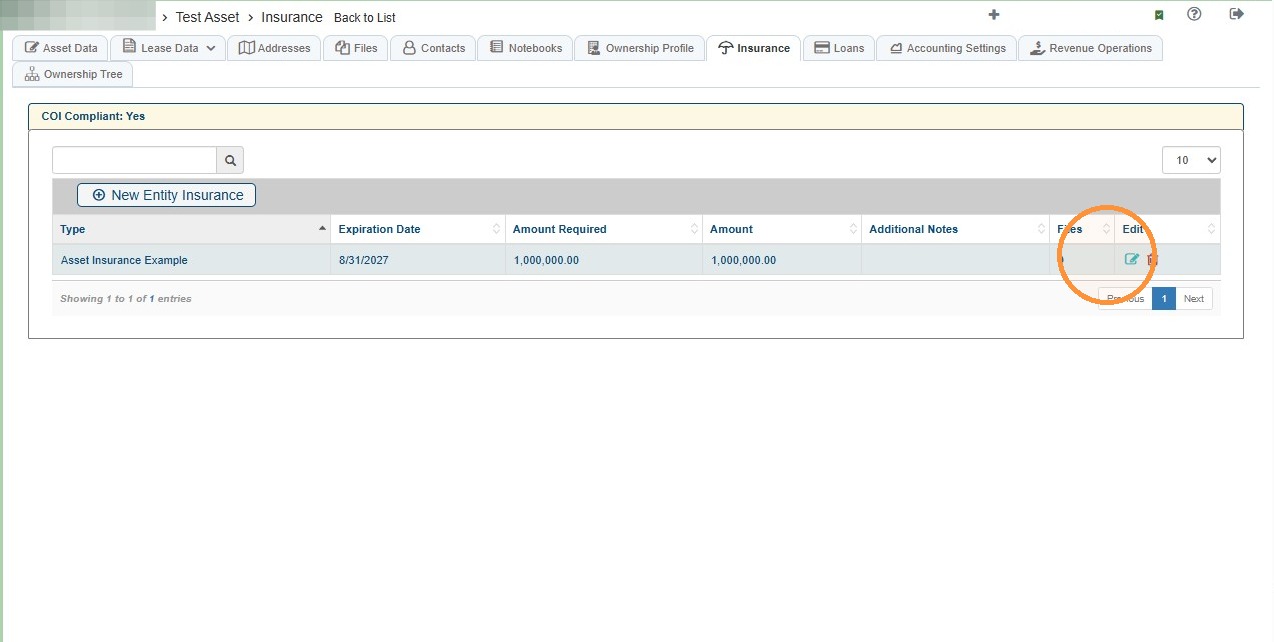
28. To view asset insurance, select the Insurance tab.
You can also add new entity insurance here.
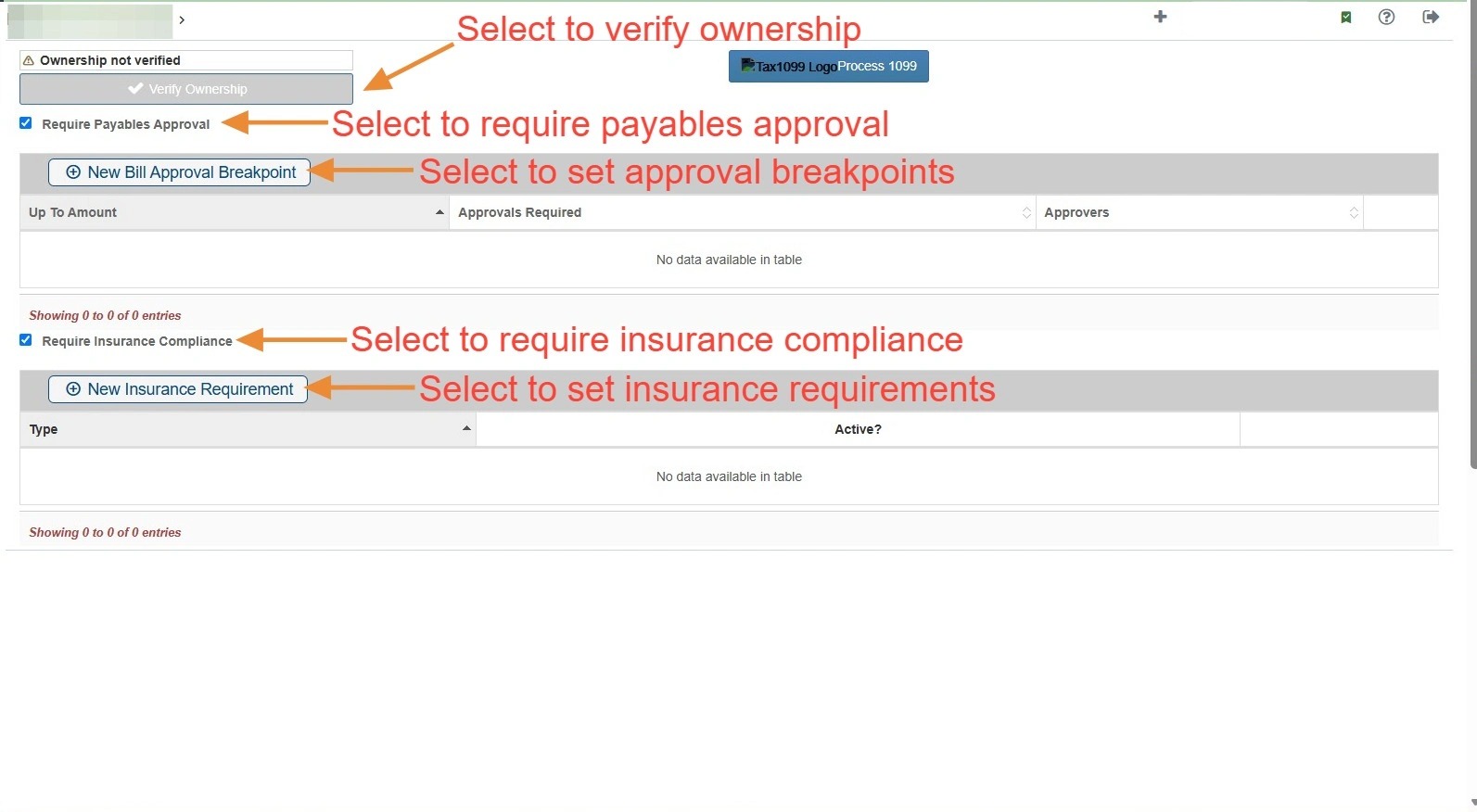
NOTE: For COI Compliance to appear, you must select the Require Insurance Compliance checkbox on the Accounting Settings tab.
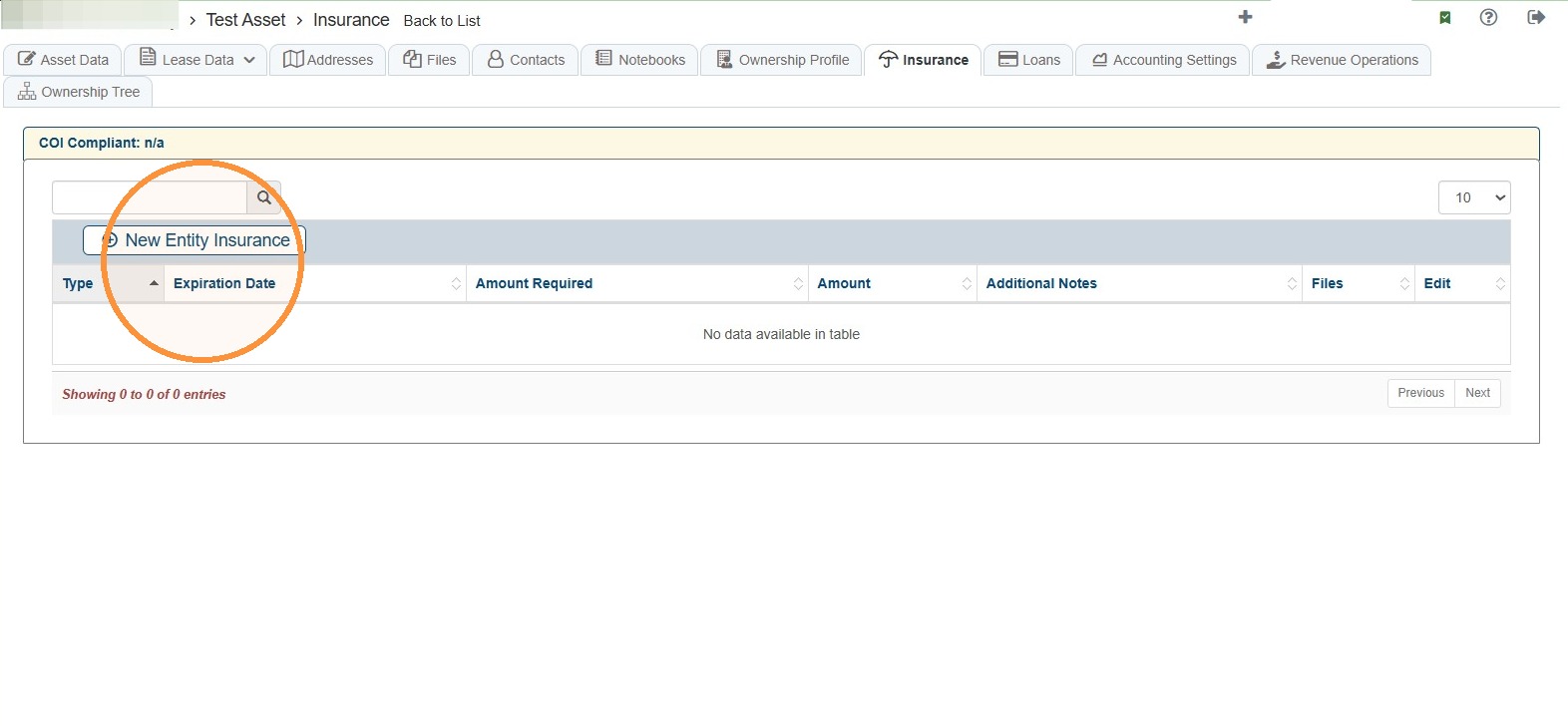
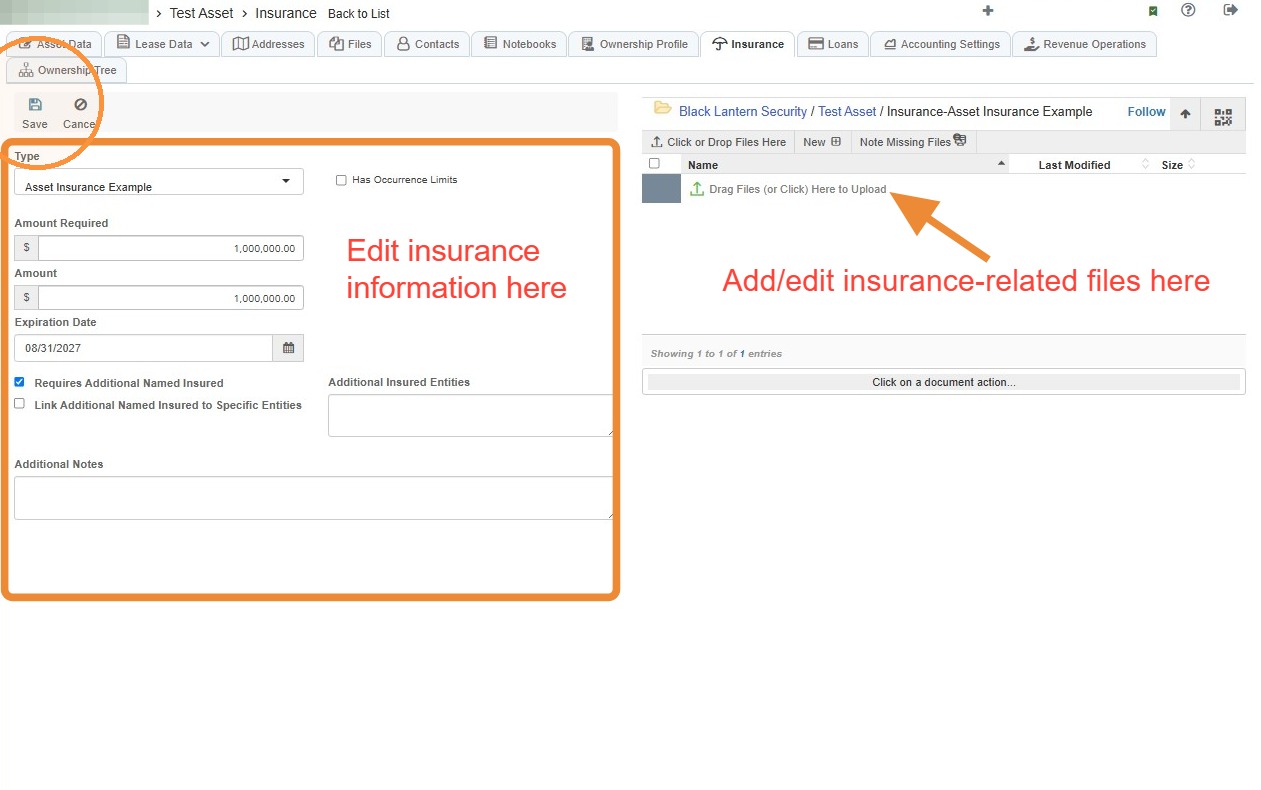
29. To add asset insurance, select the New Entity Insurance > Enter the required information and/or upload related files > Select Save.
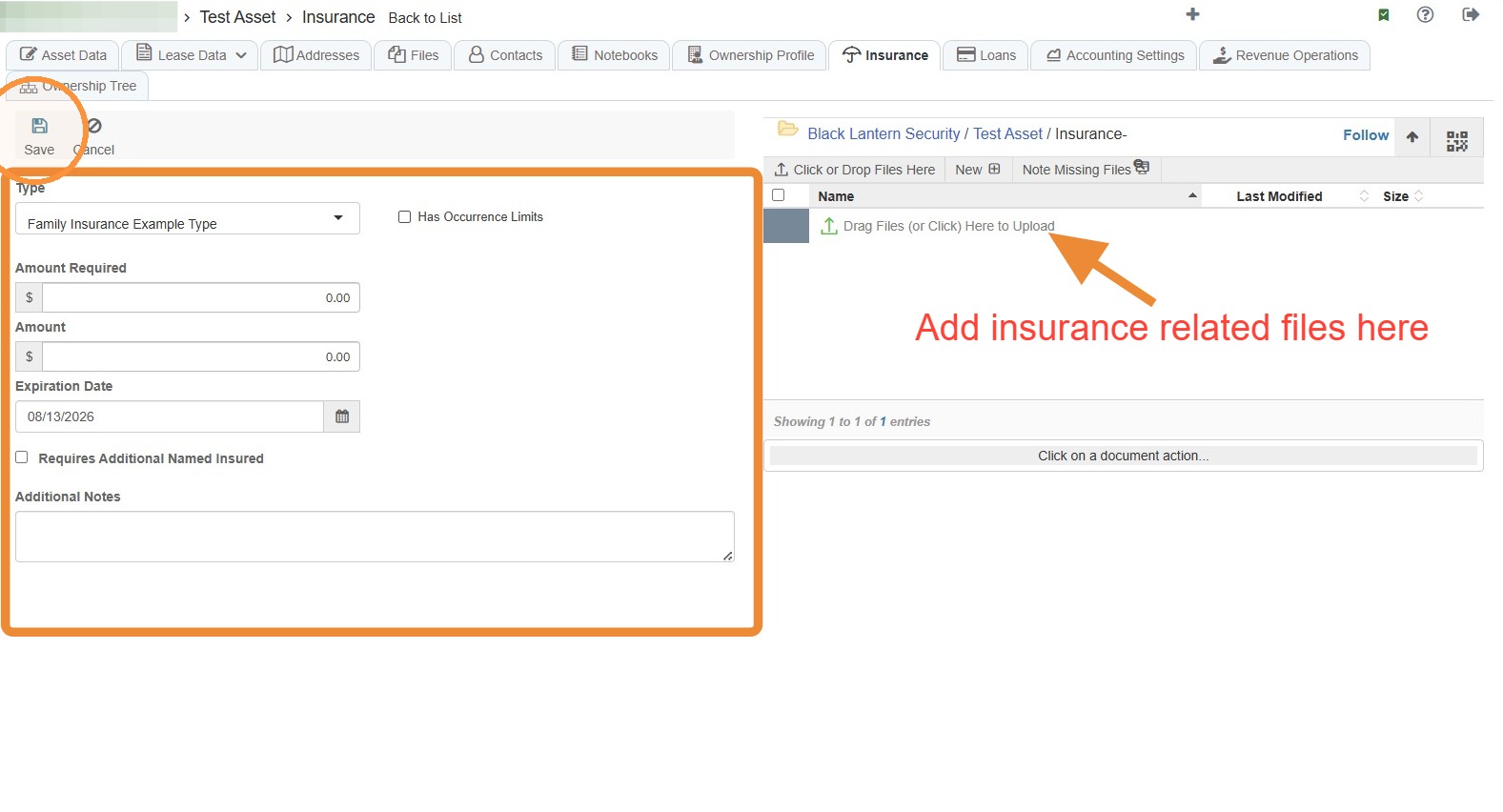
30. Select the Edit icon to update the insurance information and/or to upload files related to the insurance.
Loans Tab
31. To view assets loans, select the Loans tab.
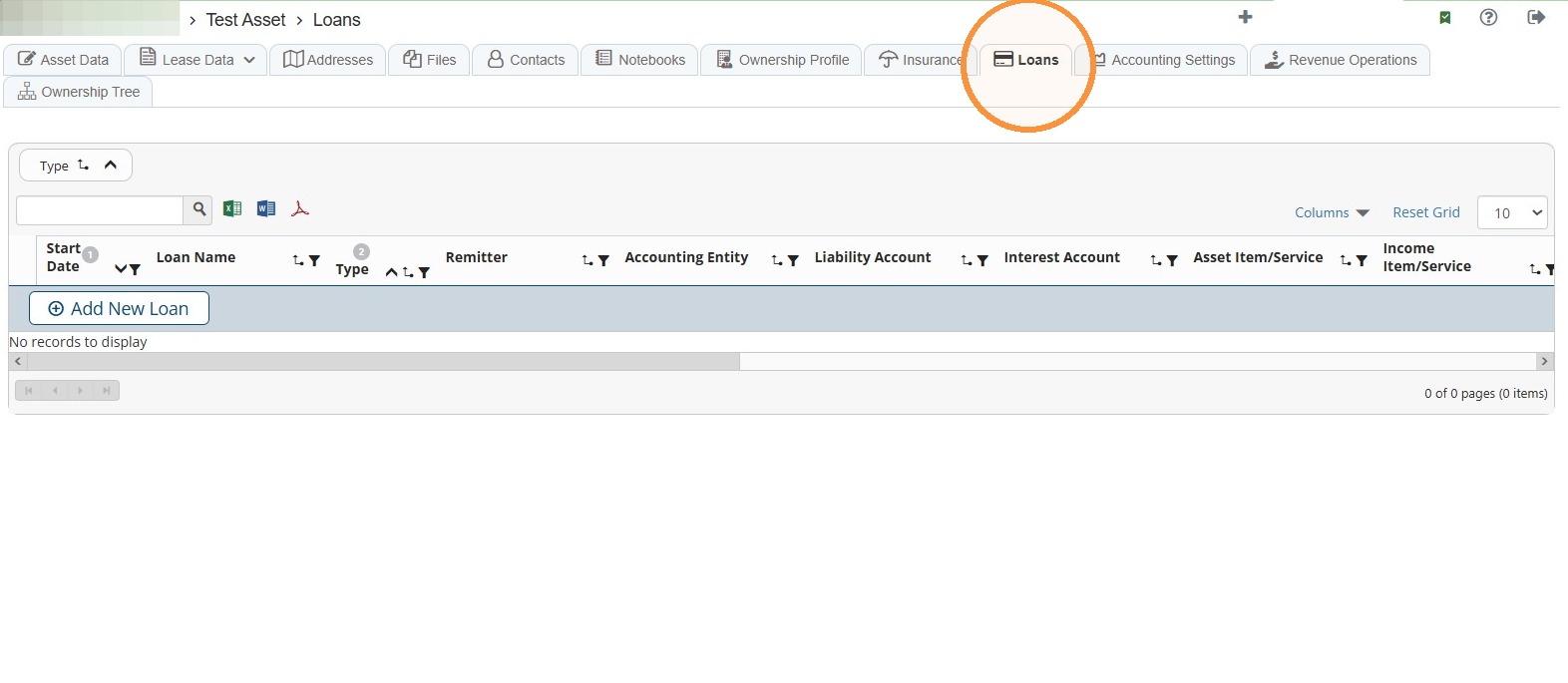
Tip: To learn how to add loans, go to How to Create a New Loan and Record Initial Journal Entry.
Accounting Settings
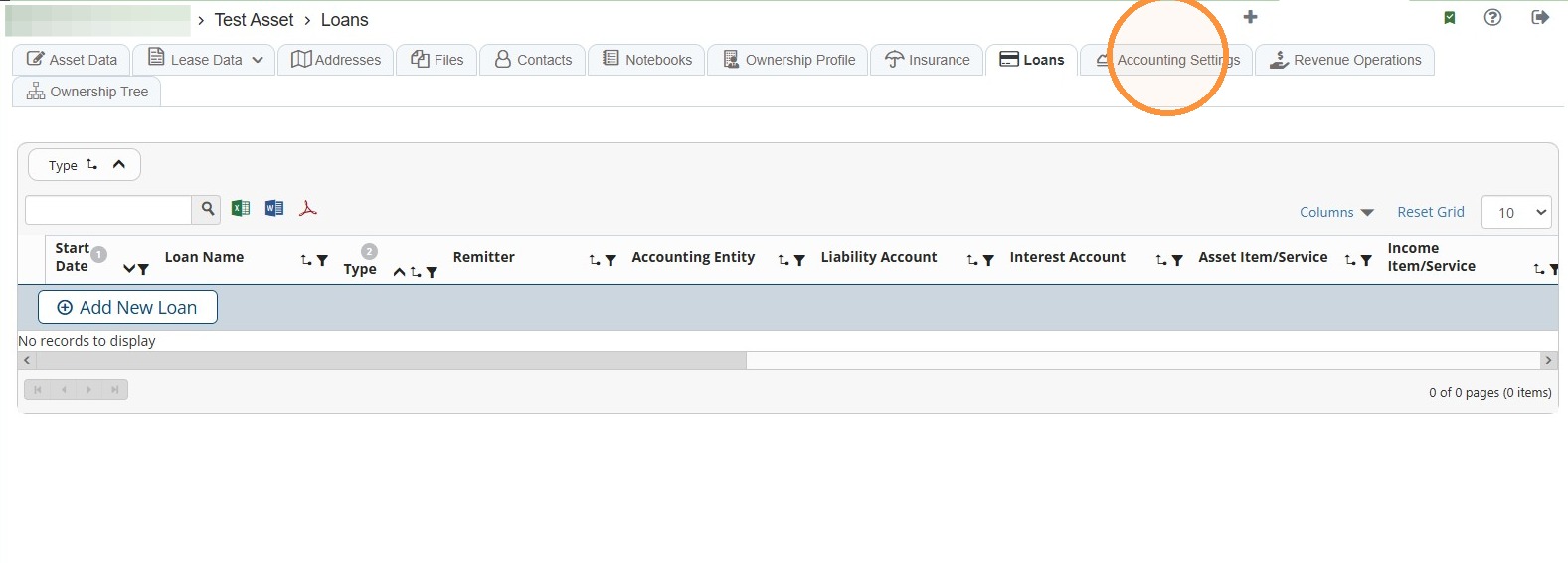
Tip: The Use as Accounting Entity checkbox must be selected on the Asset Data tab for Accounting Settings to appear.
32. To verify ownership, add/edit required payables approval, and/or add/edit insurance compliance requirements, select the Accounting Settings tab.
Related Tutorial(s):
How to Verify Ownership and Agreement for Franchise Use\ How to Enable Payables Approval and Approve Payables
Revenue Operations
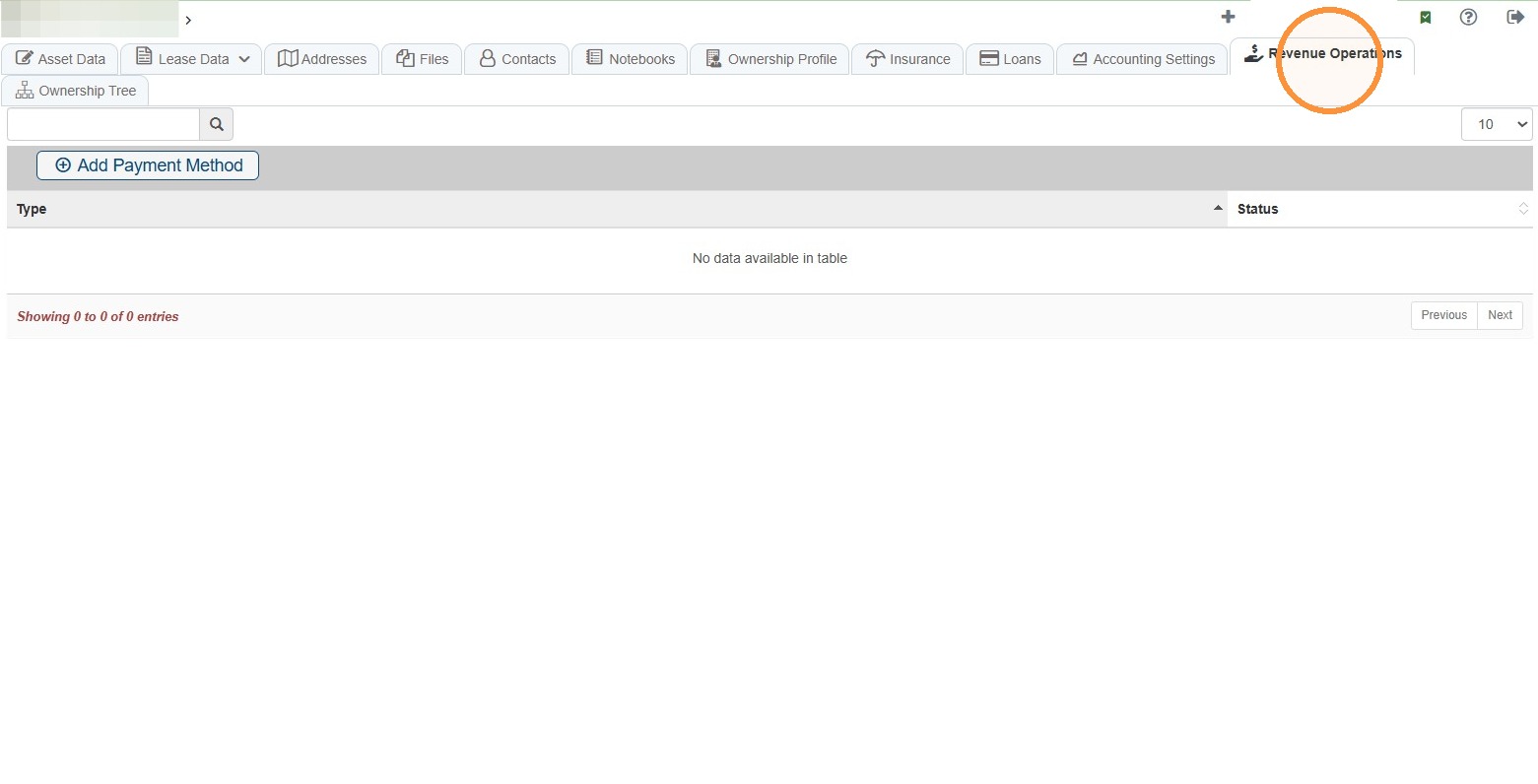
Tip: The Use for Revenue Operations checkbox must be selected on the Asset Data tab for Revenue Operations to appear.
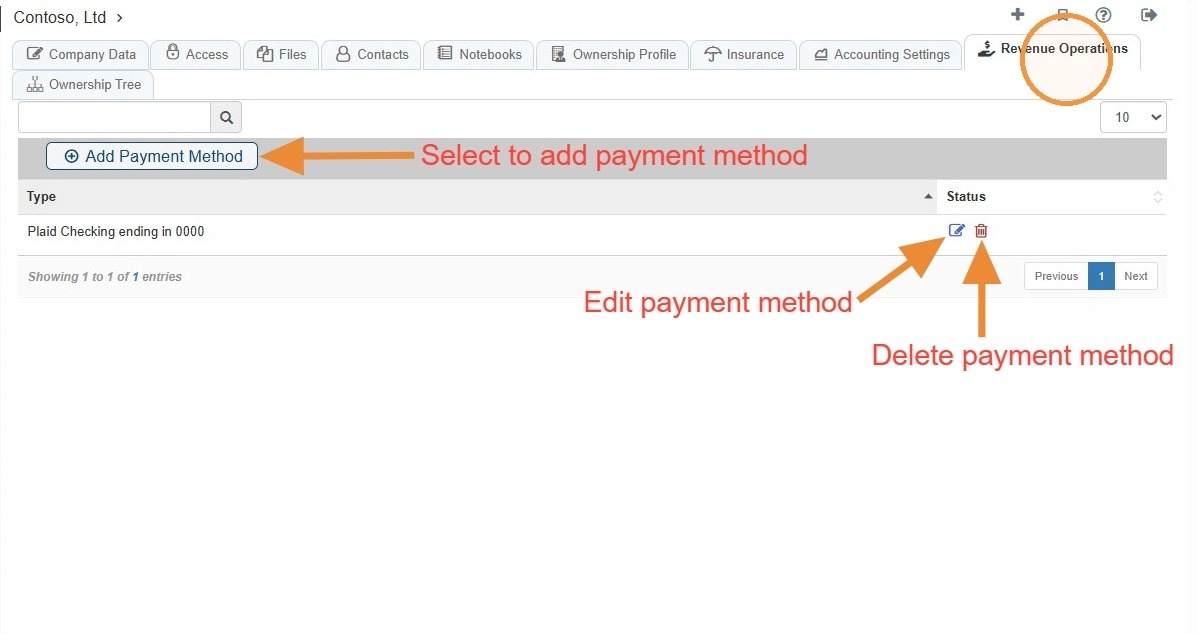
33. To add an asset payment method, select the Revenue Operations tab.
Ownership Tree Tab
Tip: The Ownership Profile Tab needs to be completed for the Ownership Tree to populate.
34. Select the Ownership Tree tab.
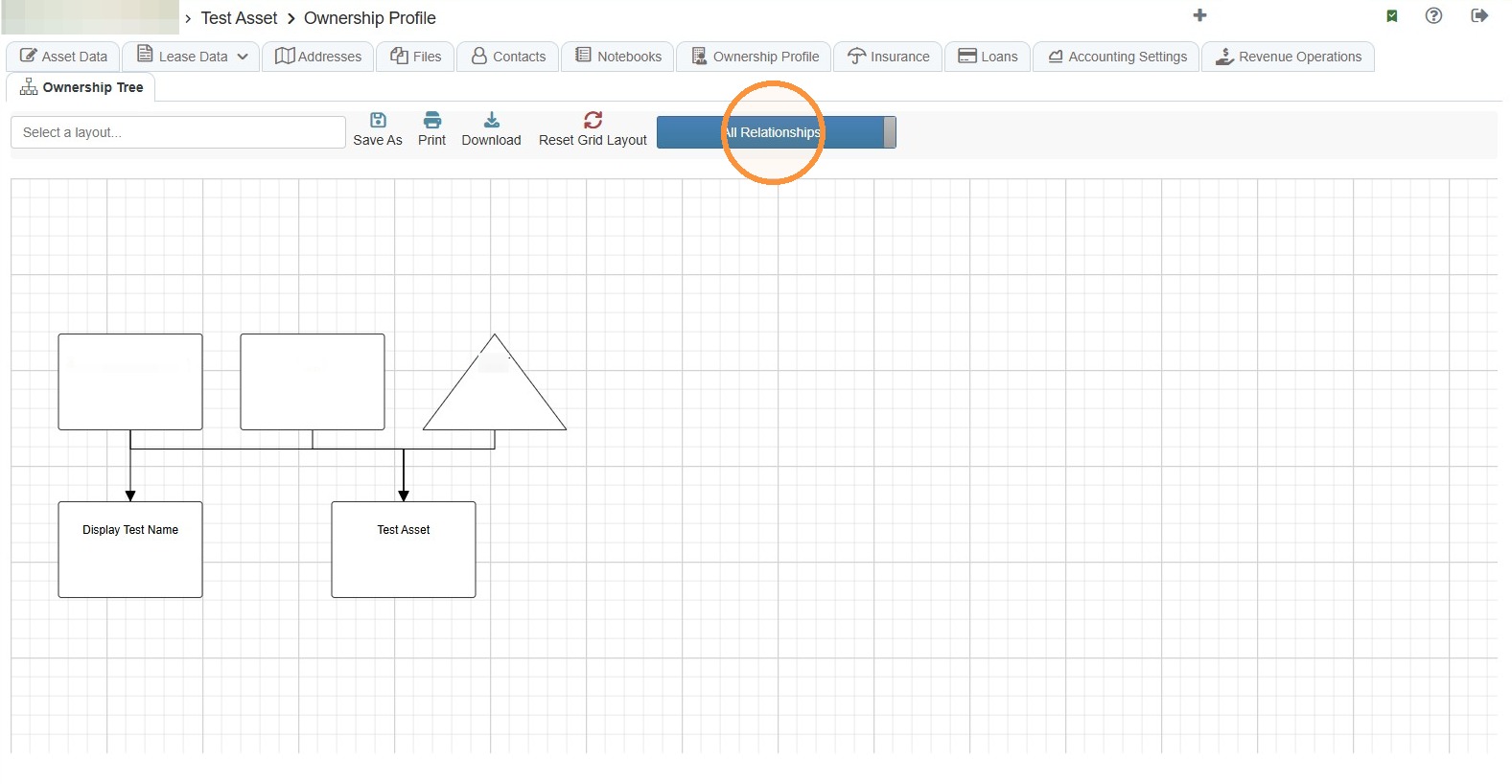
Toggle the view between Beneficial Ownership and All Relationships.
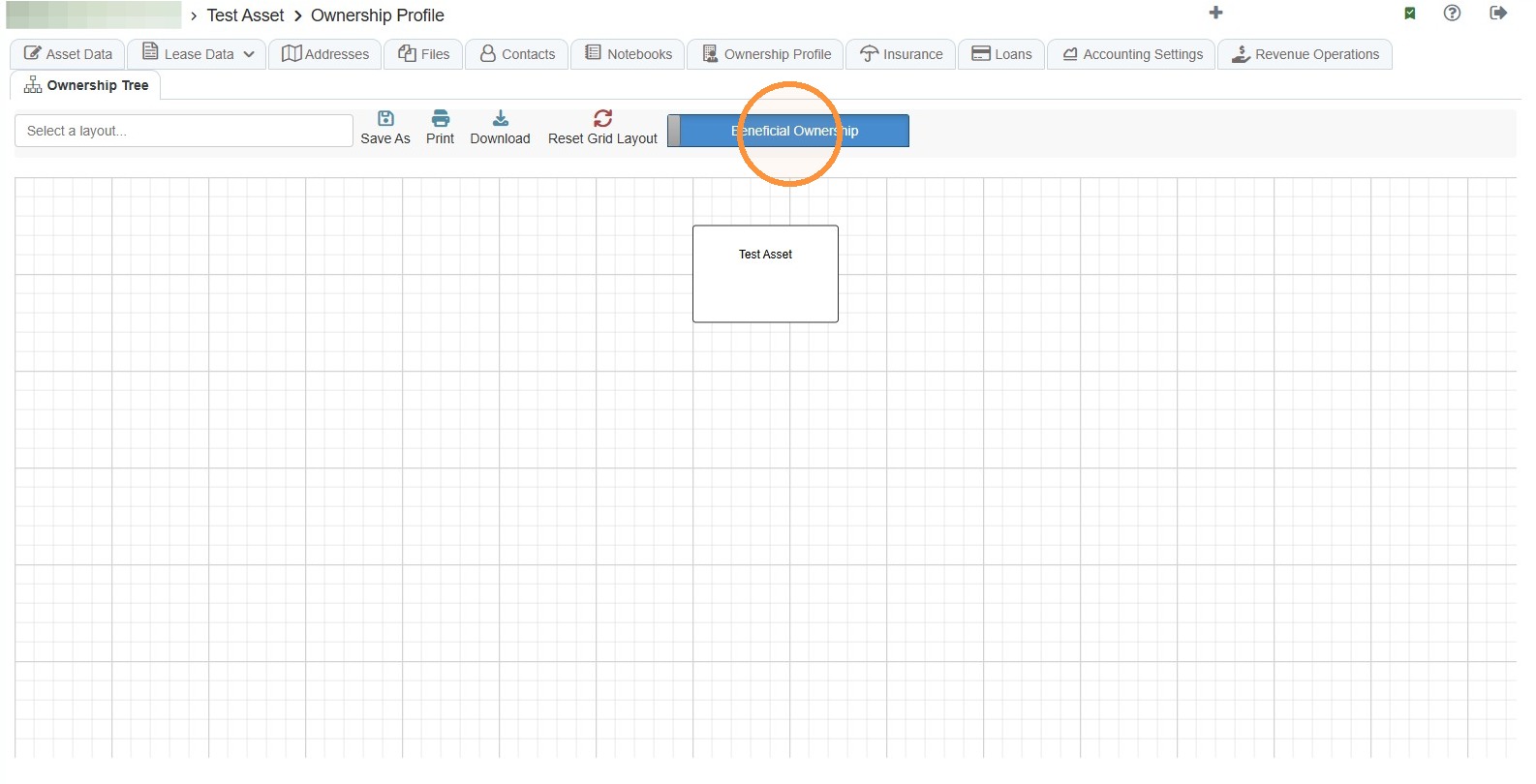
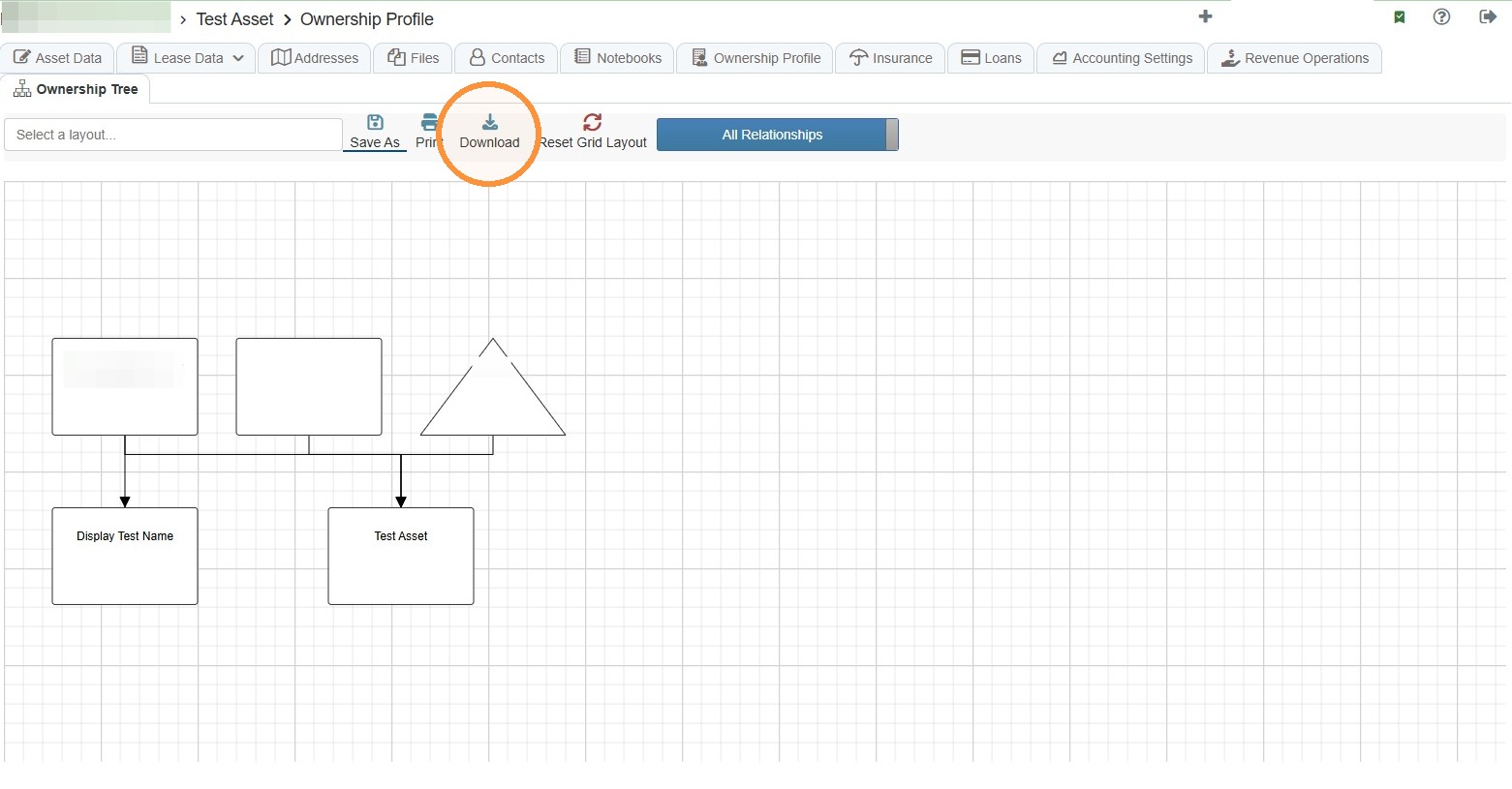
35. Select Download to export the diagram.
Related Tutorial(s):