How to Generate a Balance Sheet Report
This guide shows how to quickly produce and customize a Balance Sheet so you can view current financial position for one or multiple entities. It explains selecting the report, setting date ranges (As of/Period Spans), choosing Accrual vs Cash, adjusting display and PDF/page options, and exporting to Excel or PDF. Follow it to generate tailored, exportable statements for review or distribution.
How to Generate a Balance Sheet Report
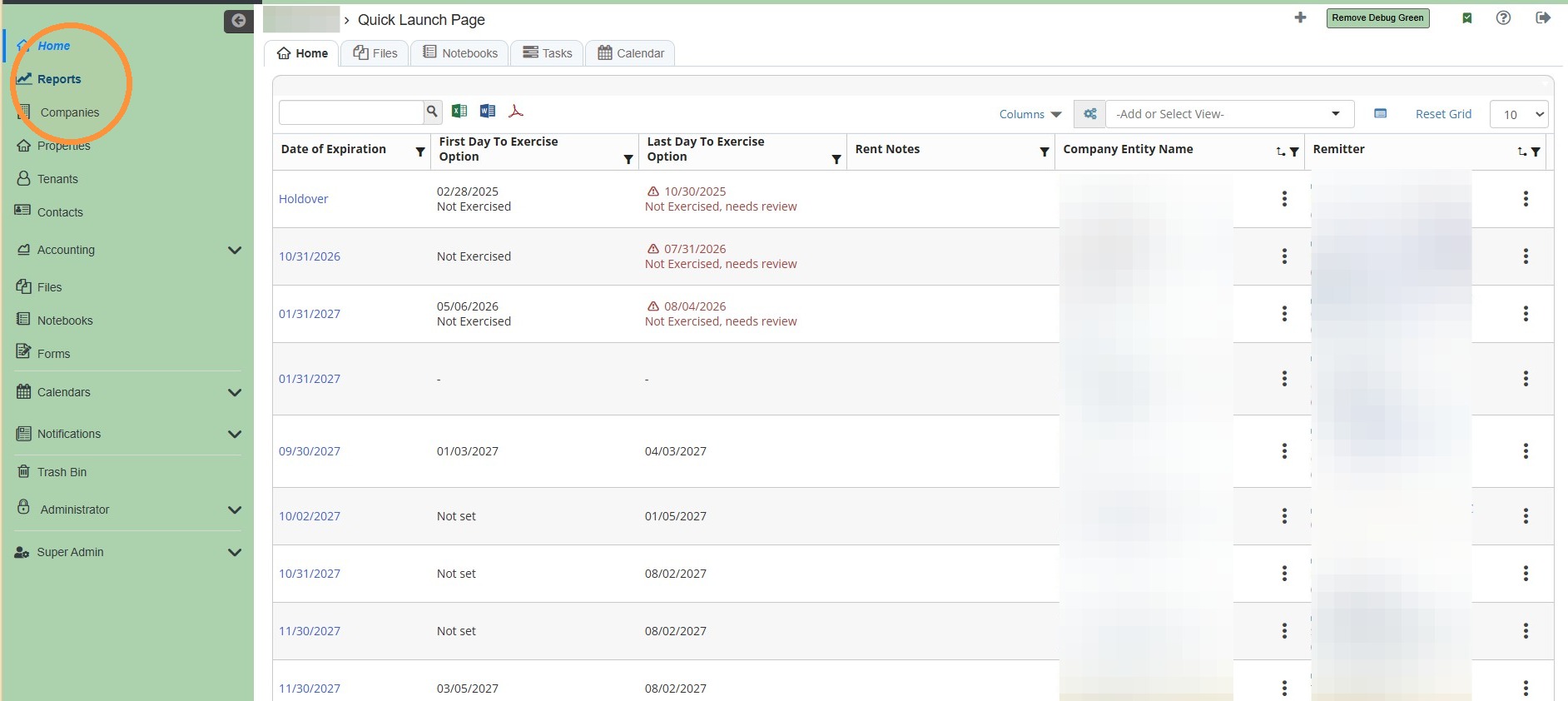
1. From the navigation menu, select Reports.
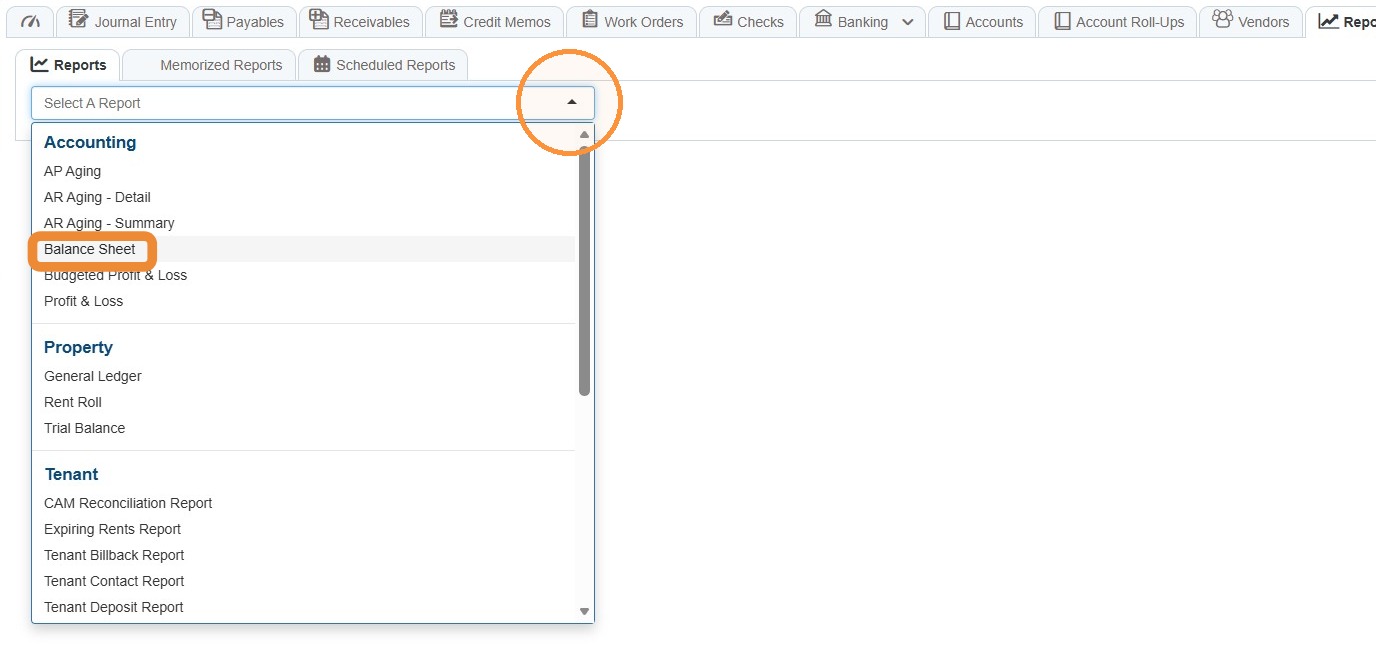
2. Select the Select a Report dropdown menu > Under the Accounting header, select Balance Sheet.\ \ NOTE: Your dropdown options may have different Reports based on your access or any custom reports the RAAMP team builds for you.
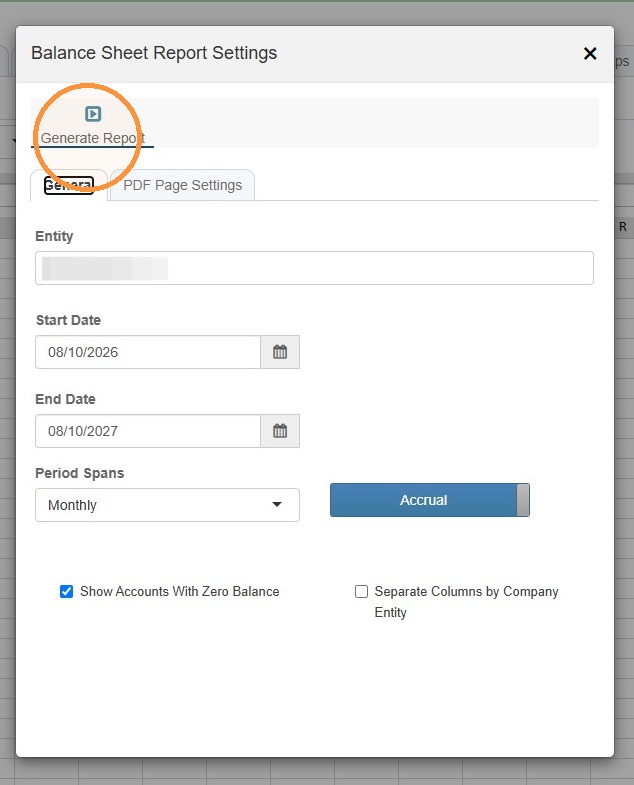
3. Select the Entity field > Select the preferred entity/entities > Select Roll Up, if needed.
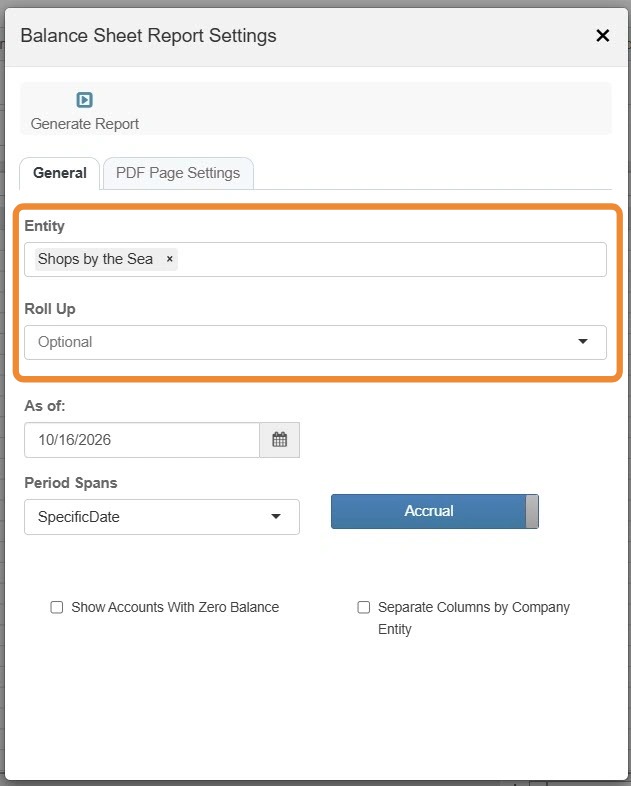
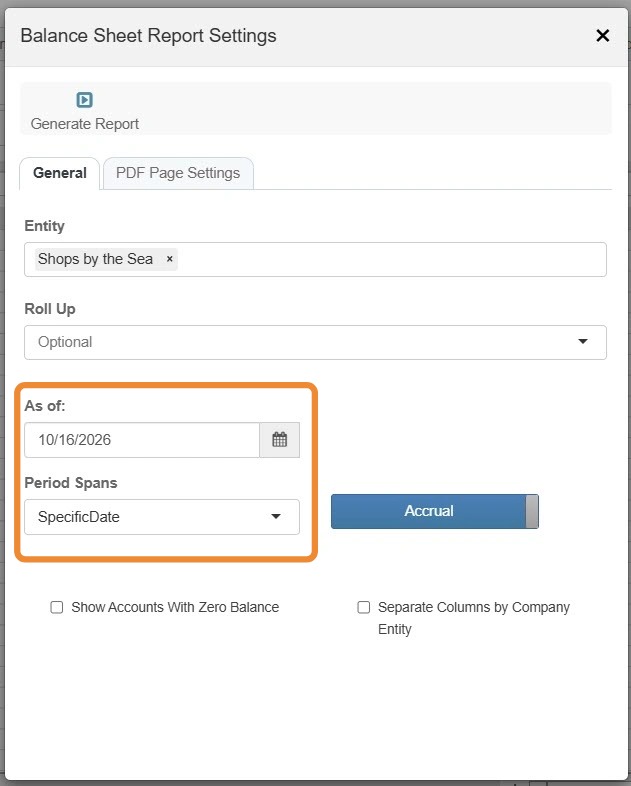
4. Enter information for the As of and Period Spans fields.
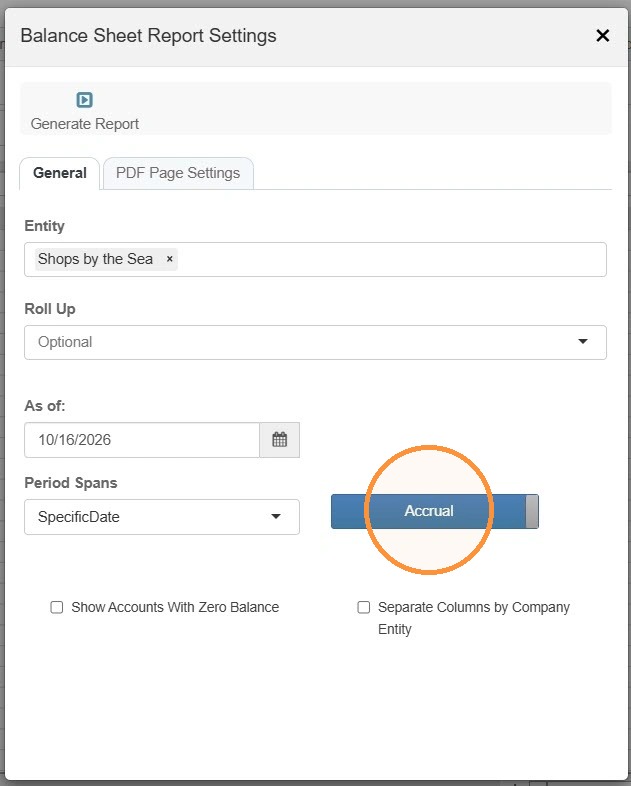
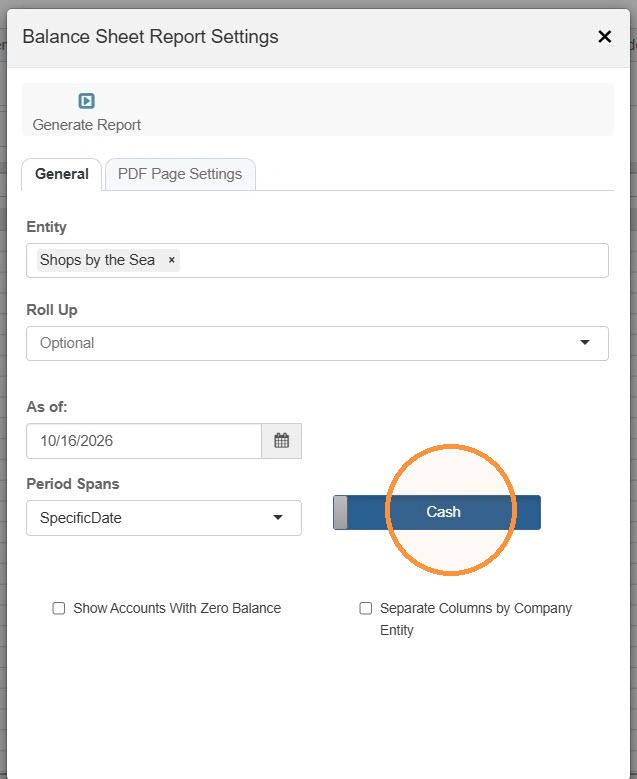
5. Toggle between Accrual and Cash based on your requirements.
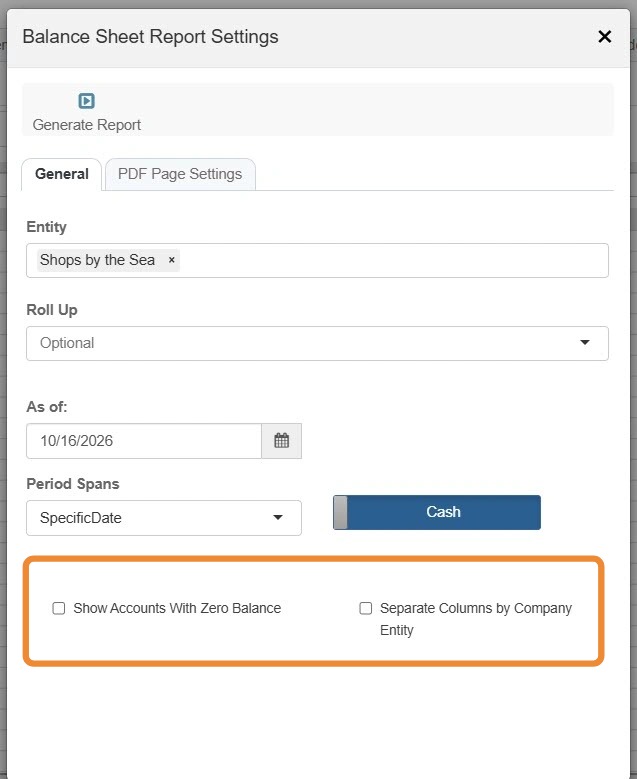
6. Select the appropriate checkboxes.
7. Select the PDF Page Settings tab to set page layout preferences.
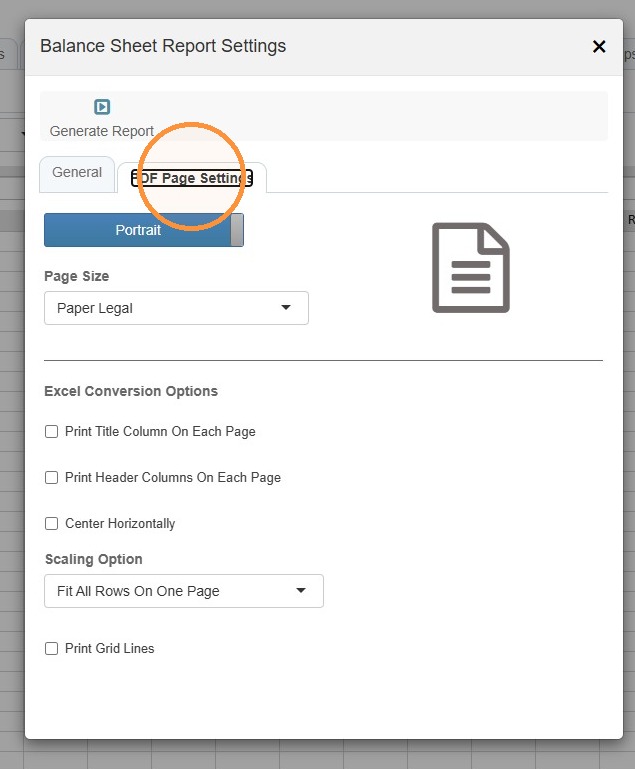
8. After all settings are confirmed, select Generate Report.
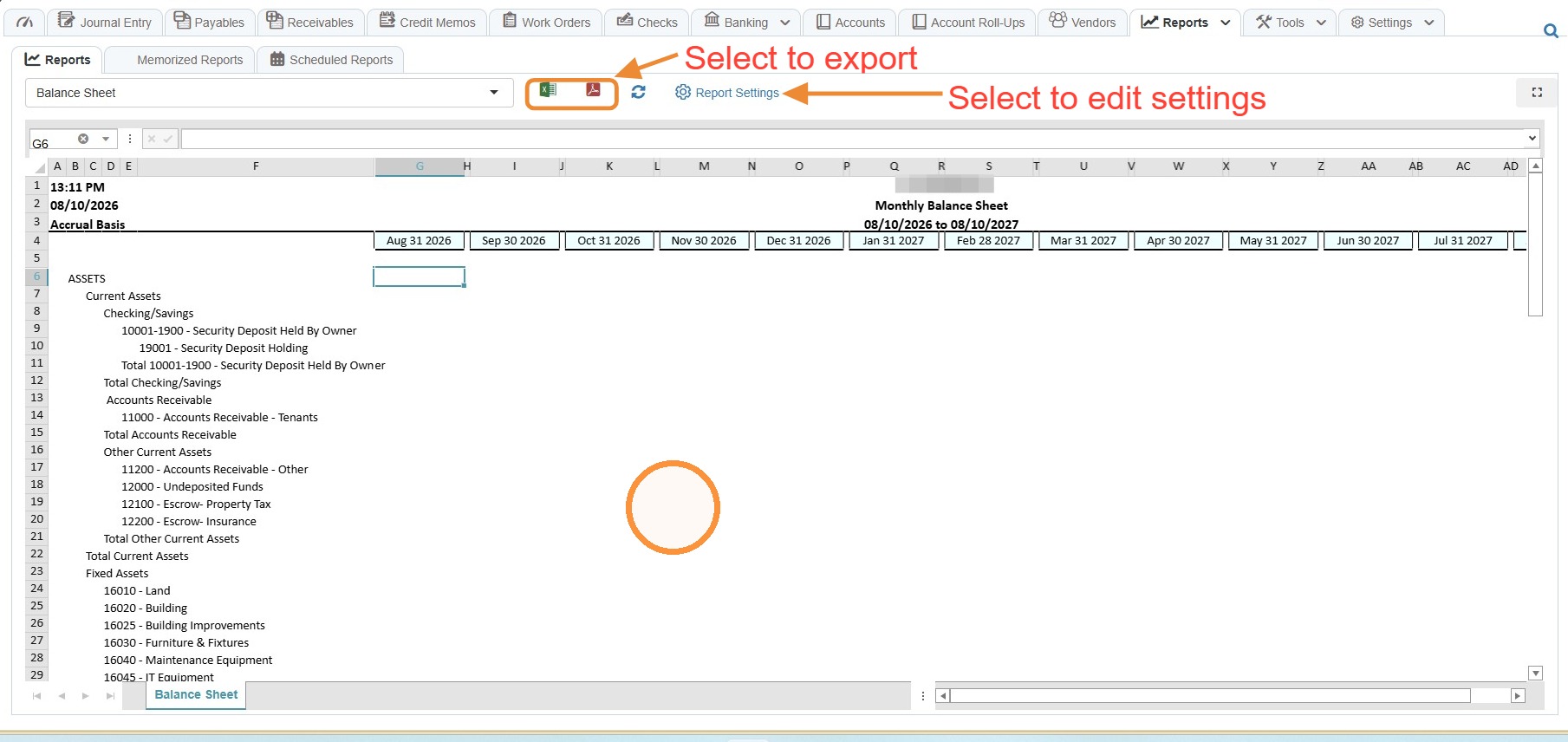
9. Balance Sheet Report Sample View
Select Report Settings to revise the report settings.
Select the Excel or PDF icon to export the report.