Understanding the Contacts Page & Tabs
Contacts Overview
1. Select Contacts from the navigation menu.
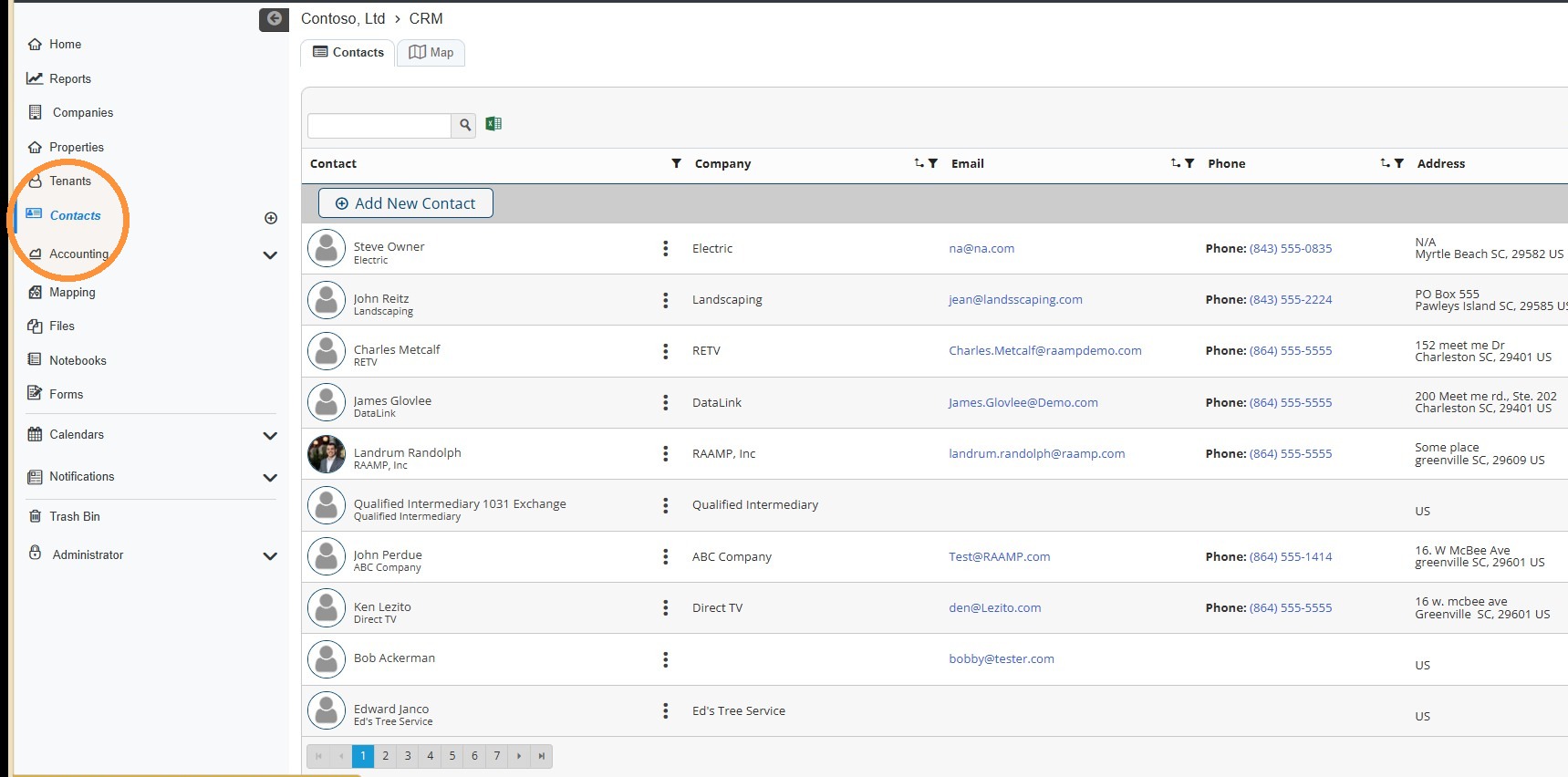
2. Contacts Overview
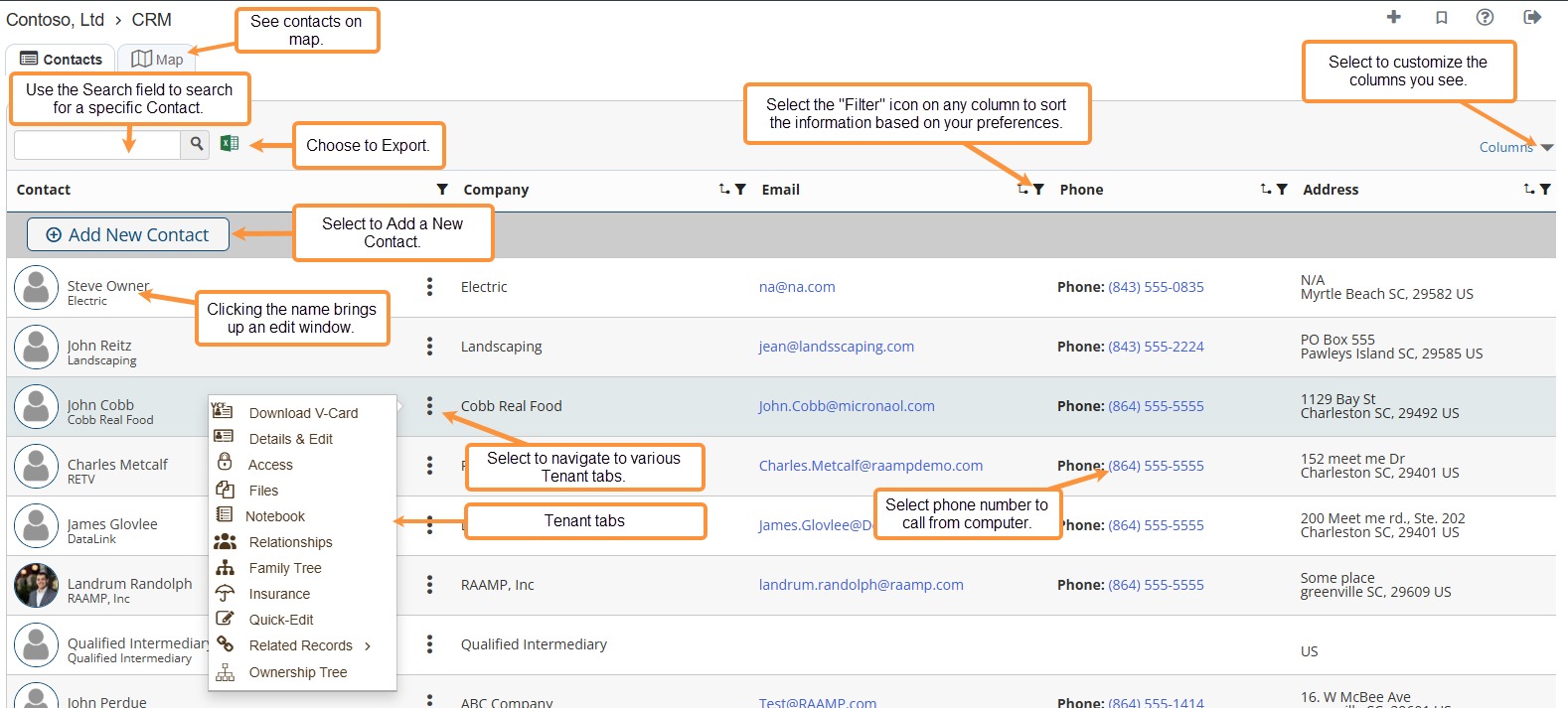
How to Access the Contacts Tabs
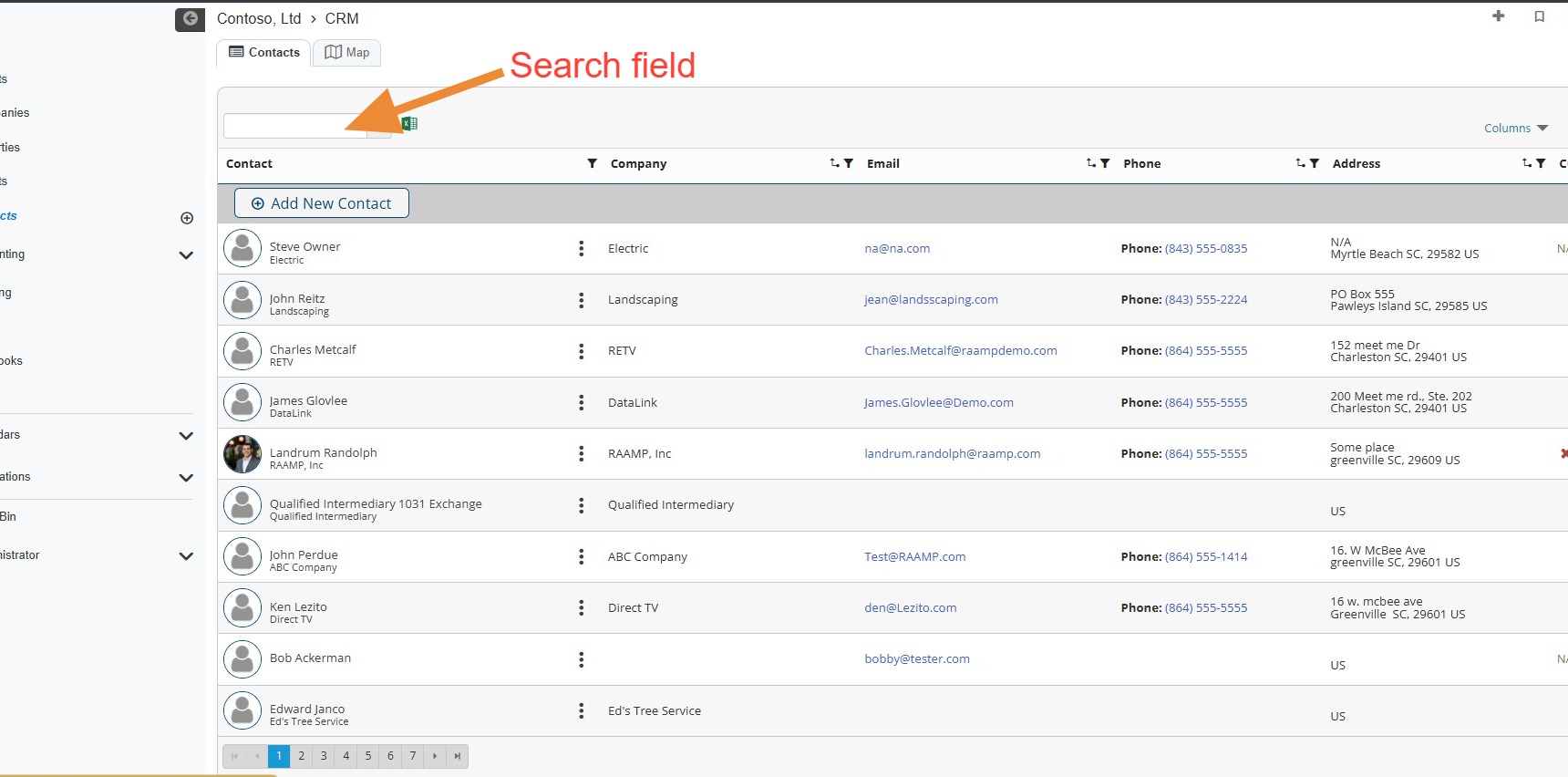
3. Locate the preferred contact.\ \ NOTE: You can locate the contact quickly by searching for it.
4. Select the three-dot menu to the right of the contact to access the contact tabs.
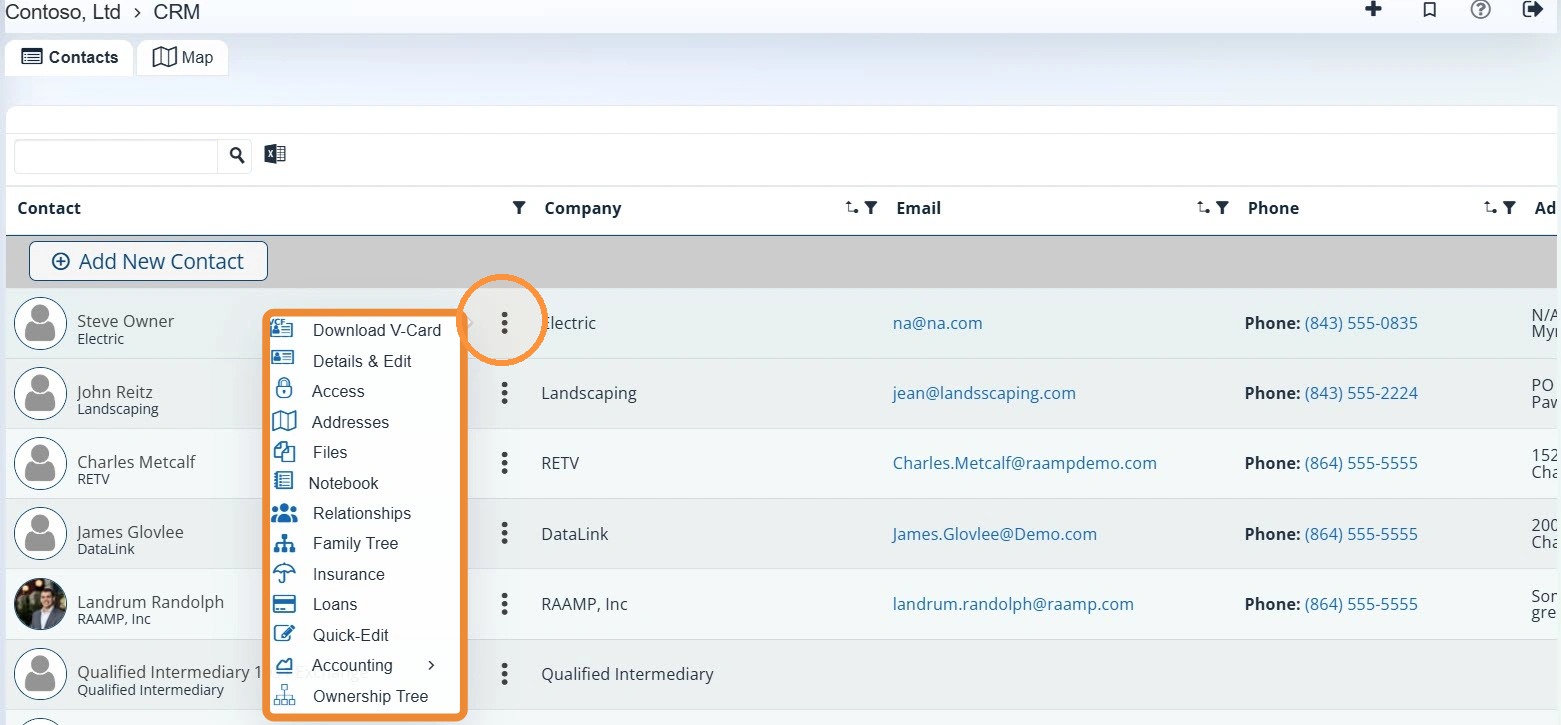
5. The Contact tabs will be available across the top.
Use the tabs to navigate to specific information for the selected contact.

Details Tab
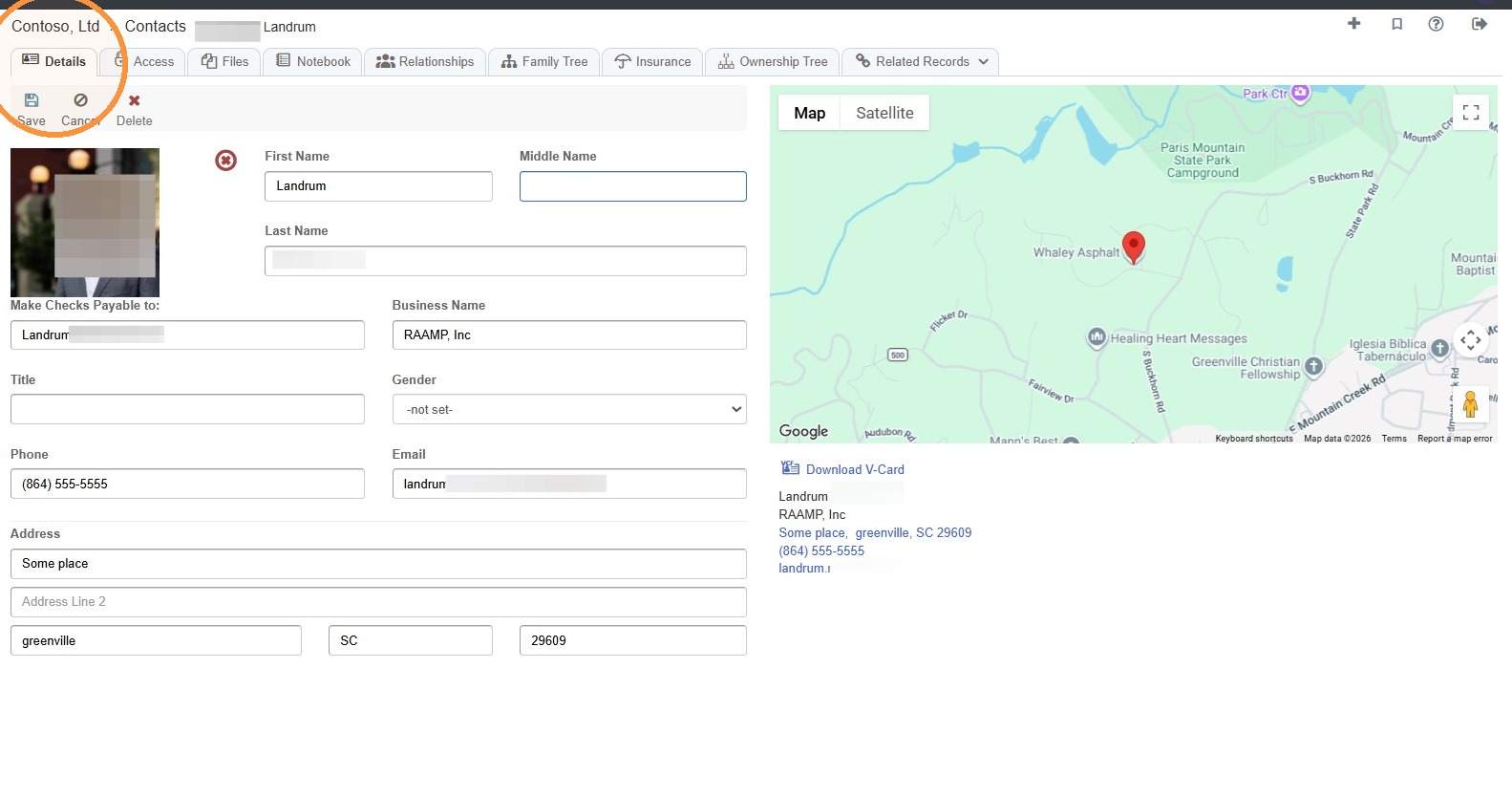
6. To edit the contact's information and photo, select the Details tab.
Related Tutorial(s):
How to Add, Edit, and Delete a Contact
Access Tab
7. To set permission restrictions, select the Access tab > Select the Permission Restrictions dropdown menu > Select the appropriate access option.
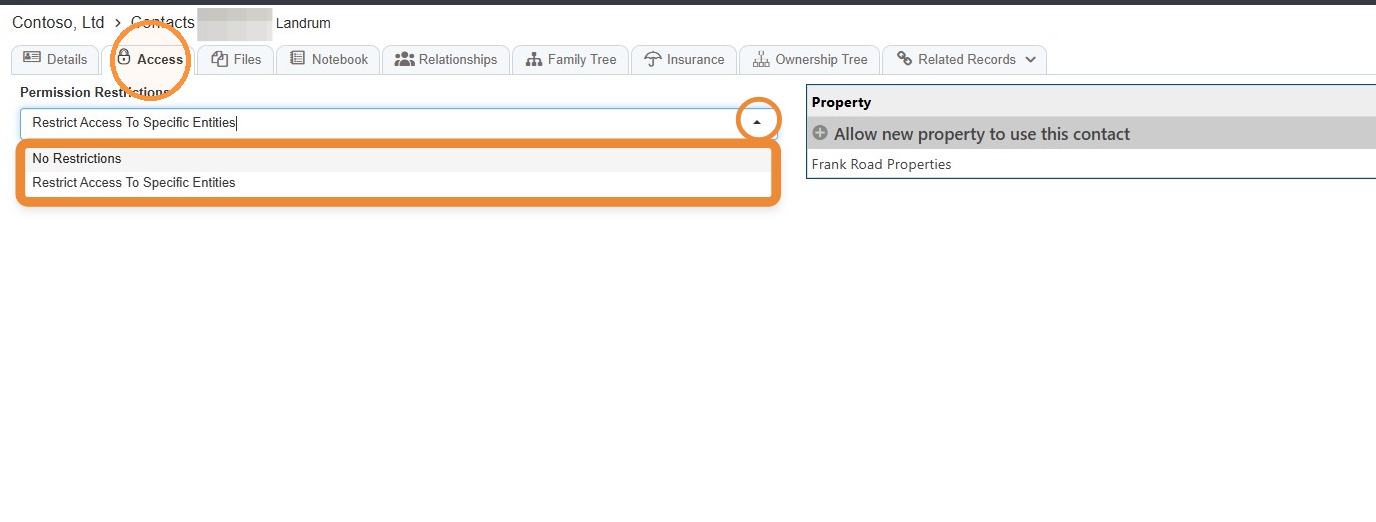
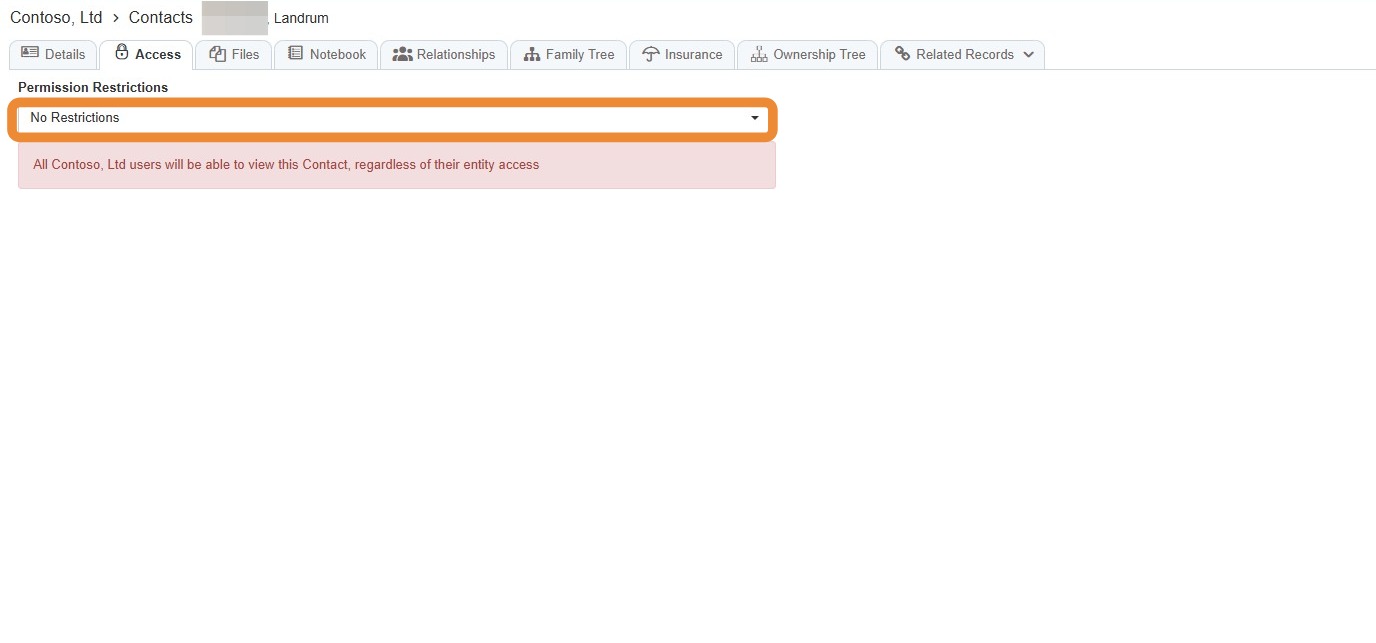
8. No Restrictions: All users will be able to view the Company, regardless of their entity access.
9. Restrict Access to Specific Entities: Only users who have access to entities in the property list will be able to view the Company.
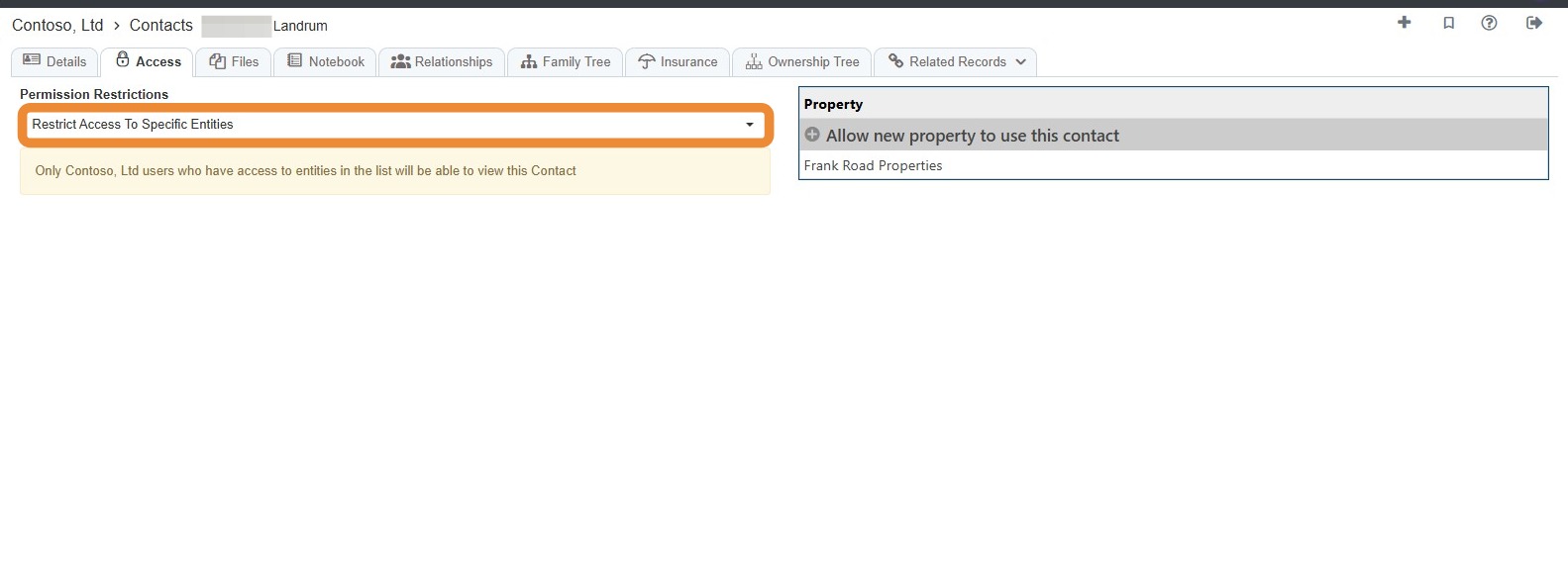
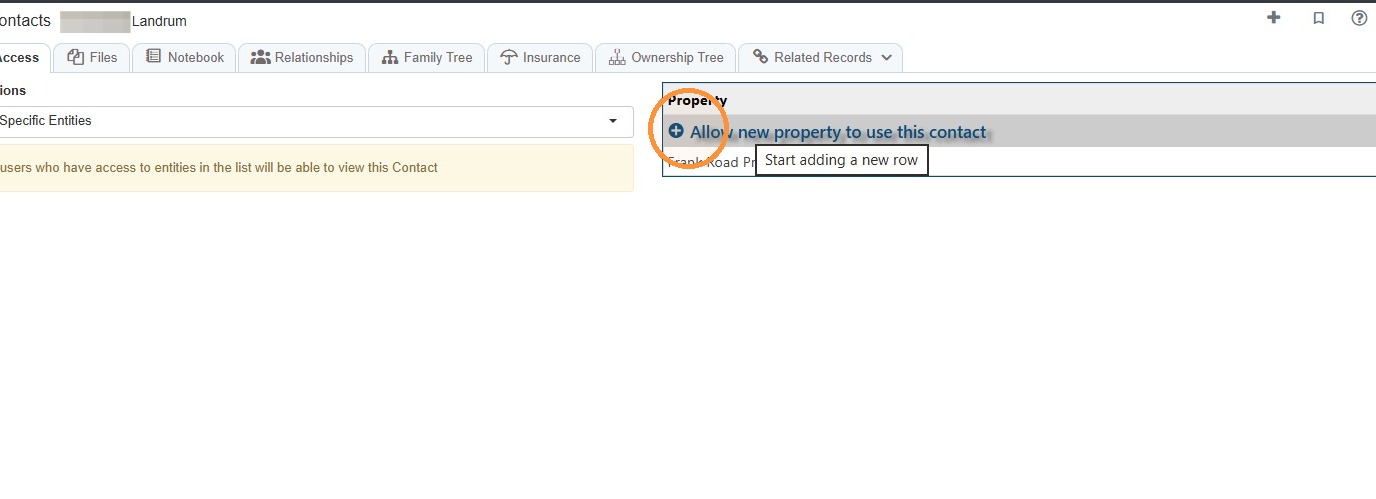
10. To add property access select Allow new property to use this company.
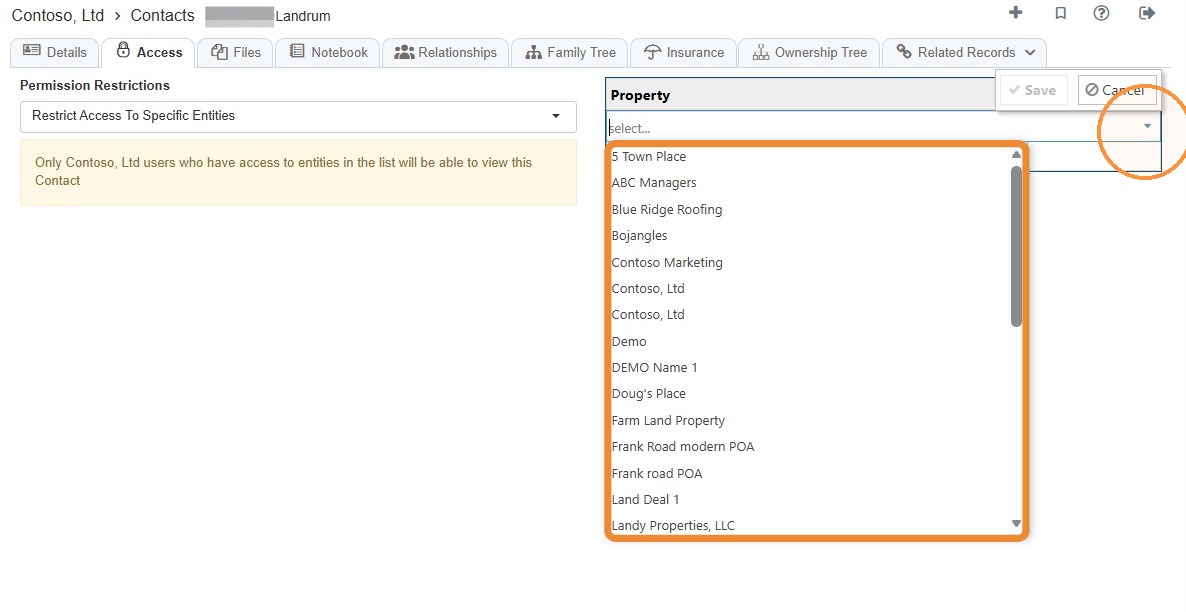
11. Select the Property dropdown menu or enter the property name.
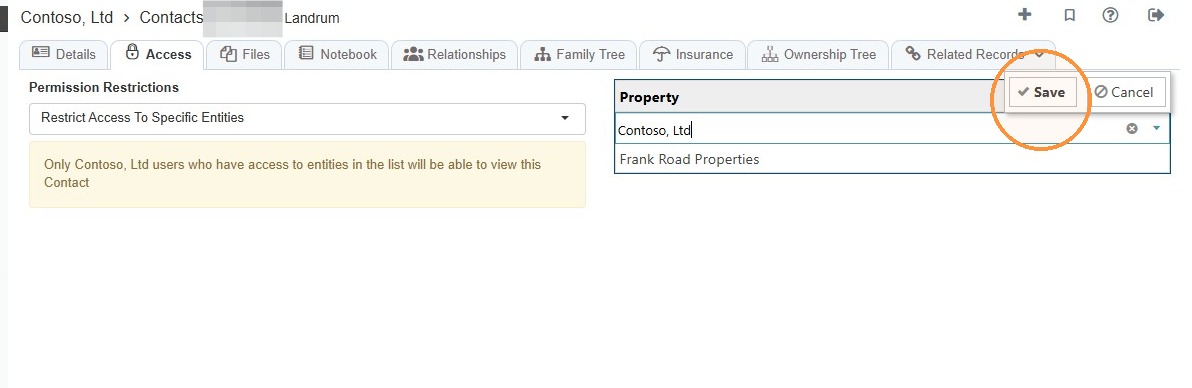
12. Select Save.
Addresses Tab
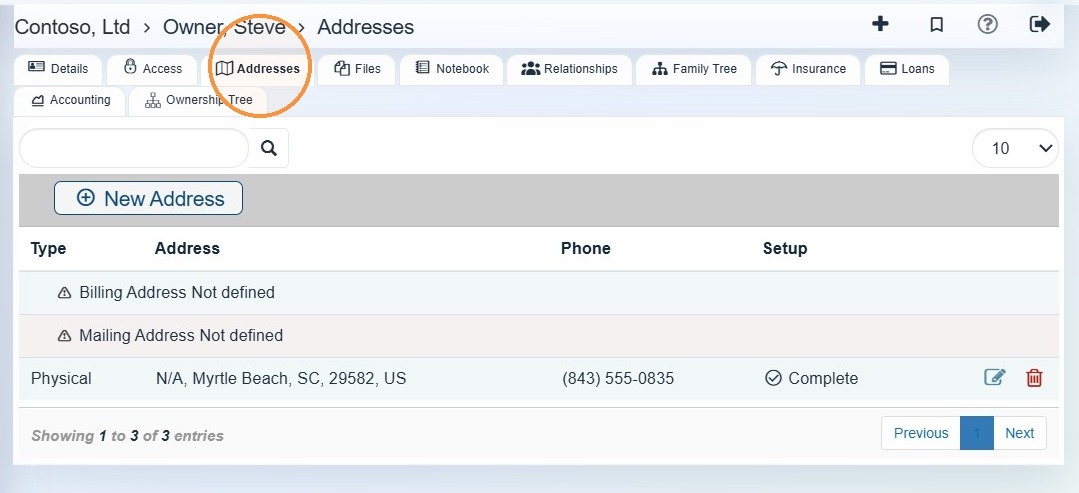
13. Select Addresses to view locations and location-specific phone numbers.
This tab stores physical or mailing locations associated with the family, such as:
- Billing address
- Mailing address
- Physical address
Each address can include its own phone number. For example, the billing phone number shown on the Addresses tab is the phone number associated with that billing location.
Files Tab
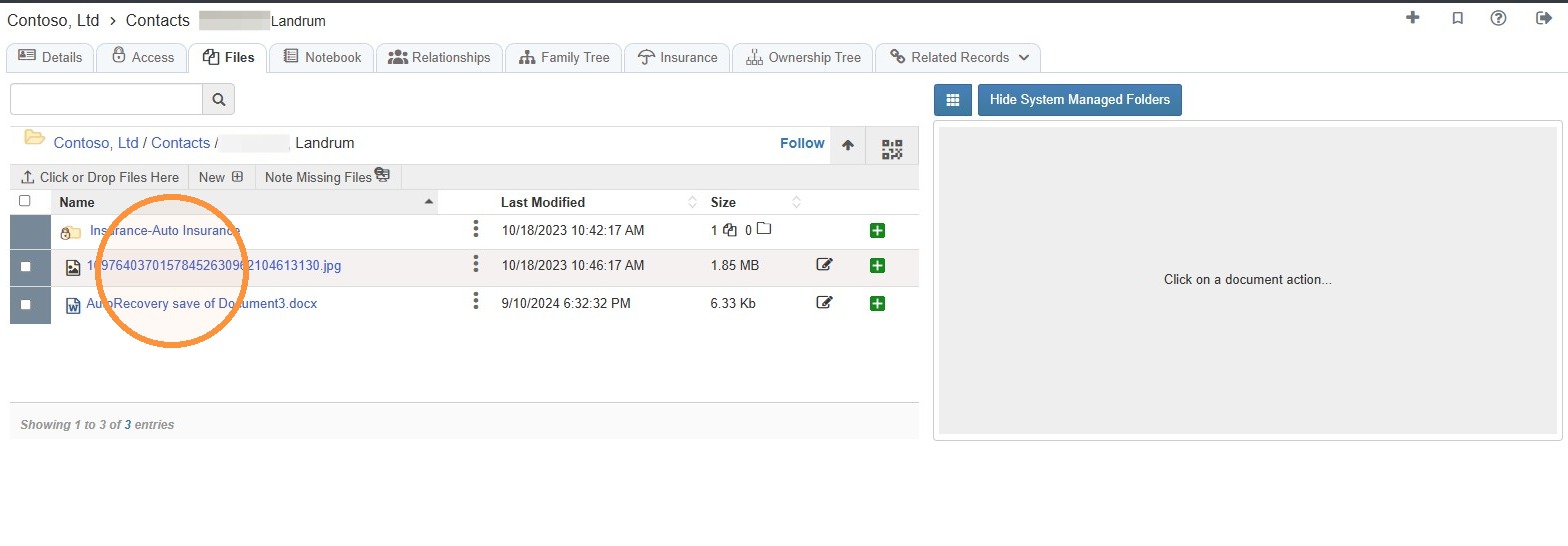
14. Select the Files tab to view all files for the contact.
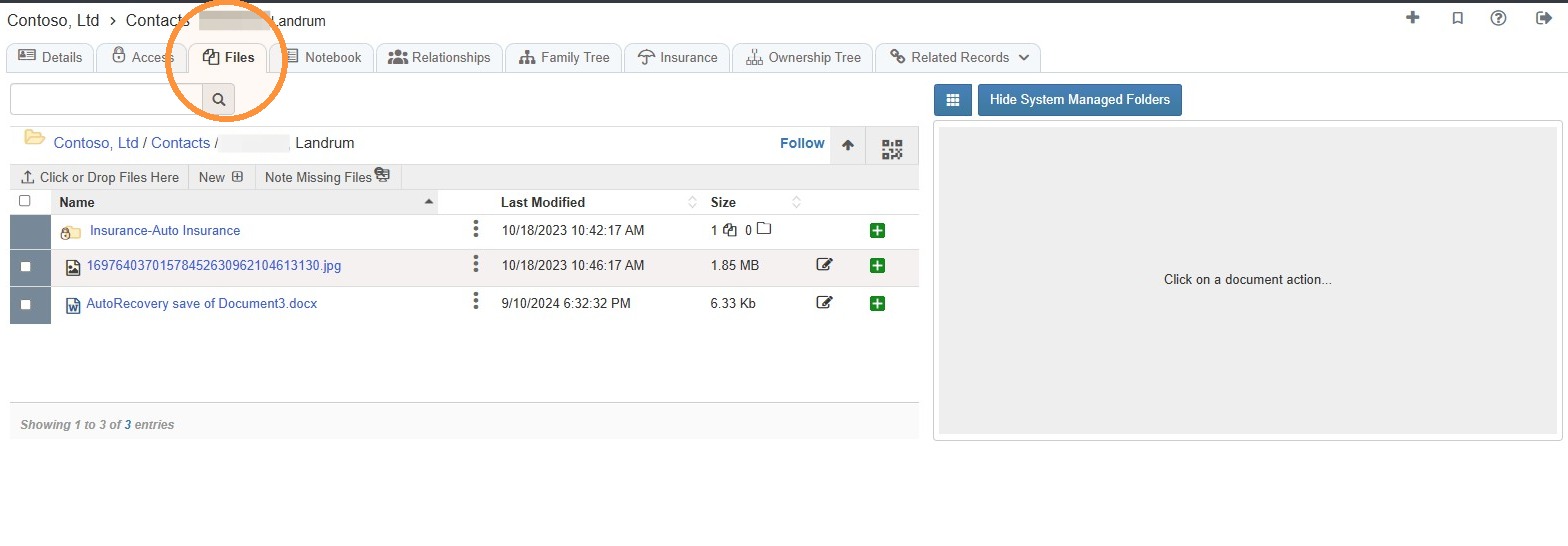
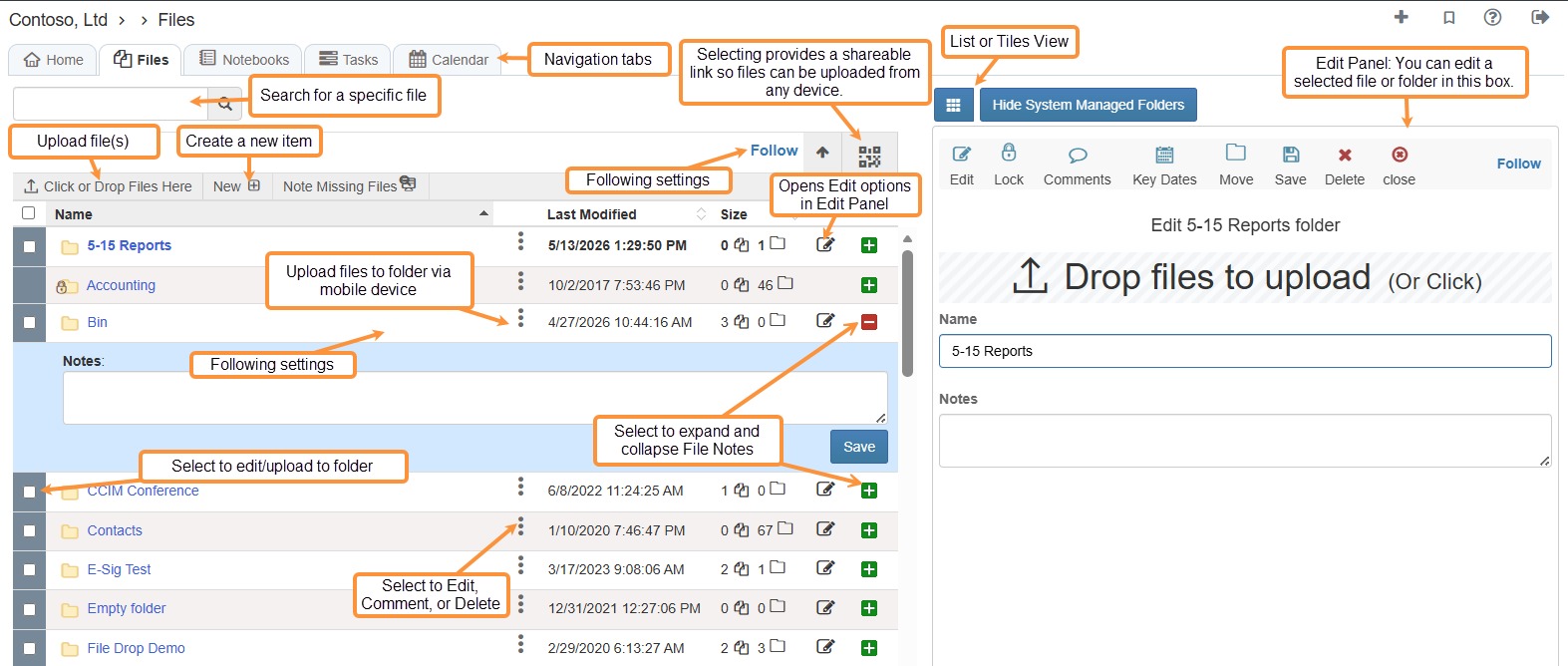
15. Files Overview
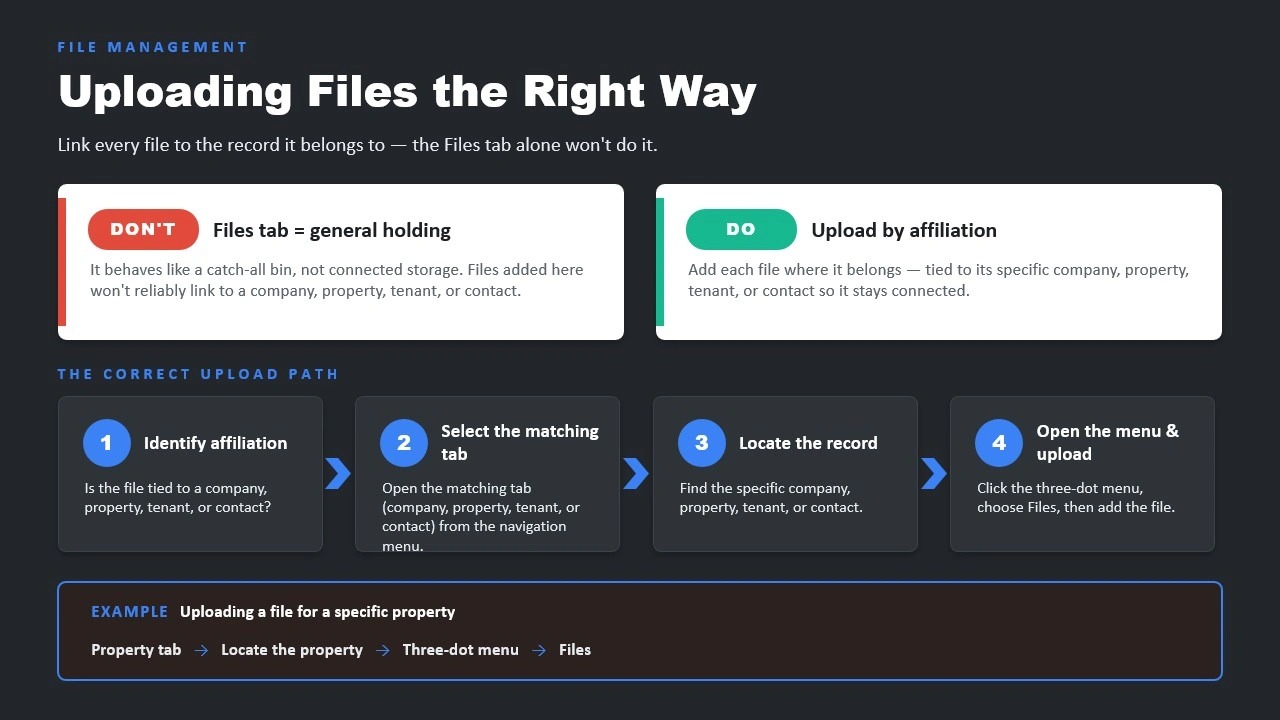
Tip: Remember to upload files by affiliation - tied to its specific company, property, tenant, or contact so it stays connected.
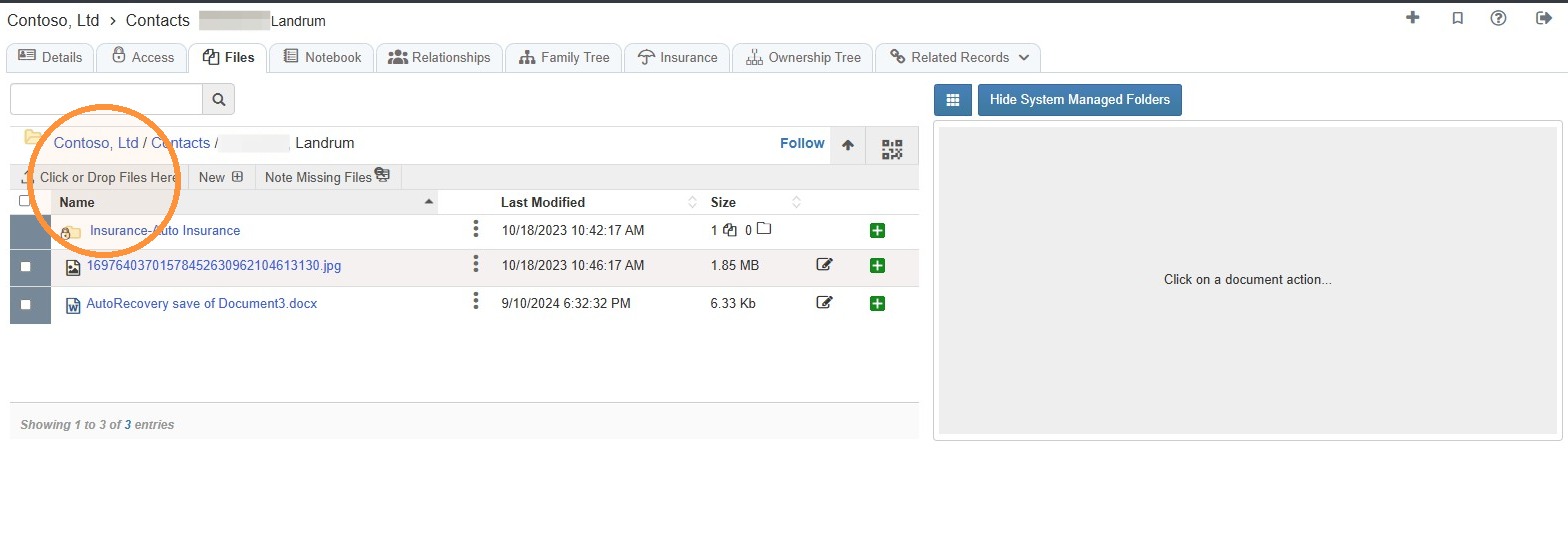
16. To upload a new file for the contact, select Click or Drop Files Here.
NOTE: You can also drag and drop a file from your computer to the files interface.**
17. To edit a file, select the file or the edit icon.
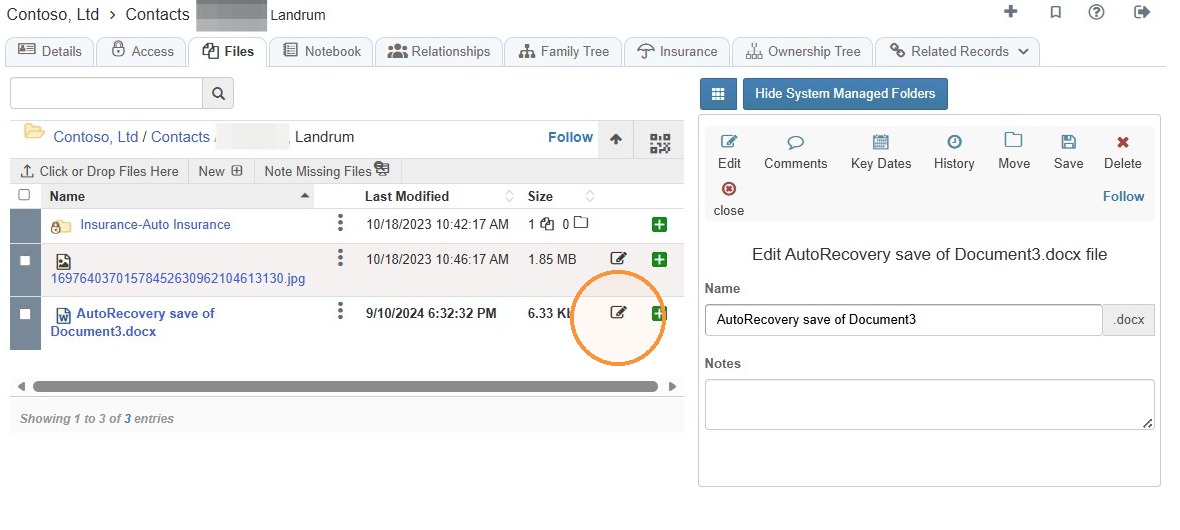
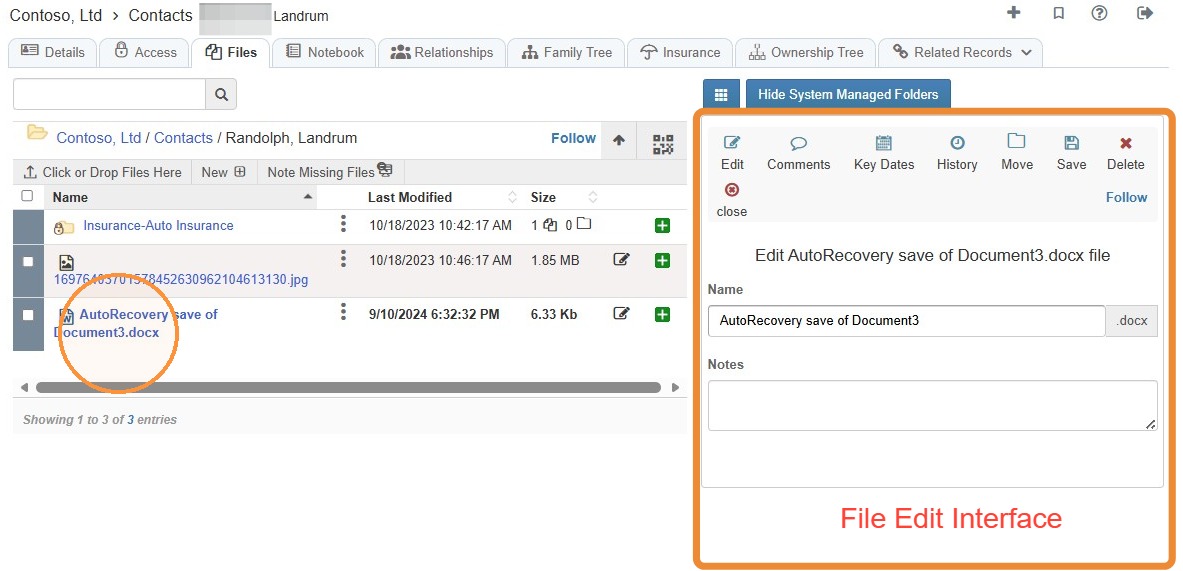
18. Once a file is selected, the file's edit interface will open.
From here, you can complete various tasks like requesting a signature, adding notes, reviewing the file history, etc.
Related Tutorial(s):
How to Add, Delete, & Manage Access Options for File Folders\ How to Follow a Folder & Receive Notifications\ How to Note Missing Files\ How to Upload Missing Files and Supporting Files\ How to Add a Key Date to a File\ How to Share Files\ How to Upload Files from a Phone Camera/Photos\ How to Upload File Revisions and Preserve Prior Versions\ How to Create and Send Signature Requests\ How to Set Signing Order
Notebook Tab
19. Select the Notebook tab.
The Notebook tab allows you to schedule important dates, tasks, and notifications specific to the company.
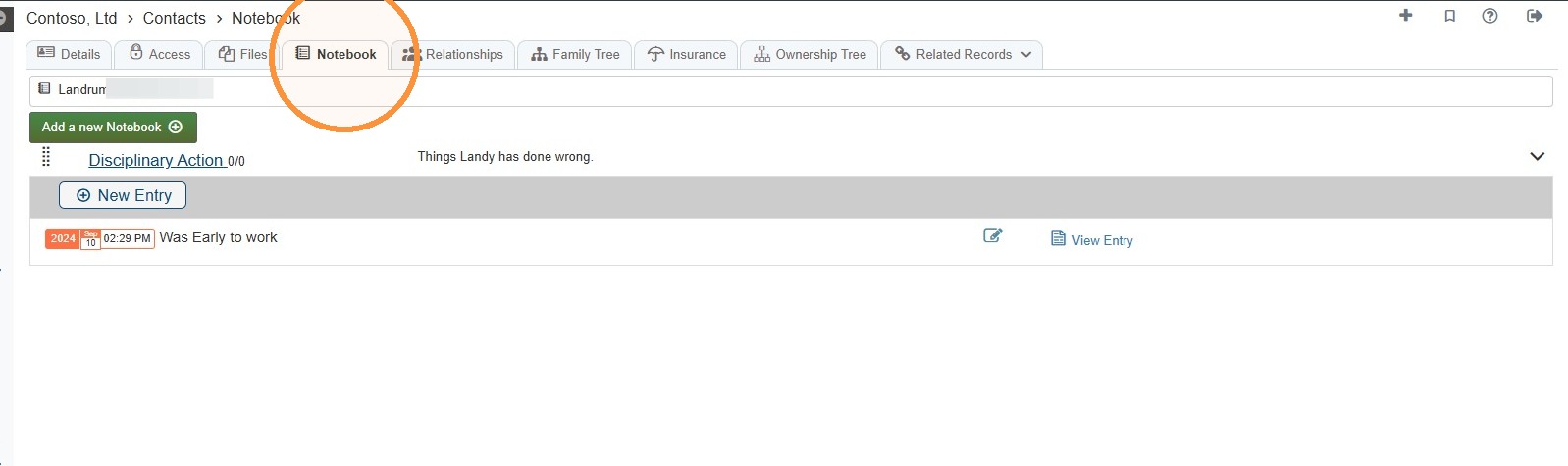
20. Notebook Overview
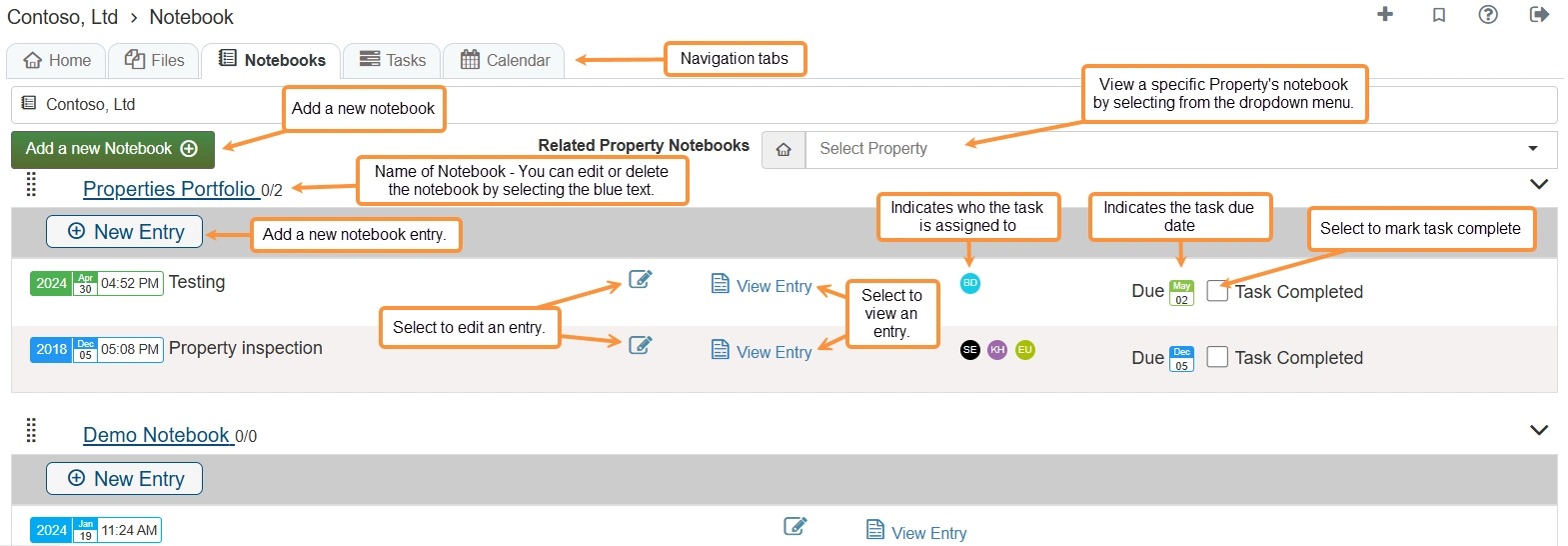
Tip: To learn more about creating Notebooks and Tasks, see How to Create a Notebook, Entry, and Task and How to Create Dependent/Linked Tasks.
Relationships Tab
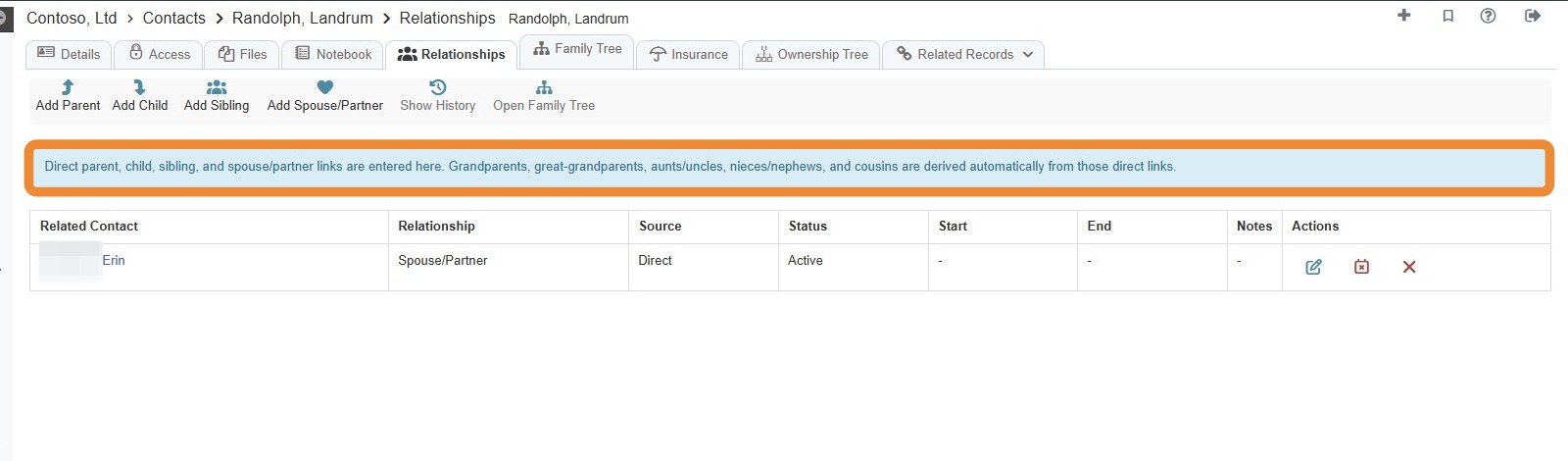
21. The Relationship tab allows you to add the contact's family members to build out their Family Tree.
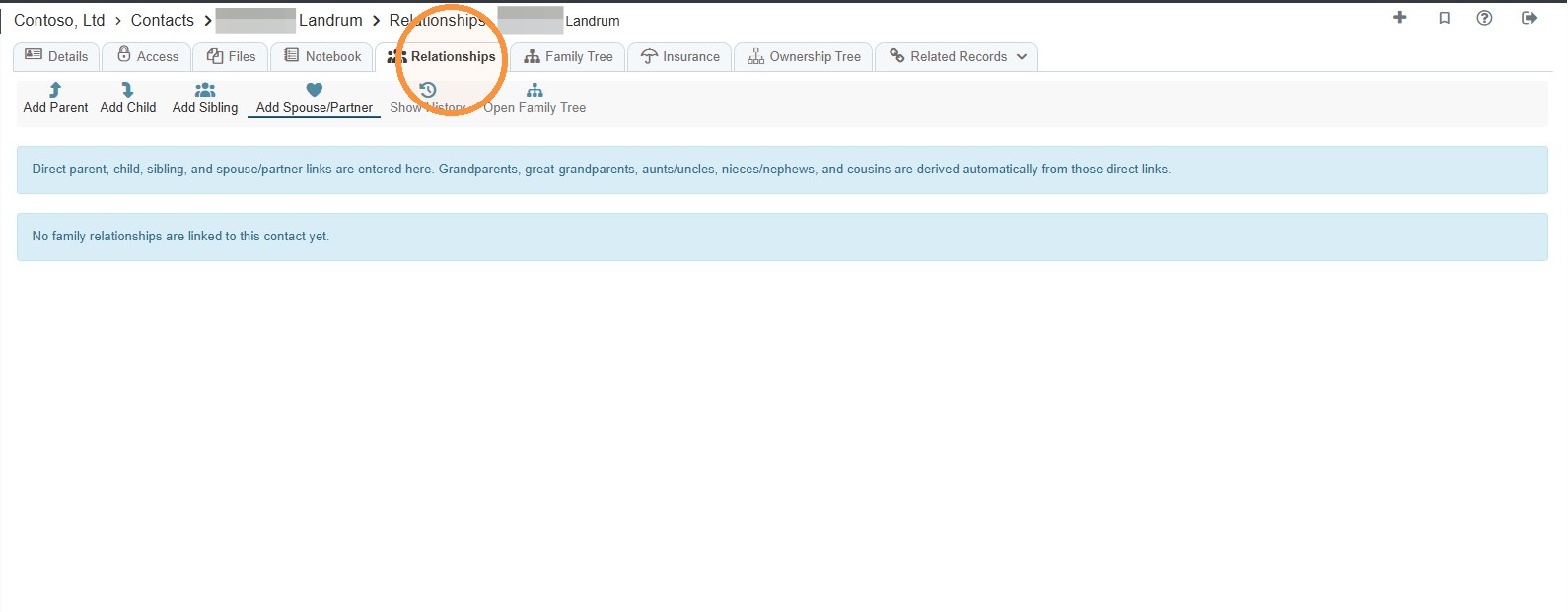
22. Relationship Overview
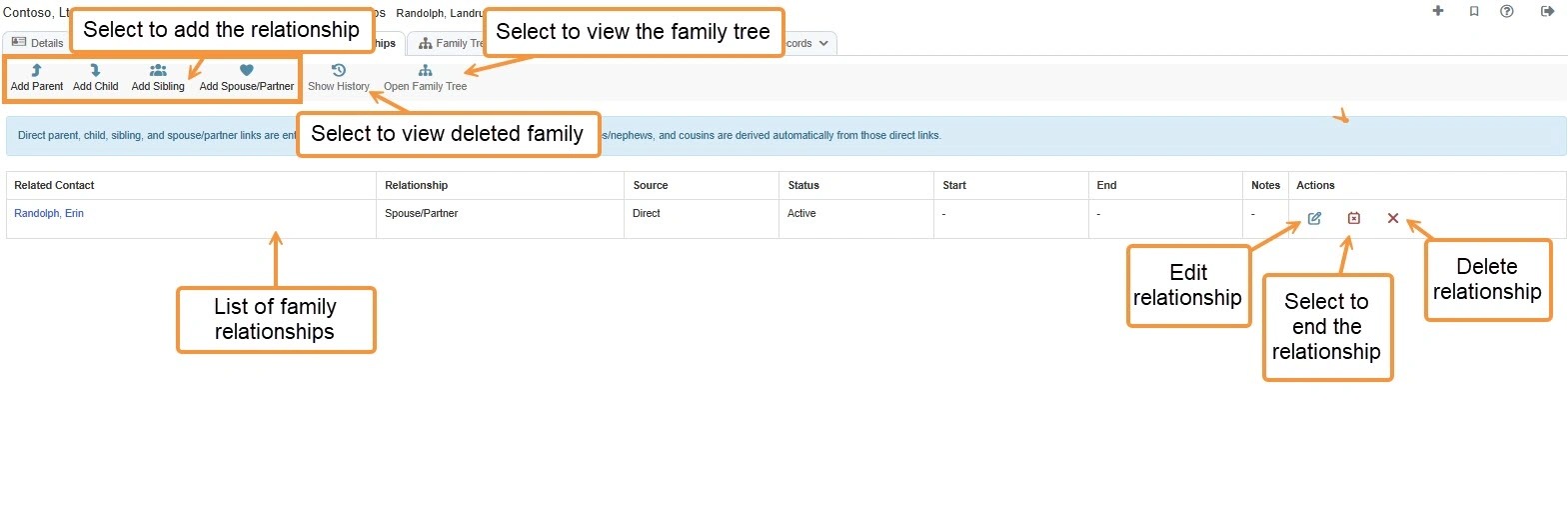
23. To add a family member, select the appropriate relationship option.
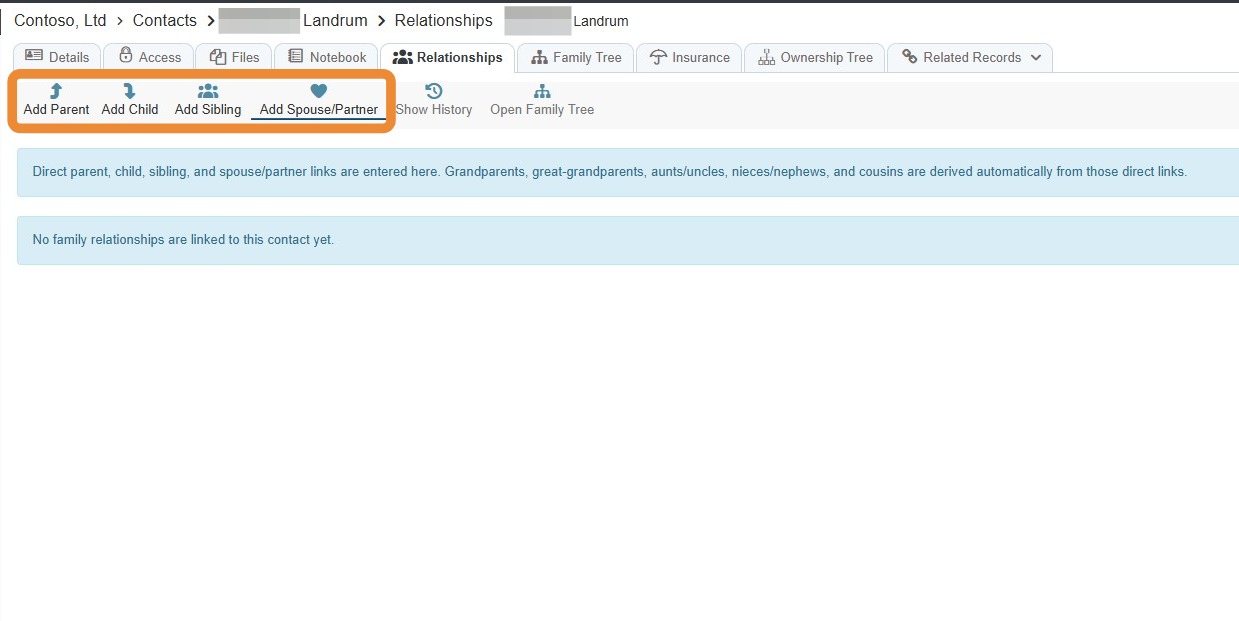
24. Enter the relationship information > Select Save Relationship.
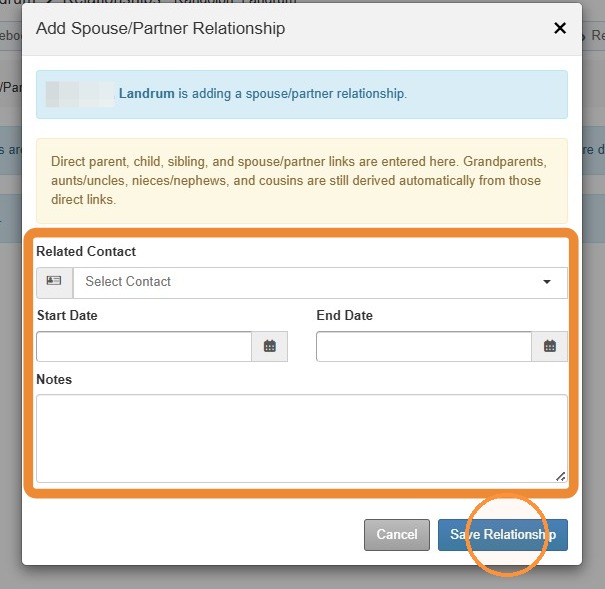
25. Direct parent, child, sibling, and spouse/partner links are entered here.
Grandparents, great-grandparents, aunts/uncles, nieces/nephews, and cousins are derived automatically from those direct links.
Family Tree Tab
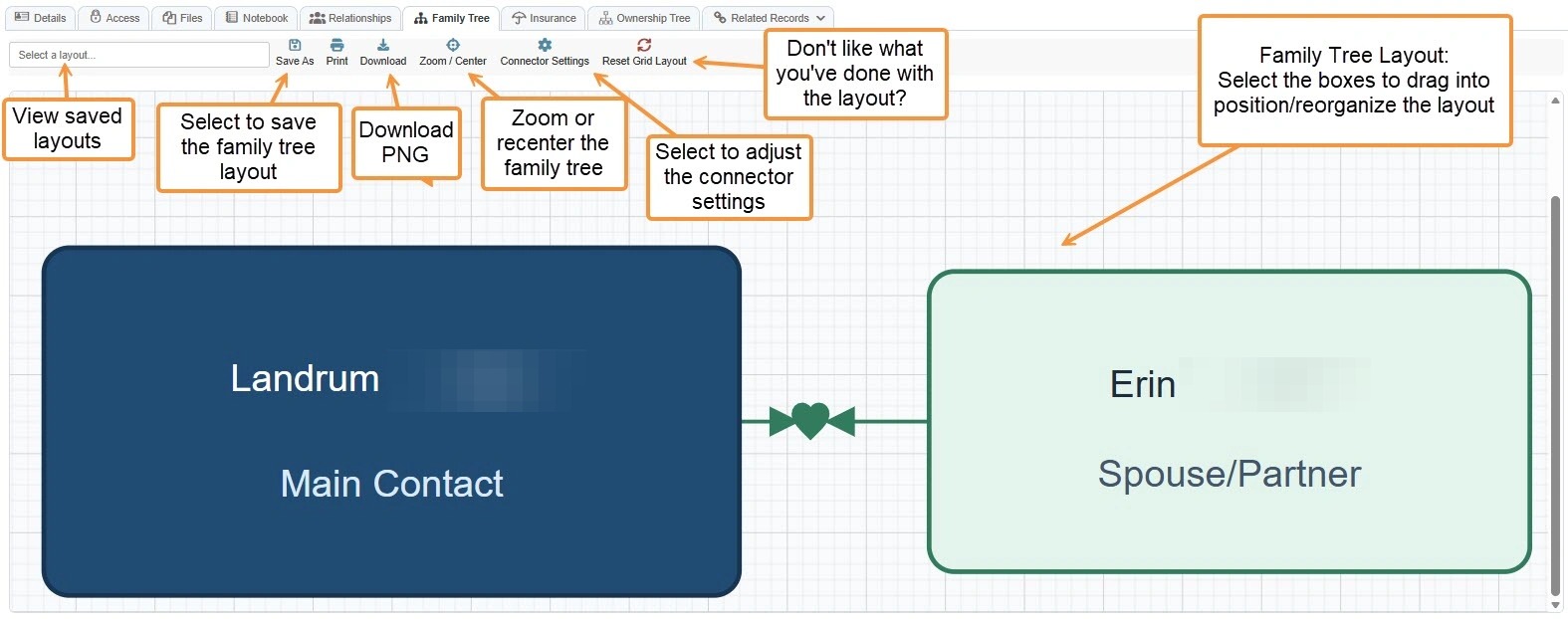
26. The Family Tree tab illustrates the relationships entered on the relationships tab.
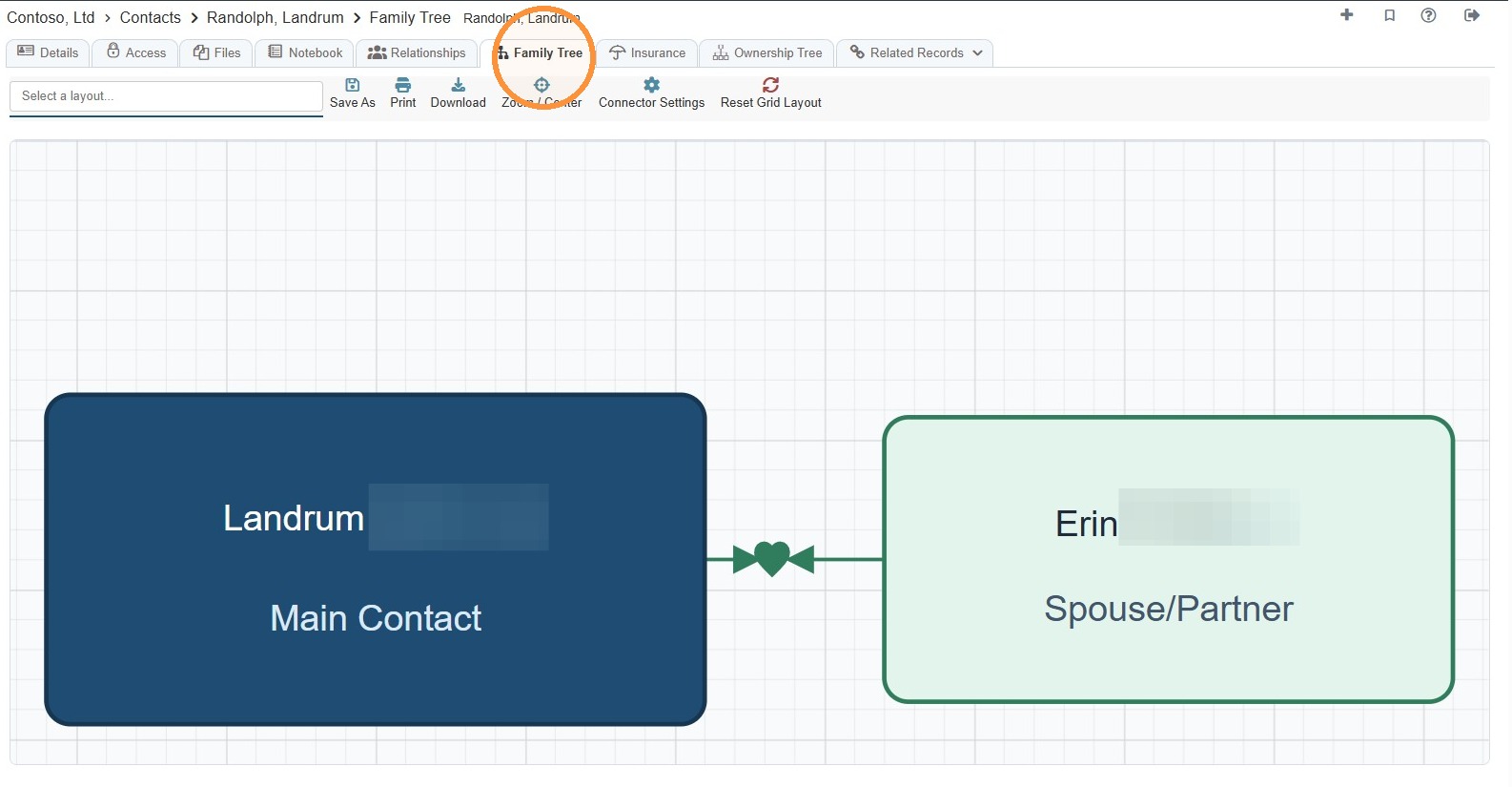
27. Family Tree Overview
Related Tutorial(s):\ \ How to Create and Manage Family Relationships and Tree Views
Insurance Tab
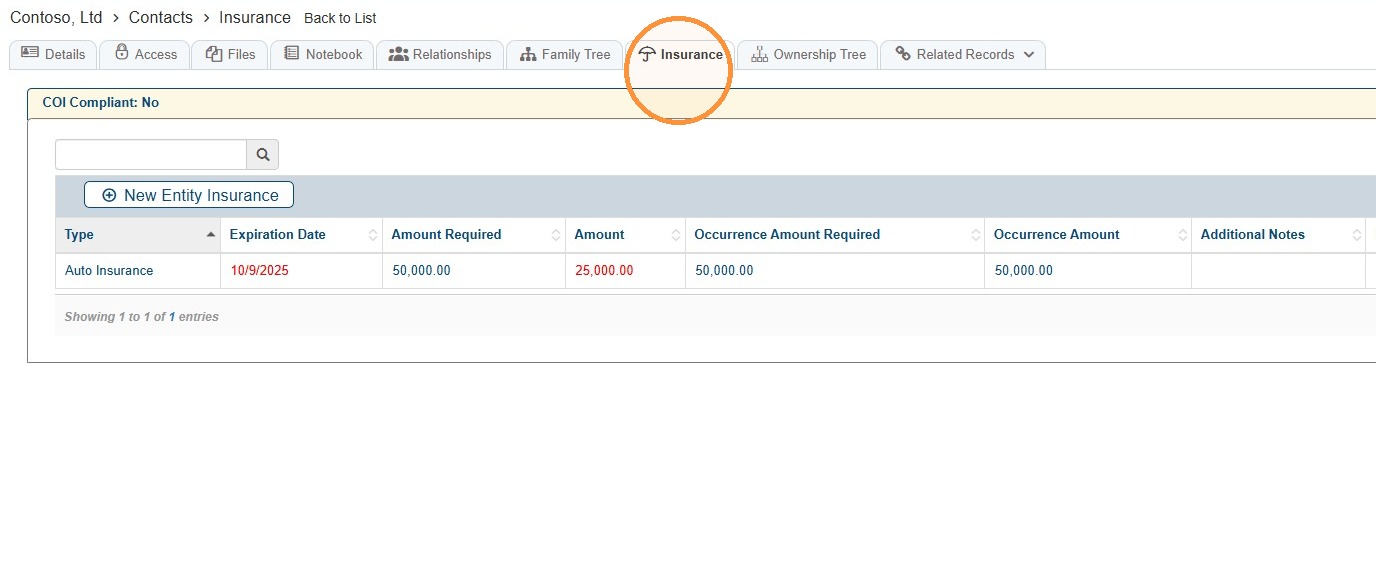
28. To view a list of the contact's entity insurance, select the Insurance tab.
You can also add new entity insurance here.
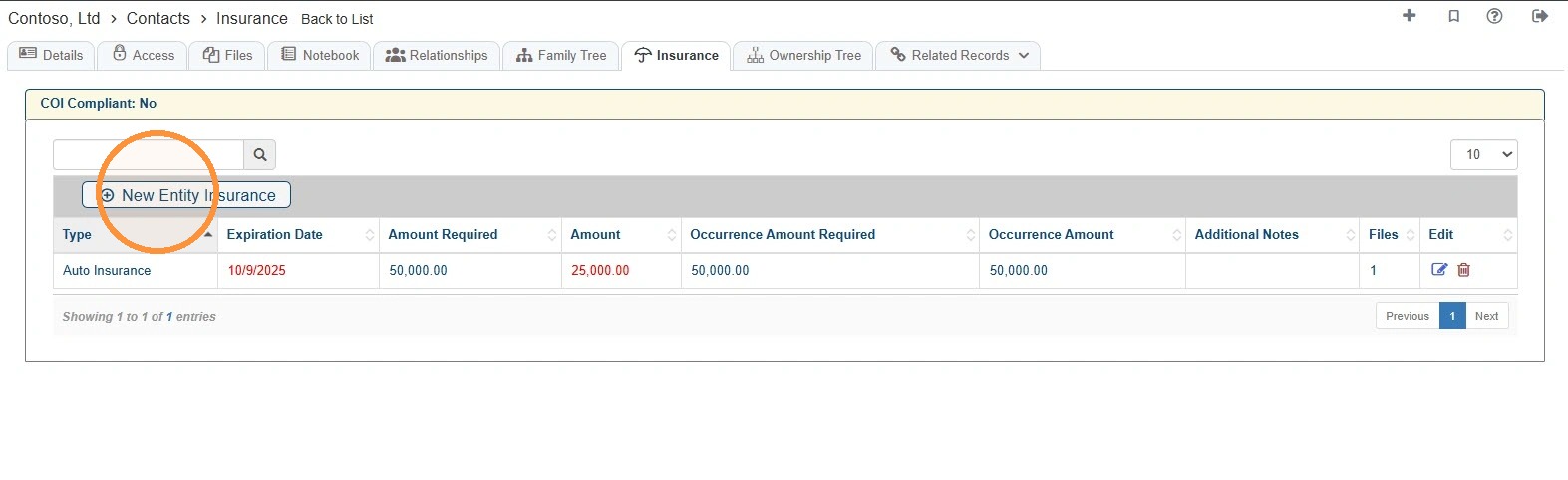
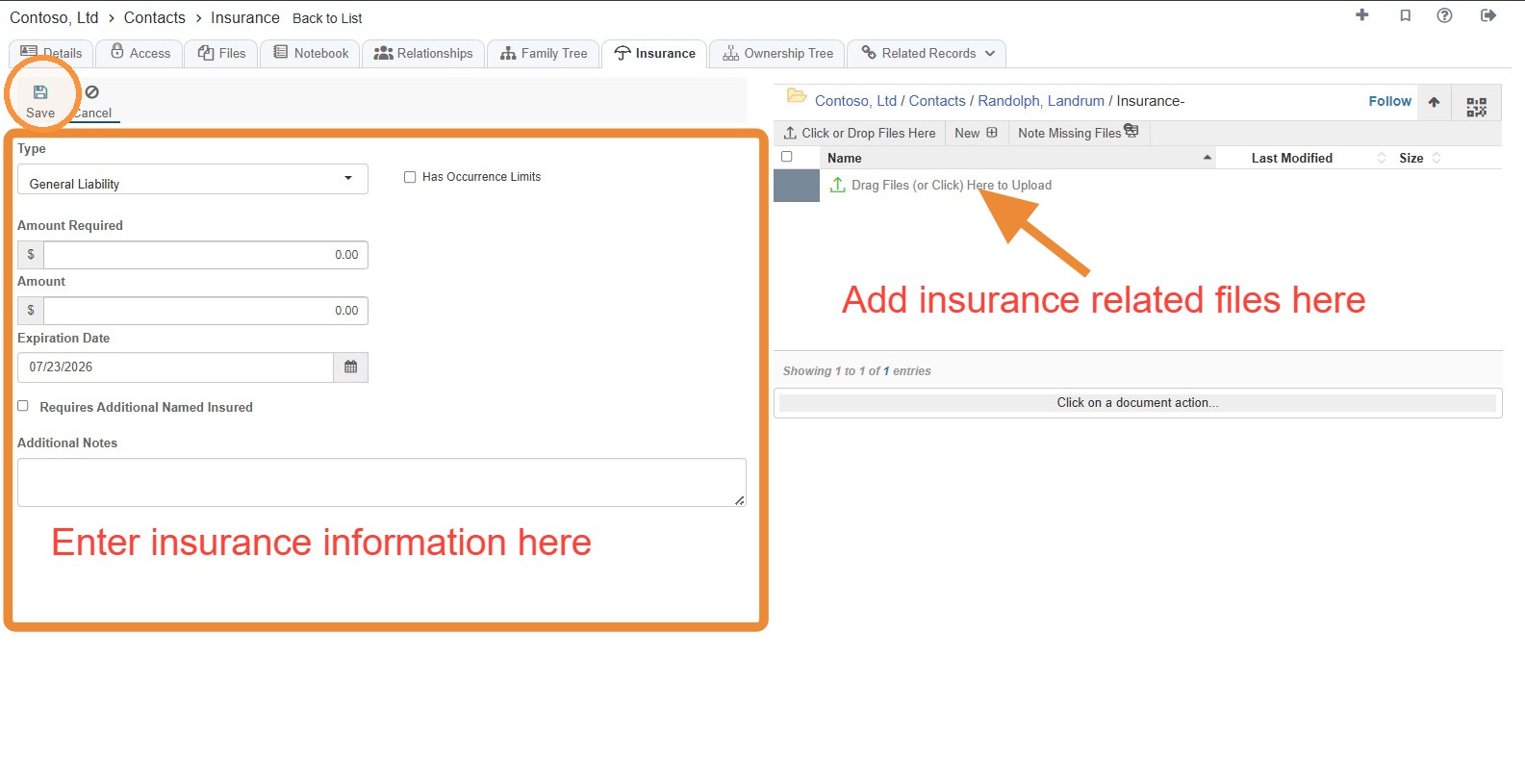
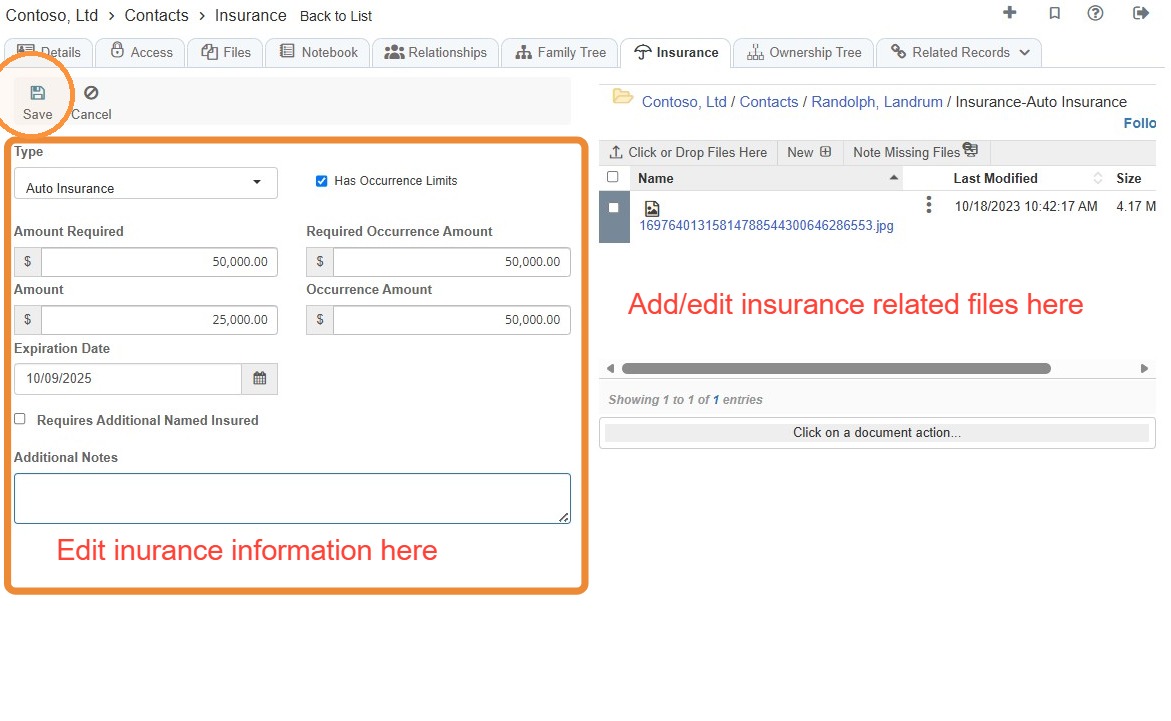
29. To add entity insurance, select the New Entity Insurance tab > Enter the required information and/or upload related files > Select Save.
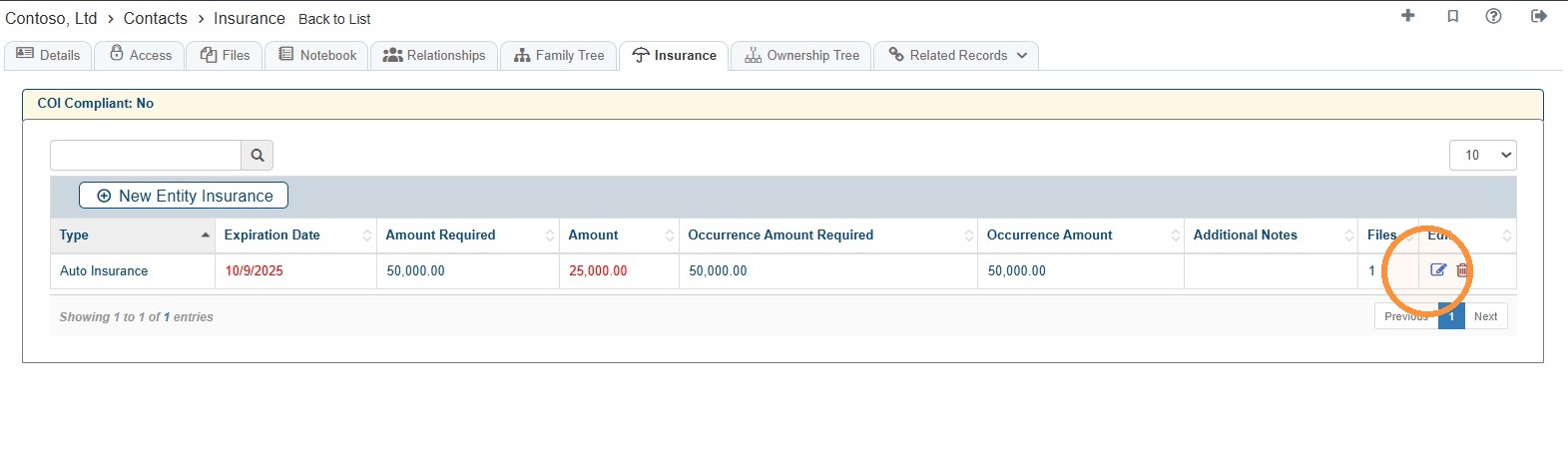
30. Select the Edit icon to update the insurance information and/or to upload files related to the insurance.
Ownership Tree
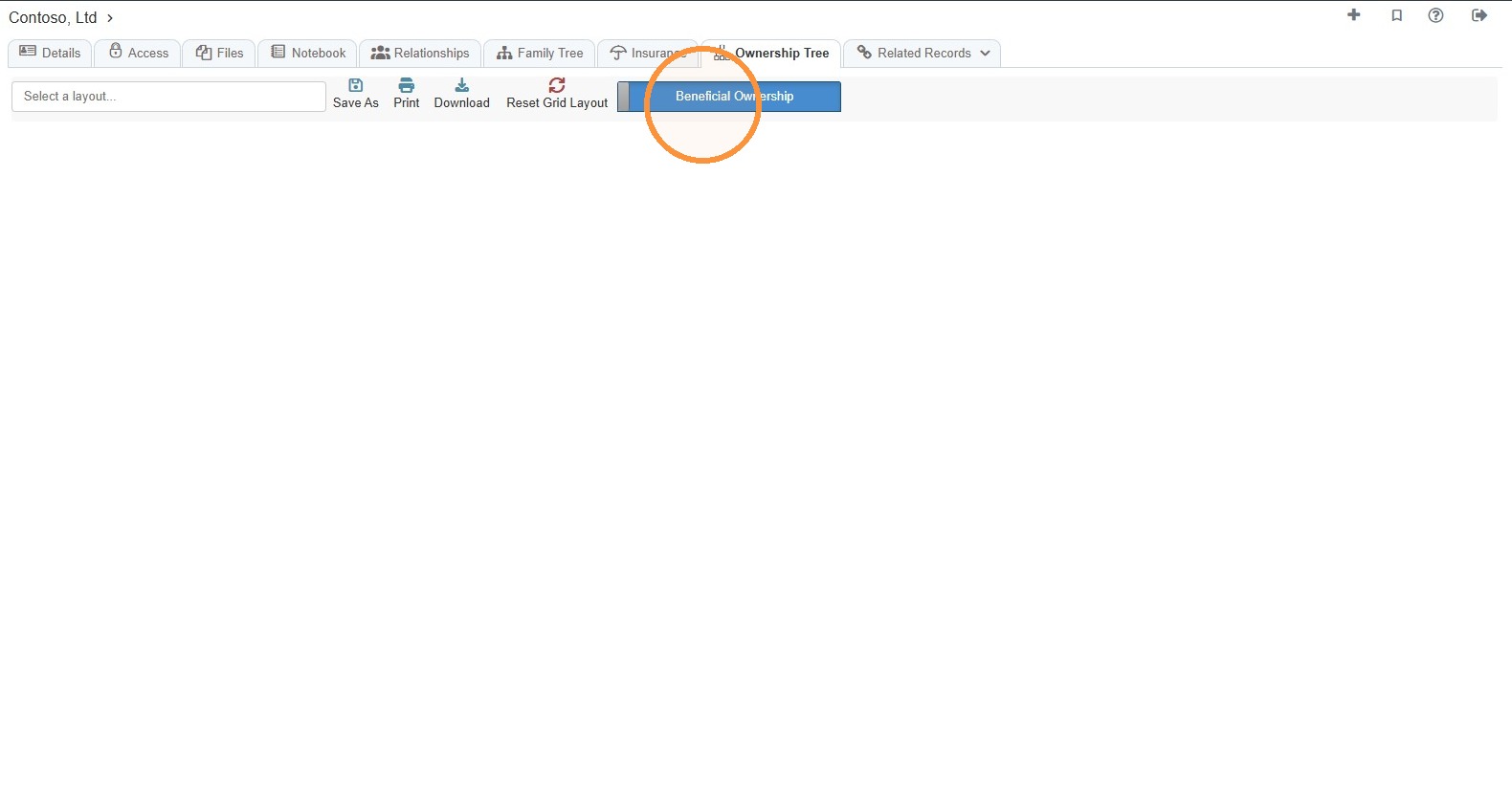
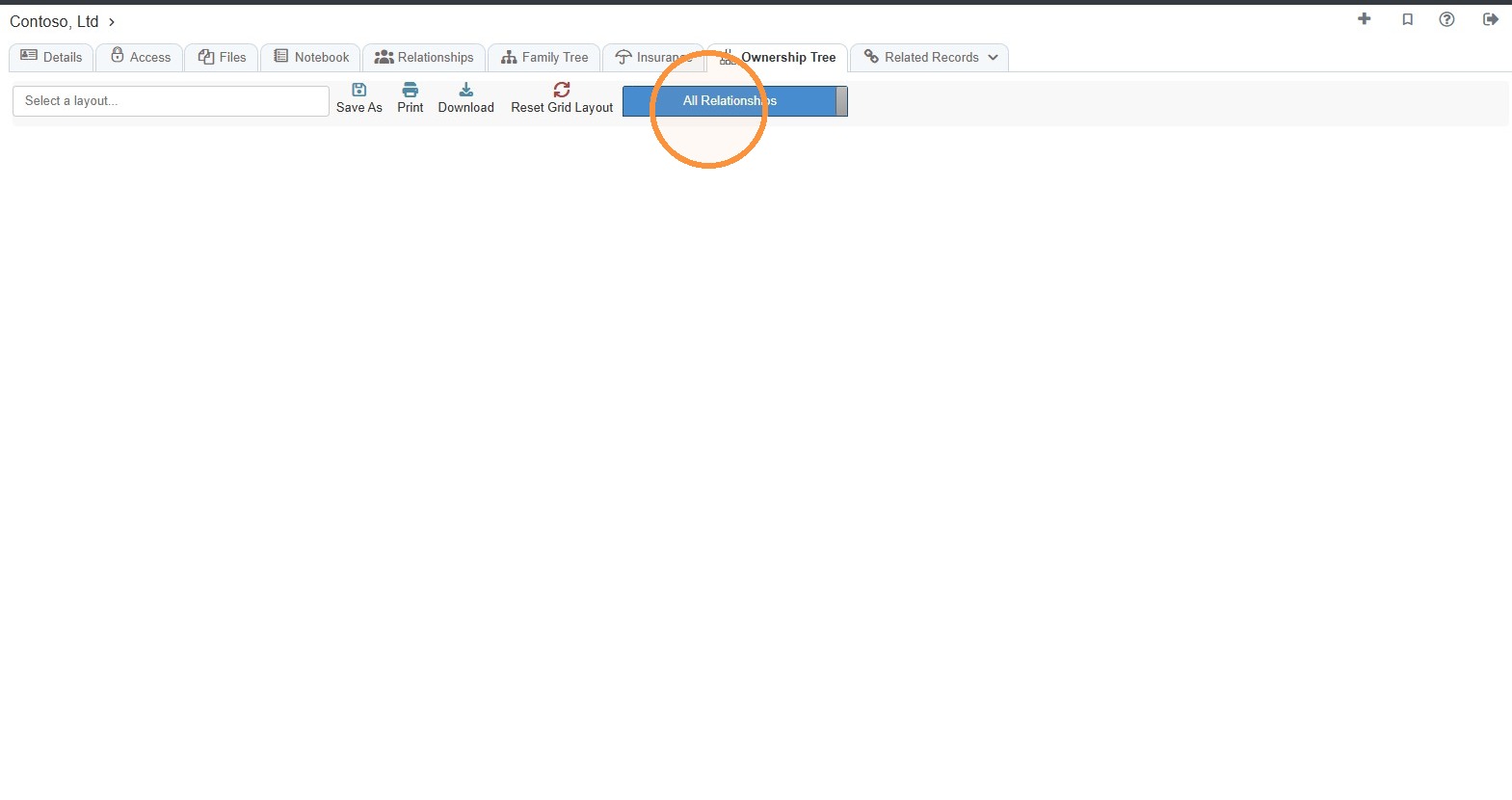
31. Select the Ownership Tree tab.
Toggle the view between Beneficial Ownership and All Relationships.
Related Records
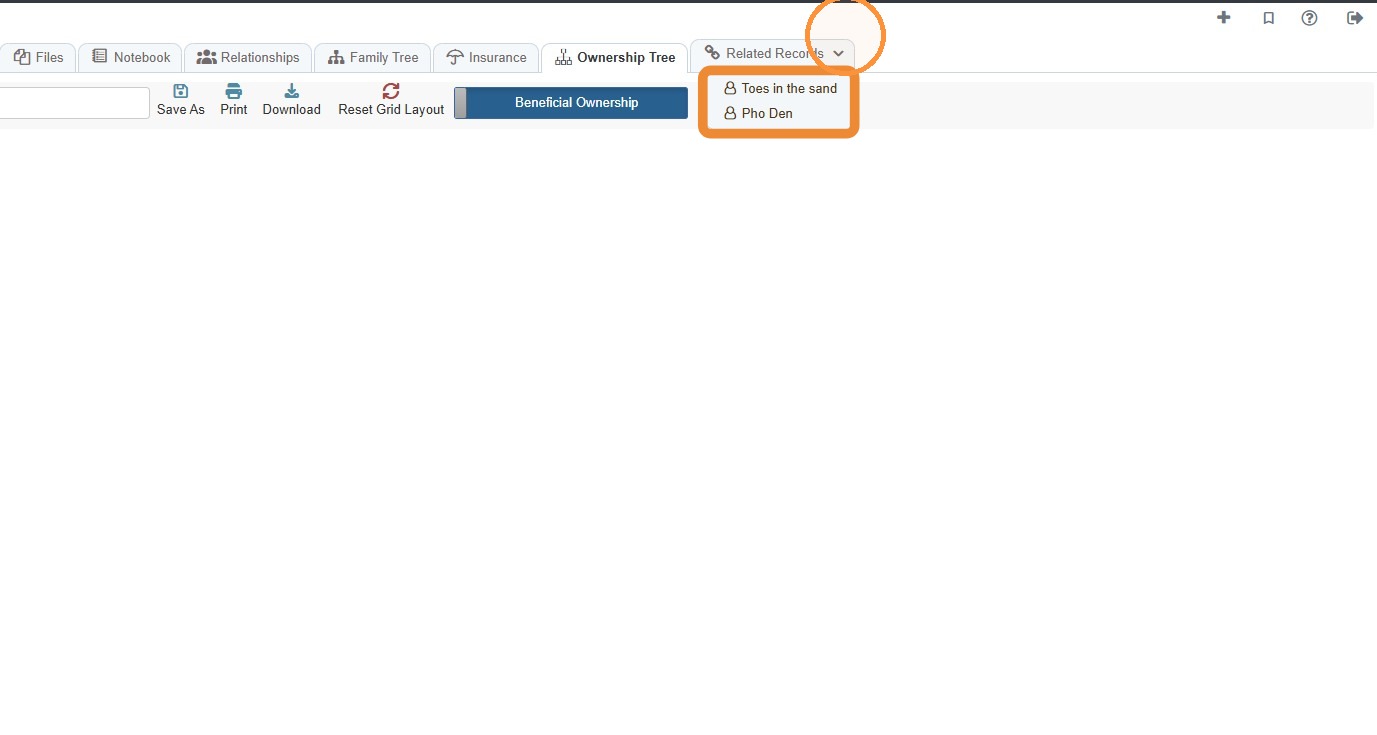
32. Related Records provides a list of properties/tenants associated with the contact.
Select a record to go directly to that record.
Related Tutorial(s):