How to Create a Payable for Work Orders
This guide quickly shows how to turn a work order into a payable bill so your accounting stays accurate and linked. It highlights the exact navigation, fields, and verification steps (including attaching files) to ensure the payable equals the work order amount. Follow it to avoid mismatches and missing documentation when recording vendor bills.
How to Navigate to Payables
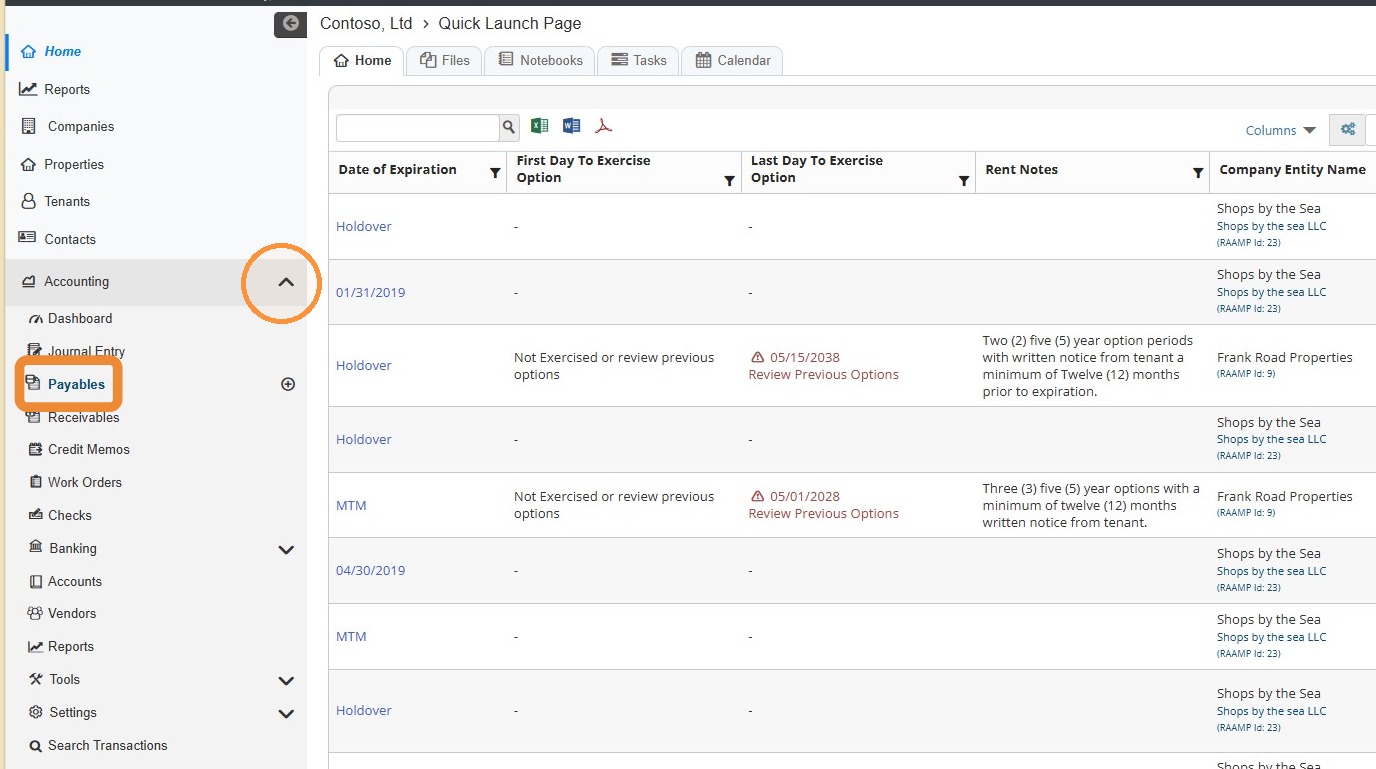
1. From the navigation menu, select Accounting > Select Payables.
How to Add a Bill for a Work Order
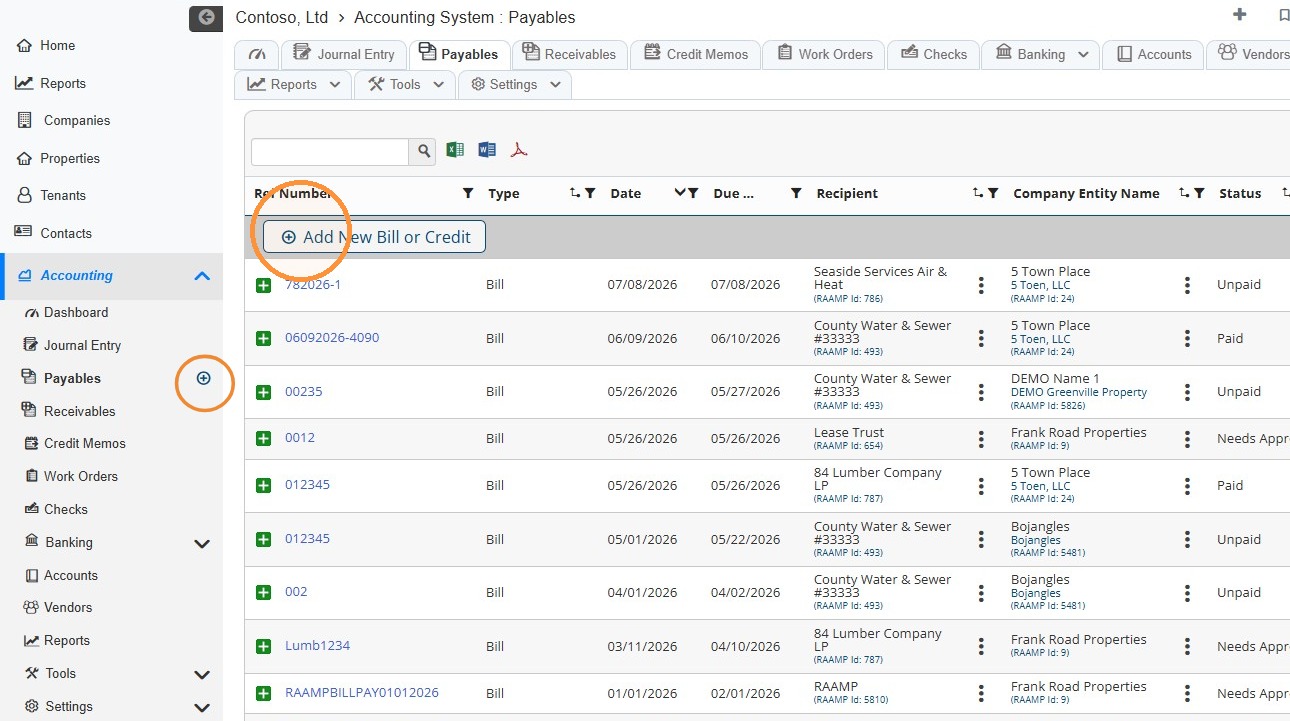
2. Select Add New Bill or Credit.
You can also select the + icon to add a new bill or credit.
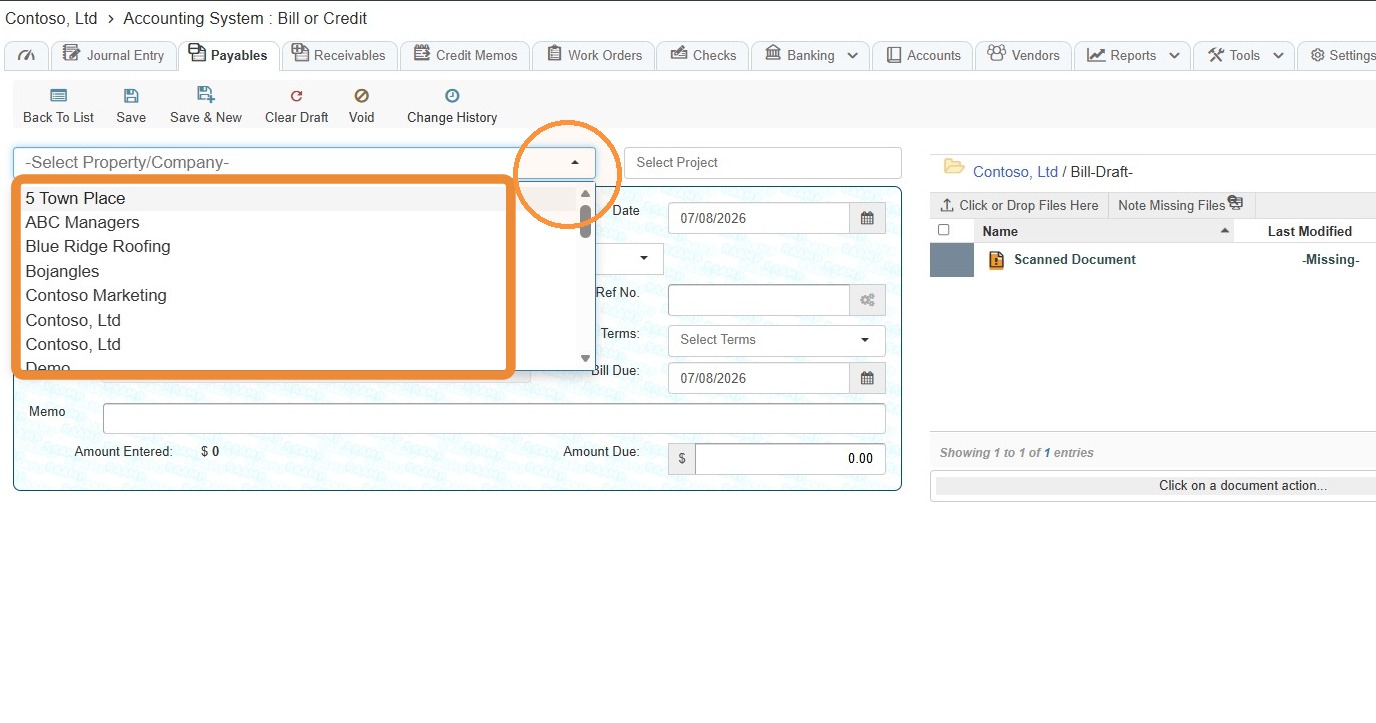
3. Select the Property/Company from the dropdown menu.
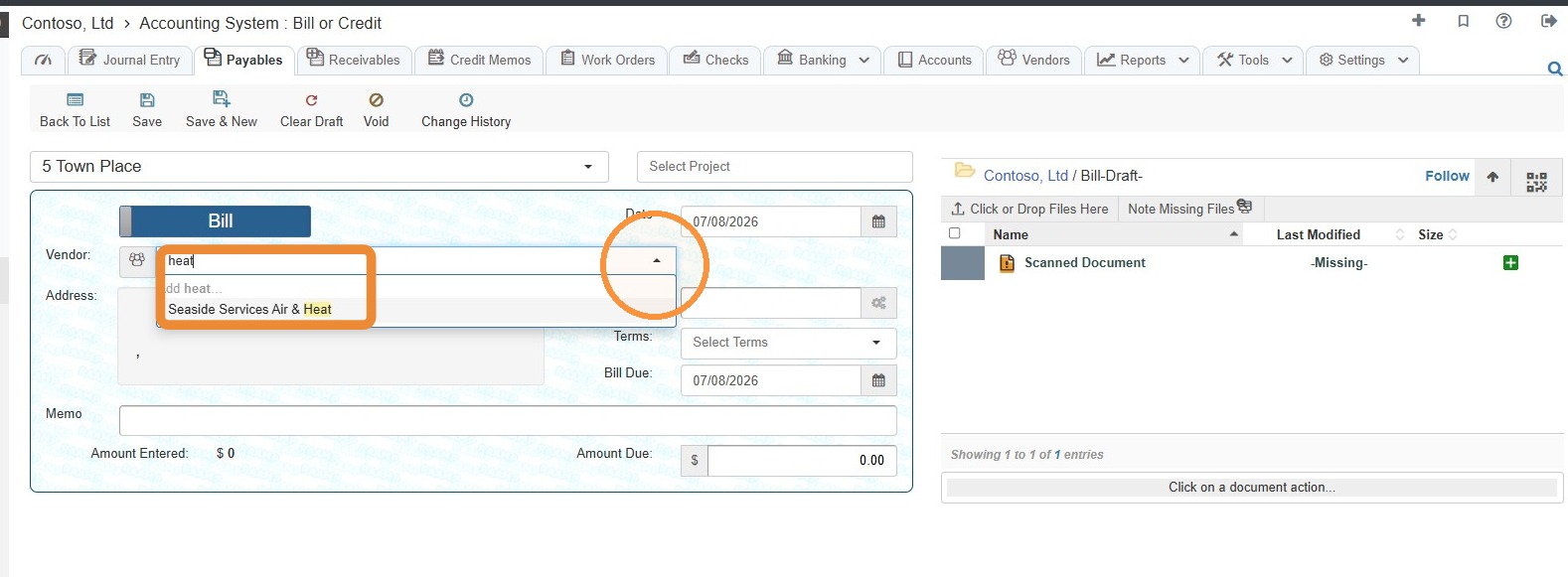
4. Select the Vendor from the dropdown menu.
If you do not need to add an invoice for a different entity type, skip to step 8.
5. Select the Vendor icon.
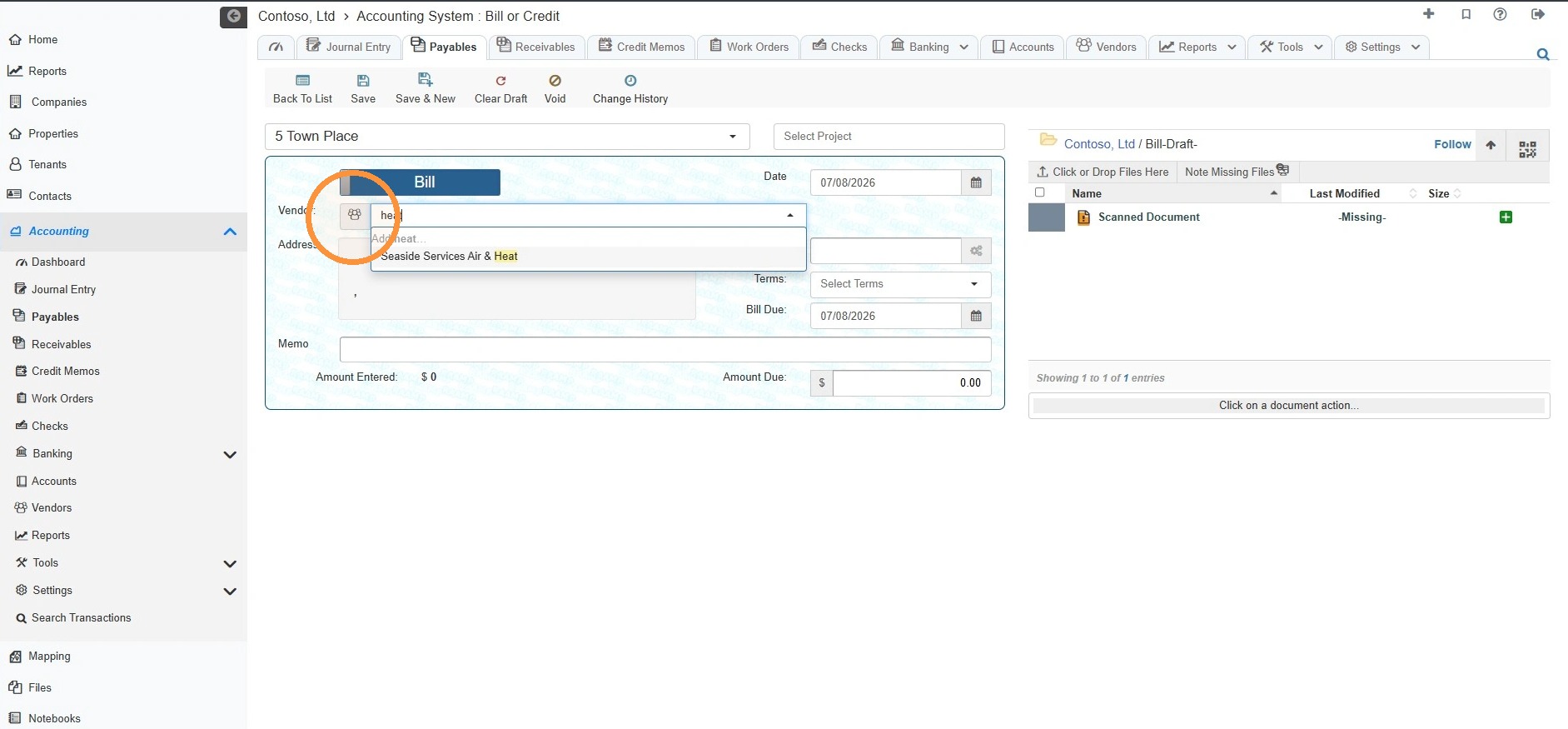
6. Select the entity type from the radial menu.
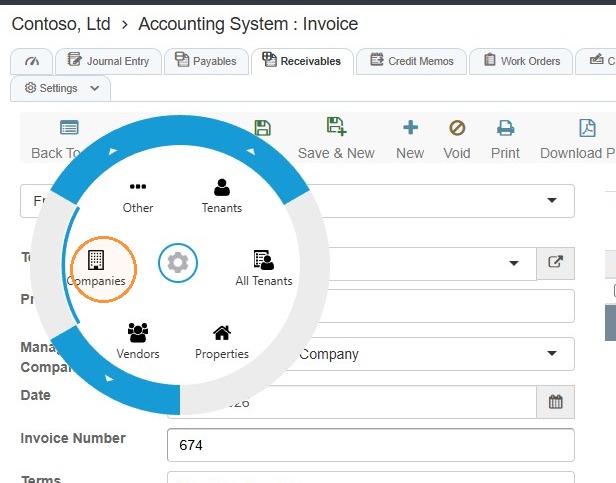
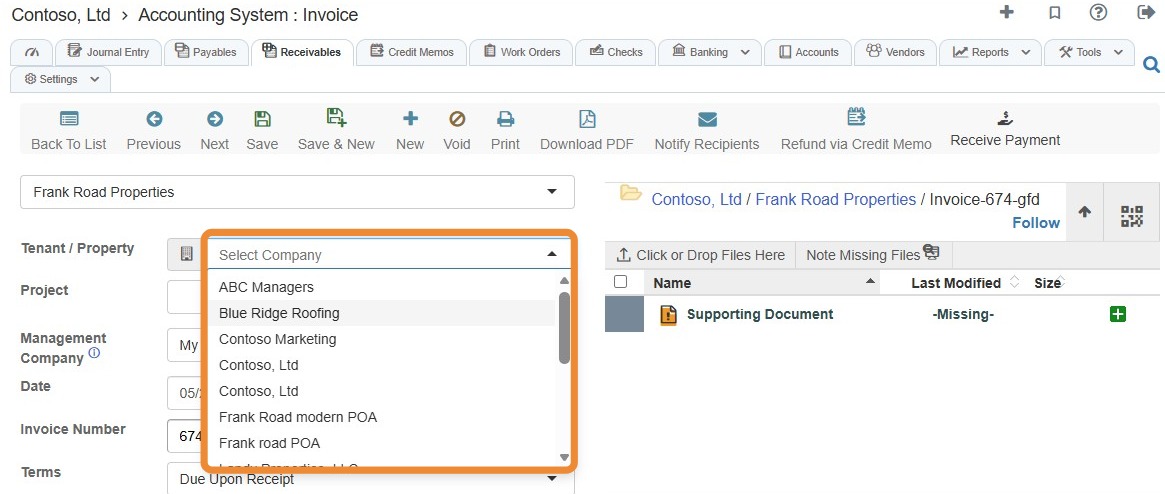
7. The Vendor dropdown menu will update.
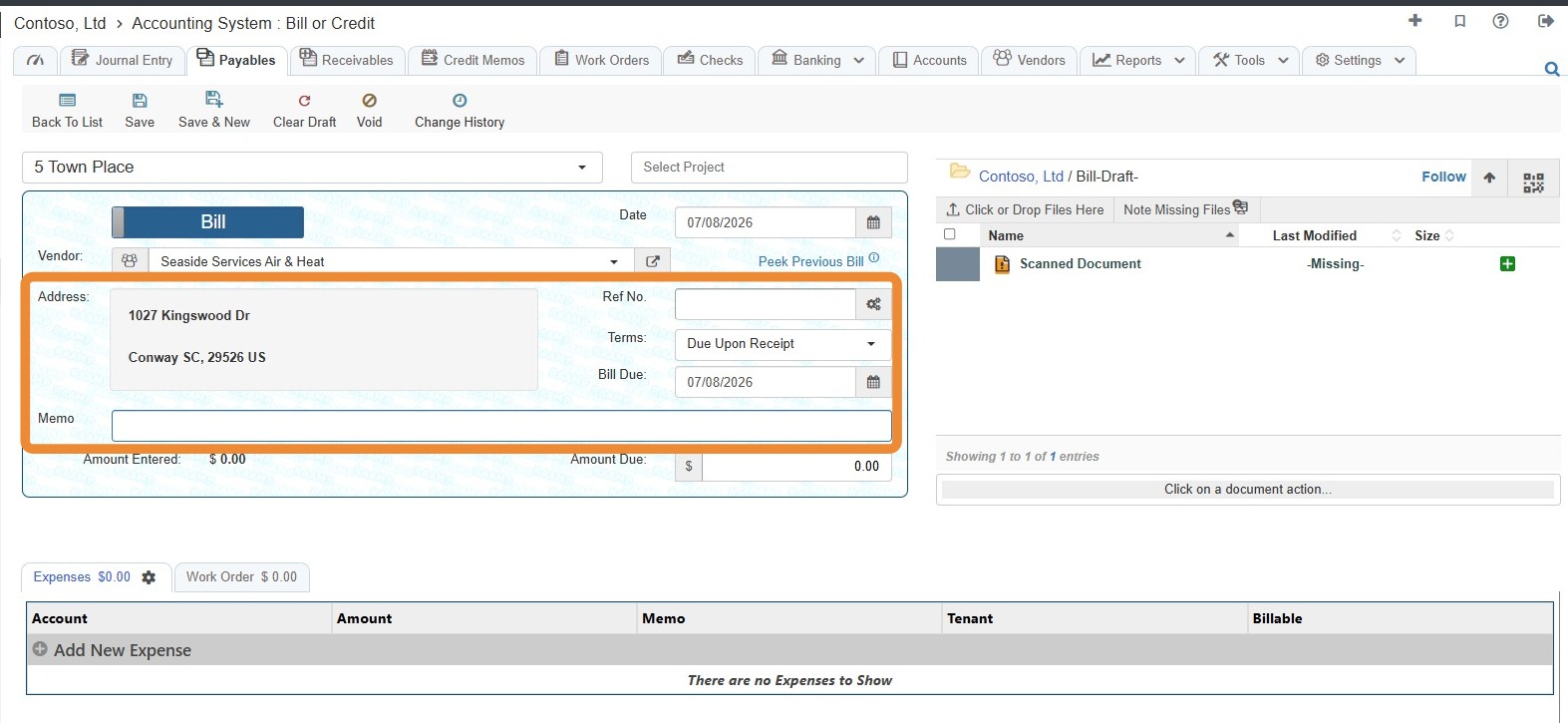
8. Complete the remaining information.
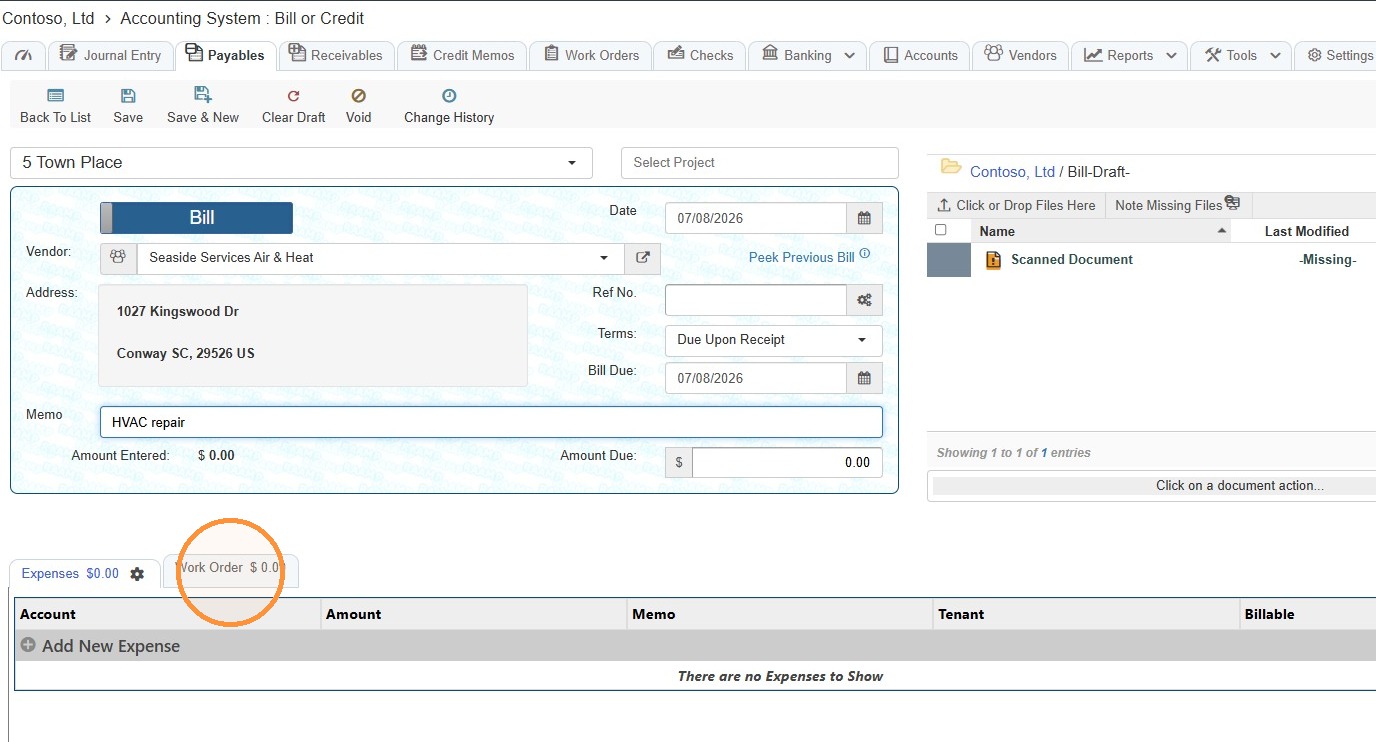
9. Select the Work Order tab.
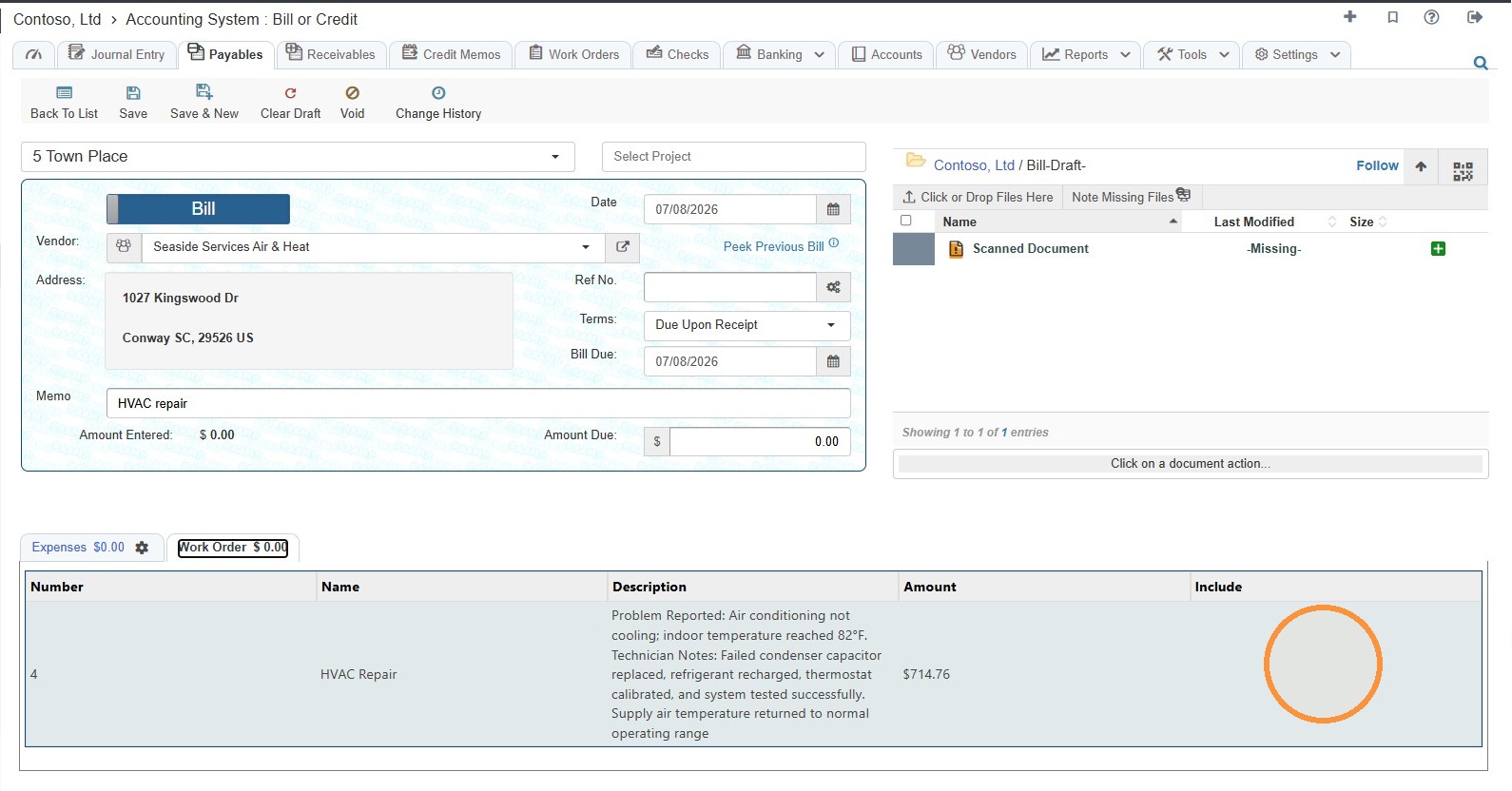
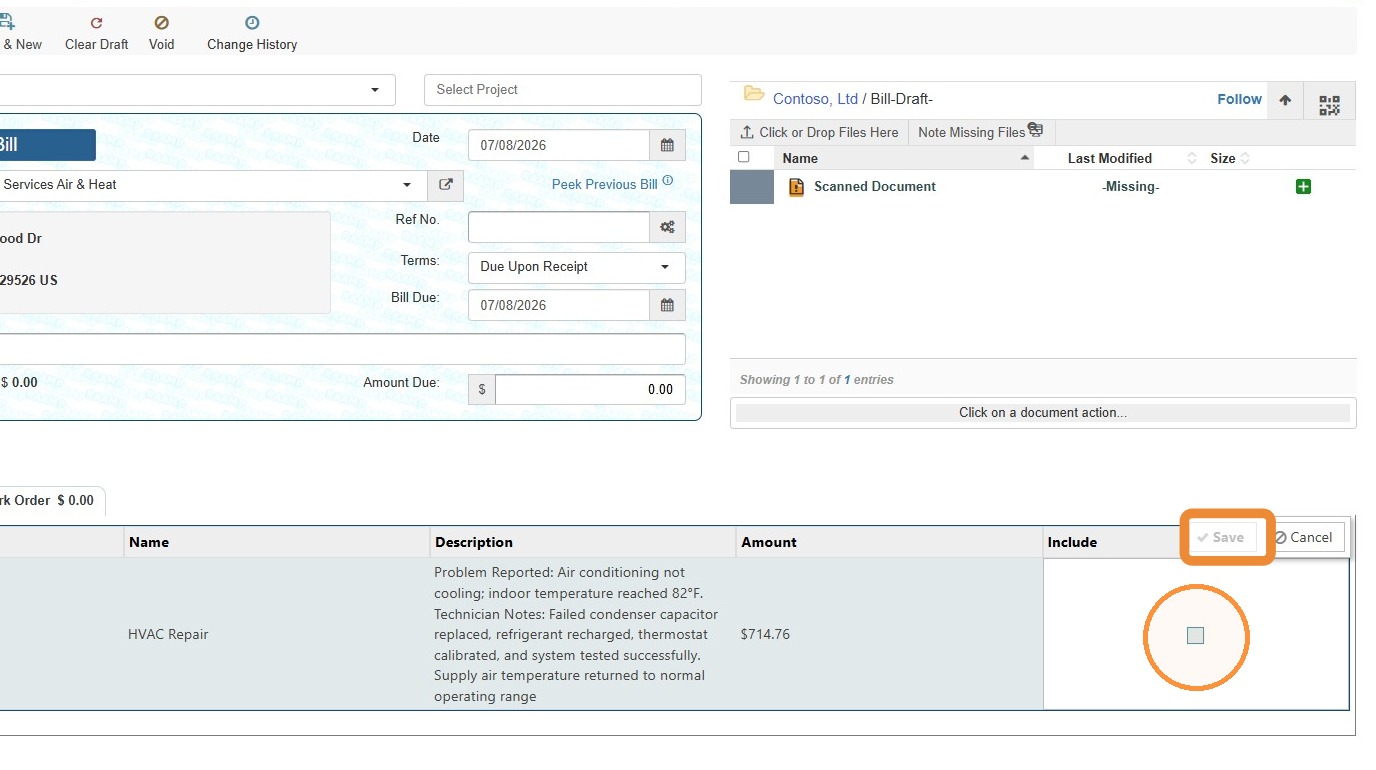
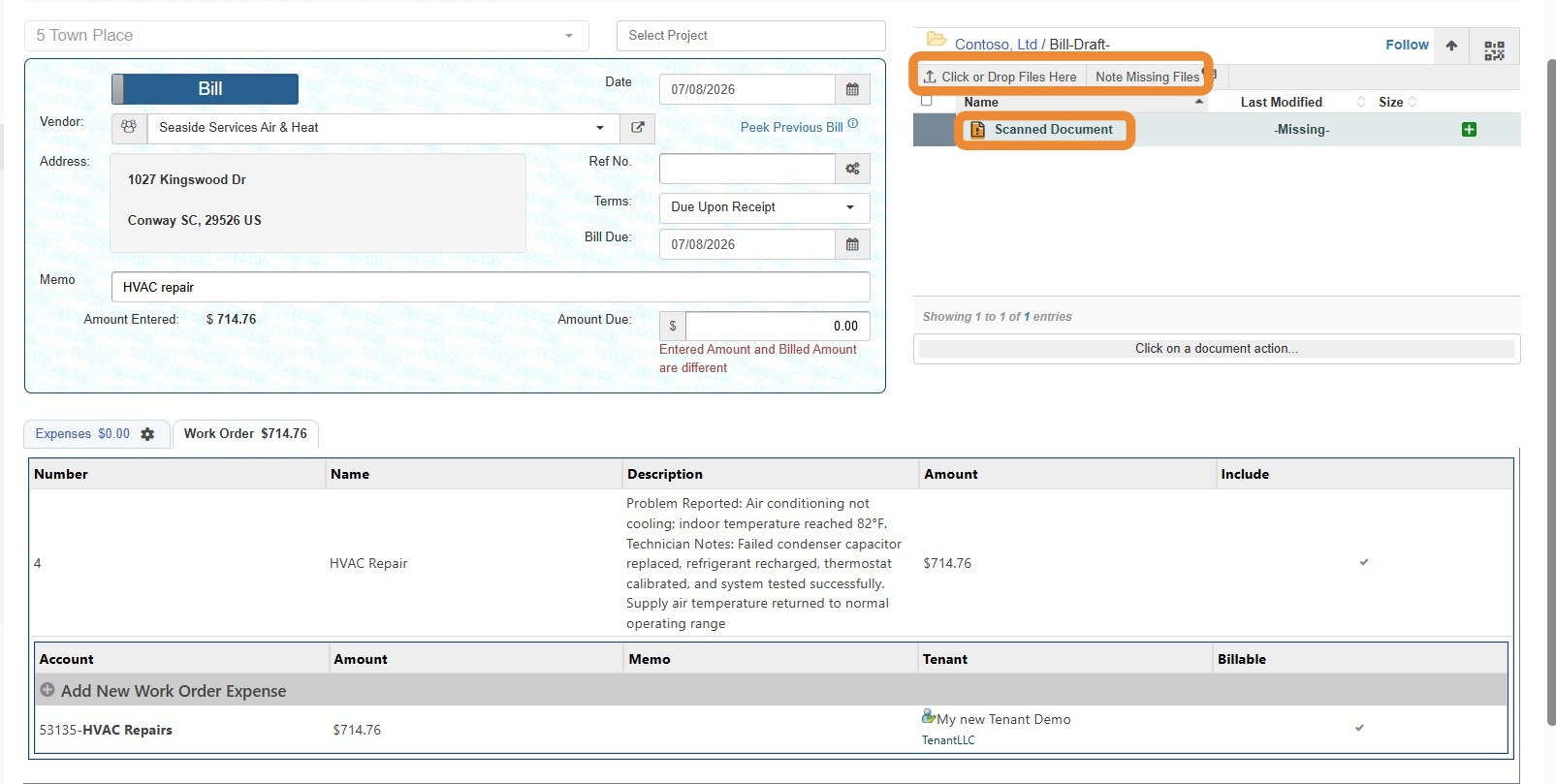
10. Select the Include field > Select the Include checkbox > Select Save.
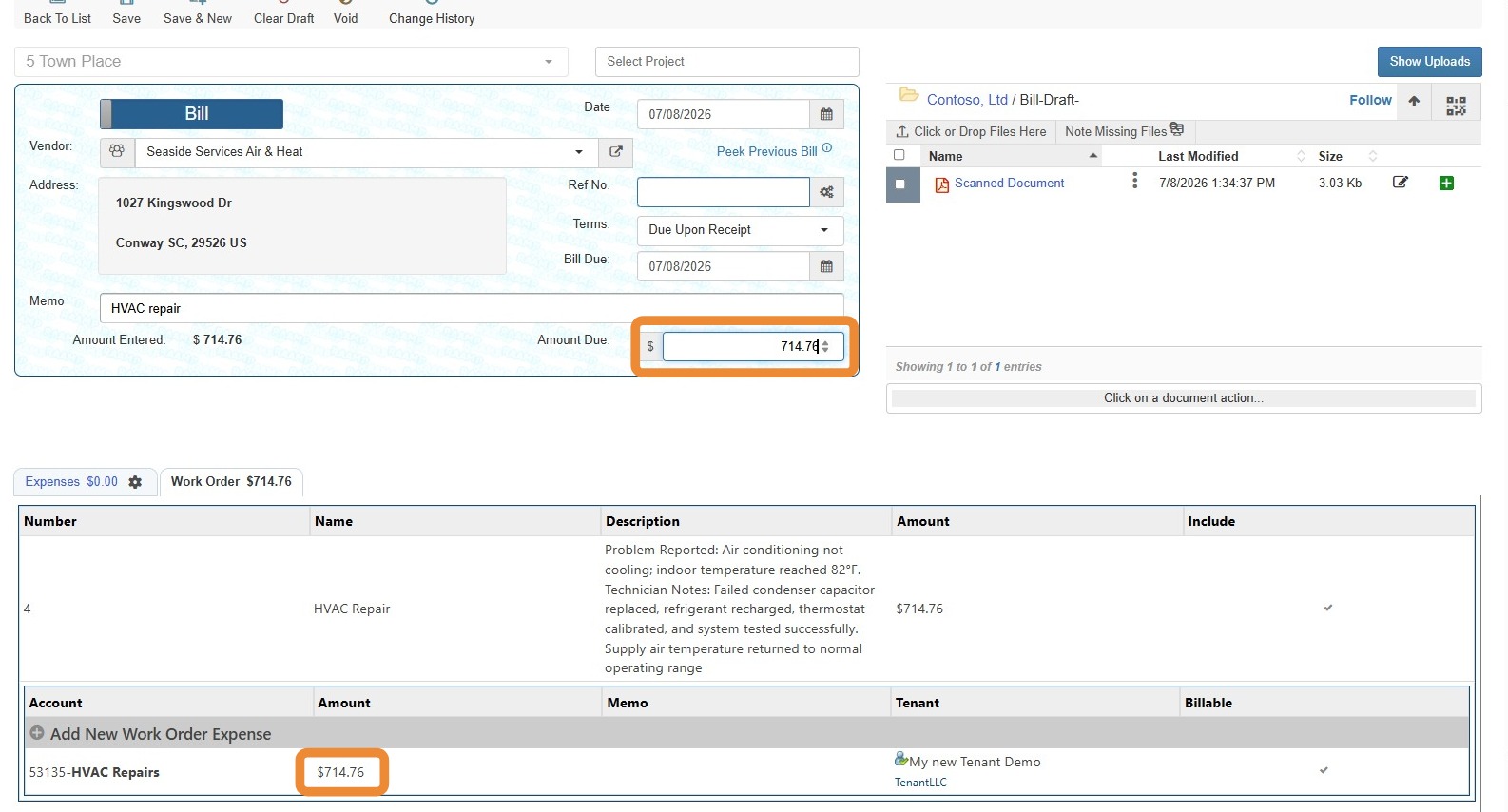
11. Select the Amount Due field > Enter the amount due.
NOTE: The amount due must balance/equal the work order amount.
12. If needed/required, you can upload a file or note a missing file.
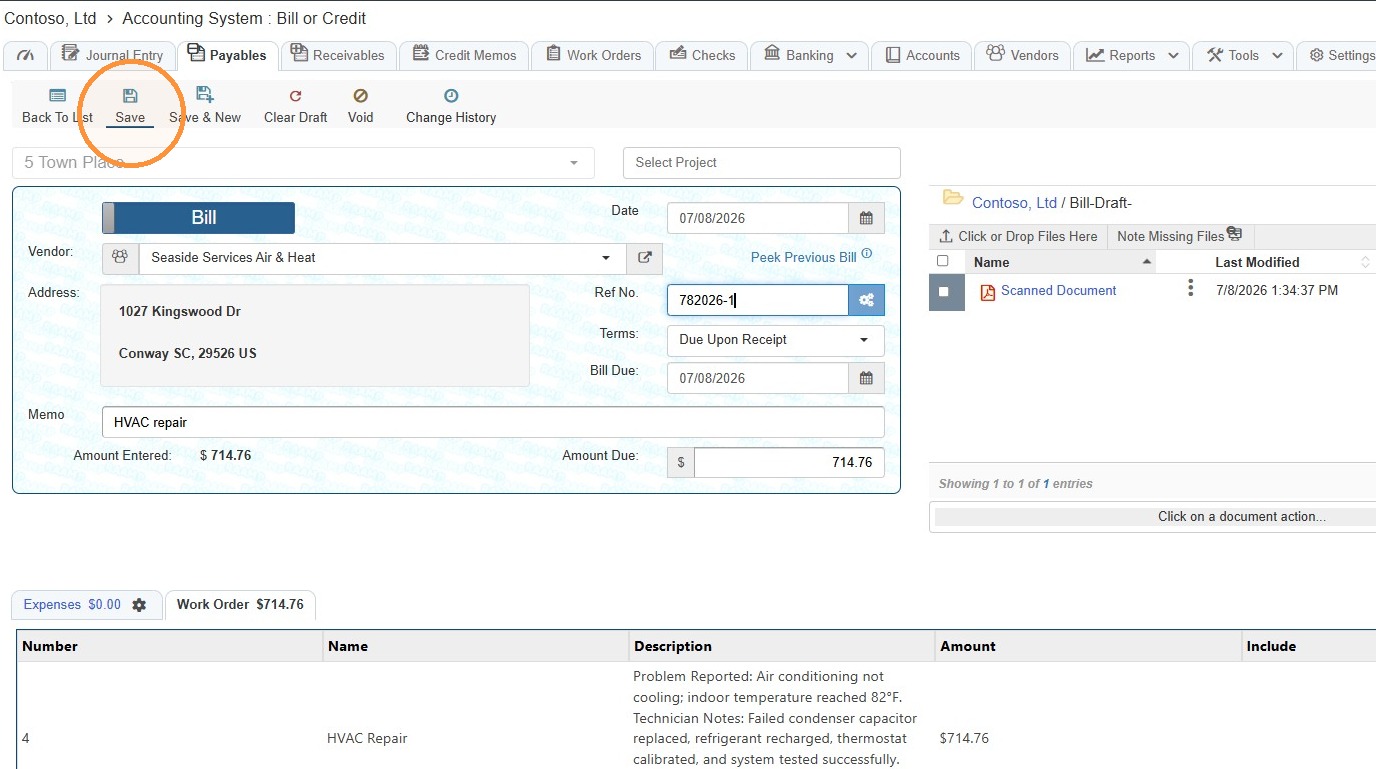
13. Select Save.
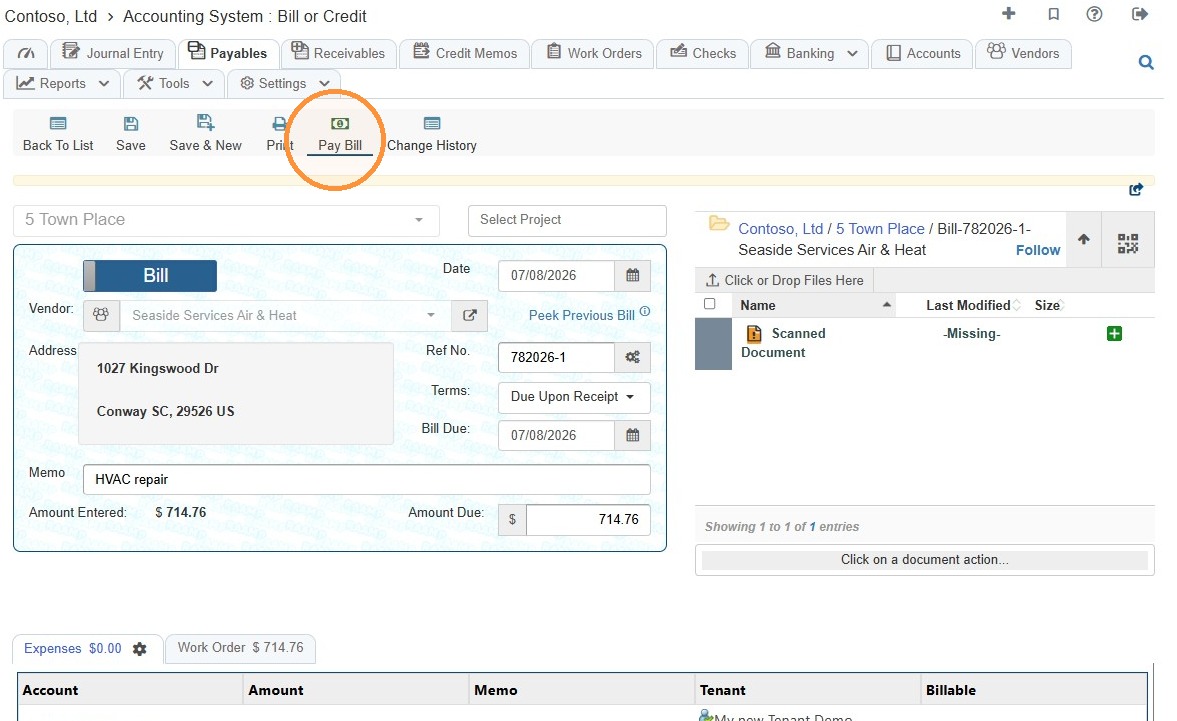
14. Once saved, you have the option to Pay Bill.
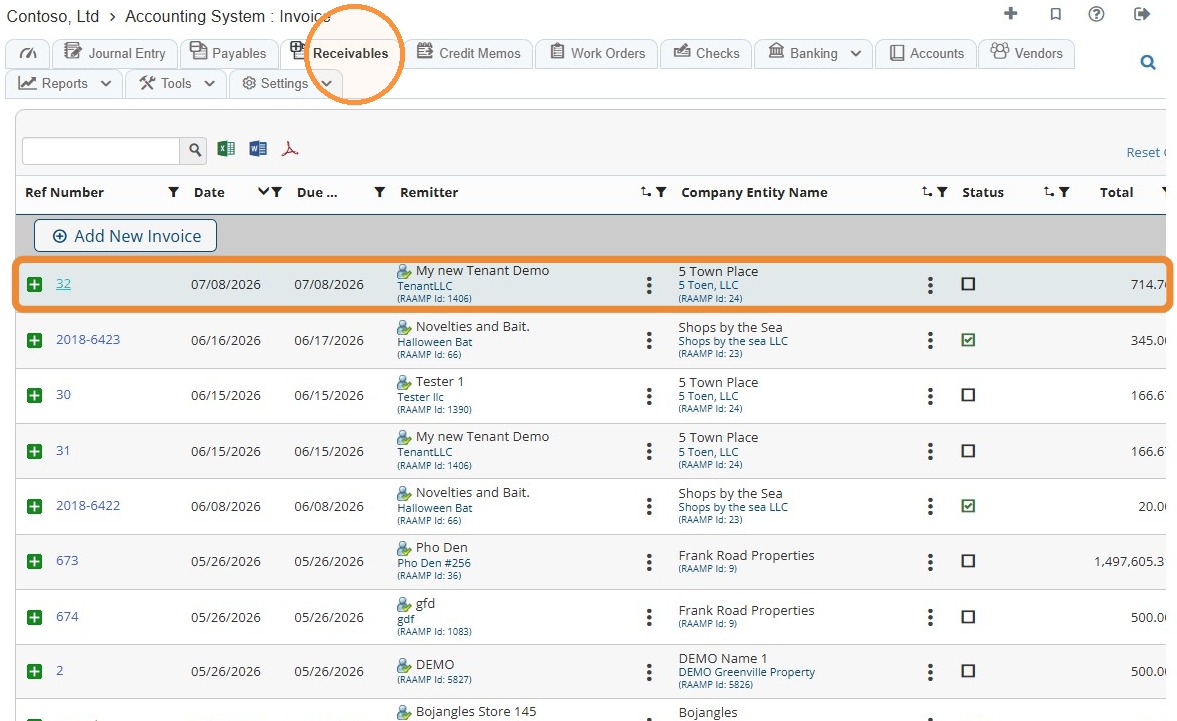
15. Once the bill is paid, an invoice is auto generated in Receivables.
Tip: If you need to remove a bill for a work order, see How to Delete Bill Entries.