How to Create, Edit, and Delete a Work Order
This guide quickly shows how to create, edit, delete, and restore work orders so you can manage tasks, vendors, billing, attachments, and assigned users accurately. It highlights required fields, contact and vendor selection, and restrictions when a work order is linked to bills or payments. Follow it to avoid mistakes (like locked fields or undeletable orders) and keep records consistent.
How to Navigate to Work Orders
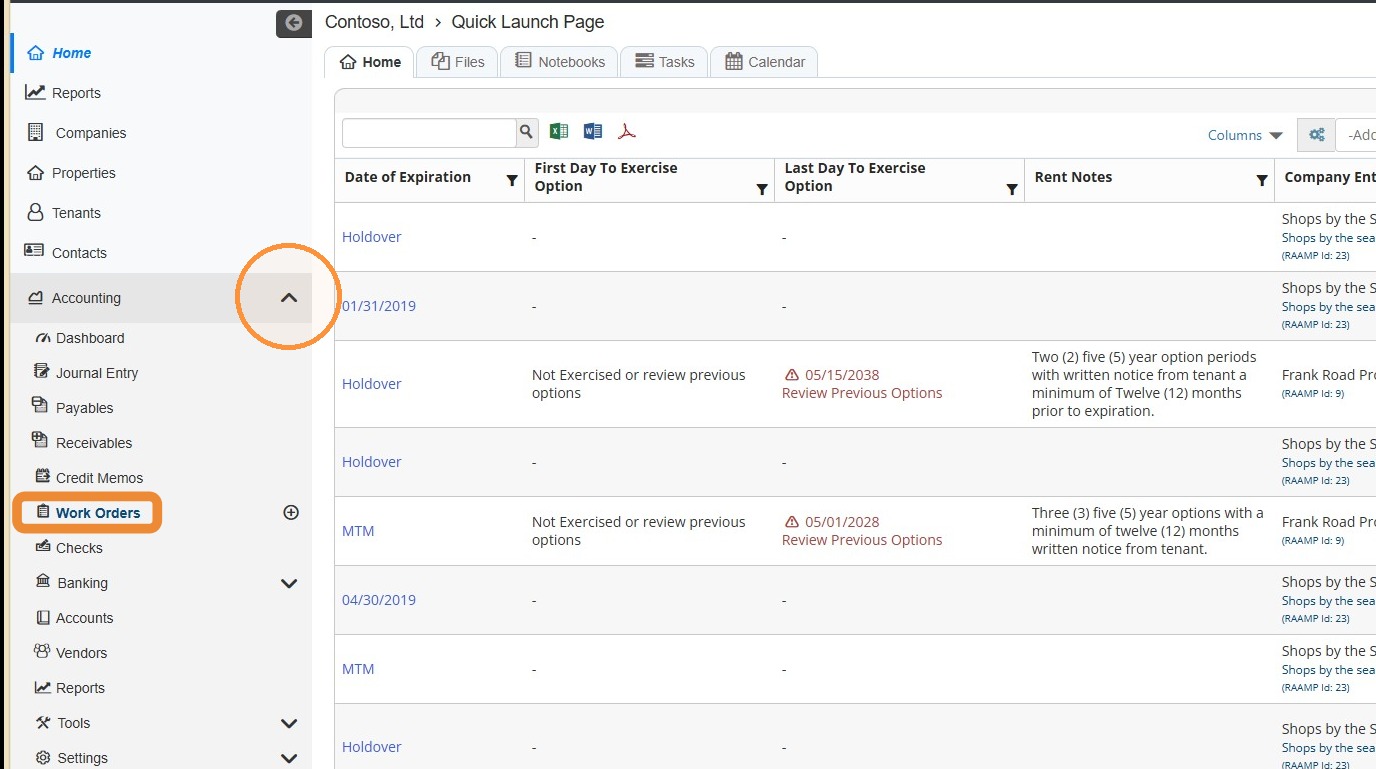
1. From the navigation menu, select Work Orders.
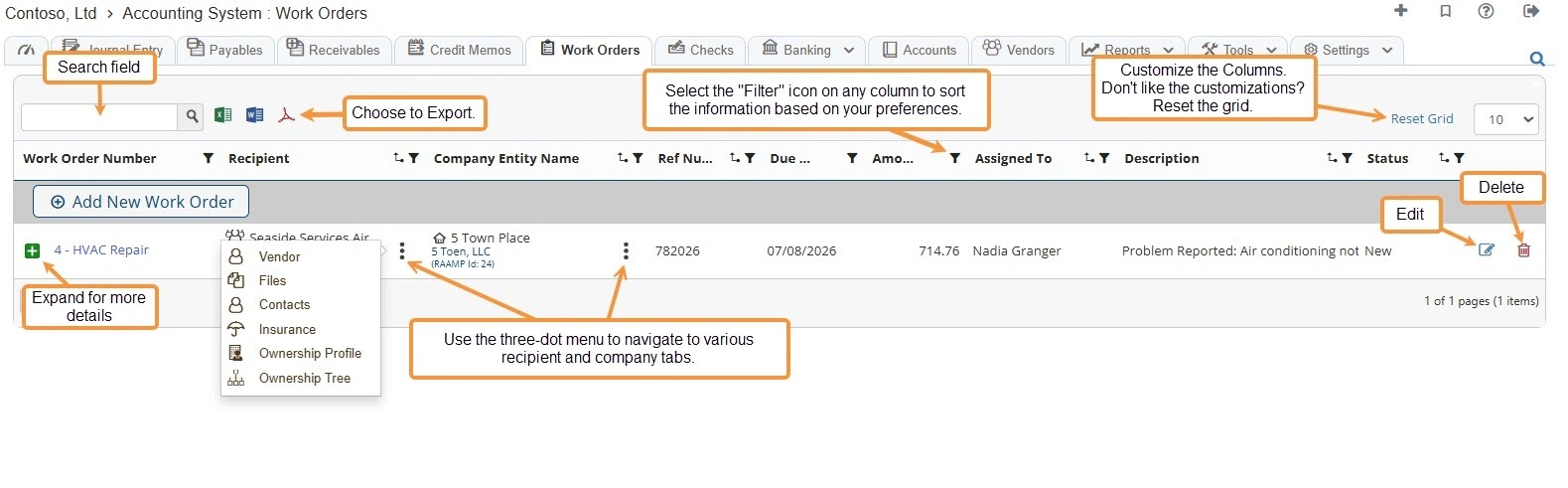
2. Work Order Overview
How to Create a New Work Order
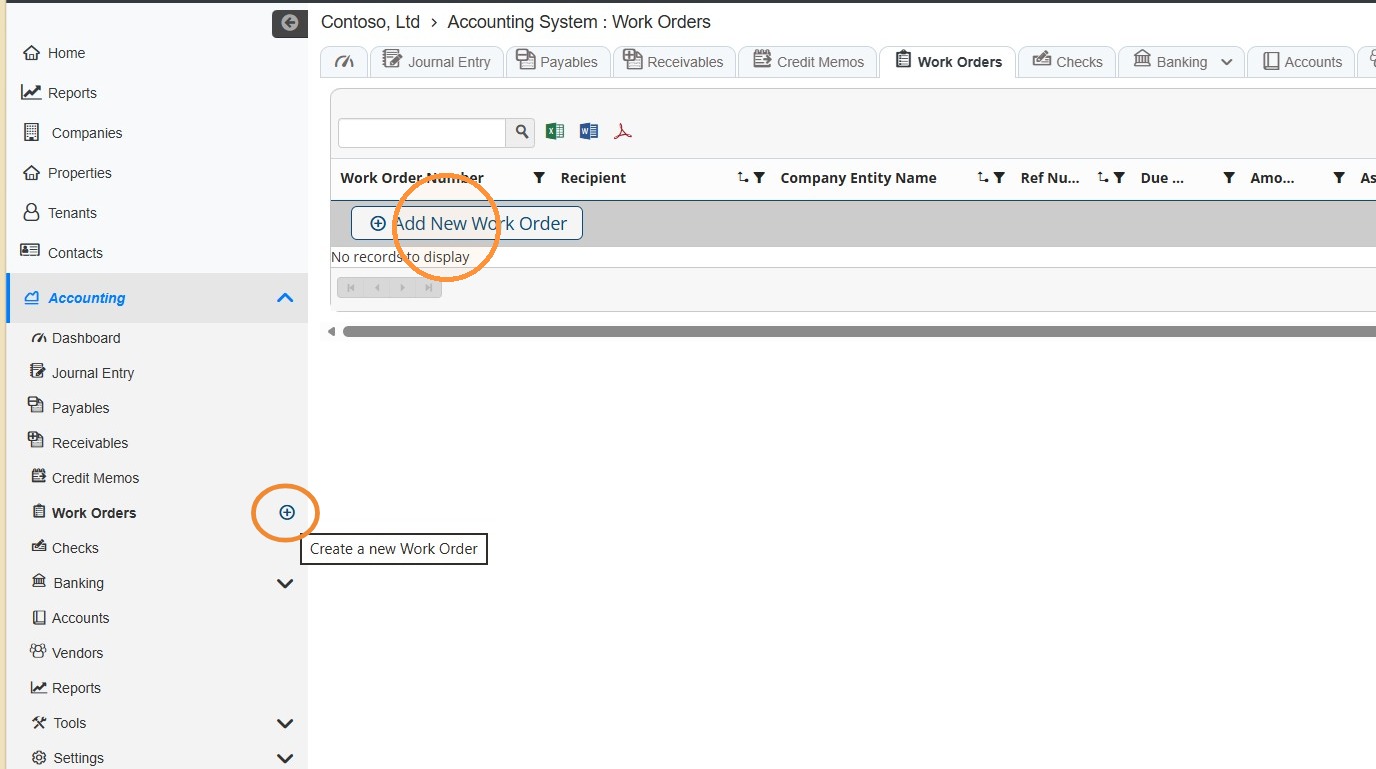
3. Select Create a new Work Order.
NOTE: You can also select the + on the navigation menu to create a new work order.
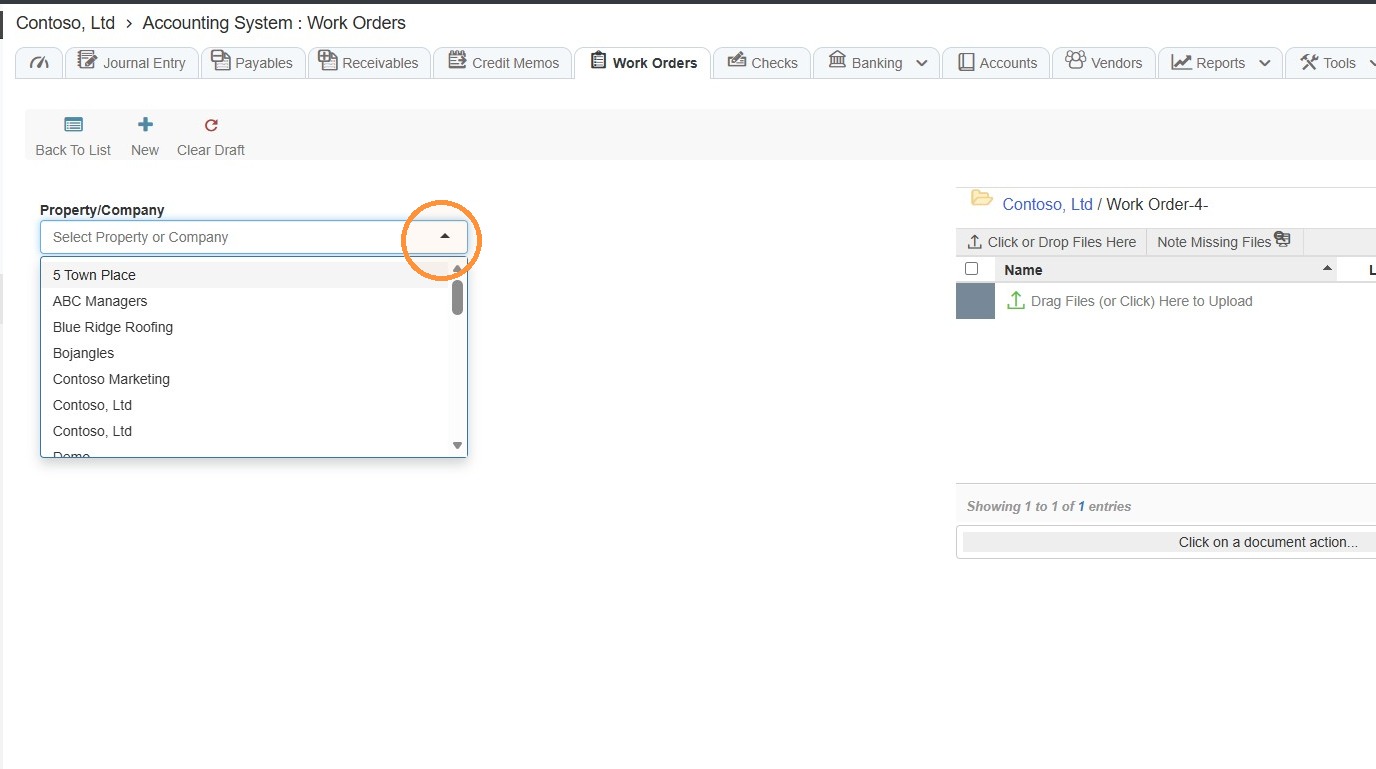
4. Select the Property/Company from the dropdown menu.
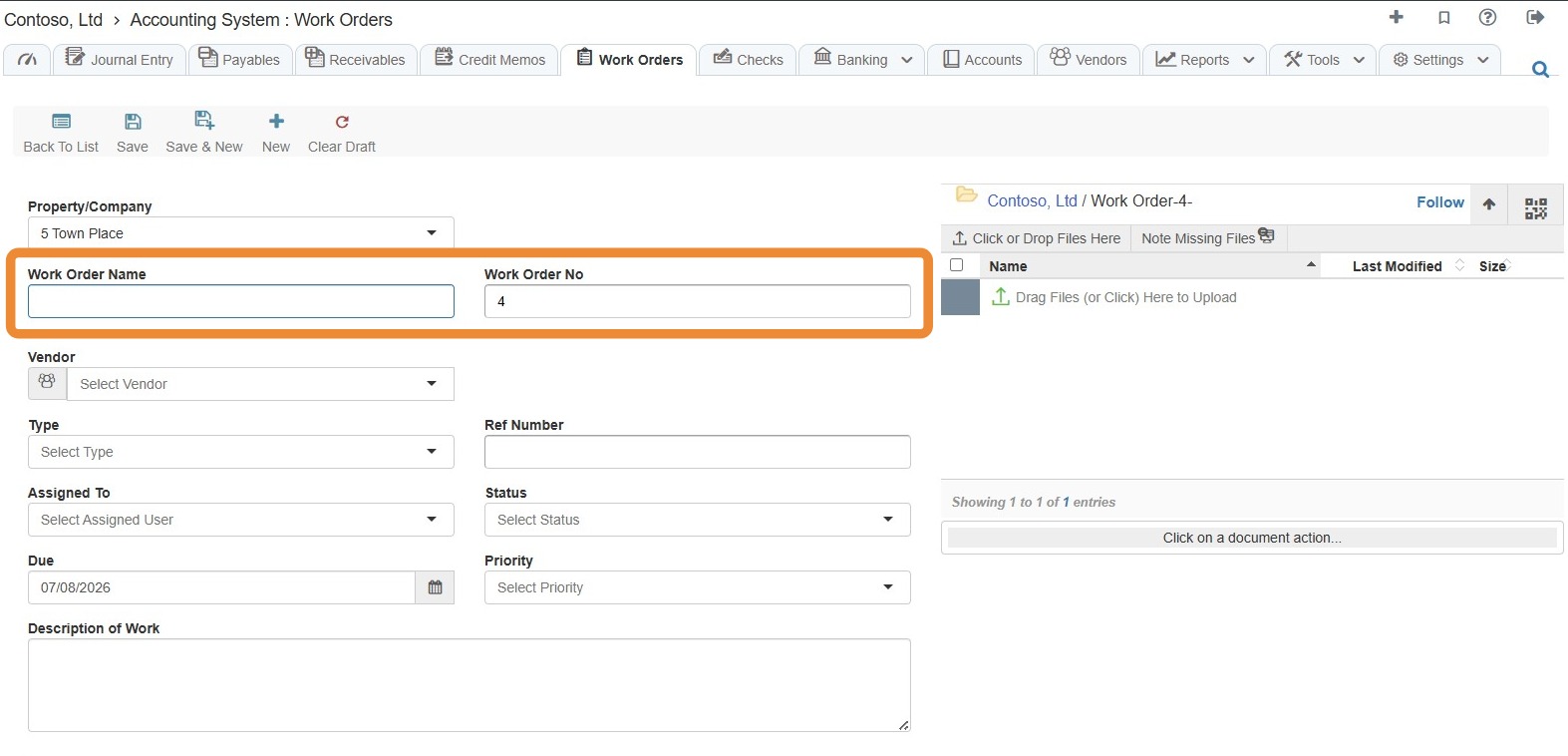
5. Enter a Work Order Name.
The Work Order No should auto-populate, but you can change it if needed.
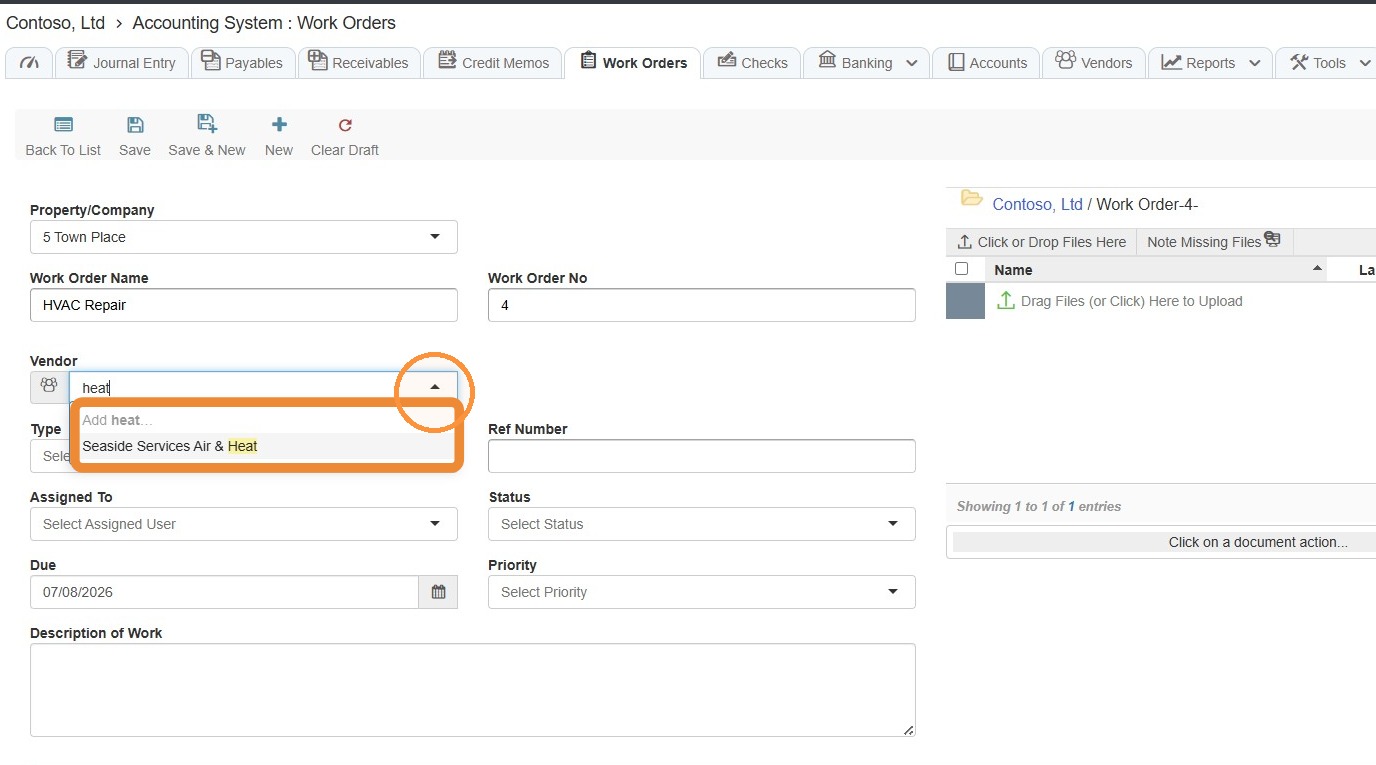
6. Select a Vendor from the dropdown menu.
If you do not need to select a different entity type, skip to step 10.
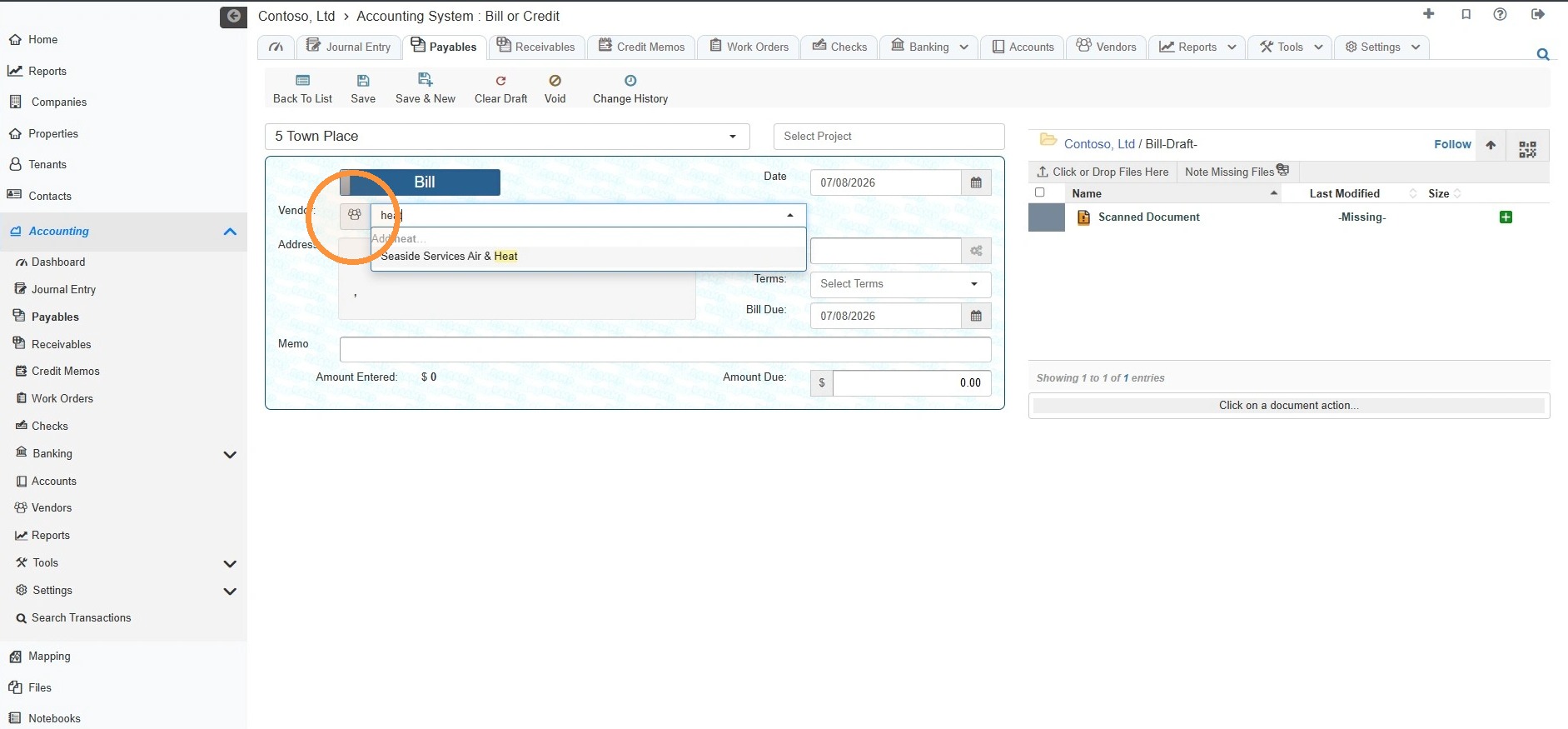
7. Select the Vendor icon.
8. Select the entity type from the radial menu.
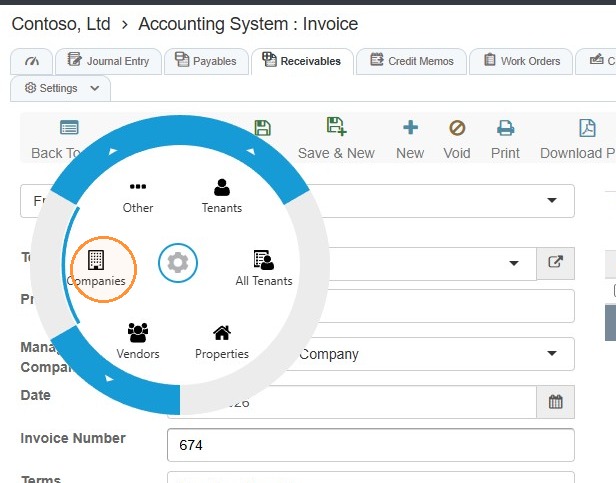
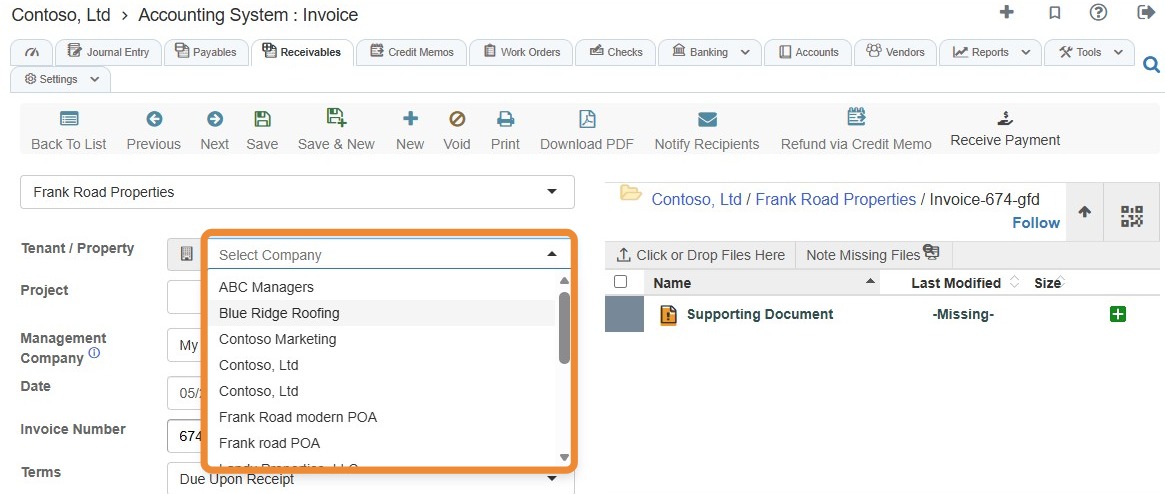
9. The Vendor dropdown menu will update.
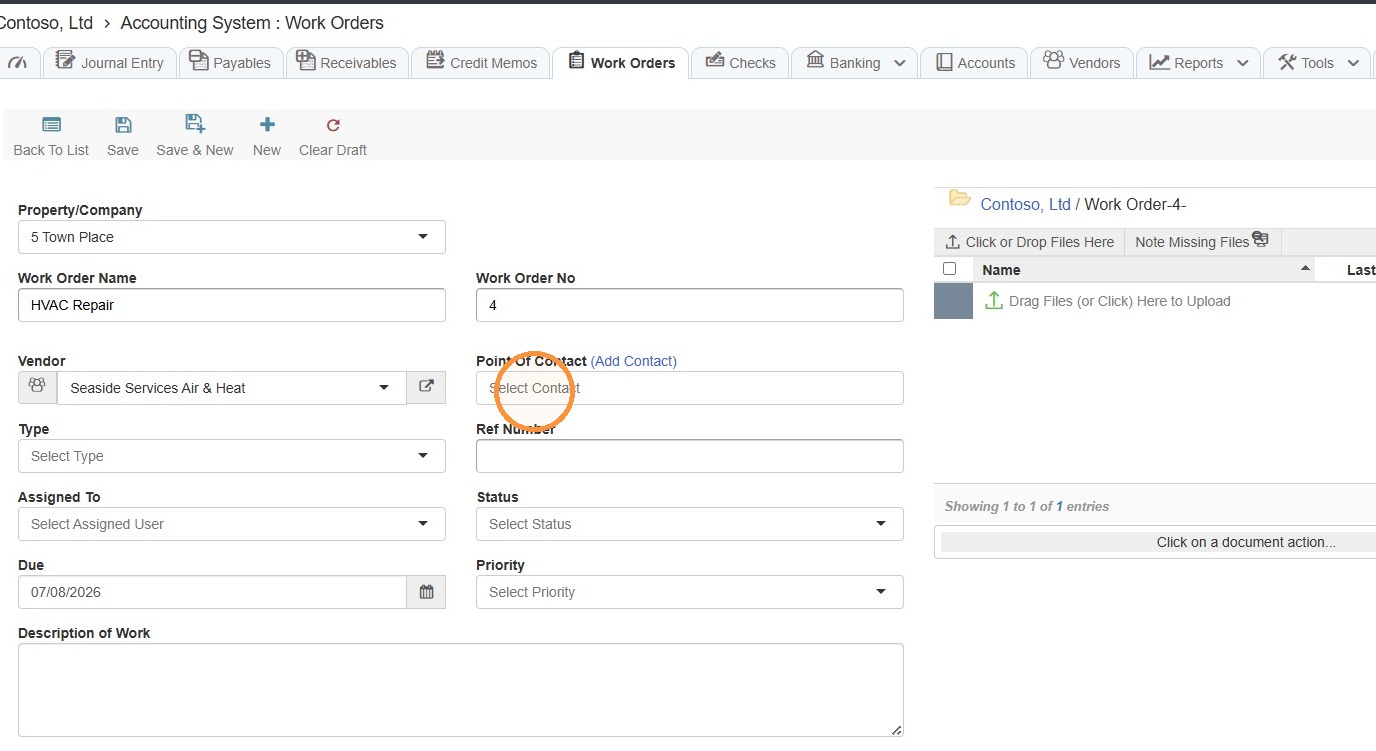
10. Select the Point of Contact field > Choose a point of contact.
NOTE: If you need to add a contact see the section How to Add Contact.
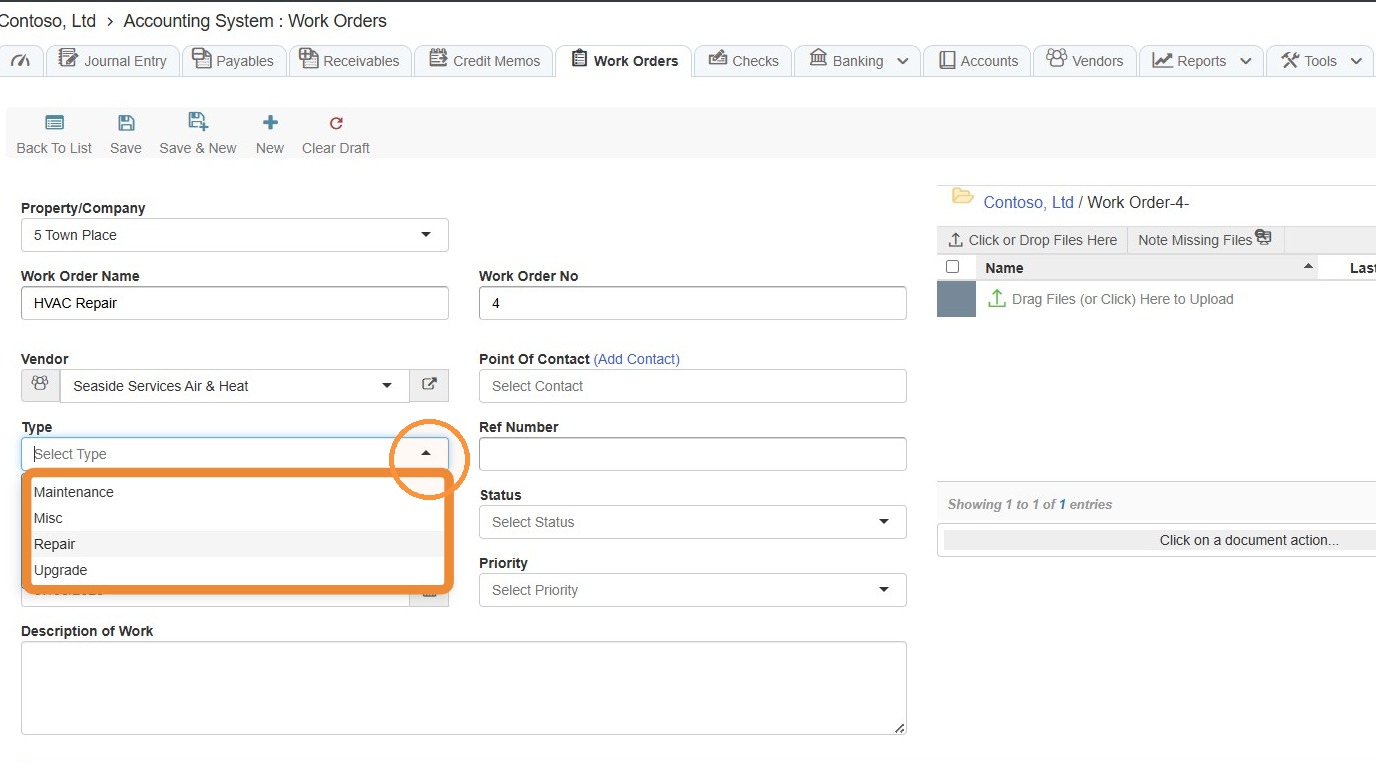
11. Select a work order type from the dropdown menu.
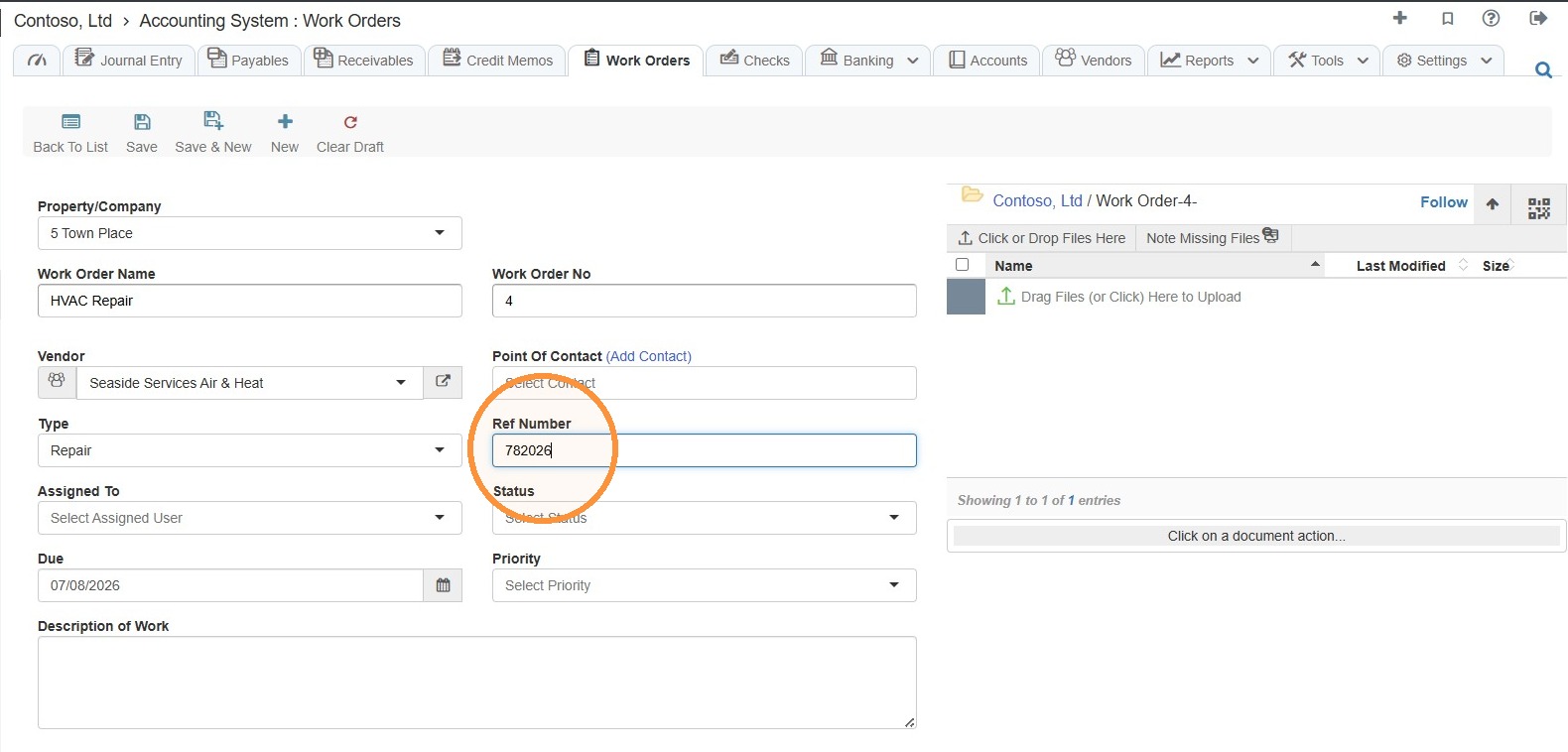
12. Select the Ref Number field > Enter a reference number.
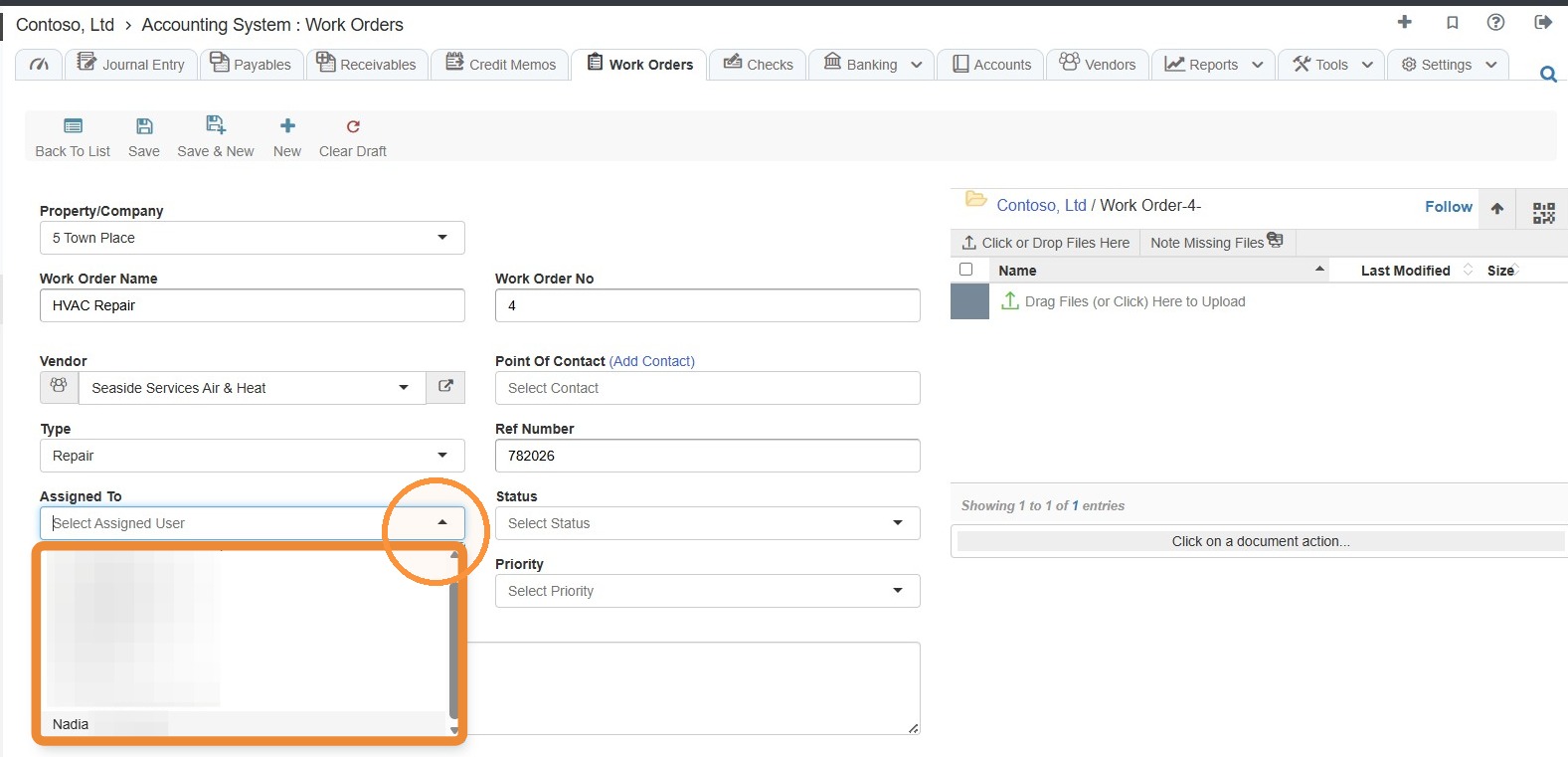
13. Select a user from the Select Assigned User dropdown menu.
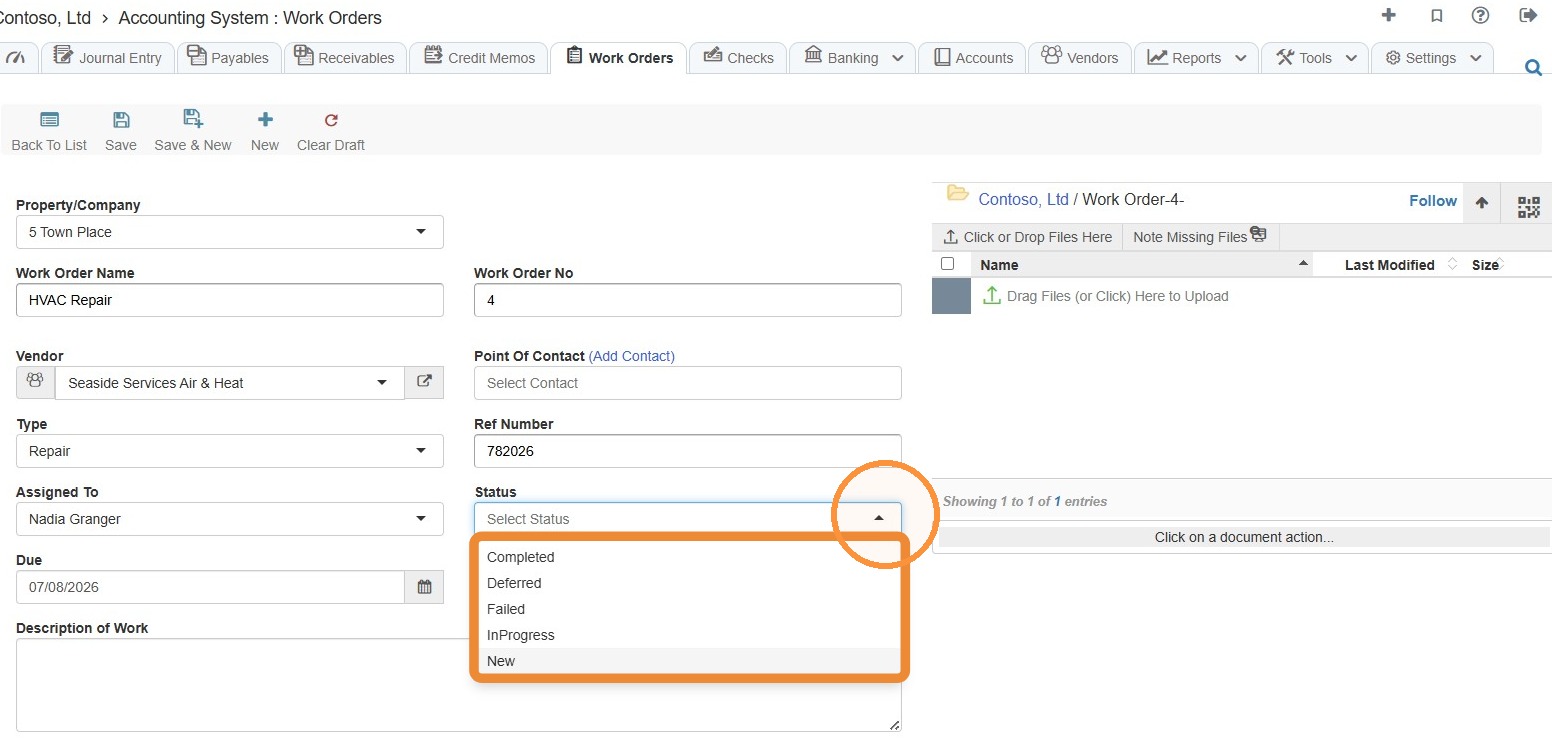
14. Select a status from the Status dropdown menu.
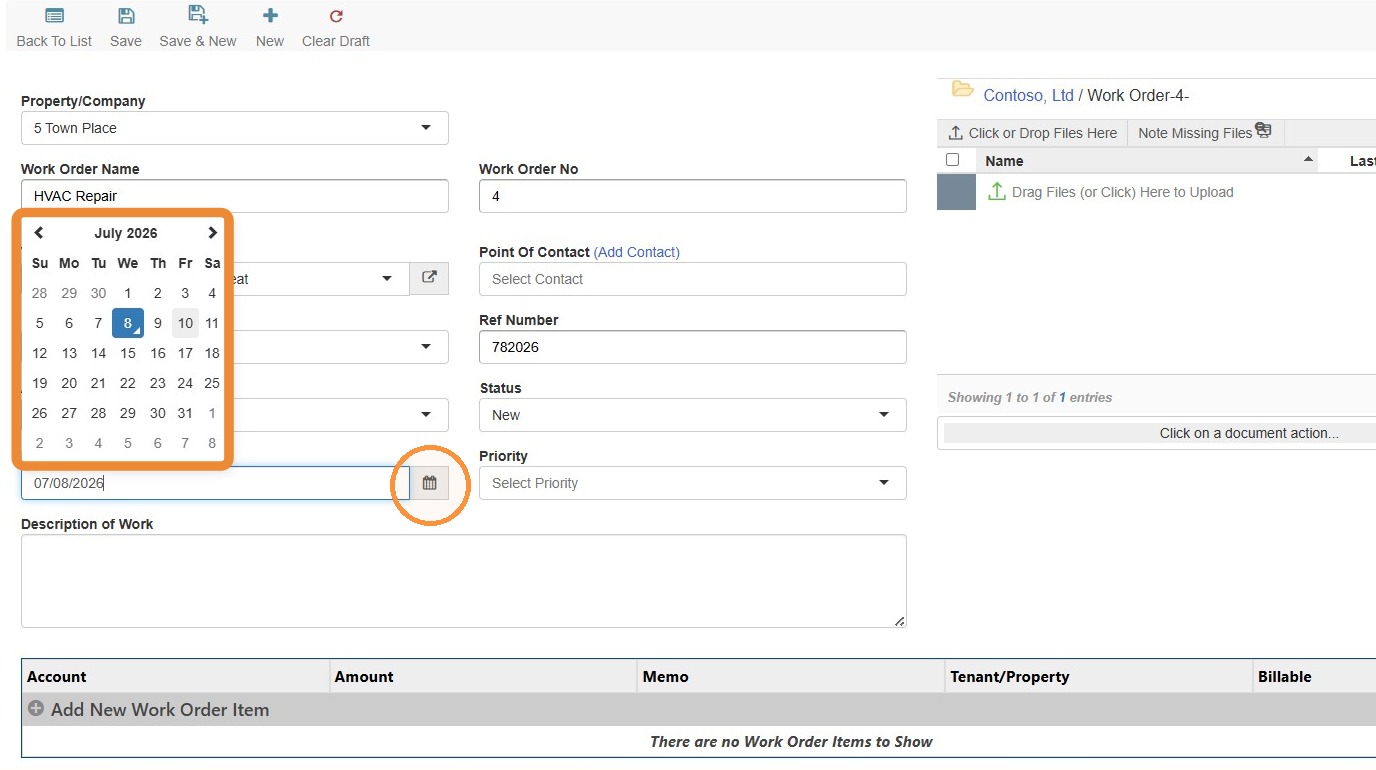
15. Select a due date.
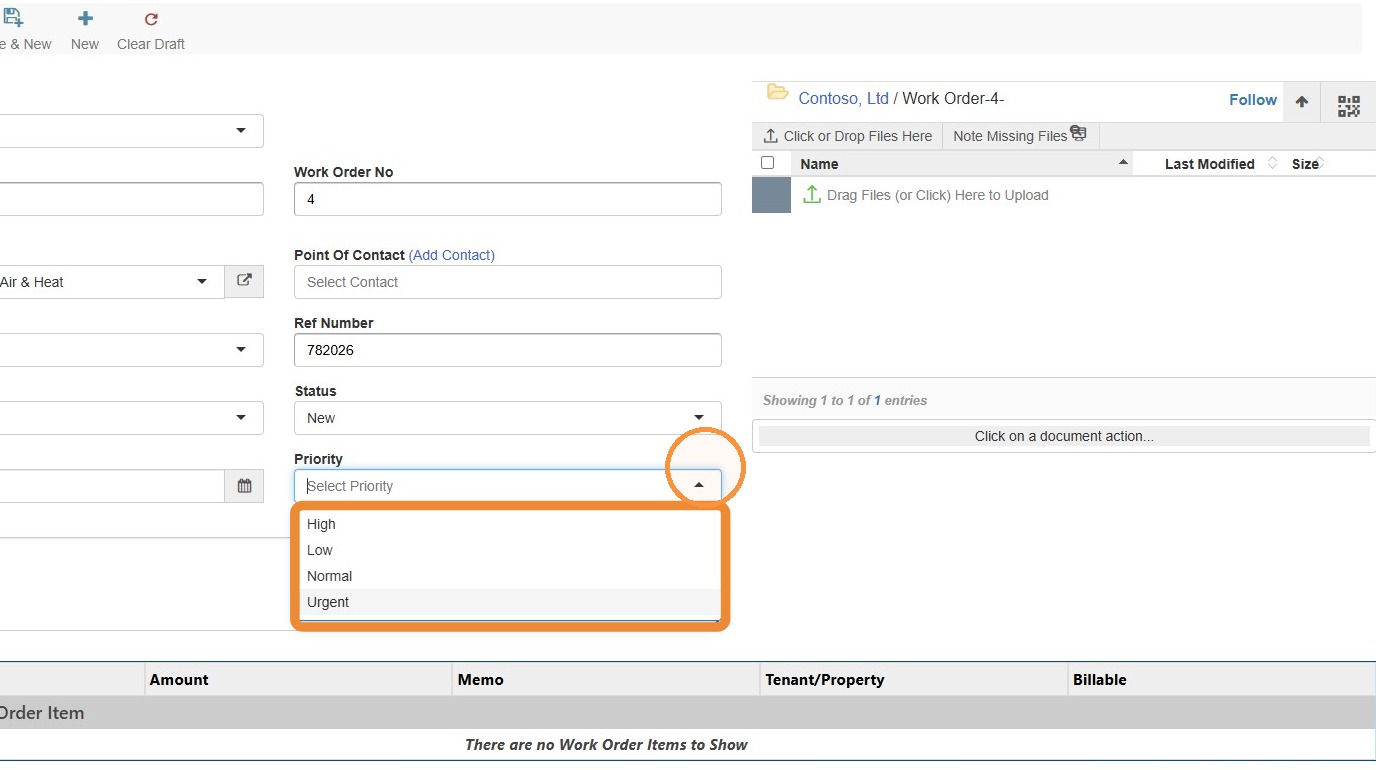
16. Select a priority from the Priority dropdown menu.
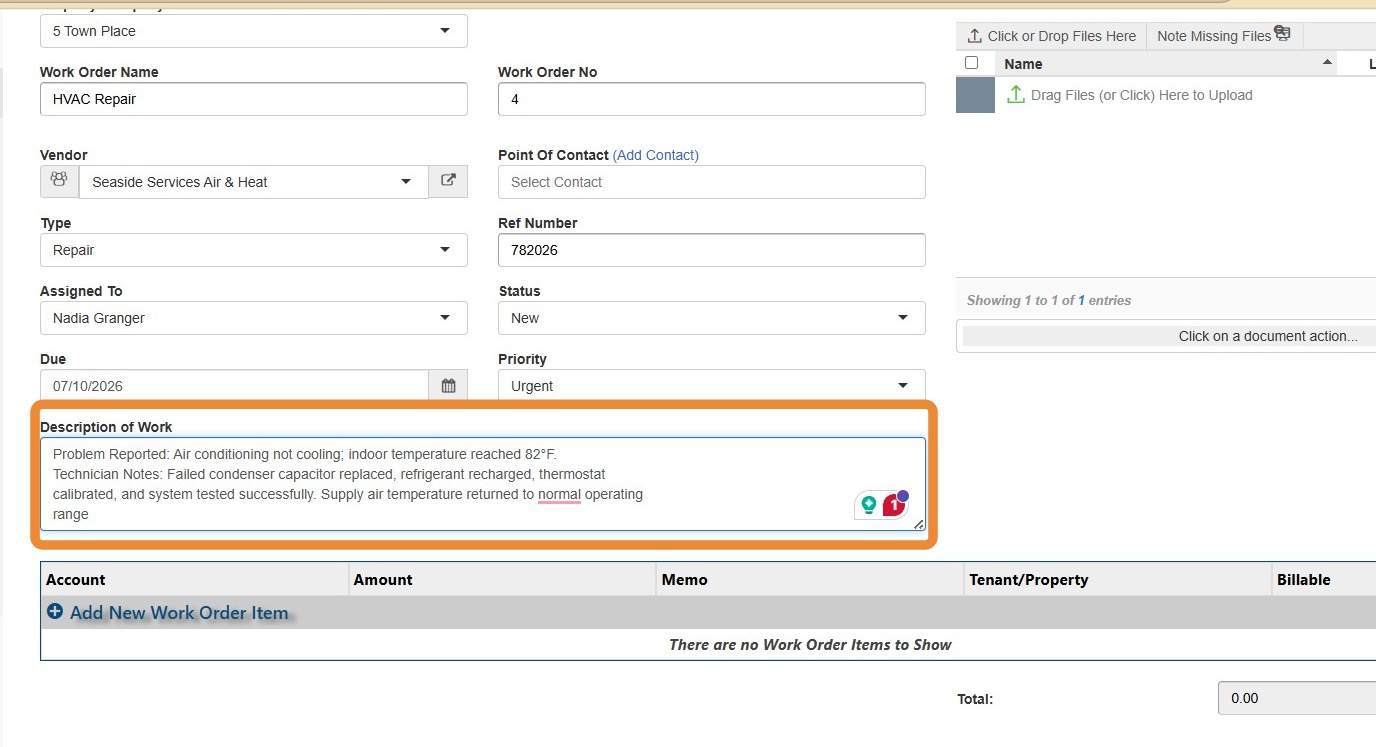
17. Select the Description of Work field > Enter a work description.
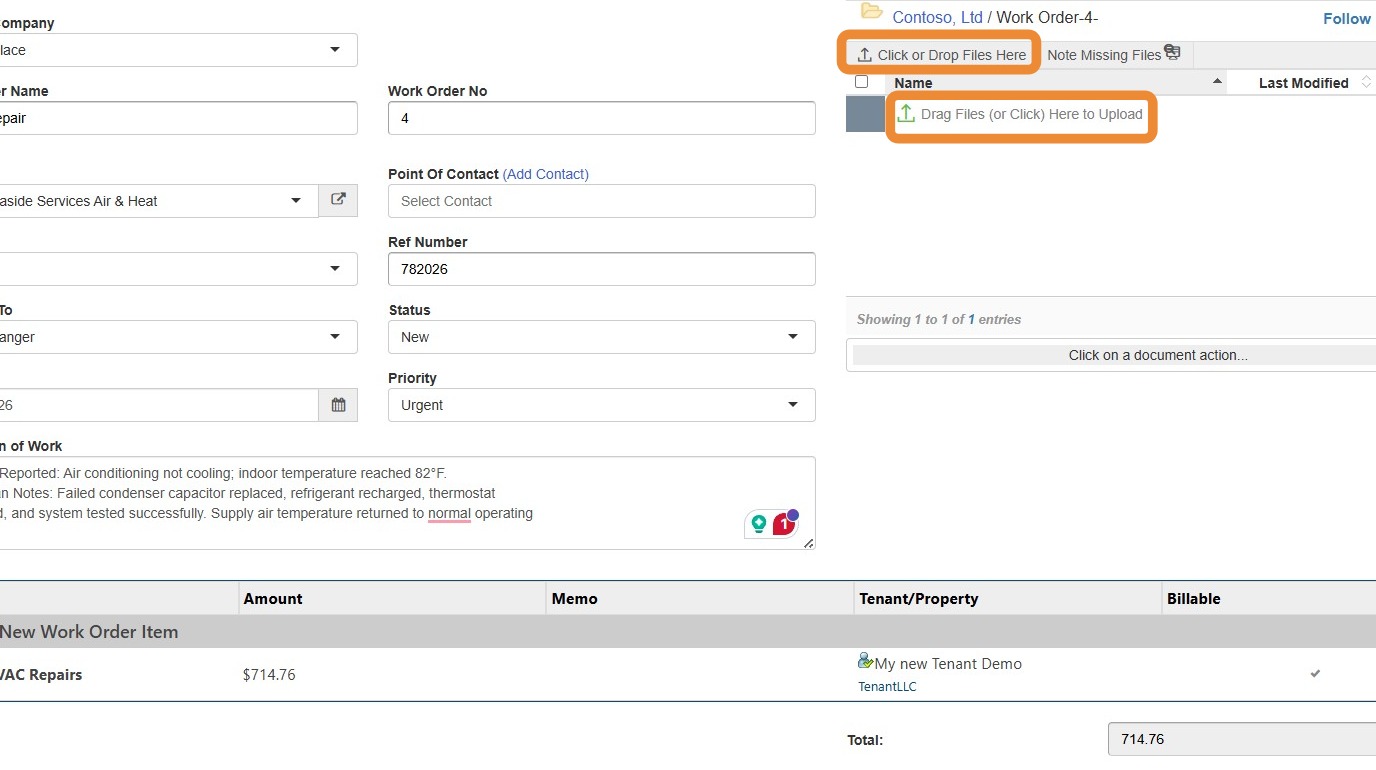
18. Select Click or Drop Files Here to upload a file from your computer (e.g. an estimate).
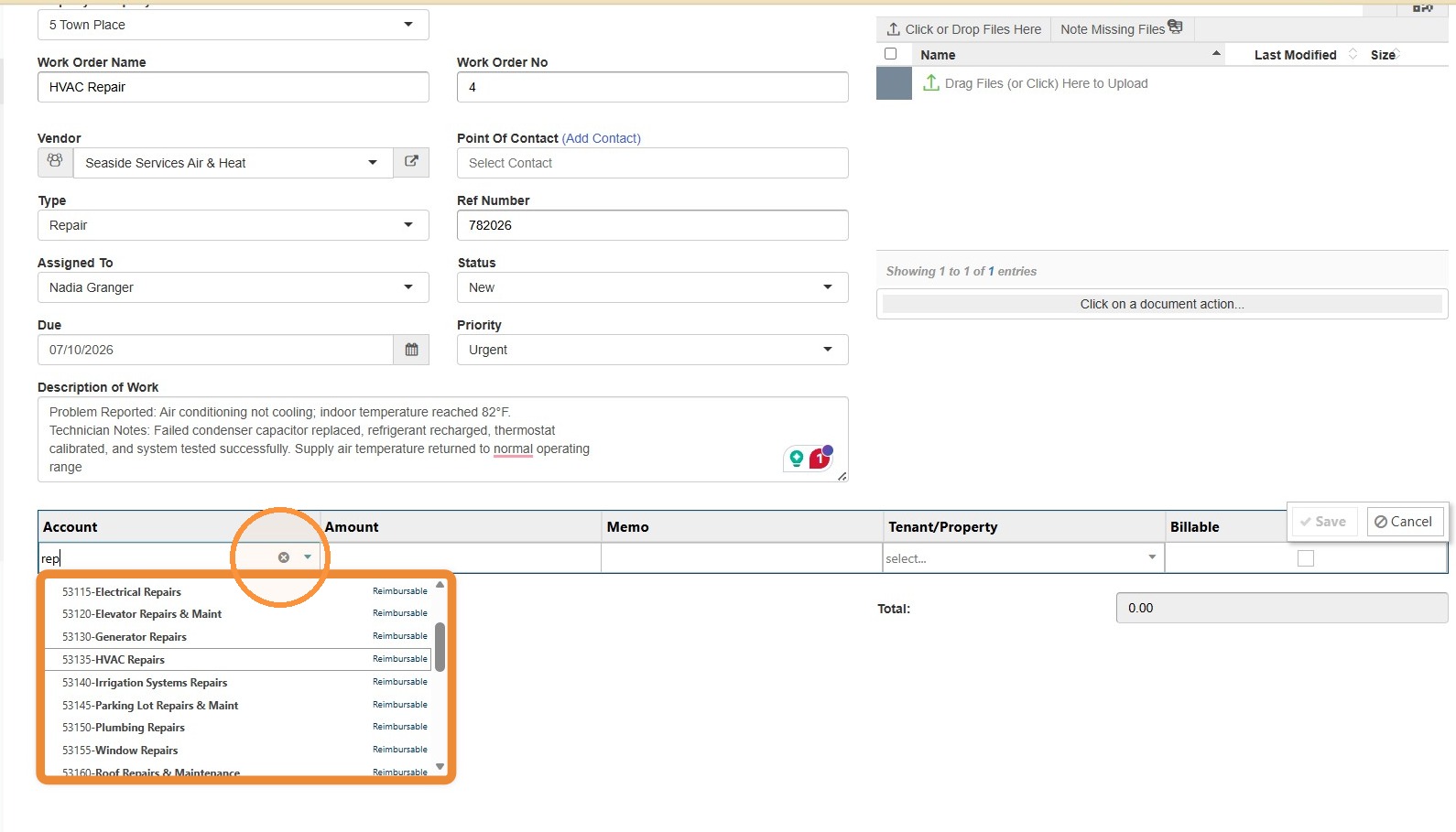
19. Select the Account field > Choose an account from the dropdown menu.
20. Select the Amount field > Enter the amount.
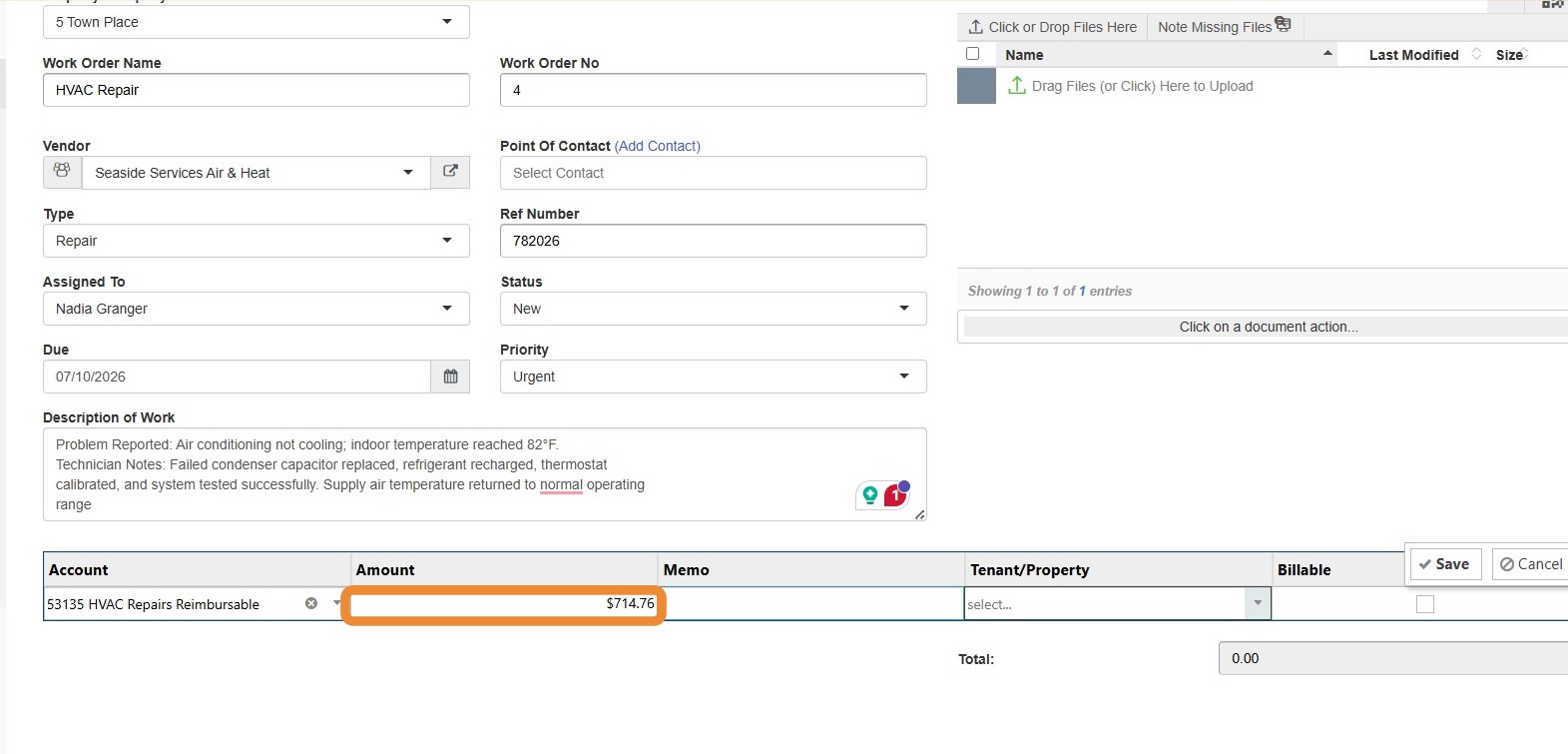
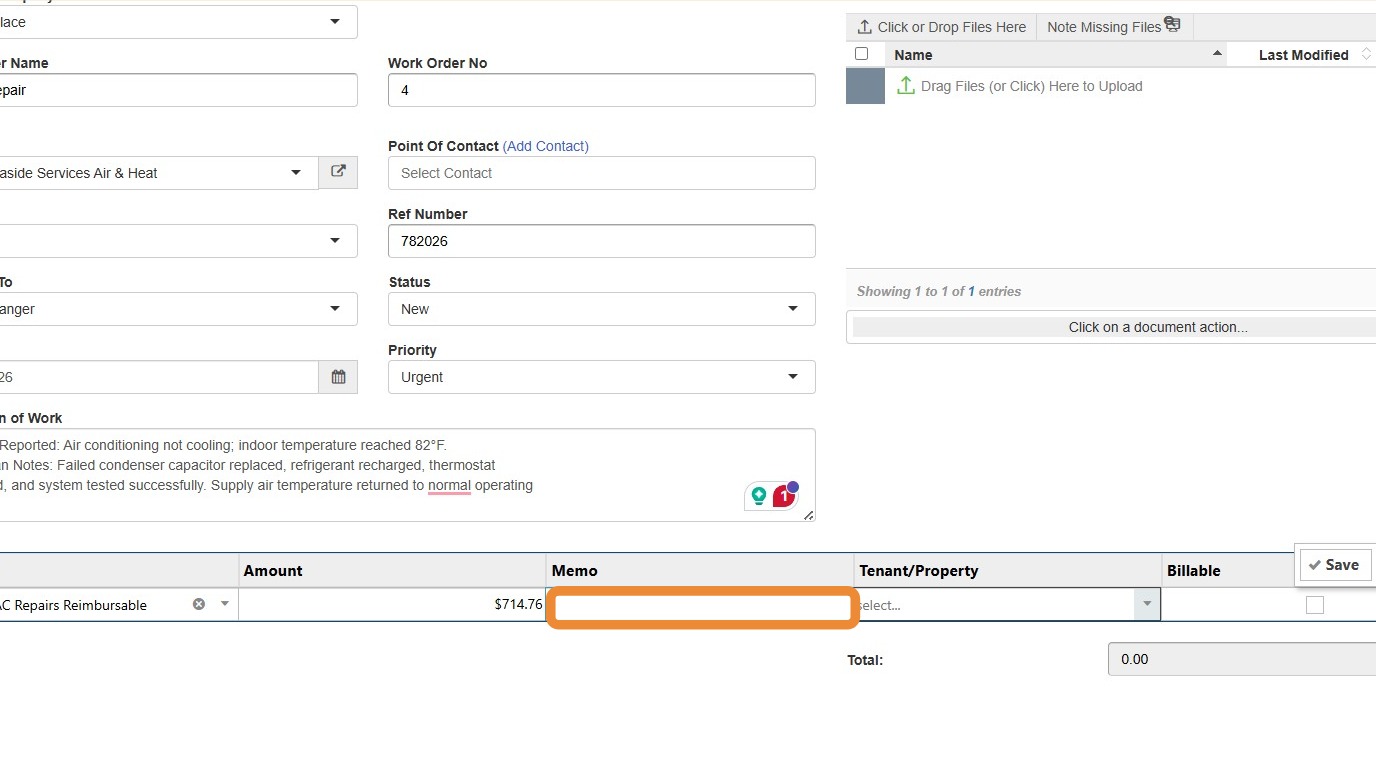
21. Select the Memo field > Enter a memo if needed.
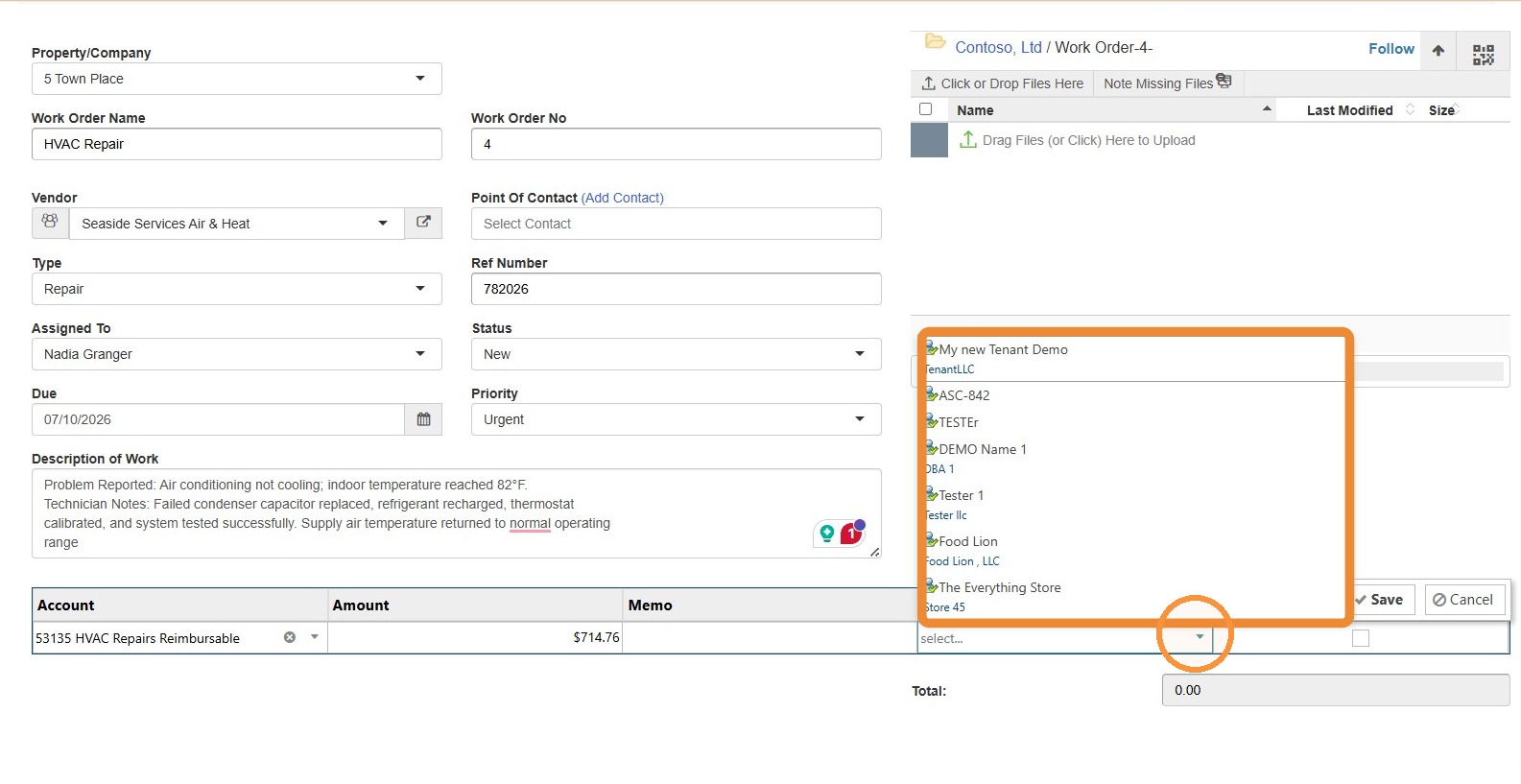
22. Select the Tenant field > Choose a tenant from the dropdown menu.
23. Select the Billable box to make the work order billable to the tenant > Select Save.
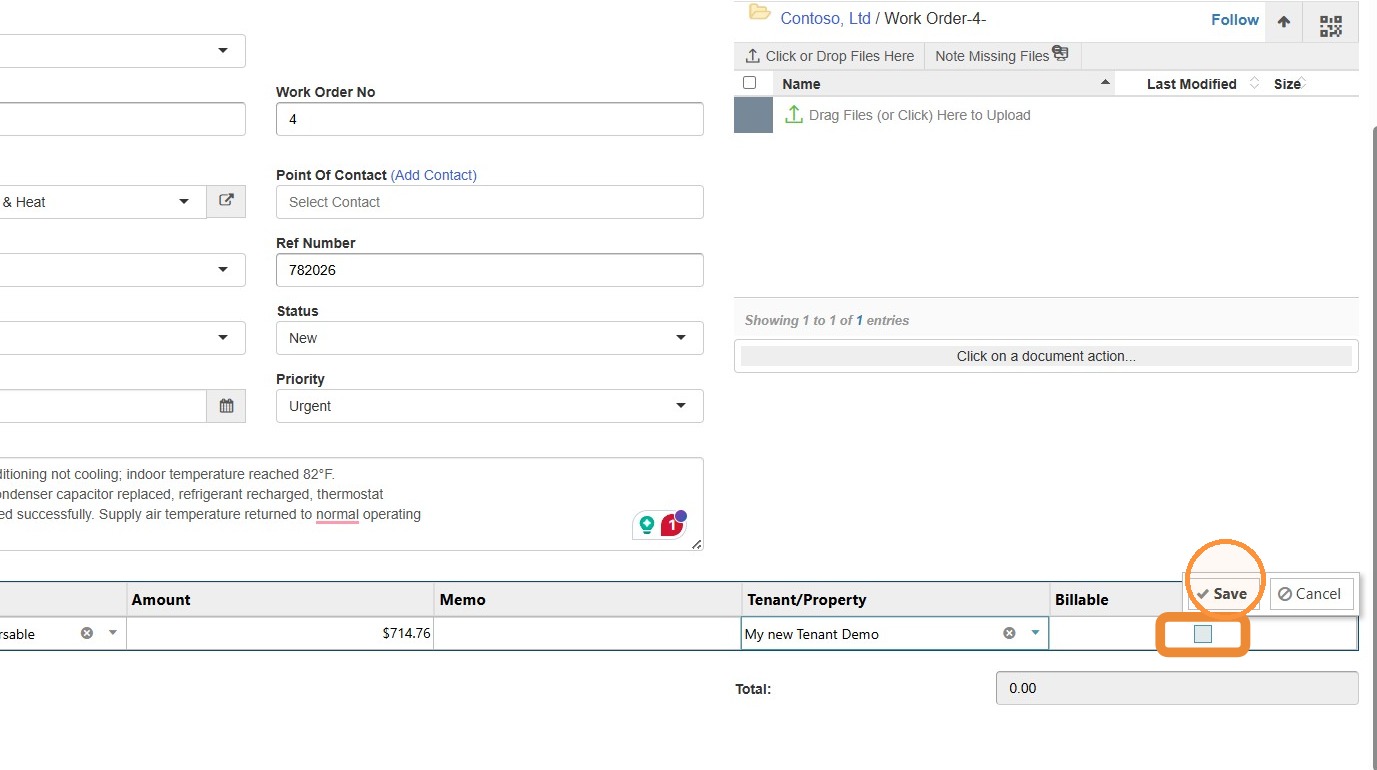
24. Select Save.
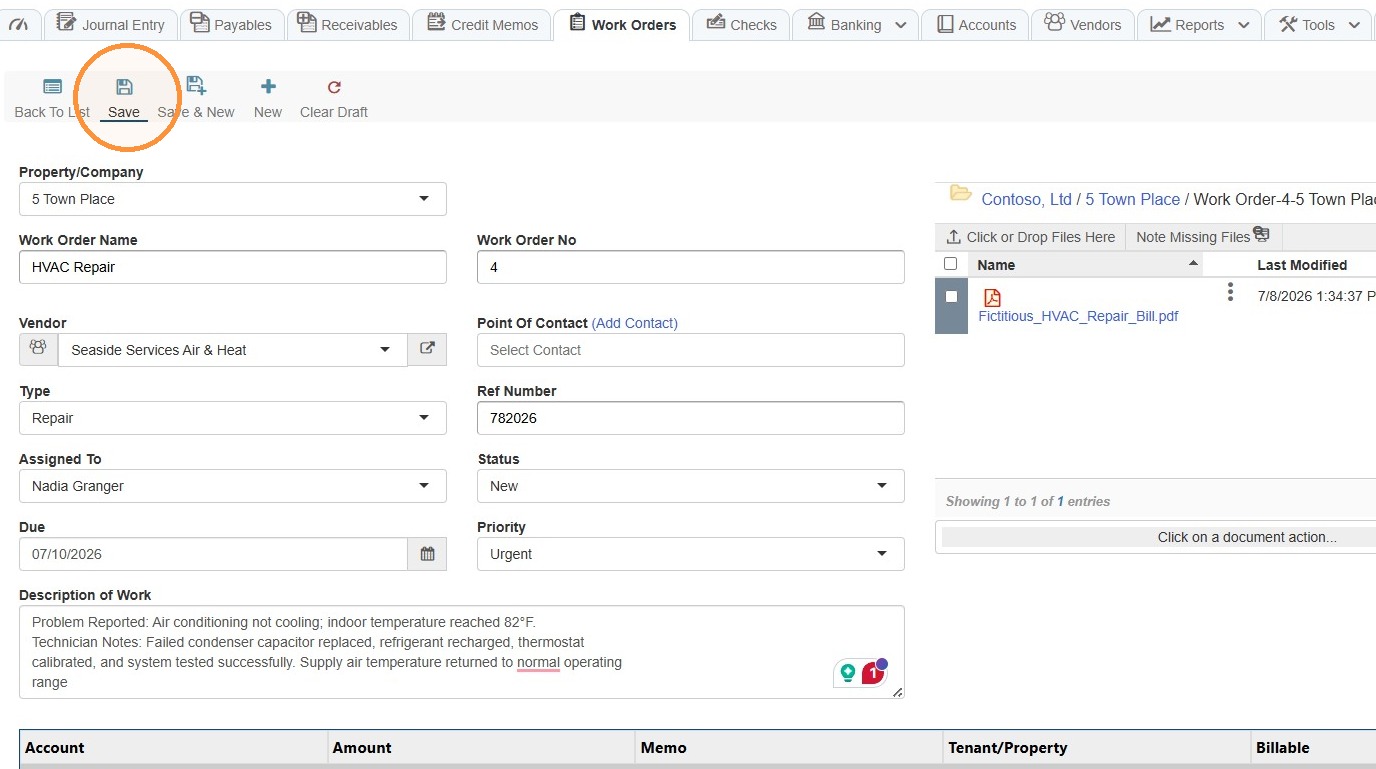
25. Select Back To List to return to the list of work orders.
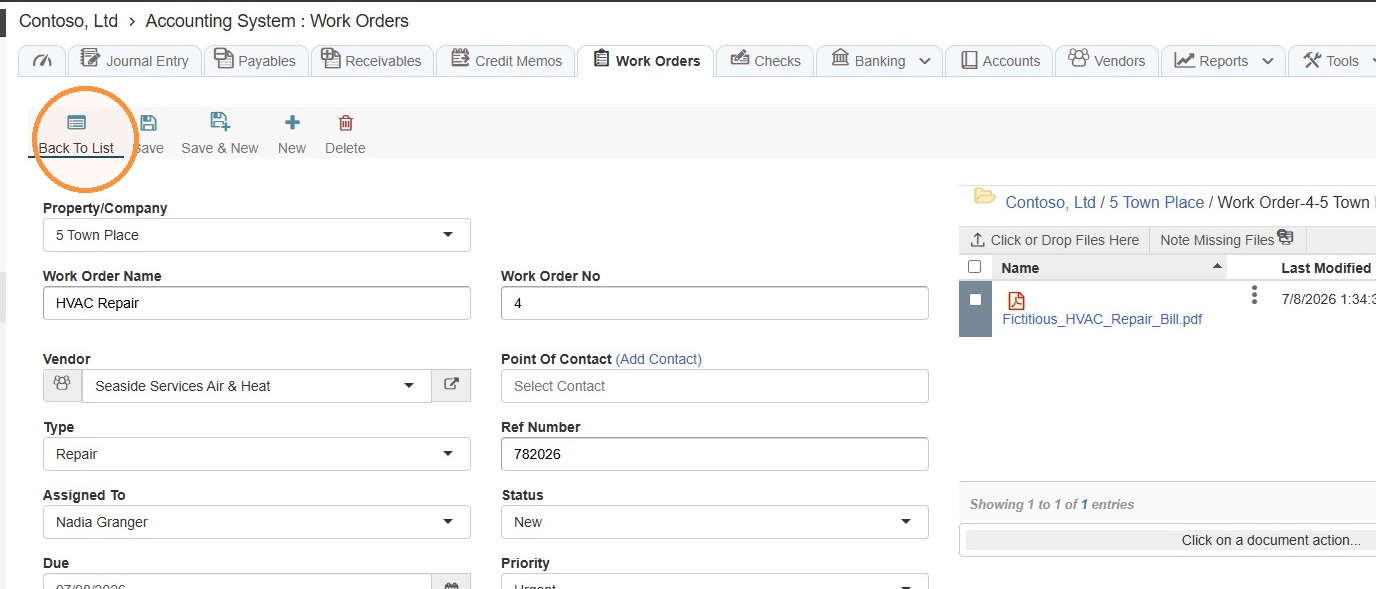
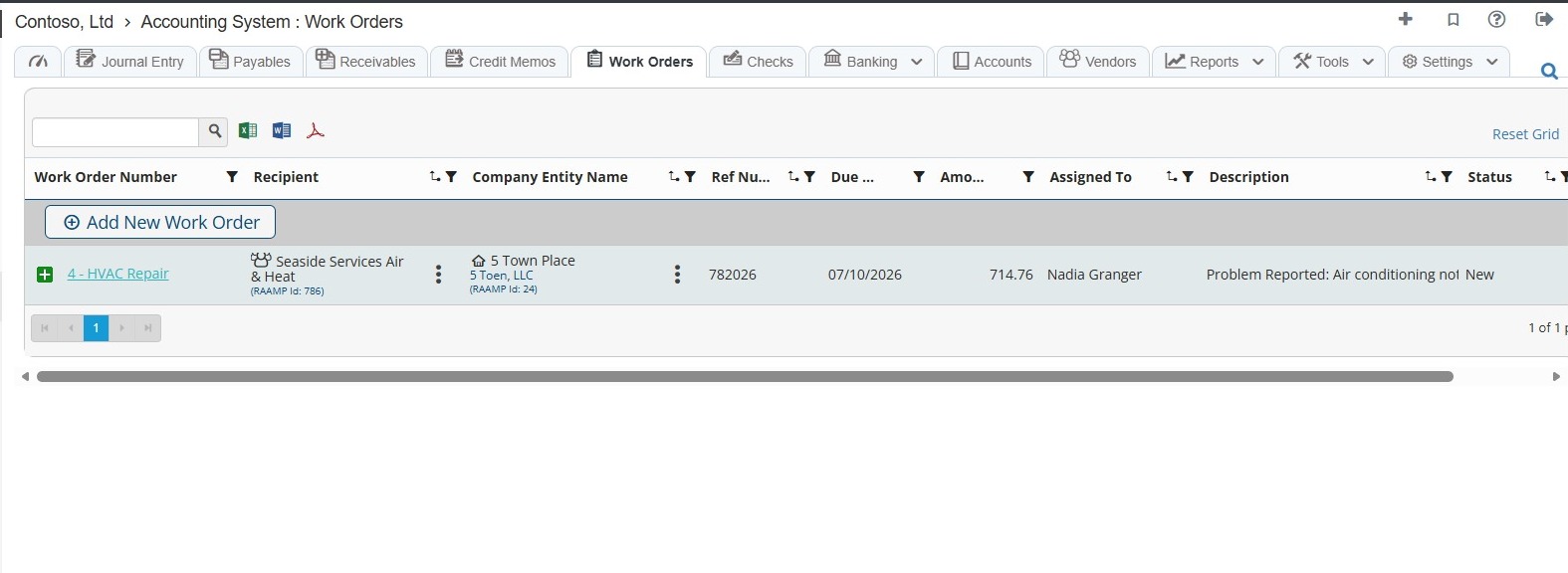
How to Edit or Delete a Work Order
26. Select the Edit icon.
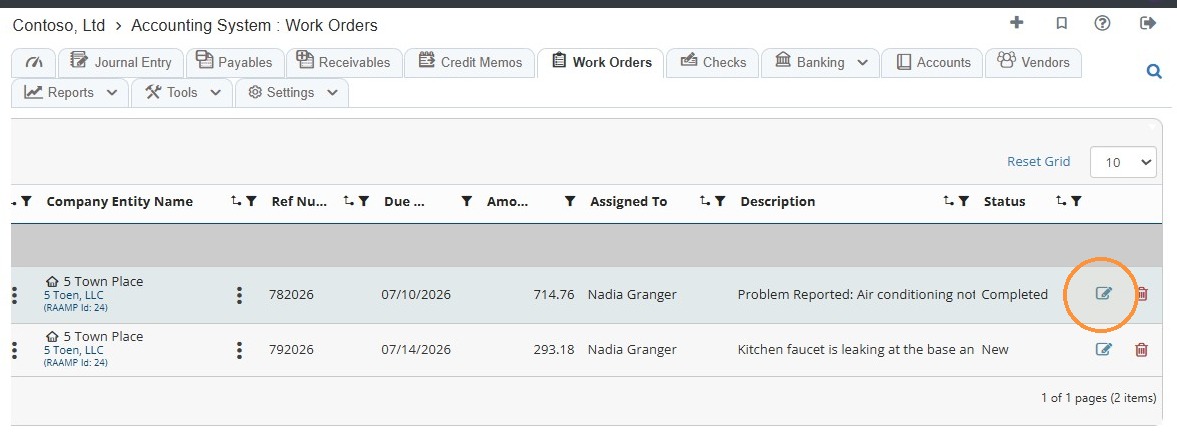
27. Make the necessary edits > Select Save.
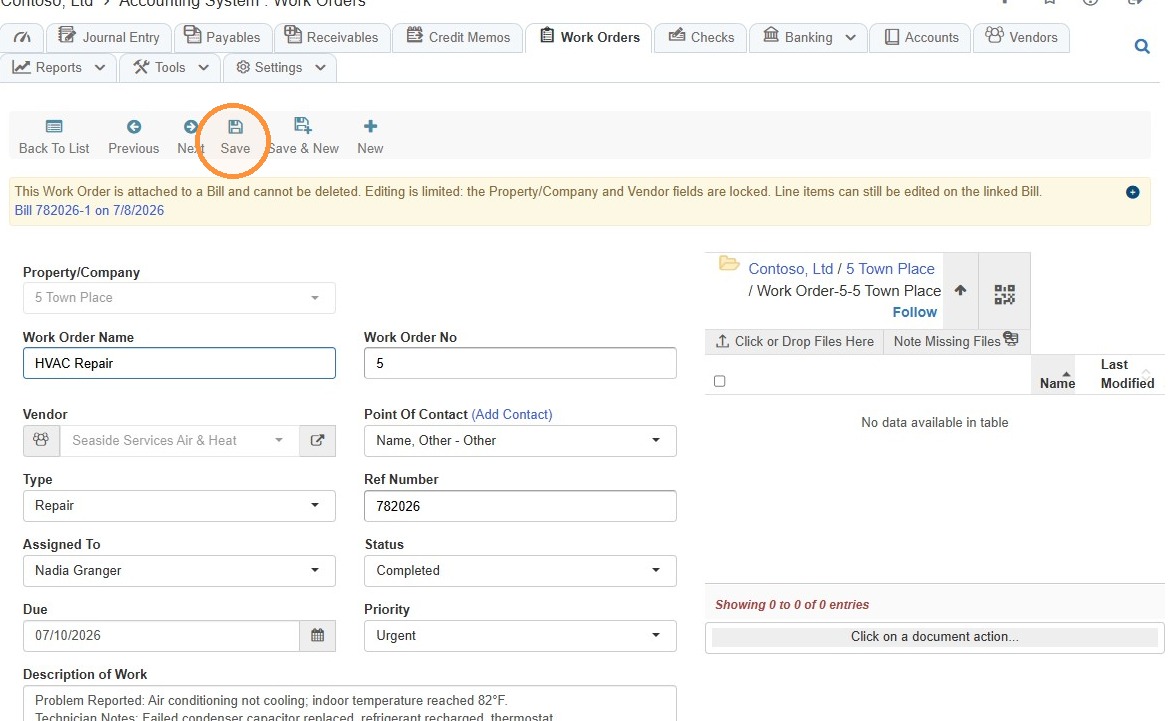
Tip: If a Work Order is attached to a Bill, it cannot be deleted, and editing is limited: the Property/Company and Vendor fields will be locked. Line items can still be edited on the linked Bill.
28. To delete a work order, select the delete icon on the work order list > Select Yes.
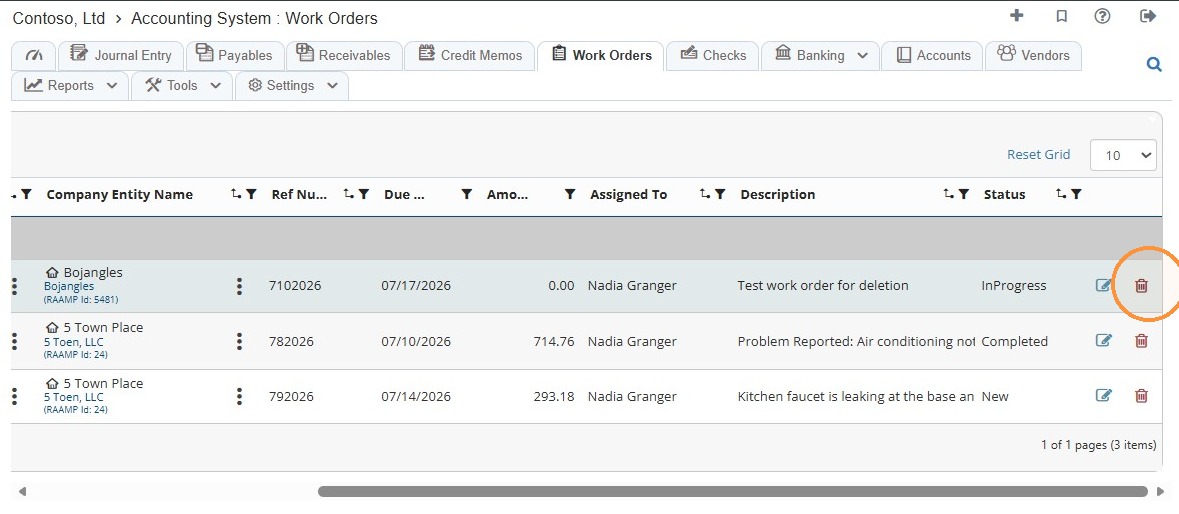
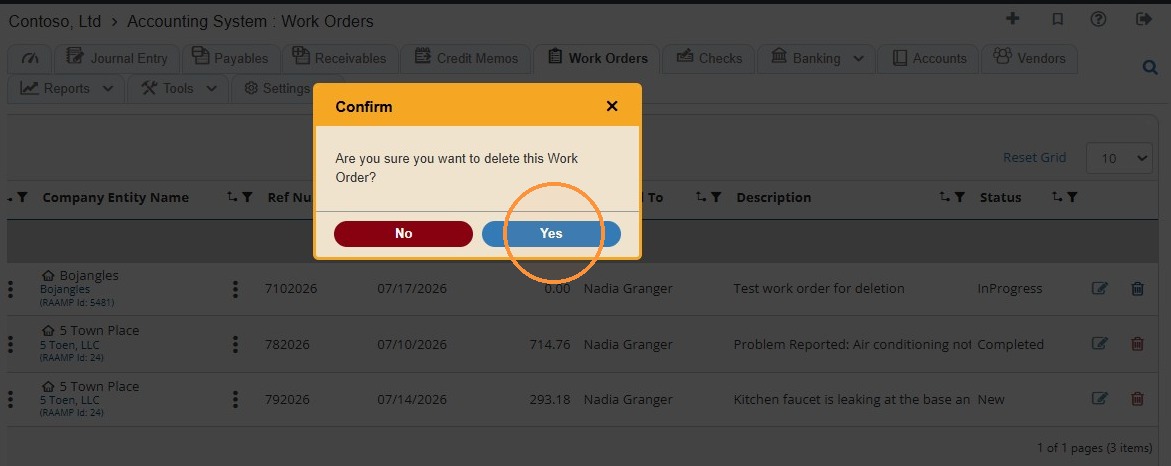
Alert: Deleting a work order will remove it from the work order list. It can be restored from the Trash Bin. To learn how to restore a deleted file, see Navigating to Trash Bin & Restoring Files in RAAMP.
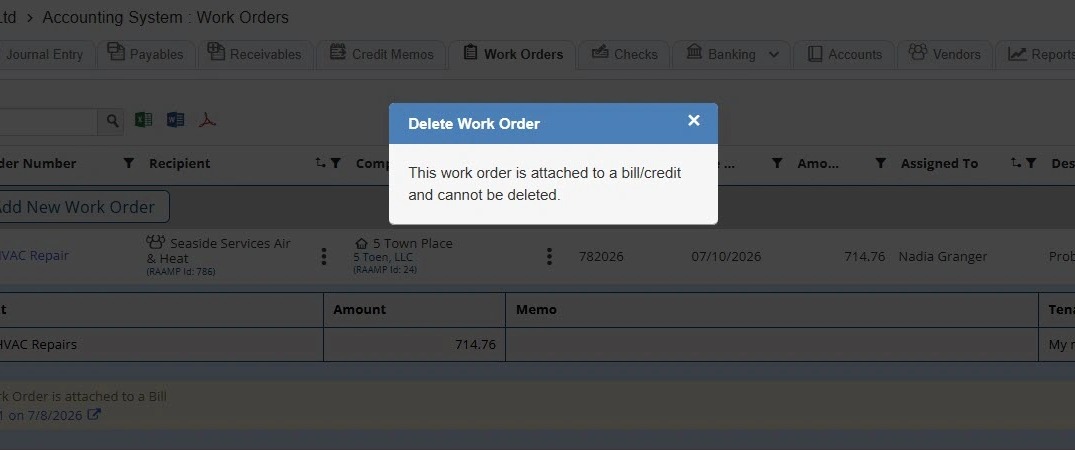
If a Work Order is attached to a Bill or Payment, it cannot be deleted unless the Bill/Payment is deleted first.
How to Add a Contact
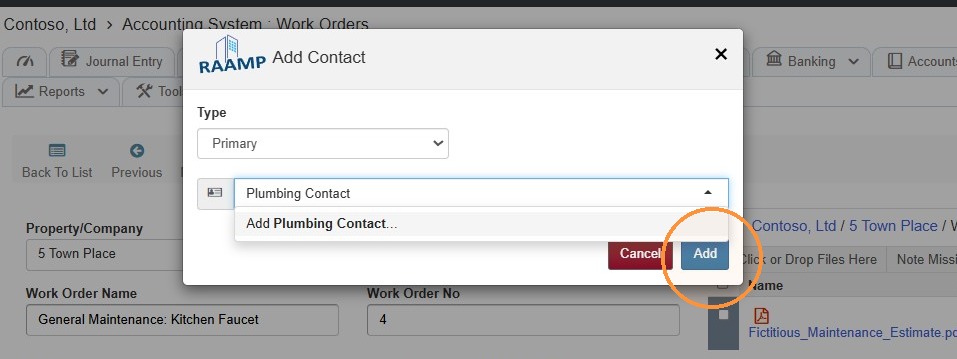
29. Select Add Contact.
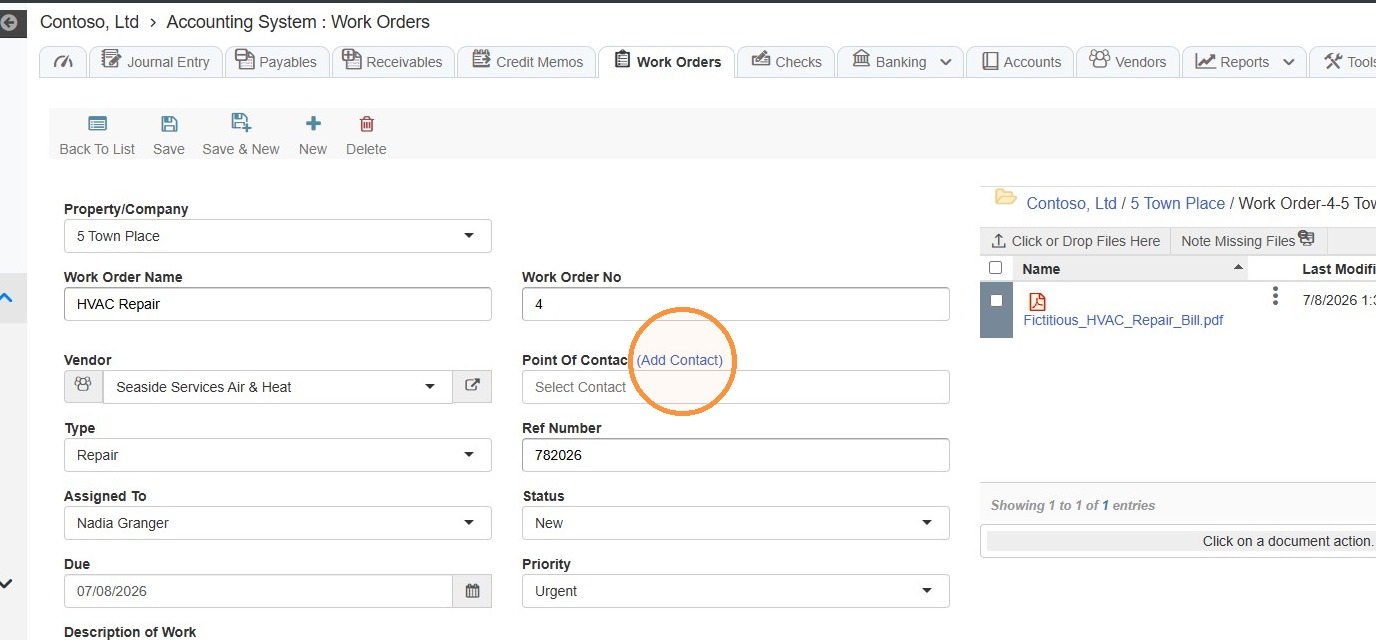
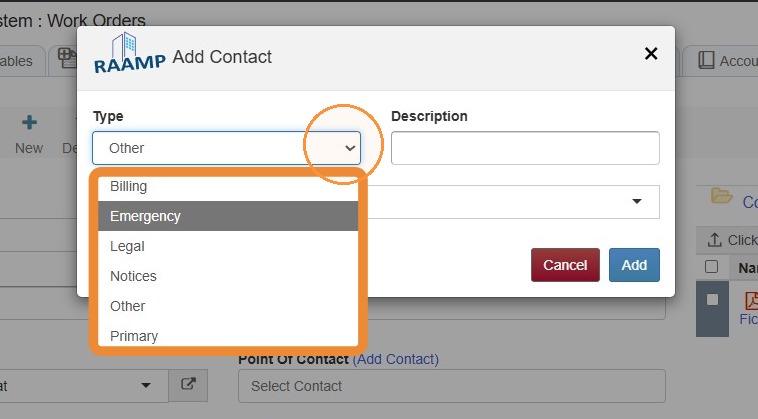
30. Select the type of contact from the Type dropdown menu.
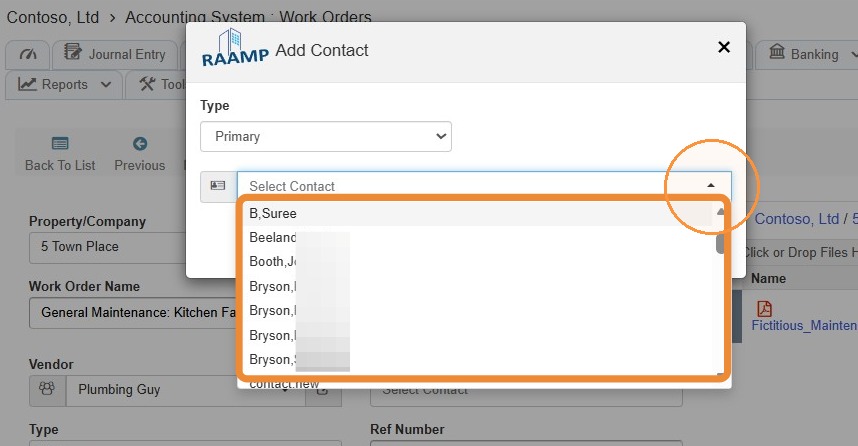
31. Select the contact from the dropdown menu, or add a new contact by entering their name and selecting Add XXX.
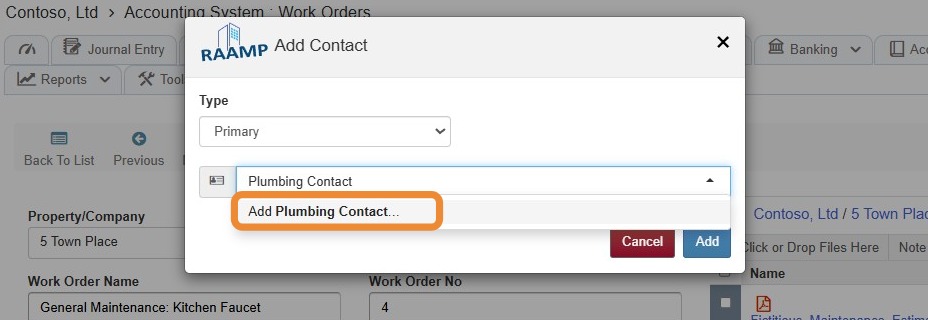
32. Select Add.