How to Use AI to Enter a Payable/Bill
This guide shows how to quickly upload and process vendor bills using AI so you can skip manual data entry. It explains where to find Payables, how to upload or drag in invoices, and how AI reads and auto-codes expenses based on prior bills. It also covers saving (including personal drafts) and completing payment.
How to Navigate to Payables
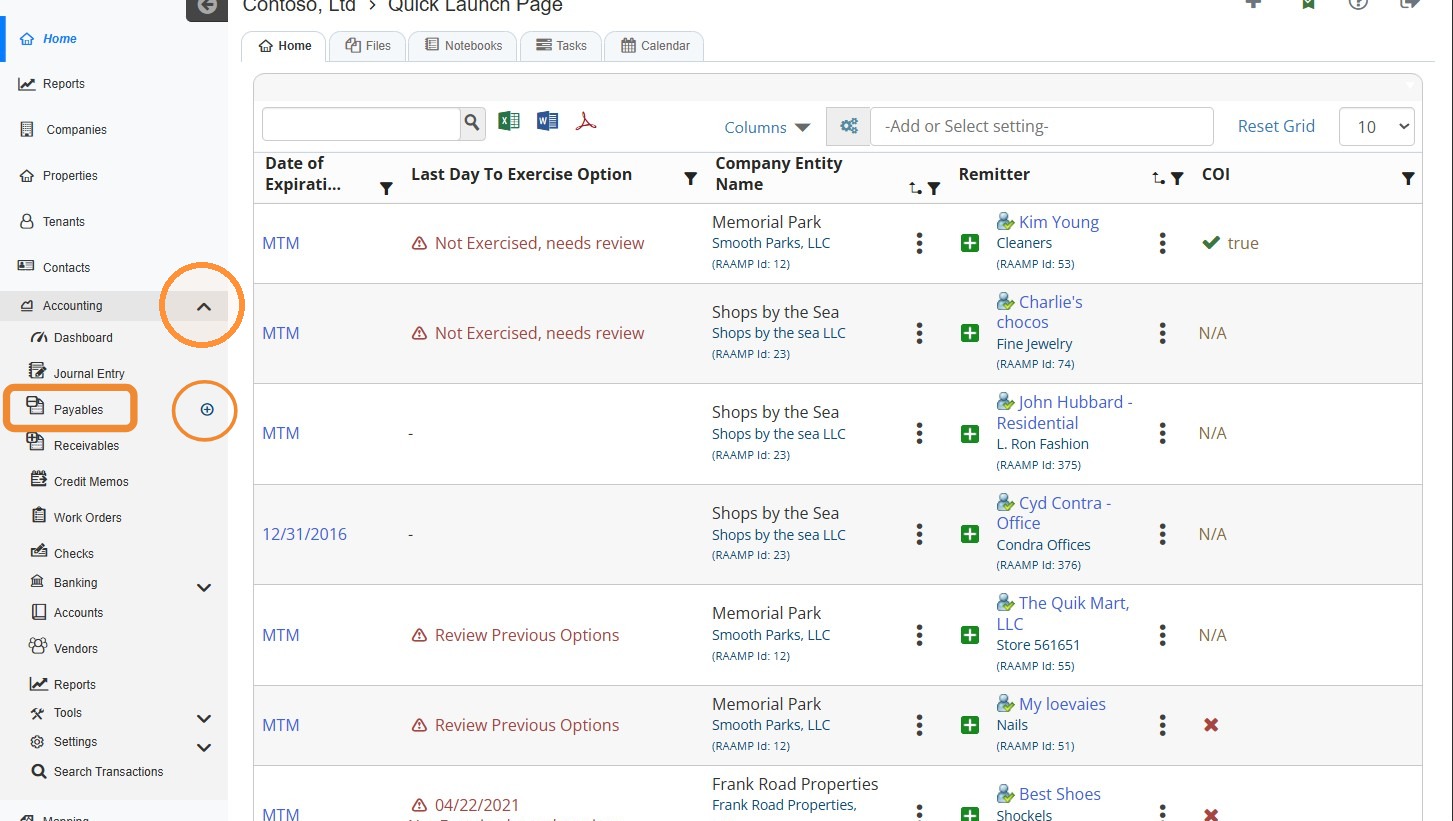
1. From the navigation menu, select Accounting > Hover over Payables > Select the + icon.
How to Enter a Bill Using AI
2. Select Scanned Document to upload the bill from your computer, or drag an invoice from your computer to the files interface.
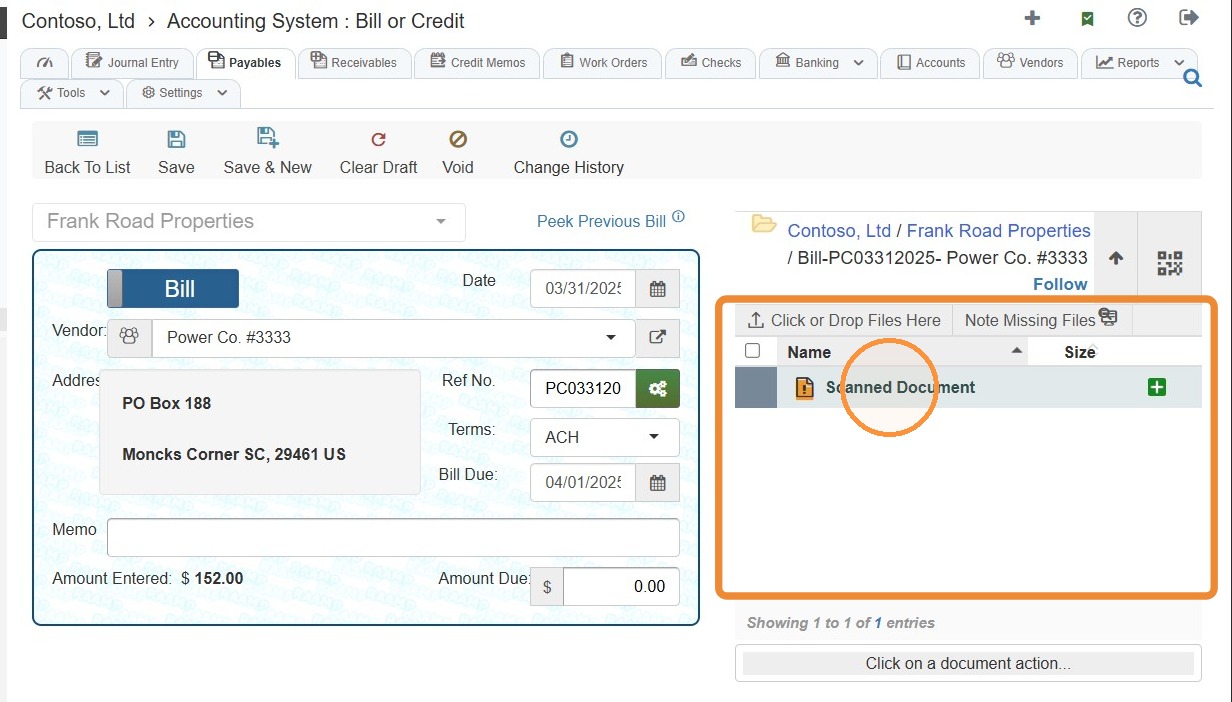
3. AI will automatically read and code the uploaded bill.
You can add memos or edit as needed. It will code the expenses based on the prior bills.
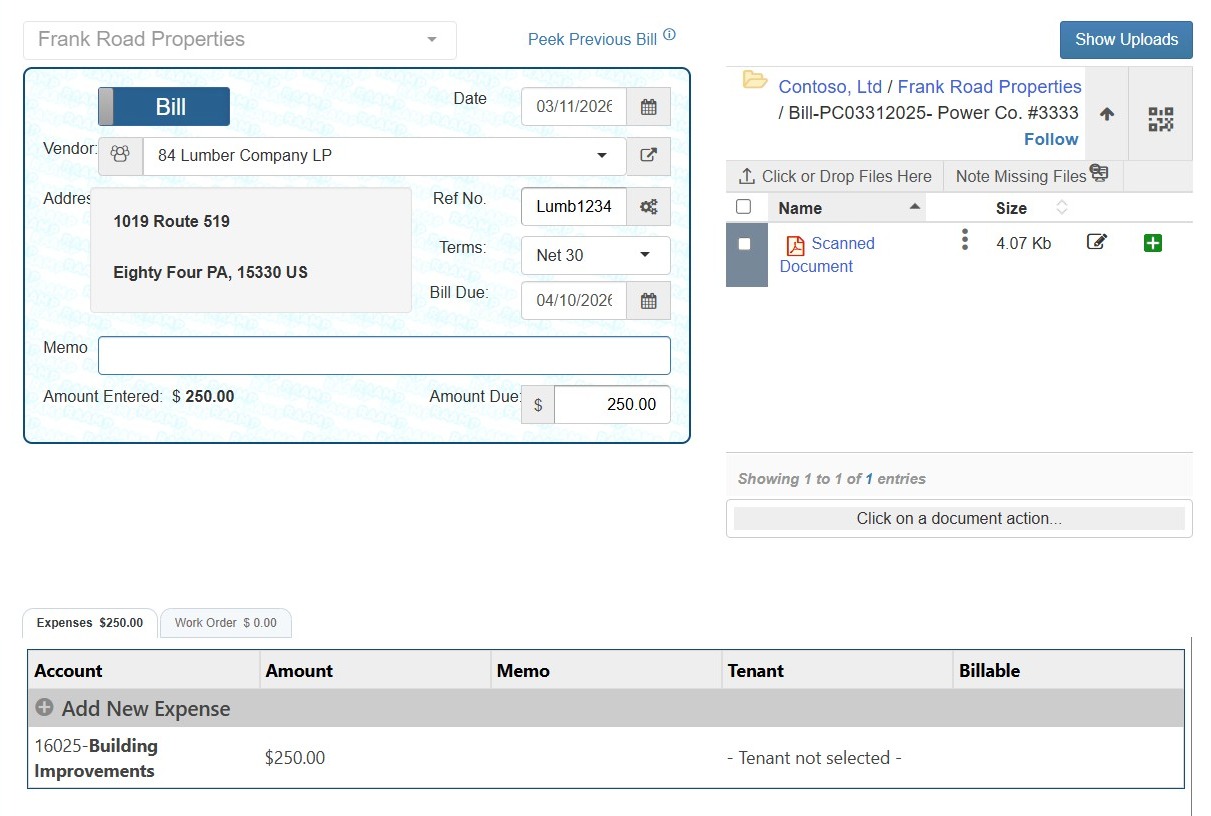
Alert: It's very important to review the expenses entered by AI to ensure accuracy.
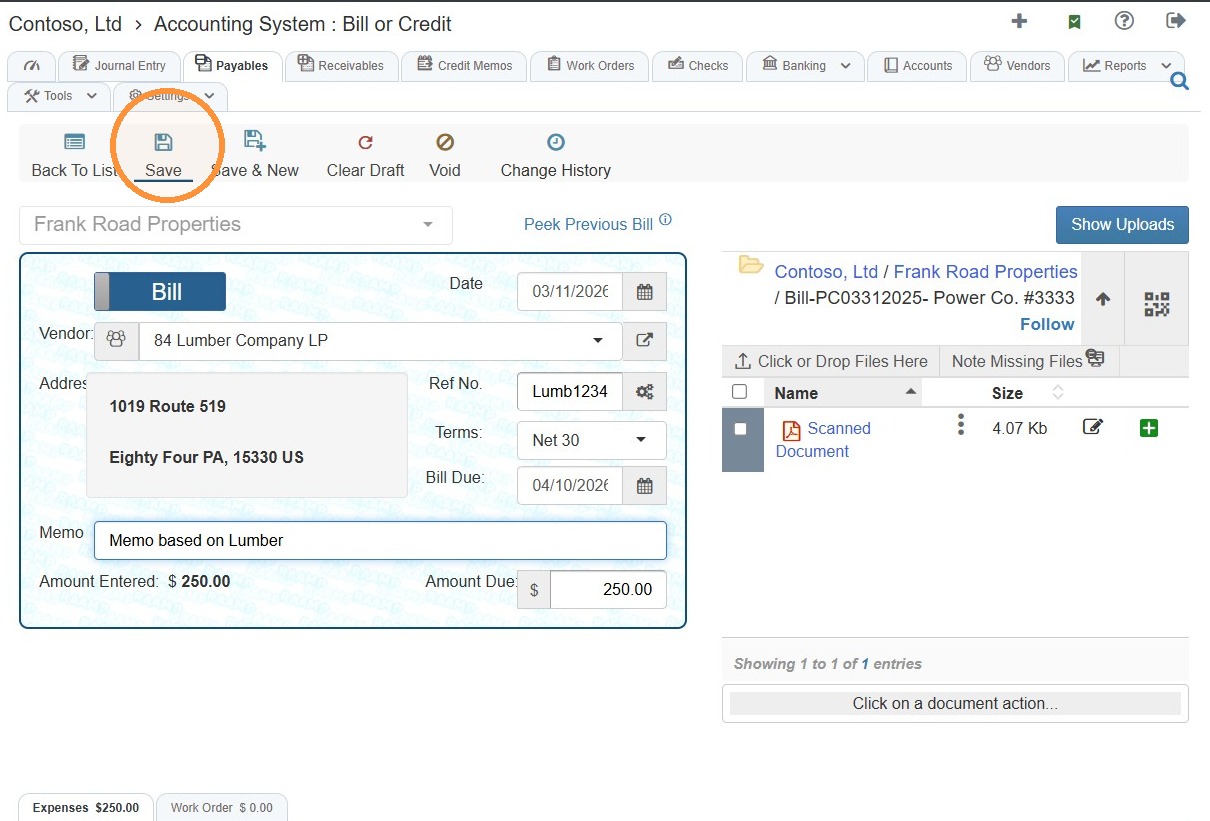
4. Select Save to submit the bill.
NOTE: If you navigate away before saving, it will be saved as a personal draft and will be available only to you.
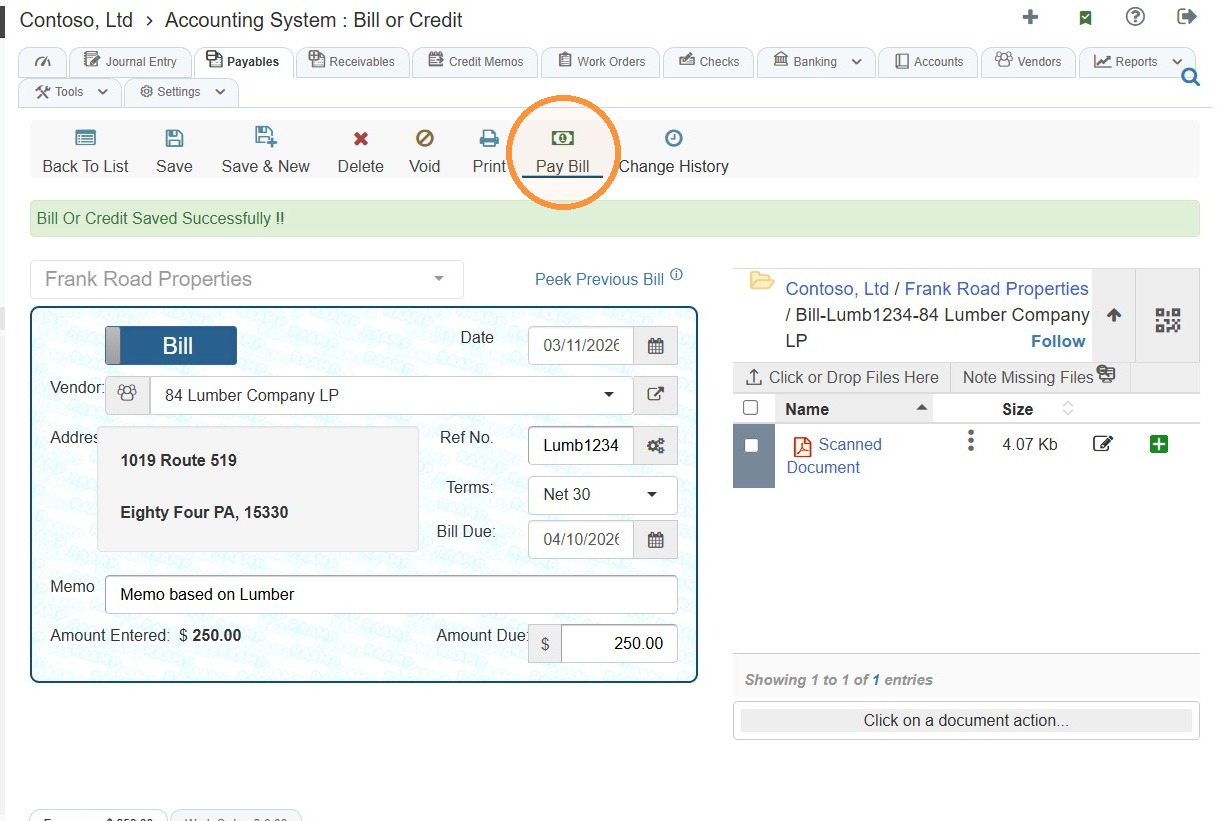
5. Once saved, you can make a payment by selecting Pay Bill.
Related Tutorial(s):