How to Add a Tenant Security Deposit with Supporting Documentation
This guide shows step-by-step how to record a tenant deposit, attach and annotate supporting documents, and manage the deposit afterward (edit, link to a PDF file, or delete). It’s useful because it ensures deposits are accurately entered with lease-based details and verifiable documentation, helping maintain clear records and compliance. Follow it to streamline deposit tracking and file linkage.
How to Add a Tenant Deposit
TIP: Remitter = Tenant
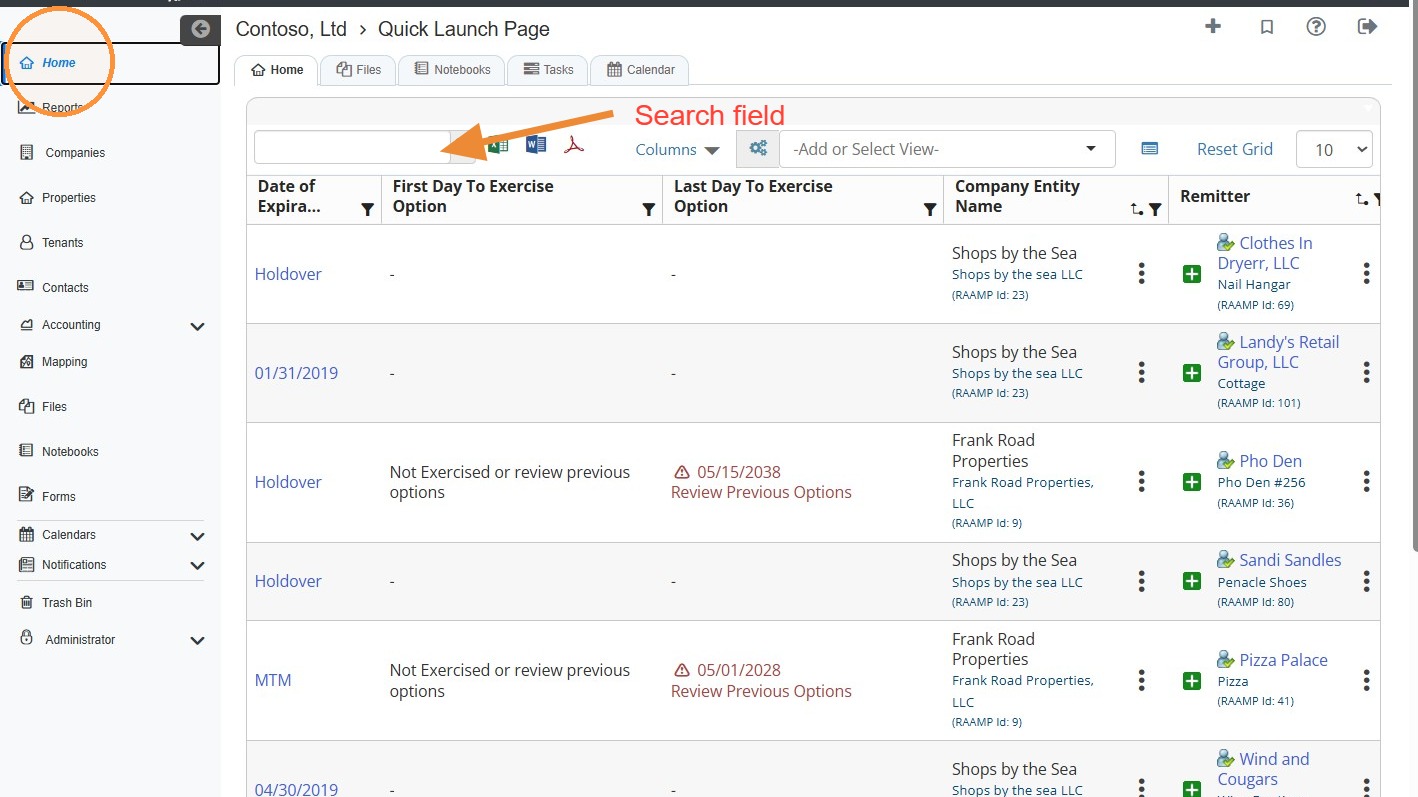
1. On the Home page, locate the tenant.\ Note: You can locate the tenant quickly by searching for it.
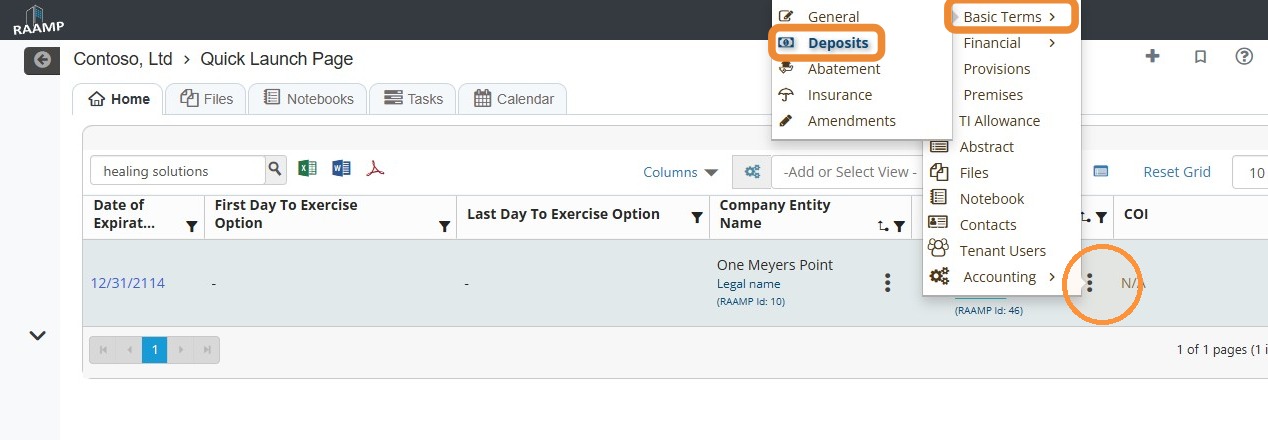
2. Once you locate the tenant, select the three dot menu to the right of the tenant > Select Basic Terms > Select Deposits.
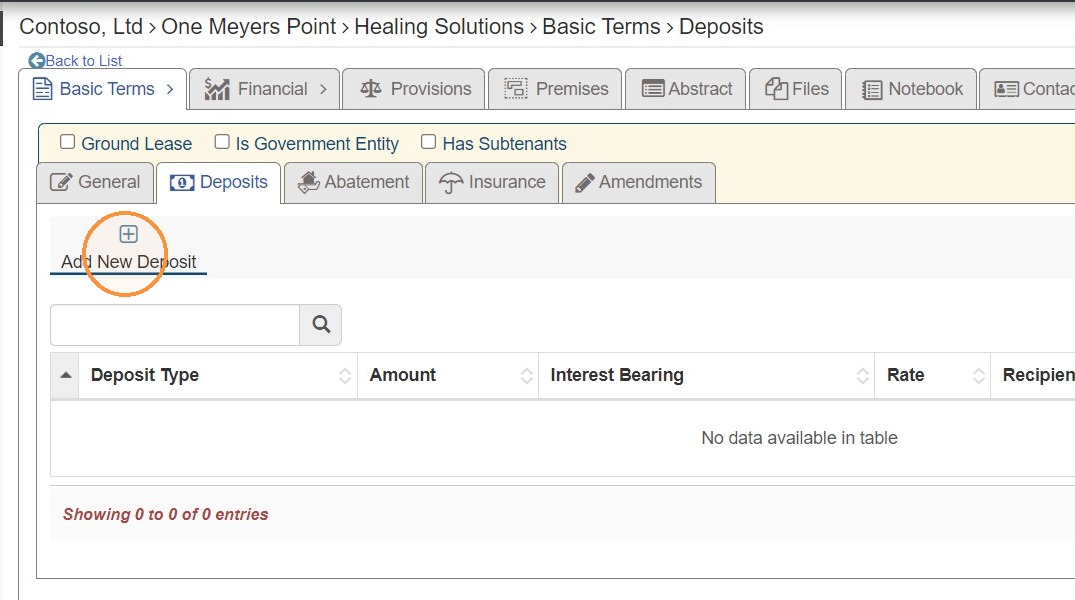
3. Select Add New Deposit.
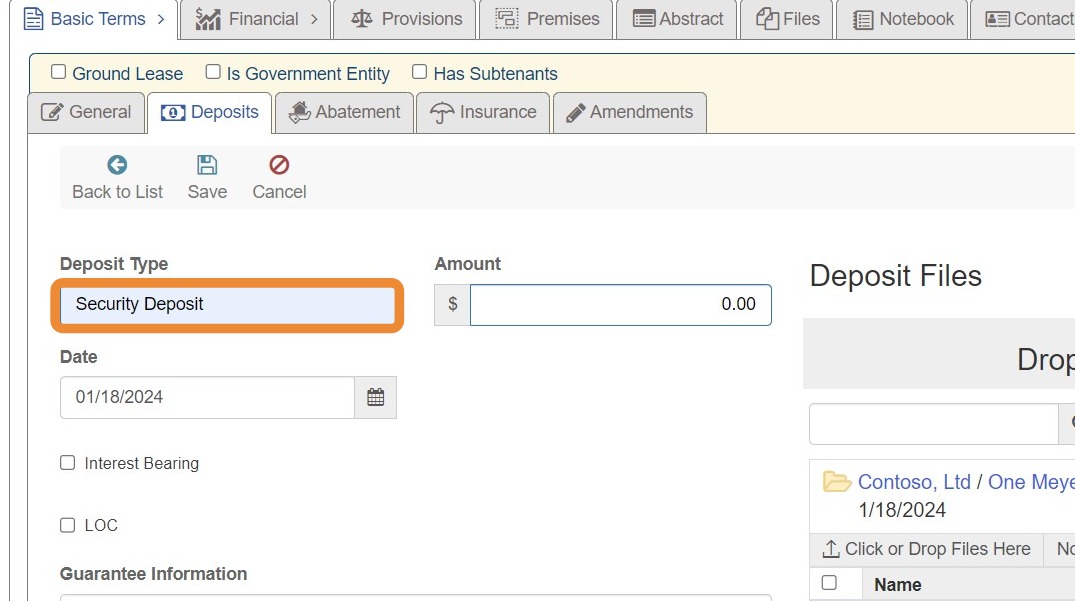
4. Select the Deposit Type field > Enter the Deposit Name (name the deposit based on the type of deposit, usually Security Deposit).
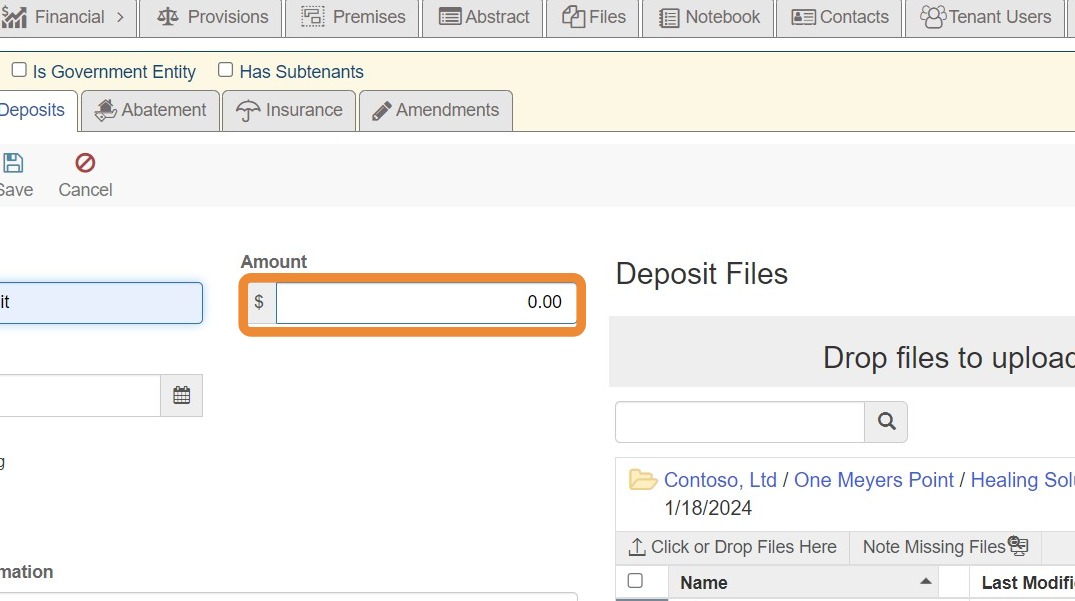
5. Select the Amount field > Enter the deposit amount.
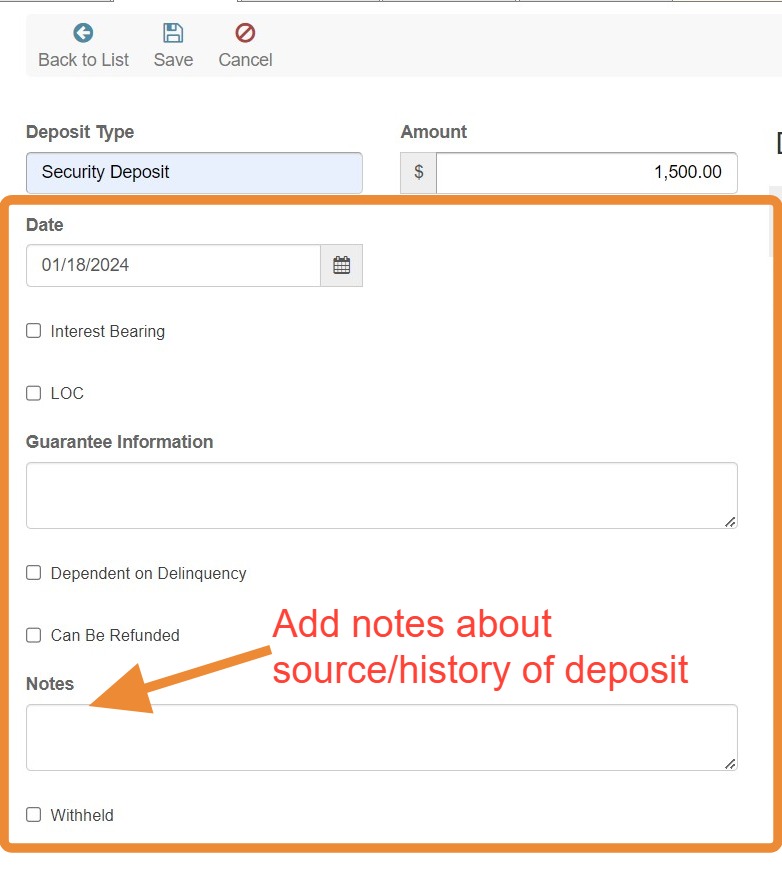
6. Complete the form using lease information about the deposit.
Add notes explaining the source or history of the deposit.
- New lease: Enter the security deposit stated in the lease.
- Renewal: Note "Deposit from previous lease" when the existing deposit rolls forward.
- Increase: Create an additional deposit entry and explain the previous amount and the new amount paid at execution.
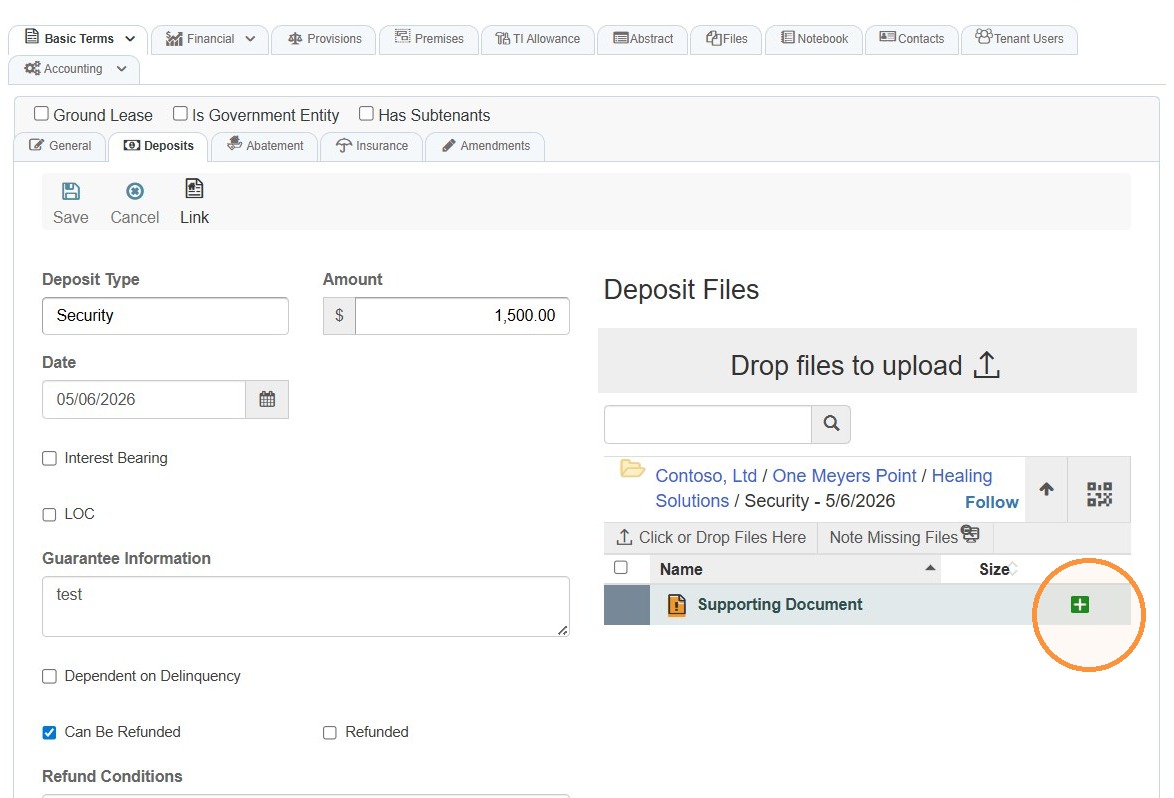
7. To add deposit documentation, select Click or Drop Files Here > Select the file(s) to upload from your computer.
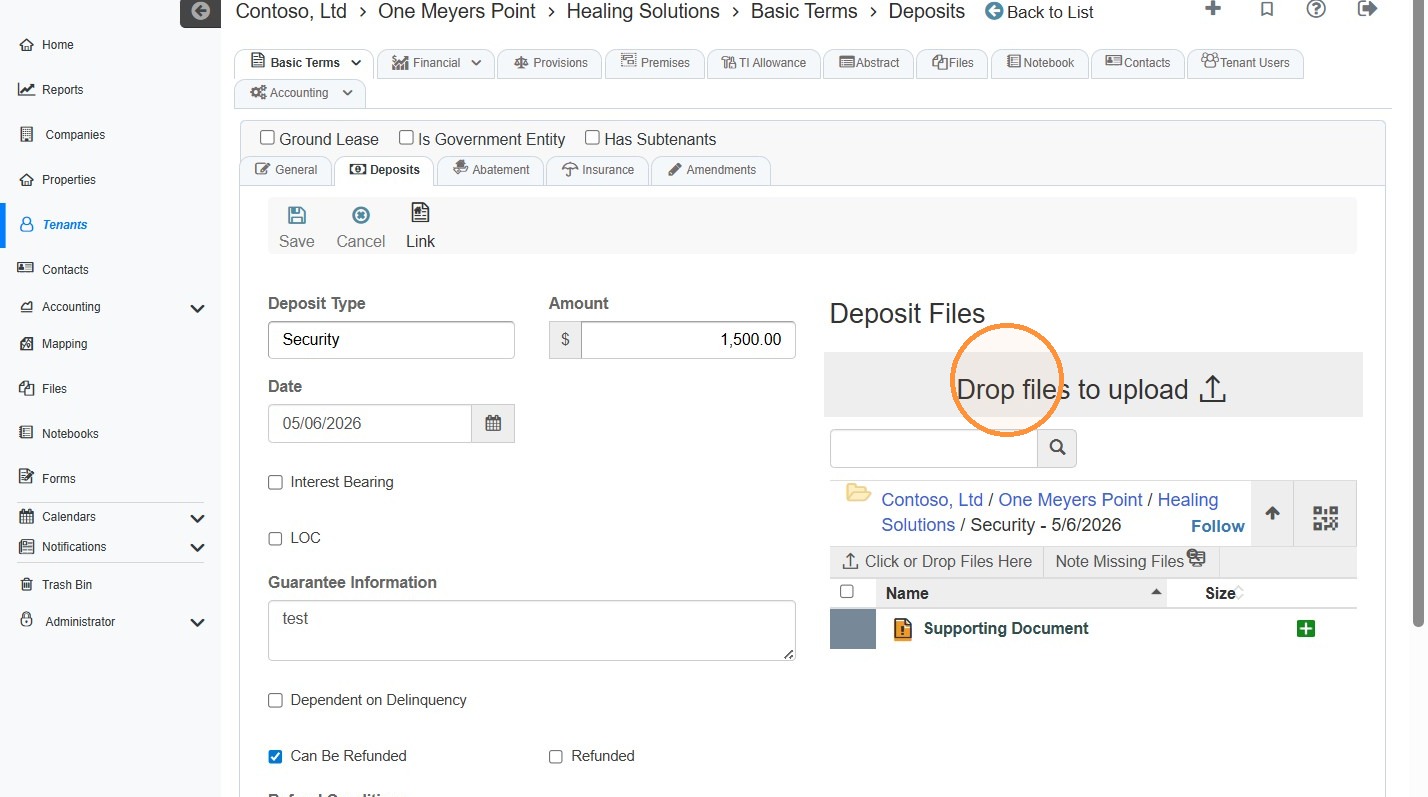
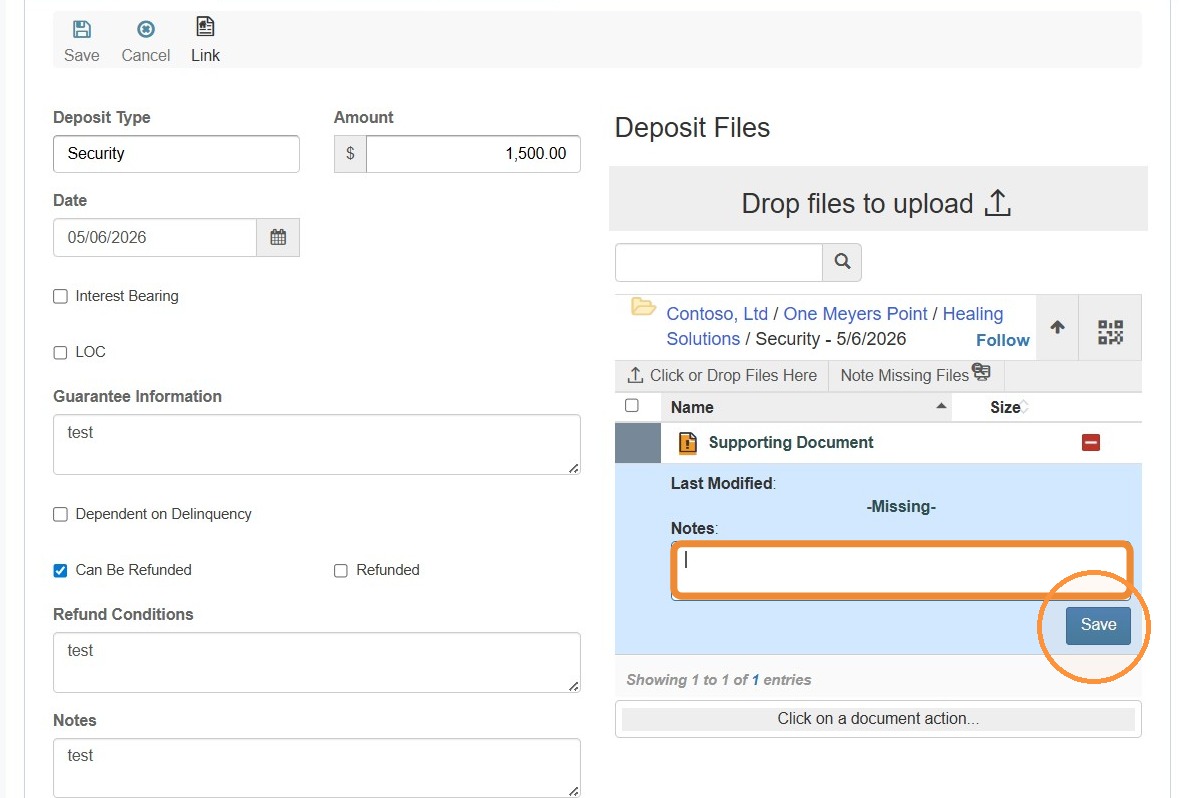
8. Select the green + icon to the right of the Supporting Document file to add/view notes about the file.
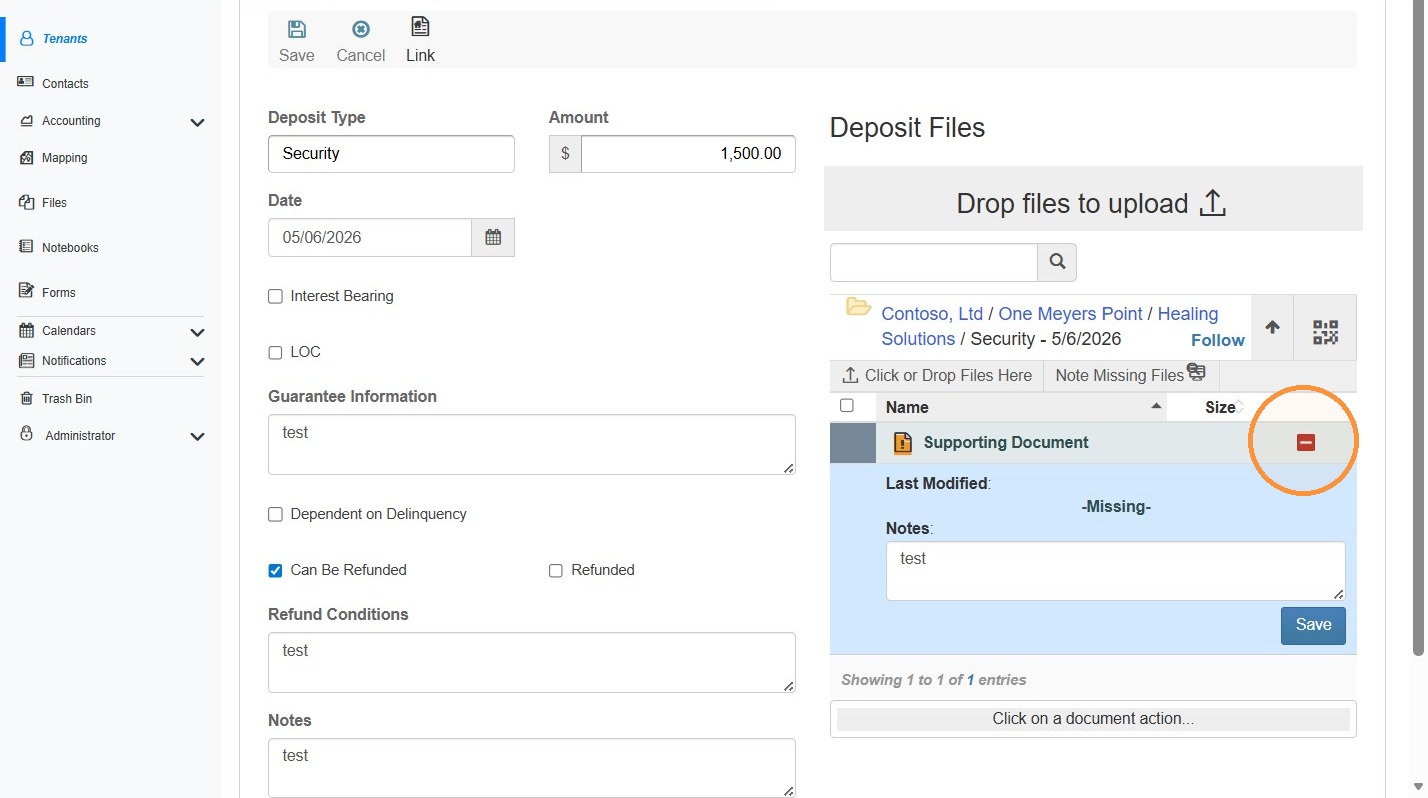
Select the red - icon to collapse the menu.
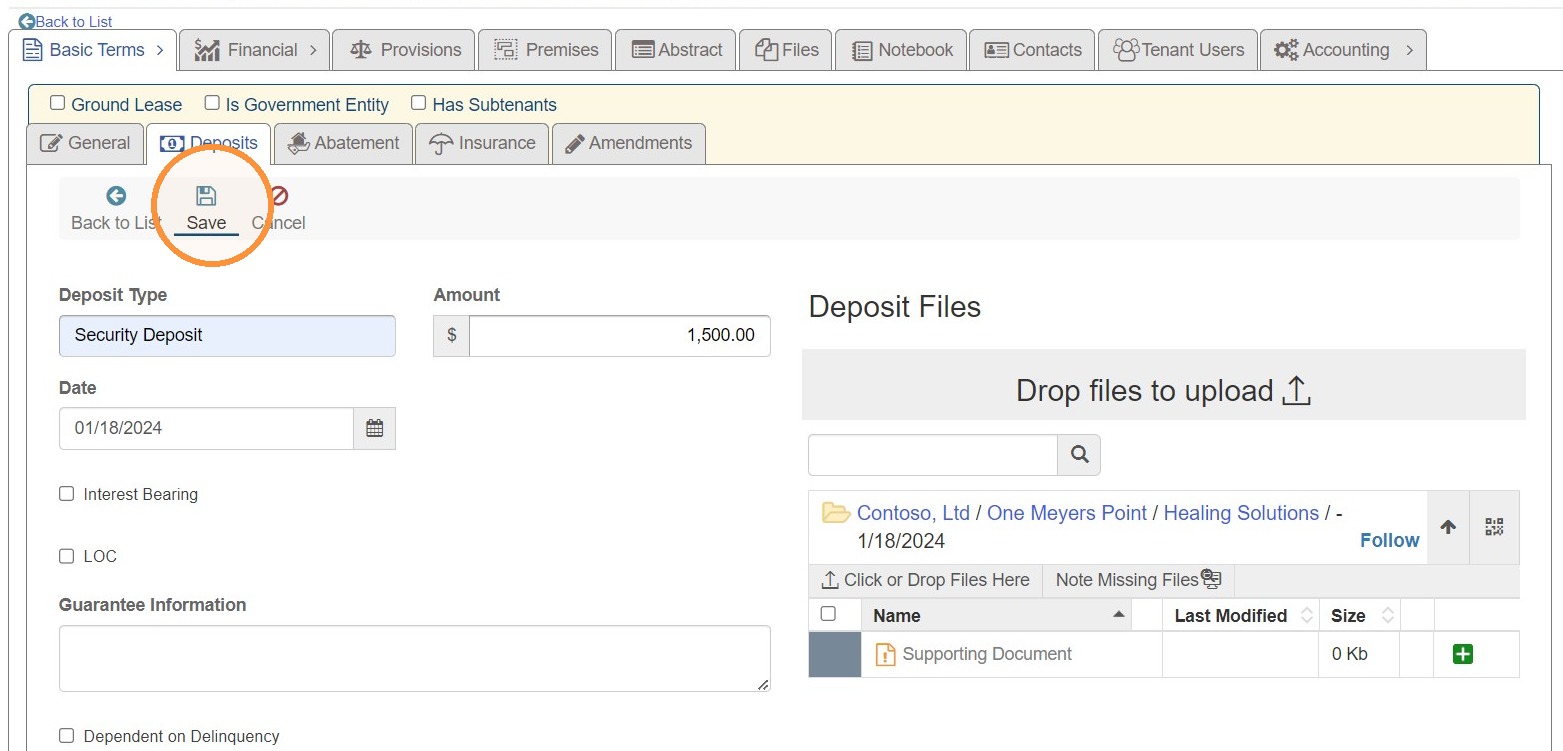
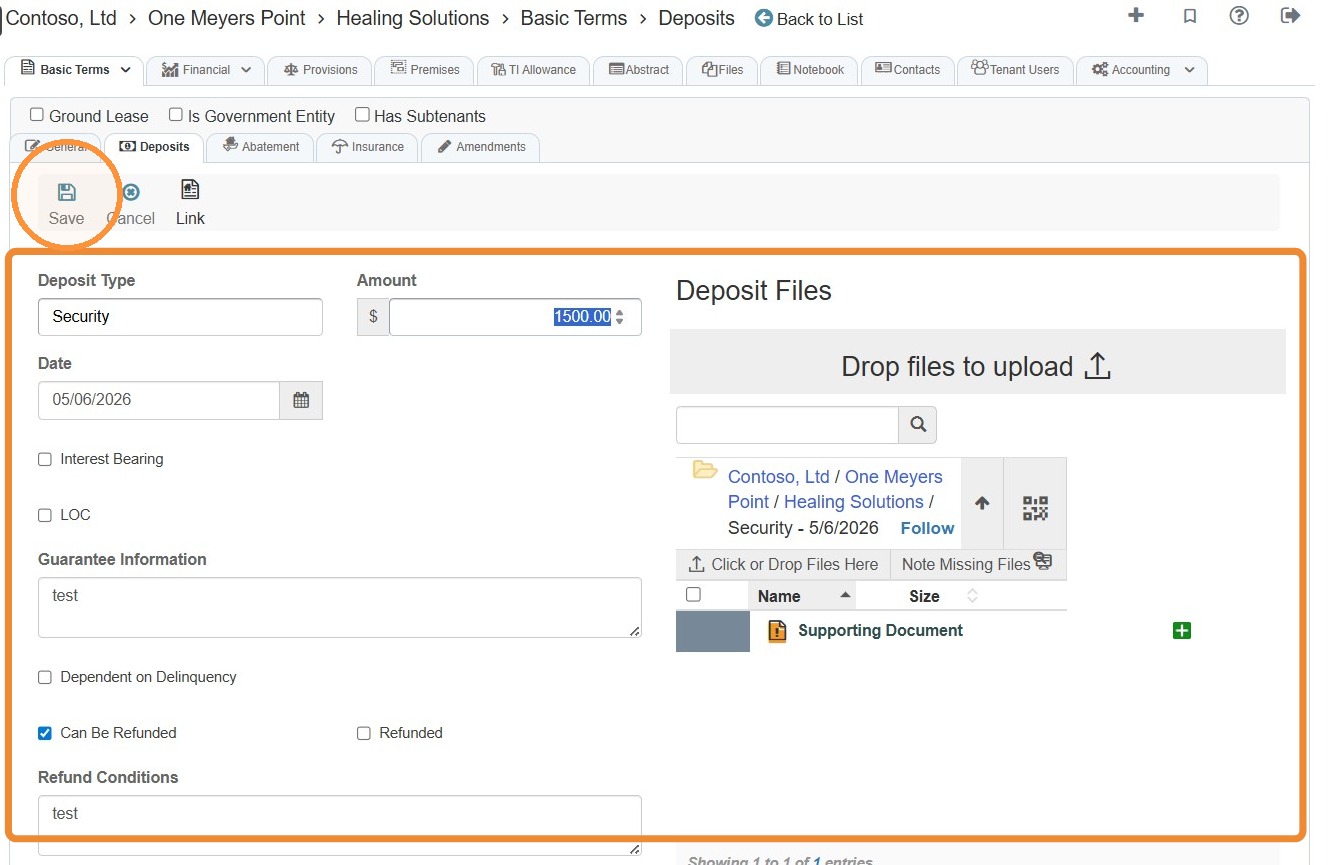
9. Once you complete the information and upload the supporting documents, select Save.
How to Edit a Deposit
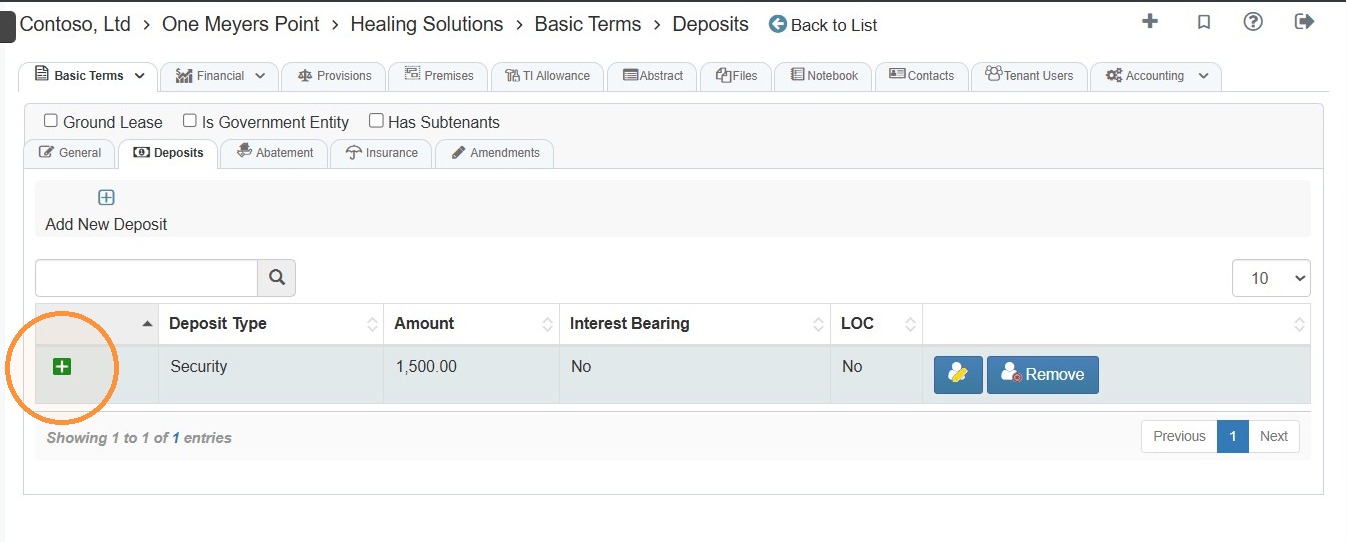
10. To view information about the deposit, select the green + icon.
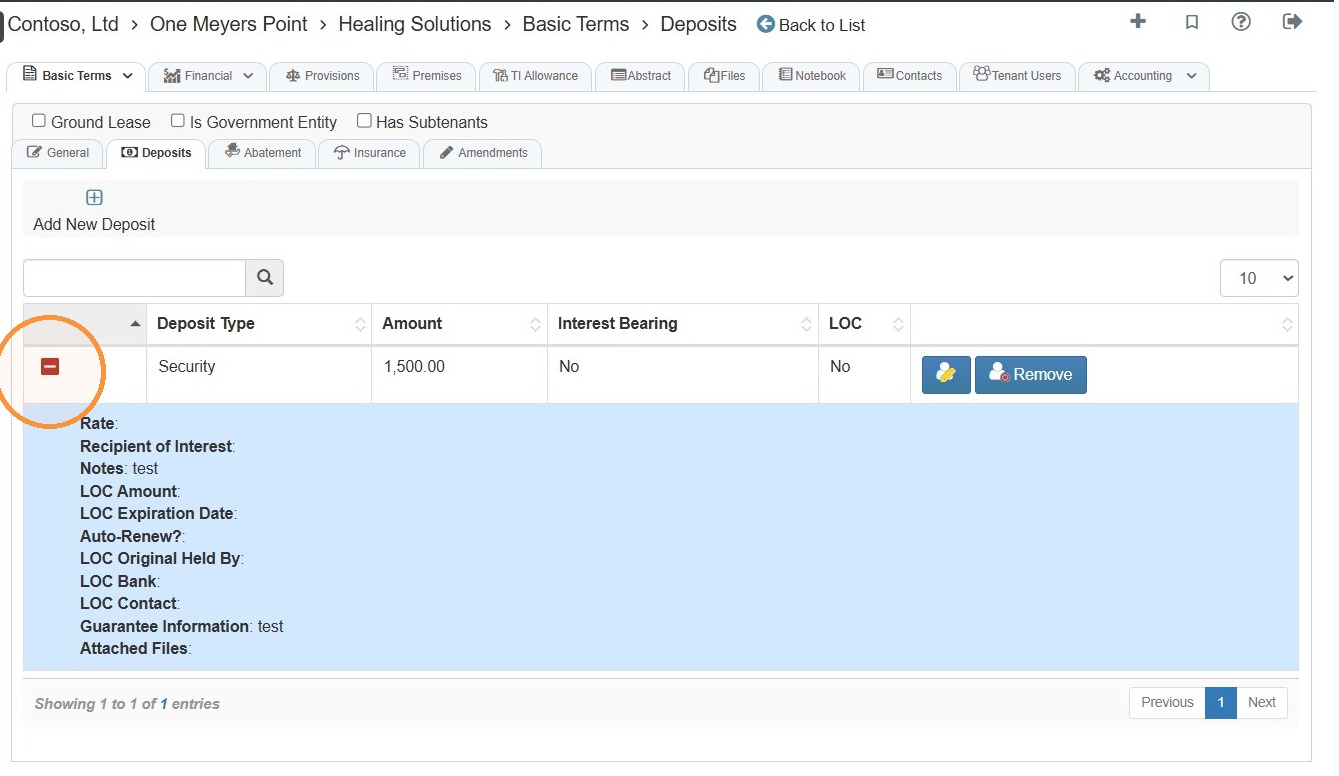
Select the red - icon to collapse the menu.
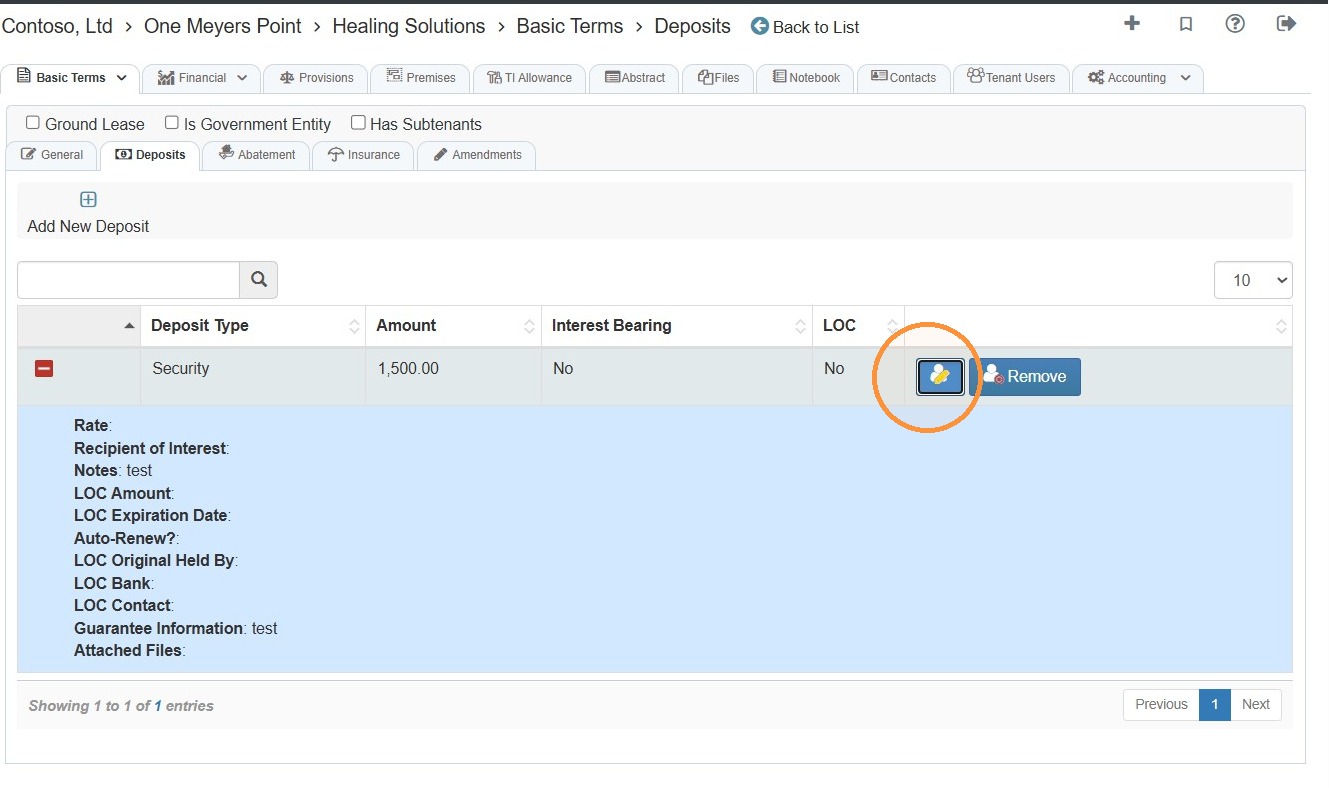
11. To edit the deposit, select the Edit icon.
12. Make the needed/required edits and/or upload supporting documents > Select Save.
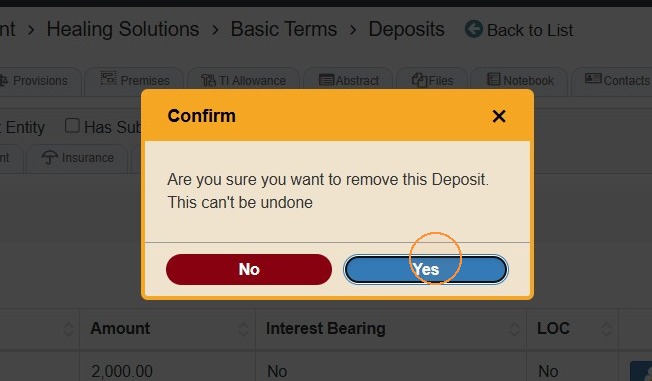
How to Link the Deposit to a File
Alert: Be sure to link the Lease/Document when you are done.
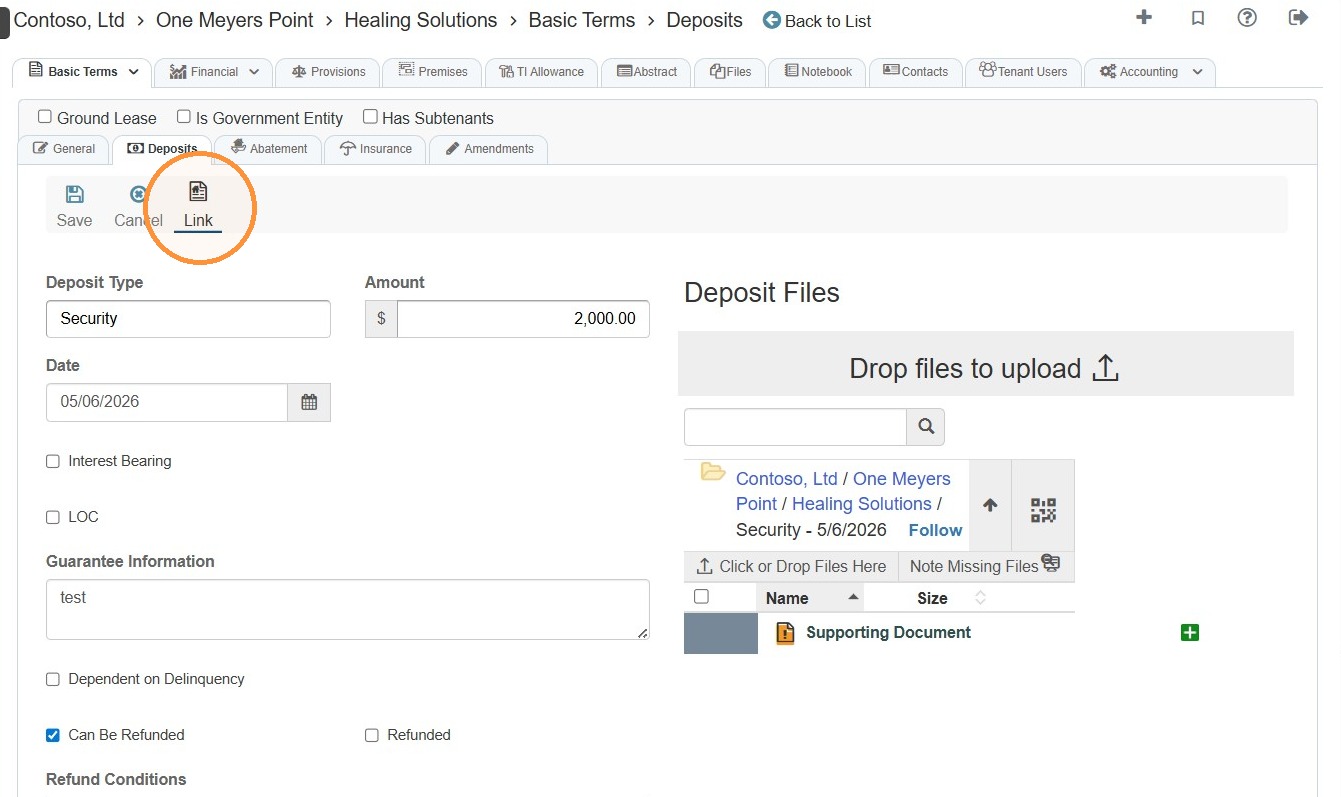
13. Select Link to link the deposit to the lease or other supporting document.
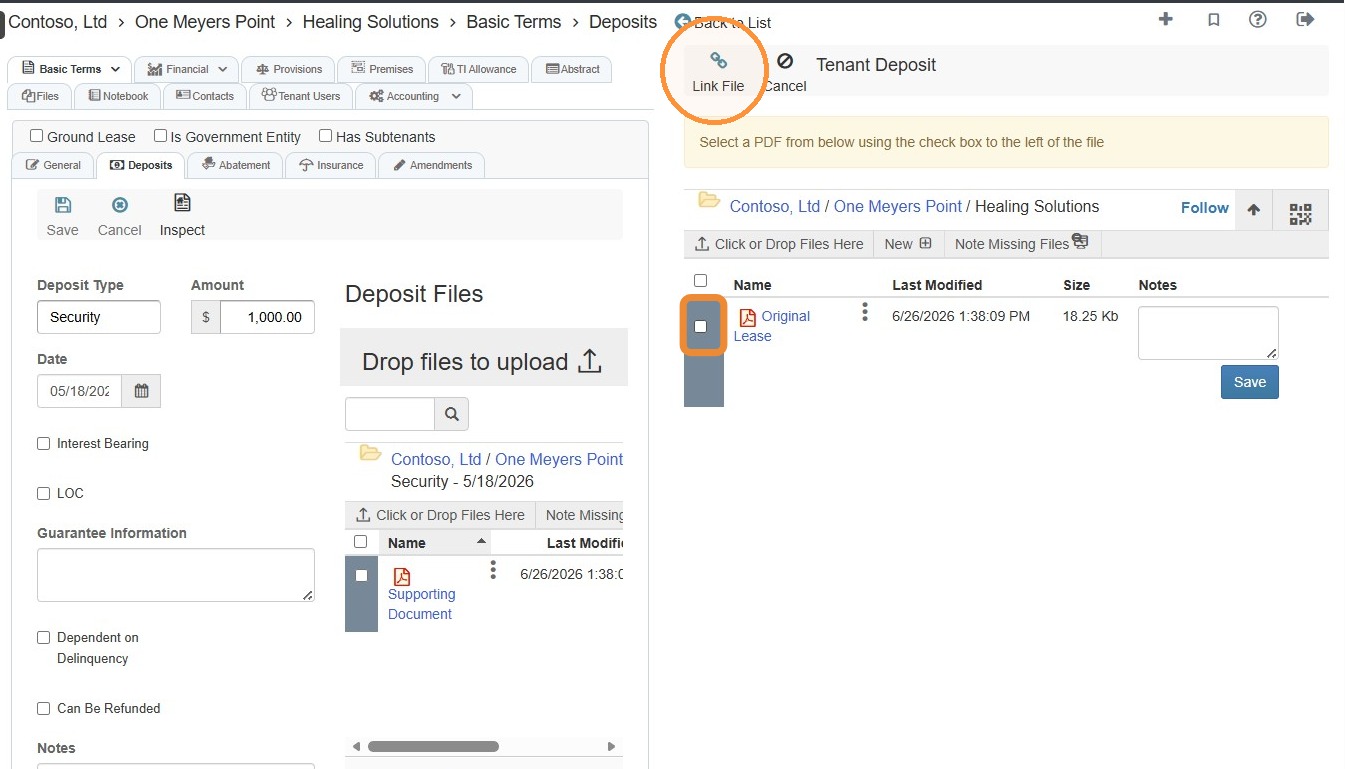
14. Select the document's checkbox > Select Link File.
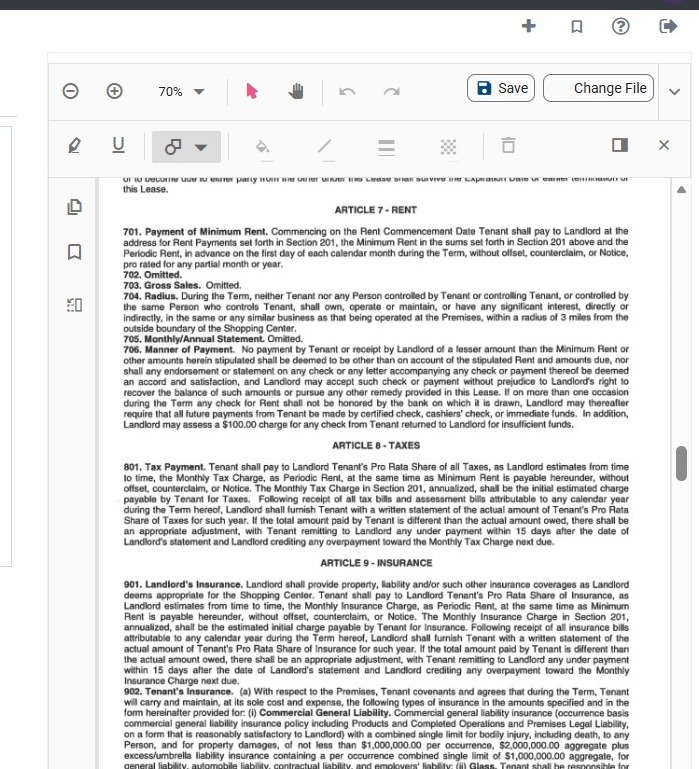
15. The document will open for editing.
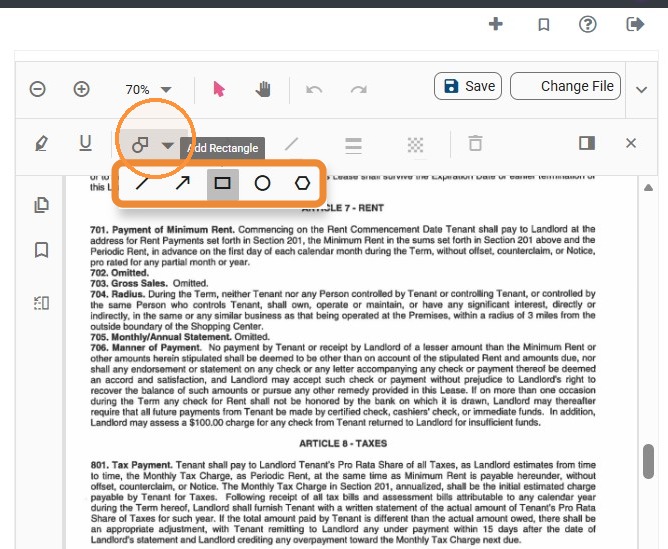
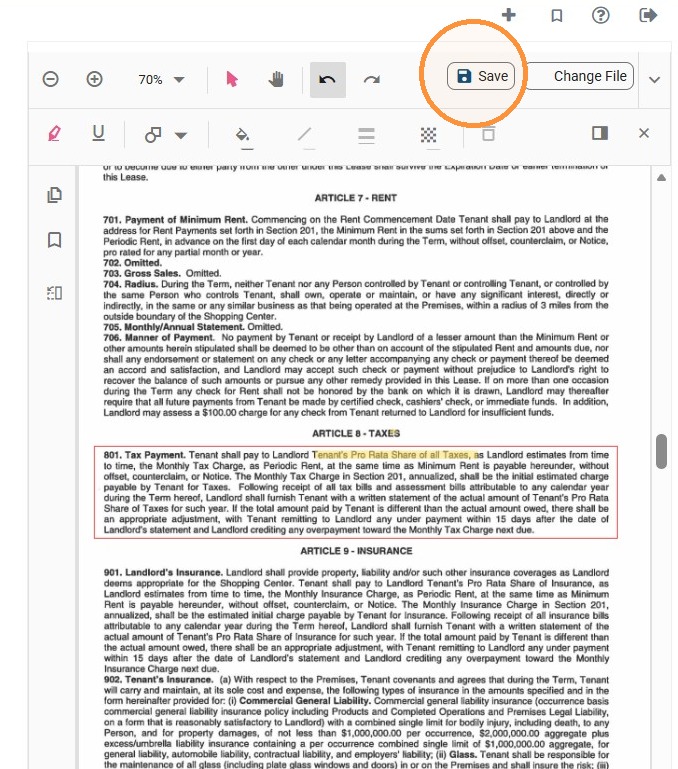
16. Selecting the shapes dropdown menu will allow you to choose shapes to add to the document.
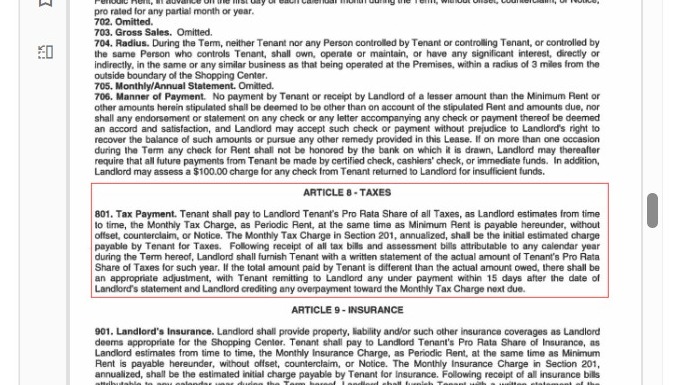
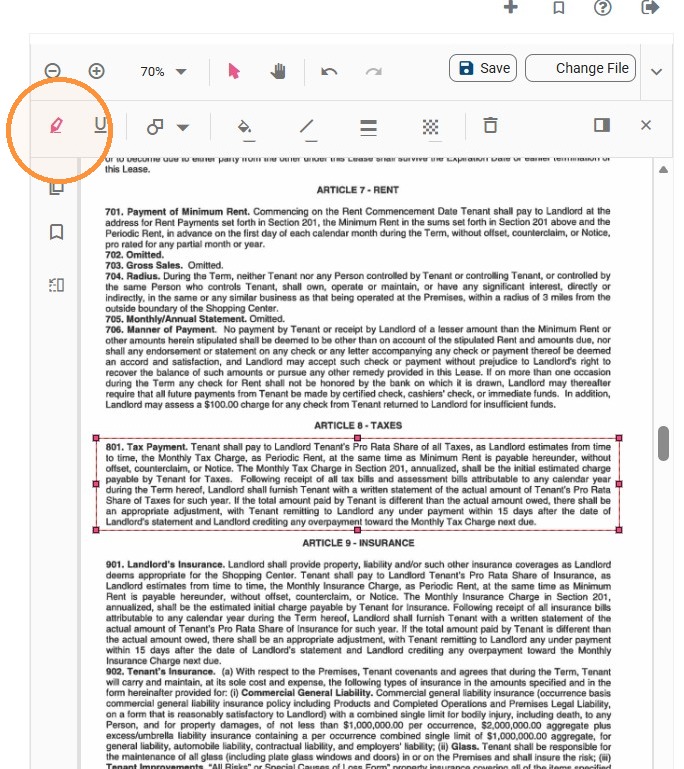
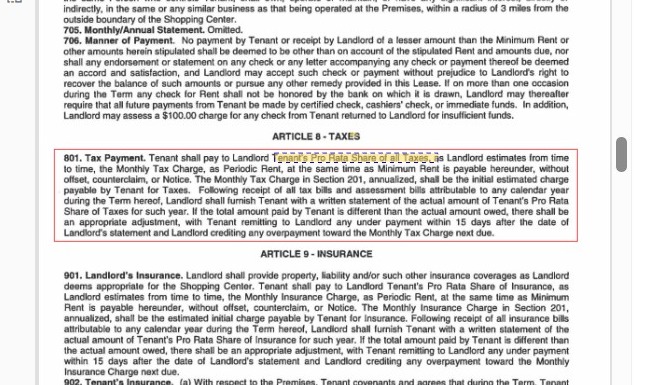
17. Select the highlighter tool to highlight text in the document.
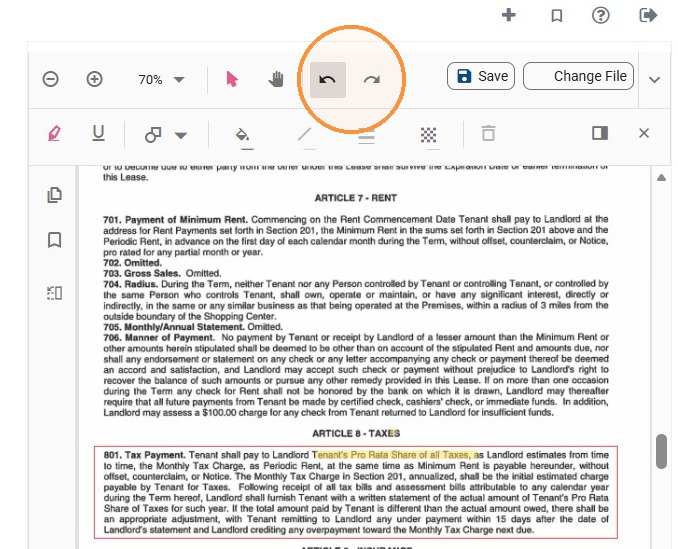
18. The arrow icons will undo and redo actions.
19. When you're done annotating the document, select Save.
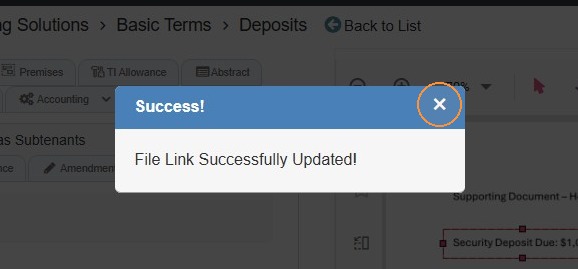
20. Select the x.
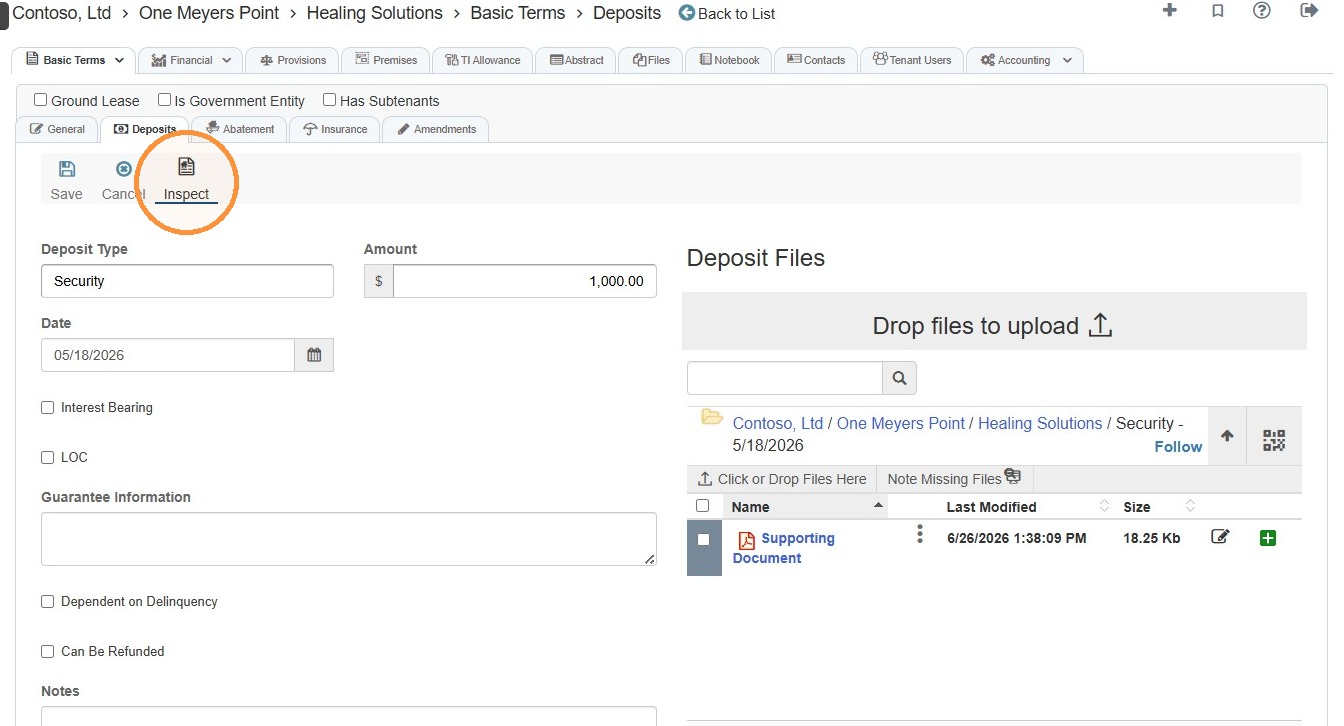
21. Once linked, select Inspect to review the linked document.
How to Delete a Deposit
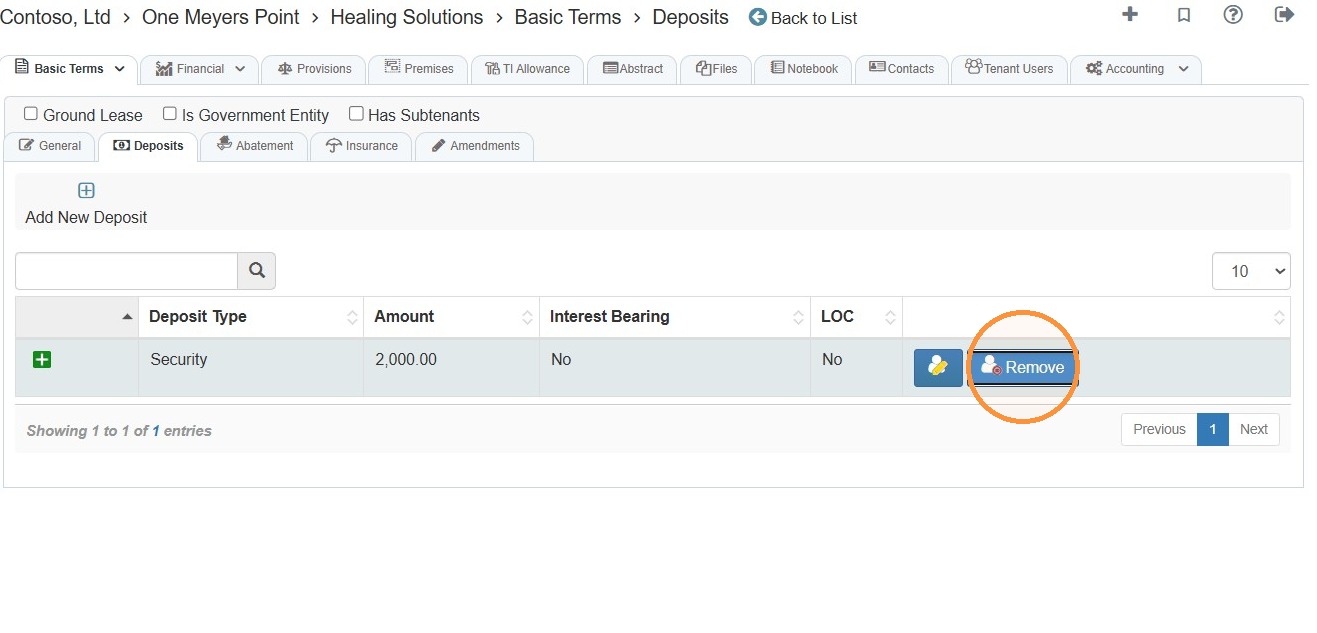
22. Select Remove to the far right of the deposit you wish to delete.
23. Select Yes.