How to Add a New Deposit Record
This guide walks you step-by-step through creating and saving a deposit record, including navigating to Deposits, selecting the right property/company and deposit account, and adding line items. It highlights common issues and fixes (resetting a frozen property dropdown, handling Undeposited Funds) and shows how to change payer entity type and attach documents. Use it to avoid errors and ensure deposits are recorded accurately.
How to Navigate to Deposits Tab
1. From the navigation menu, select Accounting > Banking > Deposits.
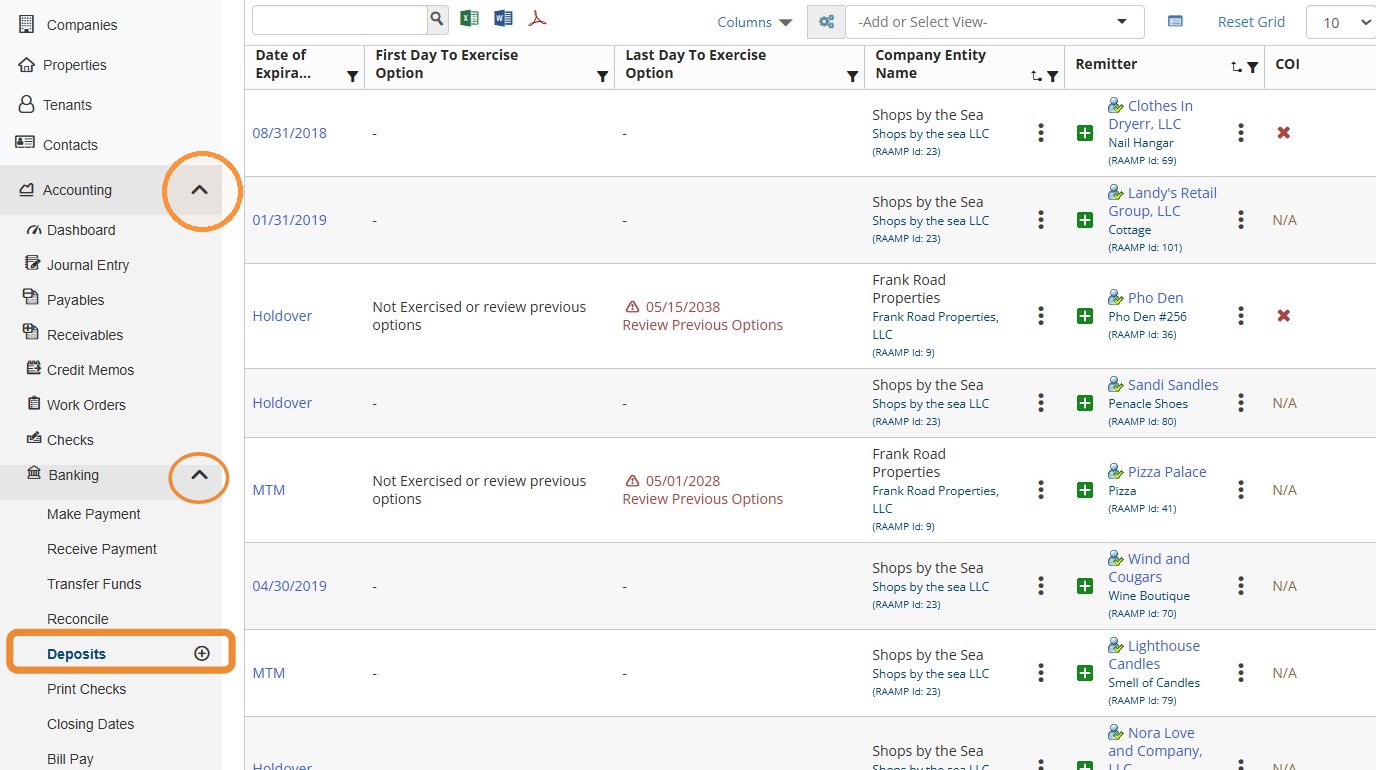
2. From the Accounting module navigation tabs, select Banking > Deposits.

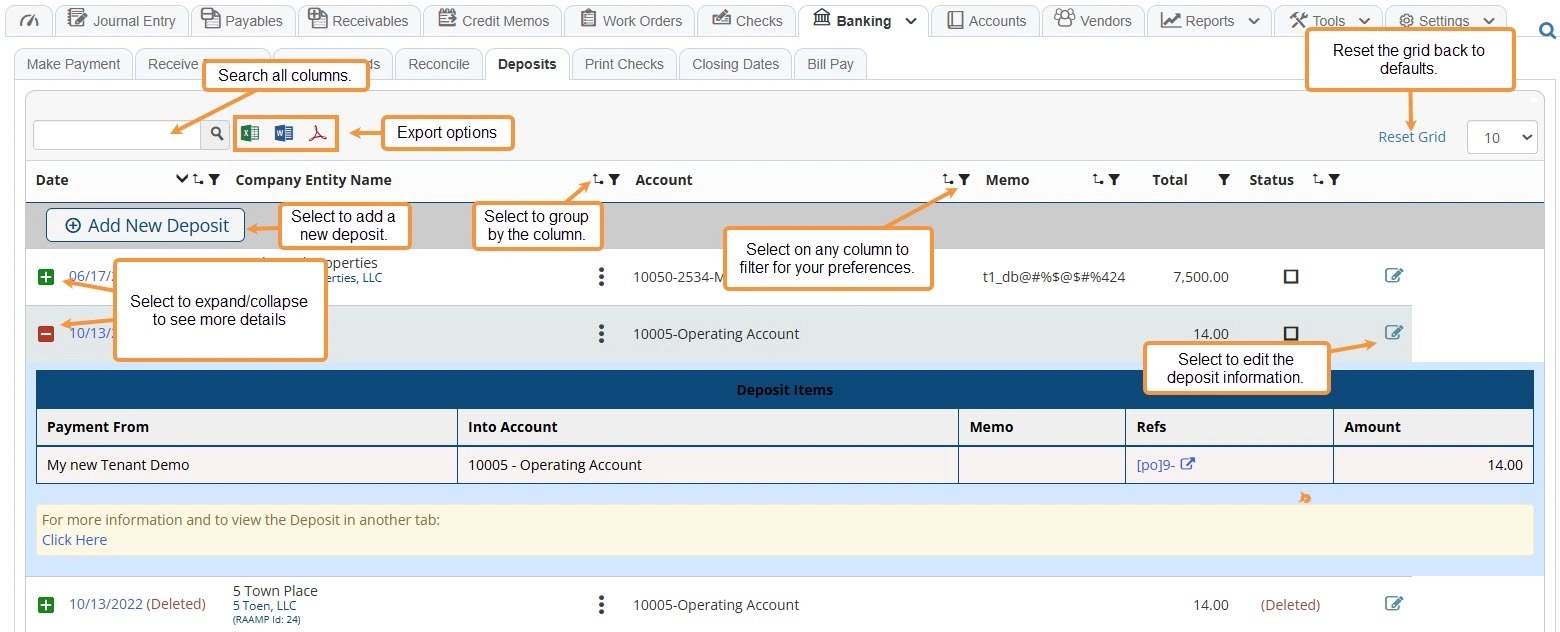
3. Deposits Tab Diagram
How to Add a Deposit Record
4. Select Add New Deposit.
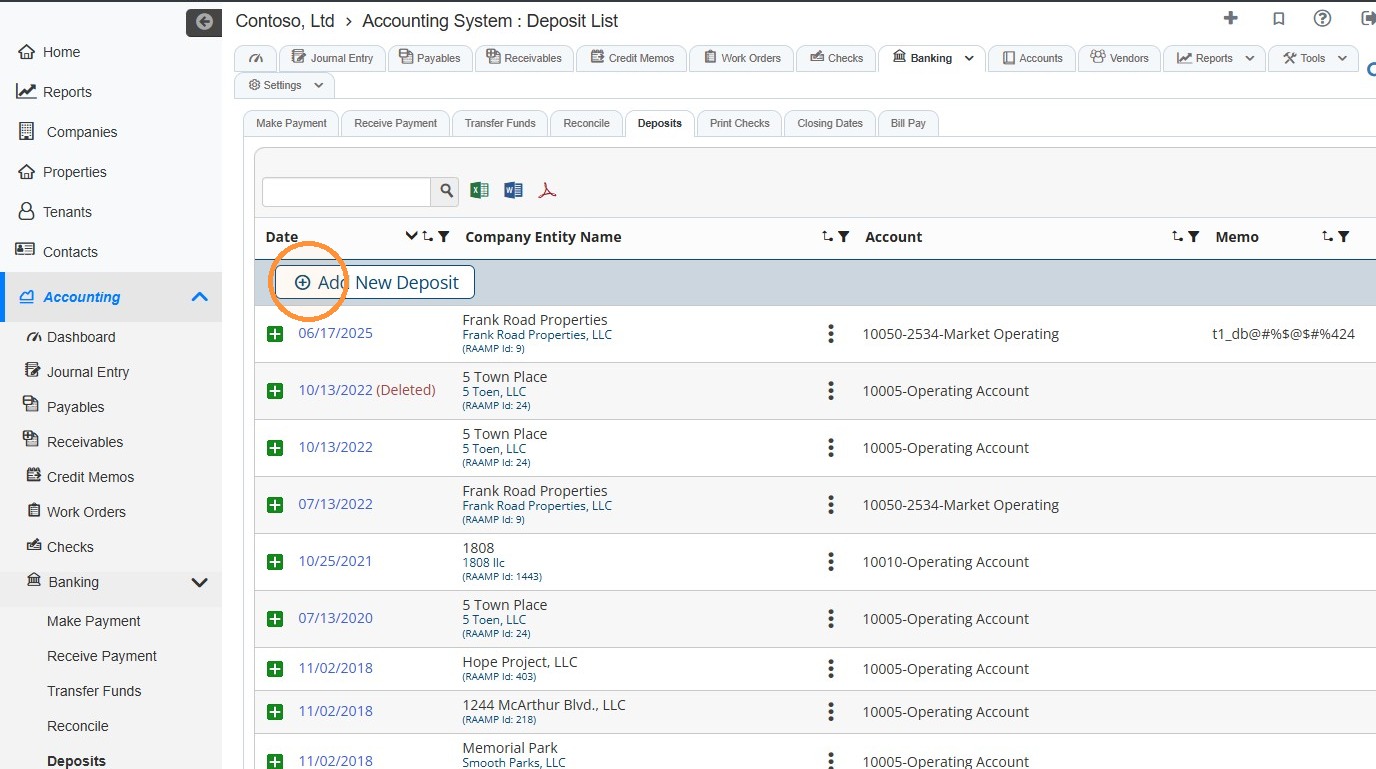
5. Select the appropriate Property/Company from the dropdown menu.
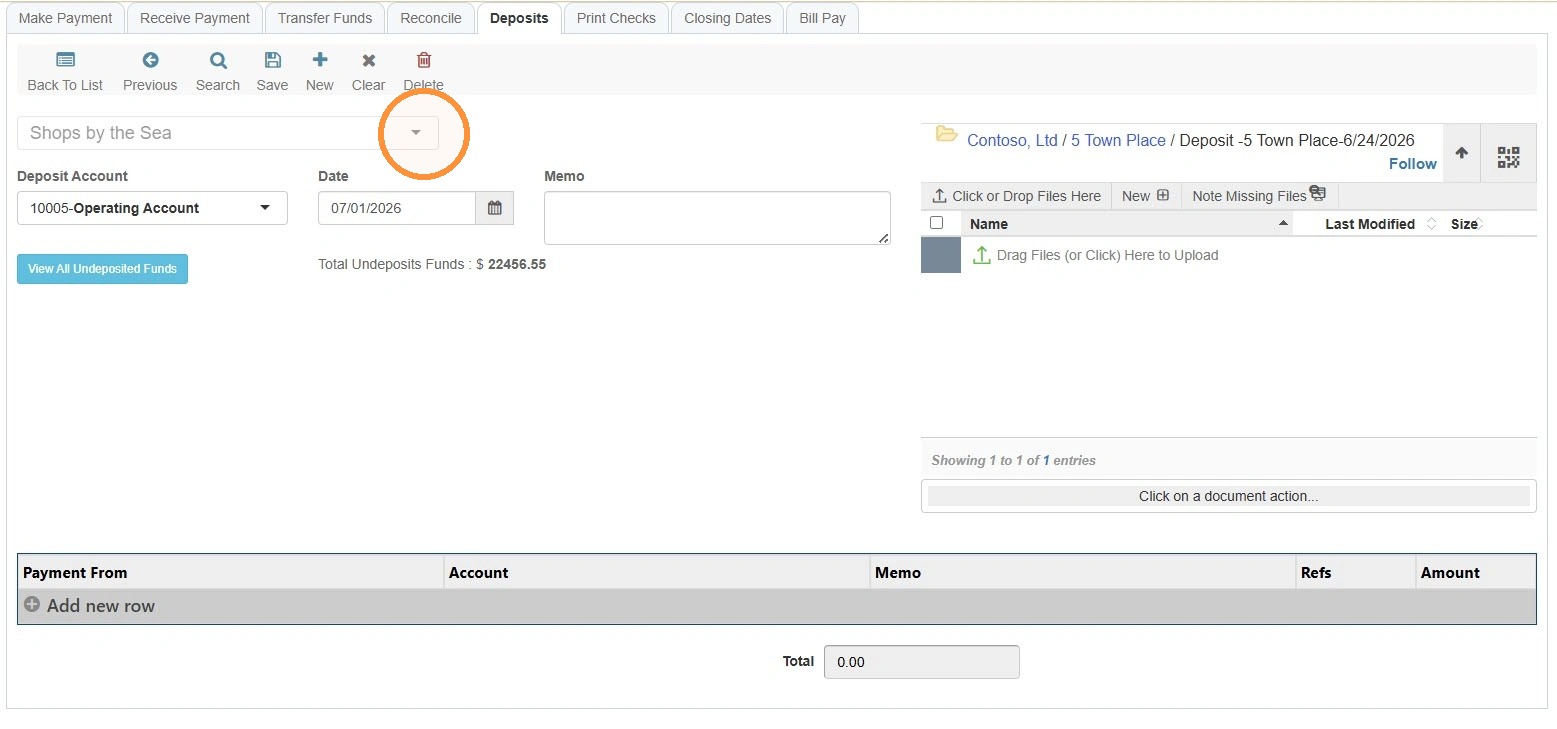
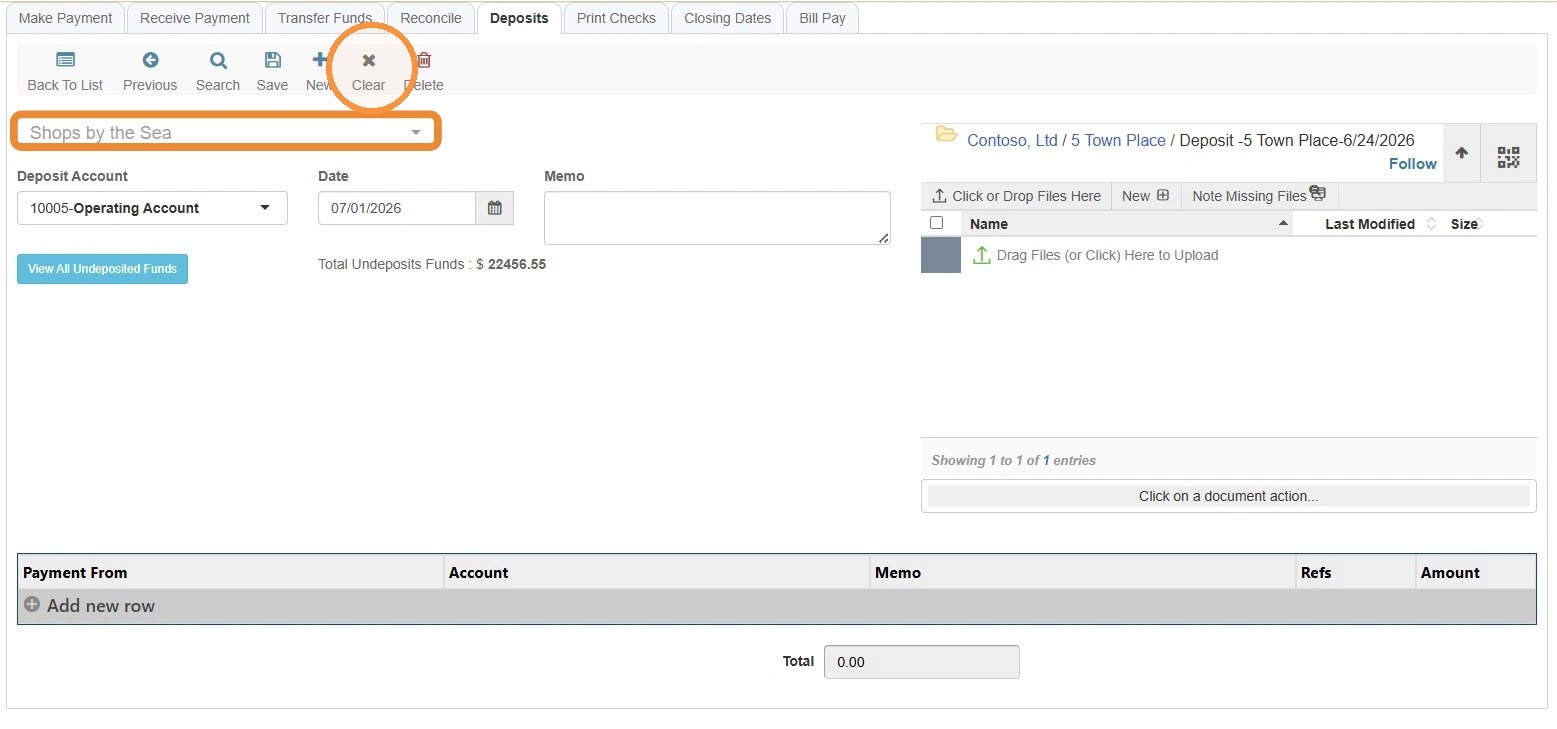
Alert: If the Select Property/Company dropdown menu is grey and doesn't allow you to choose a Property/Company, you can select Clear to reset the deposit entry.
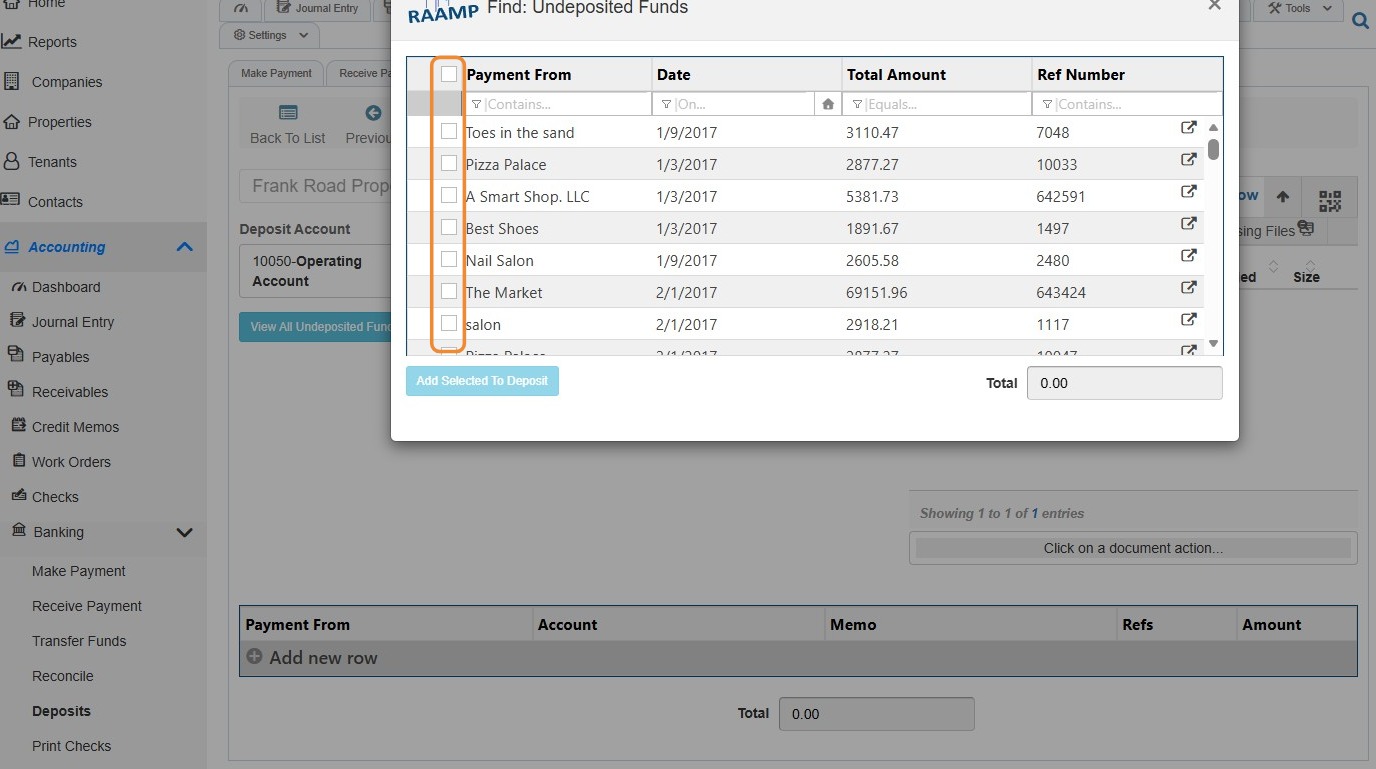
6. If the Undeposited Funds window appears, you can select the checkboxes to add them to the deposit.
If you do not select items here, you will need to enter them manually.
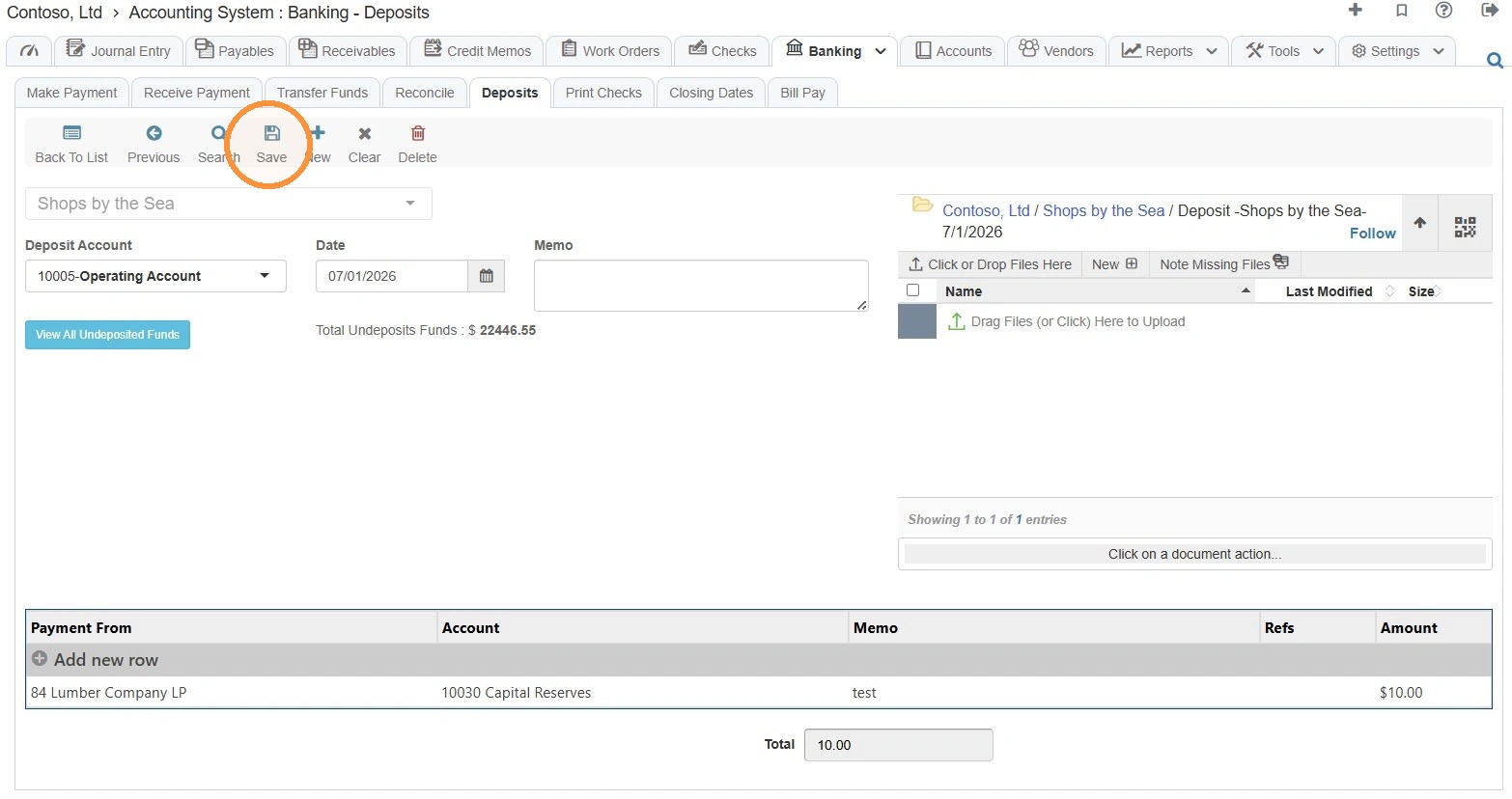
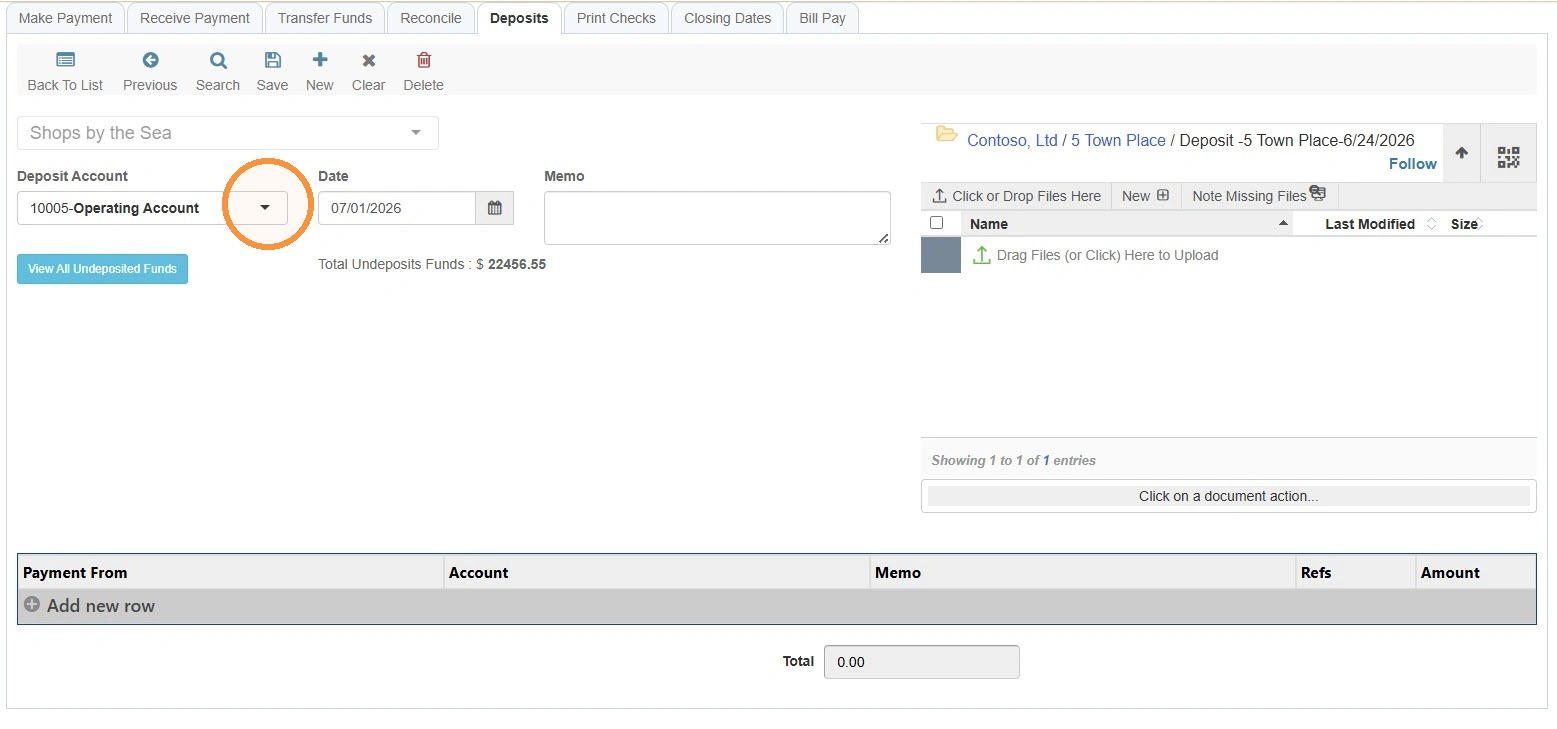
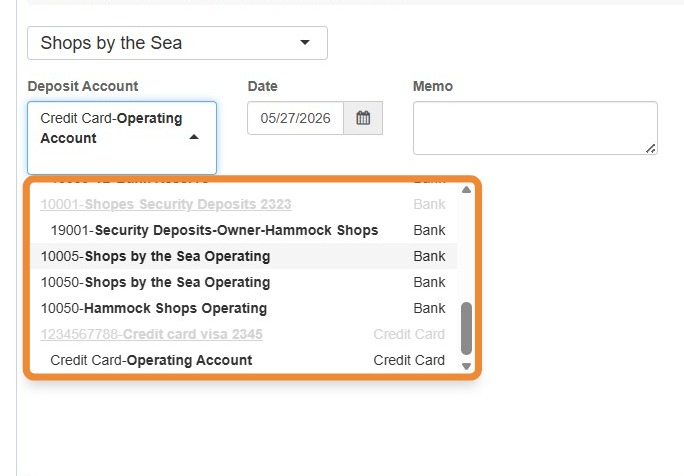
7. Select the appropriate option from the Deposit Account dropdown.
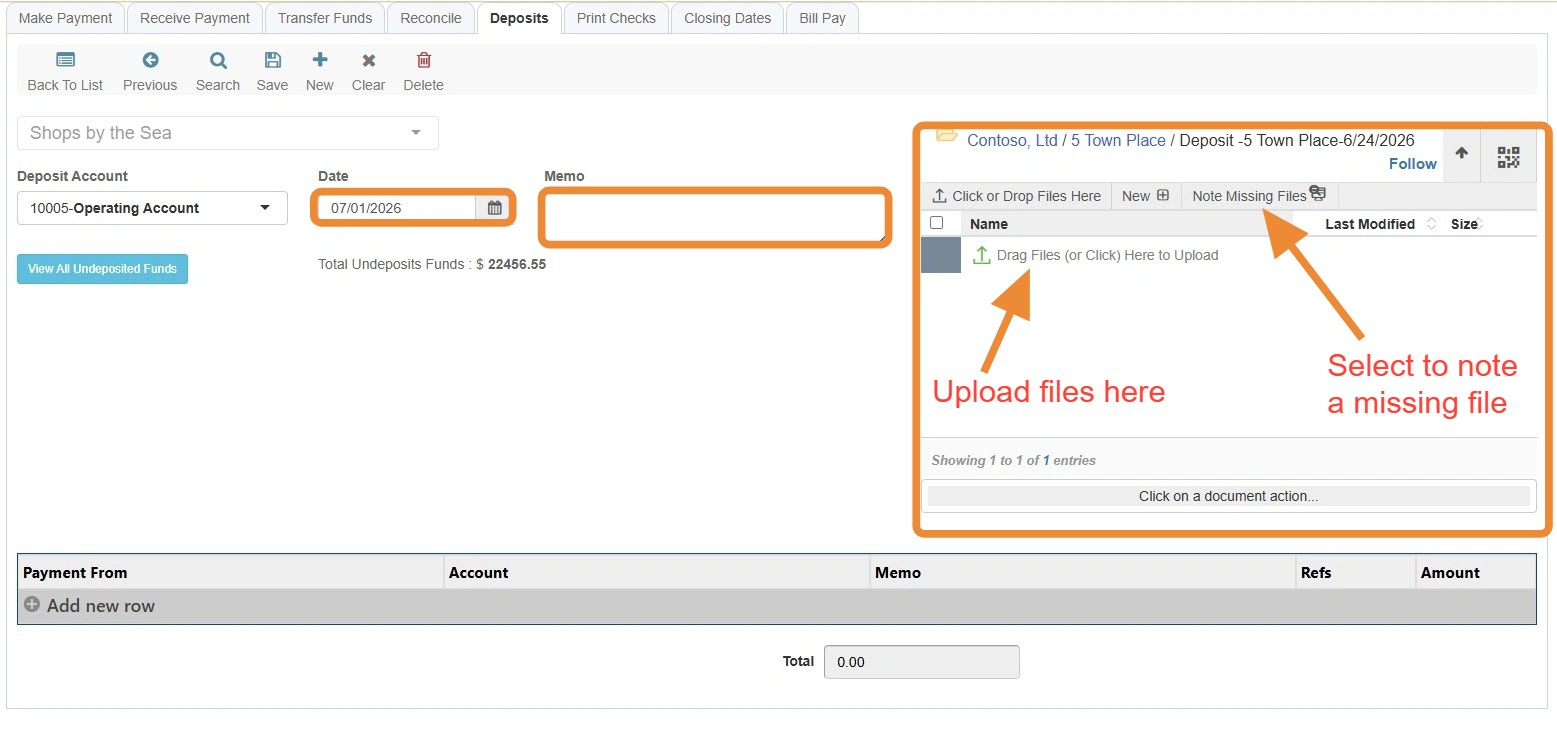
8. Complete the date and memo fields as needed/required. You can also upload related documents or note a missing one.
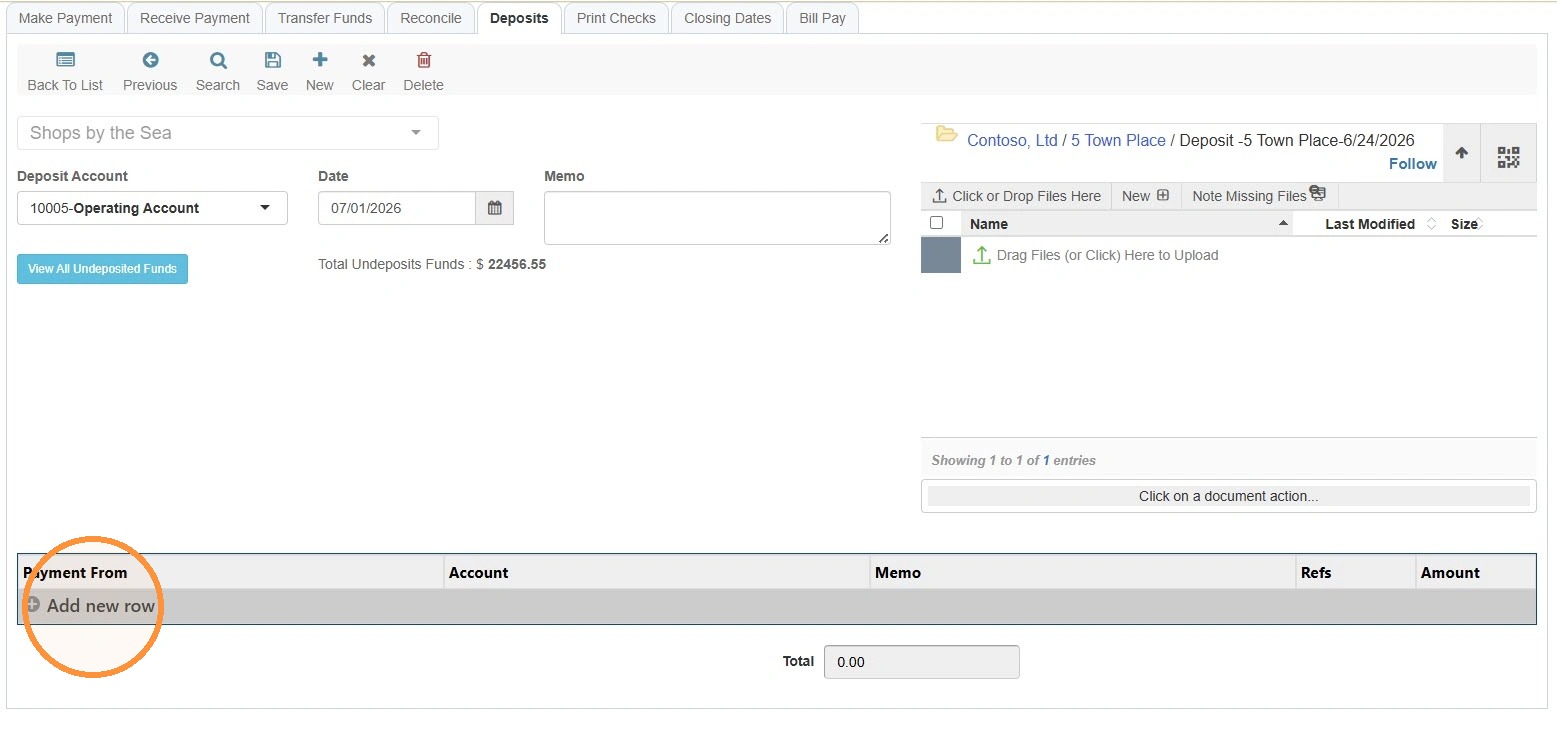
9. If you did not select items from the Undeposited Funds box, select Add new row to manually add the deposit information.
If you did select items from the Undeposited Funds box, they will appear as line items.
10. Select the preferred tenant in the Payment From field.
If you do not need to change the entity type, skip to step 14.
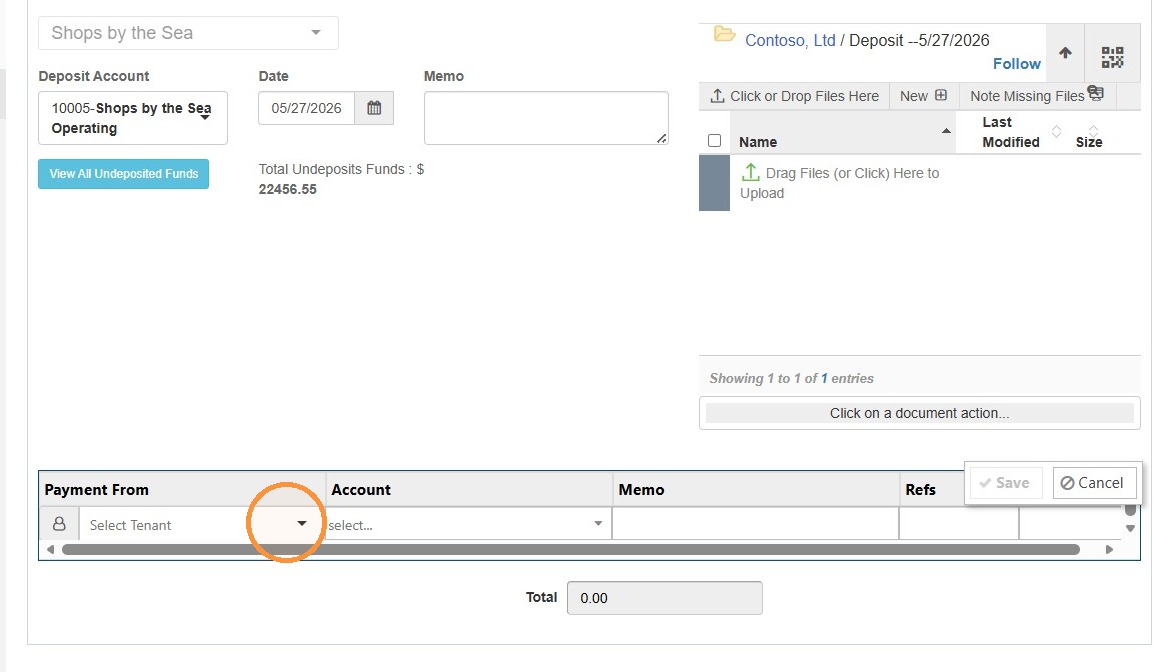
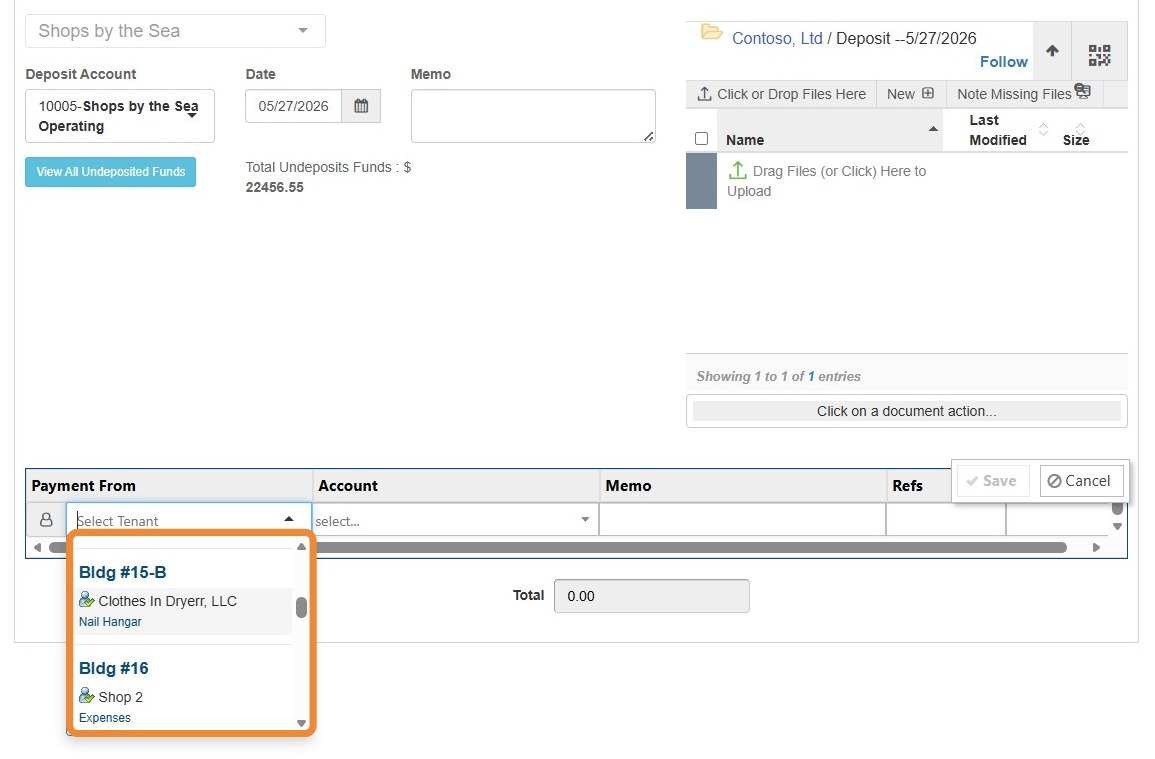
11. Select the Tenant Logo to bring up the entity selection Radial Menu.
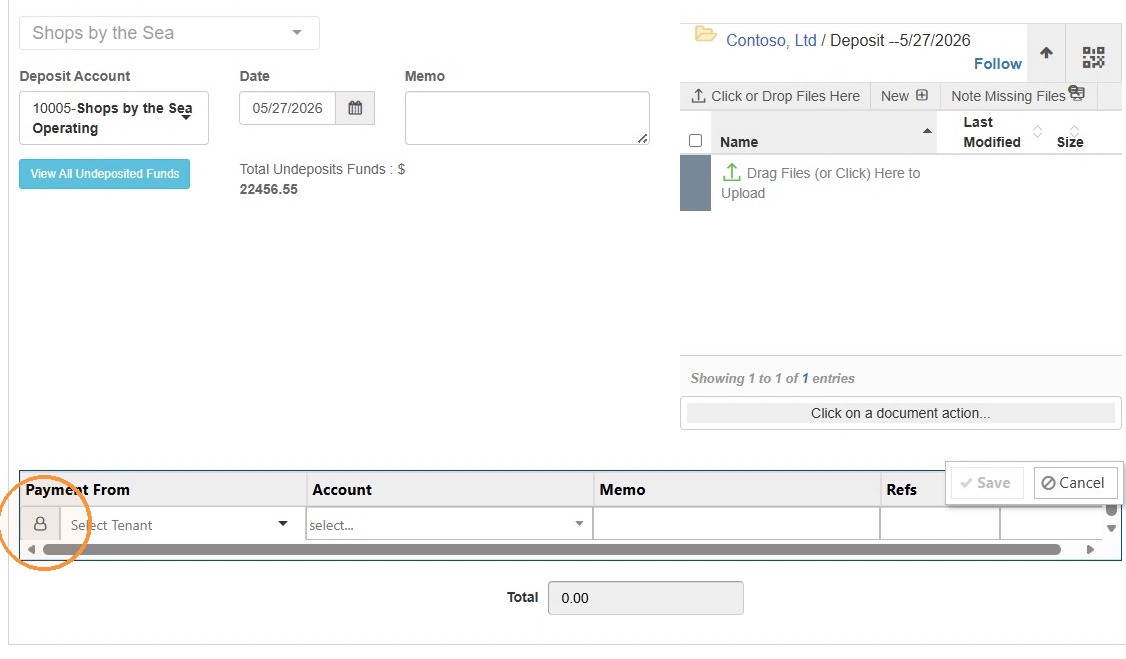
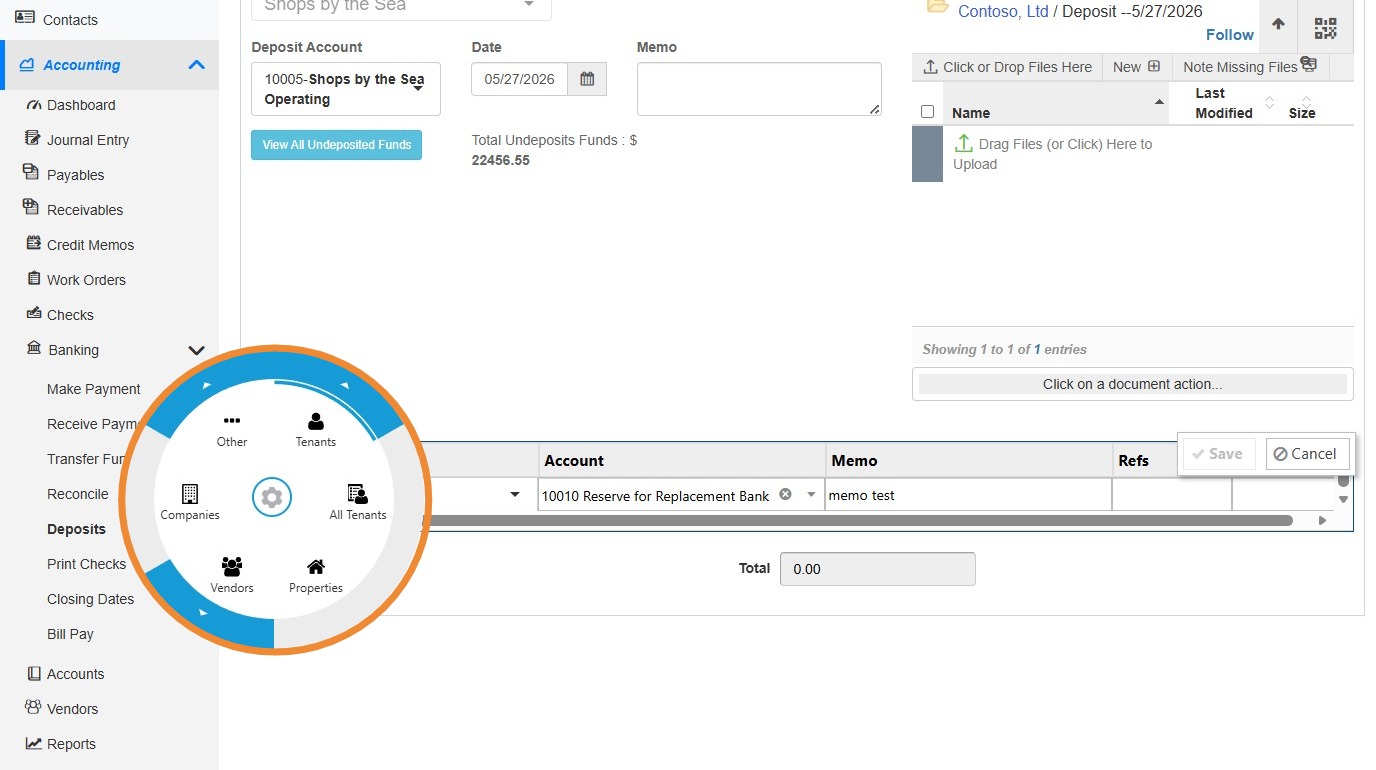
12. From the Radial menu, select the preferred entity type > Selecting the arrow for the entity type will allow you to choose all or active entities.
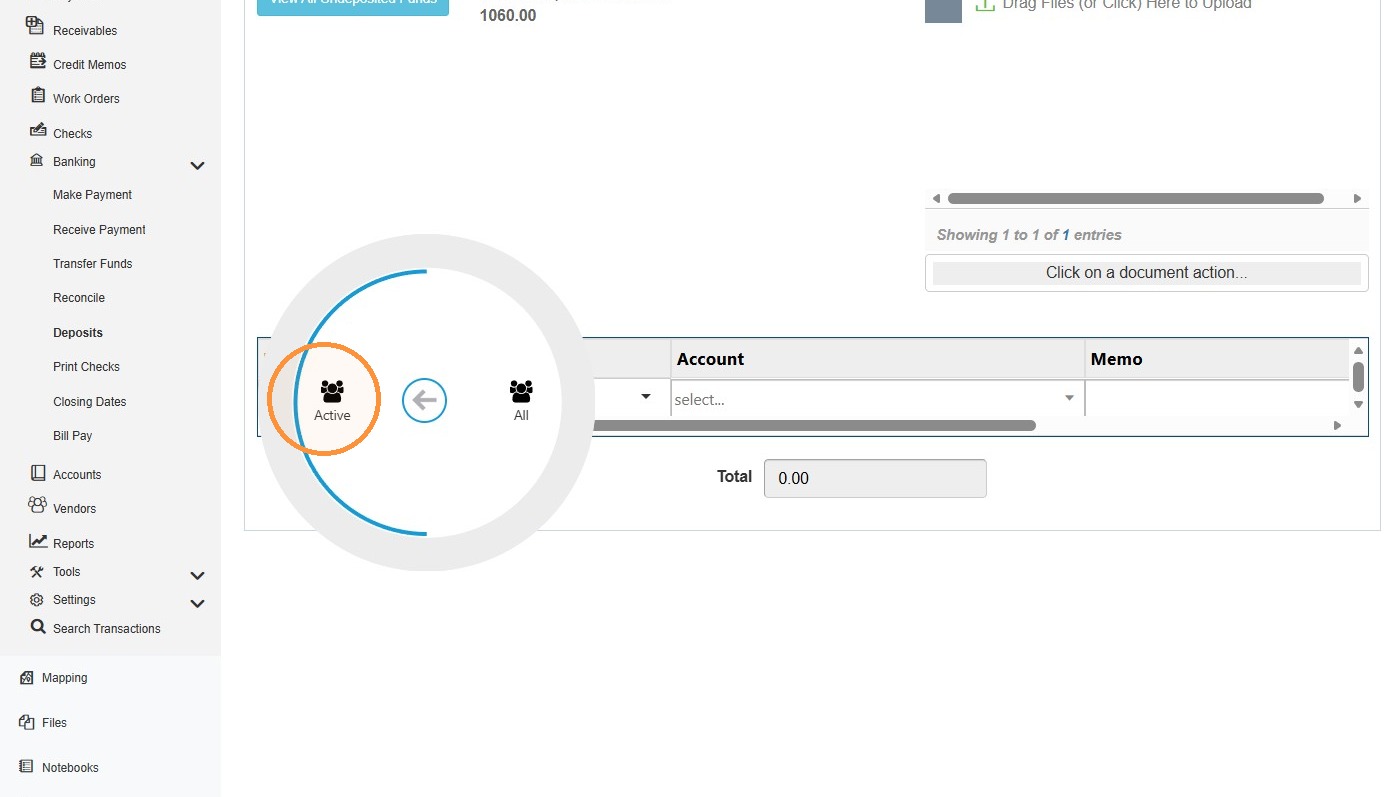
13. The dropdown menu will now allow for the entity selection.
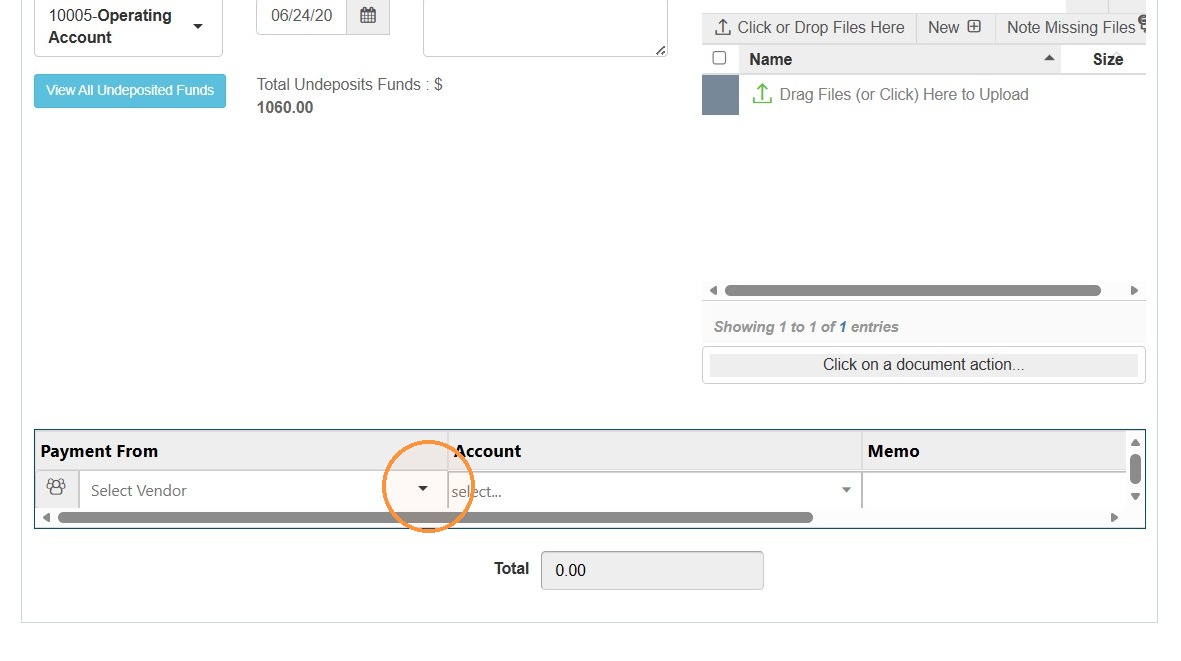
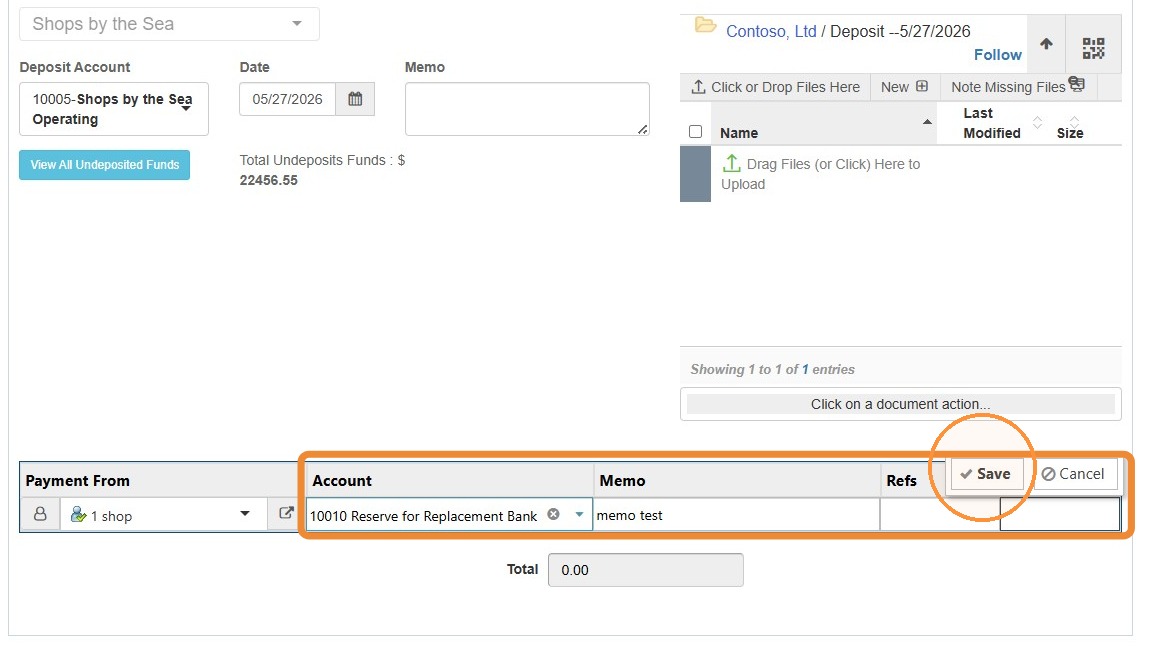
14. Complete the remaining deposit information > Select Save.
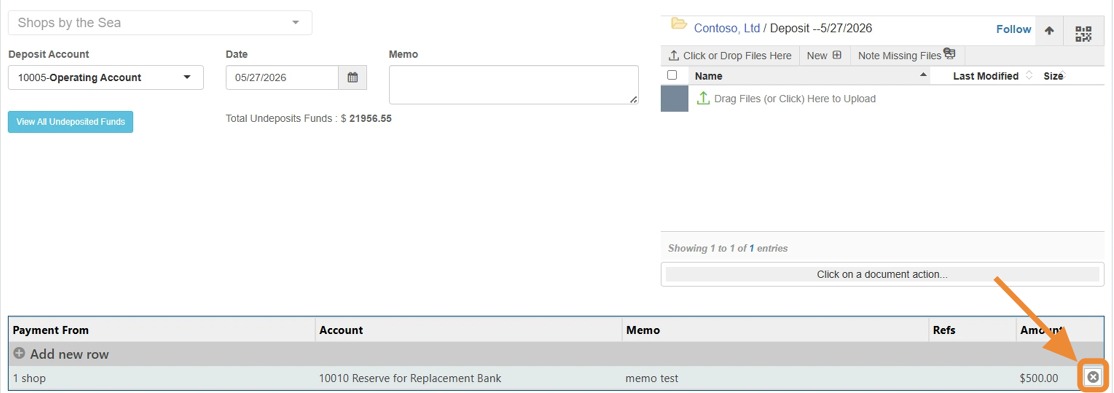
Tip: Once saved, you can delete the line item by hovering over the line item and selecting the x.
15. After entering the required deposit information, select Save.