How to Add Bill Terms
This guide shows where to find bill terms in the Accounting dashboard and how to create, edit, delete, or add them on the fly so your invoices reflect the correct payment rules. It explains practical examples, field-by-field steps for entering term details, and how to save or apply new terms directly from invoice dropdowns. Follow it to set consistent, automated payment terms across billing.
How to Navigate to Bill Terms
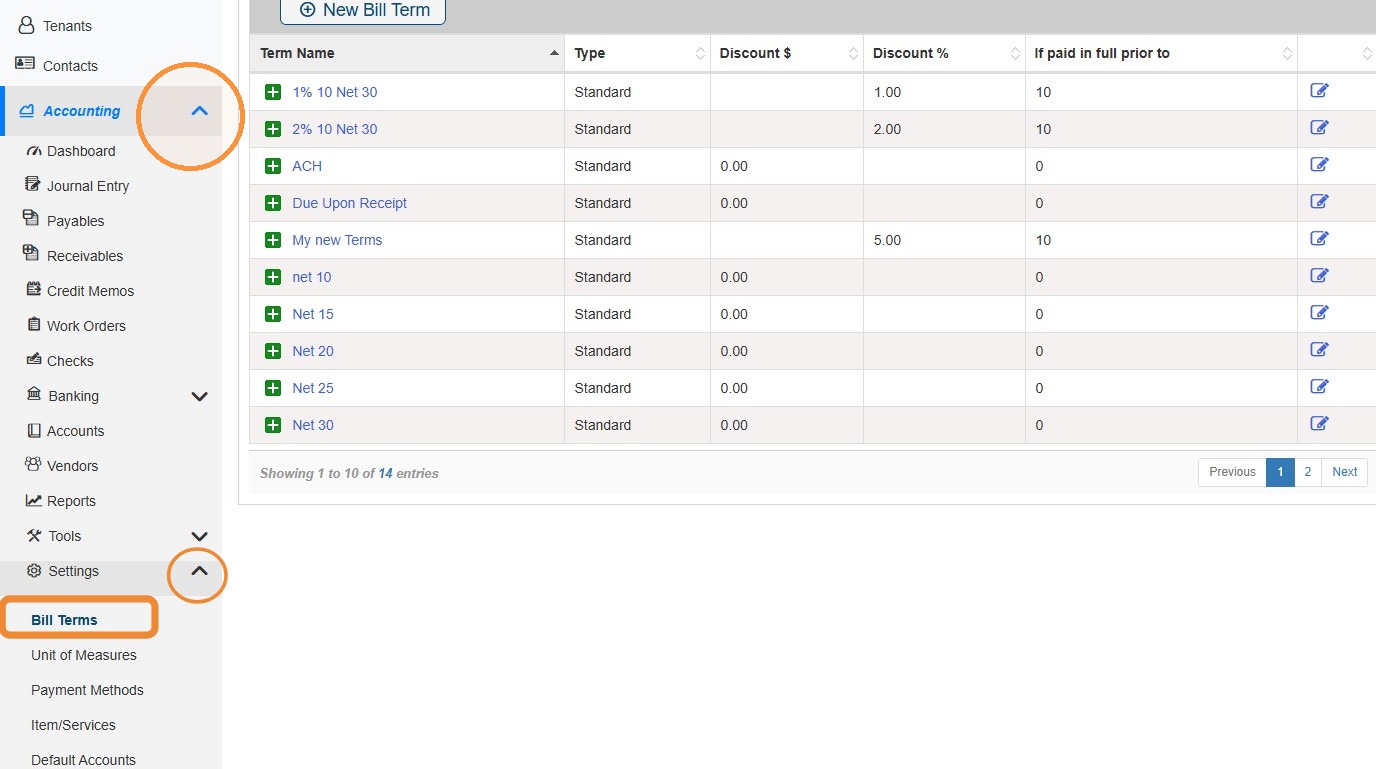
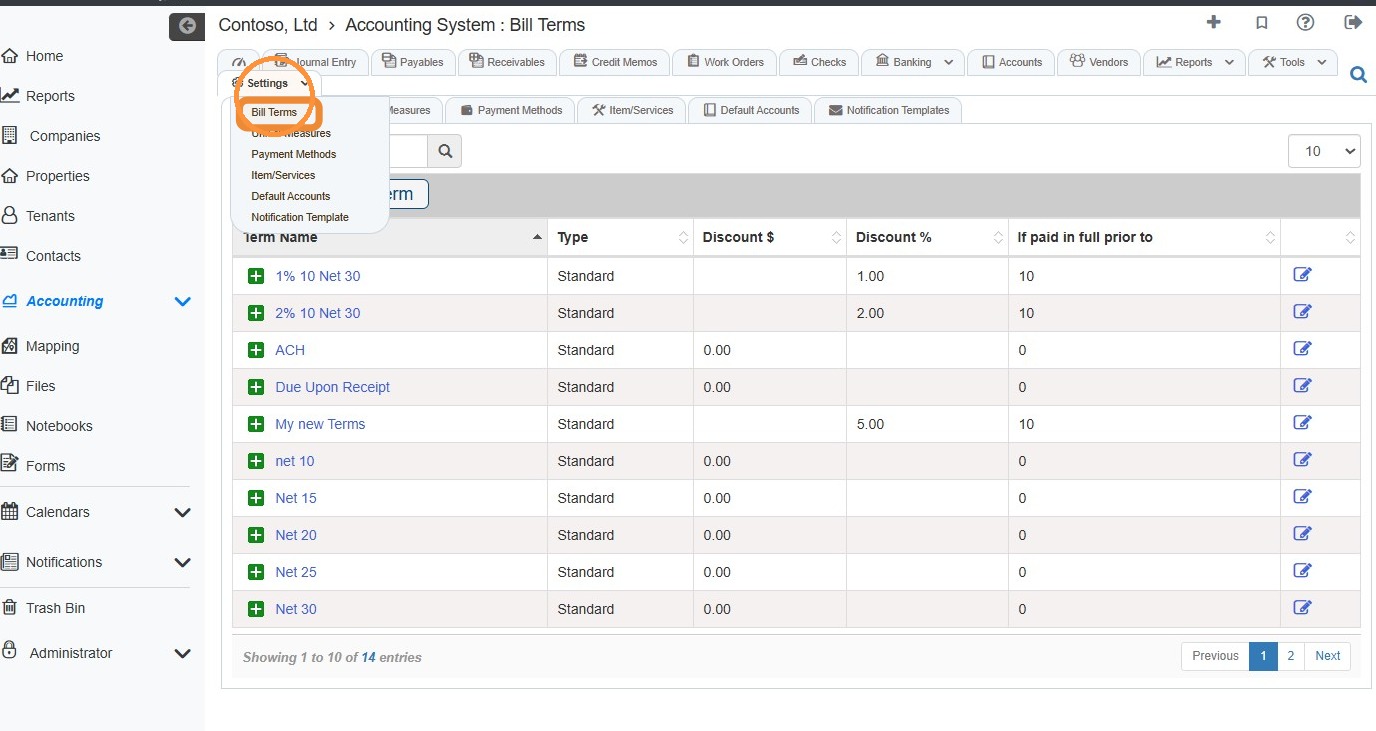
1. From the navigation menu, select Accounting > Select Settings > Select Bill Terms.\ \ Alternatively, from the Accounting Module, select the Settings tab > Select Bill Terms.
How to Add and Edit Bill Terms
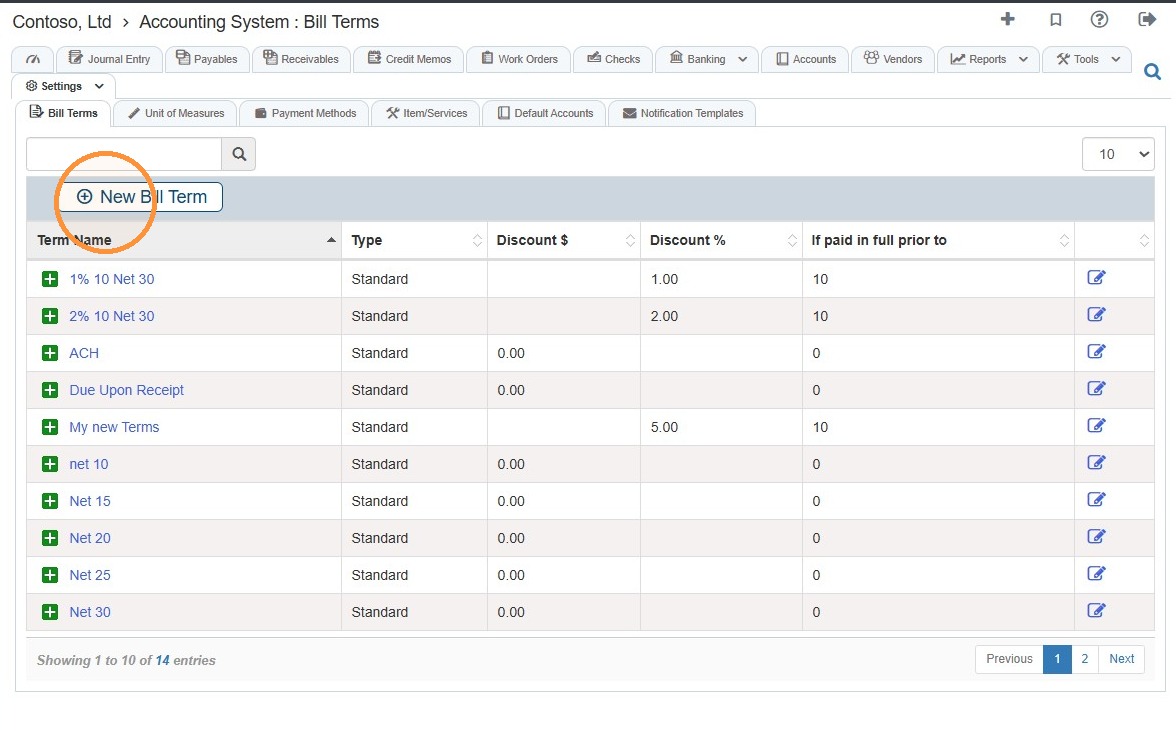
2. Select New Bill Term.
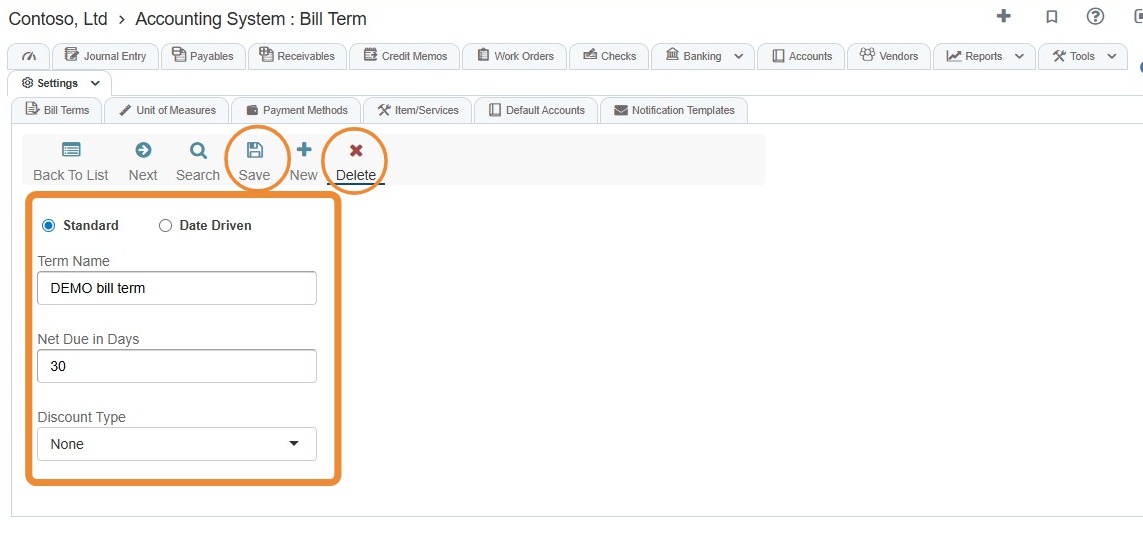
3. Complete the bill term information.
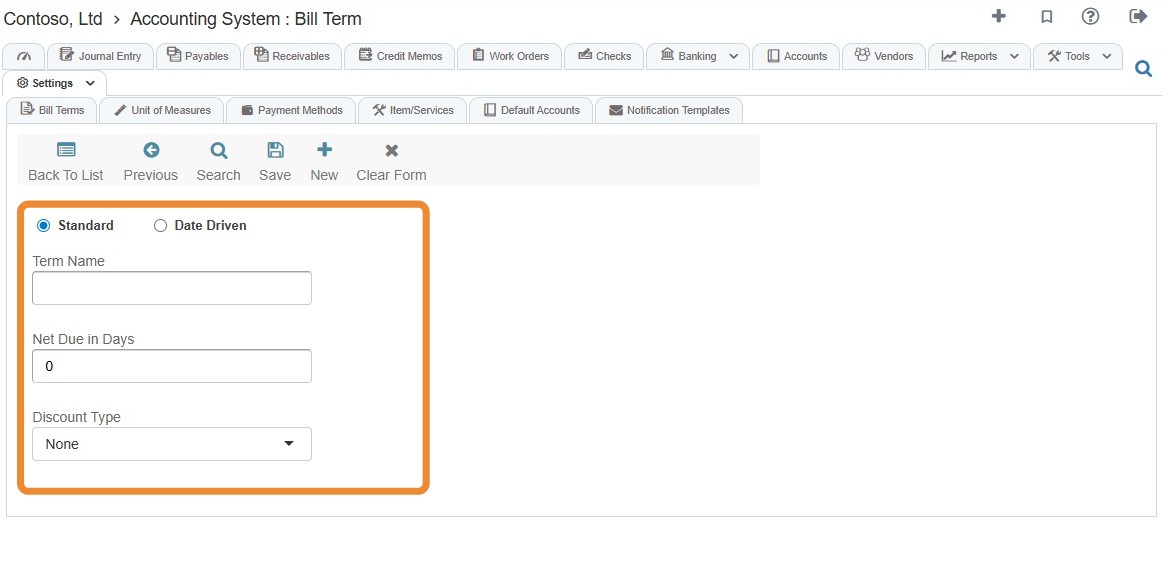
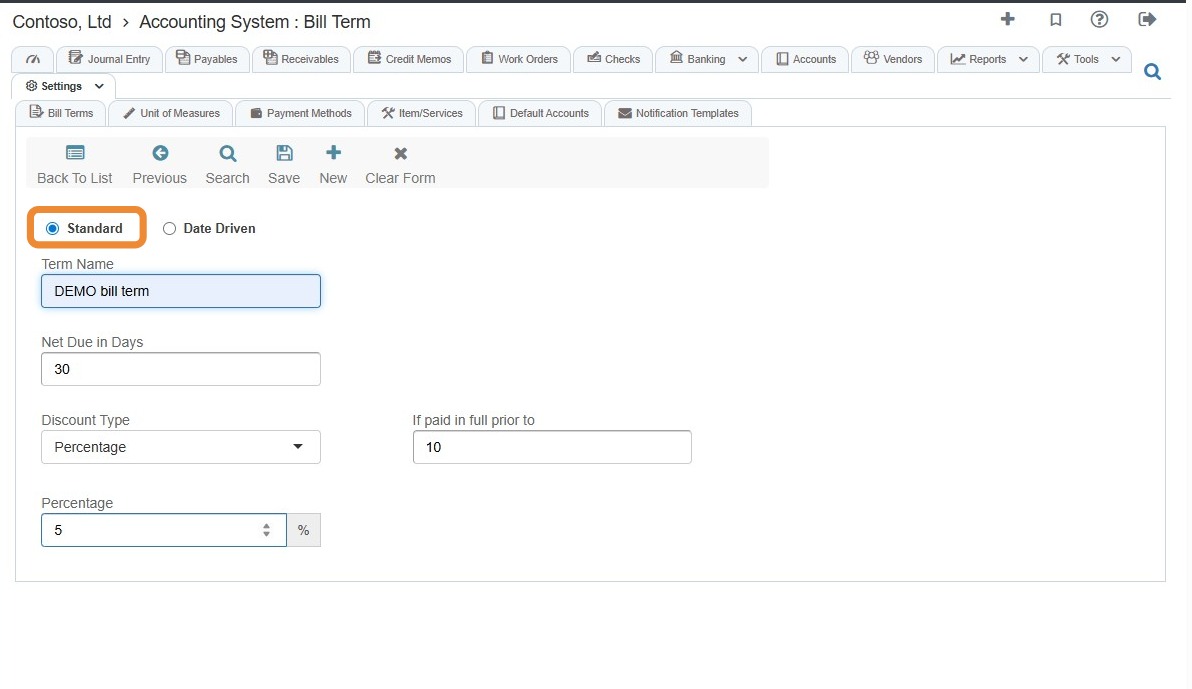
4. Standard: A simple net due in x days; You can still apply a discount.
If you wanted 5% 10 Net 30, select Discount Type > Select Percentage from the dropdown menu > Select the If paid in full prior to field > Enter 10 > Select the Percentage field > Enter 5 > Select Save.
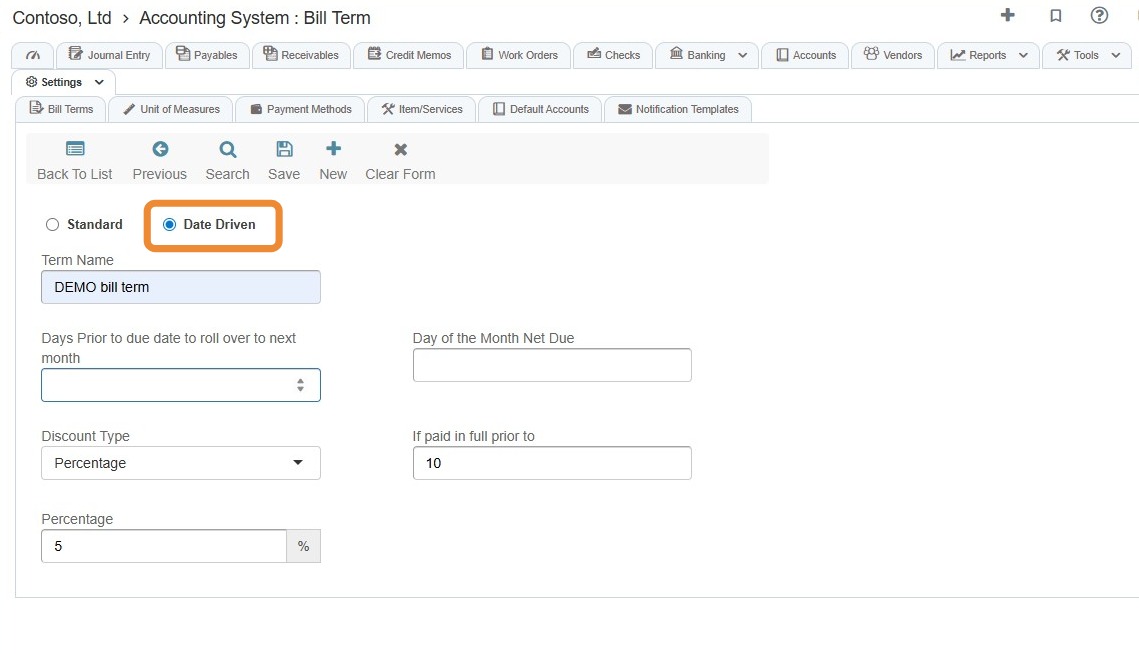
5. Date Driven: Terms that will rollover to the next month if the invoice/Bill is generated close to the end of the month.
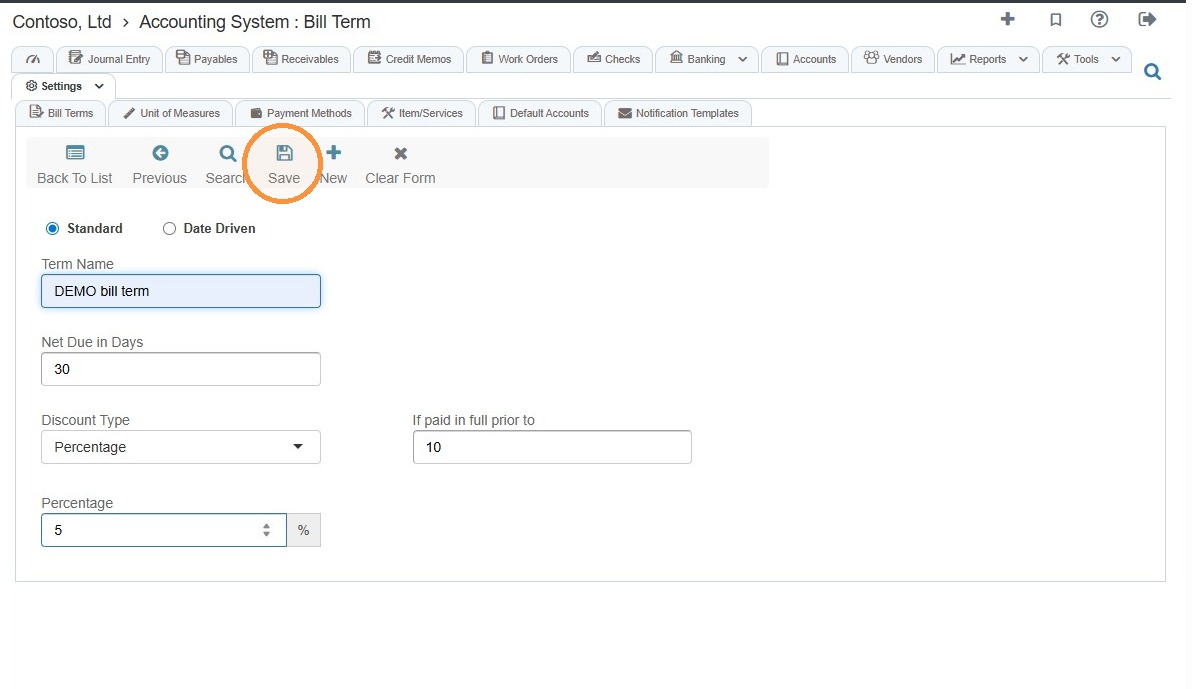
6. Select Save once term information is complete.
7. Select Back To List to return to the bill terms overview > Confirm the bill term was saved.
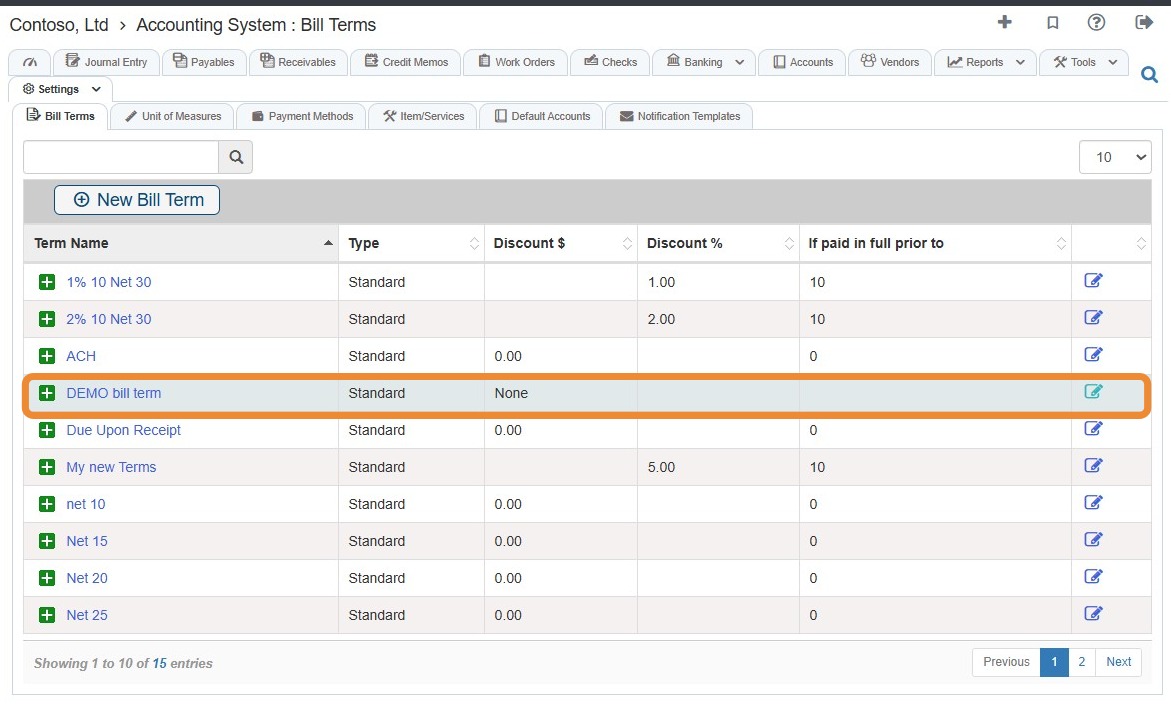
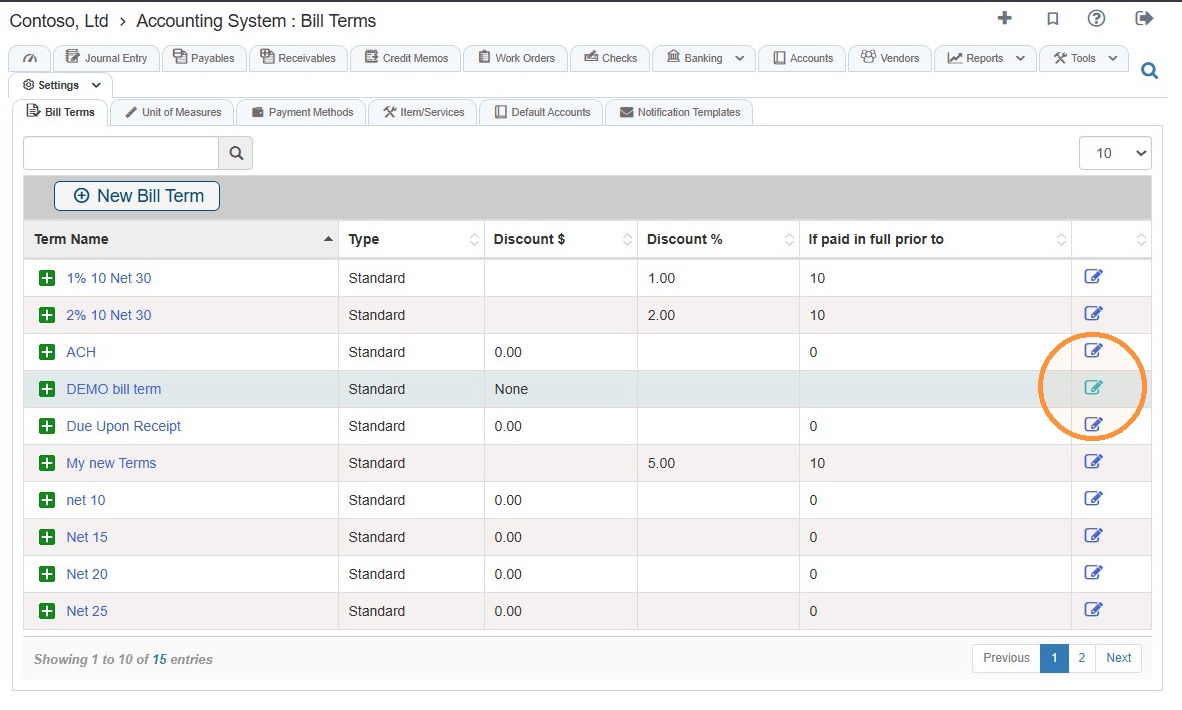
8. If you need to edit or remove a bill term, select the Edit icon.
9. Edit the information as needed > Select Save.
Select Delete to remove the bill term.
How to Add Bill Terms on the Fly
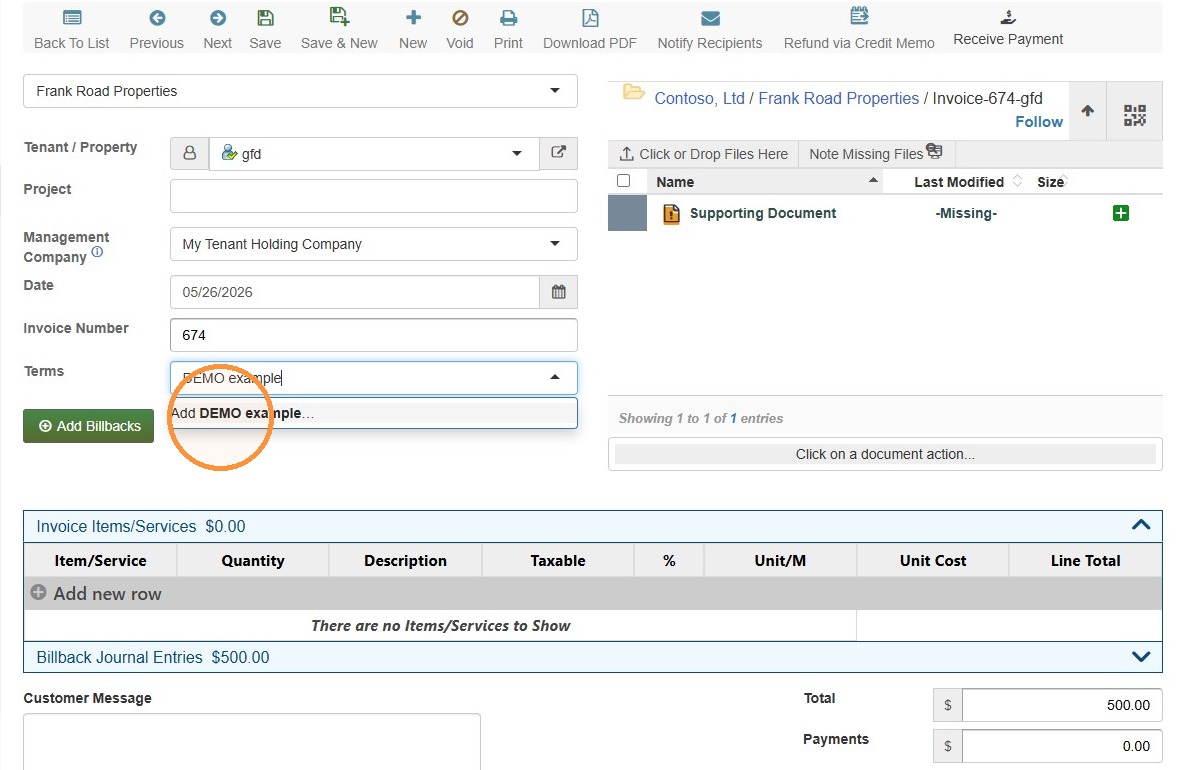
Tip: You can add new bill terms from any dropdown of terms. You can add additional terms as required.
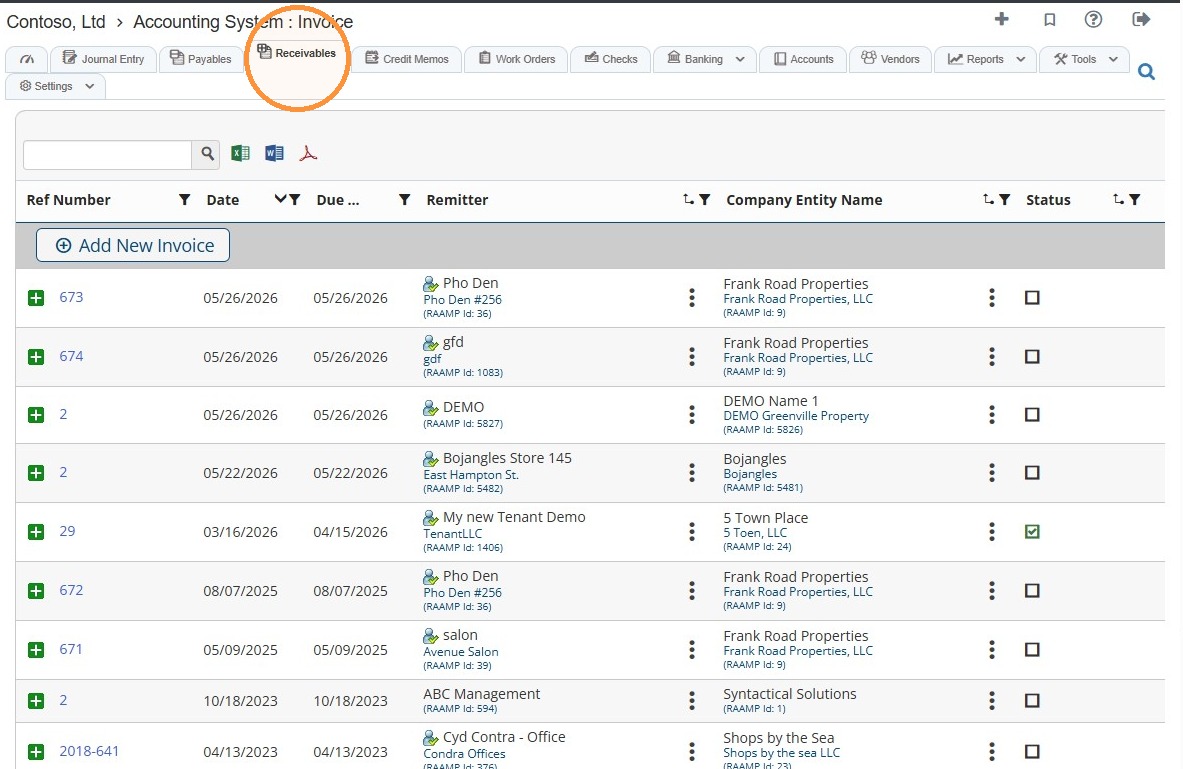
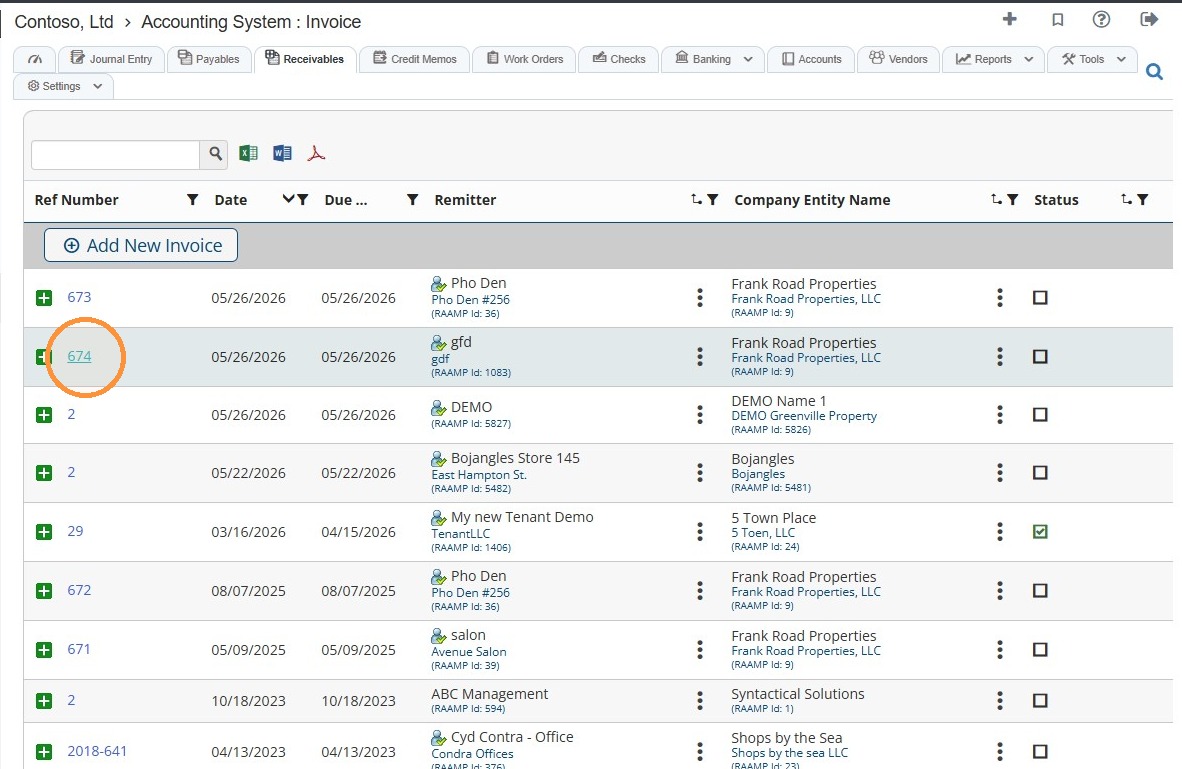
10. For example, you can navigate to the Receivables tab in the Accounting module.
11. Select an invoice.
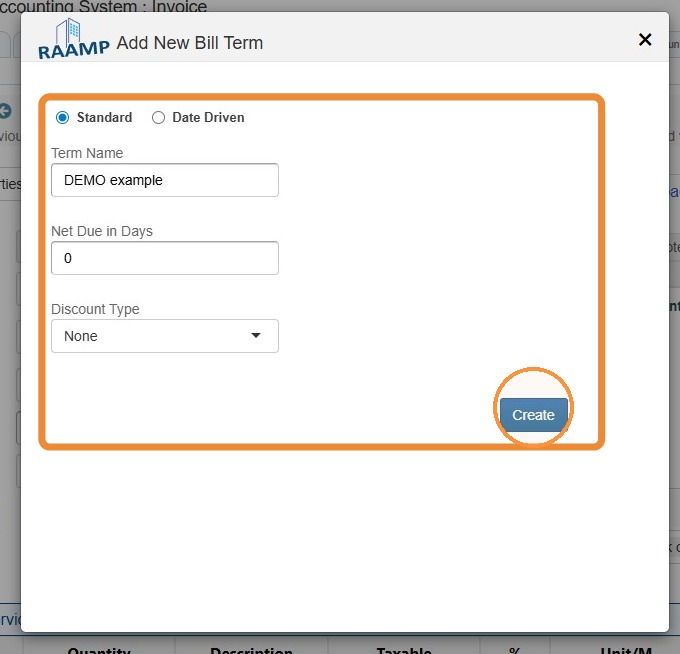
12. Select the Terms field > Enter a Bill Term Name > Select Add.
13. Complete the bill term information > Select Create.
The terms will be automatically set to the new terms you added.