How to Add, Edit, and Delete Company, Property, or Tenant Contacts
This guide shows how to quickly add, edit, review, or delete contacts for a company, property, or tenant. It explains where to find the Contacts menu, how to create a new contact (including adding a new person), set contact type and point-of-contact, and save changes. Use the contact’s three-dot menu to edit or remove entries.
Company, Property, or Tenant Selection
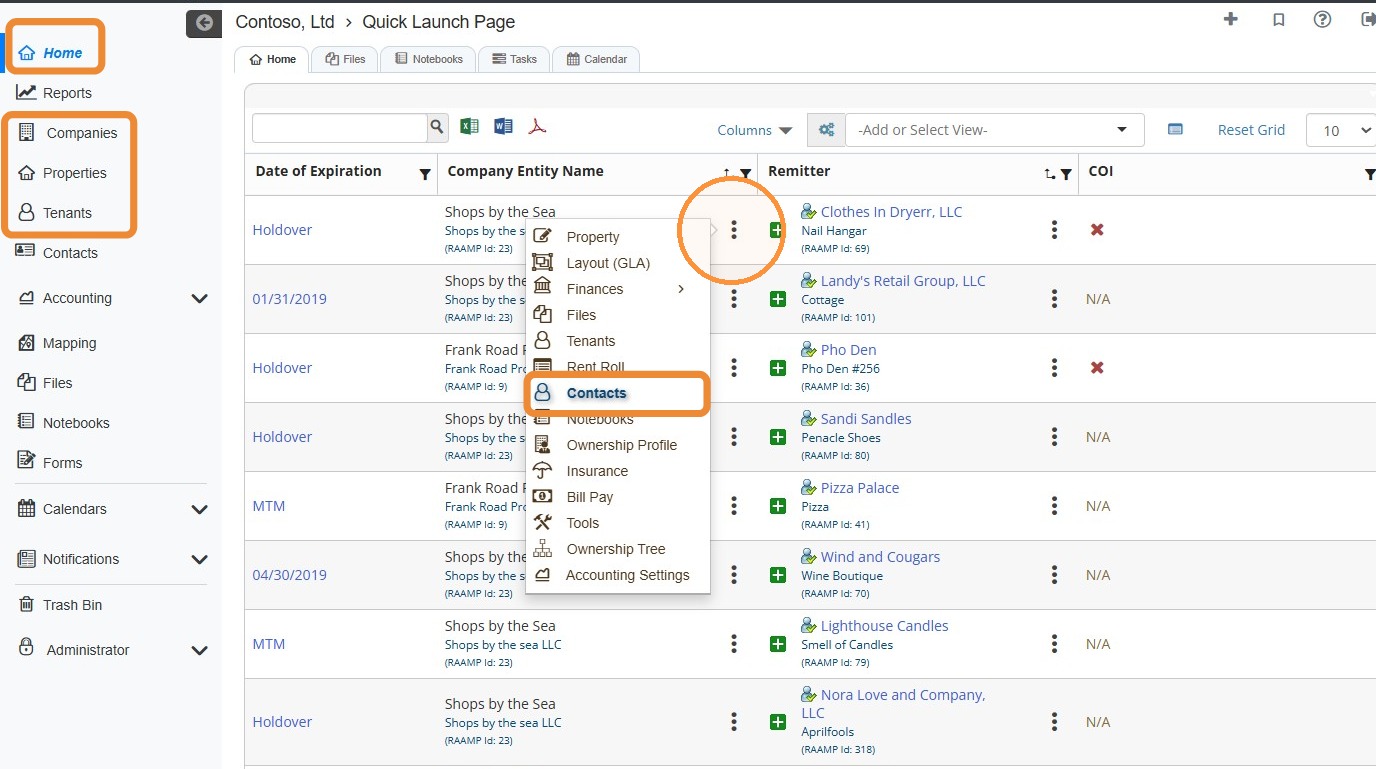
1. From Home, locate the Company, Property, or Tenant > Select the three-dot menu > Select Contacts.
NOTE: You can use the navigation menu to view the Companies, Properties, or Tenants tabs and access the three-dot menu there if you prefer.
How to Add a Contact
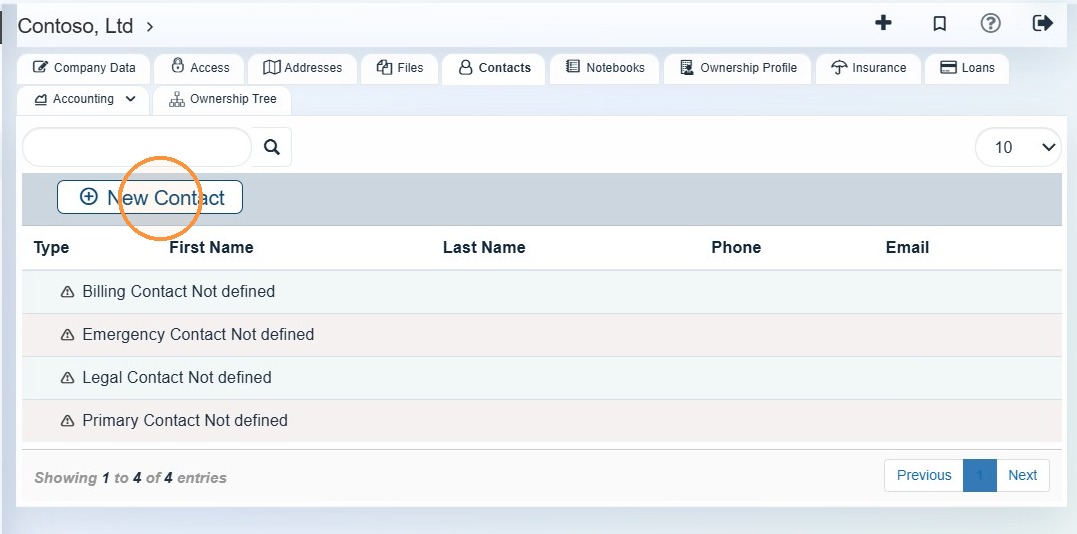
2. Select New Contact.
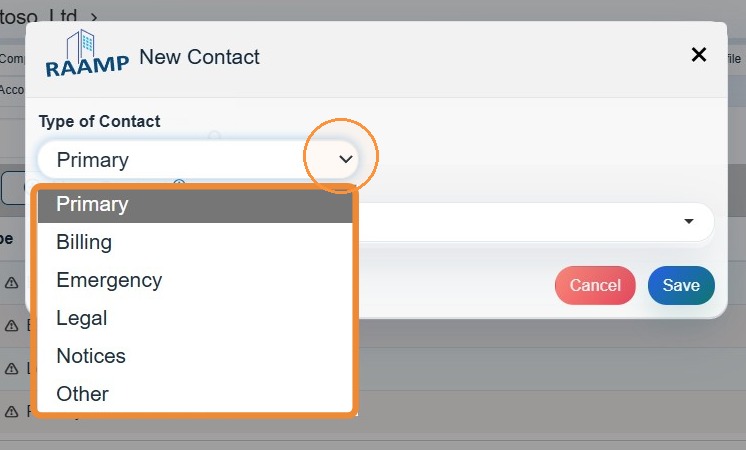
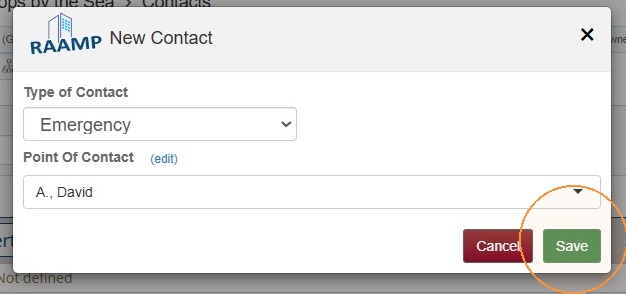
3. Select the Type of Contact dropdown menu > Select the appropriate option.
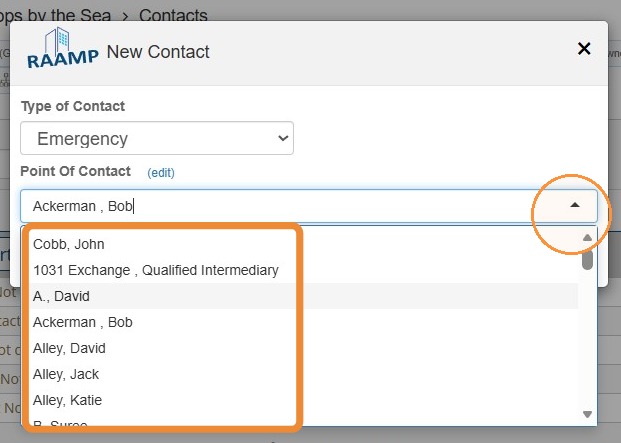
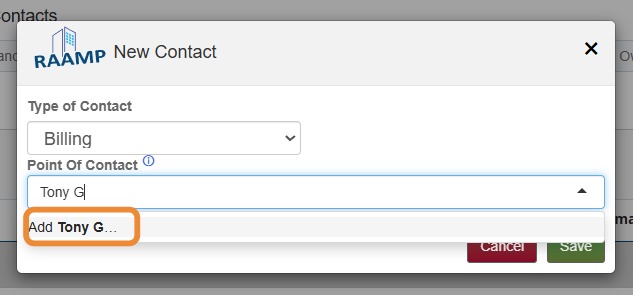
4. Select the Point of Contact dropdown menu > Select the appropriate contact.\ \ If you need to add a new contact, enter their name > Select Add...
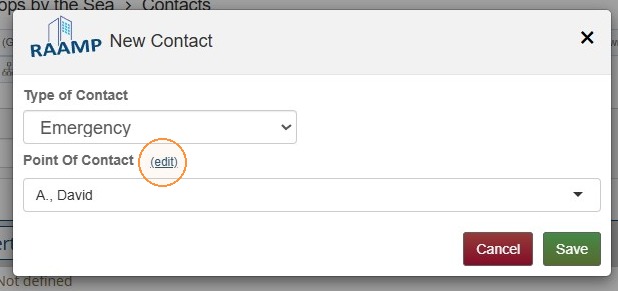
5. Select (edit) to review/edit contact details > Select Save.
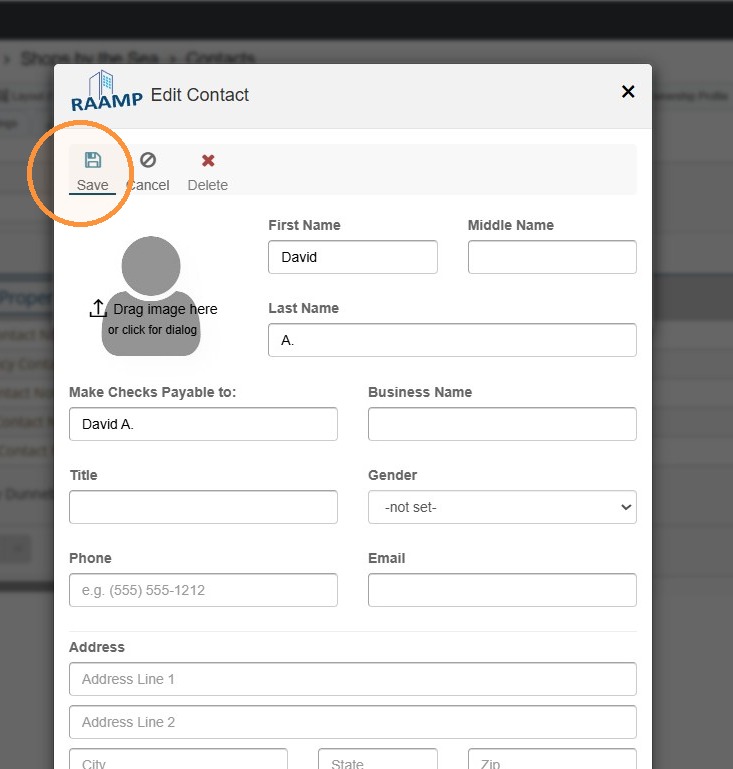
6. Select Save to finalize adding the contact.
How to Review and Delete/Edit Contact Information
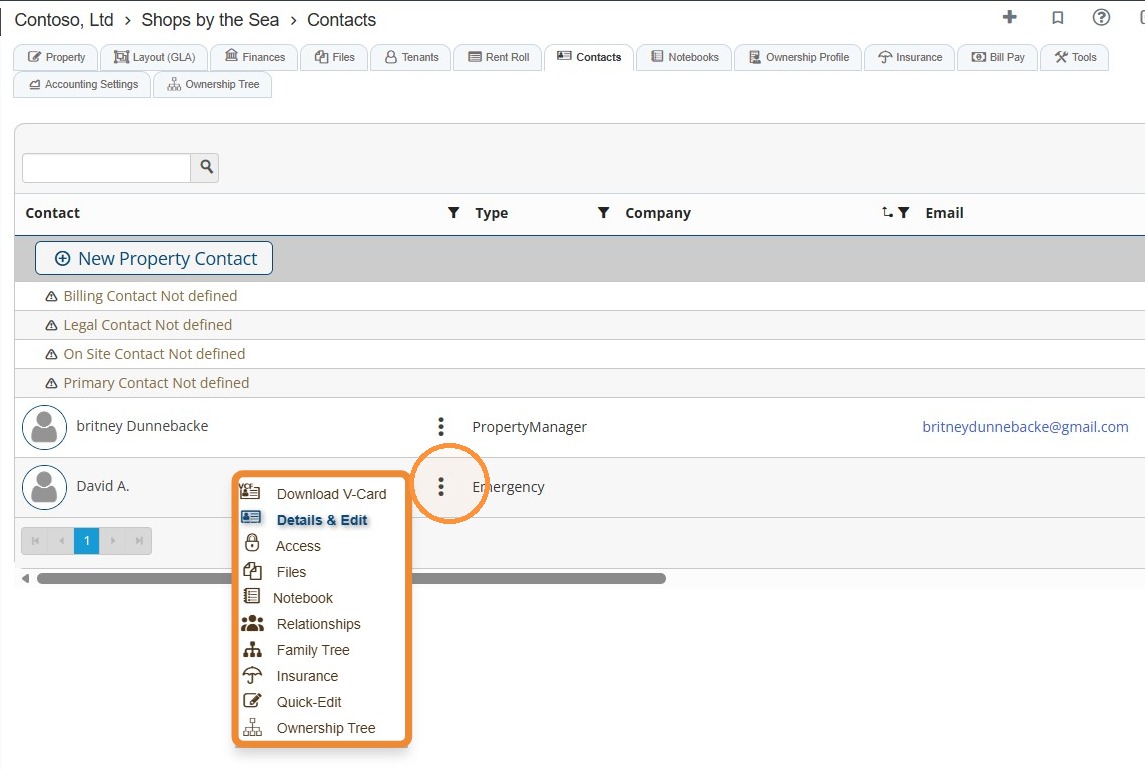
7. To review contact-related options or to Delete & Edit a contact, select the contact's three-dot menu > Select the preferred option.