How to Receive Payment for Tenant Overpayment
This guide shows step-by-step how to record a tenant payment that exceeds the invoice amount and turn the excess into a credit memo. It walks you through opening the Receive Payment screen, entering payment details, marking the overpayment option, and saving the transaction. It also explains how to find the resulting credit memo and how to change the entity type if you selected the wrong one.
How to Access Receive Payment Screen
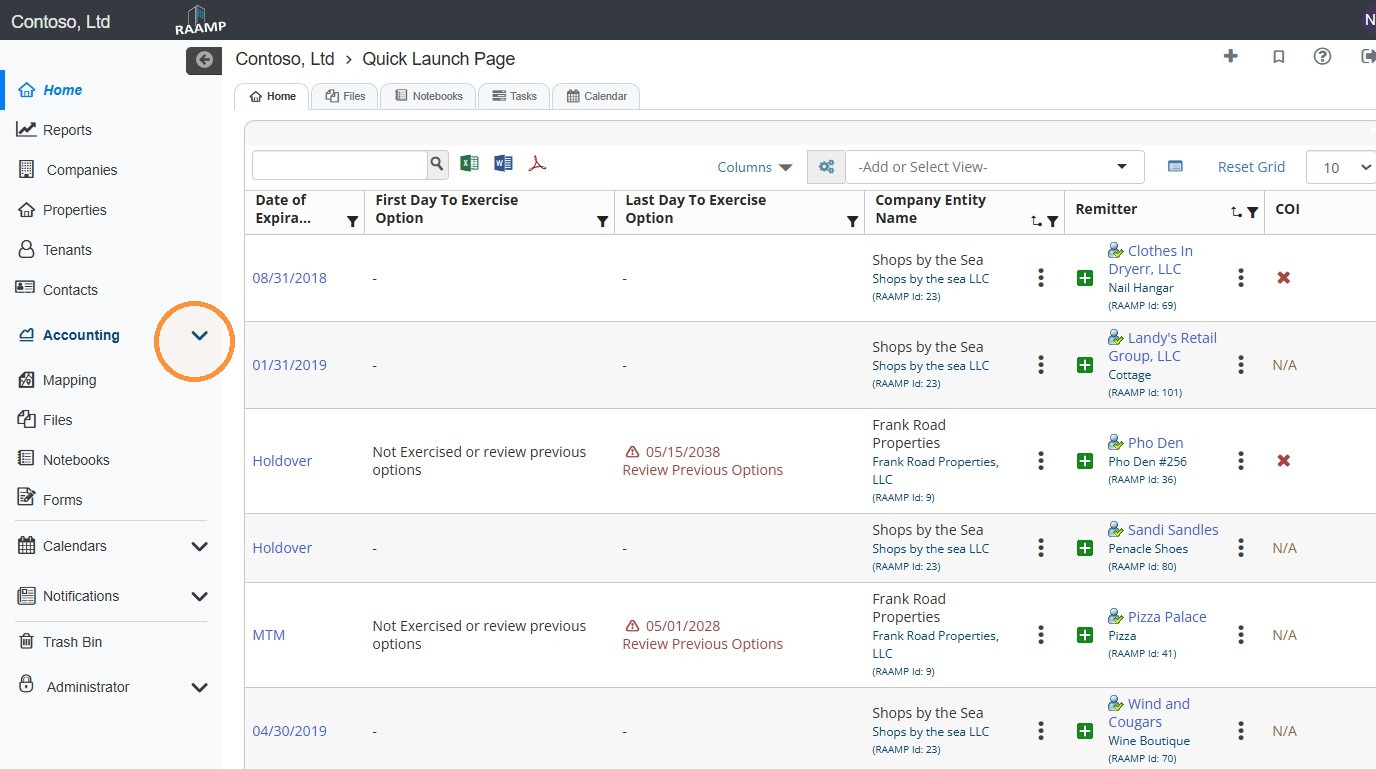
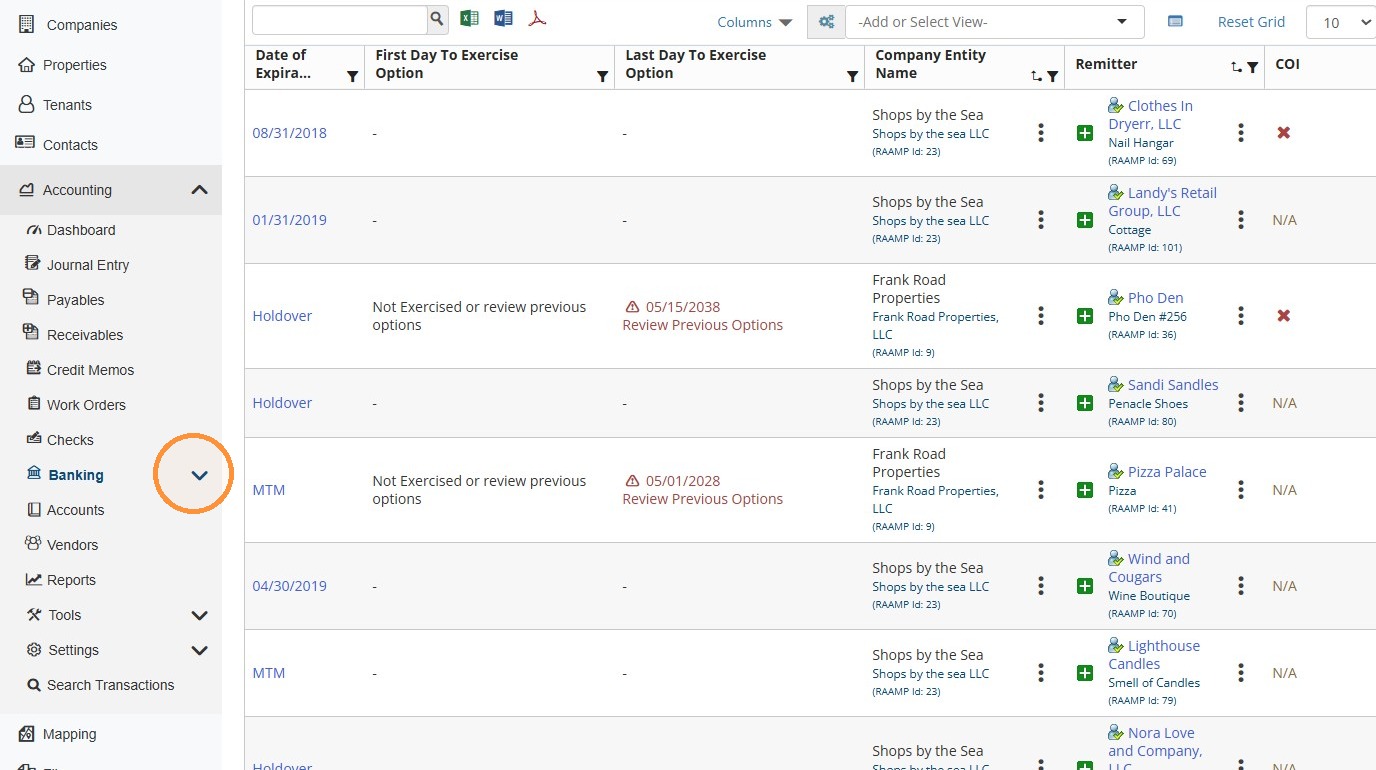
1. From the navigation menu, select Accounting > Banking > Receive Payment.
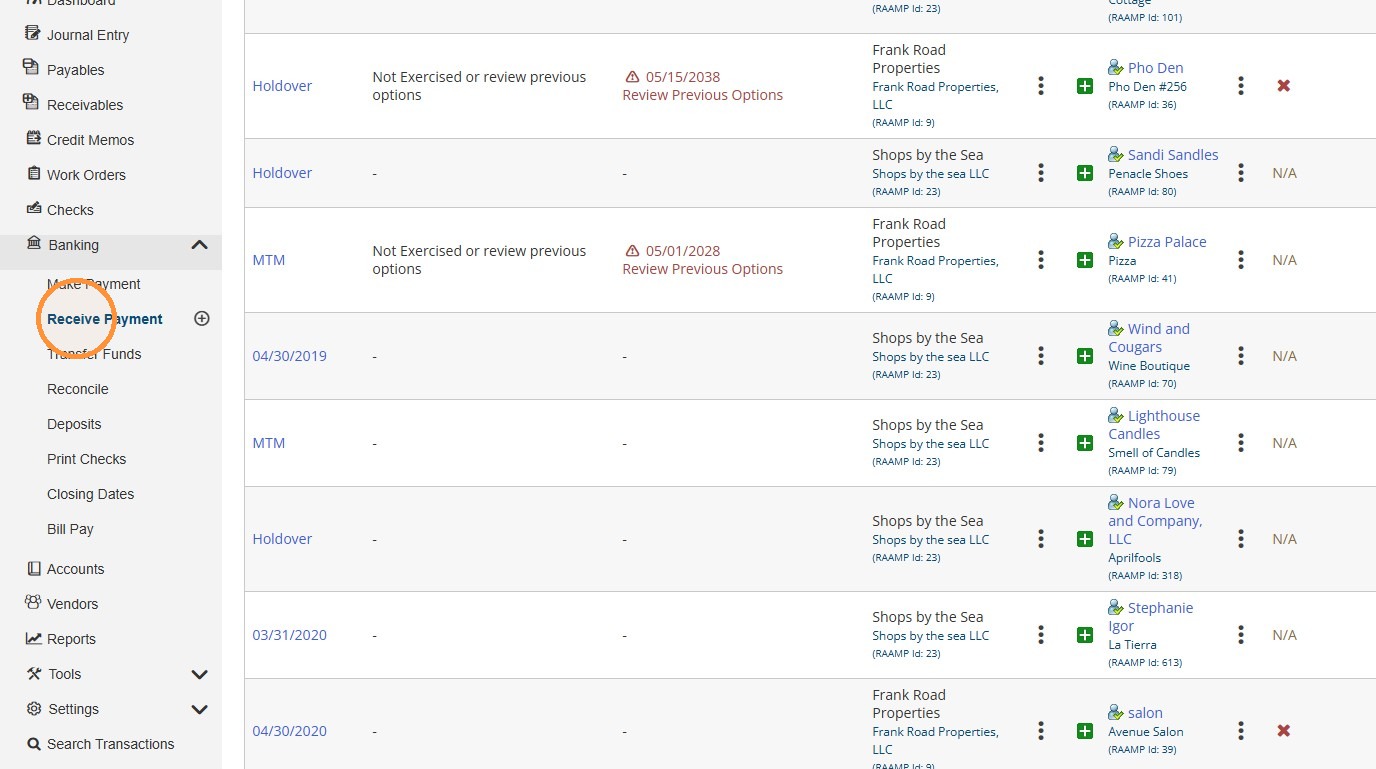
Receive Payment Diagram
2. Receive Payment Screen Diagram
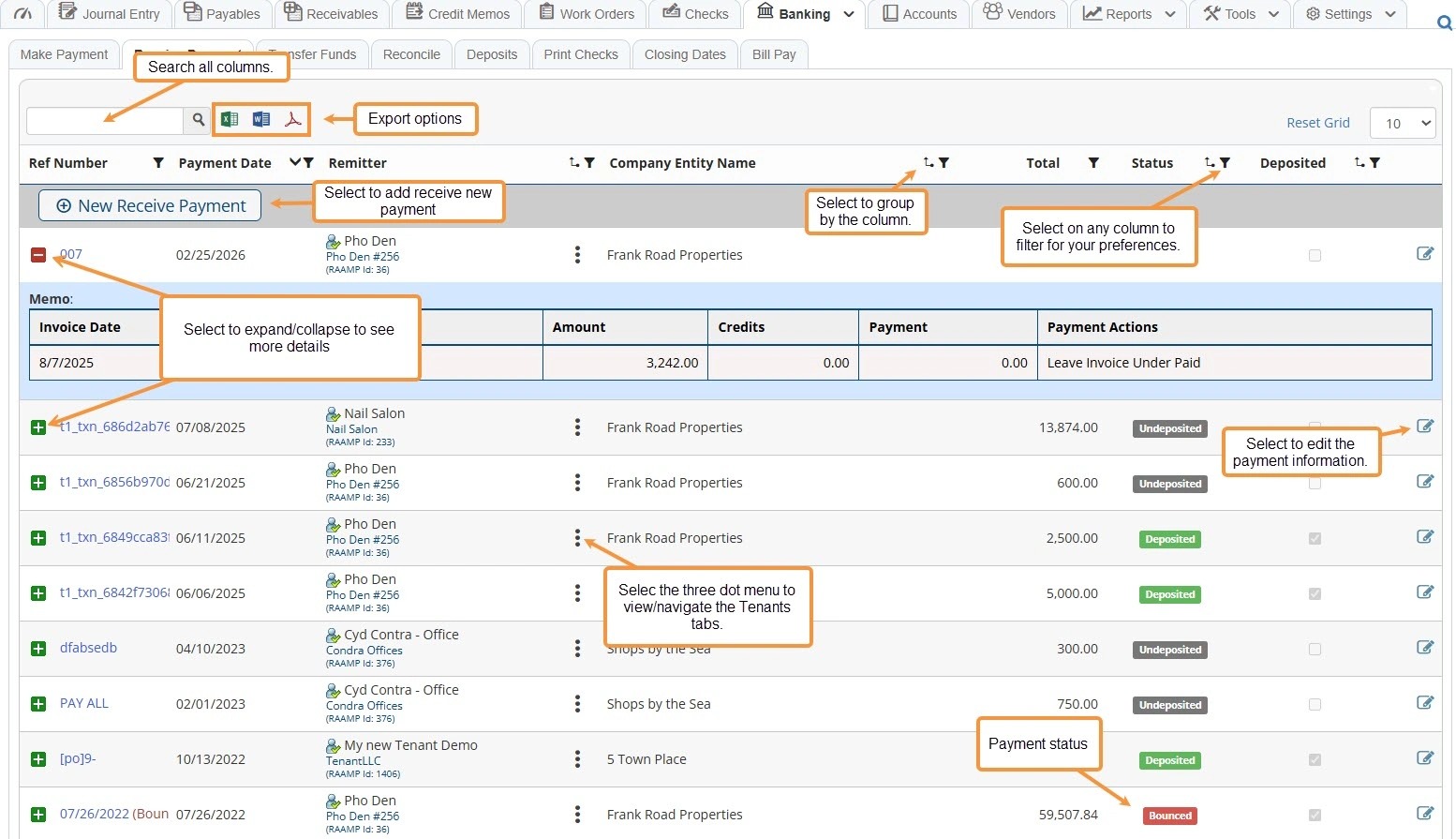
How to Apply Credit for Overpayment
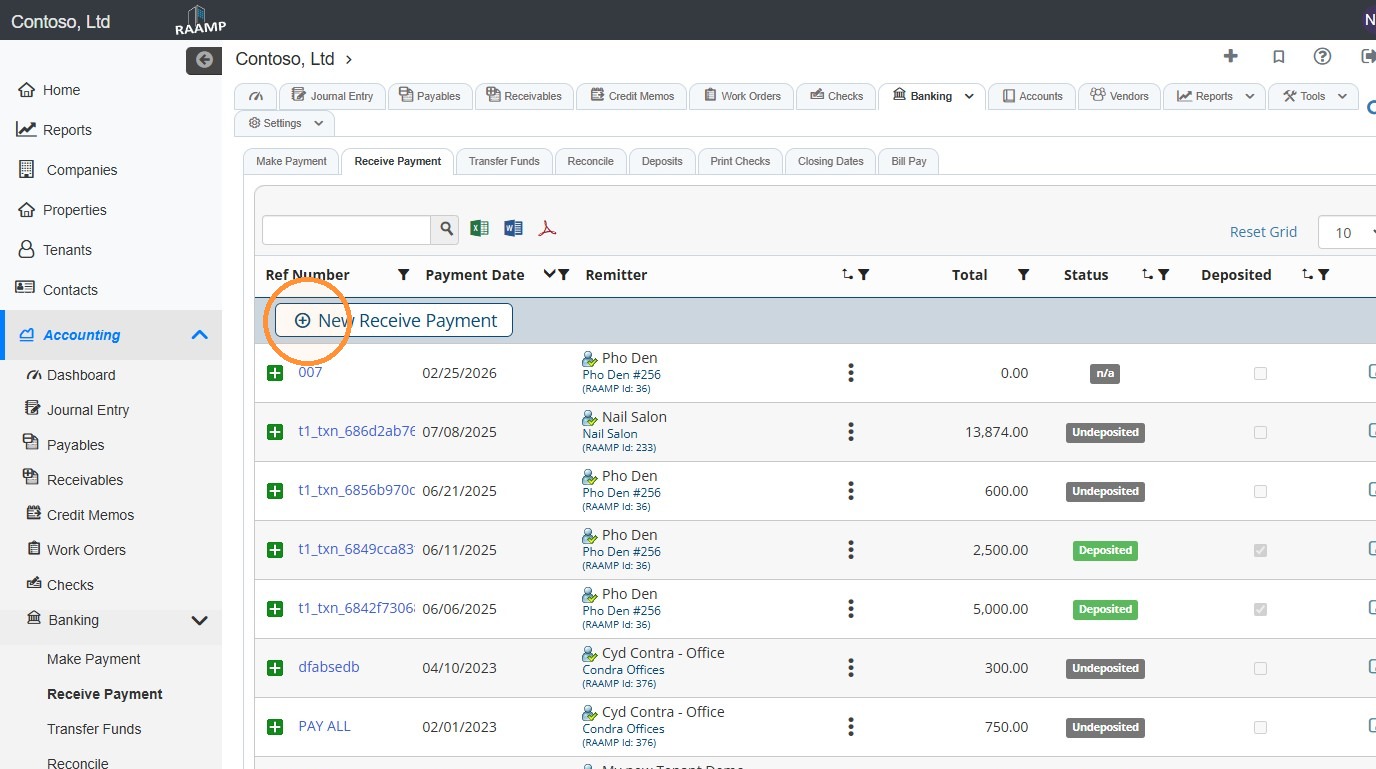
3. Select New Receive Payment.
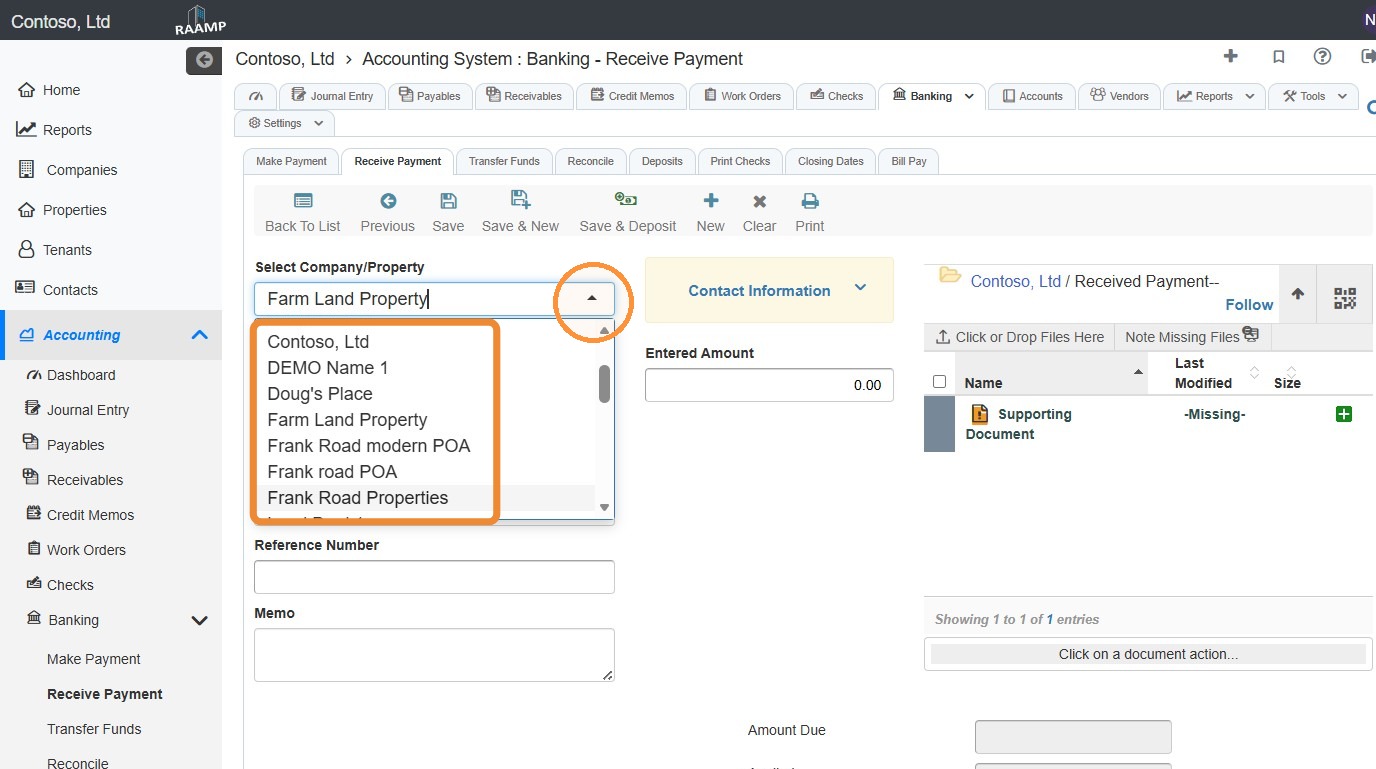
4. Select the Company/Property field and choose the preferred company/property from the dropdown.
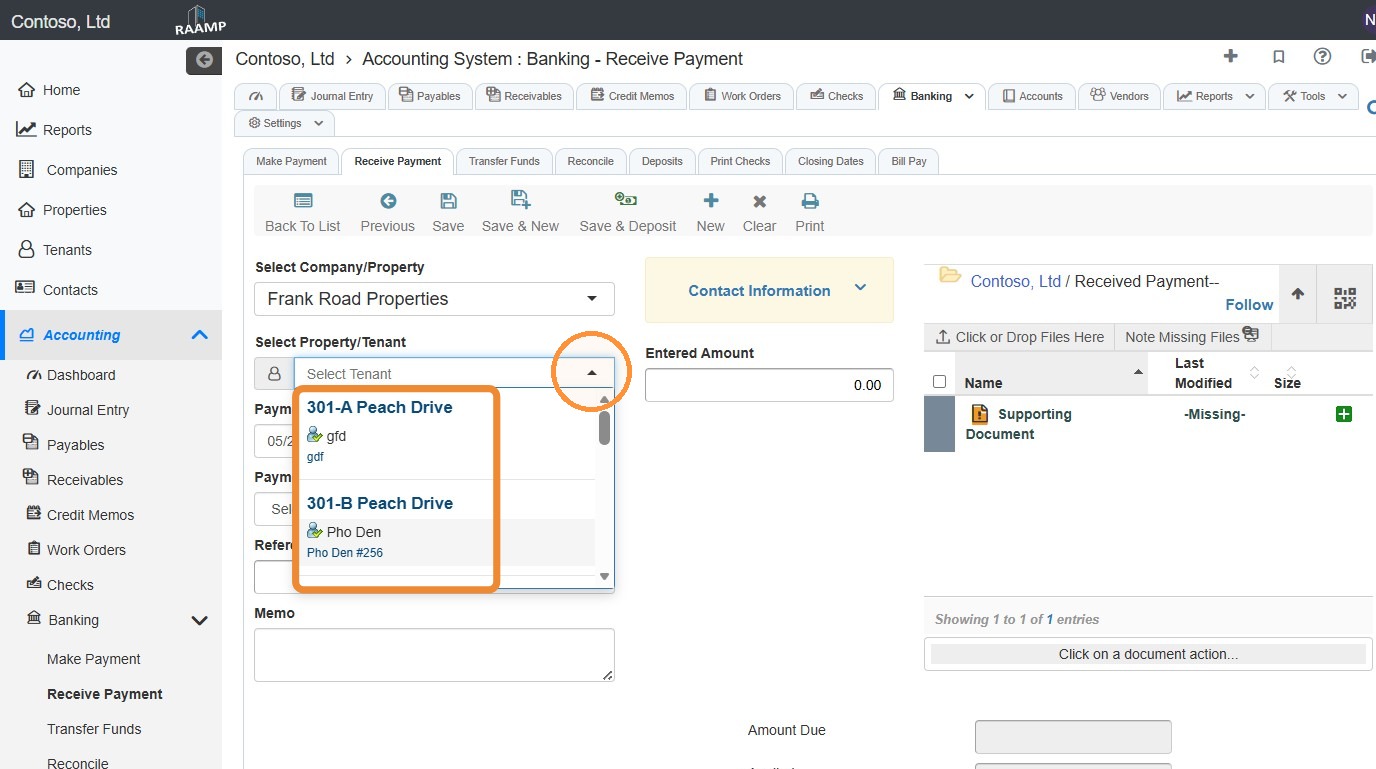
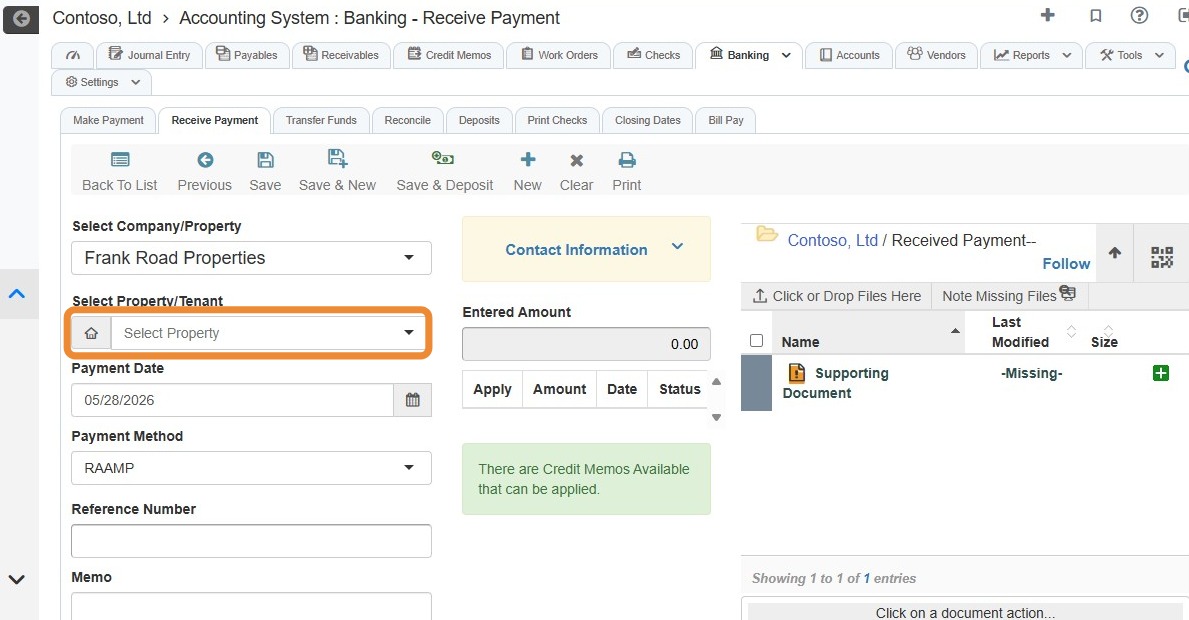
5. Select the preferred tenant from the Property/Tenant dropdown.
If you do not need to change the entity type, skip to step 8.
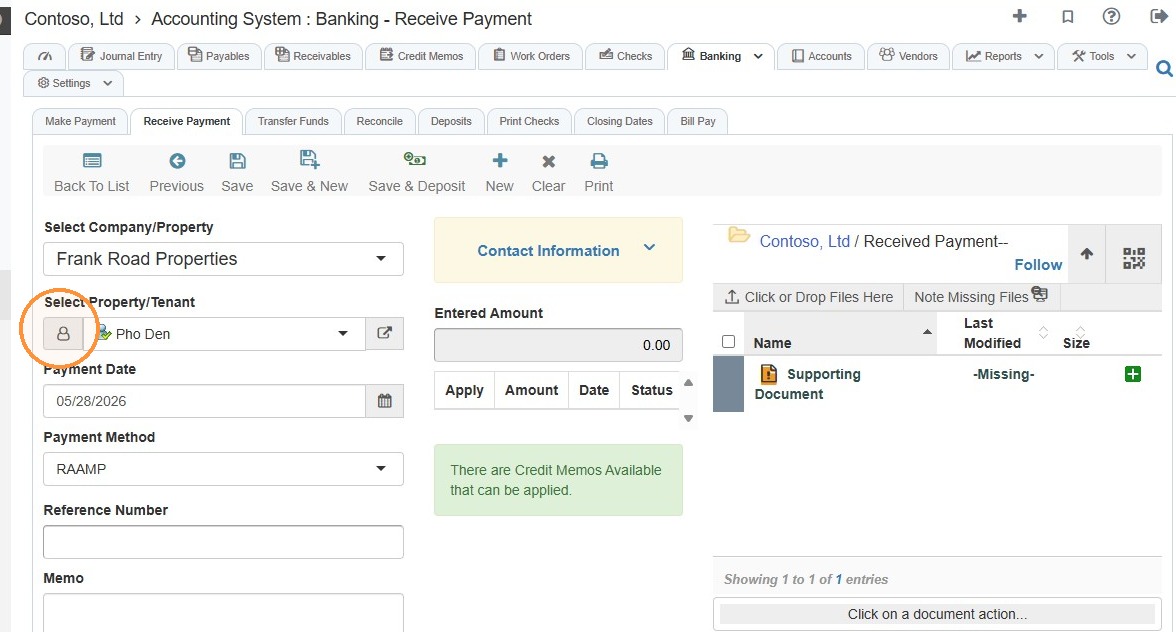
6. Select the Property/Tenant icon.
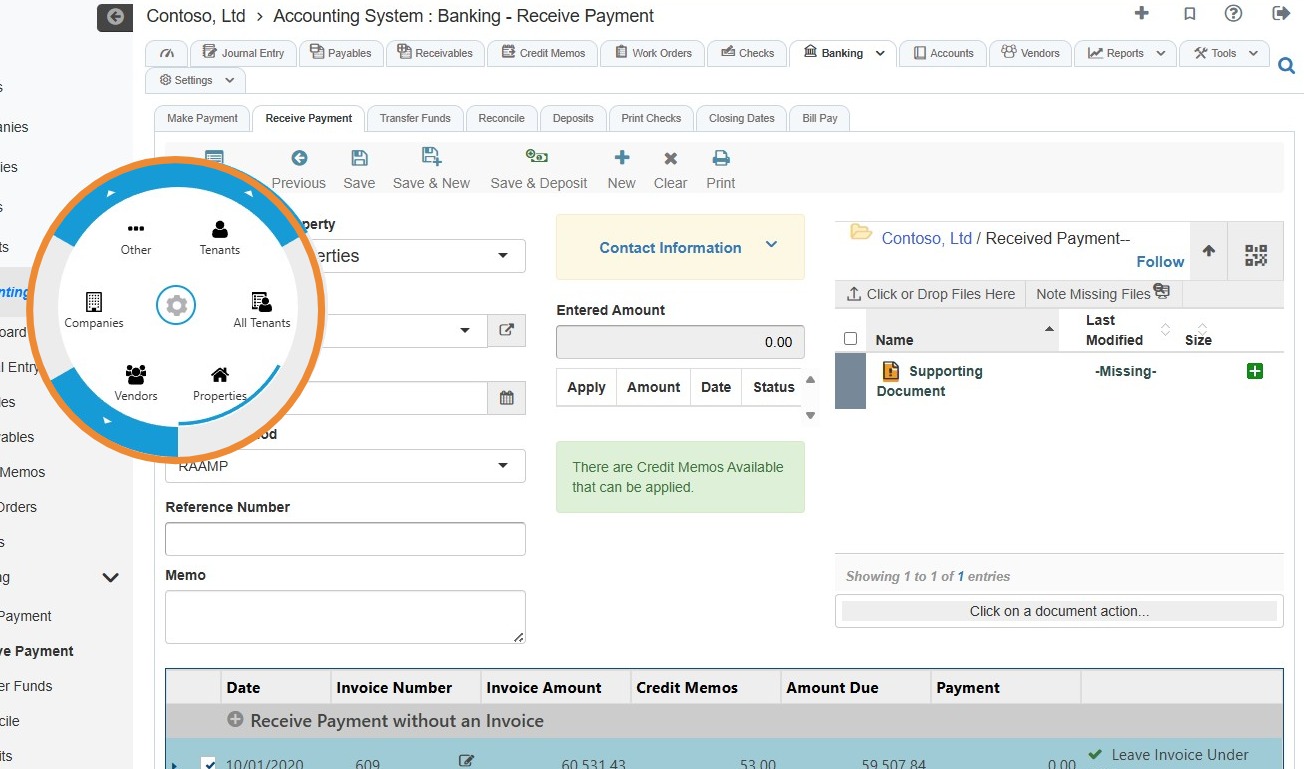
7. Choose the entity type from the radial menu.
For example, if you want to pay a property, select Properties.
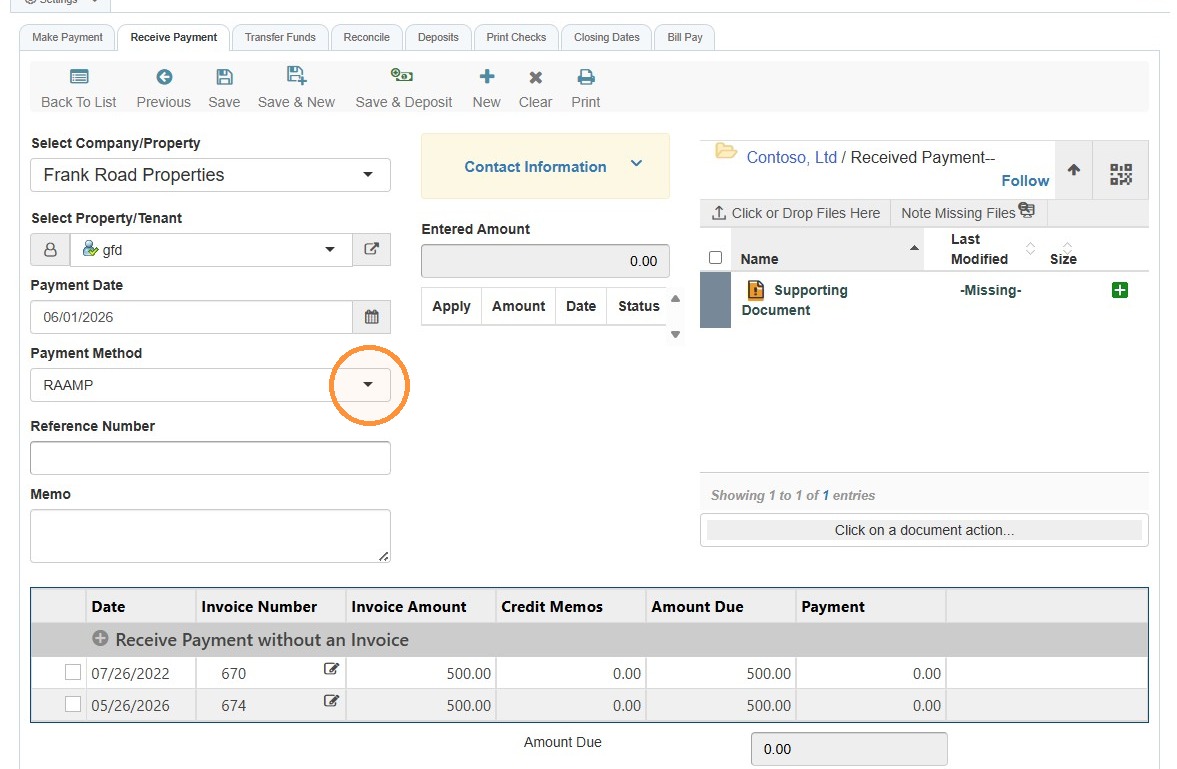
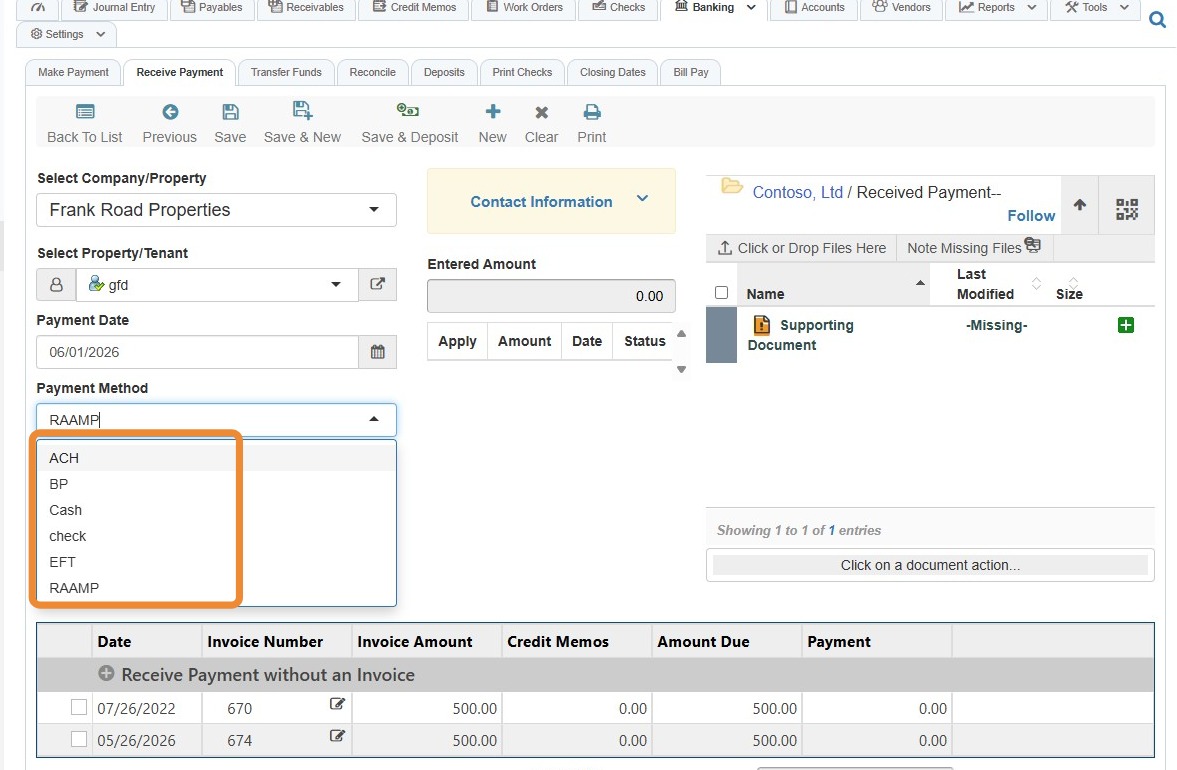
8. Select the Payment Method field > Choose the payment method.
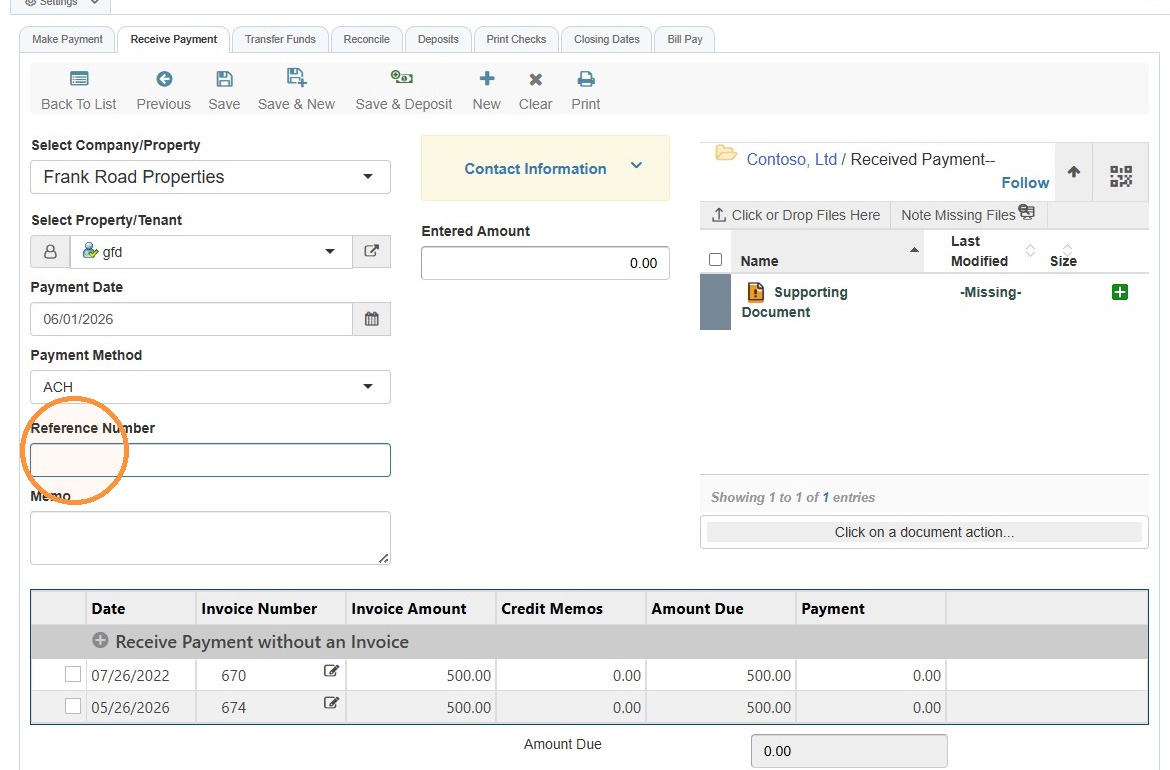
9. Select the Reference Number field > Enter the reference number.
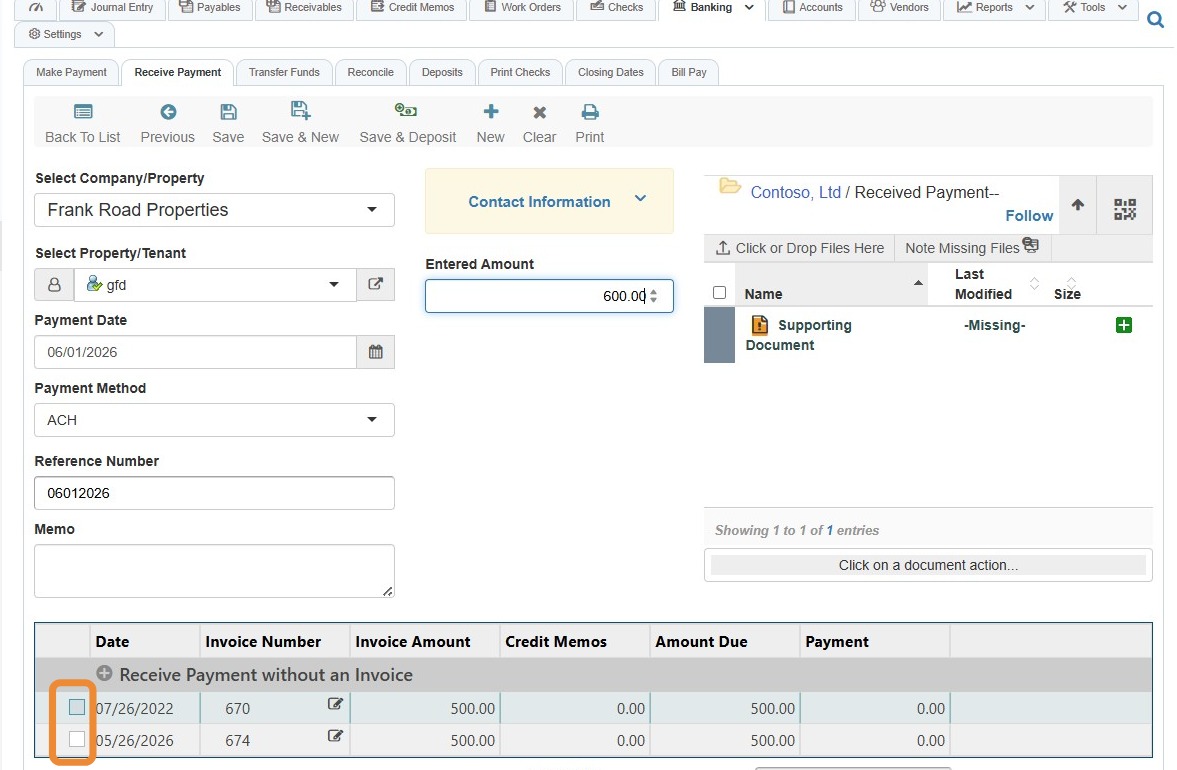
10. Select the checkbox for the invoice being paid.
11. Select the Payment field > Enter the payment amount > Select Save.
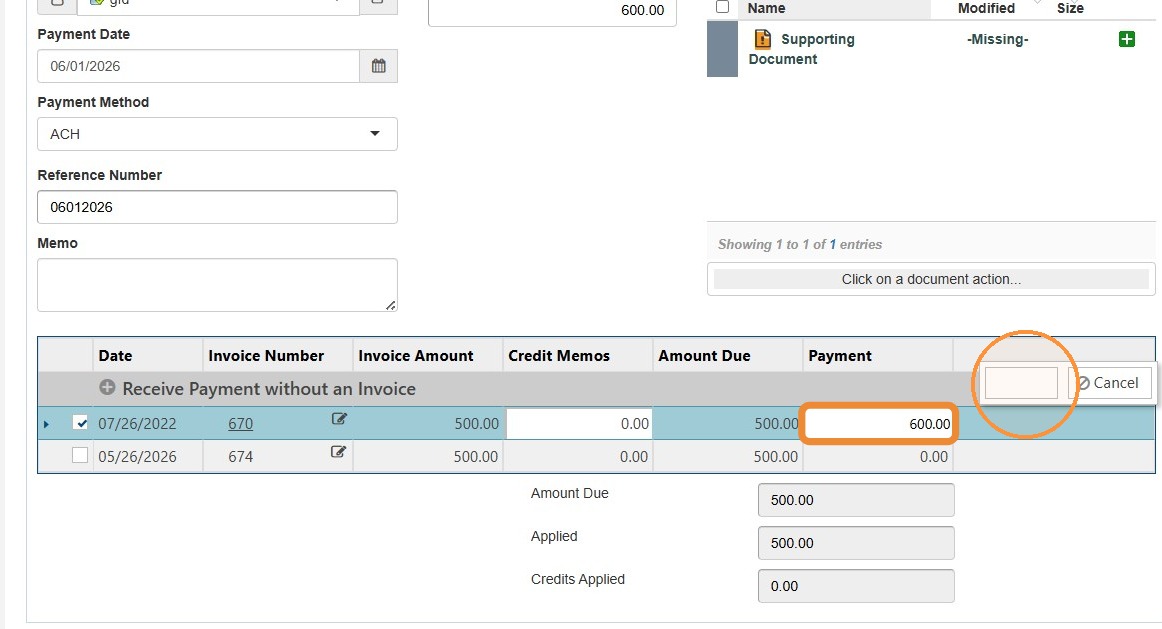
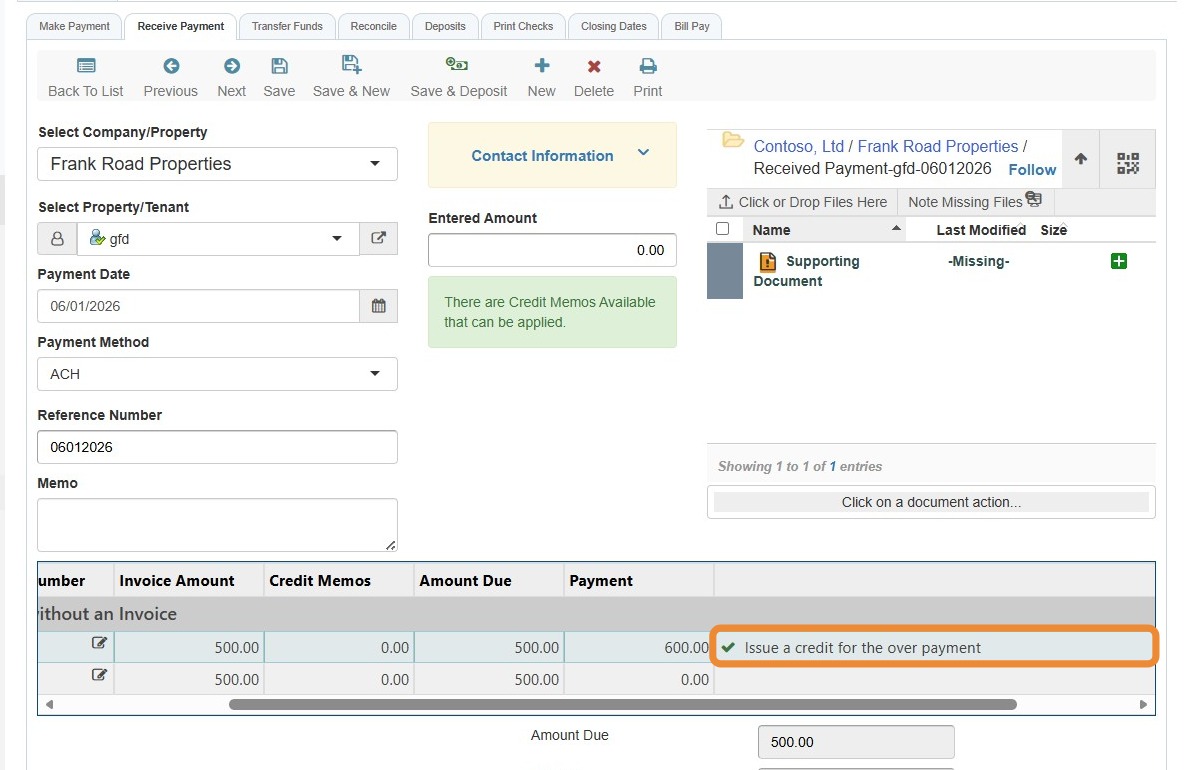
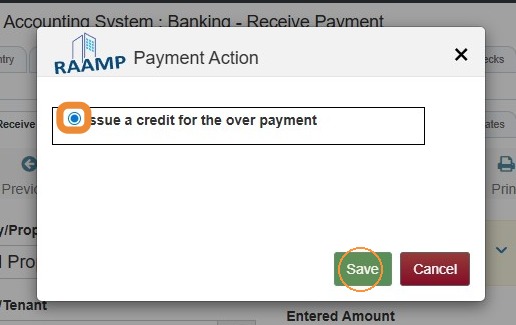
12. If you select the Issue a credit for the over payment field, you'll get a Payment Action box.
Select Issue a credit for the over payment > Select Save.
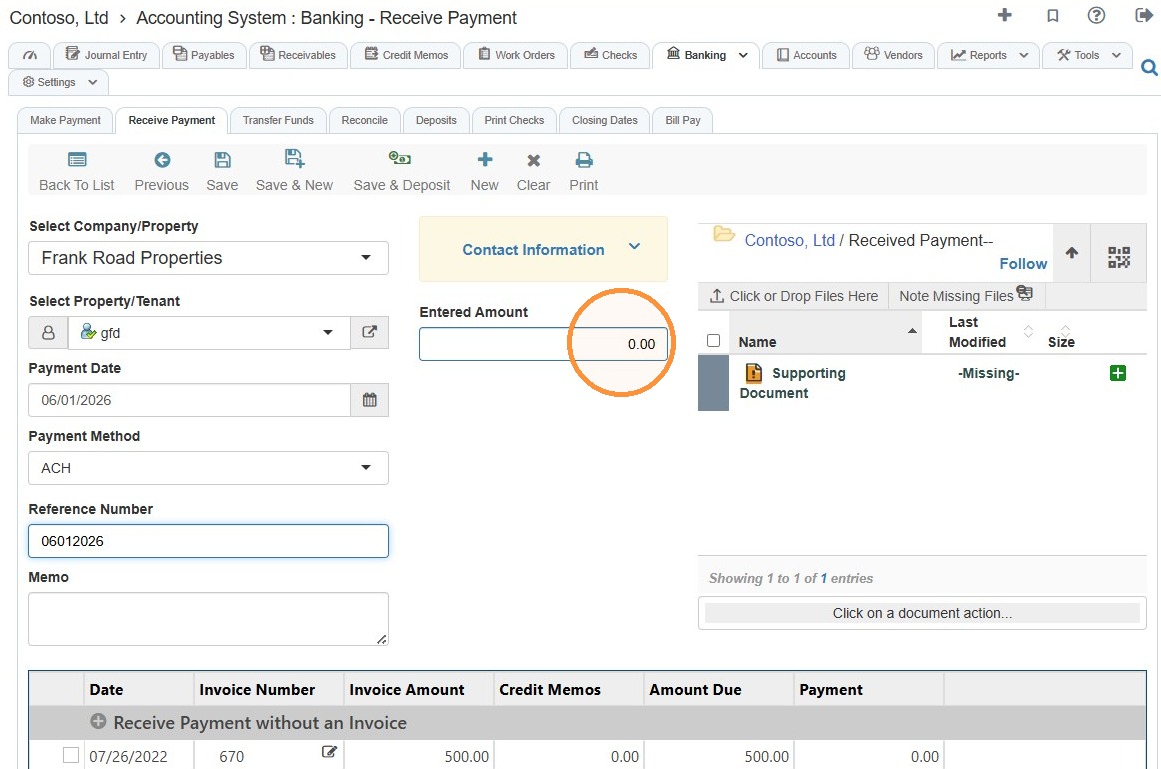
13. Select the Entered Amount field > Enter the amount paid.
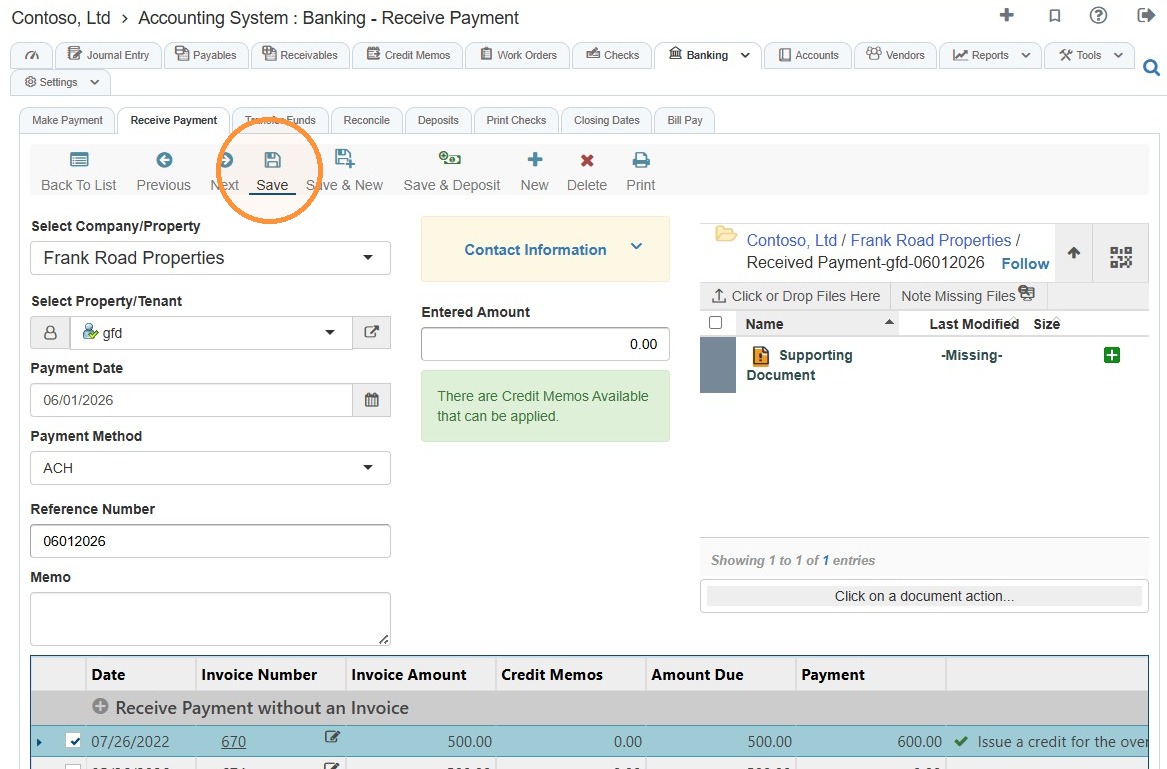
14. Select Save.
How to Confirm Overpayment Credit
15. Select Credit Memos from the navigation menu.
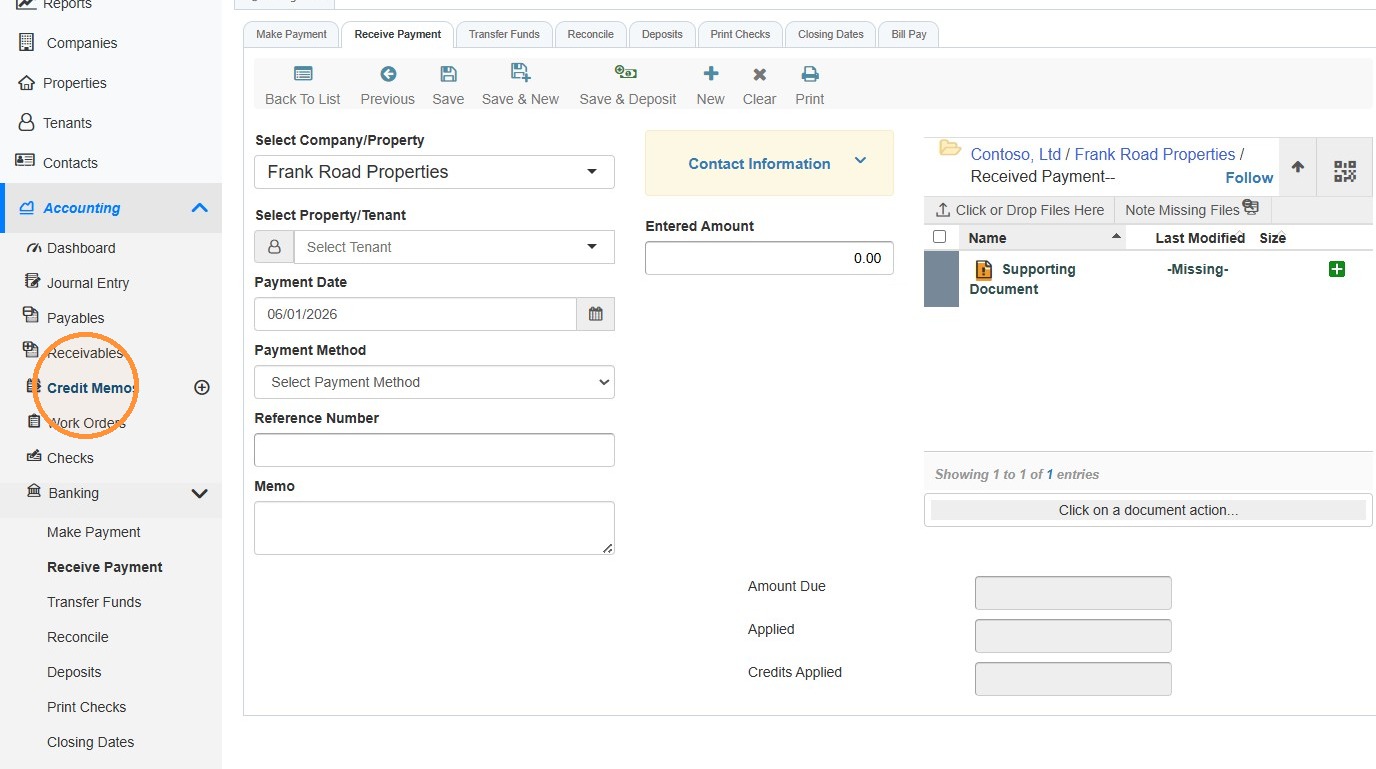
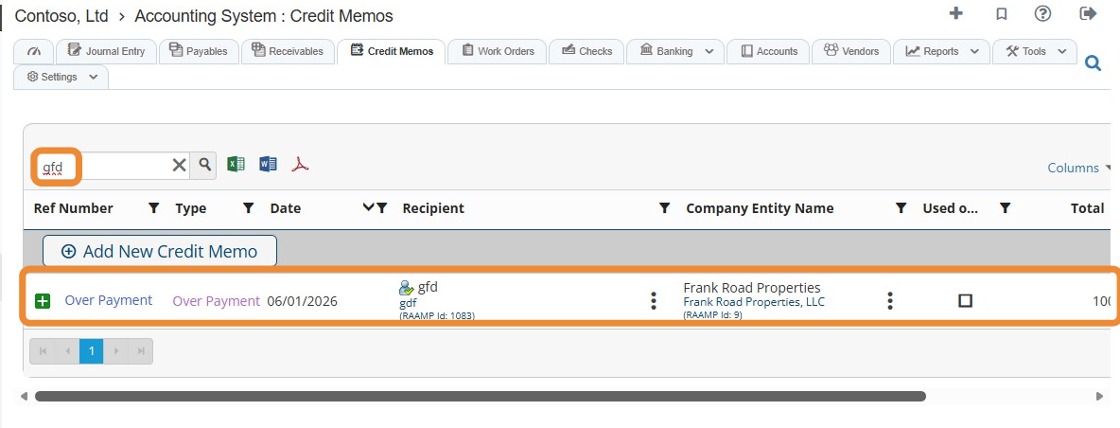
16. Search for the tenant/property/company you just added the payment for.
You will see the created Overpayment.