How to Apply Received Payment
This guide shows a quick, step‑by‑step way to record tenant payments in your accounting system so receipts are applied correctly to invoices and properties. It highlights where to enter company/property, tenant, payment method, reference, memo and amounts, how to allocate payments to specific invoices, and how to save and confirm success. It also explains switching the entity type (tenant vs property) when needed.
How to Access Receive Payment Screen
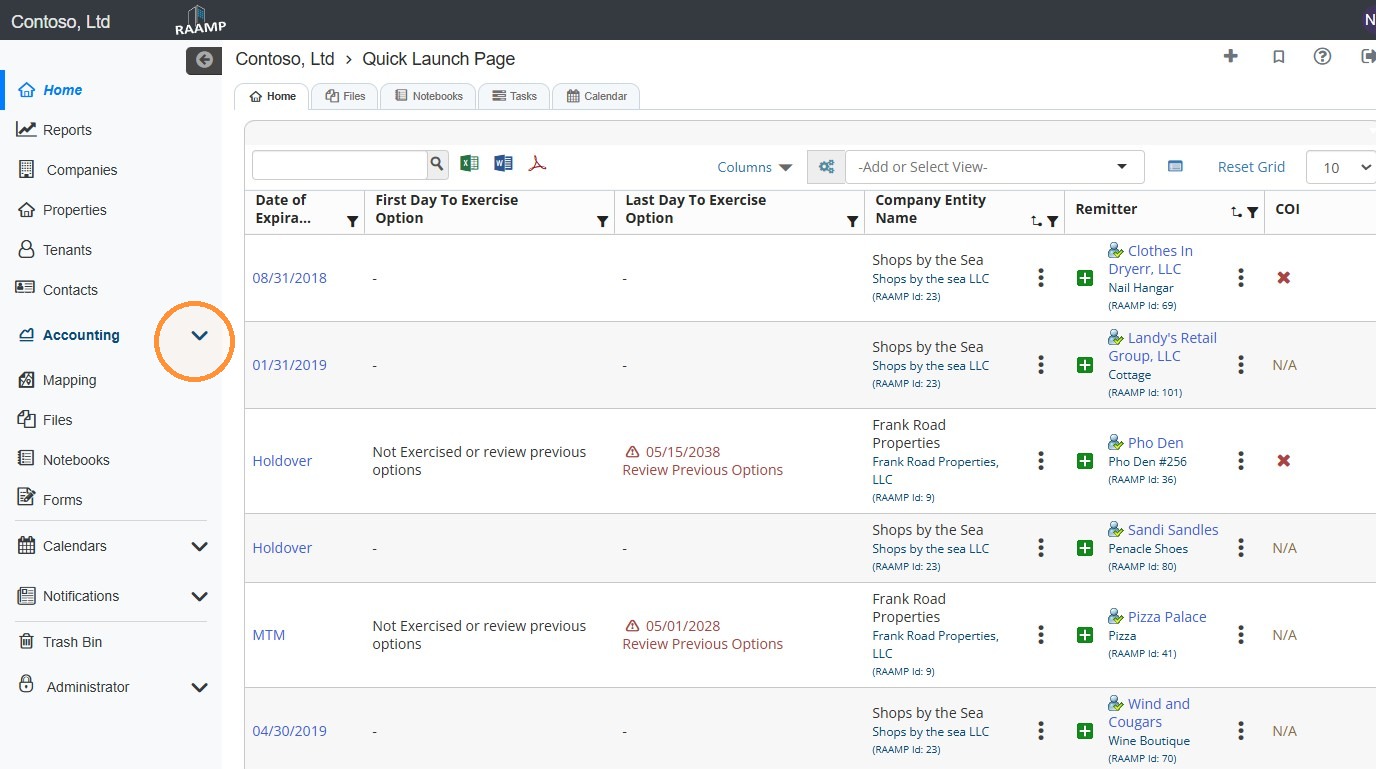
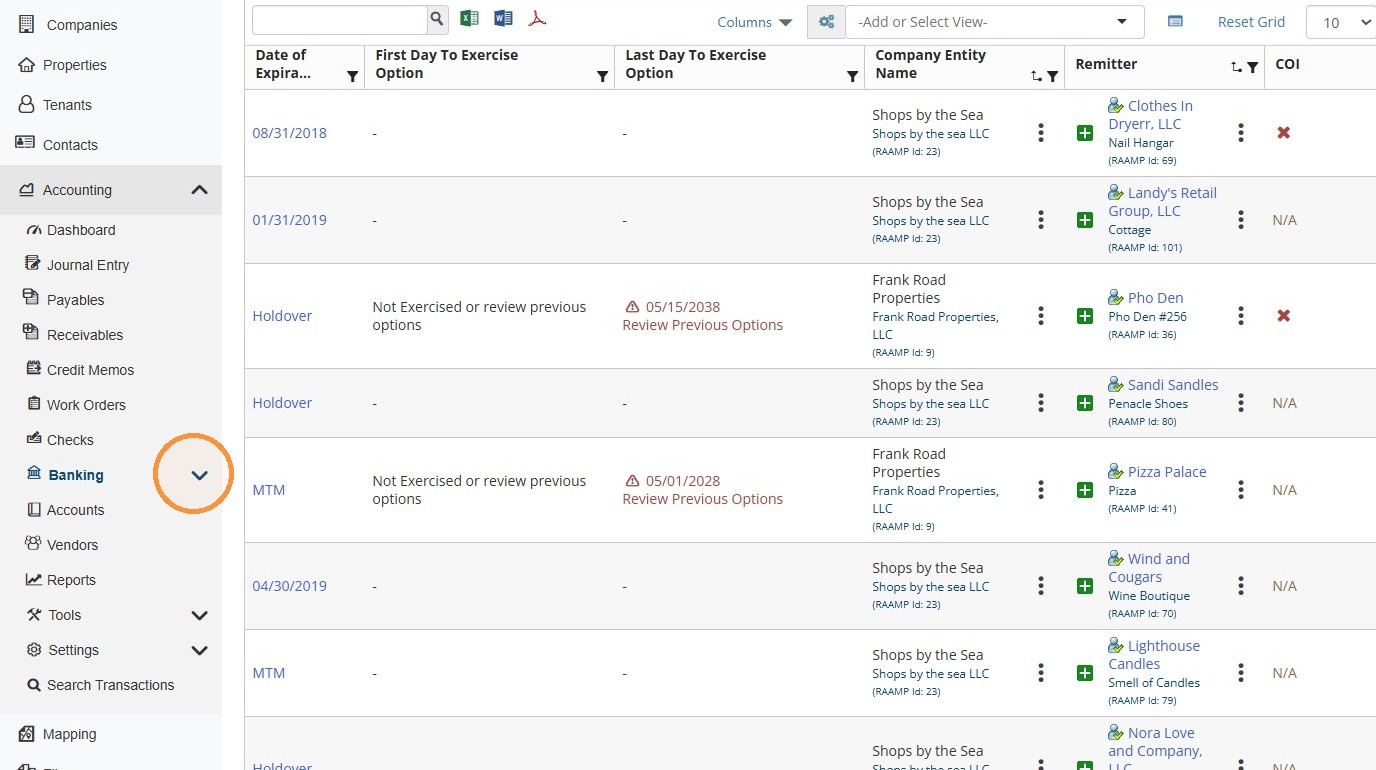
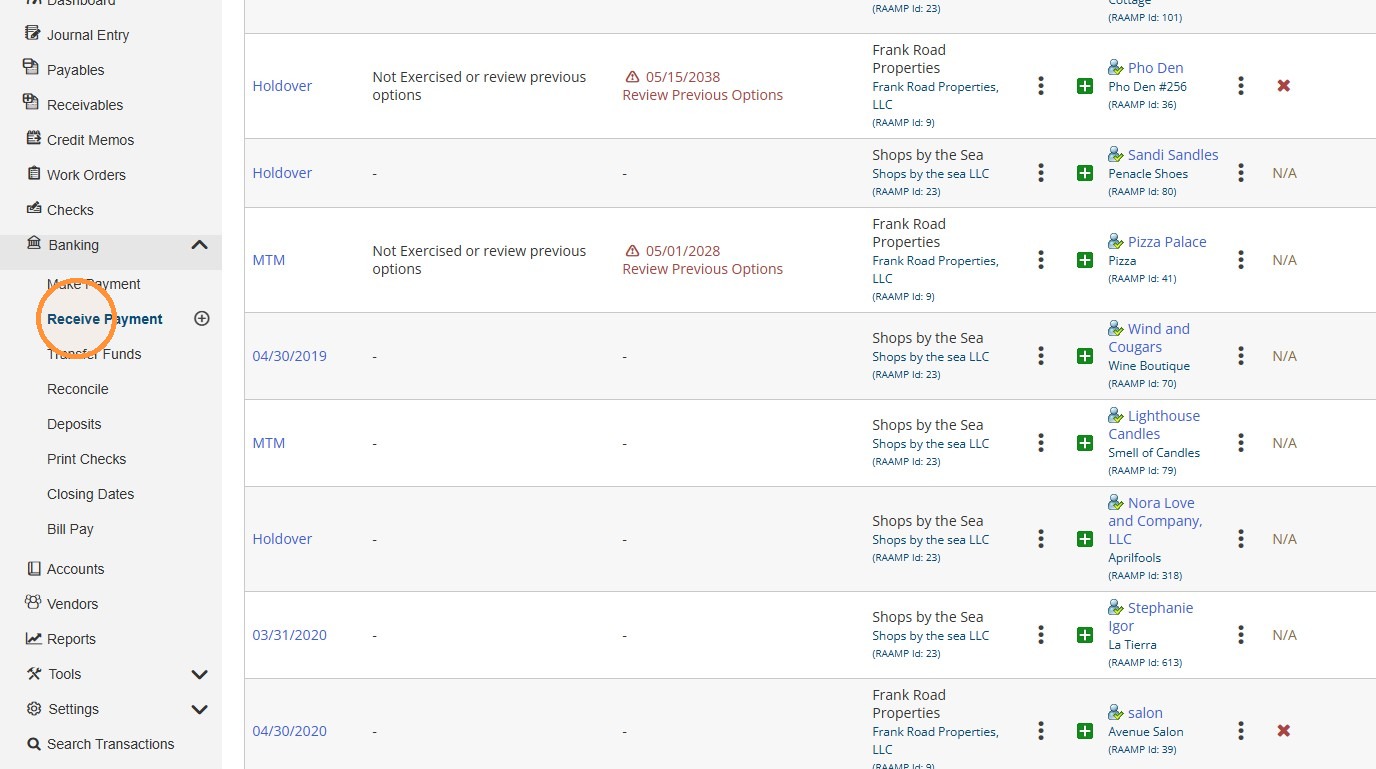
1. From the navigation menu, select Accounting > Banking > Receive Payment.
Receive Payment Overview
2. Receive Payment Screen Overview
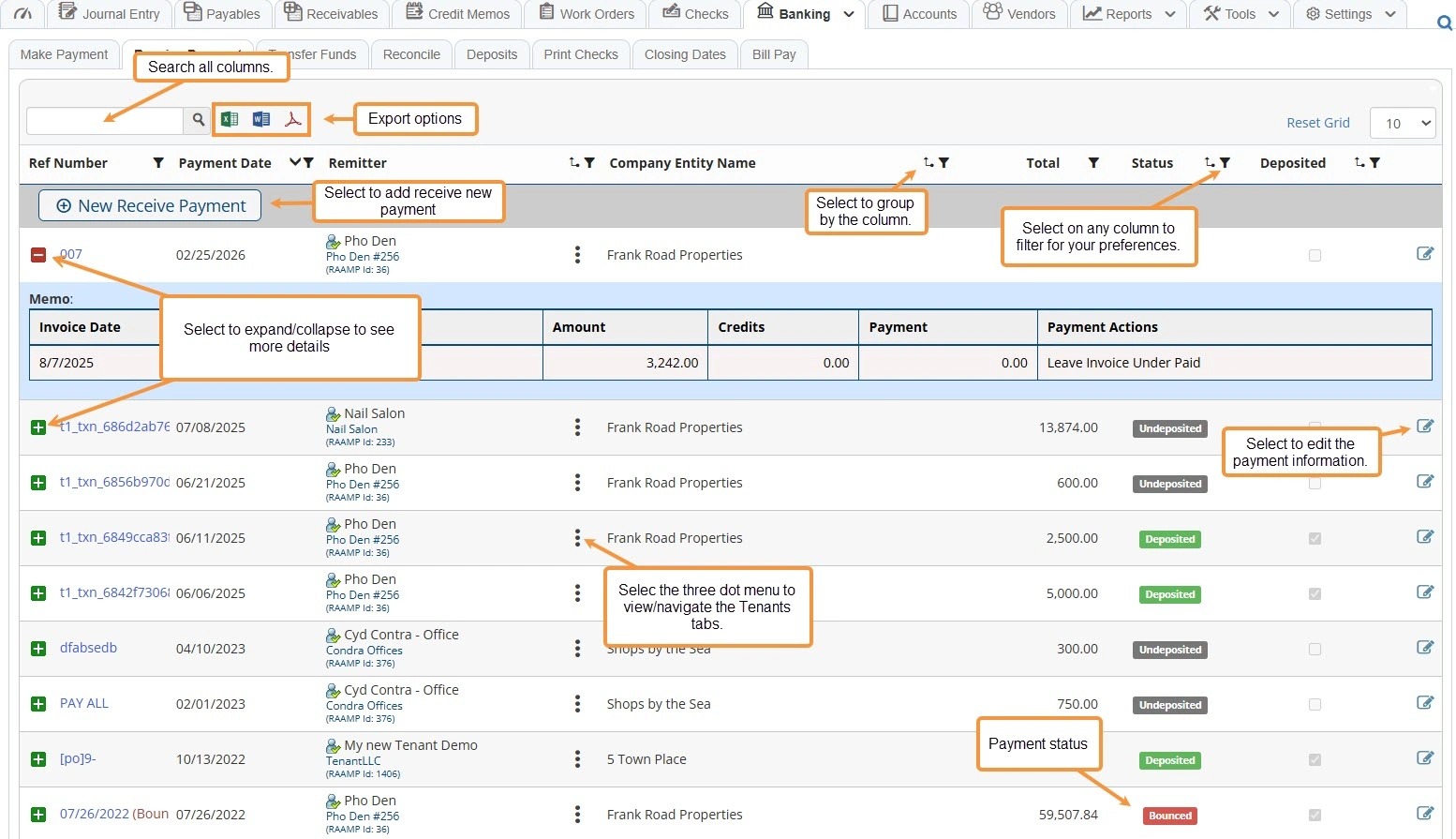
How to Apply Payment from Tenant
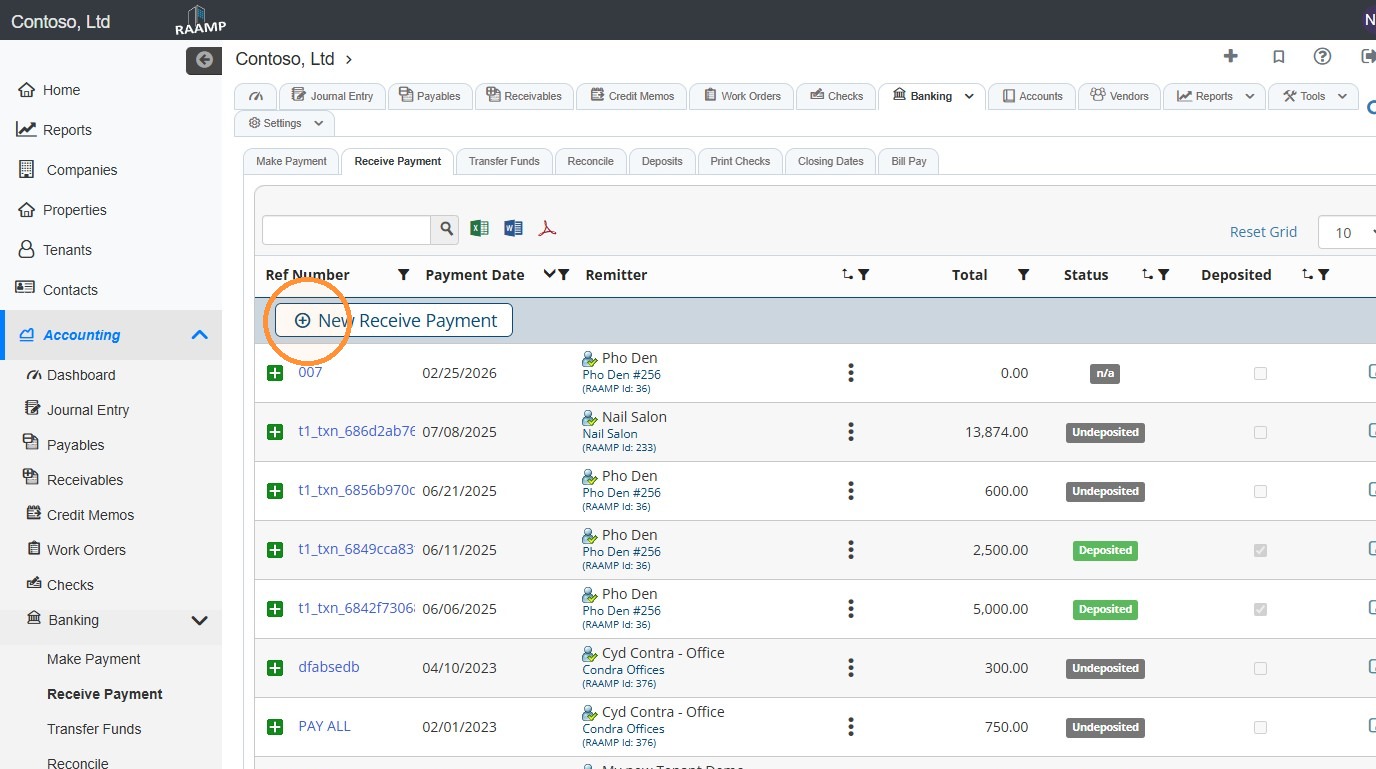
3. Select New Receive Payment.
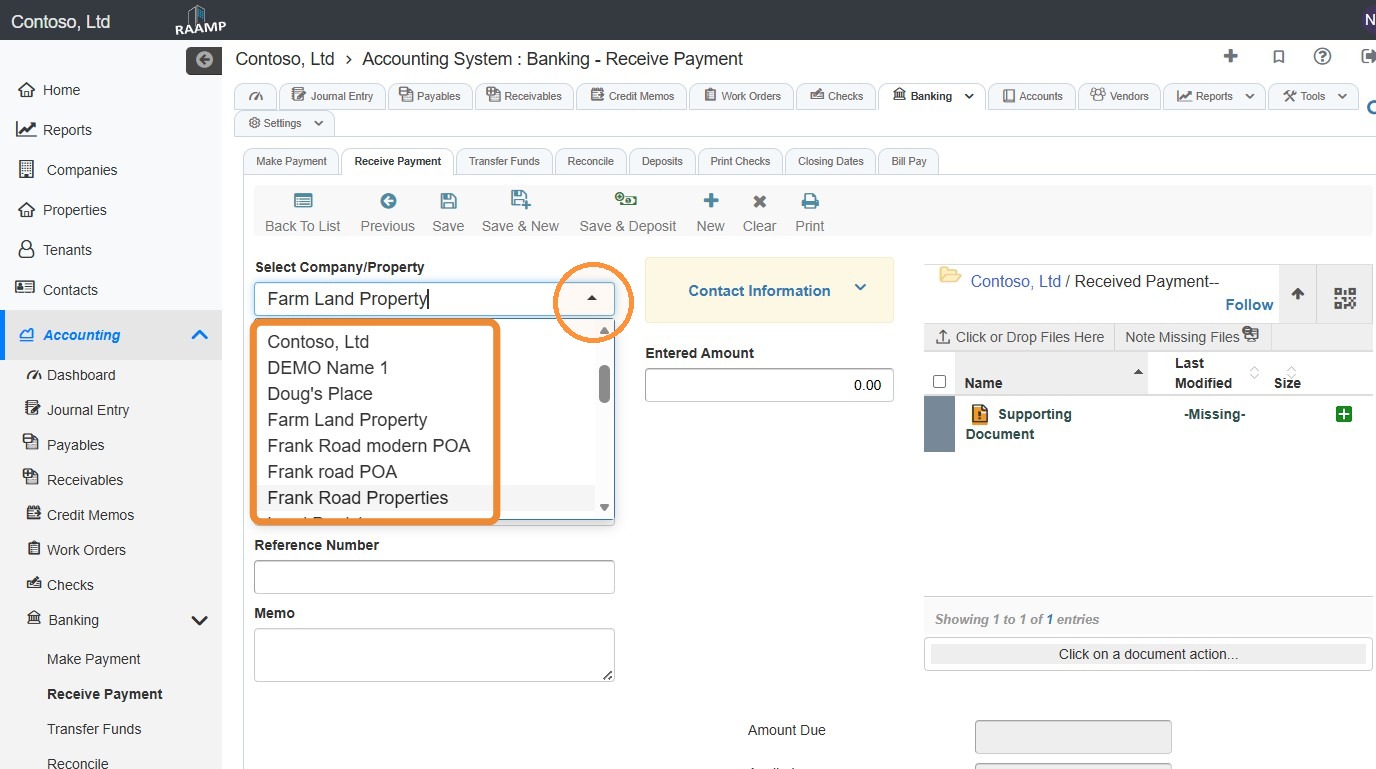
4. Select the Company/Property field and choose the preferred company/property from the dropdown.
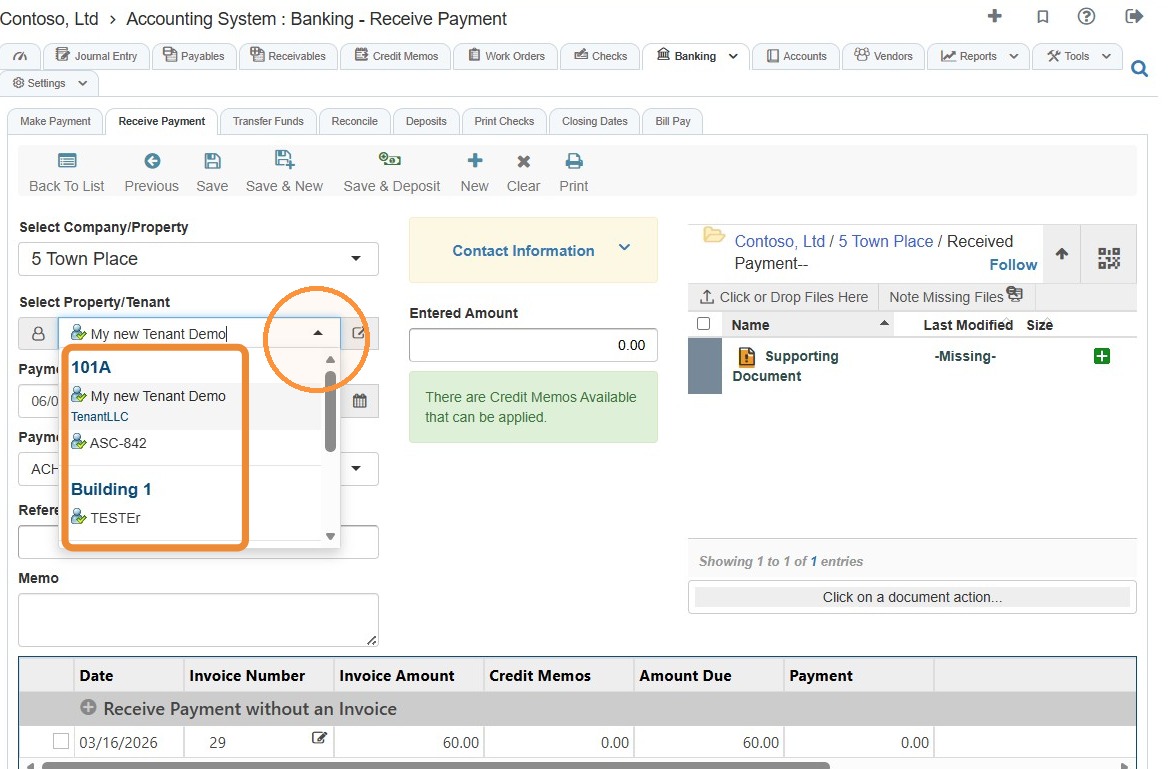
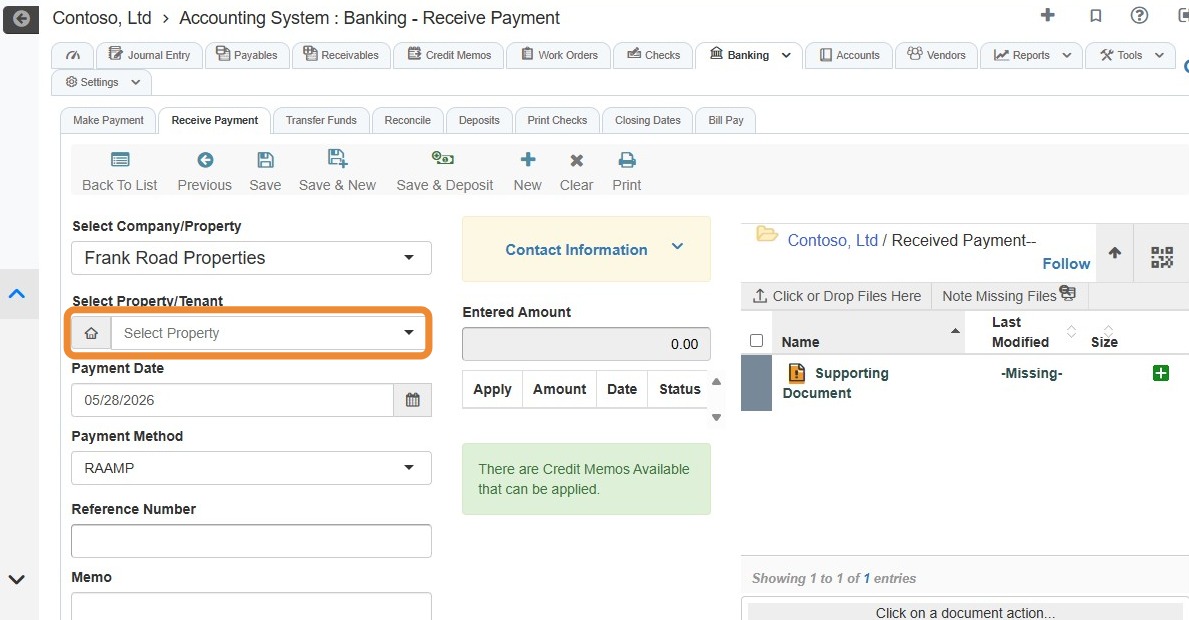
5. Select the preferred tenant.
If you do not need to change the entity type, skip to step 8.
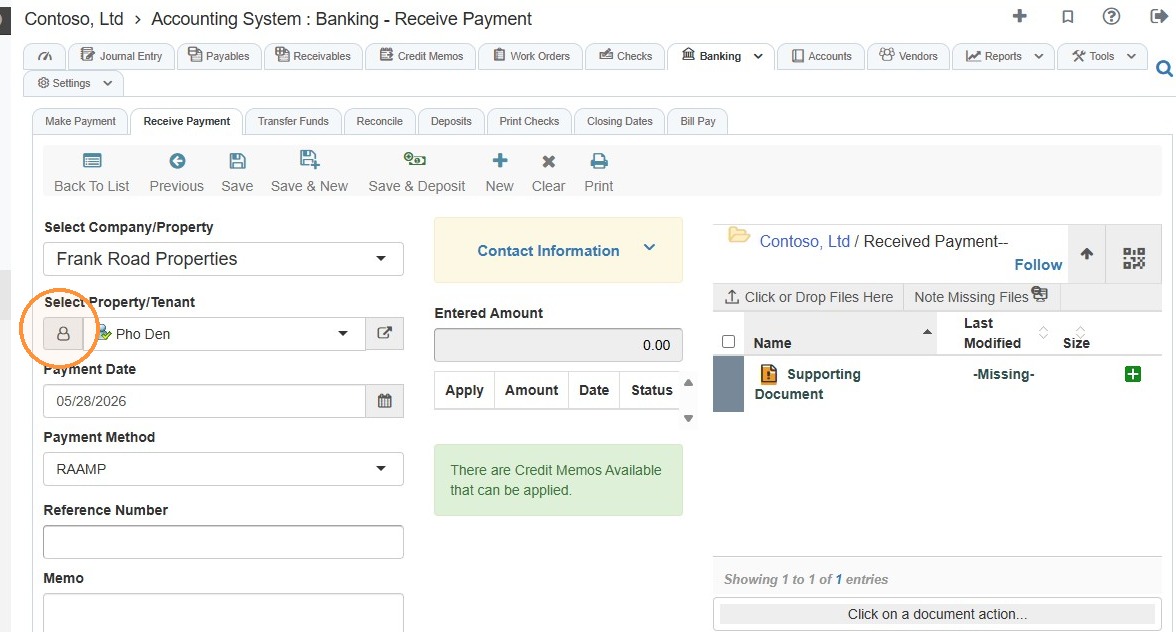
6. Select the Property/Tenant icon.
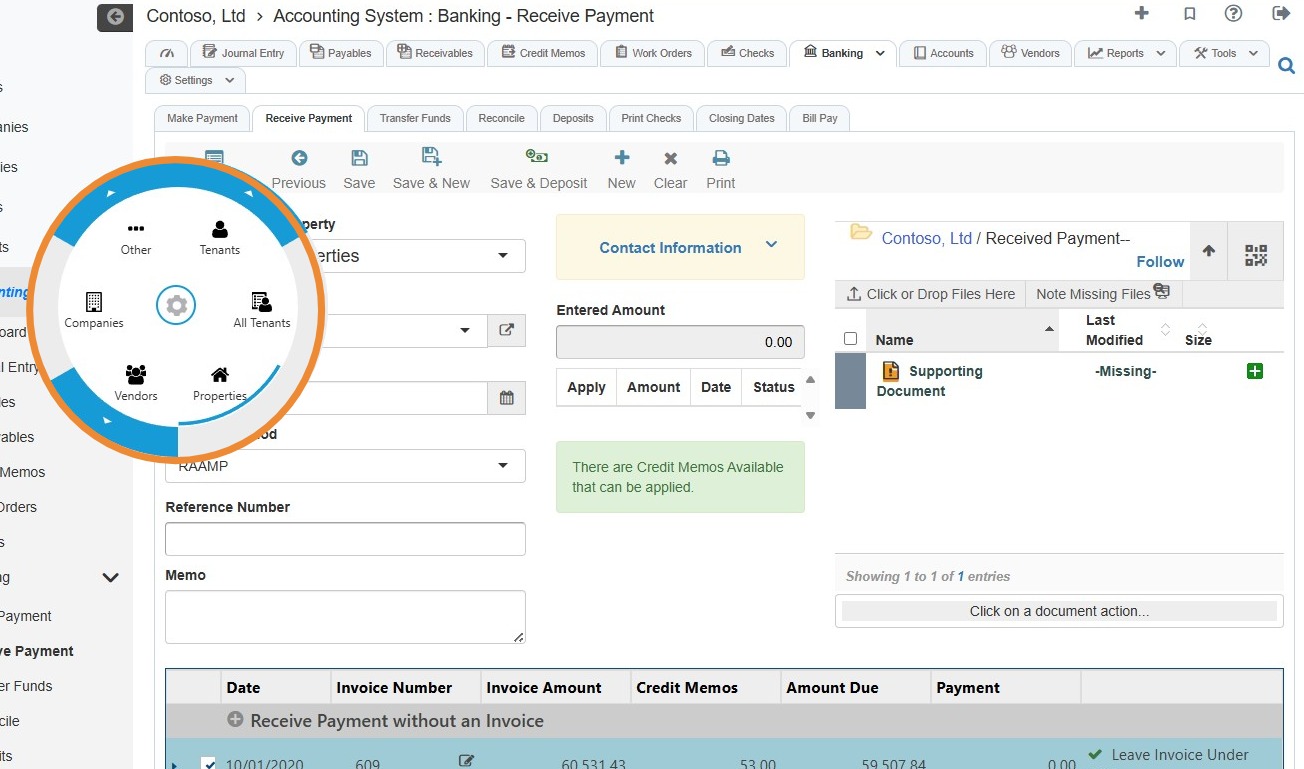
7. Choose the entity type from the radial menu.
For example, if you want to pay a property, select Properties.
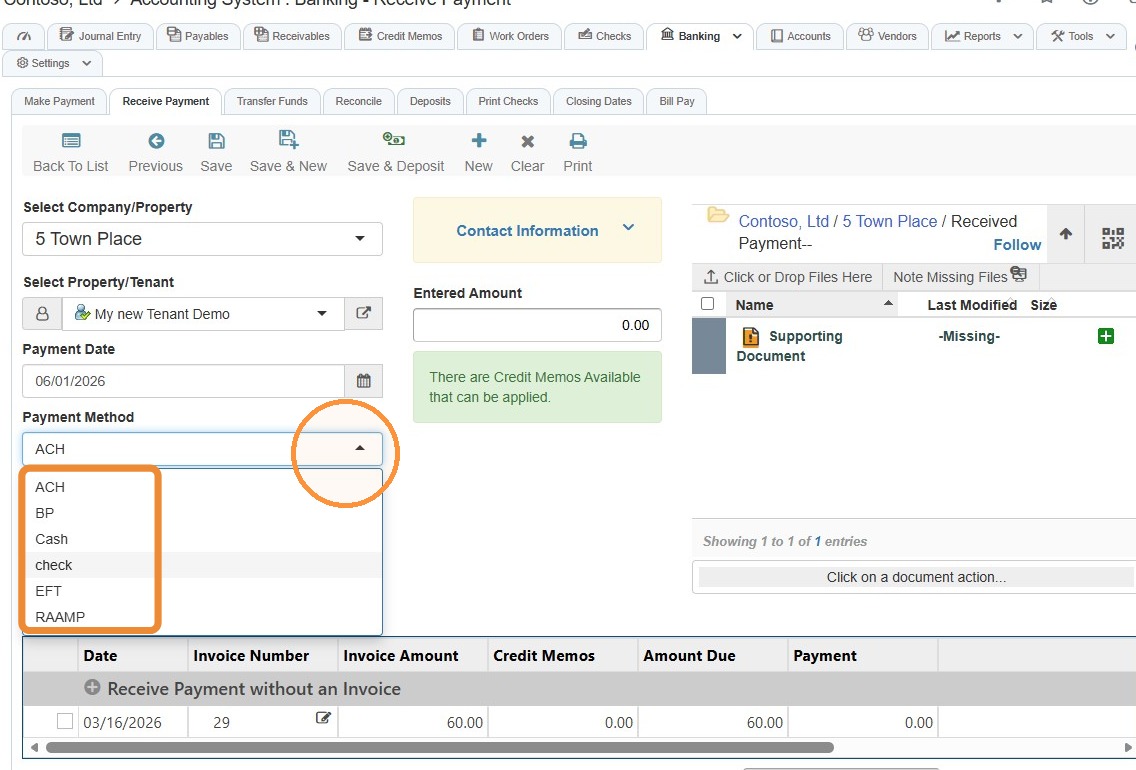
8. Select the Payment Method field > Choose the payment method.
9. Select the Reference Number field > Enter the reference number.
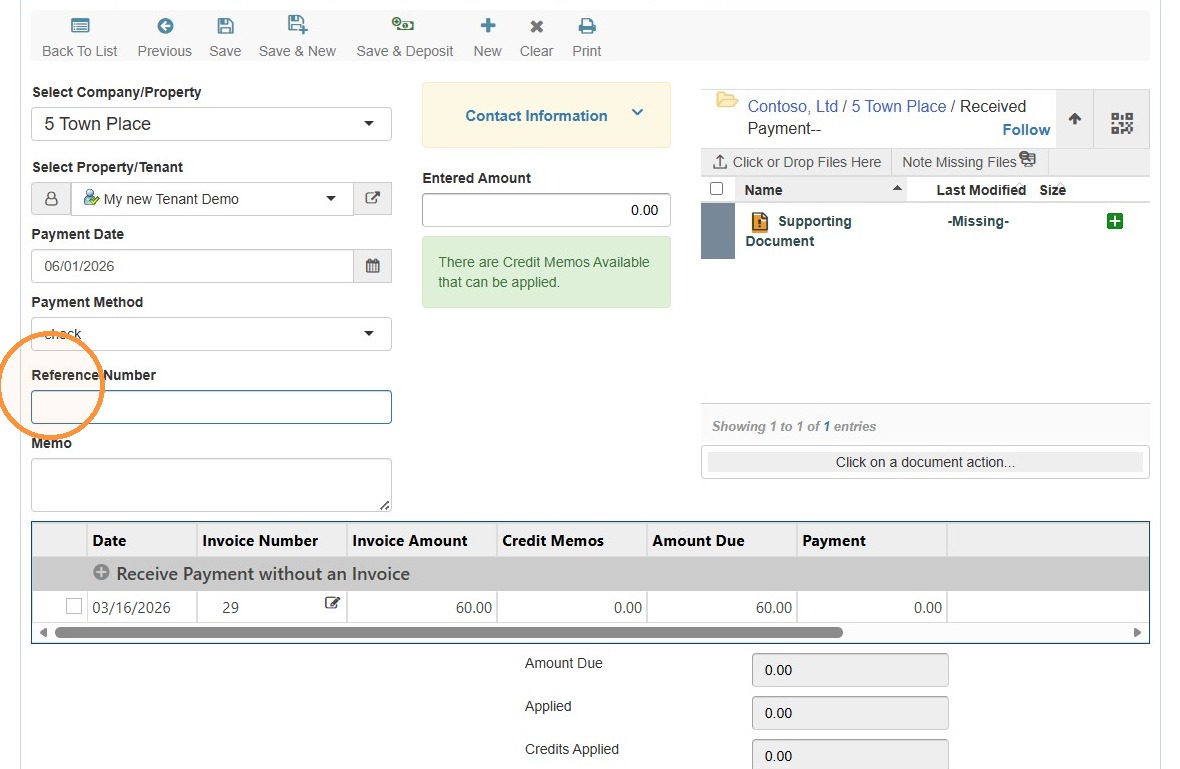
10. Select the Memo field > Enter the memo.
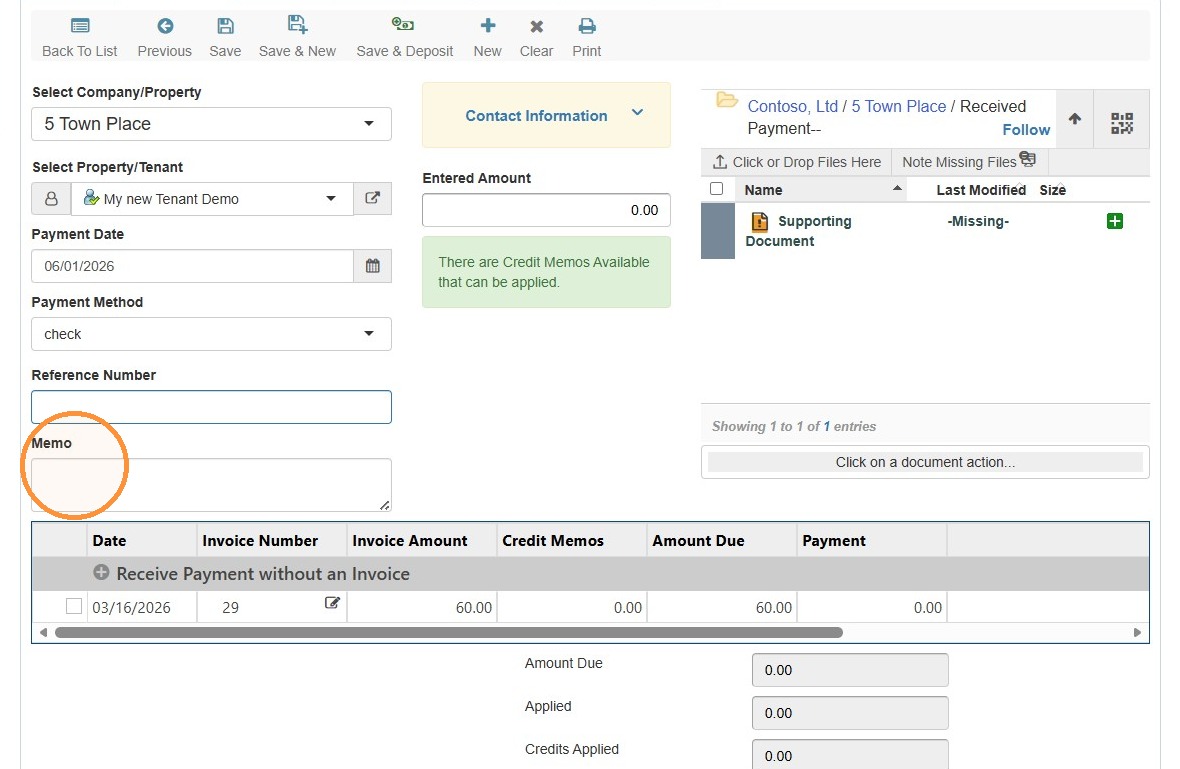
11. Select the Entered Amount field > Enter the payment amount.
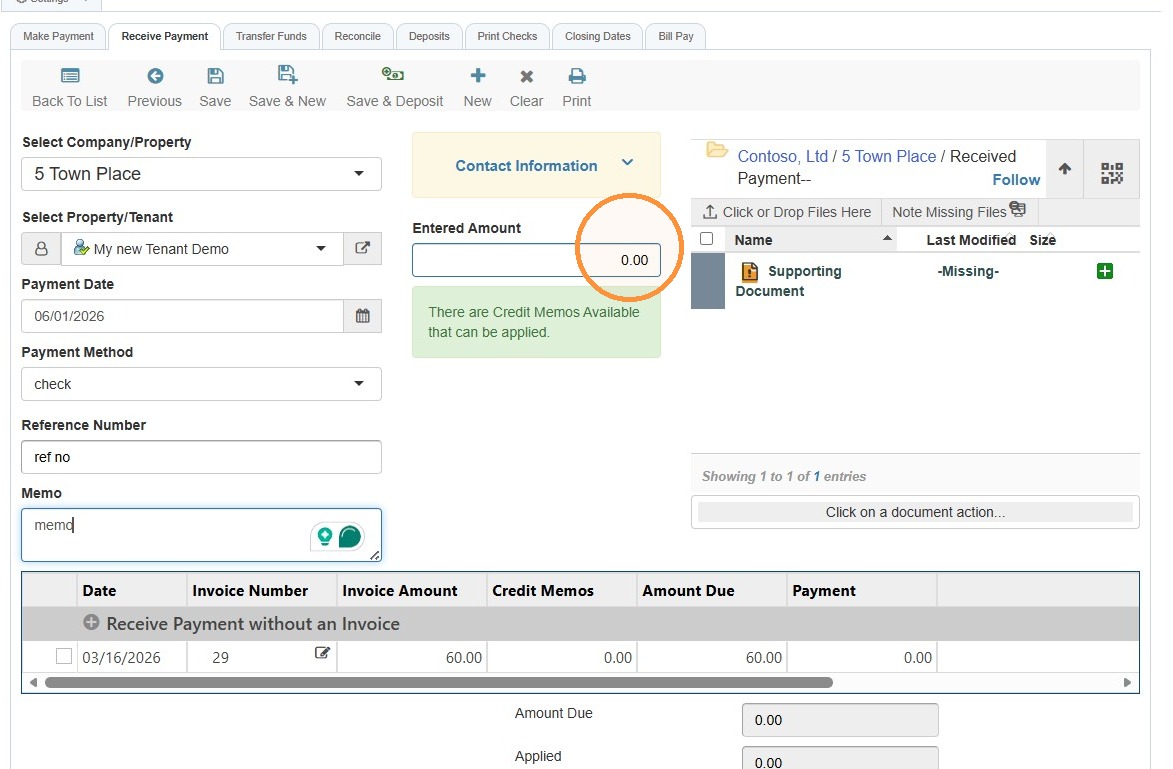
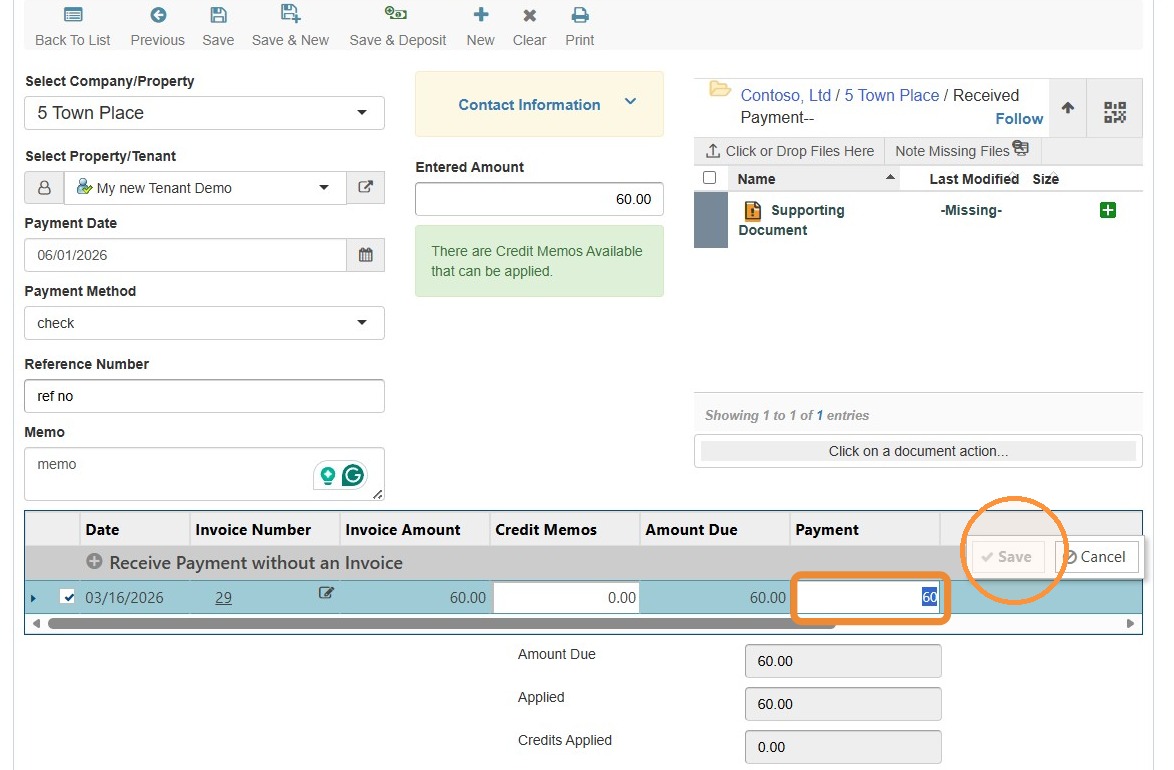
12. Select the checkbox(es) next to the invoice(s) for which payment has been received.
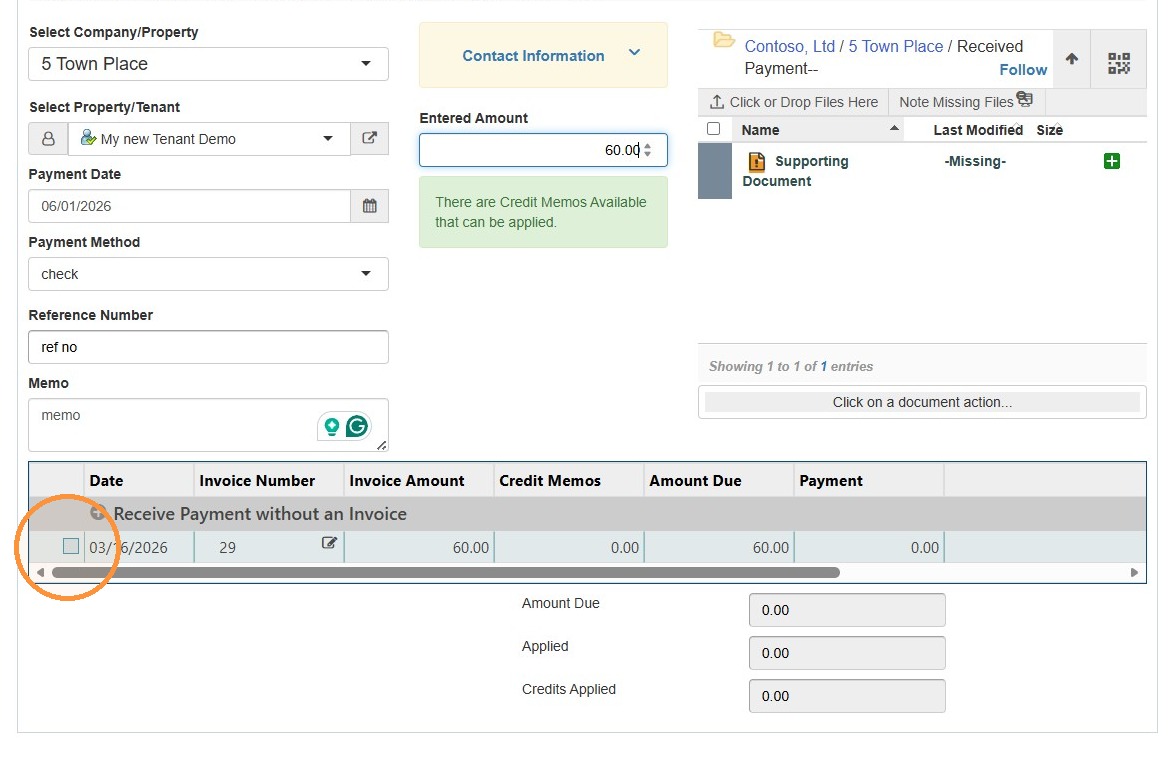
13. Select the Payment field > Enter the amount of payment for each invoice > Save.
14. Select Save.
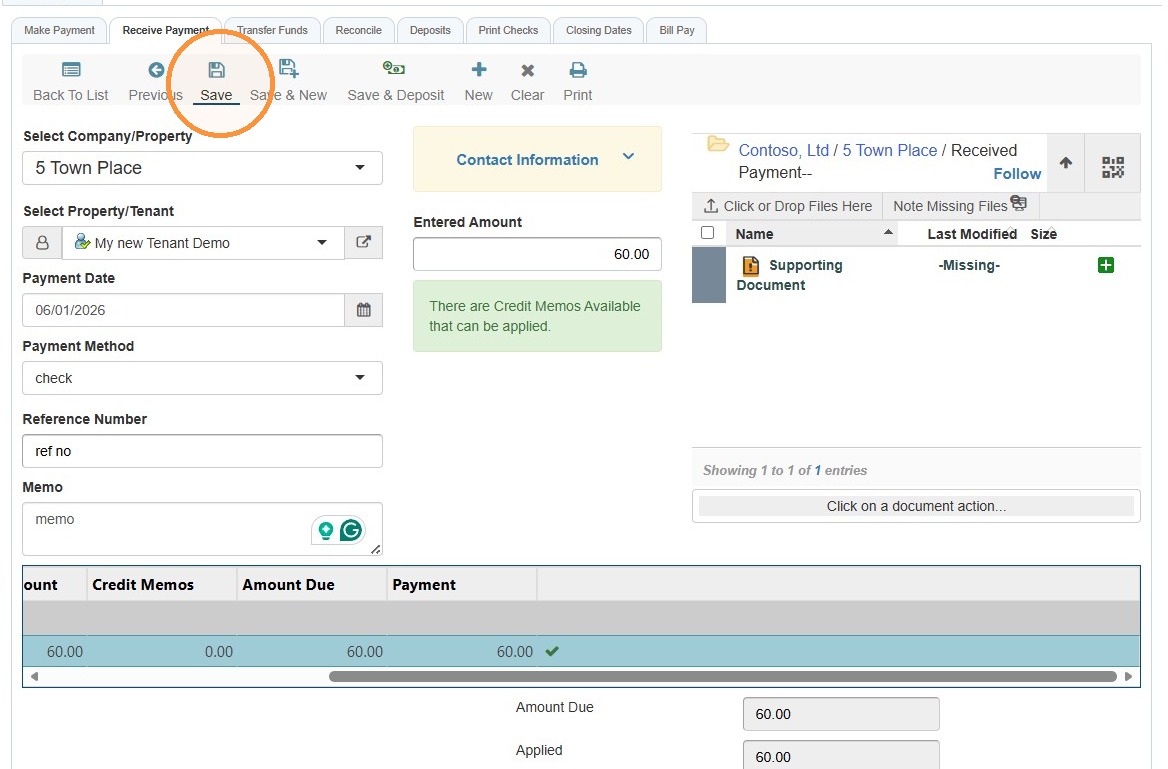
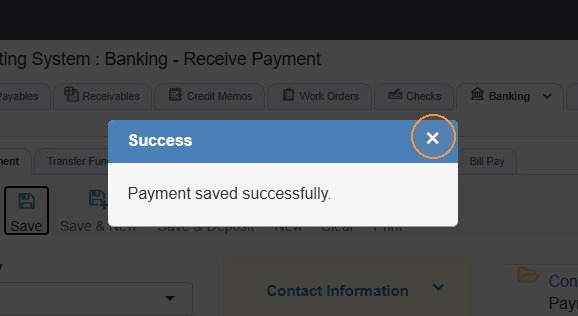
15. You'll receive a success message, select the x.