How to Add, Edit, and Delete a Tenant Contact(s)
Navigating to Tenant Contacts
Tip: Contacts = Who to communicate with. Use this tab for individual people, such as a billing, primary, legal, or emergency contact. Each person can have their own direct phone number, email, title, and other details.
1. On the Home page, locate the tenant.\ \ NOTE: You can use the search field to quickly locate the tenant.
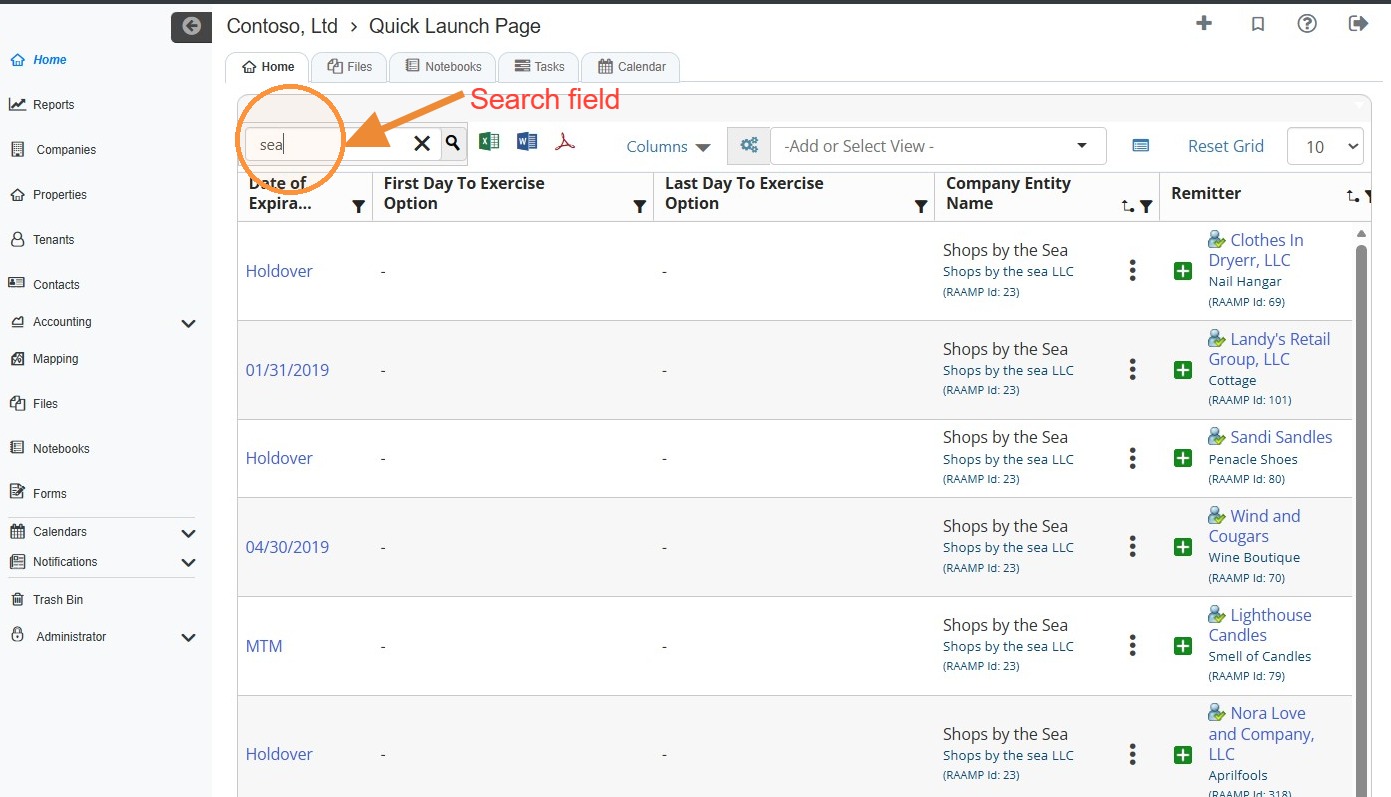
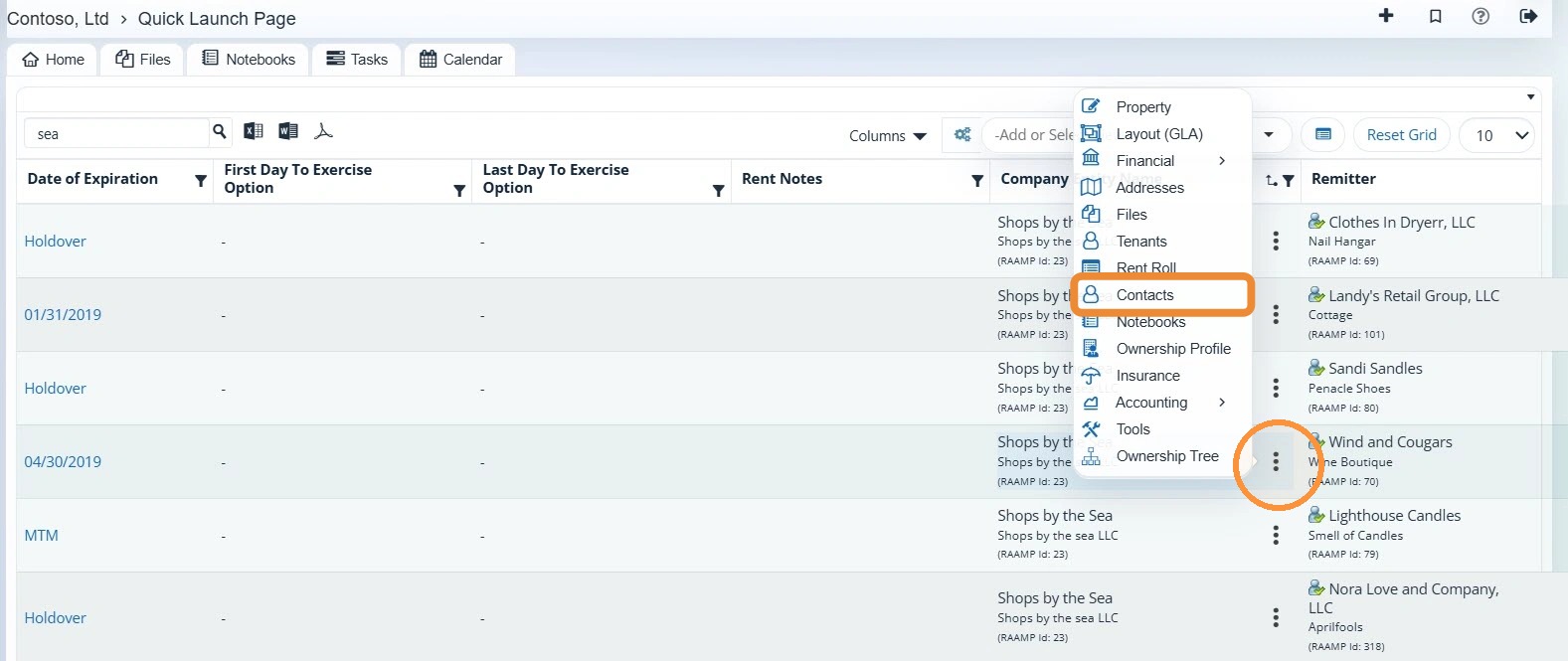
2. Select the tenant's three-dot menu to the right of the tenant > Select Contacts.
How to Add a Tenant Contact
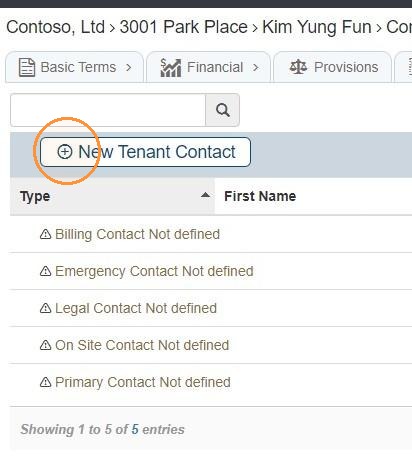
3. Select New Tenant Contact.
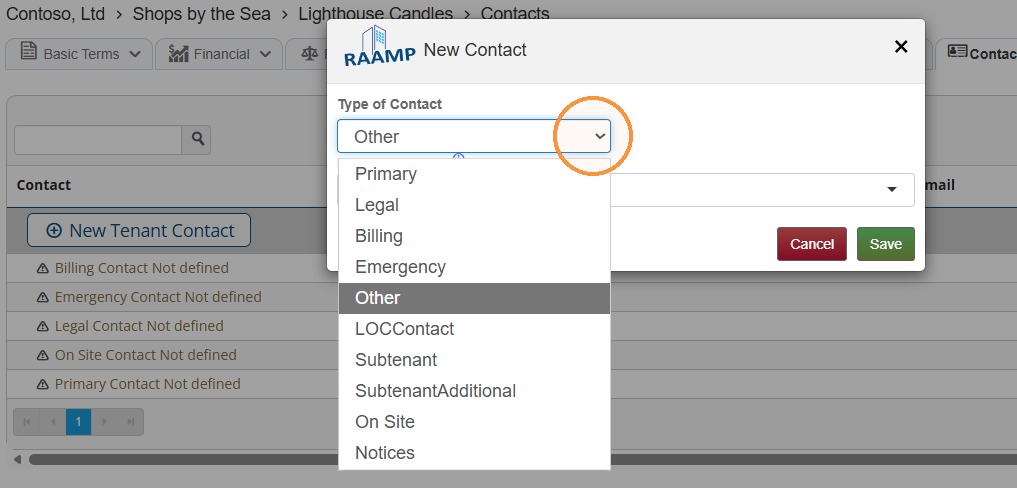
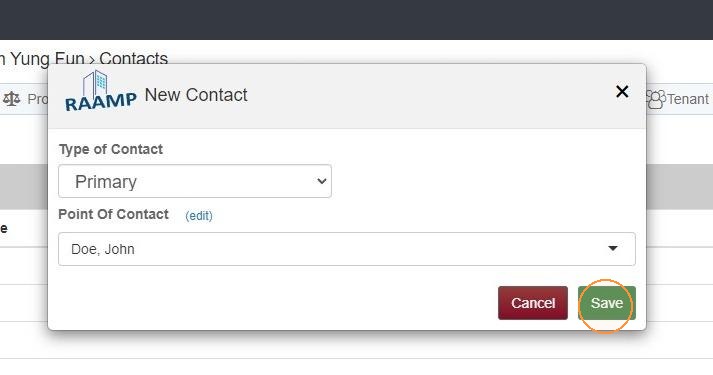
4. Select the Type of Contact dropdown > Make the appropriate selection from the dropdown menu.
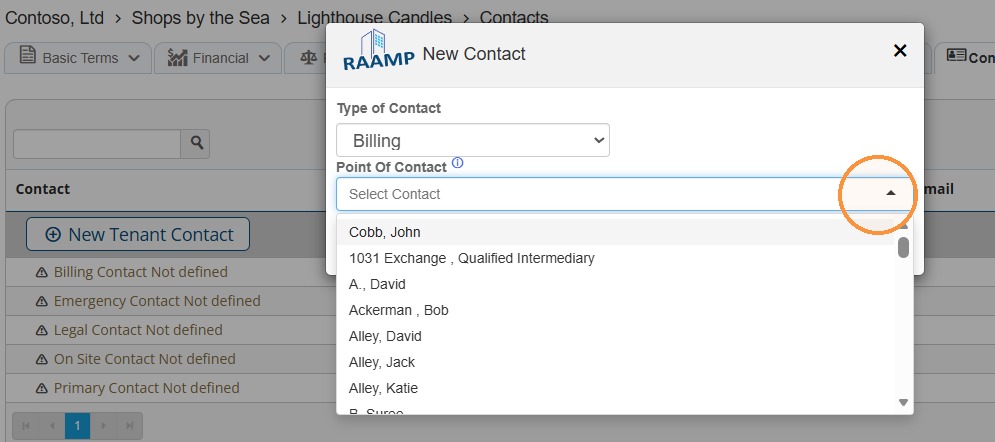
5. Select the Point of Contact dropdown > Select a contact from the dropdown menu.
NOTE: You can add a new contact by typing their name and hitting enter.
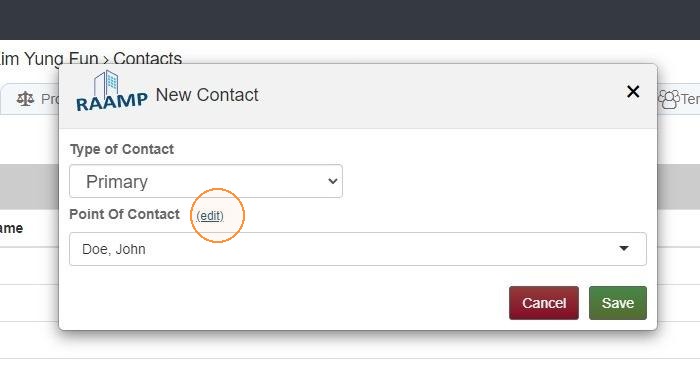
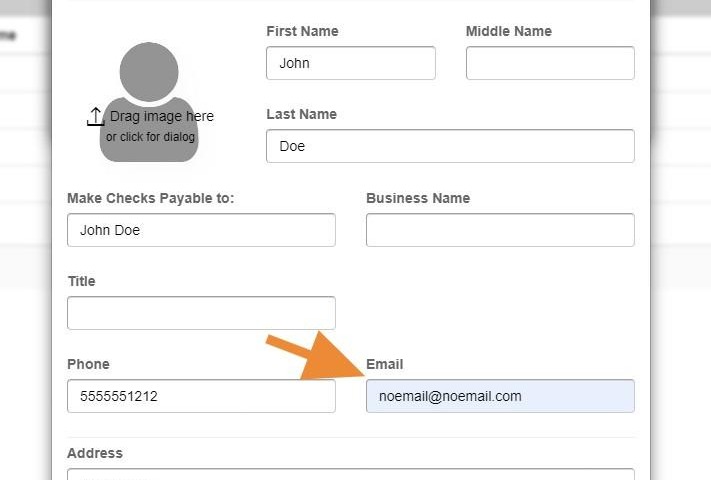
6. Select (edit) > Fill in the fields using [email protected] if they don't have an email address.
7. Select Save.
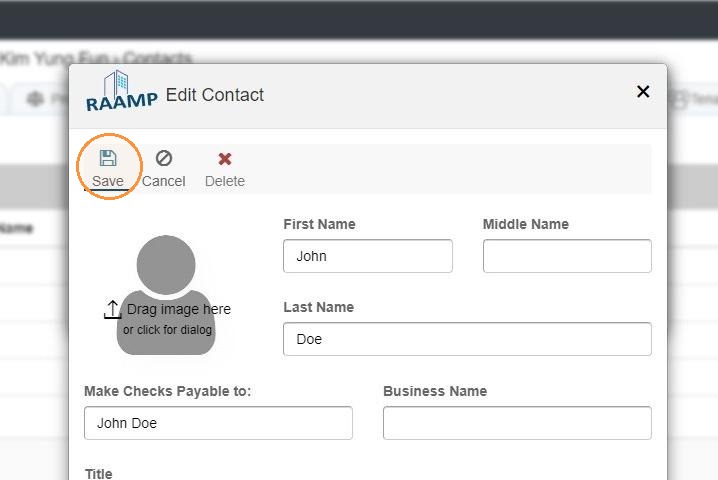
8. Select Save.
How to Edit a Tenant Contact
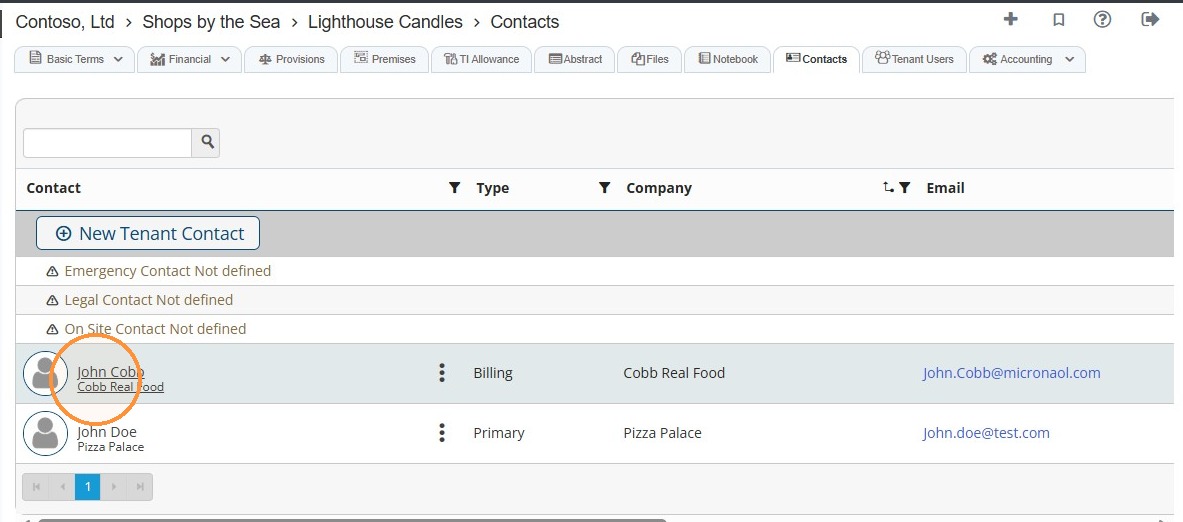
9. Select the tenant contact that needs to be edited.
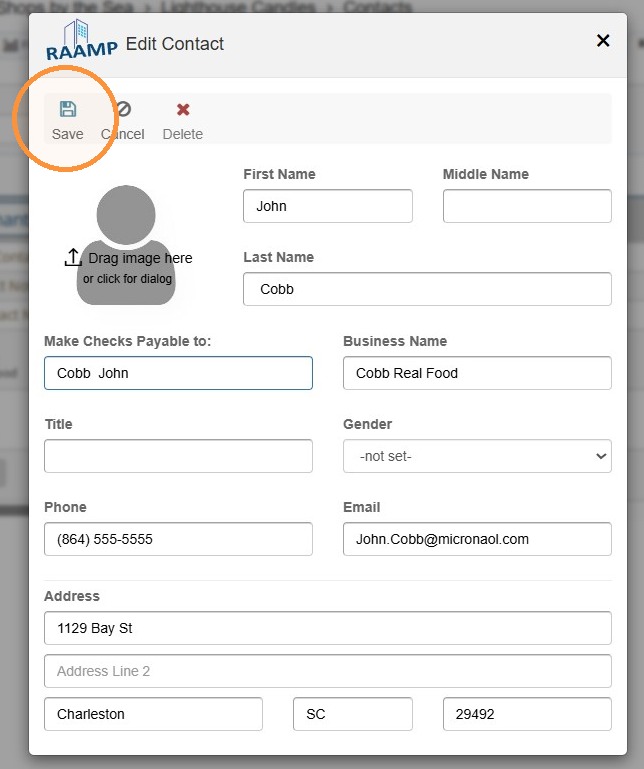
10. Edit the tenant contact information as needed > Select Save.
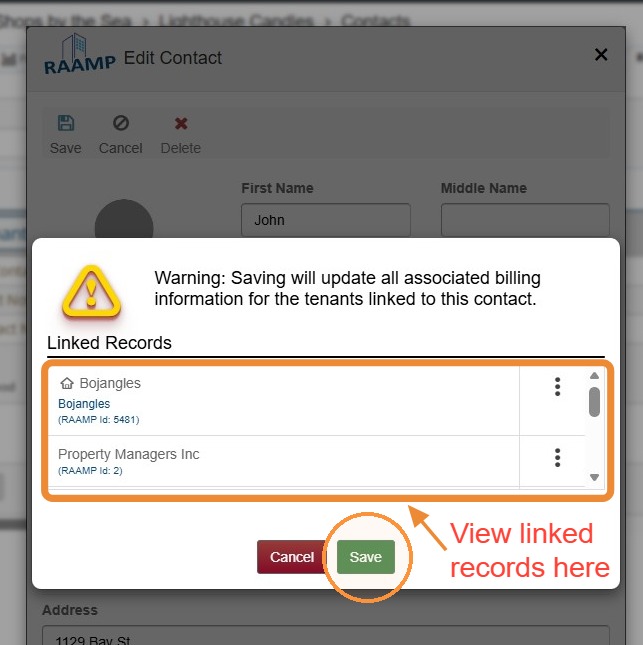
11. Select Save.
NOTE: Saving will update all associated billing information for the tenants linked to this contact.
How to Delete a Tenant Contact
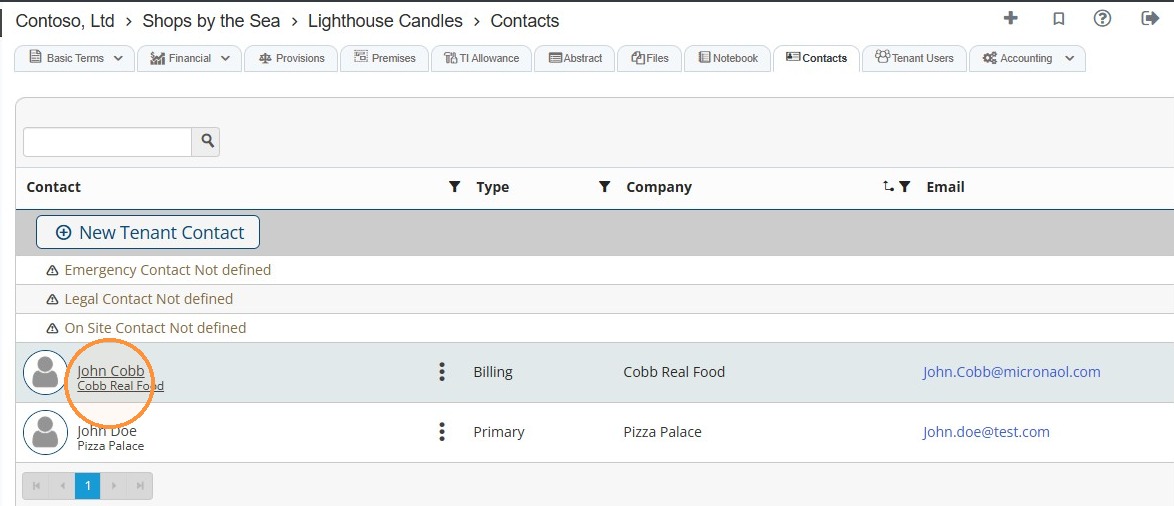
12. Select the tenant contact that needs to be deleted.
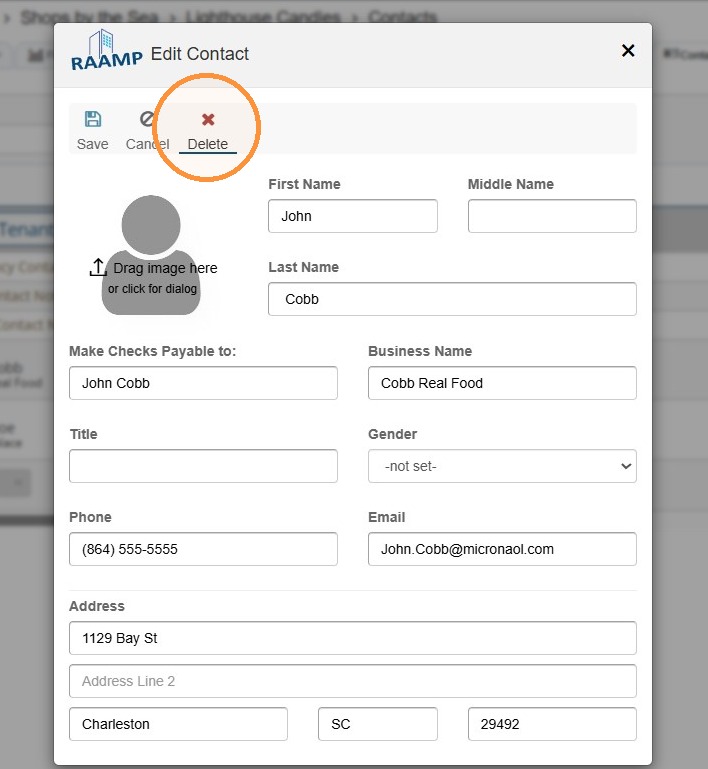
13. Select Delete.
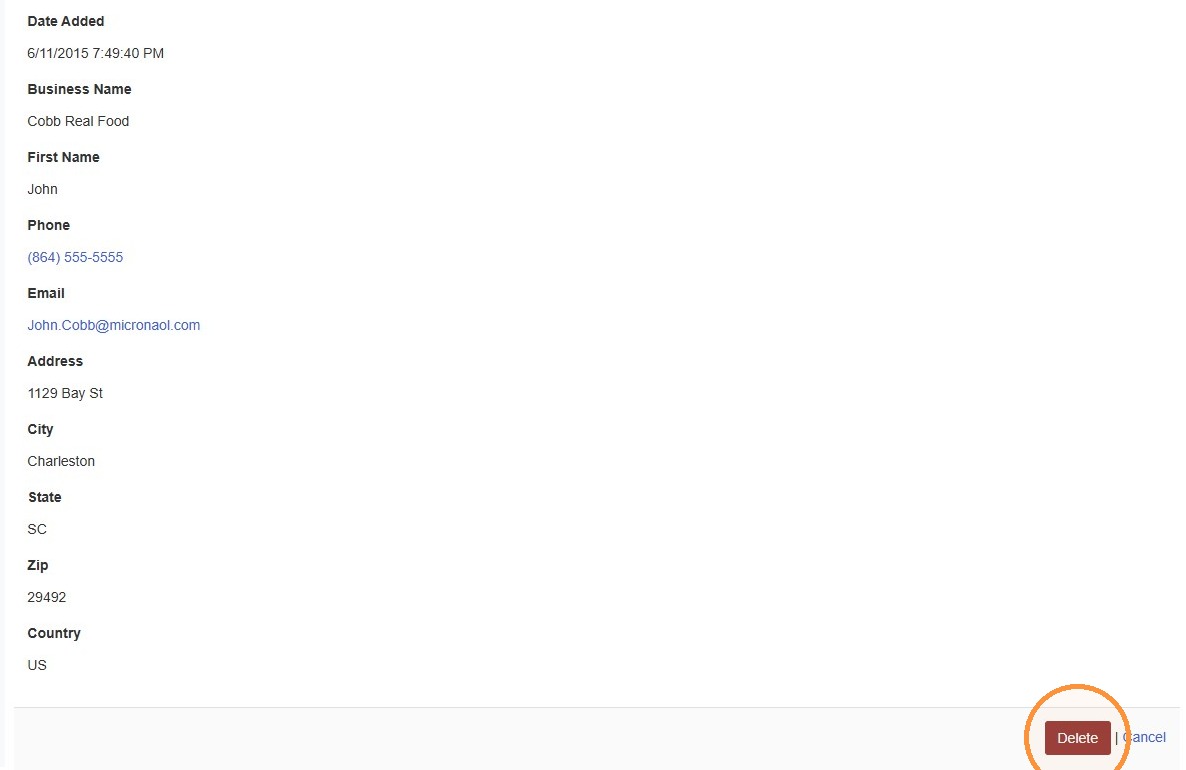
14. Select Delete.
Related Tutorial(s):