First Time Login to the Tenant Portal
This guide quickly walks new users through receiving the welcome email, signing in, and resolving common first-login issues (like copy/paste password errors). It shows how to set up two-factor authentication via text or an authenticator app, finish account setup, and request access if needed. Follow it to secure your account and update profile and security settings after login.
How to Login the First Time
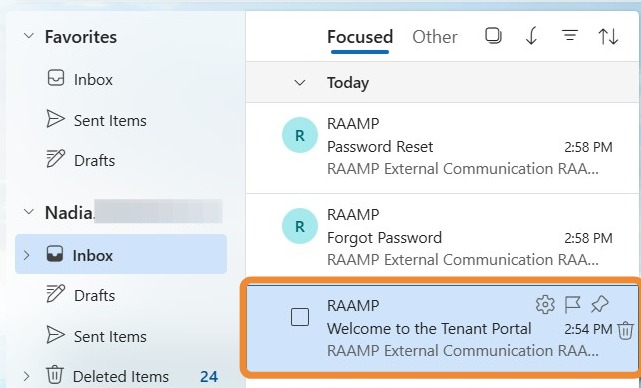
1. After you are added to the Tenant Portal, you will receive an email from [email protected].
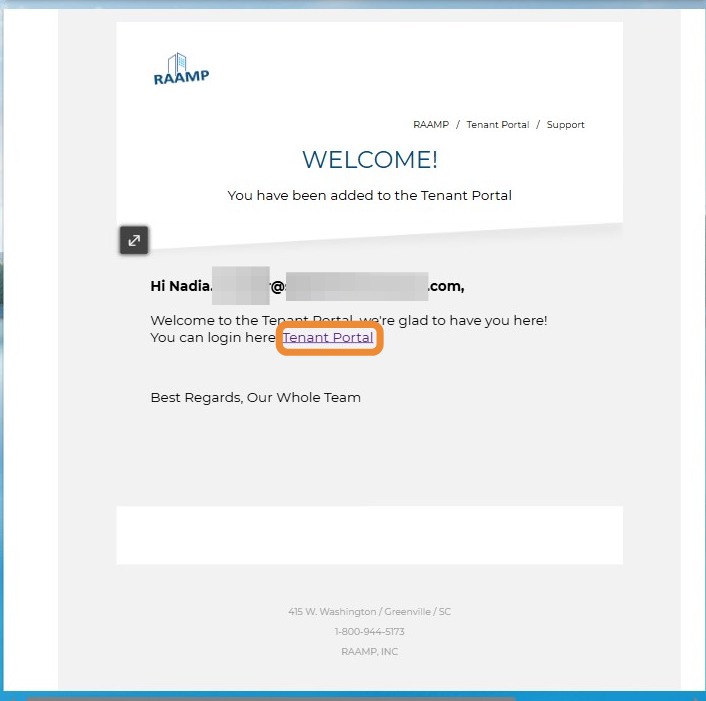
2. Select the Tenant Portal link in the email.
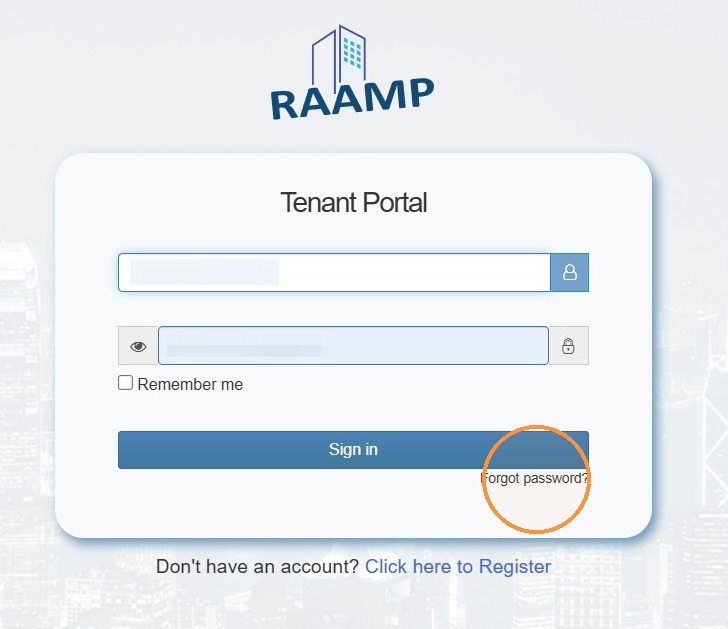
3. Select Forgot Password.
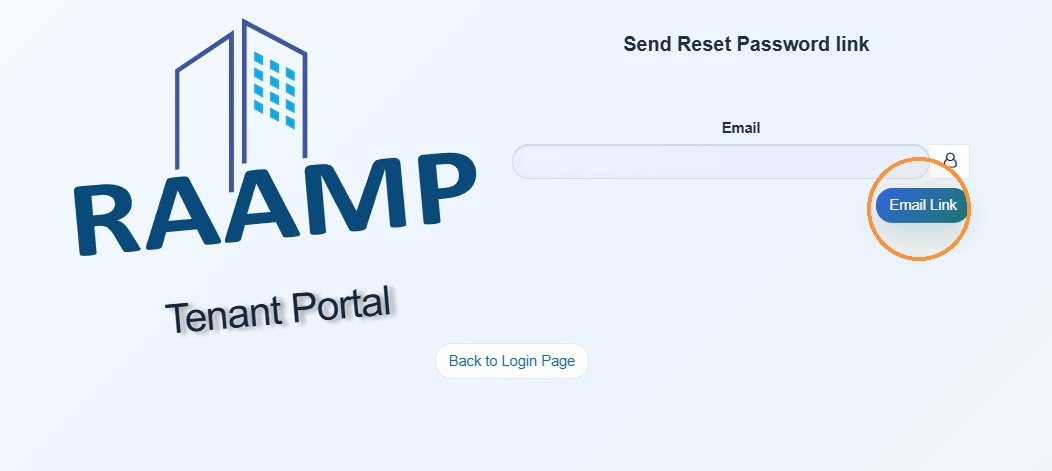
4. Enter your email > Select Email Link.
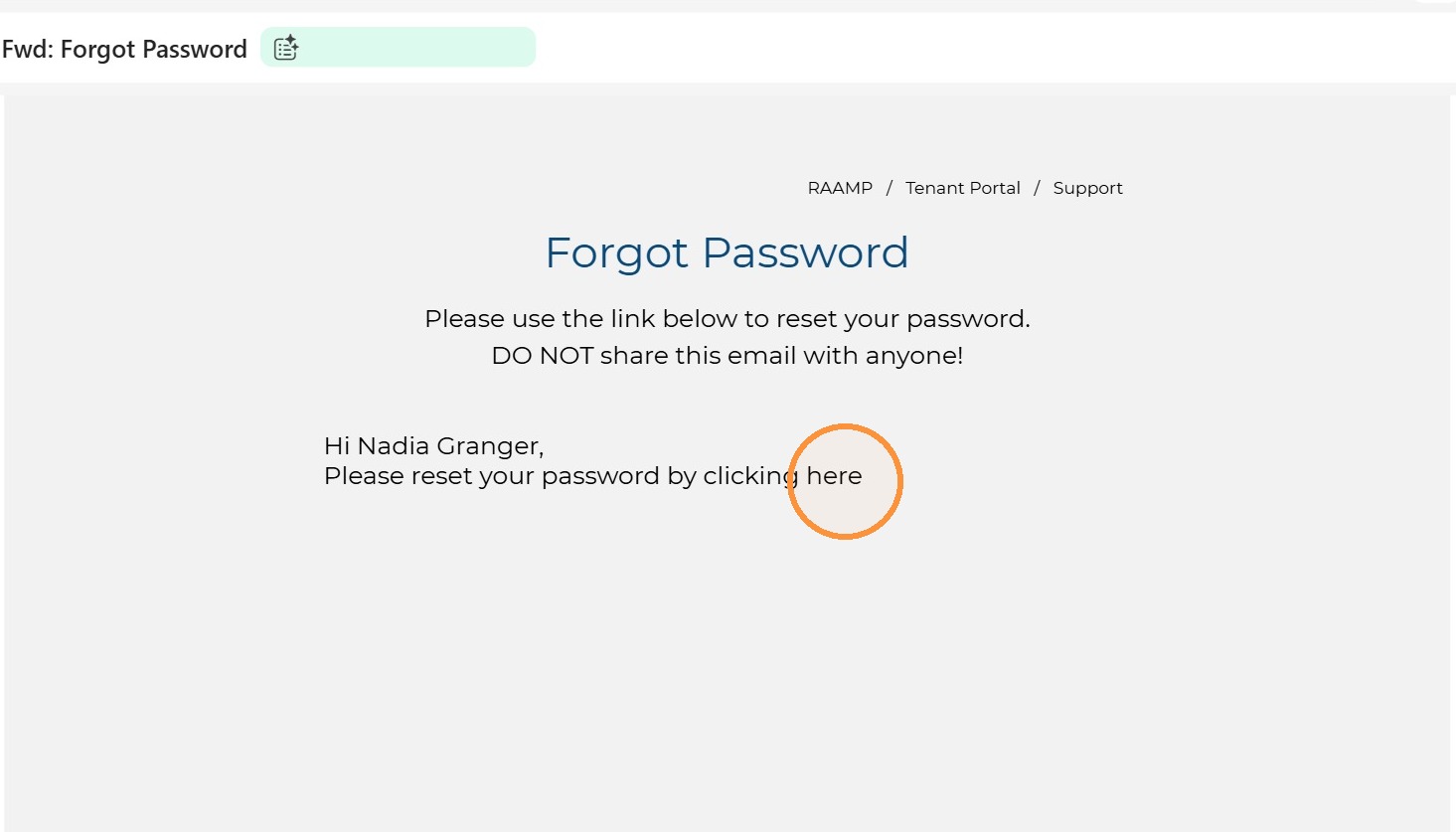
5. Open the Forgot Password email from RAAMP > Select Here.
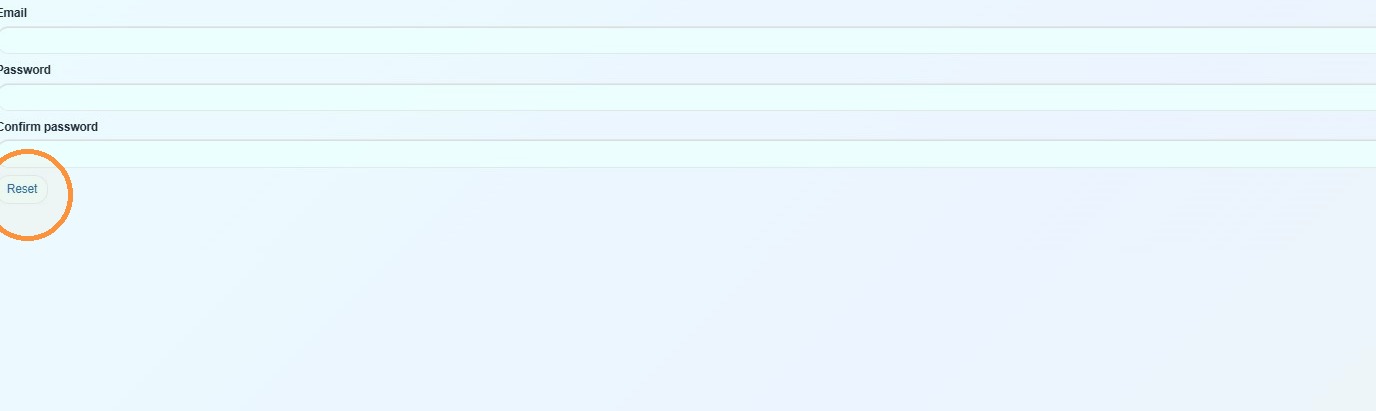
6. Complete the information > Select Reset.
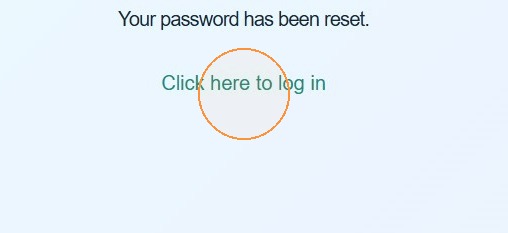
7. Select Click here to log in.
8. When you sign in for the first time, you'll be prompted to set up Two Factor Authentication (2FA).
Choose the option you'd like to use for 2FA.
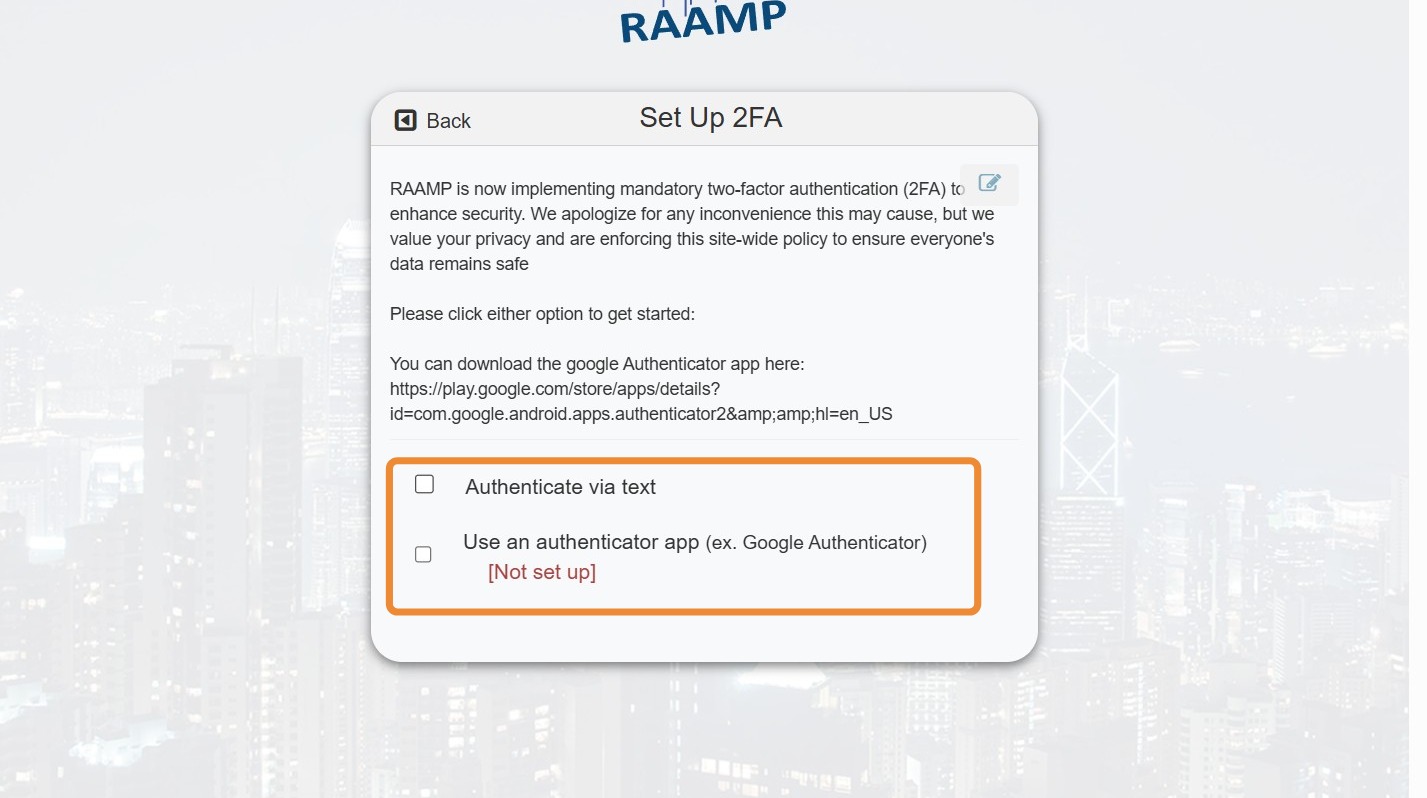
Authenticate via Text
9. Select Yes, Set Up.
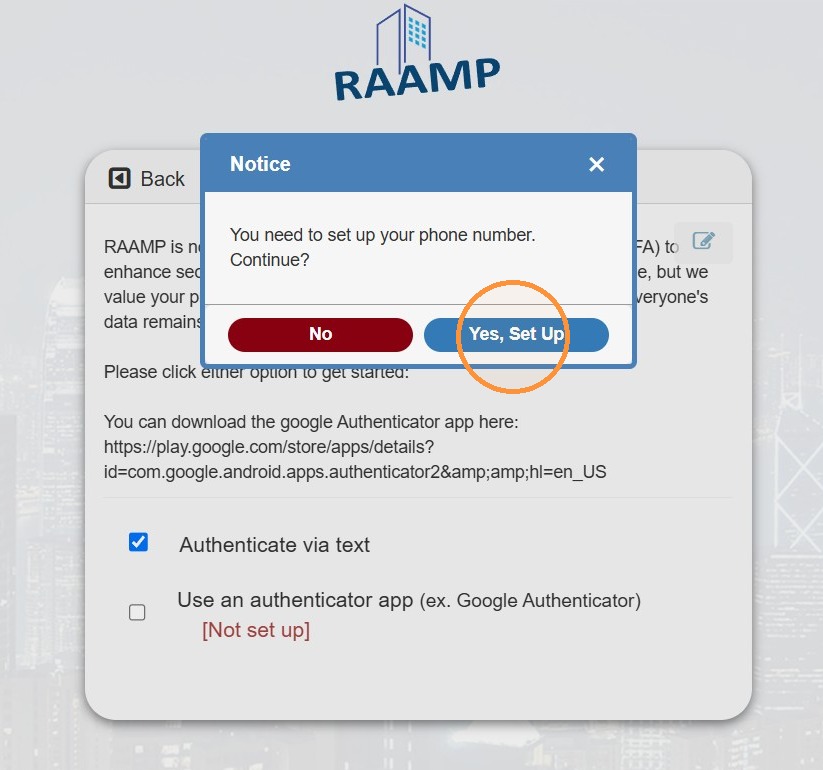
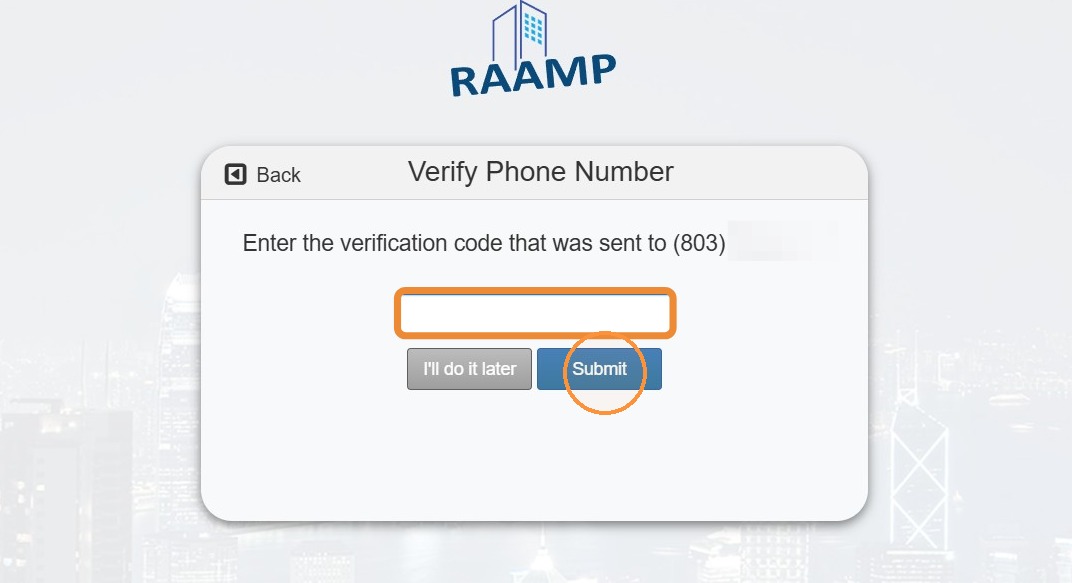
10. If you choose to authenticate via text, you will be asked to enter your phone number. The phone number must accept SMS and MMS messages.
Enter the verification code from the text message > Select Submit.
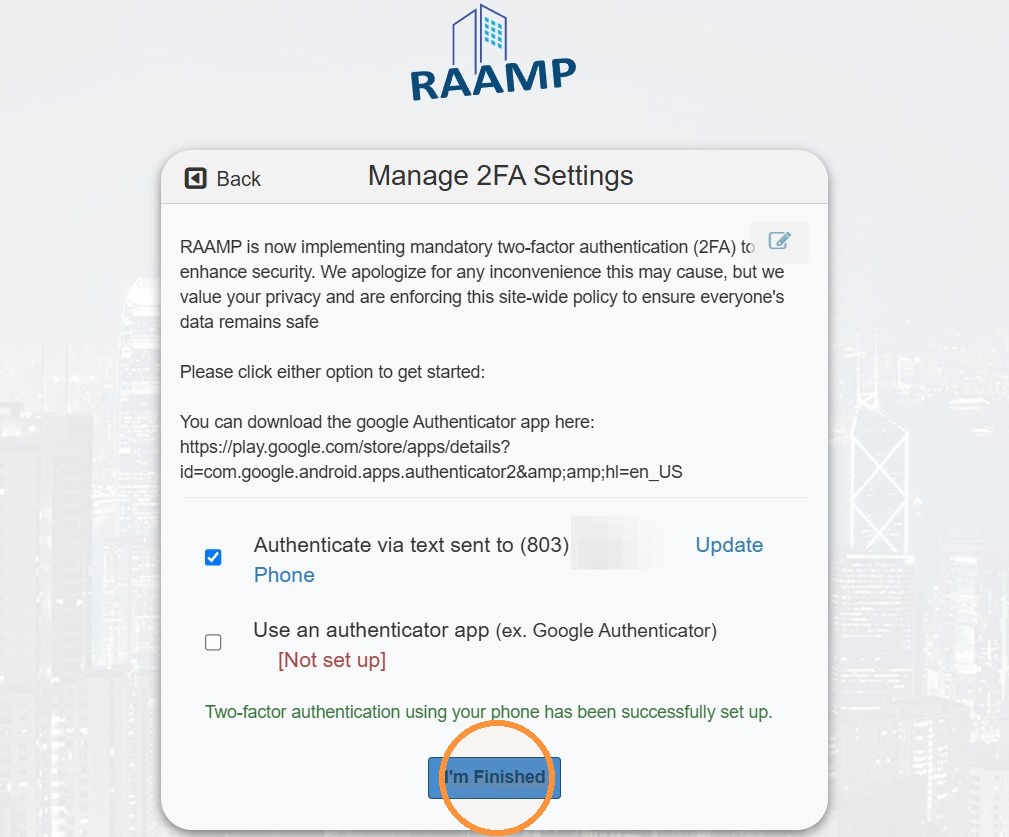
11. Select I'm Finished.
Authenticator App
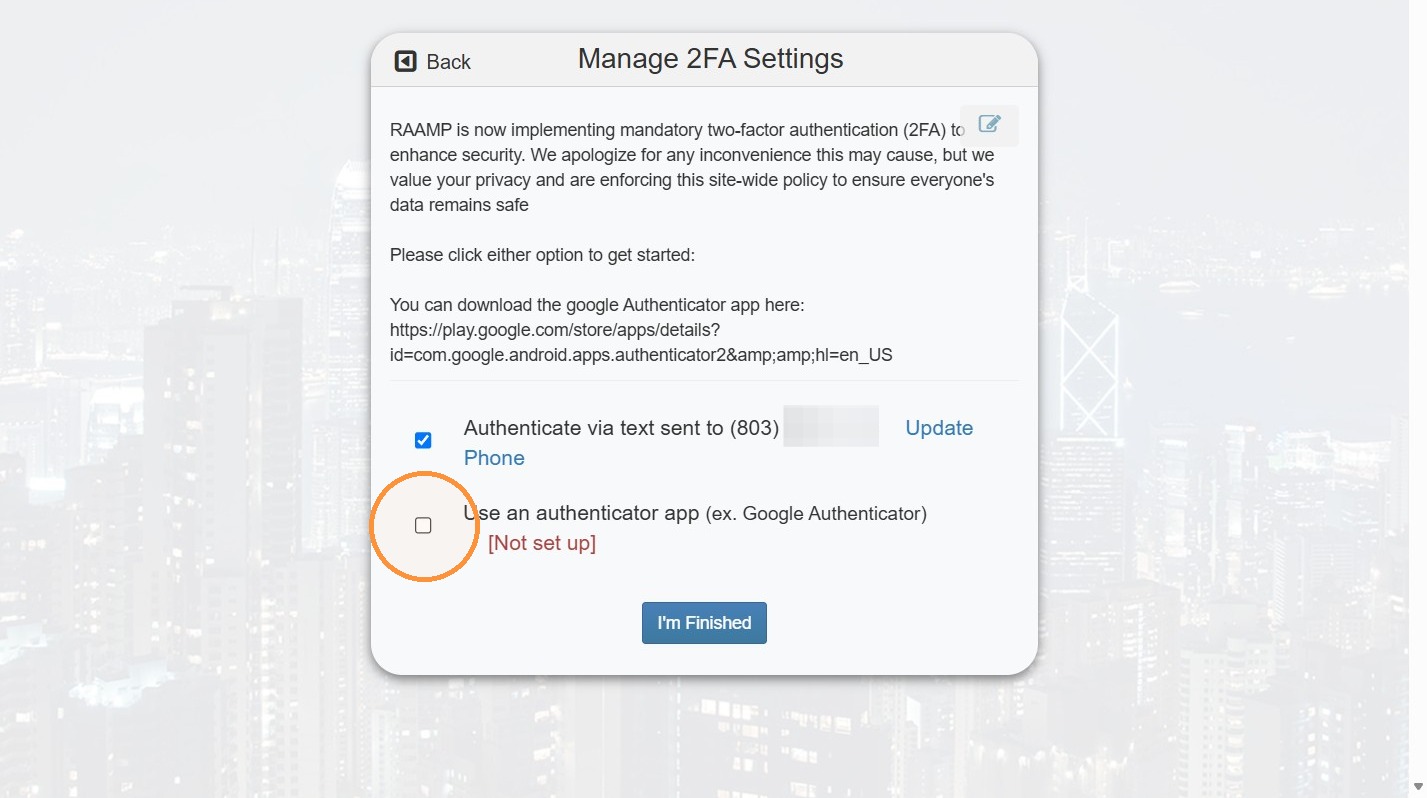
12. If you want to use an authenticator app, download Google Authenticator > Select the checkbox for Use an authenticator app.
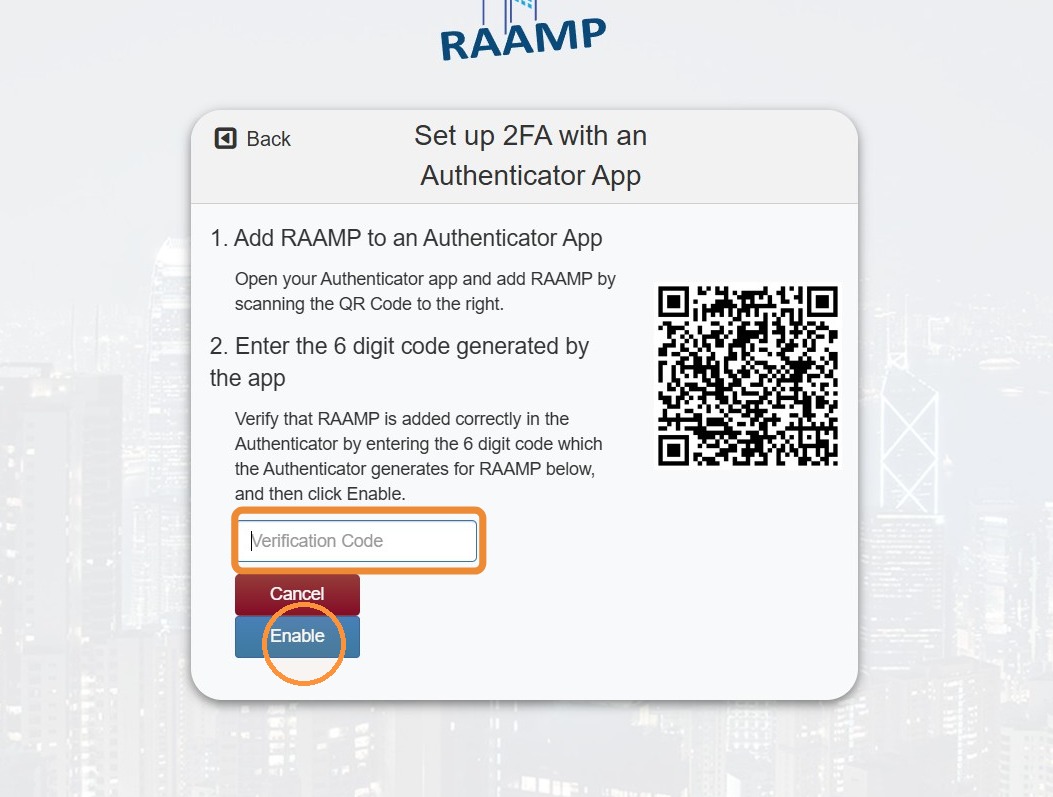
13. Open the authenticator app > Select the Verification Code field > Enter the verification code provided in the authenticator app > Select Enable.
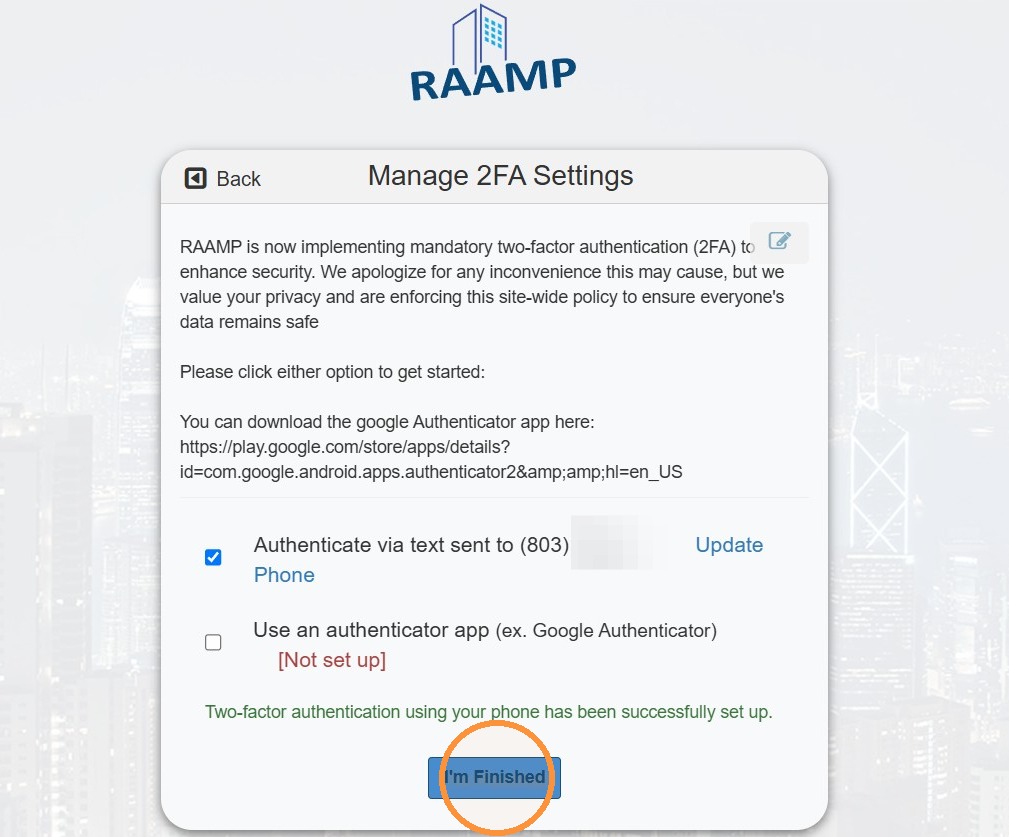
14. Select I'm Finished.
Finish Account Setup
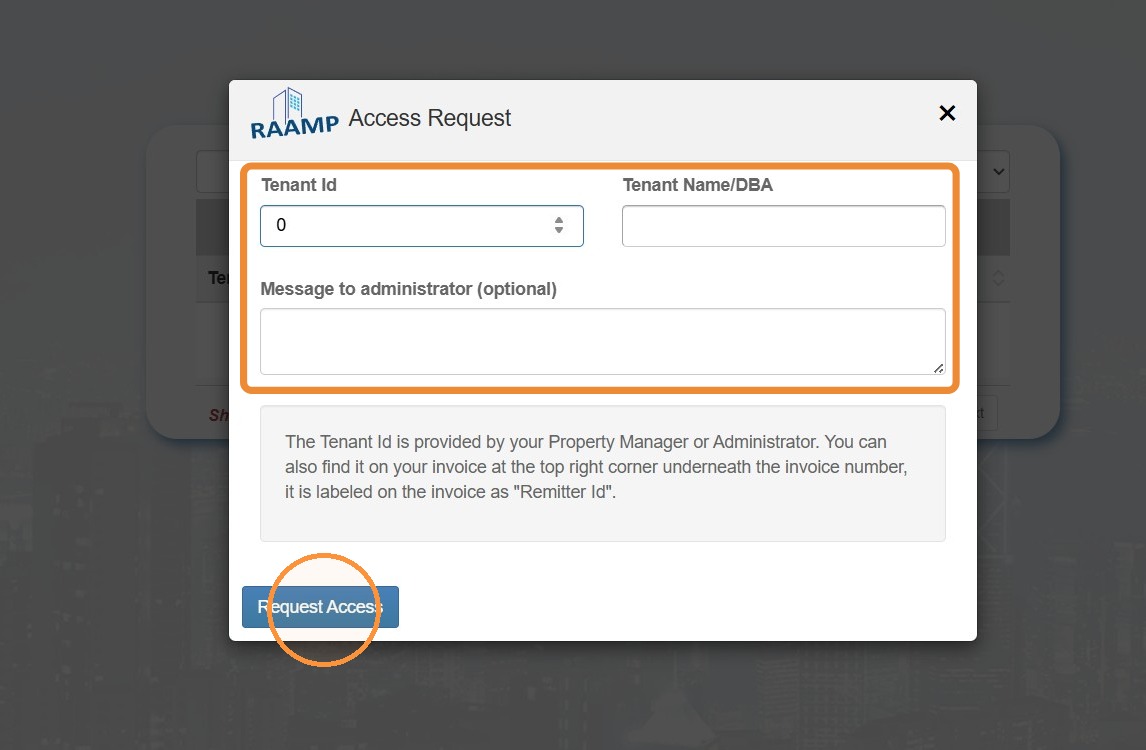
15. If you receive an Access Request, complete the required information > Select Request Access.
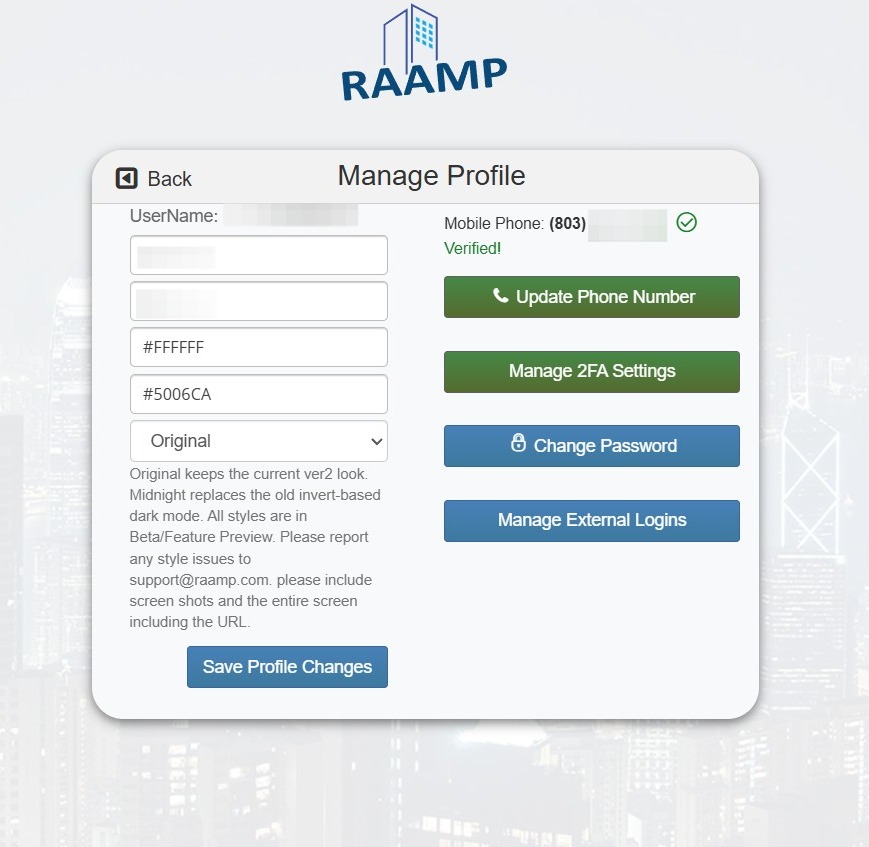
16. Once logged in, select your avatar in the top right.
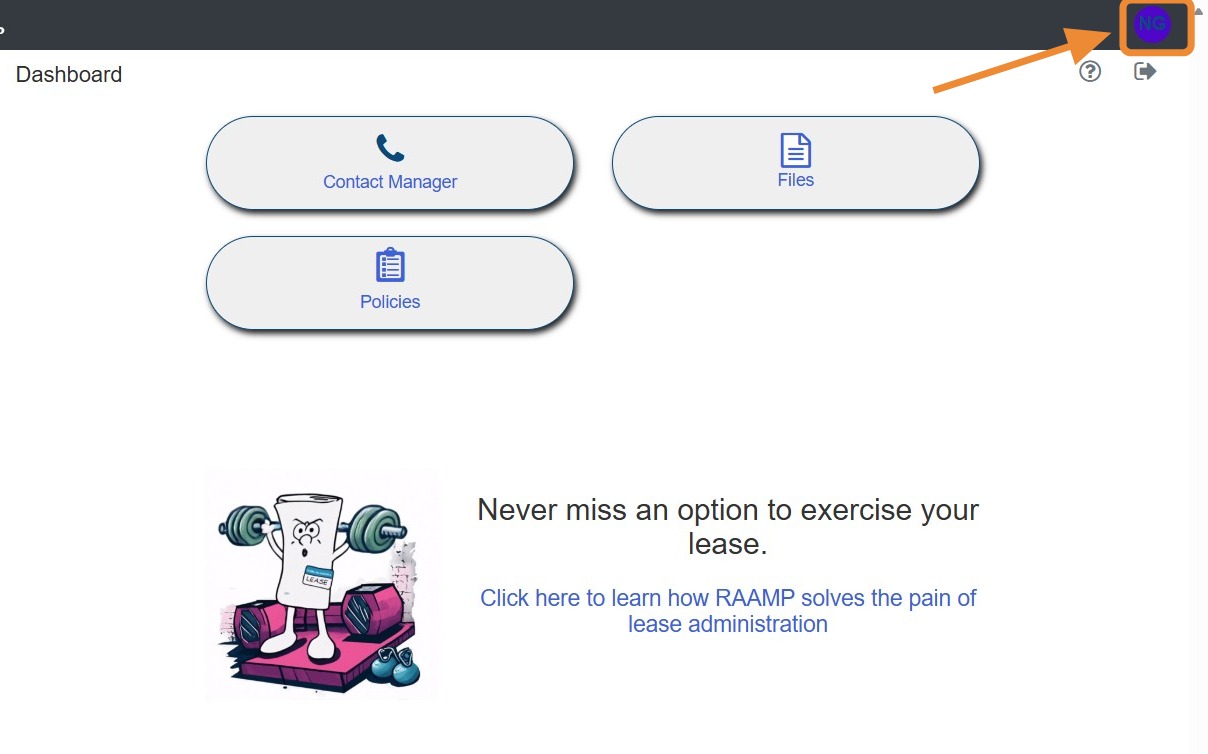
17. On this screen, you can update your phone number, manage your 2FA settings, change your password, and more.