Tenant Invoicing Setup
This guide explains how to configure tenant invoicing so invoices show the correct remit-to address, payment options, minimum payment rules, and billing/landlord details. It walks you from finding a tenant to opening Invoicing Setup and choosing preferred checkboxes and dropdowns. Follow it to ensure invoices are accurate, payments go to the right place, and billing requirements are enforced.
Navigating to Invoicing Setup
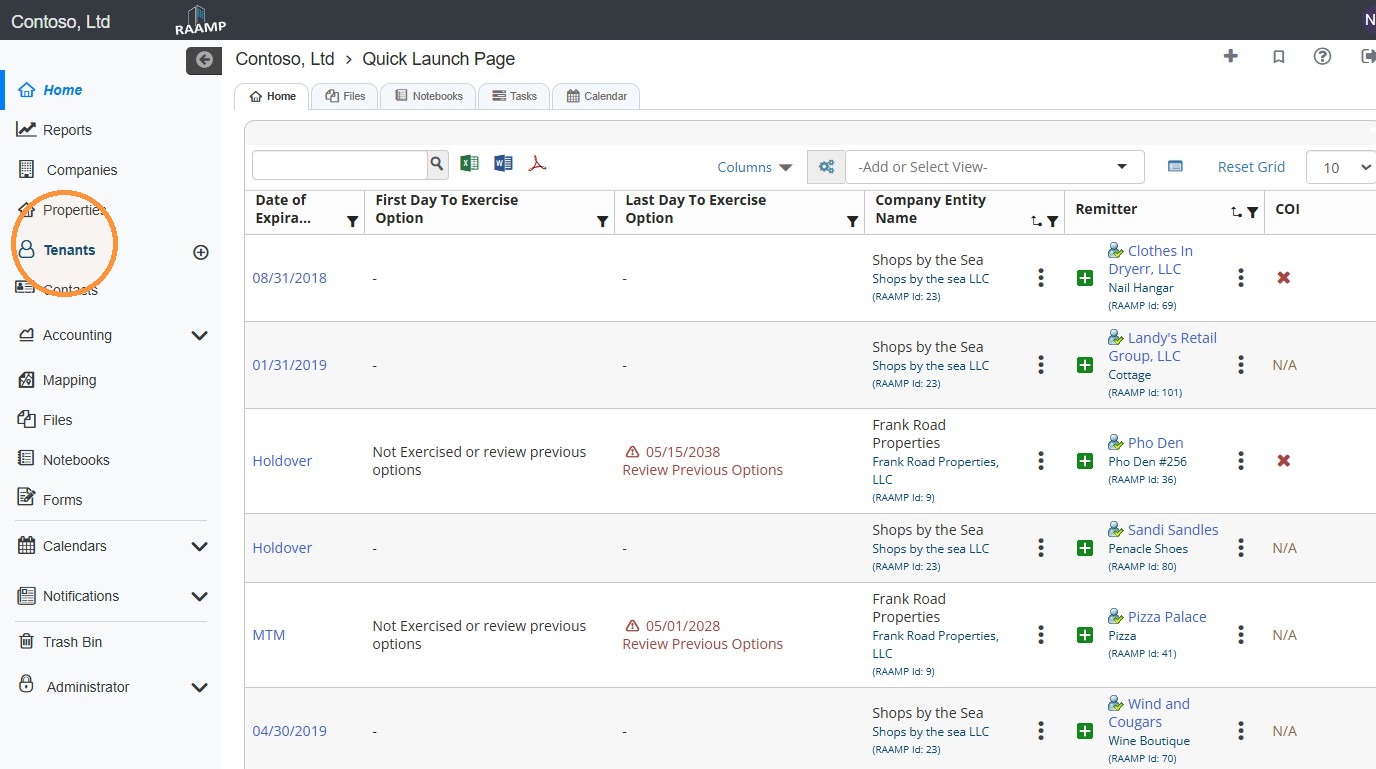
1. From the navigation menu, select Tenants.
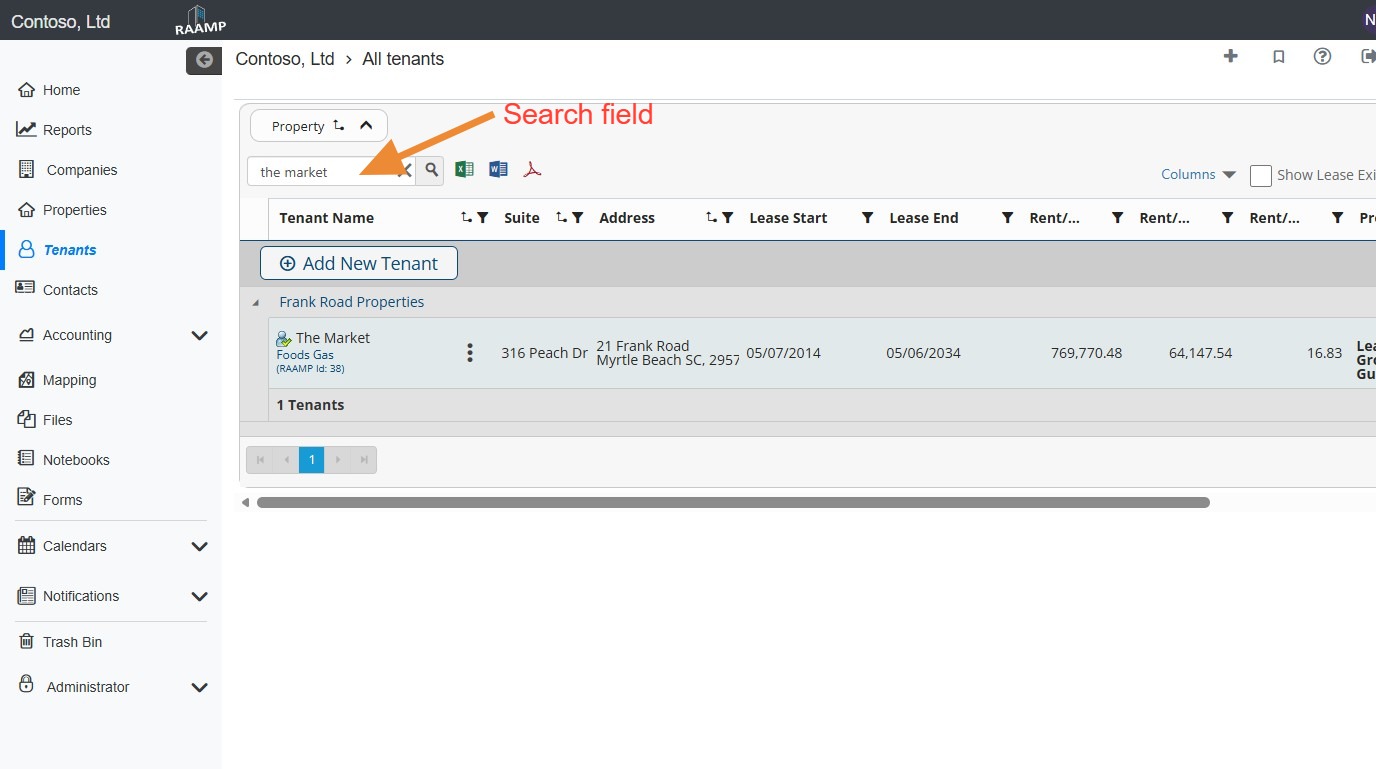
2. Locate the tenant.
NOTE: You can locate the Tenant quickly by searching for it.
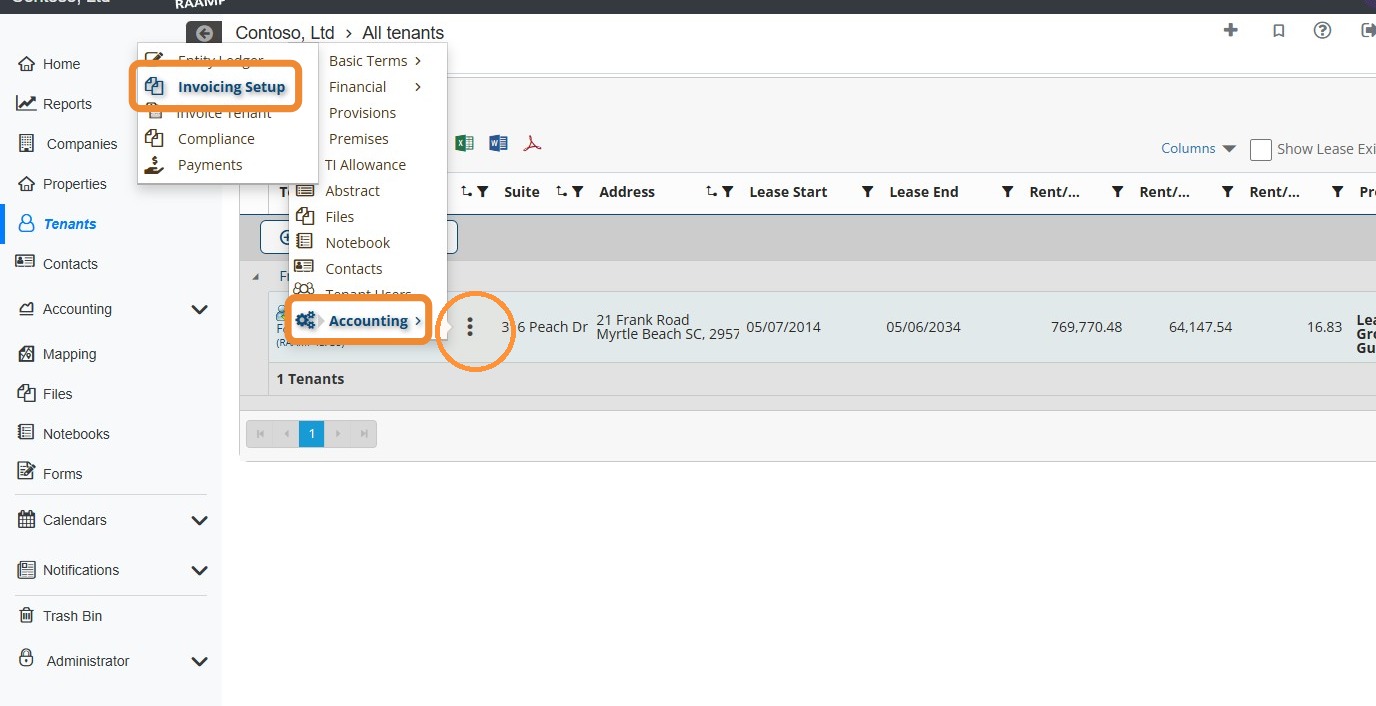
3. Select the tenant's three dot menu > Select Accounting > Select Invoicing Setup.
How to Setup Invoicing
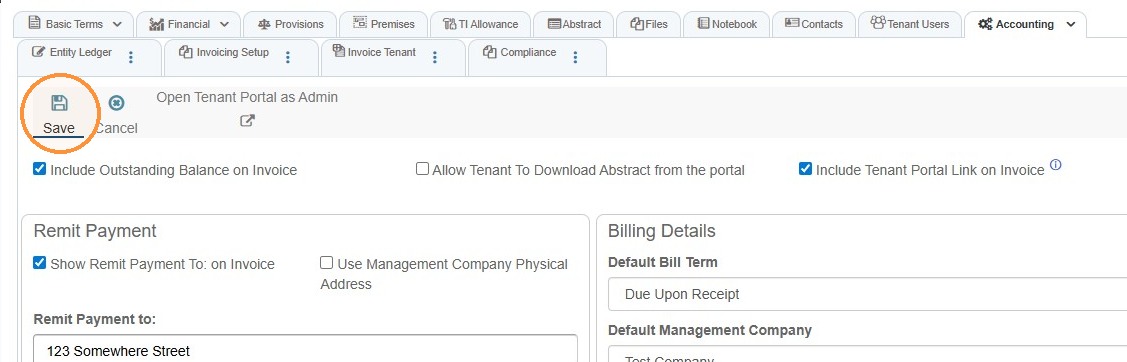
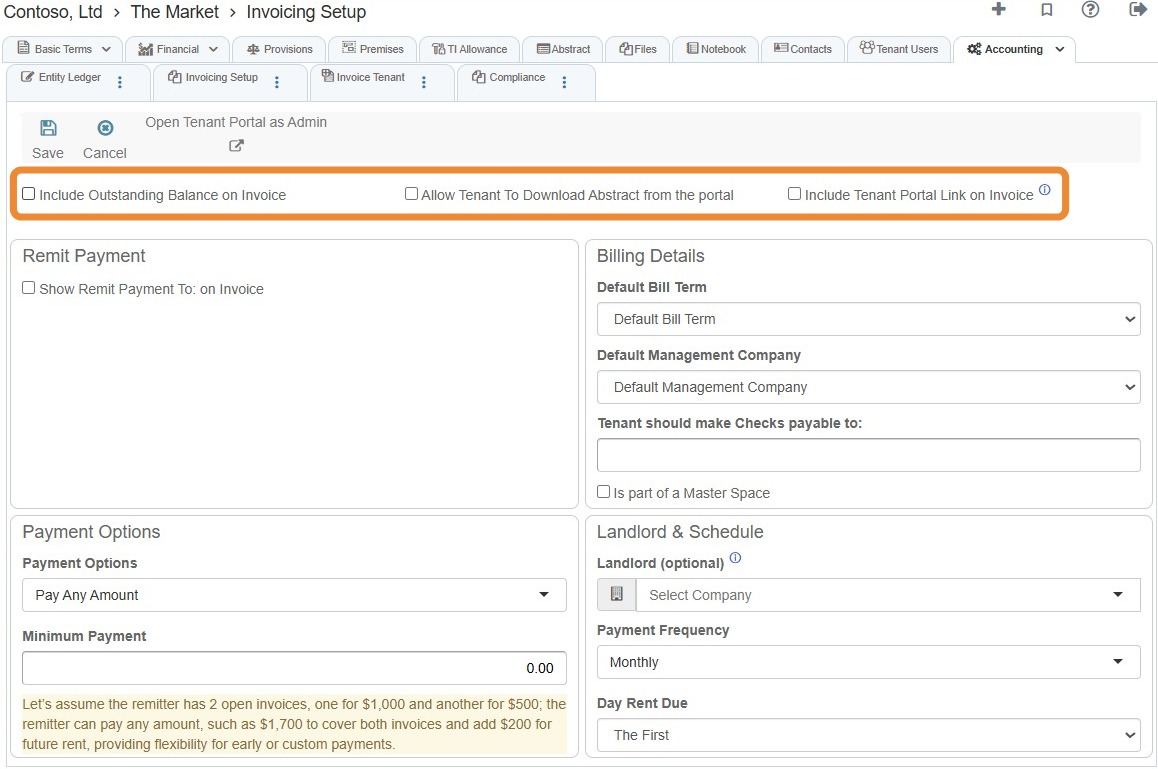
4. Select the preferred checkbox(es).
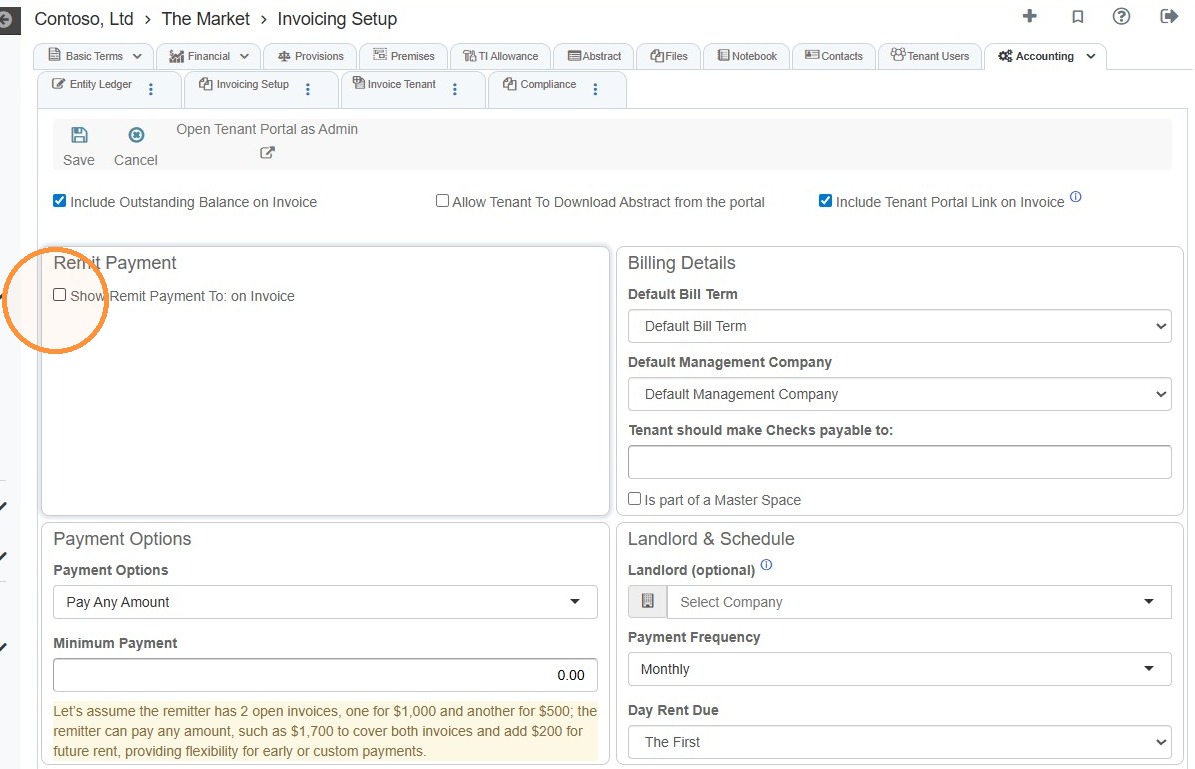
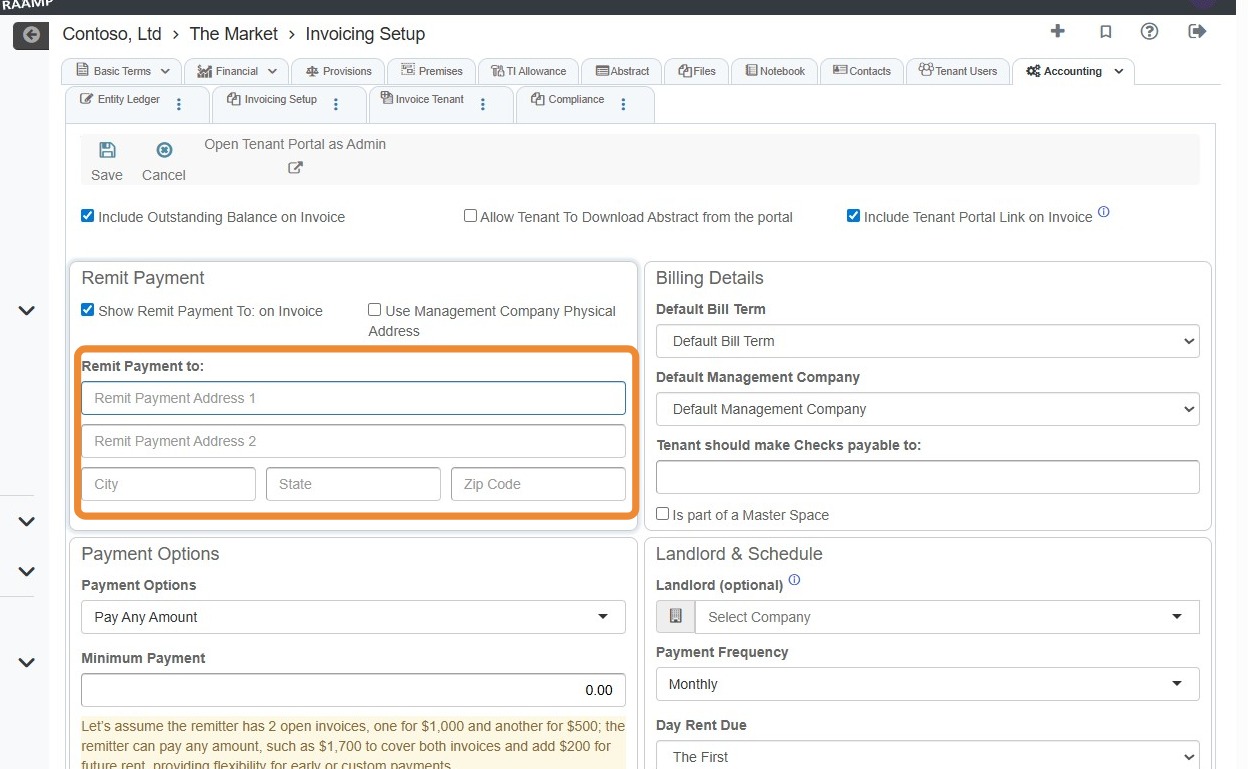
5. Select the Show Remit Payment to: on invoice checkbox.
NOTE: For the remit payment to address to automatically fill in, it must be entered on the tenant's addresses tab.
If you select Use Management Company Physical Address, you must enter the management company's physical address on the company's addresses tab and set the management company.
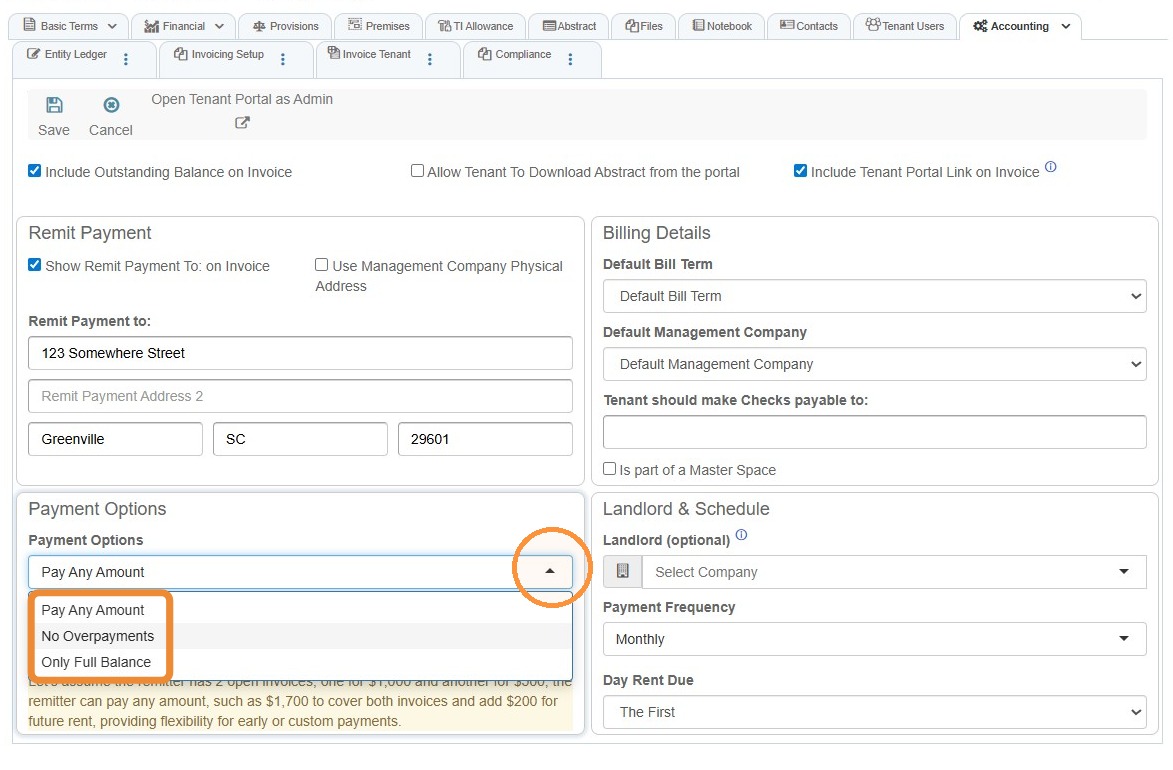
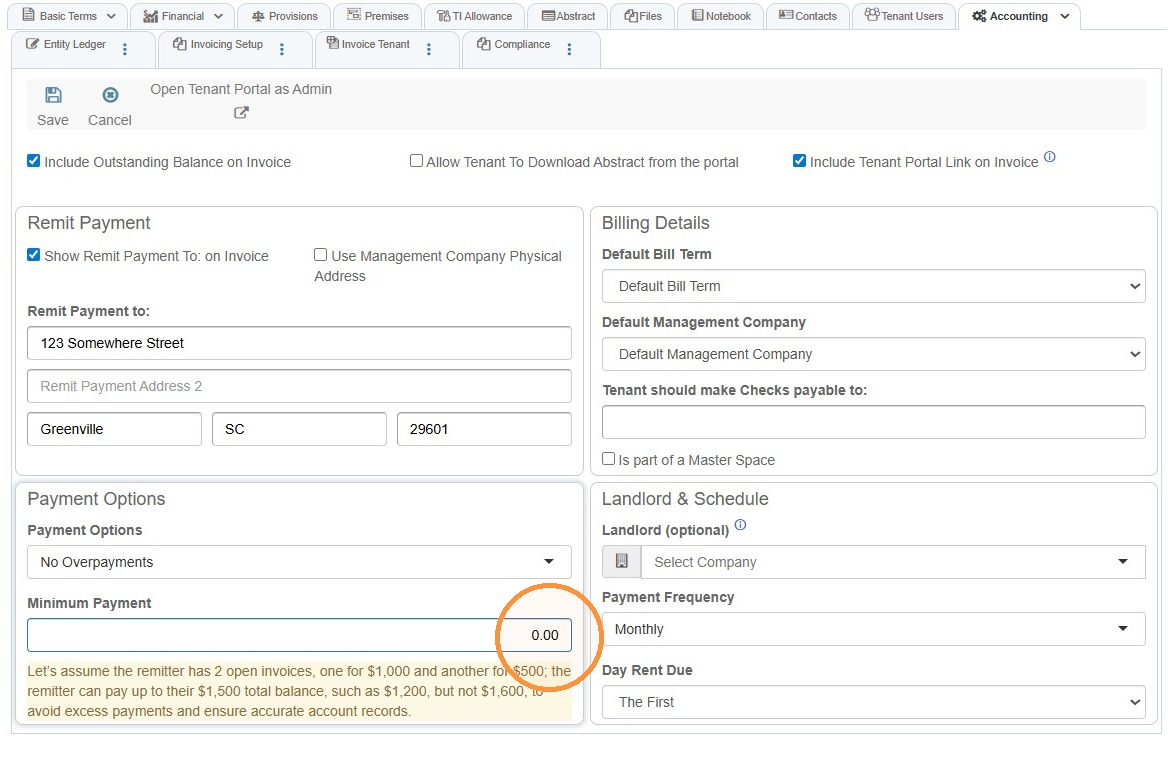
6. Select Payment Options > Select from the dropdown menu.
7. Select Minimum Payment to add a minimum payment requirement.
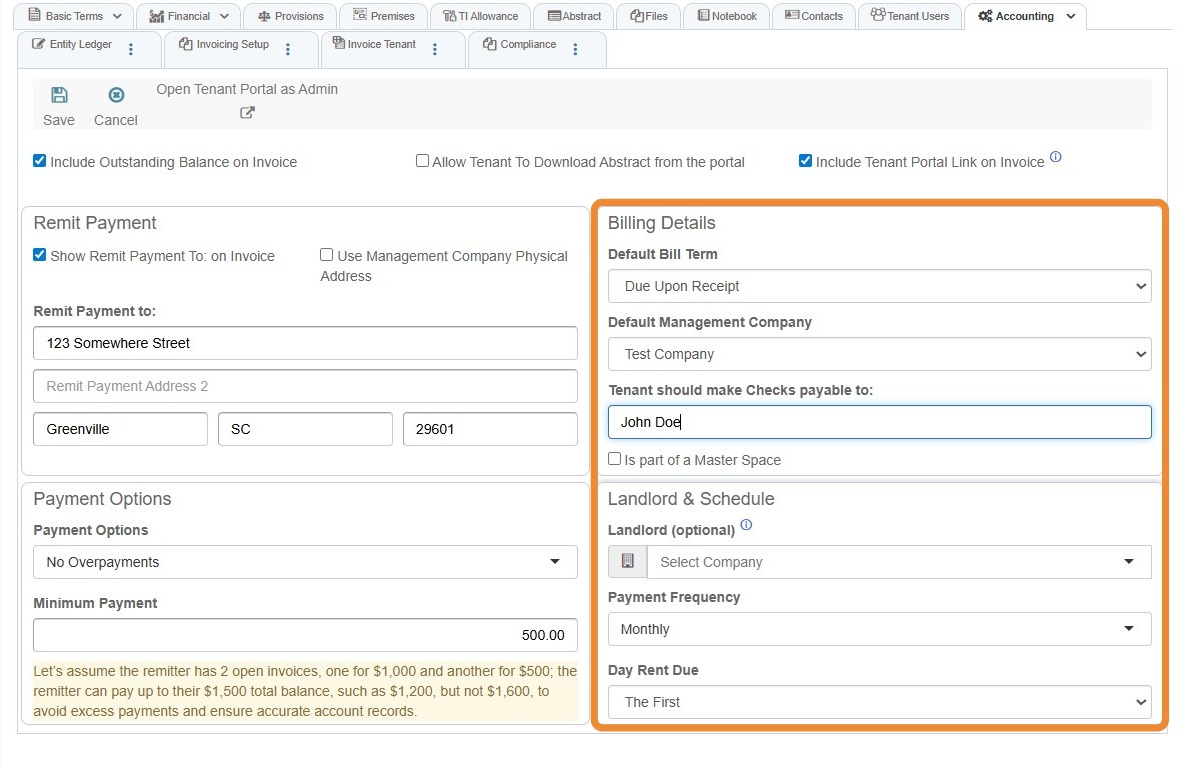
8. Complete the Billing Details and Landlord & Schedule information.
9. Select Save.