How to Verify Ownership for a Company and Property
This guide saves you time and prevents onboarding delays by listing exactly what documents and info you must have and walking step-by-step through the platform screens to verify company or property ownership. It highlights common blockers (missing merchant codes, P.O. boxes, expired IDs), explains required owner disclosures and uploads, and shows how to add additional owners and connect payment/AR accounts. Follow it to complete verification correctly the first time.
Tip: Before starting the process, please have the following information available:
- W9
- Banking information
- Inbox Email for the company/property and primary/beneficial owner(s)
- URL for company/property
- Entity's established date
- List of all beneficial owners holding 25% or more
- Primary Owner's SSN
- Copy of primary owners' ID (front and back) - expired IDs are unacceptable
- If you plan to configure the bank account and link accounts receivable, you'll need a bank statement, bank letter, or voided check.
You must add an AR account within seven days of starting the verification process.
How to Verify Ownership for a Company
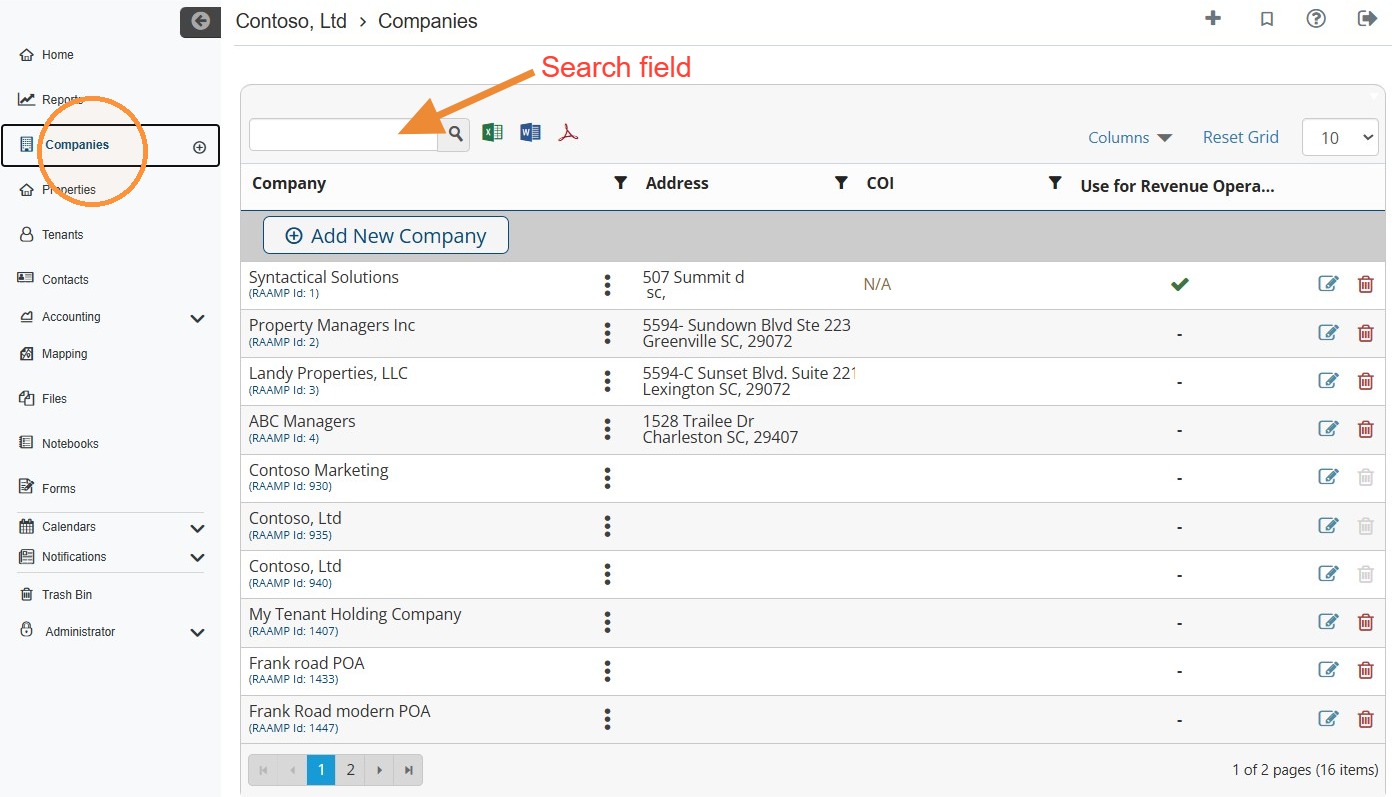
1. From the navigation menu, select Companies > Locate the Company.
NOTE: You can locate the company quickly by searching for it.
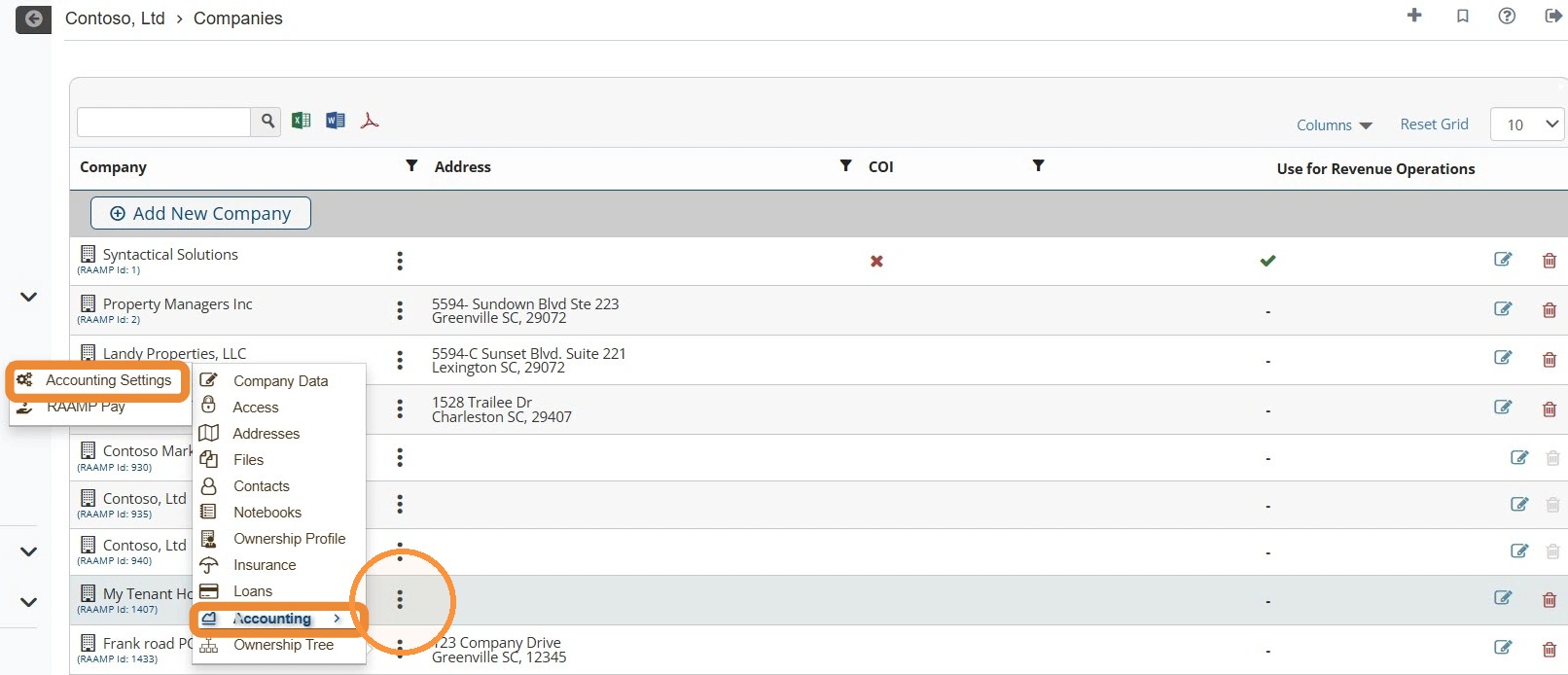
2. Select the company's three dot menu > Select Accounting > Select Accounting Settings.
Skip ahead to How to Verify Ownership.
How to Navigate to Verify Ownership for a Property
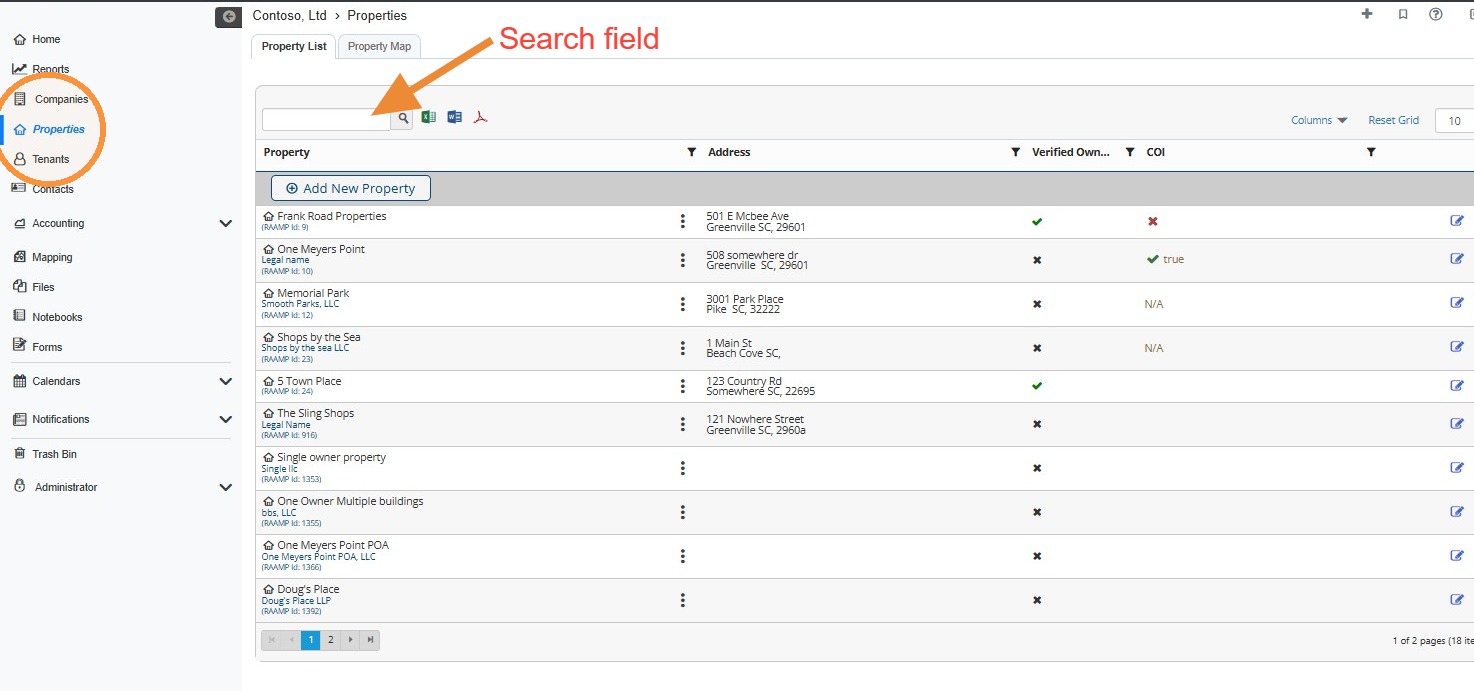
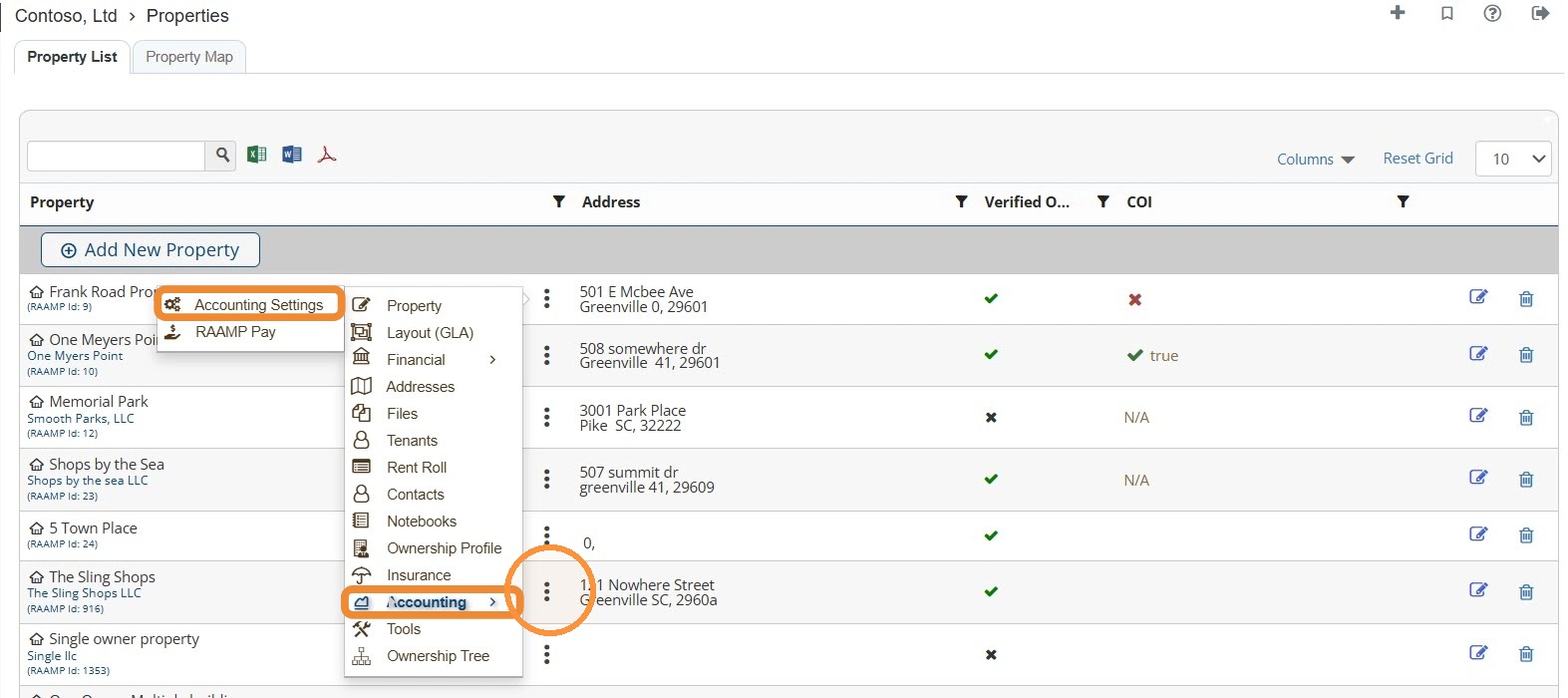
3. From the navigation menu, select Properties > Locate the Property.\ \ NOTE: You can locate the property quickly by searching for it.
4. Select the property's three-dot menu > Select Accounting > Select Accounting Settings.
Skip ahead to How to Verify Ownership.
How to Verify Ownership
Tip: Before starting the process, please have the following information available:
- W9
- Banking information
- Inbox Email for the company/property
- URL for company/property
- Entity's established date
- List of all beneficial owners holding 25% or more
- Primary Owner's SSN
- Copy of beneficial owners' ID (front and back) - expired IDs are unacceptable
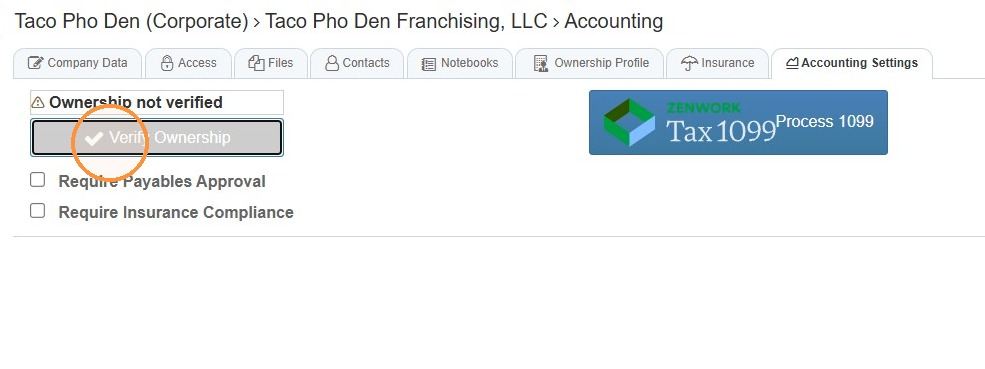
5. Select Verify Ownership.
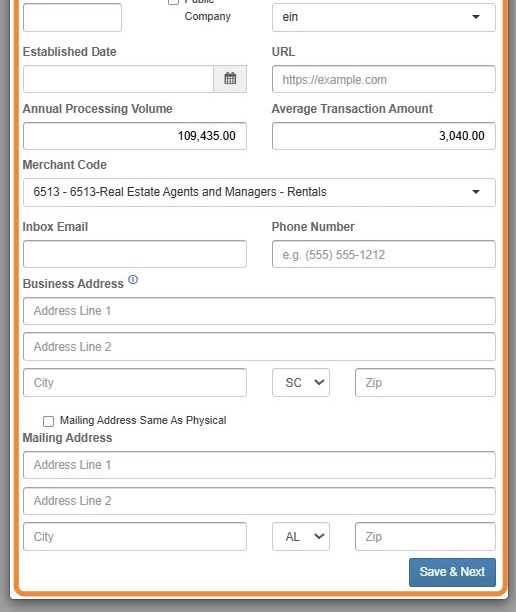
6. Enter the information for all fields. All fields are required.
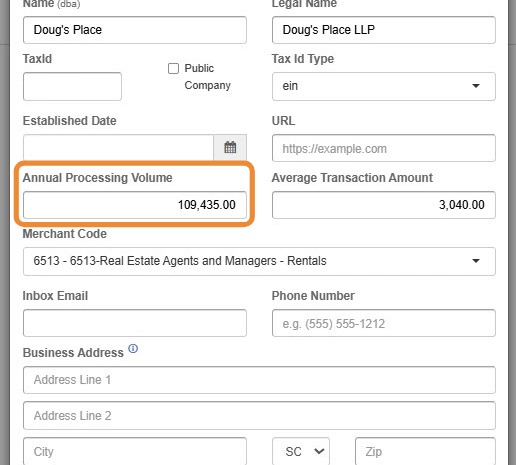
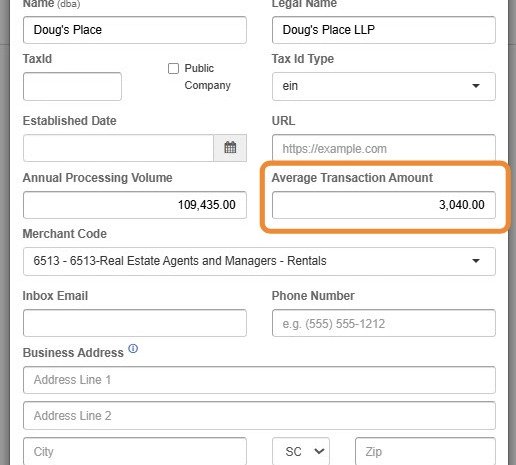
7. In the Annual Processing Volume field, enter the estimated amount of incoming transactions you expect in the year.
8. In the Average Transaction Amount field, enter the estimated size of each individual transaction (specifically for receivables).
9. Select the Merchant Code dropdown > Select the appropriate Merchant Code for your business (Merchant Code = for credit card companies).
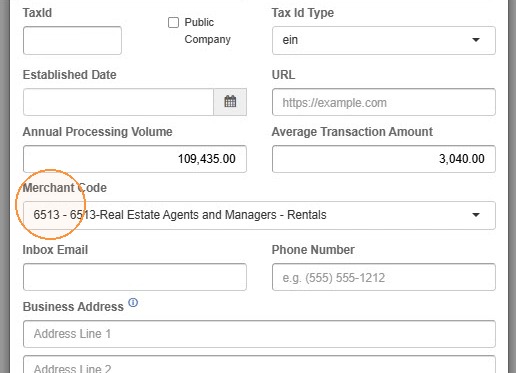
Alert: ALERT: If you don't see the merchant code for your business please stop and email [email protected], We will need to add the code to our payment system.
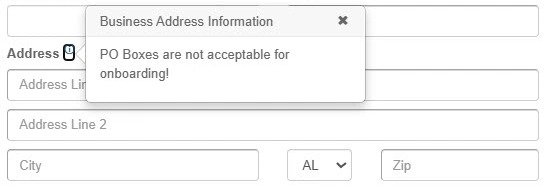
10. When entering the business address, please note that P.O. Boxes are not acceptable for onboarding.
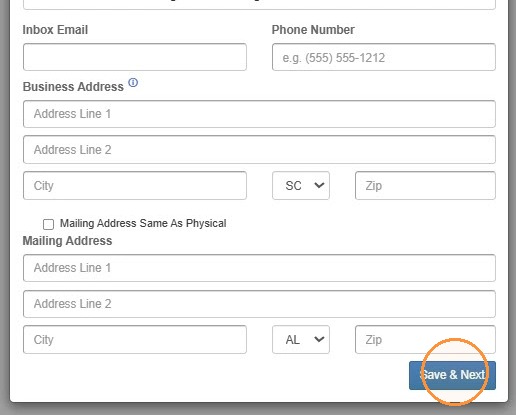
11. Select Save & Next.
12. Select Yes.
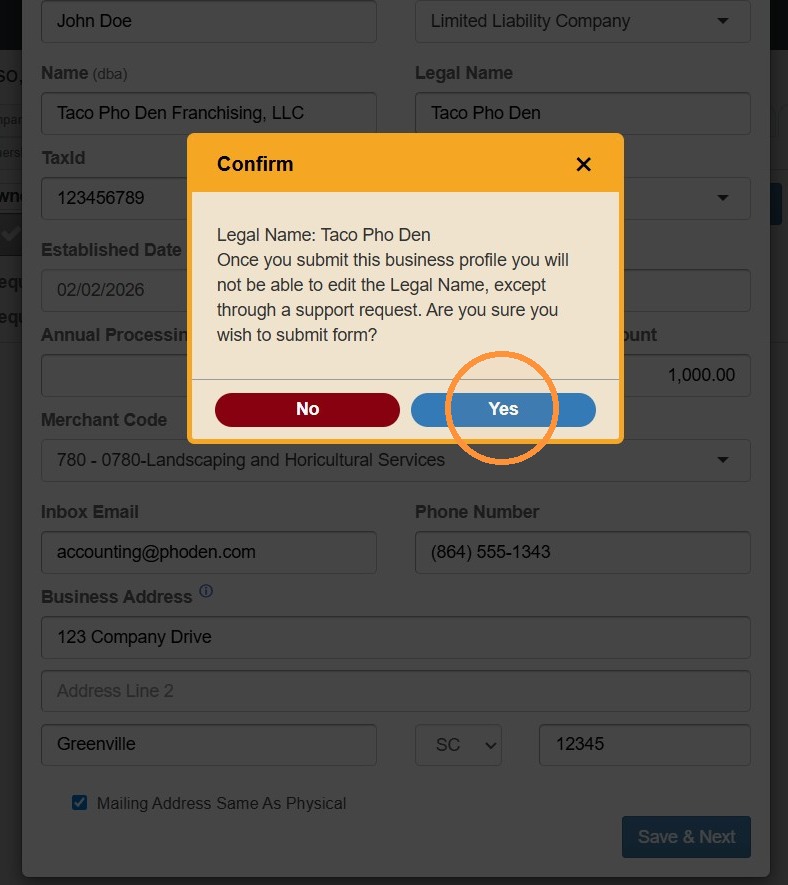
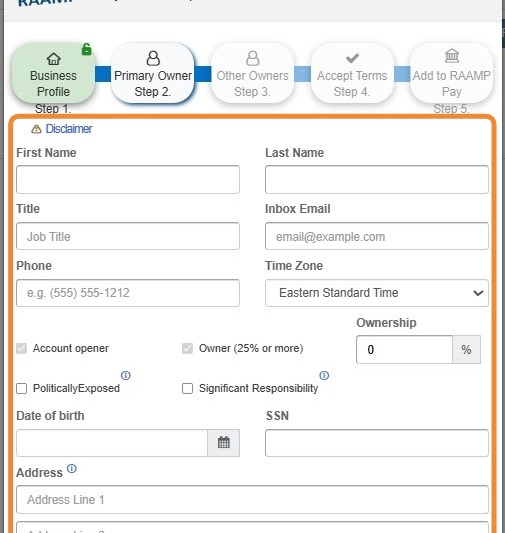
13. Enter the information for all fields. All fields are required.
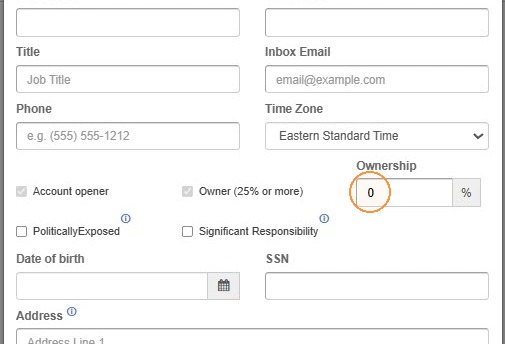
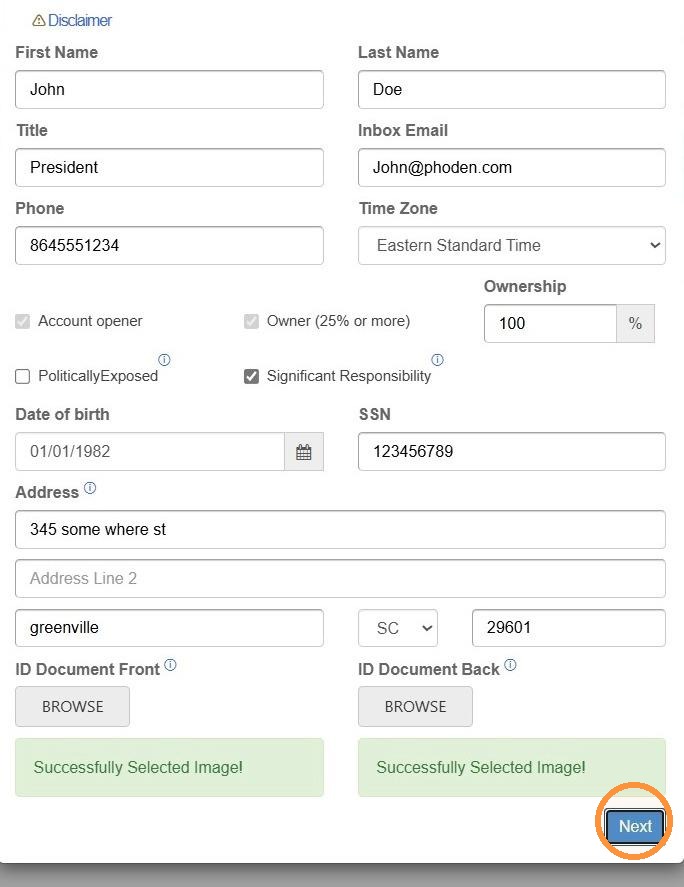
14. Select the Ownership field > Enter the percentage that the primary owner owns.
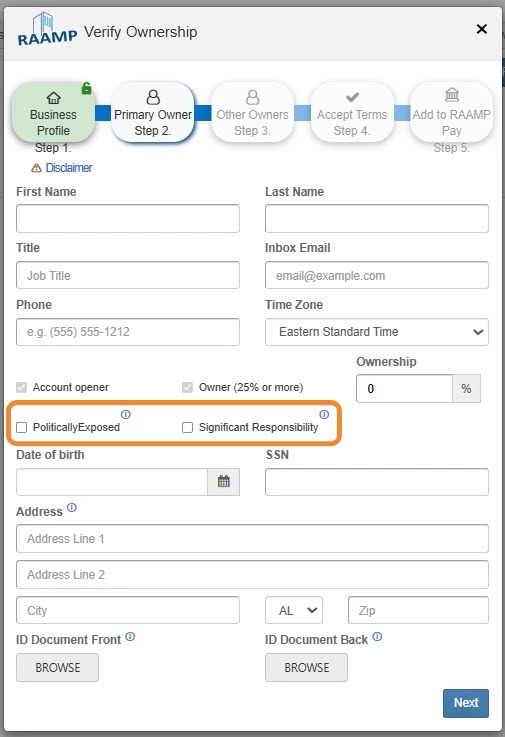
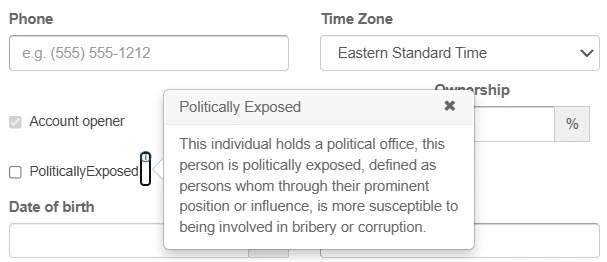
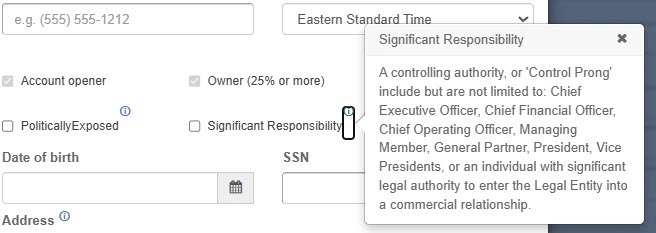
15. Select the appropriate checkbox(es).
Politically Exposed: This individual holds a political office, this person is politically exposed, defined as persons whom through their prominent position or influence, is more susceptible to being involved in bribery or corruption.
Significant Responsibility: A controlling authority, or 'Control Prong' include but are not limited to: Chief Executive Officer, Chief Financial Officer, Chief Operating Officer, Managing Member, President, Vice Presidents, or an individual with significant legal authority to enter the Legal Entity into a commercial relationship.
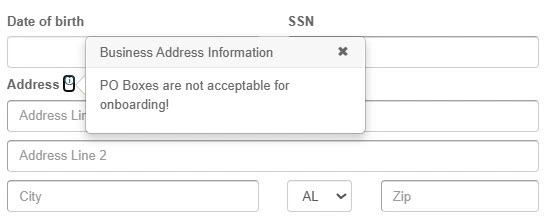
16. When entering the business address, please note that P.O. Boxes are not acceptable for onboarding.
17. To add the ID of the Primary Owner, select Browse located under the ID Document Front and ID Document Back fields > Upload the front and back of the Primary Owner's ID.
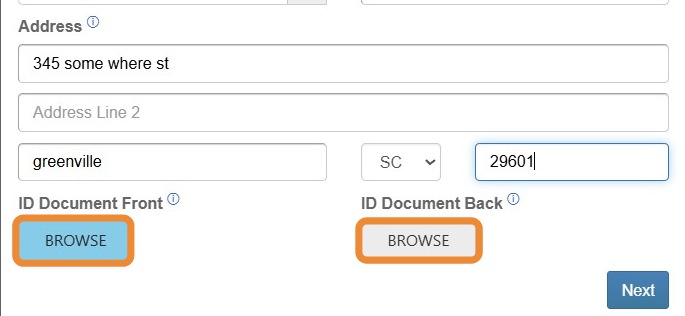
18. Select Next to proceed to step 3.
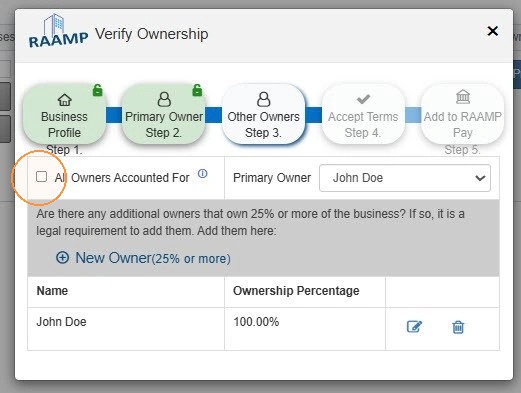
19. If the Primary Owner is the only owner, select the All Owners Accounted For checkbox.
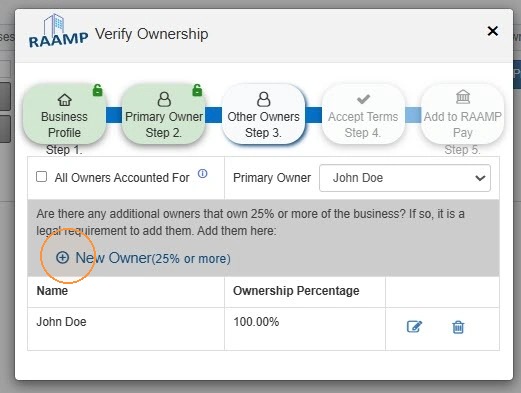
20. If there are additional Owners, select New Owner > Complete the owner information.
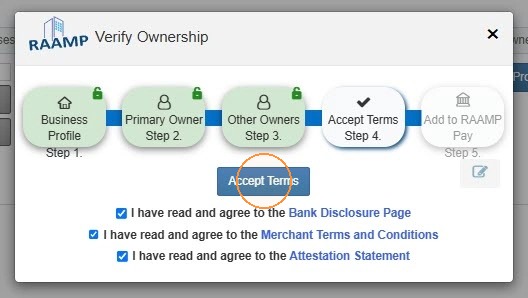
21. On Accept Terms - Step 4, read the disclosures and terms and conditions, and attest that you're not lying by selecting each box.
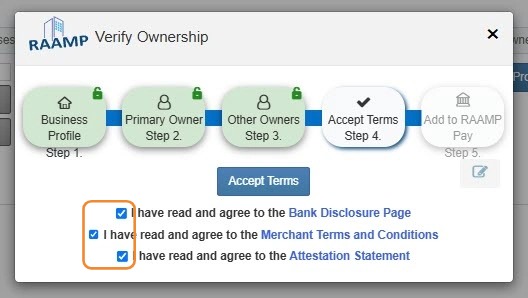
22. Select Accept Terms.
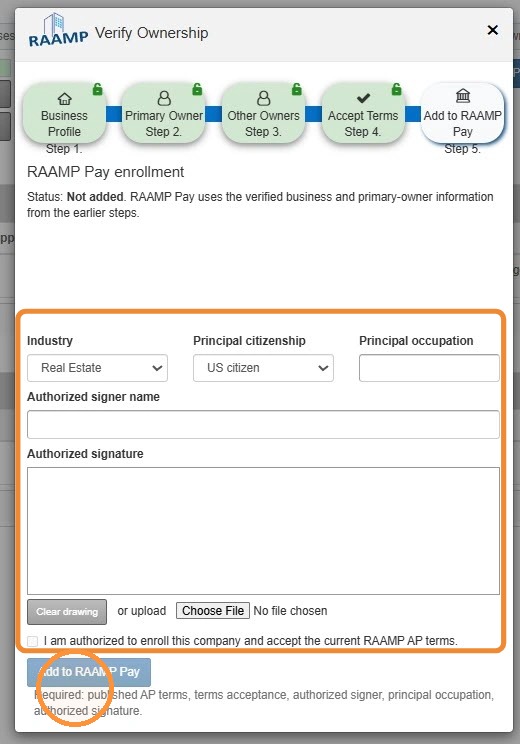
23. To add RAAMP Pay, complete the information > Select Add to RAAMP Pay.
To link RAAMP Pay, see .
How to Configure Bank Accounts
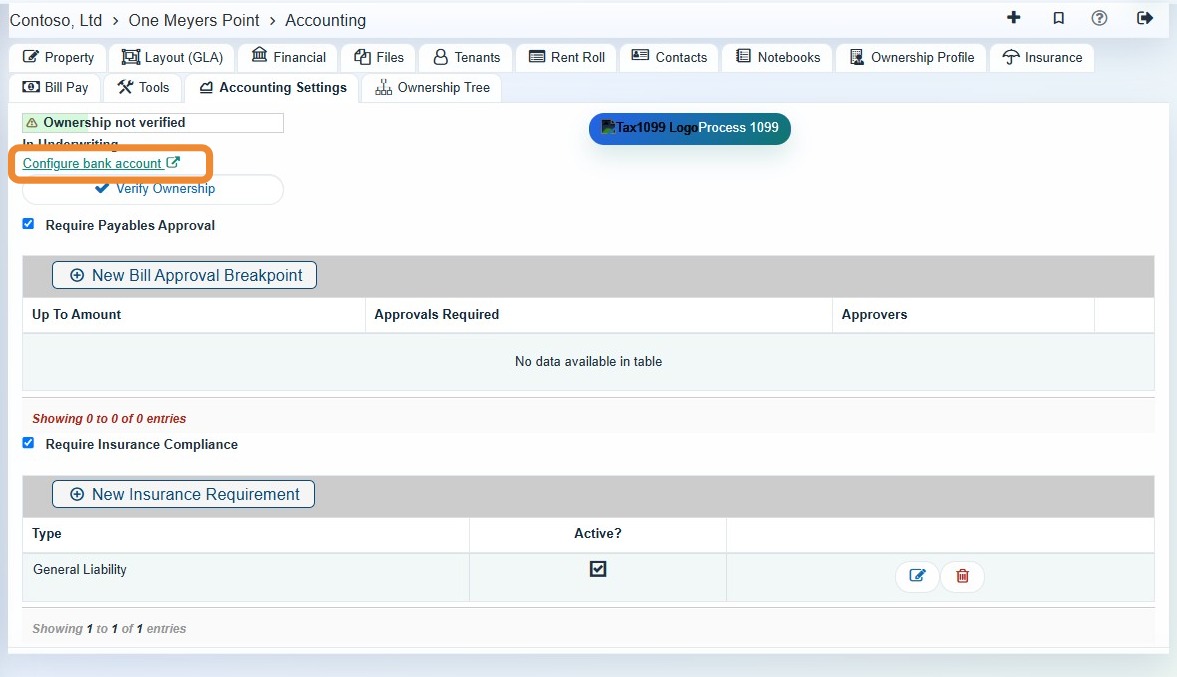
24. Configure bank account - Allows you to link AR and RAAMP Pay accounts.
Related tutorial(s):