How to Add a Company
This guide explains what information and files you need and how to enter them so a new company is set up correctly in the system. It highlights both a quick add option and the full add workflow, including required fields (name, contact, website, phone, emails), logo upload, and business type. It also clarifies special company roles (management, accounting entity, revenue operations) and when to use them.
Alert: Before starting this process, make sure you have the original lease available.
How to Quick Add a Company
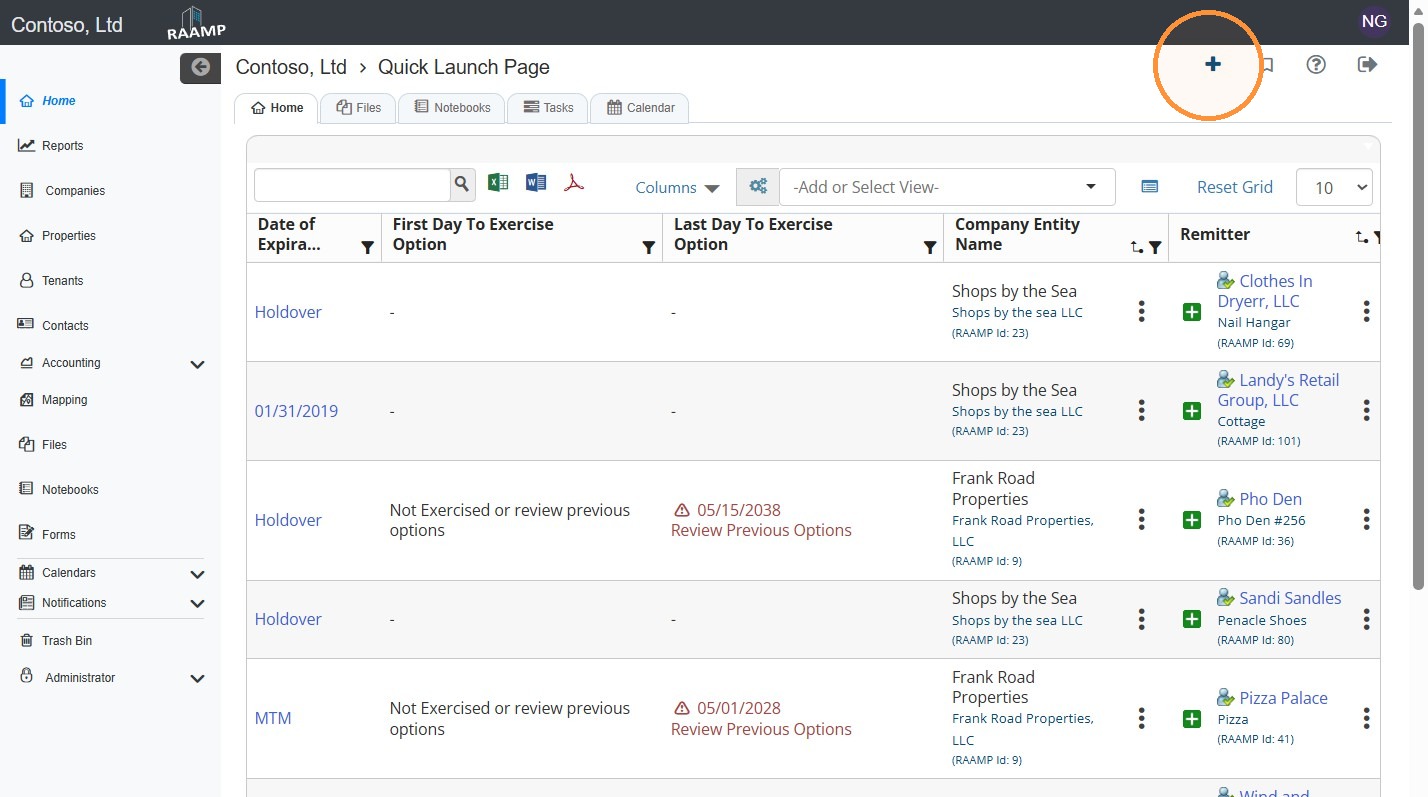
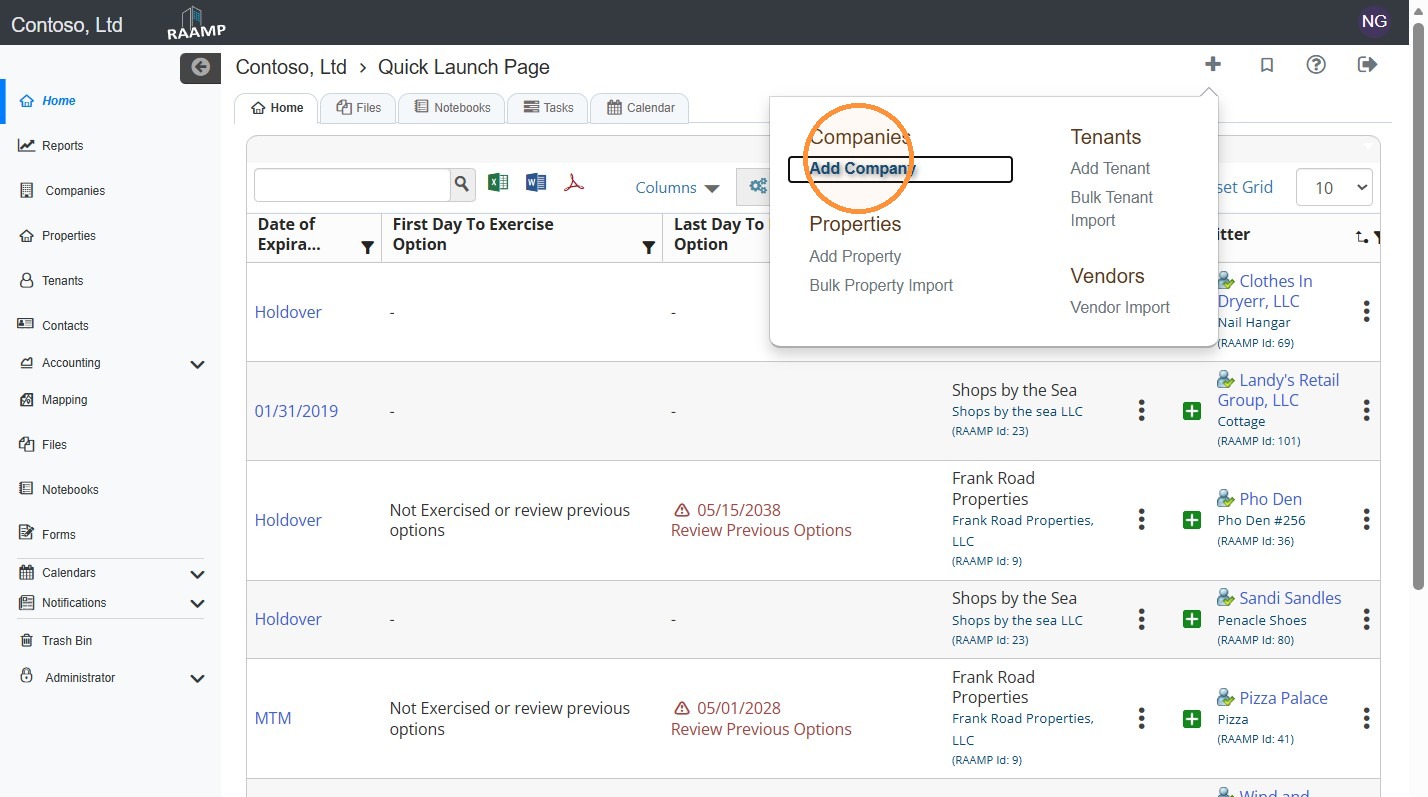
1. From Home, select the + icon in the top right corner > select Add Company.
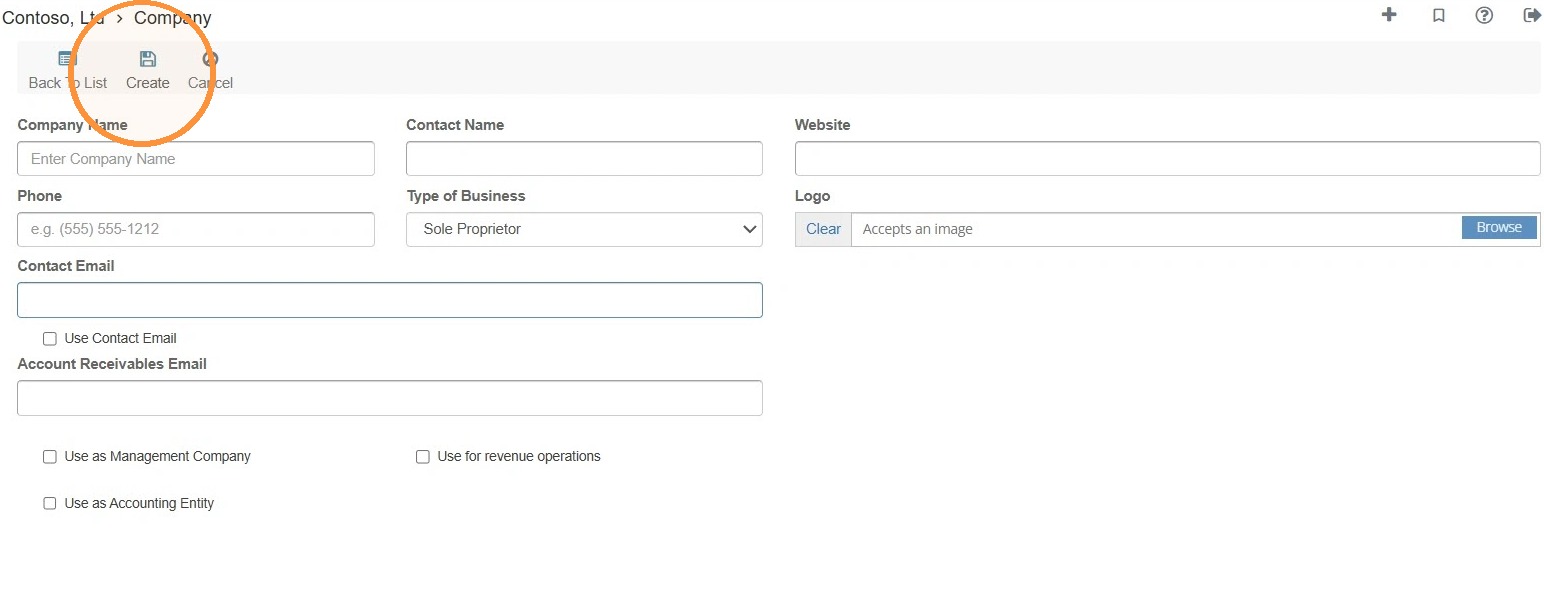
2. Enter the company information > Select Create to save the company.
How to Add a Company
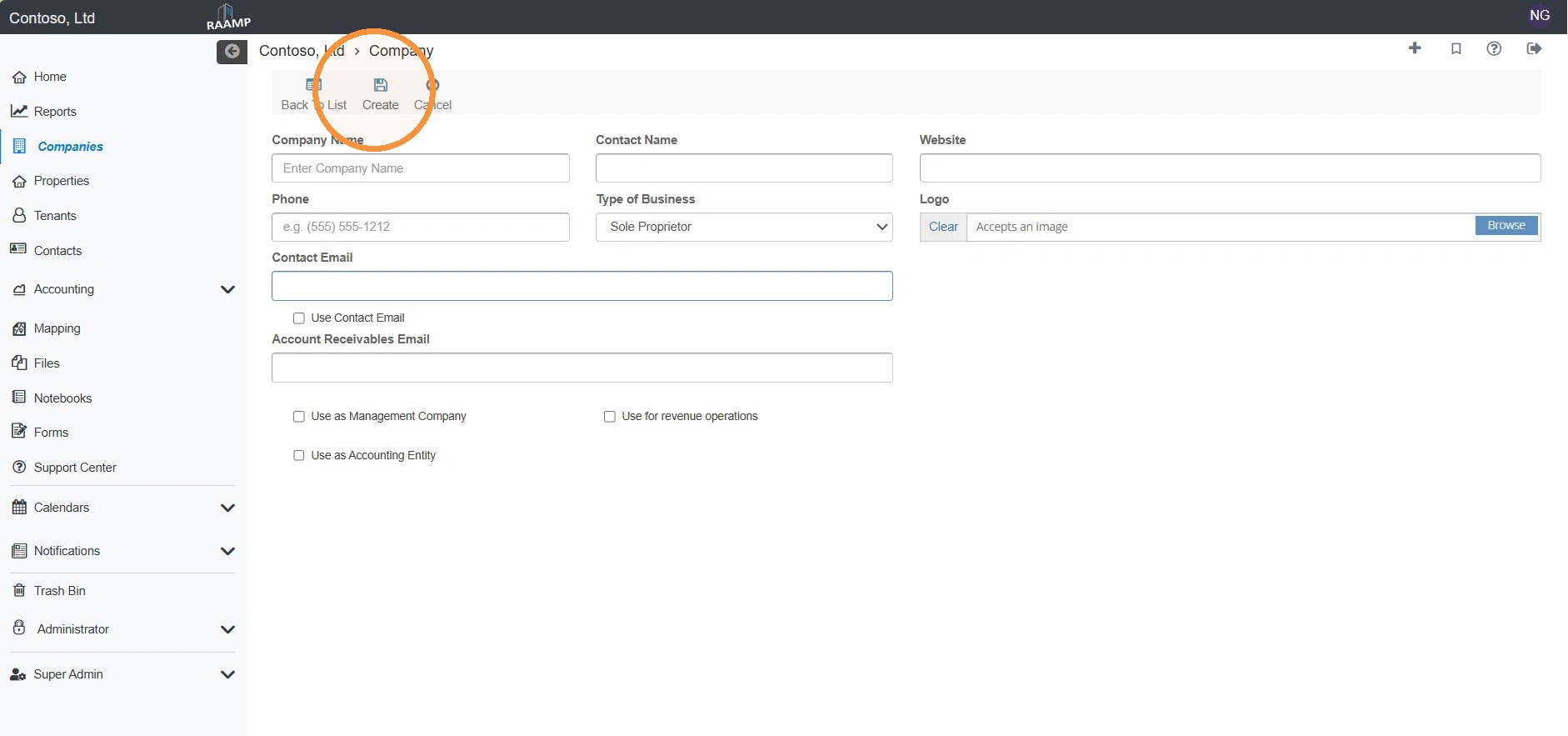
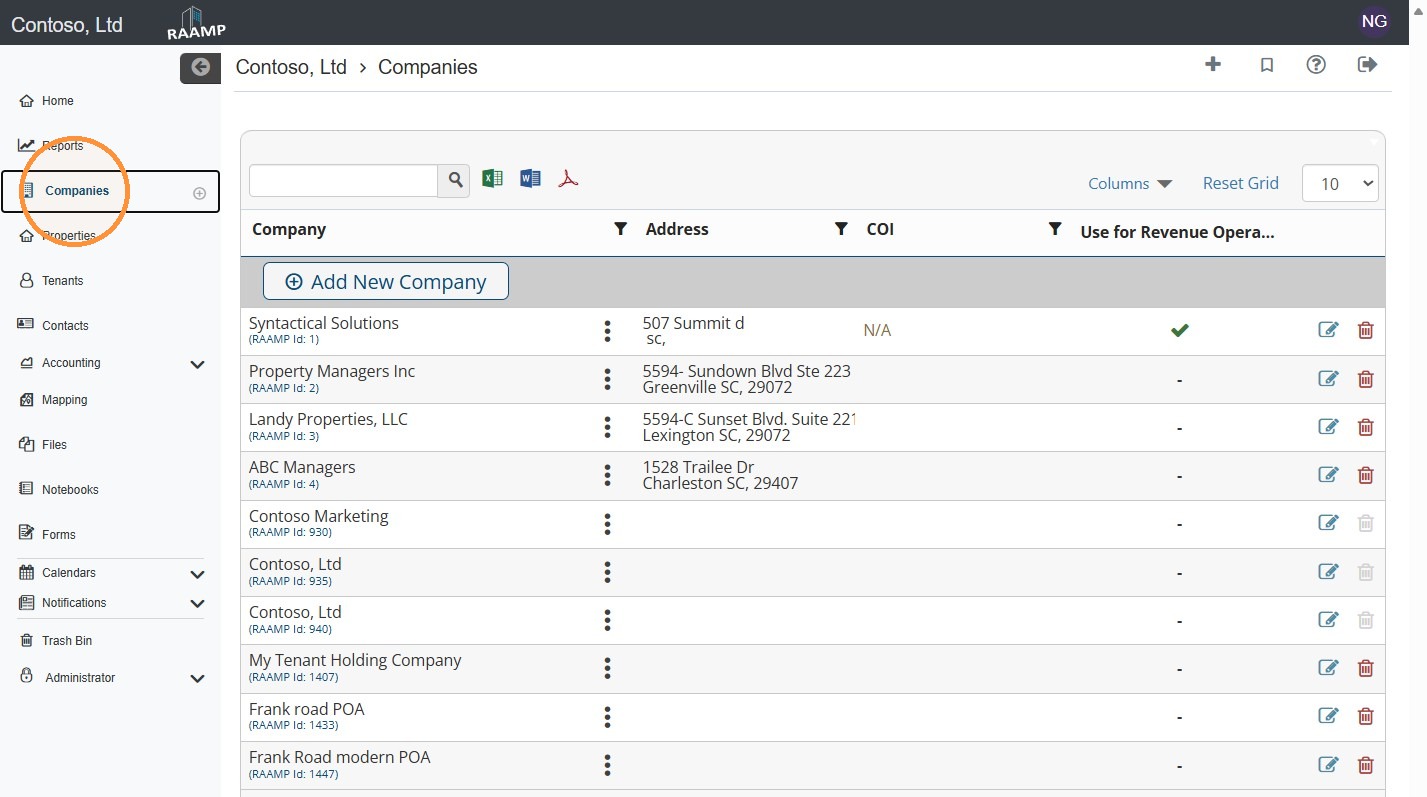
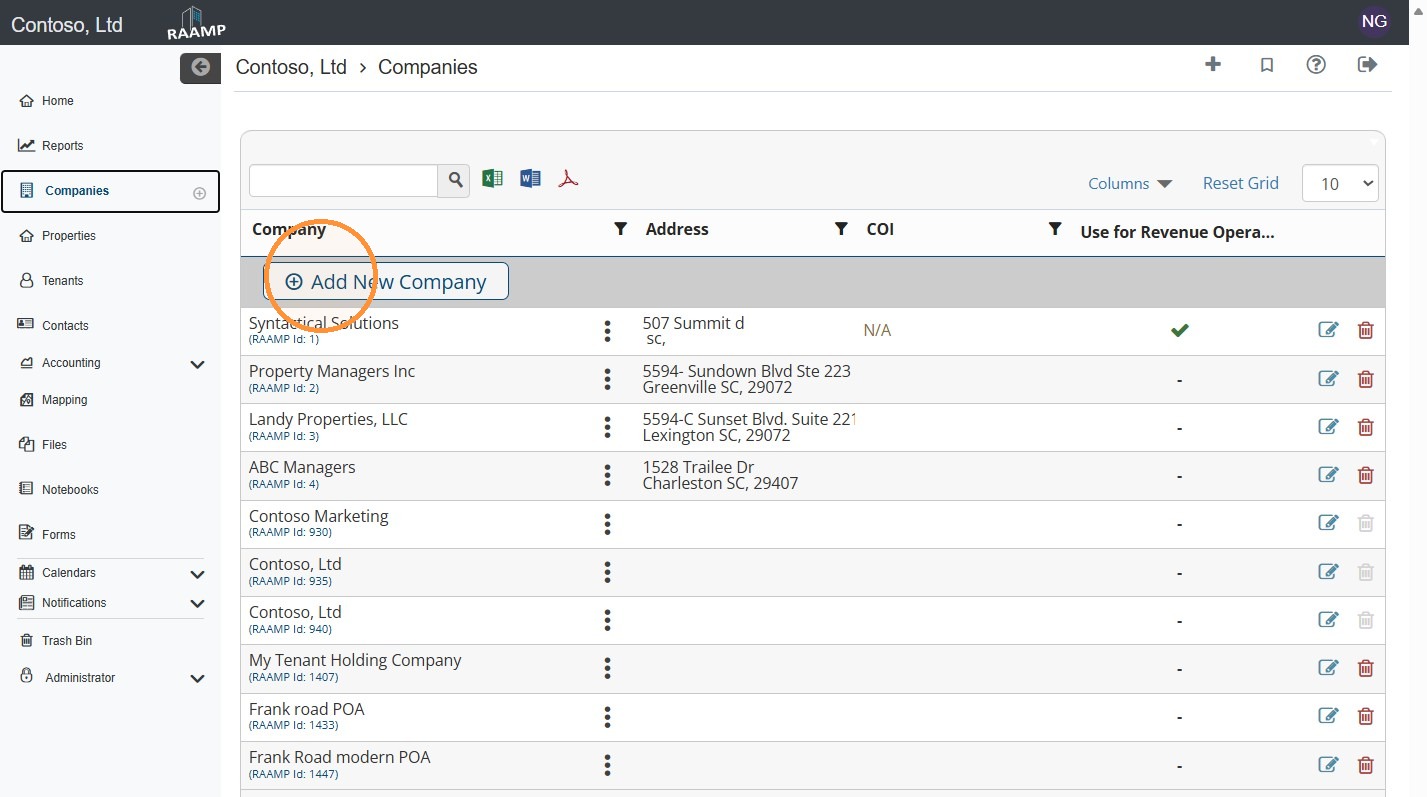
3. From the navigation menu, select Companies > Select Add New Company.
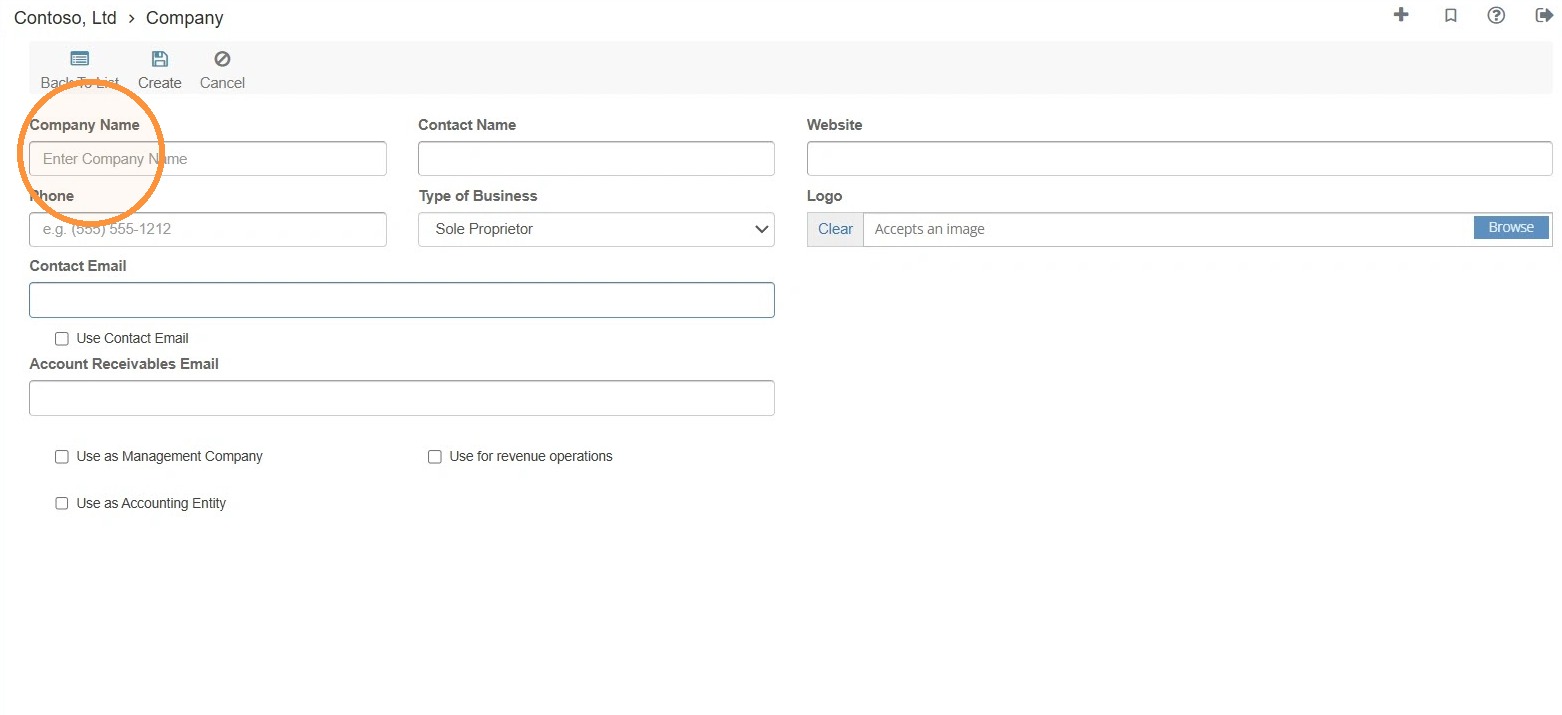
4. Select the Company Name field > Enter your Company's legal name.
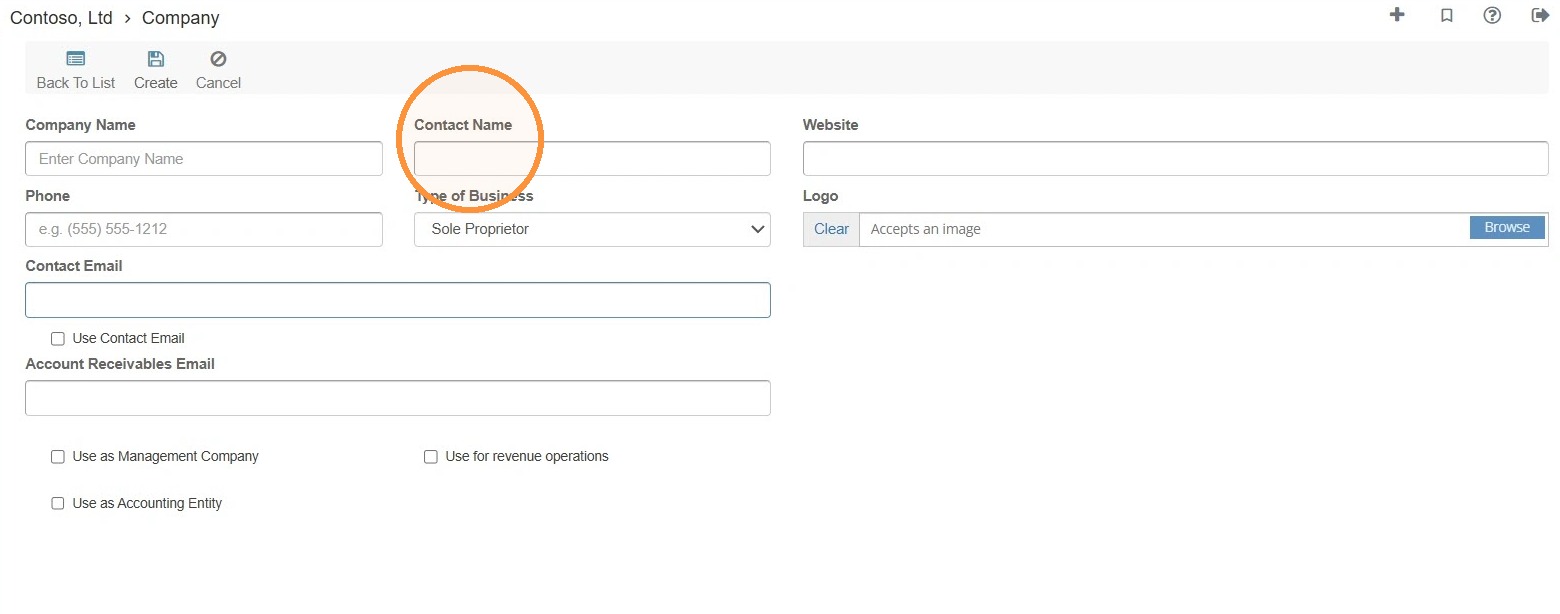
5. Select the Contact Name field > Enter the primary contact's name.
6. Select the Phone field > Enter the phone number.
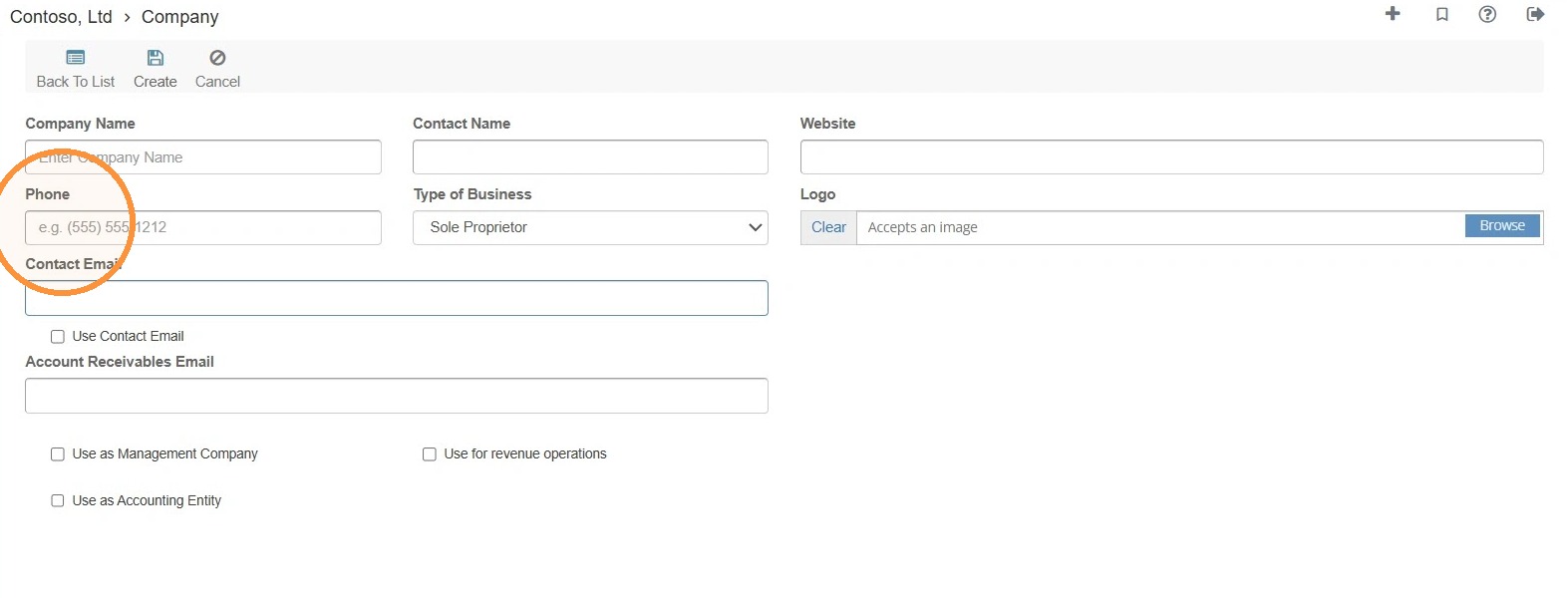
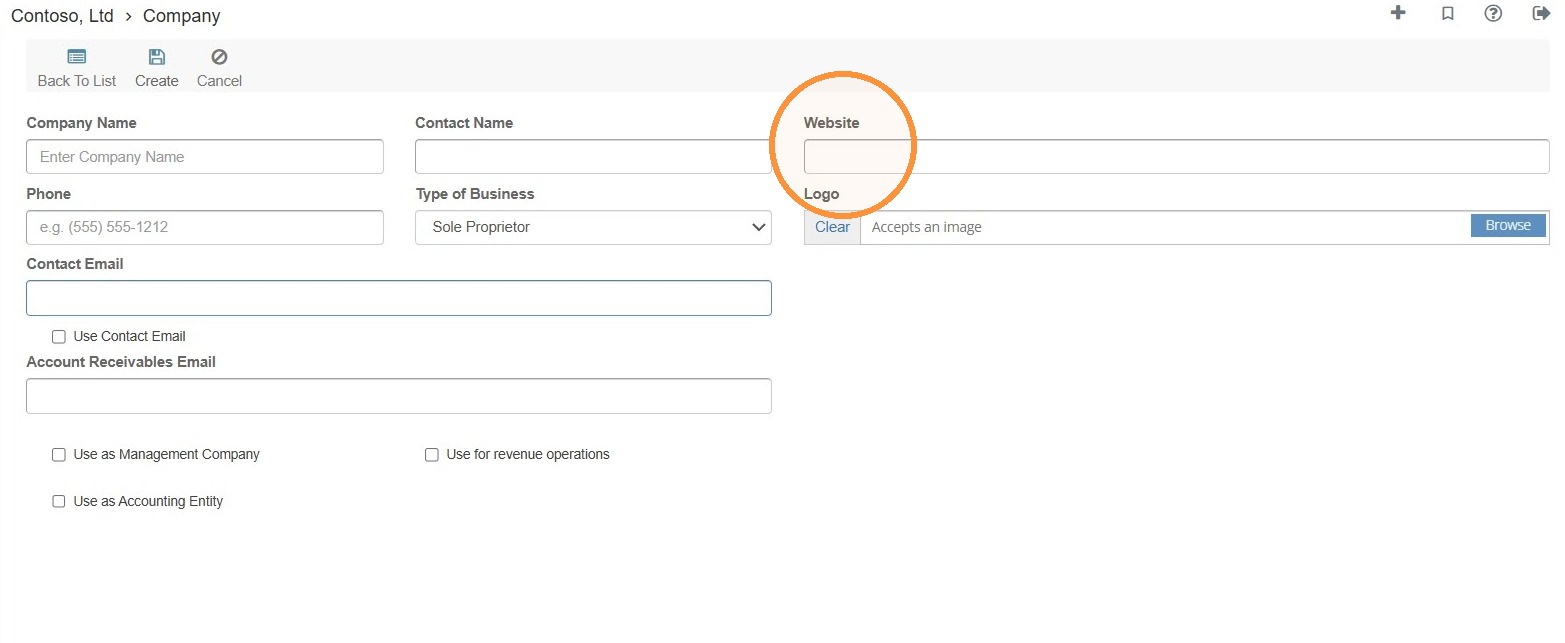
7. Select the Website field > Enter the company's website/URL.
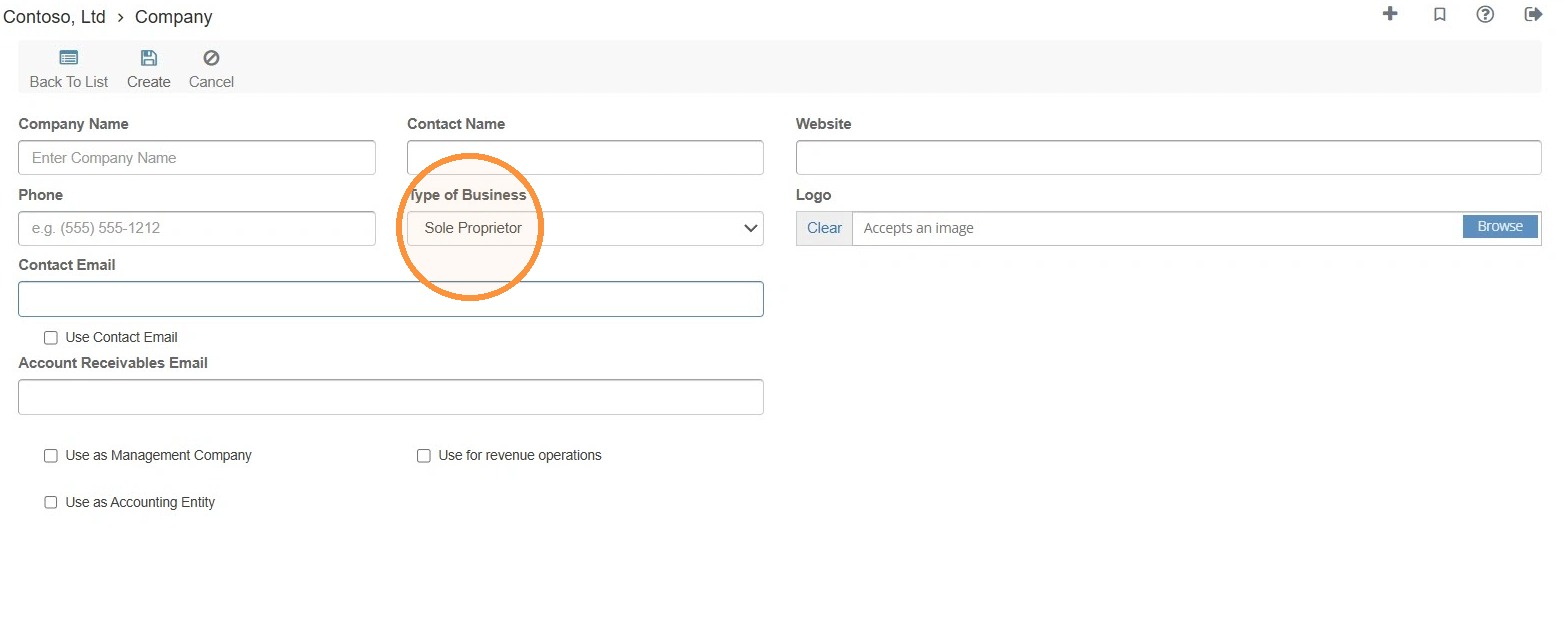
8. Select the Type of Business field > Make the appropriate selection.
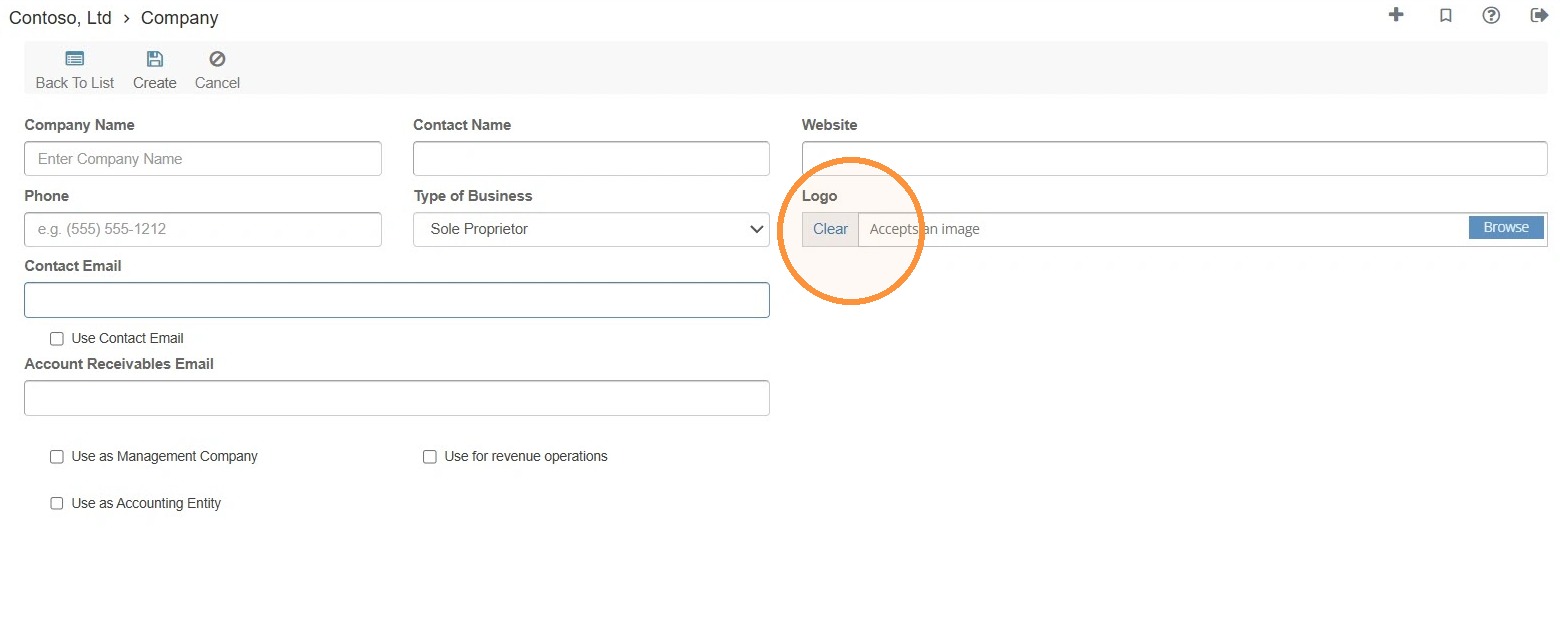
9. Select the Browse to upload a company logo from your computer.
10. Select the Contact Email field > Enter the contact's email.
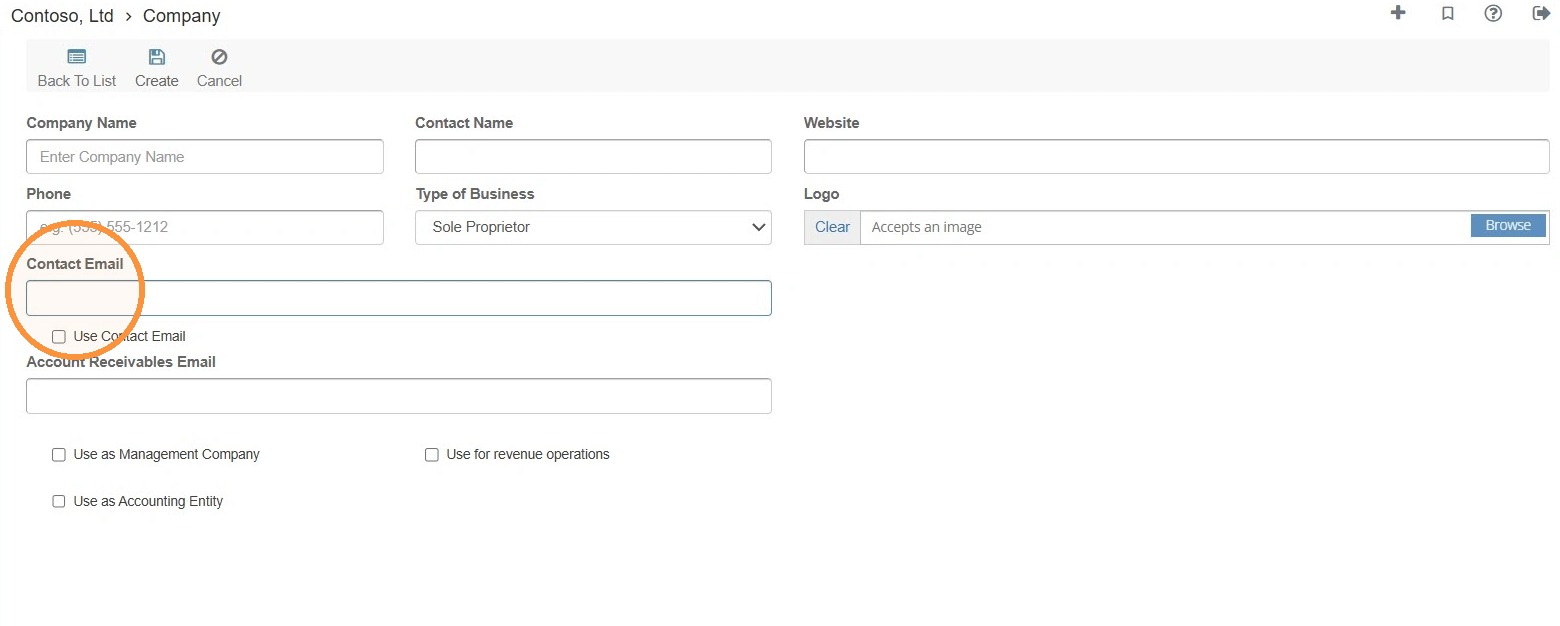
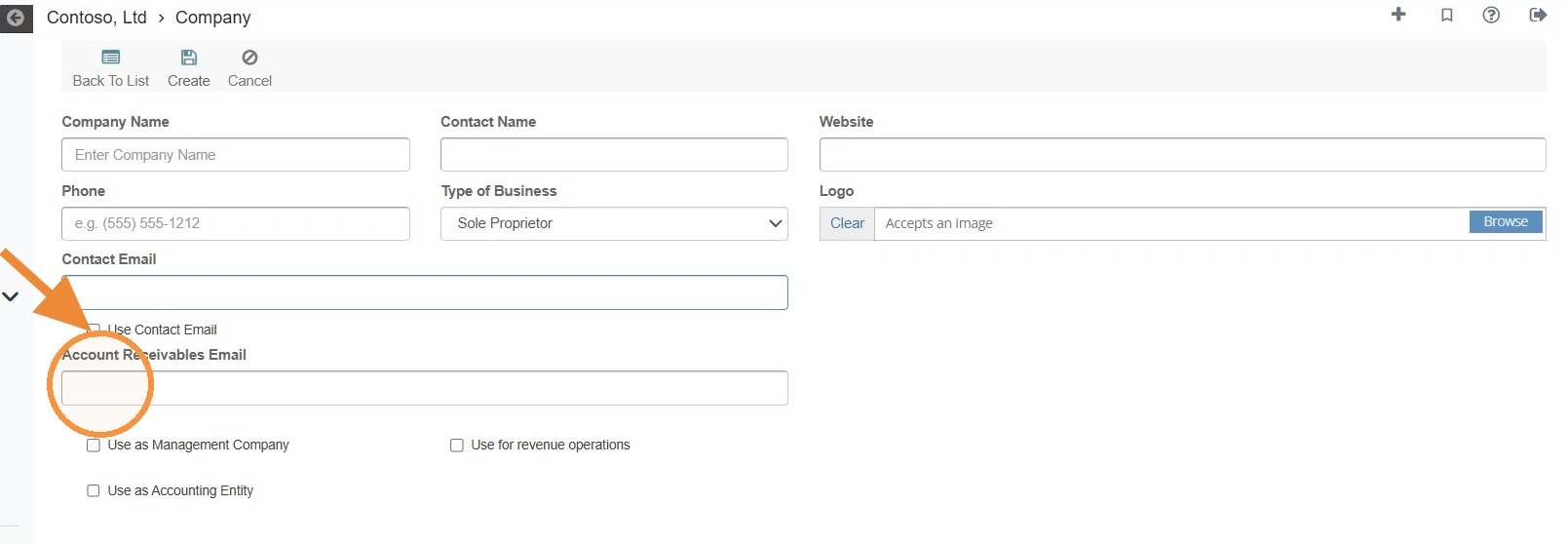
11. If the accounts receivable email is the same as the contact, select the Use Contact Email checkbox.
If the accounts receivable email is different from the contact email, select the Accounts Receivable Email field > Enter the Accounts Receivable email.
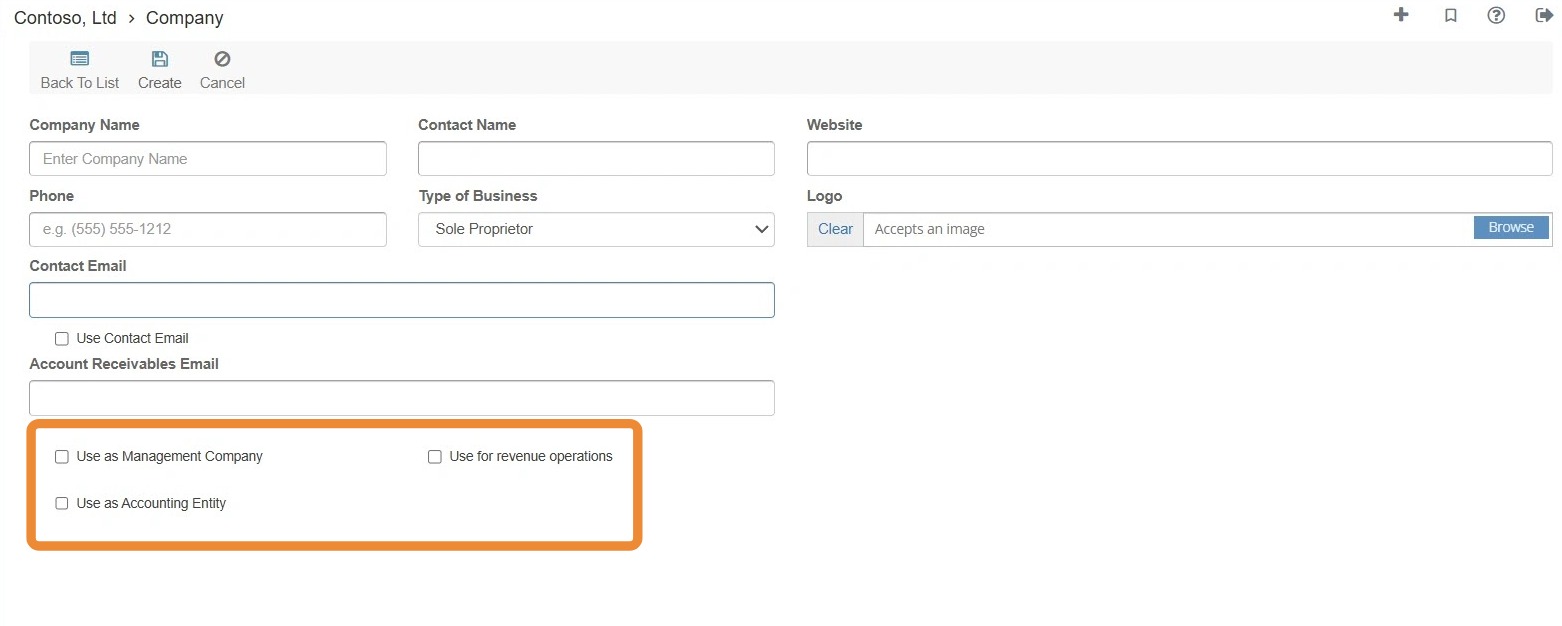
12. Select the appropriate box(es) for the Company.
Management Company - Choose this if the company manages properties. The company becomes available to select as the management company for properties and invoices in RAAMP. This allows RAAMP to use the company’s information, such as its logo and contact details, on associated invoices.
Accounting Entity - Choose this option when you need to manage company-level accounting. This allows you to perform accounting for a company in the same way you would for a property.
Revenue Operations - This option applies solely to franchisors who wish to collect revenue from their franchisees.
13. Select Create.