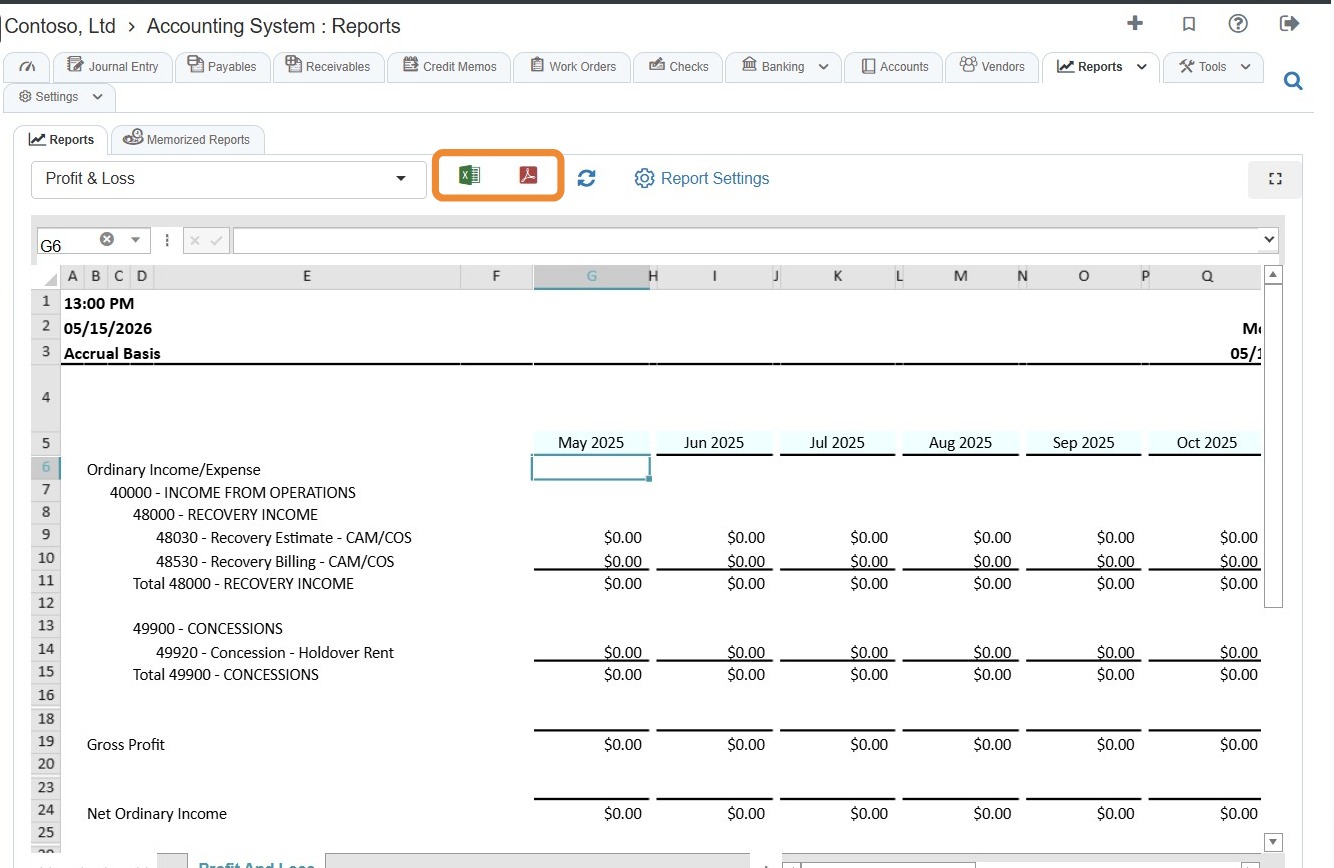
How to Generate a P&L Report with Cash Flow Details
This guide quickly shows how to produce a Profit & Loss report that also includes cash-flow details so you can review both profitability and liquidity together. It walks you through where to find the report, enable the cash-flow option, and export to Excel or PDF—saving time and ensuring the report matches your access and customizations.
How to Generate P&L Report with Cash Flow
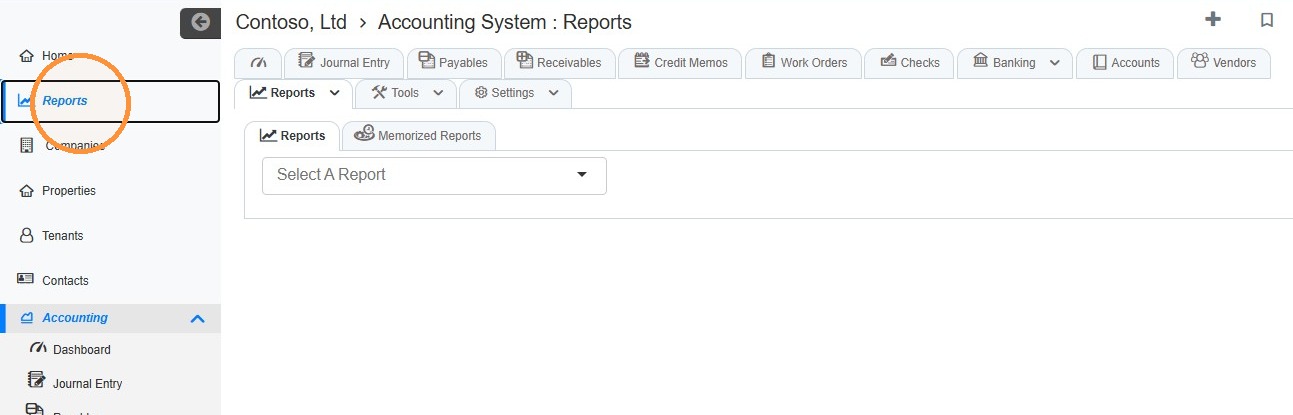
1. From the navigation menu, select Reports.
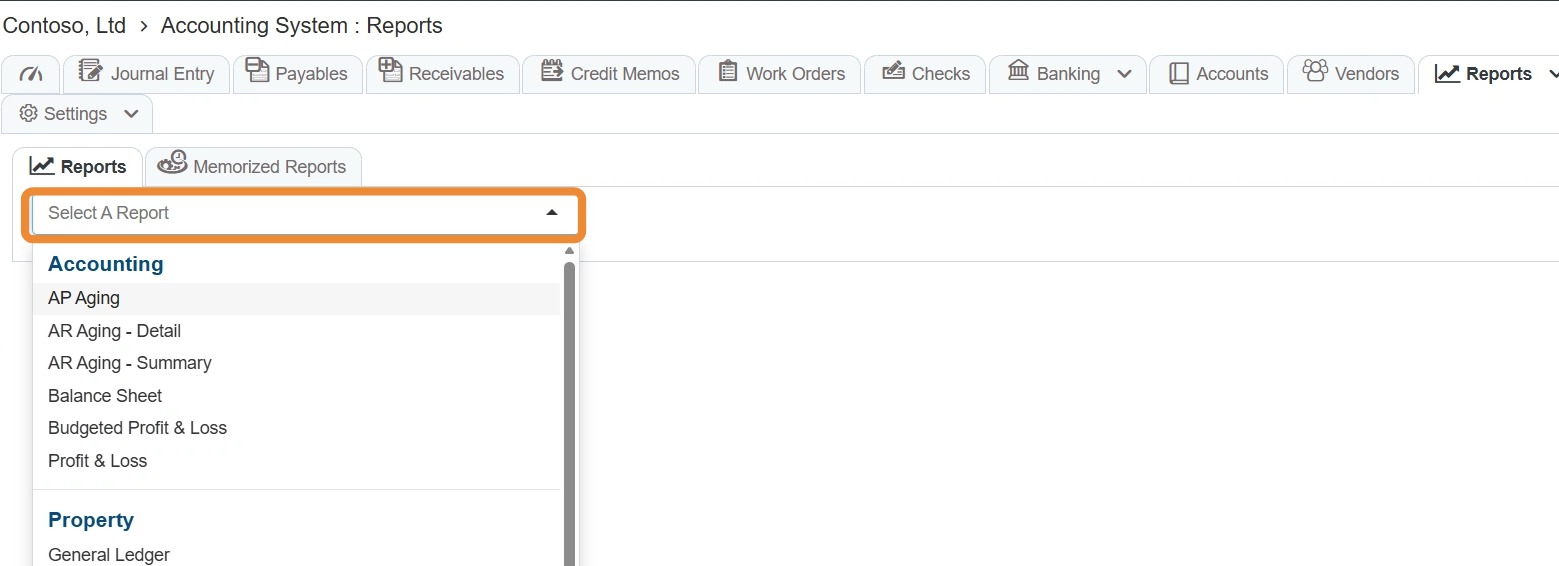
2. Select the Select a Report dropdown.\ \ NOTE: Your dropdown options may have different Reports based on your access or any custom reports the RAAMP team builds for you.
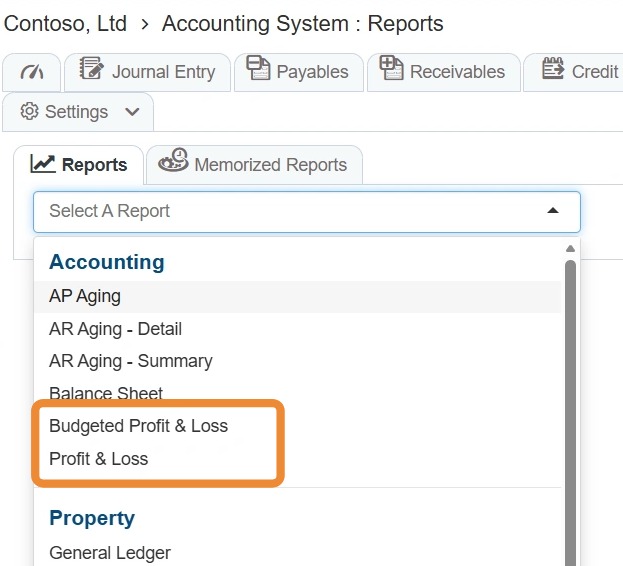
3. Select Budgeted Profit & Loss or Profit & Loss.
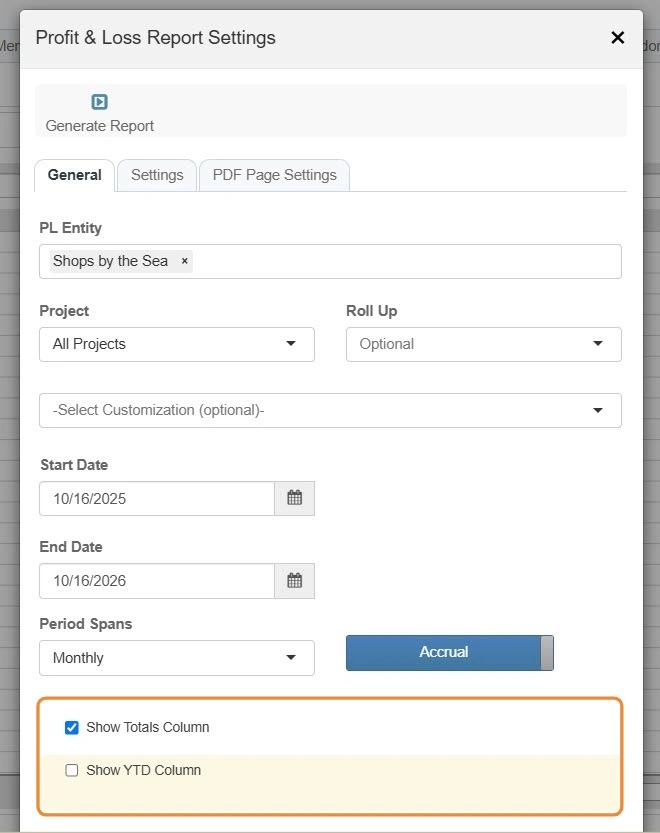
4. Complete the settings for your preferences.
Select the Show Totals Column and Show TYD Column checkbox(es) for the information to appear on your report.
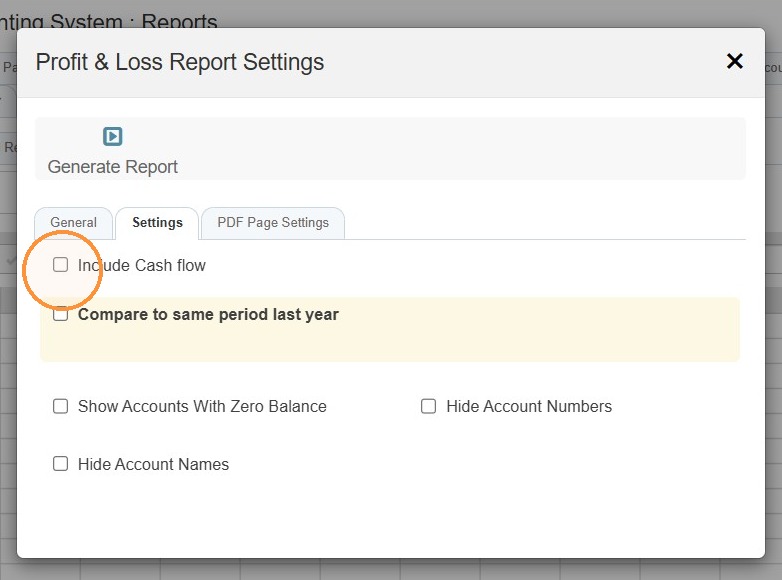
5. Select the Settings tab > Select the Include Cash flow checkbox.
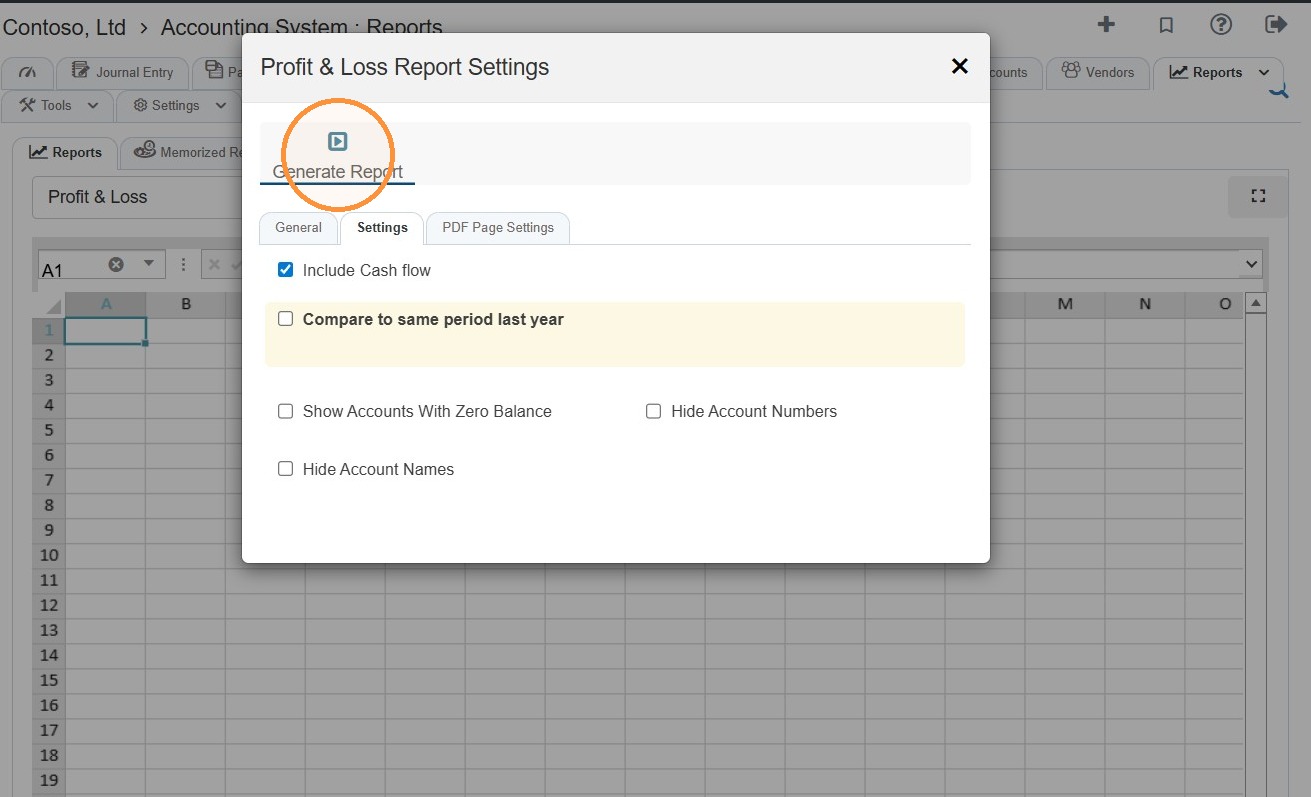
6. Select Generate Report.
7. To export, select the icon corresponding to your preferred file type (Excel or PDF).