How to Apply a Credit Memo when Receiving Payment
This guide shows how to apply credits directly while recording a received payment so you don’t have to post separate adjustments later. It walks you through opening the Receive Payment screen, choosing the correct company/property and tenant, selecting invoices, and applying full or partial credit memos to reduce the outstanding balance. It also explains how to change the entity type if you selected the wrong payer.
How to Access Receive Payment Screen
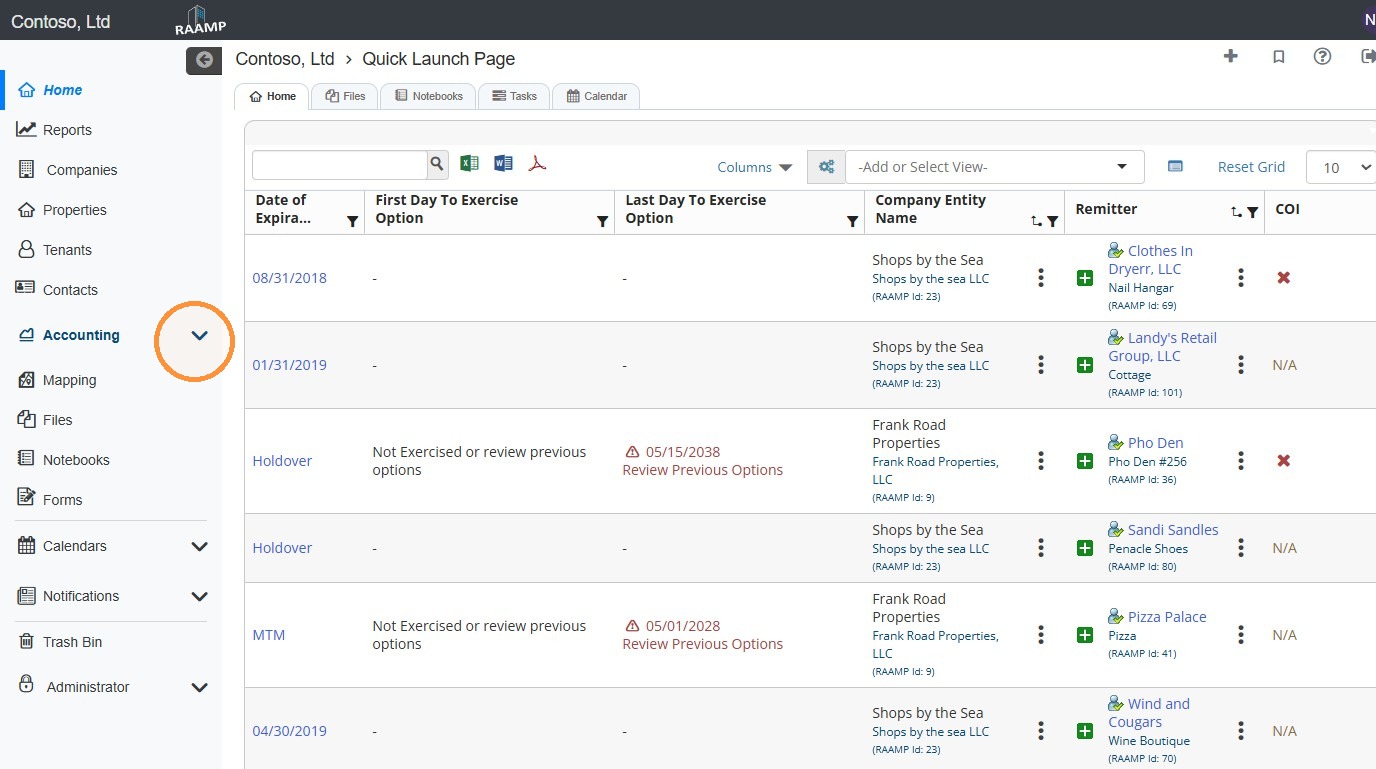
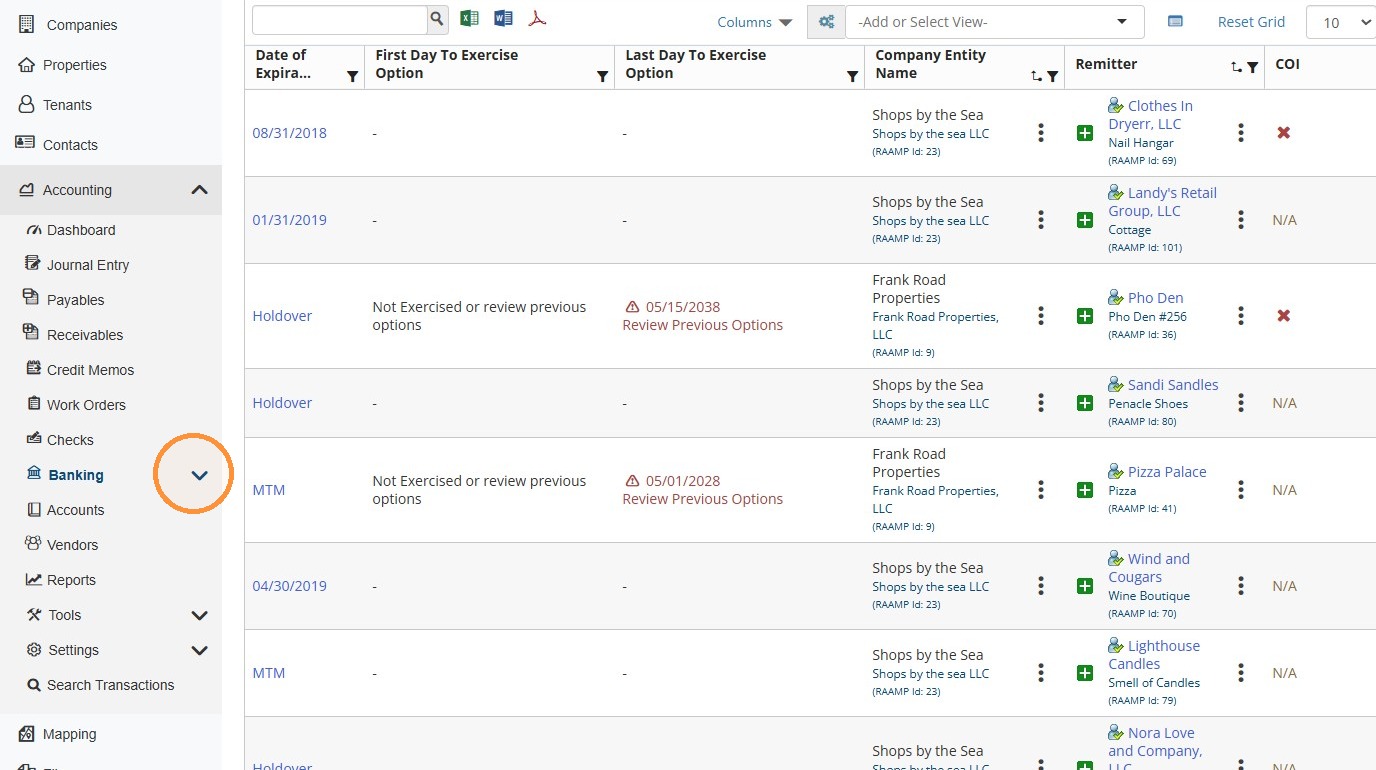
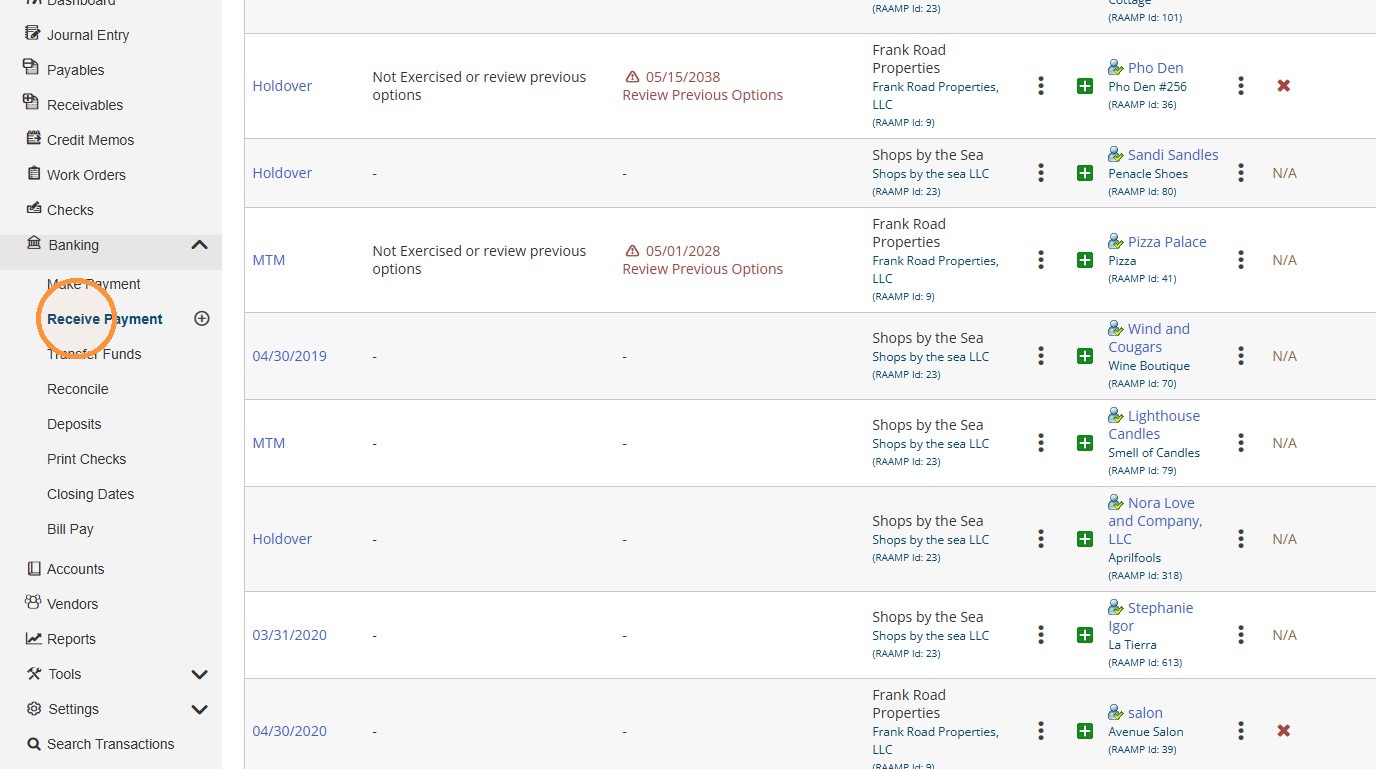
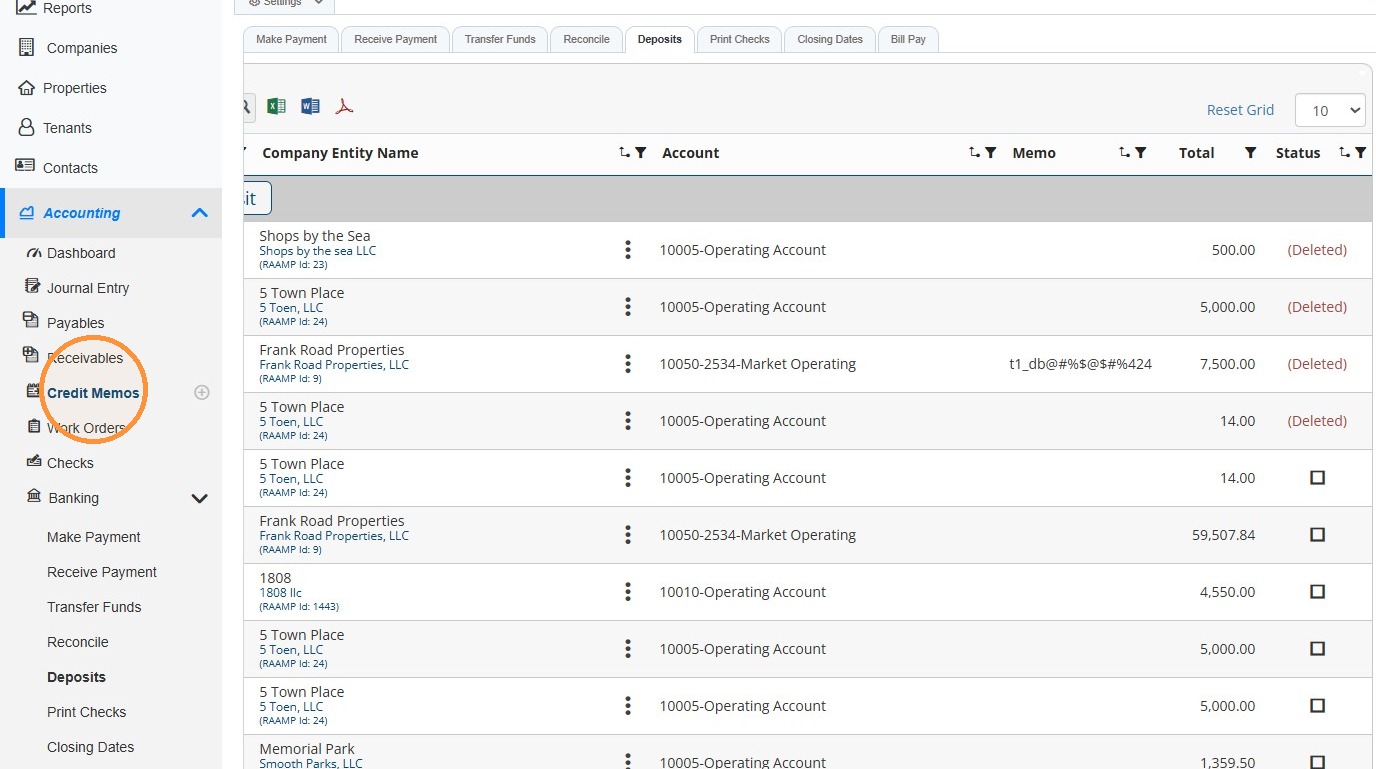
1. From the navigation menu, select Accounting > Banking > Receive Payment.
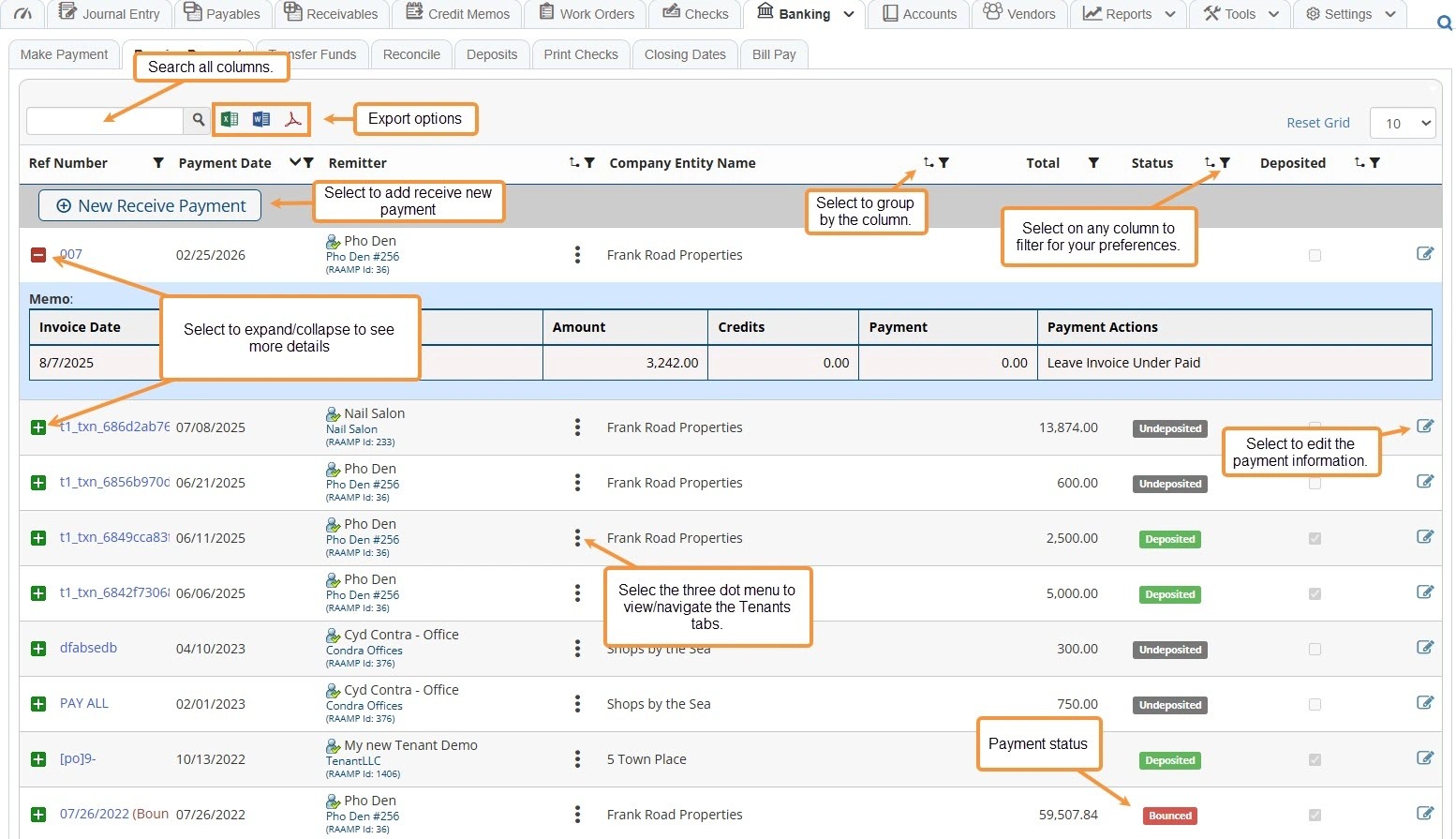
Receive Payment Overview
2. Receive Payment Screen Overview
How to Apply Credit when Receiving Payment
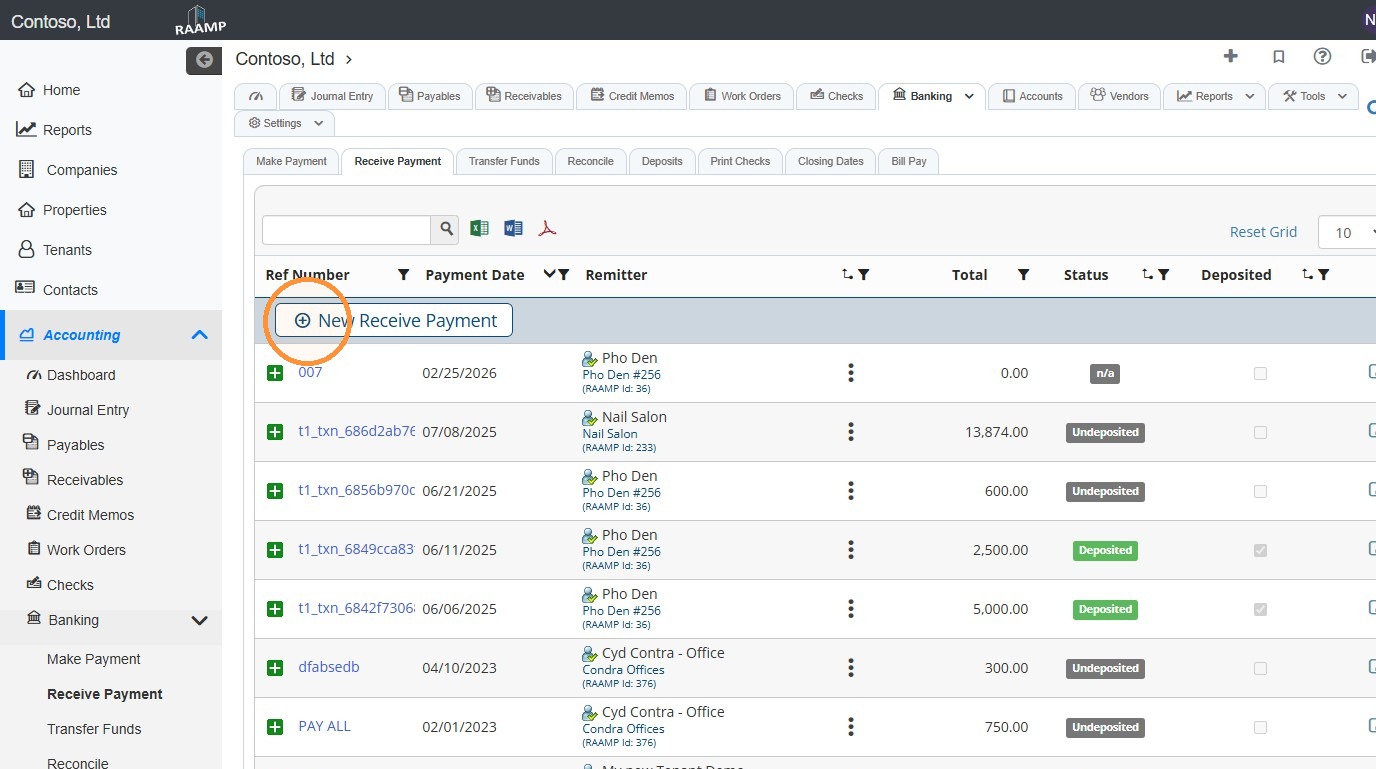
3. Select New Receive Payment.
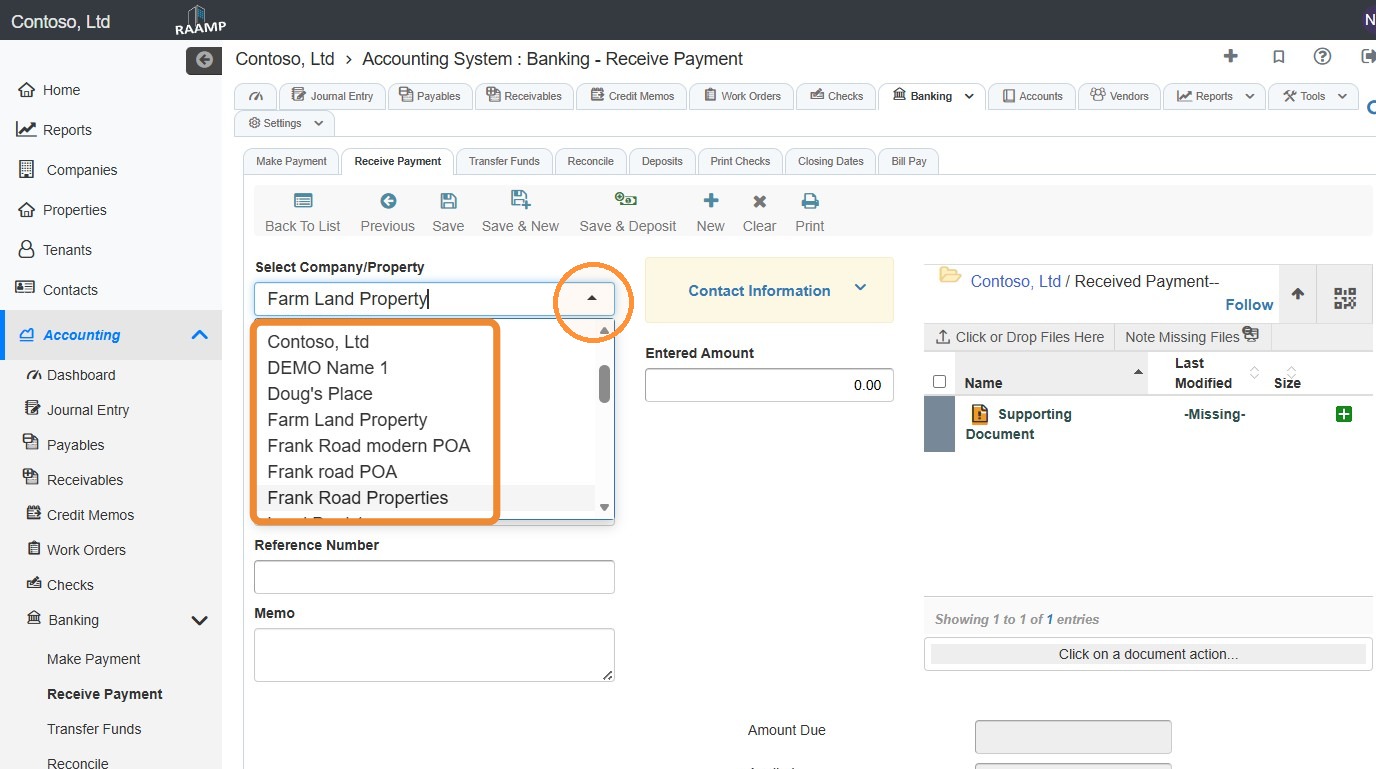
4. Select the Company/Property field and choose the preferred company/property from the dropdown.
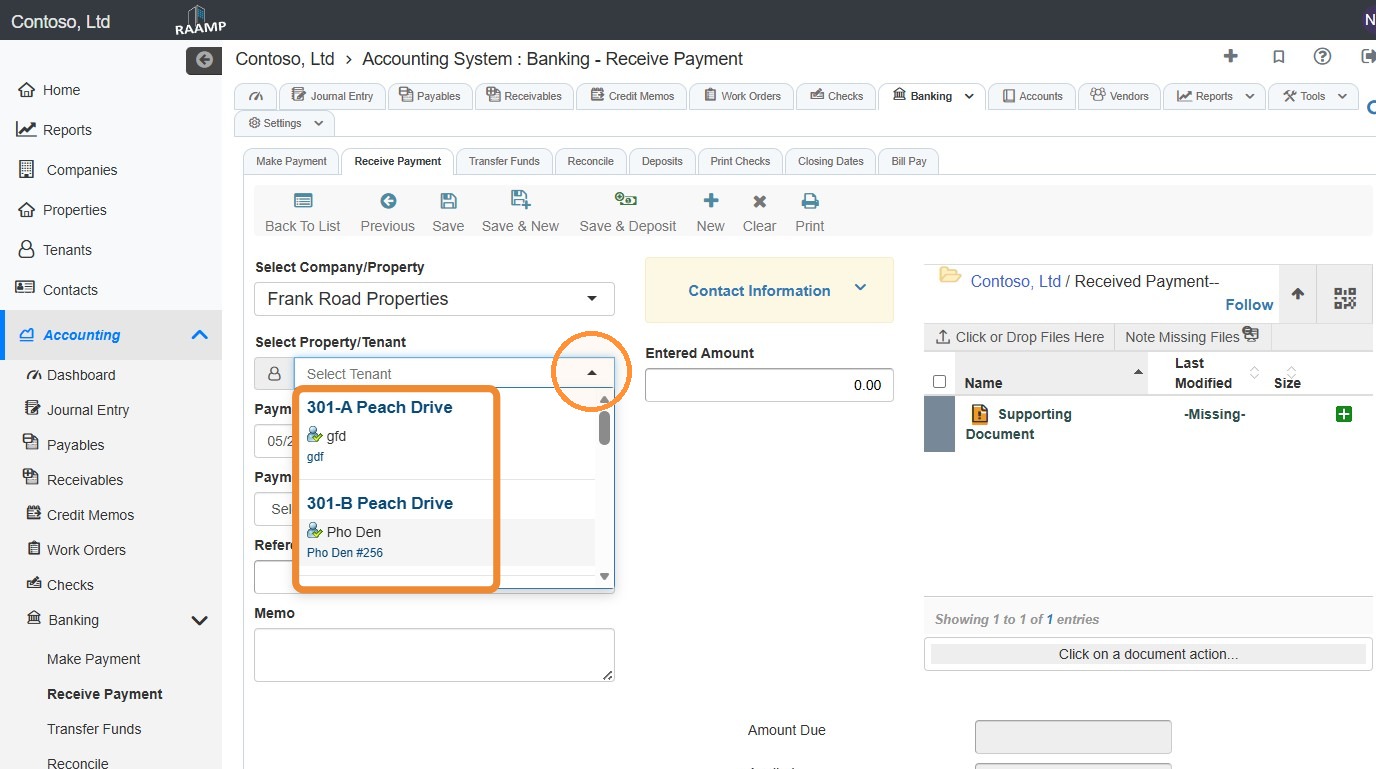
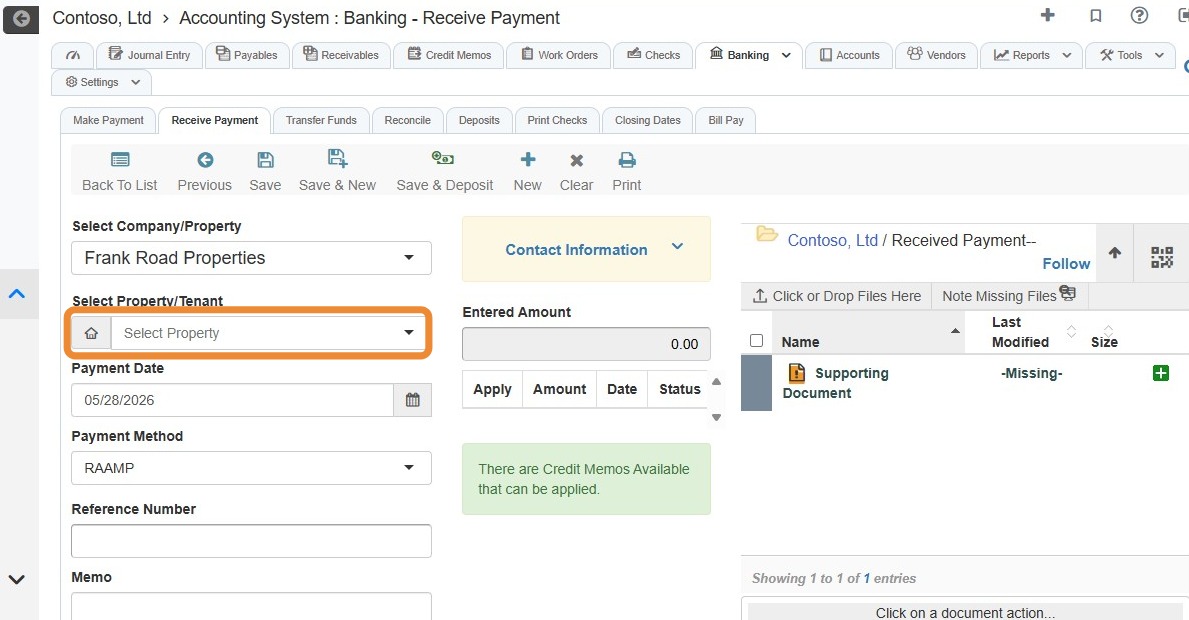
5. Select the preferred tenant from the Property/Tenant dropdown.
If you need to change the entity type, see steps 6-7.
If you do not need to change the entity type, skip to step 8.
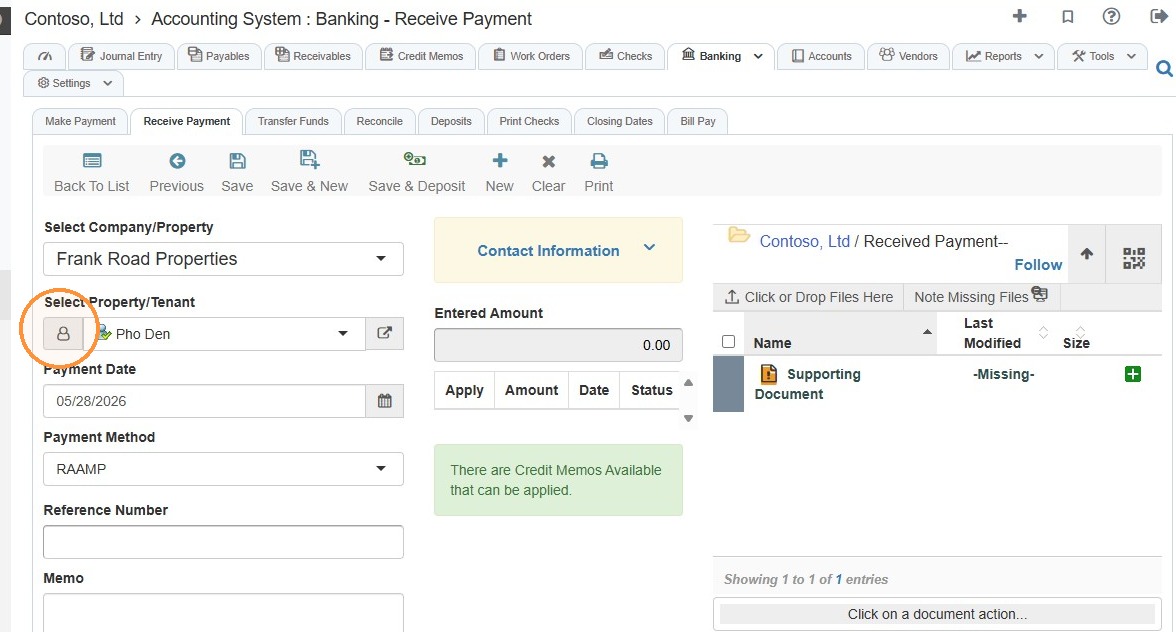
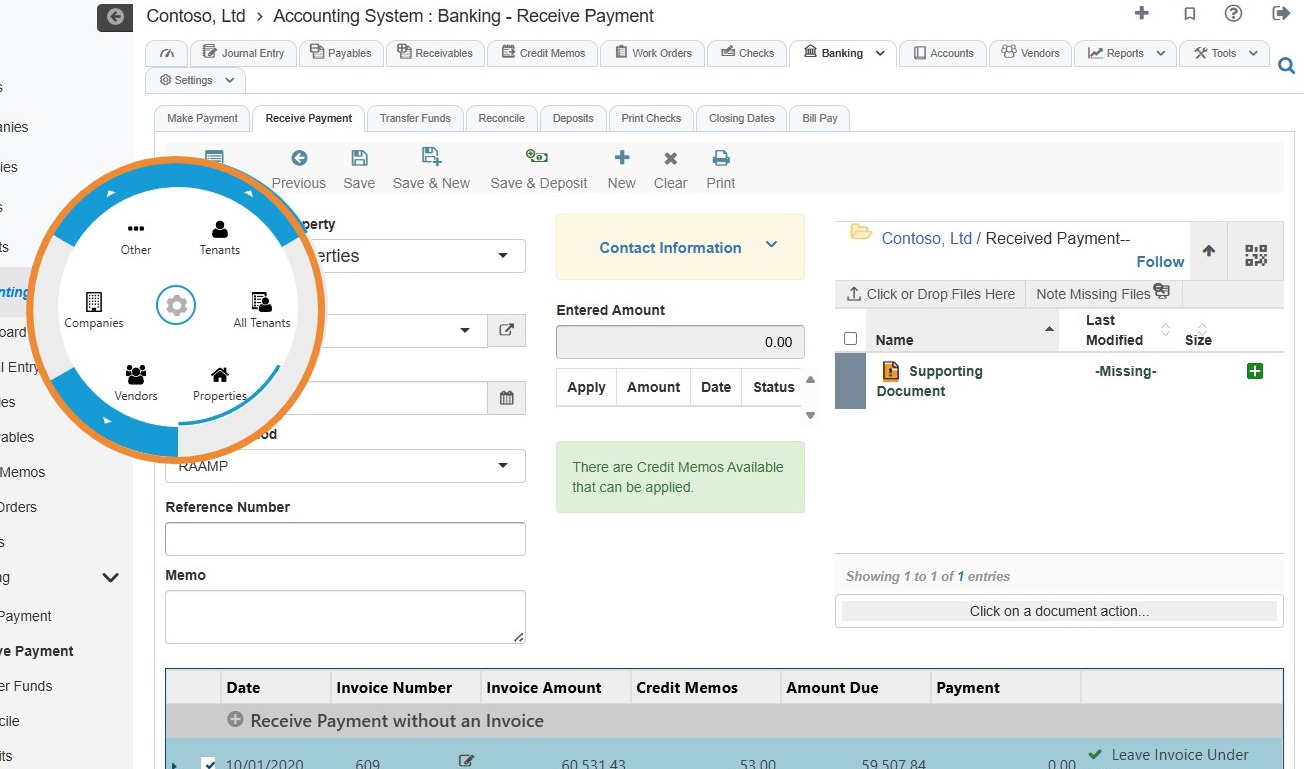
6. Select the Property/Tenant icon.
7. Choose the entity type from the radial menu.
For example, if you want to pay a property, select Properties.
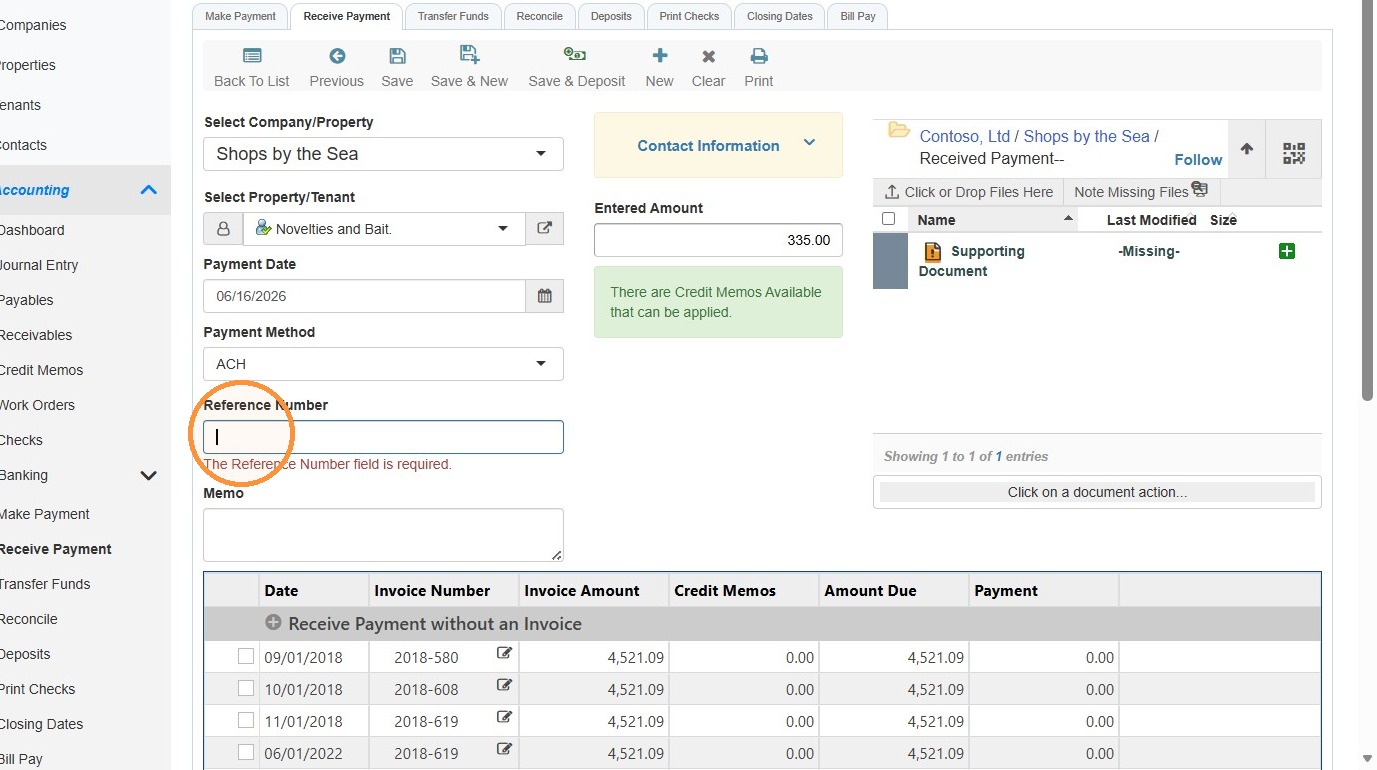
8. Select the Reference Number field > Enter the Reference Number.
NOTE: The reference number is required to save the received payment.
9. Select the checkbox for the invoice you'd like to apply the credit to > Select the credit memo field.
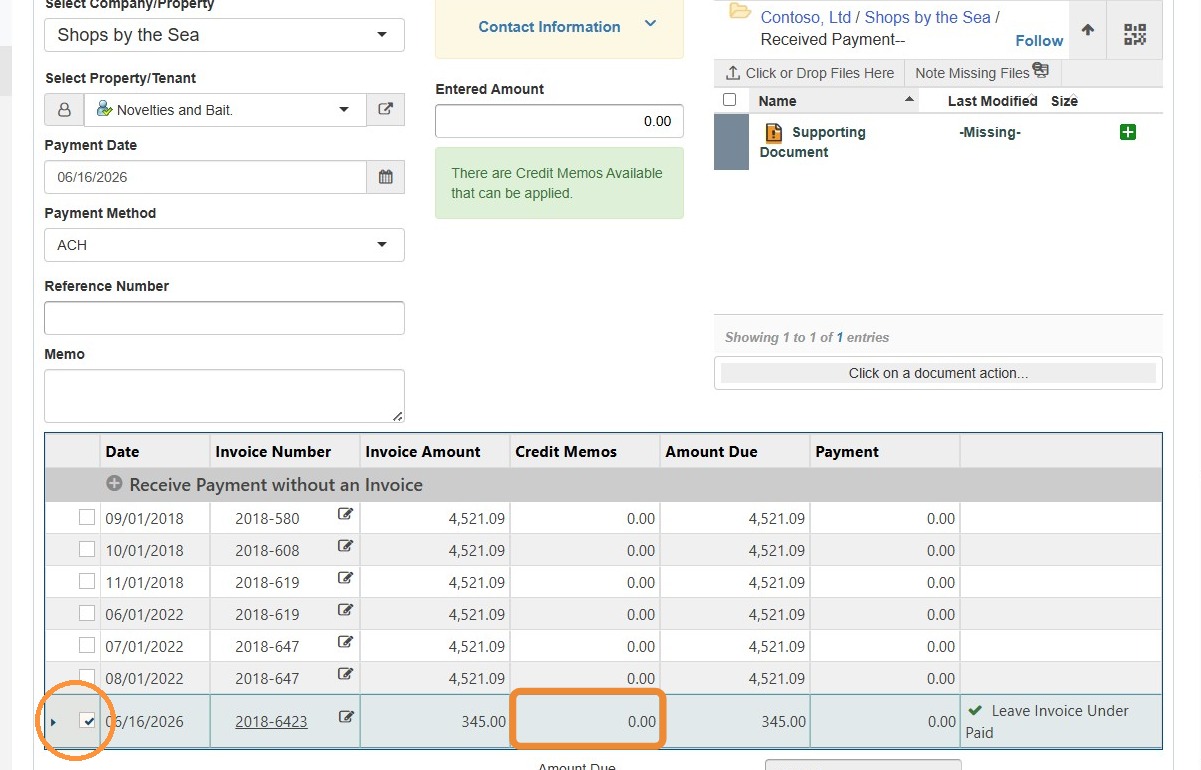
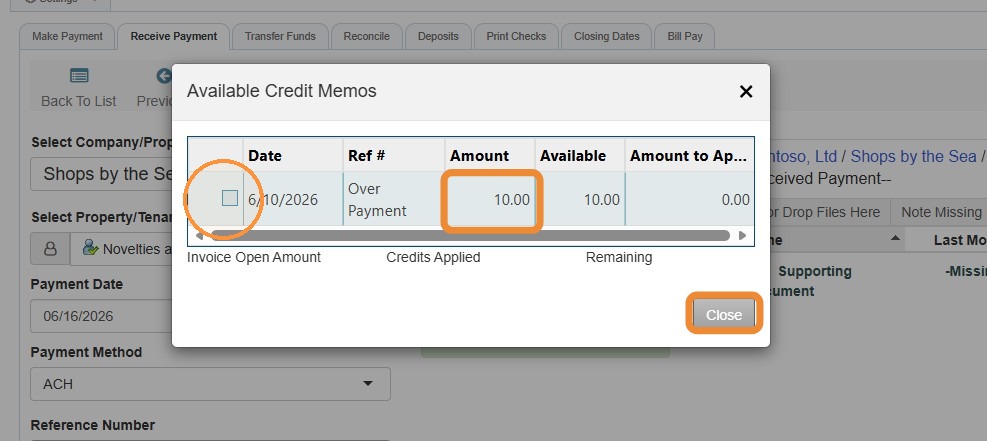
10. Select the checkbox for the credit you want to apply.
Select the Amount to Apply field > Enter the credit amount to apply.
You can apply a full or partial credit amount.
Select Close to return to the payment form.
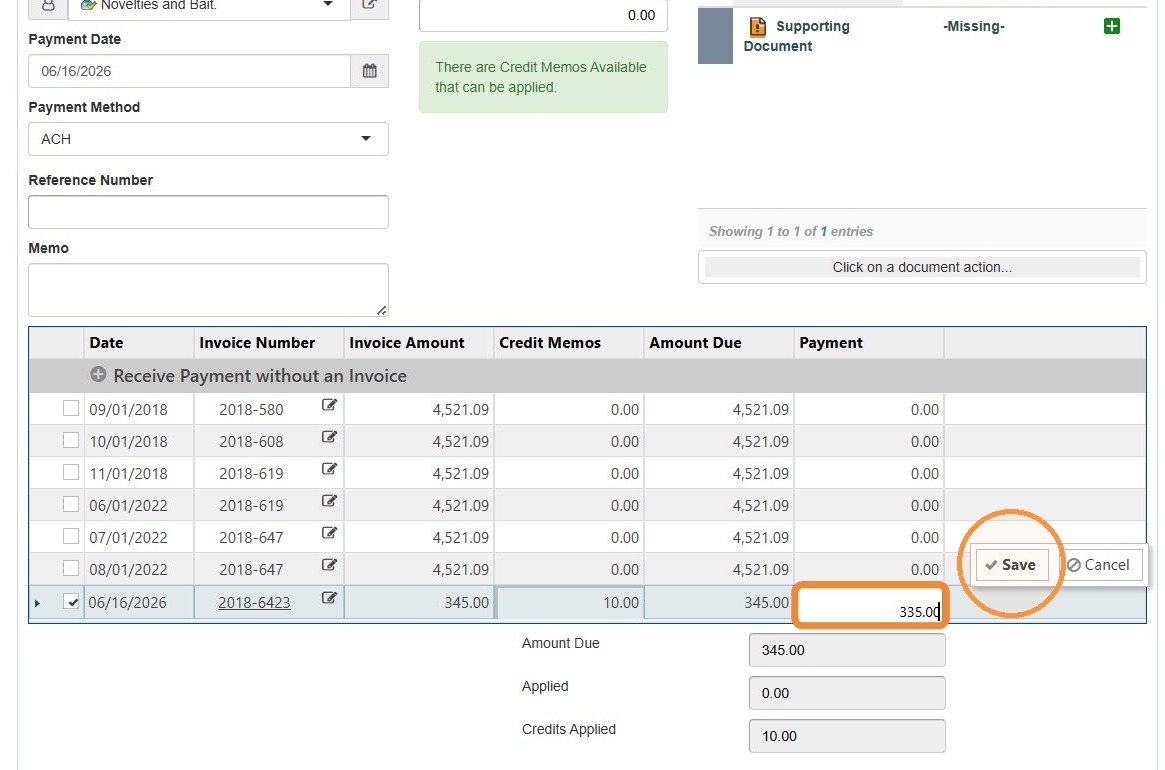
11. Select the payment field > Enter the payment amount > Select Save.
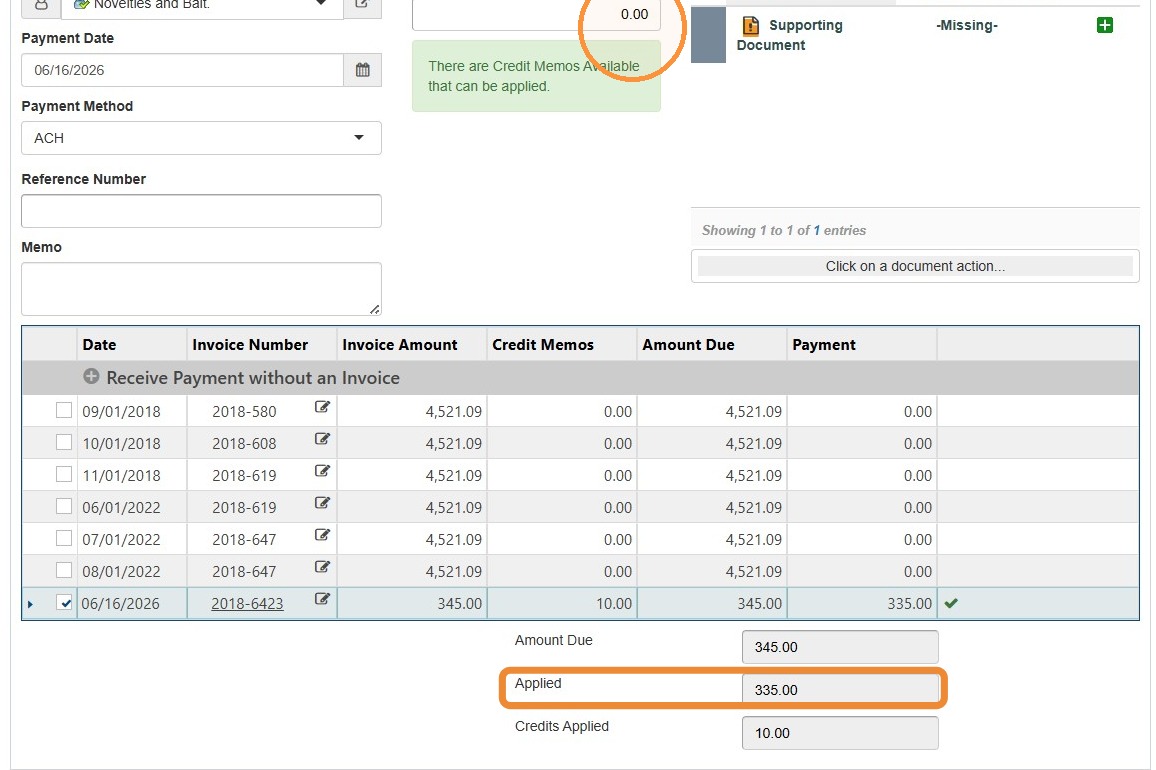
12. Select the Entered Amount field > Enter the amount applied.
NOTE: THE ENTERED AMOUNT AND AMOUNT APPLIED MUST BE EQUAL.
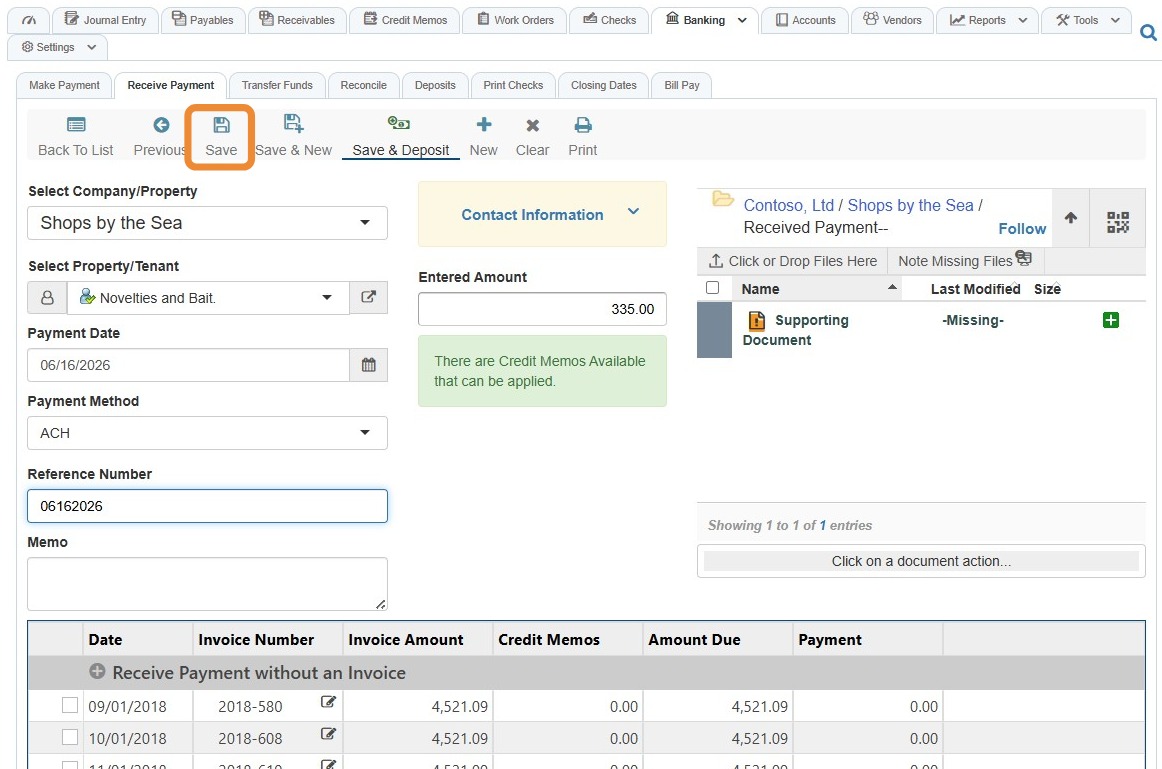
13. Select Save.
If you are ready to deposit the received payment, select Save & Deposit. See .
Confirm Applied Credit Memo
14. From the navigation menu, select Credit Memos.
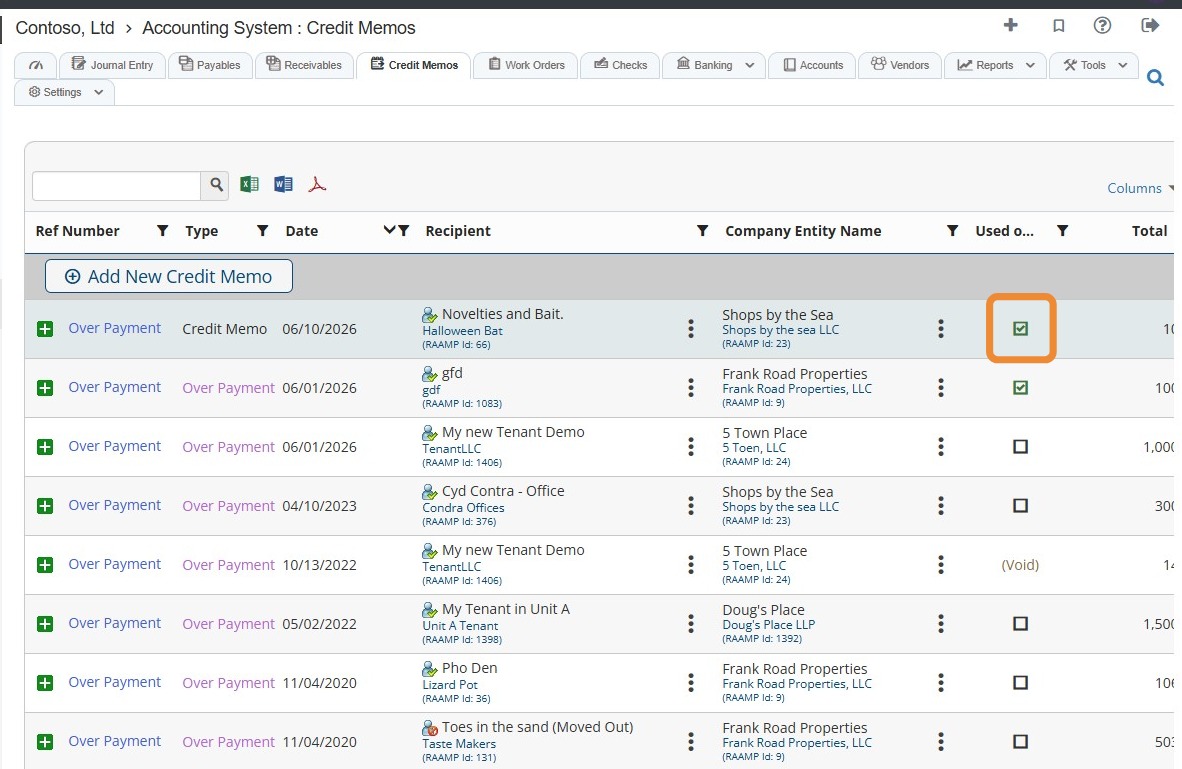
15. Locate the credit memo you just applied > The status box will be checked.
Related Tutorial(s):