Tenants
This guide shows how to quickly access and use the Tenants page to find property-specific tenant information and perform common tasks. It explains navigating tenant tabs (Basic Terms, Financial, Provisions, Premises, TI Allowance, Abstract, Files, Notebook, Contacts, Tenant Users, and Accounting) so you can view/edit lease details, manage finances, upload files, add contacts/users, and handle invoicing and compliance. Follow it to streamline tenant management.
Tenants Overview
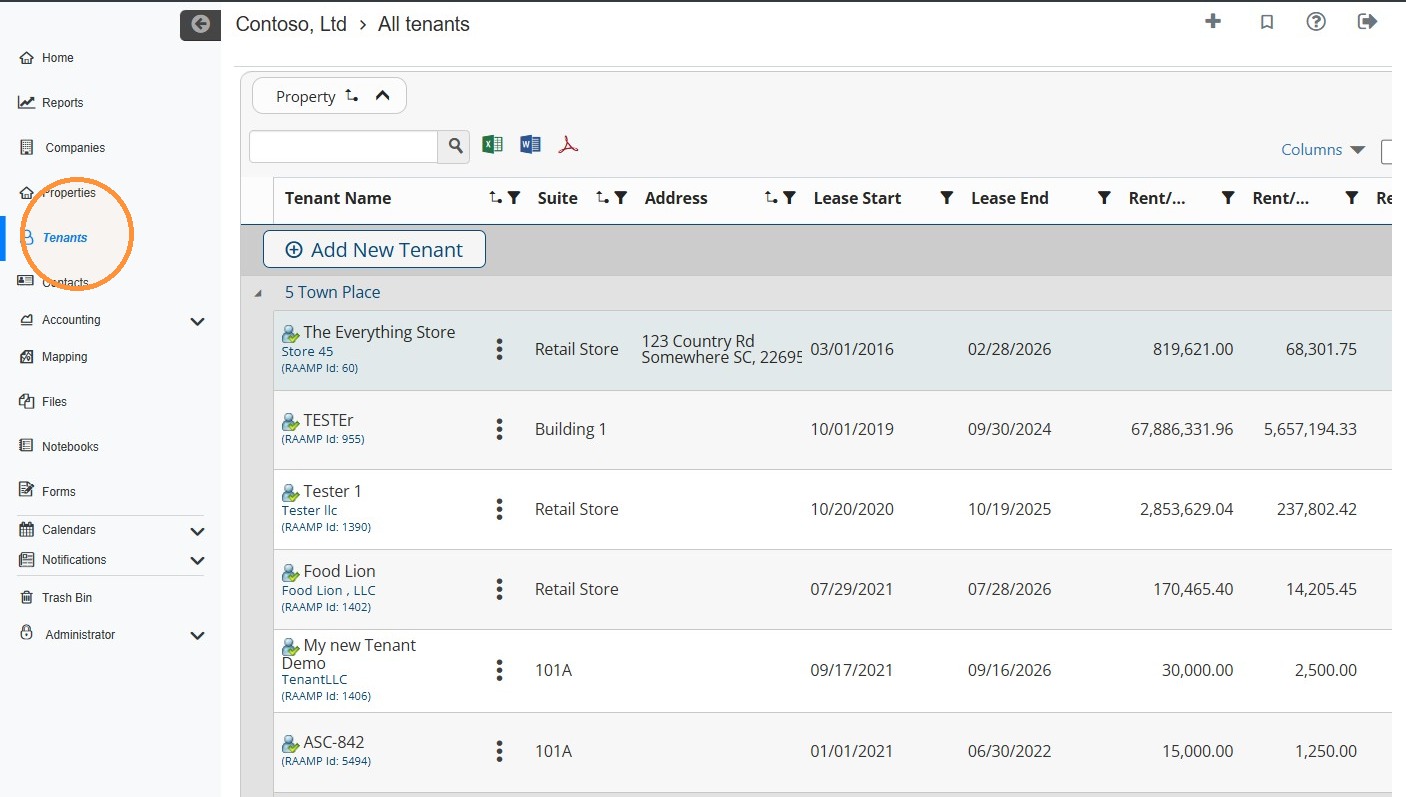
1. Select Tenants from the navigation menu.
2. Tenants Overview
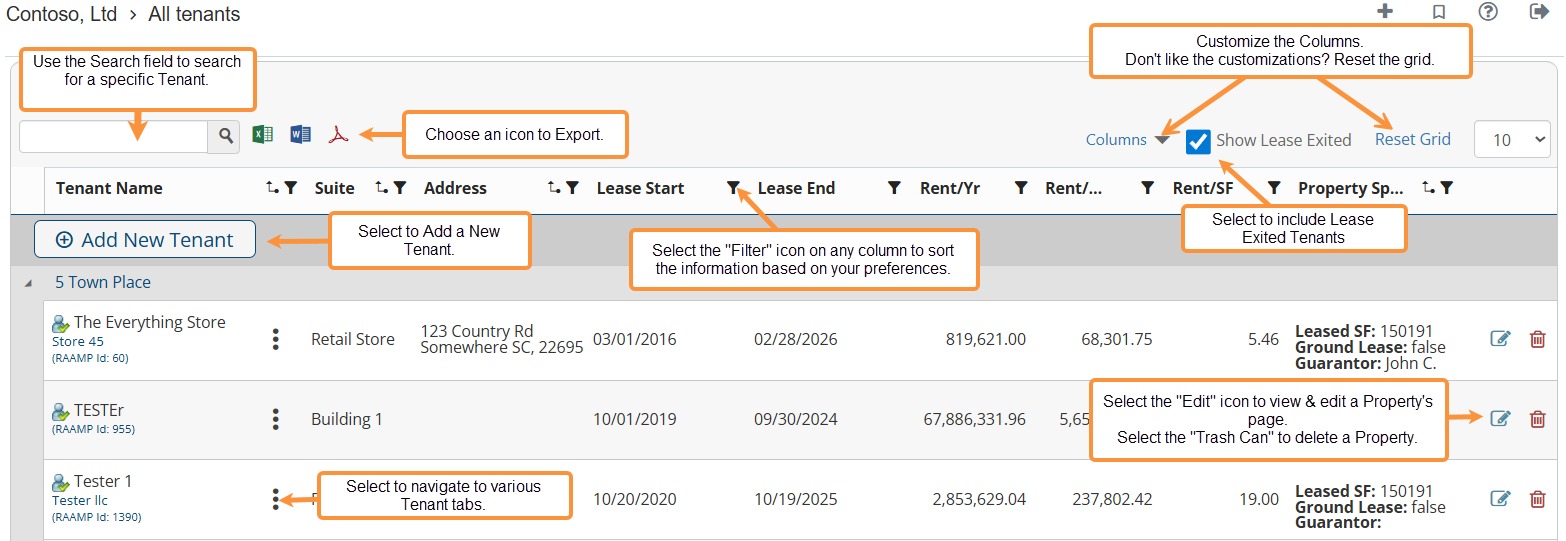
How to Access the Tenants Tabs
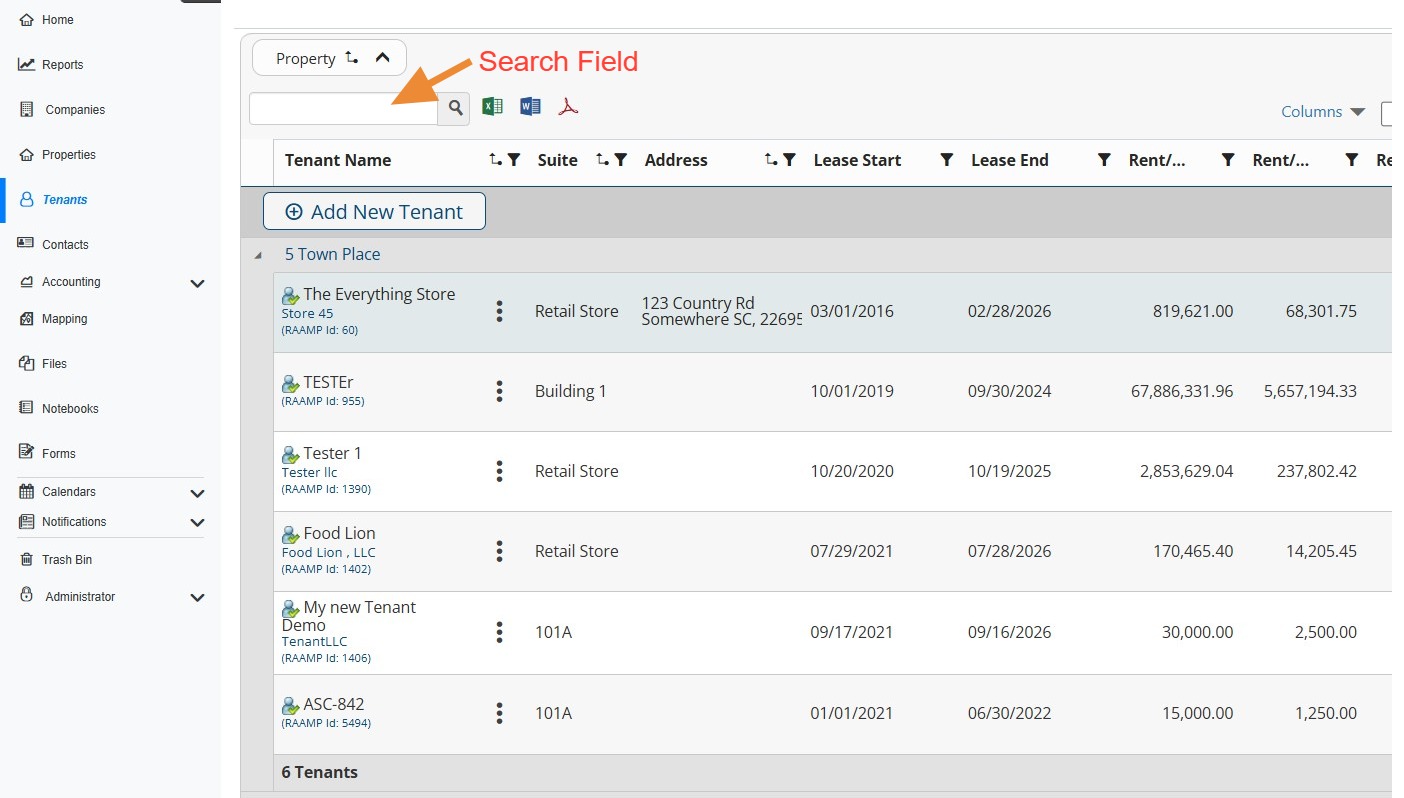
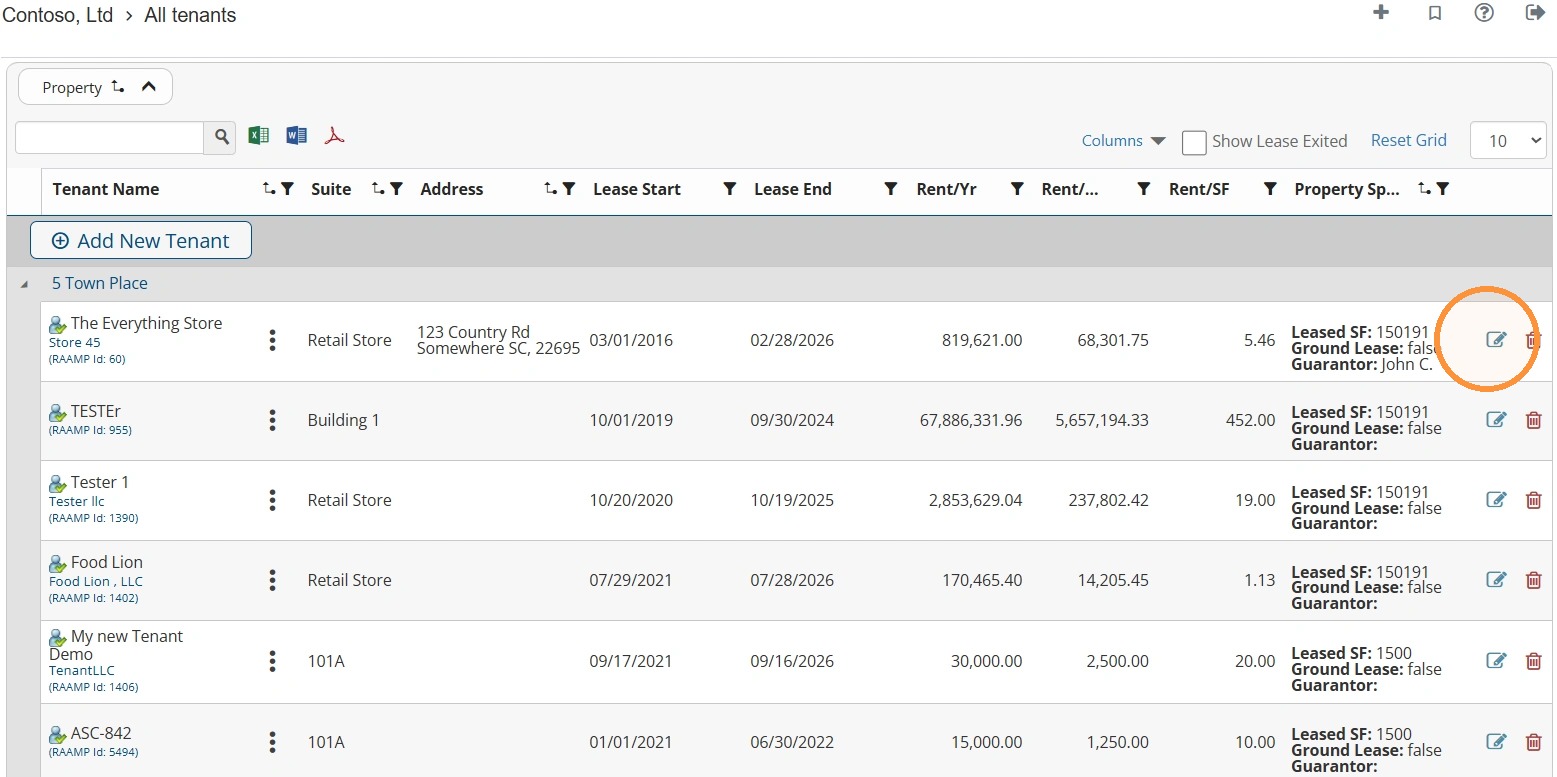
3. Locate the preferred tenant. NOTE: You can locate the Tenant quickly by searching for it.
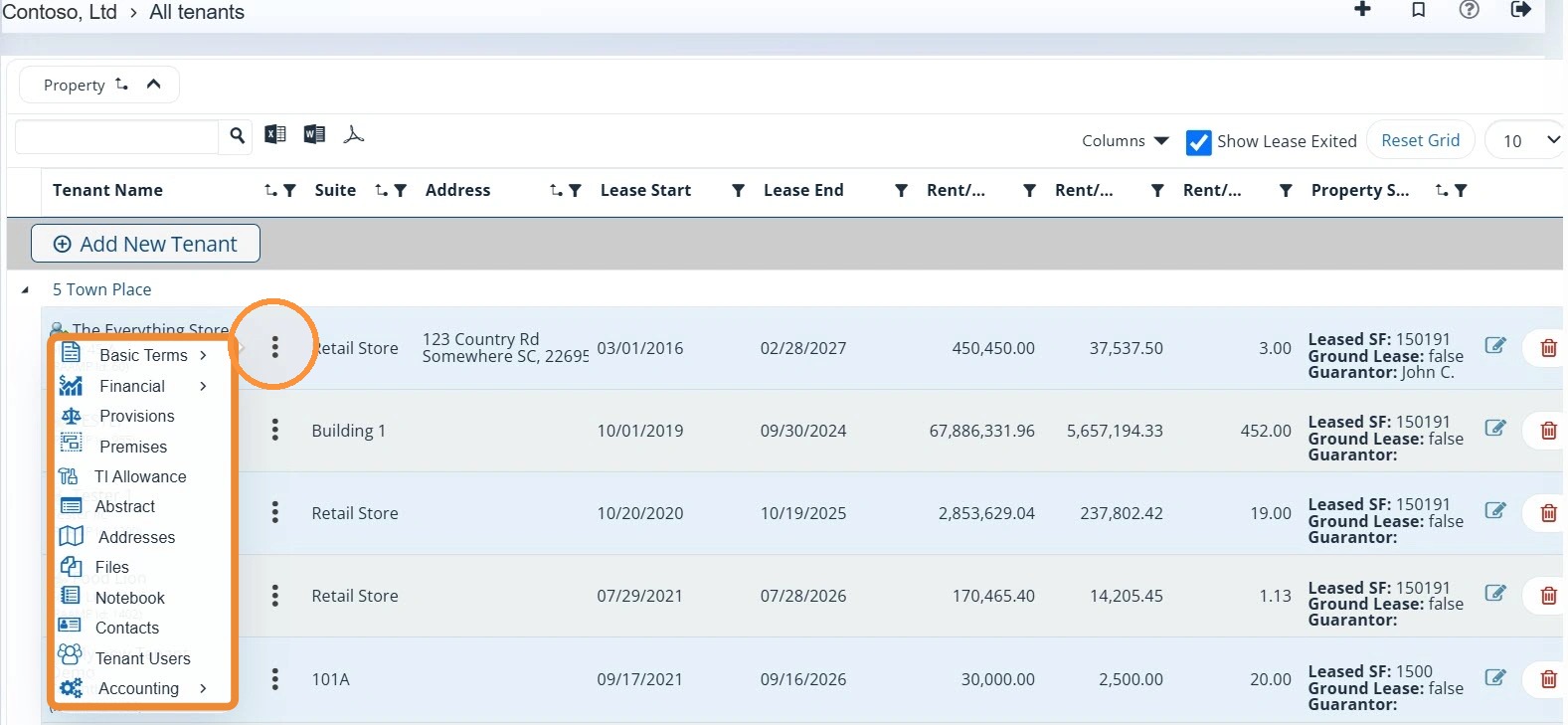
4. Select the three-dot menu to the right of the tenant to access the tenant tabs.
5. Alternatively, you can select the Edit icon.\ \ The tenant tabs are available across the top.
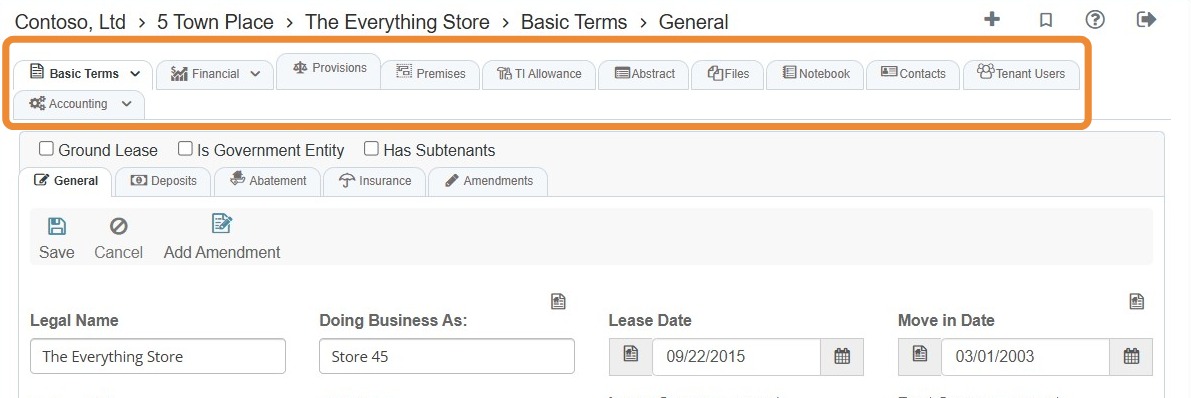
6. Use the tabs to navigate to specific information for this tenant.

Basic Terms Tab
7. Select the Basic Terms tab > Choose the option you'd like to view: General, Deposits, Abatement, Insurance, or Amendments.
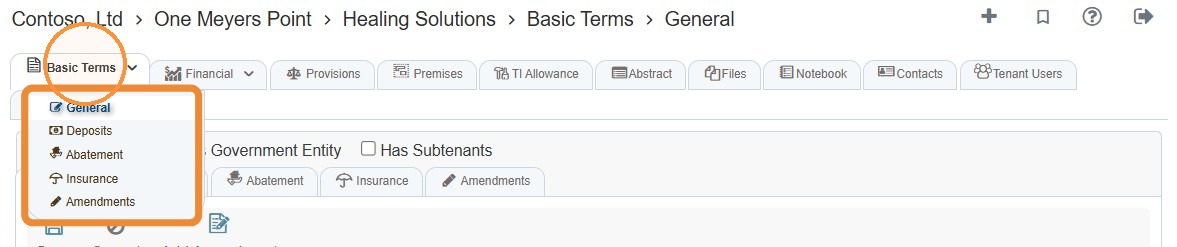
8. You can navigate between the tenant's Basic Terms tab via the highlighted tabs.

Related tutorial(s):
Understanding the Tenants' Basic Terms Tabs
Financial Tab
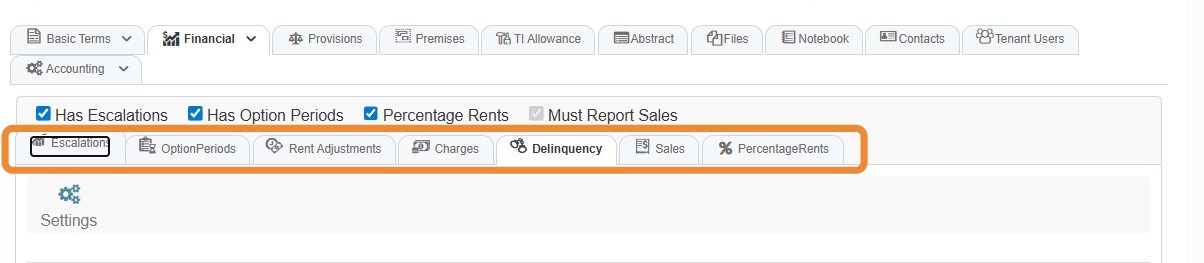
9. Select the Financial tab > Choose the option you'd like to view: Escalations, Option Periods, Rent Adjustments, Charges, or Delinquency.
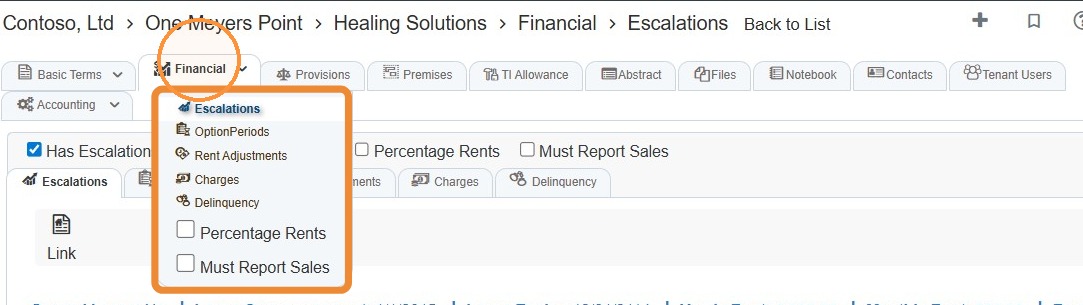
10. You can navigate between the tenant's Financial tab via the highlighted tabs.
Related Tutorial(s):
Understanding the Tenants' Financials Tab
Provisions Tab
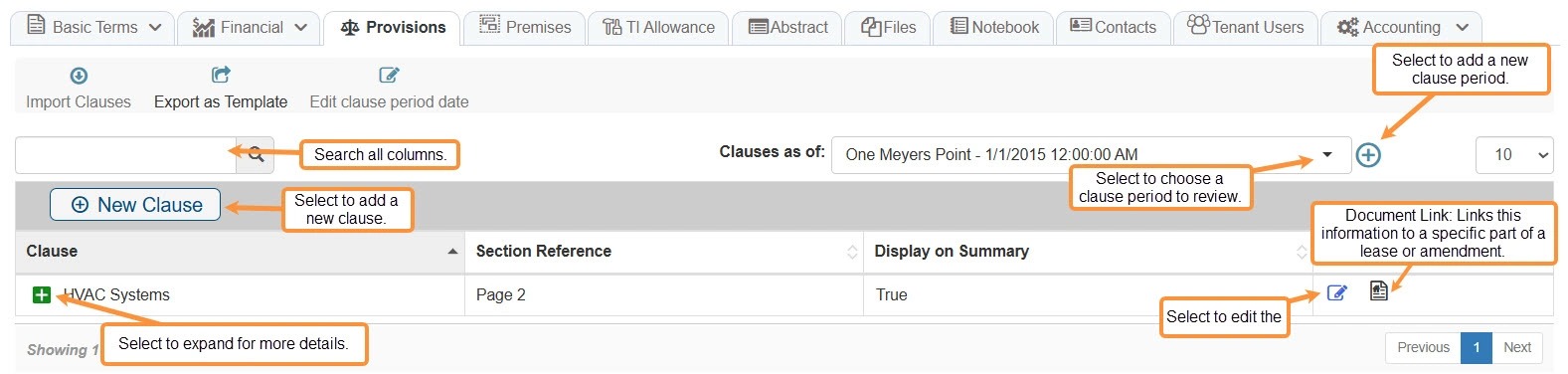
11. Select Provisions to quickly access detailed tenant provisions.
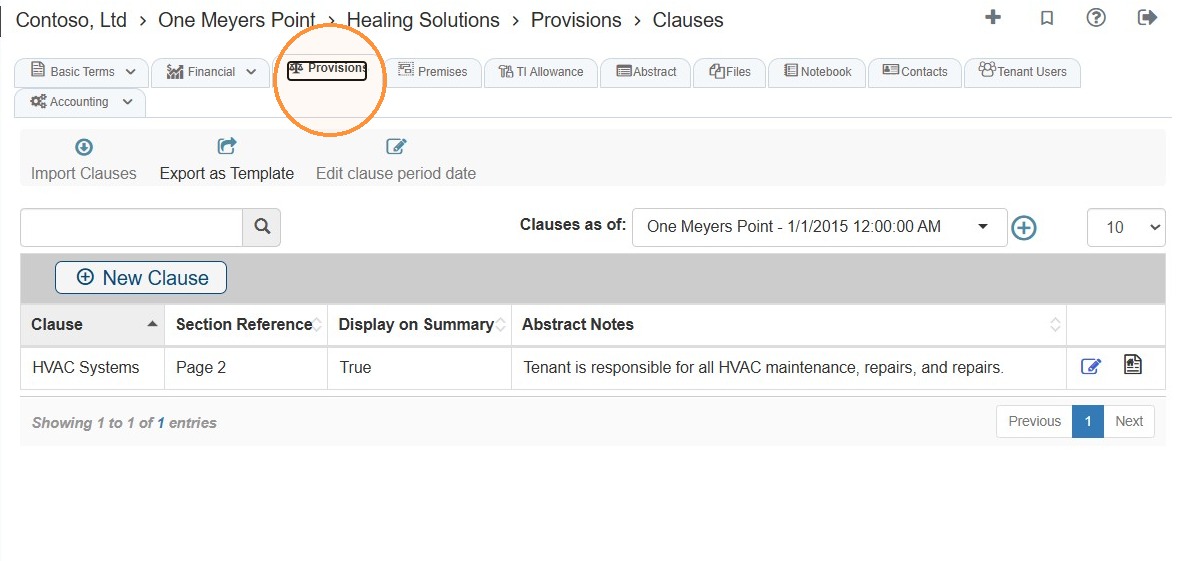
12. Provisions Overview
Related tutorial(s):
Premises Tab
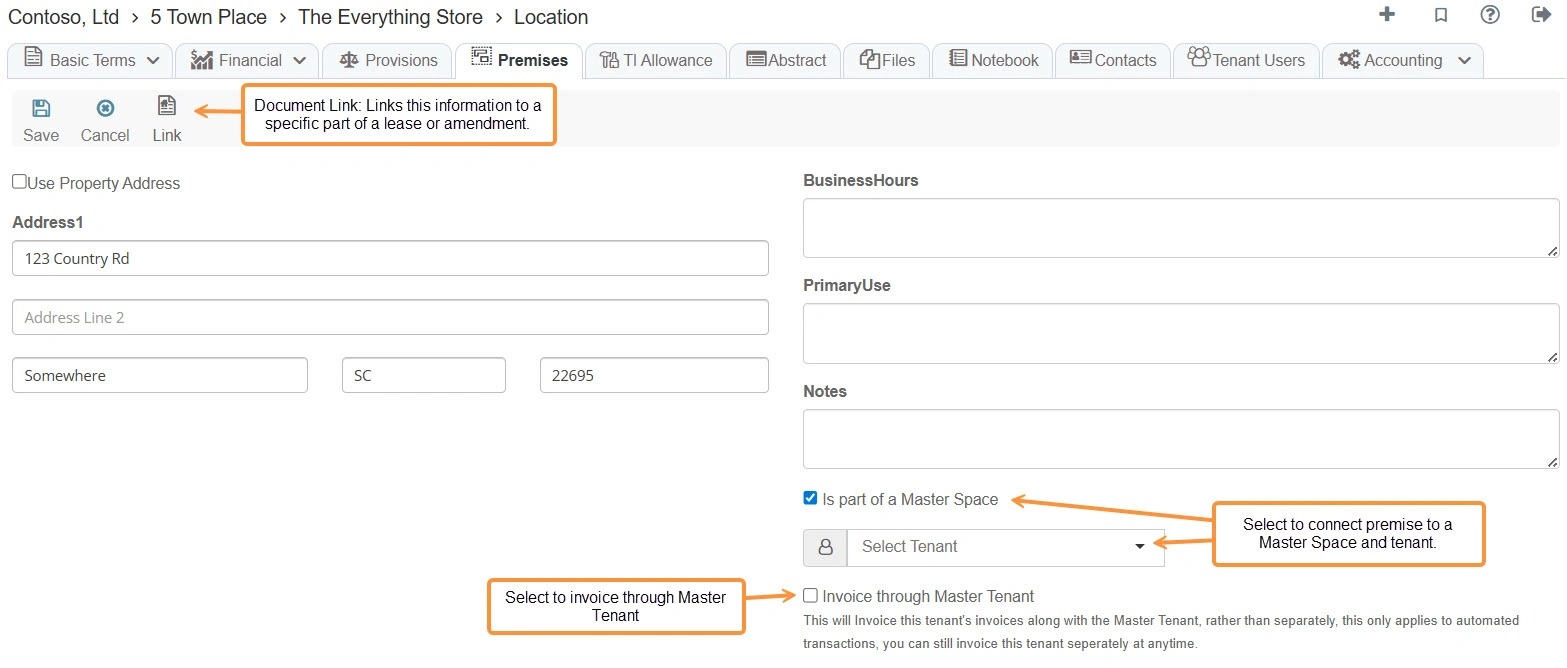
13. Select Premises to view/edit information about the location.
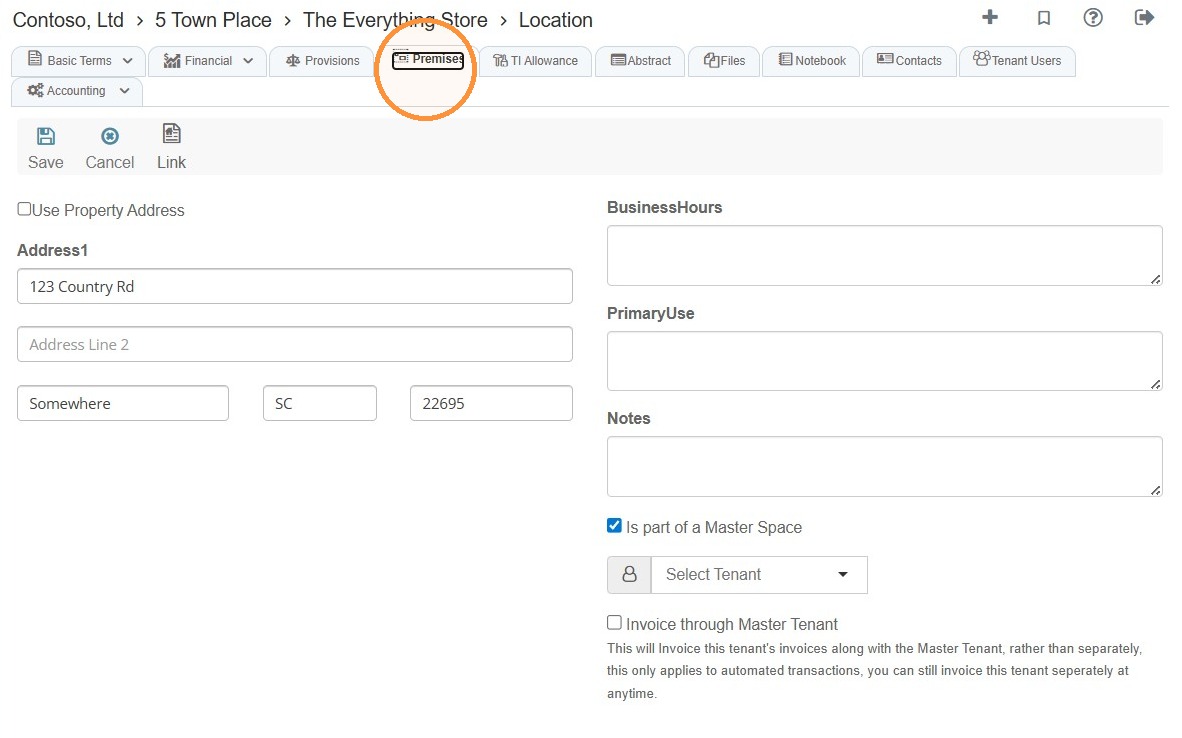
14. Premises Overview
TI Allowance Tab
15. Select the TI Allowance tab to view a list of tenant improvement allowances.
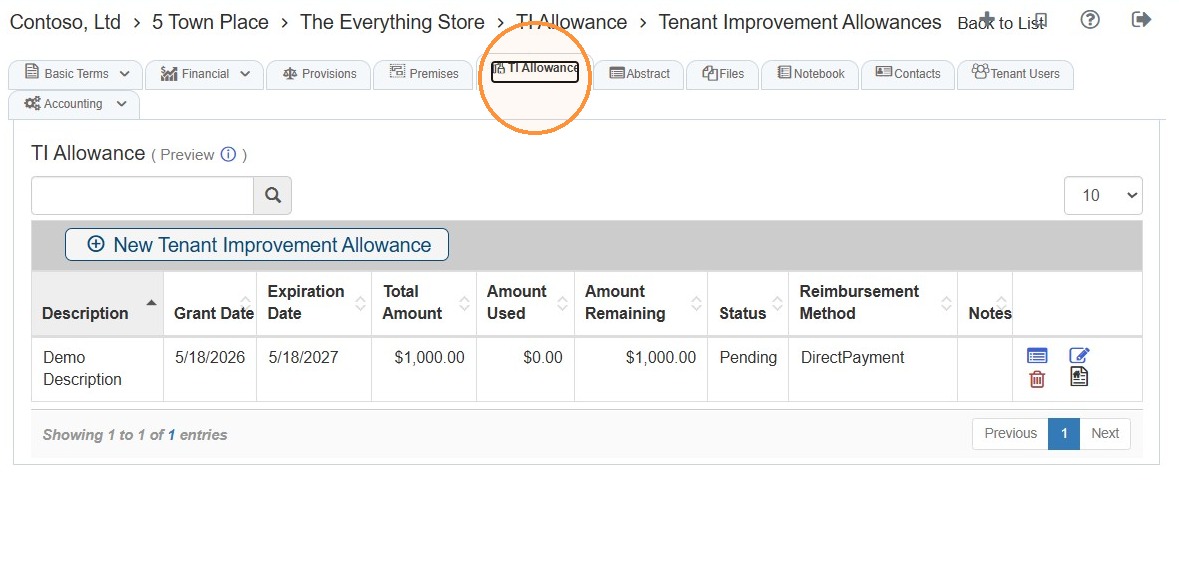
16. TI Allowance Overview
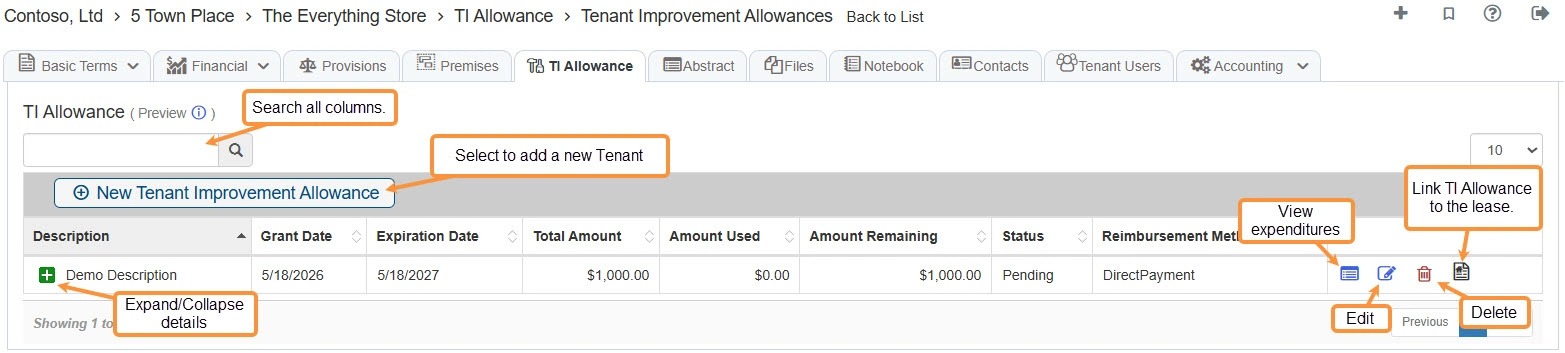
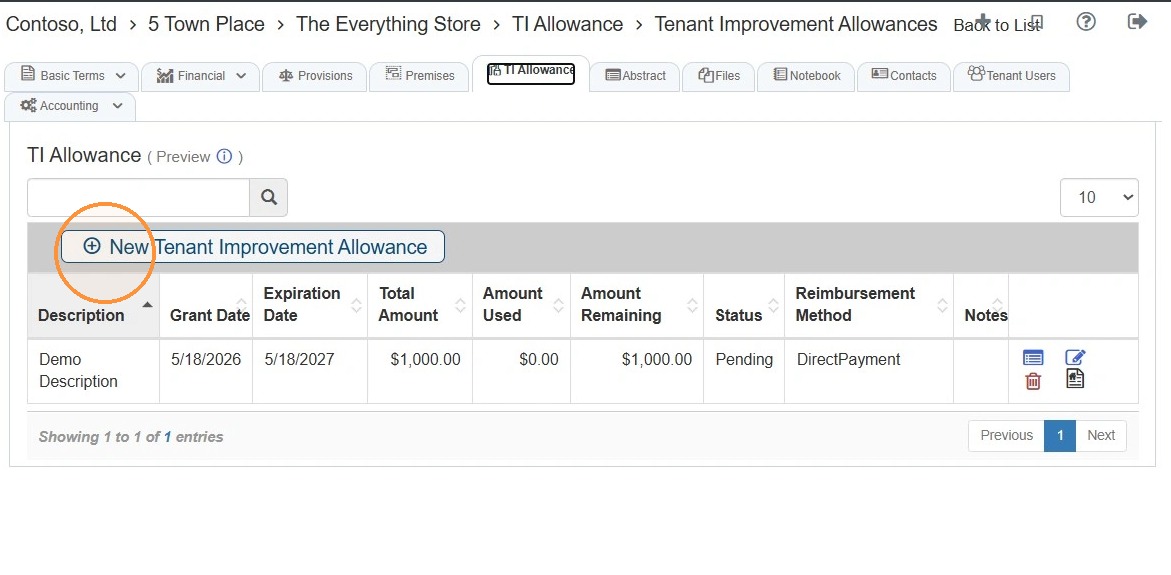
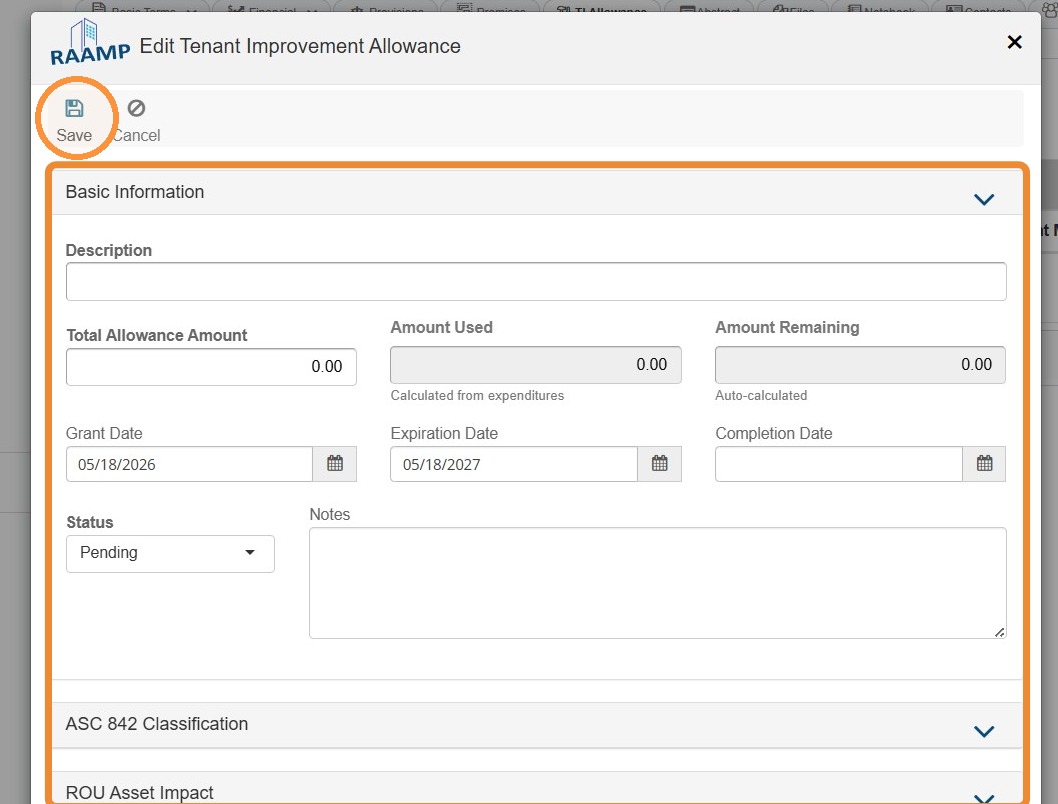
17. To add a TI Allowance, select New Tenant Improvement Allowance > Complete the information > Select Save.
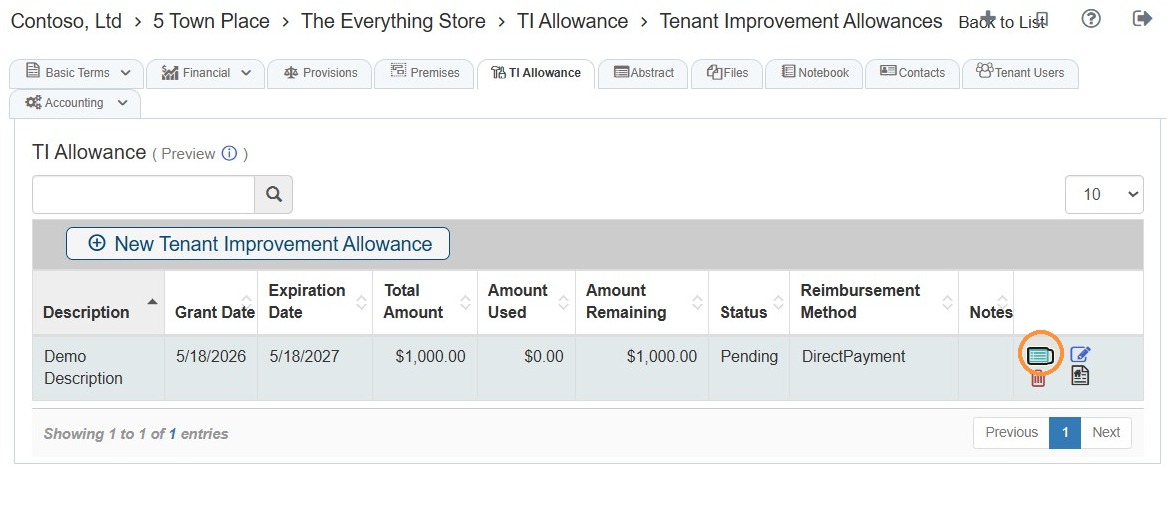
18. Select the View Expenditures icon to view a list of expenditures or to add a new expenditure.
Abstract Tab
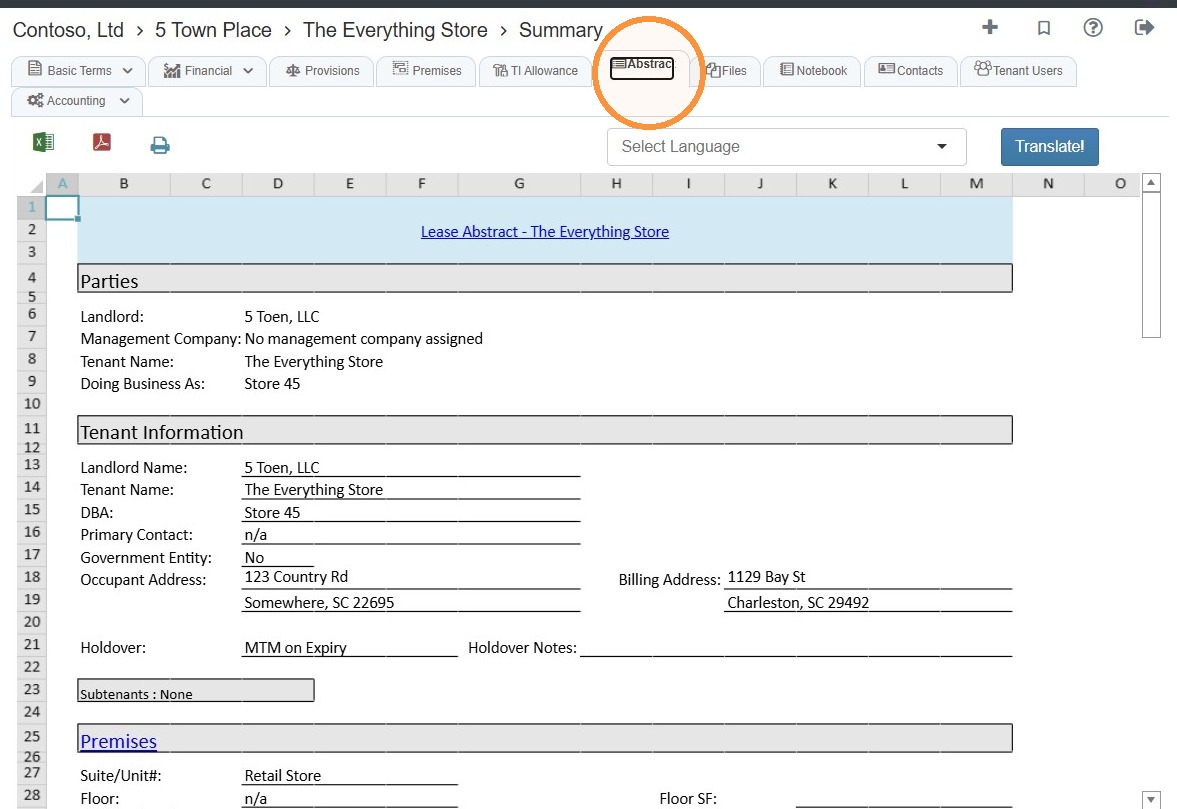
19. The Abstract tab will open the lease abstract.
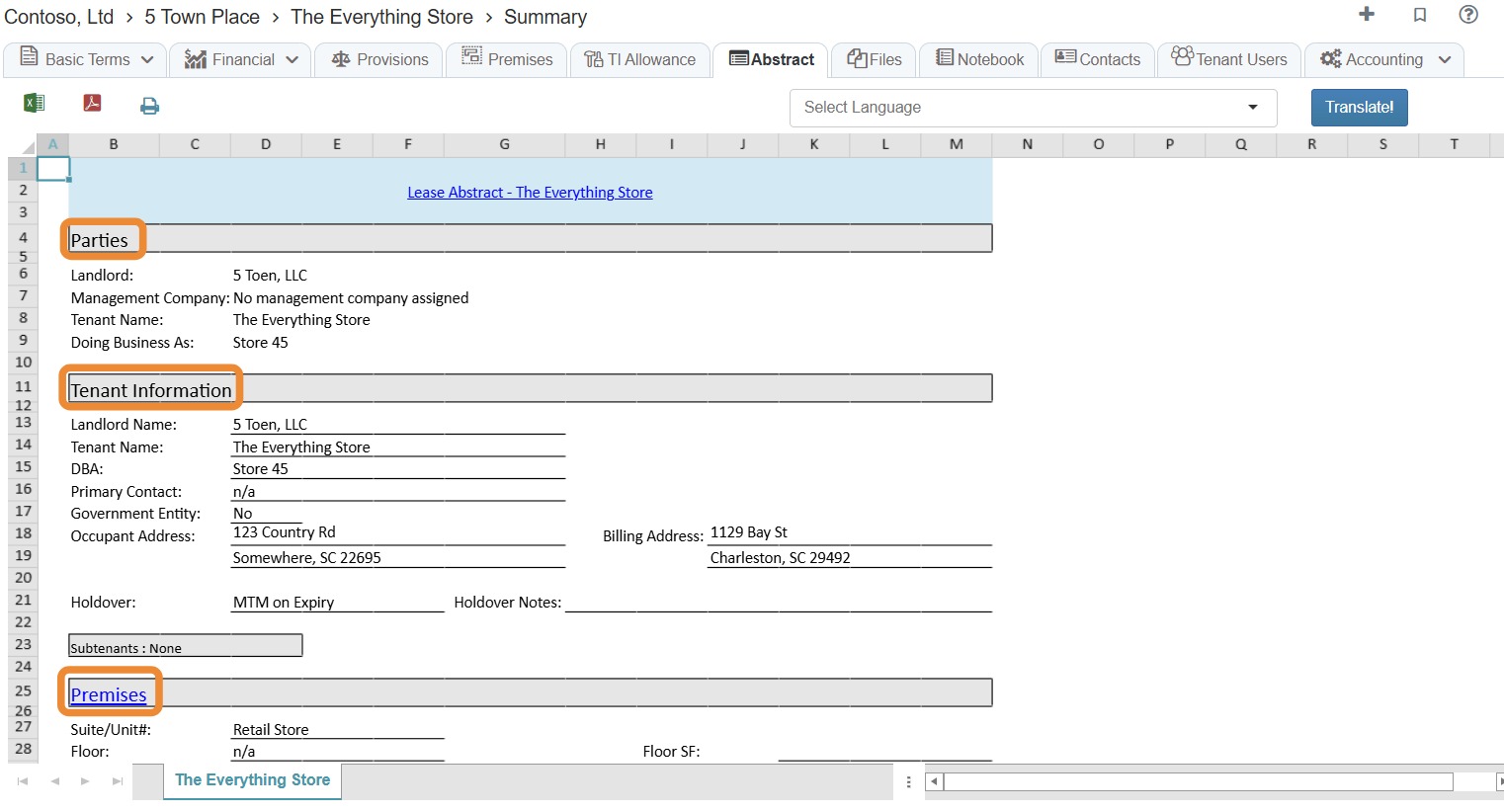
20. The abstract is organized by sections.
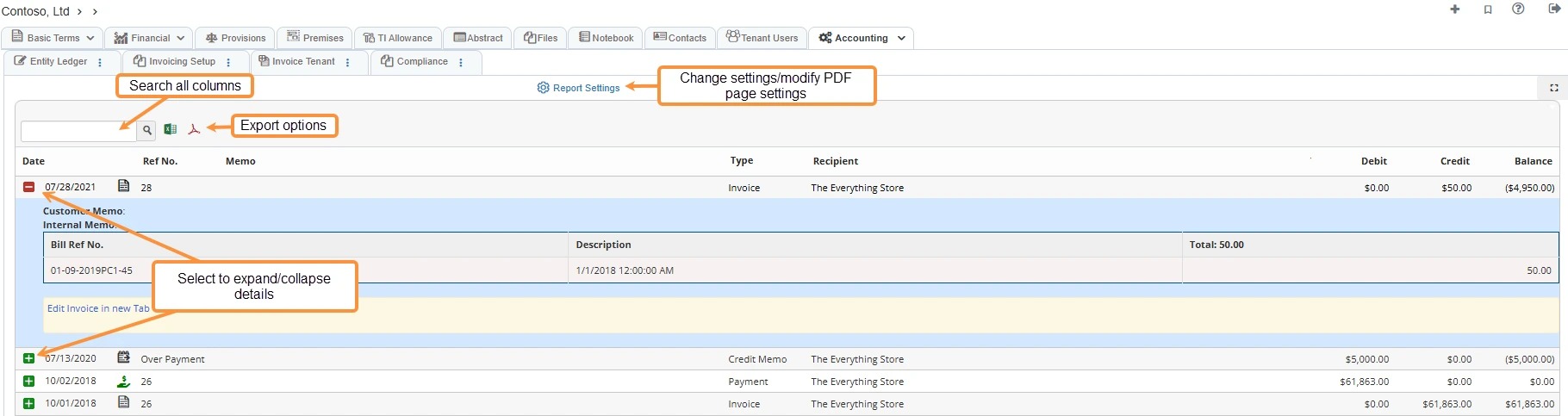
If a section has blue text, you can select the text to view and/or edit information.
Related tutorial(s):
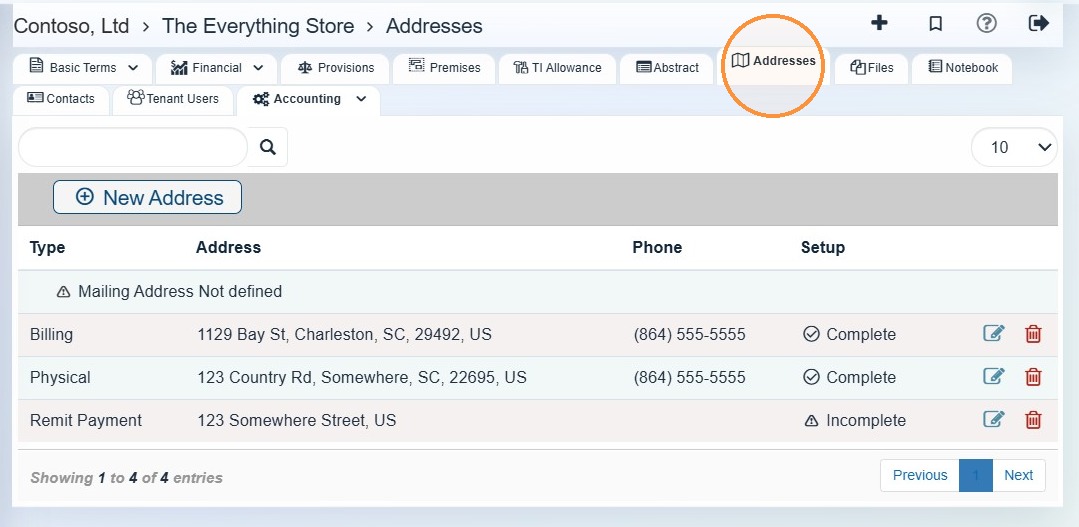
Addresses Tab
21. Select Addresses to view locations and location-specific phone numbers.
This tab stores physical or mailing locations associated with the family, such as:
- Billing address
- Mailing address
- Physical address
Each address can include its own phone number. For example, the billing phone number shown on the Addresses tab is the phone number associated with that billing location.
Files Tab
22. Select the Files tab to view all files for the tenant.
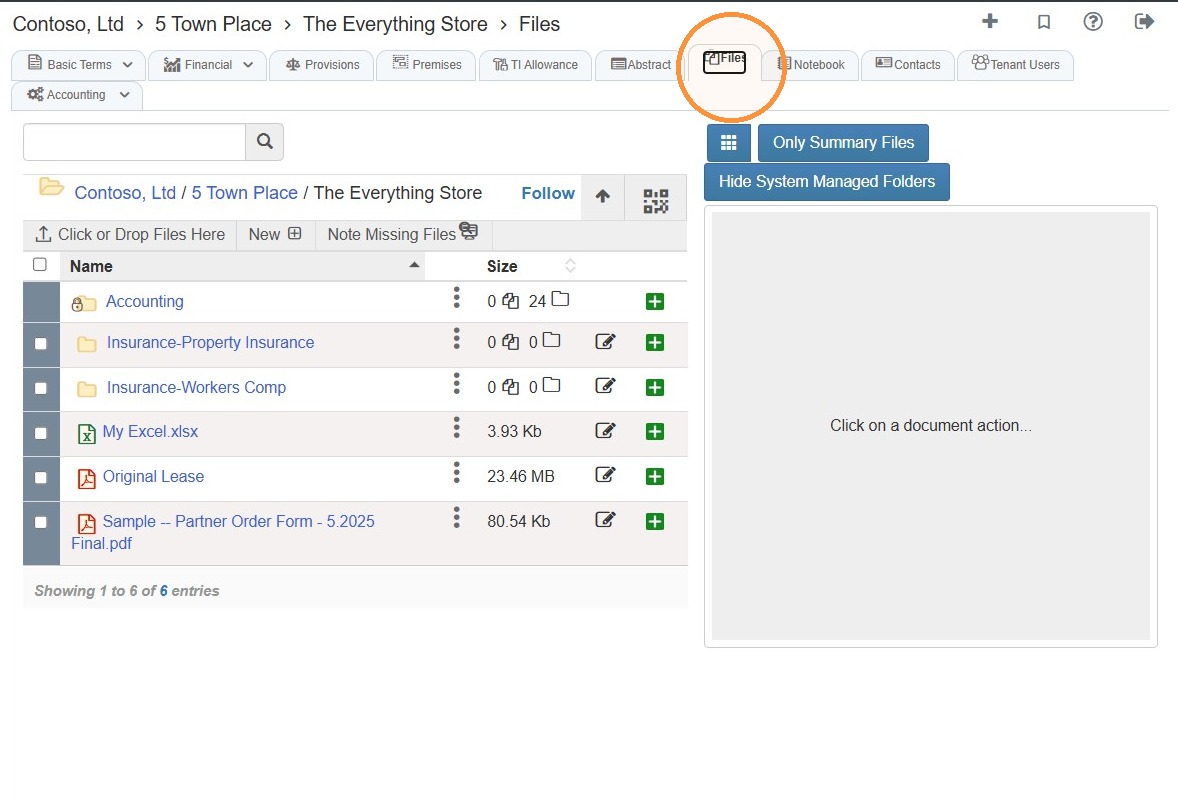
23. Files Overview
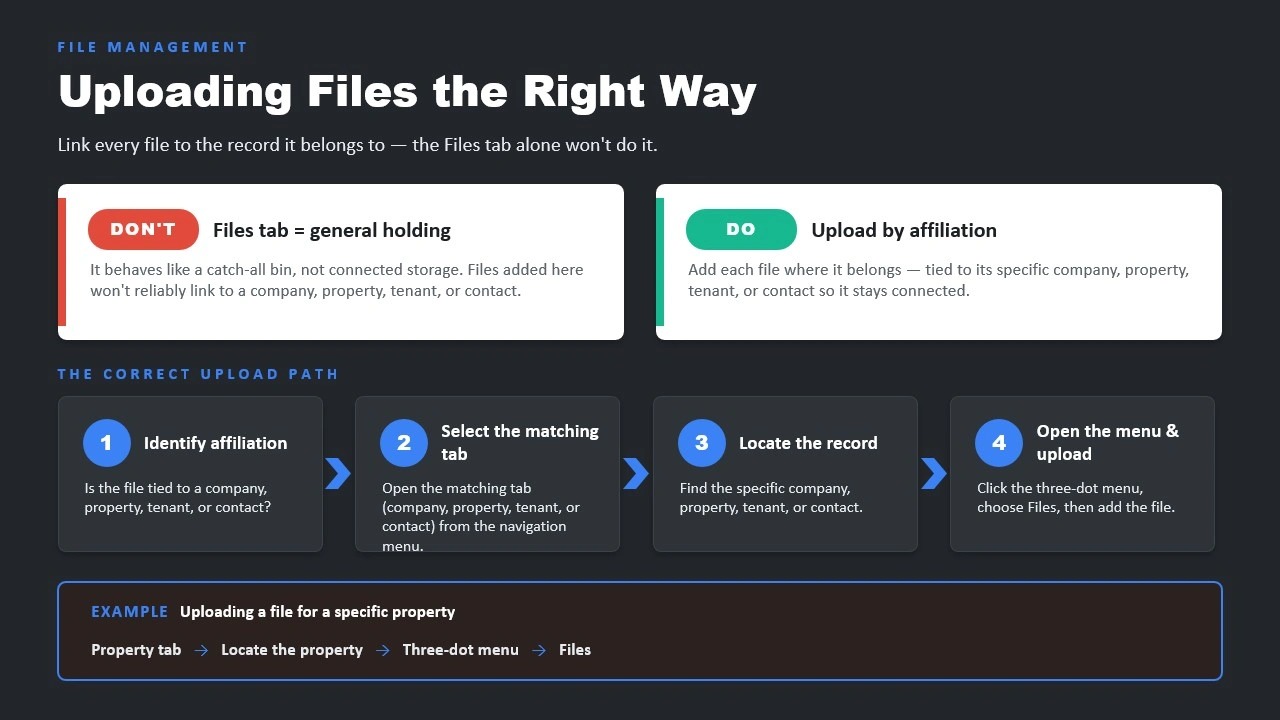
Tip: Remember to upload files by affiliation - tied to its specific company, property, tenant, or contact so it stays connected.
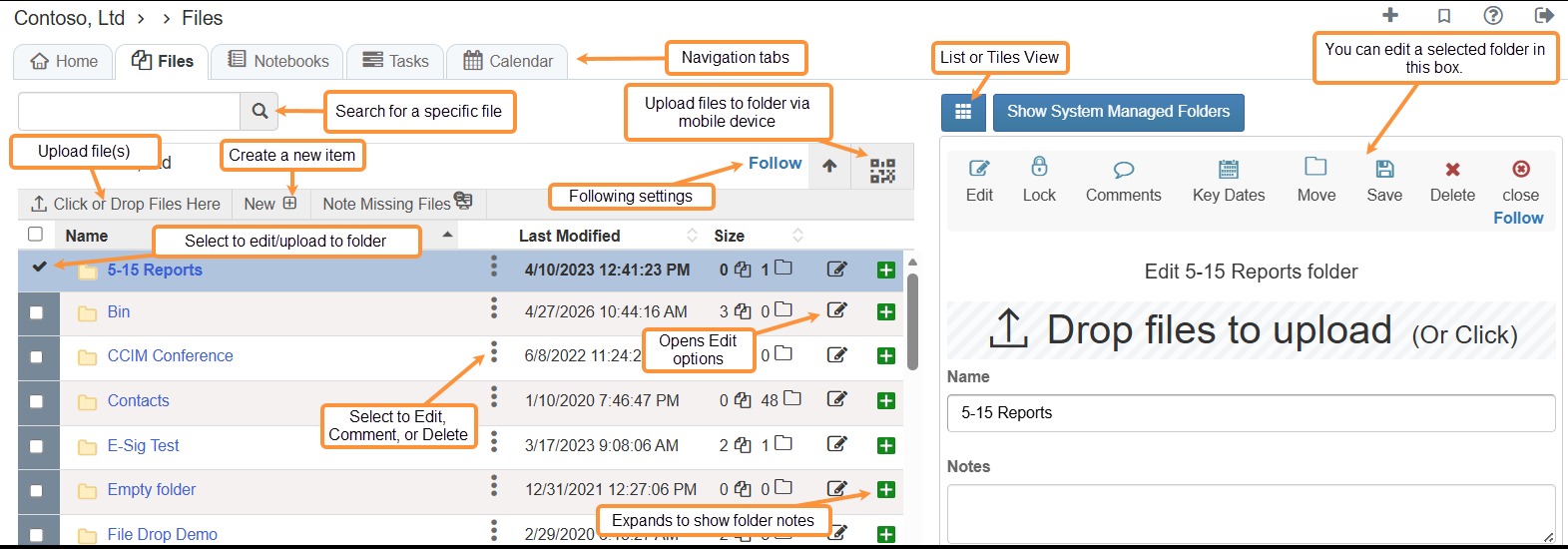
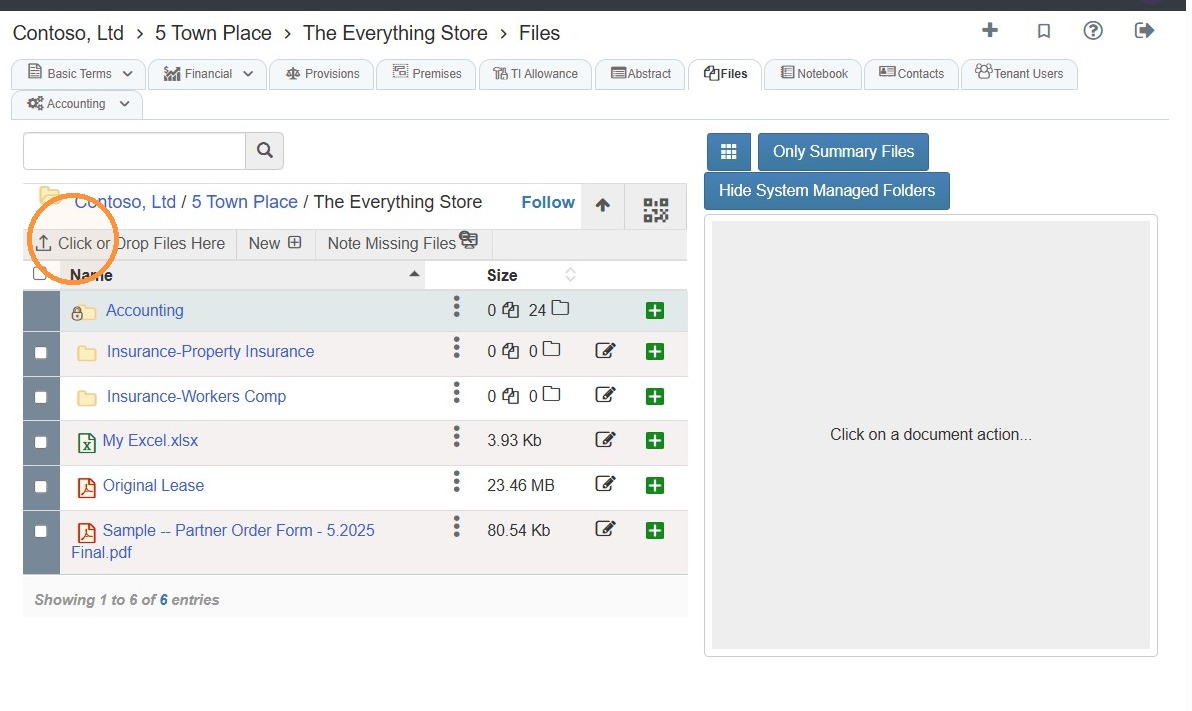
24. To upload a new file for the tenant, select Click or Drop Files Here.
25. To edit a file, select the file or the edit icon.
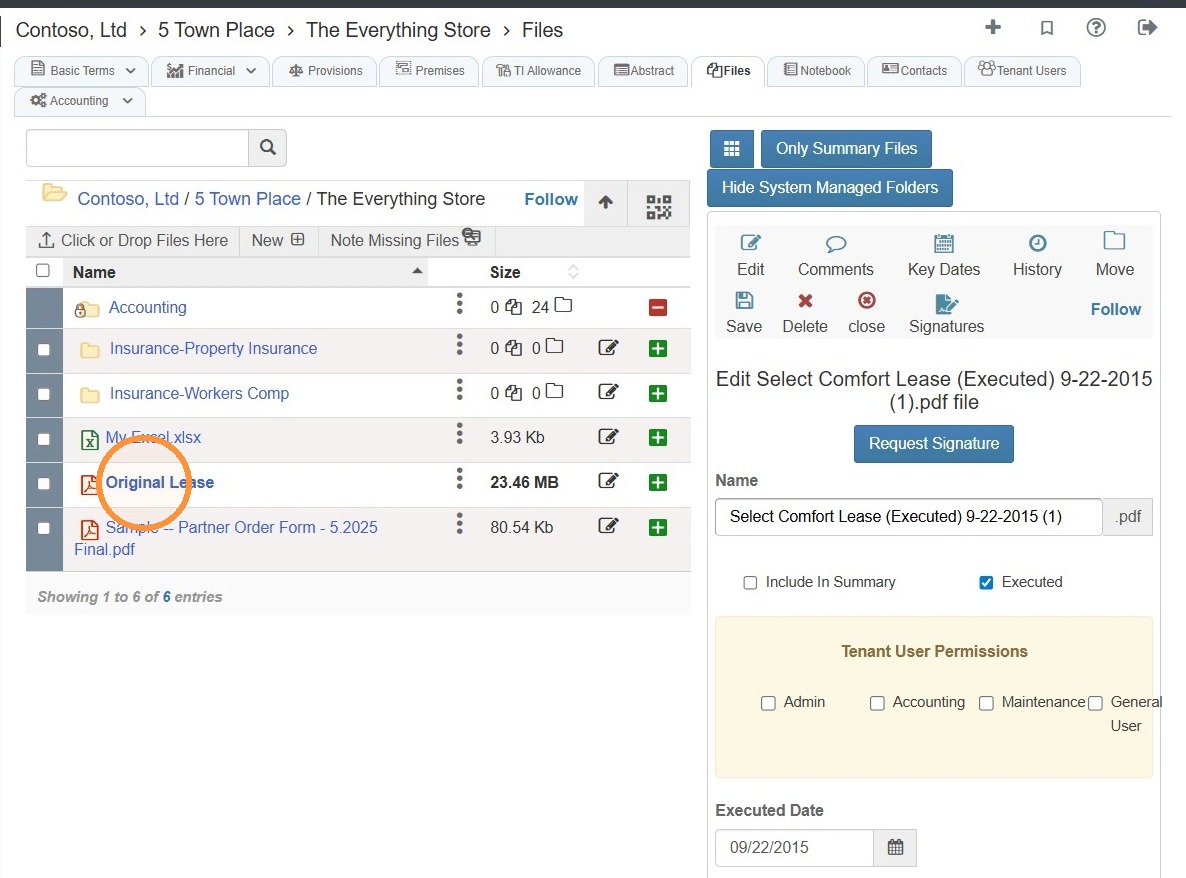
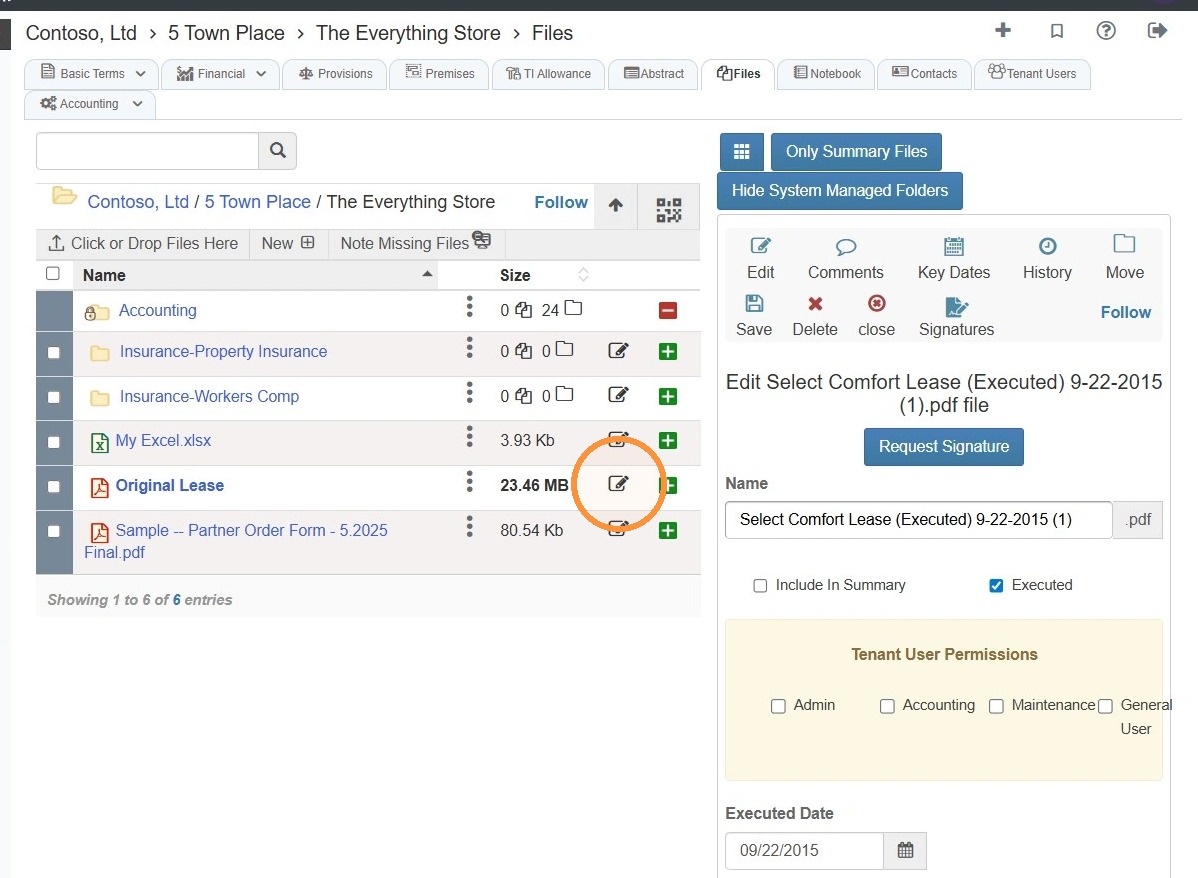
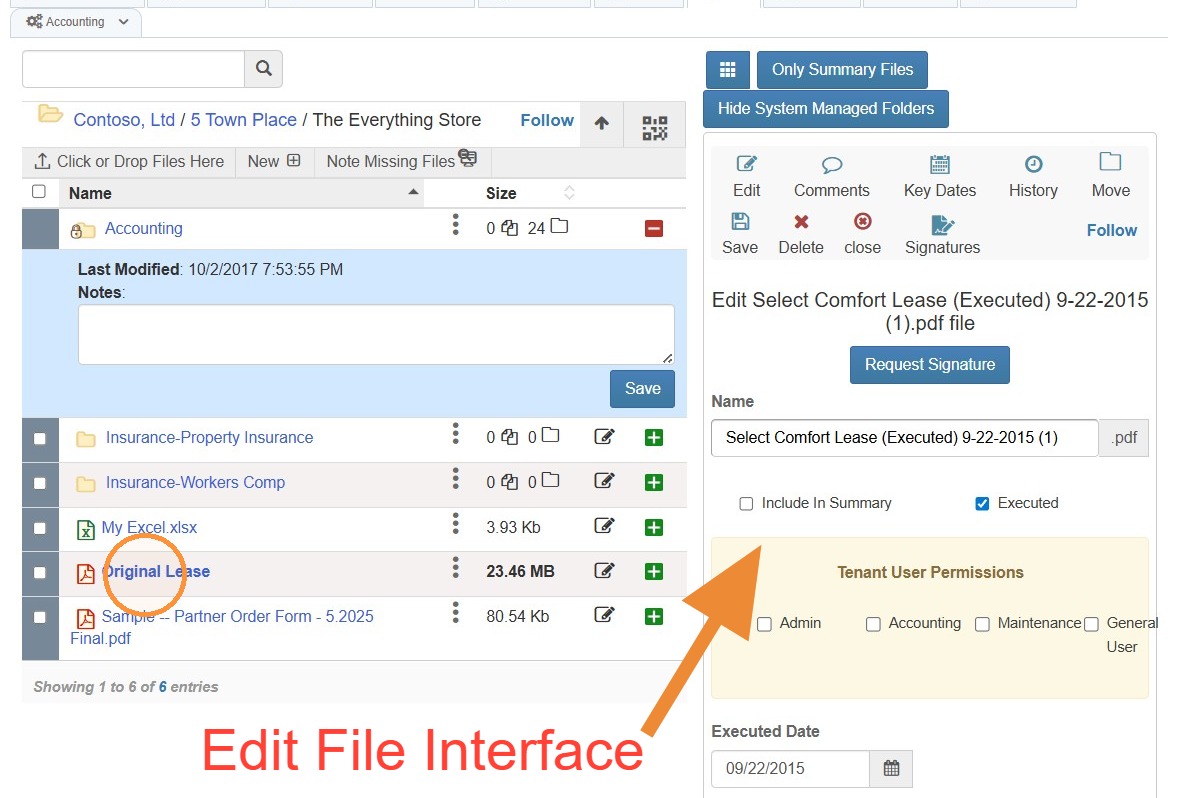
26. Once a file is selected, the file's edit interface will open.
From here you can complete various tasks like requesting a signature, adding notes, reviewing the file history, etc.
Related Tutorial(s):
How to Add, Delete, & Manage Access Options for File Folders\ How to Follow a Folder & Receive Notifications\ How to Note Missing Files\ How to Upload Missing Files and Supporting Files\ How to Add a Key Date to a File\ How to Share Files\ How to Upload Files from a Phone Camera/Photos\ How to Upload File Revisions and Preserve Prior Versions\ How to Create and Send Signature Requests\ How to Set Signing Order
Notebooks Tab
27. Select the Notebooks tab.
The Notebooks tab allows you to schedule important dates, tasks, and notifications specific to the tenant.
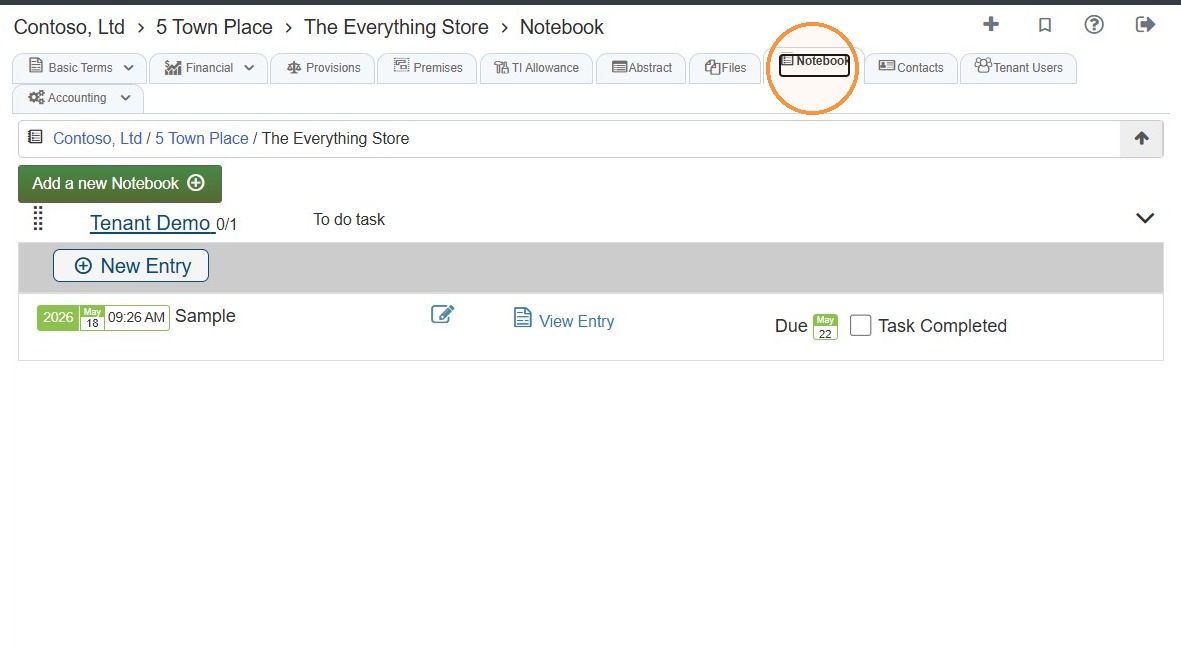
28. Notebook Overview
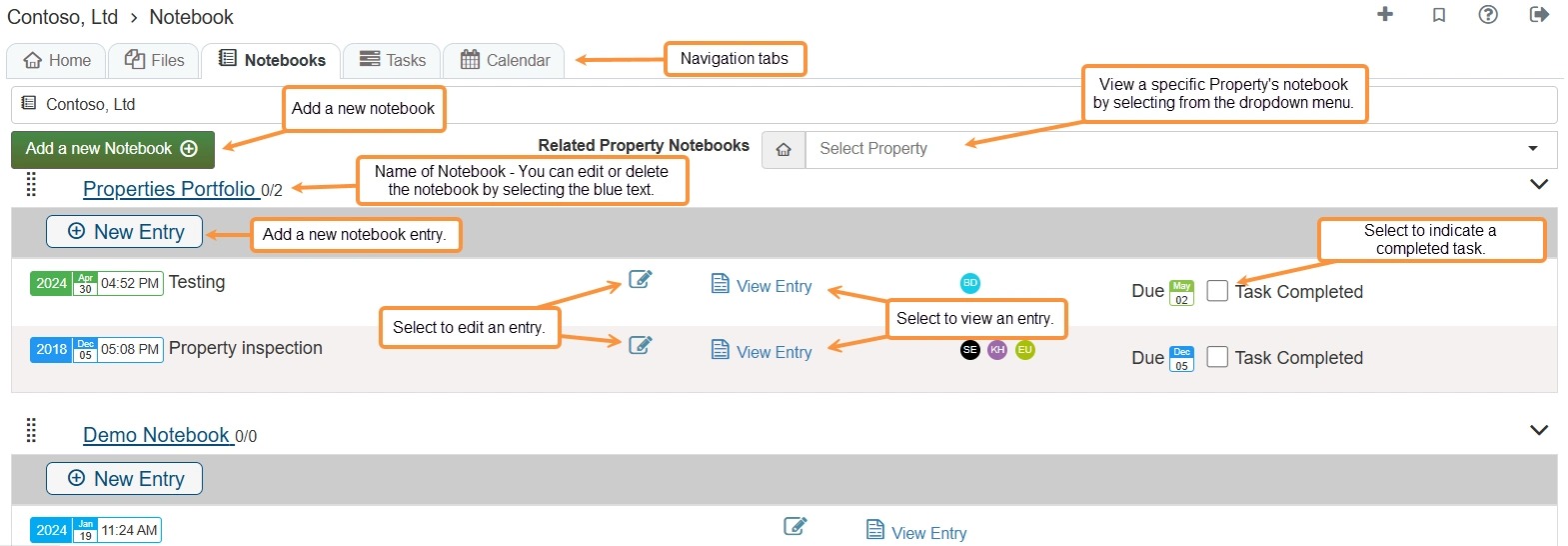
Tip: To learn more about creating Notebooks and Tasks, see How to Create a Notebook, Entry, and Task and How to Create Dependent/Linked Tasks.
Contacts Tab
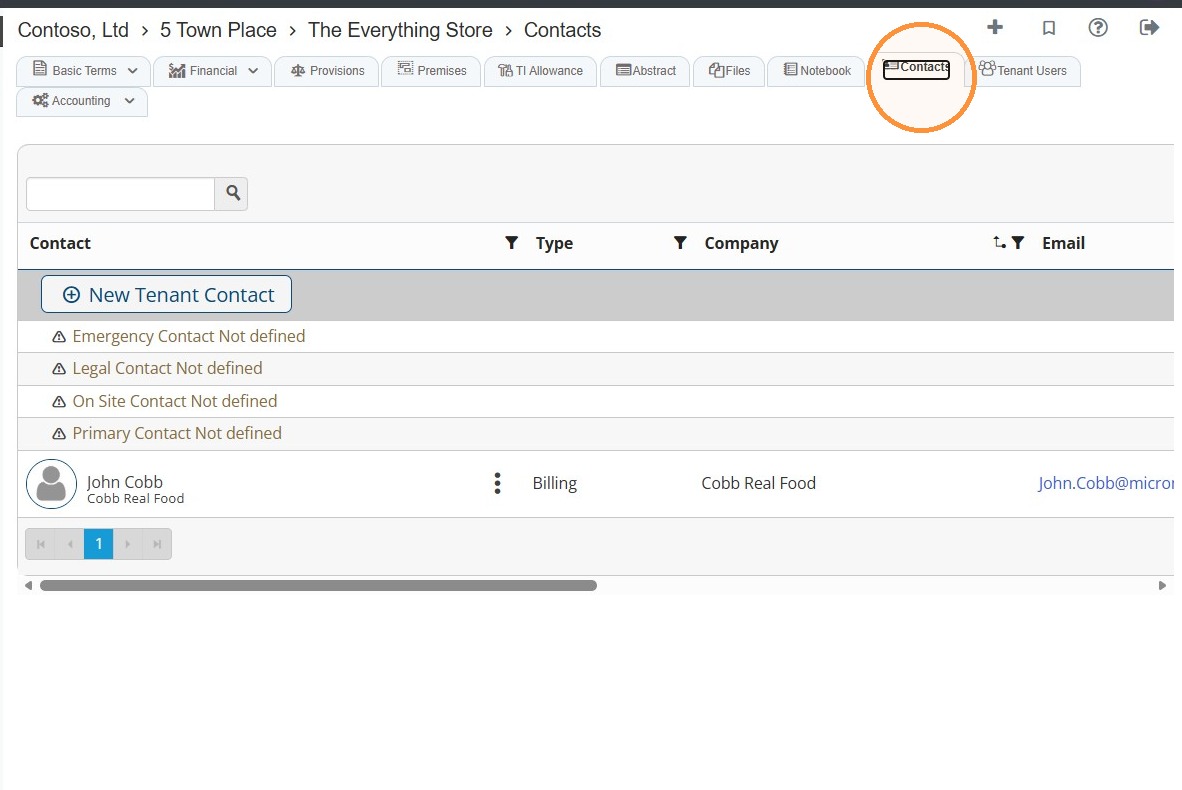
29. To view or add tenant contacts, select the Contacts tab.
This tab stores individual people connected to the company, such as:
- Billing contact
- Primary contact
- Legal contact
- Emergency contact
- Other contacts
Each person can have their own name, phone number, email address, title, and other personal details. For example, a billing contact might be Wendy Sailor, with her direct phone number and email address.
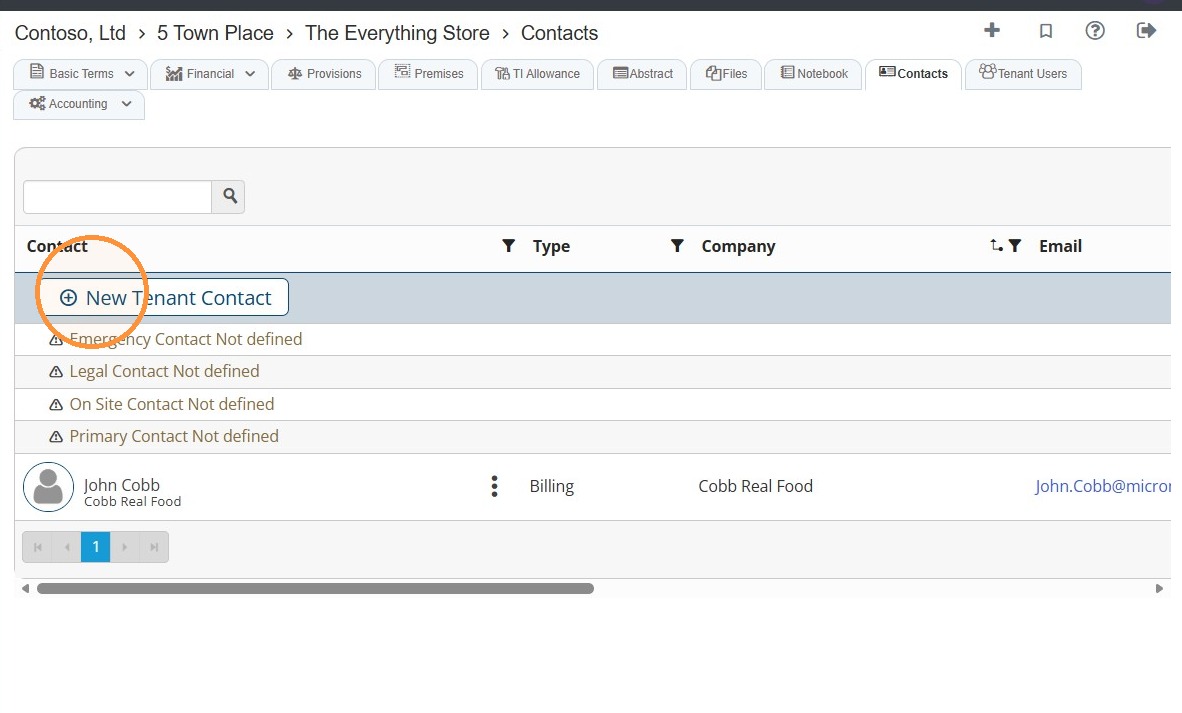
30. Select New Tenant Contact to add a new contact and follow the steps.
Related tutorial(s):
Tenant Users Tab
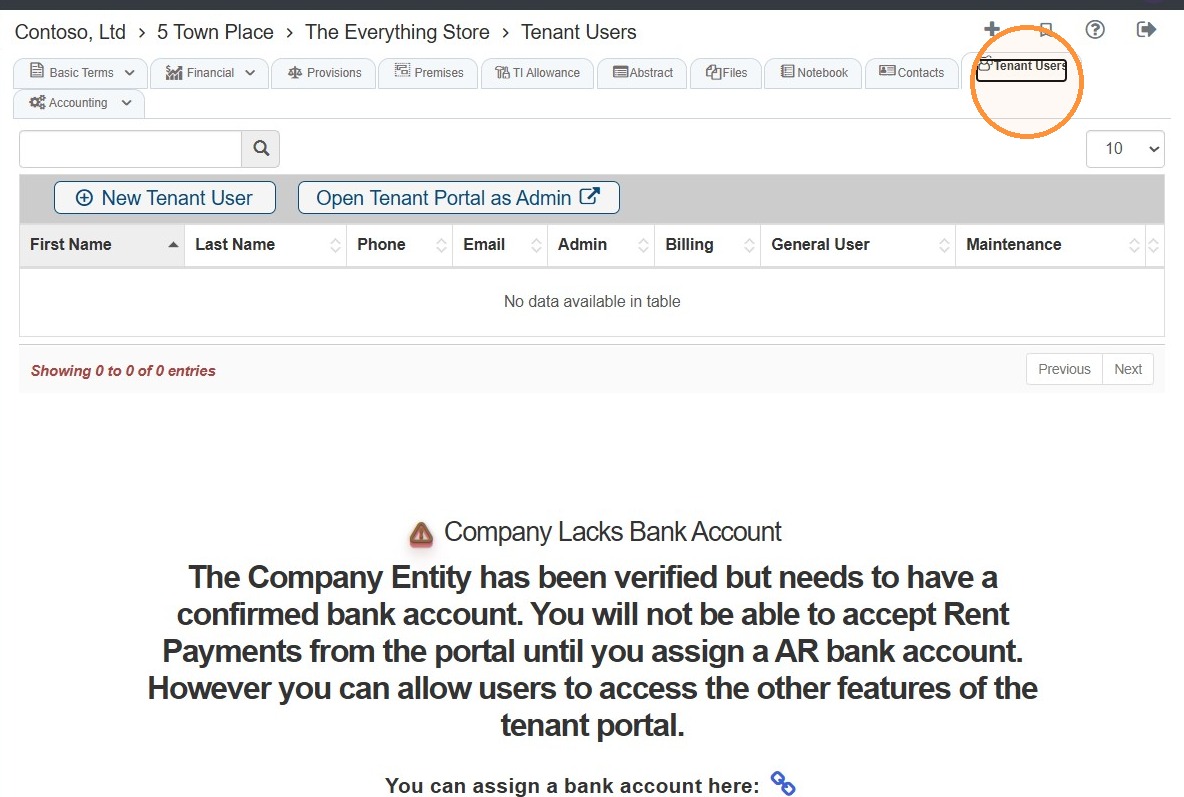
31. To view or add tenant users, select the Tenant Users tab.
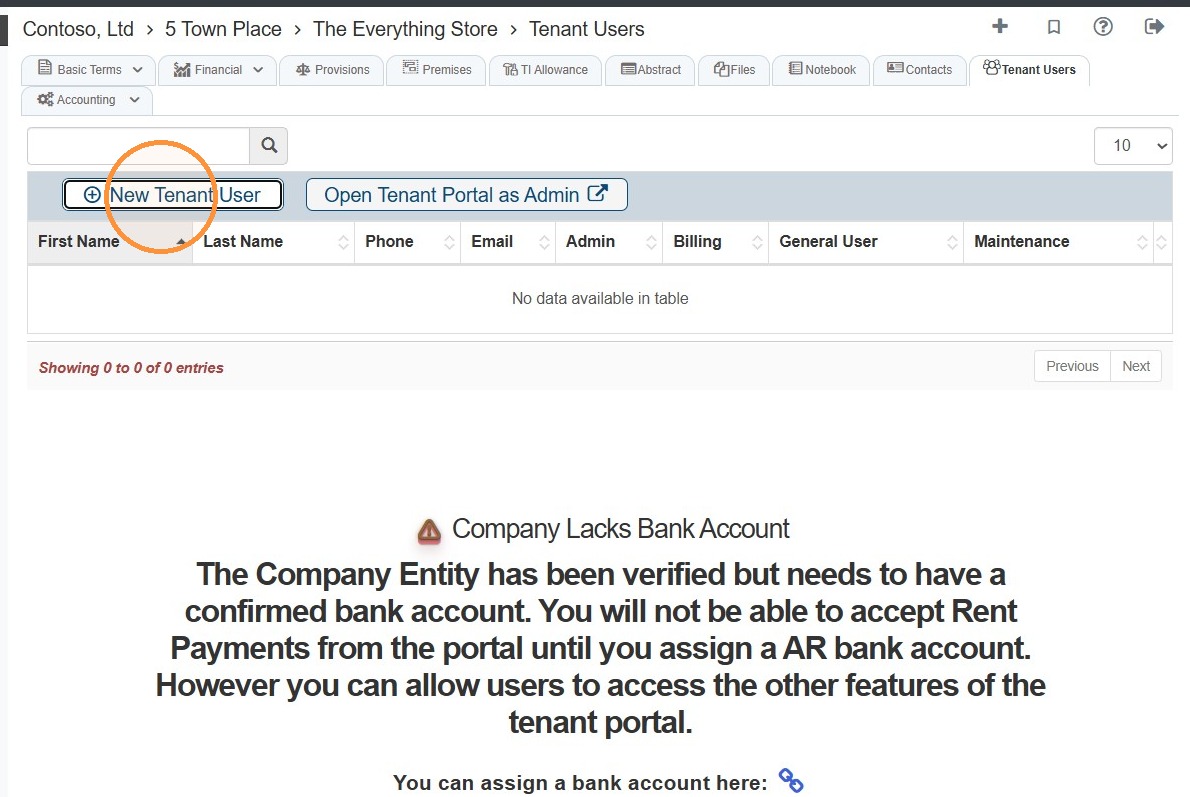
32. Select New Tenant User to add a user to the Tenant Portal.
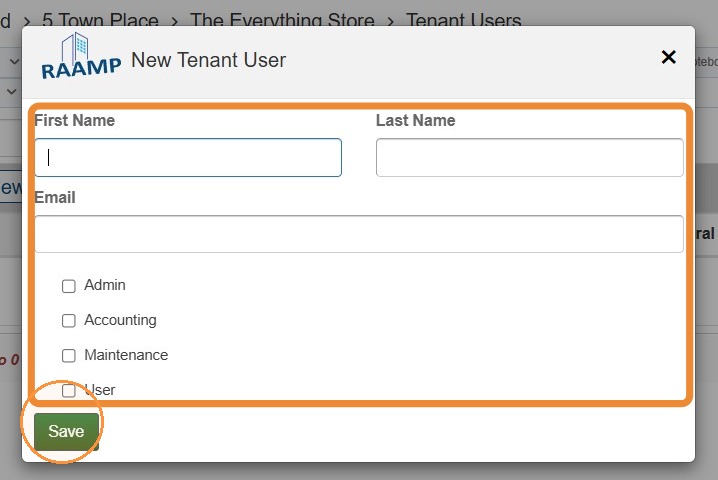
33. Complete the New Tenant User information > Select the tenant's user level (Admin, Accounting, Maintenance, or User) > Select Save.
Accounting Tab
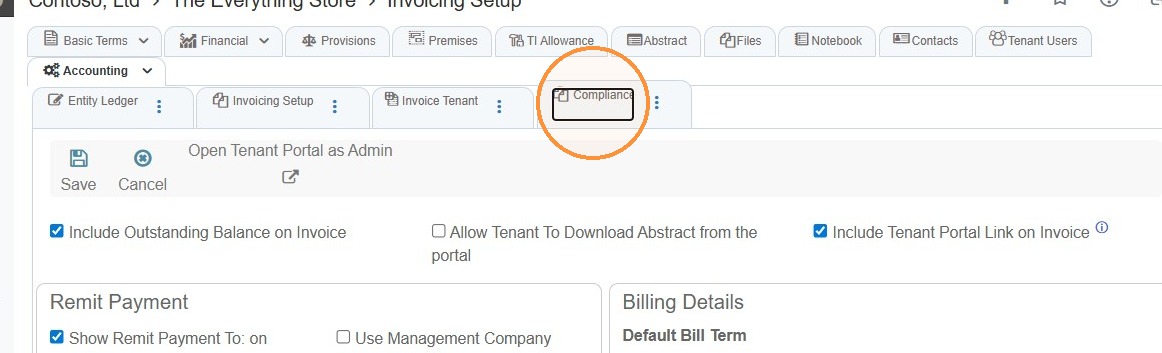
34. Selecting the Accounting tab will allow you to view Entity Ledger, Invoicing Setup, Invoice Tenant, and Compliance.
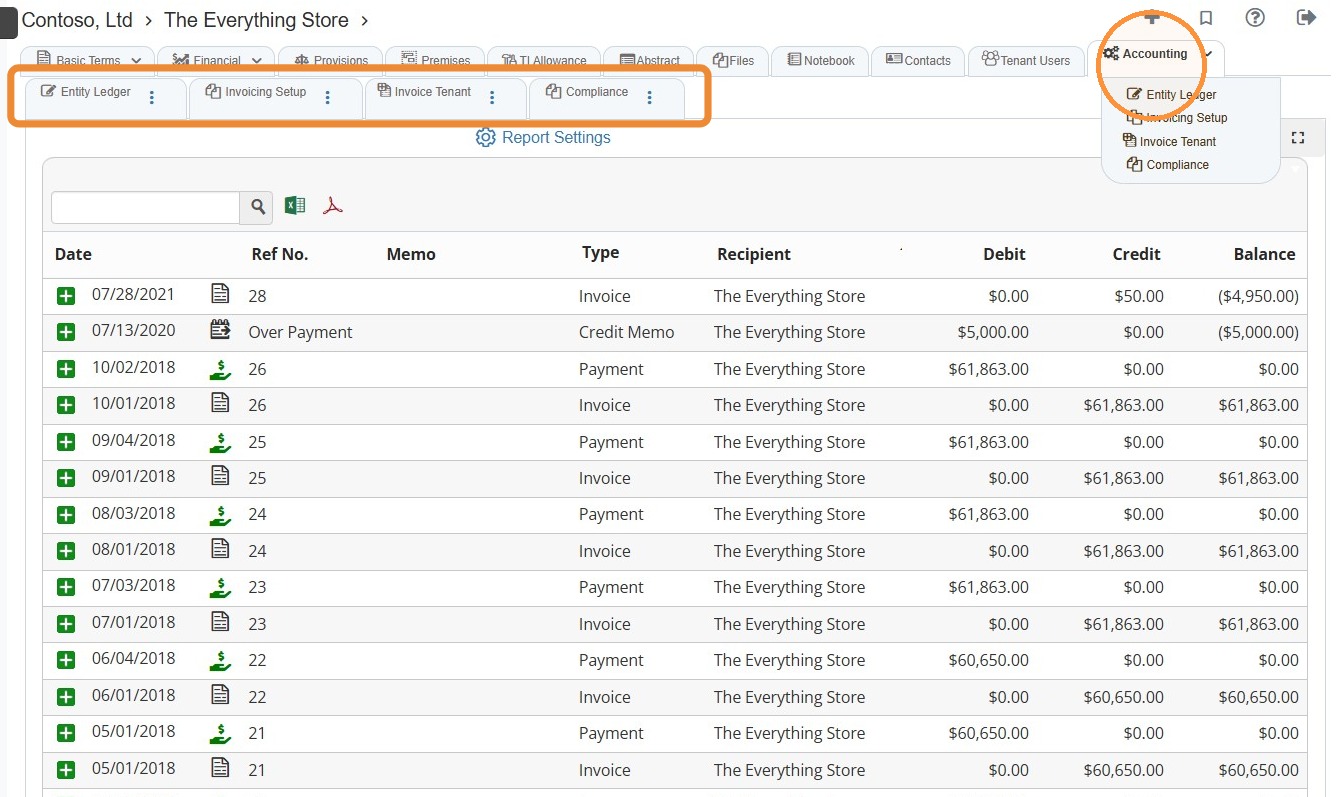
35. Entity Ledger Overview
Entity Ledger gives a snapshot of the tenant ledger.
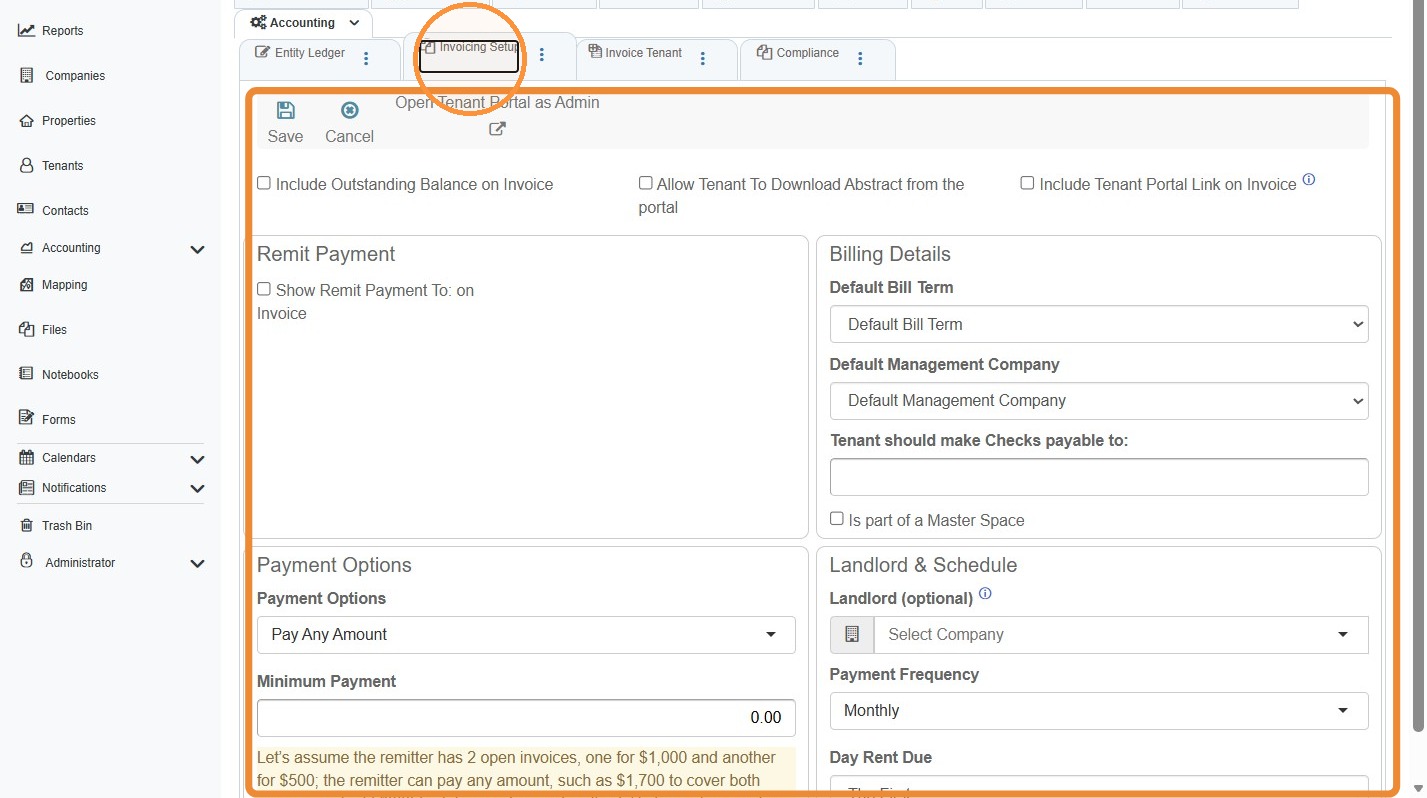
36. To review tenant invoicing options, select Invoicing Setup > Complete the invoicing details to determine how you would like the tenant invoice to appear
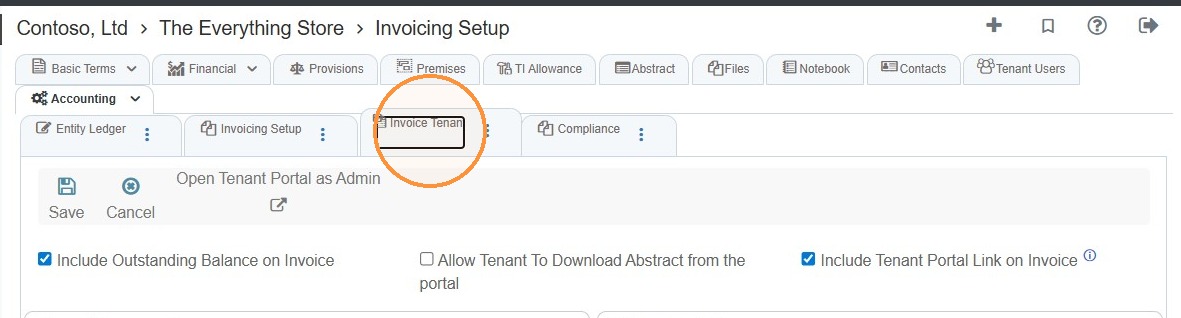
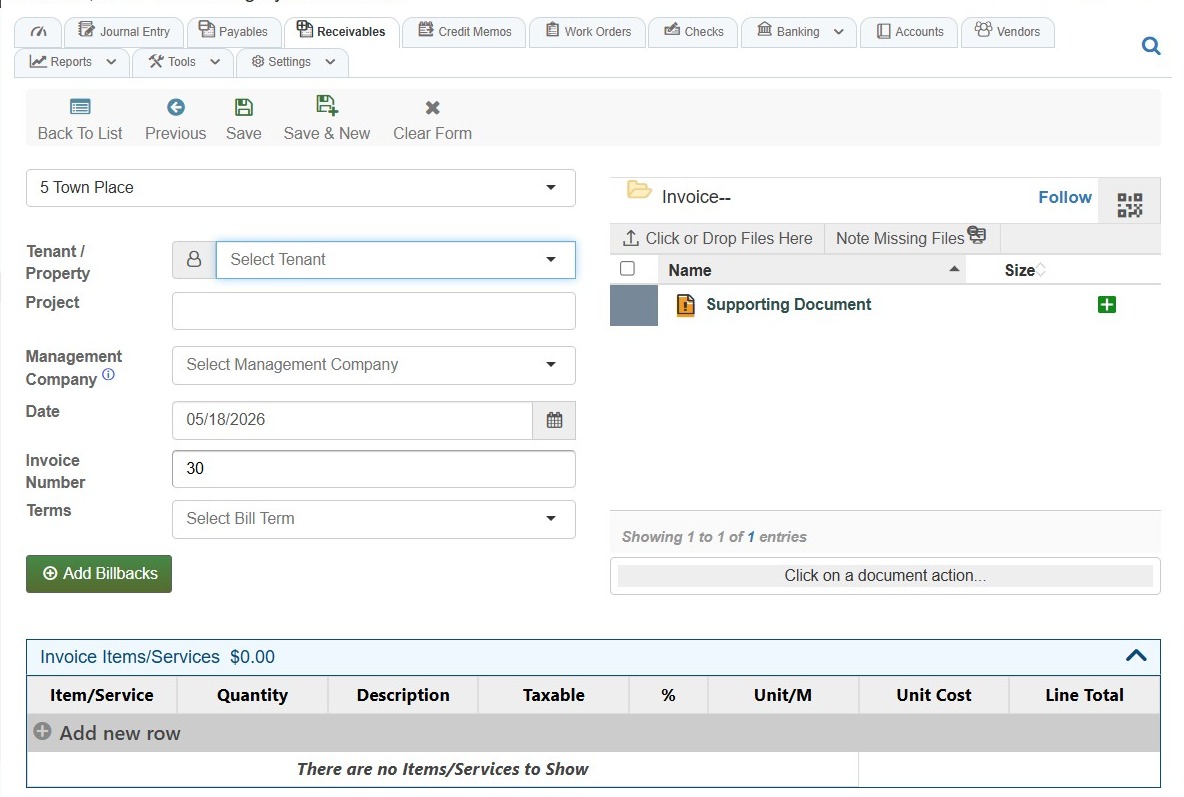
37. The Invoice Tenant tab is a quick link to Add New Invoice for a tenant.
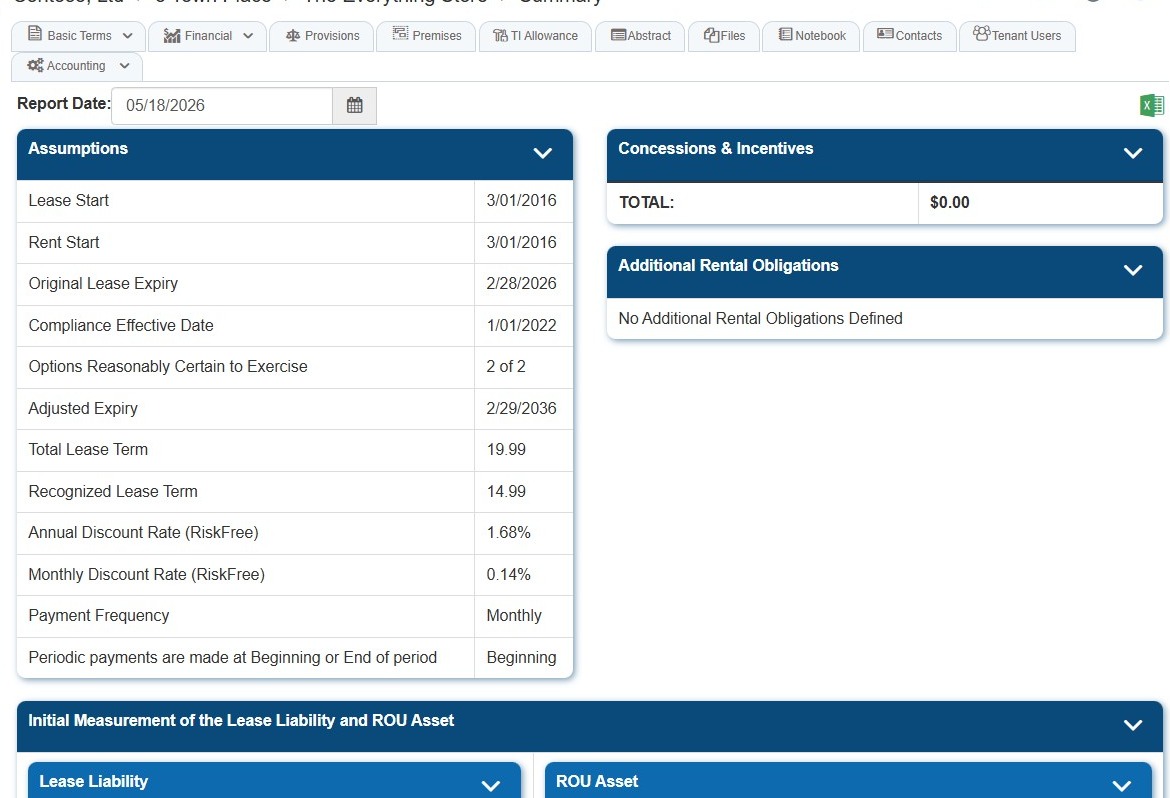
38. The Compliance tab provides an overview of lease terms and amortization and adjustments.
Related tutorial(s):
Related Tutorials: