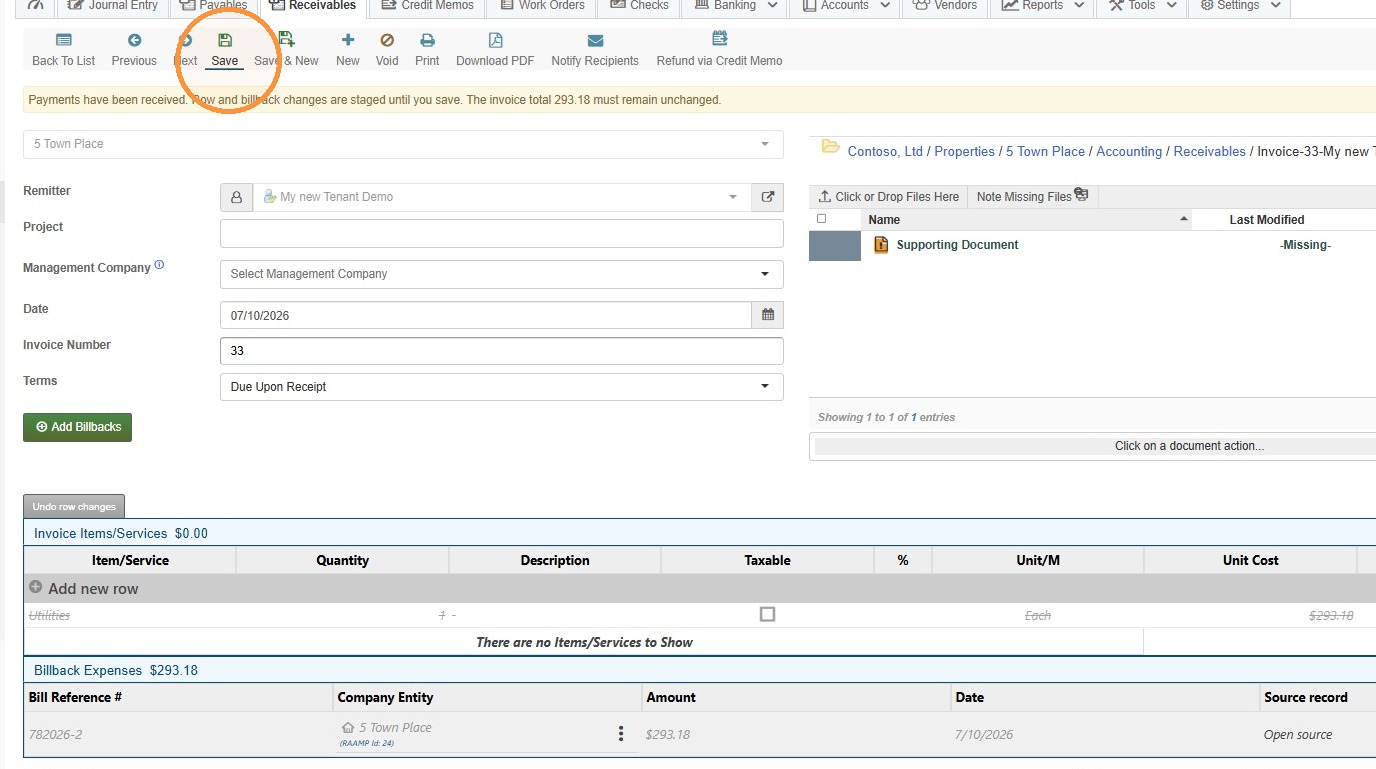
How to Apply a Missing Billback to an Existing Invoice/Receivable
This guide shows how to add a missed billback to an existing invoice without deleting the invoice or billback record. It explains where to find and apply the billback, how to adjust the invoice date if the billback’s effect date prevents selection, and which lines to remove to avoid duplicates. Follow it to correct invoices safely while preserving accounting records.
Locate the Invoice/Receivable
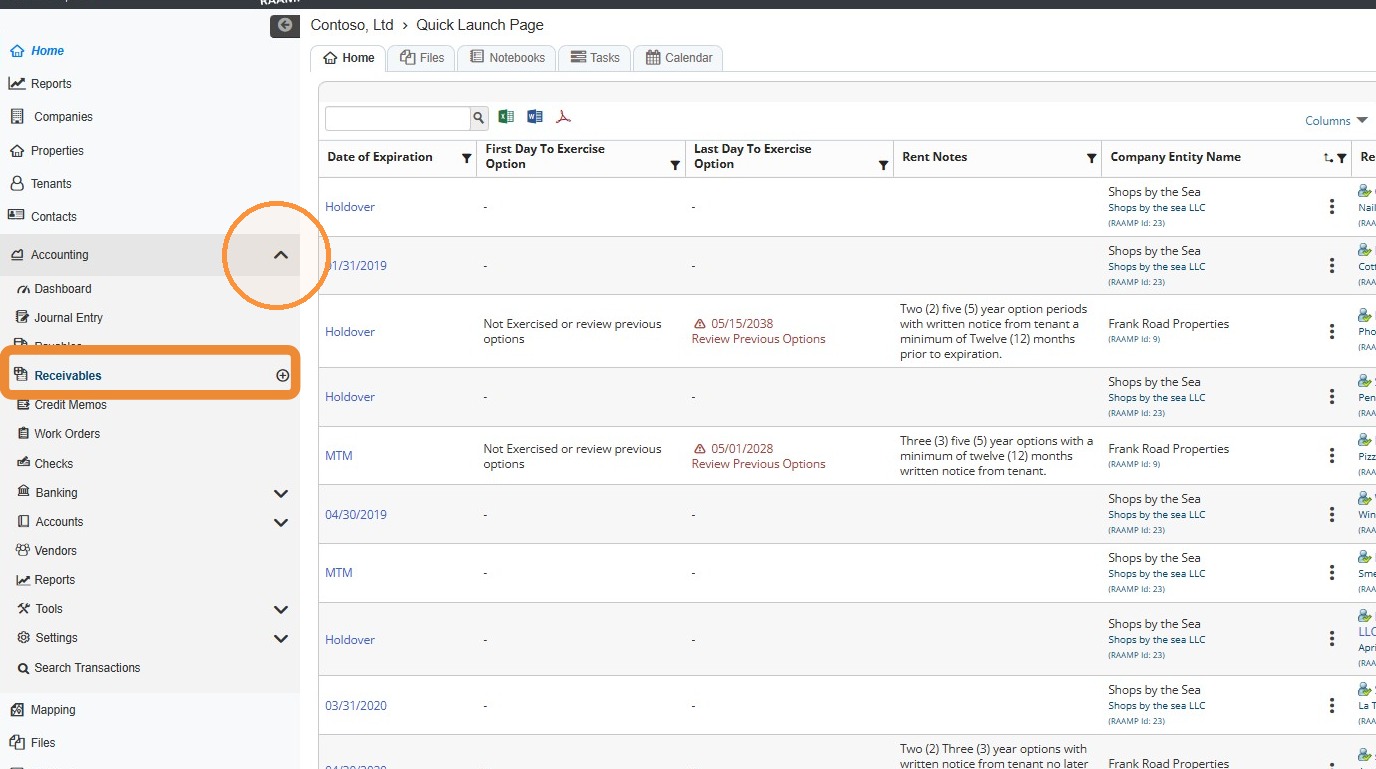
1. From the navigation menu, select Accounting > Select Receivables.
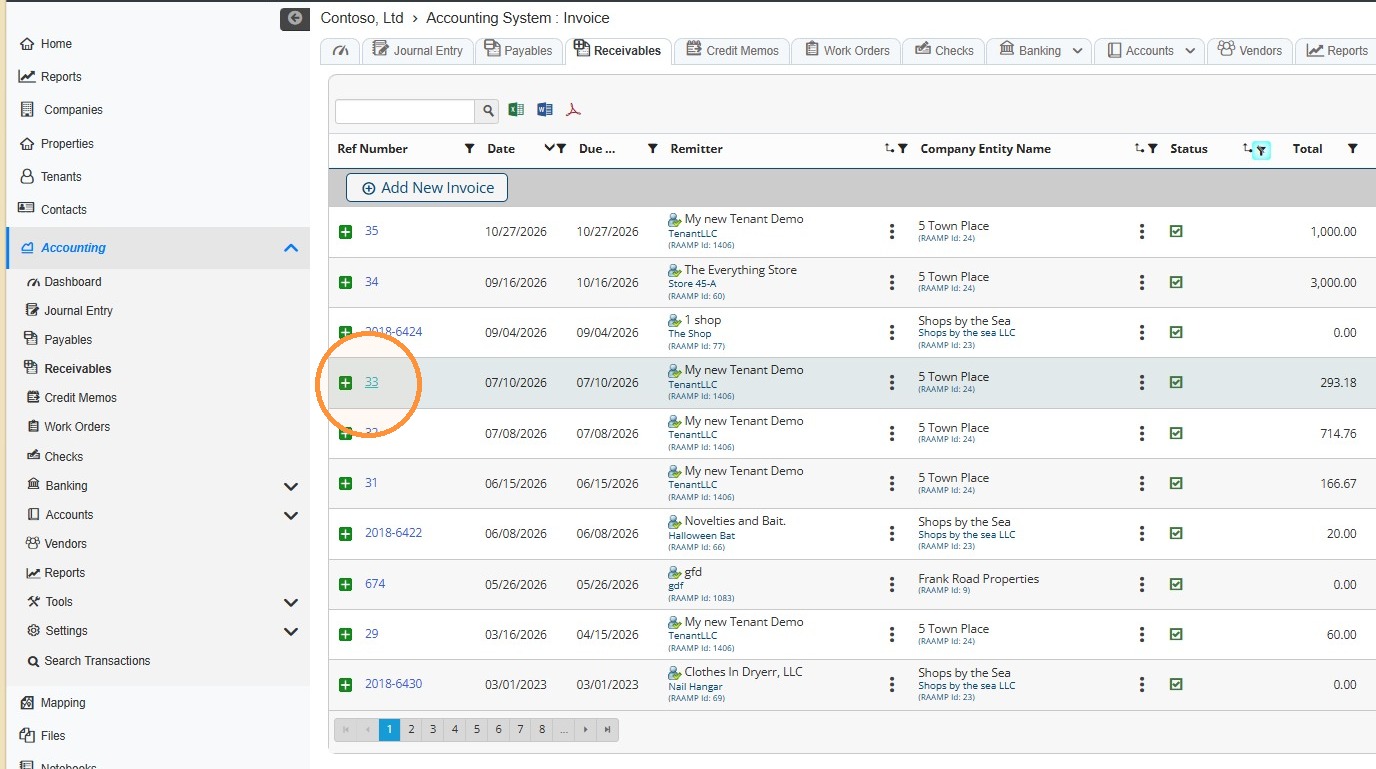
2. Locate the invoice that was created without the billback.
NOTE: The invoice does not need to be deleted.
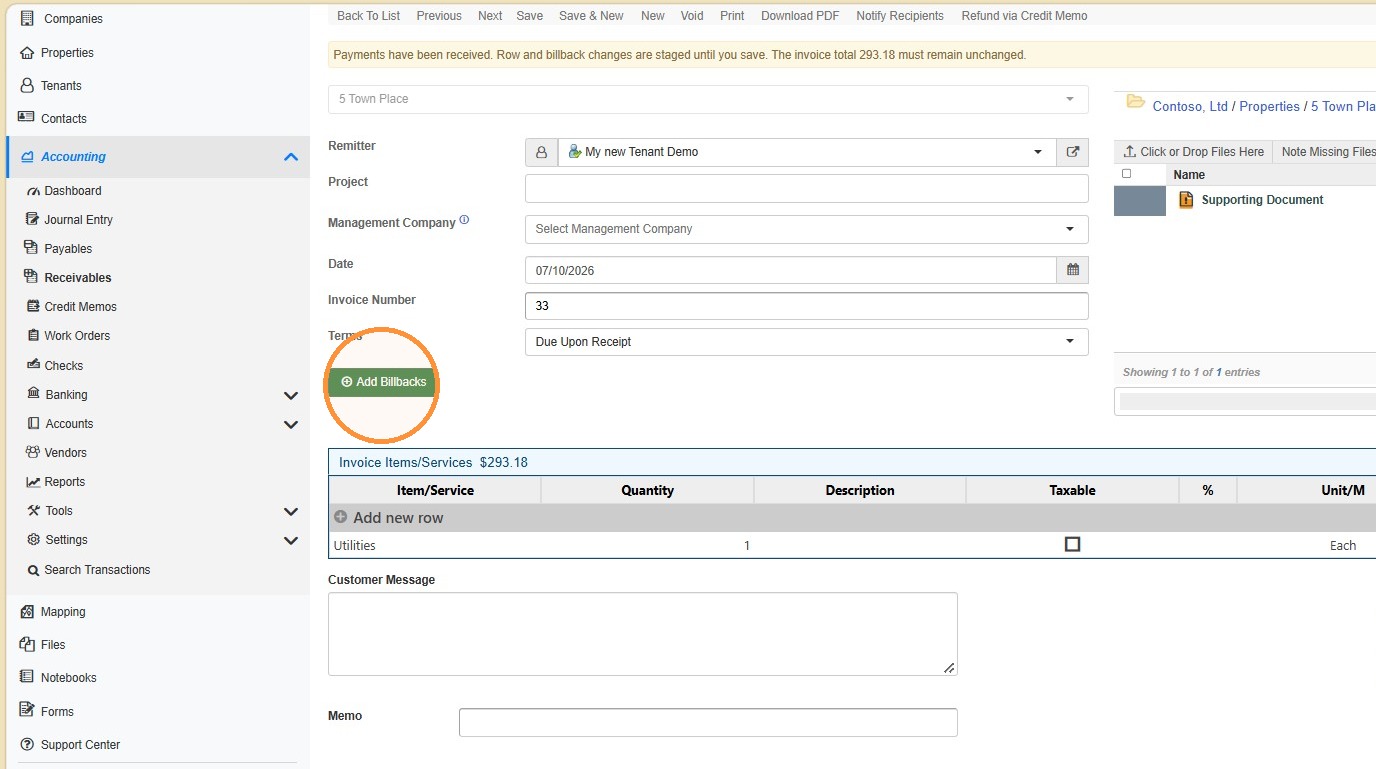
3. Select Add Billbacks.
4. Select the appropriate billback > Select Apply.
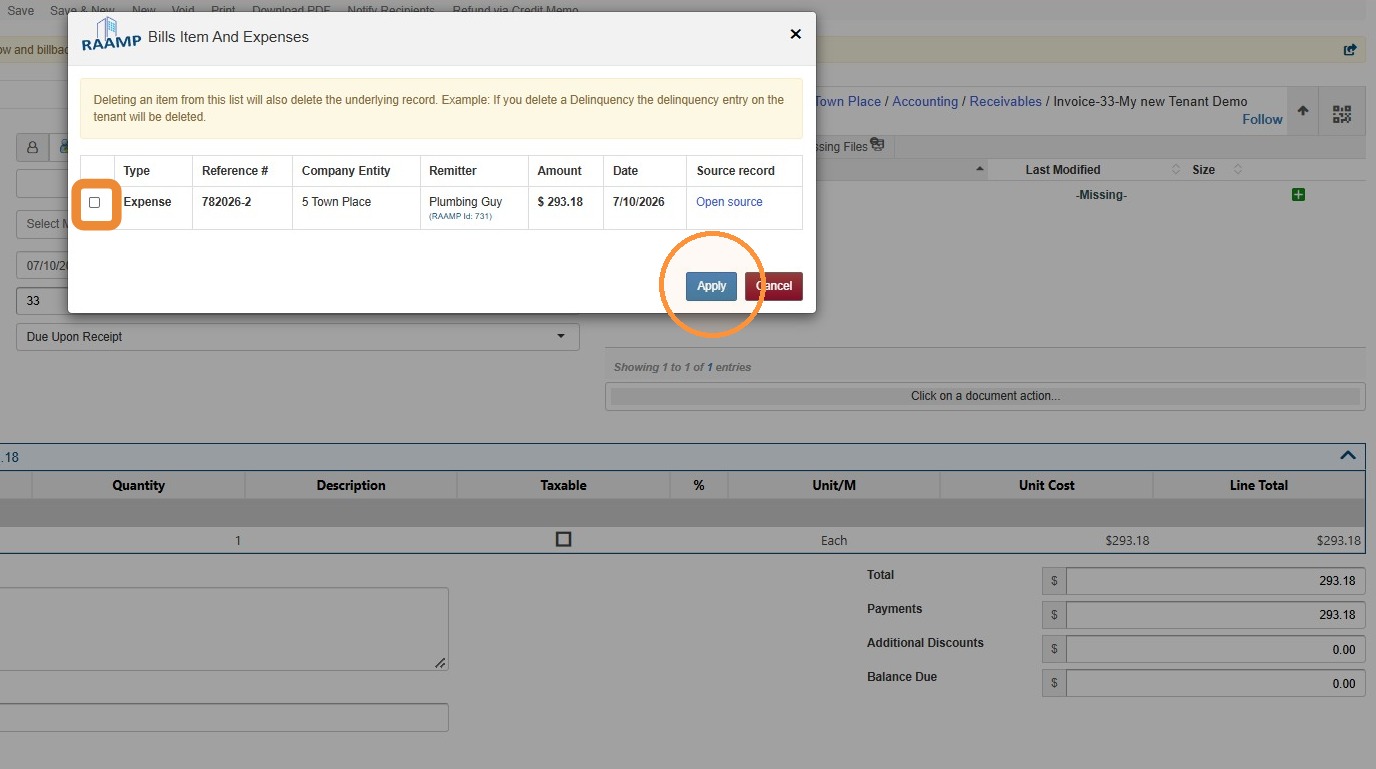
Tip: Tip: If you do not see the billback, check the billback's effect date.
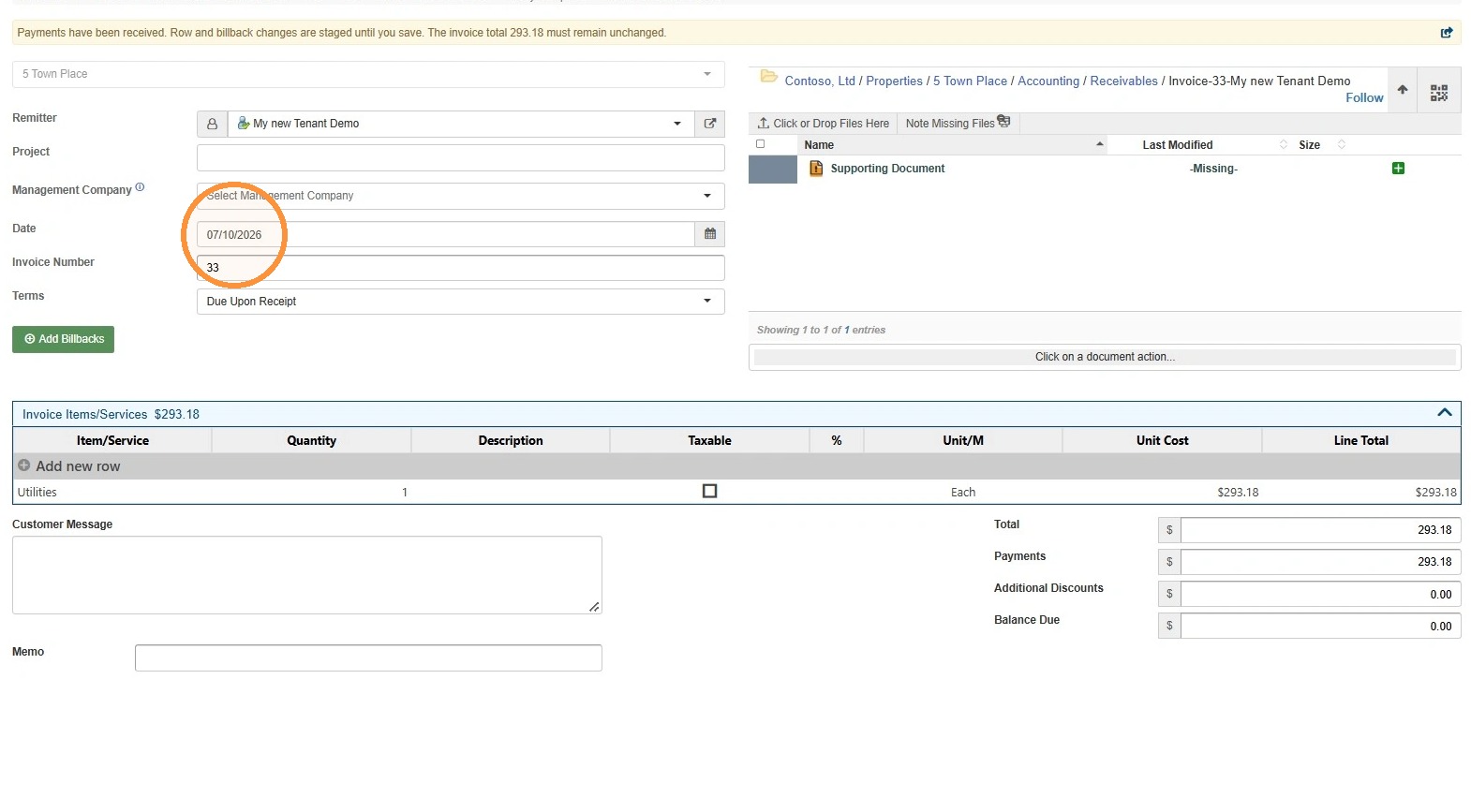
If the invoice date is earlier than the billback date, change the invoice date to the billback date or a later date. Confirm this accounting-date change with the customer first.
- Example: Change a 10/04 invoice to 10/22 or 10/23 to access a 10/22 billback.
- Example: Change a 03/10 invoice to 03/24 to access a 03/20 billback.
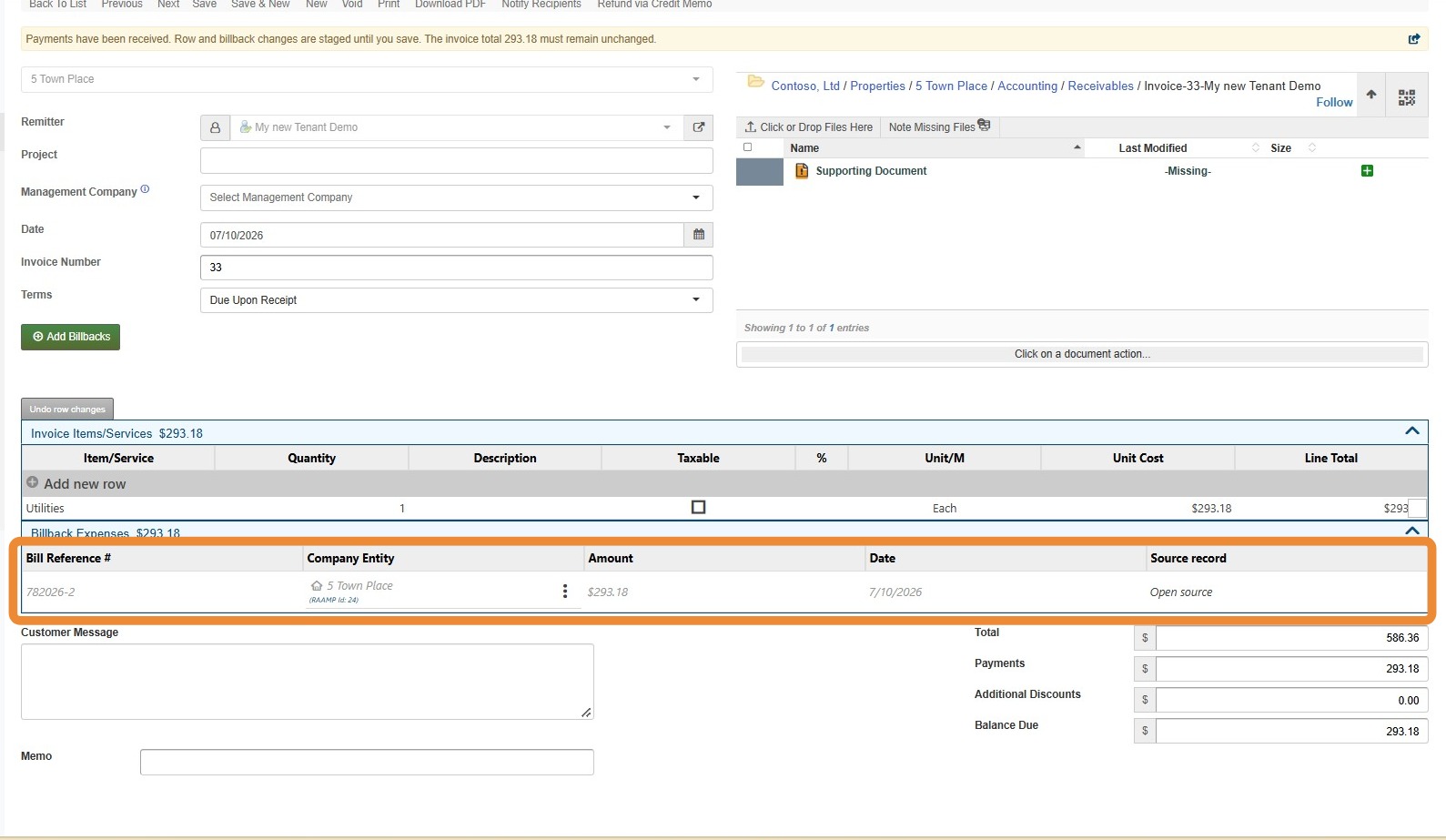
5. Confirm that the billback appears in the invoice detail section.
6. Remove the previous manually entered line that the billback is replacing.
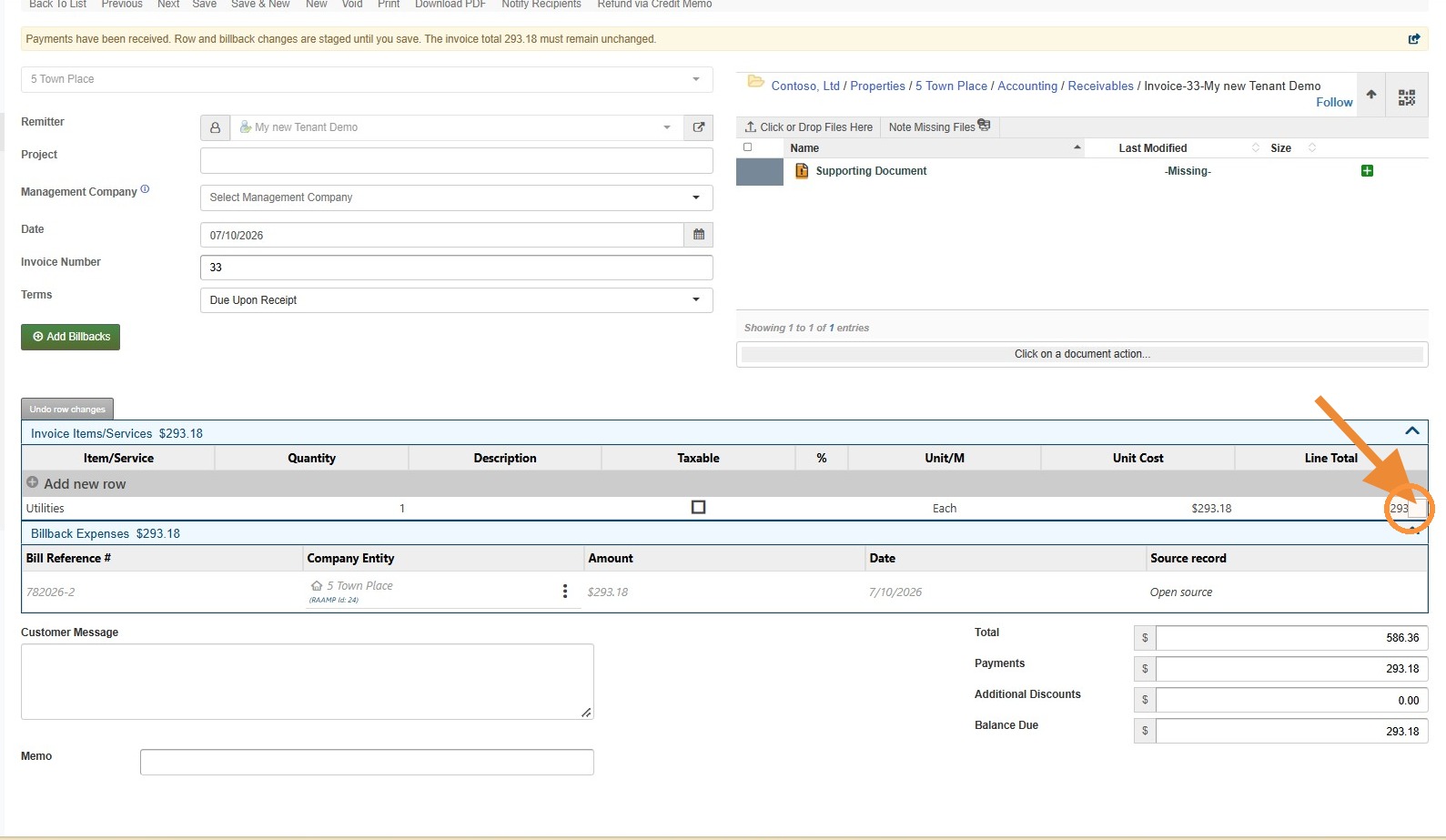
Alert: Alert! The user should delete neither the invoice nor the billback record. Only the duplicate or previous manual invoice line should be removed.
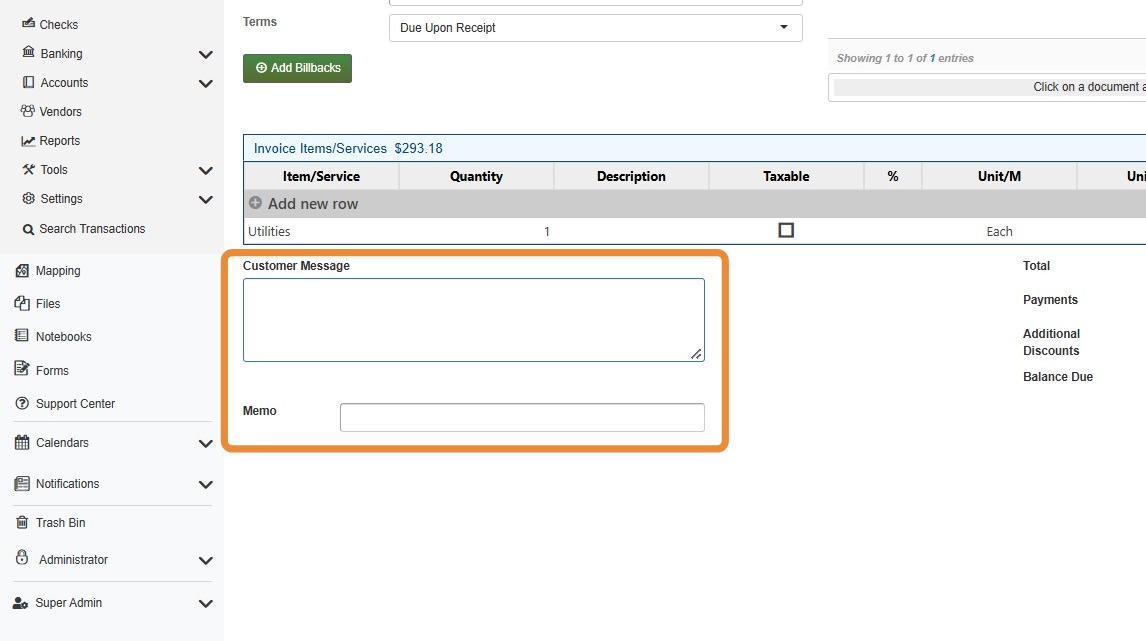
7. Add a customer message or memo if needed.
8. Select Save.