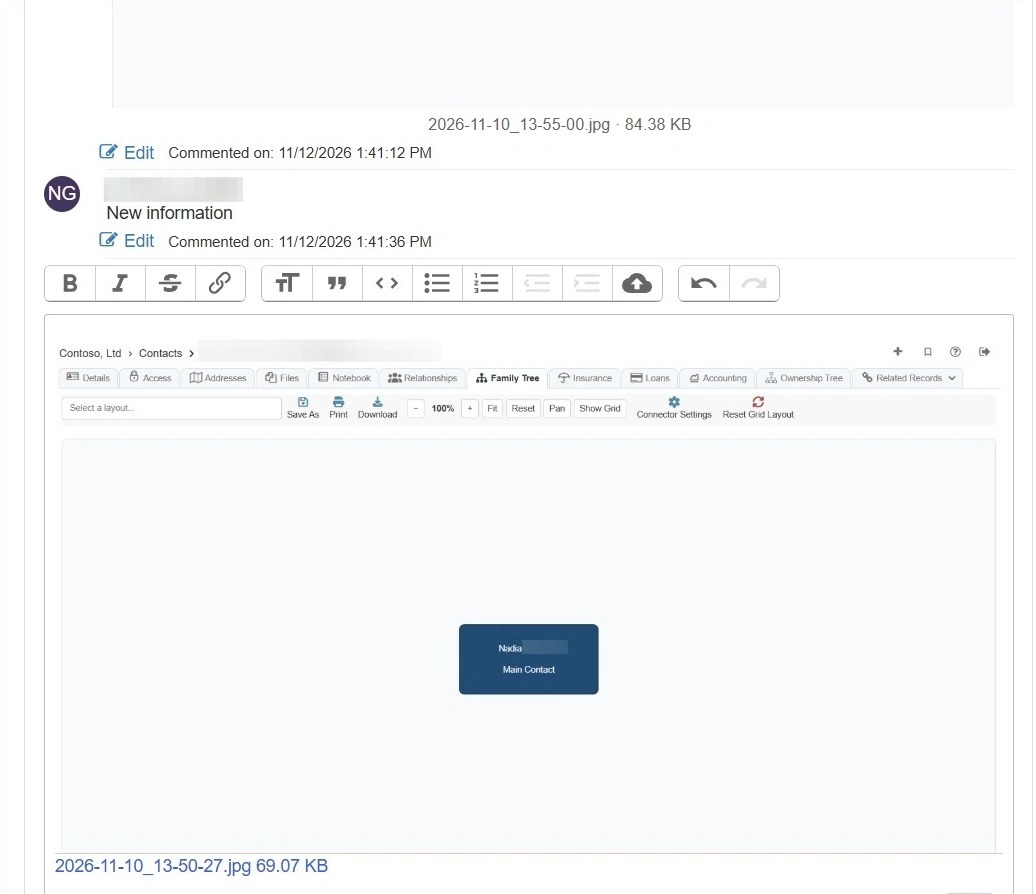
How to Add and Edit Comments on Submitted Support Tickets
This guide quickly shows how to post and revise comments on existing support tickets so you can update agents or add context without creating a new ticket. It covers where to find tickets, how to add links or attachments, and the simple steps to save or edit comments. It also includes a keyboard tip for editing comments that include files.
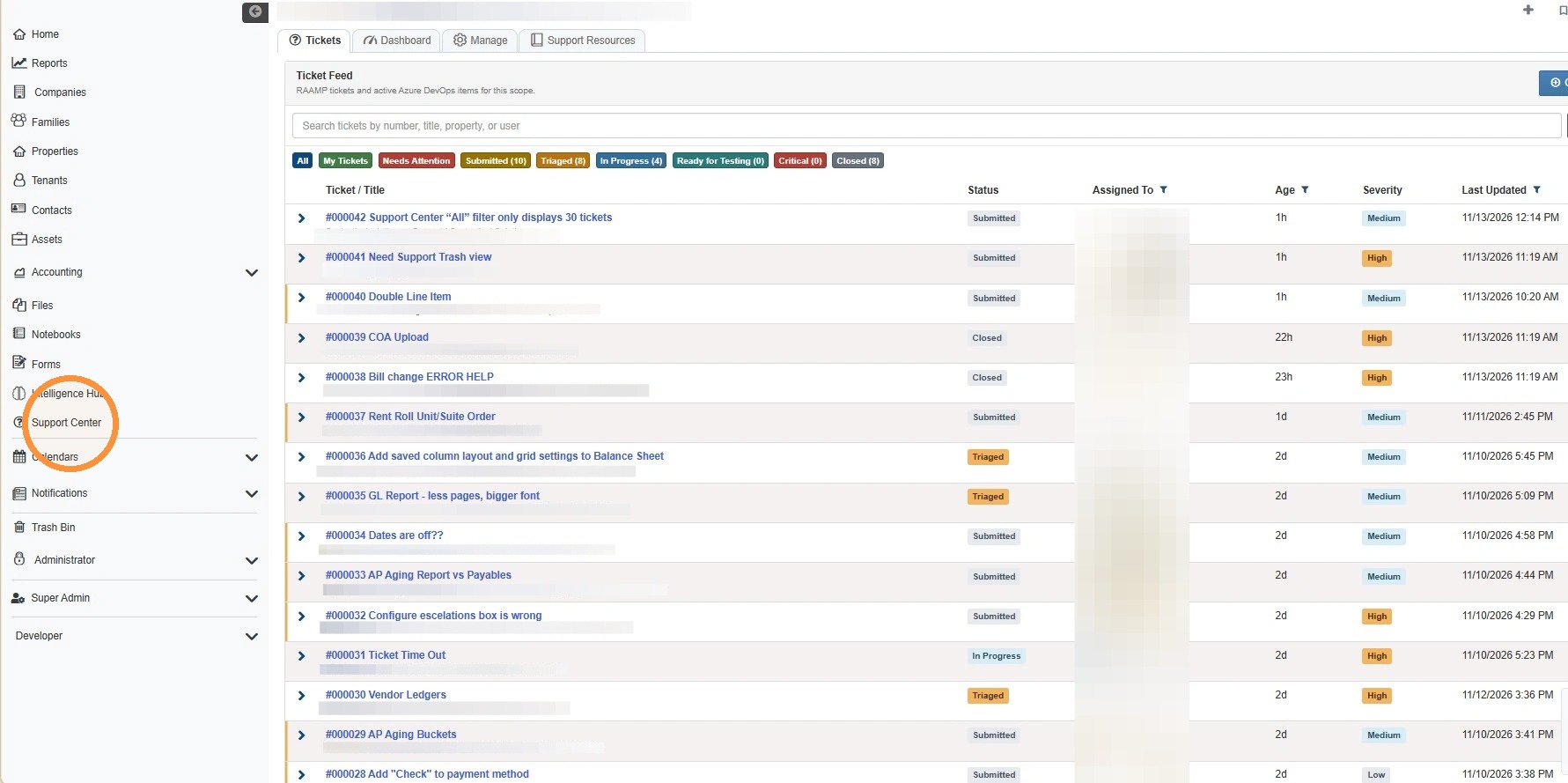
Navigating to the Support Center
1. From the navigation menu, select Support Center.
How to Leave a Comment
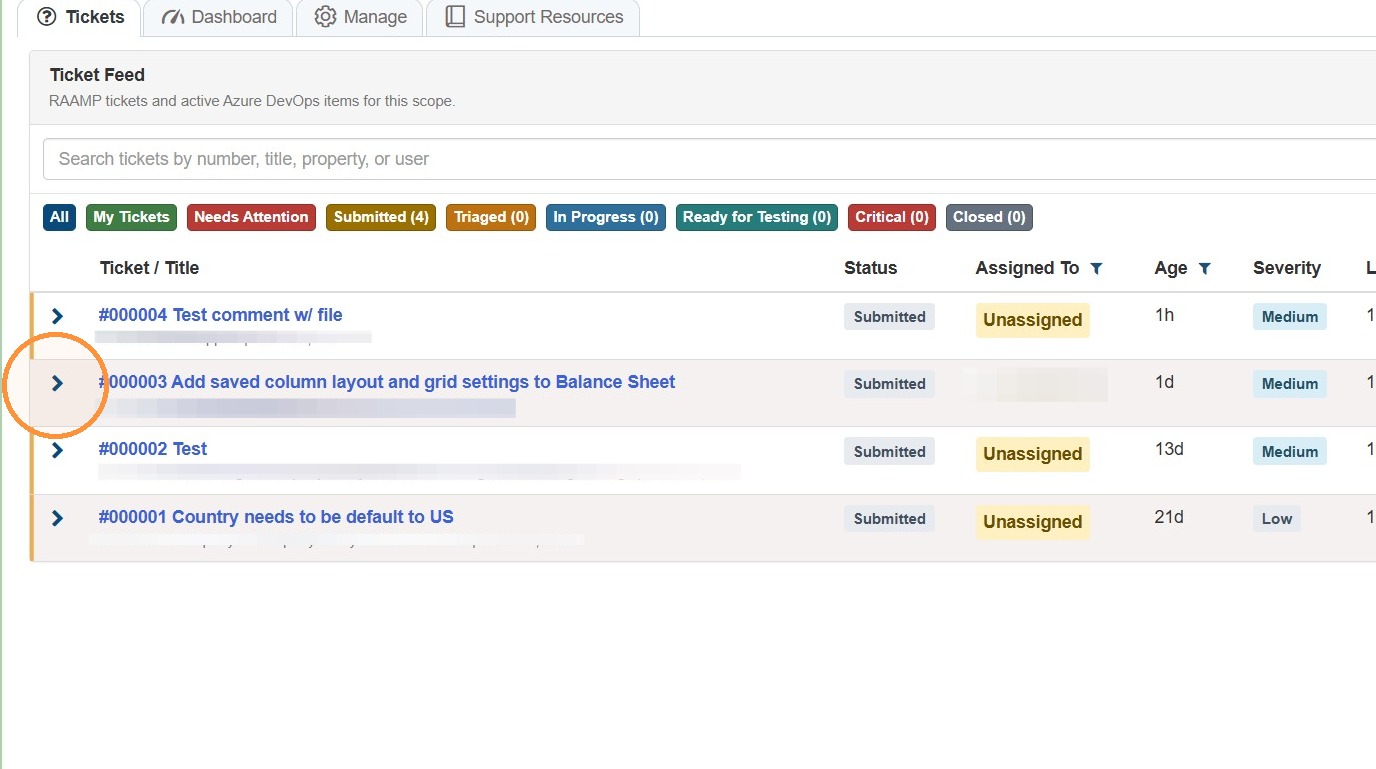
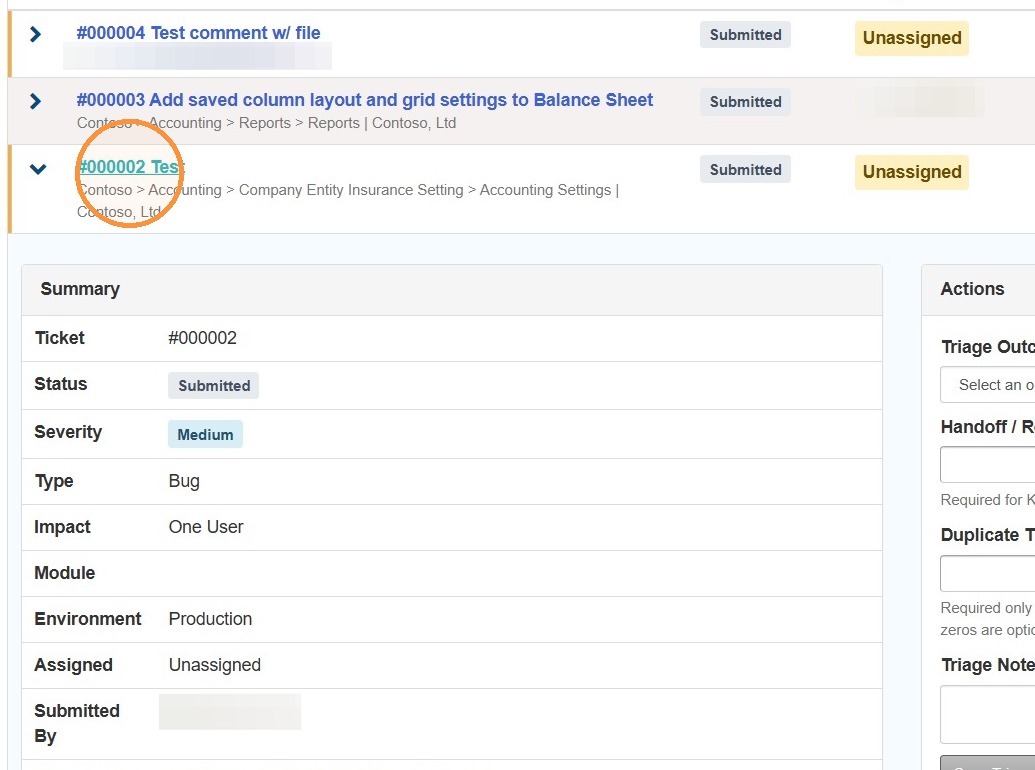
2. Locate the support ticket you'd like to comment on > Select the arrow to expand the ticket details.\ \ Alternatively, you can select the ticket's title to open the ticket > Scroll to the bottom of the ticket > Select the Comment box.
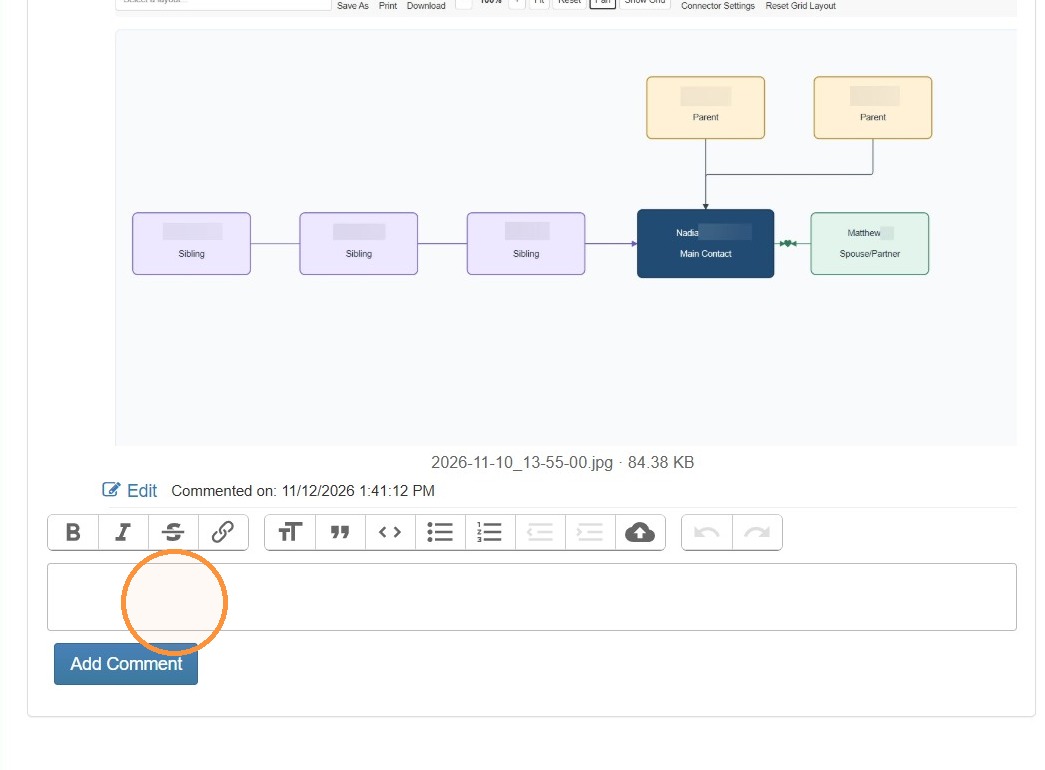
3. Scroll to the bottom of the ticket > Select the Comment box.
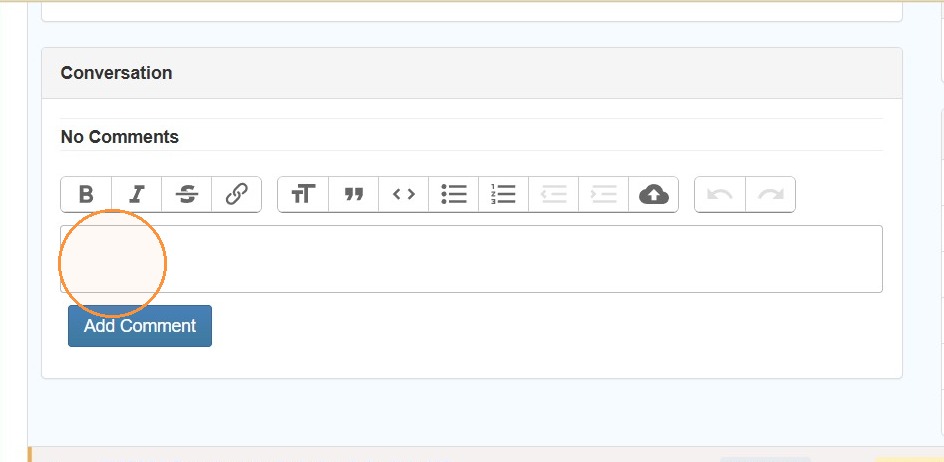
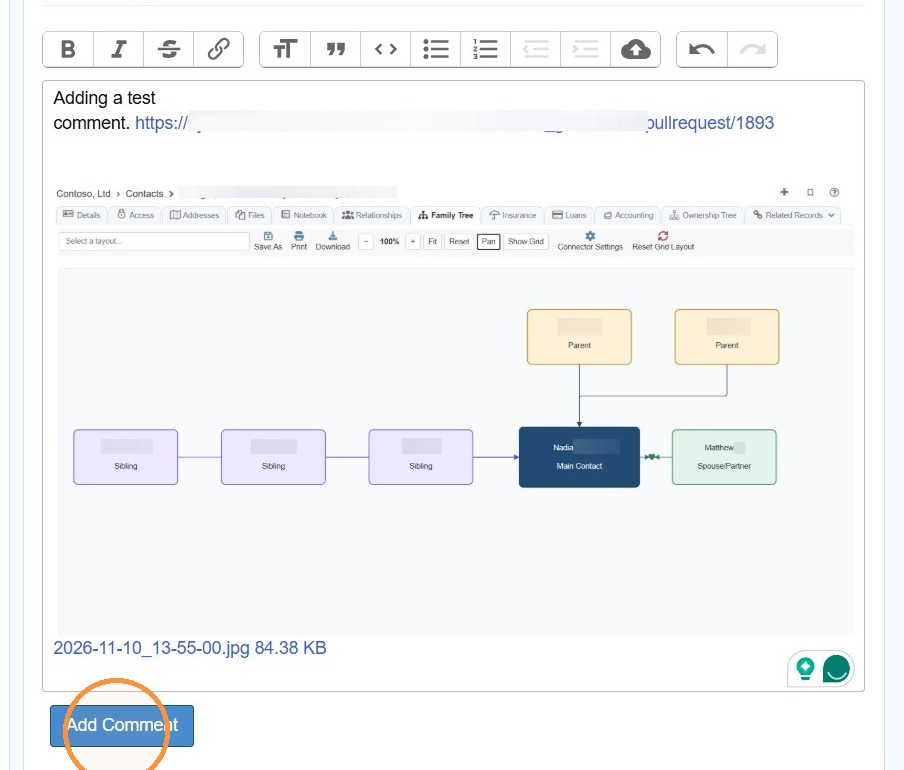
4. Type your comment.
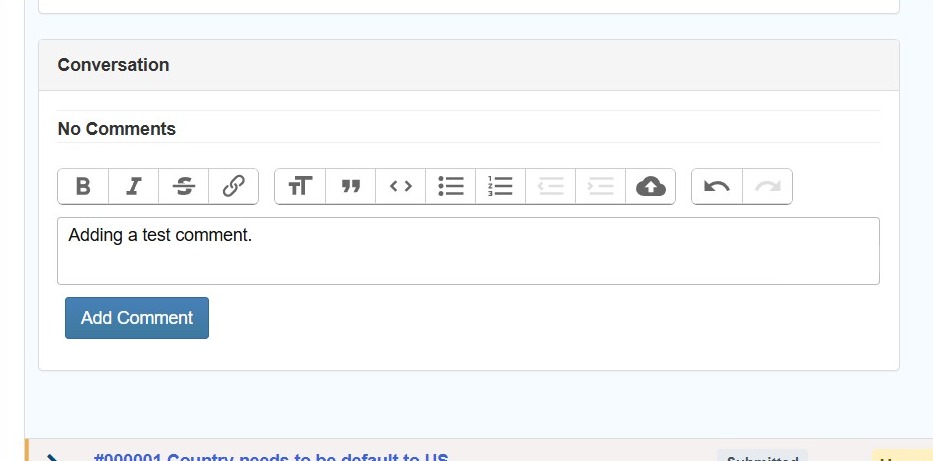
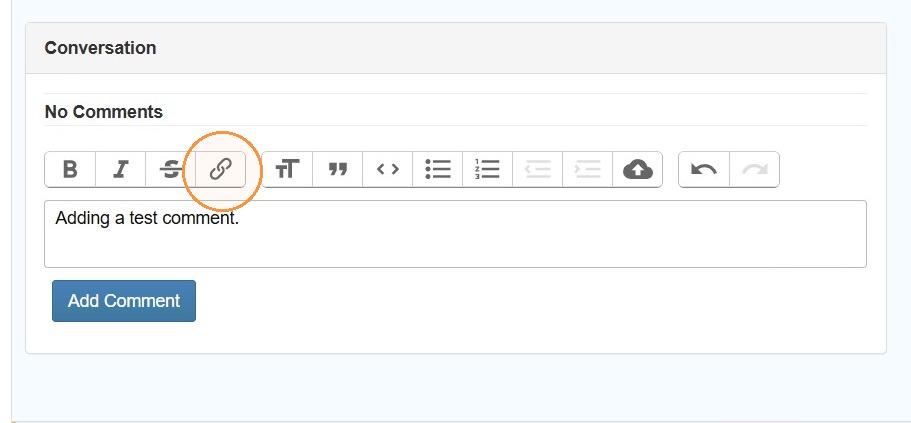
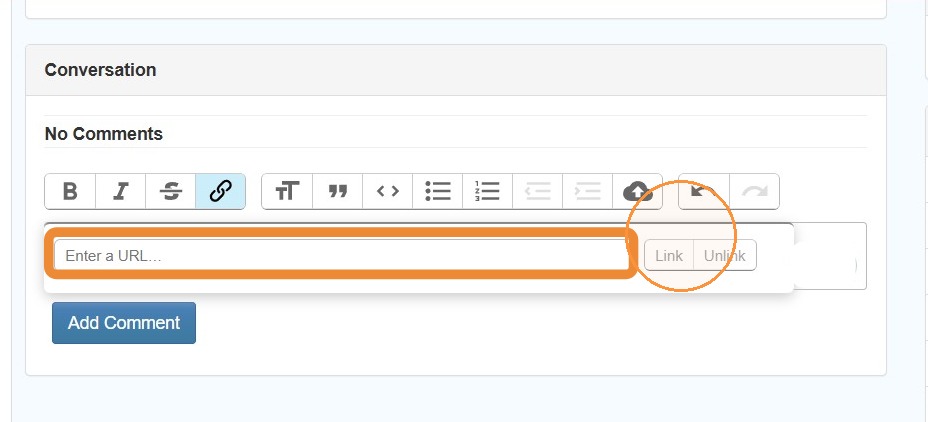
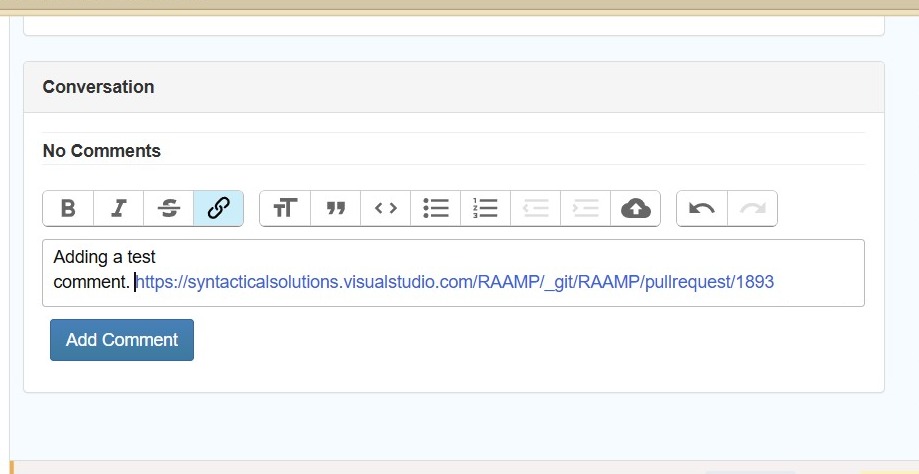
5. Optional: Select the link icon from the toolbar to add a link to your comment > Type/paste the link > Select Link.
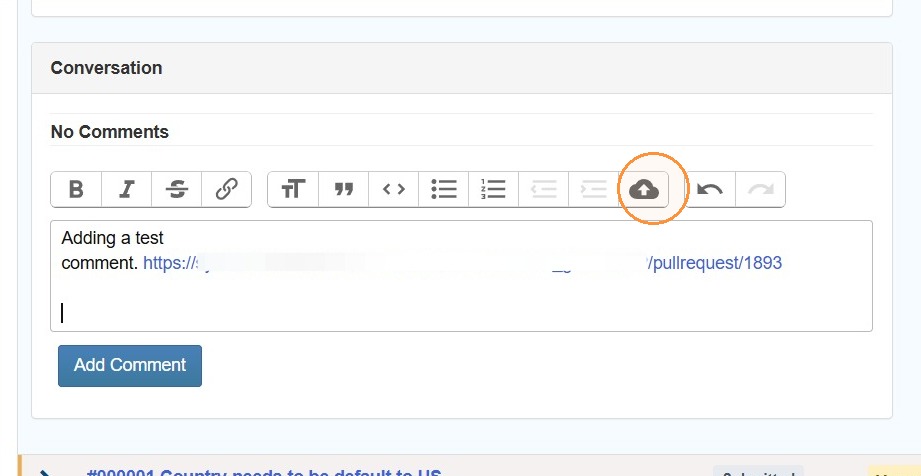
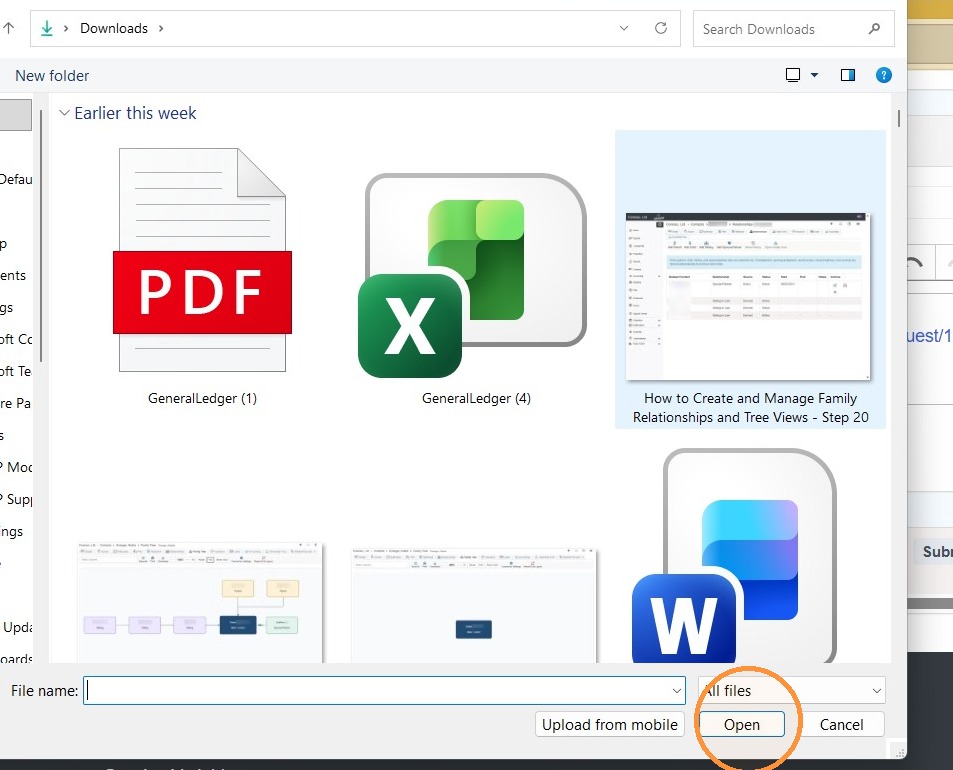
6. Optional: If you need to add a file, select the Upload icon > Select the file from your computer > Select Open.
7. Select Add Comment.
How to Edit a Comment
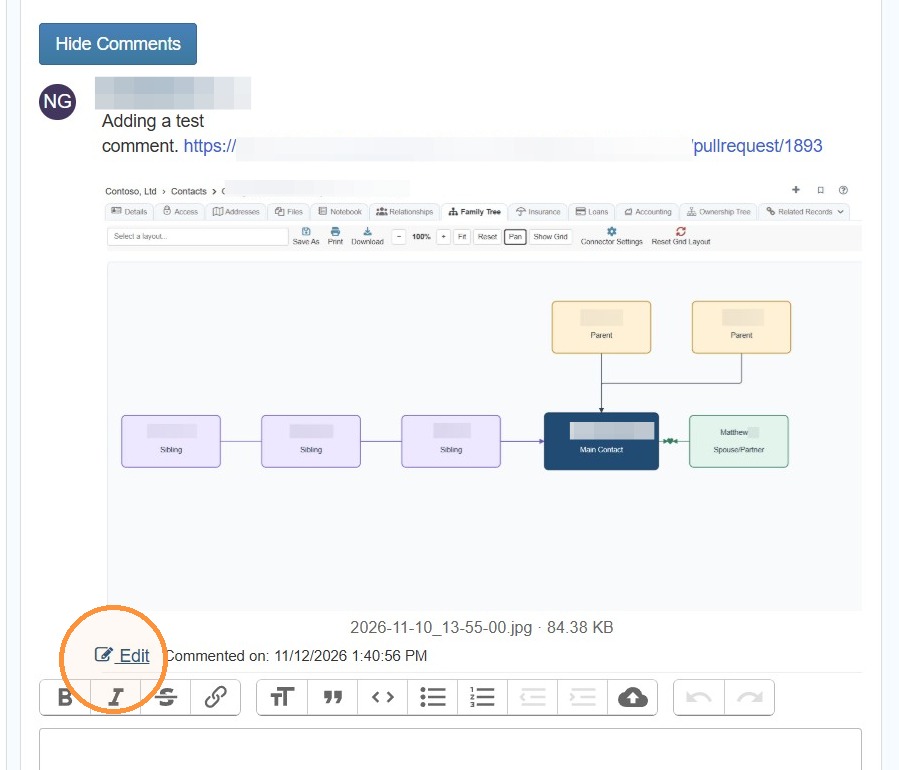
8. If you need to edit the comment, select Edit > Make your edits > Select Save.
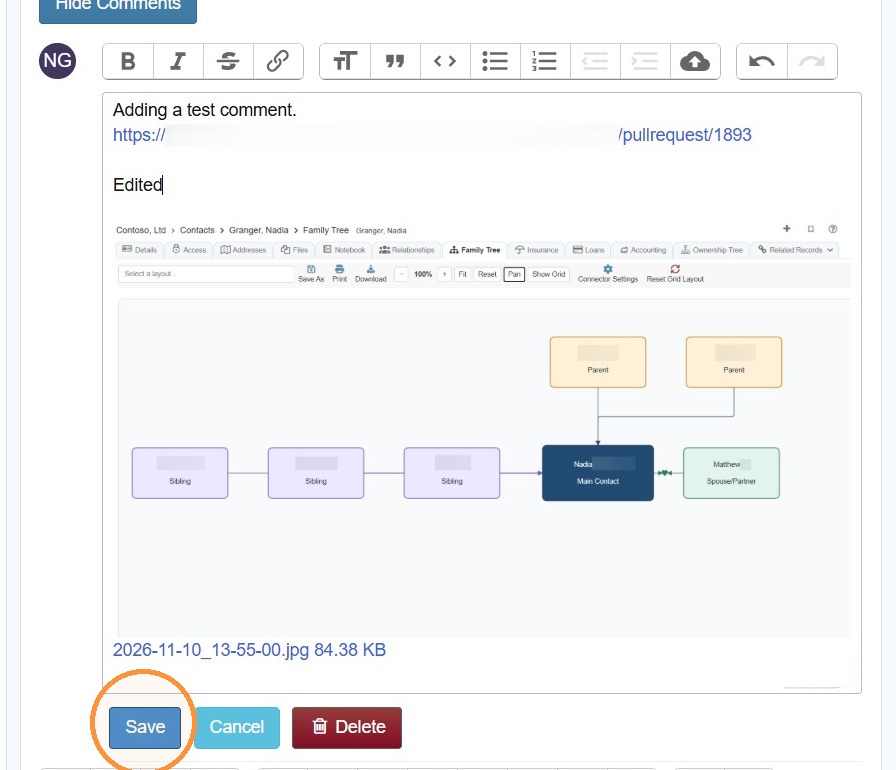
Tip: If you are editing a comment with a file and cannot type in the comment box, press the End key, then press Enter. This will allow you to type above or below the image/file.