How to Bulk Import Services
How to Download the Template
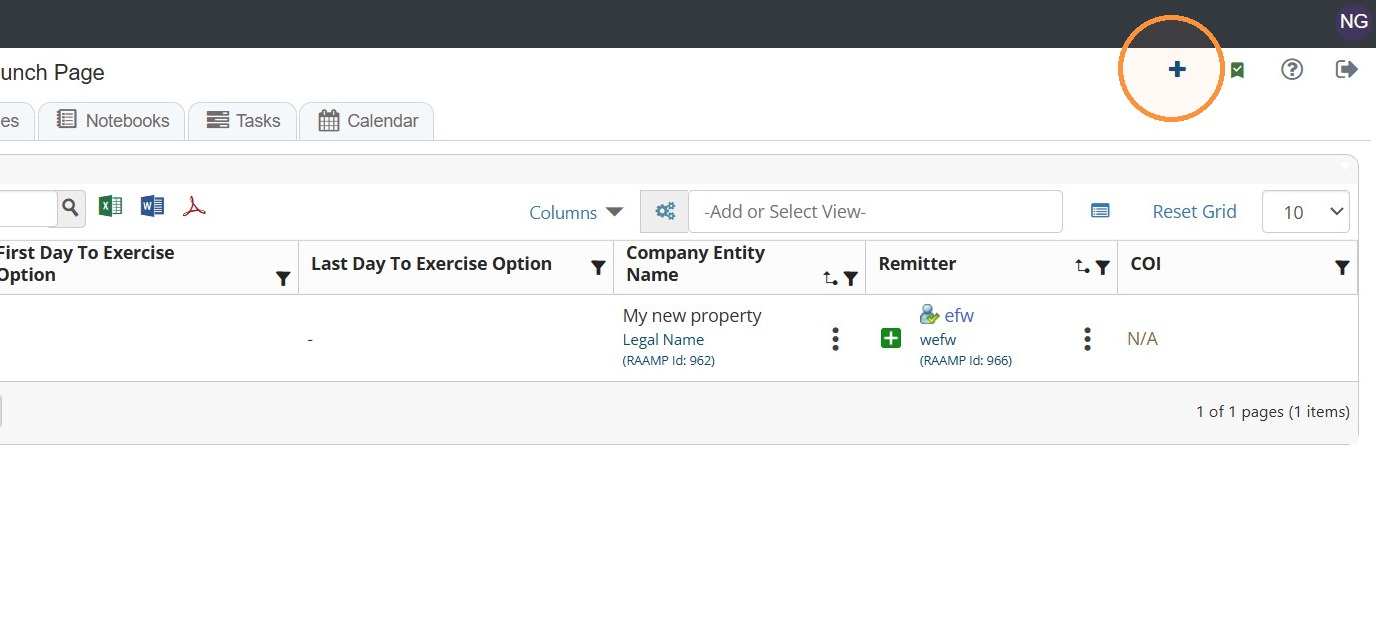
1. From Home, select the + icon in the top right corner of the screen.
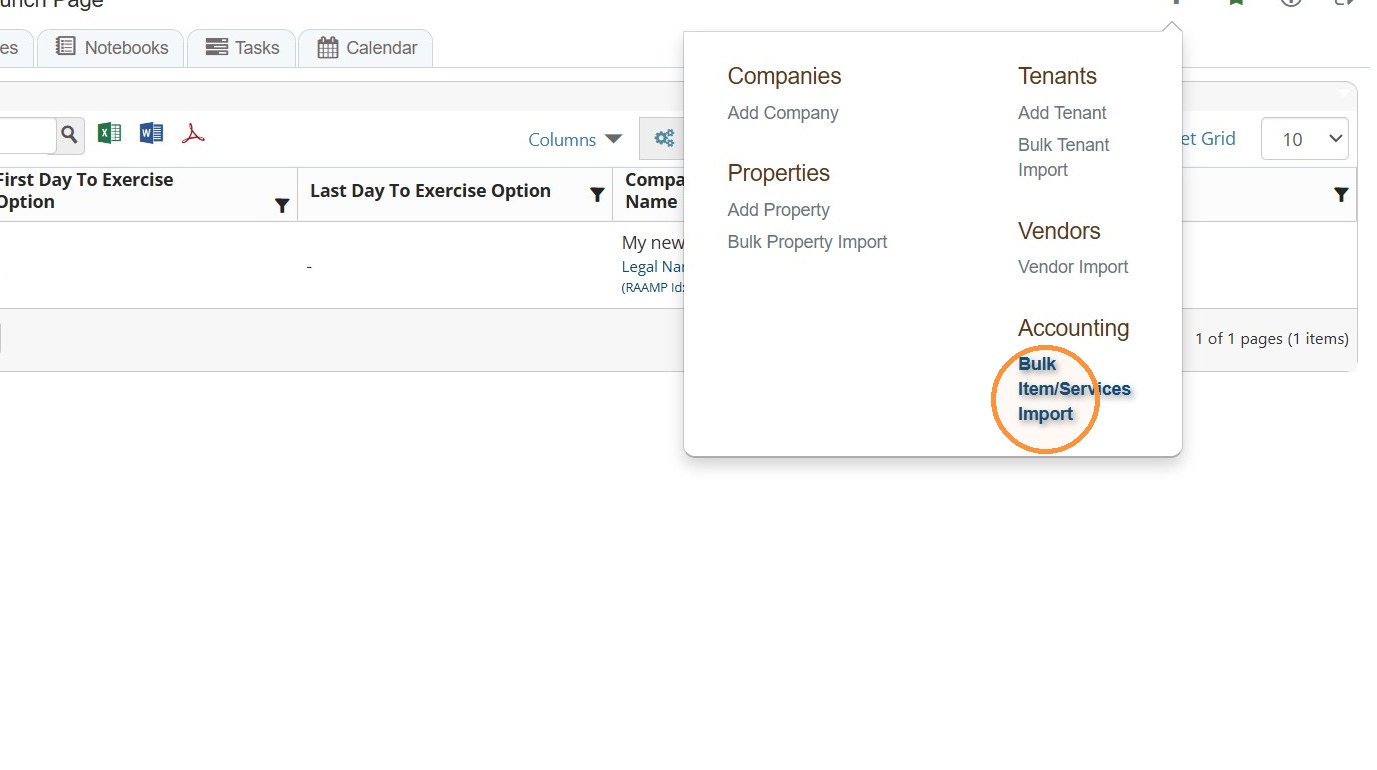
2. Select Bulk Item/Services Import.
3. Select Download CSV Template.
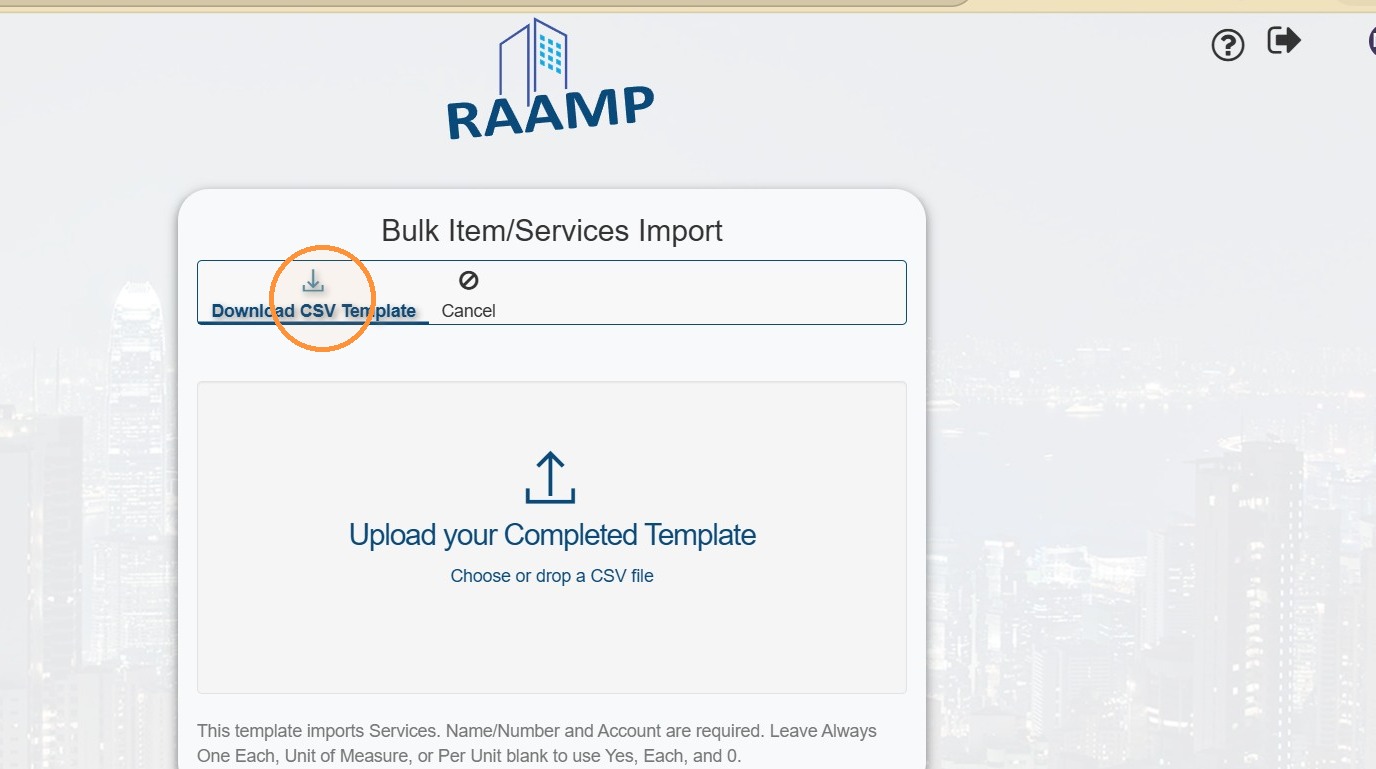
4. You should be able to access the template in your computer's Downloads folder.
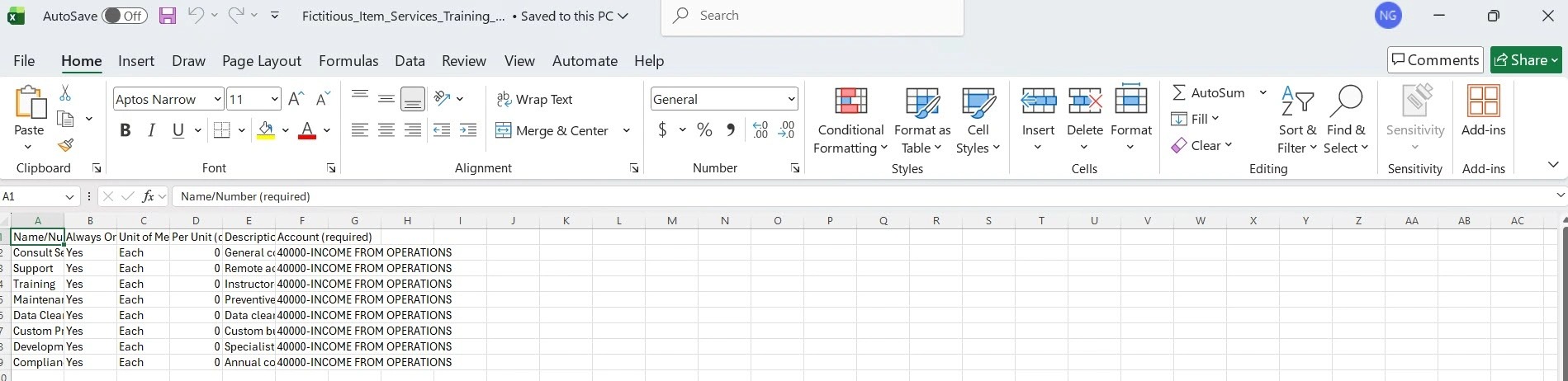
Format your vendor data to match the downloaded template. This template imports Services. Name/Number and Account are required. Leave Always One Each, Unit of Measure, or Per Unit blank to use Yes, Each, and 0.
NOTE: The Account (required) column should include the account name listed on the Chart of Accounts.
How to Import Template
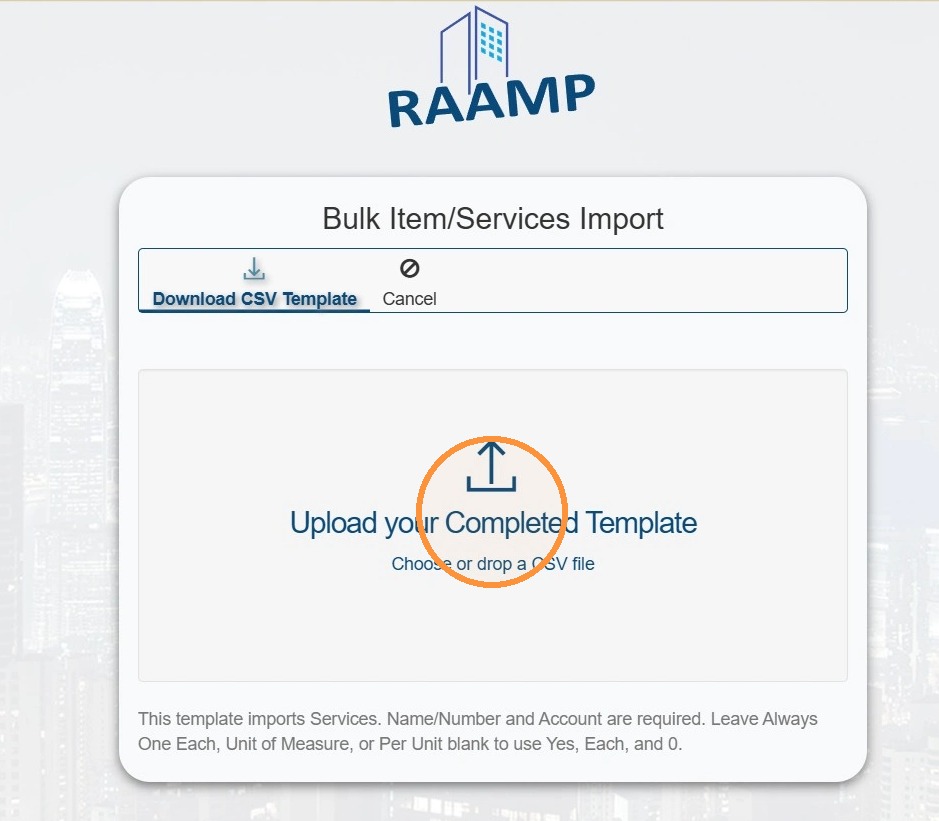
5. Select Upload your Completed Template.
NOTE: Confirm your template is saved as CSV file.
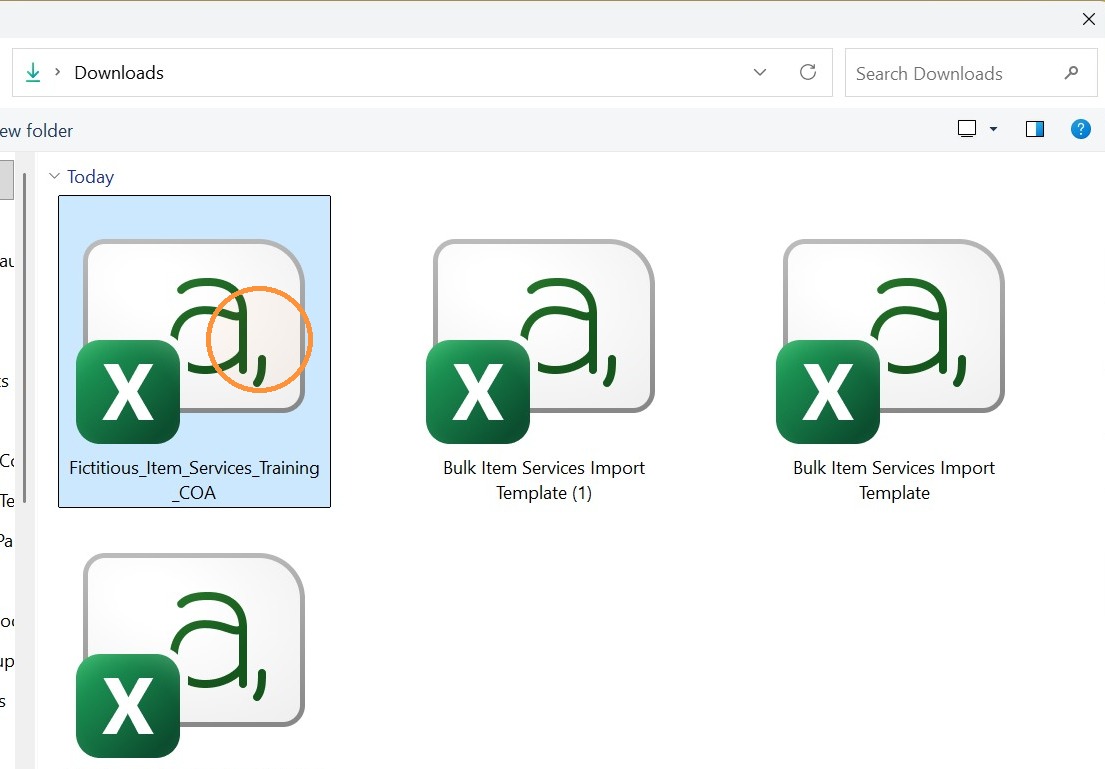
6. Select the file from your computer.
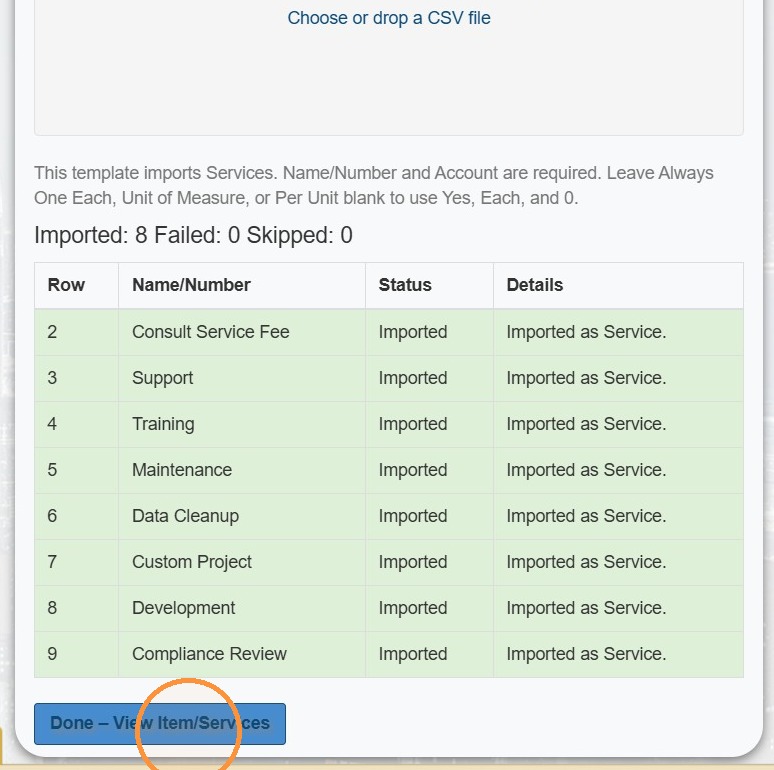
7. Once processed, you'll receive a report indicating if the import succeeded or failed > If it's successful, select Done - View Item/Services.
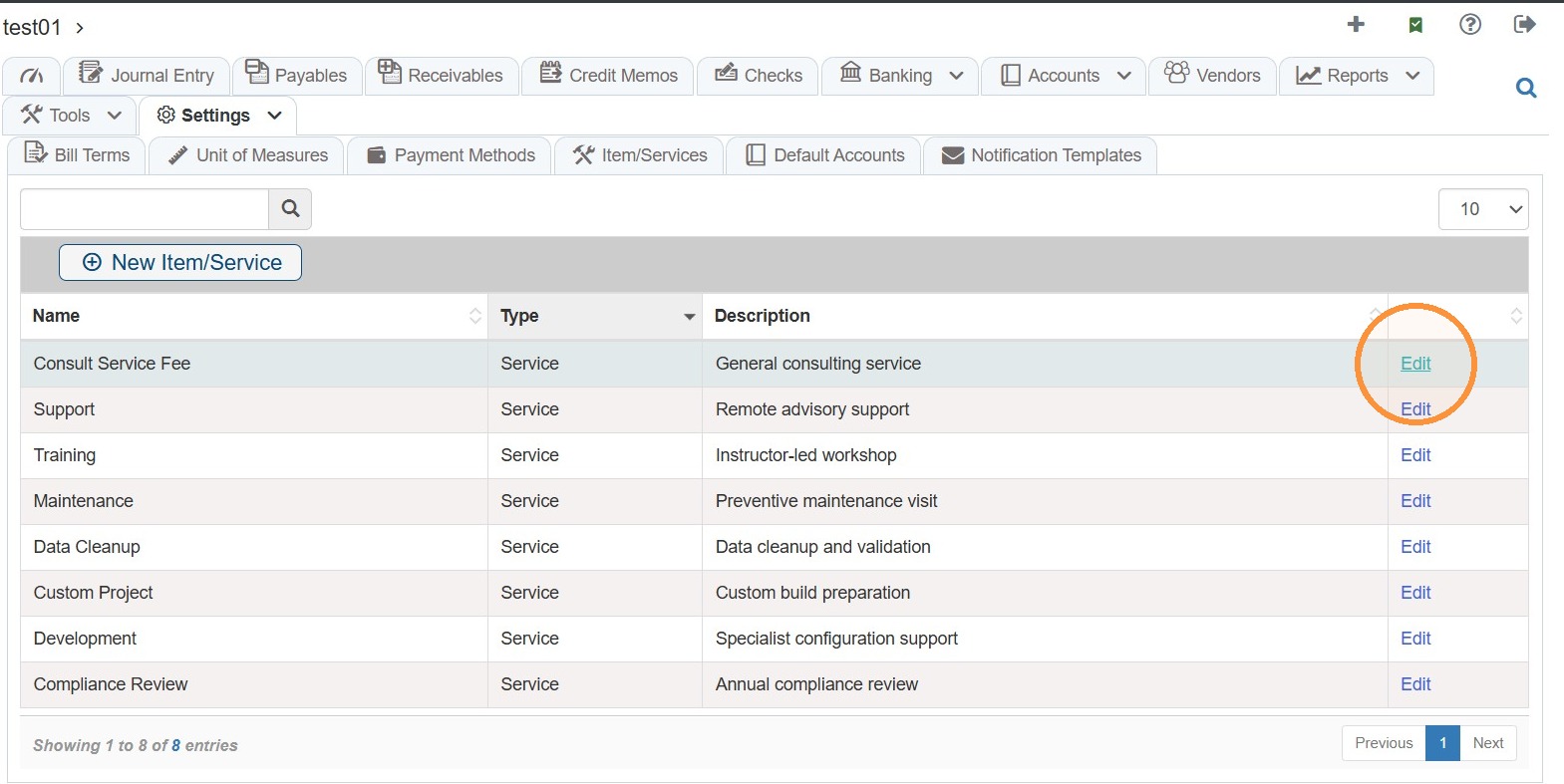
8. To edit a service, select the Edit hyperlink.
Related Tutorial: