How to Process Partial Payment and Remove Remaining Balance
This guide covers a partial payment applied to an existing invoice, followed by a credit memo for the remaining balance. It does not cover overpayments or payments received without an invoice.
Use this guide when:
A tenant has an existing invoice, has paid only part of the amount due, and the remaining balance needs to be removed through a credit memo or approved adjustment.
Use a different process when:
The tenant paid more than the invoice amount. Record the full payment and leave the excess as an overpayment or tenant credit to apply to a future invoice or refund. See
The tenant paid before an invoice existed. Use Receive Payment without an Invoice to record the payment as unapplied cash or a prepayment.
How to Access Receive Payment Screen
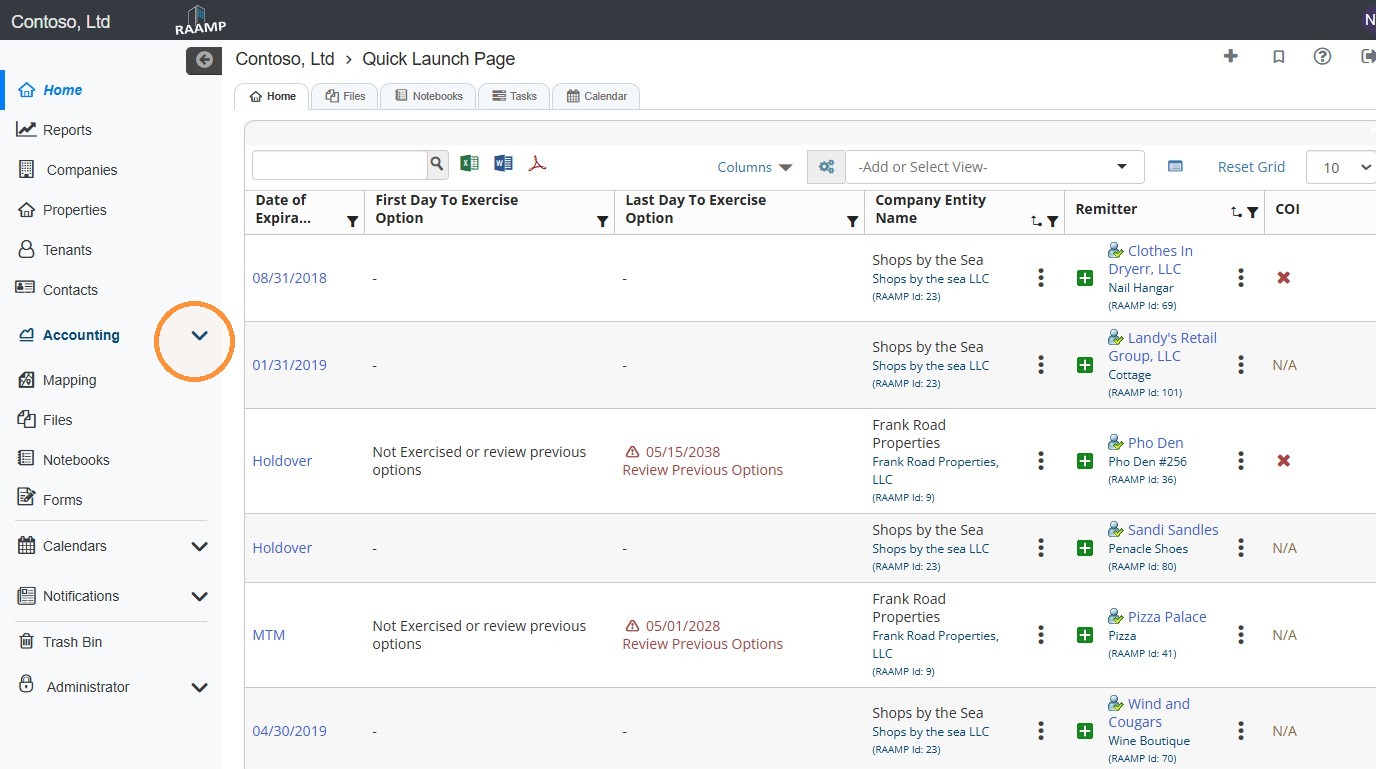
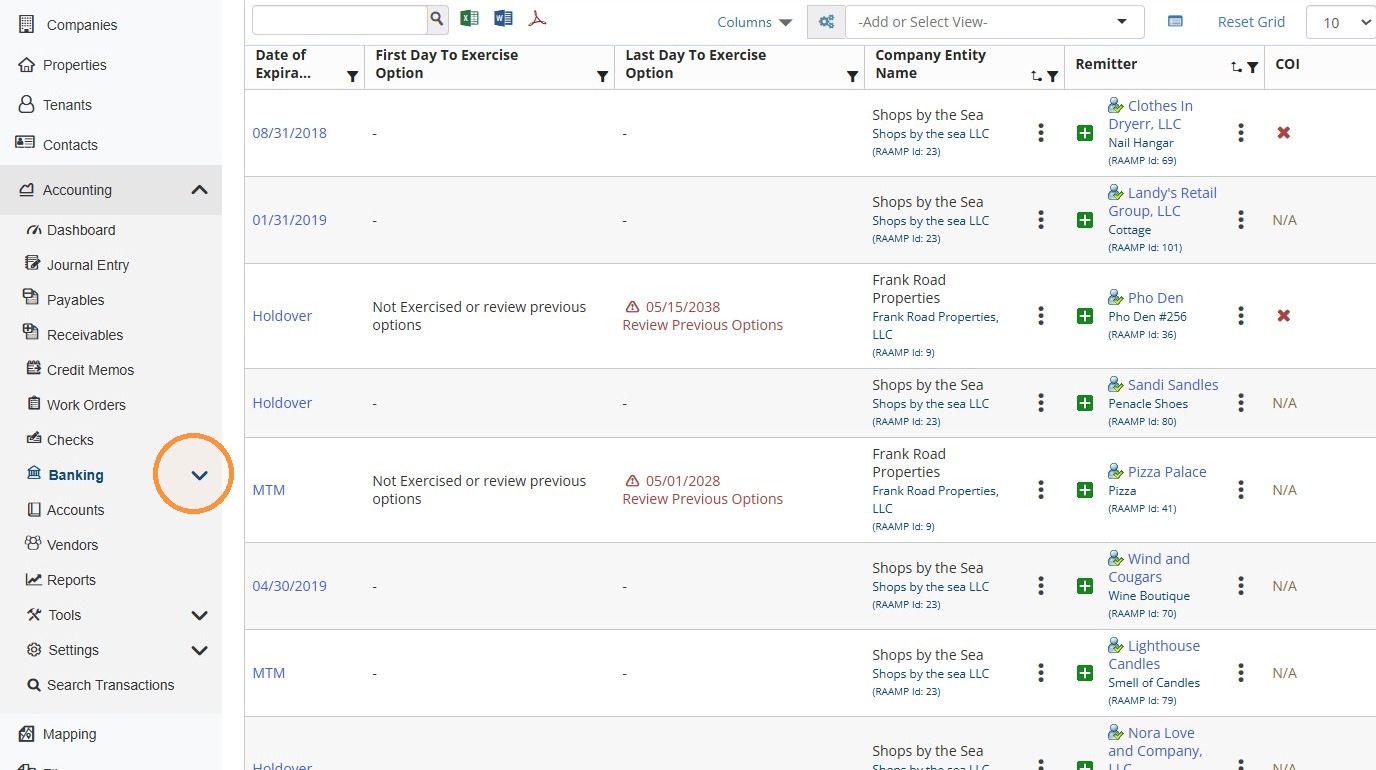
1. From the navigation menu, select Accounting > Banking > Receive Payment.
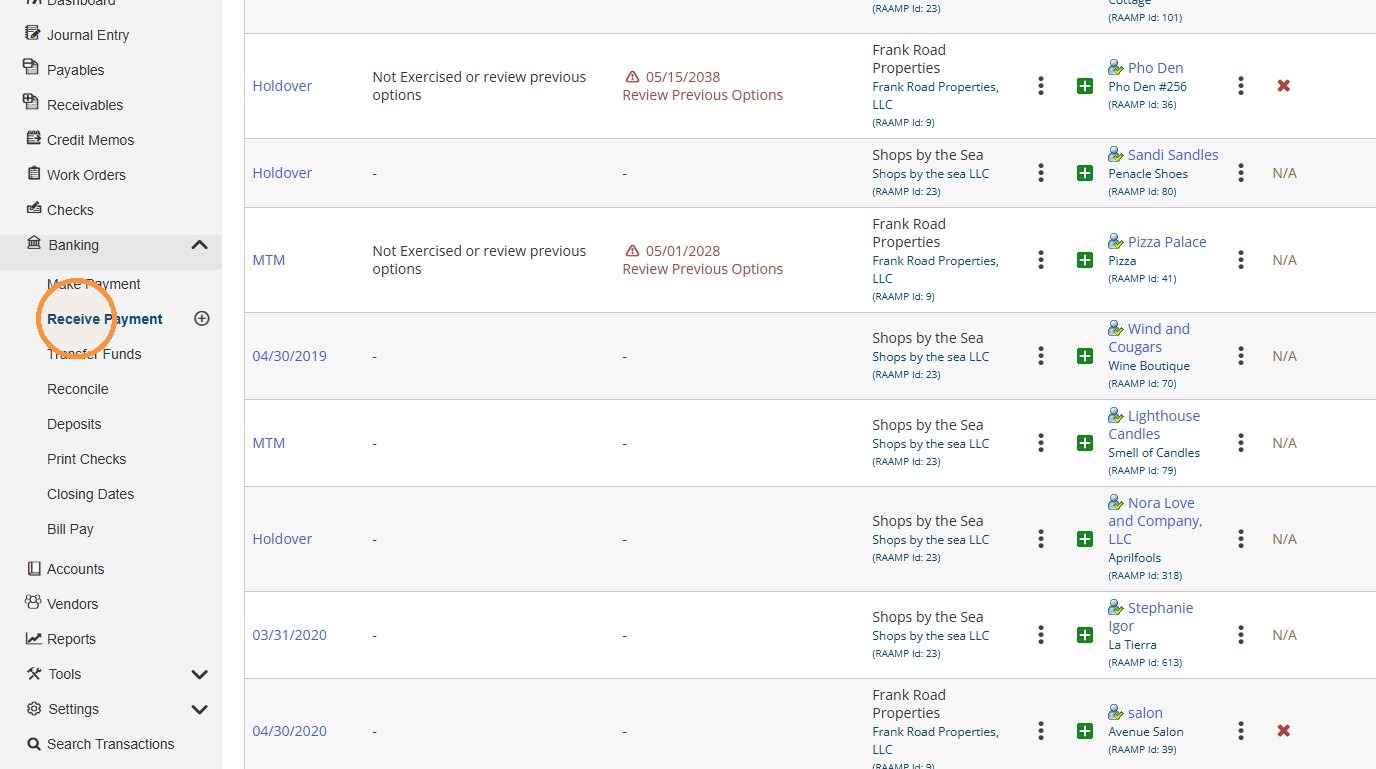
Receive Payment Overview
2. Receive Payment Screen Diagram
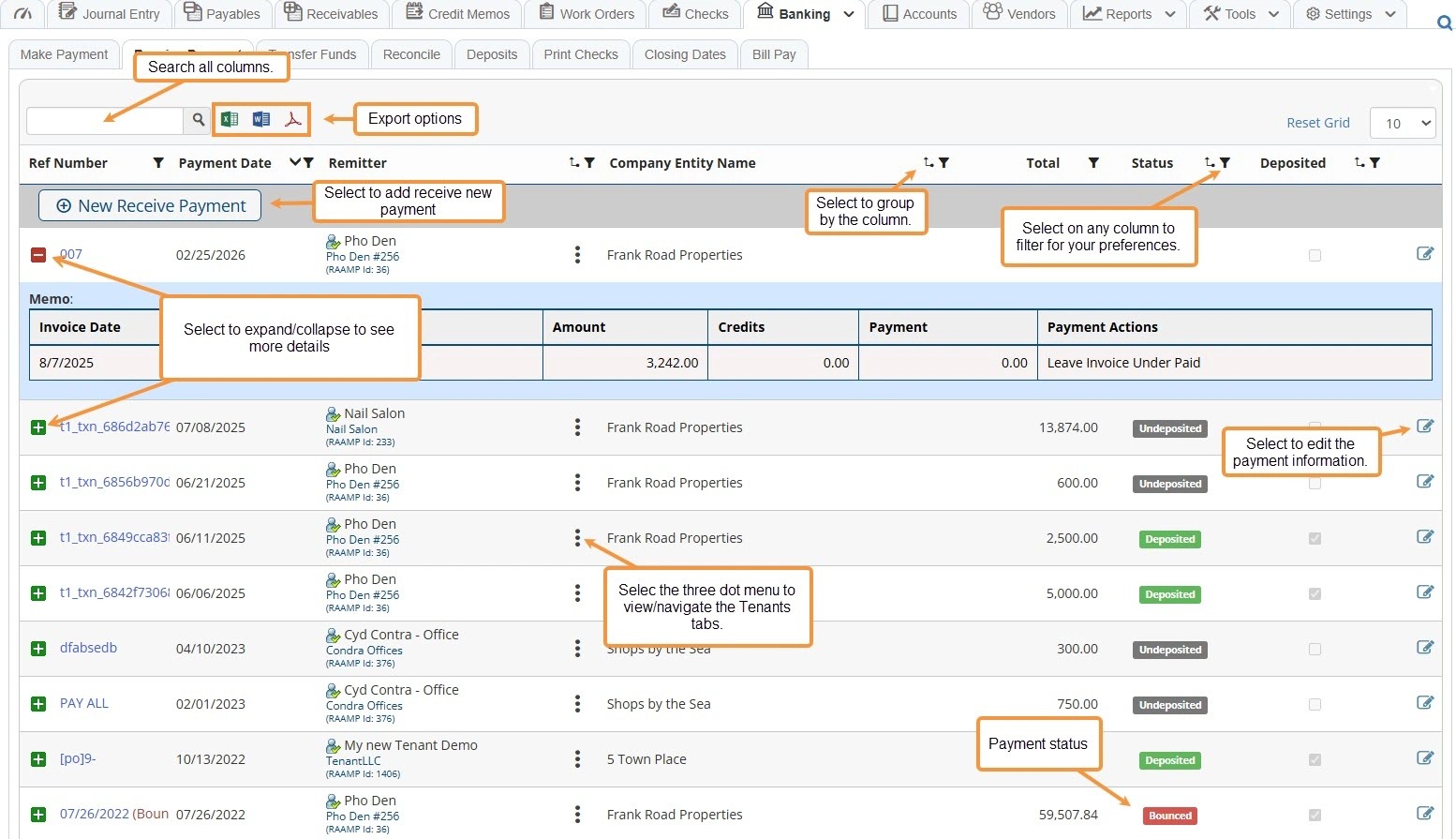
How to Apply Partial Payment
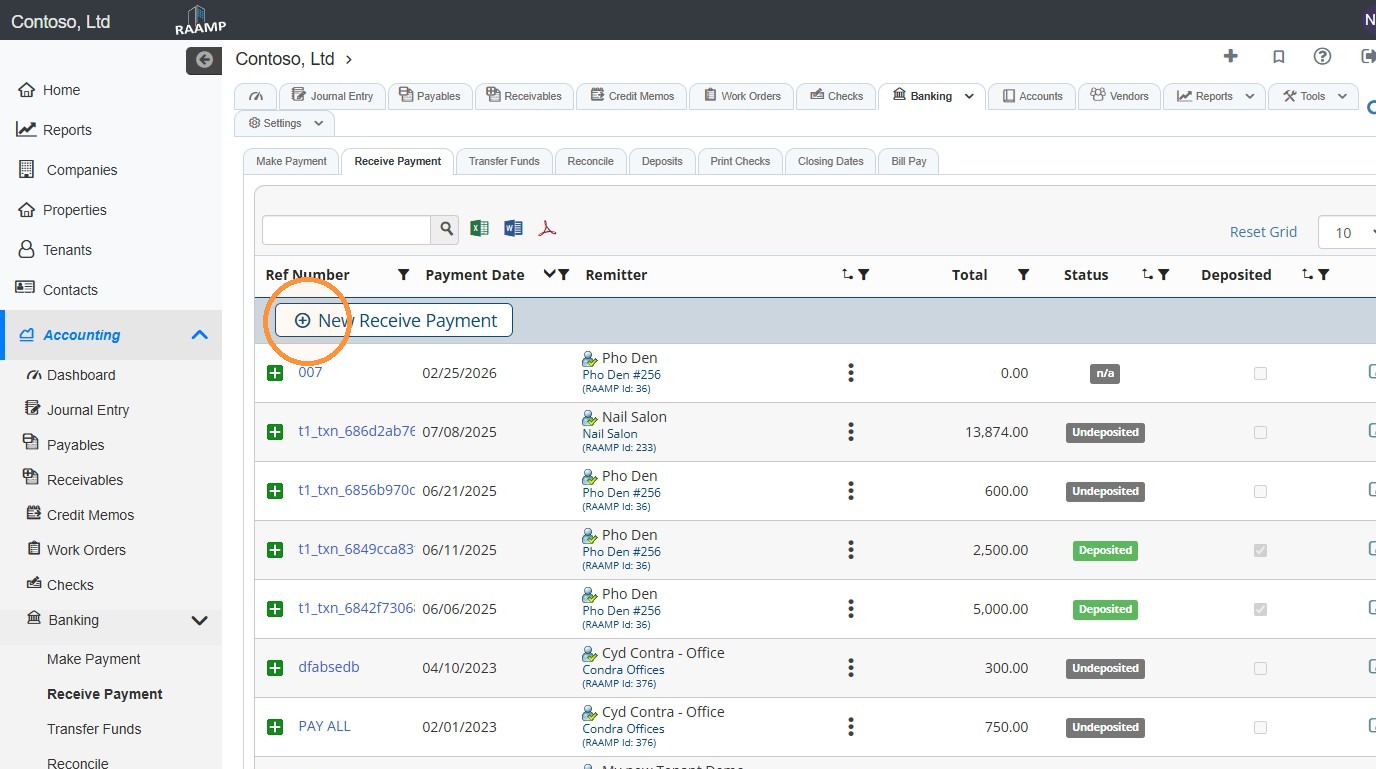
3. Select New Receive Payment.
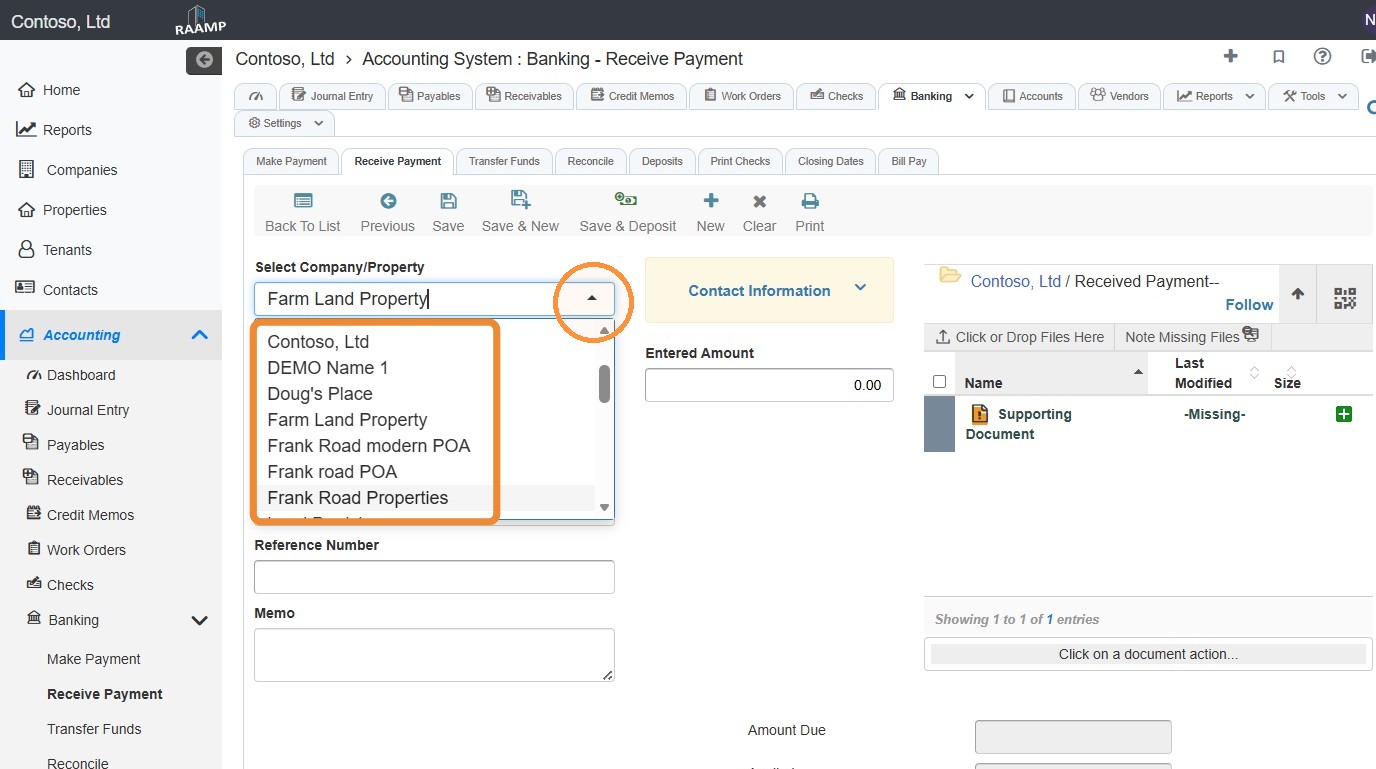
4. Select the Company/Property field and choose the preferred company/property from the dropdown.
5. Select the preferred tenant from the Property/Tenant dropdown.
If you need to change the entity type, see steps 6-7.
If you do not need to change the entity type, skip to step 8.
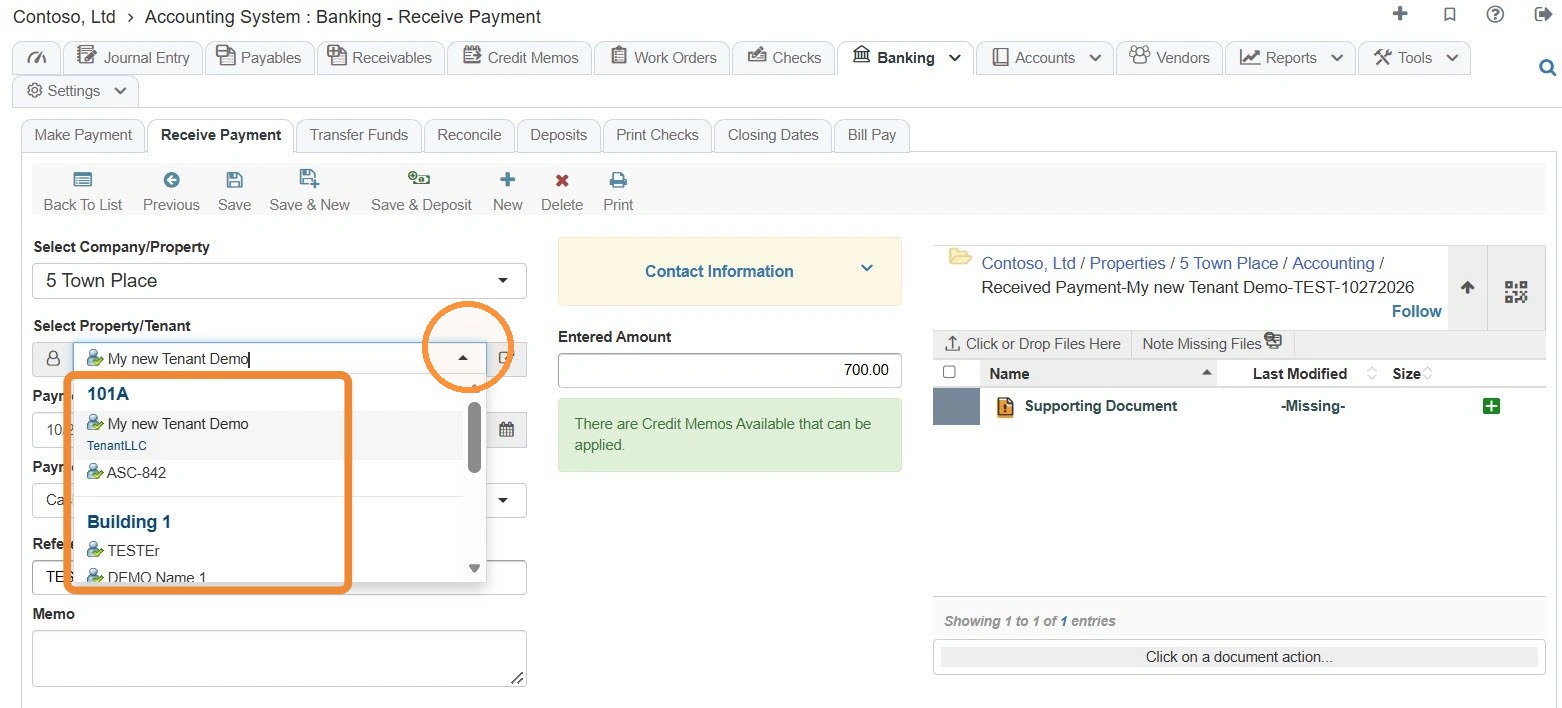
6. Select the Property/Tenant icon.
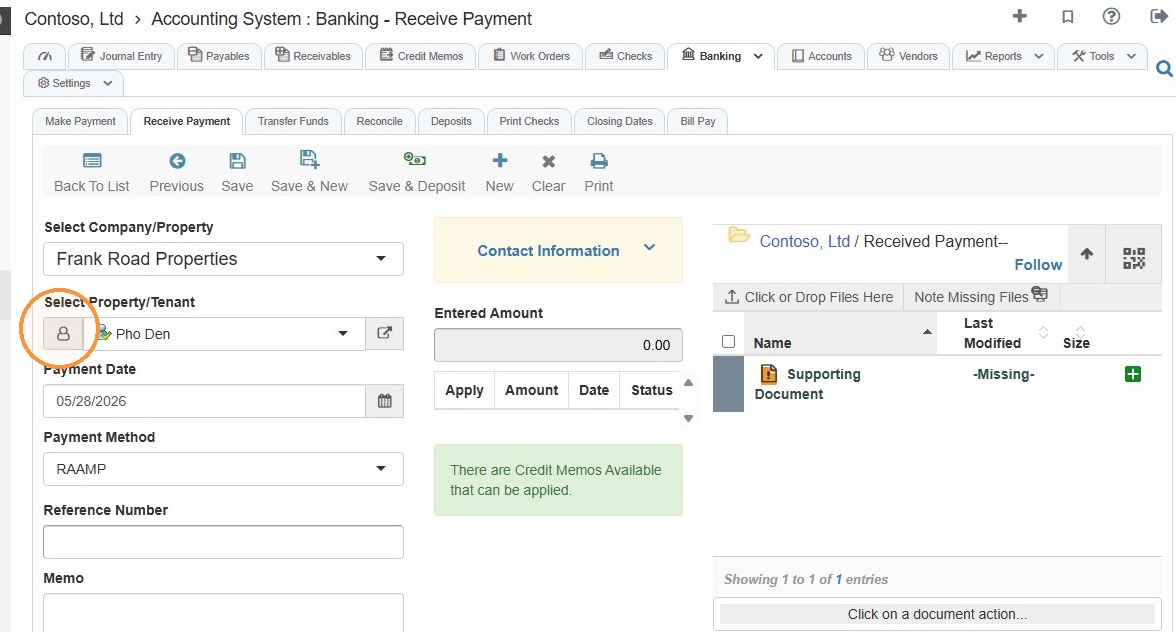
7. Choose the entity type from the radial menu.
For example, if you want to pay a property, select Properties.
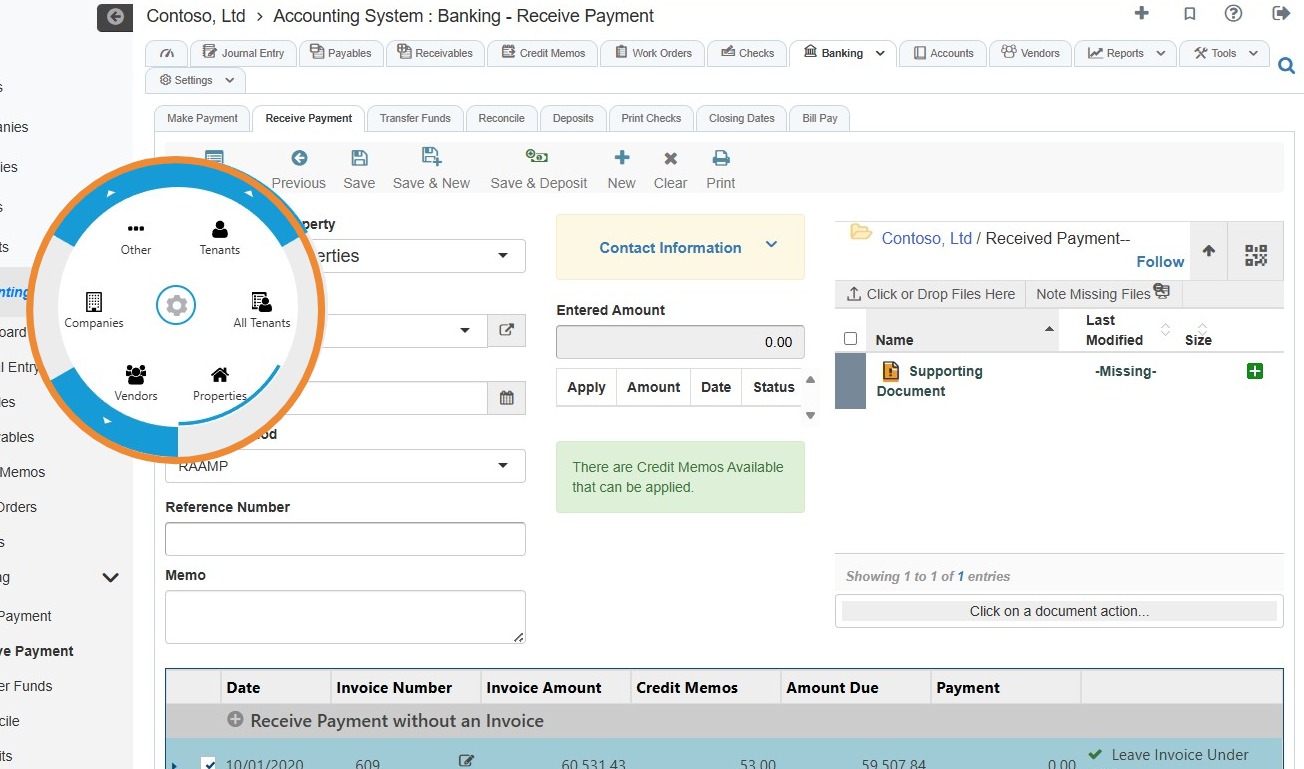
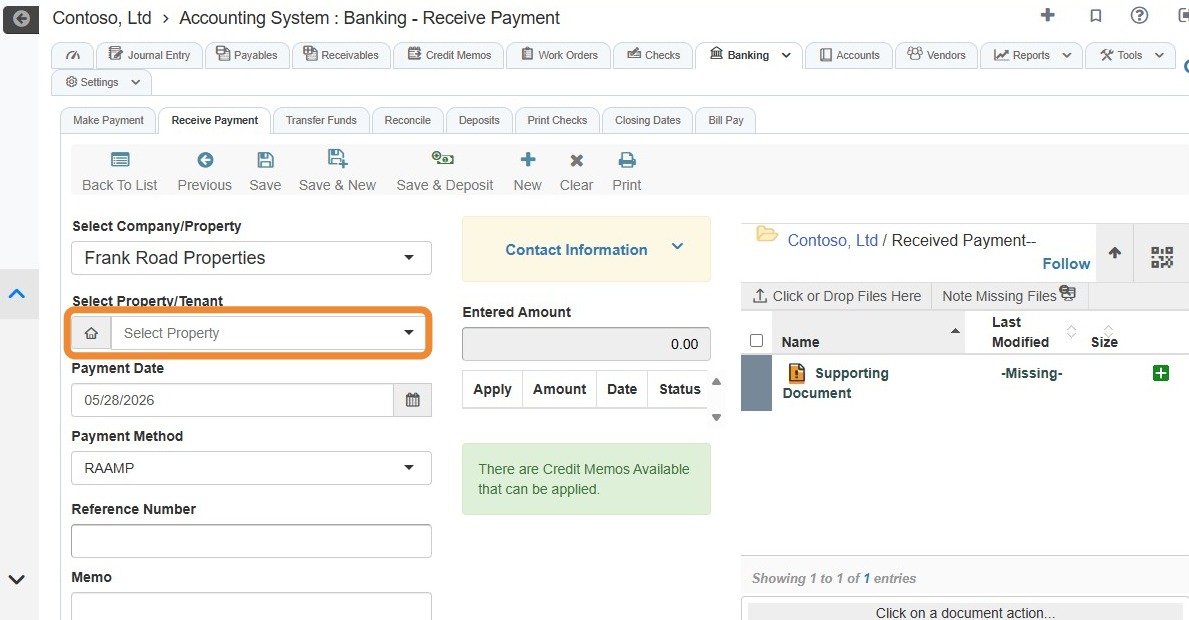
8. Select the Payment Date.
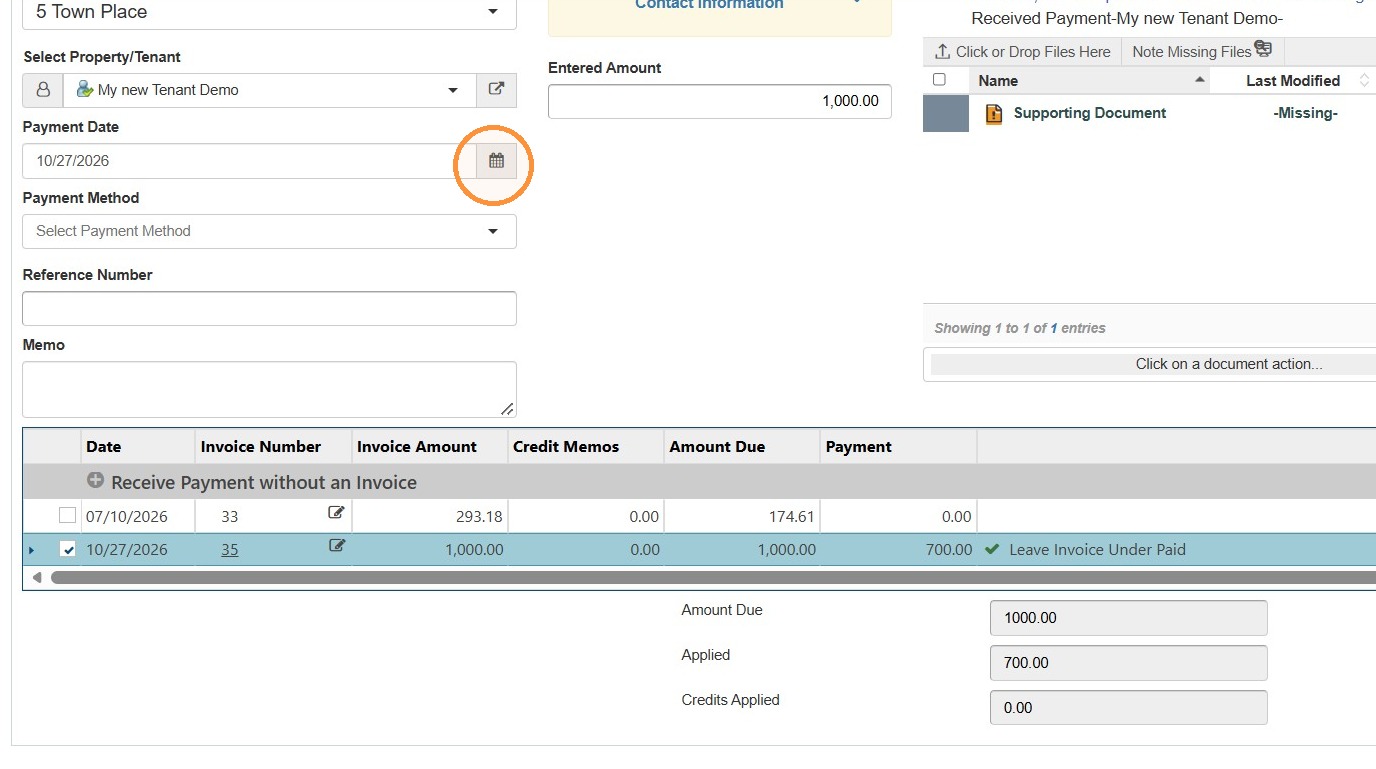
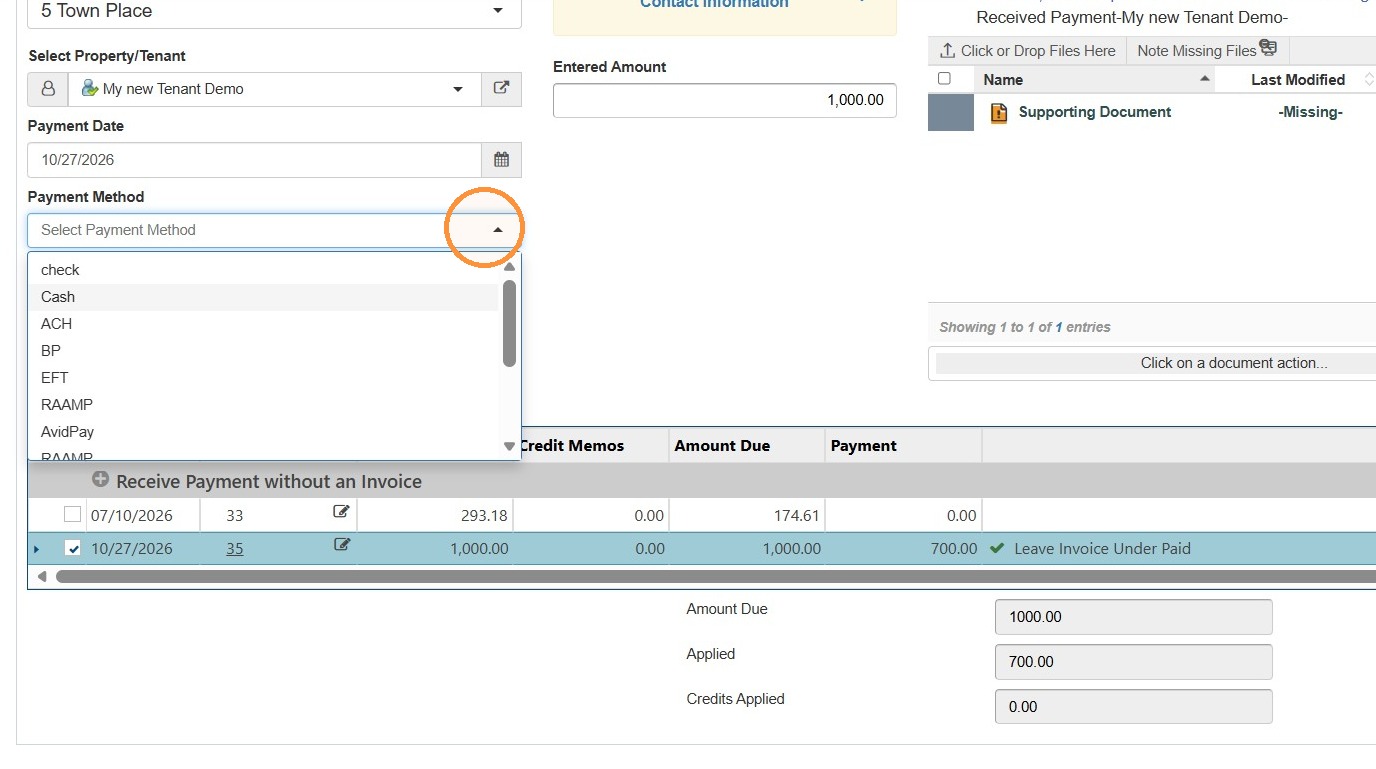
9. Select the Payment Method.
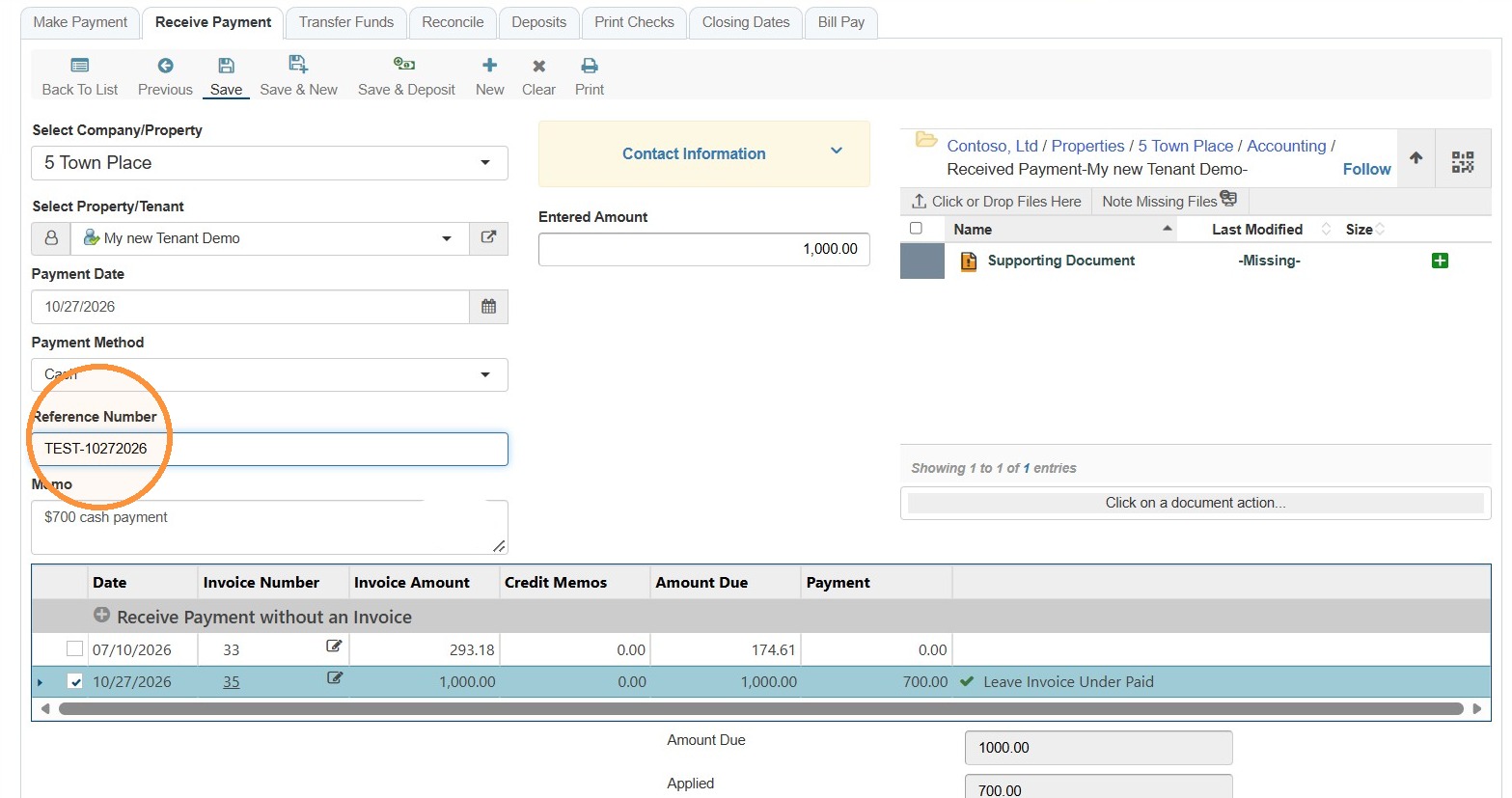
10. Select the Reference Number field > Enter the Reference Number.
NOTE: The reference number is required to save the received payment.
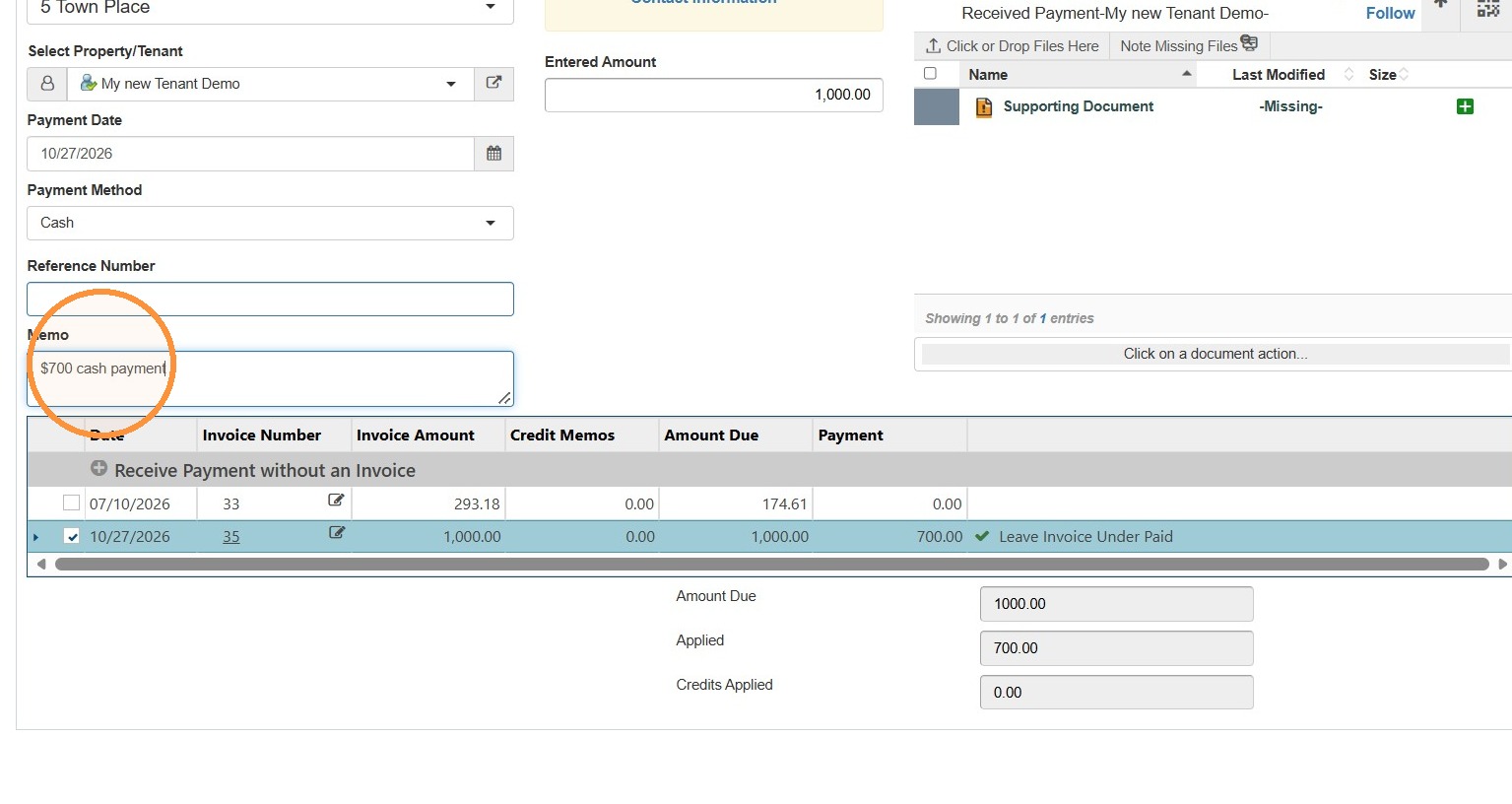
11. Enter a memo, if applicable.
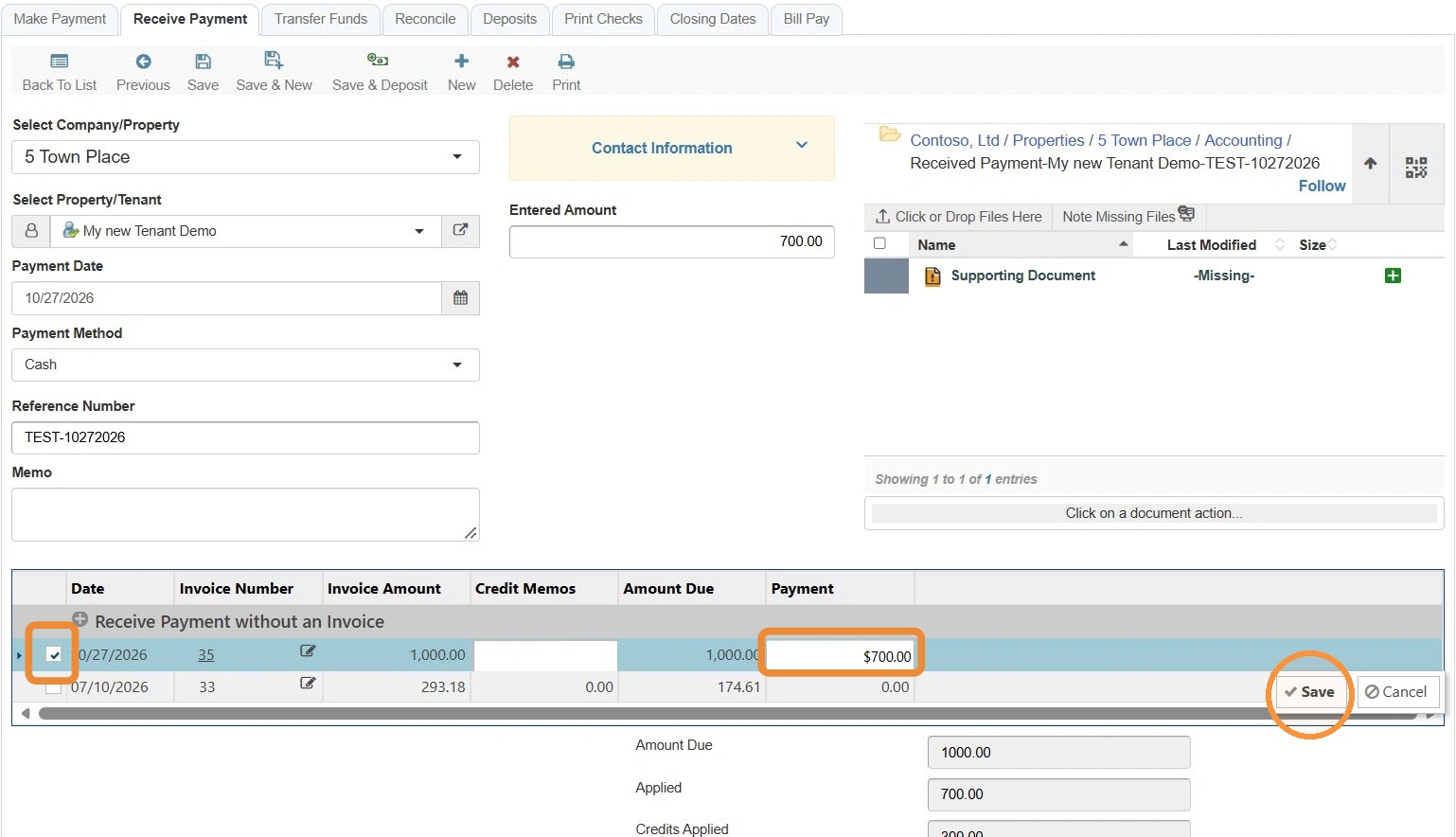
12. Select the checkbox for the invoice you'd like to apply payment to > Select the payment box > Enter the partial payment amount > Select Save.
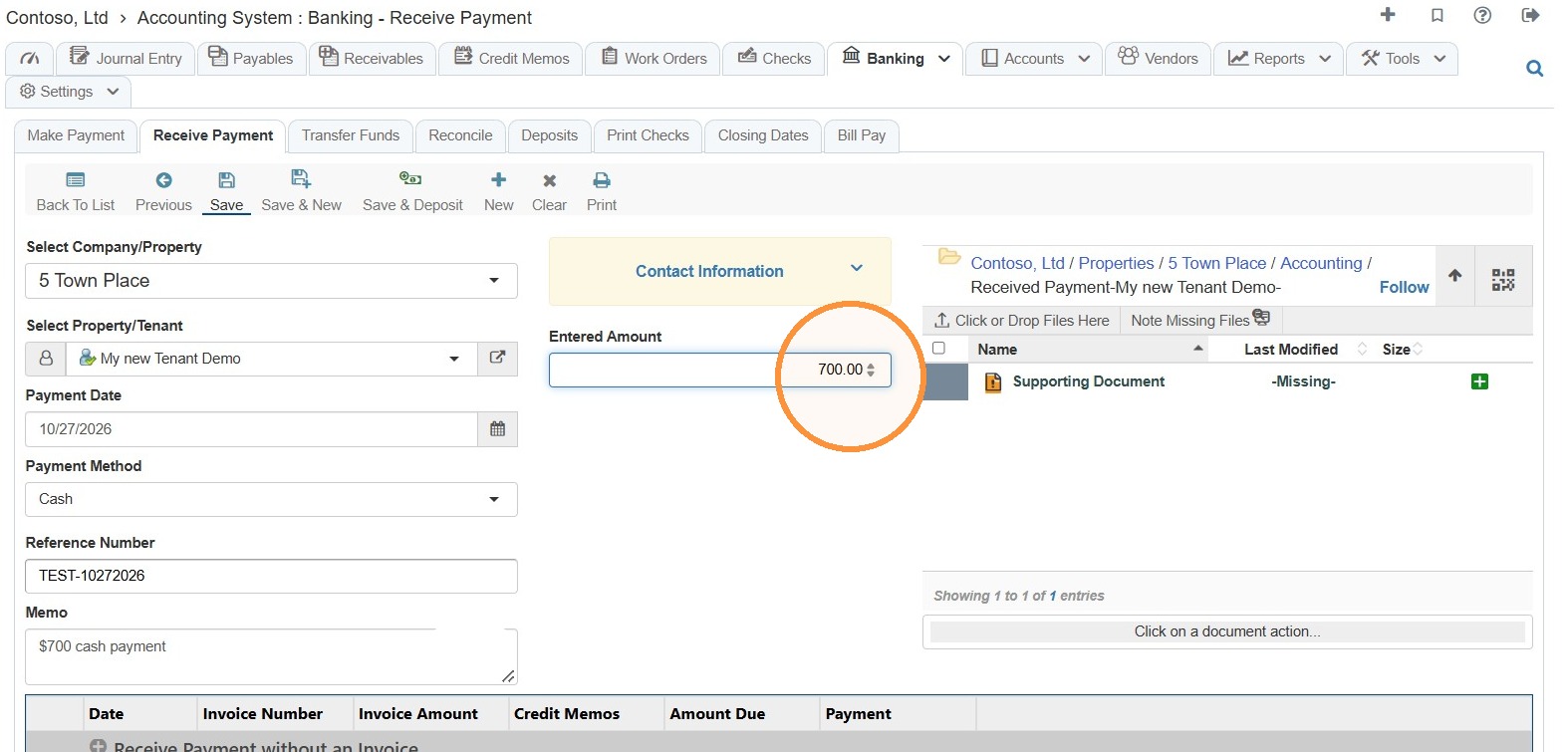
13. Select the Entered Amount field > Enter the amount applied.
NOTE: THE ENTERED AMOUNT AND AMOUNT APPLIED MUST BE EQUAL.
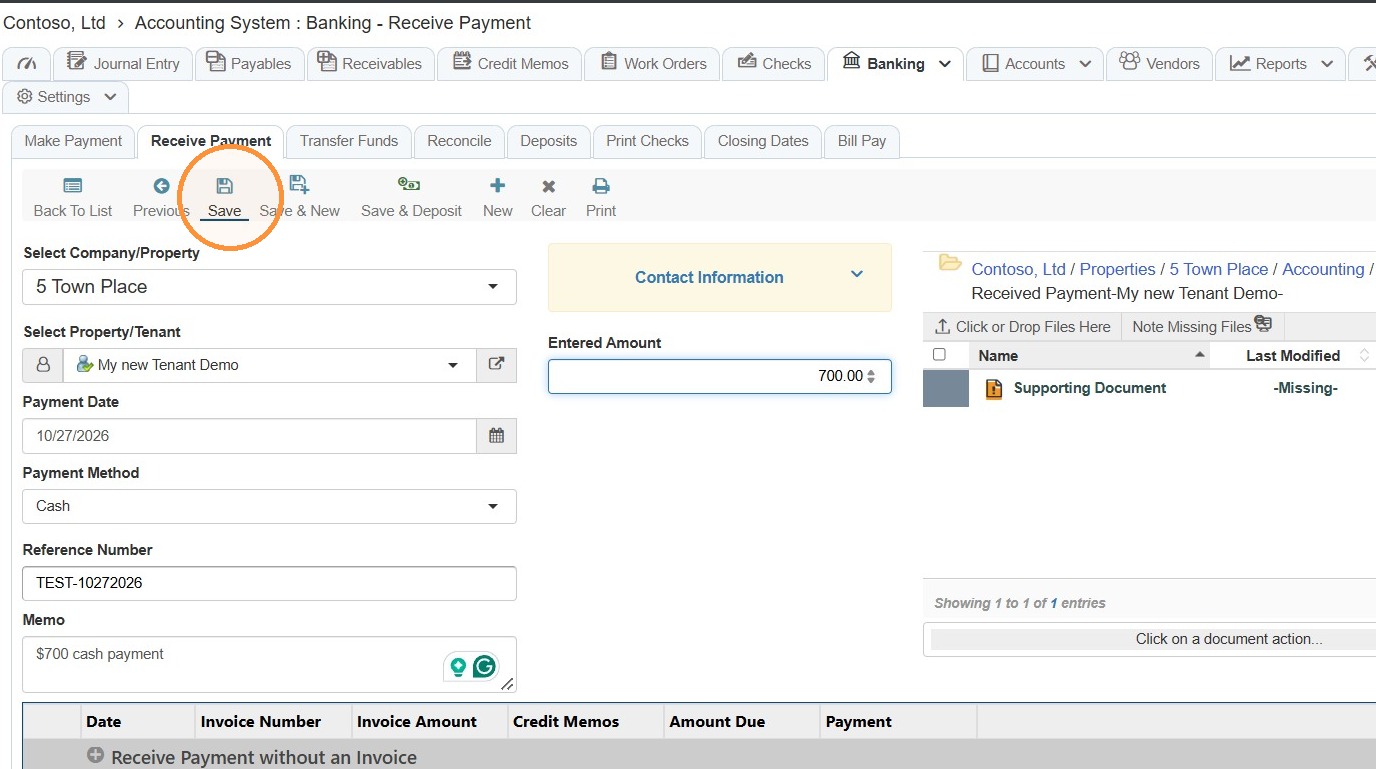
14. Select Save.
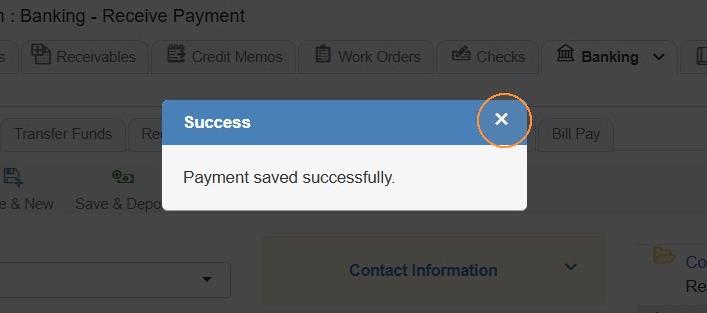
15. Select the x to close the confirmation box.
How to Create a Credit Memo for the Remaining Balance
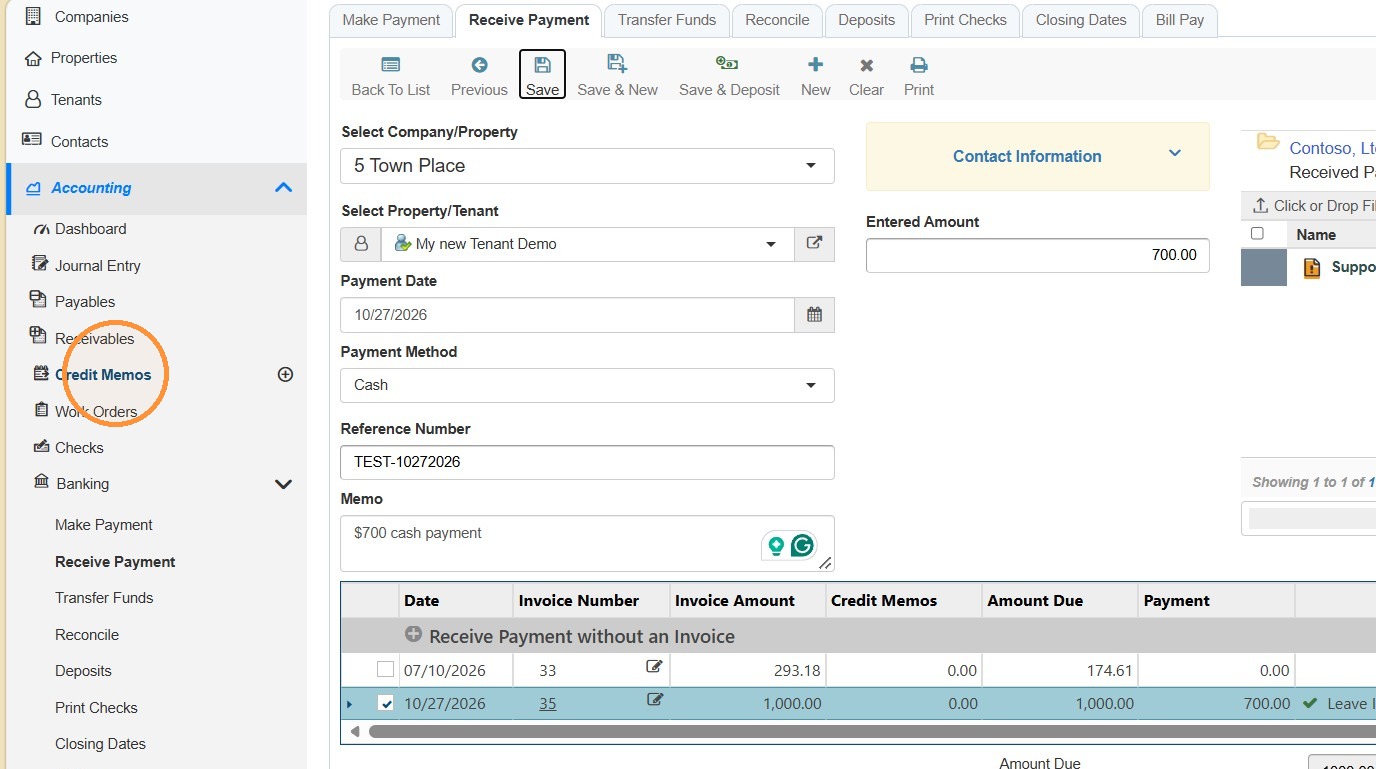
16. From the navigation menu, select Credit Memos.
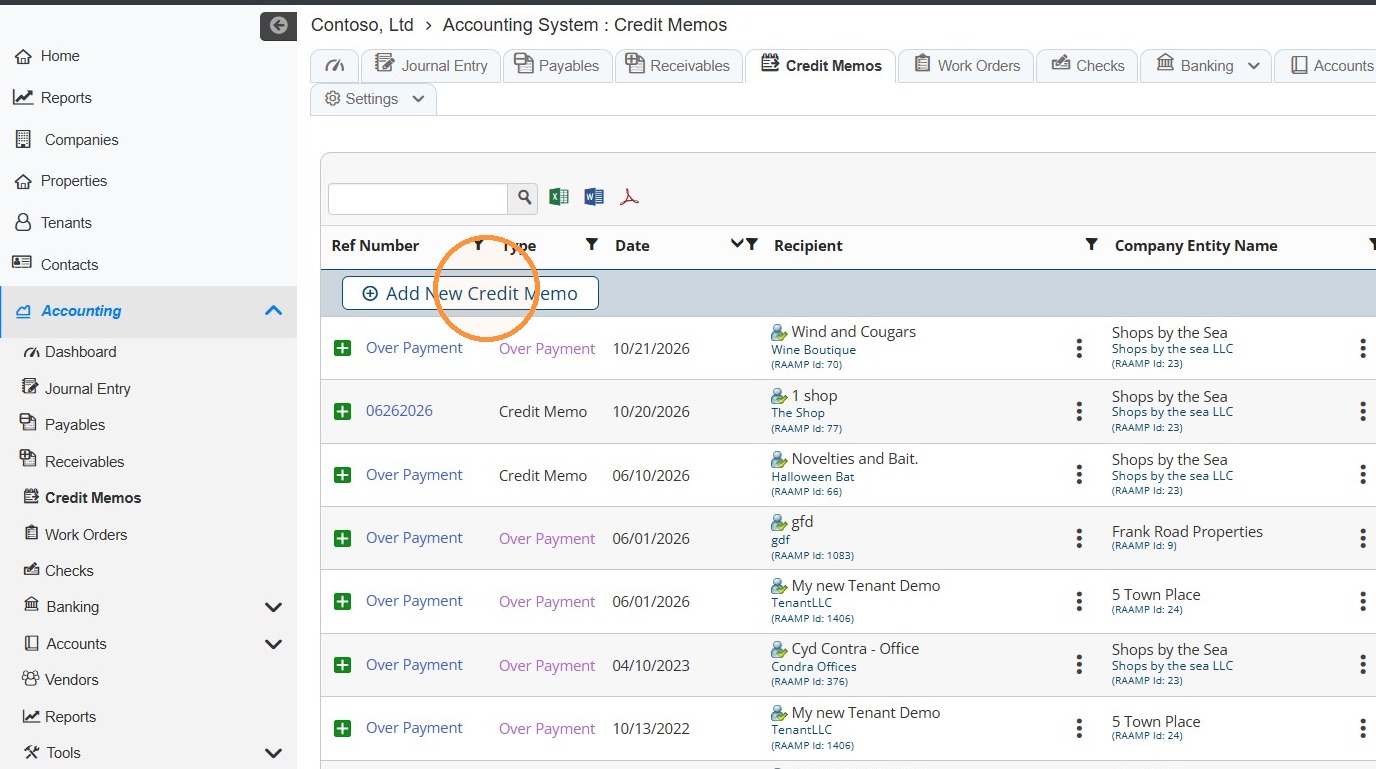
17. Select Add New Credit Memo.
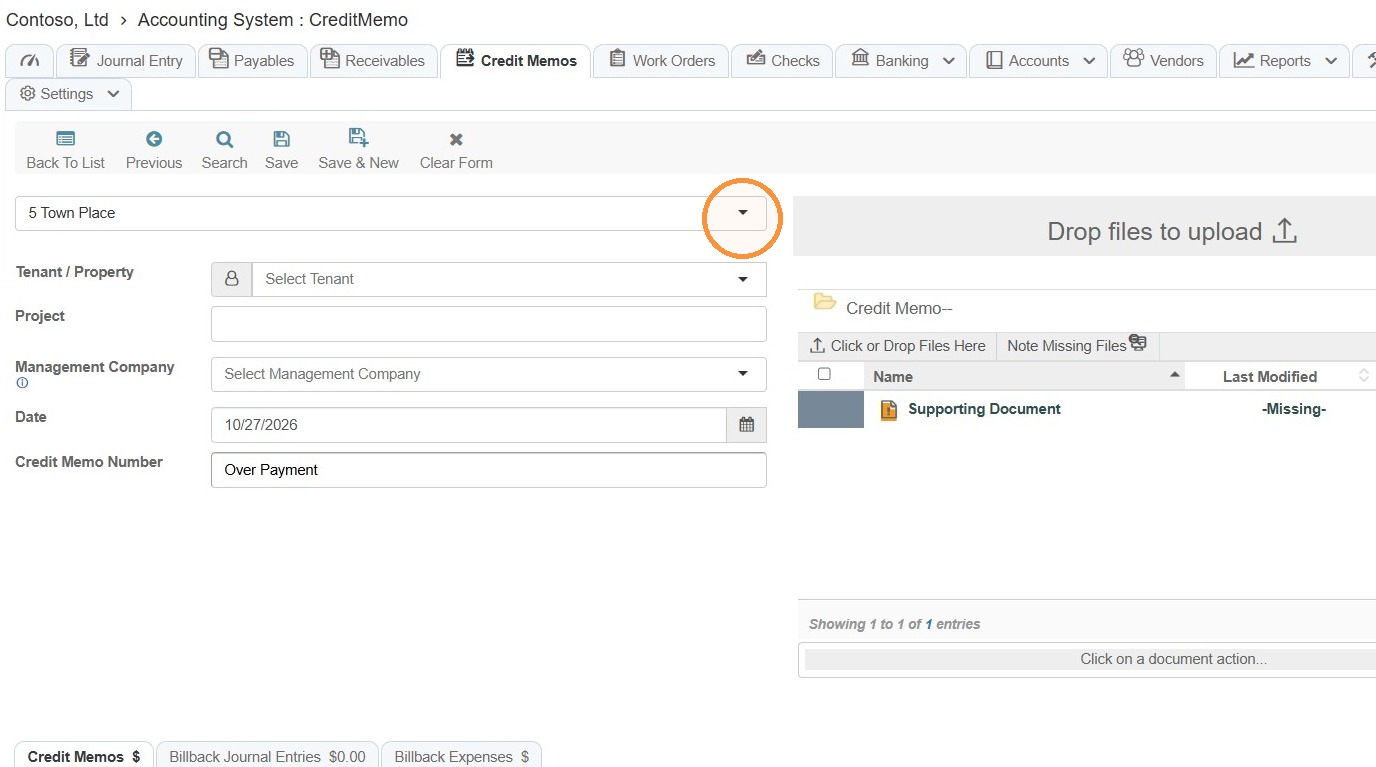
18. Select the Company/Property.
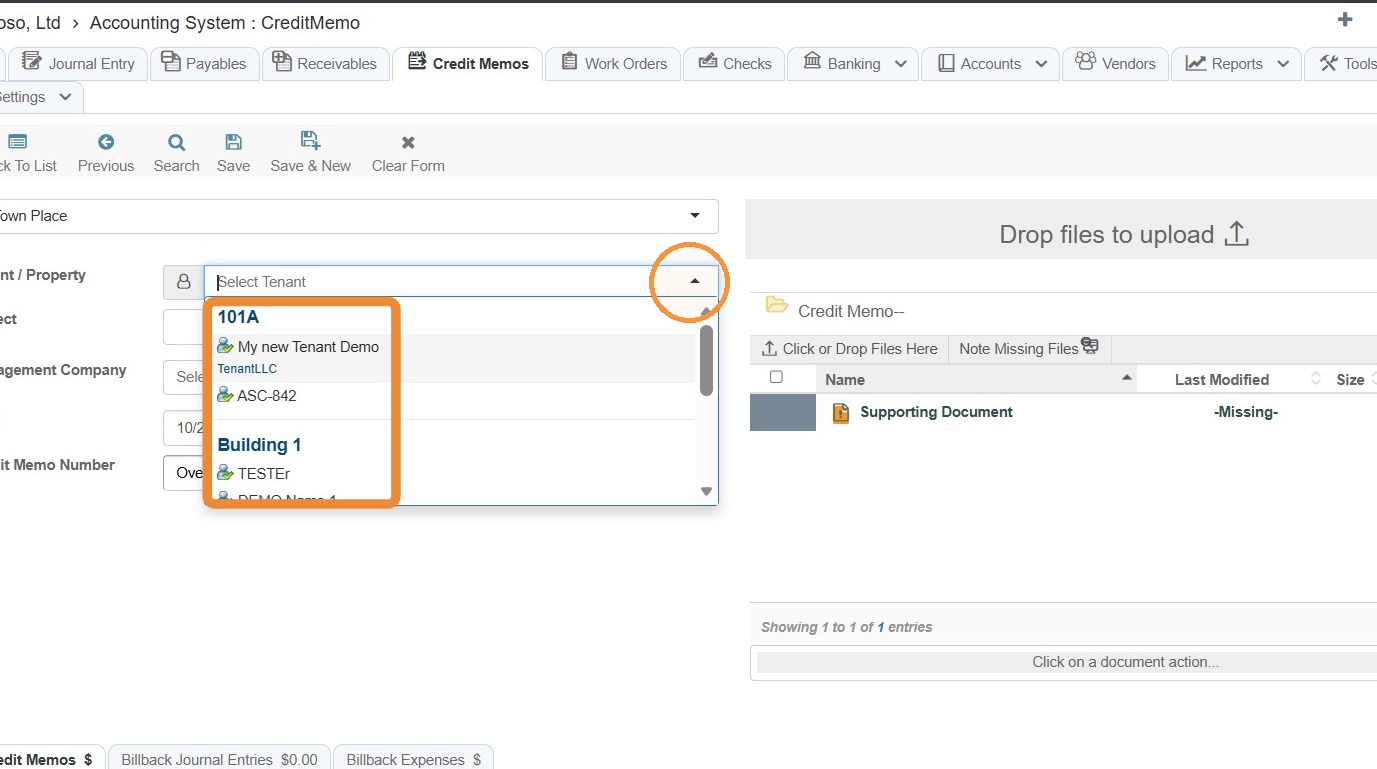
19. Select the preferred tenant from the Property/Tenant dropdown.
20. Select the date.
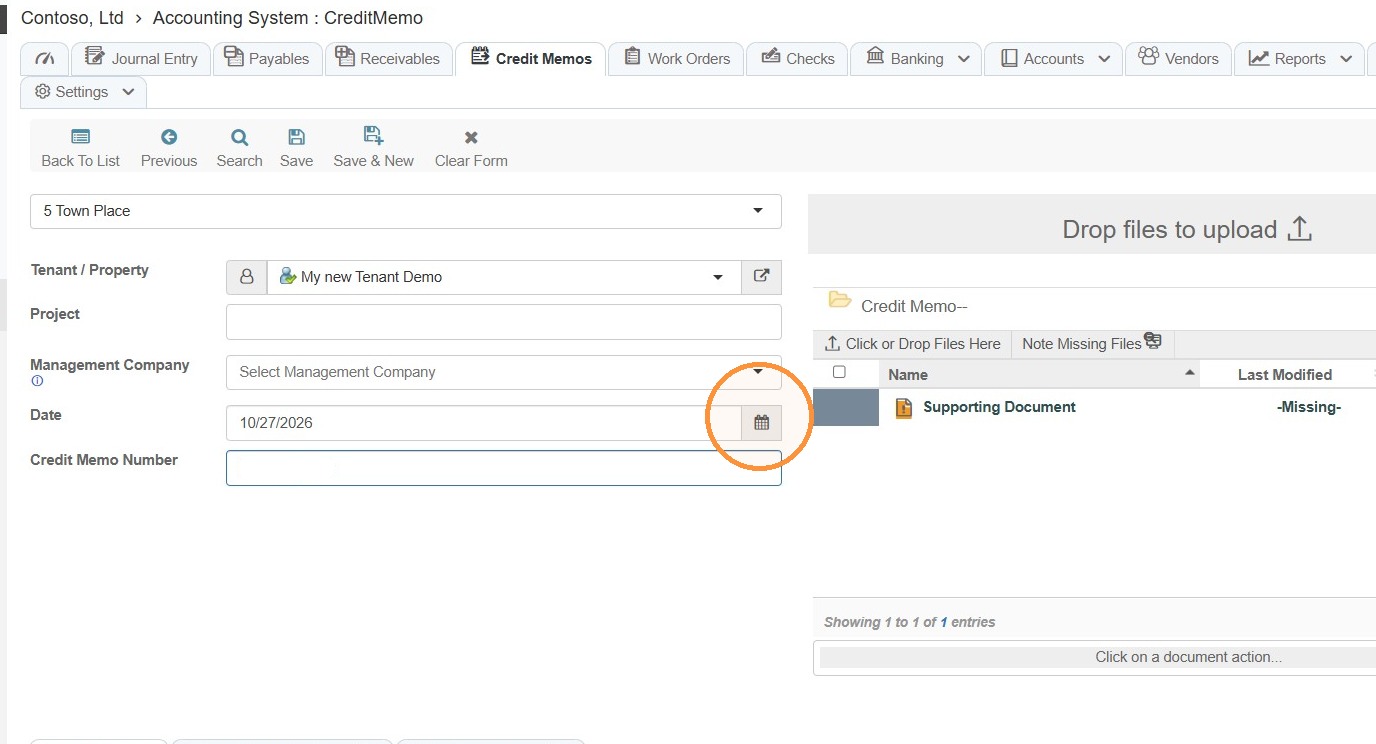
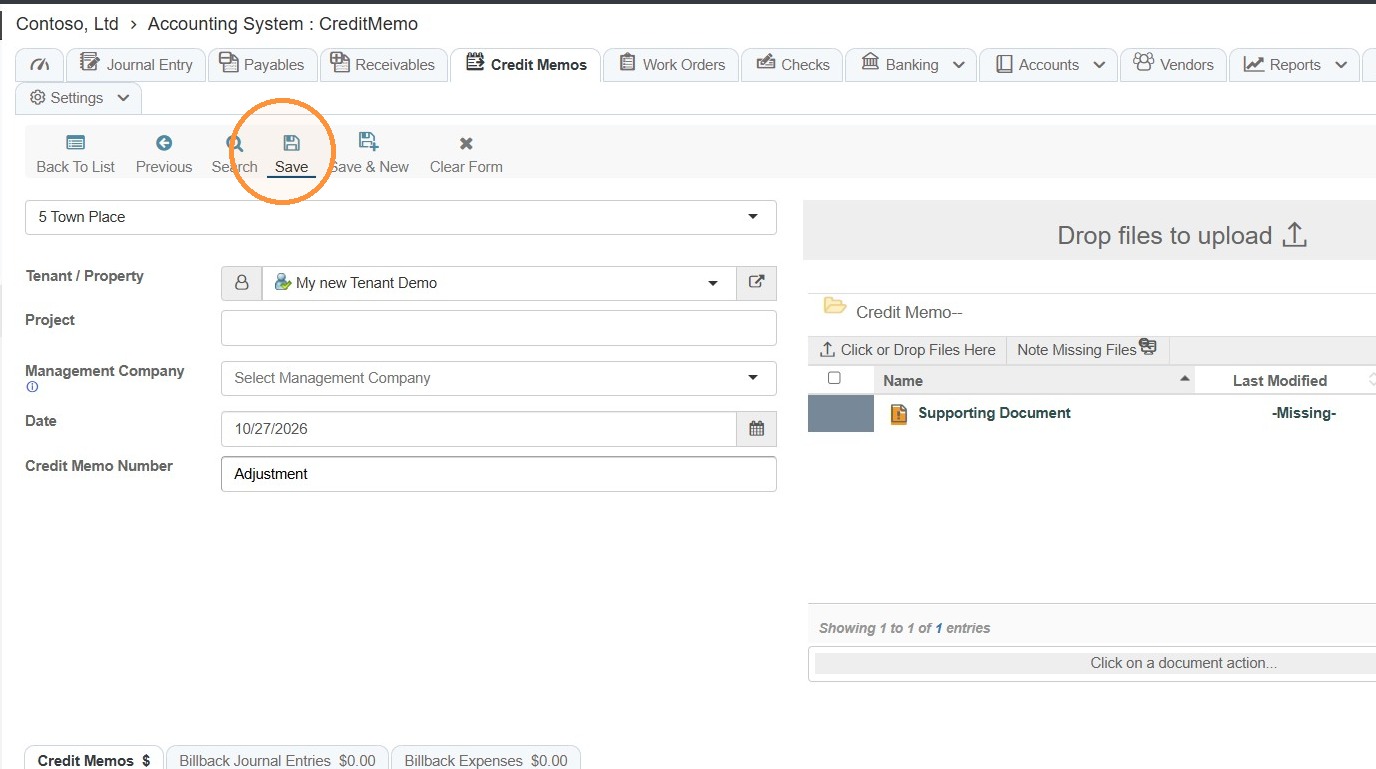
21. Enter a Credit Memo Number.
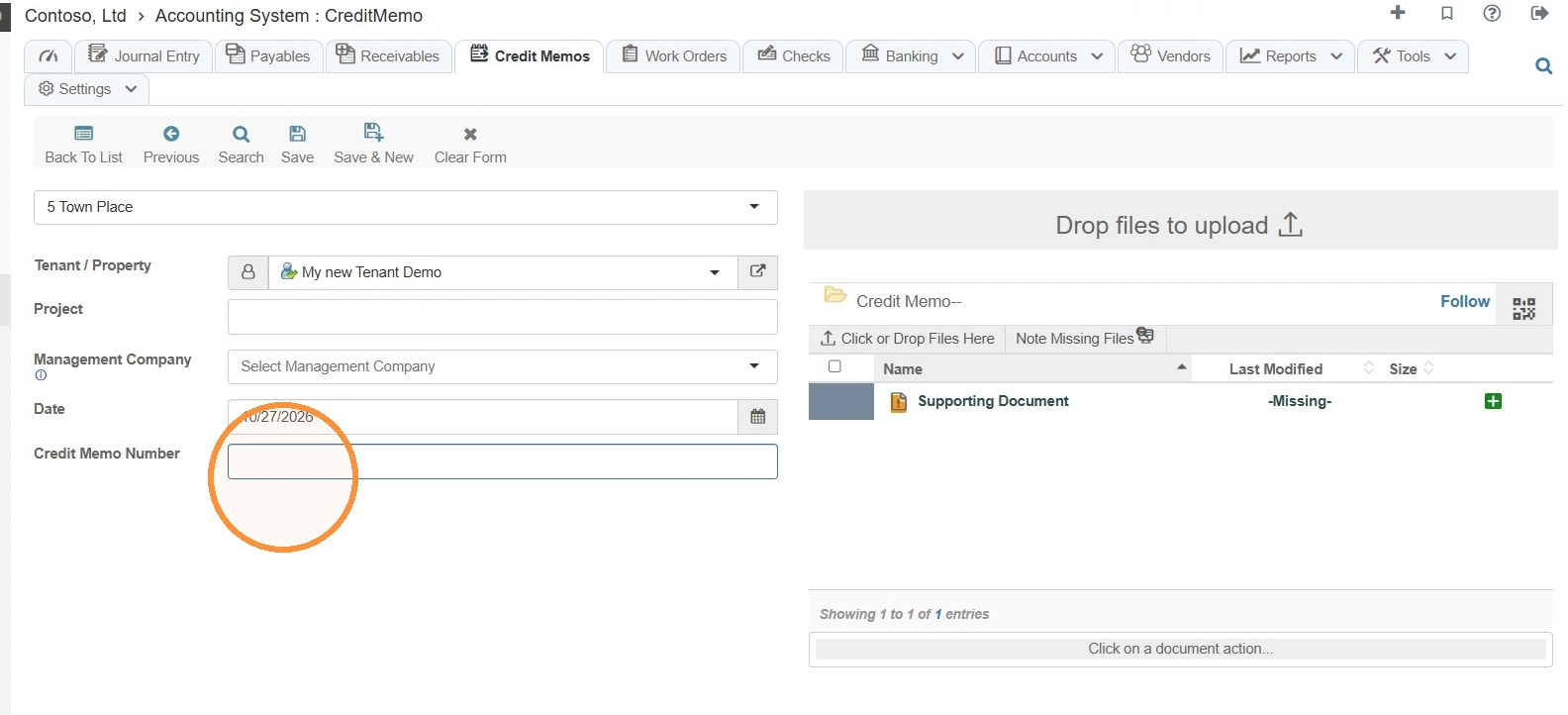
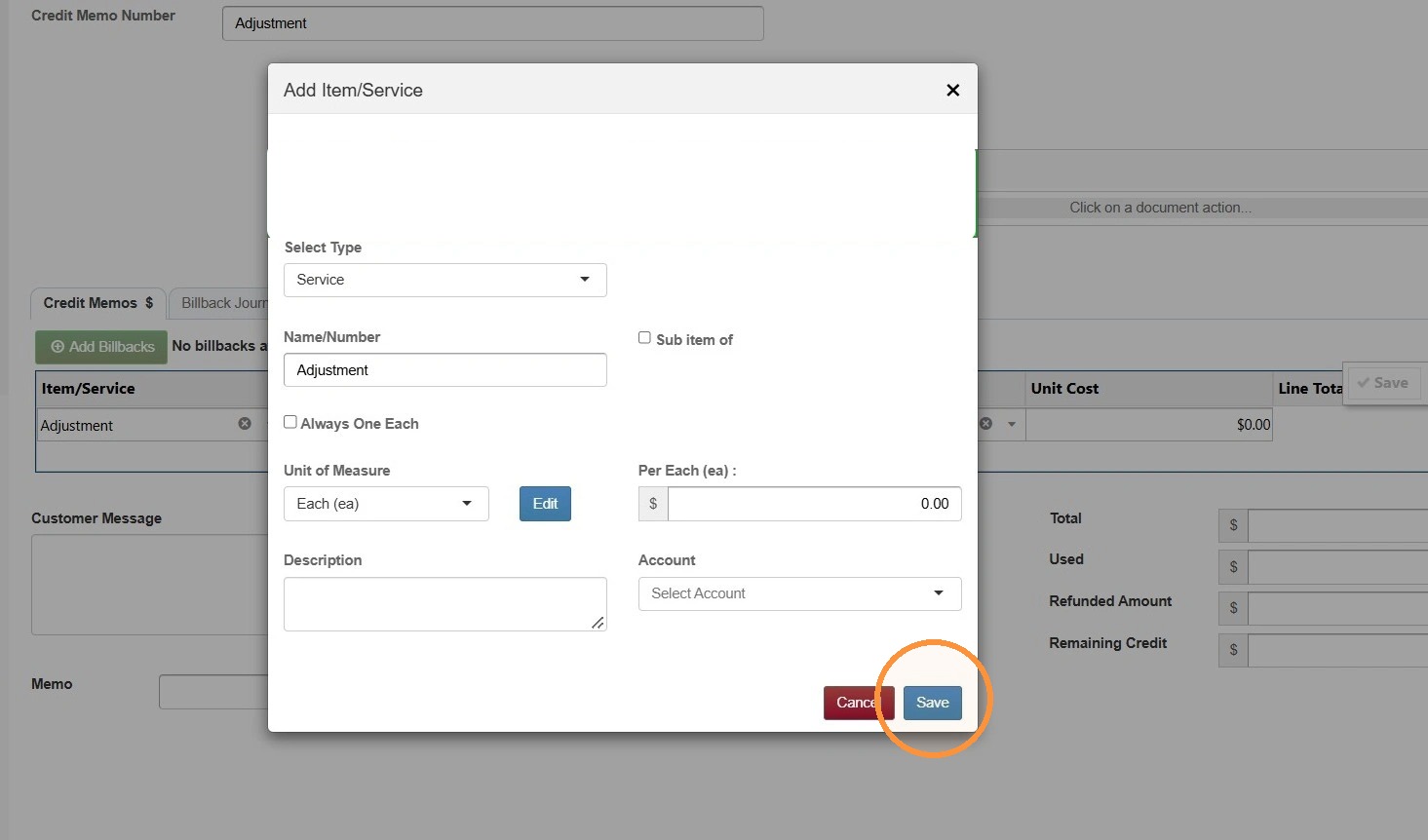
22. Select Add New Row.
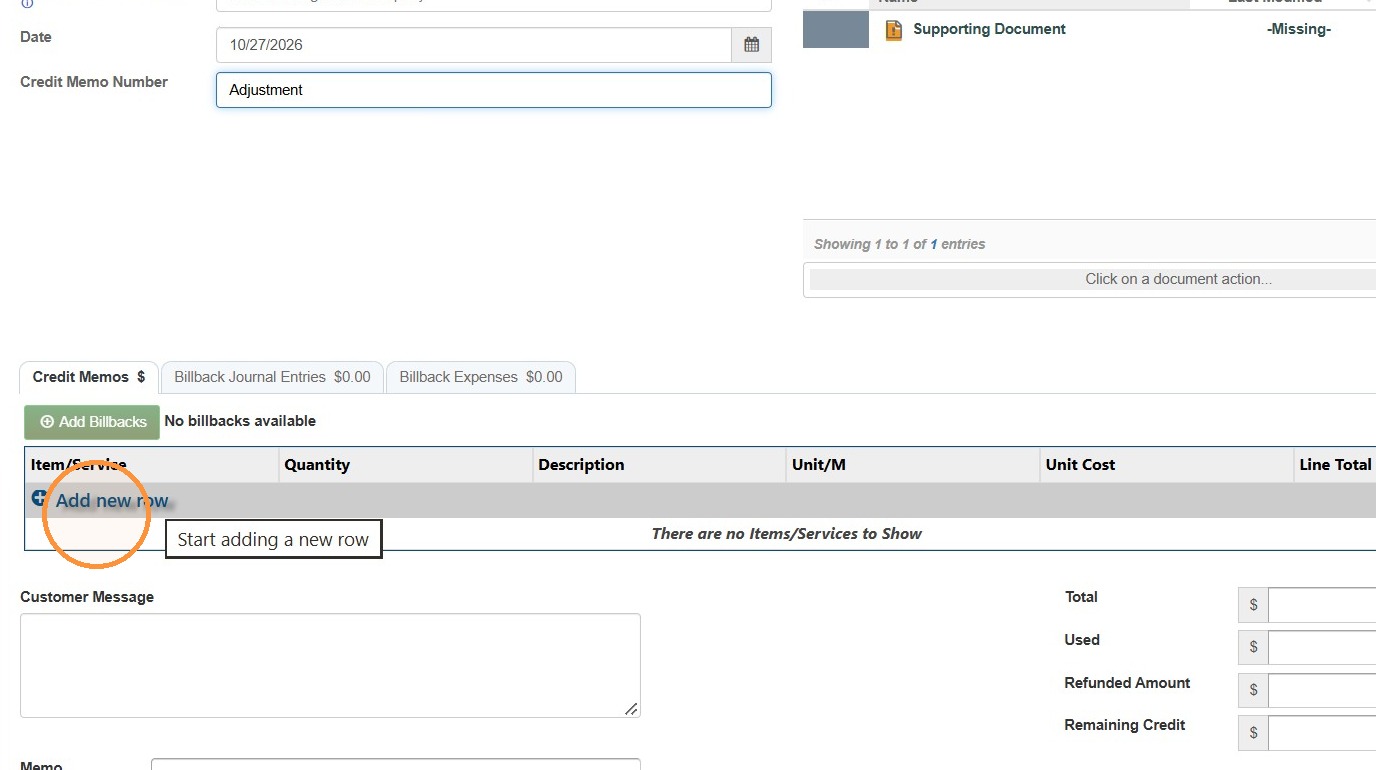
23. Select the appropriate Item/Service.
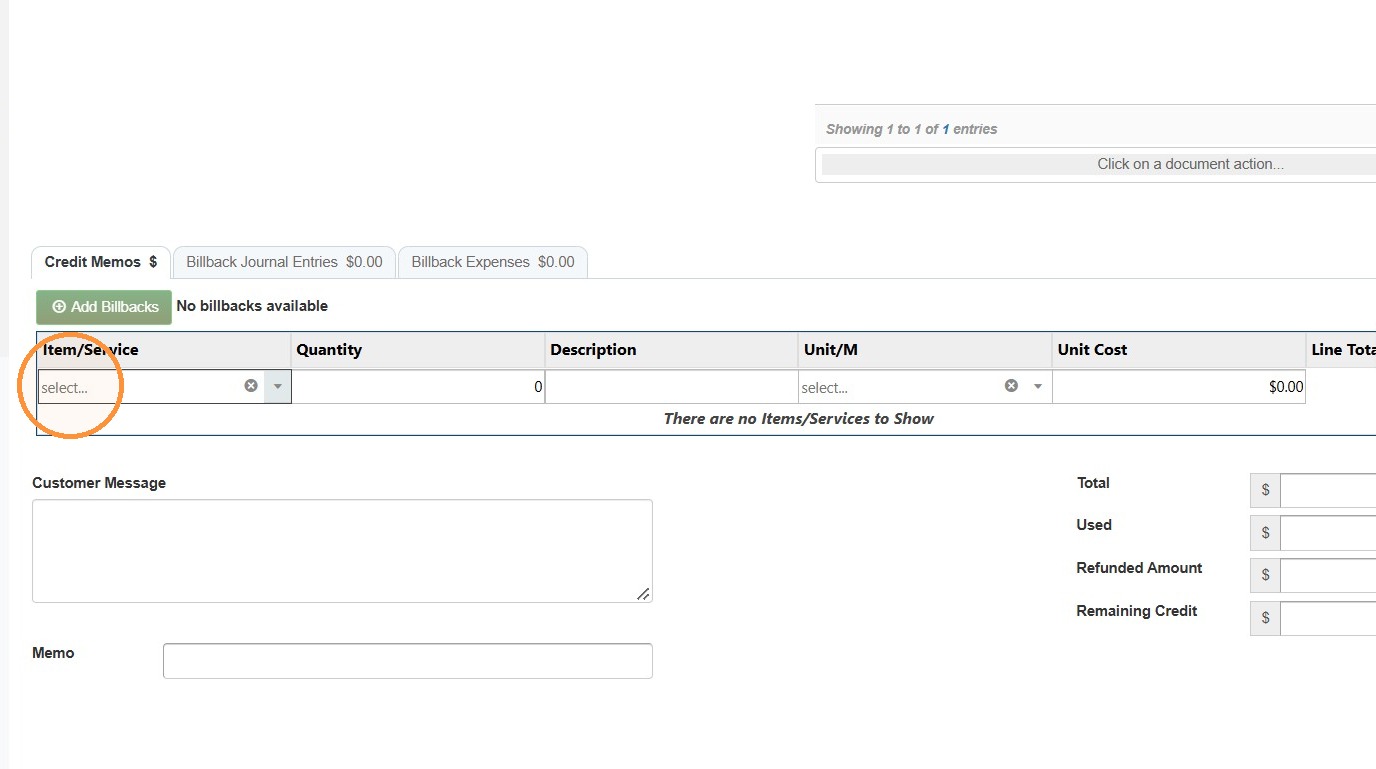
Tip: Need to add a new Item/Service?
Type the name of the item/service > Select Enter > Complete the information for the item/service > Select Save.
NOTE: Use the appropriate rent adjustment, concession, or write-off account based on your company’s policy.
For more detailed instructions, see How to Add a New Item/Service
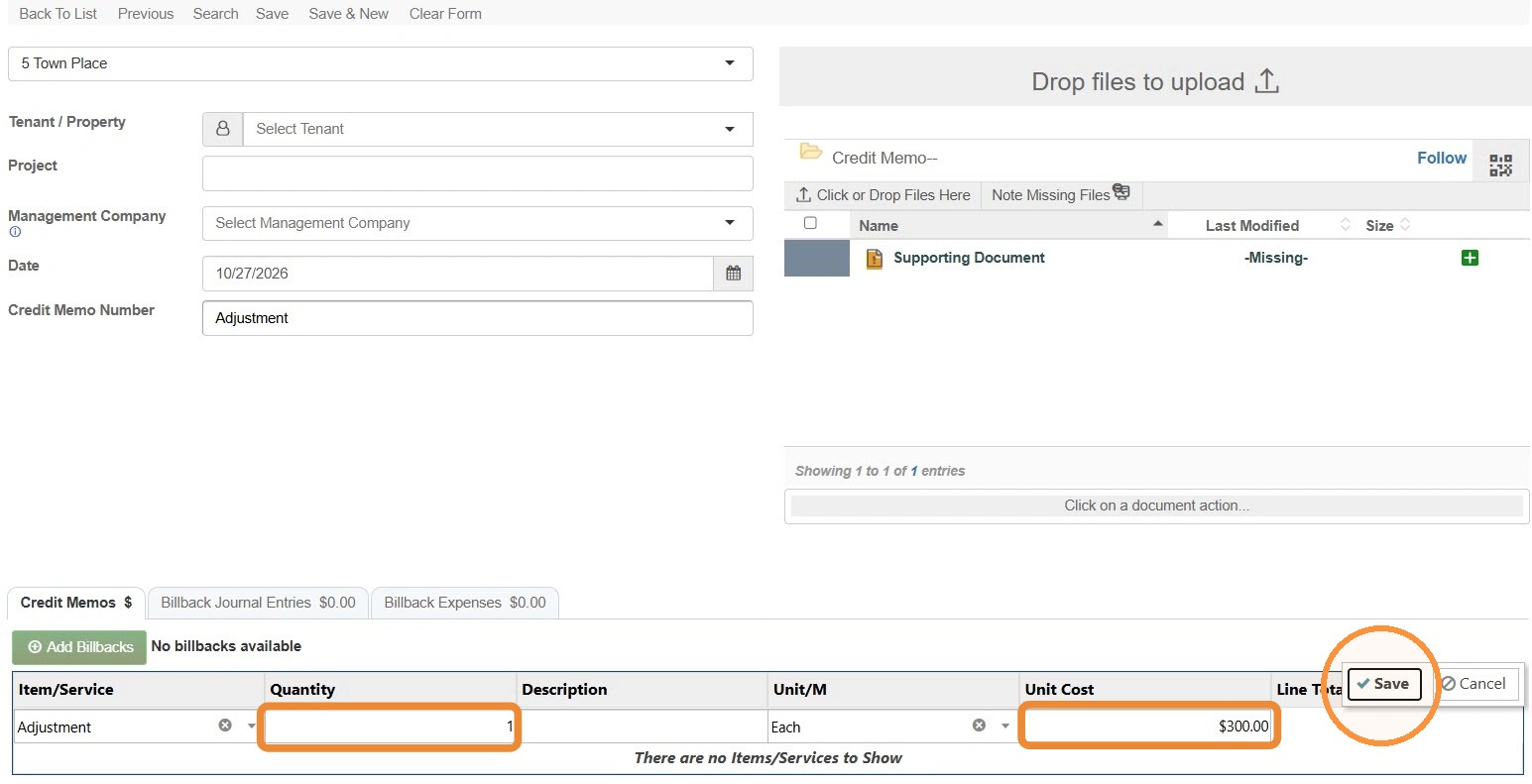
24. Enter the quantity, if need > Enter the unit cost (the remaining balance) > Select Save.
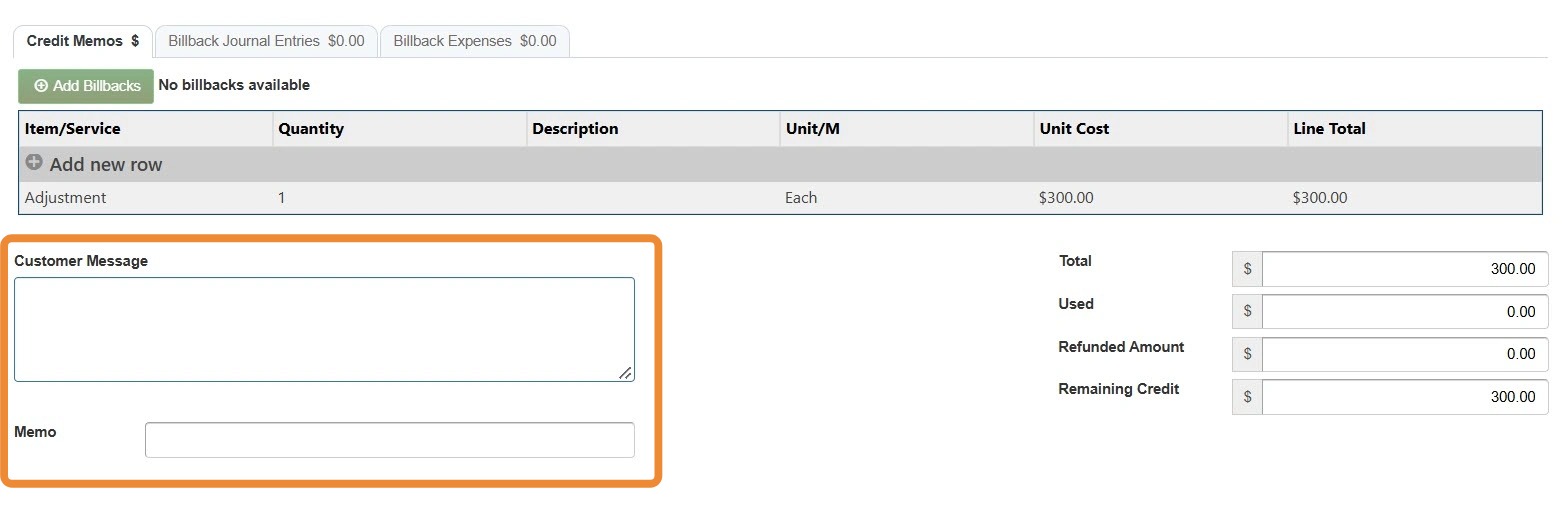
25. Add a Customer Message and Memo, if applicable.
26. Select Save.
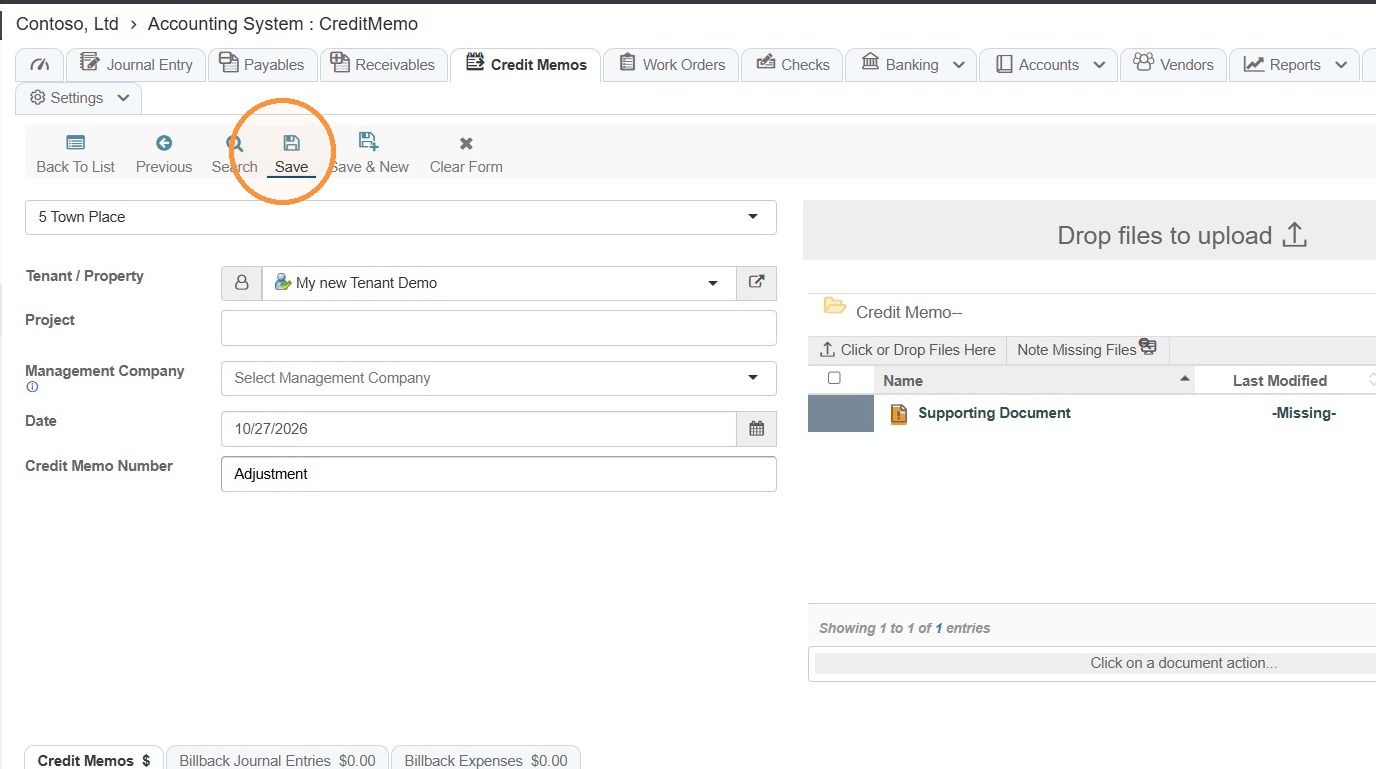
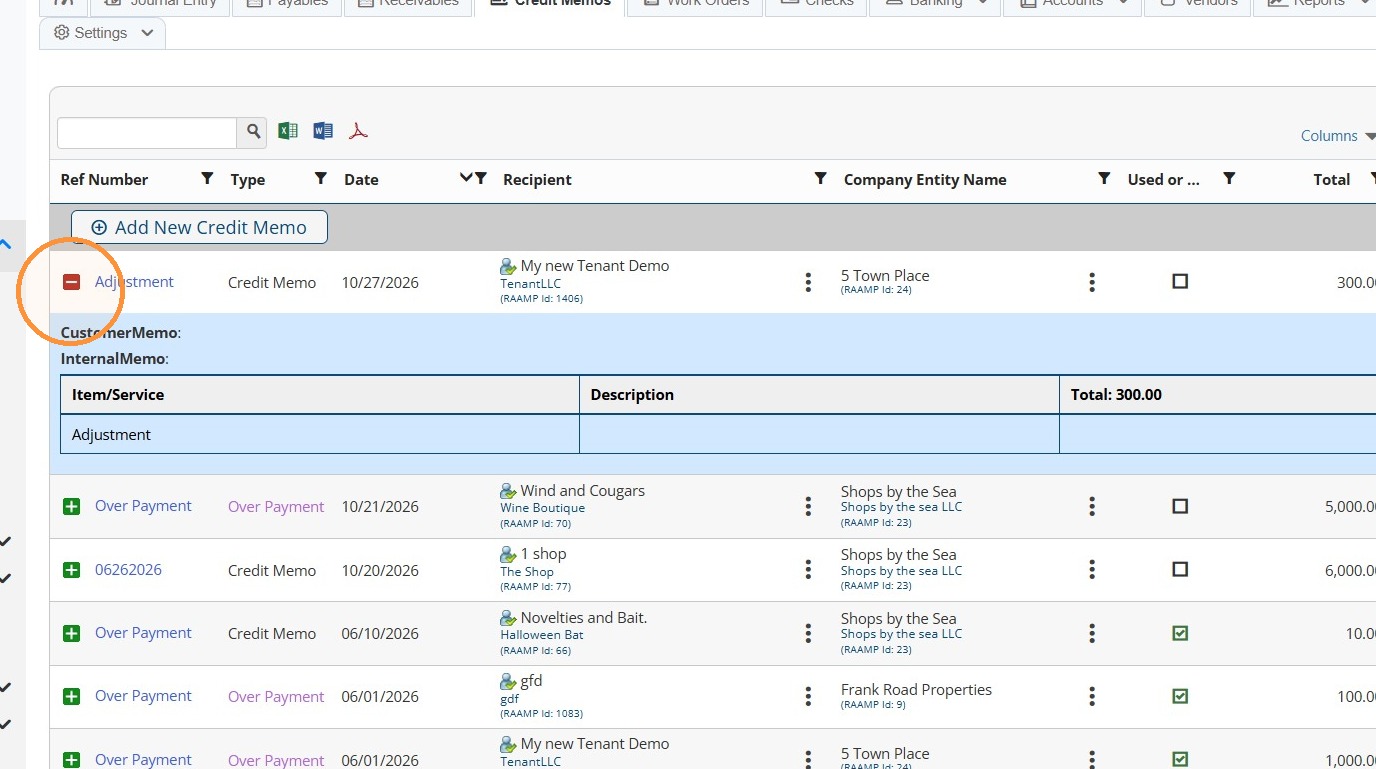
27. Confirm the credit memo.
How to Apply Credit Memo to Partial Payment
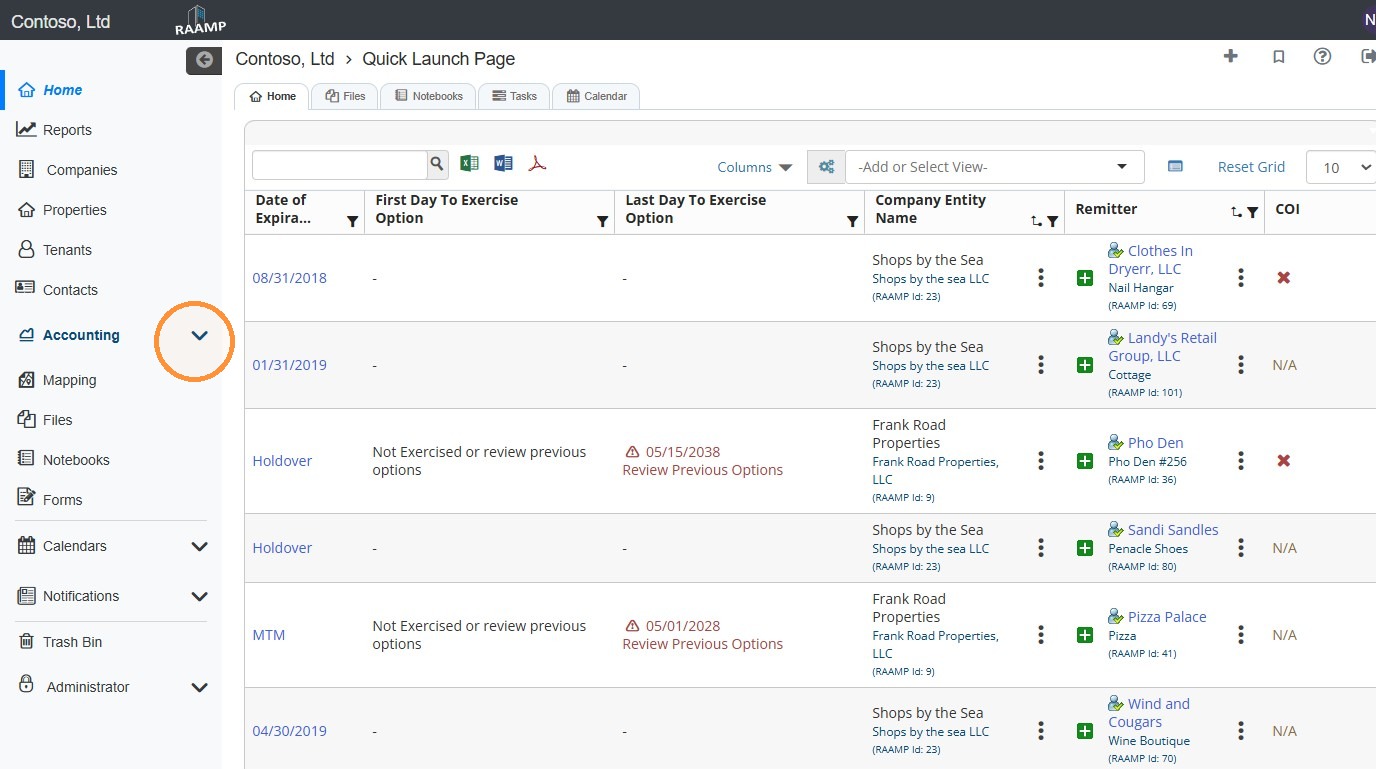
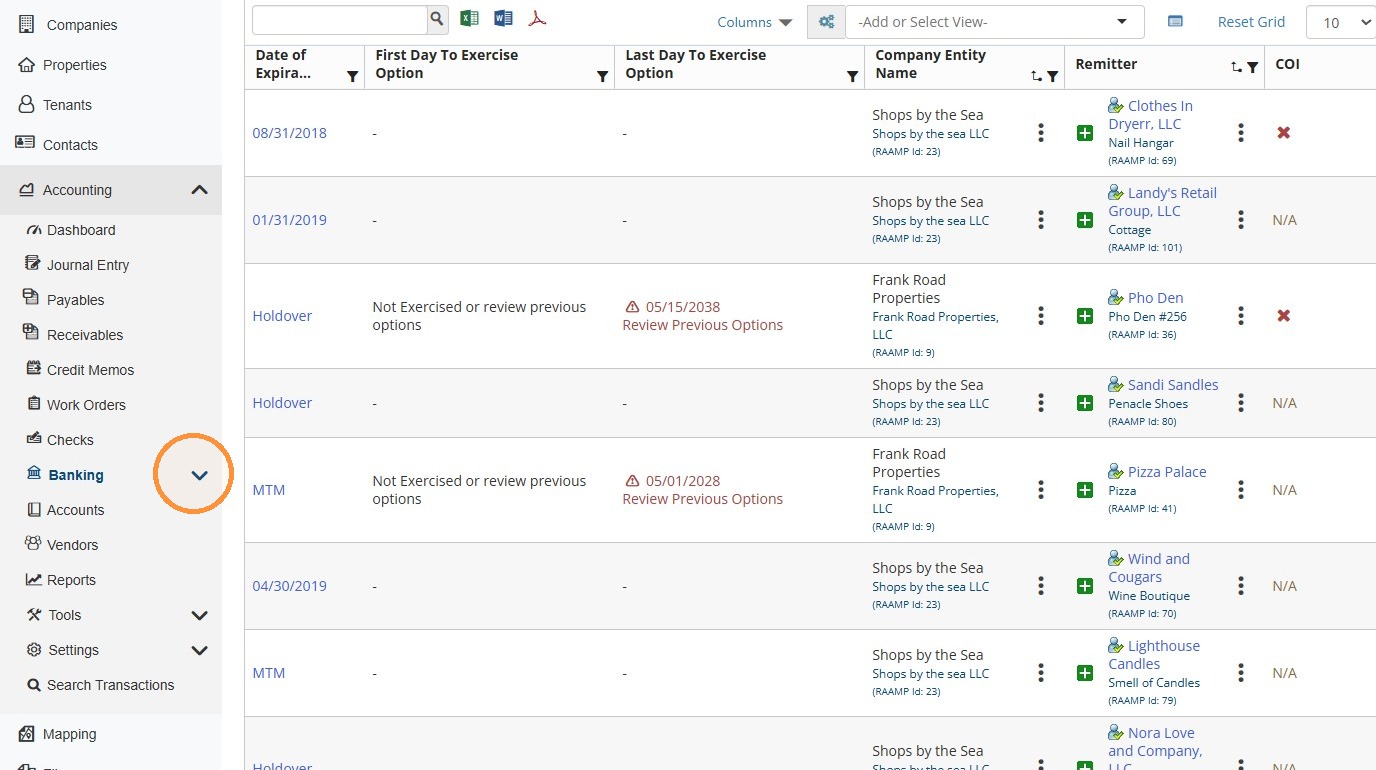
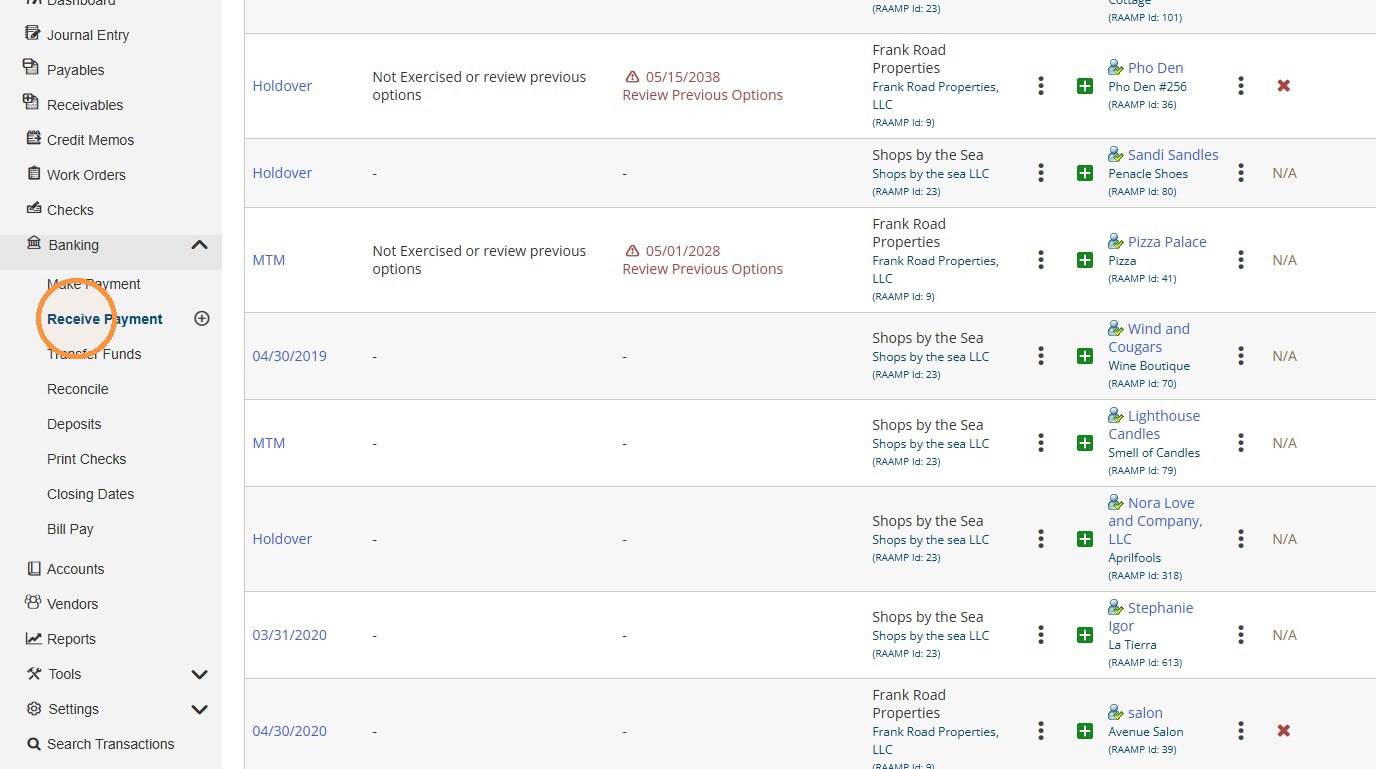
28. From the navigation menu, select Accounting > Banking > Receive Payment.
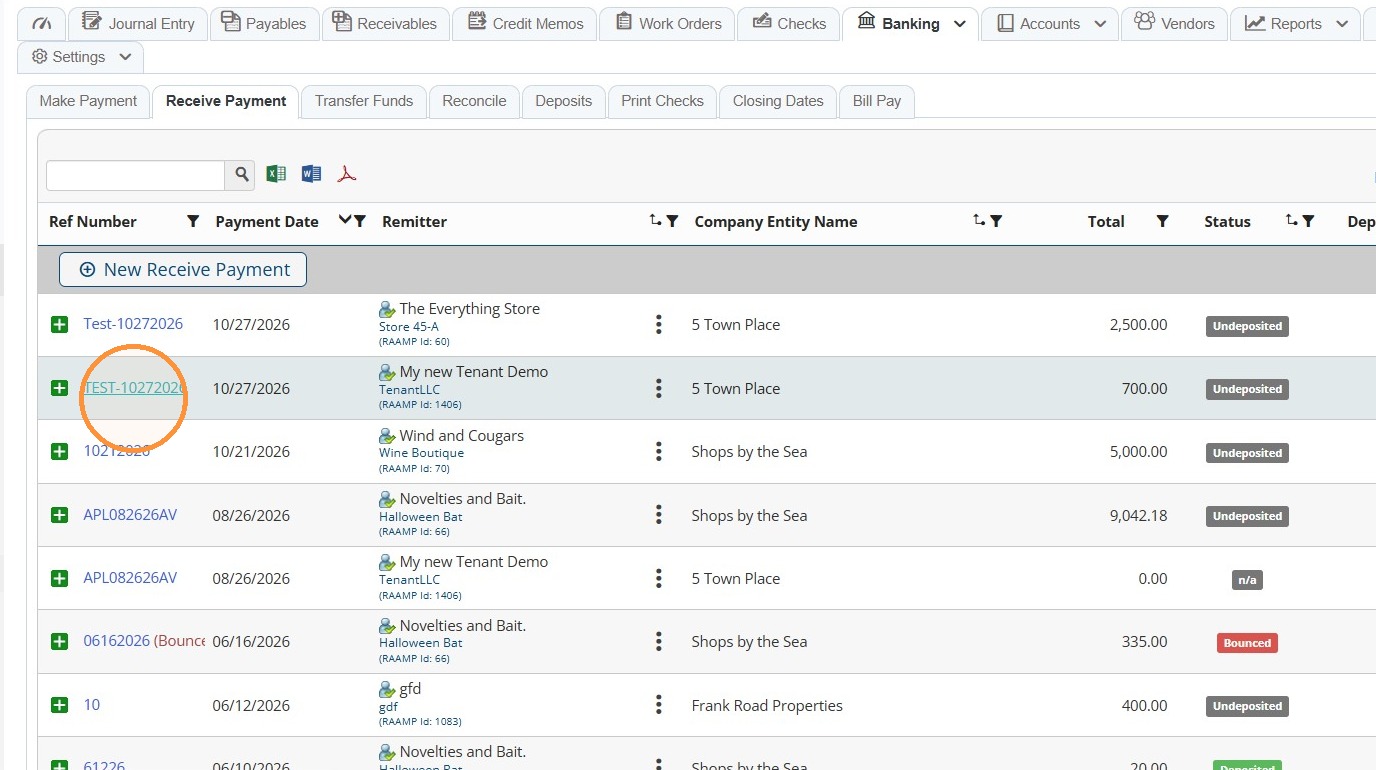
29. Select the payment's Ref Number hyperlink.
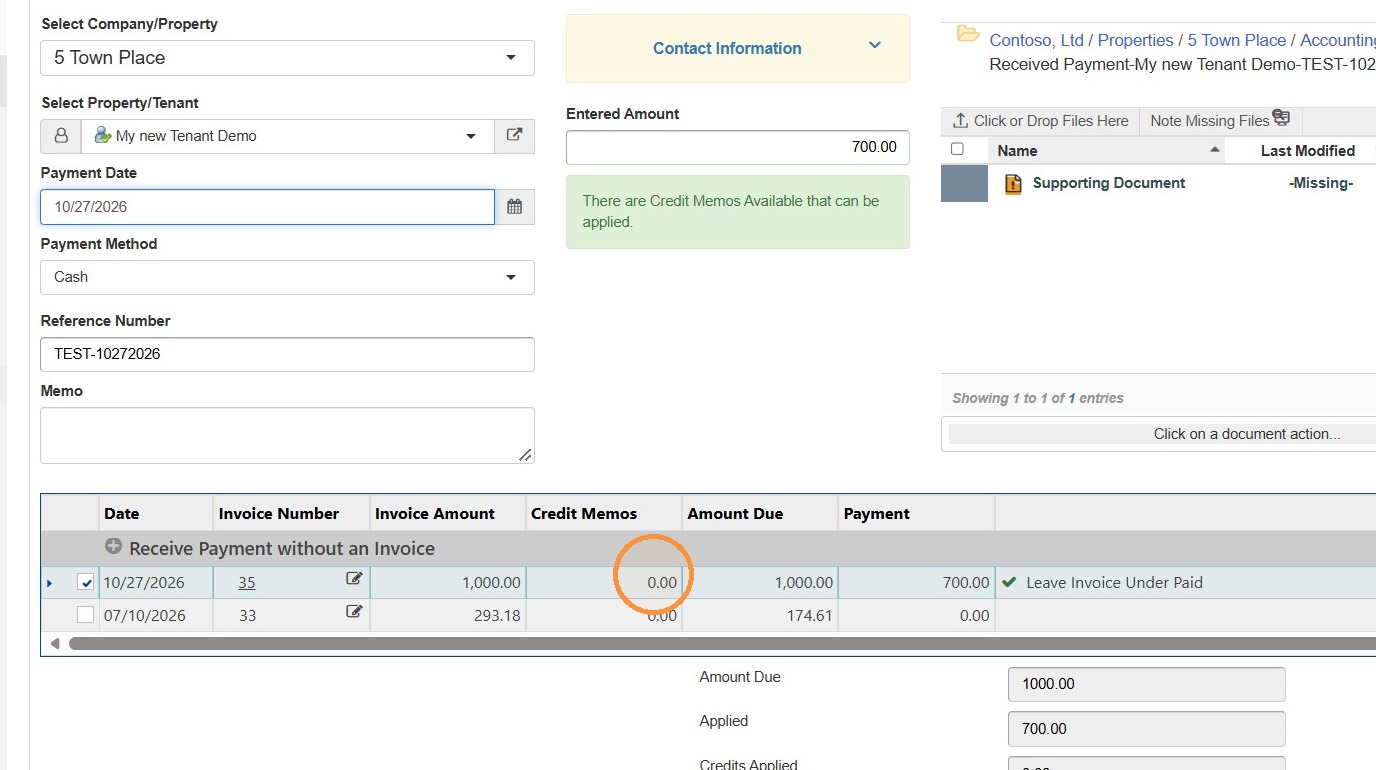
30. Select the Credit Memo box.
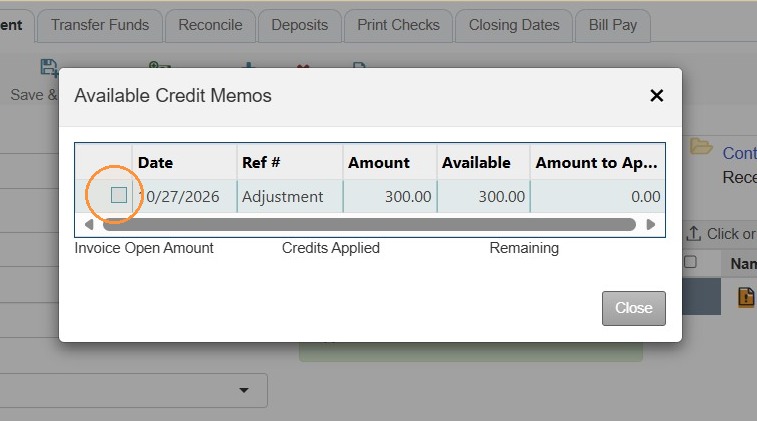
31. Select the credit memo you created for the remaining balance.
32. Select Close.
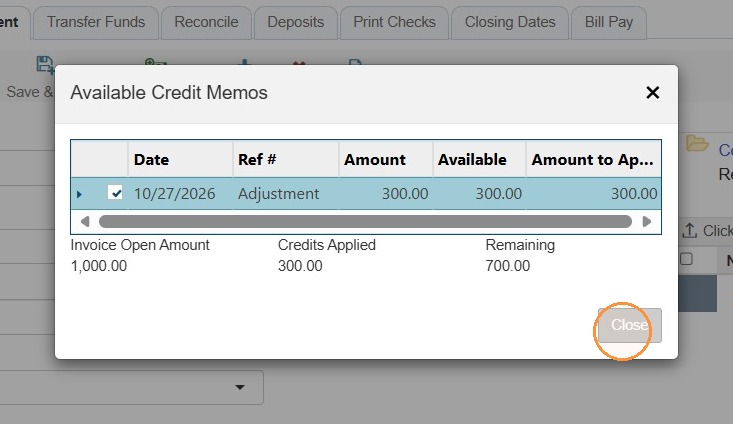
33. Verify the accounting entries:
- Applied = payment amount received
- Credit memo = adjustment amount/remaining balance amount
NOTE: The credit memo should reduce Accounts Receivable—not increase cash or create an unapplied prepayment/overpayment.
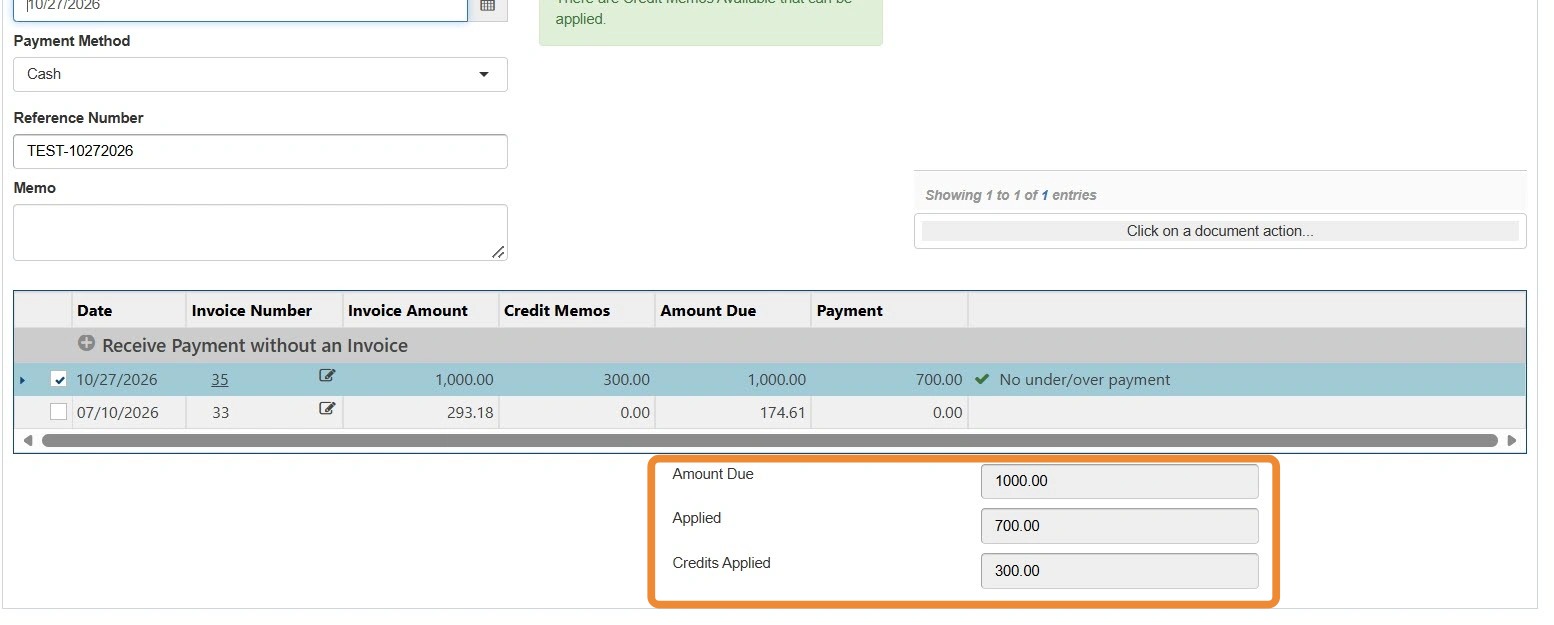
34. Select Save.
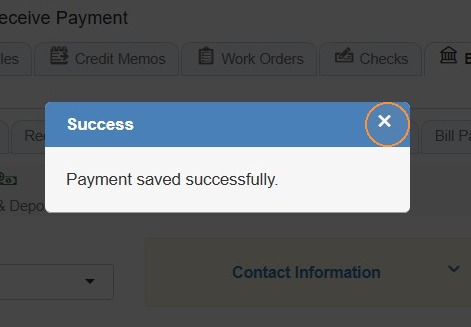
35. Select the x to close the confirmation box.
How to Confirm the Credit Memo was Used/Applied
36. From the navigation menu, select Credit Memos.
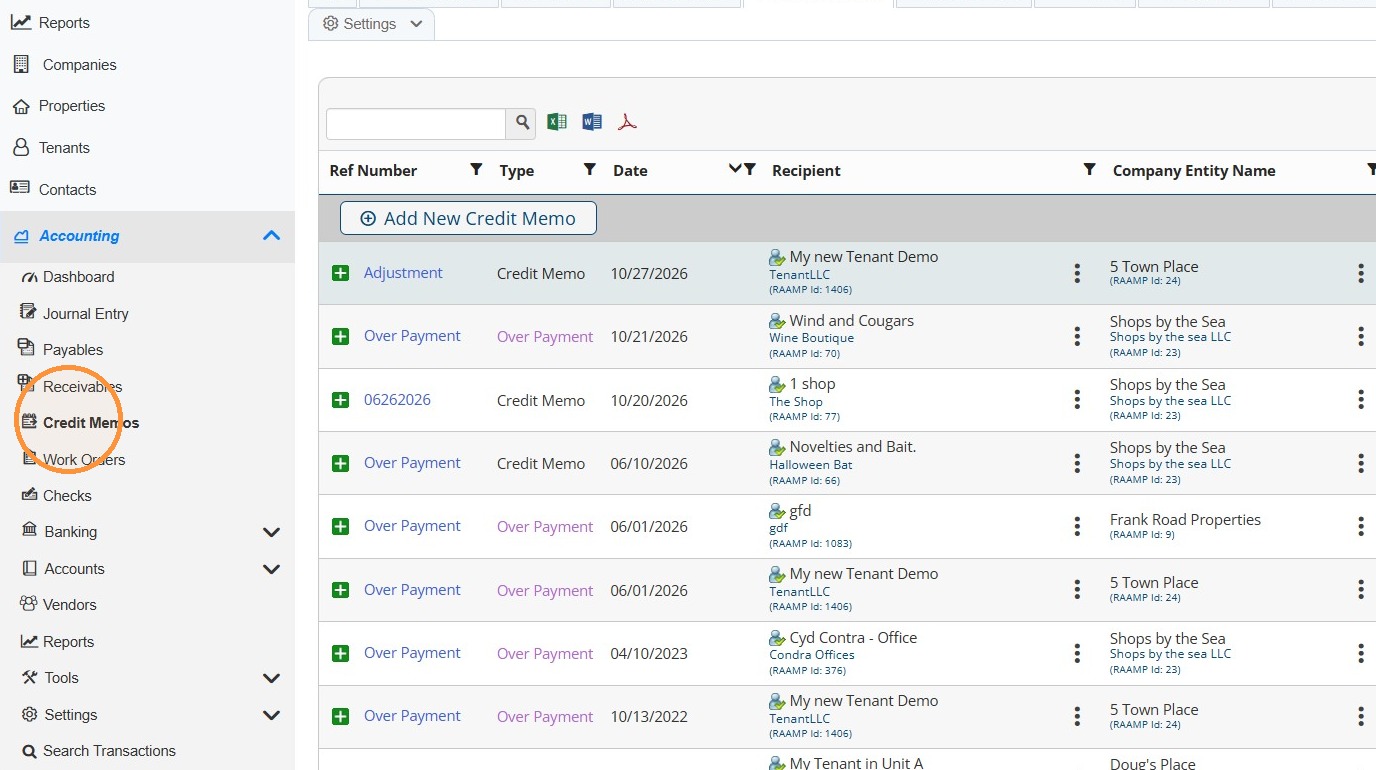
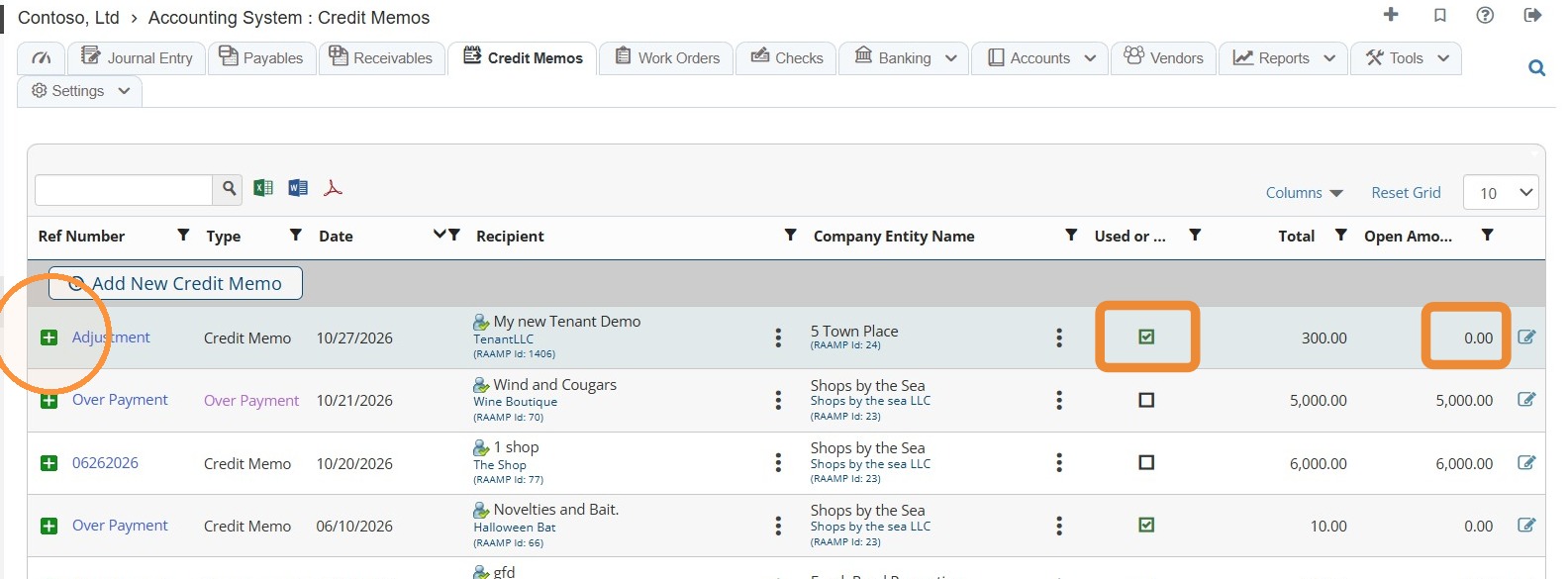
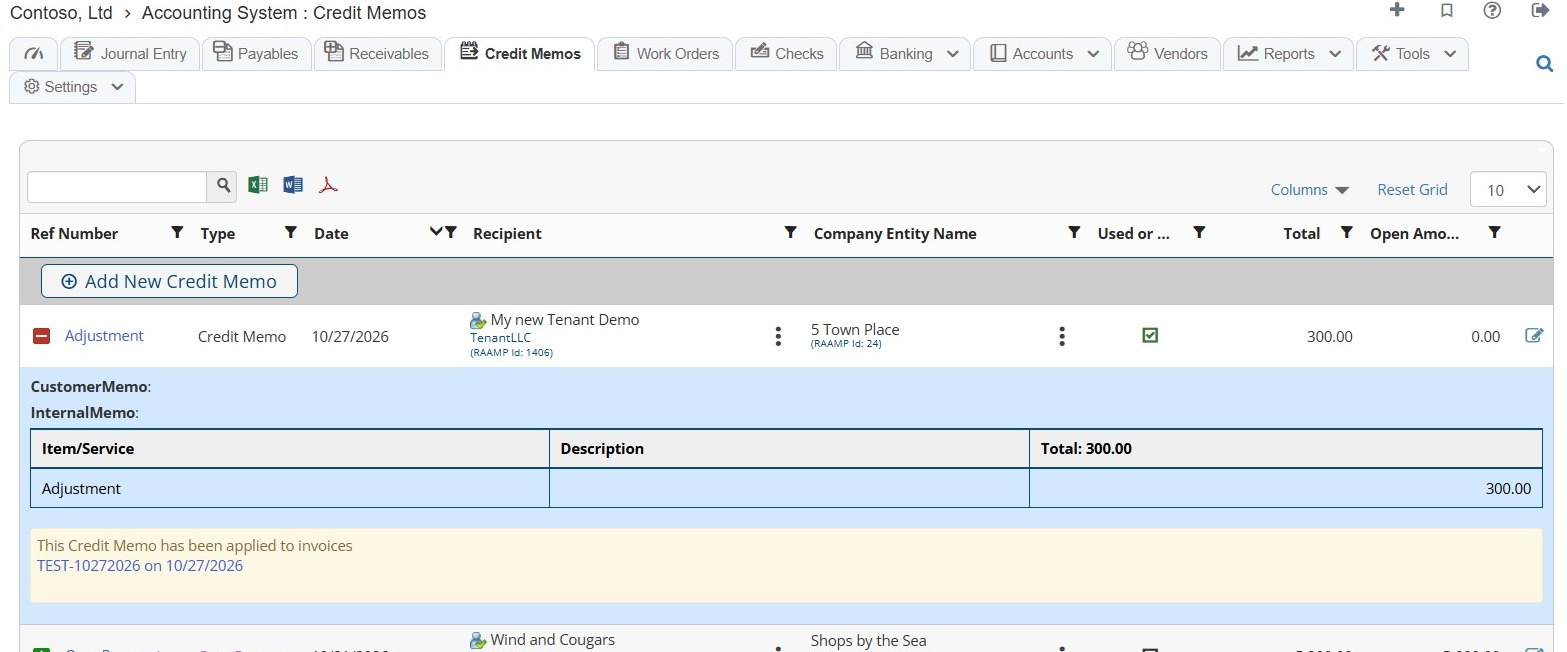
37. Locate the credit memo > The checked box indicates the credit memo has been used, and the open amount will be $0.
To view details, select the green +.