How to Adjust Received Payments (Undeposited and Deposited)
This guide saves time and prevents accounting errors by walking you through safely editing received payments—whether they’re still undeposited or already deposited. It explains how to find and modify payment details, ensure Entered and Applied amounts match, and, if needed, remove a deposit so you can edit then redeposit correctly. Follow it to maintain accurate records and avoid reconciliation problems.
Navigating to the Undeposited Payment
1. From the navigation menu, select Accounting > Select Banking > Select Receive Payment.
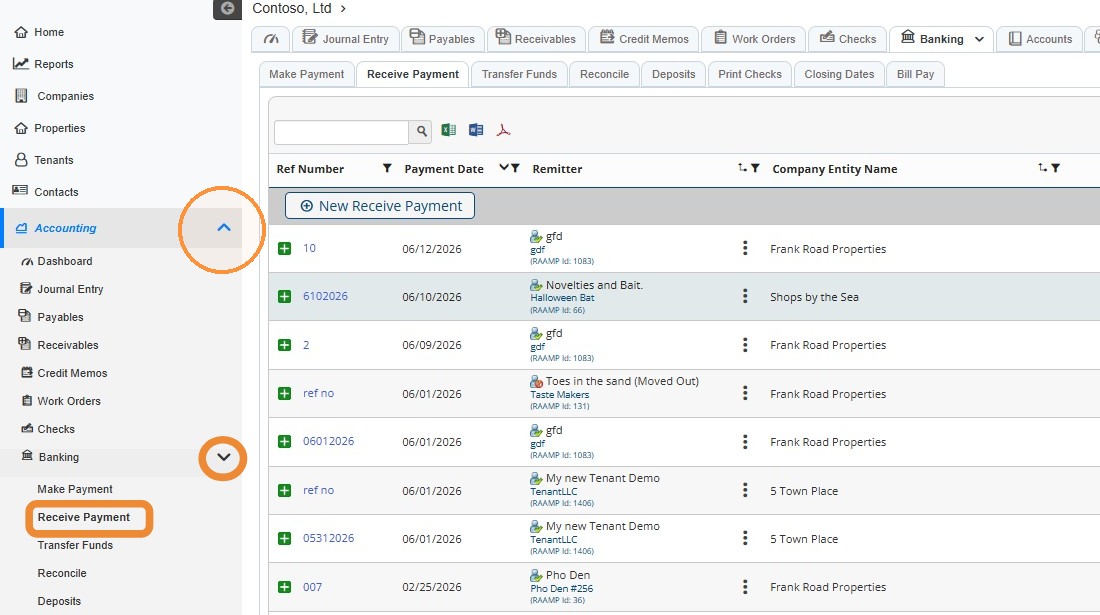
How to Adjust Undeposited Payment Information
2. Locate the payment record you need to adjust/edit > Select the payment record's edit icon.
NOTE: You can locate the payment record quickly by searching for it.
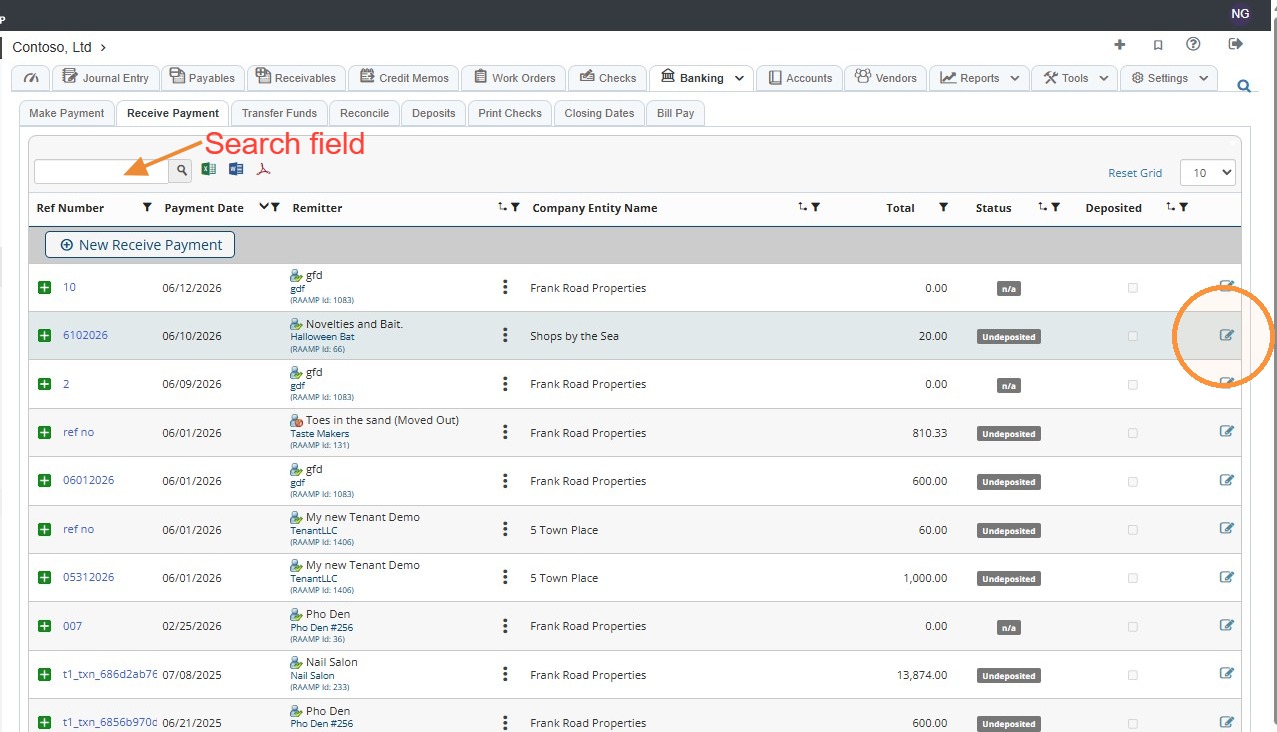
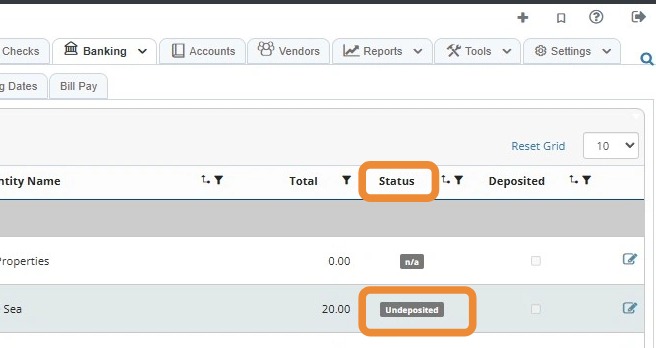
Tip: You can only edit/adjust payments with the undeposited status.
You will need to remove the deposit to adjust/edit a deposited payment.
3. Select the field(s) that need to be edited > Edit the information accordingly.
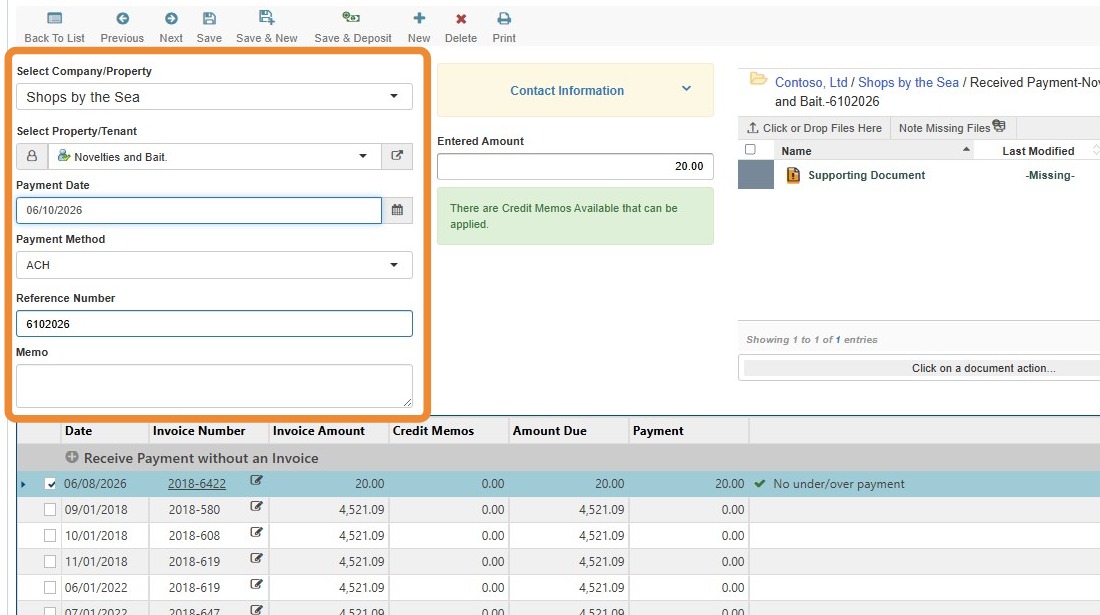
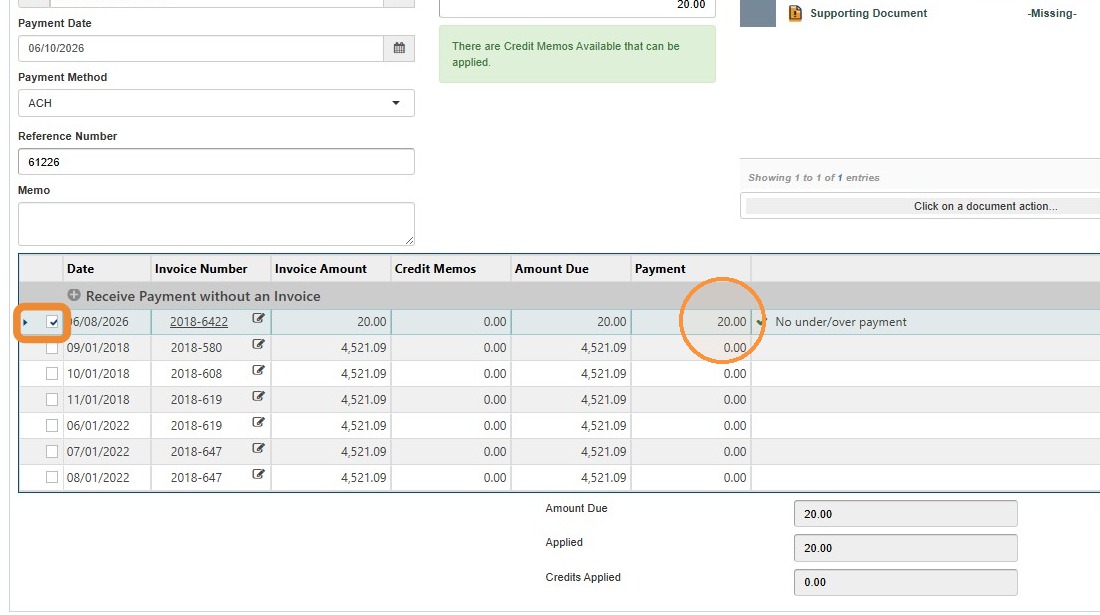
4. To adjust the payment amount, locate the invoice payment in the chart > Select the checkbox for the payment that needs adjustment > Select the Payment box > Enter the correct amount.
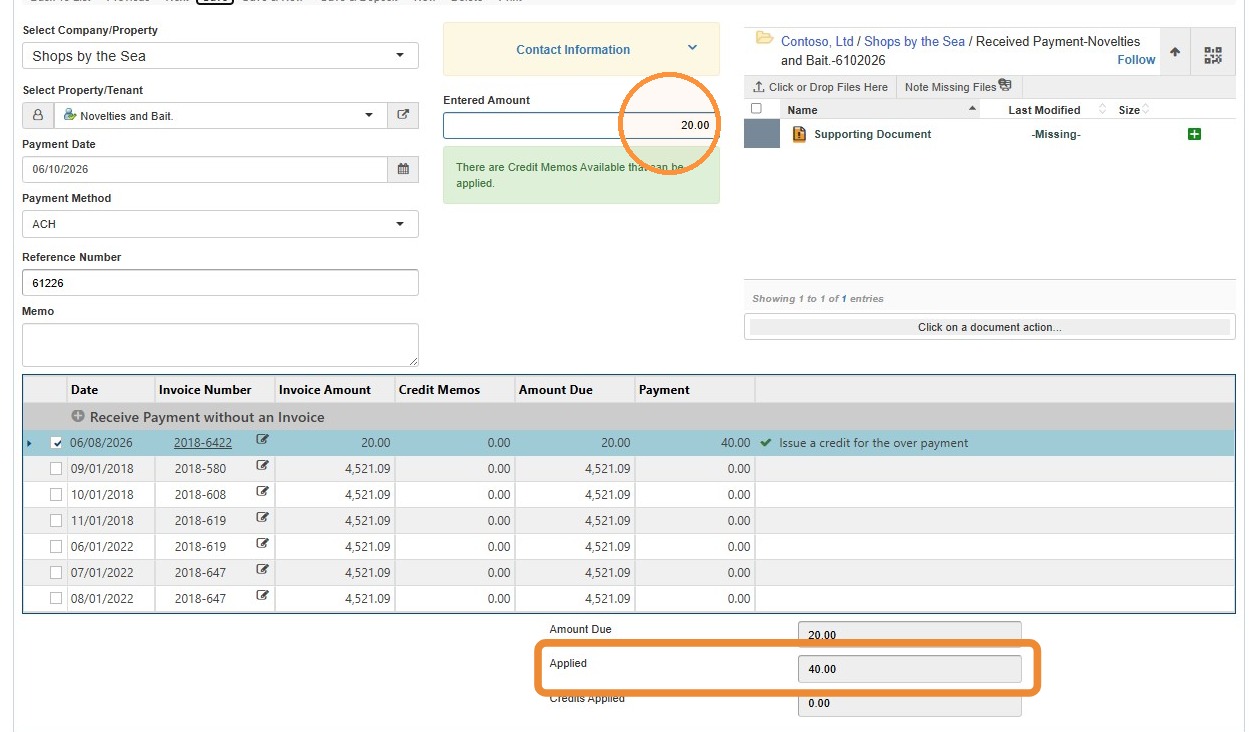
5. Select the Entered Amount field > Enter the applied amount.
The Entered Amount and Applied Amount fields must match.
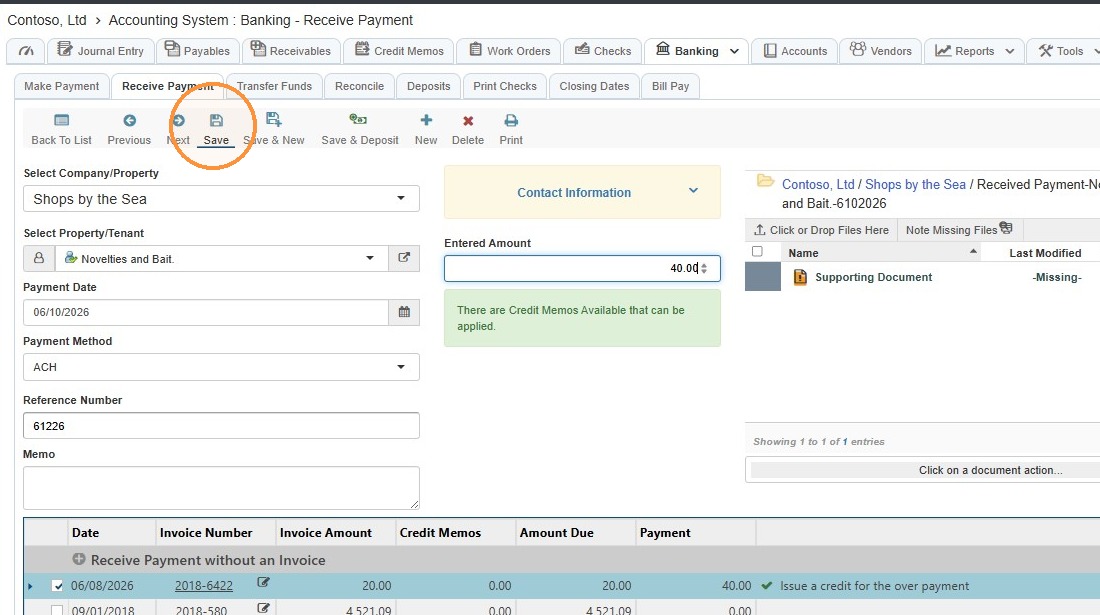
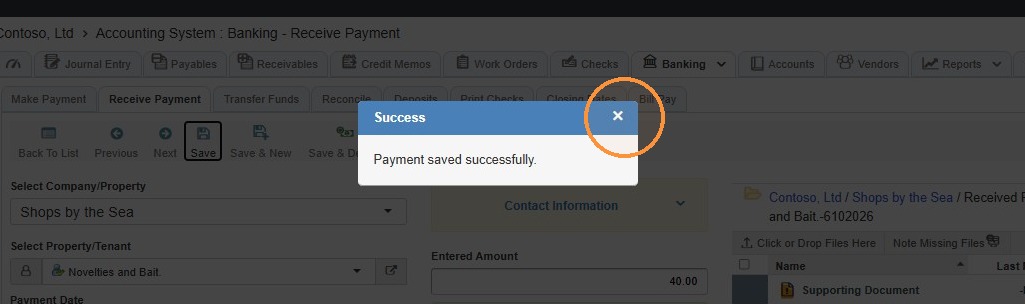
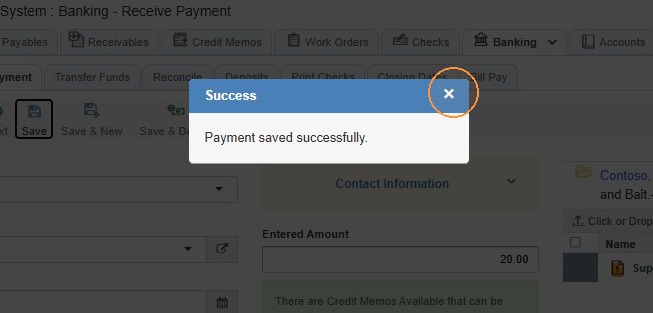
6. Select Save in the top toolbar > Select the x to close the success notification popup.
How to Deposit the Adjusted Payment
7. Select Save & Deposit to finalize the changes.
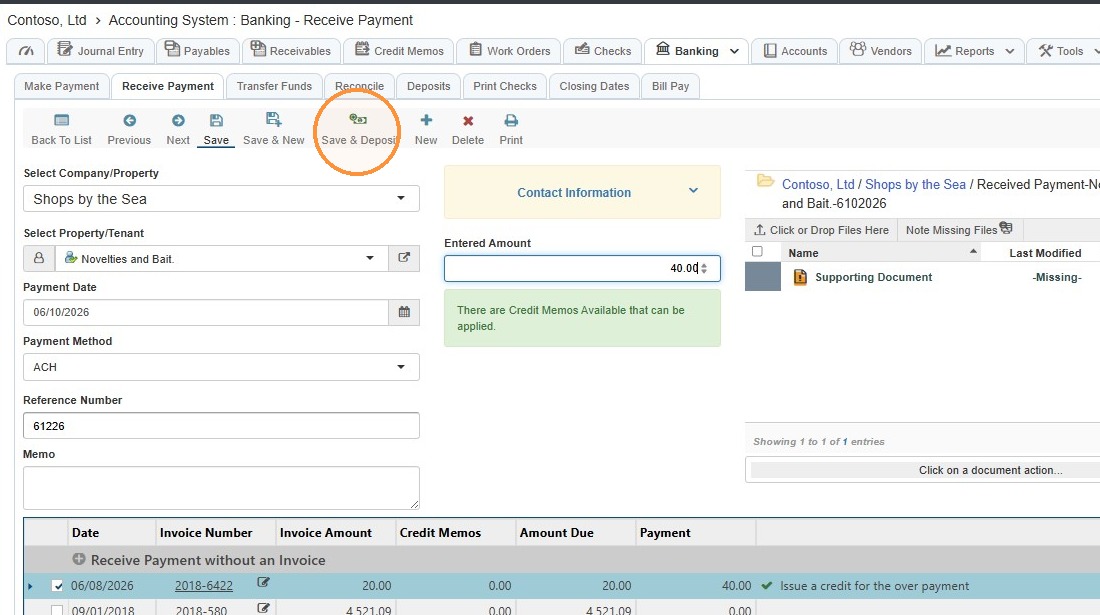
8. You'll be automatically routed to the Deposits tab.
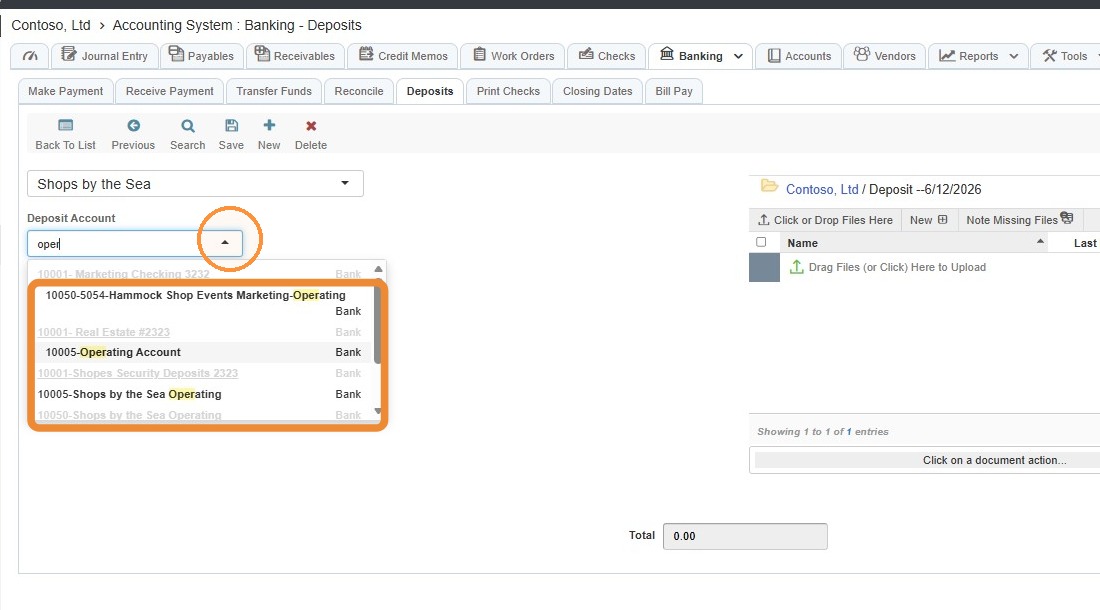
The Property/Company will auto-populate.
Select the Deposit Account from the dropdown menu.
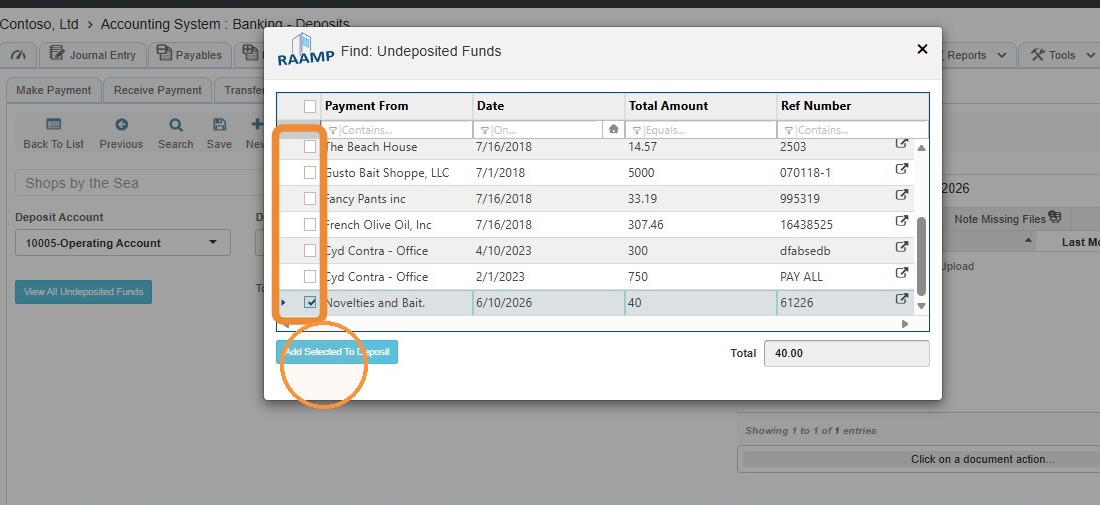
9. Select the correct payment from the Undeposited Funds list > Select Add Selected to Deposit.
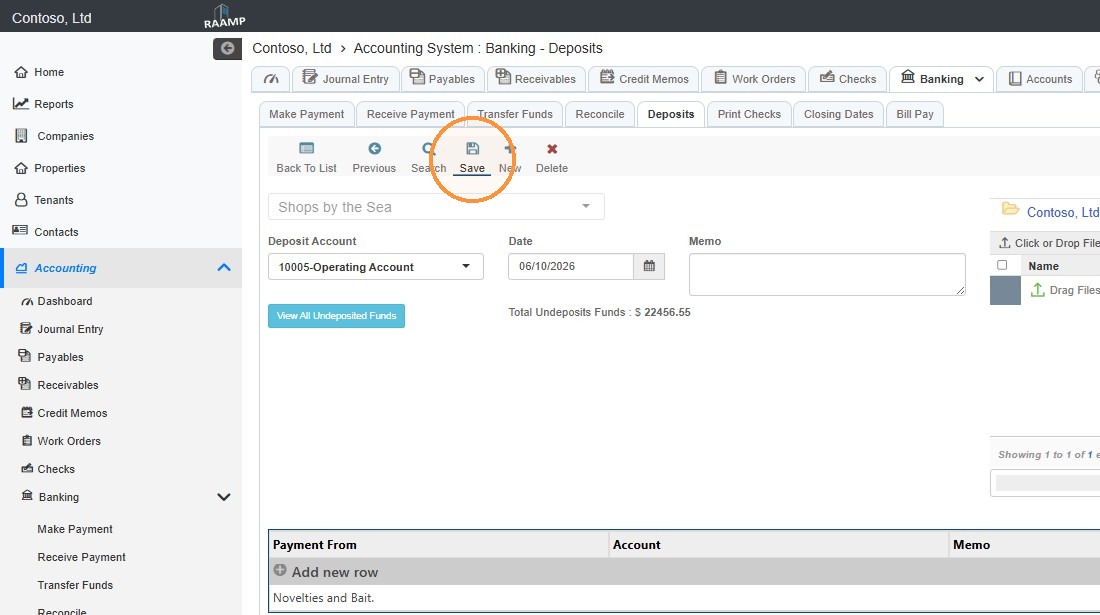
10. Select Save.
How to Adjust Deposited Payment Information
Alert: You will need to remove the deposit to adjust/edit the received payment.
If the payment has not been deposited, you'll have editing capabilities.
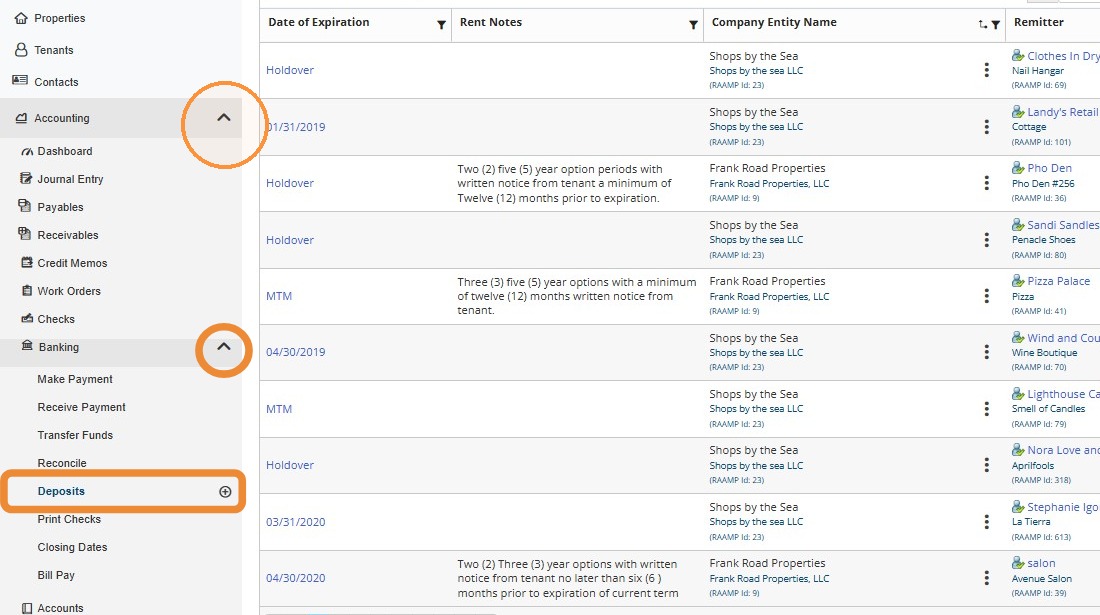
11. From the navigation menu, select Accounting > Select Banking > Select Deposits.
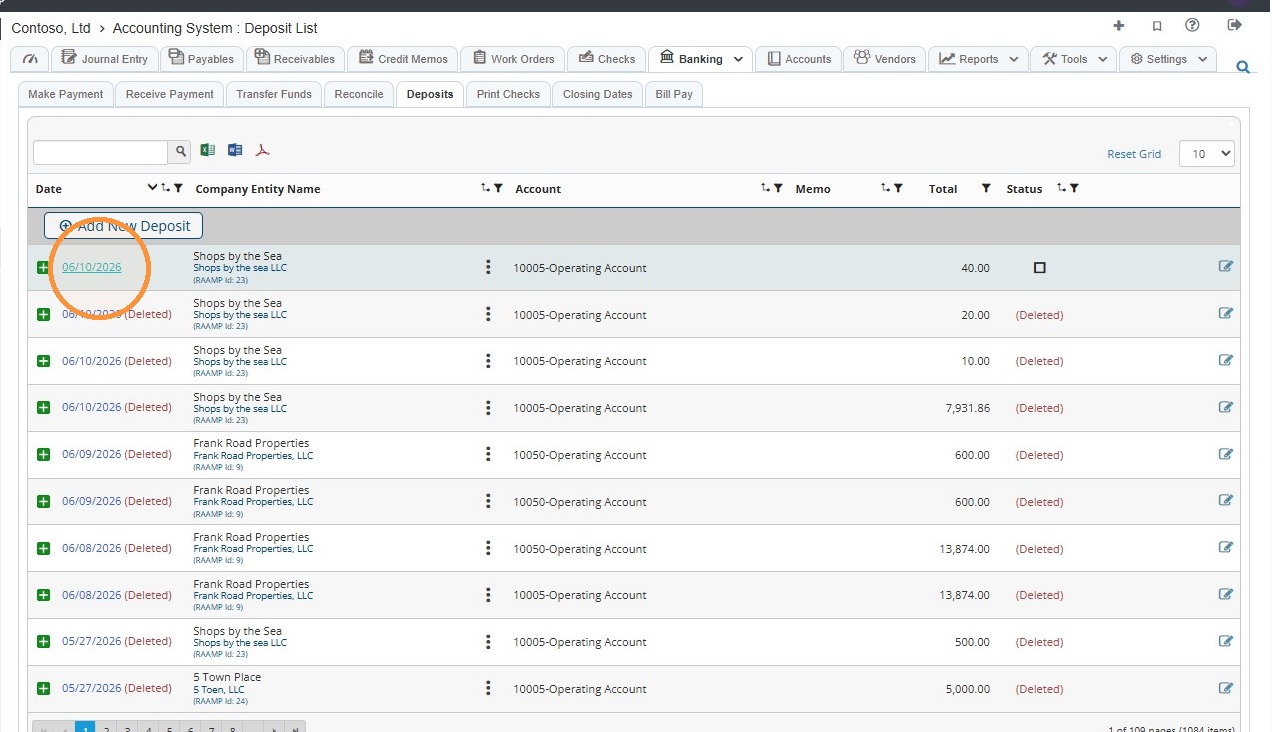
12. Locate the deposited payment that needs adjustment > Select date hyperlink for the deposit.
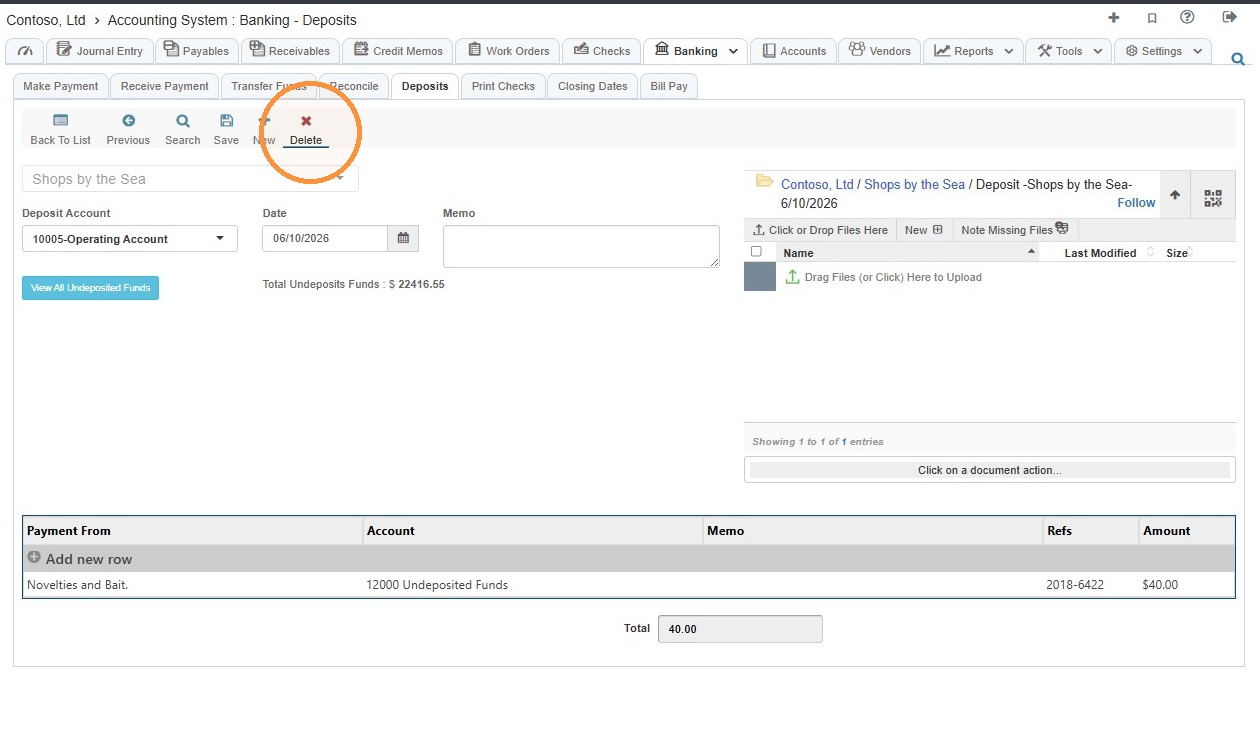
13. Select Delete.
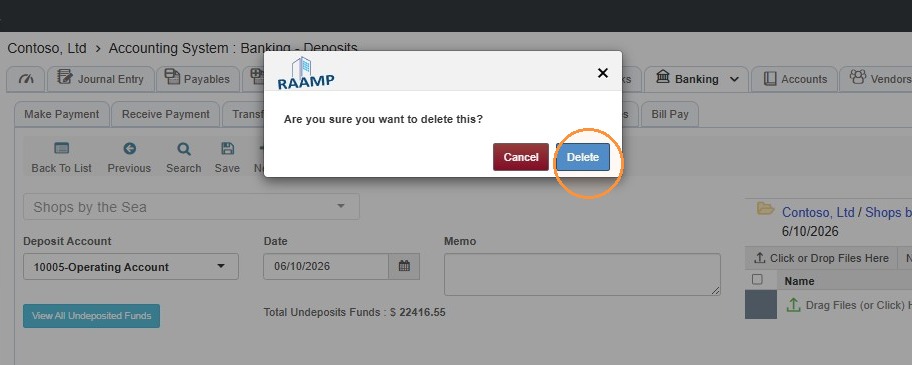
14. Select Delete.
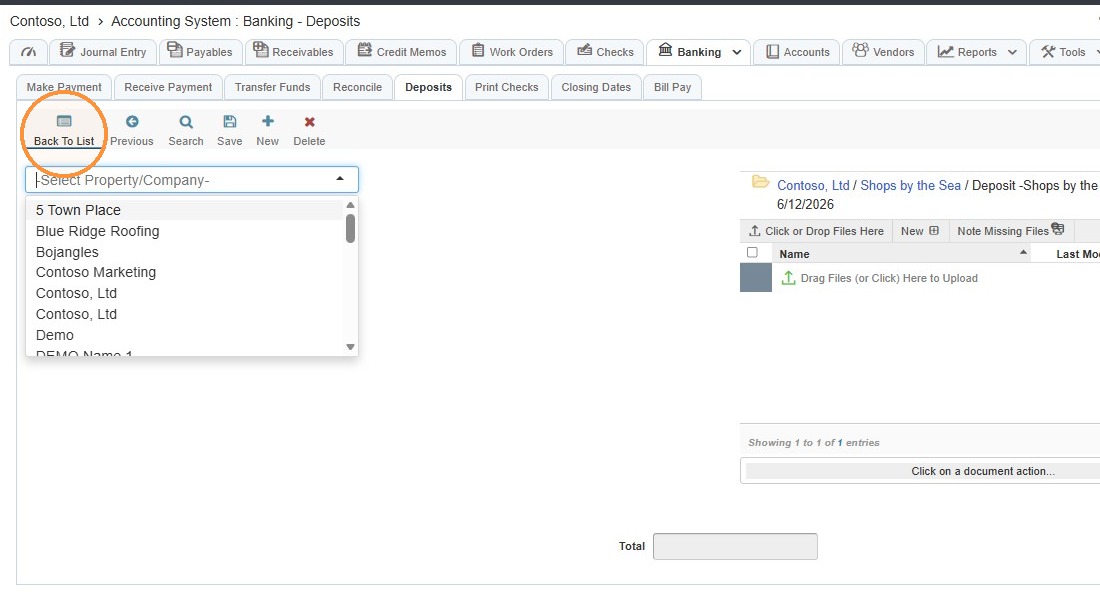
15. Select Back to List.
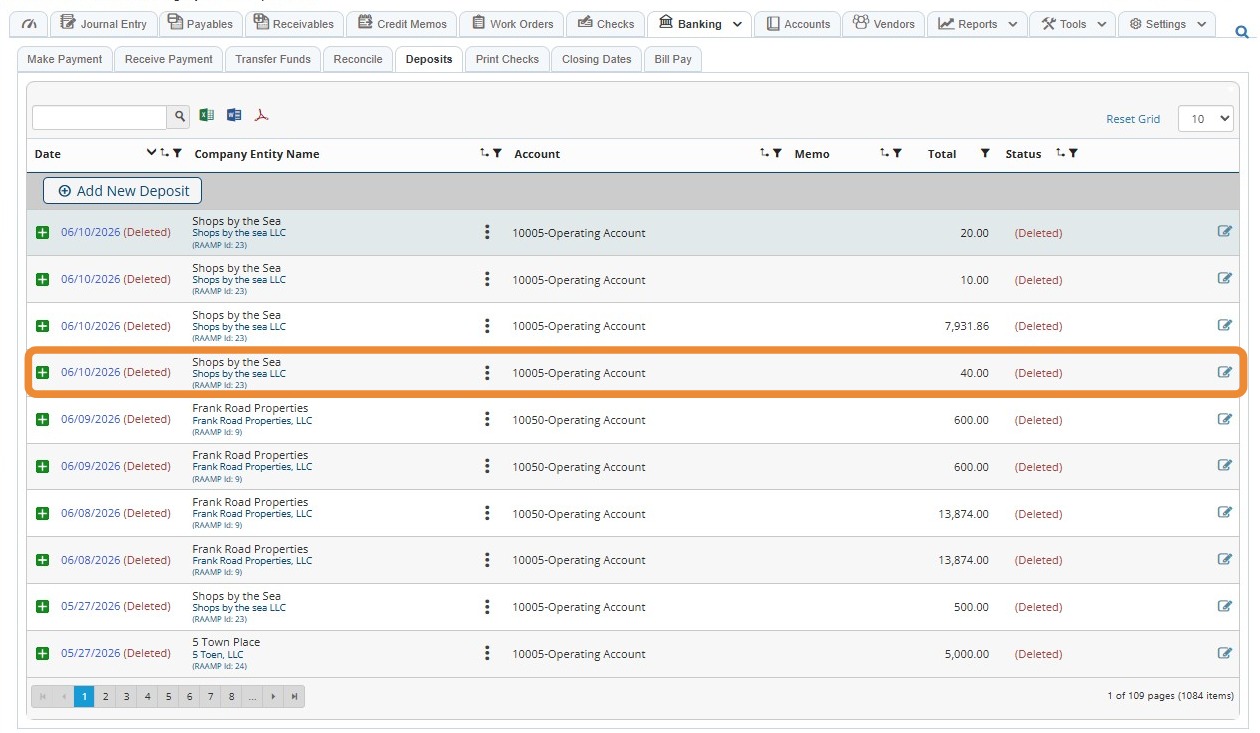
16. Verify the deposit was deleted.
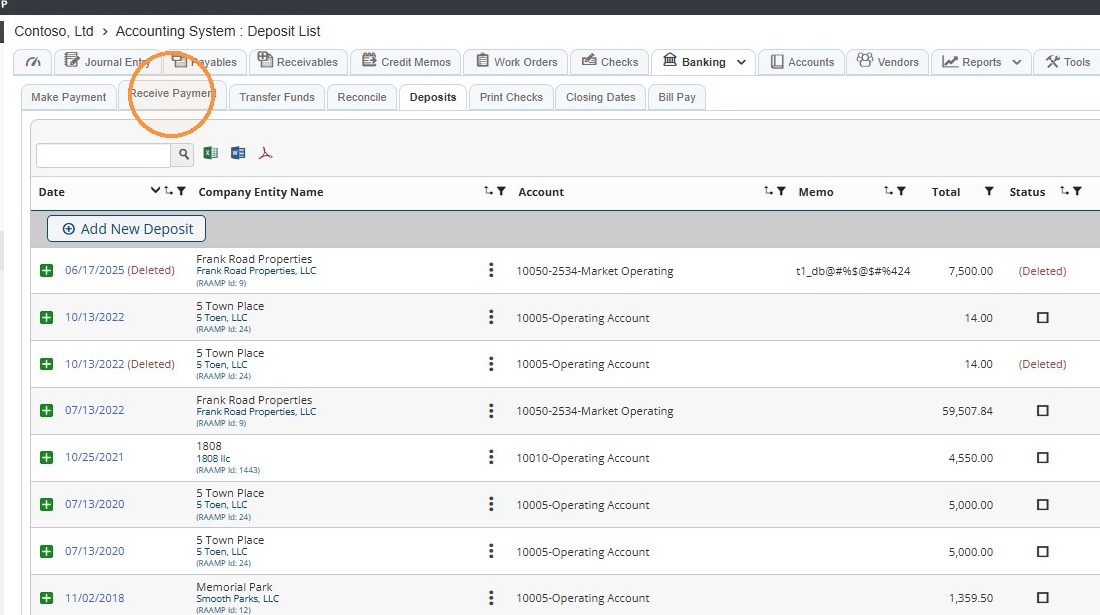
17. Select the Receive Payment tab.
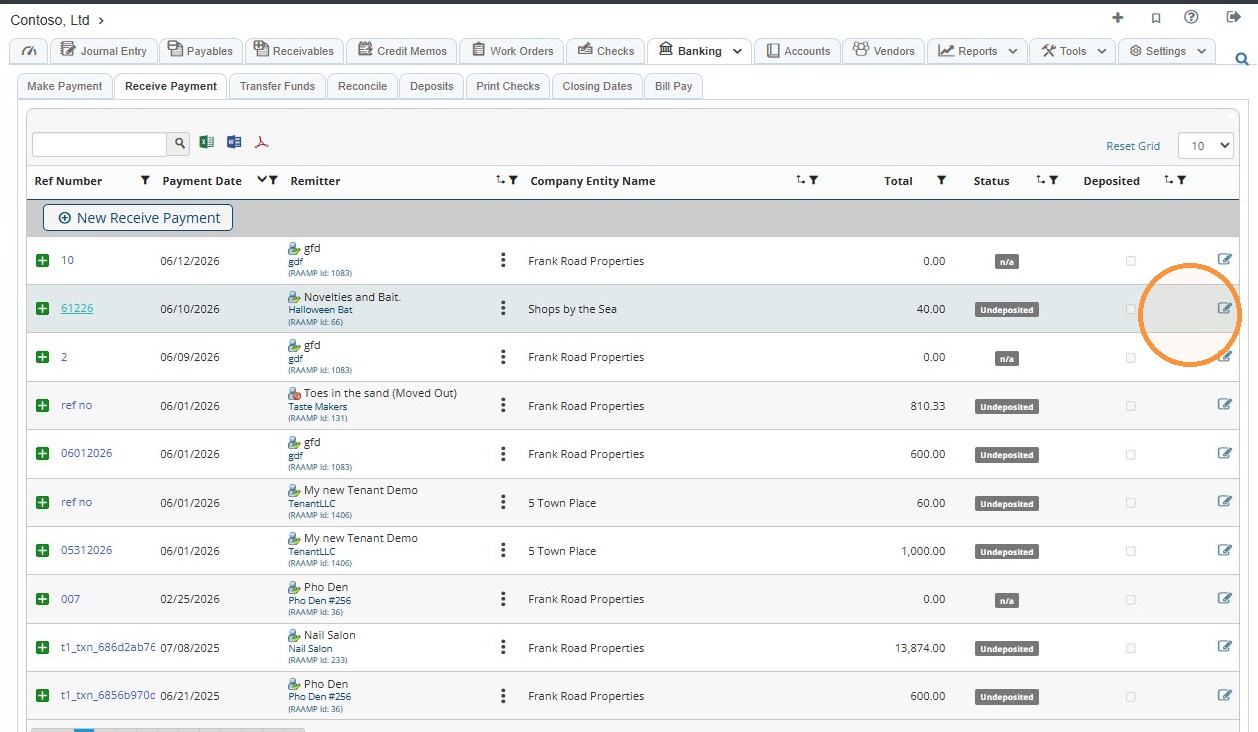
18. Locate the received payment that needs to be adjusted > Select the edit icon.
NOTE: You're looking for the received payment entry that you just deleted from deposits.
19. Select the field(s) that need to be edited > Edit the information accordingly.
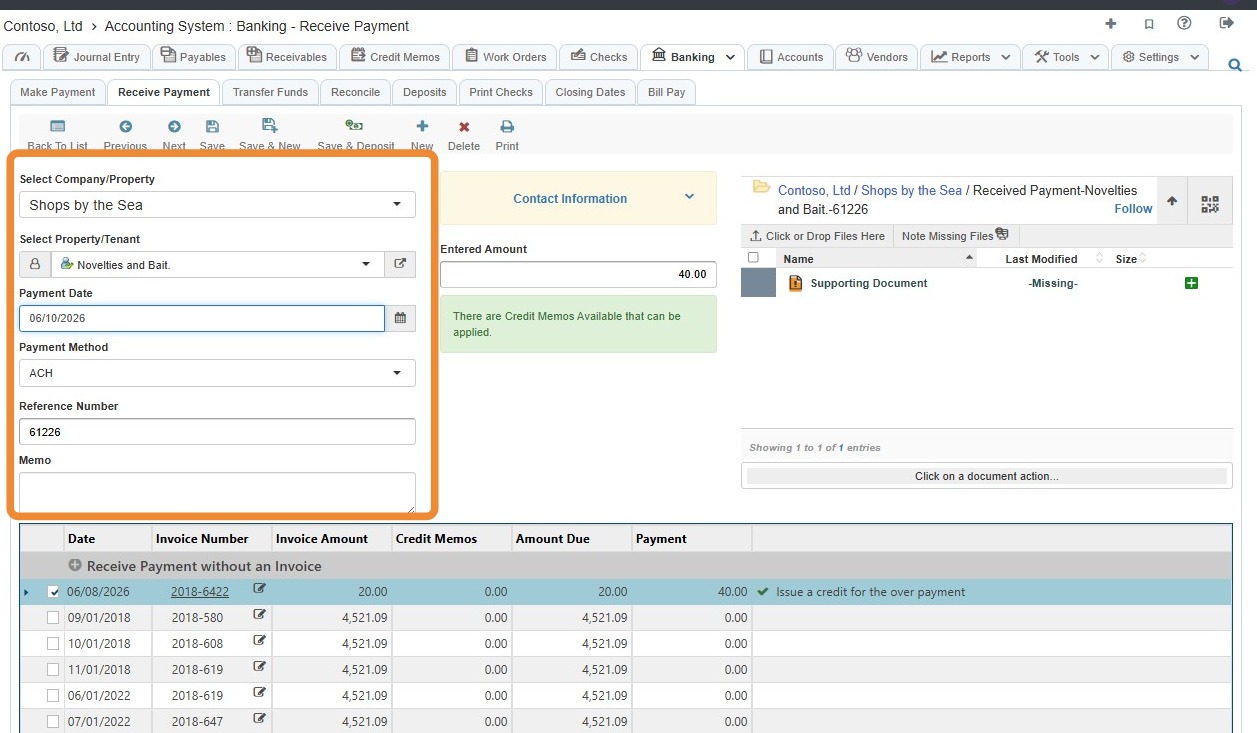
20. To adjust the payment amount, locate the invoice payment in the chart > Select the checkbox for the payment that needs adjustment > Select the Payment field > Enter the correct amount > Select Save.
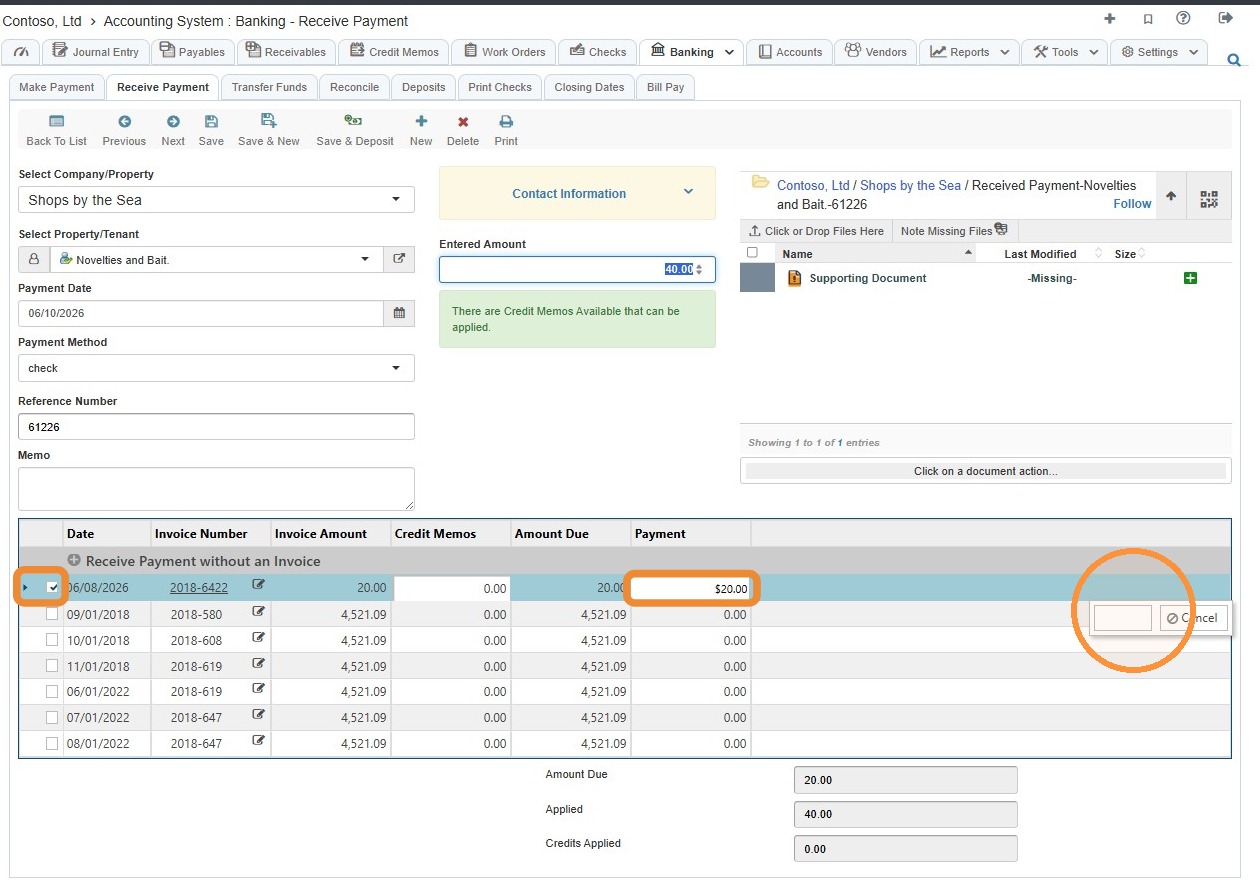
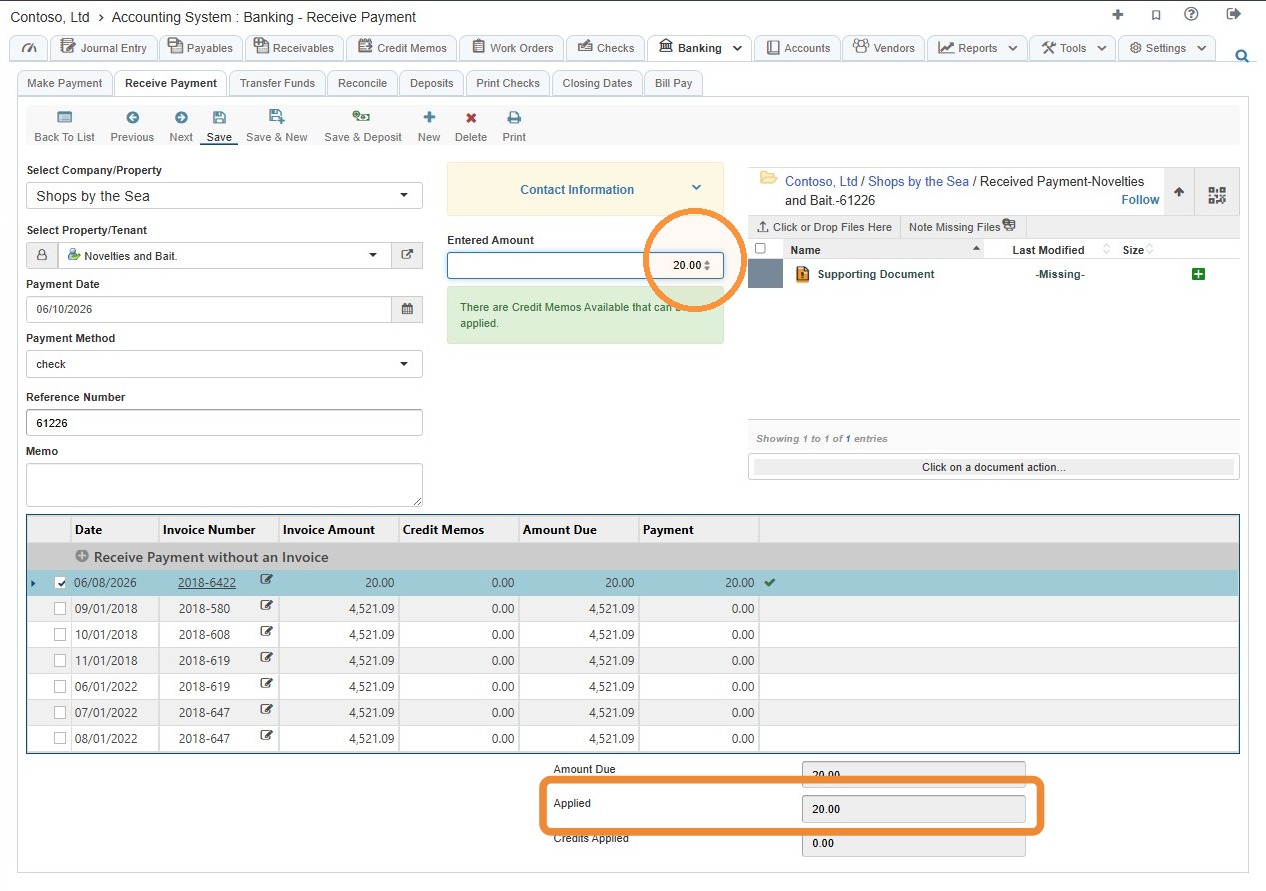
21. Select the Entered Amount field > Enter the applied amount.
The Entered Amount and Applied Amount fields must match.
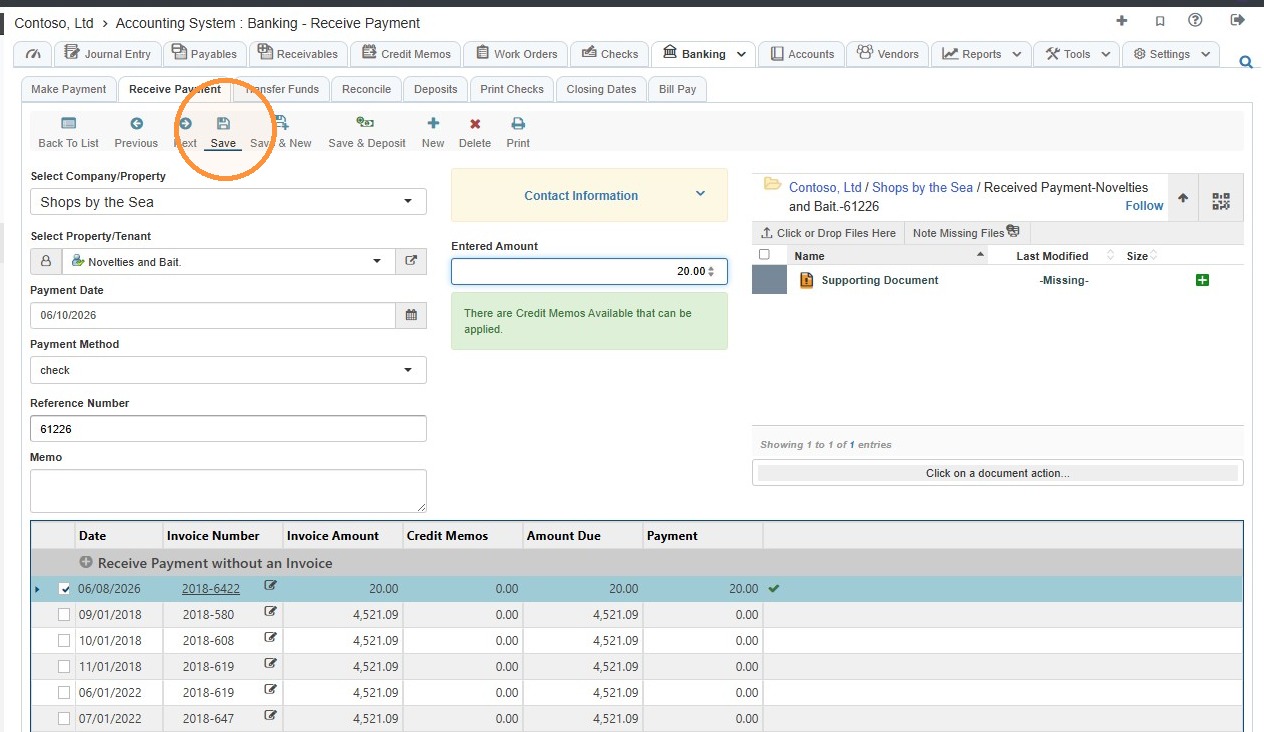
22. Select Save > Select the x to close the success notification popup.
Tip: To deposit the adjusted payment, follow the How to Deposit the Adjusted Payment instructions.