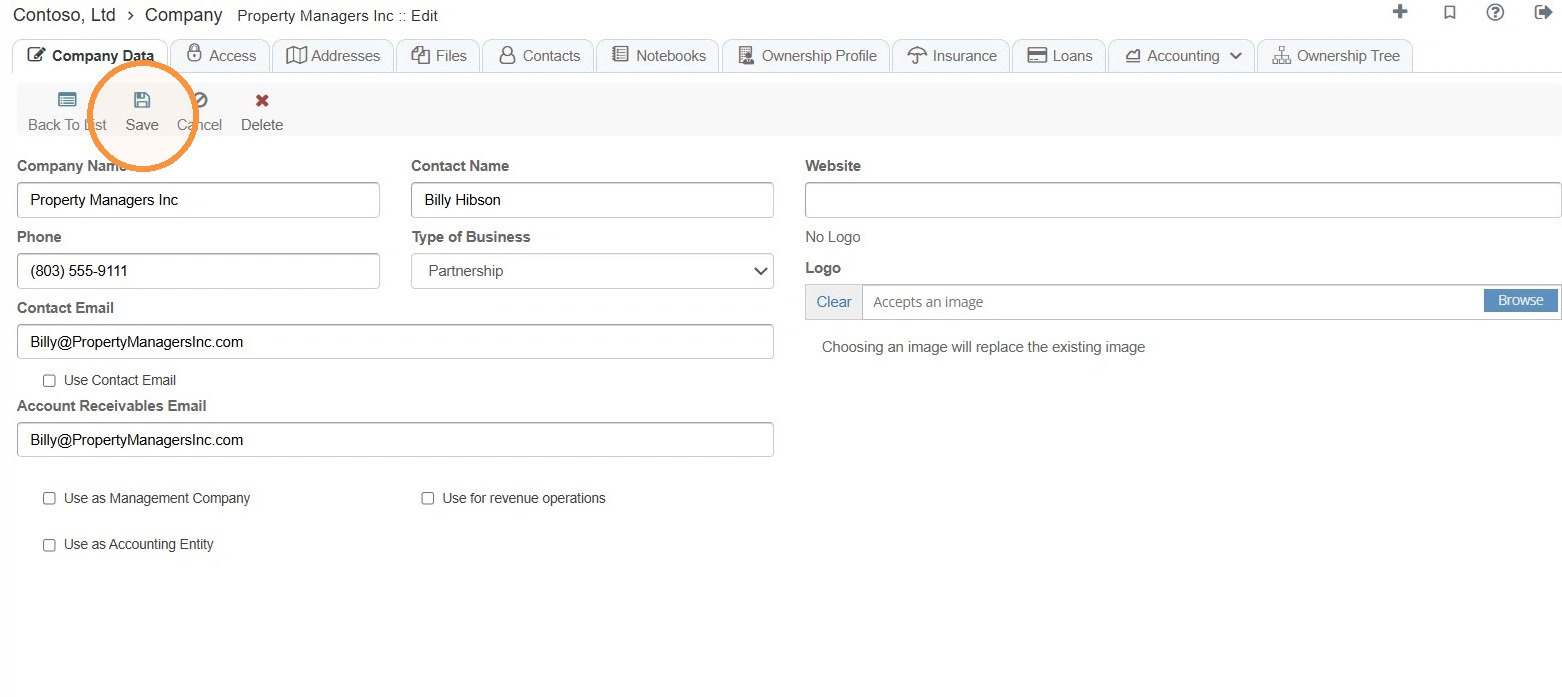
How to Edit Company Information & Logo
This guide quickly shows how to update a company's profile and logo in the system, including where to find the company record and how to save changes. It's useful for anyone who needs to keep company details current, add or replace branding, and complete edits with minimal steps.
How to Navigate to Companies
1. Select Companies > Locate the Company > Select the Edit icon.
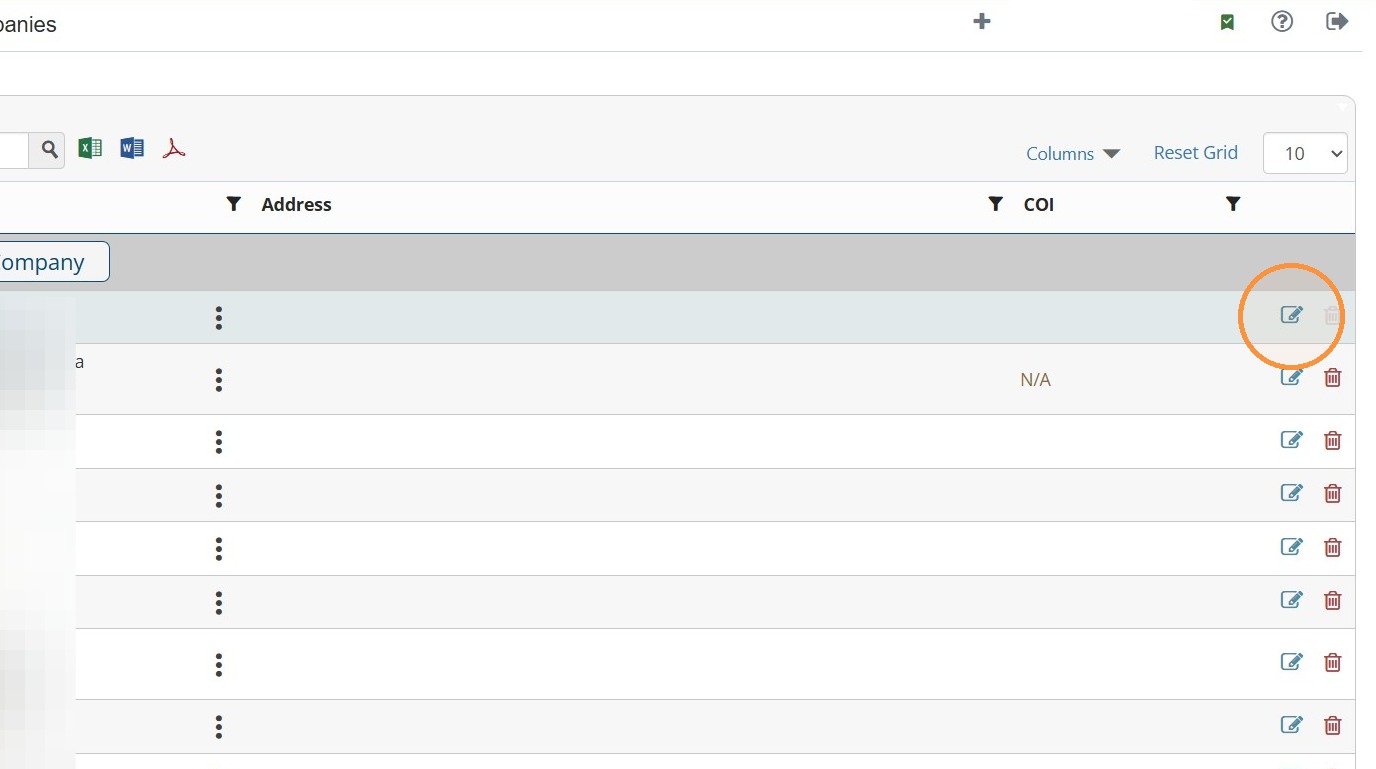
How to Edit Company Information & Logo
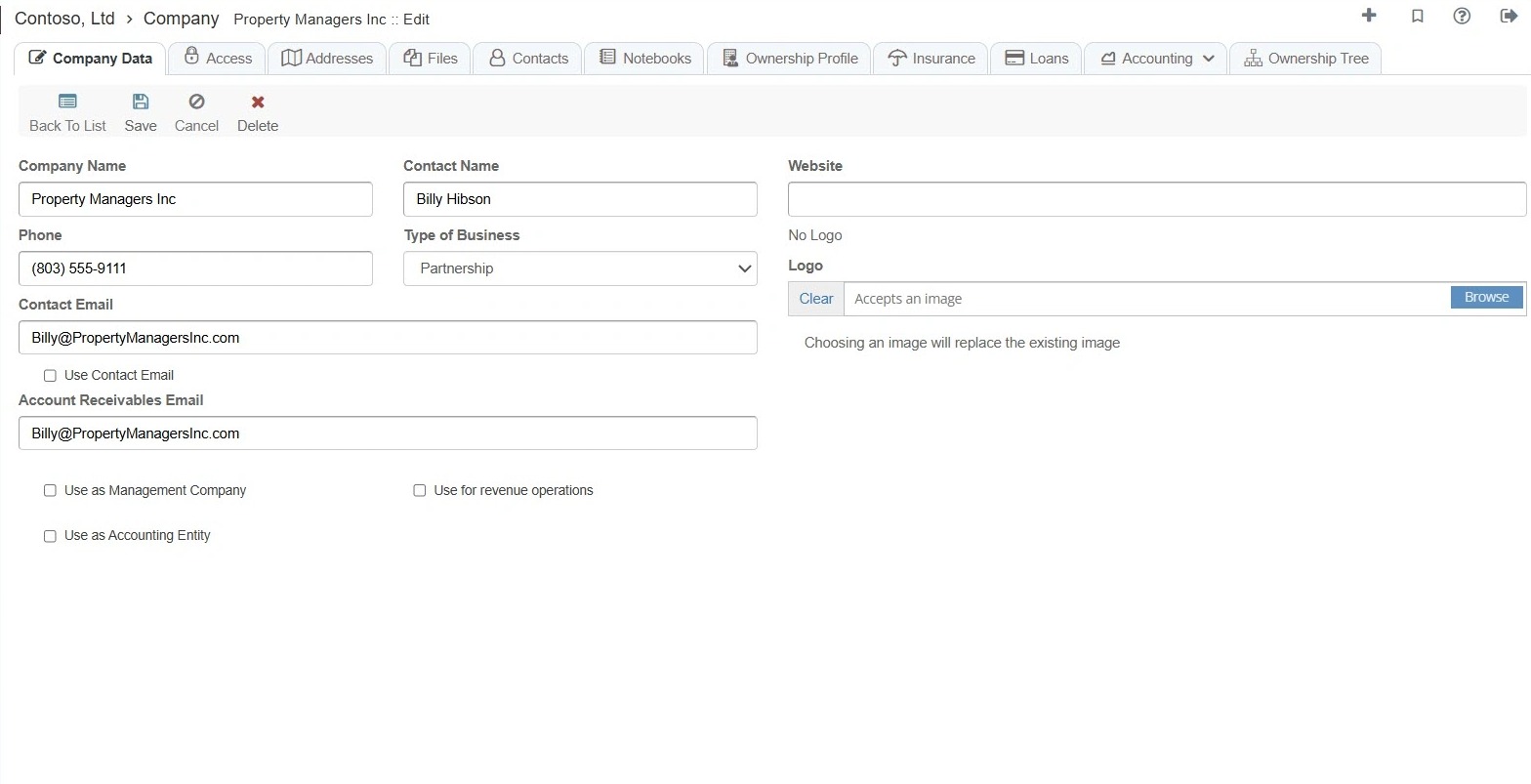
2. Edit the appropriate company information.
Tip:
Management Company - Choose this if the company manages properties. The company becomes available to select as the management company for properties and invoices in RAAMP. This allows RAAMP to use the company’s information, such as its logo and contact details, on associated invoices.
Accounting Entity - Choose this option when you need to manage the accounting for a specific entity. This allows you to perform accounting for a company in the same way you would for a property.
When "Use as Accounting Entity" is checked, the Default AR Type and Default AP Type will default to Vendor and Tenant if unselected. If you want to make changes, please select your preferred option and then save your selection.
Default AR Type: Who the company usually receives payments from, such as tenants.
Default AP Type: Who the company usually pays, such as vendors.
RAAMP uses these as starting selections when creating invoices and bills.
Revenue Operations - This option is applicable solely to franchisors who wish to collect revenue from their franchisees.
3. To add a logo, select Browse.
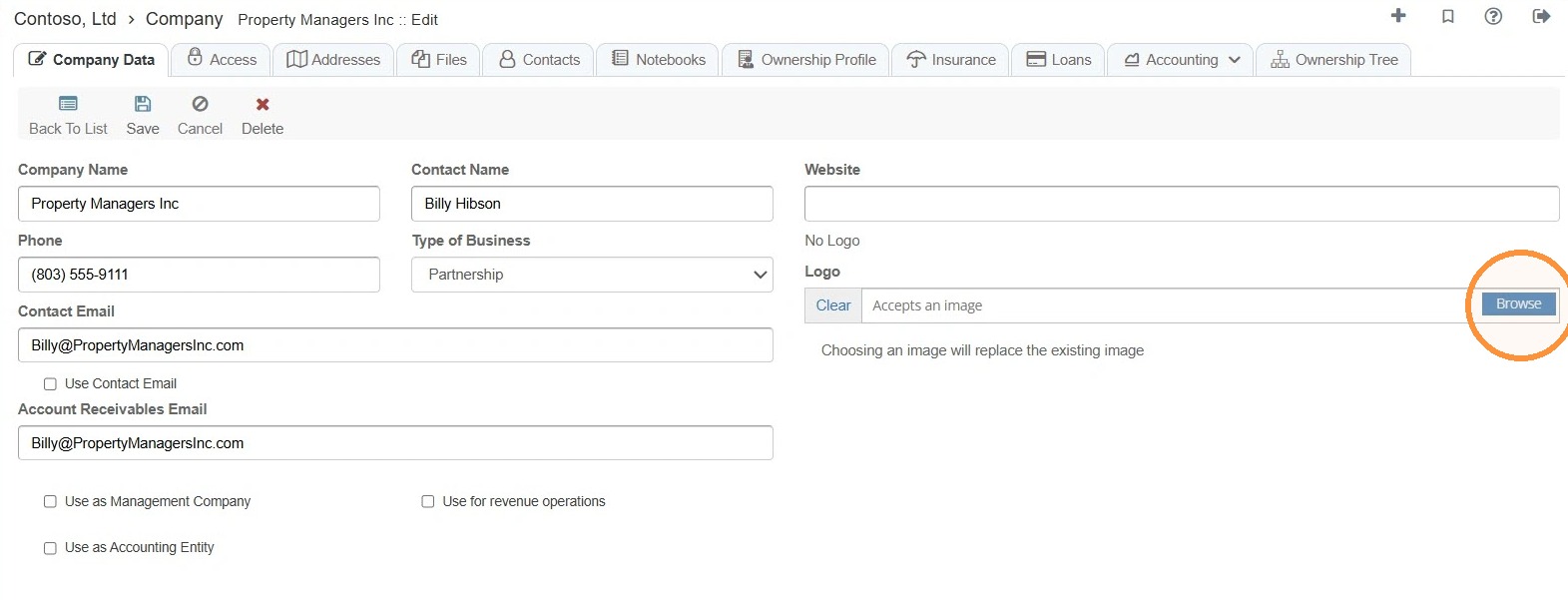
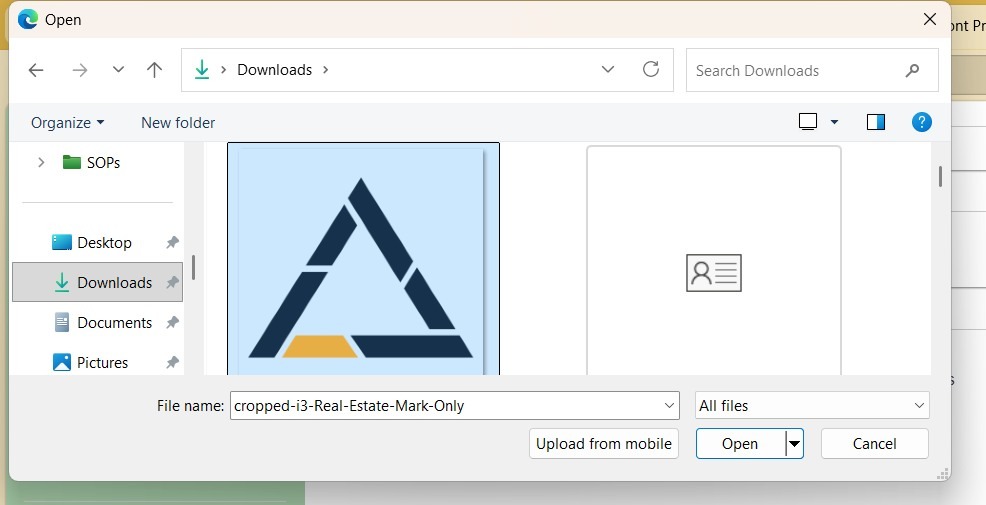
4. Select the file from your computer.
5. Select Save.