How to Add, Edit, and Delete Company, Property, or Tenant Contacts
How to Add, Edit, and Delete Company, Property, or Tenant Contacts
This guide shows how to quickly add, edit, review, or delete contacts for a company, property, or tenant. It explains where to find the Contacts menu, how to create a new contact (including adding a new person), set contact type and point-of-contact, and save changes. Use the contact’s three-dot menu to edit or remove entries.
Company, Property, or Tenant Selection
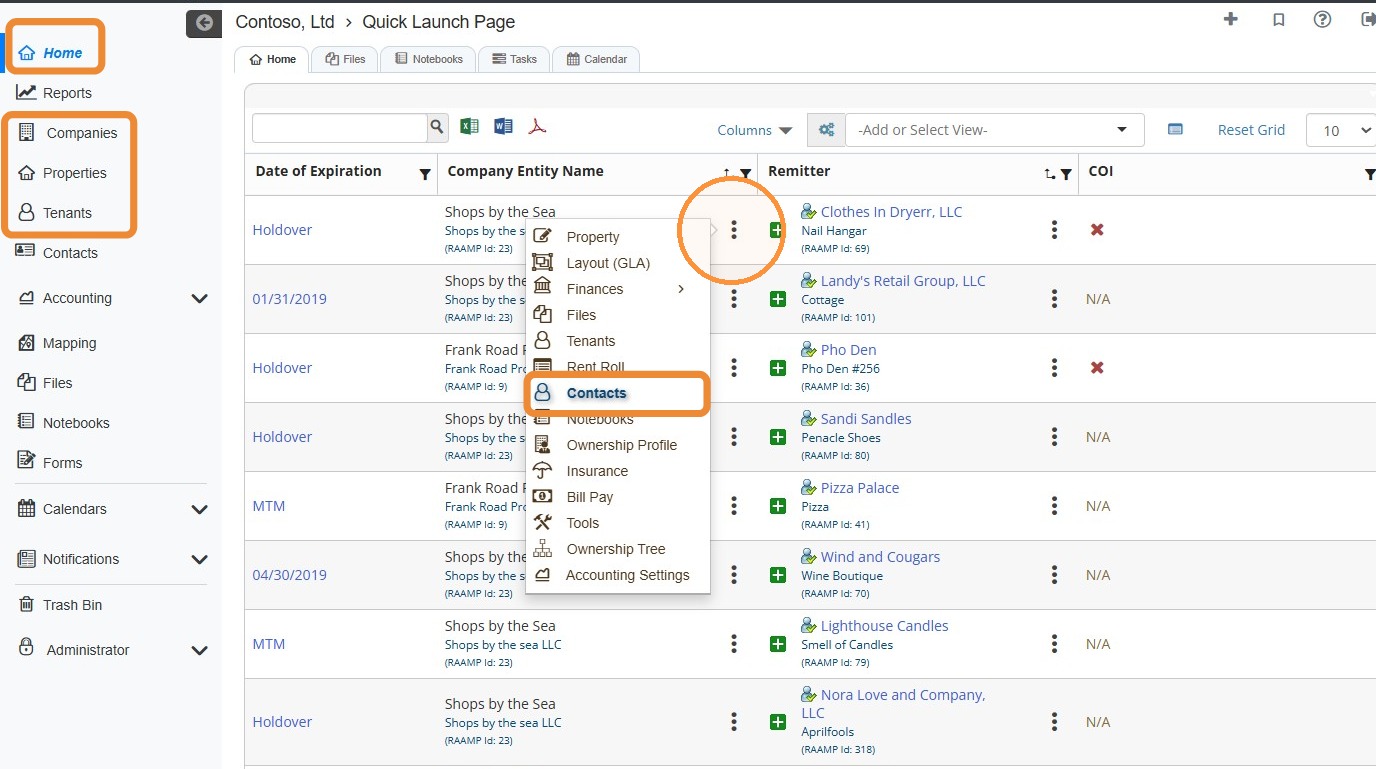
1. From Home, locate the Company, Property, or Tenant > Select the three-dot menu > Select Contacts.
NOTE: You can use the navigation menu to view the Companies, Properties, or Tenants tabs and access the three-dot menu there if you prefer.
How to Add a Contact
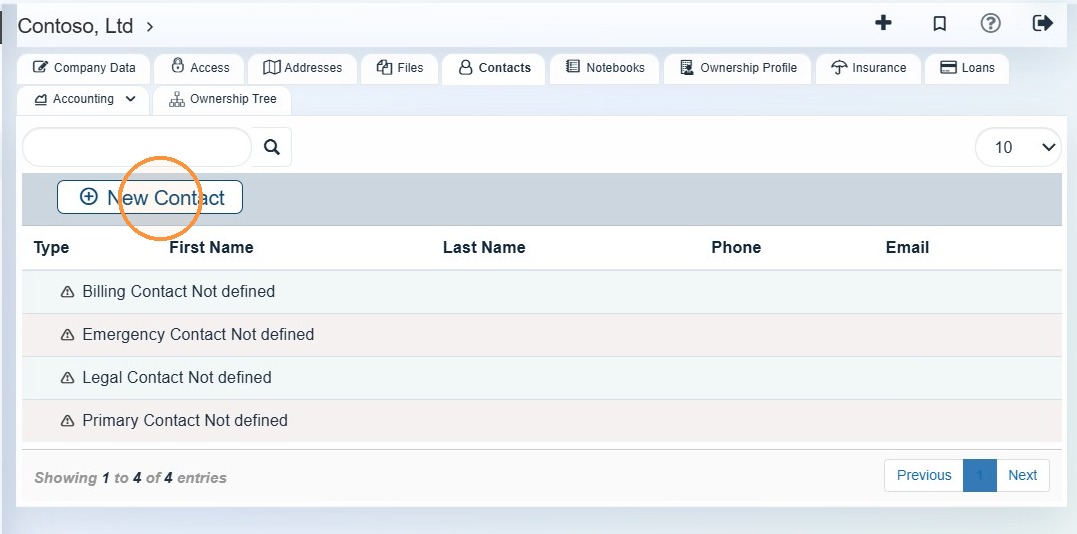
2. Select New Contact.
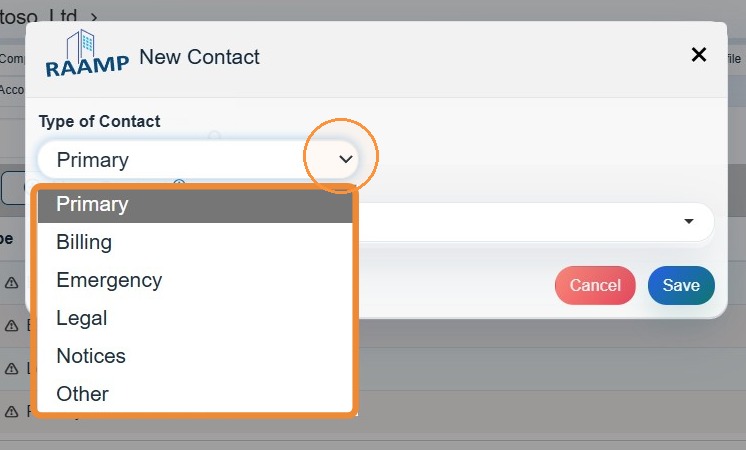
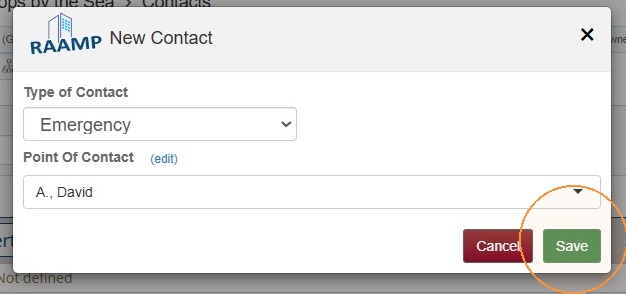
3. Select the Type of Contact dropdown menu > Select the appropriate option.
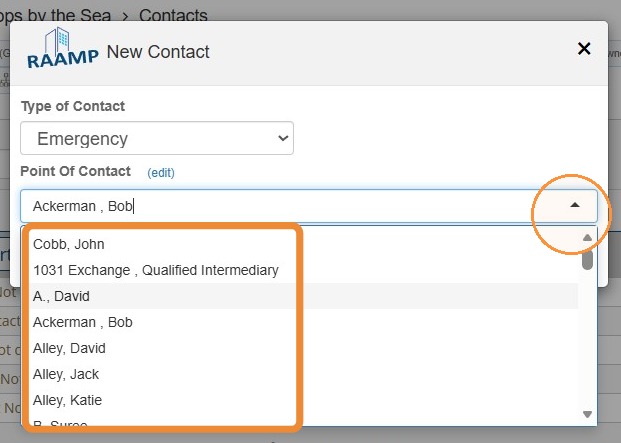
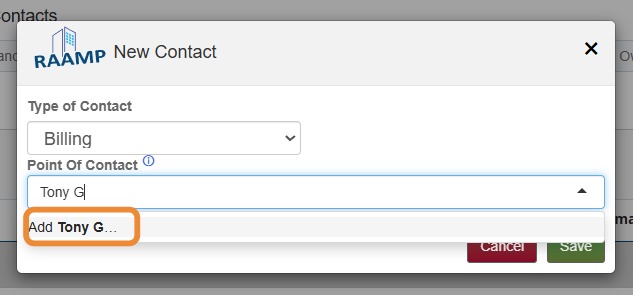
4. Select the Point of Contact dropdown menu > Select the appropriate contact.\ \ If you need to add a new contact, enter their name > Select Add...
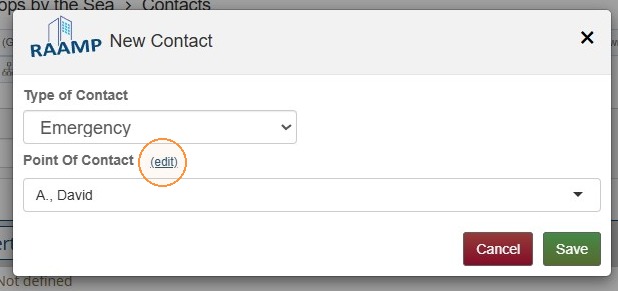
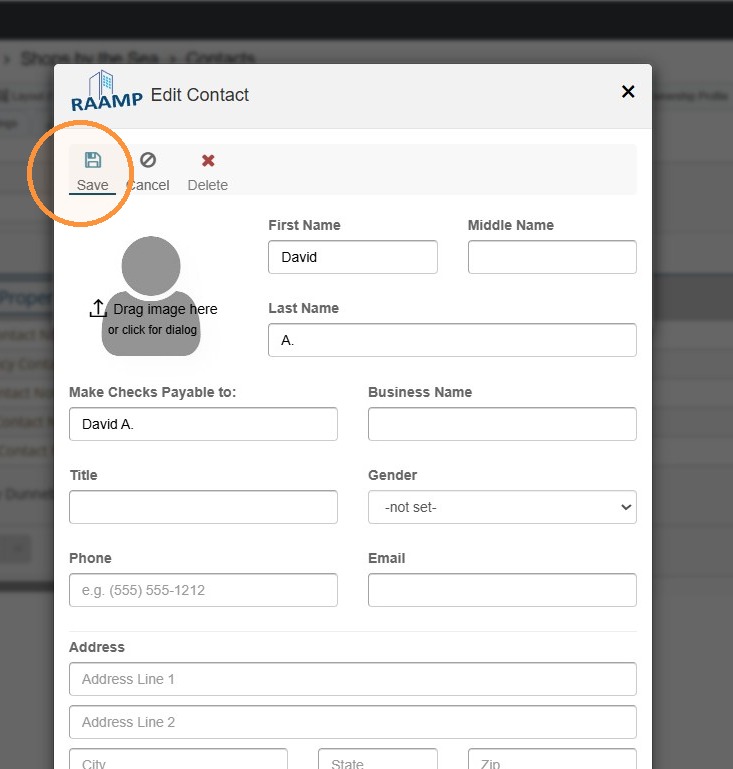
5. Select (edit) to review/edit contact details > Select Save.
6. Select Save to finalize adding the contact.
How to Review and Delete/Edit Contact Information
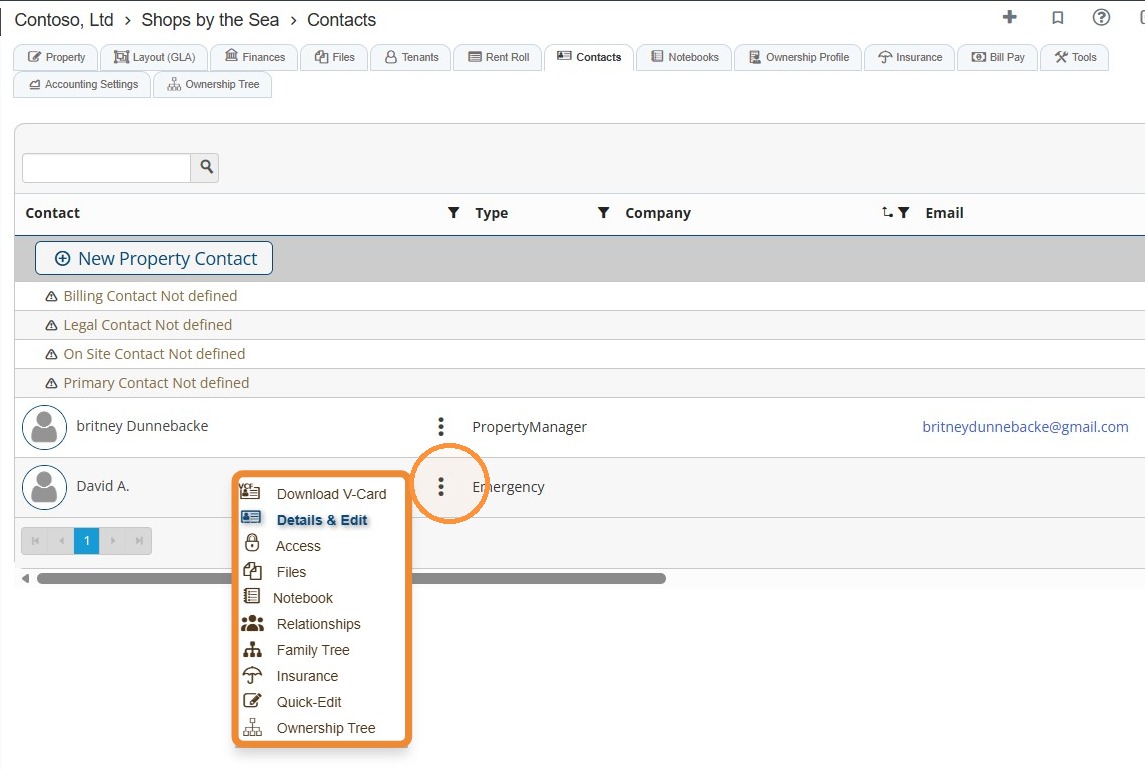
7. To review contact-related options or to Delete & Edit a contact, select the contact's three-dot menu > Select the preferred option.